chimaera
Health Warn
- License — License: AGPL-3.0
- Description — Repository has a description
- Active repo — Last push 0 days ago
- Low visibility — Only 5 GitHub stars
Code Fail
- rm -rf — Recursive force deletion command in .claude/hooks/doc-drift.test.sh
- rm -rf — Recursive force deletion command in .claude/hooks/guard-bash.sh
- rm -rf — Recursive force deletion command in .claude/hooks/guard-bash.test.sh
Permissions Pass
- Permissions — No dangerous permissions requested
No AI report is available for this listing yet.
Your agent workbench.
Download · Explore the workspace · Docs · Build an extension


-lightgrey.svg)
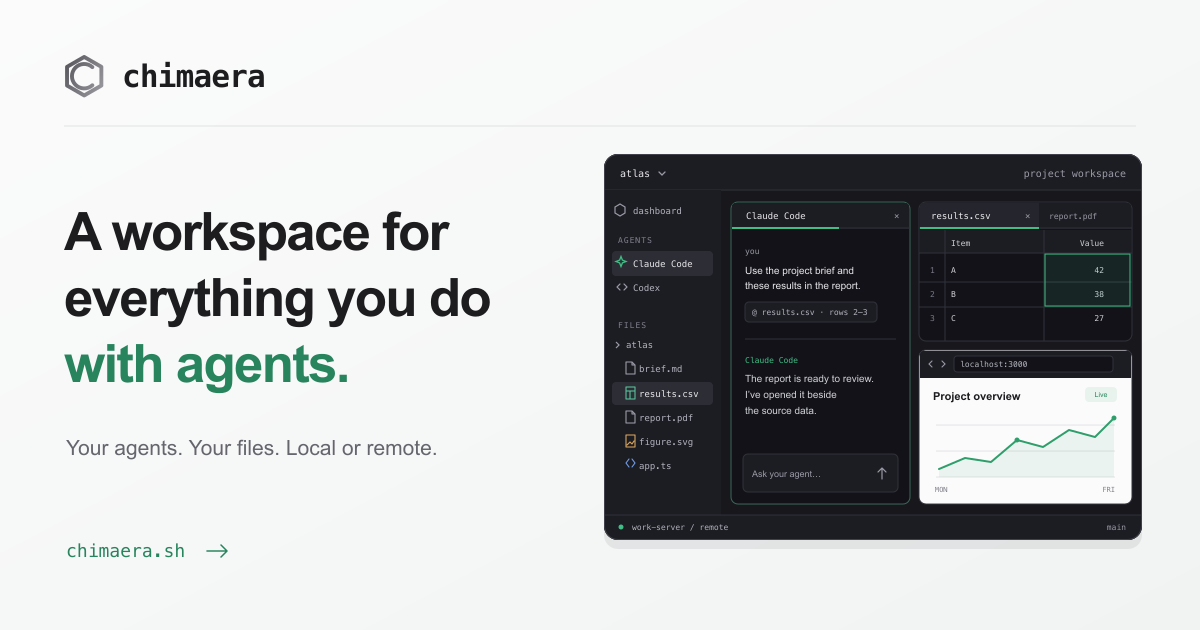
Chimaera is an open-source agent workbench. Open a project folder and put your
agents, files, and tools side by side. Read a document while an agent works on it.
Inspect a table, review a diff, or run a web app beside the conversation. Work on
your own machine or connect to a remote host.
It runs your own Claude Code, Codex, Antigravity, Grok Build, or Cursor CLI, with the
accounts, skills, and connections configured on that host. Your agents do the
work. Chimaera gives you a place to direct it, see the results, and keep the
project in view.
Get started · Inside the workspace ·
Run from the command line · Build from source ·
Development
Get started
- Download the native app. It bundles the
daemon and provides signed updates. - Open a folder, locally or on a remote host. The app opens a workspace around it.
- Choose an agent. Use the launcher to install a supported CLI if needed,
sign in through the app, and start a conversation. - Open the output beside the chat. Arrange panes, reference files, and bring
another agent into the same project when you need one.
| Platform | Native app |
|---|---|
| macOS | Apple Silicon, .dmg |
| Linux | x86_64, AppImage, .deb, or .rpm |
| Windows | x64 installer, with the daemon and agents running in WSL2; beta |
Installation and platform setup ·
All releases
Inside the workspace
Your agents, working together
Keep several agents in the same project. Use structured chat or an agent terminal,
see questions and approvals in the dashboard, and follow recent activity. Agents
can exchange messages within the workspace. An optional Mastermind coordinator
helps brief you and direct the work.
All five supported agents have structured chat. Claude Code and Codex also let you
switch the same conversation between chat and their real terminal interfaces.
Provider authentication, usage limits, and billing apply to the mode you use.
Follow an agent's plan as it works. Claude Code's loops and goals, and Codex goals,
show what will happen next and why a conversation resumed. Check context and plan
usage from the chat header and Agent settings where the provider reports it.
Agents · Coordination ·
Loops and goals
Files you can see and work with
Open Markdown, PDFs, Word documents, spreadsheets, slide decks, tables, images,
notebooks, diagrams, video, audio, and HTML reports. Keep a live web app in a
browser pane. Edit text and Markdown directly. Give an agent a file reference,
text selection, table cell, image region, or media timestamp as context.
Browse files with a preview beside the folder listing. The file manager handles
uploads, downloads, moves, and copies. Git views bring status, diffs, history, and
worktrees into the workspace. Start a chat on its own branch and worktree from the
launcher. Session history records changes even in folders without a Git repository.
Files and previews ·
Browser panes · Git
Project context, close to the work
Follow activity in Timeline and catch up through the dashboard. Keep source files,
notes, and decisions beside the conversation. Knowledge extensions make findings,
decisions, and handoffs recorded in project files browsable in the workspace.
Timeline and Knowledge ·
Dashboard · Session history
Local folders and remote machines
Connect through your existing SSH configuration. Chimaera installs its server on
the remote host and opens the workspace through a tunnel. Files, agents, and tools
run on that host. On Slurm clusters, start a job and open workspaces on its compute
node from the same app.
SSH connections · Slurm workspaces
A workspace you can extend
Extensions add views, file viewers, and tools for your agents. Workbench plugins
are WebAssembly components installed separately and enabled per workspace. They
can reuse Chimaera's UI, publish project context and diagnostics, and expose tools
to agents through declared capabilities. The Extensions view also brings together
your agents' plugins, skills, and connections.
Using extensions ·
Extension authoring guide for people and agents
Run from the command line
The standalone chimaera binary serves the same web UI as the native app. Download
it for your host from the latest release
and make it executable. For example, on Linux x86_64:
curl -fL https://github.com/martinappberg/chimaera/releases/latest/download/chimaera-x86_64-unknown-linux-musl -o chimaera
chmod +x chimaera
./chimaera serve
Open the http://127.0.0.1:…/#token=… URL printed in the terminal. The daemon binds
to loopback and chooses a free port; use serve --port 9700 to choose one yourself.
The agent CLIs run on this host and need their own installation and provider login.
With chimaera on your PATH, connect to a remote host using its SSH alias:
chimaera connect work-server
Chimaera deploys a matching server, starts it, and opens a tunnel. Remote deployment
requires no root access or containers. Static Linux binaries support x86_64 and
aarch64 without a system glibc dependency. Scheduler-equipped hosts use the
cluster workflow to run workspaces inside Slurm jobs.
Useful commands:
chimaera status                 # inspect the local daemon
chimaera status work-server     # inspect a remote host
chimaera doctor                 # check local paths and prerequisites
chimaera plugin list            # list available and installed workbench plugins
Build from source
You need Node 26, npm, Rust through rustup, and a C/C++ build toolchain.
The repository pins Rust in rust-toolchain.toml; rustup
selects it automatically. Run these commands on macOS, Linux, or inside WSL2 on
Windows. Build the UI first because the daemon embeds it.
git clone https://github.com/martinappberg/chimaera
cd chimaera
npm --prefix web-ui ci
npm --prefix web-ui run build
cargo build --locked --release -p chimaera
./target/release/chimaera serve
A source checkout uses isolated development state under ~/.chimaera-dev until
release version stamping. It does not share the installed app's state. Building
or running the daemon does not require building plugins.
The native app is a separate Tauri workspace in crates/chimaera-app. See
contributor setup for native development and verification.
Development
The server is Rust, the web UI is Svelte 5, and the native shell is Tauri 2.
The same daemon and web UI power local and remote workspaces.
| Directory | Contents |
|---|---|
crates/ |
CLI, daemon, PTY engine, agent protocols, remote connections, plugin API, and native app |
web-ui/ |
Svelte workspace UI |
plugins/ |
Curated plugin lock and host test fixtures; released plugins live in their own repositories |
site/ |
Public website and usage docs |
docs/ |
Feature guides, developer guides, and design records |
scripts/ |
Build, verification, and repository maintenance tools |
After the UI build above, install just and run:
npm --prefix web-ui run check   # Svelte and TypeScript checks
npm --prefix web-ui run test    # targeted Vitest suites
just check                     # plugin test assets, then Rust fmt, clippy, and tests
node scripts/check-doc-links.mjs
node scripts/check-agent-assets.mjs
For an isolated daemon or native-app preview, follow the
development workflow. It gives the checkout its
own state and port. The contributing guide covers the
full loop and the checks required for each kind of change.
- Changing the application: start at AGENTS.md, then read the
relevant area map and feature guide. - Building an extension: use the extension authoring guide,
including the starter component, local install, permissions, and verification. - Adding an agent integration: read the integration guide
and the protocol reference. - Understanding the design: read the architecture guide.
Dated proposals and decisions live under docs/design.
License
Chimaera is licensed under the GNU AGPL-3.0. A commercial license is
available for closed-source products and services: contact the author.
Contributions require the Contributor License Agreement; see
contributing for the process.
Reviews (0)
Sign in to leave a review.
Leave a reviewNo results found