accuretta
Health Pass
- License — License: NOASSERTION
- Description — Repository has a description
- Active repo — Last push 0 days ago
- Community trust — 76 GitHub stars
Code Warn
- fs module — File system access in css-syntax-check.cjs
Permissions Pass
- Permissions — No dangerous permissions requested
No AI report is available for this listing yet.
A sovereign, zero-trust local AI agent and micro-IDE.

Accuretta
Run a GGUF model. Give it files, terminals, previews, and guardrails.




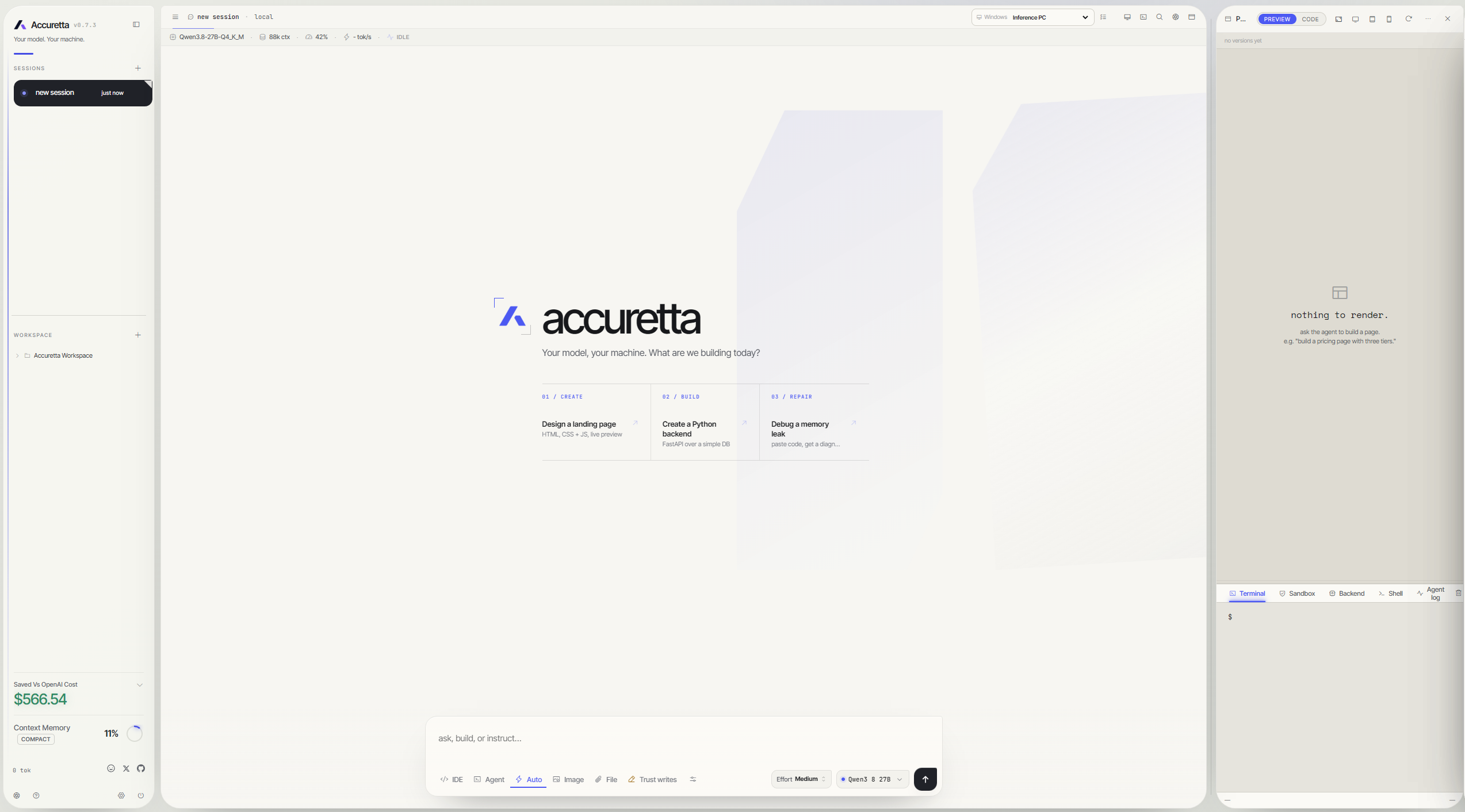
Accuretta is a desktop workspace for local models running through llama.cpp. It puts chat history, file tools, persistent shells, live HTML previews, approvals, remote computers, and security tools in one interface.
The model weights, prompts, history, settings, and workspace live on the computer running the bridge. There is no hosted model account, frontend build step, npm dependency tree, or Electron shell. The core is static HTML, CSS, JavaScript, and one Python bridge you can inspect yourself.
What is included
| Area | What Accuretta does |
|---|---|
| Local model runtime | Finds GGUF files, launches llama-server, switches models, watches for crashes, and restores the last working configuration. |
| Hardware-aware tuning | Reads GGUF metadata and chooses context size, GPU offload, KV cache types, batching, and supported speculative decoding options. |
| Agent workspace | Reads and edits files, maps projects, finds symbols and references, checks syntax, runs tests, and works with Git. |
| Live building | Renders HTML beside the chat, saves preview versions, exposes the source, and keeps the terminal and agent log visible. |
| Long tasks | Compacts old conversation history, preserves structured task state, tracks unfinished verification, and can recover an interrupted turn. |
| Notch overlay (beta) | Shows what the agent is doing and handles approvals and prompts from a small always-on-top Windows island. |
| Remote work | Serves the UI over Tailscale HTTPS and can run commands or transfer files to an allowlisted Mac over SSH. |
| Security work | Provides an authorization-gated recon, validation, exploitation, evidence, and reporting flow for targets you are allowed to test. |
| Local analysis | Inspects Windows events, network connections, PCAPs, APKs, native binaries, firmware, archives, and YARA matches. |
| Extensions | Loads MCP servers from a standard JSON config and supports a Discord owner bridge with reaction approvals. |
None of those rows means “the model can do anything.” Tool availability depends on the operating system, installed optional packages, the selected model, and the permissions you grant. Accuretta reports missing capabilities instead of handing the model a tool that is guaranteed to fail.
Why it exists
I got tired of renting AI. Cloud subscriptions changed limits, swapped models, and kept the useful controls behind somebody else's account. I already owned the GPU, so I wanted software that treated it like mine.
Accuretta started as the wiring between a GGUF file and llama.cpp. It grew because a chat box alone is not much of a workstation. A useful local model needs access to files, a way to prove its edits work, enough context to finish a long task, and a clear approval point before it touches the machine.
Local models still have limits. A small quantized model will not match the best hosted model at every job. Accuretta gives you control over the trade: pick the model, inspect the tools, set the permissions, and keep the work on hardware you own.
Setup
You need Python 3.10 or newer and one GGUF model. Accuretta can download a matching llama.cpp build during first-run setup.
1. Install Python
Download Python from python.org. On Windows, enable Add Python to PATH in the installer.
python --version
2. Get Accuretta
Download or clone this repository into a folder, for example C:\accuretta.
3. Install the optional packages
pip install -r requirements.txt
The core bridge uses Python's standard library. The packages in requirements.txt add image handling, desktop input, document parsing, code parsers, security analysis, and the Discord bridge. Missing packages remove the affected tools from the model's tool list.
4. Add a model
Download one GGUF model from Hugging Face. A Q4_K_M quant of a 7B to 35B model is a practical first choice. Put it anywhere on disk, such as D:\MODELS\.
5. Start Accuretta
- Windows: double-click
start.bat. It prepares the desktop-window dependency, clears a stale Accuretta port, and opens the app without a leftover console. - Browser mode on any OS: run
python bridge.py, then open the printed address. The default ishttp://localhost:8787.
6. Finish the setup wizard
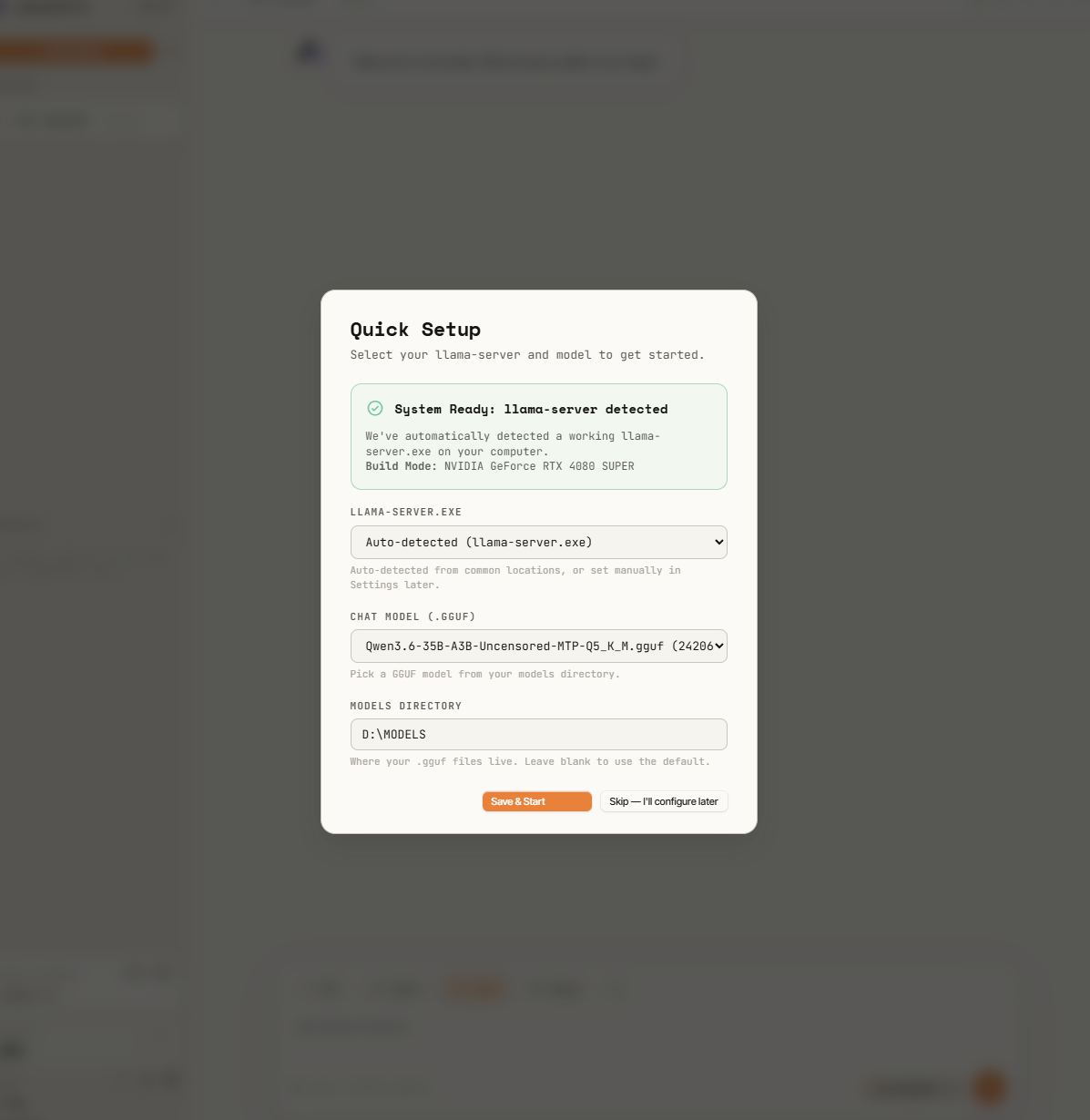
The wizard detects the GPU, finds models, offers an appropriate llama.cpp build, and tunes the selected model before starting it. Sessions, settings, workspace pointers, memories, model profiles, and preview versions are stored under data/.
Preferences and memory
In Settings, standing preferences stay in every chat's instructions. Searchable facts stay on disk and the model can retrieve them with search_memories when you ask about past information. Search uses local words and phrases, so different wording may require another search. Retrieval requires a mode with tools enabled.
Existing notes are treated as searchable facts. You can edit, reclassify, or remove each note. Standing preferences must be saved explicitly as preferences. The preference profile has a 6,000-character budget; additions that exceed it are refused with an explanation, and existing preferences are never automatically evicted. Each new or edited note supports up to 2,000 characters without silent shortening. Changing a preference uses its existing ID; unrelated preferences remain intact.
Files, code, and live previews
Following and reviewing a task
While the model works, use the normal send button to send a correction or extra instruction. The Task updates strip shows delivery status. The update enters the current task at the next safe stopping point; an action already running may finish first. If delivery fails, use Retry. The separate stop button ends the task.
Open search with Ctrl+K or ⌘K to find conversation messages, filenames mentioned in chats, tool output, and errors. Selecting a content result jumps to its matching message. This searches saved conversations, not the contents of every workspace file.
After file edits, Review changes opens the recorded text differences. Supported files can open in a preview or source view; files without a text preview offer Show in folder. Undo is available for changes with a restorable snapshot and asks for confirmation. Verification results describe the checks that ran, so an untested change is not presented as verified.
The activity panel shows the current action and keeps earlier errors in its expandable details. An earlier command error can be followed by successful work; it does not establish the final task outcome. Replies follow the bottom automatically until you scroll up to read. Return to the bottom or click the down arrow to resume following.
Notification sounds distinguish permission requests, completed tasks, and failed tasks. Completion and failure sounds are reserved for tasks lasting at least 40 seconds; permission sounds play immediately when sound is enabled.
Working with files
The model can work inside a selected workspace instead of pasting every result into chat. Its coding tools cover file reads and edits, project maps, symbol lookup, reference search, syntax checks, test runs, and Git operations.
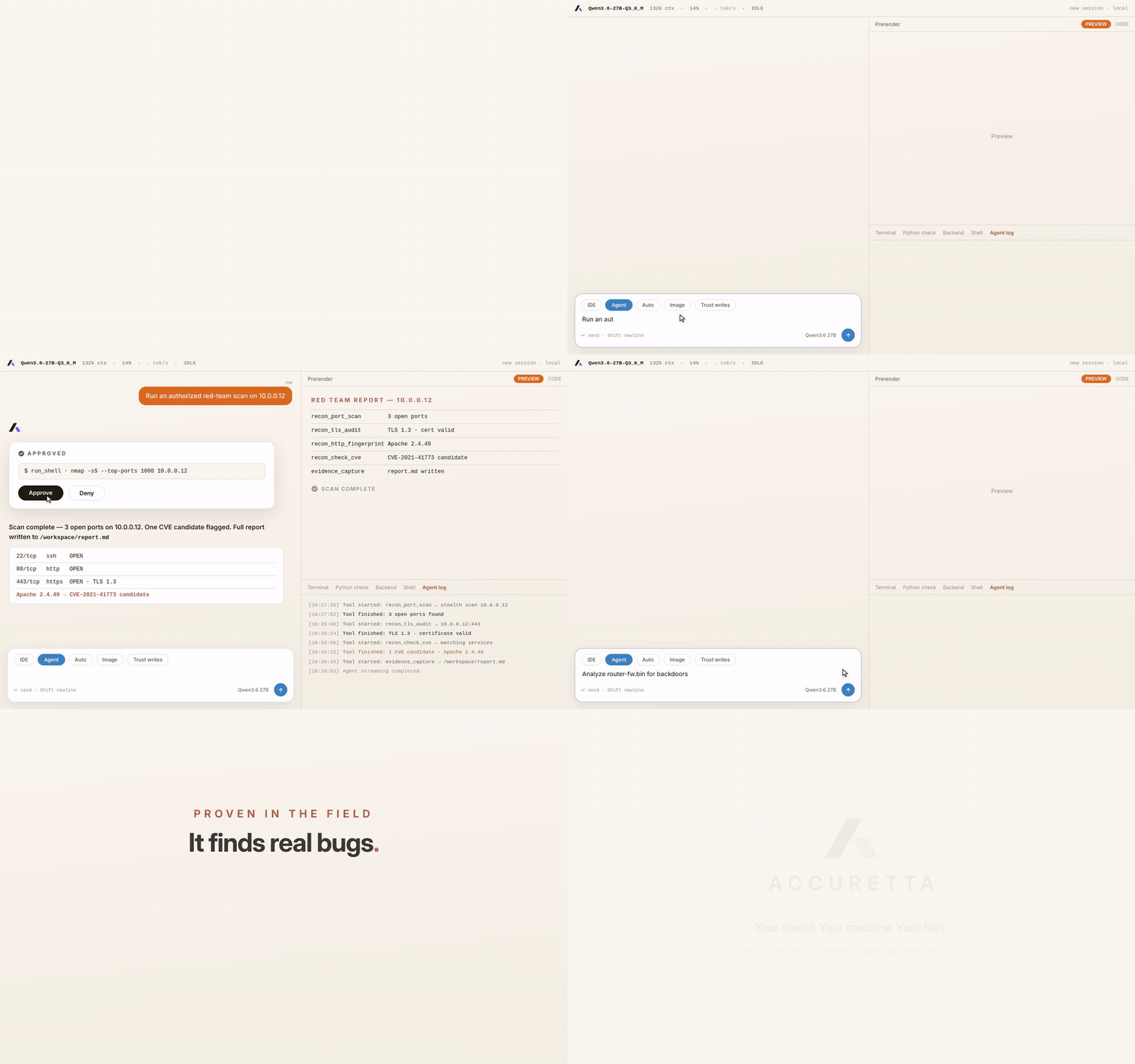
For authorized red-team work, Accuretta keeps a per-engagement evidence ledger. Scope-aware requests can be captured as receipts, compared as baseline/test/control observations, and tracked against planned feature and identity checks. A finding stays a candidate until its exact receipts, separate reproduction, control, expected boundary, demonstrated impact, alternative explanation, disproof check, and limitations pass the review step. A denied request, expired authentication, WAF response, timeout, or truncated capture remains inconclusive. The report includes only the active engagement's findings and evidence receipts.
IDE mode expects one HTML document and renders it in the right pane while the model writes. Each result becomes a saved preview version, so an earlier page is one click away.
Previews run separately from the control interface. Their temporary browser storage is discarded on reload. Screenshot capture supports ordinary HTML, styles, form values, and readable images; embedded pages and some complex effects are not reproduced. Protected images or external background images can prevent capture.
Accuretta also records verification debt. A file edit adds the path to the task's structured state. Syntax checks label a file as syntax checked, while a recognised whole-project test run can clear it only when the file's content is unchanged. Context compaction and restarts preserve that record, so an untested edit cannot quietly become “finished” because the model lost the earlier messages.
Approvals and audit records
Reads can run without stopping the conversation. In Soft mode, normal workspace writes, non-destructive Windows or WSL commands, project tests, persistent host-session input, and routine MCP actions can also continue automatically. Medium mode only trusts normal workspace writes. Hard mode asks for every action. Deletions, mutating Git actions, program launches, desktop input, protected or remote changes, and execution following recent web content keep stricter gates regardless of the convenience mode.
Tests are kept in a private ignored folder for development and release checks. They are not part of the public product checkout. The bridge still reports when a changed file has only had a syntax check, and only a recognised whole-project test run clears that verification warning.
Approved actions write a bounded record to data/action_audit.jsonl. It stores the tool, target, time, outcome, authorization identity, and hashes of the arguments and result. It does not copy prompts, commands, typed text, or tool output into the audit file.
The approval layer is part of the bridge, not a promise in the system prompt. The model cannot make a direct tool call around it.
Approval notifications stay quiet while you are actually at the computer. A focused browser window on any device, or recent local input, marks you present and holds the external DM; it arrives when presence lapses or ten minutes pass, whichever comes first. A held notification is never dropped, only late.
The notch overlay (Windows, beta)
A separate small window lives under the top edge of the screen. It shows what the agent is doing, presents approvals, and takes prompts while the main Accuretta window is minimized or on another monitor. It runs no tools itself; every action still goes through the bridge's approval layer, and protected actions keep their hold-to-approve gesture there too. Enable it in Settings. Ctrl+Alt+Space brings the island down from the bezel or tucks it back up.
Approval gates in the notch show the command and, for file writes and edits, the line-level change the bridge attached. Writing while a task runs works the same way it does in the main window: the correction reaches the active run at its next safe stopping point. After a turn that touched the machine, an Open in main app button opens the main window on that session.
A chat started in the notch is an ordinary session. It appears in the main window's sidebar as soon as it exists, and both surfaces read and write the same history. Double-clicking the empty space in the notch's conversation pulls that full history into the island; double-click again to fold back to the latest turn. When a turn finishes while the main window isn't focused — or whenever the prompt was sent from the island — the reply pops the island's conversation open so the answer is read where the question was asked.
Remote work over Tailscale
Accuretta can expose its interface through Tailscale Serve. The resulting https://...ts.net address works from a MacBook or phone without public port forwarding. HTTPS also restores browser clipboard access that is blocked on plain remote HTTP.
To work on a Mac from the model running on a Windows inference PC:
- Install Tailscale on both computers and sign in to the same tailnet.
- In Accuretta, open Settings → Connections → Tailscale remote access and enable the HTTPS address.
- Turn on System Settings → General → Sharing → Remote Login on the Mac.
- Select the Mac in Connections, enter its short account name, choose the folders Accuretta may use, and generate the pairing command.
- Run that command once in Mac Terminal, verify the pairing, then select the Mac from the target picker.
The pairing key is restricted to the Accuretta PC's Tailscale address. Remote reads stay inside the configured folders. Commands, writes, and transfers still require approval. Resolved-path checks stop a symlink from escaping the allowlist.
Remote writes go straight to the Mac. Large files use a staged transfer with hashes and commit checks, which avoids forcing a long HTML or source file through one oversized tool argument. A failed remote action also stays failed; Accuretta does not silently run it on the Windows PC instead.
Authorized security testing
Red Team tools are disabled by default. Enabling them makes the tool definitions available, but a chat still needs a fresh target and scope authorization before the bridge permits requests.
An engagement moves through recon, validation, exploitation, and reporting. The bridge enforces the target allowlist on requests and redirects, keeps exploitation tools closed until a finding has evidence, and closes the mission when the report is finished.
The scope questionnaire uses an allowlist. Leave In scope blank to allow the target entered above and its subdomains. If you fill it in, list every permitted host, including the main target when required. Anything not on that list is blocked automatically. Use Out of scope for concrete exceptions such as admin.example.com, 10.0.0.0/24, or example.com:8443. Phrases such as Anything else are treated as ordinary words, not as a wildcard, and can be left out.
Bug bounty programs can require a researcher identifier in every request. The optional User agent field stores that value with the engagement, keeps it visible to the model through long chats and context compaction, and forces it onto HTTP requests at the bridge. A model-supplied or browser-profile User-Agent cannot override the engagement value.
The suite includes:
- port, TLS, HTTP, DNS, subdomain, RDAP, archive, content, exposure, and takeover checks
- parameter discovery, injection probes, SQL injection checks, CORS tests, fuzzing, raw HTTP, and raw TCP
- JWT decoding and testing, encoders, request replay, controlled credential checks, and evidence capture
- scope-enforced Chromium sessions for JavaScript-heavy validation after a finding is confirmed
- CVE matching, finding records, report generation, and retained evidence hashes
- a standalone front-end secret scanner for HTML, JavaScript bundles, lazy-loaded chunks, and source maps
The front-end scanner returns exact high-confidence matches for reporting, separates public identifiers, and hides weak candidates unless requested. It never submits a discovered credential to its provider or uses it for a liveness check.
Browser-backed validation uses a first-party Playwright worker (rt_browser). Every network request a session makes, including redirects, popups, iframes, subresources, and WebSockets, is checked against the engagement allowlist; only about, data, and blob schemes are exempt, and they carry no network traffic. Downloads and arbitrary JavaScript evaluation are unavailable. Install the optional browser once with python -m playwright install chromium after installing requirements.txt.
If a Playwright MCP server is connected, its tools get the same treatment during an engagement: while a mission is active it is the only MCP server kept visible, and URL-bearing arguments are checked against the mission allowlist with the same gate as rt_browser before the call reaches the server. Outside an engagement, MCP tools run under approval alone and carry no allowlist.
Scope enforcement covers requests made through Accuretta. It does not filter traffic outside the bridge, so use these tools only on systems you own or have written permission to assess.
Host, file, and malware analysis
Windows host tools can group active network connections by process, compare them with a saved baseline, parse event logs, and check common persistence locations.
File analysis covers:
- PCAP and PCAPNG summaries
- APK metadata, signing certificates, permissions, exported components, and embedded secrets
- PE, ELF, and Mach-O headers, imports, sections, entropy, signatures, and packer hints
- Squashfs extraction and multi-architecture disassembly for firmware
- YARA scans with bundled or supplied rules
- optional Ghidra decompilation through
pyghidra
The optional WSL2 guest runs Linux tools inside a separate Ubuntu distro. Accuretta disables Windows executable interop and verifies that setting before each command. This is convenience isolation, not malware containment: mounted paths under /mnt are real Windows files, network traffic still leaves through the PC, and commands run as guest root. Never execute an unknown sample there; use a disposable virtual machine with no host mounts for hostile code.
Persistent shells, desktop tools, and MCP
One-shot commands are useful until the task needs state. Session tools keep SSH, a Python REPL, a debugger, a database client, or another terminal process alive across model turns. The Shell tab is shared, so you can watch the same process and type into it yourself.
Optional desktop tools use Windows UI Automation to inspect ordinary applications as structured controls and operate them without a vision projector. uiautomation powers the CPU-only accessibility path; Pillow and pyautogui are needed only for screenshot and raw mouse/keyboard fallbacks. Actions remain approval-gated and require an interactive host desktop session.
Accuretta includes a dependency-free MCP stdio client. Add servers to bridge_mcp_config.json, restart the bridge, and their tools appear alongside the built-in tools. MCP calls require approval by default.
{
  "mcpServers": {
    "github": {
      "command": "npx.cmd",
      "args": ["-y", "@modelcontextprotocol/server-github"],
      "env": {
        "GITHUB_PERSONAL_ACCESS_TOKEN": "ghp_example"
      }
    }
  }
}
Skills
Recurring procedures can be packaged as markdown skills and loaded on demand. Drop a .md file into skills/ in the app folder. Each file starts with YAML frontmatter that names the skill, describes when to use it, and estimates its context cost:
---
name: my-procedure
description: What this procedure is for.
budget: 2000
---

# My procedure
(instructions the model follows while the skill is active)
Type # in the composer to pick one (the built-in picker also lists them). A skill loads into the current chat, one skill per chat, and loading another one replaces it. The model reads the procedure until you unload it with the × button next to the skill pill. Bodies over 16,000 characters refuse to load. skills/ is per-machine user content, so it is gitignored; the format above is all a new user needs.
One built-in skill ships with the app: code-driven-motion-graphics, a toolkit for building motion graphics in code. Its render engine lives under skill_assets/ and is copied into your first workspace folder on launch when it is not already there, so each project can copy and adjust its own copy.
You can also ask the agent to “save this as a skill” and paste Markdown or point it at a workspace .md file. Accuretta writes the finished file into skills/, adds or repairs the frontmatter, and calculates budget with the active model's tokenizer. If the model server is unavailable, it uses the same conservative token estimate as the rest of the app. Existing skills are never replaced unless you explicitly ask for that.
Context, recovery, and model health
Long chats use rolling compaction. Older turns are folded into a structured summary while recent messages and tool results stay live. Manual compaction remains available, and failed automatic compaction stops cleanly instead of repeatedly chewing on the same old messages.
Model Health learns a content-free profile for each exact model configuration. It records counts and timings such as tokens, context pressure, completion rate, tool errors, compactions, and generation speed. It does not store prompt text, replies, commands, files, screenshots, tool output, peer addresses, or account names.
After at least 25 turns across three sessions, the advisor can recommend a setting change when the measurements and hardware tuner support one. Use recommended settings applies the exact changes. Accuretta then compares the next ten turns with the old configuration and lets you keep or undo the result.
llama.cpp tuning
The tuner reads the GGUF header for layer count, attention layout, expert counts, KV dimensions, trained context, and vision metadata. It uses those values to choose:
- context size and batch sizes
- GPU layer and MoE expert offload
- K and V cache quantization
- flash attention when the installed binary supports it
- speculative decoding options supported by both the model and llama.cpp build
- memory reserves for the operating system, graphics desktop, and vision projector
Each GGUF keeps its own saved configuration. A failed launch can fall back to a safer setup without overwriting the last known working values. A watchdog can restart llama-server after an unexpected crash and stops retrying when repeated failures point to a bad configuration.
Speculative-decoding and vision-projector choices are also remembered per model. Projector mode is explicit: off guarantees a text-only launch, automatic looks for a matching nearby mmproj, and manual uses the selected file path. The Settings picker can select a projector without typing its path.
Bigger context costs memory and prompt-processing time. The tuner aims for a configuration that fits the detected hardware; it cannot make an oversized model fast.
Troubleshooting
- llama-server closes immediately on NVIDIA: the matching CUDA runtime DLLs may be missing. Put the
cudart-llama-bin-win-cuda-*.zipcontents besidellama-server.exe, and match the build to the CUDA version shown bynvidia-smi. - A model reports a missing tensor: the llama.cpp build may be older than the model architecture. Update llama.cpp or use a compatible GGUF.
- Speculative decoding crashes during load: set it to
offorngram-mod.draft-mtprequires MTP heads in the model and support in the installed binary. - Port 8787 is occupied: Accuretta leaves the existing listener alone and starts no model. Close the existing Accuretta window, or set
ACCURETTA_PORTto another port before starting a separate instance. - A tool is missing: run the read-only capability report in Accuretta. It names the package, operating-system feature, setting, or authorization that tool needs.
Privacy
Model inference, prompts, chat history, settings, and workspace files stay on the bridge computer. Accuretta has no telemetry, analytics account, or cloud-sync service.
Outbound traffic occurs when you ask the agent to search or fetch the web, enable Tailscale Serve, connect a Discord bot, call an MCP server that uses the network, or run a security tool against an authorized target. Interface fonts, icons, syntax highlighting, export helpers, and QR support are bundled locally with their licences.
Online mode also checks GitHub for app updates. Link icons can contact DuckDuckGo, link previews fetch the linked page, and dependency checks query OSV. Generated previews may fetch online resources when enabled. Offline mode disables those external requests.
For a network-silent session, enable Offline mode in Settings and restart Accuretta. It disables update checks, web integrations, Discord, and MCP, and the page's network policy blocks external browser connections. Approved commands and external programs are still separate processes, so use normal firewall rules if those must be isolated too. Local inference, files, and ordinary chat continue to work.
Limits
- Accuretta is a personal project with rough edges and limited documentation.
- Output quality depends on the local model. A weak model with many tools can make a larger mess faster.
- The permission layer reduces accidental damage. It cannot judge whether an approved command is a good idea.
- Accuretta is a front end and tool harness for llama.cpp. It does not replace llama.cpp.
- The live preview is useful for HTML work, but Accuretta is not a full source-code editor.
- Several analysis and desktop features need optional packages or external programs.
Repository layout
accuretta/
  bridge.py              model launcher, tool runtime, approvals, and HTTP server
  bridge-client.js       request-token wrapper for browser mutations
  preview-runtime.js     isolated preview storage, console, and capture bridge
  task_state.py          revision-aware private undo journals
  network_policy.py      offline-mode network guard
  accuretta_app.py       desktop launcher using pywebview
  start.bat              Windows launcher
  index.html             interface shell
  app.js                 interface logic
  app.css                layout and component styles
  colors_and_type.css    theme tokens
  presence_notify.py     presence-aware delivery for approval DMs
  notch_host.py          Win32 host window for the notch island
  accuretta-notch.html   notch island interface
  notch-wire.js          notch wiring to the bridge event stream
  notch-markdown.js      notch reply renderer
  requirements.txt       optional Python packages
  assets/
    vendor/               pinned local UI libraries, fonts, and licences
    audio/               notification sounds
    brand/               light and dark logo marks
    docs/                README screenshots and demos
    icons/               desktop, browser, and install icons
    reactions/           optional response stickers
    social/              repository social-preview artwork and source
  data/                  runtime state, created on first run
Status
Personal project. I work on it when I feel like it. Pull requests are welcome, but I'm not building a roadmap or chasing stars. If you fork it and make it your own, that's the point.
License
Free for personal use. Run it, poke at it, build on it for yourself. It's not for commercial use though: if you want it in or for a business, or shipped as part of something you sell, ask me first. And please don't pretend you wrote the parts you didn't.
Formally, it's under the PolyForm Noncommercial License 1.0.0, a real drafted license that permits any noncommercial use and blocks commercial use.
Reviews (0)
Sign in to leave a review.
Leave a reviewNo results found