awake
Health Warn
- License — License: MIT
- Description — Repository has a description
- Active repo — Last push 0 days ago
- Low visibility — Only 6 GitHub stars
Code Fail
- rm -rf — Recursive force deletion command in package-app.sh
- rm -rf — Recursive force deletion command in tests/test_agent_detection.sh
- rm -rf — Recursive force deletion command in tests/test_battery_guard_fuzz.sh
- rm -rf — Recursive force deletion command in tests/test_build_ui.sh
- rm -rf — Recursive force deletion command in tests/test_install_flow.sh
- rm -rf — Recursive force deletion command in tests/test_lease_monitor_service.sh
- rm -rf — Recursive force deletion command in tests/test_leases.sh
- rm -rf — Recursive force deletion command in tests/test_manual_battery_monitor.sh
- rm -rf — Recursive force deletion command in tests/test_modes.sh
- rm -rf — Recursive force deletion command in tests/test_rules.sh
Permissions Pass
- Permissions — No dangerous permissions requested
No AI report is available for this listing yet.
Agent-aware keep-awake for macOS with a native menu bar app and CLI.
awake
Agent-aware keep-awake for macOS.



Download the macOS app
·
Install from npm
awake keeps your Mac alive while coding agents are actually working. It prevents idle sleep and lid-close sleep, restores your normal power settings when work stops, and gives you a native menu bar app plus a CLI for manual control.
Unlike generic keep-awake tools, awake is built around long-running AI coding sessions. It can watch for Claude Code, Codex, Aider, Copilot, Amp, and similar tools, activate automatically, respect timers and manual sessions, and fail back to normal sleep cleanly.
Highlights
- Persistent launchd-supervised runtime with process and hook-based agent detection
- Lid-close prevention via
pmset disablesleep 1 - Native macOS menu bar app with panel, graph, logs, and setup flow
- Multi-display blackout overlay with a global toggle hotkey
- Manual sessions, timers, and
awake run <cmd>command-scoped protection - Battery protection and automatic restore behavior
- Hook wiring for Claude Code and Codex
- Open source, scriptable, and local-first
Download
If you just want the app:
- Download the latest
.appzip from GitHub Releases - Unzip
Awake-macOS.zip - Move
Awake.appwherever you keep apps - Launch it once, then follow the setup prompts
If you want the CLI + repo workflow, use the install steps below instead.
Preview
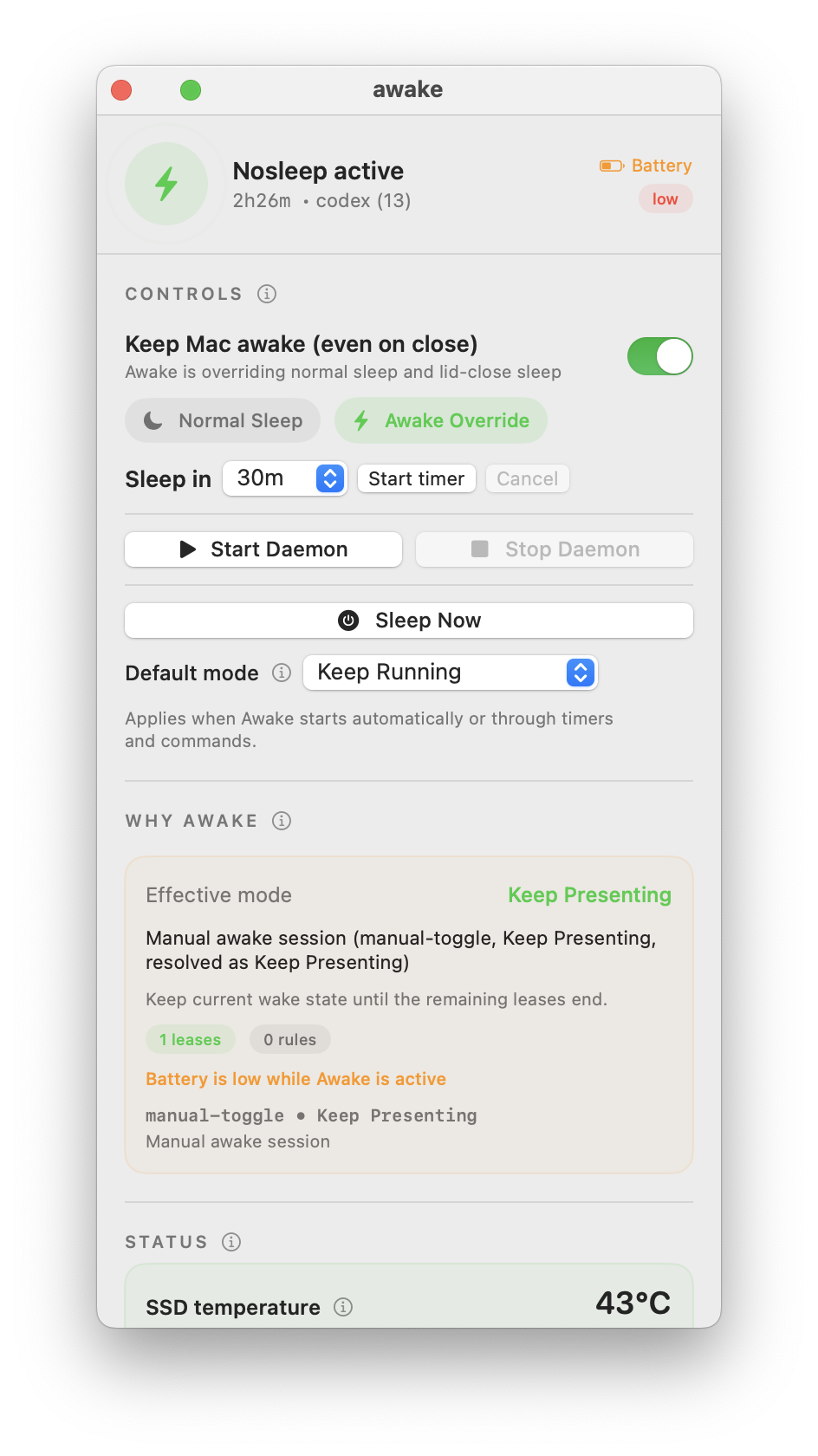
Actual app panel:
Quick start
npx --yes awake-agent install
That one command installs the CLI, builds the native menu bar app into ~/.local/bin/Awake.app, wires supported agent integrations, and opens the app.
If you want a persistent global install instead of npx, use:
npm install -g awake-agent
awake install
If you want the repo/development workflow instead, use the install section below.
Updating
If you installed with npx, update in one command:
npx --yes awake-agent@latest install
If you installed globally with npm:
npm install -g awake-agent@latest
awake install
Inside the app, Awake can also:
- check npm for a newer published version in the background
- show an
Update availablebanner for self-updatable installs (npxandnpm -g) - run a one-click self-update for
npxandnpm -ginstalls
If you installed from the repo:
git pull
awake install
Repo installs still show version/update state in Settings, but they do not use the one-click self-update path.
For the release/update architecture decision, including why Sparkle is deferred for now, see docs/update-architecture.md.
If awake install warns about pmset, set up passwordless sudo:
sudo bash -c 'echo "$(whoami) ALL=(ALL) NOPASSWD: /usr/bin/pmset" > /etc/sudoers.d/pmset'
sudo chmod 440 /etc/sudoers.d/pmset
sudo -n pmset -g
Why this exists
When you run AI coding agents (Claude Code, Codex CLI, Aider, etc.) on a laptop, they need the machine to stay awake — sometimes for hours. Close the lid to grab coffee, and your agent dies mid-task. macOS energy settings can prevent idle sleep, but nothing in System Settings prevents lid-close sleep. The only way is sudo pmset disablesleep 1, and you need something to manage that automatically.
awake watches for running agents, activates lid-close prevention when they're detected, handles battery protection so your laptop doesn't die, and cleans up when agents stop.
What you get
CLI
awake start/awake stopto enable or disable automatic agent protectionawake nosleep,awake yessleep, and timed sessions likeawake for 2hawake run <cmd>to keep the Mac awake only while one command runsawake status,awake why, andawake doctorfor inspection and debugging
Menu bar app
- Left-click toggles Awake on or off
- Right-click opens the full panel
Option+1blacks out every connected display, hides the cursor, blocks local input, and turns off the MacBook keyboard backlight while the Mac keeps running- The first blackout pauses for five seconds to show the recovery shortcut; press
Option+1again (orEscape) to show the screens - Panel includes hero state, timers, daemon controls, logs, rules, and setup guidance
- Settings and power controls are available directly in the app
Agent integrations
- Claude Code heartbeat hook support
- Codex notify support
- Process detection for named agent binaries
- Shared runtime state between CLI and UI
Why it feels different
Most keep-awake apps are generic toggles. awake is opinionated:
- It assumes long-running agent workflows are the main job
- It treats automatic restore as part of the product, not cleanup trivia
- It gives you both a native panel and scriptable CLI control
- It keeps the product narrow instead of turning into a giant menu bar toolbox
How it works
┌─────────────────────────────────────────────────────┐
│                    awake runtime                     │
│                                                      │
│  every 15s:                                          │
│    1. pgrep for agent processes                      │
│    2. check /tmp/awake-claude-* heartbeat files      │
│    3. if agents found:                               │
│         → sudo pmset disablesleep 1                  │
│         → caffeinate -disu (backup assertion)        │
│         → write "nosleep-full" to /tmp/awake-state   │
│    4. if no agents for GRACE_SECONDS (default 5min): │
│         → sudo pmset disablesleep 0                  │
│         → kill caffeinate                            │
│         → write "normal" to /tmp/awake-state         │
│    5. if battery ≤ BATTERY_CRITICAL (default 5%):    │
│         → force sleep regardless of agents           │
└─────────────────────────────────────────────────────┘
awake install creates one persistent per-user runtime supervised by launchd. Toggles only update leases and reconcile power state; they never rewrite a plist or restart a process. The runtime continuously handles battery protection, agent detection, stale-state recovery, and crash reconciliation. If it is unavailable, new wake requests fail closed and direct you to run awake install.
Two layers of sleep prevention
pmset disablesleep 1— kernel-level flag. The only way to prevent sleep when the lid is closed. Requires passwordless sudo.caffeinate -disu— creates IOPMAssertion to prevent idle sleep, display sleep, system sleep, and user-idle sleep. Belt and suspenders.
Agent detection
The daemon detects agents two ways:
- Process detection:
pgrep -x claude,pgrep -x codex,pgrep -x aider, etc. Works for any agent that runs as a named process. - Hook heartbeats: Claude Code sessions write timestamped files to
/tmp/awake-claude-<session-id>. The daemon checks file modification times — if a file was touched in the last 2 minutes, that session is active. More accurate than process counting since Claude Code spawns many subprocesses.
State machine
             agents detected
  [normal] ──────────────────→ [nosleep-full]
     ↑                              │
     │    grace period expired      │
     │    (no agents for 5min)      │
     └──────────────────────────────┘

  At any point: battery ≤ 5% → force sleep
State is stored in /tmp/awake-state so the menu bar app and CLI can read it without IPC.
Prerequisites
Before installing, you need:
- macOS 13 (Ventura) or later — required for the SwiftUI menu bar app (SF Symbols, modern SwiftUI APIs)
- Xcode Command Line Tools — needed to compile the Swift menu bar app
xcode-select --install - Passwordless sudo for pmset — the daemon needs to run
sudo pmsetwithout a password prompt
Install
All install methods end up with the same local app bundle at ~/.local/bin/Awake.app.
Option 1: npx install
Best for a fast install without keeping a global npm package around.
npx --yes awake-agent install
Use this again later to update:
npx --yes awake-agent@latest install
Option 2: global npm install
Best if you want awake on your PATH as a normal command.
npm install -g awake-agent
awake install
Use this later to update:
npm install -g awake-agent@latest
awake install
Option 3: repo/source install
Best if you want the repo locally and expect to edit the project.
git clone https://github.com/nickita-khylkouski/awake.git
cd awake
./install.sh
This install path:
- Copies
awake,awake-build-ui,awake-hook, andawake-notifyinto~/.local/bin - Creates
~/.config/awake/configwith default settings - Builds the menu bar app
- Patches Claude Code
~/.claude/settings.jsonto add heartbeat hooks if Claude Code is installed - Patches Codex
~/.codex/config.tomlnotification hook if Codex is installed - Warns if sudoers is not set up
Repo installs update with:
git pull
awake install
Make sure ~/.local/bin is on your PATH. Add to your ~/.zshrc if needed:
export PATH="$HOME/.local/bin:$PATH"
Step 3: Set up passwordless sudo for pmset
This is required for lid-close prevention. If ./install.sh warns about it, run:
sudo bash -c 'echo "$(whoami) ALL=(ALL) NOPASSWD: /usr/bin/pmset" > /etc/sudoers.d/pmset'
sudo chmod 440 /etc/sudoers.d/pmset
Verify it works:
sudo -n pmset -g # Should print settings without asking for password
Step 4: Open the app
open ~/.local/bin/Awake.app # Open the menu bar app (optional)
No matter which install path you used, awake install resolves its own package or repo location, copies the helper files into ~/.local/bin, builds the app bundle, wires supported agent integrations, and opens the app automatically after a successful install.
Optional: automatic agent protection
The safety runtime is always installed at login. Automatic agent detection is a preference, not a process lifecycle control:
awake agent-auto on
awake agent-auto off
awake agent-auto status
The existing awake start and awake stop commands remain as compatibility shortcuts for enabling and disabling automatic protection.
Uninstall
awake uninstall    # Removes hooks from Claude Code/Codex, restores sleep settings
# Then delete files:
rm -rf ~/.local/bin/awake ~/.local/bin/awake-build-ui ~/.local/bin/AwakeApp ~/.local/bin/Awake.app
rm -rf ~/.config/awake
rm -f ~/Library/LaunchAgents/com.awake.runtime.plist
rm -f /tmp/awake-*
sudo rm -f /etc/sudoers.d/pmset
Usage
CLI commands
awake start              # Enable automatic agent protection
awake stop               # Disable automatic protection and restore manual sessions
awake agent-auto status  # Inspect the automatic-protection preference
awake status             # Show current state, agents, battery, hooks

awake nosleep            # Manual nosleep (full — prevents all sleep including lid-close)
awake nosleep-display    # Nosleep but allow display to turn off (saves power)
awake yessleep           # Restore normal sleep settings manually

awake for 2h             # Nosleep for 2 hours, then restore Sleep OK
awake for 30m            # Nosleep for 30 minutes, then restore Sleep OK
awake sleep              # Stop everything and put the Mac to sleep immediately

awake run <cmd>          # Keep awake while <cmd> runs, then restore sleep
awake ui                 # Launch the menu bar app
awake install            # Set up hooks, config, build UI
awake uninstall          # Remove hooks, clean up
Menu bar app
The SwiftUI menu bar app shows an icon in your menu bar:
- Green bolt icon when Awake is actively holding sleep off
- Moon icon when the Mac is in normal sleep mode
Interactions:
- Left-click toggles Awake on or off
- Right-click opens the main panel
Ctrl+Shift+Aopens the panel directlyOption+1toggles a full-screen blackout across every connected display, hides the cursor, blocks local input, and drops the MacBook keyboard backlight to zero until you toggle it again- On first use, Awake shows “Press Option + 1 anytime to show your screens” for five seconds before completing the blackout
- If the shortcut is ever missed, run
awake screens showfrom a terminal to restart the menu app and restore dark displays safely
The panel includes:
- Hero state with the current effective wake mode
- Agent and hook monitoring
- Timers, daemon controls, sleep-now actions, and logs
- Collapsible settings and power controls
- Temperature history and diagnostics
Configuration
Copy config.example to ~/.config/awake/config:
mkdir -p ~/.config/awake
cp config.example ~/.config/awake/config
Edit ~/.config/awake/config:
# Which process names to watch (space-separated)
AGENTS="claude codex aider copilot amp opencode"

# How often the daemon checks for agents (seconds)
POLL_INTERVAL=15

# After the last agent stops, keep nosleep active for this long (seconds)
# Prevents sleep during brief pauses between agent runs
GRACE_SECONDS=300

# Force sleep when battery reaches this % while it is not charging (even if agents are running)
BATTERY_CRITICAL=5

# Send a macOS notification when battery drops below this %
BATTERY_WARN=15
Adding custom agents
To watch for additional processes (e.g., Docker, a custom script):
AGENTS="claude codex aider copilot amp opencode docker my-custom-agent"
The daemon runs pgrep -x <name> for each, so the name must match the process name exactly.
Claude Code hook integration
For the most accurate agent detection, set up heartbeat hooks. The awake install command does this automatically, but here's how it works:
Claude Code supports hooks — shell commands that run on events like tool use. awake install configures a PreToolUse heartbeat automatically. The resulting hook looks like:
In ~/.claude/settings.json:
{
  "hooks": {
    "PreToolUse": [
      {
        "matcher": "",
        "hooks": [
          {
            "type": "command",
            "command": "$HOME/.local/bin/awake-hook claude",
            "timeout": 3
          }
        ]
      }
    ]
  }
}
This creates/updates a file per session. The daemon checks modification times — if a file was touched in the last 2 minutes, that session is considered active. Files older than 2 minutes are cleaned up automatically.
Why hooks instead of just pgrep? Claude Code spawns many processes (claude, node workers, etc.). Hook heartbeats tell you which sessions are actually doing work vs. idle in the background.
File layout
~/.local/bin/
  awake                  # Daemon + CLI script (bash)
  awake-build-ui         # Build script for the Swift app
  awake-hook             # Claude/Codex heartbeat helper
  awake-notify           # Codex notify bridge
  AwakeApp/
    main.swift           # SwiftUI menu bar app source
  Awake.app/             # Compiled app bundle (created by awake-build-ui)
    Contents/
      MacOS/AwakeUI      # Binary
      Info.plist

~/.config/awake/
  config                 # User configuration

/tmp/
  awake-state            # Current state: "nosleep-full", "nosleep-display", or "normal"
  awake.pid              # Daemon PID
  awake-caffeinate.pid   # caffeinate process PID
  awake-for.pid          # Timer subprocess PID (when using "awake for")
  awake-for-end          # Timer end epoch (for countdown display)
  awake-last-active      # Epoch of last detected agent activity
  awake-display-sleep    # Exists if display-sleep mode is enabled
  awake-claude-*         # Heartbeat files from Claude Code hooks
  awake-codex-*          # Heartbeat files from Codex hooks

~/Library/LaunchAgents/
  com.awake.runtime.plist # Persistent safety runtime installed by awake install
Troubleshooting
"sudo pmset failed" error
Passwordless sudo isn't set up. Run:
sudo bash -c 'echo "$(whoami) ALL=(ALL) NOPASSWD: /usr/bin/pmset" > /etc/sudoers.d/pmset'
sudo chmod 440 /etc/sudoers.d/pmset
Awake is on but the Mac still sleeps on lid close
Check that disablesleep is set:
sudo pmset -g | grep disablesleep
# Should show: disablesleep 1
If it shows 0, something is resetting it. Check if another tool (Amphetamine, etc.) is conflicting.
Menu bar icon doesn't appear
On MacBooks with a notch, the menu bar has limited space. If too many icons are present, macOS silently hides new ones. Try:
- Quit other menu bar apps to free space
- If your menu bar is crowded, use Awake's Dock icon or
Ctrl+Shift+Ato reopen the panel - The panel still works via
Ctrl+Shift+Aeven without the icon, andOption+1still toggles blackout
Orphaned caffeinate processes
If you see multiple caffeinate processes:
ps aux | grep caffeinate
Run awake yessleep && awake nosleep — this kills all orphaned caffeinate processes and starts a fresh one.
Timer expired but Mac didn't sleep
The timer checks if agents are still running before force-sleeping. If agents are active when the timer expires, it stays awake and logs a message instead.
"Action timed out (auto-reset)" in the log
The menu bar app has a safety mechanism: if an action (like toggling nosleep) takes longer than 20 seconds, it auto-resets the busy state. This prevents the UI from getting stuck with disabled buttons.
Build fails with "no such module"
Make sure Xcode Command Line Tools are installed:
xcode-select --install
Desktop Mac (no battery)
Works fine — battery monitoring is skipped, the app shows "AC (desktop)" instead. All other features work normally.
How it compares
| awake | Amphetamine | KeepingYouAwake | Caffeine | |
|---|---|---|---|---|
| Agent-aware auto-activate | yes | no | no | no |
| Lid-close prevention | yes | yes | no | no |
| Hook heartbeats | yes | no | no | no |
| Grace period | yes | no | no | no |
| Battery force-sleep | yes | yes | yes | no |
| Timed sessions | yes | yes | yes | no |
| CLI control | yes | no | no | no |
| Display-only sleep mode | yes | yes | no | no |
| Open source | yes | no | yes | no |
| Menu bar app | yes | yes | yes | yes |
| Process-based triggers | yes (agents) | yes (any app) | no | no |
awake is not trying to be a giant utility belt. The product direction is narrower: be the best keep-awake tool for people running agentic coding workflows on a Mac.
Development
Useful local checks:
npm run verify:shell
bash tests/test_setup_commands.sh
bash tests/test_timer_behavior.sh
bash tests/test_leases.sh
bash tests/test_modes.sh
bash tests/test_rules.sh
bash tests/test_status_json.sh
bash tests/test_build_ui.sh
bash tests/test_install_flow.sh
swiftc -typecheck ui/main.swift
Install a fresh local build into ~/.local/bin:
./awake install
Contributing
If you want to contribute, start with CONTRIBUTING.md.
Useful issue types:
- daemon/runtime bugs
- menu bar app UX issues
- agent integration gaps
- install/setup edge cases
Requirements
- macOS 13+ (Ventura or later)
- Xcode Command Line Tools (
xcode-select --install) - Passwordless sudo for
/usr/bin/pmset - bash (ships with macOS)
License
MIT
Reviews (0)
Sign in to leave a review.
Leave a reviewNo results found