forge
Health Warn
- License — License: MIT
- Description — Repository has a description
- Active repo — Last push 0 days ago
- Low visibility — Only 5 GitHub stars
Code Pass
- Code scan — Scanned 12 files during light audit, no dangerous patterns found
Permissions Pass
- Permissions — No dangerous permissions requested
No AI report is available for this listing yet.
Go from idea to verified code without leaving the terminal—Forge unifies an AI agent, code editor, and shell in one focused workflow.
Forge


Go from idea to verified code without leaving the terminal—Forge unifies an AI
agent, code editor, and shell in one focused workflow.
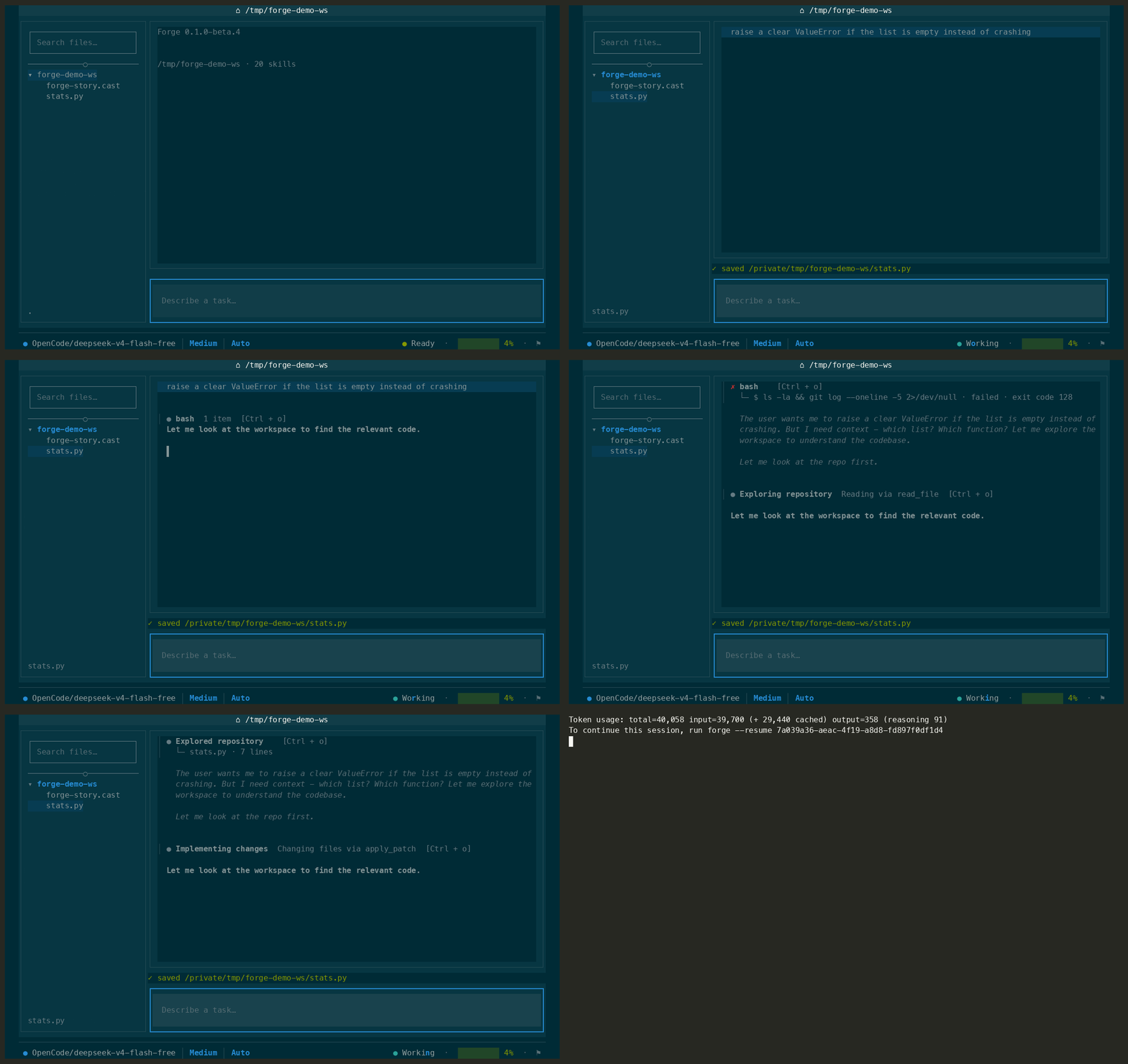
Forge is an open-source AI coding agent for your terminal. It runs a
full-screen TUI in the repository you are working on, helps inspect and change
files, runs commands with your approval, and keeps a durable session journal so
you can continue work after an interruption.
Forge is alpha software. Review every approval prompt and use it first in a
disposable or backed-up repository.
Why this exists
Claude Code is the incumbent for terminal-first AI coding, but its experience
is centered on an agent you drive from a prompt and an external editor you use
alongside it. Forge is for people who want the agent, code editor, file
explorer, shell, approvals, diffs, and durable sessions in one keyboard-driven
workspace, so inspecting code, changing it, and verifying the result stay in a
single focused loop.
What Forge does
- Chats with a configured model while staying inside your terminal.
- Reads and edits workspace files, applies focused patches, searches code, and
works with Git. - Runs shell commands only through an approval-aware tool flow.
- Preserves session history and unfinished work in a local SQLite journal.
- Supports provider sign-in and model selection from the TUI.
- Connects configured MCP servers and exposes their tools to the agent.
- Shows files, diffs, command output, activity, diagnostics, and task state in
one keyboard-driven workspace.
Install
Install a prebuilt release
On macOS or Linux:
curl --proto '=https' --tlsv1.2 -LsSf \
  https://raw.githubusercontent.com/NorviaLabs/forge/main/install/forge-installer.sh | sh
On Windows PowerShell:
irm https://raw.githubusercontent.com/NorviaLabs/forge/main/install/forge-installer.ps1 | iex
The installers select the current release for your platform and verify its
SHA-256 checksum before installing. To install a specific release, setFORGE_VERSION, for example v0.1.0-beta.4.
Build from source
You need Git and Rust 1.97.1 or newer.
git clone https://github.com/NorviaLabs/forge.git
cd forge
cargo build --release --locked --package forge-cli
./target/release/forge --version
To run the development build:
cargo run --locked --package forge-cli
Start Forge
Run Forge from the repository you want the agent to work in:
forge
The default workspace is the current directory. Forge also respects theFORGE_WORKSPACE environment variable.
On first launch, connect a provider with /connect, choose a model, and start
typing a task. You can also configure a model before launching Forge with
environment variables or forge.toml.
Providers and models
Forge includes native routes for:
- OpenAI API (
openai/*) - Anthropic API (
anthropic/*) - xAI Grok through OAuth (
xai/*) - OpenAI Codex subscriptions through device login (
openai-codex/*) - OpenCode Go (
opencode-go/*) - OpenCode Zen (
opencode-zen/*) - Ollama running locally (
ollama/*)
The simplest setup is to export a provider key and model, then launch Forge:
export OPENAI_API_KEY="..."
export FORGE_MODEL_ID="openai/gpt-4.1-mini"
forge
Other API-key environment variables include ANTHROPIC_API_KEY,OPENCODE_API_KEY, OPENCODE_GO_API_KEY, and OPENCODE_ZEN_API_KEY.
For OAuth providers, use /connect inside Forge. For Ollama, start the local
Ollama service first, then choose the Ollama route and a locally available
model.
Useful in-app commands:
/connect       Connect or change a provider
/model         Browse or change models
/resume        Browse previous sessions in the current journal
/clear         Clear the visible transcript
/compact       Compact the active context
/disconnect    Remove a saved provider connection
/refresh       Refresh the file explorer's Git state
/edit          Open the active file in your editor
/context-file  Attach the active file to the next message
/theme         Change the presentation theme
/help          Open help
/quit          Exit Forge
/resume <session-id> resumes a specific session. The command-line formforge --resume <session-id> does the same; bare forge --resume resumes the
most recently modified session when one exists.
Keyboard controls
Forge displays contextual hints for the current focus. The most useful global
controls are:
| Key | Action |
|---|---|
Tab / Shift+Tab |
Move between visible blocks |
Enter / i |
Interact with the focused block or control |
Esc |
Leave the current interaction level |
↑ / ↓ |
Navigate a local list or input |
Ctrl+Backtick |
Toggle the bottom panel |
Alt+1–Alt+3 |
Open a bottom-panel tab |
Shift+← / Shift+→ |
Switch the active block's tab |
F2 |
Cycle permission mode (Manual ↔ Accept Edits) |
F3 |
Focus composer chips (mode · connect · model · effort) |
F4 |
Open model picker |
? |
Open help |
The composer shows a chip row under the input: permission mode, connection,
model, and effort. F3 then ←/→/Enter activates a chip (disconnected
→ connect flow). Enter still sends; ⏎ is a hint only.
When the bottom panel is focused, it is an interactive login shell. Type or
paste commands directly into it; standard control keys, arrows, Tab, and
terminal resize are forwarded to the shell. Ctrl+Backtick closes the panel.
When a text file is open, the workspace uses Vim-style editing. Files start in
Normal mode; press i to insert, Esc to return to Normal mode, and Alt+E
to hand the file to $VISUAL/$EDITOR. In Normal mode, : opens the editor
command line. The beta command set includes :w, :q, :q!, :wq, :x,:e [path], :s/pattern/replacement/[g], and :%s/pattern/replacement/[g].
Saving is immediate. Forge asks whether to save, discard, or cancel before
leaving or switching away from dirty buffers, and asks whether to reload or
force-save when the file changed on disk. Binary and invalid-UTF-8 files stay
explicitly read-only.
Configuration
Forge reads defaults, a user configuration file, a forge.toml in the
working directory, and environment variables. Environment variables override
file configuration.
A minimal project forge.toml can look like this:
[model]
model = "openai/gpt-4.1-mini"

[tui]
theme = "solarized-dark"
file_icons = "unicode"

[journal]
path = ".forge/sessions"
Themes
Forge ships built-in themes you can pick with /theme or set in forge.toml.
Bare /theme opens a bottom dock: ↑↓ live-previews against the real UI, Enter
confirms, Esc restores the previous theme. /theme <id> applies immediately.
| Theme id | Name |
|---|---|
solarized-dark |
Solarized Dark (default) |
solarized-light |
Solarized Light |
catppuccin-mocha |
Catppuccin Mocha |
gruvbox-dark |
Gruvbox Dark |
kanagawa-wave |
Kanagawa Wave |
system |
Follow terminal light/dark preference |
Drop custom .toml theme files into .forge/themes/ in your workspace or~/.config/forge/themes/ to add or override themes. Seecrates/forge-tui/themes/ for the schema and examples.
Common environment variables are:
FORGE_MODEL_ID
FORGE_MODEL_PROVIDER
FORGE_API_KEY
FORGE_WORKSPACE
FORGE_JOURNAL_PATH
FORGE_MODEL_REQUEST_TIMEOUT_SECS
Forge stores session journals in repository-local runtime storage when
possible, or in the platform application-data directory outside a Git
repository. Runtime data is not source code and should not be committed.
MCP servers
MCP servers can be configured in a trusted user config or an explicitly
managed configuration:
[[mcp.servers]]
id = "my-tools"
transport = "stdio"
command = "my-mcp-server"
args = ["--stdio"]
Project-discovered configuration is intentionally restricted: settings that
could execute code or redirect credentialed requests are not accepted from an
untrusted checked-out repository.
Permission rules
By default every shell command asks for approval. permissions.toml narrows
that with pattern rules matched against the actual call — a command prefix
for shell tools, a path glob for file tools, a host for fetch-style tools:
allow = ["bash(cargo test *)", "bash(cargo build*)"]
deny = ["bash(cargo publish*)"]
A deny entry carves an exception out of a broader allow entry (cargo *
allowed, but cargo publish still asks); it never blocks a call outright —
that's still the ACL's job. Two files are read and merged:
<user config dir>/forge/permissions.toml— personal, trusted..forge/permissions.tomlin the workspace — repo-committed, and for the
same reason project-discovered MCP config is restricted above, itsallow
entries are ignored. A checked-out repository cannot grant itself a wider
blast radius than a human approved locally. Itsdenyentries are always
honored, since narrowing approval further is safe regardless of source.
Menu rows (when a prompt appears):
- Allow once — run this call; ask again next time.
- Allow pattern going forward — shows e.g.
bash(cargo test *), writes
it to personalpermissions.toml, applies immediately (coversbackground_run/exec_commandwith the same command too). - Remember exact — Direct tools only; identical invocation this session.
- Deny / Deny with note… — block; optional note reaches the agent.
Permission modes
F2 cycles the session's oversight level (persisted per workspace).
Default is Accept Edits.
- Accept Edits (default) — file writes free; a tight shell allow list
runs without prompts:cargo test|build|check|clippy|fmt,rg,fd,ls,cat,head,git status|diff|log(including viabackground_run).
Other shell still asks. Add adenypattern to re-prompt on a seed. - Manual — every shell-equivalent command asks unless your personal
permissions.toml(or sessionalways) allows it.
Modes never override an ACL deny or ignore your permissions.toml rules.
A stricter Locked mode is deferred until headless/CI entry exists.
Approving shell commands
When a command needs approval, use the inline menu:
- ↑ / ↓ — move selection (default: Allow once)
- Enter — confirm
- Esc — deny (or back out of “Deny with note”)
Optional text aliases still work: yes, no, remember, always,no <note>.
Built-in tools
Depending on configuration, the agent can use tools for:
- reading and writing files;
- applying validated workspace-confined patches;
- running approved shell commands;
- inspecting Git status and diffs;
- fast file and content search;
- web search;
- configured MCP tools.
Tool arguments are validated before execution. Sensitive or consequential
actions require an approval prompt. Forge does not treat model output as
trusted input.
Sessions and resume
Every Forge session has a durable identifier and journal. If a process stops
unexpectedly, start Forge with:
forge --resume
or resume a known session directly:
forge --resume <session-id>
Inside the TUI, /resume lists previous sessions and shows a title hint from
the first user message when available. Session journals stay separate from
your source files and should never contain API keys or OAuth tokens.
Safety
Forge can execute commands and modify files on your machine. Treat it like a
shell with an AI interface:
- Run it only in repositories you trust.
- Read each approval prompt, including the exact command and consequence.
- Keep credentials in your environment or trusted user configuration.
- Do not commit
.forge/, runtime journals, API keys, OAuth tokens, or
credential files. - Use a disposable clone when evaluating an unfamiliar repository.
See SECURITY.md for the threat model and private vulnerability
reporting process.
Development
Forge is a Rust workspace. The main crates are:
forge-cli— command-line entry point;forge-tui— terminal interface;forge-core— agent loop and session lifecycle;forge-model— provider transports and message normalization;forge-connect— provider profiles, credentials, and model catalog;forge-tools— built-in tools and validation;forge-durable— SQLite session journals.
Run the standard checks before submitting a change:
cargo fmt --all -- --check
cargo clippy --workspace --all-targets --locked -- -D warnings
cargo test --workspace --all-targets --locked
See CONTRIBUTING.md for contribution guidance.
License
Forge is available under the MIT License.
Reviews (0)
Sign in to leave a review.
Leave a reviewNo results found