ursus
Health Pass
- License — License: MIT
- Description — Repository has a description
- Active repo — Last push 0 days ago
- Community trust — 13 GitHub stars
Code Fail
- rm -rf — Recursive force deletion command in Support/scripts/build-ursus-app.sh
- rm -rf — Recursive force deletion command in Support/scripts/build-ursus-helper-app.sh
- rm -rf — Recursive force deletion command in Support/scripts/generate-sparkle-appcast.sh
- rm -rf — Recursive force deletion command in Support/scripts/sign-and-notarize-release.sh
Permissions Pass
- Permissions — No dangerous permissions requested
This local MCP server, CLI, and utility suite integrates AI capabilities with the Bear note-taking app on macOS. It allows AI models to search, edit, create, and back up notes, focusing on safe modifications and inbox-first workflows.
Security Assessment
Because the tool is designed to interact directly with your personal notes, it inherently accesses potentially sensitive data, including note contents, tags, and attachment OCR data. However, it operates entirely as a local application with no dangerous permissions or broad network requests required. It avoids common security pitfalls like hardcoded secrets. The scan did flag the presence of `rm -rf` recursive force deletion commands within four build scripts (e.g., `build-ursus-app.sh`). While these commands are standard practice for cleaning build directories during local compilation rather than malicious payloads, they are still flagged as a standard precaution. Overall risk: Low.
Quality Assessment
The project is in active development, with its most recent push occurring just today. It is fully transparent and open-source under the permissive MIT license. Community trust is currently very small but engaged, represented by 13 GitHub stars. The documentation is highly detailed, clearly explaining the tool's deliberate focus on safe AI editing and its automatic backup features to prevent accidental data loss.
Verdict
Safe to use.
Local MCP, CLI, and utilities for Bear. AI for your Notes.
Ursus

Local MCP, CLI, and utilities for Bear · Overview Video
Drag it into Applications, open it once, and your AI apps that support MCP can now connect to Bear.
Requirements
- macOS 14 or later
- Bear installed
Designed with a specific focus
Ursus isn’t trying to do everything. It’s built around a deliberate way of working with Bear: inbox-first capture, template-aware editing, safe AI changes, and actually interacting with the note you’re already looking at.
It works with the note you already have open.
If you add a Bear token, Ursus can target your currently selected note directly. Just say 'summarize my selected note' or 'proofread this selected note,' no need to tell it which note to find. Of course, you can also use the note title or ID to target something else specifically.
It edits notes without breaking their structure.
Ursus reads the note, plans the change locally, and sends a clean replacement through Bear's write path. That means it can insert before or after a heading, replace an exact string, or attach a file relative to a specific part of the note, without scrambling your layout or template.
It backs up notes before touching them.
Bear has no version history. Ursus fills that gap with snapshots captured automatically before major note-rewriting operations. You can compare a backup to the current note in a compact default mode, ask for the full changed regions when needed, or restore from any saved point.
The tools are batch-friendly.
Ursus exposes a focused set across five areas: discovery, notes, tags, backups, and navigation. Most tools accept multiple operations in a single call.
Discovery has real depth.
Search by text, tags, date ranges, pinned state, todos, attachment content, and more. Mix filters in one query, or batch separate search hypotheses when terms may belong to different notes. Results paginate, so large searches don't flood your context.
CLI and automation
Create notes, back up, restore, and apply templates from the command line or any automation tool: Keyboard Maestro, Raycast, Alfred, BetterTouchTool, you name it.
What it includes
- Discovery — search notes by text, tags, dates, pinned state, todos, or attachment OCR content, with pagination
- Notes — create, insert, replace, and attach files, all template (and structure) aware
- Tags — list, add, remove, rename, and delete tags across Bear
- Backups — snapshot notes before edits, compare changes, and restore from any saved point
- Navigation — open notes and tags directly in Bear, archive notes
Reads come directly from Bear's local database. Writes go through Bear's x-callback-url path. Ursus never touches Bear's database directly.
Install
- Download the latest
Ursus.dmg - Drag
Ursus.appinto/Applications - Open it once
Ursus installs a shared command at ~/.local/bin/ursus — that's the stable path your MCP clients should use.
Connect your AI app
Ursus supports two connection styles.
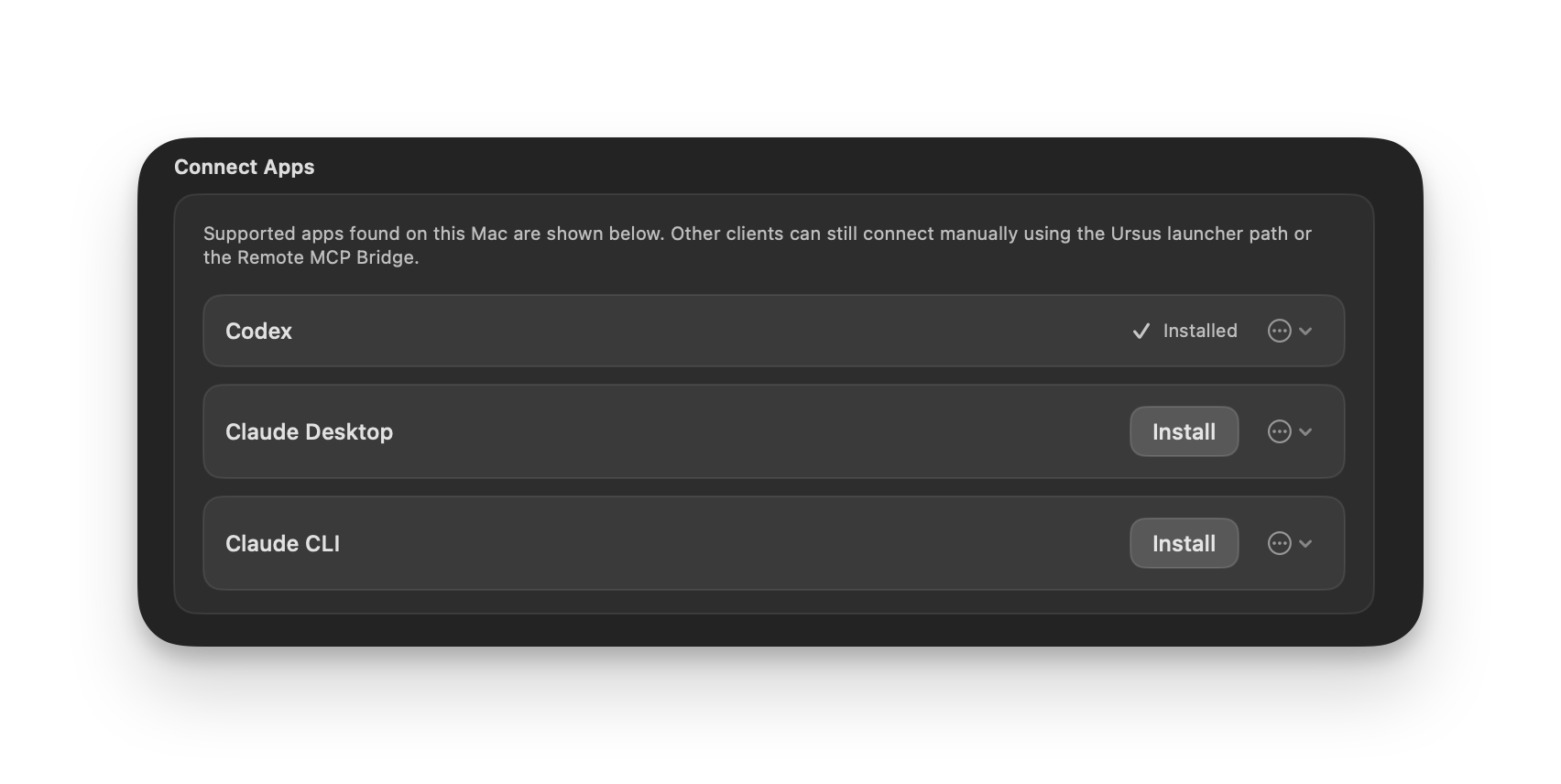
Local MCP clients (Codex, Claude, etc.) use stdio. The Setup tab detects supported apps on your Mac and lets you connect them with one click.
If you prefer to configure things manually, or if your app is not directly supported by Ursus, the snippet you need would look like this
{
  "type": "stdio",
  "command": "/Users/you/.local/bin/ursus",
  "args": ["mcp"]
}
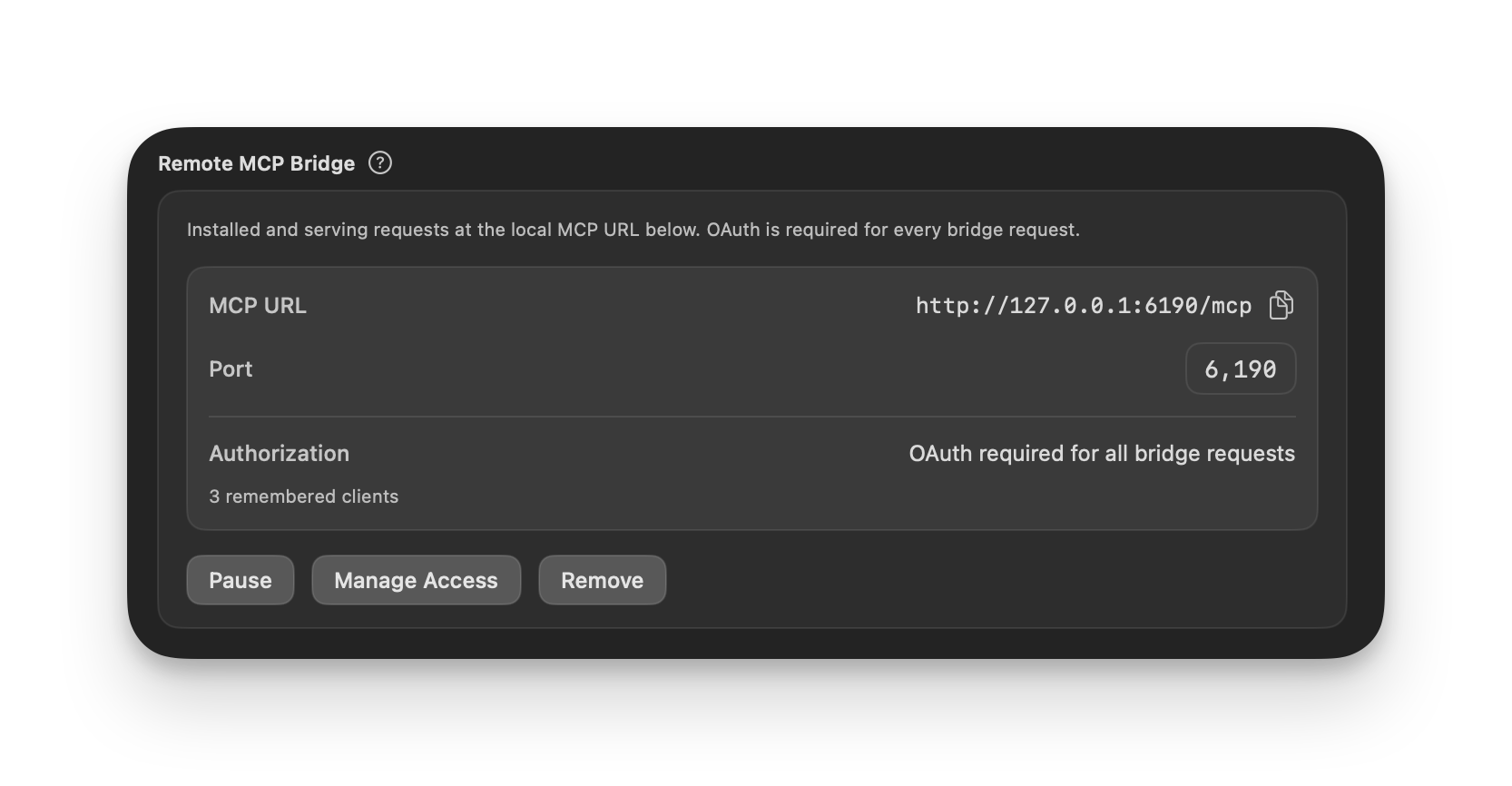
Remote or browser-based clients use the optional HTTP bridge:
http://127.0.0.1:6190/mcp
The bridge is loopback-only by default and includes built-in OAuth support. If you expose it through your own tunnel, you can require explicit client authorization rather than leaving it open. Keep in mind that for remote-only services like ChatGPT, the local 127.0.0.1 URL is just the starting point, not the whole setup.
First-time setup
Most users only need a minute inside the app.
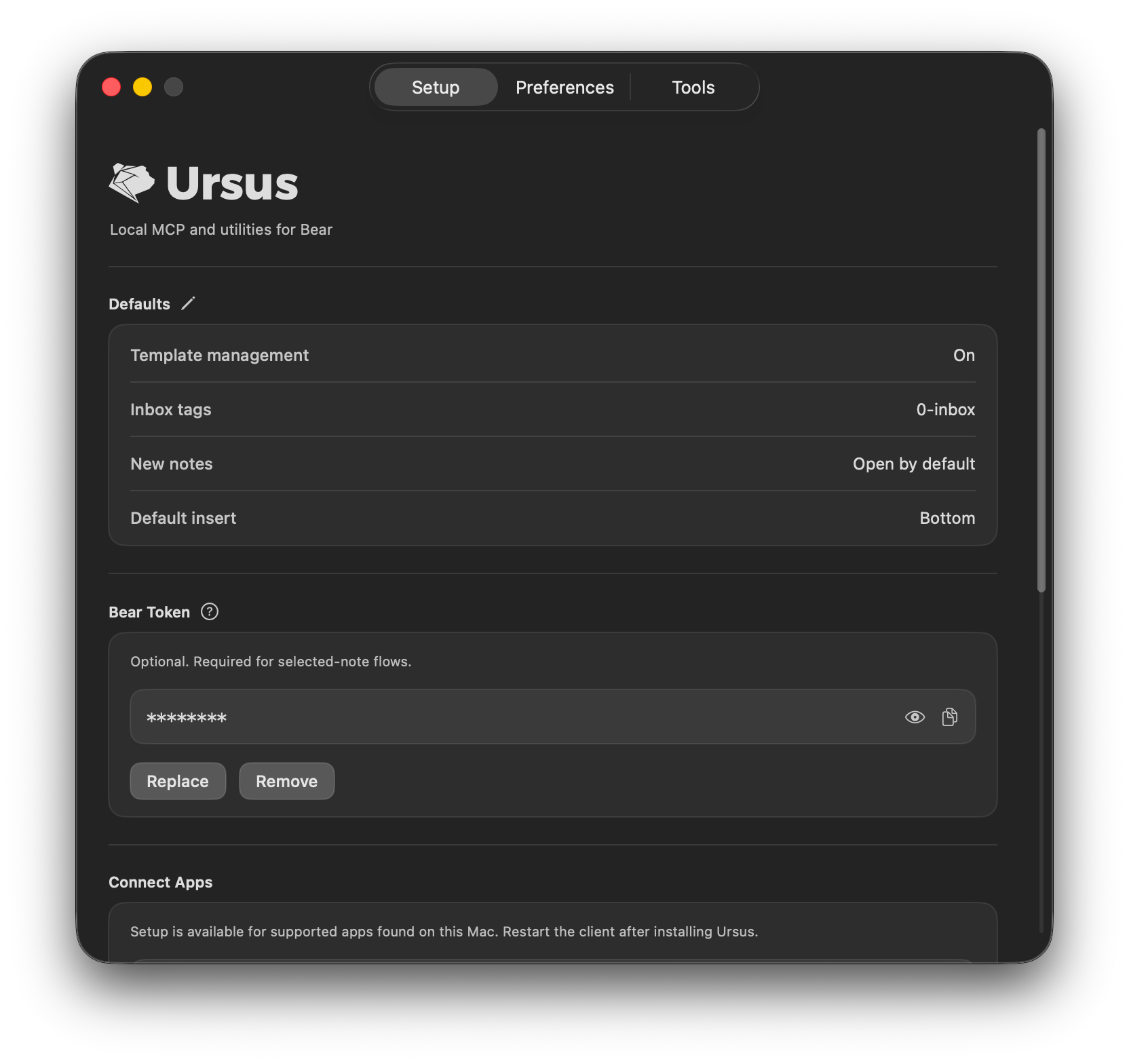
- Setup tab — review defaults, add your optional Bear API token for selected-note workflows, and connect local AI apps or manage the HTTP bridge
- Preferences tab — set inbox tags, template behavior, tag merge behavior, backup retention, and discovery defaults
- Tools tab — enable or disable individual MCP tools if you want a narrower surface
Updates
Ursus has built-in update support. You'll get notified when there's something new, and you can choose when to install. You can also manage this from Preferences or via CLI:
ursus update check
ursus update auto-install on|off
Uninstall
To remove Ursus completely:
- If you connected any AI apps, remove the Ursus entry from their config
- If the Bridge is running or installed, select Remove in the Setup tab
- Delete
Ursus.appfrom/Applications - Remove the shared launcher:
rm -f ~/.local/bin/ursus - Remove app data:
rm -rf ~/Library/Application\ Support/Ursus
There's more
This README covers the basics. For everything else:
- MCP tools reference
- CLI reference
- Bridge and authorization
- Troubleshooting
- Set as a Quick Action in Alter
If you want to go deeper, clone the project, or see how things are wired internally:
Reviews (0)
Sign in to leave a review.
Leave a reviewNo results found