outworked
Health Pass
- License — License: GPL-3.0
- Description — Repository has a description
- Active repo — Last push 0 days ago
- Community trust — 214 GitHub stars
Code Fail
- process.env — Environment variable access in electron/channels/channel-manager.js
- fs module — File system access in electron/channels/channel-manager.js
- child_process — Shell command execution capability in electron/channels/imessage-channel.js
- os.homedir — User home directory access in electron/channels/imessage-channel.js
- fs module — File system access in electron/channels/index.js
- network request — Outbound network request in electron/channels/slack-channel.js
- exec() — Shell command execution in electron/db/database.js
- os.homedir — User home directory access in electron/db/database.js
- process.env — Environment variable access in electron/db/database.js
- fs module — File system access in electron/db/database.js
- new Function() — Dynamic code execution via Function constructor in electron/db/test-migrations.js
- exec() — Shell command execution in electron/db/test-migrations.js
- fs module — File system access in electron/db/test-migrations.js
- child_process — Shell command execution capability in electron/main.js
- fs.rmSync — Destructive file system operation in electron/main.js
- os.homedir — User home directory access in electron/main.js
- process.env — Environment variable access in electron/main.js
- fs module — File system access in electron/main.js
- network request — Outbound network request in electron/main.js
- child_process — Shell command execution capability in electron/mcp/mcp-server.js
- fs.rmSync — Destructive file system operation in electron/mcp/mcp-server.js
- os.homedir — User home directory access in electron/mcp/mcp-server.js
- process.env — Environment variable access in electron/mcp/mcp-server.js
- fs module — File system access in electron/mcp/mcp-server.js
Permissions Pass
- Permissions — No dangerous permissions requested
No AI report is available for this listing yet.
Outworked - Cute Office x Claude Code

Outworked
Outworked is a desktop app that turns Claude into a team of AI employees.
Hire agents. Give them roles. Watch them write code, interact with the web, send messages,
and run scheduled tasks — all from an office on your Mac.
Fully customizable — import your own sprites, furniture, backgrounds, and fonts via asset packs.
Claude Code with a can-do attitude!





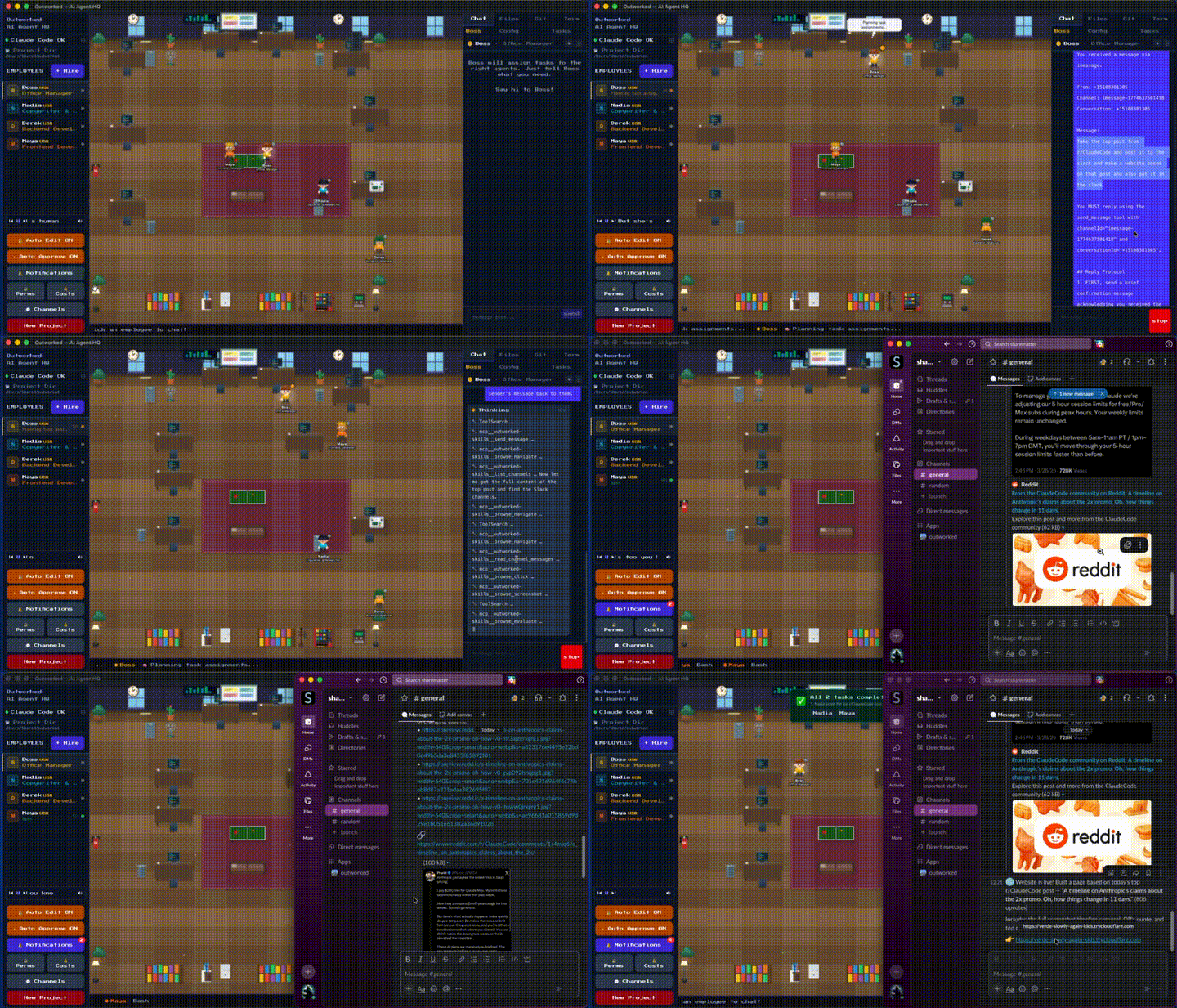
Download · How It Works · Examples · Capabilities · Features · Skills · MCP Servers · Channels & Triggers · Asset Packs
How It Works
- Hire agents — Give each one a name, role, personality, model, and sprite
- Describe a goal — Write what you want in plain English; the orchestrator breaks it into subtasks and routes them to the right agents automatically
- Watch them work — Agents walk to their desks, write code, interact with the web, send messages, run scheduled jobs — all visible in the office
- Ship it — Just let your agents handle the whole workflow end to end
Example Workflows
These are real things you can do today:
"Build me a landing page and send it to my cofounder"
You type one sentence. Here's what happens:
- The orchestrator breaks it into subtasks and assigns them across your team
- Frontend Dev scaffolds the site, writes the HTML/CSS/JS, and starts a local server
- Designer reviews the page in the built-in browser, takes a screenshot, and asks Frontend Dev to tweak the spacing
- Frontend Dev makes the fix, then runs
tunnel_startto get a public URL - Frontend Dev calls
send_messageto text the link to your cofounder on iMessage
You watched the whole thing happen at the office. You are wowed. Your cofounder gives you more equity. Total prompts from you: 1.
"Every morning at 9am, check our open PRs and text me a summary"
- You tell your Ops Agent to set up a daily task
- The agent creates a scheduled trigger with a cron expression (
0 9 * * *) - Every morning, the agent wakes up, queries the GitHub MCP server for open PRs, writes a summary, and sends it to you via iMessage
- You read it on your phone over coffee
No scripts to maintain. No GitHub Actions to debug. Just an agent with a schedule.
"Research these three competitor products and write up a comparison"
- The orchestrator assigns a Researcher agent to each competitor — all three run in parallel
- Each agent uses the built-in browser to navigate the competitor's site, read docs, take screenshots, and extract pricing
- A Writer agent collects all three findings, writes a structured comparison doc, and commits it to your repo
- The Writer asks if you want it sent to Slack — you approve, and it posts to #product
Three agents working simultaneously, finishing in minutes what would take you hours.
"Triage the 12 new GitHub issues from last night"
- Project Manager agent pulls all new issues via the GitHub MCP server
- It reads each one, labels by priority and type, assigns to the right team member, and adds a first response comment
- For any bug it can reproduce, it assigns a Backend Engineer agent to investigate and open a draft PR with a fix
- You get a Slack summary of what was triaged, what's in progress, and what needs your attention
Capabilities
Write and ship code — Build features, fix bugs, open PRs, review each other's work, run tests, and deploy — across multiple repos at once.
Browse the web — Research docs, scrape pages, fill out forms, take screenshots, and bring findings back to the team via the built-in browser.
Send and receive messages — Reply to customers on Slack, text you a summary on iMessage, or monitor a channel and trigger tasks when someone says the magic word.
Run on a schedule — Daily standups, weekly reports, hourly health checks, one-off reminders. Set a cron and let an agent handle it while you sleep.
Query databases — Connect a PostgreSQL MCP server and let agents run queries, generate reports, or investigate production issues without you writing SQL.
Manage projects — Create and triage GitHub issues, update Linear tickets, post status updates to Slack — agents can own the workflow, not just the code.
Anything you can plug in — Every MCP server you add gives agents new capabilities. Connect your internal APIs, monitoring dashboards, CMS, or anything with a tool interface. If it exists as an MCP server, your agents can use it.
Features
- Pixel Office — A Phaser-powered world where your agents walk, sit at desks, and collaborate in real time
- Build a Team — Give each agent a name, role, personality, model, and sprite. Mix Claude Opus for hard problems with Sonnet for fast ones
- Auto-Orchestration — Describe a goal; the router breaks it into tasks and assigns them to the right agents
- Multi-Agent Collaboration — Agents talk to each other via
[ASK:AgentName]and a shared message bus - Full Claude Code Power — Every agent gets full tool access (Bash, Edit, Read, etc.) with persistent sessions
- MCP Server Support — Connect agents to external tools and services via the Model Context Protocol
- Messaging Channels — Connect iMessage and Slack so agents can send and receive messages in real conversations
- Built-in Browser — Full Chromium browser for agents to navigate, click, fill forms, and take screenshots
- Built-in Tunneling — Expose local servers to the internet via Cloudflare tunnels with a single tool call
- Triggers & Scheduling — Fire off agent tasks on a schedule (cron, interval, one-time) or in response to incoming messages
- Skills System — Extend agents with plug-in
SKILL.mdfiles that define tools, auth, and instructions - SQLite Storage — Persistent local database for skills, settings, channels, and message history
- Permission Gates — Real-time approval modal for sensitive tool calls
- Live Chat — Markdown-rendered conversations with syntax-highlighted code blocks and diffs. Pop out any chat into its own window for side-by-side work
- Built-in Git — View status, staged changes, branches, and create PRs without leaving the app
- File Browser — Live-updating workspace tree that syncs as agents edit files
- Cost Dashboard — Track tokens and spend per agent, session, and day
- Background Mode — Minimize and let agents keep working. Tray icon keeps you updated
- Parallel Processing — Multiple agents tackle subtasks simultaneously
- Desktop Notifications — Get pinged when tasks finish or agents need approval
- Asset Packs — Customize your office with custom sprites, furniture, backgrounds, and fonts — drop a folder and go
- Original Soundtrack — Because every office needs a vibe
Supported Models
| Provider | Models |
|---|---|
| Anthropic | Any model via Claude Code. |
Each agent can run a different model — pair a fast model for simple tasks with a powerful one for complex work.
Get Started in 2 Minutes
1. Install
Homebrew (recommended)
brew tap outworked/tap
brew install --cask outworked
Manual download
Grab the latest .dmg from the releases page and drag to Applications.
2. Prerequisites
- Claude Code installed and authenticated
3. Launch and Hire Your First Agent
On first launch, the onboarding modal walks you through picking a workspace and creating your first agent. You'll be watching pixel employees do stuff in under two minutes.
Build from Source
This will start up a development instance of Outworked. To build a distributable, use npm run electron:build instead of npm run electron:dev
git clone https://github.com/outworked/outworked.git
cd outworked
npm install
npm run electron:dev
Scripts
| Command | Description |
|---|---|
npm run dev |
Start Vite dev server (browser only, no Electron) for testing only. Won't work correctly. |
npm run electron:dev |
Build and launch the full Electron app in dev mode |
npm run electron:build |
Package distributable (dmg/zip on macOS, exe on Windows, AppImage on Linux) |
Tech Stack
| Layer | Technology |
|---|---|
| Desktop | Electron |
| Frontend | React 19 + TypeScript + Tailwind CSS |
| Build | Vite |
| Graphics | Phaser 3 |
| Storage | SQLite (better-sqlite3) |
| AI | Claude Code SDK |
Project Structure
src/
├── components/       # React UI (ChatWindow, OfficeCanvas, GitPanel, etc.)
├── lib/              # Core logic (AI, orchestration, tools, storage, costs)
└── phaser/           # Phaser game scene and sprite logic

electron/
├── main.js           # Electron main process (IPC, shell, permissions)
├── preload.js        # Context bridge to renderer
├── sdk-bridge.js     # Claude Code SDK bridge
├── db/               # SQLite database and migrations
├── channels/         # Messaging channels (iMessage, Slack)
├── mcp/              # MCP server management
├── skills/           # Skill runtimes (browser, Gmail, Slack, Notion, etc.)
└── triggers/         # Trigger engine, webhooks, and scheduling

public/
├── music/            # Background music tracks
└── assets/           # Bundled asset packs (installed on first launch)
Skills
Outworked uses a SKILL.md format — markdown files with YAML frontmatter that define what an agent can do.
---
name: my-skill
description: What this skill does
emoji: 🔧
runtime: backend-name # optional — for active skills with a backend
auth:
  type: oauth2 | api-key
  provider: service-name
tools: [tool-1, tool-2]
triggers: [event-type]
---
Instructions and usage docs in markdown...
Skills can be bundled (ship with the app), custom (created in the UI and stored in SQLite), or dynamic (loaded at runtime from MCP servers). Mark a skill as global to make it available to every agent, or assign it to specific agents.
Bundled skills:
| Skill | Description |
|---|---|
| Web Browser | Navigate, click, fill forms, screenshot — full Chromium browser |
| Scheduler | Create and manage scheduled tasks (cron, interval, one-time) |
More coming soon.
MCP Servers
Connect agents to external tools and data sources via the Model Context Protocol.
Preset servers (one-click setup):
| Server | What it provides |
|---|---|
| GitHub | Repos, issues, PRs, code search |
| Filesystem | Read/write access to specified directories |
| PostgreSQL | Query and manage databases |
| Slack | Send and read messages in channels |
| Linear | Issues, projects, and workflows |
| Playwright | Browser automation and testing |
| Memory | Persistent key-value storage |
| Fetch | HTTP requests to external APIs |
You can also add custom MCP servers (stdio or HTTP) and configure environment variables (API keys, tokens) per server.
Channels & Triggers
Channels
Channels connect agents to messaging platforms. Supported channel types:
- iMessage — Send and receive messages via phone number or email
- Slack — Send and receive messages in Slack channels and threads
Agents interact with channels through built-in tools: send_message, list_channels, and read_channel_messages. Configure allowed senders to control who can reach your agents.
You can also inject special system prompts for each channel, so that certain inbound messages get a different response than others.
Triggers
Triggers wire up events to agents — when something happens, a prompt is automatically sent to an agent. Think of them as "if this, then prompt that."
Trigger types:
| Type | Fires when… |
|---|---|
| Message Pattern | An inbound channel message (Slack, iMessage) matches a pattern |
| Webhook | An external system sends an HTTP POST to a trigger URL |
| Skill Event | An internal skill emits a named event (e.g. scheduler:task_fired) |
Message pattern matching supports four modes:
contains— fires if the message contains the text anywhere (default)starts-with— fires if the message starts with the textexact— fires only on an exact matchregex— full regex with capture groups ($1,$2, …) substituted into the prompt
For non-regex modes, the original message is automatically appended to the prompt so the agent has full context.
Setting up a trigger:
- Click Triggers in the left sidebar
- Click + New Trigger and pick a type
- Choose a match mode and fill in the pattern
- Optionally scope to a specific channel or restrict senders
- Pick which agent receives the prompt (defaults to the boss agent)
- Write the prompt template — use
$1,$2for regex captures or{{key}}for webhook/event data
Agents can also create and manage triggers programmatically using the create_trigger, list_triggers, update_trigger, and delete_trigger tools.
Example — Slack deploy command:
Pattern:
deploy(contains mode)
Prompt:Handle this deploy request.When someone types "please deploy the api" in Slack, the agent receives the prompt with the original message appended and reply instructions so it knows where to respond.
Example — regex with capture groups:
Pattern:
deploy (.+) to (staging|prod)
Prompt:Deploy the $1 service to $2. Run the deploy script and report back."deploy api to staging" → agent receives: "Deploy the api service to staging. Run the deploy script and report back."
Channel reply instructions are automatically prepended when a trigger fires from a channel message, including sender name, channel ID, and conversation ID so the agent knows exactly where to reply.
Scheduling
The Scheduler skill handles time-based automation — cron expressions, intervals, and one-time tasks. Ask an agent to schedule a task. Under the hood, scheduled tasks fire as skill events that the trigger engine picks up and routes to agents.
Built-in Browser
Every agent has access to a full browser — not a headless scraper, a real Chromium window managed by the app. It can even open instagram and slack off - just like us.
Agents can navigate pages, click elements, fill forms, run JavaScript, and take screenshots using a set of browse:* tools. The browser returns an interactive snapshot of every element on the page with its CSS selector, so agents don't need to probe the DOM — they just read the snapshot and act.
When a site requires login, the agent calls browse:login and a browser window pops up on your screen so you can sign in manually. Once you're done, the agent picks up right where it left off with a fully authenticated session.
Tools: browse:navigate, browse:click, browse:fill, browse:screenshot, browse:snapshot, browse:evaluate, browse:show, browse:login
Built-in Tunneling
Are you proud of what an agent built? Outworked has built-in Cloudflare tunneling — agents can expose any local server to the internet with a single tool call.
An agent starts a dev server, runs tunnel_start, and gets back a public URL. It can then send that link to someone via iMessage or Slack. No ngrok setup, no config — cloudflared is downloaded automatically on first use.
Tools: tunnel_start, tunnel_stop, tunnel_list
Example workflow:
- Agent builds a landing page and starts
npx serve diston port 3000 - Agent calls
tunnel_startwith port 3000 — gets a public*.trycloudflare.comURL - Agent sends the link via iMessage to your teammate for review
- Teammate is wowed by the landing page
Safety Model
Outworked takes a defense-in-depth approach:
- Approval gates — Explicit approval required before dangerous commands (deletes, installs, network changes)
- Command allowlists — Permit or block specific shell commands per agent
- Plan-first execution — Agents can produce a plan before making changes
- Permissions dashboard — Review and manage all access grants in one place
You can turn all of it off with one button though.
The Soundtrack
Every office needs a vibe. Outworked ships with an original soundtrack featuring tracks like:
"Don't Ever Turn Me Off" · "She's Just a Coder Agent" · "LLM Love Lying Machine" · "Can Love Be Binary" · "Goodbye Humans" · "How Does Grass Feel" · "Are You Even Reading This"
Toggle music from the player in the bottom-left corner.
You can add your own music by dropping it in the ~/.outworked/music folder
Asset Packs — Customize Your Office
Outworked supports asset packs that let you completely reskin the office. Drop a folder into ~/.outworked/assets/ or use the Import Pack button in the app, and your office gets a new look.
A single pack can include any combination of:
| Category | What it does |
|---|---|
| Employees | Replace the procedural pixel characters with custom sprite sheets |
| Furniture | Add custom furniture PNGs alongside or instead of the built-in items |
| Background | Replace the office floor, walls, and windows with a custom image |
| Font | Replace the pixel UI font with your own .ttf or .woff2 |
Quick Start
The simplest pack is just a folder with a PNG:
~/.outworked/assets/my-pack/
  default.png           # employee sprite sheet — that's all you need
Or go all out:
~/.outworked/assets/my-pack/
  manifest.json          # optional — everything auto-detects without it
  background.png         # replaces the office background
  myfont.ttf             # replaces the UI font
  employees/
    default.png          # sprite sheet used for all agents
    engineer.png         # role-specific sheet
    designer.png
  furniture/
    desk_wooden.png      # auto-detected as a desk (filename starts with "desk")
    bookshelf.png
    plant_big.png
Employee Sprite Sheets
Each sheet is a horizontal strip of animation frames in a fixed order — idle, walk, type, think — with 2 frames per state by default (384x48 total for 48px frames). Multi-row grids are also supported, where each row is a state.
The manifest lets you remap states, customize frame rates, and set per-role sheets. Sheets are auto-assigned to agents by role name, or distributed randomly.
Furniture
Drop PNG images into a furniture/ subfolder. Files named desk* are auto-detected as desks (agents sit at them when working). All furniture can be added, removed, moved, and rotated from the office via long-press.
Background
Drop a background.png (or bg.png) into your pack folder. It replaces the entire office floor, walls, rug, and windows. Supports cover, stretch, and tile display modes.
Font
Drop a .ttf, .woff, or .woff2 file into your pack folder. It replaces the pixel font used throughout the UI. The change takes effect immediately when switching packs.
Managing Packs
Click the grid icon in the sidebar header to open the Assets modal:
- Packs tab — Select the active pack, or click Import... to import a folder or
.zipfile from anywhere on your machine - Furniture tab — Add or remove built-in and custom furniture items from the office
A bundled example pack (outworked-default) is installed on first launch as a starting point. See ~/.outworked/assets/outworked-default/manifest.json for a fully documented example manifest.
Full documentation: electron/assets/assets.md
Contributing
- Fork the repo
- Create a feature branch (
git checkout -b feature/my-feature) - Commit your changes (
git commit -m 'Add my feature') - Push to the branch (
git push origin feature/my-feature) - Open a Pull Request
Please open a discussion first for large changes so we can discuss the approach.
FAQ
Is my code sent to the cloud?Outworked runs locally on your machine. The models are run by Anthropic, with the same privacy guarantees as using those APIs directly.
Can agents mess up my codebase?Agents require explicit approval for destructive operations (unless auto-approve is on then RIP). You can also configure command allowlists per agent.
How do I create a custom skill?Write a markdown file with YAML frontmatter (name, description, tools) and save it as SKILL.md. Then assign it to any agent from the Skills panel. See the bundled skills in electron/skills for examples.
Outworked is free and open source. You just need access to Claude Code.
Does it work with models other than Claude?Outworked is built on the Claude Code SDK, so it uses whichever models Claude Code supports. Each agent can be configured to use a different model — pair Opus for complex reasoning with Sonnet for fast tasks.
Can agents access the internet?Yes. Agents have a built-in browser that can navigate pages, fill forms, take screenshots, and interact with any website. They can also expose local servers to the internet via built-in Cloudflare tunneling, and send links or results through iMessage and Slack.
Can I use it for non-coding tasks?Absolutely. Agents can browse the web for research, send and receive messages, manage GitHub issues and Linear tickets, run scheduled reports, query databases, and automate workflows. Code is just one of many things they can do. They do sometimes refuse to do some stuff though.
Does it work on Windows and Linux?macOS is the primary platform today. Windows and Linux builds are possible via Electron but haven't been fully tested yet. iMessage channels are macOS-only. We will be testing Windows and Linux soon.
License
Reviews (0)
Sign in to leave a review.
Leave a reviewNo results found