datawrapper-mcp
Health Pass
- License — License: MIT
- Description — Repository has a description
- Active repo — Last push 0 days ago
- Community trust — 34 GitHub stars
Code Pass
- Code scan — Scanned 12 files during light audit, no dangerous patterns found
Permissions Pass
- Permissions — No dangerous permissions requested
This MCP server acts as a bridge between AI assistants and the Datawrapper charting service. It allows users to leverage natural language commands to create, style, publish, and manage data visualizations directly through their LLM client.
Security Assessment
The overall risk is rated as Low. The tool requires your Datawrapper API token to function, meaning it handles sensitive credentials that must be securely configured within your MCP client. It makes external network requests to the Datawrapper API to execute chart actions. However, the rule-based code scan found no hardcoded secrets, no dangerous permissions requested, and no suspicious patterns like unauthorized shell command execution. It simply passes your chart data and configurations to the external service as intended.
Quality Assessment
This is a healthy, well-maintained project. It is licensed under the standard MIT license and is actively maintained, with its most recent code push happening today. It offers multiple reliable installation methods, including PyPI, Docker Hub, and the official MCP Registry. While the community footprint is relatively small with 34 GitHub stars, the codebase is lightweight (12 files) and passed a light audit with zero red flags, indicating a clean and focused utility.
Verdict
Safe to use.
A Model Context Protocol (MCP) server and app for creating Datawrapper charts using AI assistants.



A Model Context Protocol (MCP) server and app for creating Datawrapper charts using AI assistants. Built on the datawrapper Python library.
Example Usage
You can provide a data file and simply ask for the chart you want. The draft will soon appear in the panel.
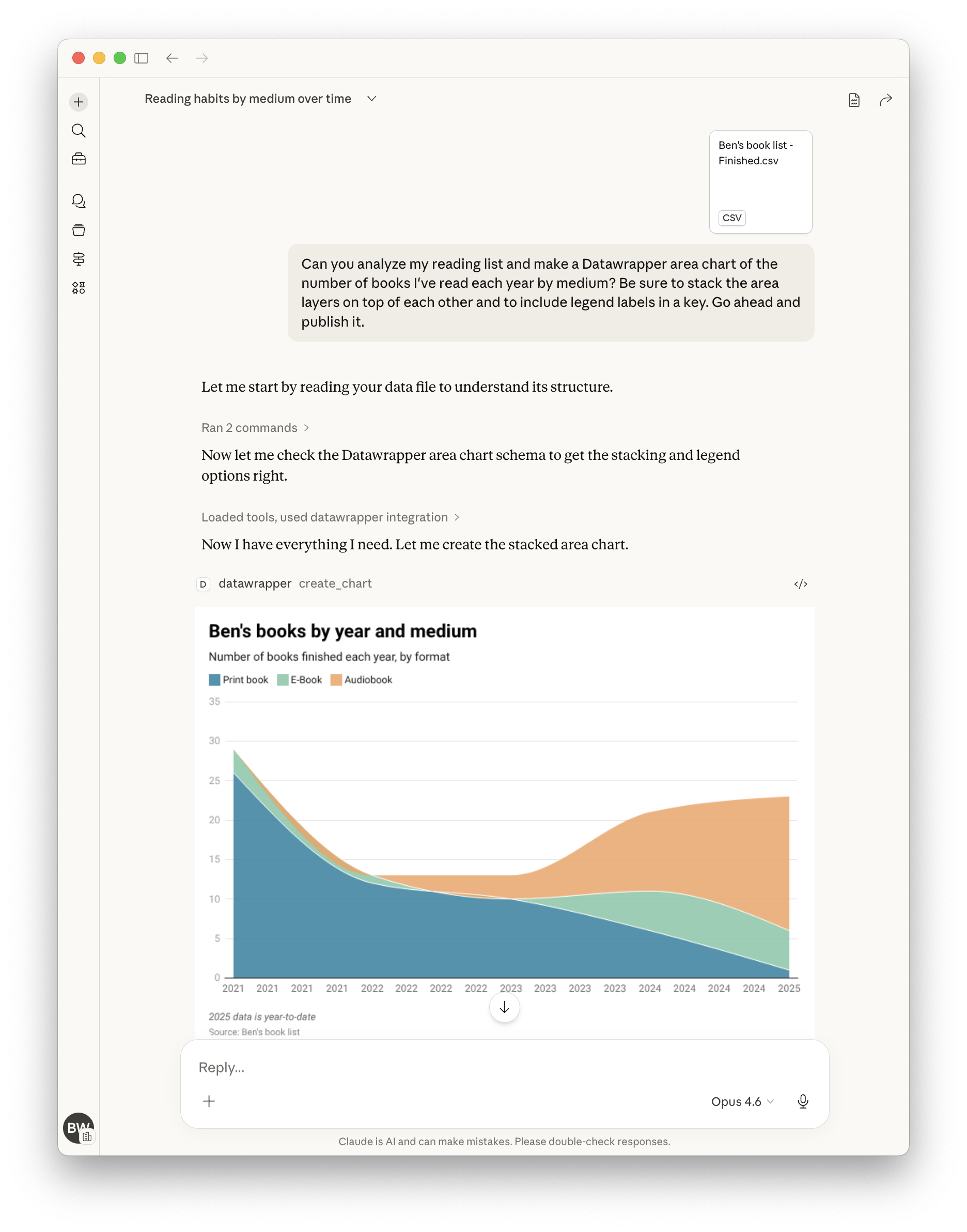
Here's a more complete example showing how to create, publish, update, and display a chart by chatting with the assistant:
"Create a datawrapper line chart showing temperature trends with this data:
2020, 15.5
2021, 16.0
2022, 16.5
2023, 17.0"
# The assistant creates the chart and returns the chart ID, e.g., "abc123"

"Publish it."
# The assistant publishes it and returns the public URL

"Update chart with new data for 2024: 17.2°C"
# The assistant updates the chart with the new data point

"Make the line color dodger blue."
# The assistant updates the chart configuration to set the line color

"Show me the editor URL."
# The assistant returns the Datawrapper editor URL where you can view/edit the chart

"Show me the PNG."
# The assistant embeds the PNG image of the chart in its contained response.

"Suggest five ways to improve the chart."
# See what happens!
Tools
| Tool | Description |
|---|---|
list_chart_types |
List available chart types with descriptions |
get_chart_schema |
Get the full configuration schema for a chart type |
create_chart |
Create a new chart with data and configuration |
update_chart |
Update an existing chart's data or styling |
publish_chart |
Publish a chart to make it publicly accessible |
get_chart |
Retrieve a chart's configuration and metadata |
delete_chart |
Permanently delete a chart |
export_chart_png |
Export a chart as a PNG image |
Chart Types
bar, line, area, arrow, column, multiple column, scatter, stacked bar
Use list_chart_types to see descriptions, then get_chart_schema to explore configuration options for any type.
Getting Started
Requirements
- A Datawrapper account (sign up at https://datawrapper.de/signup/)
- An MCP client such as Claude or OpenAI Codex
- Python 3.10 or higher
Get Your API Token
- Go to https://app.datawrapper.de/account/api-tokens
- Create a new API token
- Add it to your MCP configuration as shown in the installation guide
Quick Start (Claude Code)
{
  "mcpServers": {
    "datawrapper": {
      "command": "uvx",
      "args": ["datawrapper-mcp"],
      "env": {
        "DATAWRAPPER_ACCESS_TOKEN": "your-token-here"
      }
    }
  }
}
For other clients (Claude Desktop, Cursor, VS Code Copilot, ChatGPT, OpenAI Codex) and Kubernetes deployment, see the installation guide.
Using Your Own Token (Hosted Deployments)
When connecting to a hosted instance of the server over HTTP, you can authenticate
with your own Datawrapper API token by sending it in the Authorization header:
Authorization: Bearer <your-datawrapper-api-token>
This ensures charts are created under your account instead of the server operator's.
The token is read from the header automatically — no need to include it in every
tool call.
You can also pass access_token directly as a tool argument, which takes precedence
over the header. When neither is provided, the server falls back to itsDATAWRAPPER_ACCESS_TOKEN environment variable.
Supported Clients
| Client | Config file | Transport |
|---|---|---|
| Claude Desktop | claude_desktop_config.json |
stdio or streamable-http |
| Claude.ai | Managed connector | streamable-http |
| Claude Code | .claude/settings.json |
stdio |
| VS Code Copilot | .vscode/mcp.json |
stdio |
| Cursor | .cursor/mcp.json |
stdio or streamable-http |
| ChatGPT | Dev Mode settings | streamable-http only |
| OpenAI Codex | ~/.codex/config.toml |
stdio |
Reviews (0)
Sign in to leave a review.
Leave a reviewNo results found