anywidget-mcp
Health Warn
- License — License: MIT
- Description — Repository has a description
- Active repo — Last push 0 days ago
- Low visibility — Only 5 GitHub stars
Code Pass
- Code scan — Scanned 12 files during light audit, no dangerous patterns found
Permissions Pass
- Permissions — No dangerous permissions requested
No AI report is available for this listing yet.
🧩 Turn Python AnyWidgets into interactive, composable MCP Apps


Experimental:
anywidget-mcpis experimental software. Its API is subject
to breaking changes.
anywidget-mcp runs AnyWidgets inside AI
conversations. You can interact with a widget directly, and the model can
respond to your input.
Start with a widget from an existing package, or bring the same widget you use in
Jupyter or marimo.
Try a multi-widget conversation
Requires Python 3.11 or newer. Serve
Wigglystuff's ColorPicker andLiveEdit together:
uvx --with wigglystuff anywidget-mcp serve \
  wigglystuff:ColorPicker \
  wigglystuff:LiveEdit \
  --port 8010
Connect a host that supports
MCP Apps. For a
quick local setup, start the
mcp-use Inspector in another terminal:
npx --yes @mcp-use/[email protected] \
  --url http://127.0.0.1:8010/mcp \
  --port 7878
Open Inspector Chat, configure a
model provider, then ask:
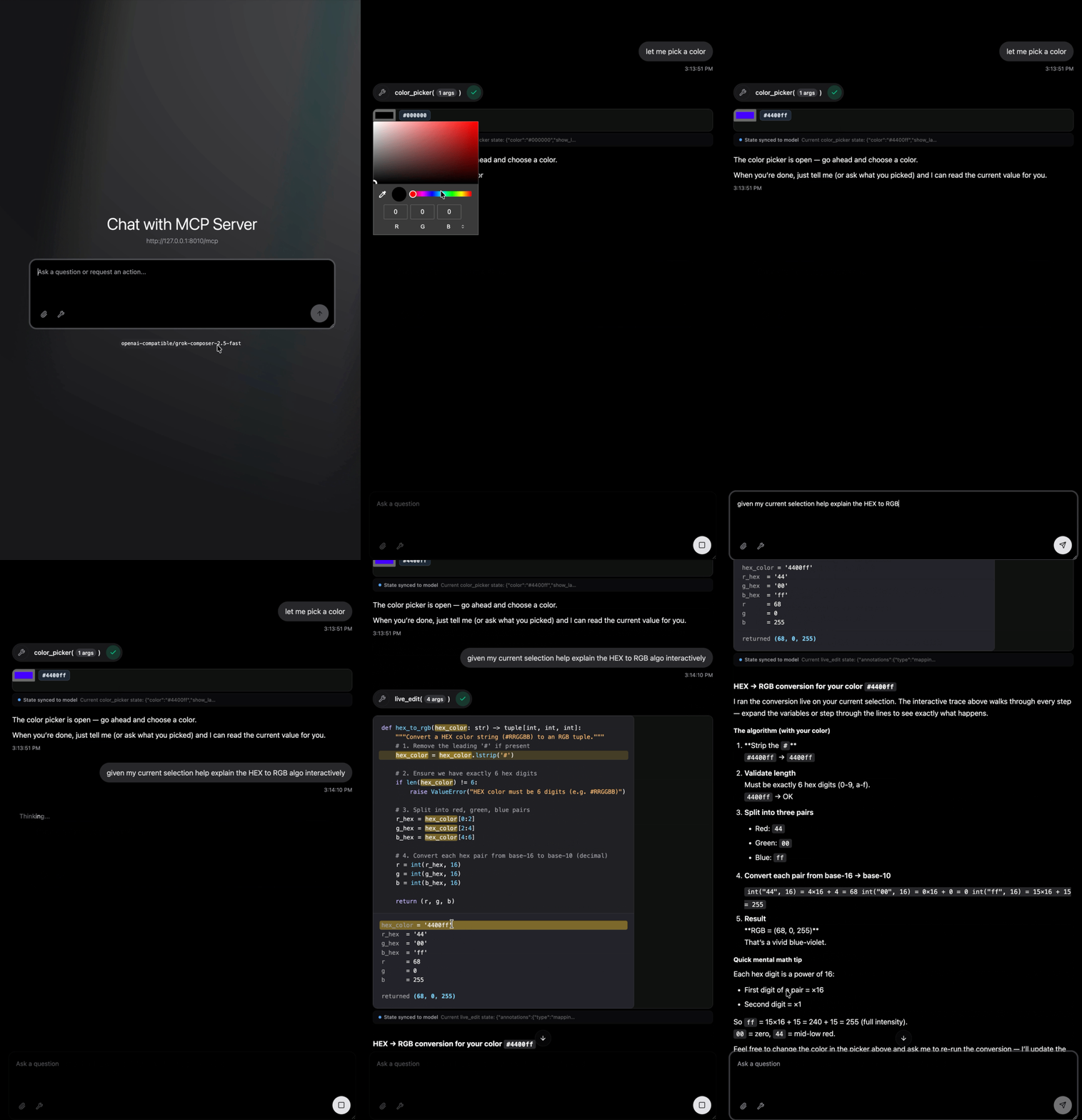
let me pick a color
Choose a color using ColorPicker, then ask:
given my current selection help explain the HEX to RGB algo interactively
The model reads the picker's current color and opens LiveEdit for the
interactive explanation. One server exposes both widgets, so the conversation
can move from selection to explanation without leaving the chat.
Getting started
explains the Inspector flow and other MCP clients.
But why?
💬 Stay in context: A standalone web app sends you to a separate page. An
MCP App stays in the
conversation, exchanges data through MCP, and runs in a host-controlled
sandbox. With your consent, it can ask the host to use tools you already
connected.
🧩 Skip the scaffolding: Building an MCP App directly means wiring together
tools, UI resources, browser code, the host connection, and shared state.anywidget-mcp handles that integration. You define an
AnyWidget that keeps browser behavior and Python state
in one component.
🧪 Develop in notebooks: The same widget runs in Jupyter and marimo. Create
it from Python, inspect its state, and use marimo's reactive execution to test
scenarios before serving it through MCP.
🧰 Combine widgets: One server can expose multiple widgets as separate
tools, or one call can open several together. Combine widgets from the
AnyWidget gallery into an interactive environment
for the task, then add your own.
✨ Invent at runtime: When you cannot enumerate every useful interface in
advance, servecreate_anywidget.
Supply Python source directly or ask an agent to invent a fresh AnyWidget during
the conversation. Use that natural-language loop to develop widgets and test
concepts. Run the factory in a sandbox because supplied source executes with the
MCP server's permissions.
Install in a project
Install anywidget-mcp in the Python environment that owns your widget code:
uv pip install anywidget-mcp
Bring your own AnyWidget
Point the CLI at your AnyWidget's import path:
anywidget-mcp serve my_widgets:MyWidget
Or start the server from Python:
from anywidget_mcp import serve
from my_widgets import MyWidget

serve(MyWidget)
MyWidget remains the same anywidget.AnyWidget subclass you use in
notebooks. Browser changes stay synchronized with its Python traits.
When the widget needs data from the conversation, use a Python function that
accepts the input and returns an AnyWidget. This function is a widget factory.
Pass input to widgets
covers that workflow, multiple widgets, and existing MCP servers.
Documentation
Reviews (0)
Sign in to leave a review.
Leave a reviewNo results found