ns2bench
Health Warn
- License — License: GPL-3.0
- Description — Repository has a description
- Active repo — Last push 0 days ago
- Low visibility — Only 7 GitHub stars
Code Pass
- Code scan — Scanned 12 files during light audit, no dangerous patterns found
Permissions Pass
- Permissions — No dangerous permissions requested
No AI report is available for this listing yet.
See, hear and drive a Nintendo Switch 2 from your computer, by hand or by AI agents. The console stays offline.
NS2Bench






See, hear and drive a Nintendo Switch 2 from your computer, by hand or by AI agents. The console stays offline.
No jailbreak needed: works with any Switch 2, stock or jailbroken.
Website · Download · Setup guide · FAQ
What it is
NS2Bench lets you use, develop for and test a Nintendo Switch 2 without touching it. The console sits in its dock; your computer shows its screen, plays its sound and presses its buttons. Anything you could do with the console in your hands, you or a script or an AI agent can do from the computer, and repeat exactly.
It needs nothing from the console but its HDMI and USB ports. To the console, NS2Bench is a TV and a wired controller, so it works with a stock console on any system version, and with a jailbroken one too.
Good for:
- Developers and testers: drive real hardware from your desk or from CI, with screenshots, clips and logs for every run.
- Automation: repeat the same menu path or check a hundred times without picking up a controller.
- AI agents: let an agent see the screen and play or test, while you watch and can stop it with one switch.
- Remote and hands-free use: a console in another room, an accessibility setup, or a demo you control from a laptop.
What it does
- See and hear the console: live 1080p60 video and sound from any USB HDMI capture card. Screenshots, 30-second clips, and reading on-screen text (OCR).
- Drive it: keyboard, mouse or your own gamepad, sent through a small input device on the console's USB port. On-screen Joy-Con light up with every press.
- Let agents drive it: an HTTP API and an MCP server (Claude Code, Codex, opencode and others). You watch every agent action live, and one switch blocks agent input.
- Test it: repeatable JSON tests with screenshots, a clip of the moments before any failure, navigation routes and a doctor that says which part is broken.
- Wakes the console: HDMI-CEC (a USB-CEC adapter, nothing mechanical) or a power-button presser you set up, so agents and tests recover from Sleep Mode or a crash.
- Remembers your setup: theme, text size, language, layout and notification choices are saved on your computer and are the same in the app and in a browser.
- Know what's going on: logs with levels, and for known problems what happened and what to do. Desktop notifications when the Bridge or the picture drops, a test finishes or an update is ready. Help → Run the check tests every part.
- Set up the rest from the app: Settings → Install puts the
ns2benchcommand on your PATH, flashes a Pico, installs the Bridge on a Linux board over SSH, and runs the offline network helper as a service. - Keep it offline: an optional console network with local DHCP and a DNS that answers only the connectivity test. No forwarding, no NAT, no internet.
What it doesn't do
- It doesn't need to modify the console or install anything on it: no jailbreak, mods or homebrew required. If your console is jailbroken, it works the same.
- It never gives the console internet access or talks to Nintendo's servers.
- It doesn't bypass any protection. It sees what a TV sees and presses what a controller presses.
A quick look
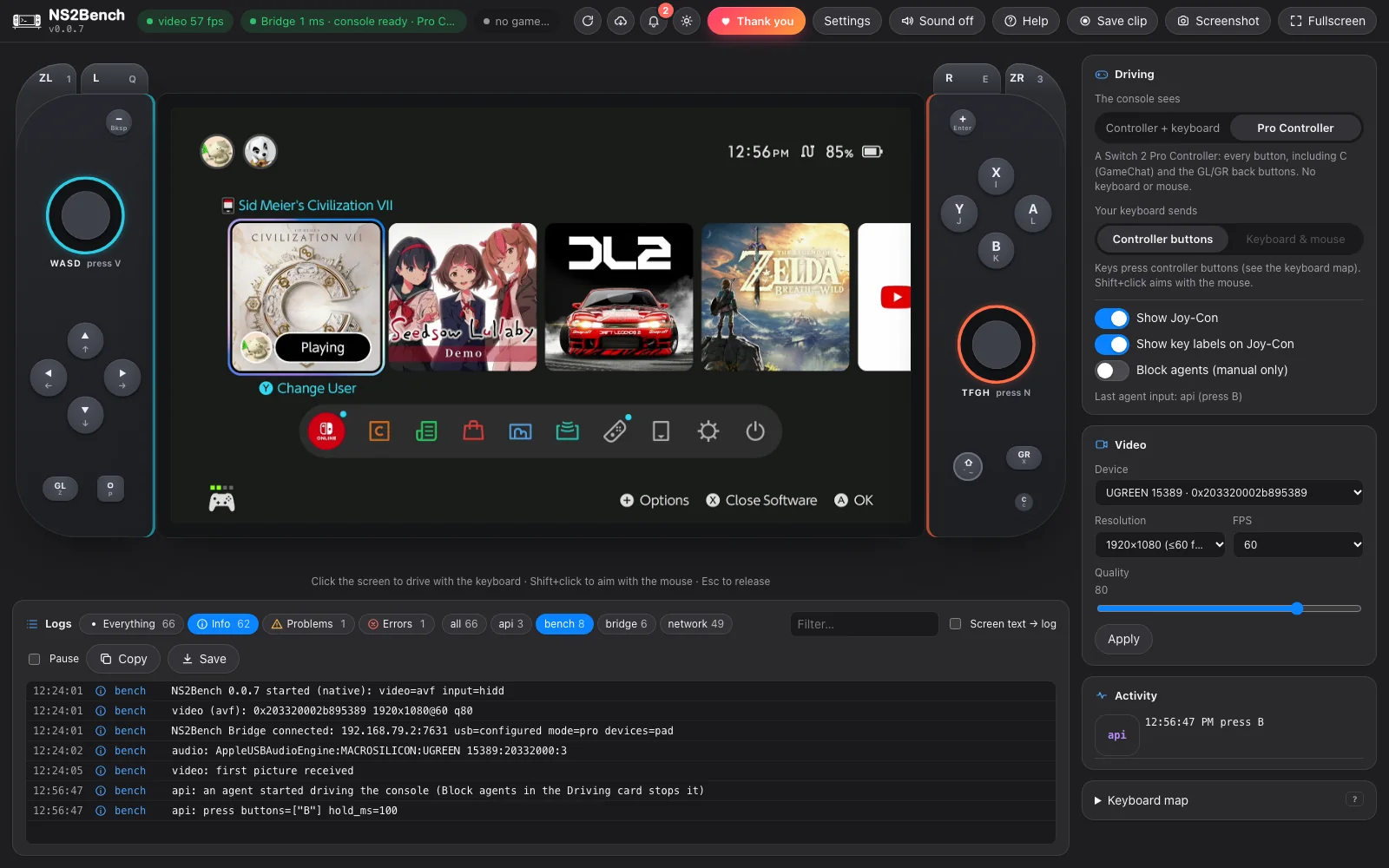
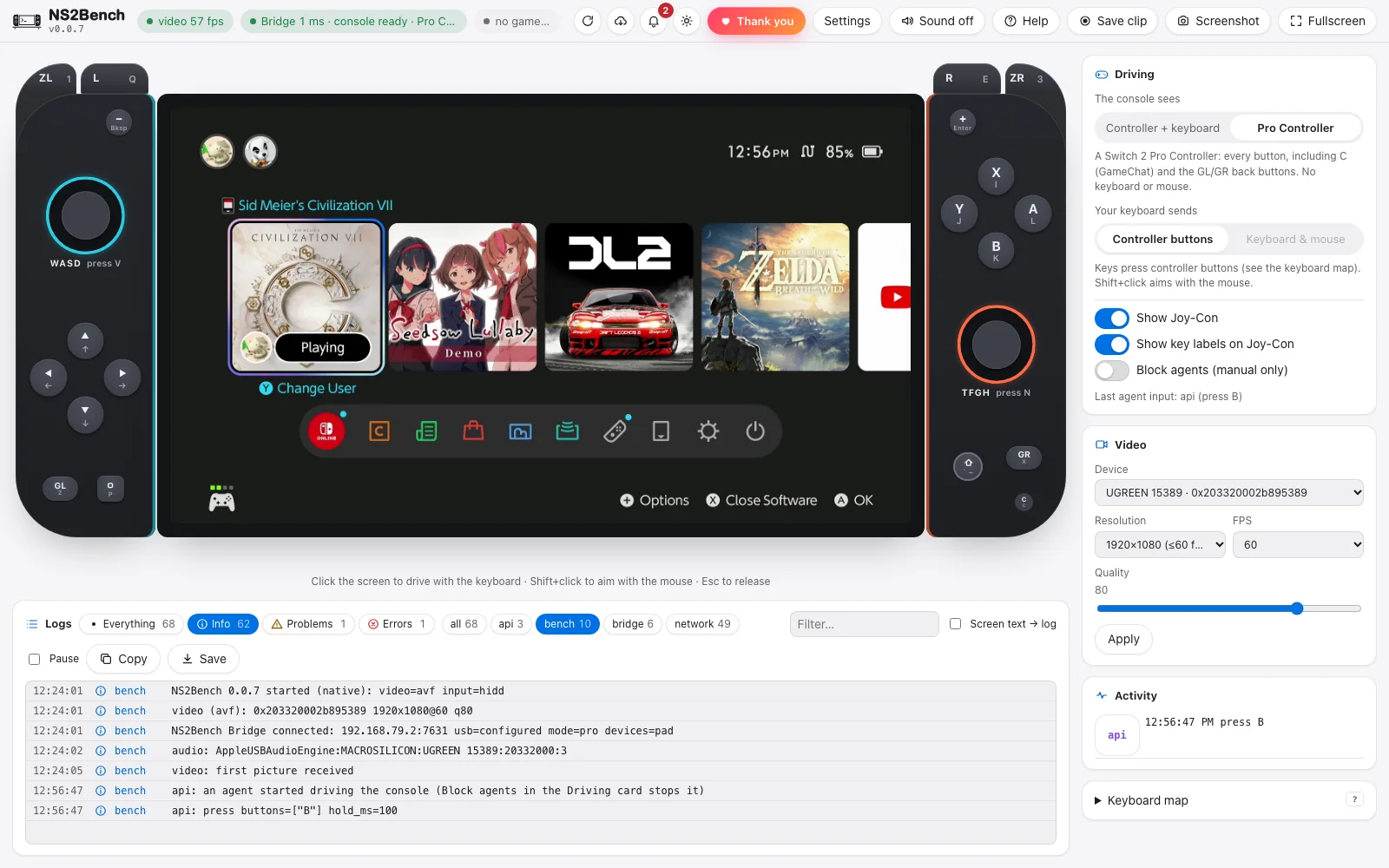
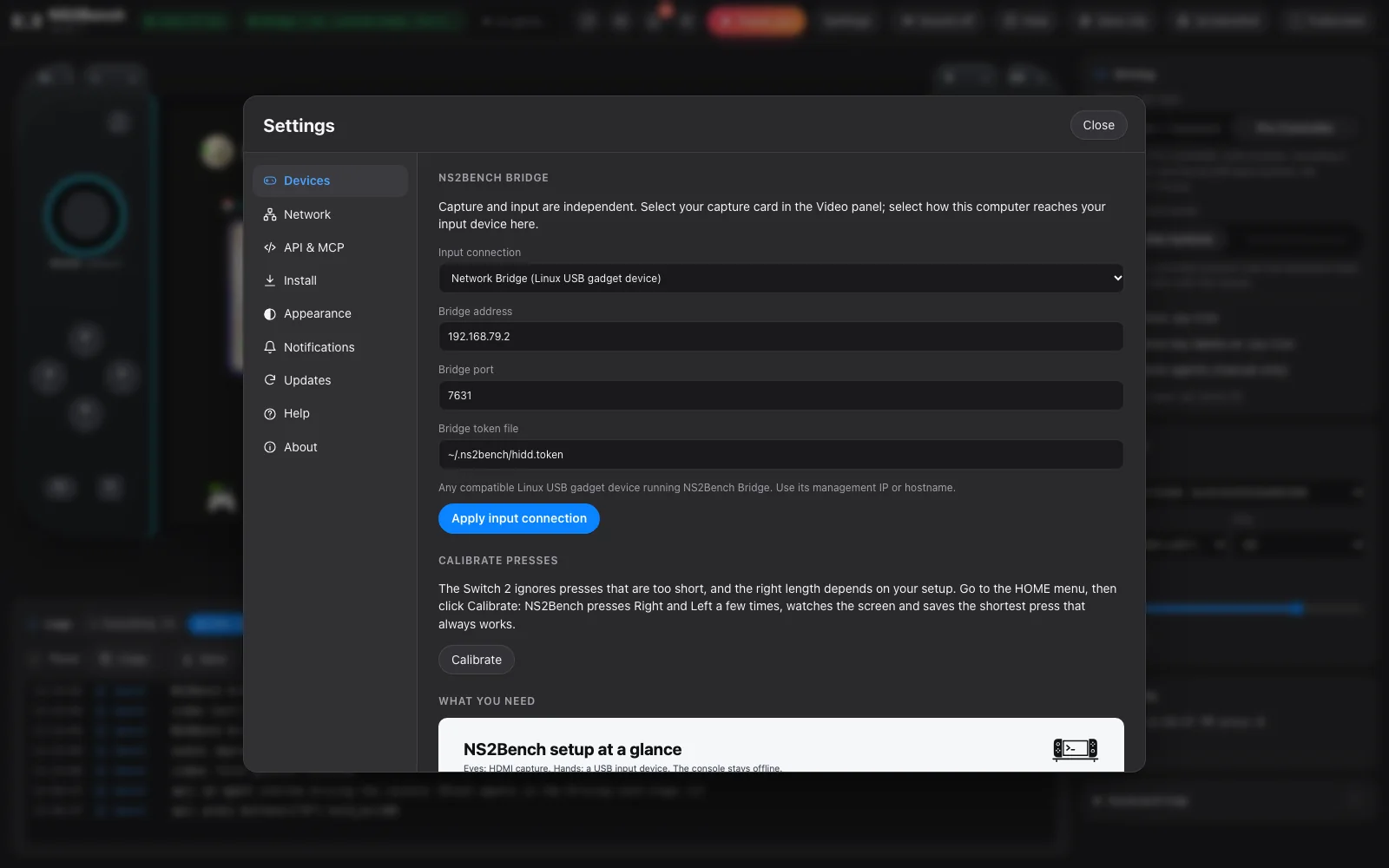
How it connects
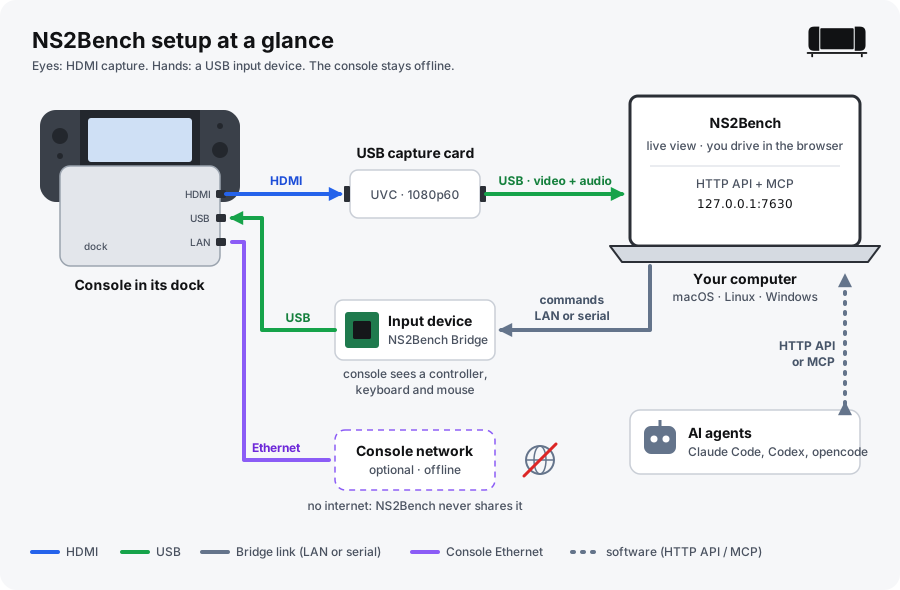
You need a capture card for video and sound, and one input device to press buttons:
| You have | Use | Controller buttons | Keyboard and mouse |
|---|---|---|---|
| A Linux board with a USB device port (Luckfox Pico, Raspberry Pi Zero 2 W, Pi 4/5) | Network Bridge | all (Pro Controller mode adds C, GL, GR) | yes |
| A Raspberry Pi Pico and a 3.3 V USB-to-UART adapter | Serial Bridge | all except C, GL, GR | yes |
| A CH9329 module | CH9329 | no | yes |
| Only a capture card | View only | no | no |
The setup guide has a diagram, a parts list and step-by-step instructions for each of these, plus the optional offline console network.
Install
Download the app for your computer from the latest release:
| Computer | File |
|---|---|
| Mac with Apple silicon | NS2Bench-<version>-mac-arm64.dmg |
| Mac with Intel | NS2Bench-<version>-mac-x64.dmg |
| Windows | NS2Bench-<version>-win-x64-setup.exe (or win-arm64 for Snapdragon/ARM PCs) |
| Linux | NS2Bench-<version>-linux-x64.AppImage or .deb (also arm64) |
For the input device: ns2bench-board-* (Linux boards, installed with board/install.sh) or ns2bench-pico-*.uf2 (Raspberry Pi Pico). Every file is listed in SHA256SUMS, and the app checks the checksum of every update it installs.
First-launch warnings (and why they're there)
NS2Bench isn't signed with paid Apple or Microsoft certificates yet. Gatekeeper (macOS) and SmartScreen (Windows) treat unsigned downloads as suspicious until you allow them once.
macOS: "Apple could not verify "NS2Bench-….dmg" is free of malware", "NS2Bench is damaged and can't be opened" or "cannot be opened because Apple cannot check it". NS2Bench is signed, but not notarized by Apple (that needs a paid Apple Developer ID), so macOS blocks it when it comes from a browser. Allow it once:
- Before opening the .dmg, in Terminal:
Then open the .dmg and drag NS2Bench to Applications.xattr -dr com.apple.quarantine ~/Downloads/NS2Bench-*.dmg - Already in Applications:
xattr -dr com.apple.quarantine /Applications/NS2Bench.app - Without Terminal: click Done on the warning, open System Settings → Privacy & Security, scroll down and click Open Anyway next to NS2Bench, then open it again. Do this for the .dmg and, if asked, once more for the app.
This removes the quarantine flag macOS puts on everything downloaded from a browser, once per download. Updates installed from inside the app (Settings → Updates) don't get the flag, so after the first install you won't see this again. Then allow Camera (the capture card's picture), Microphone (console sound) and Local Network (the input device) when asked.
Windows: "Windows protected your PC":
- Click More info → Run anyway. It's shown only until SmartScreen trusts the file.
- If a policy blocks "Run anyway": right-click the installer → Properties → tick Unblock → OK.
Linux: no warning. chmod +x NS2Bench-*.AppImage and run it, or install the .deb.
System requirements
| Needs | Install first | |
|---|---|---|
| macOS 14+ | nothing else | (optional, for clips) brew install ffmpeg |
| Windows 10/11 x64 or arm64 | ffmpeg | winget install Gyan.FFmpeg; a USB-UART driver (CH340/CP210x) for serial devices |
| Linux x64/arm64 | ffmpeg, video/dialout groups |
the .deb pulls in ffmpeg; sudo usermod -aG video,dialout $USER |
Details for each system are in the setup guide's Before you start. If ffmpeg is missing, NS2Bench says so and shows the command for your system.
Quick start
- Connect the console, capture card and input device as shown in the setup guide.
- Open NS2Bench. In the Video panel pick your capture card.
- Open Settings → Devices, choose your input device and Apply. The Bridge pill in the top bar turns green when the console sees the controller.
- Click the video and drive with the keyboard, or plug in a gamepad. If something isn't right, click Help in the top bar and Run the check: it says which part is broken and how to fix it.
To let an AI agent drive, open Settings → API & MCP and click Add next to Claude Code, Codex or OpenCode. Or run it yourself:
claude mcp add --scope user --transport http ns2bench http://127.0.0.1:7630/mcp
Build from source
cp examples/bench.example.json bench.json      # your capture device and input device (never committed)
make serve                                     # engine + UI: open the link it prints (http://127.0.0.1:7630/?ui=…)
make app                                       # desktop app (needs: cargo install tauri-cli --version '^2')
make test                                      # every Rust test
make lists every task, including board, board-install BOARD=<ssh-host>, pico and netd. You need Rust (stable); Xcode command line tools on macOS (the capture helper is Swift); ffmpeg on Linux and Windows.
Architecture
console HDMI ──> USB capture card ──> computer ── NS2Bench engine ──> UI (you, browser or desktop app)
console USB  <── input device (NS2Bench Bridge) <── network or serial ──┘   └─> HTTP API / MCP (agents)
- Engine (
native/crates/core, Rust): capture, input hub, OCR, tests, recorder, HTTP/WebSocket API and MCP. - Desktop app (
native/crates/app, Tauri 2): the engine and the web UI (web/) in one window, with verified updates. - NS2Bench Bridge:
ns2bench-board(native/crates/board), one static Rust binary for Linux USB-gadget boards, or the Pico firmware (firmware/pico, embassy). - Offline network (
native/crates/netd): DHCP, local-only DNS and the connectivity test on one interface.
More detail, the full HTTP API and the test format are in docs/REFERENCE.md.
Supported platforms
| macOS | Windows | Linux | |
|---|---|---|---|
| Desktop app | ✅ arm64, x64 | ✅ x64, arm64 | ✅ x64, arm64 |
| Capture | ✅ native, shares the card with OBS | ffmpeg (DirectShow) | ffmpeg (V4L2) |
| Offline console network | ✅ | via a Linux helper or a router | ✅ |
Tested on hardware so far: macOS capture (UGREEN 15389) and a Luckfox Pico Max board in both controller modes. The Pico firmware, a real CH9329 module and Windows/Linux capture are built and tested in software, not yet on hardware. Hardware reports are very welcome.
API and AI agents
The engine listens on 127.0.0.1:7630. The MCP server (35 tools: see, find text, wait for the screen, drive, navigate, test, check health, debug) is part of the engine, at http://127.0.0.1:7630/mcp, so you see everything an agent does (ns2bench mcp is the same server over stdio). Examples for Claude Code, Codex and opencode, and every HTTP endpoint, are in docs/REFERENCE.md.
Command line
ns2bench does everything the API and MCP do, from a terminal or a script. It talks to the running app (or ns2bench serve), so you see every action in the window.
ns2bench health                              # ready to drive? if not, what to fix
ns2bench status                              # video, Bridge, console USB, agents
ns2bench press A --hold-ms 120               # also: hold, release, stick, key, type, mouse, click
ns2bench navigate system_settings            # go somewhere and verify it
ns2bench read --region 0,0,0.5,0.2           # on-screen text
ns2bench find "System Settings"              # where a text is on screen
ns2bench press A && ns2bench wait-screen     # wait for the screen to react (or --stable)
ns2bench wait-text "Airplane Mode" --timeout 10
ns2bench test examples/tests/settings-smoke.json
ns2bench clip --seconds 20                   # also: screenshot, bundle, diagnostics
ns2bench logs --follow --level warn          # problems only; also: events, doctor --probe
ns2bench input --backend serial --serial-port /dev/ttyACM0 --baud 921600
Add --json for raw output, --url / --token (or NS2BENCH_URL / NS2BENCH_TOKEN) for another engine. ns2bench --help lists every command. It ships inside the app: Settings → Install → Install command line tool puts it on your PATH. It's also in each release (ns2bench-cli-<version>-<os>-<arch>), or build it with make build. The desktop app itself also runs ns2bench-app mcp (the MCP server) and ns2bench-app update check|install (update from a terminal).
FAQ
Common questions (setup, capture cards, input devices, the offline network, agents, troubleshooting) are answered in FAQ.md and on the website.
Roadmap
What's next (waking from sleep, a test recorder, visual checks, more input devices, multi-console) is in ROADMAP.md.
Contributing
Bug reports, hardware reports, translations and code are welcome. See CONTRIBUTING.md. Security issues: SECURITY.md.
Reporting bugs
In the app, click Help in the top bar and choose Save bug report. It saves a zip with logs, status and a screenshot (tokens are removed) that you can attach to a GitHub issue. Open an issue on GitHub fills in your version and OS for you.
How this project is built
NS2Bench is written with the help of AI coding tools, and reviewed and tested by a person on real hardware. Every release lists what was and wasn't tested on hardware.
Disclaimer
NS2Bench is an independent project. It is not affiliated with, endorsed by or sponsored by Nintendo. Nintendo Switch is a trademark of Nintendo. Use it with hardware you own, keep the console offline, and follow the terms that apply to your console and software. It is provided as is, without warranty (see LICENSE).
Credits
NS2Bench builds on others' work. Included means code or data in this repo derived from the project; library means a dependency used at build time; reference means documentation we learned from.
Included:
- GP2040-CE (OpenStickCommunity) — the Switch 2 Pro Controller descriptors, command replies and flash tables in native/crates/board/src/pro2.rs. MIT.
Libraries:
- Tauri — the desktop app.
- Tokio and axum — the engine's runtime and HTTP/WebSocket server.
- embassy (
embassy-rp,embassy-usb) — the Raspberry Pi Pico firmware. - image, serde, reqwest and the other crates listed in
native/Cargo.lock.
Used at runtime (not bundled):
- FFmpeg — capture on Windows and Linux, and clips.
- Tesseract — optional OCR where Apple Vision isn't available.
References:
- ndeadly/switch2_controller_research — Switch 2 controller protocol notes.
License texts for included code are in LICENSES/.
Thanks
Thanks to the console research and homebrew communities whose open documentation makes projects like this possible.
License
GNU General Public License v3.0 or later (GPL-3.0-or-later). See LICENSE.
Under GPLv3 section 7, NOTICE adds terms for every copy and modified version: keep the attribution "NS2Bench, created by PhantomPtr" in the app's About screen and in the documentation, mark modified versions as modified, and don't use the NS2Bench name or logo for them. Derived GP2040-CE material stays under its MIT license (LICENSES/). Each release also includes THIRD-PARTY-LICENSES.txt with the license and notice texts of every open-source package compiled into the binaries (node scripts/third-party.mjs builds it).
Author
Created and maintained by PhantomPtr.
Support
If NS2Bench is useful to you, you can support its development:
- Join the UndefinedLab Discord for help and news.

- Crypto: see the addresses below.
| Coin | Network | Address |
|---|---|---|
| BTC | Bitcoin | bc1q36gxkvd3wfxy9azm8hft3rru9m6m9hjvn7u20n |
| ETH | Ethereum | 0x2e787654db543B69FB011E16995C274dFAfc2286 |
| SOL | Solana | G1q5XCCn3mePYpcx7uY17CwDsUaAZTcty56huUDvVqjG |
| XRP | XRP Ledger | rEVq3si3sm9NuWNuZiUZFKsUtwC3w9SrjR (no destination tag needed) |
QR codes for each are on the website.
Thank you
Thank you to everyone who supports the project.
Reviews (0)
Sign in to leave a review.
Leave a reviewNo results found