LazyLingo
Health Warn
- No license — Repository has no license file
- Description — Repository has a description
- Active repo — Last push 0 days ago
- Low visibility — Only 5 GitHub stars
Code Pass
- Code scan — Scanned 11 files during light audit, no dangerous patterns found
Permissions Pass
- Permissions — No dangerous permissions requested
No AI report is available for this listing yet.
An Autonomous AI Agent with a custom MCP server that does Duolingo for you and sends Discord notifications when done
LazyLingo
An autonomous AI agent that does your Duolingo for you. Every. Single. Day.
"You didn't miss a day. You just delegated."
LazyLingo is a fully autonomous AI agent that fires up a real Chrome browser, navigates to Duolingo, and solves your daily lesson — no hardcoded logic, no brittle CSS selectors, no hand-holding. The agent sees the screen, thinks, and acts using a custom MCP (Model Context Protocol) server as its hands.
It works with any provider: Ollama, OpenAI, LM Studio, or OpenRouter — just set PROVIDER in your .env.
✨ Features
- Fully autonomous AI agent — the LLM decides every click, every typed word, every submitted answer by looking at live screenshots and DOM state
- Custom MCP server — a purpose-built Model Context Protocol server exposes browser primitives as tools the AI can call natively
- Live dashboard — watch the agent's reasoning, tool calls, and actions stream in real-time at
localhost:7700 - Discord notifications — get a message in your phone the moment a lesson finishes, fails, or needs your attention
- Anti-detection — persistent Chrome session (no re-login), stealth flags to bypass automation detection
- Provider-agnostic — plug in Ollama (local), OpenAI, LM Studio, or OpenRouter via
.env
🏗️ Architecture
┌─────────────────────────────────────────────────────┐
│                     agent.py                        │
│   ┌─────────────────────────────────────────────┐   │
│   │        LLM (any supported provider)         │   │
│   │   autopilot  ·  LLM for anything unusual    │   │
│   └──────────────────┬──────────────────────────┘   │
│                      │ MCP tool calls               │
│   ┌──────────────────▼──────────────────────────┐   │
│   │              mcp_server.py                  │   │
│   │   start_lesson · get_exercise · answer      │   │
│   │   skip_exercise · done · (fallbacks)        │   │
│   └──────────────────┬──────────────────────────┘   │
│                      │ Playwright                   │
└──────────────────────┼──────────────────────────────┘
                       ▼
              Real Chrome Browser
                  (Duolingo.com)
How a lesson runs:
start_lesson()finds the current node on the path (the one with the INIZIA/START tooltip) and opens it.- Every tool returns a parsed description of the next screen: exercise type, prompt, word bank / options / inputs,
and APP DATA, Duolingo's own answer key, read from the exercise's React props (with captured lesson JSON as a fallback). answer(...)fills in tiles / text / choice / pairs, presses CHECK, reads the verdict, presses CONTINUE and returns the next exercise.
That's one call per exercise.- Narration, intro, reward, streak, quest and "no thanks" screens are clicked through automatically.
- With
AUTOPILOT=true(default) the agent runs the answer-key call directly; the LLM is only asked about screens without one
(unknown exercise types, unexpected popups). WithAUTOPILOT=falsethe LLM decides every step, with the answer key in view.
Supported: regular lessons, practice, unit reviews, stories and Duo Radio. Speaking exercises are skipped with Duolingo's own
"can't speak now" button. Gems are never spent: Legendary, refills, Super/free-trial and purchase buttons are blocked at the tool level.
🚀 Quick Start
Prerequisites
- Python 3.11+
- Node.js 18+
- Chrome installed
- An LLM provider (Ollama for local runs, or an API key for OpenAI / OpenRouter)
1. Install dependencies
# Python side (agent + MCP server)
pip install -r python/requirements.txt
playwright install chromium

# Node side (session login helper)
npm install
2. Configure your provider
Copy python/.env.example to python/.env and fill in the values for your chosen provider:
# Choose your provider: ollama | openai | lmstudio | openrouter
PROVIDER=ollama

# Ollama (local — recommended)
OLLAMA_MODEL=gemma3:27b
OLLAMA_BASE_URL=http://localhost:11434/v1

# OpenAI
# PROVIDER=openai
# OPENAI_API_KEY=sk-...
# OPENAI_MODEL=gpt-4o

# LM Studio
# PROVIDER=lmstudio
# LMSTUDIO_BASE_URL=http://localhost:1234/v1
# LMSTUDIO_MODEL=your-local-model

# OpenRouter
# PROVIDER=openrouter
# OPENROUTER_API_KEY=sk-or-...
# OPENROUTER_MODEL=google/gemma-3-27b-it
All four providers are supported out of the box. Only the section matching your PROVIDER value needs to be filled in. See python/.env.example for the full list of available options, including headless mode and Discord notifications.
3. Log in once (saves your session)
npm run login
This opens a real Chrome window pointed at Duolingo. Sign in manually (including Google OAuth if needed). Once you close the browser, the entire session — cookies, local storage, auth tokens — is saved to session/. The agent will reuse this profile on every future run, so you never have to log in again.
4. Test the browser setup (optional)
npm run bot
This runs bot.js, a minimal Playwright script that opens your saved session and navigates to Duolingo. Use it to verify the session was saved correctly and that the browser launches as expected before running the full agent.
5. Run the agent
python python/agent.py
6. Watch the live dashboard (optional)
Open a second terminal and launch the dashboard:
python python/dashboard.py
Then open http://localhost:7700 to watch the agent's tool calls and actions stream live.
Note: The dashboard works with all providers, but shows the richest output when using LM Studio — because LM Studio streams the model's internal reasoning tokens in real time, so you can watch the agent think step-by-step before it acts.
🔔 Discord Notifications
LazyLingo can send you a Discord message after every run — so you know the owl was handled without having to check the terminal yourself.
Set DISCORD_WEBHOOK_URL in your python/.env to enable it. All other notification behaviour is automatic.
Setting up a webhook
- Open the Discord channel you want notifications in
- Go to Edit Channel → Integrations → Webhooks → New Webhook
- Copy the webhook URL and paste it in your
.env:
DISCORD_WEBHOOK_URL=https://discord.com/api/webhooks/YOUR_ID/YOUR_TOKEN
That's it. No bot token, no OAuth, no server permissions needed.
What gets sent
Every notification arrives as a Discord embed with a colour and timestamp.
| Event | Colour | When it fires |
|---|---|---|
| Session started | Blue | The agent launches and the browser opens |
| Lesson completed | Green | done() is called — streak is safe |
| Human intervention needed | Yellow | An audio/speaking exercise couldn't be skipped automatically |
| Max steps reached | Red | The agent hit the safety cap without finishing the lesson |
| Agent crashed | Red | An unhandled exception terminated the run |
The yellow and red notifications are the ones that matter — they mean something went wrong and the streak may be at risk. With notifications enabled, you're the one keeping an eye on the owl.
If DISCORD_WEBHOOK_URL is empty or not set, the notifier is a silent no-op — nothing breaks, nothing is sent.
⚡ Shortcut
run_agent.sh — the smart launcher
Instead of running python python/agent.py directly, you can use run_agent.sh as a wrapper that handles the full Ollama lifecycle for you:
bash run_agent.sh
What it does:
- Checks whether Ollama is already running — if not, it starts
ollama servein the background and waits for it to initialise. - Clears
agent_logs.txtbefore each run, then pipes all agent output into it unbuffered so you can follow the session live in a second terminal:tail -f agent_logs.txt - Runs
python/agent.pyand captures its exit code. - Stops Ollama when the agent finishes — but only if the script was the one that started it, so it never kills an Ollama instance you were already using.
Reading agent_logs.txt
agent_logs.txt is overwritten on every run. Each entry shows the MCP tool that was called (⚙ auto = autopilot, → = LLM decision), its arguments, and the result the server returned:
[agent] ⚙ auto answer({"tiles": ["Oye", "el", "almuerzo", "está", "listo"]})
[agent] ← RESULT: CORRECT ✓  (Ottimo lavoro!)

SCREEN: lesson exercise #3  type=translate
INSTRUCTION: Scrivi in spagnolo
PROMPT: Il mio libro non è qui!
WORD BANK: está | libro | no | quiere | Mi | aquí | tú | pasaporte
APP DATA (Duolingo's own answer key): answer(tiles=["Mi", "libro", "no", "está", "aquí"])
This is your ground truth for debugging — if the agent makes a wrong move, the log tells you exactly which tool call caused it.
Tip — headless mode: Set
HEADLESS=trueinpython/.envto run Chrome invisibly in the background. This is ideal for scheduled or unattended runs. Leave it asfalse(the default) to watch the agent control the browser in real time — useful during setup and debugging.
One-click macOS Shortcut
If you want to trigger the agent from anywhere on your Mac — Spotlight, the menu bar, or even your phone via iCloud — wrap run_agent.sh in a macOS Shortcut:
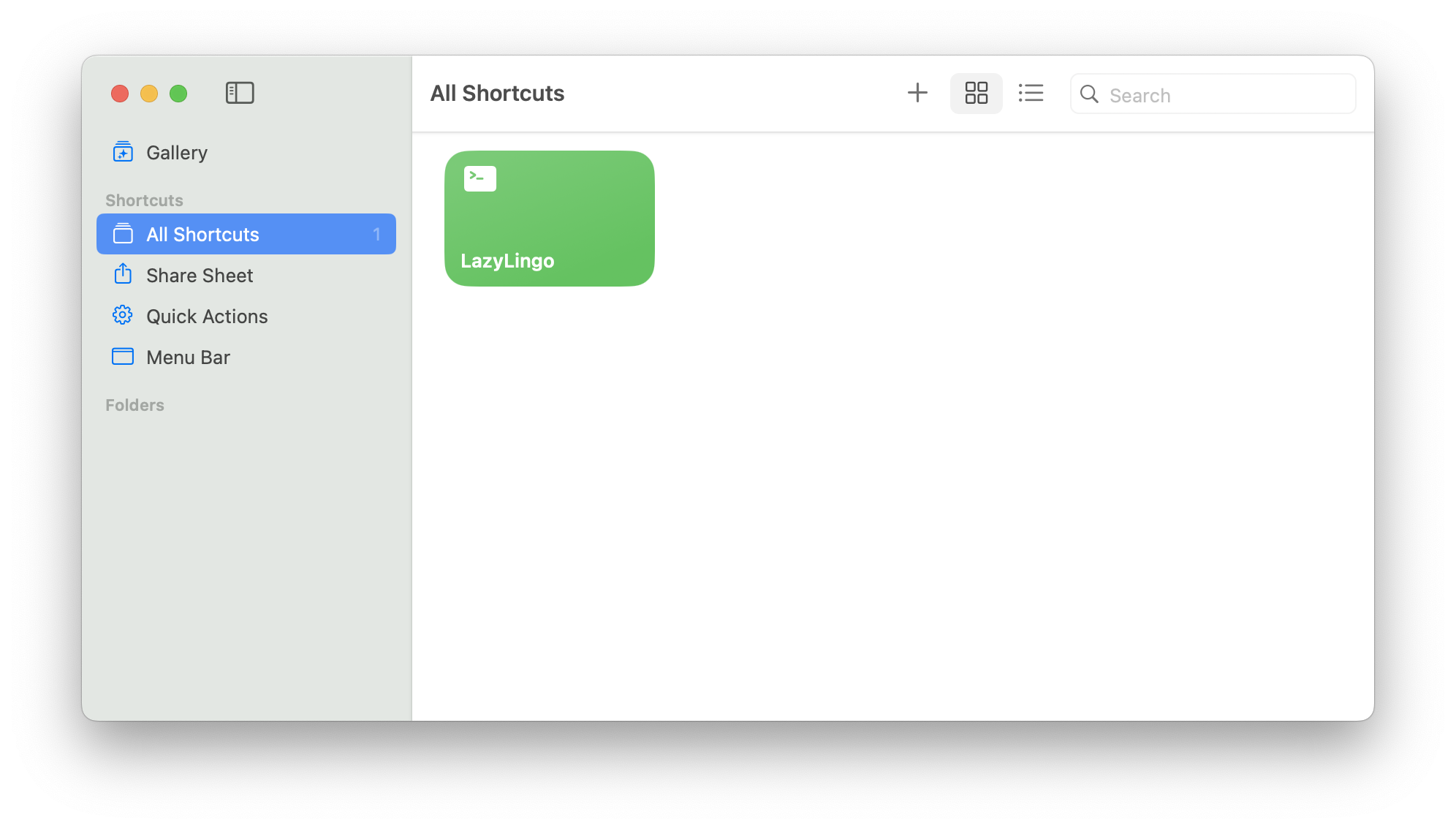
- Open the Shortcuts app and click + to create a new shortcut.
- Search for Run Shell Script in the action library and drag it in.
- Set the command to the absolute path of the script:
bash /path/to/LazyLingo/run_agent.sh - Set Shell to
zsh, Input toNone, and Pass Input toto stdin. - Name the shortcut (e.g. LazyLingo) and optionally pin it to the Menu Bar for one-click access.
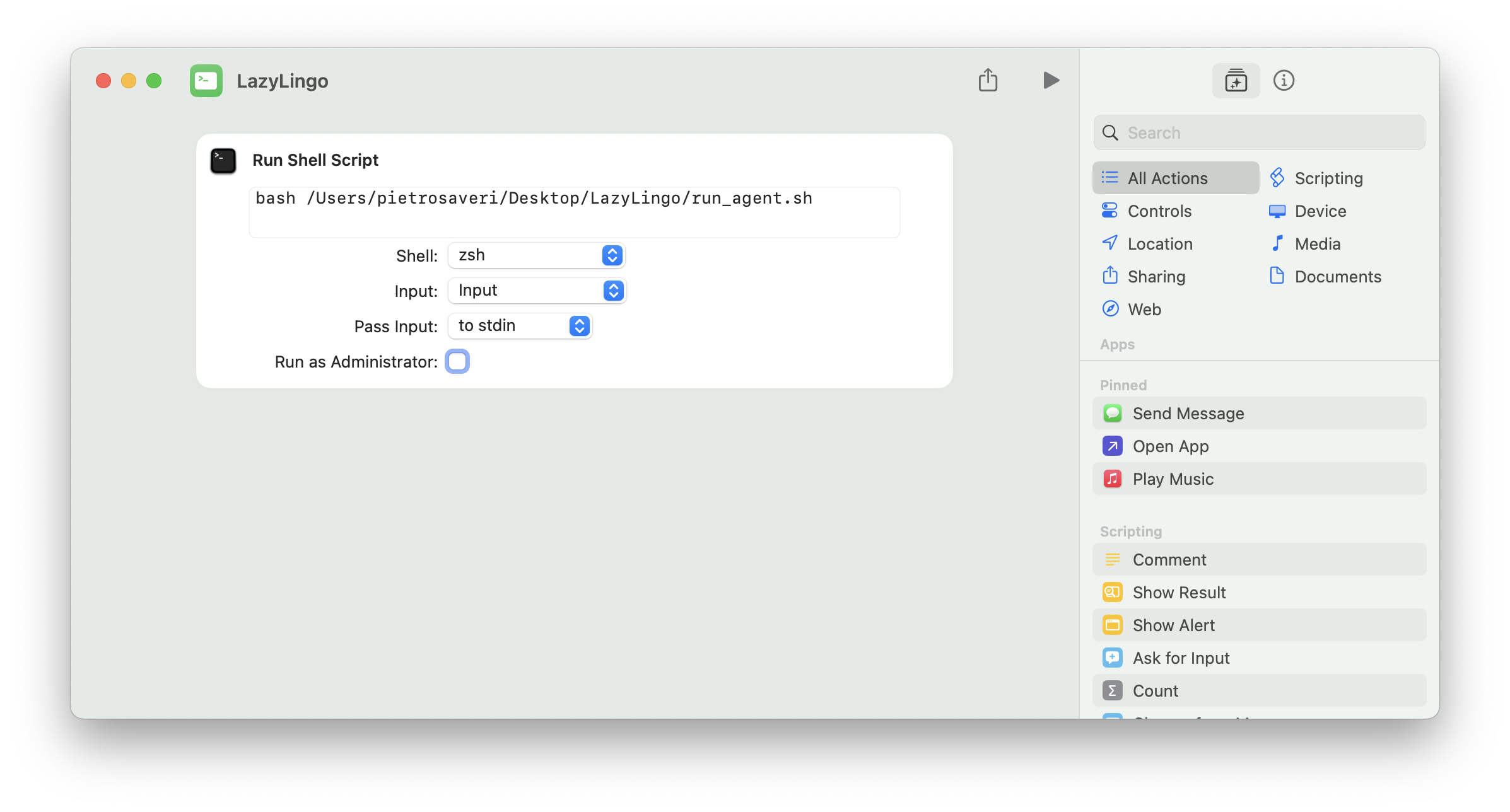
Once created, triggering the shortcut is equivalent to running bash run_agent.sh in a terminal — Ollama starts if needed, the agent runs, and everything is logged to agent_logs.txt.
🔌 The MCP Server
mcp_server.py is a FastMCP server that exposes a browser as a set of AI-callable tools. The agent connects to it via stdio — exactly how Cursor, Claude Desktop, and other MCP-compatible clients do.
| Tool | What it does |
|---|---|
start_lesson() |
Open the current lesson on /learn (lesson, practice, story, radio, review) and return its first exercise |
get_exercise() |
Describe the current screen (auto-advances narration / reward / offer screens), including the APP DATA answer key |
answer(tiles | text | choice | choices | pairs) |
Fill in the answer, CHECK, read the verdict, CONTINUE; returns the next screen |
skip_exercise() |
Skip a speaking / listening exercise via Duolingo's own skip button |
screenshot() |
Capture the viewport as PNG (fallback for unexpected screens) |
click_text(text) |
Click a visible button by text (fallback). Refuses gem / Super / Legendary actions |
press_key(key) |
Send a key press (fallback) |
abort(reason) |
Give up cleanly (e.g. out of hearts) |
done() |
Finish the run once back on /learn and close the browser |
Any MCP-compatible client (Claude Desktop, Cursor, …) can drive Duolingo through this server.
⚙️ Configuration
All configuration is done via python/.env. See python/.env.example for the full reference.
| Variable | Default | Description |
|---|---|---|
PROVIDER |
ollama |
LLM provider: ollama, openai, lmstudio, openrouter |
HEADLESS |
false |
Run Chrome headlessly (true/false). Set to true for unattended/scheduled runs (no visible browser window). Set to false to watch the agent control the browser live — useful for setup and debugging. |
SCREENSHOT_SETTLE_SECONDS |
2.0 |
Wait time after navigation before taking a screenshot |
AUTOPILOT |
true |
Run Duolingo's answer key directly; only ask the LLM about screens without one |
LESSONS_PER_RUN |
1 |
Lessons to complete per run |
MAX_STEPS |
120 |
Safety cap on total tool calls |
DEBUG |
(off) | 1 = log every screen transition the server sees (data-test elements, tokens, buttons) to agent_logs.txt |
DISCORD_WEBHOOK_URL |
(empty) | Discord webhook for lesson outcome notifications |
🧪 Tech Stack
| Layer | Technology |
|---|---|
| Browser automation | Playwright |
| Agent protocol | Model Context Protocol (MCP) |
| MCP server framework | FastMCP |
| LLM inference | Ollama / OpenAI / LM Studio / OpenRouter |
| Live dashboard | Python stdlib HTTP + SSE |
🟡 Status
Lessons are currently run manually by triggering the agent directly. I'm actively looking for the best free LLM provider to enable fully automated daily runs via the scheduler — contributions and suggestions welcome.
Reviews (0)
Sign in to leave a review.
Leave a reviewNo results found