android-agent-bridge
Health Warn
- License — License: MIT
- Description — Repository has a description
- Active repo — Last push 0 days ago
- Low visibility — Only 5 GitHub stars
Code Warn
- network request — Outbound network request in docs/_next/static/chunks/3nxg5jiqybjxi.js
Permissions Pass
- Permissions — No dangerous permissions requested
No AI report is available for this listing yet.
Let AI agents (Claude Code, Cursor, Antigravity) use your Android phone: screen reading, taps, typing, OCR, device controls and file transfer. Pair by QR over Wi-Fi or USB. Android 5.0+.
Agent Bridge
Give your AI agent a real Android phone.
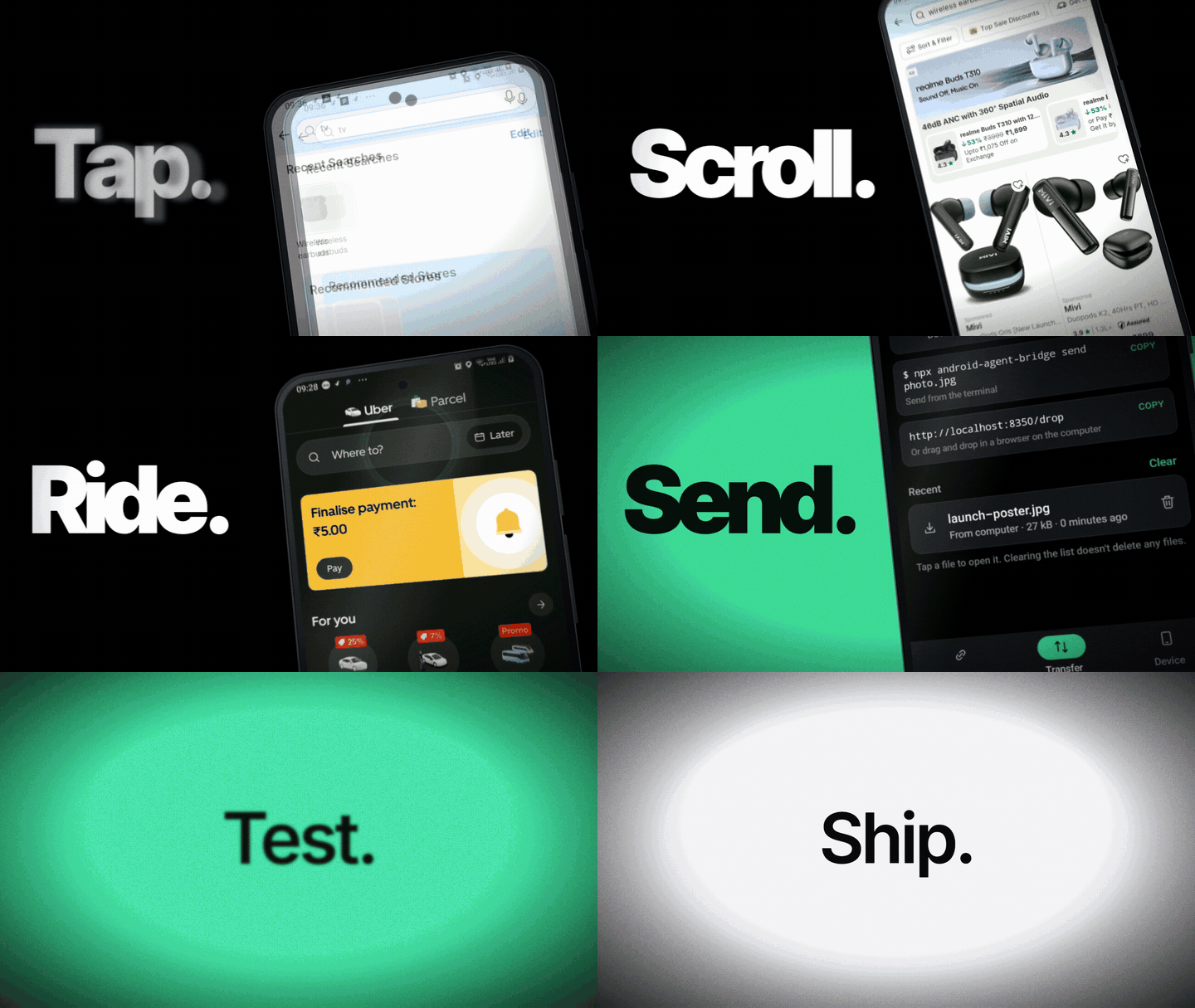
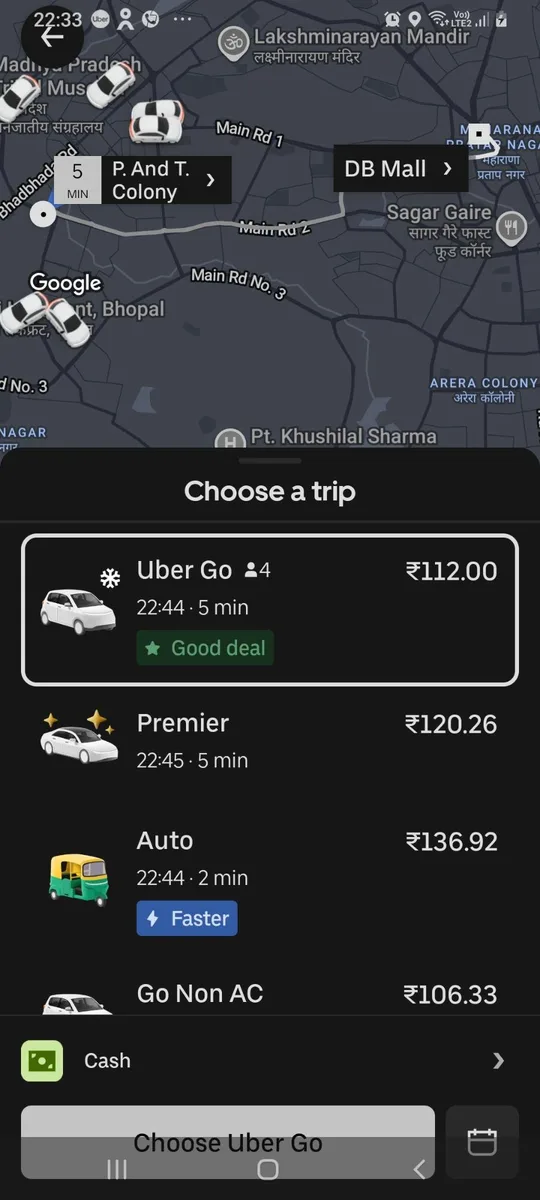
Claude Code, Cursor, Antigravity or any MCP agent can see your phone's screen, tap, type, open apps, change settings and move files.
One npx command on the computer, one QR scan on the phone.






Website · Get started · Docs · Install the app
 ┌──────────────┐   MCP / CLI   ┌─────────────────────┐   Wi-Fi or USB   ┌──────────────────┐
 │ Claude Code, │ ────────────▶ │ android-agent-bridge │ ◀──────────────▶ │ Agent Bridge app │
 │ Cursor, …    │               │   (your computer)    │                  │   (your phone)   │
 └──────────────┘               └─────────────────────┘                  └──────────────────┘
Quick start
You need an Android phone (5.0+), Node.js 20+ and, the first time only, a USB cable.
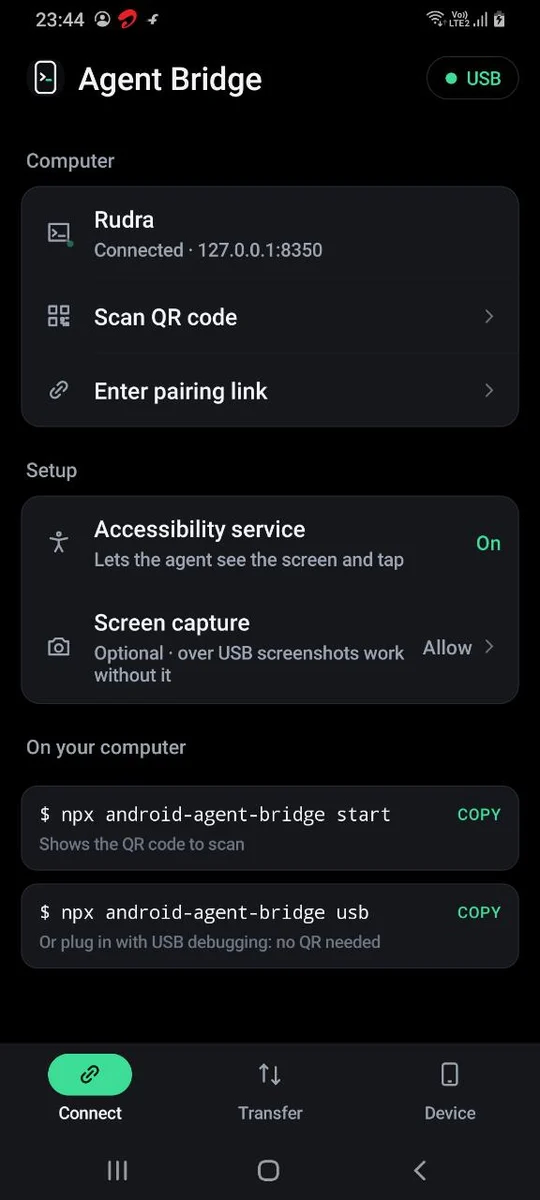
1. Install the app and pair, over USB. Turn on USB debugging (Settings → About phone → tap Build number 7 times → Developer options), plug in, then:
npx android-agent-bridge usb
It installs the app, switches on its accessibility service, pairs and starts the bridge. If you don't have Android's adb tool, it downloads it from Google the first time.
No cable? On Android 11+, turn on Wireless debugging in Developer options and run
npx android-agent-bridge wifi, then scan the QR code from Pair device with QR code.
2. Connect your agent. For Claude Code:
claude mcp add phone -- npx -y android-agent-bridge
3. Ask it something.
"Open YouTube on my phone and search for lofi music."
That's it. From now on the phone also works over Wi-Fi: run npx android-agent-bridge start and it reconnects by itself.
Download the APK and install it on the phone, then:
npx android-agent-bridge start
In the app: Scan QR code → point it at the code in your terminal (or the bigger one at localhost:8350/pair) → turn on the accessibility service. Phone and computer must be on the same Wi-Fi.
If Play Protect says "App blocked to protect your device", install from your computer instead with usb or wifi. Play Protect blocks sideloaded accessibility apps opened from a browser or chat app; installs through adb aren't affected.
Run npx android-agent-bridge init in your project (it writes .mcp.json, plus .cursor/mcp.json with --cursor), or add this to your client's MCP config:
{
  "mcpServers": {
    "phone": { "command": "npx", "args": ["-y", "android-agent-bridge"] }
  }
}
What it can do
| 👁 Sees the screen | A numbered list of every button and field, and screenshots with each element boxed. Knows what's hidden under sheets and dialogs. |
| 🔤 Reads what apps hide | On-device OCR reads the pixels when an app hides its controls from accessibility, so "tap Account" still works. Nothing leaves the phone. |
| 👆 Acts like a person | Tap by number, text or position. Type into fields, scroll, swipe, long-press, Back and Home. Open any app by name. |
| 🎛 Runs the device | Volume, brightness, flashlight, rotation, Do Not Disturb, settings pages, links, dialer, battery, notifications, clipboard. |
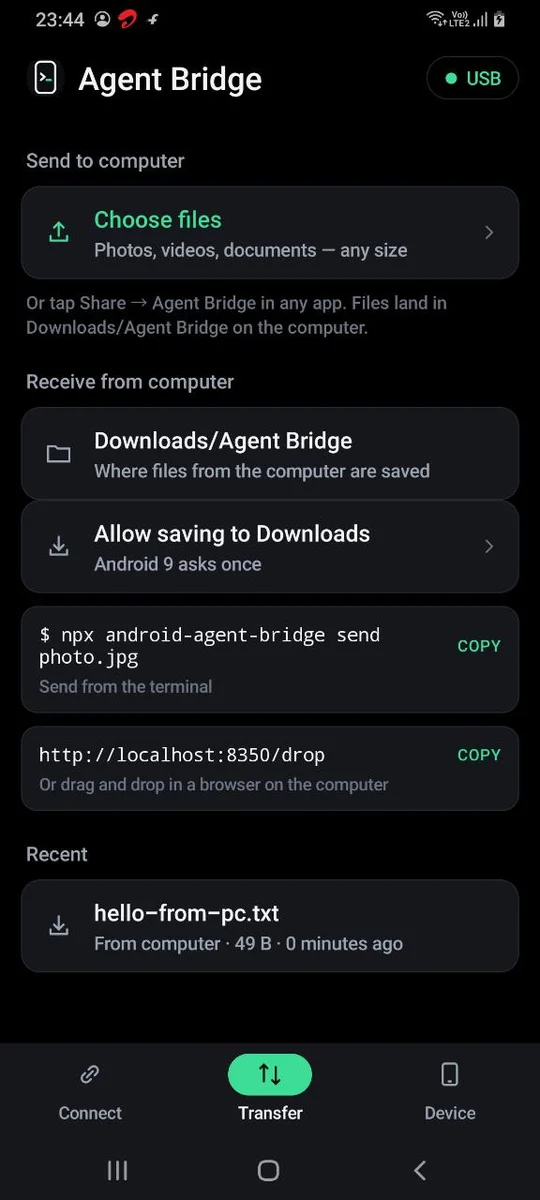
| 📁 AirDrop, both ways | phonectl send photo.jpg, drag files onto localhost:8350/drop, or Share → Agent Bridge on the phone. Any size, no cloud. |
| 📱 Old phones welcome | Android 5.0 (2015) and up. Where old Android can't do something, the computer does it over USB. |
Try these prompts
Once the phone is connected, paste any of these into your agent:
- "Is my phone connected? Take a screenshot and tell me what's on screen."
- "Read my phone's notifications and summarise them by app. Don't reply to anything."
- "Turn media volume to 30%, brightness to 60 and switch on Do Not Disturb."
- "Open my app (com.example.app) and test the sign-up flow like a QA tester. Give me a bug list."
- "Send ./report.pdf to my phone and tell me where it was saved."
More in the prompt library. Agents are told to ask before sending, posting, paying or deleting, and never to type passwords.
For agents
The MCP server gives your agent 27 tools and 6 ready-made prompts. In Claude Code the prompts are slash commands:
| Slash command | What it does |
|---|---|
/mcp__phone__phone_tour |
Checks the phone is connected and describes the screen |
/mcp__phone__do_in_app |
Opens an app and carries out a task step by step |
/mcp__phone__test_my_app |
QA walkthrough of an app, with a bug report |
/mcp__phone__catch_up |
Summarises notifications, urgent first |
/mcp__phone__set_up_phone |
Volume, brightness, Do Not Disturb in one go |
/mcp__phone__send_to_phone |
Sends files and confirms where they landed |
| MCP tool | CLI | What it does |
|---|---|---|
phone_status |
status |
Connected phone, Android version, capabilities |
phone_screen |
screen [--mode marks|grid|both|plain] |
Screenshot with numbered elements or a lettered grid |
phone_elements |
elements [--all] [--ocr] |
Element list only (cheap text) |
phone_ocr |
ocr |
Text read from the screen pixels, with positions |
phone_tap |
tap <target> [--long] |
Tap or long-press |
phone_type |
type <text> [--into t] [--submit] |
Type into a field |
phone_scroll |
scroll <dir> [--in t] |
Scroll the screen or a list |
phone_swipe |
swipe <from> <to> |
Drag between two points |
phone_key |
key <name> |
back, home, recents, notifications, quick_settings, enter, lock |
phone_open_app |
launch <app> [--store] |
Open an app by name, or its Play Store page |
phone_apps |
apps [filter] |
Installed apps |
phone_wait_for |
wait <text> |
Wait for text to appear |
phone_volume |
volume [stream] [level] |
Media, ring, notification, alarm, call volume |
phone_brightness |
brightness [0-100|auto] |
Screen brightness |
phone_toggle |
flashlight · rotation · dnd · ringer |
Quick switches |
phone_settings |
settings <page> |
Wi-Fi, Bluetooth, display, battery… or an app's info page |
phone_open_link |
url <link> |
Web pages and deep links |
phone_dial |
dial <number> |
Dialer with the number filled in (never calls) |
phone_web_search |
search <query> |
Web search on the phone |
phone_device_info |
battery · current |
Battery, app in front |
phone_notifications |
notifications |
Notifications since the service started |
phone_clipboard |
clipboard [set <text>] |
Read or set the clipboard |
phone_wake |
wake |
Turn the screen on (stays PIN-locked) |
phone_permissions |
permissions [grant] |
Optional permissions, switched on over USB |
phone_send_files |
send <files…> |
Computer → phone |
phone_received_files |
received |
Files the phone sent to the computer |
phone_stop_app |
stop <package> |
Force-stop an app (USB) |
A target is an element number (12), visible text (Sign in), a grid cell (C7) or pixels (540,1200).
From the terminal
Everything an agent can do, you can do too. npm i -g android-agent-bridge gives you the phonectl command; keep start running in another terminal.
phonectl status                         # is the phone connected?
phonectl launch YouTube                 # open an app
phonectl screen --out shot.jpg          # screenshot with numbered elements
phonectl tap "Search"                   # tap by text, number, grid cell or pixels
phonectl type "lofi music" --submit     # type and press Enter
phonectl volume 40%                     # media volume
phonectl send report.pdf                # send a file to the phone
Full reference: Docs → Commands.
Works on
| Android 5–6 | Android 7–10 | Android 11+ | |
|---|---|---|---|
| Read the screen, type, tap elements, Back/Home | ✅ | ✅ | ✅ |
| Tap anywhere (grid, pixels), swipes | over USB | ✅ | ✅ |
| Screenshots | one-time prompt, or USB | one-time prompt, or USB | ✅ built in |
Apps that block screen capture (banking, streaming) show up black in screenshots; their element list usually still works. iPhone isn't supported: iOS has no equivalent of Android's accessibility service for apps.
Security
- Paired, not public. Only a computer holding the secret from your QR code can connect.
npx android-agent-bridge pair --resetmakes a new one. - Stays on your network. Wi-Fi or USB straight to your computer. No cloud, no account, no analytics. Wi-Fi traffic isn't encrypted, so use networks you trust; over USB it never leaves the cable.
- One switch to stop. Turn off the accessibility service and access ends at once.
- Agents ask first. The bundled guide tells agents to ask before sending, paying, posting or deleting, and never to type passwords.
- "App blocked to protect your device": install from your computer with
npx android-agent-bridge usb, ornpx android-agent-bridge wifi(Android 11+, no cable). - No phone connected: is
startrunning? Same Wi-Fi? On Windows, allow Node.js through the firewall. Over USB, runusbagain. - Accessibility switch greyed out (Android 13+): App info → ⋮ → Allow restricted settings.
- A tap opened nothing right after Home: Android holds app starts for about 5 seconds after Home; run it again.
Build from source
git clone https://github.com/Rudrasamadhiya/android-agent-bridge
cd android-agent-bridge && npm install
cd android && ./gradlew assembleRelease   # JDK 17 + Android SDK
Copy android/app/build/outputs/apk/release/app-release.apk to apk/agent-bridge.apk. The website lives in website/ (Next.js); npm run build there publishes it to docs/.
License
MIT · Made by Rudra Samadhiya
Reviews (0)
Sign in to leave a review.
Leave a reviewNo results found