ai-skill-engine
Health Warn
- License — License: NOASSERTION
- Description — Repository has a description
- Active repo — Last push 0 days ago
- Low visibility — Only 6 GitHub stars
Code Pass
- Code scan — Scanned 12 files during light audit, no dangerous patterns found
Permissions Pass
- Permissions — No dangerous permissions requested
No AI report is available for this listing yet.
Readymade self-hostable backend server for chatbots. Built-in admin dashboard, sandboxed skill execution, MCP integrations, and generative UI via ProChat. Just point your chatbot at one Chat Completion API endpoint.
⚡ AI Skill Engine
Readymade self-hostable backend server for chatbots — with a built-in admin dashboard.
Connect your chatbot with a single Chat Completion API call. AI Skill Engine handles the rest — multi-turn tool execution, sandboxed code runs, MCP integrations, generative UI rendering via ProChat, audit logs, and a full visual admin dashboard — all in one self-hosted package. Drop-in compatible with the OpenAI API.



[!NOTE]
Cloud-Hosted Setup Coming Soon! ☁️
We are building a fully managed cloud version of AI Skill Engine. If you want to skip self-hosting and deployment maintenance, stay tuned!
✨ What It Does
Standard AI chatbots are great conversationalists — but they can't act. They can't run code, call your APIs, or touch your files without a backend to bridge that gap. AI Skill Engine is that backend, ready to self-host in minutes.
Point your chatbot at this server's single /api/v1/chat/completions endpoint and immediately unlock:
- Read & Analyze Uploaded Documents: Instantly read, search, and extract key details from uploaded contracts, receipts, or PDF files.
- Connect to Web APIs: Retrieve live information, query third-party services, and trigger external API requests automatically.
- Generate Reports & Convert HTML: Draft and render print-ready PDF reports or convert web-style HTML templates into polished documents.
- Compute Math & Chart Data Visually: Parse spreadsheets (Excel/CSV), run complex calculations, and plot charts for presentations.
- Deep Problem Solving (Up to 25 turns): Execute long-running multi-turn logical steps and diagnostics without getting interrupted.
- No-Code Tool Customization: Extend your chatbot's abilities by adding, editing, or enabling new capabilities (Skills) directly from a visual dashboard catalog.
- Secure, Sandboxed Execution: Run calculations and custom scripts inside safe, isolated containers to keep your servers and business data protected.
- Universal Remote (MCP Hub): Connect your chatbot directly to databases, GitHub, or filesystems using standard Model Context Protocol.
- Generative UI with ProChat: Return dynamic, interactive UI components (charts, forms, dashboards) directly inside the chat response — no extra frontend code needed.
- OpenAI Drop-in Upgrade: Supercharge your existing AI application instantly by pointing its API URL to this engine.
- Built-in Admin Dashboard: View chatbot thoughts, tool triggers, sandbox logs, token usage, and costs in a beautiful visual turn-by-turn timeline.
📸 Screenshots
💬 Chat Playground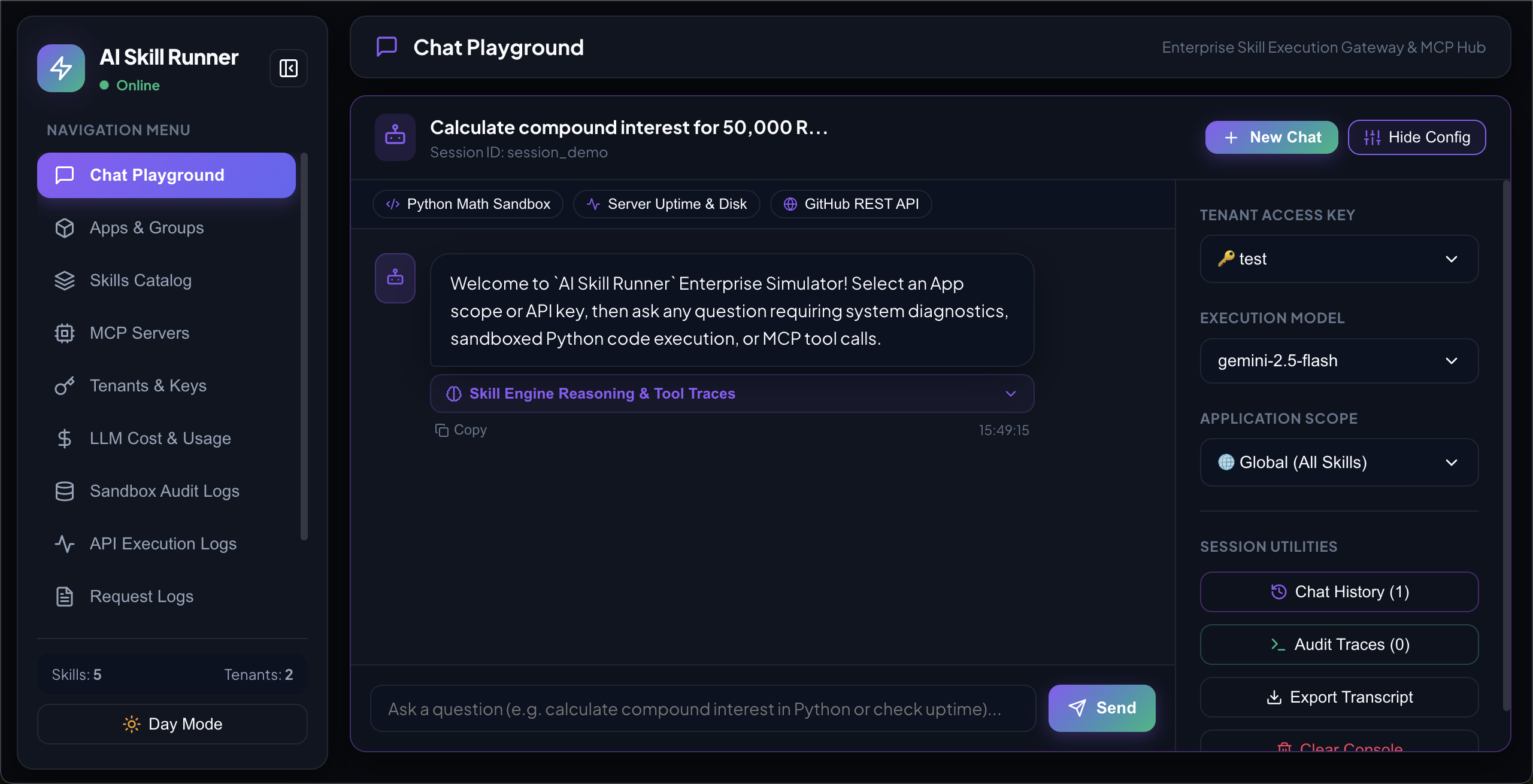
|
🛠️ Skills Catalog & Editor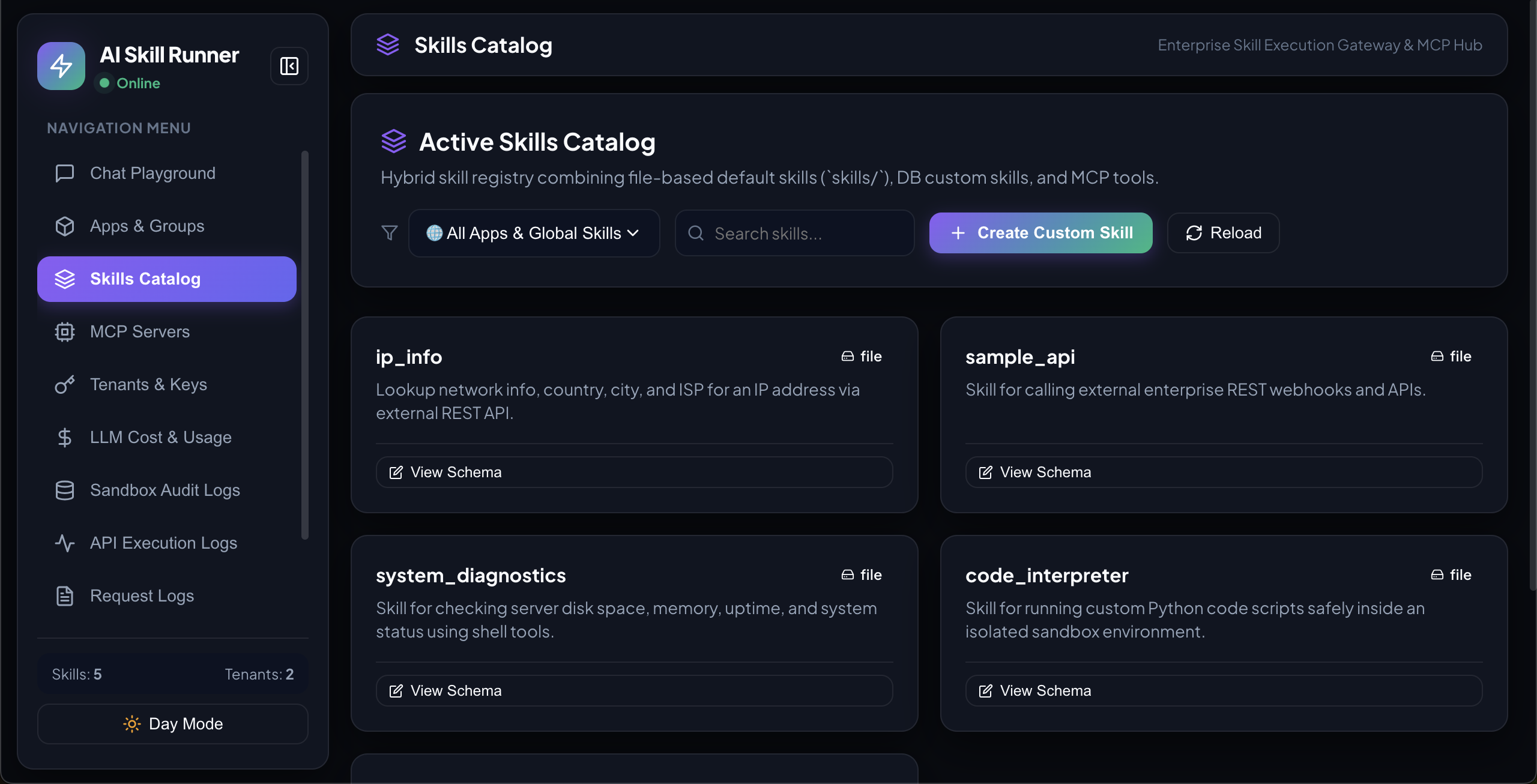
|
📦 App Groups & Packaging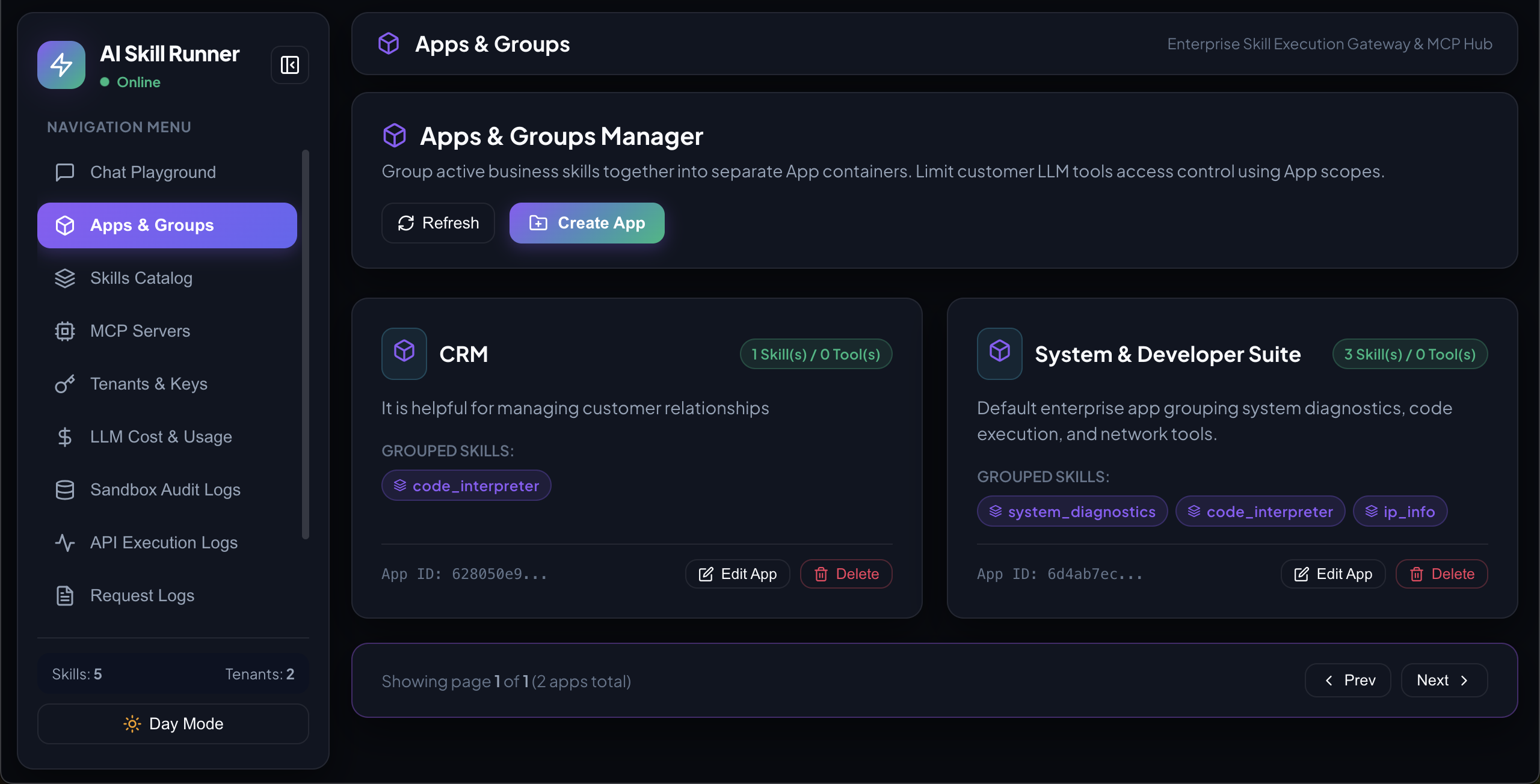
|
📊 Cost & Usage Analytics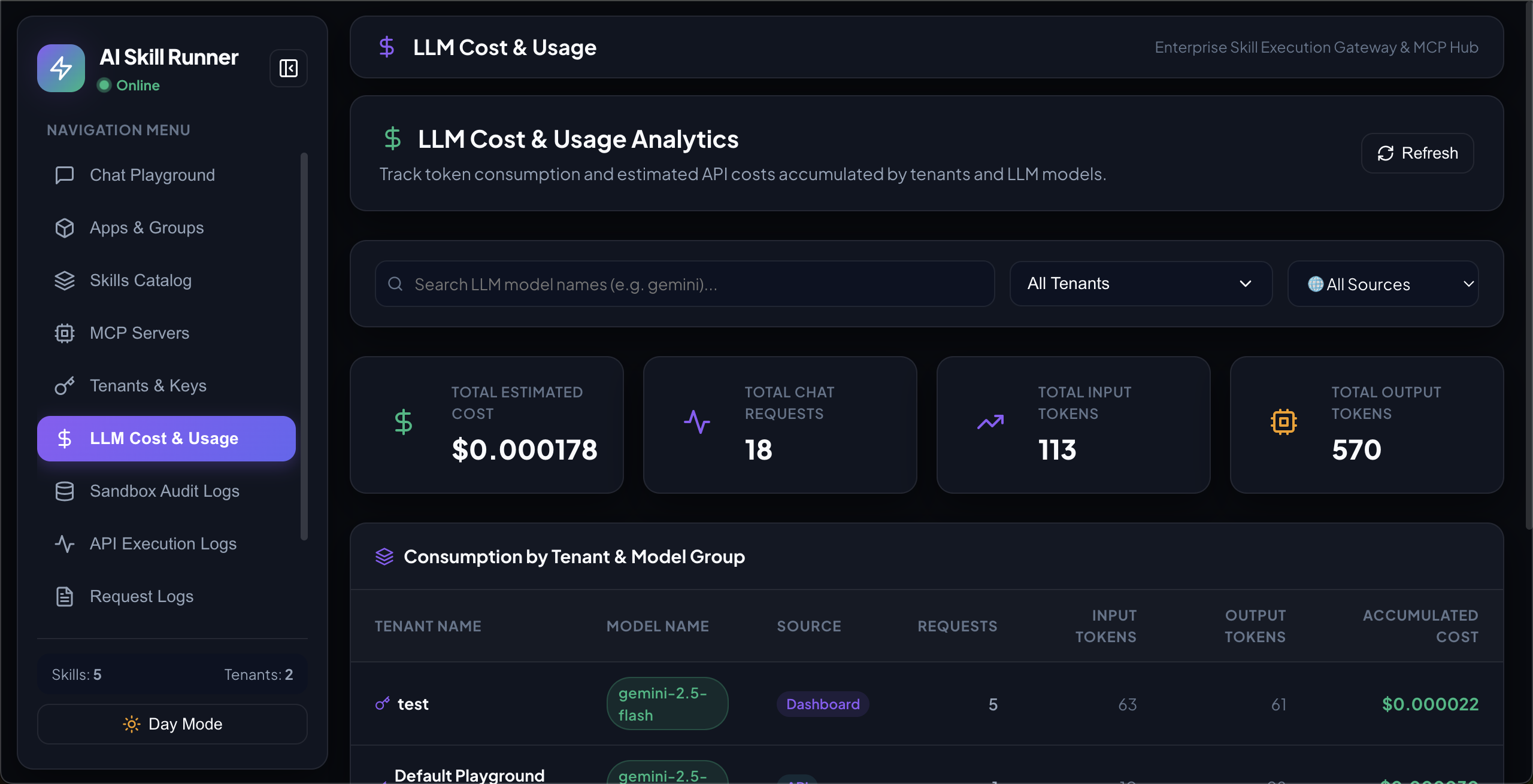
|
🔌 Built-in API Tester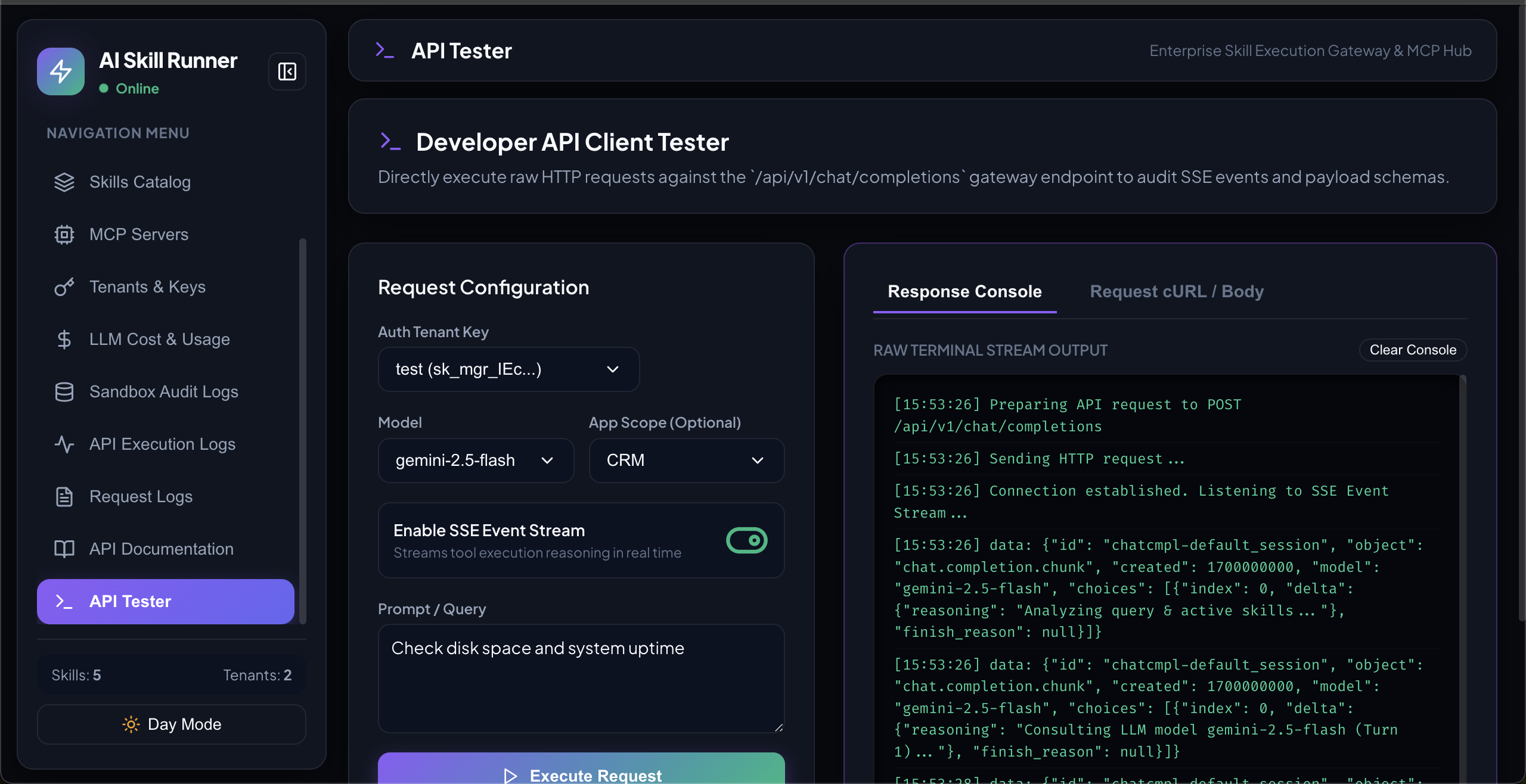
|
🚀 Quick Start
🚀 Option A: Run directly from Docker Hub (Zero-Clone)
You can run the pre-built image directly from Docker Hub without cloning the source code.
Start the container:
docker run -d \
  --name ai_skill_engine \
  -p 2704:2704 \
  -v /var/run/docker.sock:/var/run/docker.sock \
  -v "$(pwd)/sandbox:/app/sandbox" \
  -v "$(pwd)/skill_manager.db:/app/skill_manager.db" \
  -e HOST_SANDBOX_DIR="$(pwd)/sandbox" \
  -e DATABASE_URL="sqlite:////app/skill_manager.db" \
  --restart unless-stopped \
  sandeshnaroju/ai-skill-engine:latest
(Note: Set
DATABASE_URLenvironment variable if you want to use an external PostgreSQL database instead of the default local SQLite db)Access the application:
Open http://localhost:2704 in your browser.- To check logs:
docker logs -f ai_skill_engine - To stop:
docker stop ai_skill_engine
- To check logs:
🐳 Option B: Build and Run locally with Docker
Running with Docker compiles the React frontend and packages the FastAPI server into a single container. It maps port 2704 and links the host's Docker socket to support sandboxed code runs.
Clone the repository:
git clone https://github.com/sandeshnaroju/ai-skill-engine.git
cd ai-skill-engine
Start the stack:
./run_docker.shThis script pre-creates persistent files, compiles the multi-stage image, and starts the container in the background.
Access the application:
Open http://localhost:2704 in your browser.- To check container logs:
docker logs -f ai_skill_engine - To stop the application:
docker stop ai_skill_engine
- To check container logs:
💻 Option C: Run locally without Docker (Local Setup)
Clone the repository:
git clone https://github.com/sandeshnaroju/ai-skill-engine.git
cd ai-skill-engine
Setup Backend:
cd backend
pip install -r requirements.txt
cd ..
Build Frontend:
cd frontend
npm install
npm run build
cd ..
Start Server:
./run_server.sh
# or manually:
cd backend && uvicorn main:app --host 0.0.0.0 --port 2704 --reload
Access the application:
Open http://localhost:2704 in your browser.
⚙️ Environment Variables
You can configure several features of the AI Skill Engine (like SMTP for email OTP verification) by setting environment variables.
Key Configuration Variables
| Variable | Description | Example |
|---|---|---|
DATABASE_URL |
Connection URI of your database (defaults to local SQLite skill_manager.db) |
postgresql://postgres:password@localhost:5432/dbname |
SMTP_HOST |
Hostname of the SMTP server to send OTP codes | smtp.gmail.com |
SMTP_PORT |
Port of the SMTP server (default: 587) | 587 |
SMTP_USERNAME |
Username for SMTP server | [email protected] |
SMTP_PASSWORD |
Password or App Password for SMTP server | your-smtp-password |
SMTP_SENDER |
Sender email address (default: SMTP_USERNAME) |
[email protected] |
Passing Environment Variables to Docker
There are two primary ways to supply these environment variables to the container:
Method A: Using a .env file (Recommended)
- Create a
.envfile in your root workspace:SMTP_HOST=smtp.gmail.com SMTP_PORT=587 [email protected] SMTP_PASSWORD=your-app-password - When starting the container:
- For local run scripts (
run_docker.sh): The script automatically mounts this file into/app/.envwherepython-dotenvloads it automatically. - For custom Docker commands: Include the
--env-fileparameter:docker run -d \ --name ai_skill_engine \ -p 2704:2704 \ -v /var/run/docker.sock:/var/run/docker.sock \ -v "$(pwd)/sandbox:/app/sandbox" \ -v "$(pwd)/skill_manager.db:/app/skill_manager.db" \ --env-file "$(pwd)/.env" \ -e HOST_SANDBOX_DIR="$(pwd)/sandbox" \ --restart unless-stopped \ sandeshnaroju/ai-skill-engine:latest
- For local run scripts (
Method B: Using -e CLI flags
Pass environment variables directly into the command line when running the container:
docker run -d \
  --name ai_skill_engine \
  -p 2704:2704 \
  -v /var/run/docker.sock:/var/run/docker.sock \
  -v "$(pwd)/sandbox:/app/sandbox" \
  -v "$(pwd)/skill_manager.db:/app/skill_manager.db" \
  -e HOST_SANDBOX_DIR="$(pwd)/sandbox" \
  -e SMTP_HOST="smtp.gmail.com" \
  -e SMTP_PORT="587" \
  -e SMTP_USERNAME="[email protected]" \
  -e SMTP_PASSWORD="your-app-password" \
  --restart unless-stopped \
  sandeshnaroju/ai-skill-engine:latest
🔑 Configuring Models
AI Skill Engine does not use environment API keys. Models are registered per-tenant via the dashboard:
- Go to Tenants & Keys → click Manage on a tenant
- Add a provider (OpenAI, Gemini, OpenRouter, or Custom)
- Enter the model name and its API key
- Use that tenant's API key when calling the chat endpoint
This lets you register different models for different tenants independently.
🎨 Enabling Generative UI with ProChat
AI Skill Engine supports ProChat — a generative UI protocol that lets your chatbot respond with rich, interactive UI components (data tables, forms, charts) rendered directly inside the chat interface.
To enable ProChat, each tenant needs a ProChat model registered alongside their regular LLM:
- Create an account at prochat.dev and generate an API key from your dashboard.
- Go to Tenants & Keys in the Admin Dashboard → click Manage on your tenant.
- Click Register Model and fill in:
- Provider:
prochat - Model Name: the model identifier from your prochat.dev dashboard (e.g.
genui-mars-0.1) - API Key: your ProChat API key from prochat.dev
- Provider:
- Save the model.
Once registered, pass the prochat_model field in your API request (see API Usage below) to activate generative UI for that call.
💡 How it works: When you include
"prochat_model": "genui-mars-0.1"in your chat completion request, AI Skill Engine runs your regular LLM as usual. Once the final answer is ready, it forwards the full conversation (including the LLM's response) to the ProChat API. ProChat returns a rendered UI component — such as a data table, chart, or form — which is streamed back alongside the text response and displayed inline in the chat. Your tenant must have a model registered withprovider: prochatfor this to work.
📦 Sandbox Environments
AI Skill Engine runs python code and bash scripts inside secure, isolated sandboxes. You can select and configure the active sandbox environment directly from the Sandbox Settings page in the dashboard:
- Docker Sandbox (Default): Runs scripts inside a local ephemeral Docker container (
ai-sandbox-python:latest). Keeps your host environment safe. - Process Sandbox: Executes commands directly on the host server process. Recommended only for trusted private local setups.
- Azure Container Apps (ACA) Sandboxes: Offloads executions to secure, Hyper-V isolated container pools. Requires Entra ID App credentials (
Client ID,Client Secret,Tenant ID) and aSession Pool Endpoint(obtainable from the Azure portal or sandboxes.azure.com). - E2B Sandboxes: Runs scripts inside specialized, stateful agentic micro-VMs. Requires an
E2B API Key. - Fly.io Sandboxes: Routes execution to Fly.io Machines. Requires a
Fly API TokenandApp Name. - AWS Lambda: Routes calculations to serverless Lambdas. Requires AWS keys (
Access Key,Secret Key),Region, andFunction Name.
🔒 Security Notice: If any remote sandbox (Azure, E2B, Fly.io, or Lambda) is active, execution strictly targets that cloud environment. If the sandbox call fails or credentials are incomplete, it returns the error immediately and never silently falls back to local host processes.
💾 Sandbox File Operations & Storage
Managing files between your chatbot and remote execution sandboxes is handled in two ways:
1. Auto-Download Pipeline
When running code inside the Azure ACA Sandbox, the system automatically:
- Scans the sandbox filesystem for newly created files (e.g. PDFs, CSVs, plots) right after execution.
- Transfers them back to the host server outputs folder.
- Generates click-to-download links and surfaces them directly in the Chat Playground.
2. Sandbox File Manager Skill
To give the chatbot explicit control over its environment, enable the sandbox_file_manager skill. This grants the LLM access to three tools:
list_sandbox_files: Lists all files present in the active sandbox workspace.download_sandbox_file: Pulls a specific file from the remote sandbox to the local backend server.upload_sandbox_file: Uploads local server inputs into the remote sandbox workspace for processing.
3. Cloud Storage Skill
For production environments where local files shouldn't be shared directly, use the cloud_storage skill to upload generated outputs directly to cloud buckets (AWS S3 or Azure Blob Storage) and retrieve secure cloud URLs.
🌐 API Usage
POST /api/v1/chat/completions
X-API-Key: sk_asr_YOUR_TENANT_KEY
Content-Type: application/json

{
  "messages": [{"role": "user", "content": "Check disk space"}],
  "model": "gemini-2.5-flash",
  "stream": true,
  "session_id": "user_123_thread_1",
  "app_id": "your-app-group-uuid"
}
Request Fields
| Field | Type | Default | Description |
|---|---|---|---|
messages |
array | required | OpenAI-style message array |
model |
string | tenant default | Model name (must be registered for the tenant) |
stream |
bool | false |
Stream response as SSE events |
session_id |
string | "default_session" |
Arbitrary ID to label this conversation in execution logs |
app_id |
string | null |
UUID of an App group — scopes available tools to that App's skills only |
user_data |
object | null |
Key-value pairs (credentials, API keys, tokens) dynamically resolved inside skill tools (e.g. URLs, headers, arguments) during action runs. Keep secrets hidden from the LLM. |
prochat_model |
string | null |
ProChat model name (e.g. genui-mars-0.1) — when set, AI Skill Engine forwards the conversation to ProChat after the LLM responds, generating a rich UI component rendered inline in the chat. Requires a prochat provider model registered for the tenant. |
Note: API client conversations are not stored in the chat history. Only Dashboard Chat Playground sessions are persisted. Tool execution results are always logged in the API Execution Logs.
From Python (OpenAI SDK)
The OpenAI SDK doesn't natively support session_id / app_id / user_data, so pass them via extra_body:
from openai import OpenAI

client = OpenAI(
    base_url="http://localhost:2704/api/v1",
    api_key="sk_asr_YOUR_TENANT_KEY"
)

stream = client.chat.completions.create(
    model="gemini-2.5-flash",
    messages=[{"role": "user", "content": "Fetch weather in London"}],
    stream=True,
    extra_body={
        "session_id": "user_123_thread_1",    # labels this call in execution logs
        "app_id": "your-app-group-uuid",       # scopes tools to this App's skills only
        "prochat_model": "genui-mars-0.1",     # optional: enable ProChat generative UI
        "user_data": {
            "openweathermap_api_key": "YOUR_SECRET_KEY"  # resolved in weather skill parameters
        }
    }
)

for chunk in stream:
    print(chunk.choices[0].delta.content or "", end="")
From cURL
curl -X POST http://localhost:2704/api/v1/chat/completions \
  -H "Content-Type: application/json" \
  -H "X-API-Key: sk_asr_YOUR_TENANT_KEY" \
  -d '{
    "messages": [{"role": "user", "content": "Fetch weather in Paris"}],
    "model": "gemini-2.5-flash",
    "stream": false,
    "session_id": "user_123_thread_1",
    "app_id": "your-app-group-uuid",
    "prochat_model": "genui-mars-0.1",
    "user_data": {
      "openweathermap_api_key": "YOUR_SECRET_KEY"
    }
  }'
📝
prochat_model(optional): Pass the ProChat model name (e.g.genui-mars-0.1) to enable generative UI on this request. Requires a model withprovider: prochatregistered for your tenant on prochat.dev.
📝 Creating Skills
Create a skills/<skill_name>/SKILL.md file:
---
name: my_skill
description: What this skill does and when the LLM should use it.
tools:
  - name: run_shell
    description: Runs a shell command.
    command: echo "Hello from AI Skill Engine!"
  - name: run_python
    description: Executes Python in sandbox.
    type: python
    code: |
      result = sum(range(1, 101))
      print(f"Sum = {result}")
---

# Instructions
Tell the LLM when and how to use these tools.
Skills can also be created and edited directly in the dashboard — they're stored in the database and hot-reloaded.
🔌 MCP Servers
Add external MCP servers from the MCP Servers tab. Both stdio and http/sse transports are supported.
# Examples
npx -y @modelcontextprotocol/server-filesystem /allowed/path
npx -y @modelcontextprotocol/server-github
npx -y @modelcontextprotocol/server-memory
📊 Dashboard Pages
| Page | URL | Description |
|---|---|---|
| Chat Playground | /playground |
Live chatbot simulator with streaming, session history & audit traces |
| Apps & Groups | /apps |
Group skills into scoped App containers |
| Skills Catalog | /skills |
Browse, filter, create, and edit skills |
| MCP Servers | /mcp |
Connect external MCP protocol servers |
| Tenants & Keys | /tenants |
Manage tenant API keys and model configs |
| Sandbox Audit Logs | /logs |
Dashboard execution audit trail |
| API Execution Logs | /api-logs |
External API client execution logs |
| API Tester | /api-tester |
Built-in HTTP client to test the chat endpoint |
| API Documentation | /docs |
Interactive API reference |
📄 License
Apache License 2.0 — free for personal and commercial use, with attribution.
Reviews (0)
Sign in to leave a review.
Leave a reviewNo results found