ovenlight
Health Warn
- License — License: Apache-2.0
- Description — Repository has a description
- Active repo — Last push 0 days ago
- Low visibility — Only 5 GitHub stars
Code Pass
- Code scan — Scanned 12 files during light audit, no dangerous patterns found
Permissions Pass
- Permissions — No dangerous permissions requested
No AI report is available for this listing yet.
Cooking up apps with AI? Serve them to the people you made them for, and no one else. Your web apps run on your own computer, stay off the public internet and open on your phone, behind Face ID or your fingerprint. Open source: the phone apps for iPhone and Android, plus a connector whose MCP server lets your agent publish.

Ovenlight
Cooking up apps with AI? Serve them to the people you made them for, and no one else.
Your web apps run on your own computer, stay off the public internet and open on your phone, behind Face ID or your fingerprint.

Got an invite? Install Ovenlight, then open your invite link again. Here's
what the person who invited you sees.
Get started · With your coding agent · Share an app · Security · ovenlight.app
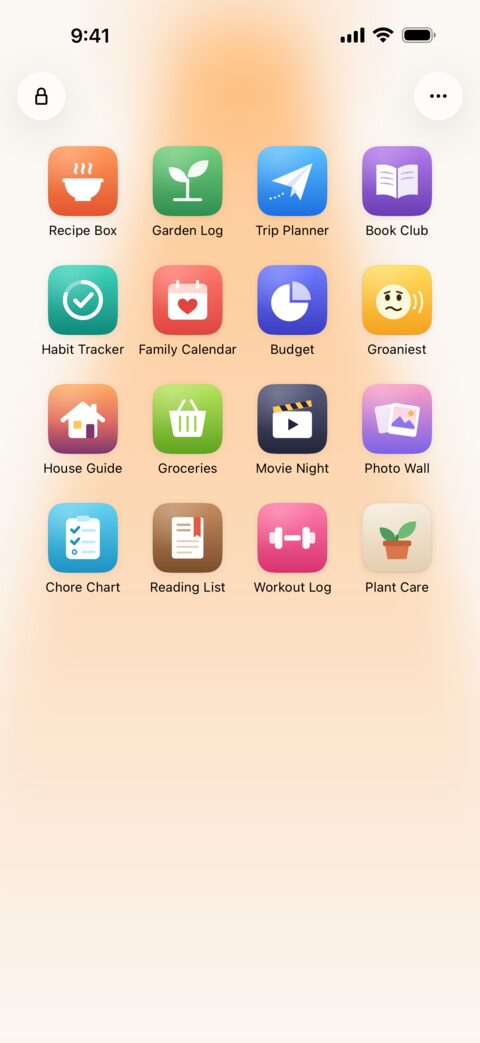
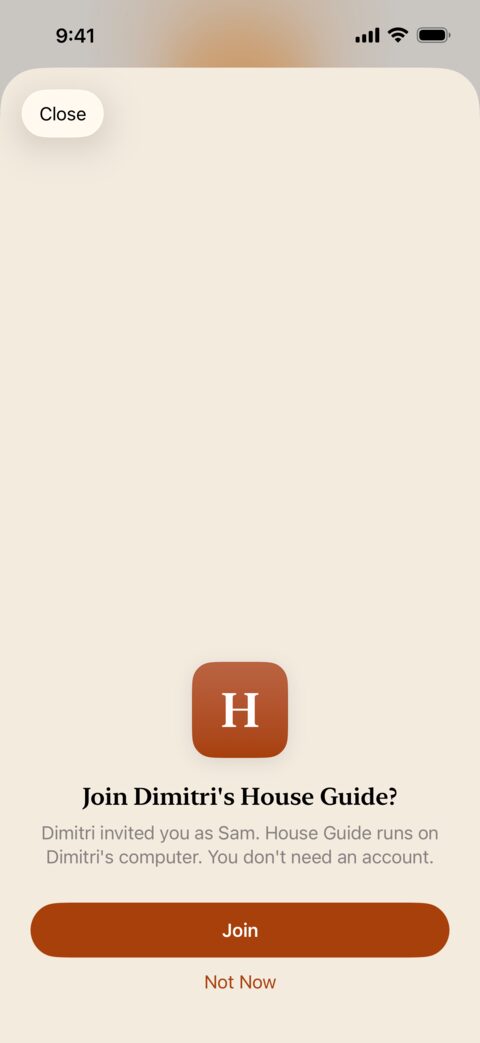
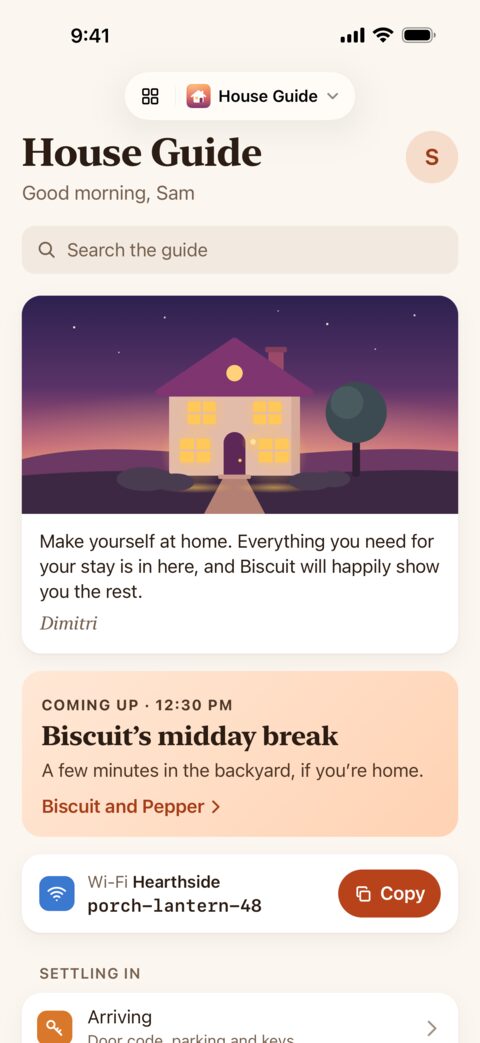
Watch how it works in 85 seconds on ovenlight.app
I've seen people use coding agents to build incredible things that make life better and
work easier. Maybe yours is a small web app for your family, your garden or your book club.
I made Ovenlight so you'd have an easy way to share it with the people who'd benefit. It
puts the app on your phone and on the phone of anyone you invite, and it opens wherever
the phone is online, at home or away.
Your computer is the server. The app and its data stay on it and off the public internet,
and your apps open while it's on and awake. It can be your laptop or a computer at home
that stays on. If you can't keep one at home, a server you rent
works too. You install Ovenlight's connector on it and sign up for a Tailscale account,
which is free for personal use. The people you share with only install Ovenlight on their
phone. They don't need a computer, the connector or a Tailscale account.
Once your computer is set up and your agent
connected, ask it to put the app on your phone:
You: Make a chore chart for the kids and put it on my phone.
Your agent reads Ovenlight's building guide, builds Chore Chart on your computer,
publishes it and checks it.Your agent: Chore Chart is ready. It will show up in Ovenlight on your phone once you
sign in with your Tailscale account at this link:https://login.tailscale.com/a/…You: Can Sam have it too?
Your agent: That part's yours. In a terminal, store a Tailscale API access token with
ovenlight auth set, then runovenlight publish --slug chore-chart --shareableand
answer its questions. Last, touch and hold Chore Chart in Ovenlight and choose Share.
What you get
- Friends join with a link and a tap. A friend installs Ovenlight, opens your invite
and taps Join. They don't make an account or sign in to anything. The app arrives marked
with your name. - Share one app, not your computer. A friend's phone reaches only the apps you shared
with it, and none of your other devices. When you stop sharing, their access ends at
once, and the app and its data leave their phone the next time Ovenlight connects. - There's nothing to deploy and no login to build. The app stays on your computer and
off the public internet. Ovenlight's connector, a program that runs beside it, gives it
an HTTPS address in your Tailscale network and tells it who is calling. Any web app that
serves plain HTTP on127.0.0.1can sit behind it, whether AI built it or not. - Your coding agent does the publishing. Through the connector's MCP server, your agent
can publish the app, check it, read its logs and read the notes and screenshots people
send from inside it. Inviting people is up to you: Ovenlight doesn't give your agent a
way to do it. - It opens like an app. Each app opens full screen from its own icon, in a launcher
that works like your phone's home screen, and keeps its storage apart from the others.
Unlock Ovenlight once, with Face ID or your fingerprint, and they all open. - It's private and open source. There's no Ovenlight account, no analytics and no ads.
Phones reach your computer over a Tailscale connection built into Ovenlight, never
through our servers, so neither you nor your friends need a VPN or the Tailscale app.
The iPhone and Android apps and the connector are under the Apache License 2.0. It's
made by Dimitri Cole Restaino at
Snowy Ghost.
Why not a VPN, a tunnel or a hosting service?
- A VPN and a bookmark work for you. A friend would need a VPN app and an account, and
unless you write access rules for them, they'd reach your computer, not just one app.
With Ovenlight they get one app with its own icon and nothing to set up, and Ovenlight
drafts the rules for you to approve. - A tunnel or an open port works in any browser, on any phone, but puts the app on the
public internet, where the app or the tunnel has to keep strangers out. Ovenlight keeps
the app off the public internet and turns away anyone you didn't invite. - A hosting service keeps the app up while your computer is off, but puts the app on
the public internet. Ovenlight keeps it off the public internet, whether it runs on your
own computer or a server you rent. Either way, that computer has
to be on and awake while people use the app.
How it works
%%{init: {"flowchart": {"wrappingWidth": 400}}}%%
flowchart LR
  you["Your phone"] --> rb & cc
  sam["Sam's phone"] -- "invited to Recipe Box" --> rb
  subgraph computer["Your computer, running the connector"]
    rb["Recipe Box<br>recipe-box.your-tailnet.ts.net"]
    cc["Chore Chart<br>chore-chart.your-tailnet.ts.net"]
  end
- The connector (the
ovenlightcommand, inconnector/) runs on the
computer with your apps. Built on Tailscale's tsnet, it makes each app its own device in
your Tailscale network (your tailnet), with an HTTPS address, and passes each request on
to the app at127.0.0.1with headers that say who is calling. It also manages your
guests and serves the MCP tools your coding agent uses. - The iPhone app (in
Ovenlight/) carries its own Tailscale node, built
with TailscaleKit. It finds the apps you publish and opens them. - The Android app (in
android/) does the same, with a Tailscale node built
from Tailscale's tsnet.
When you share an app, your friend's phone joins your tailnet as a guest device.
Security says what it can reach and how that's enforced.
Where your apps run
- Your laptop is where to start. Your apps work while it's plugged in and awake, and
once you change one setting, they stay
up with the lid closed. Get started sets up the rest. - A computer at home, such as a Mac mini, a spare PC or an old laptop, can stay on so
your apps open any time. Your data stays in your house.
docs/always-on.md sets it up. - A server you rent works if you can't keep one at home. It's the provider's
computer, so your apps and their data sit on its disk, and its terms apply.
docs/always-on.md sets it up.
What you need
The people you share with only install Ovenlight on their phone. Everything else here is
for you, since you run the apps.
- A computer that stays on and awake while anyone uses your apps: a Mac with macOS 13
or later, logged in to its desktop; a Linux computer with systemd, such as Ubuntu; or a
Windows 11 PC. Out of the box, a laptop sleeps when you close its lid and Windows sleeps
when it's idle. You can change both. - Ovenlight on your phone, from the App Store
or Google Play.
It runs on an iPhone with iOS 18.1 or later, or on a phone with Android 10 or later. Your
friends need the same to join. - A Tailscale account. You sign up for one, but you don't need the Tailscale app on
your phone or your computer. Tailscale's free Personal plan is for non-commercial use,
so a business needs one of Tailscale's paid plans. Each
shareable app and each guest's phone is a tagged device, which Tailscale's plans count.
The free Personal plan includes a set number and charges for more
(details).
docs/connector.md says how the connector runs
on each system, including on a Mac without a display. To build either app yourself, see
docs/development.md (iPhone,
Android). Headscale is supported for
development only.
Get started
You can start on the computer you have, even a laptop. For apps that open any time, run them
on your own server.
1. Turn on HTTPS certificates
In the Tailscale admin console, under DNS, turn
on MagicDNS if it's off, then turn on HTTPS certificates. Each app gets its own HTTPS
address in your tailnet, and Ovenlight opens apps only over HTTPS.
2. Install the connector
On a Mac or Linux, run this in a terminal:
curl -fsSL https://ovenlight.app/install.sh | sh
On Windows, sign in as the account that will own the apps, which must be an administrator.
Open PowerShell with Run as administrator, then run:
irm https://ovenlight.app/install.ps1 | iex
Never used a terminal? Here's how to open one.
The script picks the release for your computer and checks the download, then installs theovenlight command and keeps the connector running
(what it checks and changes). When it's done, open a new
terminal window, so the commands below work as written. On Linux, if it prints asudo loginctl enable-linger command, run that too, so the connector keeps serving with
nobody logged in and after a restart.
Or install by hand
To see each step before it runs, follow these for your computer's system, or
read the installer first. On each, the
archive's script installs the ovenlight command and keeps the connector running. To
check a download's signature by hand too, follow
check a download first.
Mac
In Terminal:
mkdir -p ~/ovenlight-connector && cd ~/ovenlight-connector
curl -fsSL https://downloads.ovenlight.app/connector/latest/ovenlight-connector-macos.tar.gz |
  tar xz --strip-components 1
./install.sh
If the script prints a line for your shell profile, as it does on a new Mac, add it:
echo >> ~/.zshrc
echo 'export PATH="$HOME/.local/bin:$PATH"' >> ~/.zshrc
Then open a new Terminal window, so the commands below work as written.
Linux
In a terminal:
mkdir -p ~/ovenlight-connector && cd ~/ovenlight-connector
curl -fsSL https://downloads.ovenlight.app/connector/latest/ovenlight-connector-linux-amd64.tar.gz |
  tar xz --strip-components 1
./install.sh
On an Arm computer, use linux-arm64 in place of linux-amd64. If the script prints a
line for your shell profile, add it to ~/.bashrc and open a new terminal. If it prints asudo loginctl enable-linger command, run it, so the connector keeps serving with nobody
logged in and after a restart.
Windows
Sign in as the account that will own the apps, which must be an administrator. Open
PowerShell with Run as administrator, then run:
mkdir $HOME\ovenlight-connector -Force | Out-Null; cd $HOME\ovenlight-connector
curl.exe -fsSL https://downloads.ovenlight.app/connector/latest/ovenlight-connector-windows-amd64.zip -o connector.zip
tar -xf connector.zip --strip-components 1
powershell -ExecutionPolicy Bypass -File .\install.ps1
On an Arm PC, use windows-arm64 in place of windows-amd64. The ovenlight command
works in PowerShell windows opened after the install.
Updating
The connector updates itself, at a quiet moment in the night two days after it first sees
a new release, and sooner for a security fix. ovenlight update off stops it. Releases up
to 1.0.9 don't update themselves: run the install command above once.
docs/connector.md has the details, and how to install a
release by hand with its signature checked.
3. Publish an app
Public certificate logs list each app's address with your tailnet's name in it, so pick
app names you don't mind people seeing.
With a coding agent, connect it and ask it to put your app on your
phone. It publishes and checks the app, and asks you for the steps only you can do, such as
opening the login link.
To publish it yourself, run your app on the same computer, on a port nothing else uses. It
must serve plain HTTP on 127.0.0.1, and serve static files only from a public folder,
never from the project's folder with its data and code. Then publish it with its port:
ovenlight publish --port 4317 --name "Recipe Box"
Recipe Box becomes its own device in your tailnet, athttps://recipe-box.<your-tailnet>.ts.net/. For each new app, publish prints a login
link: open it and sign in with your Tailscale account. Once you store an API access token
(see Share an app), later apps sign in without a login link. ovenlight doctor checks the setup and gives a fix for each problem it finds, and ovenlight help
lists every command (docs/connector.md explains each).
To have the connector start the app and keep it running, stop your own copy (Ctrl-C in its
terminal, never pkill by name). Then, in the app's folder, give publish the command
that starts it:
ovenlight publish --port 4317 --name "Recipe Box" --run 'npm start'
No app yet? ovenlight new "Family List" --dir ~/src writes a starter app (a shared list
everyone can add to) and says how to run and publish it.
4. Open it on your phone
In Ovenlight, choose Use My Own Computers, tap Connect and sign in with the same Tailscale
account. If you've already joined someone else's app, Use My Own Computers is in Settings,
under the More button. If your tailnet has device approval on, approve the phone and the
app (listed as recipe-box) in the
admin console. Your apps then appear on
their own. If one doesn't, run ovenlight doctor on the computer, and see
Troubleshooting.
With a coding agent
The connector is also an MCP server, so your coding agent (Claude Code, Codex and others
that support local MCP servers) can follow Ovenlight's building guide, publish your app, check it, restart
it, read its logs and read the feedback people send. Through the MCP tools and the CLI,
what guests write, the page each piece of feedback came from and what apps print come
marked as untrusted text. Connect the agent on the computer
that runs the connector, then ask it to put an app on your phone. If you build on your
laptop and run your apps on a Linux server of your own,
set up the server and give your agent the note in
Let your agent send your apps instead.
In Claude Code, install Ovenlight's plugin. It adds the MCP server and a skill that reads
the guide whenever you ask to put an app on your phone. The skill is Claude Code's own:
any agent connected to the MCP server gets the same tools and the guide.
/plugin marketplace add snowy-ghost/ovenlight
then:
/plugin install ovenlight@snowy-ghost
To add only the MCP server to Claude Code, on a Mac:
claude mcp add --scope user ovenlight -- \
  ~/Library/Application\ Support/ovenlight/bin/ovenlight mcp
On Linux, the path is ~/.local/state/ovenlight/bin/ovenlight (under $XDG_STATE_HOME
when that's set). On Windows, in PowerShell:
claude mcp add --scope user ovenlight -- "$env:LOCALAPPDATA\ovenlight\bin\ovenlight.exe" mcp
In Codex, on a Mac (on Linux, with the path above):
codex mcp add ovenlight -- \
  ~/Library/Application\ Support/ovenlight/bin/ovenlight mcp
On Windows, in PowerShell:
codex mcp add ovenlight -- "$env:LOCALAPPDATA\ovenlight\bin\ovenlight.exe" mcp
For another agent, add a local MCP server whose command is the connector's full path, such
as /Users/you/Library/Application Support/ovenlight/bin/ovenlight on a Mac, and whose
argument is mcp. An agent with a shell can also run ovenlight doctor --json andovenlight check <slug> --json. docs/connector.md
lists each MCP tool and its arguments.
Share an app
Your friend only installs Ovenlight on their phone. You need an API access token from the
Tailscale admin console, under
Settings, Keys. Store it withauth set, which asks for it with input hidden:
ovenlight auth set
Then make the app shareable:
ovenlight publish --slug recipe-box --shareable
It asks you to confirm the owner, then shows the exact change it will make to your tailnet
policy, and changes nothing until you type yes.
To invite someone:
ovenlight share recipe-box --to "Sam"
It prints a link, a QR code and a message to send. Sam installs Ovenlight, opens the link
on their phone and taps Join. An invite works once, on one phone, and expires after 7
days. You can also share from your phone: touch and hold one of your apps, then choose
Share.
ovenlight guests lists who has access, when each guest last opened your apps, and the
open invites. ovenlight revoke Sam removes Sam from every app at once. From inside the app, Sam can send you a note and a
screenshot with Send feedback, and ovenlight feedback lists what arrives.
docs/connector.md covers the rest, such as token expiry,
removing someone from one app and unpublishing a shareable app, and
docs/security.md explains the policy change.
At work
Ovenlight can serve a team's internal apps. Put them on one computer the team controls,
which stays on and awake, and share each with the colleagues who need it. Each app is
told who's calling, so it doesn't need a login of its own, and removing someone ends their
access at once. Know the limits first:
- It's for phones. Colleagues open shared apps in Ovenlight on their phone, not in a
laptop browser. Each phone joins your tailnet as a guest device that reaches only its
apps, without waiting for device approval. - One computer does the sharing. Only one connector per tailnet can share apps, and
one person's login owns every app it shares. - A Mac or work PC has to stay logged in. A Mac runs the connector only while you're
logged in, and so does a Windows PC on a work, school or domain account
(details). - Sharing needs a Tailscale admin's credential. It edits your tailnet's access rules and
deletes devices, so its API access token must come from the tailnet's
Owner or an Admin. A token lasts at most 90
days. An OAuth client can't share apps
(why). - Everything on that computer is trusted. Anything that runs as you there, including
your apps and coding agents, can read every app's data and that admin credential. The
computer's other accounts can reach every app directly and claim to be anyone. - You need a paid Tailscale plan. Tailscale's free Personal plan is for non-commercial
use.
Colleagues don't sign in. Each is known by the invite they opened, under the name you
gave them, so removing someone from your company's identity provider doesn't remove them
here. An app can't add your identity provider's sign-in either, since that
doesn't work inside Ovenlight. Tailscale's admin
console lists each app as a device, but only the sharing computer knows who can open it.
If your team needs more, write to [email protected].
Security
- Every guest request passes two locks. Your tailnet policy lets a guest's phone reach
only the apps you shared with it, on port 443. The connector then checks which device is
calling and refuses anyone you didn't invite to that app, including other people in your
tailnet. - You approve the policy change.
publish --shareableshows it to you first. It
narrows an allow-everything rule so guests don't inherit it, stops when it can't change
the policy safely, and rolls the change back if the policy doesn't read back as written
or your app nodes stop seeing your devices. - Invite keys never reach ovenlight.app. The key rides in the part of the link after
#, which browsers never send to a server, and the connector keeps only its hash. - Apps can trust who is calling, as long as they follow the
app contract: the connector removes any identity headers a
caller sends and sets its own from Tailscale. - Releases are signed. The connector installs only an update signed with a release key
built into it, never on the download server's word
(how updates work). You can check a download against the
same signed index, with the keys listed in this repository
(how to verify). Its Windows program and
scripts are signed by Snowy Ghost LLC.
Ovenlight can't protect you from anything running as you on the computer, such as a coding
agent with a shell or one of your apps. It can do what you can, including reading the
Tailscale API credential that ovenlight auth set stores there. The computer's other
accounts can reach an app on 127.0.0.1 directly too, so they must belong to people you
trust.
docs/security.md has the full threat model, and
what to do about a leaked link or credential,
a lost phone, a stolen computer or a compromised app. To report a vulnerability, see
SECURITY.md.
Build apps for Ovenlight
Any web app that serves plain HTTP on 127.0.0.1 works, whatever it's written in, and it
doesn't need a login of its own: the connector tells the app who is calling with headers such asOvenlight-User-Id and Ovenlight-Role. A web manifest gives the app its icon and color
in Ovenlight. Signing in through Google or another OAuth provider doesn't work inside
Ovenlight (why), and neither do
a few web features such as push notifications
and offline copies.
ovenlight check <slug> tests a published app, from the address it listens on to the
files it serves, and says how to fix what it finds.
docs/building-apps.md is the building guide, written for coding
agents first, and ovenlight guide prints it. The starter app from ovenlight new already
follows it. docs/app-contract.md is the contract itself, including
what an app must do to stay safe.
Documentation
- docs/connector.md: installing and updating the connector,
publishing apps, connecting a coding agent, sharing apps, moving to a new computer,
uninstalling, troubleshooting and every command. - docs/always-on.md: your own server for your apps, at home (a Mac
mini, a Raspberry Pi or a spare PC) or rented. - docs/apps-you-run.md: apps you already self-host, such as
Grafana or Home Assistant, behind Ovenlight. - docs/building-apps.md: building an app that works and feels
native in Ovenlight, for coding agents and people. - docs/app-contract.md: what an app behind Ovenlight must do and
may rely on. - docs/security.md: the threat model, the tailnet policy change,
logging and privacy. - docs/protocol.md: how Ovenlight and the connector talk.
- docs/development.md: building the iPhone and Android apps, tests,
local development, shipping and forking.
License
Snowy Ghost LLC licenses Ovenlight, this version and every earlier one, under the Apache
License 2.0; see also NOTICE. The iPhone and Android apps
and the connector include third-party code under their own licenses, listed in each release'sTHIRD_PARTY_NOTICES.txt and in the app under Settings, Acknowledgements.
Snowy Ghost LLC also licenses two things under MIT-0,
in every version, so apps built from them carry no conditions from us: the starter app
that ovenlight new writes (connector/starter), and the code samples in
docs/building-apps.md, which ovenlight guide prints. The App
Store badge in site/images is Apple's artwork, used under Apple's terms, and the Google Play
badge is Google's, used under Google's.
Ovenlight and the Ovenlight icon are trademarks of Snowy Ghost LLC. The licenses above give
no right to use them except to say where the software comes from, so a changed version you
distribute needs its own name and icon.
Contributing
Ask questions and show what you've built in
Discussions. Bug reports and ideas
are welcome as issues. We don't accept code contributions yet, so please don't open pull
requests: describe the change you'd like in an issue.
Apple, the Apple logo, App Store, Face ID, iPhone, Mac and macOS are trademarks of
Apple Inc., registered in the U.S. and other countries and regions. IOS is a trademark or
registered trademark of Cisco in the U.S. and other countries and is used under
license. Android, Google Play and the Google Play logo are trademarks of Google LLC.
Tailscale is a trademark of Tailscale Inc. Ovenlight is made by Snowy Ghost and is not
affiliated with or endorsed by Tailscale.
Reviews (0)
Sign in to leave a review.
Leave a reviewNo results found