mirador
Health Warn
- License — License: MIT
- Description — Repository has a description
- Active repo — Last push 0 days ago
- Low visibility — Only 5 GitHub stars
Code Fail
- spawnSync — Synchronous process spawning in desktop/electrobun.config.ts
- process.env — Environment variable access in desktop/electrobun.config.ts
- process.env — Environment variable access in desktop/scripts/add-local-network-usage.ts
Permissions Pass
- Permissions — No dangerous permissions requested
No AI report is available for this listing yet.
A canvas for your coding agent. It draws what it means, asks you with pictures, and walks you through its changes and reviews, right beside the conversation. Desktop app for macOS and Linux.
Mirador
See what your coding agent means.
Mirador runs your coding agents (Claude Code and opencode) and gives them a canvas beside the conversation. On the canvas they draw what they mean, ask you with pictures, walk you through code, and hand you code reviews you can walk through. It runs on your own computer, with your own agent settings.
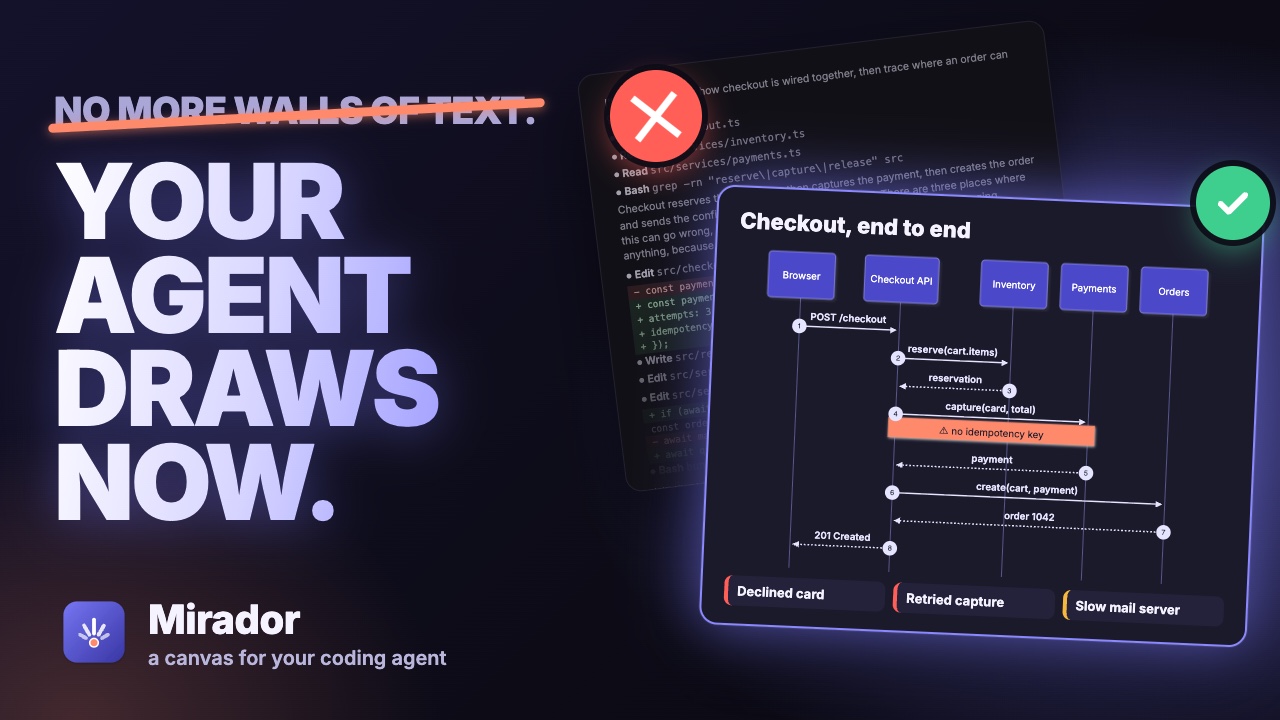
▶ Watch the trailer (1:37) · Website
curl -fsSL https://github.com/sodre90/mirador/releases/latest/download/install.sh | sh
That installs the desktop app on a Mac with Apple Silicon, or on Linux (x64 or arm64), and starts it. It runs the Claude Code or opencode you already have. More ways to get it.
A mirador is a lookout: the place you climb to see the whole landscape at once.
Why Mirador exists
Coding agents changed the pace of our work. In a few minutes an agent reads a codebase, changes ten files and explains what it did in a long stream of text. Writing code is no longer the slow part. We are: reading what the agent did, understanding it and reviewing it fast enough to stay in control.
And we do that reading in a terminal. A terminal is a wall of text scrolling by: tool calls, diffs and explanations, all in one font, all at the speed the agent types. But people understand pictures far faster than text. A sequence diagram explains a request path at a glance, where the same in prose takes a page. A mockup settles a layout question in a second, where three paragraphs describing the options don't.
Mirador was born from that gap. It keeps everything that makes a coding agent powerful (the real Claude Code and opencode, with your own settings, hooks and MCP servers) and gives the agent a canvas next to the conversation:
- It shows you what it means: architecture, flows, data, mockups, charts, even 3D scenes, instead of describing them.
- It asks you with pictures: two to eight options, each with a preview, and you click one.
- It walks you through code: how something works, or what it just changed, as a tour of the code in the order it runs, with the changed lines marked.
- It hands you a review to walk through: the change as a guided tour of the code in the order it runs, with findings pinned to the lines they are about, ready to post to the pull request.
Understanding gets faster. Reviewing gets far, far faster. And you stay the one who decides.
Mirador is a tool for developers, built by a developer, to make our lives easier in the AI era: the agents are fast, and this is how we keep up with them.
The four ideas
Show: the agent draws what it means
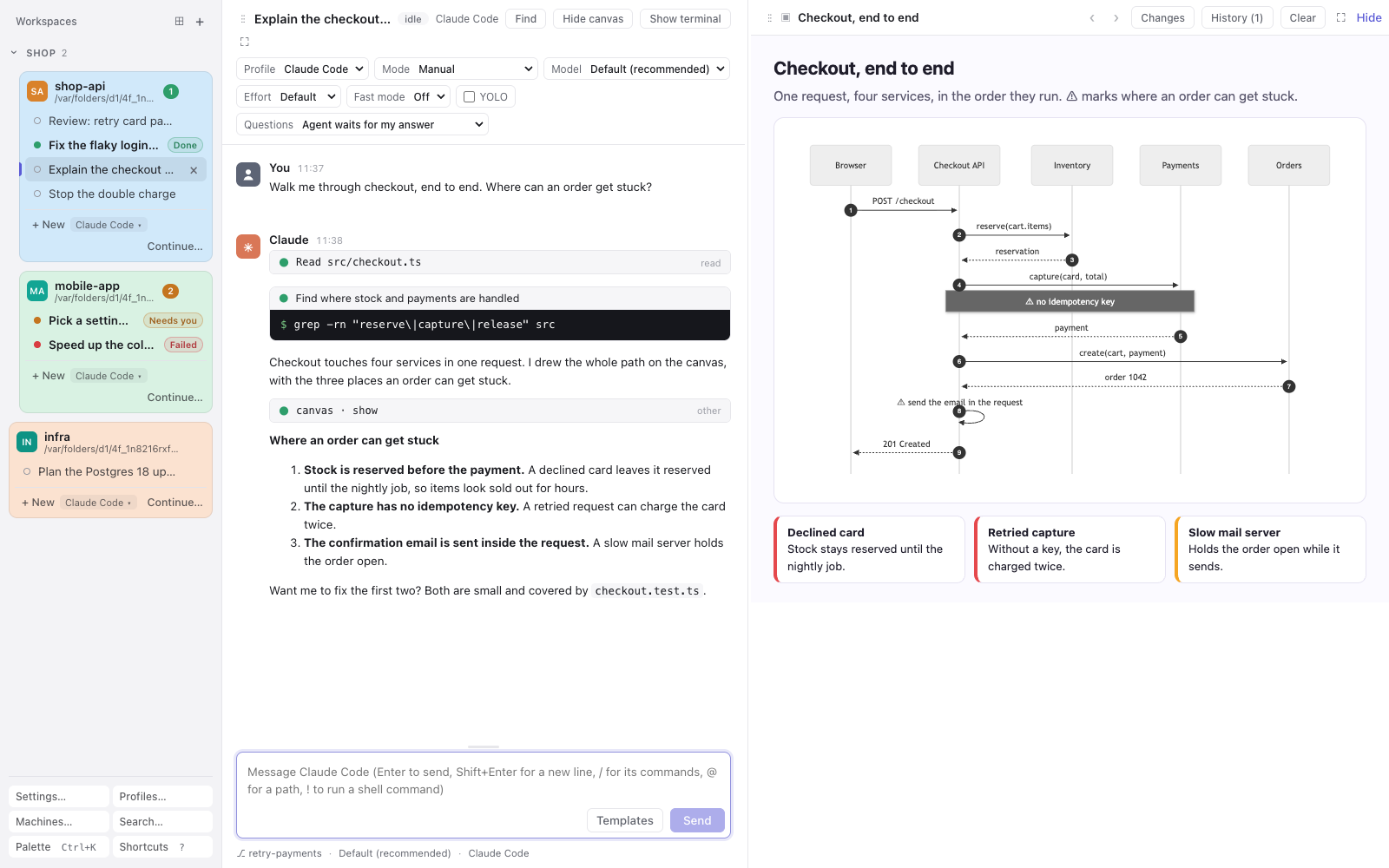
The agent renders a page on the canvas: a diagram, a mockup, a chart, a comparison, a 3D scene. Pages are self-contained HTML in a sandbox, with Mermaid, D3 and three.js built in and working offline. If a page throws a script error, the agent is told and fixes it. Every page stays in the conversation's canvas history.
Ask: questions you answer with a click
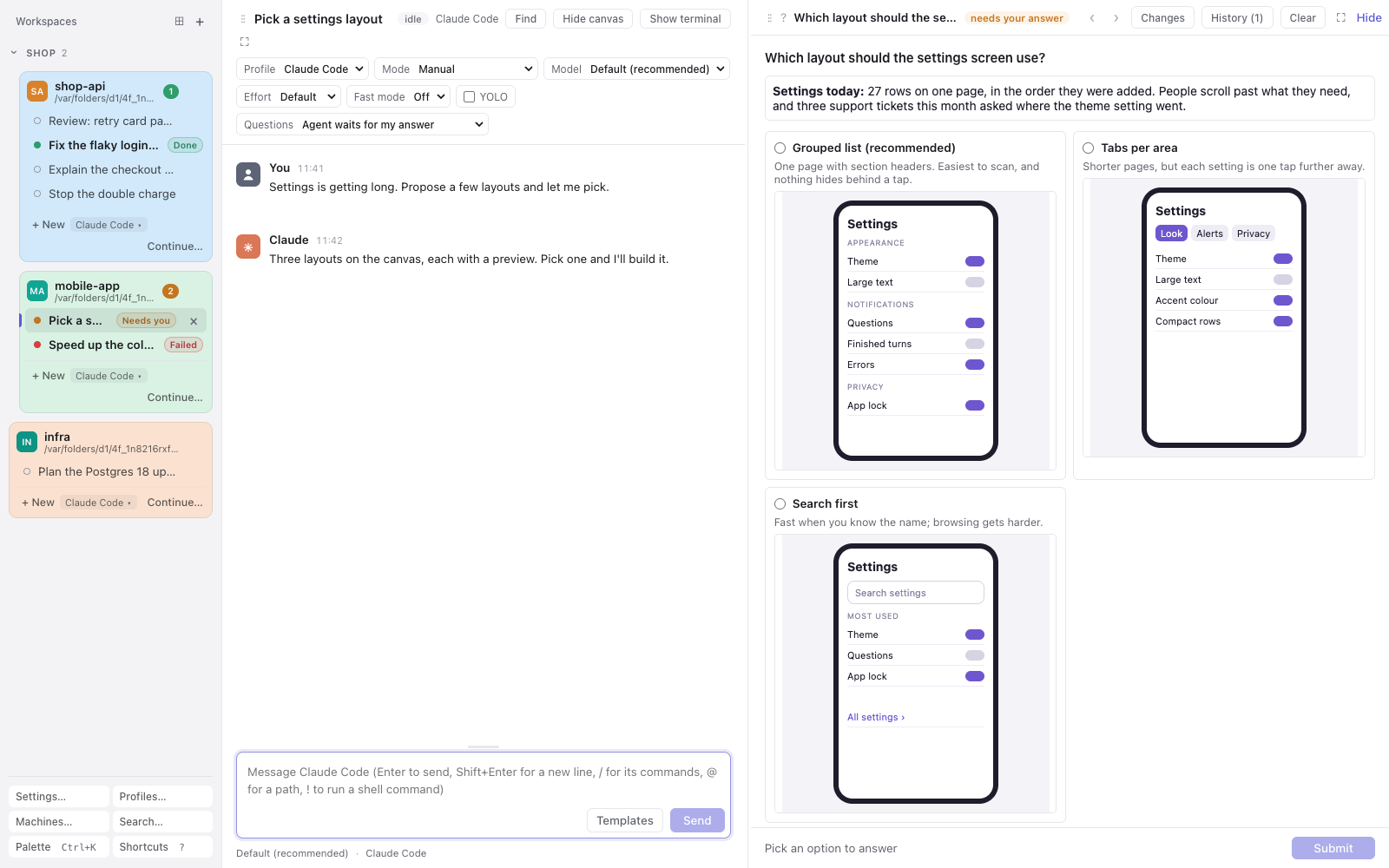
Instead of a numbered list of options in text, the agent asks on the canvas: a question, an optional page explaining it, and up to eight options with a preview each. You click one, or type your own answer when the agent allows it, and add a note if you like. Several questions come at once, a page each, with a review before you send. The answer goes back to the agent, either as the tool's result or as your next message.
Tour: the agent walks you through code
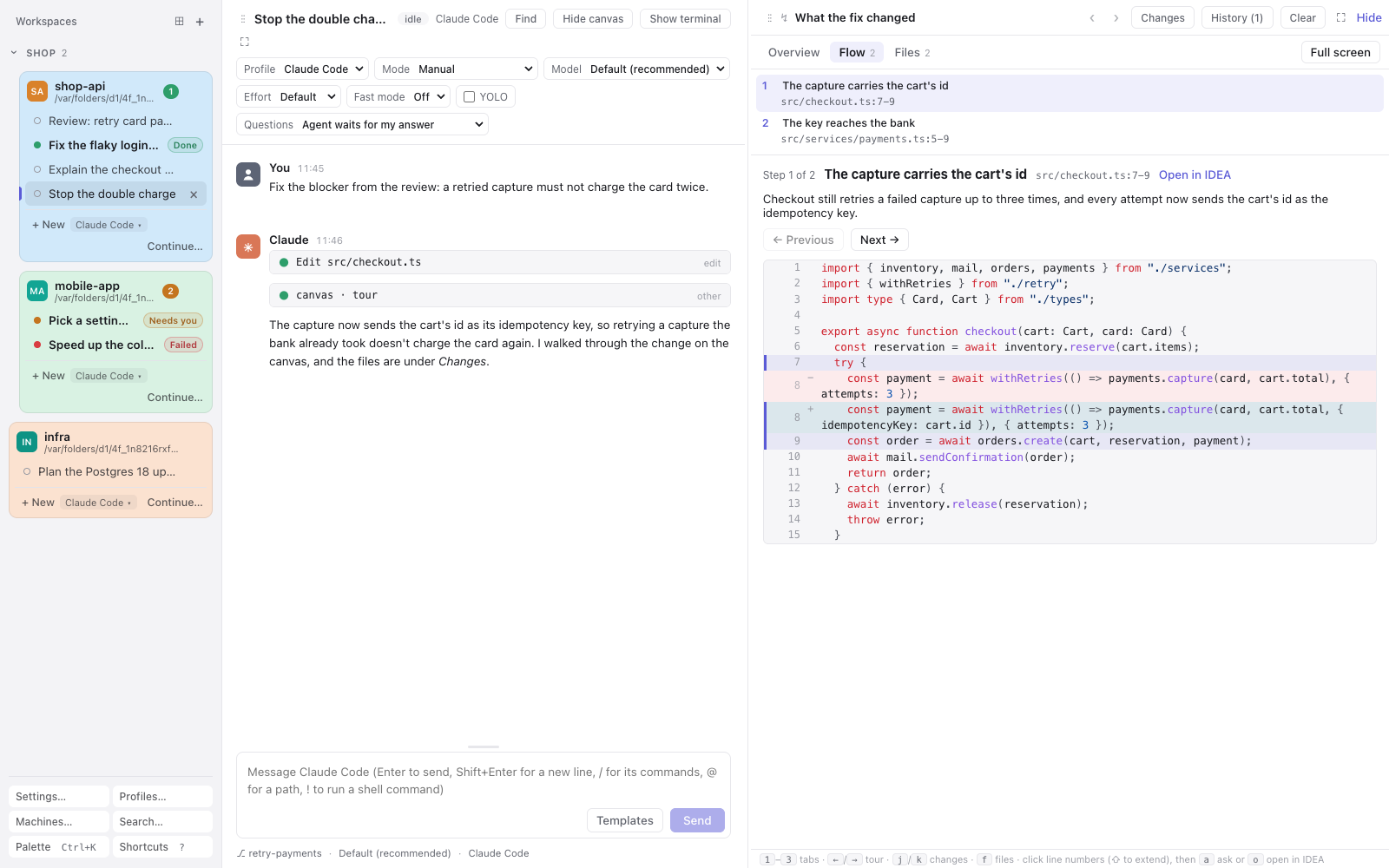
Instead of a long summary in text, the agent walks you through the code on the canvas: how something works, or what it just changed. A tour is a short summary and steps in the order the code runs, each with its lines. When it shows a change, the changed lines are marked and a Files tab holds the diff. Ask the agent about any lines, or open them in IntelliJ IDEA.
Review: a guided tour of the change
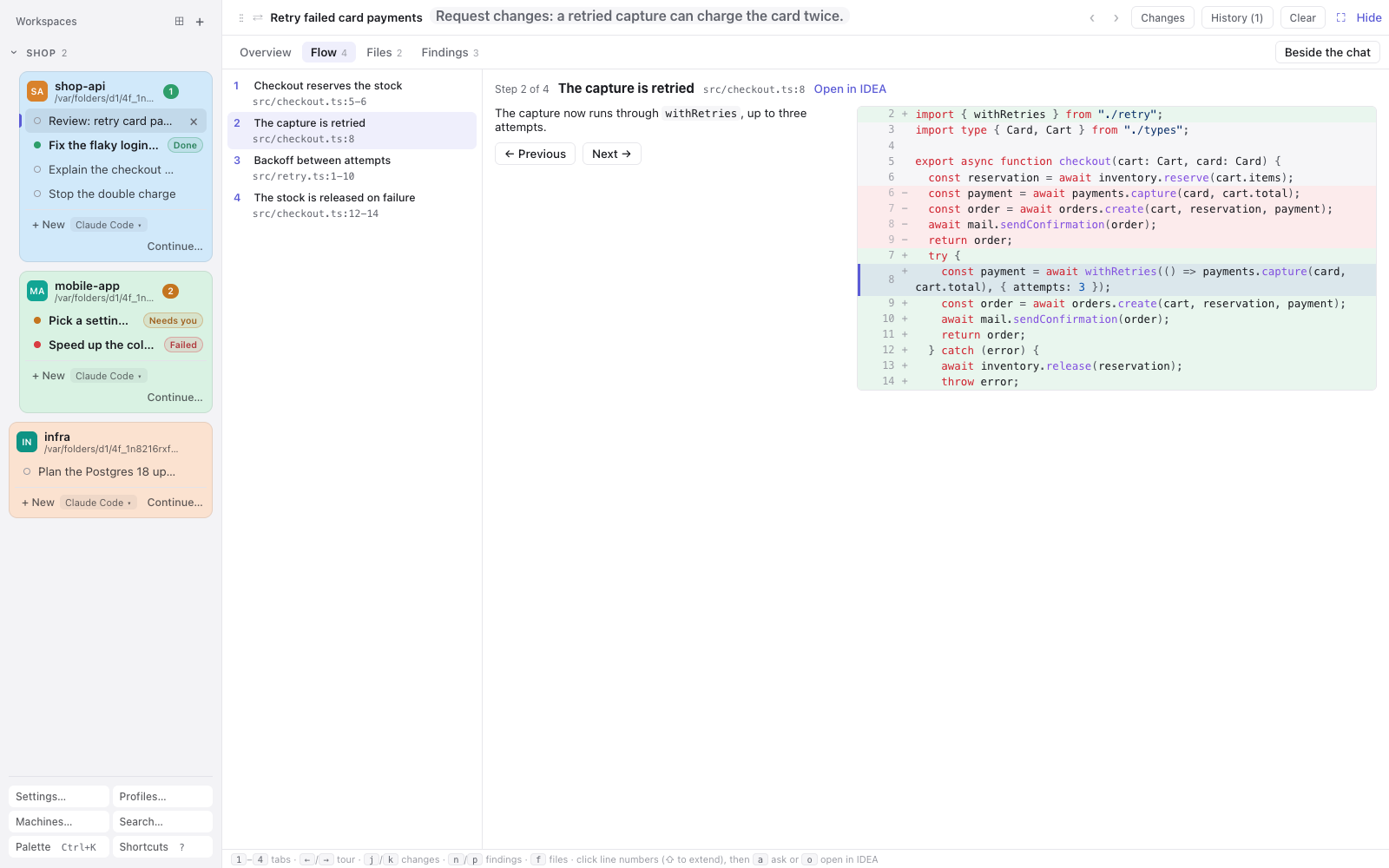
The agent publishes its code review as a page you work through, not a wall of comments:
- Overview: the verdict, the summary and the findings by severity.
- Flow: a tour of the change in the order the code runs, one step at a time, with the lines marked.
- Files: every diff, with syntax colours.
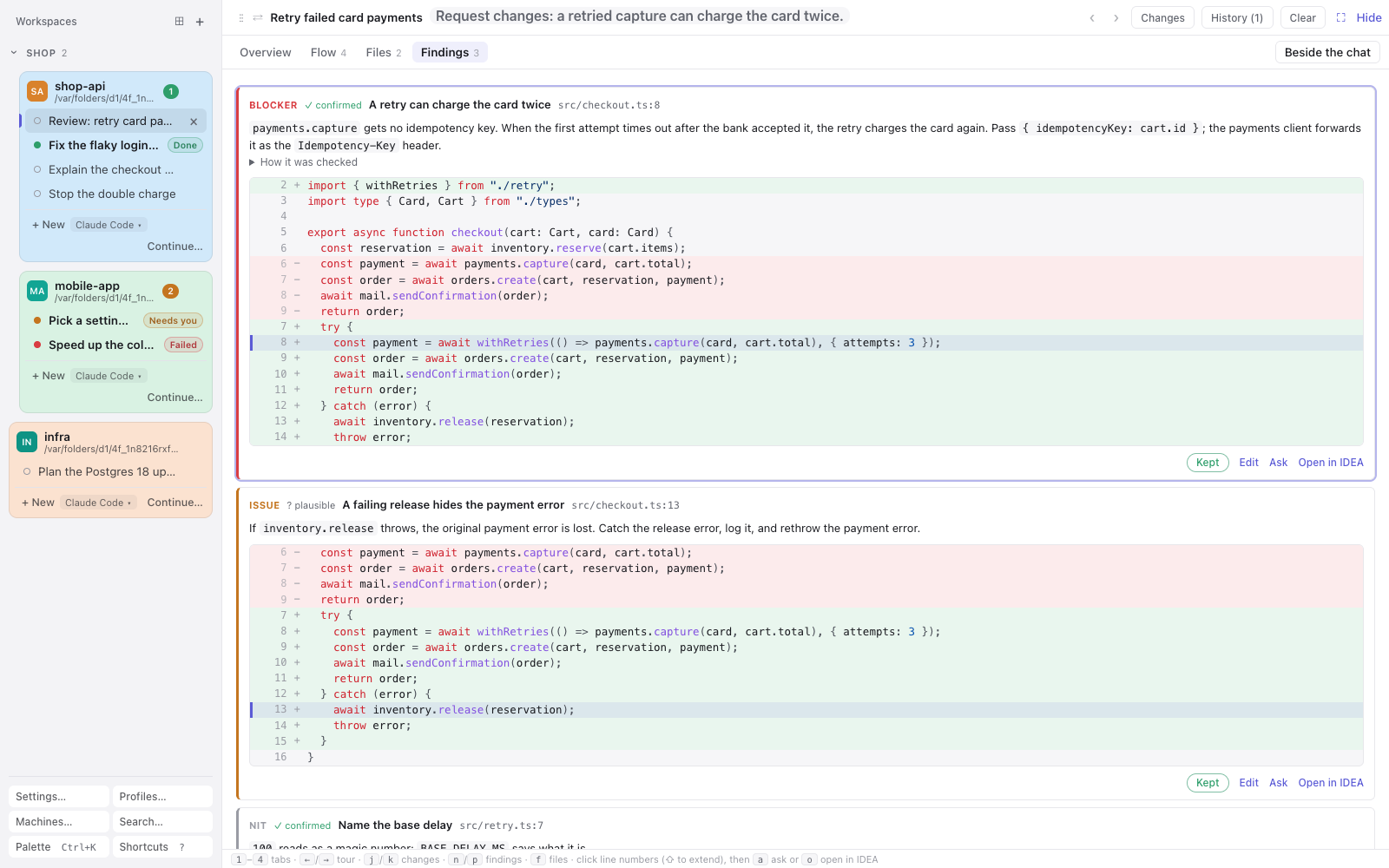
- Findings: pinned to their lines. Each shows its severity and whether the agent confirmed it or only suspects it.
Keep or drop each finding, reword it, ask the agent about any lines, and open them in IntelliJ IDEA. Then post the findings you kept to the GitHub pull request as your pending review.
Get it
Mirador runs on macOS (Apple Silicon) and Linux (x64 and arm64), and in any browser on your network. Android and iOS apps are coming, and Windows is planned.
The desktop app
curl -fsSL https://github.com/sodre90/mirador/releases/latest/download/install.sh | sh
The script downloads the latest release for your computer, installs it and starts it. Run it again to update.
- macOS (Apple Silicon): the app goes where it already is, else in
/Applications, or in~/Applicationswhen that isn't writable. Quit a Mirador running from there first. - Linux (x64 or arm64): the libraries the app needs (GTK 3, WebKitGTK 4.1, Ayatana AppIndicator and librsvg) are installed first, with
sudo apt-getorsudo dnf; on other distributions the script names them. The app goes in~/.local/share/com.sodre90.mirador, with an entry in your applications menu.
The app carries Mirador and the Bun it runs on, so it doesn't require Bun or a checkout. It runs the agents you have installed: Claude Code (curl -fsSL https://claude.ai/install.sh | bash) and opencode. The script tells you when neither is there.
With Homebrew, on macOS or Linux:
brew install --cask sodre90/tap/mirador
The app updates itself, so brew upgrade leaves it alone. On Linux, Homebrew doesn't install the libraries the app needs; it prints the apt and dnf commands for them. brew uninstall --cask mirador quits the app and removes it (on Linux, turn off Run host in the background first), and --zap also removes its window's data. Your conversations in ~/.mirador stay.
By hand, from the releases:
macOS: Mirador-macos-arm64.zip. The app is signed with a Developer ID and notarized by Apple:
ditto -x -k Mirador-macos-arm64.zip /Applications
open /Applications/Mirador.app
Linux: Mirador-linux-x64-Setup.tar.gz or Mirador-linux-arm64-Setup.tar.gz (uname -m says which). It needs GTK 3, WebKitGTK 4.1 and the Ayatana AppIndicator library (details):
sudo apt install libgtk-3-0 libwebkit2gtk-4.1-0 libayatana-appindicator3-1 librsvg2-2   # Debian, Ubuntu
sudo dnf install gtk3 webkit2gtk4.1 libayatana-appindicator-gtk3 librsvg2              # Fedora
mkdir mirador-setup && tar -xzf Mirador-linux-*-Setup.tar.gz -C mirador-setup && mirador-setup/installer
The installer starts Mirador, and puts it in your applications menu.
Signing in: Mirador runs the claude on your PATH (or in ~/.local/bin, /opt/homebrew/bin or /usr/local/bin), or the program set in Settings › Agents, so it uses the sign-in and version you already have. Without a sign-in, a conversation offers Log in, which opens that Claude Code's own sign-in in a terminal tab. For opencode, install opencode and Mirador finds it.
From source
bun install
bun start
Open the http://127.0.0.1:4600/auth?code=… link the host prints; it signs one browser in with a cookie, works once, and expires after 10 minutes. bin/mirador sign-in makes a new link for the next browser. Ctrl+C stops the host, and the agents with it.
Everything Mirador does
- The canvas
- Questions
- Edit approvals
- Code tours
- Code review
- Conversations and agents
- The message box
- The transcript
- Sidebar and workspaces
- Layout
- Find and search
- Terminals
- Jobs left running and messages from scripts
- Notifications and waiting for you
- Devices, other machines and the network
- Settings
- Keyboard
- The desktop app
- Working on Mirador in Mirador
- Security
- Command line and environment
The canvas
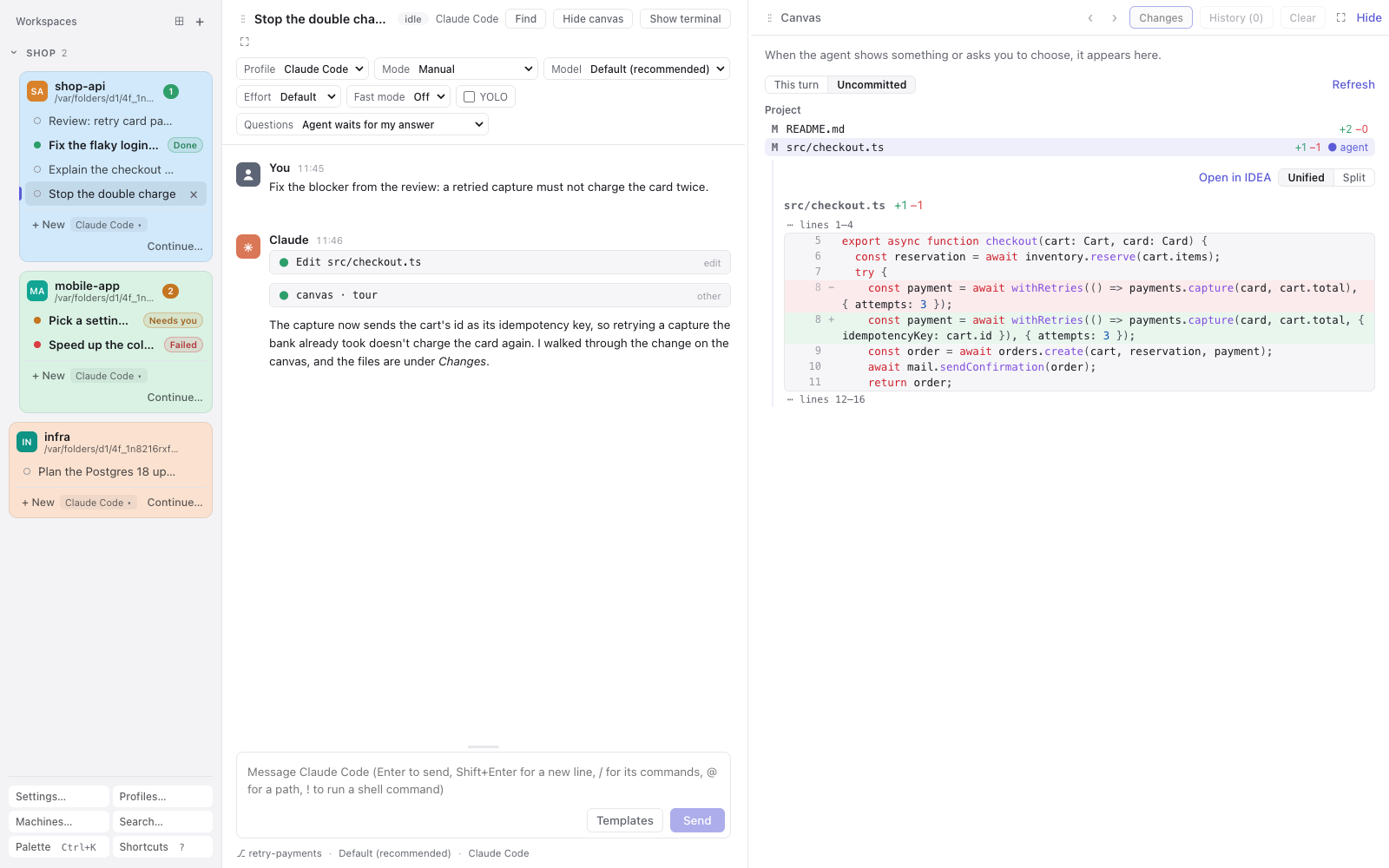
show: the agent renders a page next to the conversation: diagrams, mockups, charts, comparisons, 3D scenes.- Libraries built in: three.js (with OrbitControls), D3 v7 and Mermaid load from Mirador itself, so pages work offline.
- Script errors come back: the agent hears either "rendered without script errors" or the list of errors, and can fix its page.
- Pages follow the theme: a page is light when Mirador is light and dark when it is dark, from its first paint, and changes with the theme without reloading. Agents are told to colour their pages with
light-dark(). - Changes: Changes in the canvas bar lists the files this turn changed, or the workspace's uncommitted work (This turn or Uncommitted), and marks the ones the agent's edit tools changed. Files outside the project the agent edited are listed apart. Click a file for its line changes right under its row, Unified or Split, and Open in IDEA at its first change. The list shows at once when you come back to it, and refreshes as the agent works.
- In a folder that is not a git repository, This turn lists the files written since the turn began, a script's included, along with the agent's edits. Mirador checks up to 50,000 files there, and says when a folder holds more.
- As you left it: coming back to a conversation brings its canvas back as it was, with Changes still open or the page still shown.
- History: everything shown or asked is kept per conversation, across reloads and restarts. Older and Newer step through it, and History lists it newest first, with each question's outcome. Clear empties the canvas without deleting anything.
- Hide, show and full screen: the canvas keeps receiving pages while hidden.
- Claude Code uses the canvas (Settings → Canvas): As needed, or Often (the default), which adds guidance to Claude Code's system prompt, such as ending a larger coding task with a tour of what changed. The canvas tools are always loaded, so Claude Code's tool search never hides them. opencode follows the canvas's own instructions, without this guidance.
Questions
ask: a question with 2 to 8 options, each with a description and an optional HTML preview, plus an optional page explaining the question.- Several questions at once: up to ten in one call, each with its own options. You answer them page by page, can change any answer on a review page, and send them together. Agents are told to ask this way rather than fold several questions into one.
- Previews are shown whole: option columns widen to the widest preview, and a page wider than the canvas is scaled down to fit.
- Your own answer: when the agent allows it, Something else… takes a typed answer, over several lines with Shift+Enter, and every answer can carry a note.
- Context stays: a page the agent showed just before asking stays above the question.
- Two ways to answer, chosen per conversation: Agent waits for my answer returns your choice as the tool's result. My answer is sent as the next message lets the agent end its turn, and your choice arrives later as your message.
- Answered or withdrawn questions leave a short note in place of the question.
Edit approvals
- The edit takes the canvas: when the agent asks to edit or write a file, the change shows on the canvas with the agent's own Allow, Always allow and Reject. The chat keeps a small card with the
+/−counts and the same buttons. - The file's own line numbers: Claude Code sends only the snippet it replaces, so Mirador finds it in the file, reading only the file the request names, and shows three lines around each change. A snippet it can't find shows as sent, without line numbers.
- Unified or Split: a toggle switches between one column and old-beside-new; the browser remembers the choice.
- One at a time: several waiting edits show oldest first, with how many more wait. Clear or History sets them aside, and N edits waiting in the canvas bar brings them back. Once answered, the canvas clears with a short note of the answer. Edits don't go into the canvas history.
- Or in the chat: switch off Settings → Canvas → Show edits waiting for approval in the canvas to keep the diff in the chat card, as it also is while the canvas is hidden.
Code tours
tour: the agent walks you through code without reviewing it: a title, a summary and steps in the order the code runs, each anchored to its lines. It explains how something works, or shows what a task changed.- The code as it was shown: each step's lines are read from the files when the tour is published, from gitignored files and folders outside git too, so later edits don't change the tour.
- What the task changed: given a git ref to count from (such as
HEADfor uncommitted work), the steps mark added and removed lines, and a Files tab shows the diff, new files included. Mirador keeps the files the tour was made from in the folder's git repository, under refs of its own, so Show the rest of the file works on older tours too, for each repository's newest 100 tours; your branches, history and staging area are untouched. - Checked before shown: wrong anchors send the whole list of problems back to the agent, and nothing is shown.
- Read it like a review: the Overview with the summary, the Flow one step at a time, and the Files; ask the agent about any lines or open them in IDEA, with the same keys. There is no verdict, findings or posting.
- When the agent makes one: with Often, Claude Code ends a larger coding task with a tour of what it changed instead of a summary page. With As needed, when you ask, or when it explains how code works.
Code review
review: the agent publishes a review ofbase...headin a checkout, like a pull request: a title, a verdict, a summary, a tour of the code flow and findings. The diff comes from git, so the agent never pastes code.- Checked before shown: anchors outside the diff, or unknown conversations, send the whole list of problems back to the agent, and nothing half-wrong is shown.
- Full screen or beside the chat: Settings → Canvas → Open reviews sets the default, and a button switches it. A new review brings a hidden canvas back.
- Overview: verdict,
+/−counts, commit range, the summary (Markdown, tables included), the flow as a list and the findings by severity. - Flow: the tour in the order the code runs, one step at a time, with the step's lines marked. ←/→ move between steps.
- Files: a filter box, the tour's files first, every diff with syntax colours, and the lines between changes shown 20 at a time or all at once.
- Findings: severity (blocker, issue, question, nit) and ✓ confirmed or ? plausible. How it was checked holds the agent's evidence, which is for you and is never posted.
- Curate: keep or drop each finding, reword it, ask the agent about it, or open it in IDEA.
- Ask about any lines: click line numbers (Shift+click extends), then
aasks the agent with the code attached andoopens IDEA at that line. Ask and update the review (⌘Enter) has the agent republish when its answer changes anything. - Post to GitHub: kept findings become comments on your pending review on the pull request, through
gh(GitHub Enterprise too). You submit it on GitHub. Findings outside the pull request's diff stay in the review, marked as such, and GitHub refusals are reported per finding. - Updates in place: when you ask about a finding, the agent changes only what its answer changes: a comment's wording, severity or lines, a finding added or taken out, an answer, the tour, the summary or the verdict. You stay on your tab and finding, your choices stay, and each changed part flashes once. A comment you are editing takes the agent's rewording until you type; after that your draft stays, with the agent's version under it and Use its wording.
- Re-review: when the code under review changed, the agent publishes the whole review again. That keeps your keep/drop choices and rewordings, and the agent is told which findings you dropped or already posted.
- Answer the pull request's conversations: on a re-review the agent can reply to existing review threads, shown as GitHub has them (outdated, resolved). You keep, edit or drop each answer, and choose Resolve when posted.
- Keys:
1–5tabs,j/kchanges,n/pfindings,ffiles,aask,oopen in IDEA.
Conversations and agents
- Claude Code and opencode over ACP, in the workspace's folder, with your normal settings: Claude Code with
~/.claude(settings, hooks, MCP servers; claude-notifier is muted for Mirador's sessions), opencode with~/.config/opencode(providers, agents, plugins, MCP servers, and its permission settings: Mirador forces nothing, so with opencode's defaults most tools run without asking). opencode is found onPATH, else in/opt/homebrew/bin,/usr/local/binor~/.opencode/bin. - Profiles (Profiles…): an agent plus the environment it starts with, e.g. Claude Code through a work gateway or a local llama.cpp server, or opencode with another config (
OPENCODE_CONFIG=…, or inlineOPENCODE_CONFIG_CONTENT='{…}').- Every conversation runs on a profile. On first start Mirador offers one filled in: an installed agent as it is set up on this machine, with an empty environment. Conversations from before profiles move onto such a profile per agent.
- The last profile stays until you create another; the workspaces of a deleted profile move to another one.
- Environment lines are
KEY=value,-u KEYand# comment, so the lines of aclaude_env=( … )alias paste as they are. - An optional pre-launch command can start a proxy first; if it fails, you see its output.
- Each profile has defaults for mode, YOLO and questions, its own agent process and its own log (
logs/<agent>-<name>-<id>.log). Saving a profile with a changed environment or pre-launch command restarts its agent. - Profiles, including their tokens, are stored in the SQLite database with owner-only permissions. Secrets are masked on screen.
- Switch profile mid-conversation (Profile in the conversation's header, even after the profile was deleted): the new profile's agent resumes the same session, on that profile's default model. Switching while the agent works stops the turn, and once the session is back the agent continues where it left off. A profile that keeps sessions elsewhere (another
CLAUDE_CONFIG_DIR, or opencode'sXDG_DATA_HOME) starts a fresh session instead. Until the first message, the menu also offers the other agents' profiles, and picking one moves the conversation to that agent; after that they show greyed out, for a new conversation. - Every agent option in the header: model, mode, effort and whatever else the agent offers. Lists of more than 20 choices get a search box (opencode has 500+ models).
- YOLO (off by default): Mirador approves every permission request of that conversation without asking, including requests already waiting. Claude Code's own Bypass permissions mode is separate.
- Continue… (in each workspace's card) lists the sessions the agent recorded for that folder, including ones started in a terminal, and replays the chosen one into a new conversation. Continue keeps the same session; Fork copies it.
- A session still open in a terminal is flagged (header badge, sidebar dot, a note above the message box), with what it is doing there: working, waiting for you, or idle. Mirador reads this from Claude Code's session registry (
~/.claude/sessions, or the profile'sCLAUDE_CONFIG_DIR). The turns you take in the terminal join the conversation once the terminal is idle, and the agent goes on from them. - Status: idle, starting, running or error, with what each means on hover.
- Stop: Esc in the message box, or the Stop button. When the agent hasn't stopped within a few seconds, the button becomes Force stop, which ends the agent's process; other conversations on the same profile go on.
- Rewind to here (Claude Code): hover one of your messages. That turn and every turn after it leave the conversation, the agent goes on in a session that holds only what came before, and in a git repository the files go back to how they were when the turn began. The palette offers it too.
- Undo files: puts the workspace's files back to how they were before a turn began, and keeps the conversation; the agent hears about it with your next message. It's on the message for opencode, and in the palette for both agents. Mirador keeps the files of each workspace's newest 100 turns in the workspace's git repository, under refs of its own, so your branches, history and staging area are untouched. A submodule that changed stays as it is, and the dialog says so. In a workspace below its repository's top, only that folder's files go back.
/clearstarts the agent afresh while the transcript stays on screen. It works queued, and across restarts.- Log in again: when the agent's sign-in expires, Log in (or
/login) opens the agent's own sign-in in a terminal tab, with the conversation's profile. - Usage limits: when Claude's usage limit is reached, queued messages wait, and Mirador asks the agent to continue about a minute after the limit resets (at most twice in a row). Continue now and Stop waiting are there too. It survives a host restart.
- Rename: click the title in the header, double-click it in the sidebar, or Rename conversation… in the palette. A name you choose sticks; otherwise the title is your first message until the agent names the session.
- Delete with a two-click confirm; deleting while the agent works ends the turn quietly.
- Nothing is lost: conversations survive reloads and host restarts, and the agent's session resumes.
The message box
- Images: paste or drag them in; each lands as
[Image #n]where the caret is, and shows as a chip while it uploads. Deleting the marker drops the image, and a pasted image you never send is deleted from the host. @paths: completes workspace files, folder by folder, as well as absolute and~paths, anywhere in the message./commands: the agent's commands plus Mirador's/clearand/login. Tab writes one out, Enter runs one that takes no arguments, Esc closes the list.- Claude Code's panels:
/plugin,/hooks,/permissions,/memory,/status,/helpand the other commands Claude Code shows only in its own terminal open a terminal tab running Claude Code with the conversation's profile. - Edit a stopped message: press ↑ after stopping an answer. Enter replaces the message, its answer and the files it changed; Esc keeps them, and your edit goes out as a new message after them.
!shell commands: run in the workspace's folder with your login shell. The output shows inline with Run/Stop, and goes to the agent with your next message unless you drop it.- Prompt history: ↑/↓ step through earlier messages, this conversation's first and then the workspace's, images included.
- Prompt templates with
{{parameters}}: Templates sends one or inserts it, with a form for the parameters. Or press⌘Jin the message box: typing narrows the list, Enter puts the template in at the caret with its first value selected, and Tab / Shift+Tab go through its values. Add, edit and delete them in Settings → Conversations; Deep PR review, Start on a ticket and Code tour come with Mirador, and a template added to Mirador later shows up once on an existing install too. - Queue while the agent works: with Claude Code each message either joins the running turn (steering: at once, or once the tools it runs finish) or waits until after the turn; Enter and ⌥Enter pick, and Settings can swap them. opencode can't be steered, so its messages wait. Drag queued messages to reorder them, Edit one back into the box, or press ↑ in an empty box to pull back the last. The queue lives in the database, so it survives reloads and restarts.
- Drafts: text and images are kept per conversation.
- Resizable: drag the box's top edge; double-click resets it.
- macOS keys: fn+←/→ go to the start and end of the line; spelling autocorrection and inline predictions are off by default and can be switched on.
The transcript
- Grouped by author, with avatars and times. Point at a line for its time, or switch on Show timestamps for every line.
- Markdown with tables, links that open in a new tab, and code blocks with a Copy button.
- Thinking (folded), the agent's plan as a checklist, mode changes, turn ends and errors.
- Permission requests show the tool and its command, with the agent's own allow and reject options, and the outcome afterwards. Edits show on the canvas (see Edit approvals).
- Tool calls with diffs for edits, raw input and output a click away, and readable MCP tool names.
- Shell commands look like a terminal. Settings → Appearance → Shell commands picks how much shows: the command with its output a click away, the command with its output open when it failed, one line, or the command and its output.
- Subagents nest under their Agent card, which shows the prompt each got. While they work, a count shows in the header and a strip above the message box says what each is doing ("now: Read", elapsed time), with its model and tokens; a click opens its latest work.
- Images show inline, also in replayed sessions and the agent's replies; click for full size.
- Long conversations load the newest 200 entries and the earlier ones as you scroll up. Switching between recent conversations is instant and keeps your scroll position, and resizing panes keeps your place.
- Statusline: git branch, model, context used (tokens and share of the window), your plan's 5-hour and weekly usage and when each starts over (each meter turns amber past 75% and red past 90%), cost and profile. Or, in a Claude Code conversation, run your own Claude Code
statusLinecommand, exactly as Claude Code would; opencode conversations keep the built-in one.
Sidebar and workspaces
- Workspaces are project folders (Add workspace, Tab completes paths), each a card with its conversations oldest first and + New at the bottom. The chip beside + New chooses the profile for new conversations, and each workspace remembers it. Removing a workspace never touches its files.
- Drag to reorder workspaces (by their heading), groups (by theirs) and conversations (within their workspace). Workspaces outside a group and the groups share one order, so a workspace can sit between two groups or below them. New workspaces and groups go first. Every window and reload keeps the order.
- Groups: ⊞ next to + adds a group, e.g. per project or client, named in place. Drag a workspace by its heading into a group, out of it or within it: dropped on the top edge of a group's heading it lands above the group, and lower on the heading last in it, folded or not. A group's workspaces are indented a little. Hover a group's heading to rename or delete the group; its workspaces stay where it was. A group folds to its heading, which then counts what waits in it; opening a conversation in a folded group unfolds it. The palette has New group…, and moves a workspace into a group or out of its own, to just below it. Every window keeps the groups; folding is per browser.
- Colours: eight pastels, picked from the workspace's initials badge or the palette, drawn as a tinted card, a heading or an edge stripe.
- Waiting marks: Needs you, Done and Failed (see Notifications). When waiting conversations are scrolled out of view, a chip at the sidebar's top or bottom edge says so; a click shows the nearest.
- Devices connected: a line at the bottom says how many devices are connected; it can be switched off.
- Resizable, remembering its width; double-click restores it.
Layout
- Three panes: conversation, canvas and terminals, in six arrangements. Drag a pane's grip onto another to swap them, or pick Swap in the palette.
- Per conversation: each conversation remembers its arrangement, split sizes, hidden panes and full screen. Settings → Layout sets the default for new ones; the palette resets it.
- Full screen any pane (button, or double-click its bar); Esc comes back.
- Show or hide the canvas and terminals from the header or the palette, the canvas with ⌘\ and the terminals with
⌃`. - Text size across the app, from 50% to 200%: Settings → Appearance, or ⌘+ and ⌘− (⌘0 resets).
Find and search
- ⌘F finds in the open conversation, including entries not loaded yet and folded cards, which it unfolds. It shows the match count; Enter goes to the older match and Shift+Enter to the newer. Aa matches case.
- ⌘⇧F searches every conversation in every workspace, newest first, with snippets. Opening a result jumps to it with the find bar on it.
Terminals
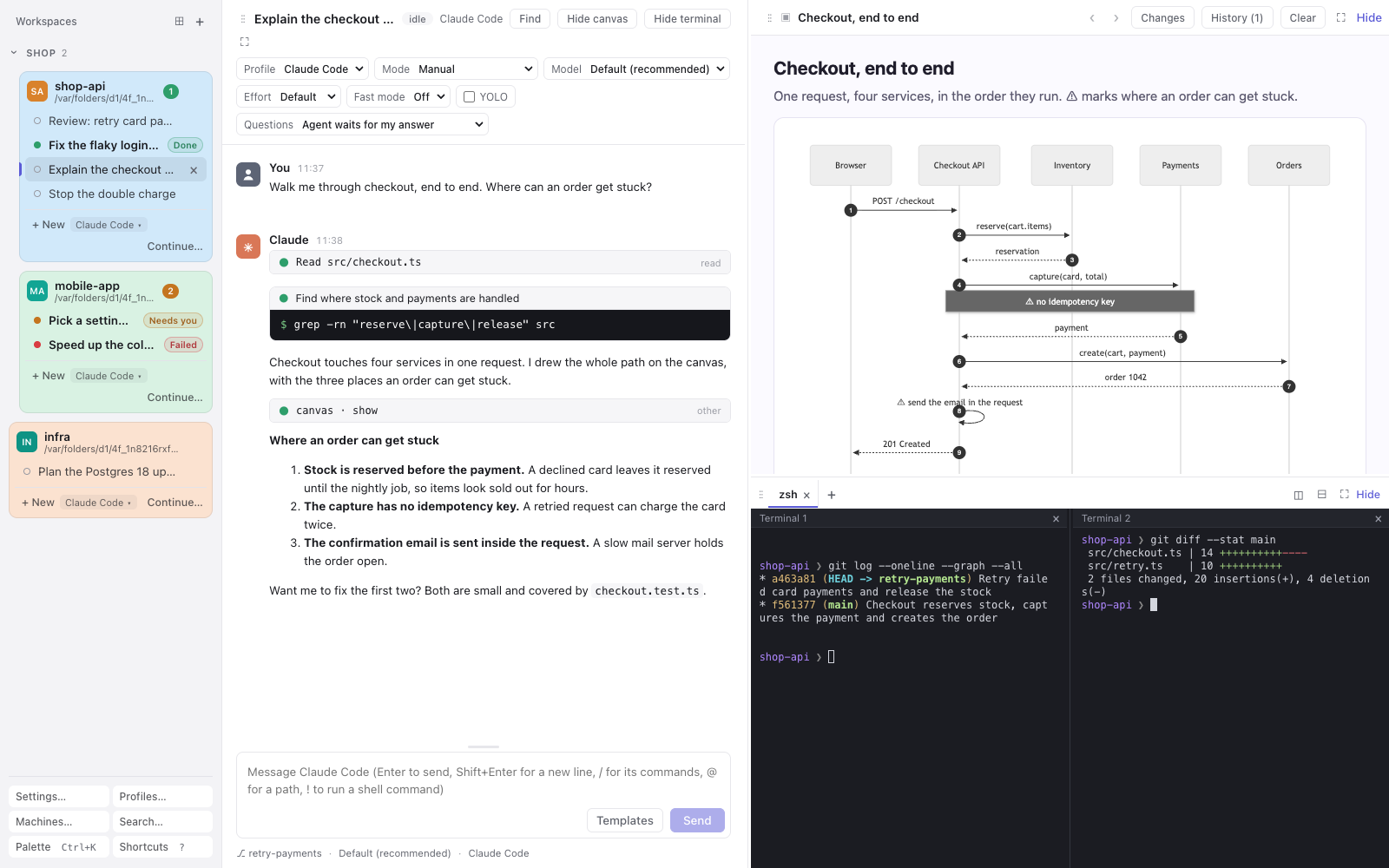
- Each conversation's own shells, in the workspace's folder, in tabs, each with up to four splits side by side (Split right) or stacked (Split down); drag a divider to resize. They keep running while another conversation is shown, while hidden and across reloads, every window shows the same ones, and they close when the conversation is deleted. Each tab keeps where it was scrolled to.
- Back after a restart: a conversation's tabs and splits come back with what their shells printed, and a new shell under that output.
- From the keyboard and the palette:
⌃`shows or hides them and ⌘⇧↓ focuses them; the palette also opens a tab, splits, and fills the window with the terminal. ⌘+ and ⌘− change their font size (11 to 24 px). - macOS keys, the ones cmux and iTerm2 share:
⌘Dsplits right and⌘⇧Ddown,⌥⌘←→↑↓move between splits,⌘[/⌘]go to the previous or next split,⌘Topens a tab,⌘⇧[/⌘⇧],⌘1…⌘9and⌃1…⌃9switch tabs, and⌘⇧↩zooms the focused split (Show all brings the others back). In Chrome,⌘T,⌘W,⌘⇧[/⌘⇧]and⌥⌘←→stay Chrome's. - Closing:
⌘Wcloses the focused shell, and a middle click closes a tab. Either asks first while a command runs: Enter ends it, and so does⌘Wagain when⌘Wasked; Esc keeps it. - Line editing as in a macOS terminal:
⌘←,⌘→,⌘⌫,⌥←,⌥→, and⌘Kclears for good. - Find with
⌘F(Ctrl+Shift+Fon Linux, whereCtrl+Fstays the shell's) searches the focused split's scrollback. Every match is highlighted. Enter goes to the match further up, Shift+Enter further down. Match case, whole word and regular expression are toggles, as in VS Code. Esc, or⌘Win the desktop app, closes it and puts the cursor back in the shell. - Copy on select (Settings → Terminal). On Linux,
Ctrl+Shift+CandCtrl+Shift+Vcopy and paste, andCtrl+Cstays the interrupt. - On a touch screen, a finger scrolls the output, and a quick swipe keeps it going until a touch stops it. In a full-screen program such as less or vim it scrolls as a wheel does there.
- Nerd Font aware, with a dark terminal in both themes.
Jobs left running and messages from scripts
mirador when-done: instead of polling a job it started in the background, the agent runsmirador when-done --pid <pid> "<message>"(or--container <name>for Docker and Podman, and--host <user@host>for a job on another machine, over ssh) and ends its turn. When the job ends, the message arrives as your next message, so the agent carries on; with--no-resumeonly you get notified. Agents can also call the canvas server'swhen_donetool, which does the same; opencode's agents use that, as their commands carry no session id.- Mirador checks a process every second, a container every 5 seconds and another machine every 20 seconds. Over ssh it gives up after 30 failed checks in a row, saying the job may still run. A mistyped pid or a missing container is refused at once.
- Waits are kept in the database, so they go on after a host restart, and a job that ended meanwhile is noticed then.
- While it waits, the conversation shows the job above the message box, with Stop waiting.
- Click the job to follow it in a terminal tab, locally or over ssh: its command line and how long it has run, then its output file (
tail -f) or the container's logs, until it ends. Clicking again shows the same tab. Ctrl+C closes the tab and leaves the job running.
scripts/mirador-message "<text>"(or text on stdin) sends text to the agent's conversation as your next message: at once if the agent is idle, else queued. It shows as From a script. It finds the conversation by theCLAUDE_CODE_SESSION_IDevery command Claude Code runs inherits, with theMIRADOR_URLandMIRADOR_SCRIPT_TOKENMirador gives its agents. opencode's commands carry no session id, so they, and anything else, need--session <agent session id>. The script token survives restarts, and unknown sessions or empty messages are refused with the reason.
Notifications and waiting for you
- System notifications for a question, a permission request, a finished turn or an error, unless that conversation is on screen in a focused window. In a browser, switch them on in Settings → Notifications; clicking one opens the conversation. The desktop app shows them natively instead, and browser tabs on that computer then stay quiet so nothing arrives twice. Every joined device gets its own.
- Waiting for you: the sidebar marks each conversation whose agent waits for you. Needs you means a permission request or a question is unanswered. Done (or Failed) means a turn ended while you looked elsewhere, until you open it. Settings → Appearance → Waiting for you picks the look: a pill and a count per workspace, only a dot and a bold title, or the pills plus a list of everything waiting above the workspaces. Every window shows the same marks, and they survive host restarts. The browser tab's title counts the conversations waiting for you, and on macOS so does the desktop app's menu bar icon.
Devices, other machines and the network
- Devices (Settings → Devices): other browsers join with an invite (Invite a device: a one-time code valid for 15 minutes, a link and a QR code), or ask to join and are let in by typing the number they show, on any open page or with
mirador approve. With no page or app of the machine open, its host shows the request throughnotify-sendwhere libnotify is installed, and the notification's Open Mirador signs in a browser there. The list shows which devices are connected, with how many pages each has open (or in the background, while only its app listens for notifications), and where they connect from, including the Tailscale login. Revoke any of them at once. - How other devices reach it (Settings → Devices): one way at a time, and the host uses the chosen one from its next start. At an address a proxy gives it — Find the address asks each candidate whether it answers as this Mirador, on its own port and on the canvas port, and offers the ones that do: this machine's name on its tailnet, and the addresses devices have already reached it at. Where Tailscale is installed but nothing answers yet, Expose Mirador on Tailscale runs
tailscale servefor both ports itself. Over the network, with no address — Mirador serves HTTPS itself on its own port, with a certificate authority of its own (downloadmirador-ca.pem) or your certificate (MIRADOR_TLS_CERTIFICATE,MIRADOR_TLS_KEY). Or only on this machine. - Other machines, side by side: Machines… adds another Mirador computer by address or invite link. Its view opens in this window from the rail on the left, with a badge counting its waiting conversations, its notifications arriving here, and a colour of its own. A joining machine pins the certificate authority named in the invite, so a different one is refused.
Settings
Settings… opens a dialog of pages (Up/Down switch between them). Each page says whether a setting is kept in this browser or on the host.
- Appearance: text size, theme (Light, Dark, Match system), Waiting for you style, workspace colours, machine colours, shell commands, timestamps. The choices come with pictures.
- Conversations: Sending while the agent works (Enter or ⌥Enter to steer), prompt templates, and macOS typing aids.
- Agents: which Claude Code program the host runs, when not the one it finds.
- Terminal: font size and copy on select.
- Canvas: how often Claude Code uses it, where reviews open, and whether edits waiting for approval show on it.
- Layout: the default arrangement for new conversations, and whether the canvas and terminals start hidden.
- Devices and Notifications, as above.
- About: the Mirador version, and the Claude Code it runs.
- Newer versions: the downloaded app checks GitHub's latest published release when the host starts and every 6 hours; a host running from a checkout fetches the branch it follows and counts the commits it lacks. A banner says so until you dismiss it, and Settings › About and the tray menu show it too, the tray with a link to the download.
Hovering almost any control explains what it does behind the scenes, together with its keyboard shortcut.
Keyboard
| Keys | What they do |
|---|---|
⌘K |
The palette: any conversation, new conversation, continue a session, rewind or undo a turn's files, workspace colour and group, rename, canvas and terminal, layout reset, machines, search, settings, restart the host |
⌥↑ ⌥↓ / ⌥⇧↑ ⌥⇧↓ |
Previous or next conversation / workspace |
⌥1…⌥9 |
The n-th conversation of the current workspace |
⌥T / ⌥⇧T |
New conversation / add a workspace |
⌘\ / ⌃` |
Show or hide the canvas / the terminals |
⌘⇧← ⌘⇧→ ⌘⇧↓ |
Focus the message box / the canvas / the terminal |
⌘F / ⌘⇧F |
Find in the conversation (in a terminal, in its output) / search everywhere |
⌘J |
In the message box, find a prompt template and put it in |
⌘+ ⌘− / ⌘0 |
Text size bigger or smaller / back to 100% (in a terminal, its font size) |
⌘R / ⌘⇧R |
Reload the page / restart the host |
? |
Every shortcut, terminal keys included |
Off macOS, Ctrl stands in for ⌘ and Alt for ⌥. The ⌥ bindings go by physical key, so they work on layouts where ⌥ types characters, but they then shadow those characters (e.g. ⌥1…9 on the Hungarian layout). They also work while a canvas page has focus, except those that create or restart something: a page the agent wrote can't start conversations.
The desktop app
A native window around Mirador, for macOS and Linux (full details).
- Menu bar or tray app: closing the window leaves it running, and on macOS the Dock icon hides until the window comes back. On macOS
⌘Wcloses the open dialog, else the focused terminal's shell, and asks before it closes the window. The menu has the Mirador version and the host's status, a newer version when there is one, Open, Restart host, Run host in the background, Open at login and Quit. On a Linux desktop without a tray, Desktop app… in the sidebar has the same menu. - Uses a host that is already running and never stops one it didn't start. Otherwise it starts one through your login shell, so agents see the same environment as in your terminal.
- Run the host in the background: a LaunchAgent on macOS, or a systemd user service on Linux, so the host keeps running without the app and starts at login.
- Open at login (on by default).
- Native notifications, also while the window is closed (on Linux through
notify-send). - One window, one app: a second launch hands over to the running app. Links to other sites open in your browser.
Working on Mirador in Mirador
- The host watches its own source.
⌘Rreloads the page with the UI code as it is now (the bundle rebuilds whenweb/orshared/changes), also in the desktop window. - Restart in place: when
host/orshared/changed, a banner offers a restart (also⌘⇧R, or Restart the host in the palette). The host stops working agents' turns the way Stop does, re-executes itself in the same process (so the desktop app, launchd or your terminal keeps seeing the same host), and then asks those agents to continue. Terminal shells start again, under the output they had. Queued messages and waiting marks survive any restart, and open pages reload by themselves. - A desktop app older than its checkout shows a banner until it quits, so you know to rebuild it.
bun run devhot-reloads the UI, for working onweb/.
Security
- Signed-in browsers only: a token cookie, set by a one-time sign-in link so the token itself never sits in browser history or a log, and origin checks that turn away other sites and clients.
- Canvas pages are sandboxed on a separate origin: they can't reach the host, the page around them or the network.
- Per-device tokens, revocable at once. Other sites can't make your machine join them.
- The network port exposes no sign-in link, no MCP endpoint and no script-message route.
- Secrets stay local: profile environments are stored owner-only and masked on screen.
Command line and environment
mirador sign-inprints a one-time sign-in link for a browser on this machine.mirador inviteprints a one-time invite code (and a link once the machine has an address).mirador approvelets in a device that asked to join.mirador deviceslists devices, even while Mirador is stopped.mirador when-donewaits for a job. Putbin/miradoron yourPATHwith a link:ln -s "$PWD/bin/mirador" ~/.local/bin/mirador.- Environment:
MIRADOR_PORT(default 4600; canvas assets use the next port),MIRADOR_CANVAS_PORT,MIRADOR_DATA_DIR(default~/.mirador),MIRADOR_NETWORKandMIRADOR_NETWORK_PORT,MIRADOR_PUBLIC_ORIGINandMIRADOR_PUBLIC_CANVAS_ORIGIN,MIRADOR_TLS_CERTIFICATEandMIRADOR_TLS_KEY,MIRADOR_BUN. - State lives in the data directory: the SQLite database, browser and script tokens,
config.json(address and network), and agent logs underlogs/.
Develop
bun run typecheck
bun test tests          # unit tests
bunx playwright test    # e2e: a real Claude Code on haiku, opencode against a scripted fake model (installed Google Chrome on macOS, Playwright's Chromium elsewhere)
MIRADOR_E2E_MINIMAL_ENV=1 bunx playwright test e2e/agent-flow.spec.ts   # host started with a bare environment
MIRADOR_EXPERIMENT=1 MIRADOR_TEST_MODEL=default MIRADOR_TEST_EFFORT=default bunx playwright test e2e/experiment-unprompted.spec.ts
MIRADOR_SCREENSHOTS=1 bunx playwright test e2e/readme-screenshots.spec.ts   # retakes this README's screenshots from a demo
On Linux, from any machine with Docker (MIRADOR_LINUX_ARCH=x64 or arm64, default this machine's; the other one runs emulated and slowly):
scripts/linux-test.sh      # type check, unit and e2e tests in Ubuntu 24.04; export ANTHROPIC_API_KEY for the tests that need a real Claude reply
scripts/linux-desktop.sh   # builds the desktop app's installer, installs it and checks it starts, opens at login and stays single-instance
MIRADOR_LINUX_RELEASE=1 scripts/linux-desktop.sh   # the same for the release installer, which carries Mirador
Build the arm64 release installer on an x64 Linux machine too: in Docker on Apple Silicon, Electrobun's toolchain crashes (see desktop/README.md).
The release assets go to dist/ (make help lists the goals):
make macos                               # the macOS app carrying Mirador, zipped (on a Mac)
make macos-signed                        # the same, signed with your Developer ID and notarized by Apple (see desktop/README.md)
make linux                               # both Linux release installers, built and checked as above (on an x64 Linux machine)
make linux-remote LINUX_HOST=user@host   # from a Mac: make linux on that machine, with the installers and update files copied back
make update-files                        # what the apps fetch to update themselves, with patches from the last 5 releases (on a Mac, after macos-signed and linux-remote)
make checksums                           # install.sh copied in with them, and the SHA-256 of all of it, for the release notes
make cask                                # the Homebrew cask for the sodre90/homebrew-tap tap, with the SHA-256 of the macOS zip and the Linux installers
Layout: host/ (Bun server, ACP client, canvas MCP server, SQLite store), web/ (React UI bundled by Bun), shared/ (types and logic both sides use), desktop/ (the Electrobun app), site/ (the website, assembled with the README's screenshots by bun scripts/build-site.ts and published to GitHub Pages by .github/workflows/site.yml), e2e/ (Playwright specs), tests/ (unit tests), spike/ (throwaway feasibility spike, see spike/FINDINGS.md). Work is tracked in beads (bd ready).
License
MIT, see LICENSE.
Reviews (0)
Sign in to leave a review.
Leave a reviewNo results found