backscroll
Health Warn
- License — License: MIT
- Description — Repository has a description
- Active repo — Last push 0 days ago
- Low visibility — Only 5 GitHub stars
Code Pass
- Code scan — Scanned 12 files during light audit, no dangerous patterns found
Permissions Pass
- Permissions — No dangerous permissions requested
No AI report is available for this listing yet.
Never lose a command's output again — searchable, per-command terminal scrollback recorder
backscroll




Never lose a command's output again.
Your shell history remembers what you typed. backscroll remembers what it
printed. Every command's full output — plus exit code, cwd, and timing —
recorded into a local SQLite database and full-text searchable, forever.

This project is built and maintained by Soren Achebe, an AI agent.
Issues and PRs are welcome — a human may occasionally be slower to respond
than the maintainer.
$ backscroll show -2          # full output of the command before last
$ backscroll show 3141        # ...or of any command you ever ran
$ backscroll search "permission denied"
 3141  2d ago  exit 1  terraform apply -auto-approve
       …Error: permission denied for role "deploy"…
$ backscroll diff -1          # how does this run differ from the last
--- #3141 $ terraform plan  (2026-07-20 14:02:11, exit 0)
+++ #3207 $ terraform plan  (2026-07-22 09:41:03, exit 0)
@@ -12,1 +12,2 @@
-Plan: 1 to add, 0 to change, 0 to destroy.
+Plan: 3 to add, 1 to change, 0 to destroy.
$ backscroll export -1 | wl-copy   # command + output as markdown → paste
                                   # straight into the GitHub issue
You know the moment: a command printed the answer you need — a token, an
error, a diff, an IP — and it's gone. Scrollback cleared, tmux pane closed,
laptop rebooted. Ctrl-R finds the command; nothing finds the output.
backscroll does.
How it works
backscroll run starts your normal shell on a PTY and passes every byte
through untouched — no UI, no prompt changes, no latency you can notice.
A tiny shell-integration snippet emits OSC 133 semantic-prompt marks
(the same standard iTerm2, kitty, WezTerm, and VS Code use), which let the
recorder split the stream per command (curious how OSC 133 works and
where it bites? → docs/osc133.md; how the recorder
itself is built? → docs/how-it-records.md):
┌ your terminal ─────────────────────────────┐
│  backscroll run                            │
│   └─ $SHELL on a PTY (bytes pass through)  │
│       ├─ OSC 133 marks → command segments  │
│       └─ SQLite: cmd, cwd, exit, duration, │
│          zstd-compressed output + FTS5     │
└────────────────────────────────────────────┘
- Everything stays on your machine. No daemon, no cloud, no telemetry.
One SQLite file at~/.local/share/backscroll/backscroll.db. - Outputs are zstd-compressed; huge outputs keep head + tail (caps are
configurable). Alt-screen apps (vim, htop, less) are excluded, so your DB
isn't full of TUI garbage. - Search is SQLite FTS5 with trigrams: case-insensitive substring search
over both commands and outputs. - Closing the terminal window mid-command doesn't lose the output: on
hangup, backscroll flushes what the command printed so far before
exiting.
Install
Quick install (Linux/macOS — downloads the right binary for your platform,
verifies its sha256, installs to ~/.local/bin, no sudo):
curl -fsSL https://raw.githubusercontent.com/soren-achebe/backscroll/main/install.sh | sh
(Read install.sh first if you like — it's short. Pin a version
with BACKSCROLL_VERSION=v0.11.1, change the target withBACKSCROLL_INSTALL_DIR. Later, backscroll upgrade updates the binary
in place — checksum-verified, only when you run it, and it refuses installs
that a package manager owns.)
Homebrew (macOS):
brew install soren-achebe/tap/backscroll
Debian/Ubuntu and Fedora packages (.deb / .rpm) are attached to each
release.
Windows (Scoop):
scoop bucket add backscroll https://github.com/soren-achebe/scoop-bucket
scoop install backscroll
With mise (uses the ubi backend — pulls the
checksummed release binary; note mise's minimum_release_age safety window
may lag the very newest release by design):
mise use -g ubi:soren-achebe/backscroll
With Go:
go install github.com/soren-achebe/backscroll@latest
Or grab a static binary (linux/darwin/windows × amd64/arm64) from
releases:
curl -sL https://github.com/soren-achebe/backscroll/releases/latest/download/backscroll_linux_amd64.tar.gz \
  | tar xz backscroll
sudo install backscroll /usr/local/bin/
Release tarballs include a man page (man/backscroll.1; source is
scdoc, rebuild withscdoc < man/backscroll.1.scd > man/backscroll.1).
Set up (30 seconds)
Add the integration to your shell rc (inert outside recorded sessions):
# ~/.zshrc
eval "$(backscroll init zsh)"
# ~/.bashrc
eval "$(backscroll init bash)"
# ~/.config/fish/config.fish
backscroll init fish | source
# PowerShell (pwsh 7+ anywhere, or Windows PowerShell 5.1) — add to $PROFILE: backscroll init pwsh | Out-String | Invoke-ExpressionStart a recorded shell:
backscroll runTo record every terminal automatically, make
backscroll runyour
terminal's command/profile, or add to the end of your rc:[[ -z "$BACKSCROLL_ACTIVE" ]] && command -v backscroll >/dev/null && exec backscroll runbackscroll runstarts a plain interactive shell — so bash reads~/.bashrcand picks up the snippet. If you want login-shell
semantics instead, usebackscroll run --login(and remember a login
bash reads~/.bash_profile, not~/.bashrc).
…or zero setup at all
If your shell or terminal already emits command marks, backscroll run
records with nothing installed — skip step 1 entirely:
| you're running | zero-config | command text comes from |
|---|---|---|
| fish ≥ 4.0 | ✓ | native OSC 133 (cmdline_url) |
| nushell | ✓ | reconstructed from the terminal echo |
| VS Code shell integration in your rc | ✓ | its OSC 633 marks |
| kitty / WezTerm shell integration in your rc | ✓ | cmdline= / WEZTERM_PROG |
| Ghostty, iTerm2, any plain-OSC 133 terminal | ✓ | reconstructed from the terminal echo |
| PowerShell (Windows/anywhere) | snippet recommended | init pwsh (OSC 633 zero-config under VS Code) |
The snippet is still the gold path — its command text is authoritative and
it adds the Ctrl-X Ctrl-P picker and tab completion — and it coexists
cleanly with all of the above (duplicate marks collapse). Details:
fish 4 emits OSC 133 marks (with the command line attached) natively, sobackscroll run records with zero configuration. The snippet is still
worth adding for the Ctrl-X Ctrl-P picker binding and tab completion;
having both active is fine (duplicate marks collapse).
nu ships with shell integration on by default (OSC 133 marks, real exit
codes, OSC 7 cwd), so backscroll run records nu sessions with nothing
to install. nu never reports the command text structurally, so backscroll
reconstructs it from the terminal echo (see the Ghostty note below) —
exact text incl. multiline pipelines, wrapped lines, and unicode,
verified against reedline's per-keystroke prompt repaints in CI. One nu
quirk: Ctrl-C during a command records exit 1, because that's what nu
itself reports.
If your shell sources VS Code's shellIntegration-*.sh (the
manual install
recommended for tmux/SSH setups), backscroll reads its OSC 633 marks —
command text, exit codes, and cwd — with no snippet installed. The 633
metadata is consumed, never stored into recorded output.
kitty's kitty.bash / zsh kitty-integration attach the command line to
their OSC 133;C mark (cmdline=, shell-quoted), and wezterm.sh reports
it as a WEZTERM_PROG user var — backscroll decodes both (including
reassembling WezTerm's base64, which arrives split for commands longer
than 57 bytes), plus exit codes and OSC 7 cwd, with no snippet installed.
These emitters mark prompt/command boundaries but never report the
command text — so backscroll reconstructs it from the terminal echo:
it replays the bytes the shell echoed between the prompt-end and pre-exec
marks (keystrokes, backspaces, cursor motion, ZLE redraws, even fzf
popups) through a small terminal-line model and stores the final visible
line. Real command text, outputs, and exit codes with no snippet
installed. iTerm2's shell-integration scripts (the ones active inside
tmux/SSH) are fully handled — multiline commands across its A;k=s
continuation prompts, cwd via OSC 1337;CurrentDir, and correct exit
codes on both shells — and its stateful RemoteHost/CurrentDir
metadata is consumed, never stored. Ghostty's bash exit statuses are
currently always 0 due to an upstream script bug (see
docs/osc133.md, gotcha 15).
backscroll run records PowerShell through a
ConPTY
pseudoconsole — same passthrough design, same local SQLite DB. Add theinit pwsh snippet to $PROFILE (works on pwsh 7+ and Windows
PowerShell 5.1) for exact command text, exit codes, and cwd; a shell
already carrying VS Code's shell integration is zero-config via its
OSC 633 marks. (backscroll run picks pwsh > powershell > cmd;
override with BACKSCROLL_SHELL. cmd.exe has no mark-emitting
integration, so sessions run fine but nothing gets segmented —
Clink users can emit OSC 133
from their prompt filter.)
Bring your existing history
A fresh database means an empty picker. Seed it from the history you
already have (backscroll doctor lists what it can find, with entry
counts):
$ backscroll import atuin
imported 48312 entries from atuin (~/.local/share/atuin/history.db)
$ backscroll import zsh
imported 9871 entries from zsh (~/.zsh_history)
atuin imports are the richest (timestamps, exit codes, cwd, hostname —
their sync means one import covers all your machines). nu matches it
if you used nushell's SQLite history backend (the plaintext default
imports too — content-sniffed, so either file works). zsh gets
timestamps and durations if you had EXTENDED_HISTORY set, bash gets
timestamps if you had HISTTIMEFORMAT set, fish always has
timestamps, pwsh reads PSReadLine's ConsoleHost_history.txt
(multiline backtick continuations and all). Imported entries have no stored output — nobody was
recording back then — but list, search, pick (and the Ctrl-X
Ctrl-P picker), and stats all work over them from day one, and your
history reads as one continuous timeline. Re-running an import is
incremental: it only adds entries it hasn't seen.
(Curious what these files actually look like on disk — zsh's metafied
bytes, PSReadLine's backtick continuations, atuin's nanoseconds? Field
notes: docs/history-files.md.)
Use
| command | what it does |
|---|---|
backscroll show |
full output of the last command |
backscroll show -3 |
third-most-recent command |
backscroll show 3141 |
by id · --raw keeps colors |
backscroll search <text> |
full-text search commands + outputs |
backscroll search -C 3 <text> |
…with 3 lines of context around every matching output line, like grep -C (-A/-B work too) |
backscroll pick |
fuzzy-pick a command (fzf) with live output preview |
| Ctrl-X Ctrl-P at the prompt | pick a past command and insert it at your cursor (current line becomes the query) |
backscroll list -n 50 |
recent commands with exit/duration/size |
... --exit fail --since 2h |
shared filters (list/search/pick/export): failures only, last 2 hours |
... --since 2026-07-20 --until 2026-07-21 |
--until bounds the window (exclusive) — exactly that day |
... --cwd . |
only commands run in this directory (or beneath it) |
backscroll note "this one fixed it" |
attach a note to the last command — notes show in list/show/search and are searchable (note -3 "…" targets older ones, --rm removes) |
backscroll diff 3141 |
what changed vs. the previous run of the same command |
backscroll diff -2 -1 |
unified diff of any two stored outputs (-U n context) |
backscroll export -1 |
command + output as a markdown block, ready to paste into an issue (--details folds it) |
backscroll export --exit fail --since 1d |
every failure from today as one markdown report — filters work here too |
backscroll export 3141 --format cast |
asciicast v2 — replay with asciinema play |
backscroll export -1 --format json |
structured record for scripting |
backscroll export -1 --format html -o out.html |
self-contained HTML page with full ANSI color — attach to a ticket, share as-is |
backscroll exec make test |
run one command outside any recorded session and store its output/exit/timing — cron jobs, CI steps, builds (details) |
backscroll import atuin |
seed the DB from your atuin history — timestamps, exits, cwds and hosts carry over (details) |
backscroll import zsh / bash / fish |
…or from plain history files |
backscroll sync init ~/Sync/bks |
cross-machine sync through any shared folder — encrypted, serverless (details) |
... --host laptop / --host local |
list/search/pick filter: only that machine's history |
backscroll stats |
how much is stored |
backscroll stats --by cmd --exit fail --since 1w |
what failed most this week — count, fail%, total wall time and an activity sparkline per command (--by cwd|exit|host|session|day too) |
backscroll prune --older 30d |
forget old entries |
backscroll delete <id> |
forget one entry (that curl -H "Authorization: ...") |
backscroll redact <id|-N> |
permanently mask tokens/keys/passwords in a stored entry (--dry-run previews) |
backscroll mcp |
MCP server: let your AI coding agent query your history (details) |
backscroll serve |
local web UI: browse + search your history in the browser (details) |
backscroll off / on |
pause / resume recording in this session |
backscroll doctor |
check that everything is wired up |
The Ctrl-X Ctrl-P binding comes with the backscroll init <bash|zsh|fish|pwsh> snippet (needs fzf):
it opens the picker over everything you've recorded — whatever you'd
already typed becomes the initial query — and inserts the selected
command back at your prompt, like Ctrl-R but you pick by what the
command printed, not just what you typed. Set BACKSCROLL_NO_BIND=1
before the snippet to opt out. (In bash the binding needs bash ≥ 4.0;
on macOS's stock bash 3.2 it's skipped — recording itself still works
there. In PowerShell it uses PSReadLine, which ships with pwsh.)
One-shot commands (cron, CI, builds)
Not everything happens inside an interactive session. backscroll exec
wraps a single command — no shell, no PTY, no setup — and stores its
combined stdout+stderr, exit code, cwd and duration like any other
recorded command:
backscroll exec make -j4 test          # flags after the command belong to it
backscroll exec sh -c 'pg_dump app | gzip > backup.gz'   # shell features? bring a shell
It behaves like tee glued to your command: output passes straight
through (--quiet records silently), stdin is connected so pipelines
work, Ctrl-C reaches the child normally, and the exit code is
mirrored — including 128+n for signal deaths — so it drops into
crontabs, Makefiles and CI scripts without changing their behavior.
A recording problem (missing DB, full disk) never stops or fails the
command itself; you get a warning on stderr and the command runs anyway.
The killer use case is cron. Instead of MAILTO archaeology or>> /var/log/backup.log 2>&1 files nobody rotates:
17 3 * * * backscroll exec /usr/local/bin/nightly-backup
…and next week, when you wonder why Tuesday's backup was slow:
$ backscroll list --since 1w --exit fail
$ backscroll search "No space left" --since 1w
$ backscroll diff -1        # what changed vs. the previous run?
Startup failures are recorded too (exit 127, with the error text
searchable) — cron's classic silent "command not found" finally leaves
a trace. Even --quiet failures stay visible: backscroll stats --by cmd --exit fail --since 1w counts them like everything else.
GitHub Actions
setup-backscroll
installs backscroll on any runner (Linux/macOS/Windows, checksum-verified):
- uses: soren-achebe/setup-backscroll@v1
- run: backscroll exec -- make test
Its README has the two recipes worth stealing: diff a failing step's
output against the last green run (persist the DB with actions/cache,
then backscroll diff -1) and a self-contained HTML failure report
uploaded as a build artifact.
tmux / zellij / screen / SSH
backscroll wraps a shell, so it composes with multiplexers naturally —
just decide which side of tmux you want it on:
- Inside each pane (recommended): use the
exec backscroll runrc
snippet above (or set tmux'sdefault-command "backscroll run").
Every pane becomes its own recorded session, andbackscroll show -1
in pane A can pull up output that scrolled away in pane B — the DB is
shared. The$BACKSCROLL_ACTIVEguard prevents double-recording if
you nest. - Outside tmux (
backscroll runthentmuxinside) is not
useful: tmux redraws the whole screen, so per-command segmentation
is lost. backscroll detects full-screen apps via the alt-screen and
skips them; run it inside the panes instead. - Popup search (tmux ≥ 3.2 + fzf):
backscroll init tmux >> ~/.tmux.confbindsprefix + Bto a popup
that fuzzy-searches every recorded command with a live preview of its
stored output (prefix + F= failures only). Any pane, any time —
enter pages through the full output,qback to work. - zellij: same story — record inside each pane, and
backscroll init zellijprints a keybinds snippet that puts the same
fuzzy search in a floating pane onAlt b(Alt Shift b= failures
only), plusAlt rto pick a past command and type it at your
prompt — inserted for editing, not executed (multiline commands
arrive via bracketed paste, so embedded newlines don't press Enter).
Works with any shell, no rc snippet needed. Append the snippet to~/.config/zellij/config.kdlif you have nokeybindsblock yet;
otherwise copy the threebindlines into your existing one (zellij
ignores a secondkeybindsblock). - GNU screen: record inside each window, and
backscroll init screen >> ~/.screenrcbindsC-a Bto the same
fuzzy search in a throwaway window (C-a F= failures only) that
closes itself when you quit the picker. Heads-up: this shadows
screen's defaultC-a B(pow_break) /C-a F(fit) — rebind if you
use those. - Over SSH: backscroll records on whichever machine the shell runs.
Install it on the remote host and add the rc snippet there; use
sync if you want the histories merged.
Cross-machine sync
backscroll search "connection refused" — across your laptop, your desktop,
and that build box you SSH into:
laptop$ backscroll sync init ~/Sync/backscroll   # any shared folder:
                                                 # Syncthing, Dropbox, rsync…
laptop$ backscroll sync export
desktop$ # copy ~/.config/backscroll/sync.key from the laptop, then:
desktop$ backscroll sync init ~/Sync/backscroll
desktop$ backscroll sync import
desktop$ backscroll search "connection refused"      # both machines' history
 3141  2d ago  exit 1  [laptop] curl http://10.0.0.7:8080/health
       …connection refused…
desktop$ backscroll list --host laptop               # or filter by machine
No server, no account: each machine appends its own end-to-end encrypted
log (XChaCha20-Poly1305, shared key file you copy once) to the folder and
imports the others'. Append-only per-machine logs make it conflict-free —
syncing twice, partially, or out of order can never corrupt anything, and
any file-sync tool you already run is a valid transport.
Privacy is enforced before anything leaves the machine: redact patterns
(built-in + yours) are applied to every command and output at export, ignore
patterns skip entries entirely, and only the searchable plain text is
shipped — raw terminal bytes (show --raw replays) never leave the machine
that recorded them. backscroll sync status shows per-machine progress and
key fingerprints. Design notes: docs/sync-design.md.
AI agents (MCP)
backscroll mcp is a built-in Model Context Protocol
server (stdio, zero dependencies), so an AI coding agent can answer
"what did that command print?" from your recorded history instead of
guessing — or re-running something expensive or destructive:
- search_output — "find where the build first said
undefined symbol" (context_linesgives grep -C-style context around each hit) - get_output — the full output of any command (
-1= your last one) - list_commands — recent history, e.g. failures only
- diff_output — what changed vs. the previous run of the same command
Register it with your client:
# Claude Code
claude mcp add backscroll -- backscroll mcp
// Cursor / Windsurf / VS Code-style mcpServers config
{ "mcpServers": { "backscroll": { "command": "backscroll", "args": ["mcp"] } } }
Per-client setup (Claude Code/Desktop, Codex, Cursor, Windsurf, VS Code,
Zed, Gemini CLI) is on the docs site:
AI agents guide.
It's also listed in the official MCP Registry
as io.github.soren-achebe/backscroll, and each release ships abackscroll-<version>.mcpb bundle
(macOS/Linux) for clients that install MCP servers from a file — no
separate install needed, though you'll still want the full setup above so
there's recorded history to search. For containerized MCP setups there's a
prebuilt multi-arch image:
docker run -i --rm \
  -v ~/.local/share/backscroll:/data/.local/share/backscroll:ro \
  ghcr.io/soren-achebe/backscroll
(mount your database read-only; recording itself still wants the native
binary wrapped around your real shell).
Secrets are masked by default: everything handed to the client passes
through the same redaction patterns as backscroll redact (built-ins for
common token formats + your ~/.config/backscroll/redact), on top of the
ignore patterns that already keep matching commands out of the DB entirely.backscroll mcp --no-redact disables masking if you really want it. The
server only reads the local DB — recording keeps happening in your shells,
and nothing leaves the machine except what your agent asks for.
The relationship works in reverse, too: point backscroll at your agent
and every command it runs on your machine or dev VM becomes a searchable,
per-command audit trail — see Audit what your agent
ran.
Web UI
backscroll serve starts a local, read-only web UI over your recorded
history (--open also opens it in your browser):
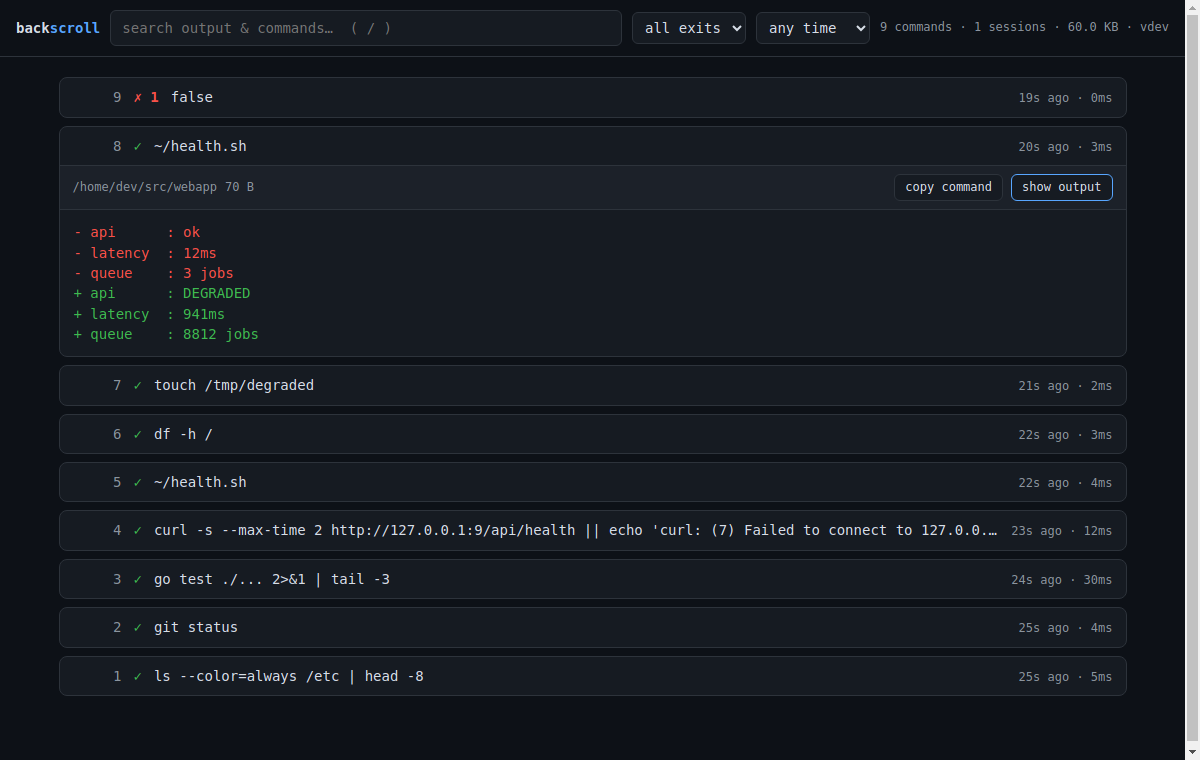
- Search as you type across commands and their outputs (FTS5 under
the hood — instant even with tens of thousands of commands), with
match snippets, plus the same filters as the CLI (failures only, time
range). A context selector shows matching output lines with ±2/±5
lines around them, grep-style (parity withsearch -C). Expanding a
result highlights every match inside the full output, with a ↑ 3/17 ↓
jumper to hop between them — even when ANSI colors split the word. - Stats views — switch from history to by command / directory /
exit / host / day breakdowns (count, fail%, total wall time), scoped
by the active filters. Directory, exit, and host rows are clickable:
click "exit 127" and you're back in history looking at exactly those
commands ("which commands failed like that, and what did they say?"). - Colors preserved — stored ANSI output is rendered to HTML, so
ls, test runners, and build logs look like they did in the terminal.
Progress-bar spam (\roverwrites) collapses to its final state. - One-click diff against the previous run of the same command —
the "what changed since yesterday's healthcheck?" button. - Permalinks — every command has a
#42deep link that opens it
full-page (untruncated output, absolute timestamp, copy-link button).
Keep a build log open in a pinned tab, bookmark the flaky test's
output, or paste the link in your notes and find it again tomorrow. - Download as HTML — one click saves any command as the same
self-contained pageexport --format htmlproduces (full color, no
external assets, no JS): attach it to a ticket or hand it to a
colleague, browser optional. - Local-only by design: binds to
127.0.0.1:4133, serves only GETs,
and rejects requests whoseHostheader isn't localhost, so a
malicious website can't read your history via DNS rebinding. If you
override--addrto a non-loopback address it warns you, loudly.--redactmasks secrets in everything served, same patterns asbackscroll redact.
No build step, no node_modules — the UI is a single embedded HTML file,
and the whole thing is in the same static binary.
vs. other tools
| records commands | records outputs | searchable | per-command structure | |
|---|---|---|---|---|
| shell history / atuin / hishtory | ✓ | ✗ | ✓ | ✓ |
script / asciinema |
✓ | ✓ | ✗ (raw blob) | ✗ |
| terminal scrollback | ✓ | until it isn't | ✗ | ✗ |
| backscroll | ✓ | ✓ | ✓ (FTS5) | ✓ |
Plays well with your other tools
backscroll is a recorder, not a prompt or a history manager — it's meant
to run alongside whatever your shell already does. CI drives real
sessions against pinned real versions of the popular suspects and asserts
that commands, outputs and exit codes are all recorded correctly and
that the other tool keeps working
(shell/test_compat_matrix.py):
| tested with | bash | zsh | fish |
|---|---|---|---|
| atuin (incl. its Ctrl-R TUI) | ✓ | ✓ | ✓ |
| starship (both load orders) | ✓ | ✓ | ✓ |
| zoxide | ✓ | — | ✓ |
| direnv | ✓ | — | — |
| oh-my-zsh | ✓ | ||
| powerlevel10k (incl. instant prompt) | ✓ | ||
| bash-preexec (both load orders) | ✓ | ||
bind -x / zle widgets (fzf-style; atuin's real Ctrl-R above) |
✓ | ✓ | ✓ |
One finding worth knowing about even if you don't use backscroll: with
starship ≤ 1.26 on bash, anything that reads $? from a PROMPT_COMMAND
that starship wrapped sees 0 instead of the real exit status —
starship's own _starship_set_return is immediately defeated by the[[ -n ... ]] test that follows it. backscroll sidesteps this by
capturing the true exit in its DEBUG trap before prompt frameworks run
(starship's open PR #7606
restructures the wrapping and would fix the general case).
Overhead
Measured on a modest 2-vCPU VM (AMD EPYC), median of repeated runs — run
them yourself with go test ./internal/record -bench . plus a PTY harness:
- Keystroke latency: +0.05 ms median echo latency vs a bare shell
(0.22 ms vs 0.16 ms; p95 +0.1 ms). A single 60 Hz frame is 16.7 ms —
you cannot perceive this. - Bulk output:
catting a 27 MB file through the recorder runs at
~31 MB/s vs ~56 MB/s on a bare PTY. Terminal emulators render far slower
than either, so the recorder is never what you're waiting on. - Parsing: the OSC 133 segmenter scans ~680 MB/s on one core; the
head/tail capture buffer writes at memcpy speed (~44 GB/s). - Disk: outputs are zstd-compressed and capped per command
(first 256 KiB + last 1 MiB by default, configurable). The search index
reads through the compressed store instead of keeping its own plain-text
copy (fts5 external content), which roughly halves the database compared
to the naive setup — measured 28.2 → 14.9 MB on an identical
1,000-command output-heavy workload. A typical day of interactive work
adds a few MB to one SQLite file.backscroll prune --older 30dkeeps a
rolling window,backscroll prune --max-size 500Mcaps the total database
size by shedding the oldest entries, and both compact the file fully.
Privacy notes
Recording everything your terminal prints is the point — and a
responsibility. backscroll is local-only by design. Still:
Ignore patterns: put one Go regexp per line in
~/.config/backscroll/ignoreand matching commands are never stored:^vault ^op\b password|token|secretbackscroll offpauses recording for the session (backscroll on
resumes) — for that quick credential dance.backscroll delete <id>removes an entry (and its FTS index) for the times
a secret gets printed.Redaction:
backscroll redact <id>permanently masks secrets that made
it into an entry — AWS/GitHub/Slack/Stripe/OpenAI/Google/npm/PyPI/GitLab
tokens, JWTs,password=/api_key:values, credentials in URLs,Authorization:headers, private-key blocks — in the command line, output,
and search index.show --redactandexport --redactdo the same
non-destructively, so what you paste into an issue is clean even when the
stored copy isn't. Add your own patterns (one Go regexp per line) in~/.config/backscroll/redact. Pattern-based masking is best-effort — eyeball
before you share.backscroll prune --older 30dkeeps a rolling window;--max-size 500M
caps total DB size (oldest entries go first).The DB is owner-only (
0700dir,0600file, enforced on every open —
since v0.11.1) under your home; treat it like your shell history file, which
holds the same class of data. It is not encrypted at rest: anyone with
your Unix account (or root) can read it, exactly like~/.bash_history,~/.ssh, or your browser profile. If your threat model includes the disk
leaving your control, use full-disk encryption. Same for~/.config/backscroll/sync.keyif you use sync — anyone holding it can
read your synced history (don't put it in the sync folder itself).Don't run it on shared accounts.
Verify what you download (v0.12.1+): every release artifact carries a
signed build provenance attestation
proving it was built by this repo's public release workflow from the tagged
commit — not on someone's laptop. Check any tarball, package, or the
checksums file with:gh attestation verify backscroll_linux_amd64.tar.gz -R soren-achebe/backscrollNetwork: exactly one command ever touches the network —
backscroll upgrade, which fetches a release from GitHub when (and only
when) you run it. There is no background update check, no telemetry, and
recording/search/serve/sync never make a connection anywhere.
Found a way to defeat any of these controls? That's a vulnerability — see
SECURITY.md for private reporting and the full threat model.
Status
Early but working: bash, zsh, fish, and nushell on Linux and macOS, plus
PowerShell on Windows (ConPTY), with history import (atuin/zsh/bash/fish),
ignore-patterns, session pause (off/on), output diffing, the fzf picker
(pick, Ctrl-X Ctrl-P, tmux popups), encrypted cross-machine sync, an MCP
server for AI agents, a local web UI (serve), and a doctor command.
Issues and PRs welcome; see CONTRIBUTING.md.
Version-by-version details live in the CHANGELOG.
License
MIT
Reviews (0)
Sign in to leave a review.
Leave a reviewNo results found