opencode-navigator
Health Warn
- License — License: MIT
- Description — Repository has a description
- Active repo — Last push 0 days ago
- Low visibility — Only 5 GitHub stars
Code Fail
- process.env — Environment variable access in .github/workflows/publish.yml
- rm -rf — Recursive force deletion command in screenshots/harness/capture.sh
Permissions Pass
- Permissions — No dangerous permissions requested
No AI report is available for this listing yet.
Search, navigate, and manage OpenCode sessions from the TUI
OpenCode Navigator
Search, navigate, and manage OpenCode sessions from the TUI. Navigator combines
Search Everything, task and subagent views, skills, MCP presets, and quick actions
with a configurable sidebar.
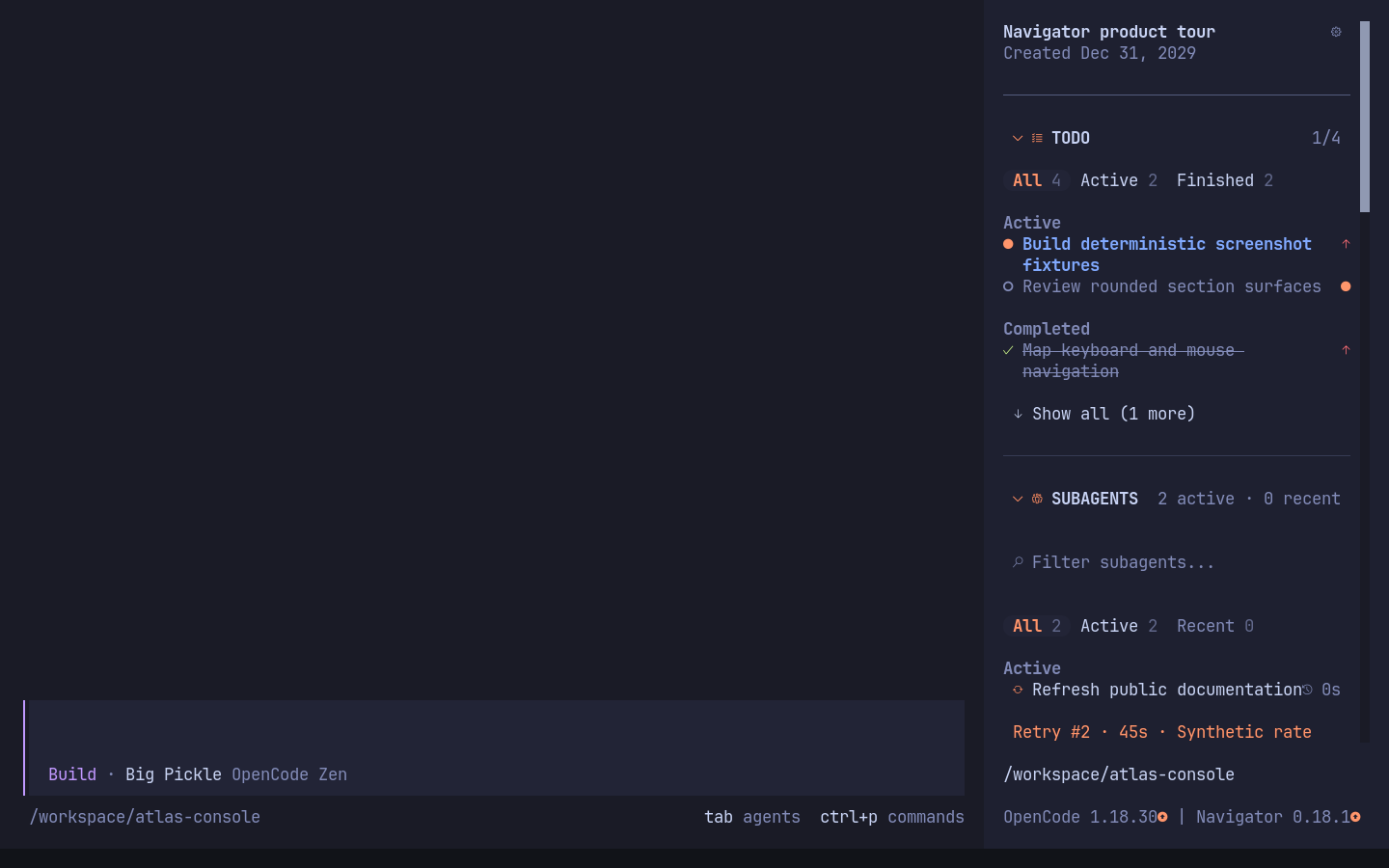
See the changelog for release-by-release changes.
Features
- Theme-aware session title with the session creation date
- First-run setup guide with interactive section settings
- Collapsible Todo section with status filters, grouped tasks and progress; OpenCode 2 follows the host's native Todo history, while OpenCode 1.x retains supported priority indicators
- Active subagent list with live statuses and click-to-open navigation, including dev-team workers running in separate local processes
- Compact, searchable workspace skill list with user-wide favorites and groups, recent skills, source details, and click-to-confirm slash commands
- Configurable host quick actions, including OpenCode 1.x's auto-approve toggle and OpenCode 2.x's Permissions settings, with user-wide bookmarks and availability reasons
- Live LSP connection status with error-first sorting and badges that reveal server names in place
- Searchable MCP section with live radio-style connection controls
- Click any MCP row to connect or disconnect it
- Connect or disconnect every eligible MCP server with per-server progress and failed-only retry
- Save named MCP state presets and apply them from the MCP section heading
- Optionally link a layout preset with an MCP preset and apply both through one workspace-profile preview
- Persist enabled and disabled MCP server states globally or per worktree and reapply them between sessions
- Keep favorite MCP servers first across workspaces
- Organize MCP servers into user-wide custom groups while retaining assignments for servers absent from the current workspace
- Search Everything in a keyboard-first modal with category tabs and fuzzy results
- Show or hide each sidebar section independently
- Hide the session title or its creation date independently in OpenCode 1.x without losing the settings control
- Configure section visibility and order from the sidebar settings button
- Open Settings → About for the running version, update checks, versioned release history, and editable GitHub Bug reports
- Separate adjacent sections with quiet theme-aware dividers instead of background cards
- Save visibility, expansion, and order globally or for the current worktree
- Copy the selected scope's layout and MCP states as versioned JSON, then validate and preview imports
- Focus the sidebar with
Ctrl+Shift+F, then navigate with arrows orj/k - Open sidebar shortcut mode with
Ctrl+Shift+B; presshto toggle the panel,cto check Navigator updates, oruto check and confirm an update - Scan an icon-led shortcut hint with highlighted keys, separate navigation/update groups, and a clear Escape action; narrow terminals and Text fallback use the same controls
- Optionally open new sessions directly in an empty chat with the sidebar, skipping Home on startup and from New session
- Keep OpenCode's compact footer while showing host and Navigator versions with independent update indicators; click a version label or its update icon to confirm an in-place update through the current installation method and scope
Todo starts expanded. Subagents, skills, quick actions, LSP, and MCP start
collapsed. Use Save current layout as default in sidebar settings to reuse the
current visible/hidden, expanded/collapsed, and ordering states in new sessions.
Only the latest stable release in each major line is supported: OpenCode
1.19.5 and 2.2.5. Both have separate real-host checks. Older releases are not
part of the supported compatibility matrix. The 2.2 integration uses OpenTUI 0.8
and public host caches, events, keymap layers, and client APIs while retaining
the separate 1.x adapter. See Host API boundaries for remaining
capability gaps and removal conditions. On OpenCode 2, Navigator reads the same native Todo history as
the host sidebar, including completed todowrite calls and the current revert
boundary. Viewing Todo needs no Navigator server plugin. OpenCode 2.1 exposes
content and four statuses, without priorities or direct Todo CRUD. LSP is hidden on 2.x while retaining Subagents,
Skills, Quick Actions, MCP, Search, settings, and presets. All interface icons use Nerd Font glyphs by
default (Codicons for controls, keyboard symbols for hints, language logos for LSP). Use a Nerd Fonts v3
terminal font, or select Settings → Behavior → Icon style → Text fallback.
The switch applies to the entire interface, including Quick Actions, search
tabs, section headings, statuses, favorites, and dialogs.
Components read the live style through the shared icon context; host-mounted
and nested dialogs inherit the same context through the dialog adapter.
Highlighted rows, tabs, and buttons use rounded ends in Nerd Font mode;
multiline selections use inverse corner masks over a solid background from the additional
OpenCode Navigator Corners fallback font. Installing that font is required
for rounded multiline selections; Nerd Fonts alone do not contain these four
custom glyphs. Without it, disable Multiline corner font in Behavior: Nerd Font
icons and single-line rounded controls remain enabled, while multiline highlights
become clean rectangles. Text fallback changes all icons as well. Rounded edges
stay inside the control's padding and remain clickable.
Navigator uses the full available sidebar slot width; the current OpenCode TUI
fixes the outer panel at 42 columns. Long preset labels are truncated to keep the
MCP heading and server count on one line.
Interface tour
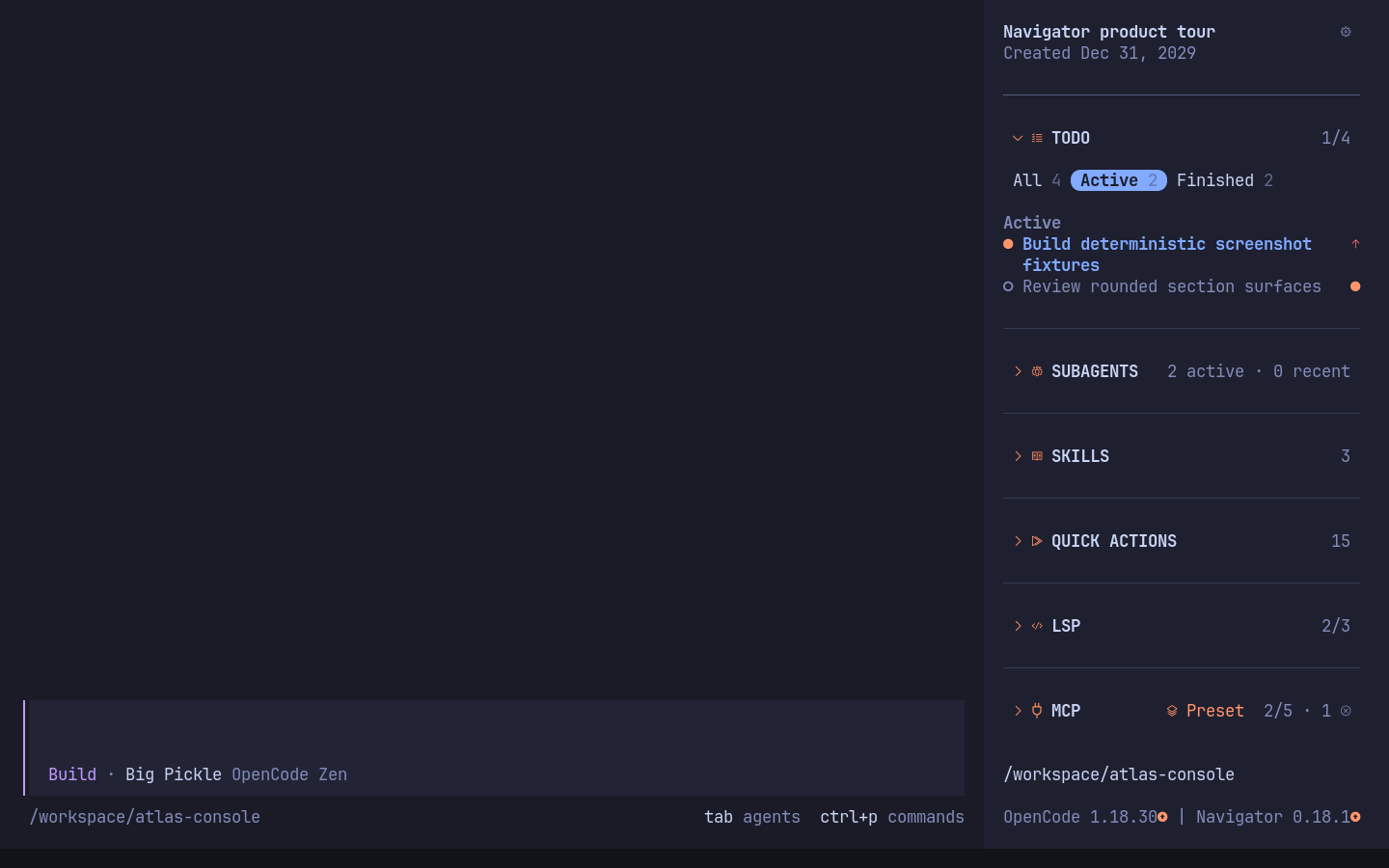
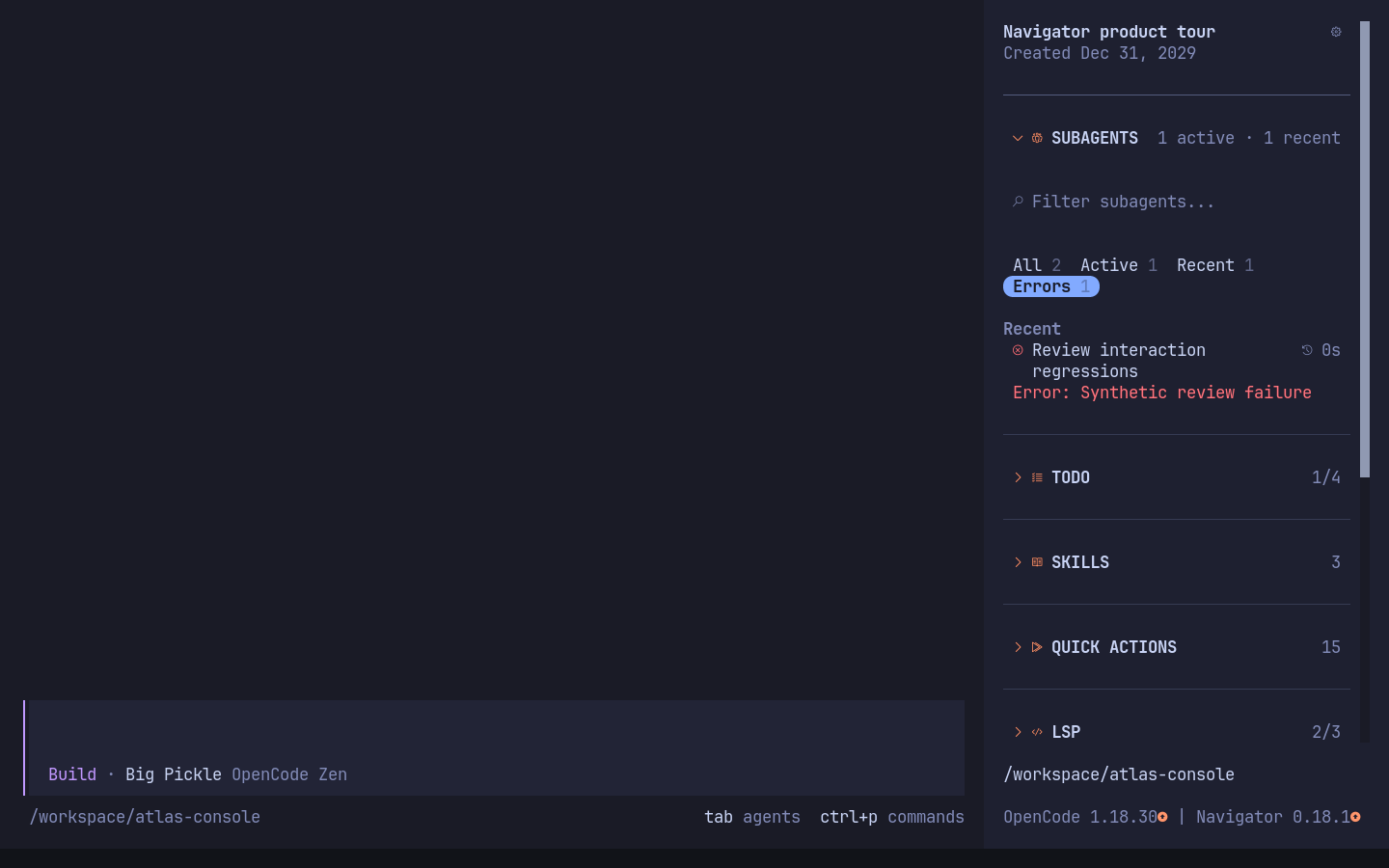
The sidebar title keeps the session creation date visible without a redundant
status icon. Todo and live Subagents remain readable while the rest of the
session stays uncluttered. Filters expose active and finished tasks, live
workers, and recent failures without mixing their states:
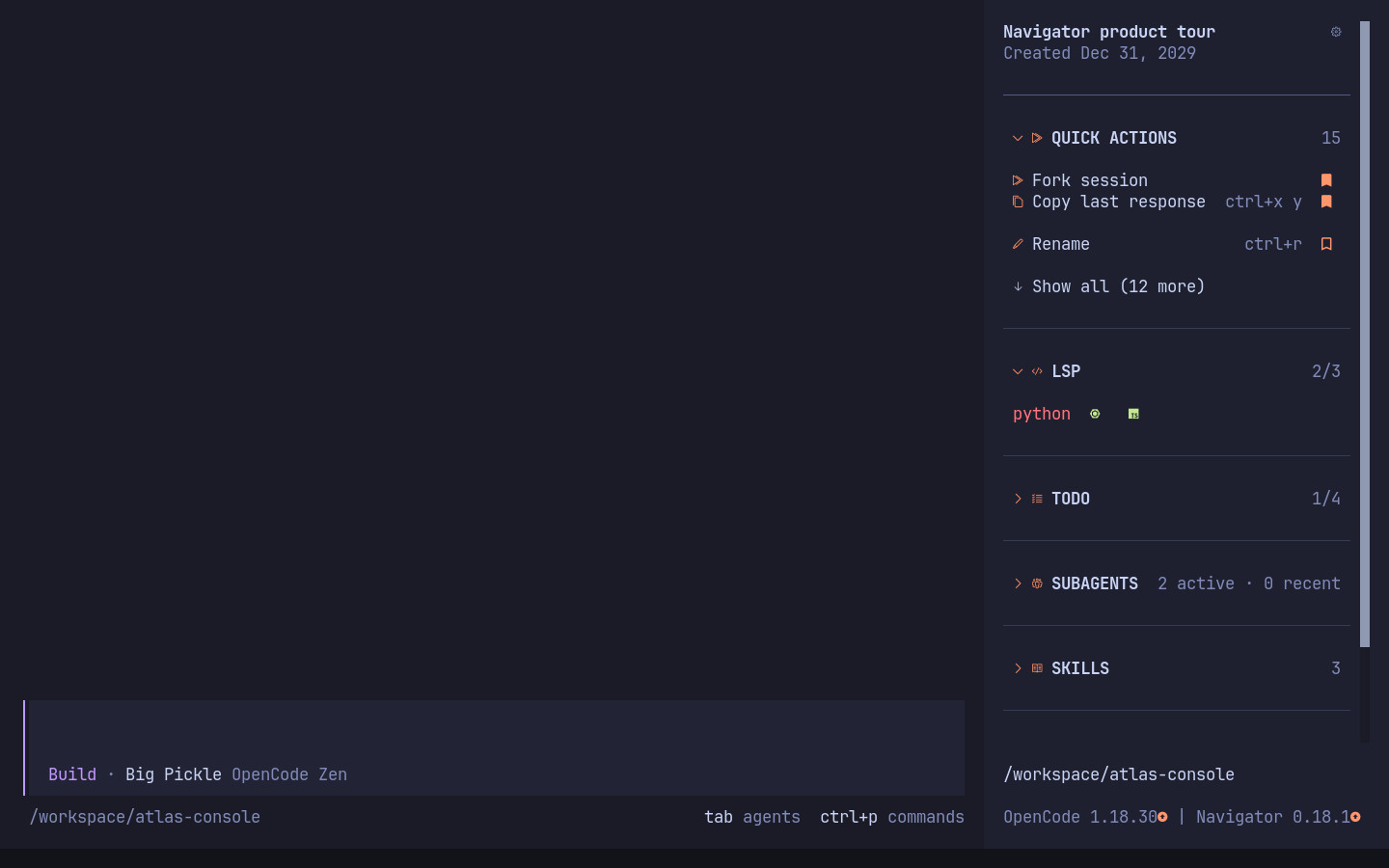
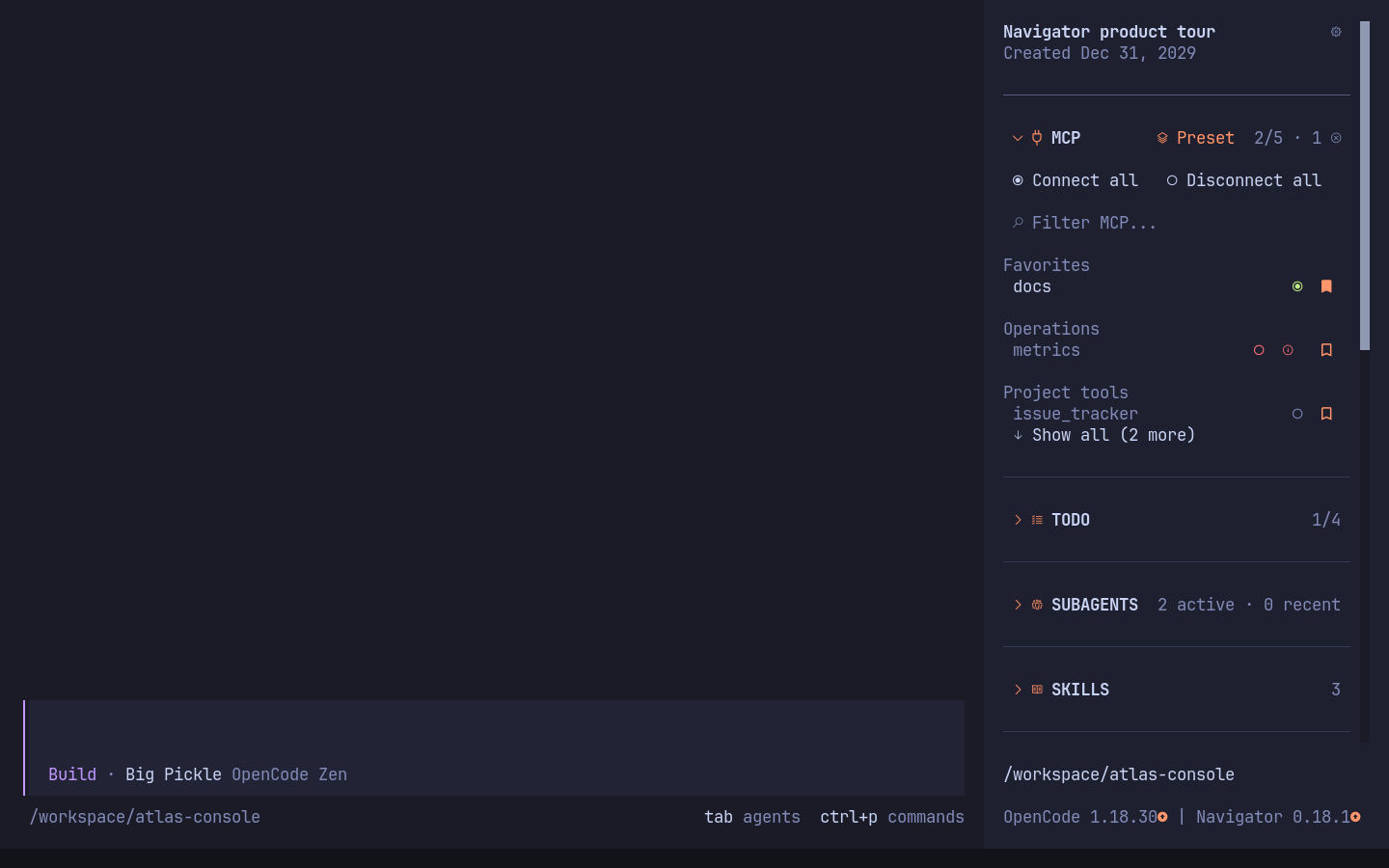
Skills, Quick Actions, compact LSP badges, MCP controls, favorites, filters, and
muted section dividers share the same narrow sidebar:
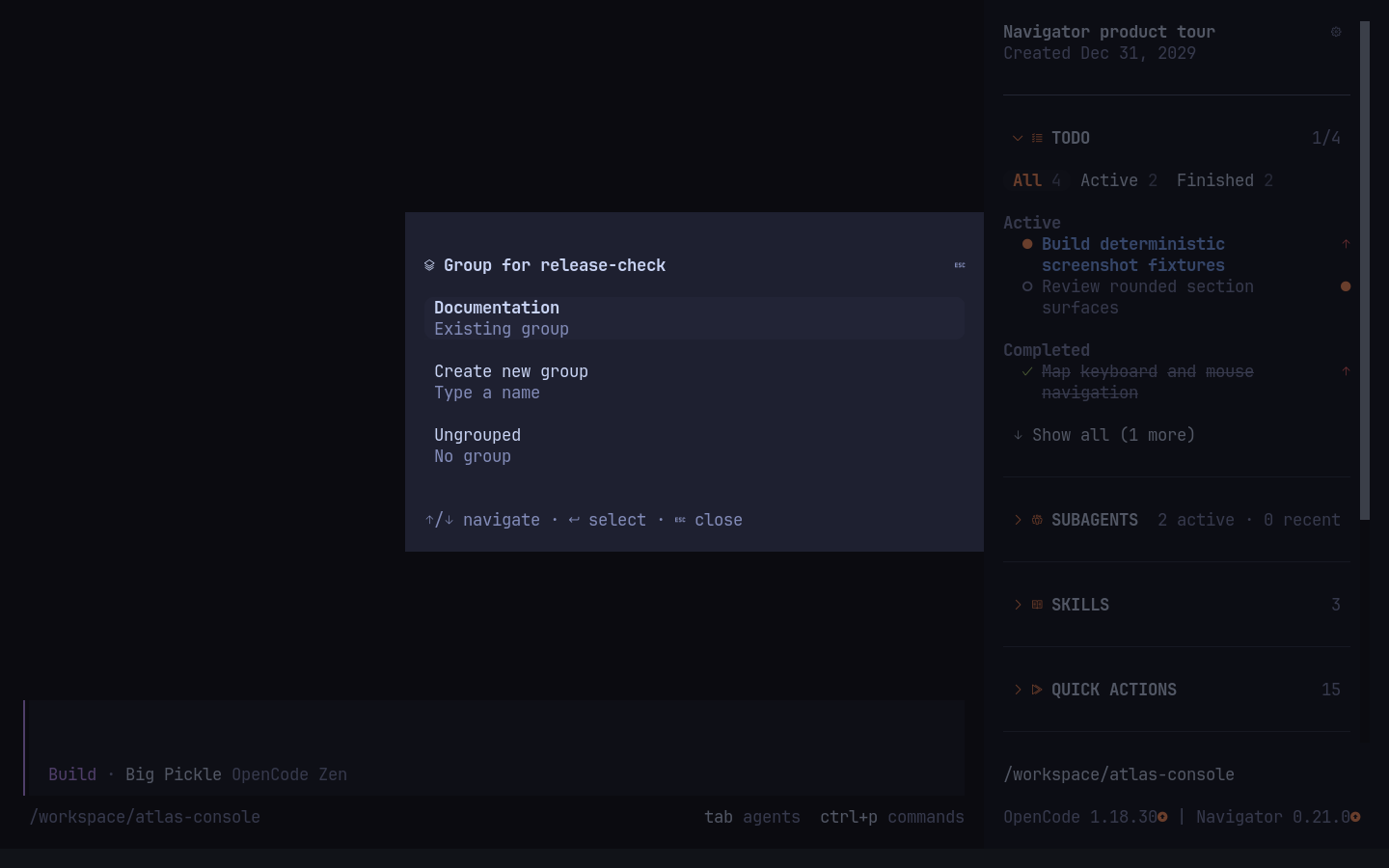
MCP groups are managed from Settings → Sections → MCP → Groups. Favorites
remain in a leading bucket; custom groups and their servers sort alphabetically.
Assignments can select an existing group or open an input to create a new one.
Click a group heading (including Favorites or Ungrouped), or focus it and pressEnter, to connect its remaining eligible servers. Once none need connecting,
the same control disconnects its connected servers. This affects the full group
even when a filter or item limit hides some rows; failed operations retain the
usual retry control. The heading has no action label: its radio-style icon is
filled only when every server in the group is connected, empty if any still
needs connecting, and pending while the group changes.
Manage Skill groups from Settings → Sections → Skills → Groups. Favorites
stay first, named groups sort alphabetically, and Ungrouped stays last. Groups
belong to each Skill's exact source path, so assignments survive when a Skill
is absent from the current workspace. Filters and Search Everything also match
group names; choosing a group heading never runs its Skills.
Rows beneath group headings are indented in Todo, Subagents, Skills, and MCP.
Skill, MCP, and Quick Action rows reserve a leading bookmark control: unselected
bookmarks appear on hover or keyboard focus, while favorites stay visible.
Labels do not shift when the control appears. MCP server status icons align with
their group status icons, including when a server has an error detail control.
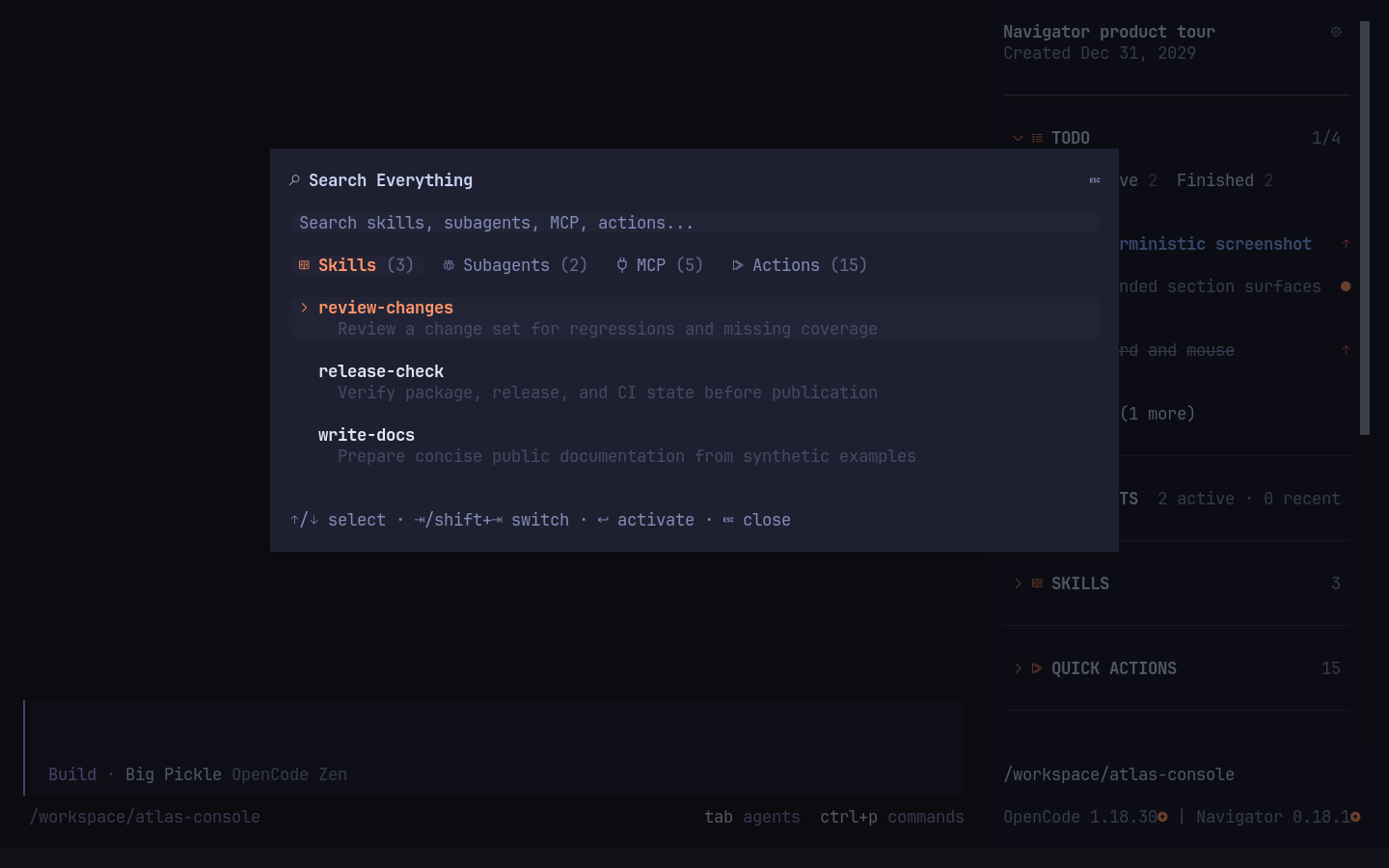
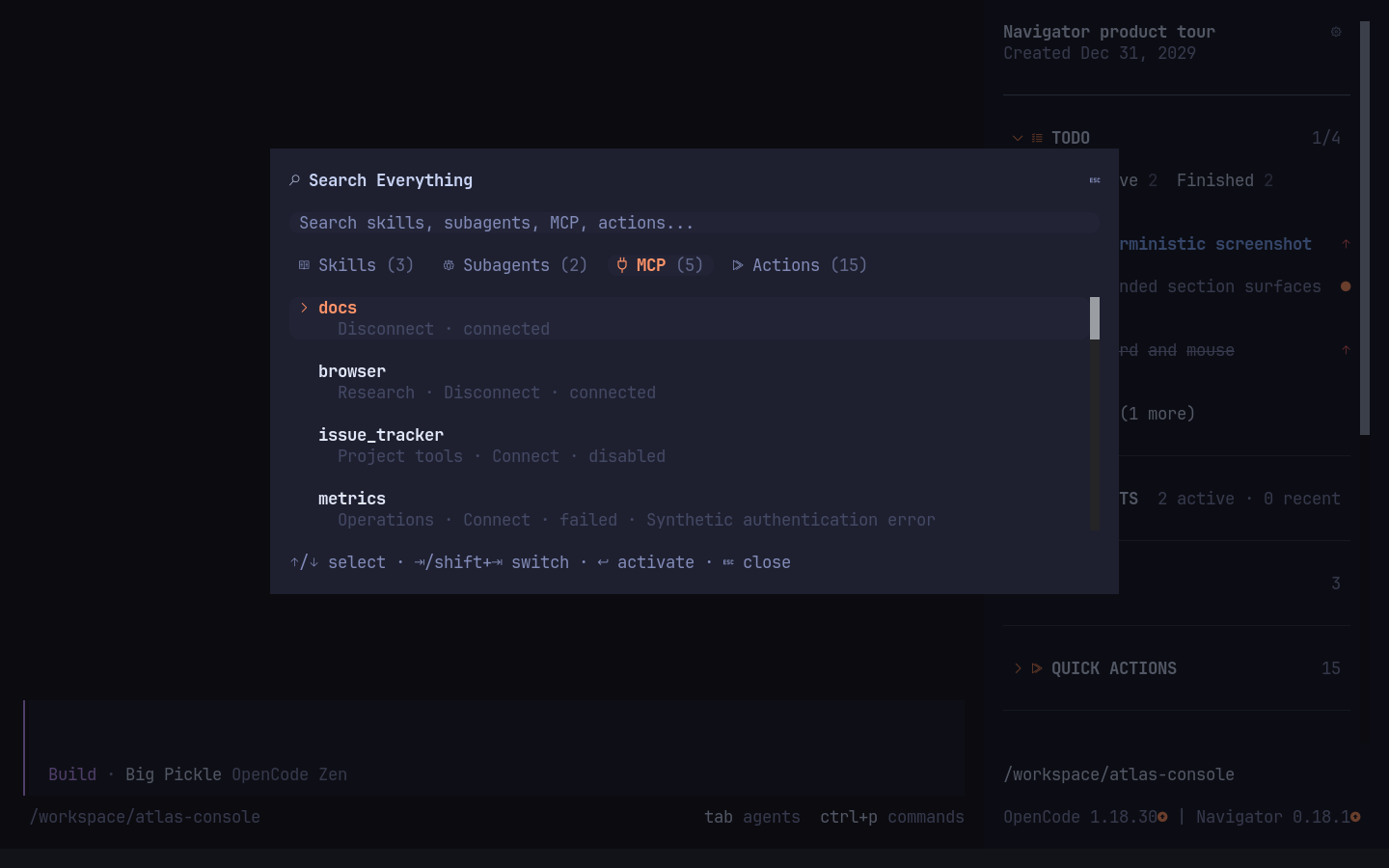
Search Everything preserves one query across Skills, Subagents, MCP, and Actions:
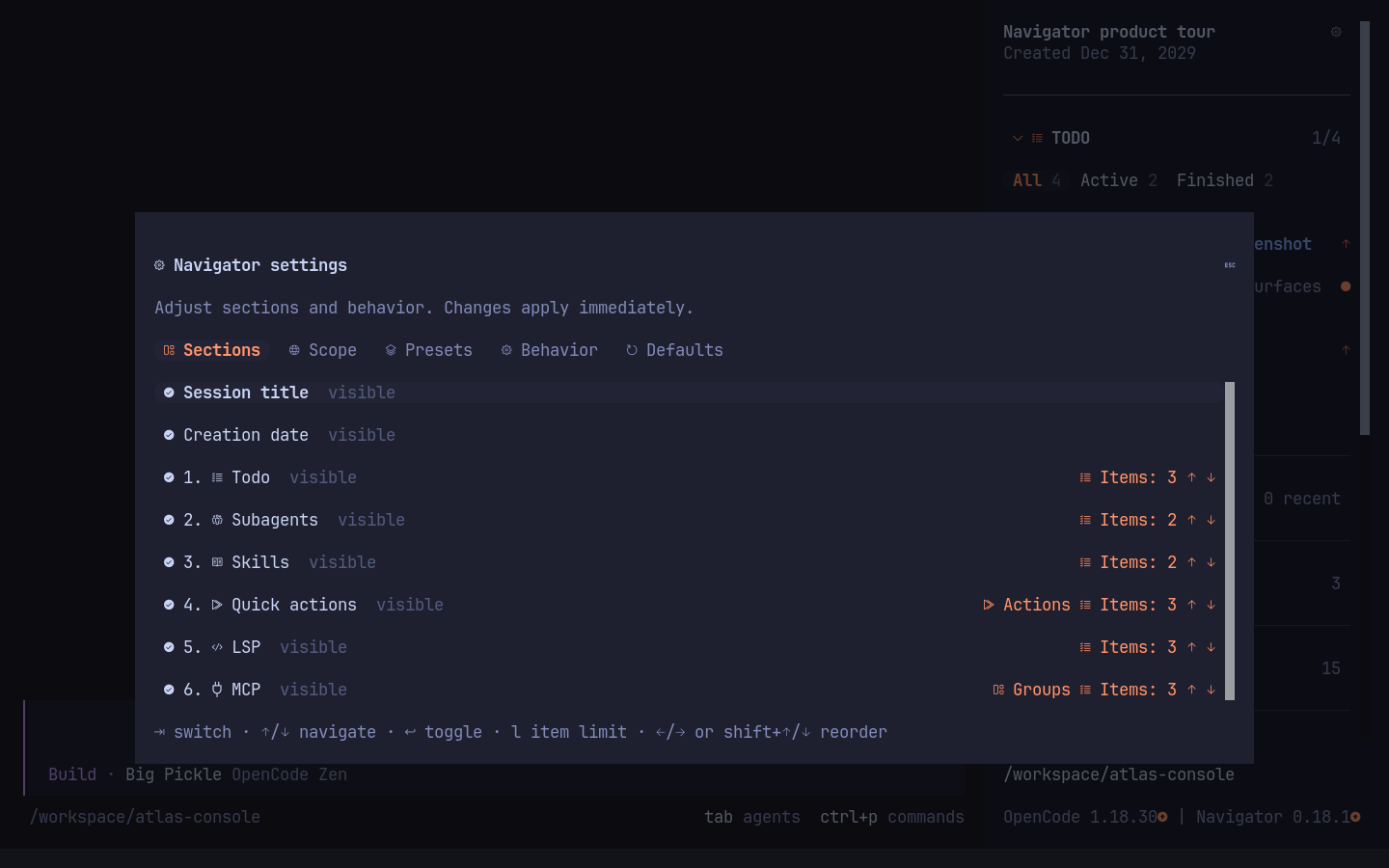
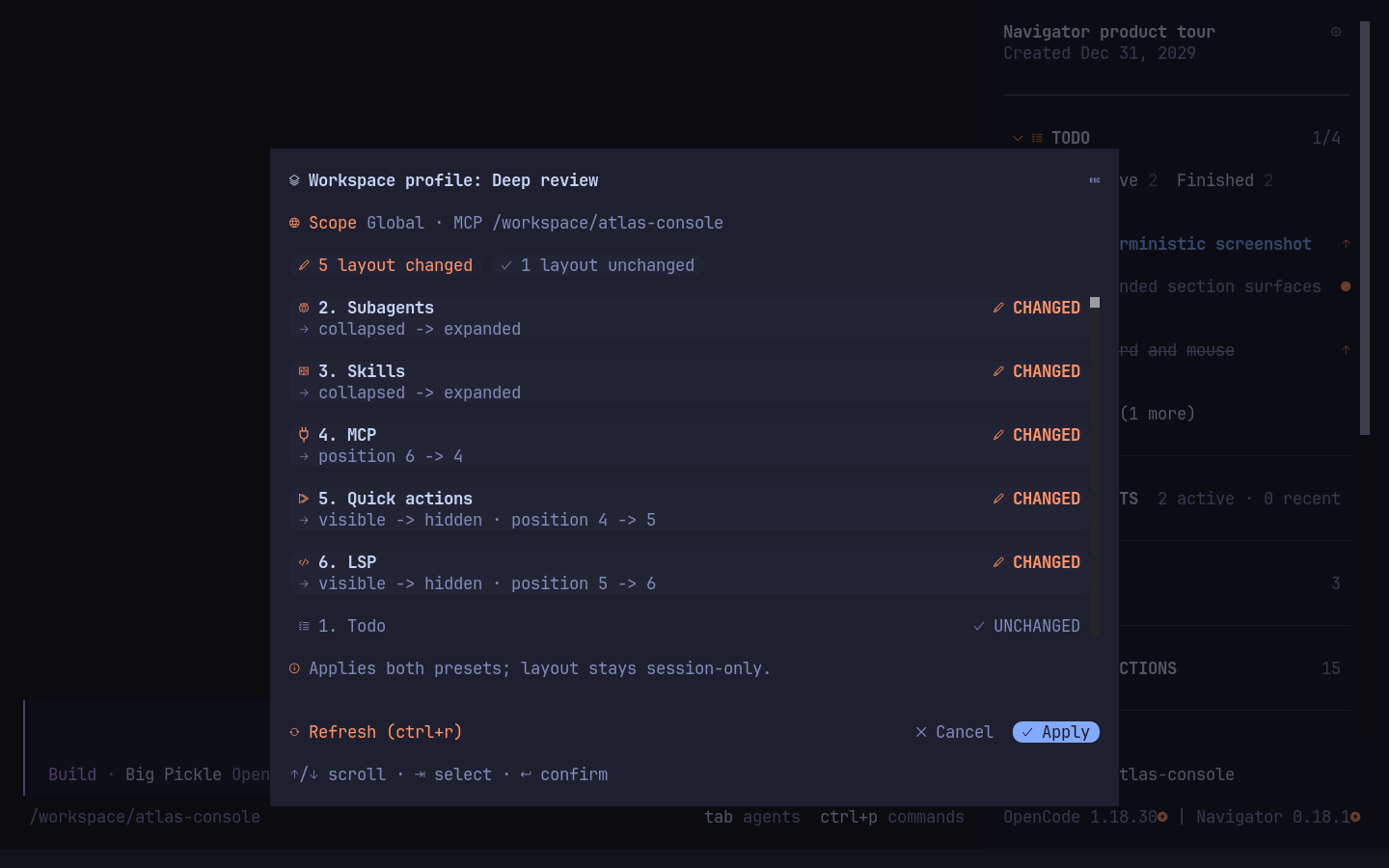
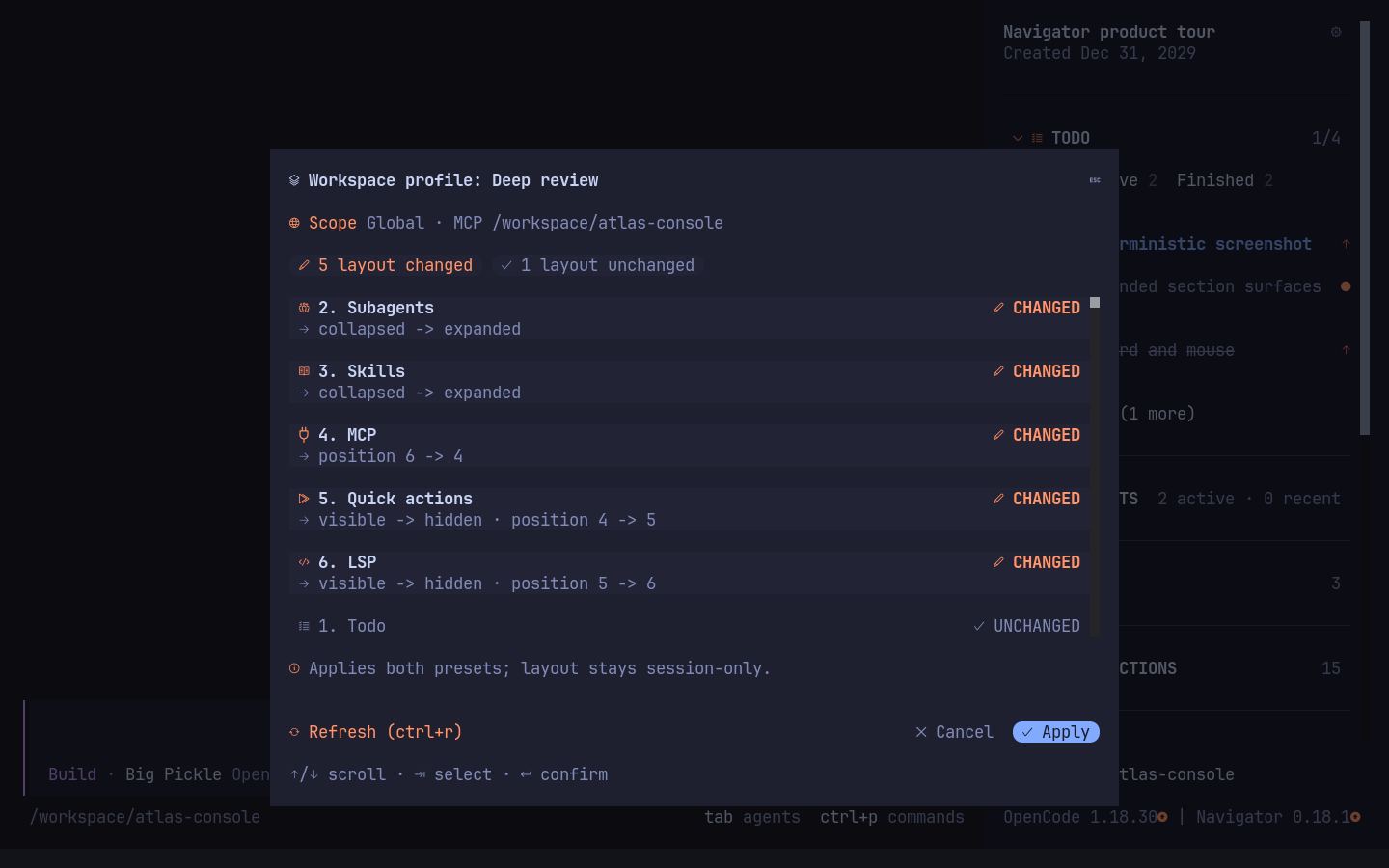
Settings and preset previews keep layout and MCP changes explicit before Apply:
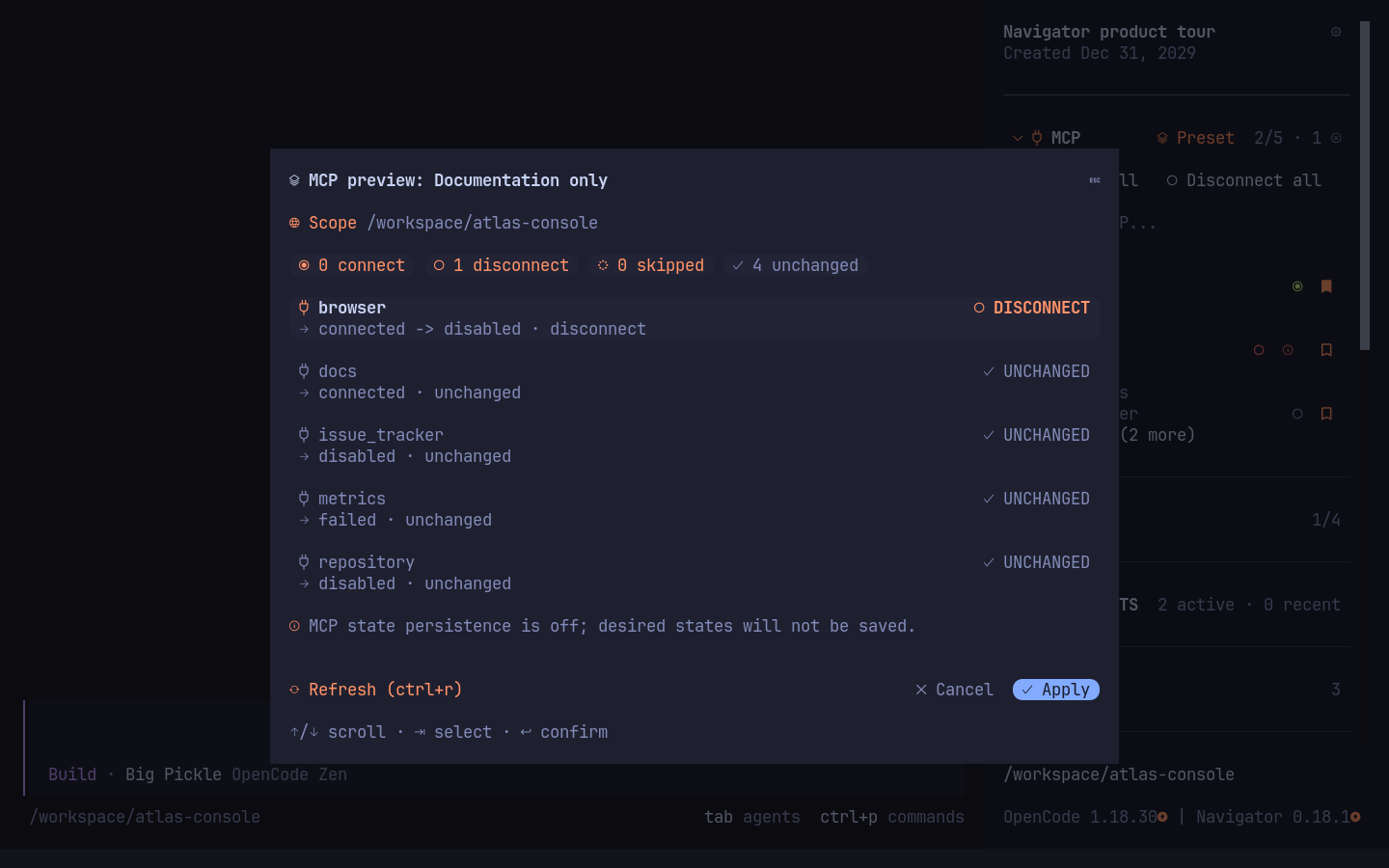
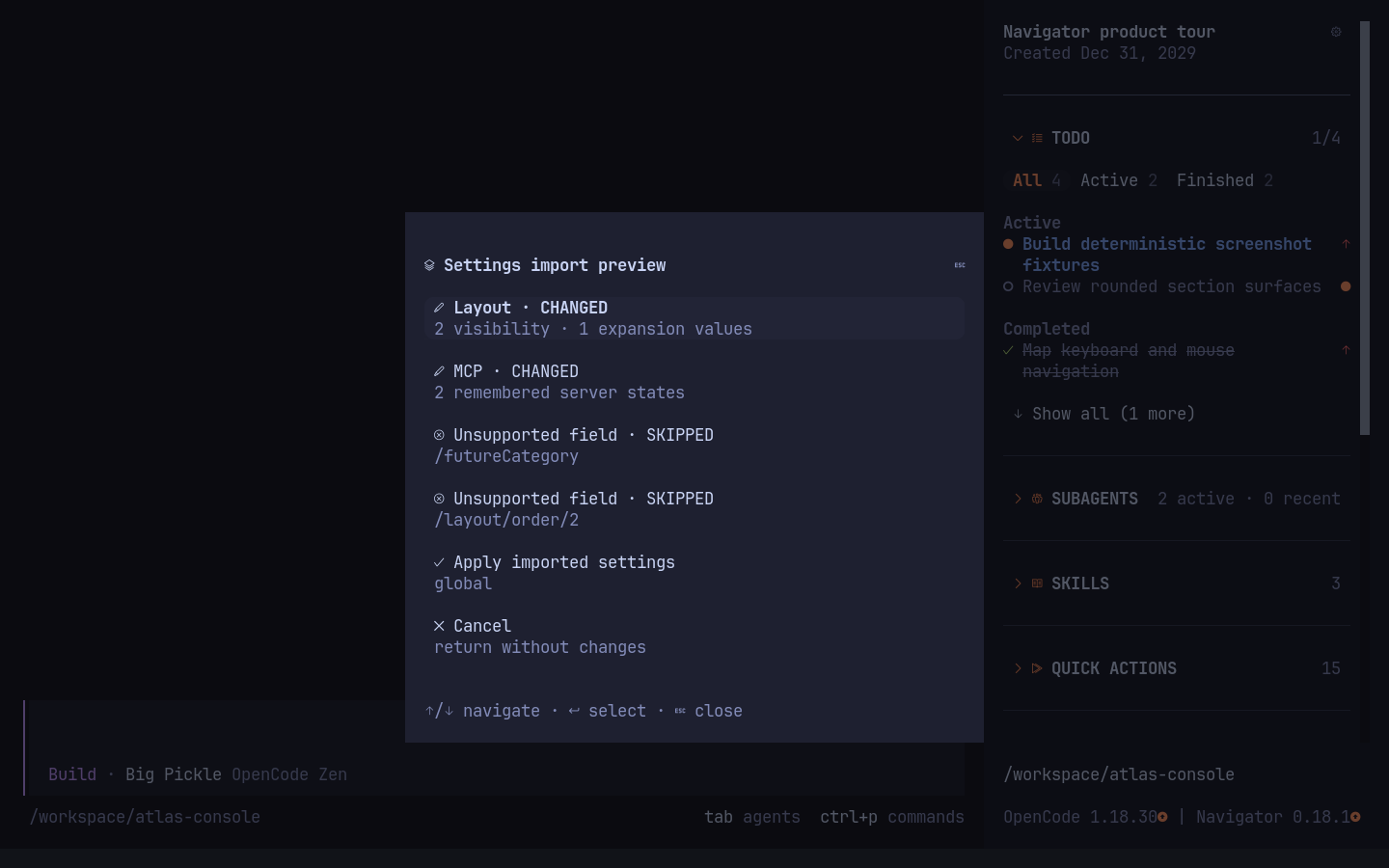
Portable settings use the terminal clipboard for export and pasted JSON for import.
The preview separates supported layout/MCP changes from future fields that will
be skipped:
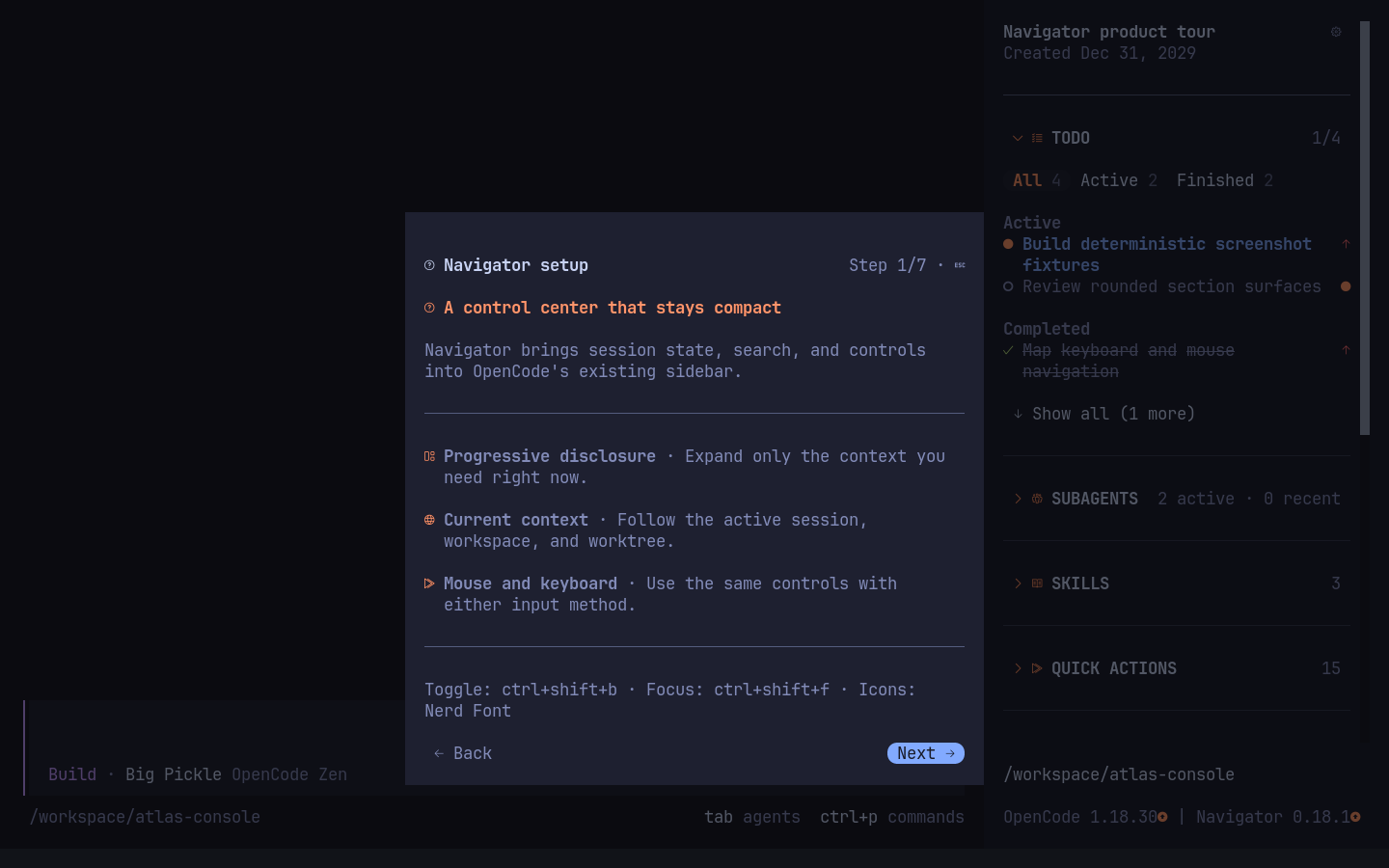
The first-run guide configures visible sections, while Text fallback keeps every
control readable without Nerd Font icons or the corner font:
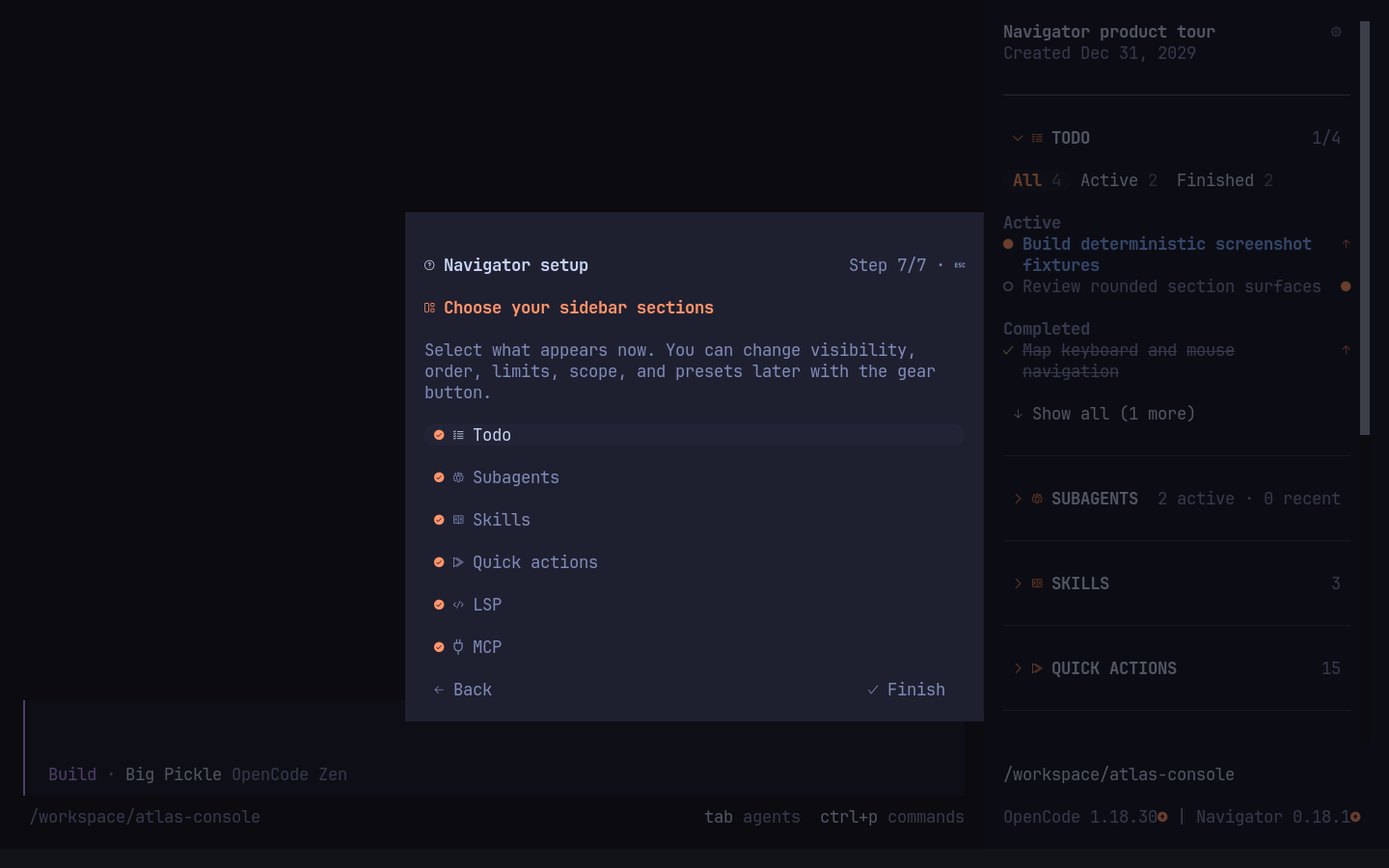
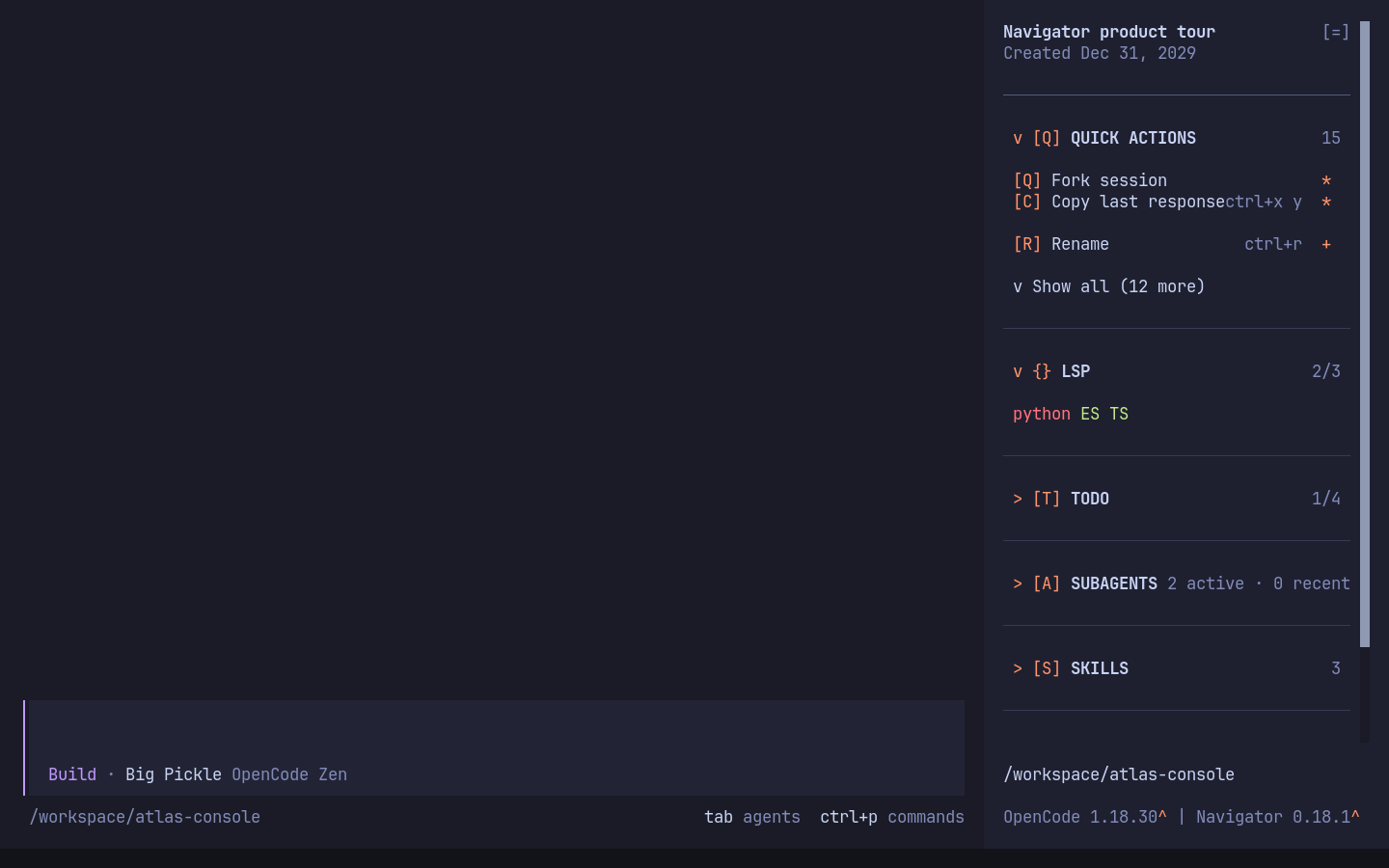
The harness also captures Nerd Font mode without the additional corner font, so
the uninstalled-font result remains visible rather than being documented only in text:
The complete screenshot gallery shows every
Todo and Subagent filter, sidebar section, Search and Settings tab, preset menu
and preview, confirmation, keyboard-help, setup, and icon-fallback state.
Installation
OpenCode 1.x
Install the plugin for the current project:
opencode plugin opencode-navigator
Use --global to install it for every project:
opencode plugin --global opencode-navigator
opencode plug is an alias for opencode plugin.
OpenCode 2.x
Install Navigator through the OpenCode 2 plugin manager:
opencode plugin add opencode-navigator
This installs the package and adds it to the plugins array in the global~/.config/opencode/cli.json. The equivalent configuration is:
{
  "$schema": "https://opencode.ai/v2/cli.json",
  "plugins": ["opencode-navigator"]
}
OpenCode 2.x CLI plugins are global terminal settings; there is no project-localcli.json. Navigator replaces the sidebar.content slot, so no built-in sidebar
plugin overrides are required. OpenCode validates cli.json strictly, so keep it
within the linked schema and restart OpenCode after changing it.
OpenCode 2.1's built-in Todo tool is opt-in. Enable it in the OpenCode server
configuration used by that host, then restart OpenCode:
{
  "$schema": "https://opencode.ai/config.json",
  "experimental": { "todo": true }
}
Ask the agent in ordinary chat to create or change the list through todowrite.
Navigator displays the latest completed native call before the session's revert
boundary, reacts to host updates, and offers All / Active / Finished filters,
status groups, progress, Refresh, and retry after read failures. It does not start
model requests from Todo controls. Running or failed writes leave the last
completed list visible; a completed write with an empty array clears it.
Native tasks have content and one of pending, in_progress, completed, orcancelled; priorities remain unavailable in OpenCode 2's native schema.
The optional server half of Navigator is used for provider-native quotas and
read-only access to the previous Navigator Todo archive. Add it to the server
configuration only when those integrations are needed:
{
  "$schema": "https://opencode.ai/config.json",
  "plugin": ["opencode-navigator"]
}
For a local source installation, use the directory containing Navigator'sserver.js in the plugin array. Keep the TUI package in cli.json as above;
the server configuration alone does not replace it. Restart OpenCode after
configuring both. OpenCode owns native Todo persistence and tool instructions;
the separate navigator_todo_write tool and Navigator Todo-instructions control
are retired. OpenCode 1.x continues to show its supported host Todo source.
Previous Navigator tasks stay in their original plugin-scoped storage. Their
existing RPC is now a read-only archive; it never replaces native history or
deletes the saved list. To inspect a previous session explicitly:
opencode api --standalone rpc.call --param rpcID=opencode-navigator.todo --param method=list --data '{"input":{"sessionID":"ses_previous"},"location":{"directory":"/path/to/project"}}'
After reviewing the archive, an ordinary chat request can transfer its content
and statuses through the host's native tool. Archive reads do not change tasks
or add model instructions.
If you use both OpenCode 1.x and 2.x with the same global opencode.json, keep
that shared server config compatible with 1.x. Place the 2.x experimental Todo
setting and optional server-plugin entry
in a separate JSON file and set OPENCODE_CONFIG to its path only when
launching OpenCode 2.x. The TUI configuration in cli.json remains separate;
the OpenCode 1.x launch must not load Navigator's 2.x server plugin.
Install the corner font
Required for rounded multiline selections in Nerd Font mode. Run the font
installer on the computer displaying your terminal, even if OpenCode runs over
SSH on another machine:
npx --yes --package=opencode-navigator opencode-navigator-font
This command requires Node.js 20+ and npm. It installs the small bundledOpenCodeNavigatorCorners.ttf
for your user account. Version 1.001 contains four corner masks and preserves the
four legacy filled corners. It is licensed under MIT. Keep your existing Nerd Font selected as the terminal font; the new
font supplies only the missing corner characters through font fallback.
Fully quit and reopen the terminal application, then start OpenCode again.
Restarting only OpenCode may leave the terminal's old font cache in use.
The installer uses ~/Library/Fonts on macOS, the user font directory underXDG_DATA_HOME (or ~/.local/share/fonts) on Linux, and the per-user Windows font
directory and registry. Linux requires fc-cache from Fontconfig.
The bundled metrics are tested with IoskeleyMono Nerd Font Propo; seeassets/README.md for generating a matching font for other metrics.
If you skip font installation, turn off Settings → Behavior → Multiline corner
font (or set behavior.cornerFont / the legacy corner_font option to false).
This preserves Nerd Font icons and single-line rounded controls while using clean
rectangles for multiline highlights. Text fallback remains available when Nerd
Font icons are also unavailable.
To remove only the additional font:
npx --yes --package=opencode-navigator opencode-navigator-font --uninstall
Turn off Multiline corner font before uninstalling it, then restart the terminal.
Configure OpenCode 1.x sidebar sections
The opencode plugin command adds the package to the plugin array in tui.json. To avoid
duplicating sidebar sections, also disable the overlapping built-in plugins:
{
  "$schema": "https://opencode.ai/tui.json",
  "plugin": ["opencode-navigator"],
  "plugin_enabled": {
    "internal:sidebar-context": false,
    "internal:sidebar-mcp": false,
    "internal:sidebar-lsp": false,
    "internal:sidebar-todo": false
  }
}
Use .opencode/tui.json for a project installation or~/.config/opencode/tui.json for a global installation. Restart OpenCode after
changing the configuration.
Upgrading from Pretty Sidebar
OpenCode Navigator is the new name of opencode-pretty-sidebar. Replace the old
package entry in tui.json with opencode-navigator rather than loading both.
If you disabled the plugin through plugin_enabled, rename that key toopencode-navigator as well.
Existing settings, presets, favorites, recent skills, Quick Action bookmarks, and shortcuts are retained:
Navigator uses the established opencode-pretty-sidebar/preferences.json and its
lock under OpenCode's state directory. No file copying is required. Publicopencode-pretty-sidebar.toggle, .focus, .focus.<section>, and .search
commands remain available as aliases for custom keybindings.
Develop locally
OpenCode uses your configured global Navigator installation when opened in this
repository. Local .opencode/tui.json and .opencode/cli.json files are ignored
by Git; keep any host-specific preferences and plugin paths there if needed.
Rebuilding dist/tui.js does not replace the global installation. The PTY
smoke tests load the working build with isolated temporary configurations.
bun install
bun run font:install
Fully restart the terminal once after installing the corner font, then run:
opencode
OpenCode reads TUI configuration at startup. Restart it after changing the
plugin or tui.json.
On first launch, a seven-step setup wizard introduces monitoring, Search Everything,
Skills, Quick Actions, LSP, MCP controls, presets, and workspace customization
before letting you choose which sections to show. The guide is shown once and can be opened again
later from the sidebar settings button. The settings dialog also selects global
or current-worktree scope, manages named layout presets, and controls section
order, MCP state persistence, icon style, and the sidebar shortcuts without
a restart. Settings are grouped into tabs; use Tab and Shift+Tab to switch
tabs. In the Sections tab, use Left/Right or Shift+Up/Shift+Down to
reorder the selected section.
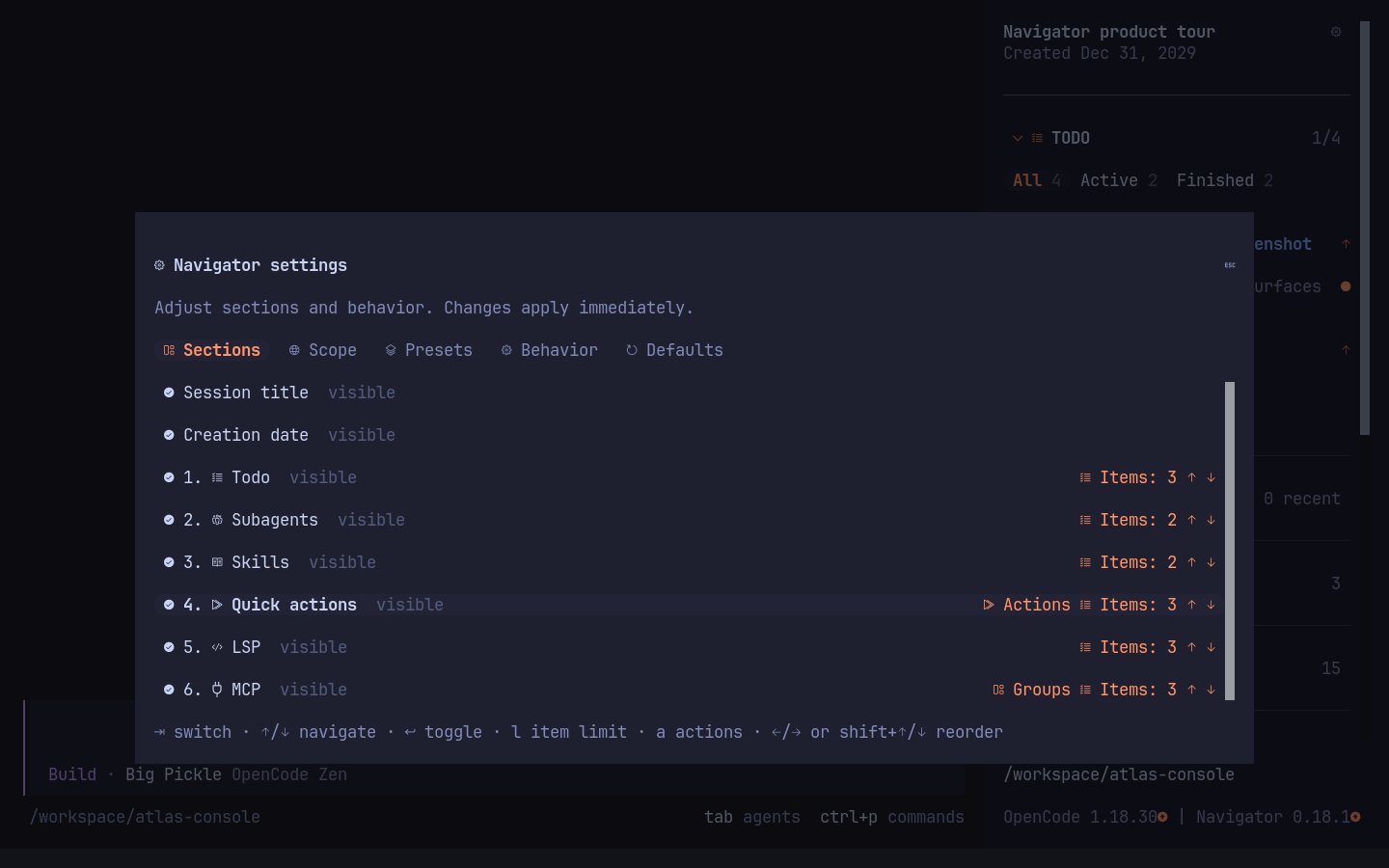
The Sections tab combines visibility, ordering, and the number of visible items
for each section. Click Items: All / Items: N, or press L on the selected
section, to edit its item limit. Enter toggles visibility; the arrow controls
change section order.
Every section defaults to All (0). A positive limit reveals Show all (N more);Show less restores the configured limit. Limits count items, not wrapped terminal
lines, and apply after filtering and sorting. Temporary expansion resets when the
target, filter, or limit changes. MCP bulk actions still operate on the full server
list. Limit changes persist immediately in the selected Global or Current worktree
scope; Restore configured behavior removes that scope's limit overrides.
On the Quick Actions row, click Actions or press A to choose individual
actions and their order. Enter toggles visibility; Left/Right or Shift+Up/Down
reorders the selected action. Changes save in the selected Global or Current
worktree scope. Escape returns to the Quick Actions row in Sections. Navigator
keeps an explicit allowlist of argument-free host commands. On OpenCode 1.x,permission.mode toggles auto-approve directly. On OpenCode 2.x, the same
Quick Action opens the host Settings dialog, where Session → Permissions
switches between prompt and auto accept. Bookmarks are user-wide and move
selected actions to the front in their configured order in both the sidebar and
Search Everything. Usage never changes the order. Visibility remains independent,
so any action, including a bookmarked one, can be hidden from the sidebar while it
remains searchable. Unavailable actions stay visible with a route- or host-specific reason.
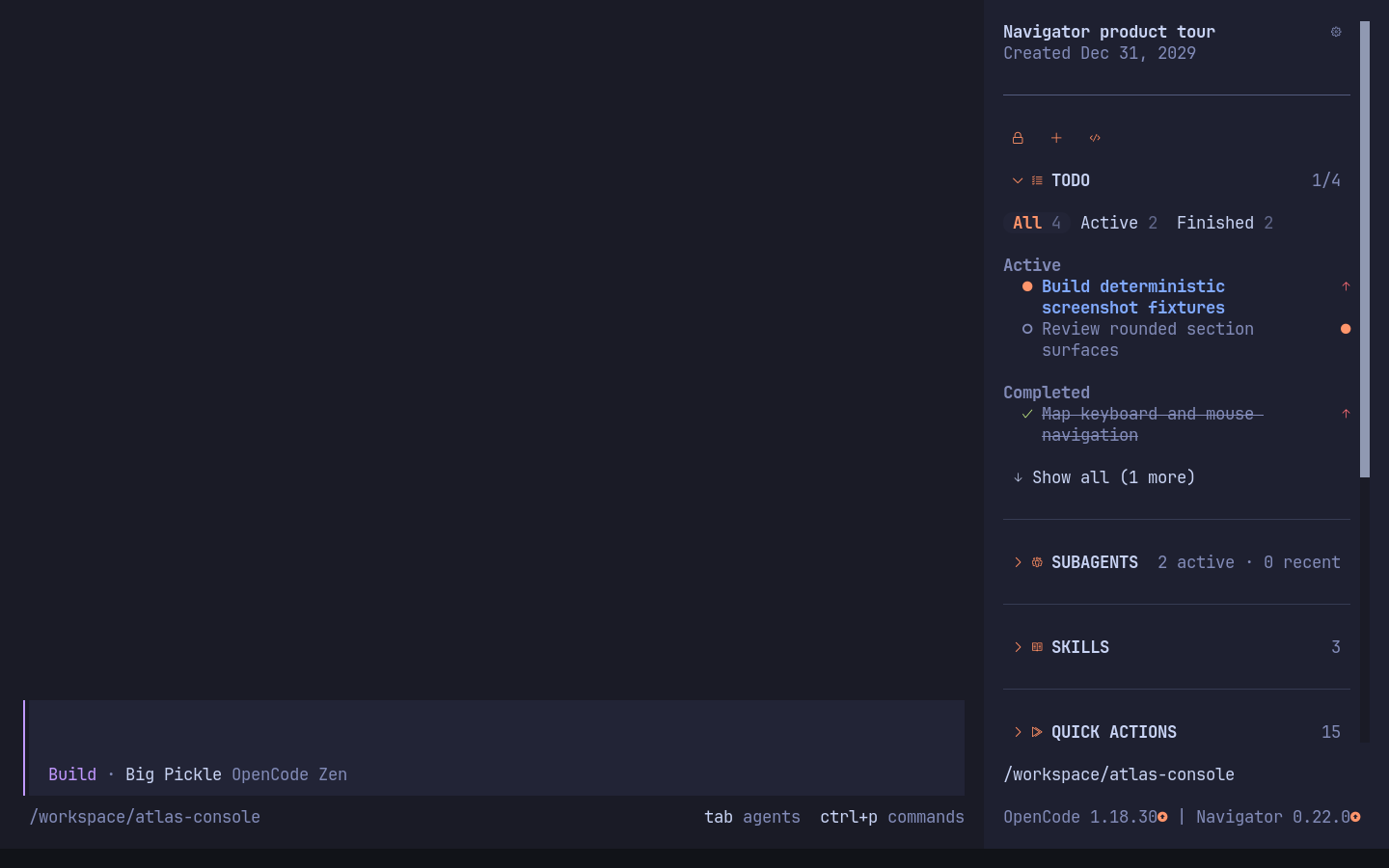
Pinned toolbar
Pin frequently used Quick Actions and Skills to an icon toolbar above the sidebar's
sections. In OpenCode 2.x it sits below the host-owned title. An empty toolbar takes
no space. Pins are independent of bookmarks, section visibility, filters, and item limits.
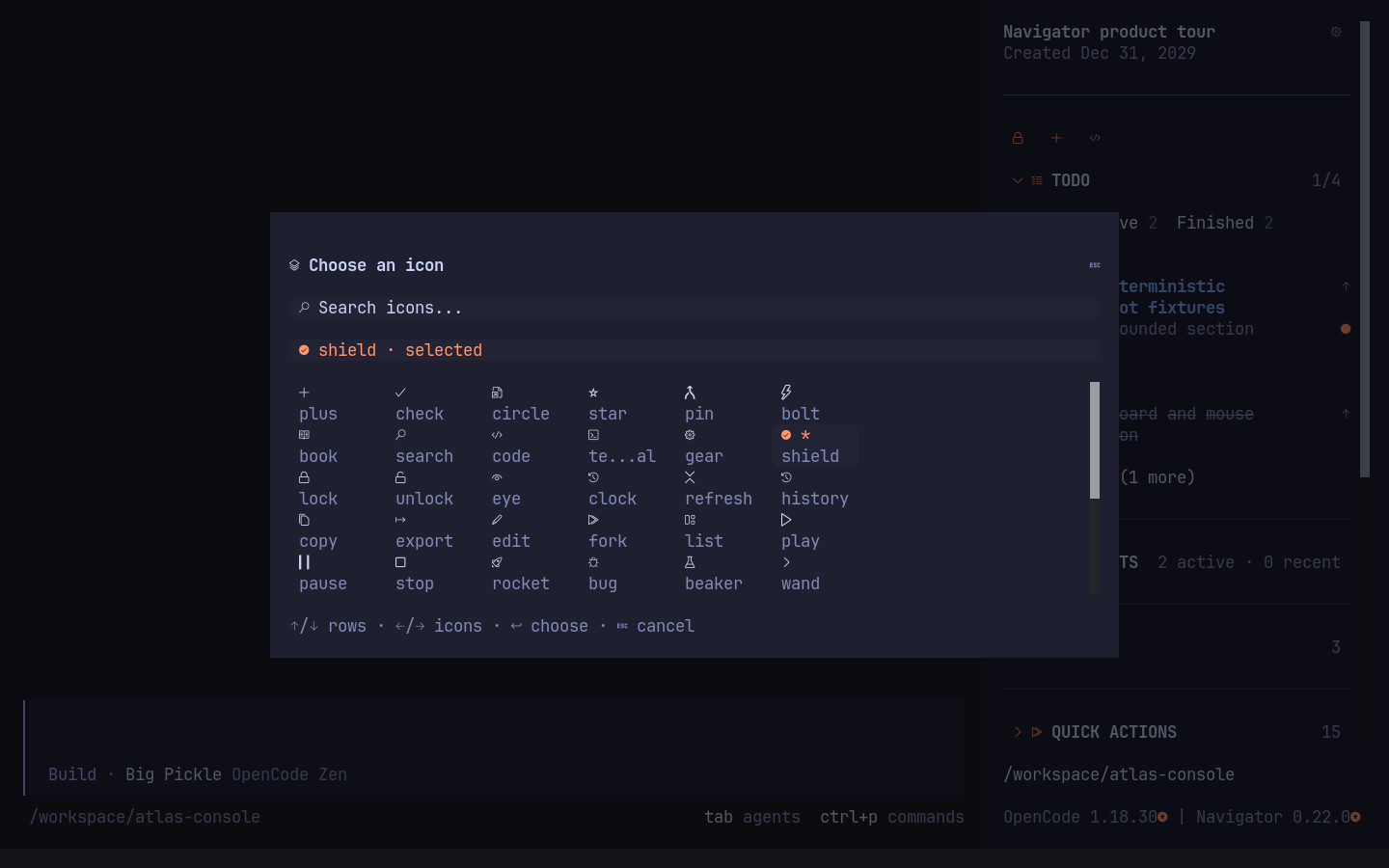
Use the pin control on an Action or Skill row, or open Settings → Behavior →
Pinned toolbar…. The command palette also offers Manage pinned toolbar.
Choose a base icon in the searchable picker, then select Pin to toolbar.
The manager lets you change icons, move buttons, or unpin them. Cancelling the
picker returns to the draft; cancelling the draft discards its changes.
For each button, Icons and text… lets you choose zero to three ordered icons
and an optional custom single-line label. Use Base icons… to add, replace or
remove icons, and Text… for the label. Zero icons produces a text-only button;
an entirely empty appearance cannot be saved. Labels accept up to 128 characters
and are clipped to the available cells without overwriting the rounded ends.
State-specific icon groups retain the existing per-state choices. Nested edits
remain drafts until the final Pin to toolbar or Save action.
Where the host exposes a state, the same button can use a different icon for each
state: auto-approve On/Off on OpenCode 1.x, and Idle/Compacting on OpenCode 2.x.
The 2.x permissions button opens host Settings and uses its base icon. Hover or
keyboard focus shows the button's name, observed state, or unavailable reason.
The hint uses the existing gap beneath the toolbar, so appearing or disappearing
does not move Limits or any other section. Default single-icon buttons stay
centered in uniform three-cell controls in both Nerd Font and Text modes.
Skill buttons retain confirmation and trust settings; a missing or ambiguous
source stays pinned but cannot run.
Behavior → Toolbar overflow switches between one row with a More menu
(the default) and wrapping rows. Left/Right moves along a row; Up/Down moves
between rows. The setting follows Global/Worktree scope and portable defaults.
Overflow uses actual bounded button widths. The largest configured state appearance
reserves the button's width so changing state does not reshuffle the toolbar.
Default single-icon buttons remain three cells wide.
Pins, their order, icons, and exact Skill sources are private user-wide preferences
and are excluded from portable exports. Use Reload settings from file in other
running sessions after saving changes in another instance.
In OpenCode 1.x, Navigator saves changes to the auto-approve mode as a user-wide
default, including changes made through OpenCode's own command palette. Set the
default under Navigator Settings → Behavior → Default auto-approve permissions;
new sessions restore it. Until you set a Navigator default, an explicit OpenCode
startup mode is respected. OpenCode 2.x owns this setting: use the host Settings
dialog for the current session and session.permissions in the user-widecli.json ("prompt" or "autoaccept") for its startup default. Restart
OpenCode after changing cli.json.
About, release history, and support
Open Navigator Settings → About with the settings control or Ctrl+,.
The tab shows the running Navigator and OpenCode versions, the last update-check
result, and Check for updates. A failed check is reported as a failure rather
than an up-to-date result. Update Navigator… uses the same confirmation,
installation method/scope, stale-target guards and restart guidance as the footer
and Navigator shortcuts.
Changelog by version… browses the CHANGELOG.md shipped with the plugin.
Choose a version to read its scrollable notes; Escape returns to the selected
version and then to About. Technical-only versions have an explicit empty state.
Manual browsing does not consume or reset the one-time upgrade notes shown after
an update.
Report a bug… opens an editable title and Markdown body. The visible default
context contains software versions, platform and runtime only. Navigator does
not collect chat, source, workspace paths, logs or credentials for the report.
- Send to GitHub… uses an installed, already authenticated GitHub CLI
with support forgh issue create --type. A separate preview confirms the
repository, the real Bug issue type, title and body before sending. GitHub
credentials stay withgh, never in Navigator preferences. - Open in browser opens the same draft in the repository's Bug issue form,
independently of CLI installation or authentication. Large reports use an
explicit Copy report & open browser action; browser-launch failures offer
a copyable link without discarding the draft. - A partial result retains its issue URL. An uncertain outcome opens the issues
list for review and requires an explicit Retry after checking GitHub before
another confirmed send. Navigator never automatically retries issue creation.
Enter inserts a newline in the body; Tab moves between fields and actions, andCtrl+Enter opens the send preview. Escape/Cancel returns to the previous screen
with the draft retained for the current Settings flow. Reports are not saved in
private preferences.
Quick Actions also keep their mounted rows while ordinary prompt typing updates
the host's command state. Live labels, availability and real source updates still
refresh immediately.
Limits: provider quotas and banked resets
Navigator keeps subscription limits separate from OpenCode's session token and
cost statistics. Codex subscription data comes from its documented app-serveraccount/rateLimits/read RPC. It reports provider-owned usage windows, reset
times, account identity, and any available banked reset credits. The installed
Codex 0.160.0 protocol also exposes the separateaccount/rateLimitResetCredit/consume RPC. Navigator requires explicit
confirmation before using it and never redeems credits in the background.
Limits follows the model and verified connection selected in the current OpenCode
session. Codex's ordinary codex windows describe verified account quota shared
across models. The protocol can return normalModelSlug: null for this ordinary
bucket; that field is display metadata for quota aliases, not a prerequisite for
account usage. Separate model-specific buckets require explicit model association.
Switching provider, model, session, or account invalidates stale reads and credit actions.
In OpenCode 2.x, Limits follows the prompt's selected model immediately, before a
message is sent, through the public reactive ui.model.current() API. OpenCode
1.x, rechecked at 1.19.5, exposes only the saved session model: a newly selected prompt
model becomes visible to Navigator when the host saves it, normally on submission.
An immediate pre-submission switch in 1.x needs a new public host accessor or event.
CodexBar is useful for discovering providers, but its cookie, credential-file,
and undocumented endpoint integrations are not Navigator data sources.
| Source | Native measurement | Banked reset credits |
|---|---|---|
| OpenCode Console / Go | Public host usage API: applicable workspace budgets in USD and Go allowance percentages with reset times | Read-only |
| Codex app-server | Rate-limit windows and account ID | Available count, optional details and expiry, confirmed manual consumption |
| MiniMax and NanoGPT | Explicit model-associated subscription windows; separate pay-as-you-go balances | Read-only |
| GitHub Copilot | Official SDK token-scoped premium allowance, checked against the selected model's billing metadata | Read-only |
| OpenRouter, DeepSeek, Moonshot, SiliconFlow, Novita, Poe, AIHubMix | Current-account balance or key spending budget, preserving provider-native currency/points and permission requirements | Read-only |
| OpenAI API, Anthropic, Azure OpenAI, Groq, Cerebras, Fireworks | Native model-response counters or explicitly labelled configured capacities | Read-only |
| Claude Code (not integrated) | Session-local rate_limits statusline payload after a Claude Code response |
No documented cross-process consumption API |
| OpenCode session statistics | Token and cost statistics, not subscription quota | Not applicable |
| Other providers | Capability guidance until a documented source and model/account mapping are verified | No action without a documented consume API |
OpenCode Console and Go use OpenCode 2.2's public usage API directly, without
the Navigator server plugin or credential reads. Workspace identity stays separate
from provider account identity. Shared and per-model budgets retain their native
scope; free models and unrelated model budgets are excluded. Missing data does
not mean zero spend or an unlimited allowance. Authentication and request failures
stay on the native source with explicit guidance or Retry.
Other additional sources use the OpenCode 2 Navigator server plugin and its
public integration/HTTP APIs. Configure it on the 2.x launch path as described in
the installation section. Native Todo remains independent. OpenCode 1.x retains
Codex support; sources requiring the 2.x server show setup guidance when it is absent.
The source inventory includes audited public API references,
permission requirements, and unsupported-source reasons.
The server resolves the active host credential through OpenCode's public API.
Quota RPCs return measurements, never credentials. Response-header observations
use real model requests without issuing extra inference calls or consuming their
response bodies. HTTP-only observations may be absent on WebSocket transports.
REST reads use a short in-memory cache; Refresh bypasses it. Observed headers older
than two minutes are marked stale instead of presented as current remaining quota.
Navigator shares the host's Solid/OpenTUI runtime. Development and CI use Bun 1.4.4
and Node 26.12.1; OpenTUI 0.8's supported Node path starts at 26.4.0. A confirmed
pinned-snapshot update verifies its target with supported Bun (at least 1.3.14)
or Node before switching the wrapper. If neither is available, the running snapshot
is preserved with guidance; the updater does not install a runtime globally.
Limits is visible and expanded by default, first below the session title. Change
its visibility and order under Settings → Sections in Global or Current
worktree scope. Hiding or collapsing it does not stop background refreshes, and
does not grant permission to spend a reset credit. Focus Limits is also
available from the command palette.
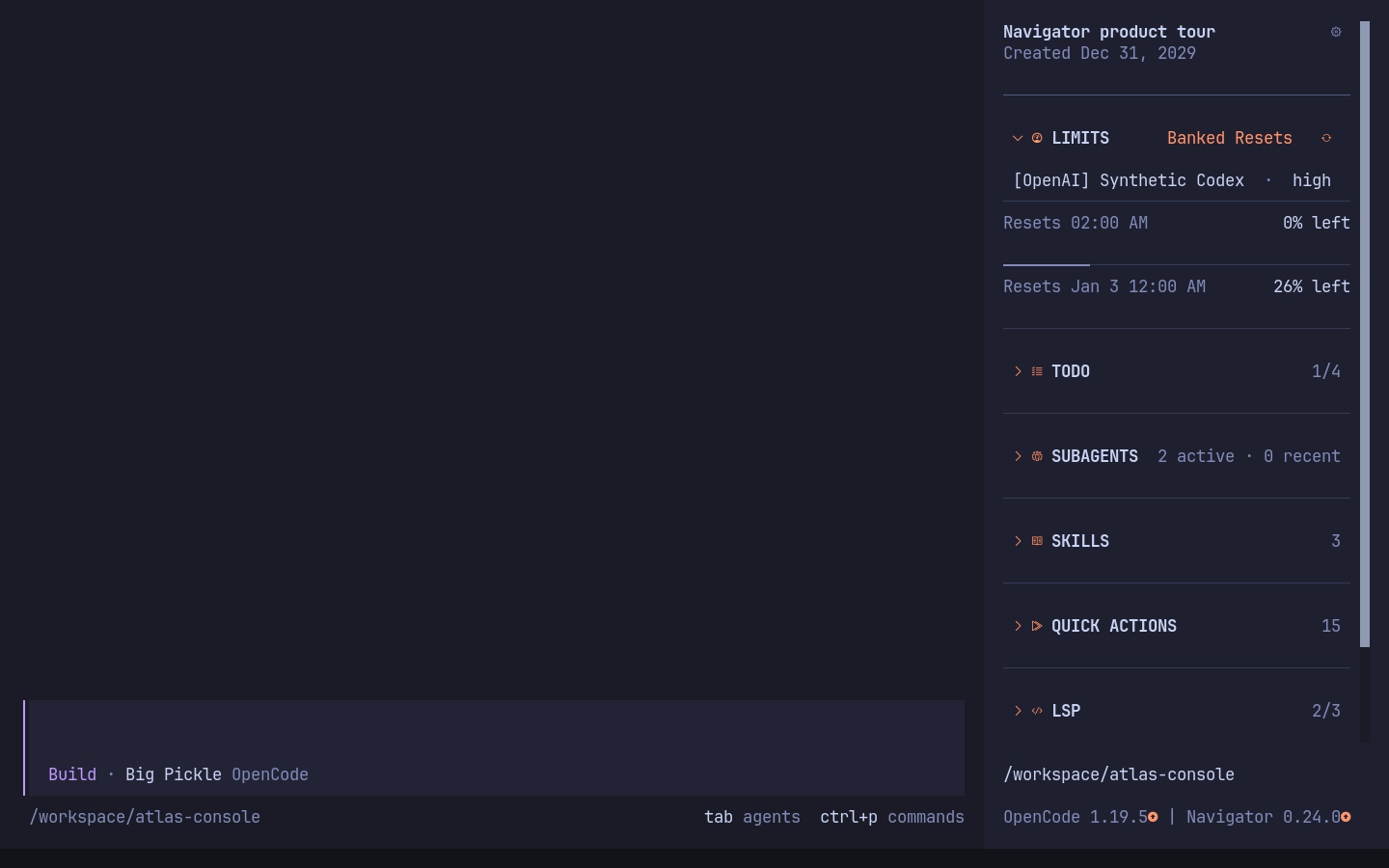
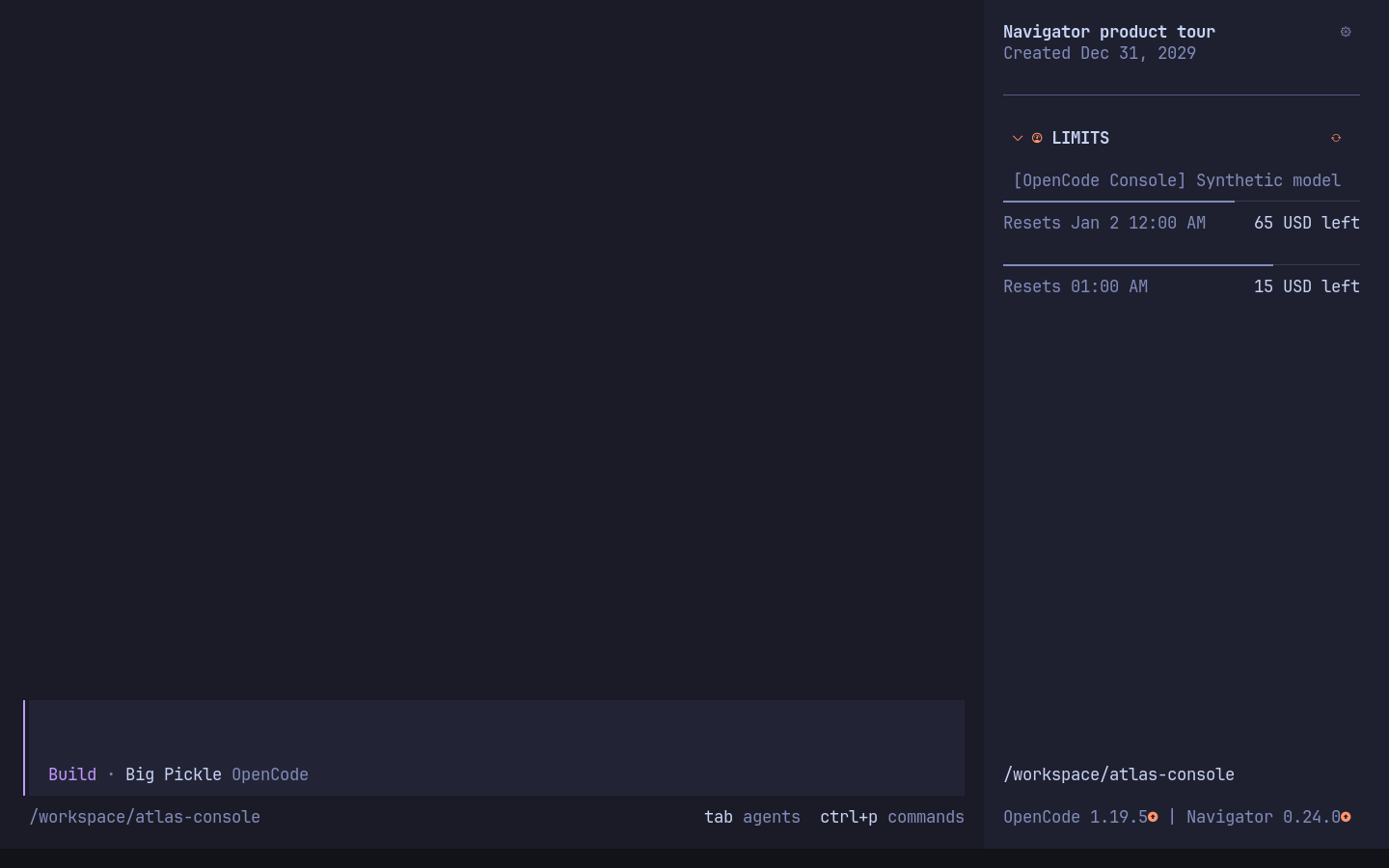
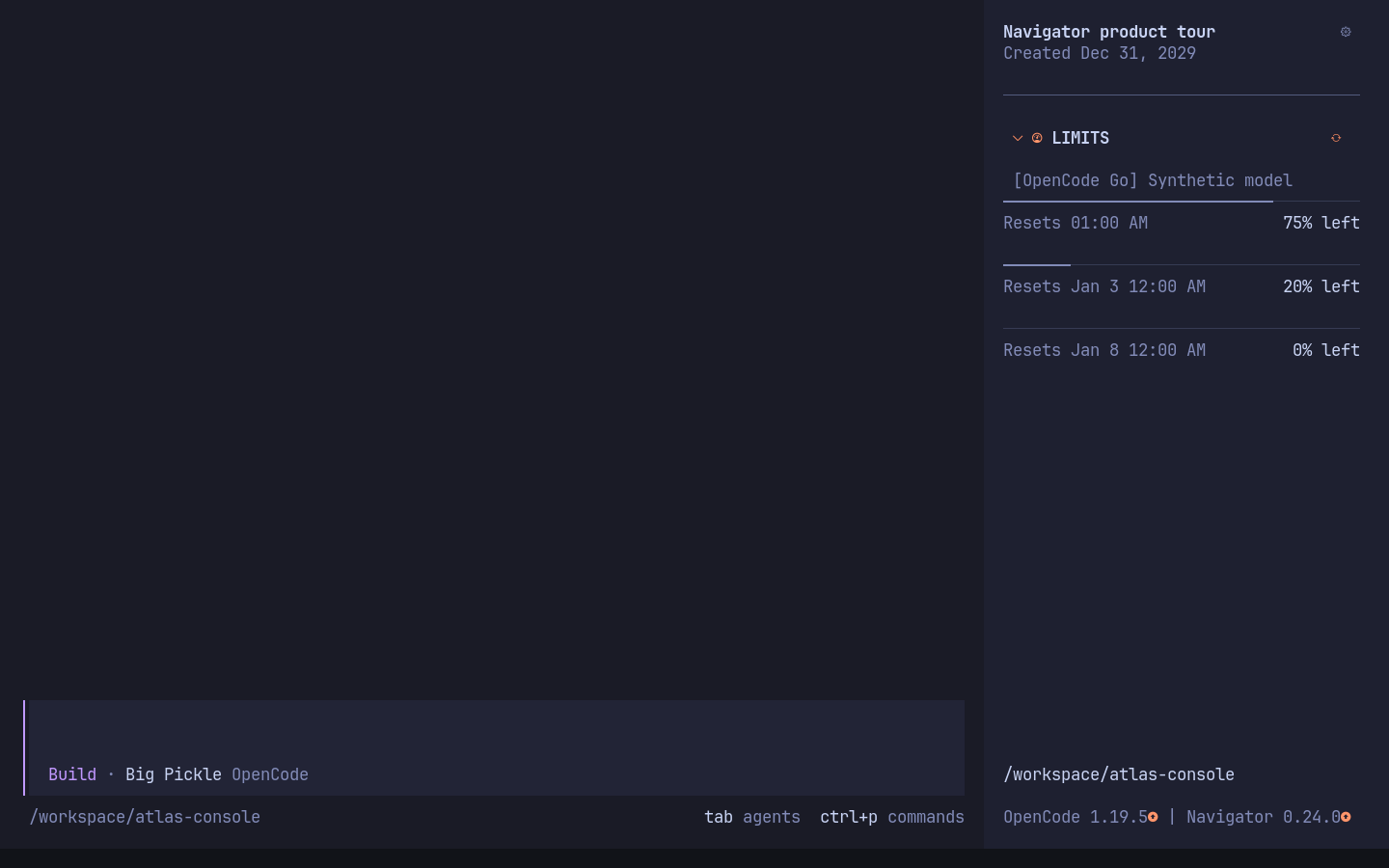
Link the intended Codex account
Install a Codex CLI exposing the documented read and consume RPCs (verified with
0.160.0), ensure codex is on the same machine's PATH, and sign in with a ChatGPT
account. Navigator starts codex app-server --stdio lazily after the account is
associated with the selected ChatGPT connection.
OpenCode 2's built-in ChatGPT OAuth integration reports an account ID. Navigator
automatically associates that identity and verifies it against Codex's reported
account. API-key OpenAI connections use API measurements instead of a ChatGPT
subscription.
When the host does not provide a verifiable identity, select Link Codex CLI
account and confirm the reported account ID if it matches this host connection.
The private, user-wide binding is saved once per connection, or once per
provider on hosts without a connection API, and reused across models, projects,
and sessions. After an account change, authentication guidance offers Relink
Codex account and Unlink Codex account for the outdated manual association. Compatible older model
bindings are reused; conflicting bindings remain isolated until a deliberate relink.
Limits starts with [Provider name] Model name · variant. Activate the model or
variant with the mouse or keyboard to open OpenCode's native selector. Quota
windows have one blank row between them, without a vertical guide or gutter.
Each window uses two compact rows: a full-width adaptive
thin-line scale, then muted reset time on the left and remaining headroom aligned
to the right. The remaining value keeps its own space; long reset text is clipped.
Both rows stay within the sidebar's padding when it resizes.
The filled part of each scale uses muted text; the unfilled part uses the much
quieter, theme-derived sidebar-divider tone. Reset time and remaining values keep
their readable colors in both icon modes and when the theme changes.
Healthy views omit account IDs, technical scope/window-duration suffixes, source
explanations, and update timestamps. Account scope and native window durations remain in the data model;
durations describe provider quota windows, not time remaining until reset. Balances retain their native
currency or point unit; a missing total does not become a full progress scale.
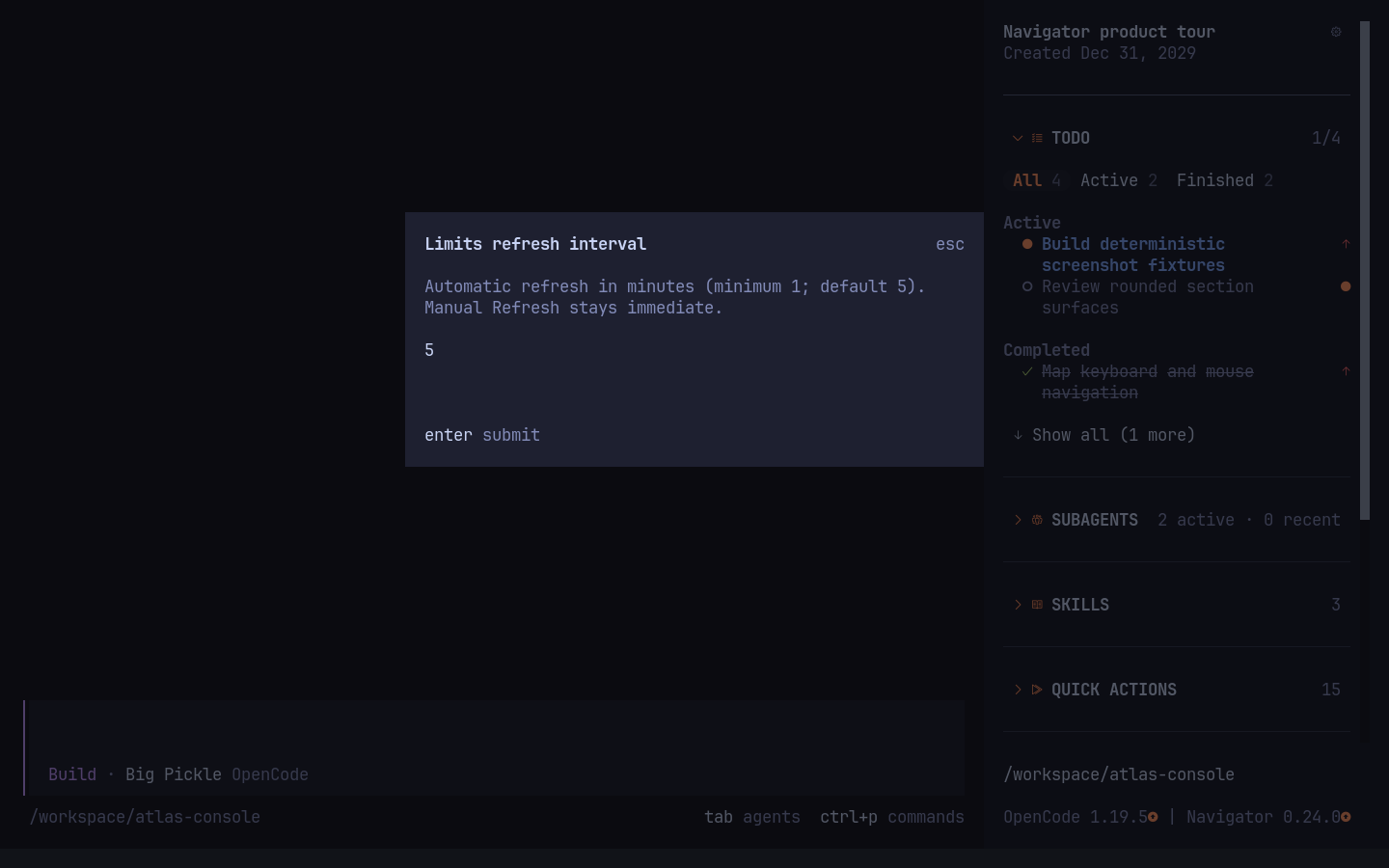
The header has no section counter. Its compact Refresh control requests a
read immediately. Automatic refresh defaults to five minutes, including while
hidden. Change Settings → Behavior → Limits refresh interval in Global or
Current worktree scope; enter a whole number of minutes, with a minimum of one.
Changing the effective interval reschedules the timer without an extra quota read.
Model/account switches and manual Refresh remain immediate; unrelated settings
updates and provider-response observations do not trigger extra quota polling.
Failed reads retain cached windows with stale guidance and the same header
control for retrying. Unsupported mappings, authentication, and setup states have
separate muted guidance.
Review and manually use a banked reset
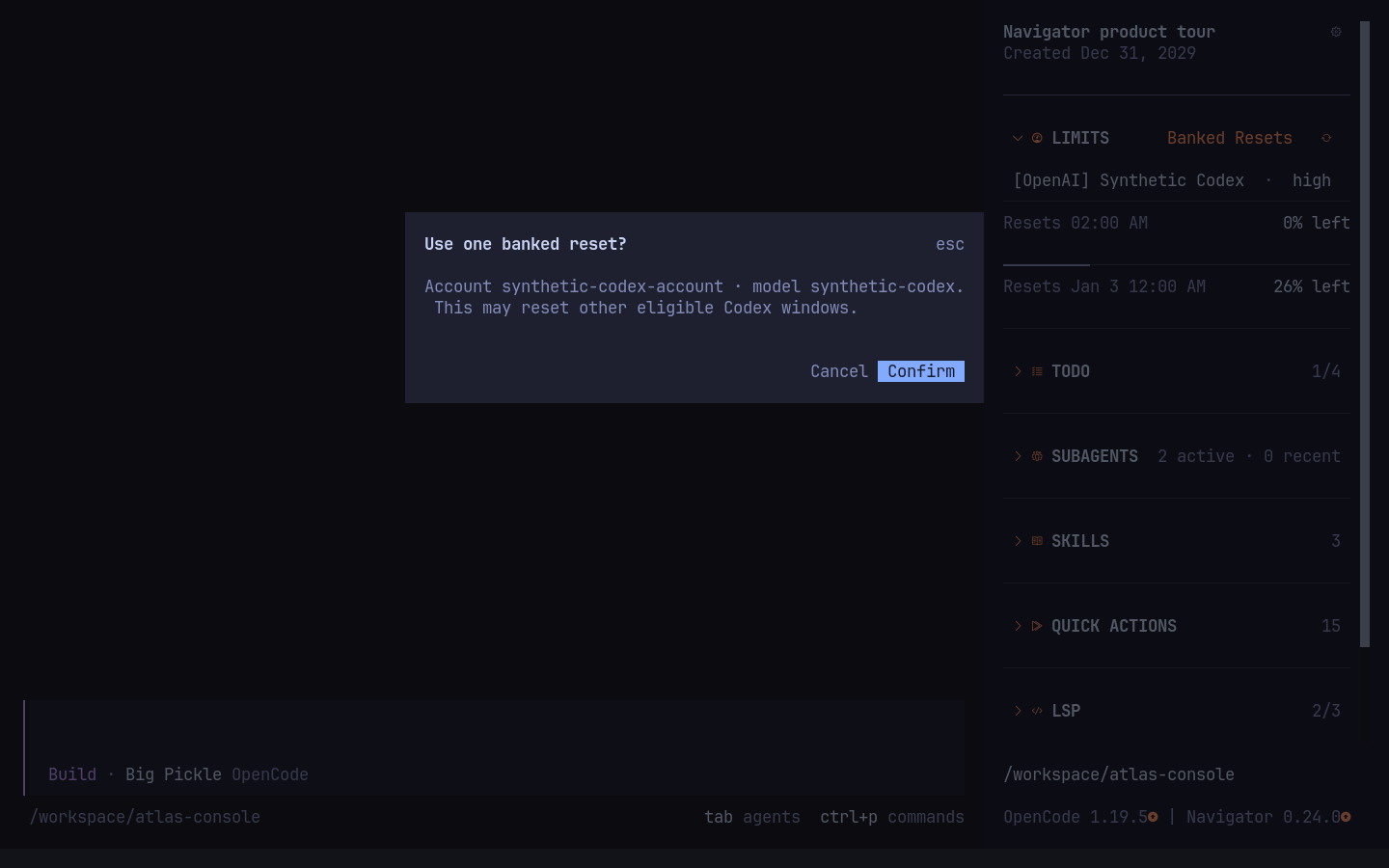
The header's Banked Resets button appears when credits or an unresolved attempt
exist. It displays the provider's available count, optional credit
details, statuses, and expiry. Selecting a credit first checks fresh eligibility
and opens a separate confirmation tied to the current account and model. Cancel
or Escape returns to the credit list without spending anything.
The provider must report ordinary usage blocked, an applicable account or model window, and an
available reset credit. A displayed percentage alone does not establish
eligibility. A reset can affect other eligible Codex windows as well. Navigator
checks the account and eligibility again before submission. Read-only providers
do not gain a consume action.
After an uncertain result, Reconcile pending attempt reuses the same
idempotency key, including after a restart. Only its unresolved account/model,
optional credit ID, and attempt key are saved in private preferences. Definitive
outcomes clear that journal; quotas themselves are not saved to disk. A pending
attempt on another account must be resolved on its original binding first.
An absent Codex credit detail list does not mean there are zero credits: the
provider may report a count without individual rows. Navigator does not read
provider credential files or save credentials in preferences.
Configuration sources
Navigator validates and deep-merges three simultaneous sources in this order:
- The
optionsdictionary in Navigator'sopencode.jsonplugin tuple. OpenCode
1.x also passes the same dictionary from itstui.jsontuple. ~/.config/.opencode-navigator/settings.jsonfor user-wide configured defaults..opencode/navigator.jsonin the current worktree for commit-safe project defaults.
Later sources override earlier sources. Object fields merge independently, while
ordered arrays are replaced and normalized. A malformed file is ignored with a
warning without discarding the other sources. Saved Global and Current worktree
preferences remain above all three configured sources; current-session layout is
the final temporary layer.
Use this object directly as either settings file, or as the second item in the
Navigator plugin tuple:
{
  "behavior": {
    "toggleKey": "ctrl+shift+b",
    "focusKey": "ctrl+shift+f",
    "searchKey": "ctrl+shift+k",
    "persistMcp": true,
    "limitsRefreshMinutes": 5,
    "startInChat": false,
    "showSessionTitle": true,
    "showSessionDate": true,
    "cornerFont": true,
    "lspIconStyle": "nerd",
    "rowDensity": "compact",
    "toolbarOverflow": "menu",
    "sectionItemLimits": { "todo": 0, "skills": 5, "mcp": 5 },
    "quickActionOrder": ["session.rename", "session.copy", "session.fork"],
    "quickActionVisibility": { "session.export": false }
  },
  "layout": {
    "sections": { "todo": true, "skills": true, "lsp": false },
    "expanded": { "todo": true, "mcp": true },
    "order": ["todo", "subagents", "skills", "quick_actions", "mcp", "lsp"]
  },
  "mcp": { "docs": "enabled", "metrics": "disabled" },
  "layoutPresets": {
    "Review": {
      "sections": { "quick_actions": false },
      "expanded": { "todo": true },
      "order": ["todo", "subagents", "skills", "mcp", "quick_actions", "lsp"]
    }
  },
  "mcpPresets": { "Docs": { "docs": "enabled", "metrics": "disabled" } },
  "workspaceProfiles": { "Review": "Docs" },
  "mcpServerGroups": { "docs": "Documentation", "metrics": "Operations" }
}
For example, the schema-valid opencode.json entry is:
{
  "$schema": "https://opencode.ai/config.json",
  "plugin": [["opencode-navigator", { "behavior": { "rowDensity": "comfortable" } }]]
}
Behavior keys control the optional start-in-chat flow, shortcuts, MCP persistence, Limits refresh cadence, nerd/text icon style, row
density, item limits, and Navigator's safe Quick Action allowlist. Unknown values,
sections, actions, and MCP states are discarded. The previous snake_case tuple
options (toggle_key, focus_key, search_key, persist_mcp, limits_refresh_minutes, start_in_chat, show_session_title,show_session_date, corner_font, icon_style,lsp_icon_style, row_density, toolbar_overflow, section_item_limits, quick_action_order,quick_action_visibility, sections, and section_order) remain compatible;
canonical nested fields win when both forms are present.
Start new sessions in chat is off by default. Turn it on under Settings →
Behavior to open an empty session directly when starting OpenCode on Home or
choosing New session. Opening an existing session or explicitly navigating Home
is unaffected. The setting follows the selected Global or Current worktree scope.
Navigator also records its last observed version in private preferences. On the
first launch after an update, it shows the release notes between that version
and the new installation from the bundled changelog. Updates
through Navigator save the previous version before installation; updates made
outside OpenCode are detected on the next launch. Fresh installations show no
upgrade dialog, and each updated version is shown once.
When upgrading from an older version that did not record version history, the
first launch establishes the baseline for subsequent updates.
In OpenCode 1.x, Settings → Sections also has separate switches for the
session title and creation date. These follow the selected Global or Current
worktree scope, and hiding both leaves the settings control available. OpenCode
2.x renders its own title and has no supported visibility slot for these
switches, so they are omitted there.
For a recognized pinned local Navigator snapshot, a confirmed update downloads
the next version into a separate snapshot and switches its existing local
wrapper only after installation succeeds. The OpenCode plugin source intui.json or cli.json does not change. This update path requires Node.js and
npm on the machine running OpenCode; restart OpenCode afterward. Unknown local
sources are left untouched.
Configured files may define behavior, layout, desired MCP states, layout and MCP
presets, workspace-profile links, and MCP groups. Navigator deliberately ignores
favorites, recent-item history, trusted skills, onboarding state, paths, and other
private mutable data. UI changes normally use the concurrency-safe preferences
file under OpenCode's state directory. Resetting a scope removes only its saved
override and reveals configured values again.
To deliberately save a named, commit-safe project profile, choose Current
worktree in Navigator Settings, copy the portable settings JSON, and paste it
into a temporary file. From that project's root, preview and then save it:
opencode-navigator-profile save Focus < /path/to/portable-settings.json
opencode-navigator-profile save Focus --apply < /path/to/portable-settings.json
If the command is not installed globally, run it withnpx --yes --package=opencode-navigator opencode-navigator-profile instead.
The command writes only the validated layout preset, desired MCP states, and
their optional link into .opencode/navigator.json. It preserves other project
configuration, rejects stale or symlinked targets, and never copies favorites,
history, trust choices, or private paths. Use --replace deliberately to update
an existing project profile. After saving, restart OpenCode to load the project
file, then open Settings → Presets → Focus → Preview & apply. The profile is
never applied merely by entering the project, and applying it does not save the
layout as a default. Saved Global or Current worktree presets with the same name
still take precedence, so use a distinct name if you want the project profile
to be visible in the current installation.
Choose Global or Current worktree before editing from the sidebar gear button.
Behavior changes apply immediately in the selected scope. Section visibility,
expansion, and order remain in memory until Save current layout as default is
selected. Save as… captures current visibility, expansion, and section order;
saved presets can be applied, updated, renamed, or deleted.
Choose Preview & apply in a saved layout preset's menu to review visibility,
expansion, and position changes before applying it. Changed sections appear first,
with their destination positions. Opening the preview does not change the layout;
select Apply to confirm or Cancel / Escape to return to the preset menu.
Applying a preset updates the in-memory layout for the selected scope. UseSave current layout as default to persist it.
In Defaults & Help, Copy portable settings exports the selected scope's
effective layout and desired MCP states as deterministic versioned JSON through
the terminal clipboard. Import portable settings… accepts pasted JSON and
opens a preview before writing. Unknown future fields and section IDs are listed
as skipped; malformed versions or invalid known values are rejected. Apply
replaces only the supplied layout and MCP blocks in the still-selected scope in
one atomic preferences update. Paths, Skill group assignments, shortcuts, favorites, history, trust choices,
and other private preferences are never imported or exported.
Reload settings from file reads Navigator's saved private preferences on
demand. It picks up layout defaults, behavior, favorites, groups, and presets
saved in another OpenCode session without restarting; temporary layout edits in
the receiving session are cleared so they cannot hide the reloaded settings.
Save a session's layout as the default before reloading it elsewhere.
Keyboard controls
Press Ctrl+Shift+F to focus the sidebar. Use Up/Down or k/j to move,Enter to activate the selected row, Escape to return to the previous focus,? to open the keyboard help, and Ctrl+, to open Navigator Settings directly.
When a Skills or MCP filter owns focus,
typing edits the query and the first Escape returns to sidebar navigation.
The filter icon, placeholder, entered text, clear control, and cursor use the same
contrasting focus palette; the field follows actual input focus and blur.
The command palette also exposes Focus sidebar and direct commands for Todo,
Subagents, Skills, Quick Actions, LSP, and MCP. Both sidebar shortcuts can be
changed at runtime in settings.
Press Ctrl+Shift+B to enter Navigator shortcuts, then choose an action:
| Key | Action |
|---|---|
h |
Toggle sidebar visibility |
t / a / s / q / l / m |
Focus Todo / Subagents / Skills / Quick Actions / LSP / MCP |
c |
Check for a Navigator update and report whether one is available |
u |
Check for a Navigator update, then open its confirmation if available |
Escape |
Cancel shortcut mode |
The mode ends after an action or five seconds of inactivity. Its compact,
non-modal hint groups section navigation separately from update actions, uses
icons and highlighted key tokens, and keeps Escape visible. It adapts to narrow
or short terminals, light/dark themes, Text fallback, and the no-corner-font
setting without taking focus from the prompt. Keyboard help uses the same
action inventory and supports arrow-key and page-key scrolling. Only actions
supported by the current host are listed; LSP is omitted on OpenCode 2.x. Change the
entry shortcut under Settings → Behavior. The command palette also offers
Check Navigator updates and Update Navigator.
Manual checks report when Navigator is current or the update source is unavailable.
Updates require confirmation, preserve the existing installation method and scope,
and show a restart reminder after completion. OpenCode updates stay on the running
major line; moving from 1.x to 2.x remains a separate installation decision.
Confirmed pinned-source Navigator updates install the target release's runtime
dependencies in a new snapshot before switching its wrapper. The previous
snapshot and private settings remain intact. Background check failures stay quiet.
Search Everything
Press Ctrl+Shift+K or run Search Everything from the command palette. Use
the Skills, Subagents, MCP, and Actions tabs to choose a category. The query is
shared across tabs; each tab shows its matching result count, including zero.
Tab icons match the sidebar sections and section entries in settings.
Search covers names, descriptions, skill source paths, and subagent IDs in the
current workspace/session. It uses full source lists, regardless of sidebar
visibility and item limits; actions hidden from the sidebar are still searchable.
Bookmarked actions are remembered user-wide and lead the configured base order in
both views. Usage never changes their order. Actions unsupported by the current
OpenCode version or unavailable on the current route remain searchable and show
why they cannot run.
Up/Down: select a result in the current tab;Tab/Shift+Tabor a click:
switch tabs. Each tab remembers its selection and scroll position until the
query changes.Enter: insert a skill (honouring its confirmation preference), open a child
session, connect/disconnect an MCP server, or run a built-in action.- MCP toggles keep the search open and update the server status in place,
preserving the query, selection, and scroll position. Escape: close and return focus;Ctrl+R: retry loading sources.
Results use compact title/preview rows. Background refresh preserves the current
scroll position and does not flash a refresh indicator. Cached results remain
available when a source refresh fails. Busy MCP actions
are disabled; session actions on the home screen explain that a session is required.
Changing session or workspace closes the search dialog to prevent stale actions.
OpenCode initializes enabled MCP servers before TUI plugins. A server remembered
as disabled can therefore connect briefly during startup before this plugin
disconnects it. Servers remembered as enabled are connected after the plugin
initializes. Connect all and Disconnect all run eligible server changes in
parallel, retain successful results when some servers fail, and offer a retry for
only the failed servers.
Use the Preset selector in the MCP heading to save the current enabled/disabled
state, apply a preset, update it from the current scope, rename it, or delete it.
Preview & apply refreshes the current server states and shows the planned
connections, disconnections, unchanged servers, and unavailable or missing servers
that will be skipped. Changes appear first. The preview updates when the preset or
server state changes; Ctrl+R refreshes it again. Applying is disabled while states
are loading, a refresh has failed, or another MCP mutation is running.
Use Up / Down to scroll a preview, Tab or Left / Right to select its
buttons, and Enter to confirm. Buttons also support mouse activation. Changing
the target scope/workspace closes the preview, and deleting the preset disables
its Apply action.
Preset application runs only the necessary server changes and keeps per-server
progress and failed-only retry behavior. Servers in a preset that are not present
in the current scope are skipped at application time; their desired states are
retained when MCP state persistence is enabled.
A layout preset can optionally link to one MCP preset as a user-wide workspace
profile. Opening it shows one combined change preview; only the separate Apply
action changes either side. Applying does not save the layout as the default and
profiles are never applied automatically when entering a workspace.
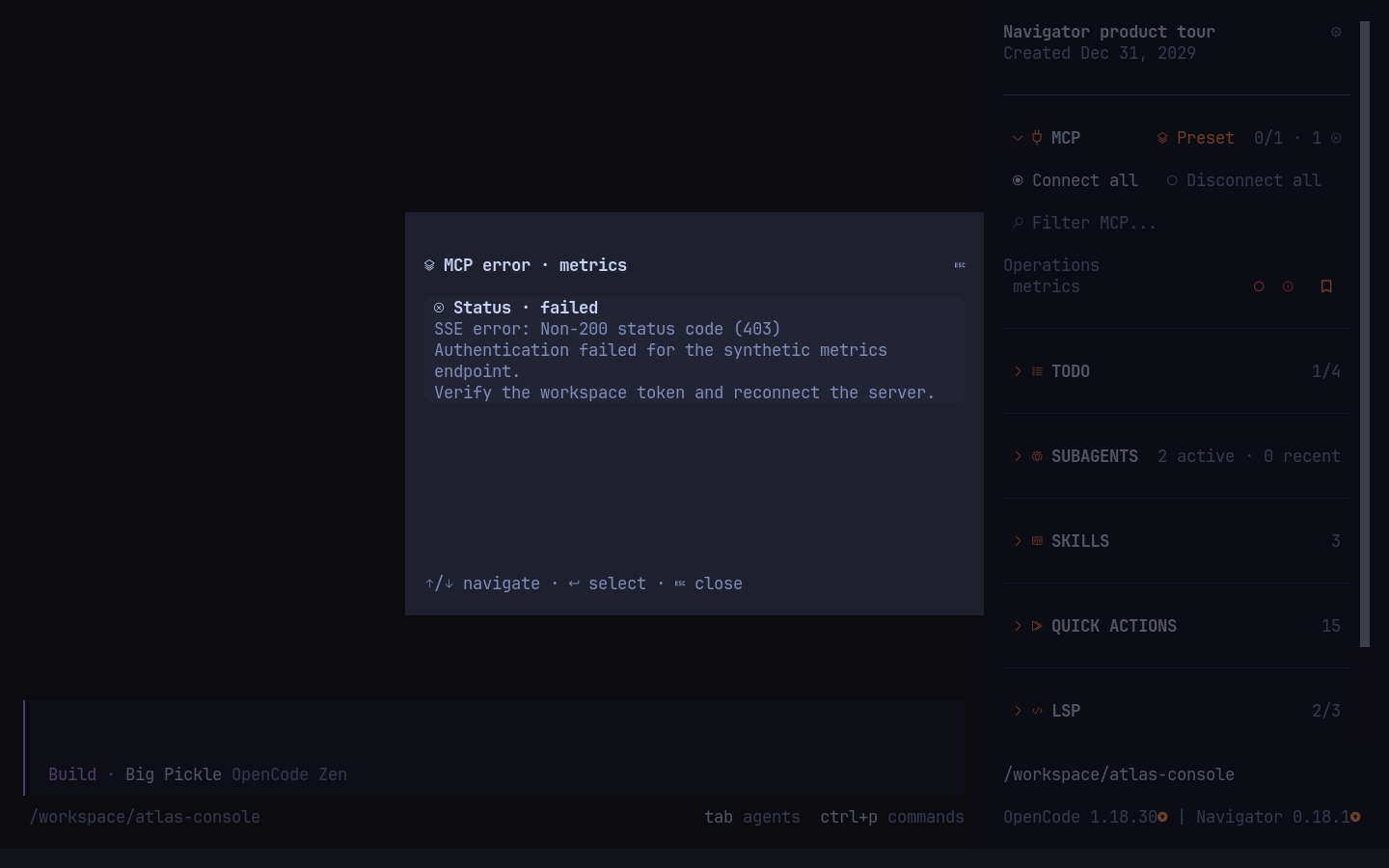
Failed MCP rows expose an information control instead of placing the error inline.
It opens a scrollable dialog containing the server, status, and complete error text.
The MCP bookmark control saves favorites user-wide by server name. Favorites appear
first, alphabetically within each group, with a blank separator before other
servers. The bookmark does not connect or disconnect the server.
LSP servers with connection errors appear first, followed by alphabetical ID and
root order. Activate any badge, including a custom server, to toggle its full ID
in place. Navigator does not open a root/status dialog because OpenCode may report
an empty root and does not expose the underlying diagnostic error text.
Todo priorities are read-only in the sidebar. OpenCode 1.x provides host Todo
data without a TUI mutation API; on 2.x, Navigator's agent tool writes tasks.
Todo offers All, Active, and Finished views with counts. Active shows running
tasks before pending tasks. Finished contains separate Completed and Cancelled
groups. The selected view is temporary and resets to All when changing sessions.
The header always reports completed tasks against the full task count.
Subagents show observed run duration, retry countdowns, and execution errors. An
already-running child discovered by the sidebar uses a clock icon (~ in Text
fallback) because its exact start time is unknown. Recent keeps the last 10 observed
finished runs per parent session in memory across navigation, until OpenCode exits.
An idle transition is labelled Finished, not a guarantee of successful task
completion; errors and cancellations retain their own labels. A worker timeout
displays status unavailability and does not mark its last confirmed active run as
finished.
Active runs precede Recent under the shared Subagents item limit.
Local session events update subagents immediately; snapshot and worker-status
polling runs every five seconds. Background refresh is silent after the initial
load, including when a section is empty, so it does not shift the list.
Use All / Active / Recent / Errors and the text filter to narrow the subagent
list before applying its item limit. Filters reset on a target change. In a child
session, Parent session opens the parent even when no subagents are listed.
Selecting a skill opens its description with Accept and Cancel controls before
appending its /<name> command to the current prompt. Select "Don't show again
for this skill" to skip that confirmation later. The sidebar settings dialog
lists trusted skills under Defaults, where trust can be revoked individually or
for every skill. Select the bookmark beside a skill, or the
same control in its confirmation dialog, to keep it ahead of non-favorite skills
in every workspace. The last 10 successfully inserted
skills are remembered user-wide by source location and appear after favorites,
most recent first, marked with a history icon (~ in text mode). Other skills
remain alphabetical. Skill rows do not show a separate information control;
the confirmation dialog contains the description and full source location.
Quick actions invoke OpenCode's built-in
commands and display the active keybindings from your configuration.
Nested dialogs support back navigation: Escape, Cancel, and close controls return
to the previous menu. Settings retain the selected tab and row; Search Everything
also restores its query, selection, and scroll position. Escape at the root closes
the dialog. Completing an action closes its confirmation, and changing the search
session or workspace dismisses the entire search dialog chain.
Scripts
Development requires Bun 1.4.2 and Node.js 24.16 or newer. Install dependencies withbun install --frozen-lockfile.
Oxlint uses the solid-ox preset from@st1ggy/linter-config; Oxfmt uses itsoxfmt-common preset. oxlint.config.ts documents project-specific adaptations for
OpenTUI callbacks, SDK compatibility, and test fixtures. Type-aware analysis usesoxlint-tsgolint; tsconfig.lint.json covers application code, tests, build scripts,
and configuration files. Formatter exclusions are maintained in oxfmt.config.ts.
bun run test
bun run test:e2e
bun run typecheck
bun run lint
bun run lint:fix
bun run format
bun run format:check
bun run font:install
bun run build
bun run bundle:size
bun run screenshots
bun run screenshots:verify
bun run check
bun run check runs the tests, TypeScript, Oxlint, bundle-size guard, and Oxfmt
check. The unminified TUI bundle is limited to 360,000 bytes.
Font generation is a separate development task: bun run font:build andbun run font:check use uv and the pinned FontTools dependency. Users install
the already generated font; Python and FontTools are not needed at runtime.
CI checks that the bundled font matches its generator.
bun run screenshots builds a pinned Linux ARM64 image and captures the real TUI
through Ghostty on Xvfb. The image includes the bundled corner font and a pinned
JetBrainsMono Nerd Font; every displayed task, session, workspace, path, skill,
server, error, and preset is synthetic. bun run screenshots:verify renders the
same scenes to a temporary directory and fails if any PNG differs. Additional scenes
keep the pinned Nerd Font but remove the Navigator corner font so the uninstalled-font
experience remains reproducible beside the required-font captures. The harness
requires Docker with Linux ARM64 support. These commands are available for harness
development; the committed release captures are generated by the manualPrepare Release GitHub Actions workflow.
Publishing
Publishing is handled by .github/workflows/publish.yml when a GitHub Release
is published. The release tag must match the package version, for examplev1.2.3 for version 1.2.3.
Before creating the release, run the manual Prepare Release workflow on the
default branch. It renders all screenshots twice to verify reproducibility, creates
a pull request when PNG files changed, dispatches CI for the exact generated commit,
and squash-merges it automatically after the checks pass. The workflow uses its
short-lived, repository-scoped GITHUB_TOKEN; no persistent bot token is required.
Wait for the generated screenshot pull request to merge before creating the release
tag.
The workflow uses npm Trusted Publishing with provenance. ConfigureSt1ggy/opencode-navigator and publish.yml as the trusted GitHub Actions
publisher in the package settings on npmjs.com before publishing a release.
The new npm package needs its own trusted-publisher configuration; the old
package's settings are not transferred by renaming the GitHub repository.
Reviews (0)
Sign in to leave a review.
Leave a reviewNo results found