paneless
Health Warn
- License — License: MIT
- Description — Repository has a description
- Active repo — Last push 0 days ago
- Low visibility — Only 8 GitHub stars
Code Pass
- Code scan — Scanned 8 files during light audit, no dangerous patterns found
Permissions Pass
- Permissions — No dangerous permissions requested
No AI report is available for this listing yet.
Native Windows GUI for scrcpy & adb — wireless/USB mirroring, Remote Android apps with shortcuts, live clipboard/files/quick controls, fleet automation, and local MCP for AI. No phone app required.
Paneless
⬇ Download Paneless for Windows · How to install · What's new · ♥ Support
Painless screen mirroring, Remote apps, Phone-to-PC sync and device management for Android.
Connects phones, tablets and watches over Wi-Fi or USB, mirrors any screen with one click,
runs Android apps like native Windows programs with their own icons and shortcuts, syncs files, clipboard and quick controls,
and manages one device or a whole fleet — with no Android app to install.
Built on scrcpy, with an interface made with Avalonia.





Contents
- Why Paneless
- Features
- Install
- First use
- Using Paneless
- Remote apps
- AI assistants
- Privacy and security
- Troubleshooting
- Building from source
- Support Paneless
- Credits and license
Why Paneless
scrcpy is excellent, but it's a command-line tool: you have to find each device's address, pair it, connect it and remember the right options. Paneless does that for you, and goes beyond watching a screen:
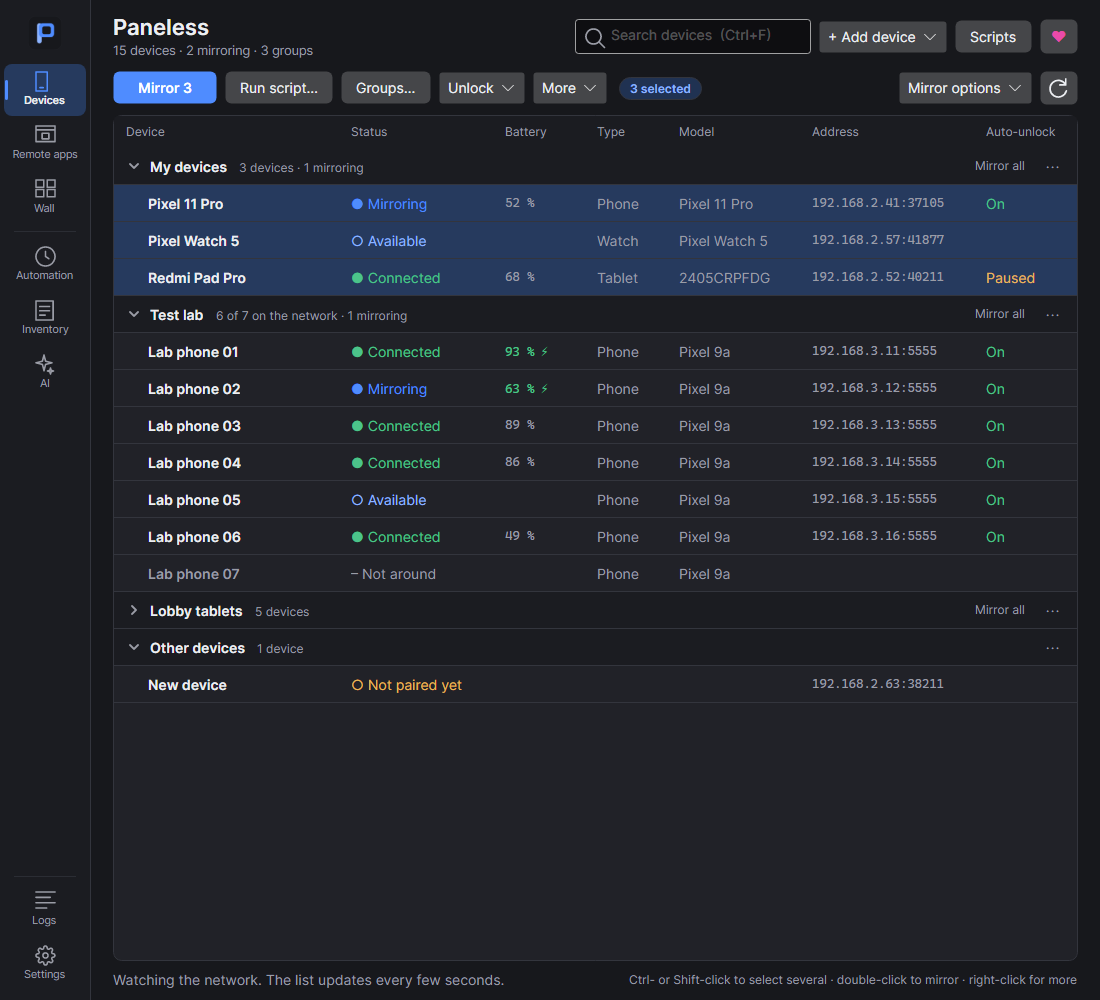
- See: a live list of every device over Wi-Fi or USB, with status and battery, and their screens on your PC with a toolbar on every mirror.
- Run Android apps like PC programs (Remote apps): open any app in its own resizable window with its real icon, taskbar button, and desktop/Start menu shortcuts—even while the phone stays locked and its screen stays off.
- Stay in sync (no phone app required): browse files and photos with thumbnails, auto-download new photos and screenshots, sync your text clipboard live, toggle quick settings & media, copy 2FA codes, or ring a misplaced phone.
- Manage: organise devices in groups, then act on one device or a whole group at once.
- Install or remove apps (with real app icons).
- Copy files.
- Run adb scripts.
- Apply settings.
- Control: use your keyboard and mouse on a device, map keys for games, pop an open phone app straight into its own PC window, or do something once and have it happen on every device of a group.
- Automate: set devices up with recipes, run tasks on a schedule, get alerts when a battery runs low, a device gets hot or an app crashes, and run scripts every time a device connects (e.g. turn off Doze).
- Ask an AI assistant: let Claude, Codex, Gemini CLI, Cursor or another MCP app inspect screens (screenshots or semantic UI tree), answer questions, or work on your devices within the limits you set per device.
That makes it handy at home with a phone and a tablet, and just as useful with a shelf of test devices, kiosk tablets or a family's phones.
Everything runs locally between your PC and your devices. Paneless has no account, no cloud and no app on the phone.
The interface is built with Avalonia, a cross-platform .NET UI framework. That keeps Paneless a fast, native desktop app (no browser engine inside) and lets the same code run on macOS and Linux later.
Features
Finding and organising devices
- Works over Wi-Fi and USB: finds wireless devices automatically (mDNS) and picks up USB-connected devices as soon as you plug them in. Right-click any USB device › Switch to Wi-Fi to cut the cord (also works on Android 10 and older).
- Pairs new Wi-Fi devices with the 6-digit code. The pairing address fills itself in.
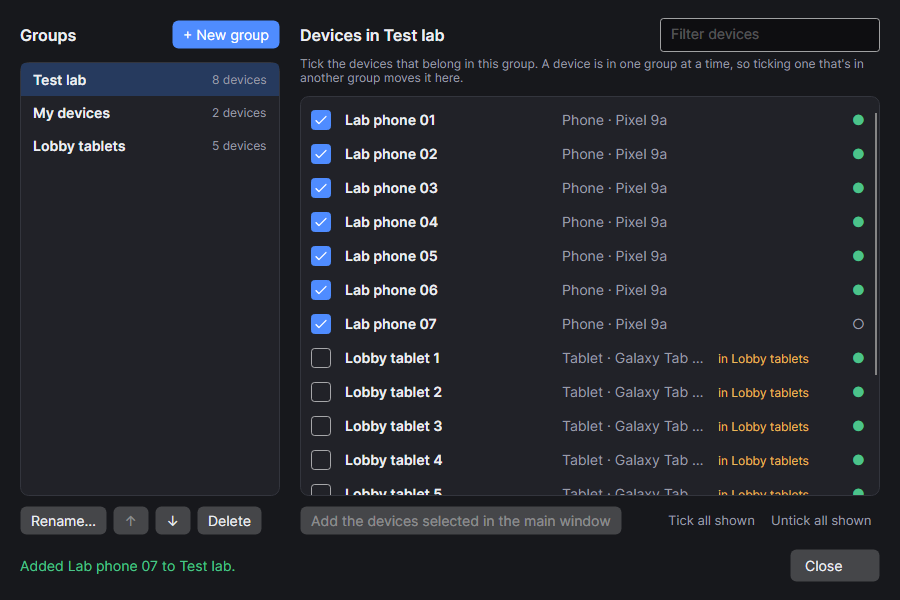
- Groups: collapsible sections, Mirror all, and a group manager. Devices of a group that aren't around are still listed.
- Search and natural sort ("Lab phone 2" before "Lab phone 10") for long lists.
- Connects known devices by itself when they show up on the network.
Mirroring
- One click (or double-click, or Enter) to mirror one or many devices.
- Keep the device's own screen off while mirroring, keep it awake, optionally lock it when the last mirror closes, play its audio on the PC, keep the window on top.
- Settings per device or per group: max size, video codec (H.264, H.265, AV1), bit rate and frame-rate limit.
- Auto-unlock: a saved PIN or password is entered when you mirror a locked device. Swipe patterns aren't supported.
- Second screen: a separate, resizable screen of the device next to its own.
- Apps in their own window, on a virtual display, so the device's screen is left alone.
- Remote apps: keep the Android apps you use most on the Remote apps page and open them like Windows programs, each in its own window with the app's own icon and taskbar button. A shortcut on the desktop or in the Start menu opens one straight from Windows. See Remote apps.
- Camera: the back or front camera in a window. The picture follows how the phone is held.
- Arrange windows: tile all mirrors, or one group's, across the screen.
Toolbar on every mirror
- Rotate, back, home, recent apps, volume, power.
- Screen off, notifications, quick settings.
- Screenshot, record, camera, type the PC clipboard.
- App handoff: Pop out current app moves the app on your phone into its own PC window; Send back to phone returns a virtual-display app to the device screen.
- Key mapping for games: keys become taps and a WASD or arrow-key joystick.
- Group control: what you do on one device happens on the whole group.

Phone-to-PC tools (zero Android app installed)
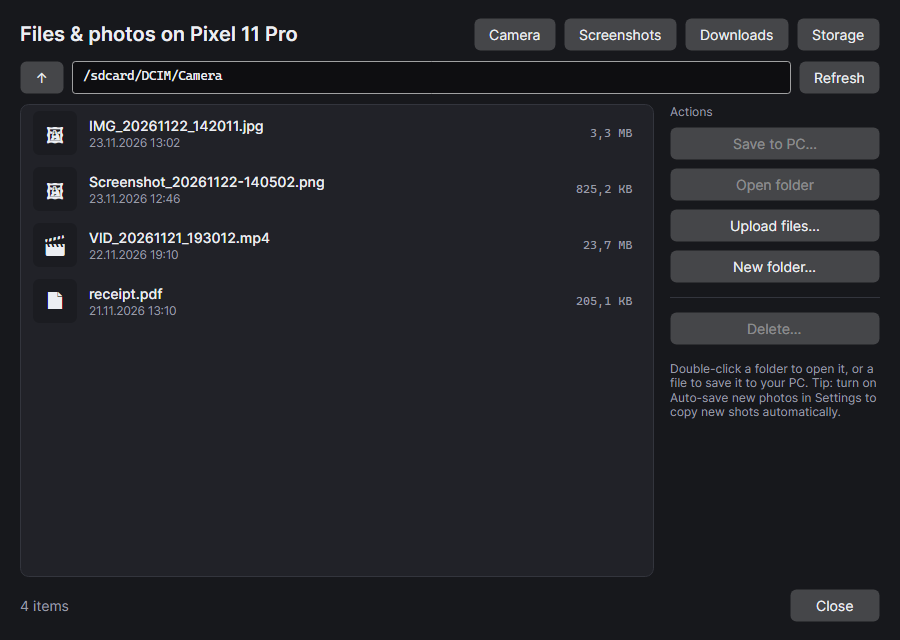
- Files & photos browser: browse folders with EXIF-aware photo and video thumbnails, upload or download files, and optionally auto-download new photos and screenshots straight to
Documents\Paneless\Media\<Device>. - Always-on clipboard sync (opt-in per device or group): instant two-way text clipboard sync between Windows and Android without mirroring open.
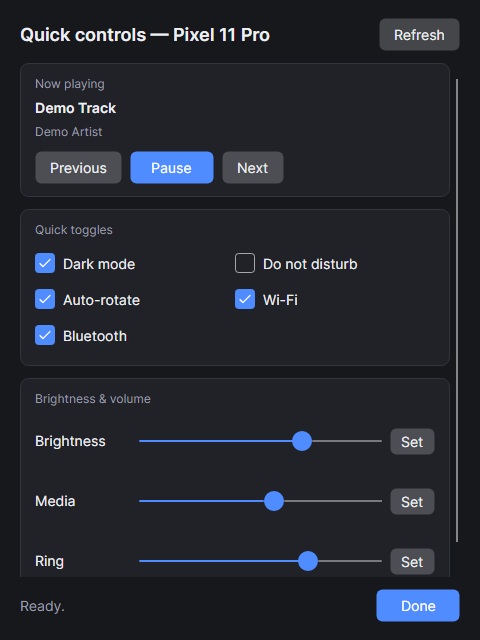
- Quick controls & media: toggle Dark mode, Do Not Disturb, Auto-rotate, Wi-Fi and Bluetooth, adjust brightness and volume sliders, and control Now Playing media.
- Locate device: blink the flashlight, vibrate and chime a misplaced device from the Devices or Wall menu.
- Opt-in 2FA / OTP auto-copy: copies incoming verification codes from Android notifications straight to your Windows clipboard (EN, DE, FR).
Managing devices, one or a whole fleet
- Act on a group in one go: drop an APK on a group heading to install it on every device in it; send files the same way; run a script on the whole group.
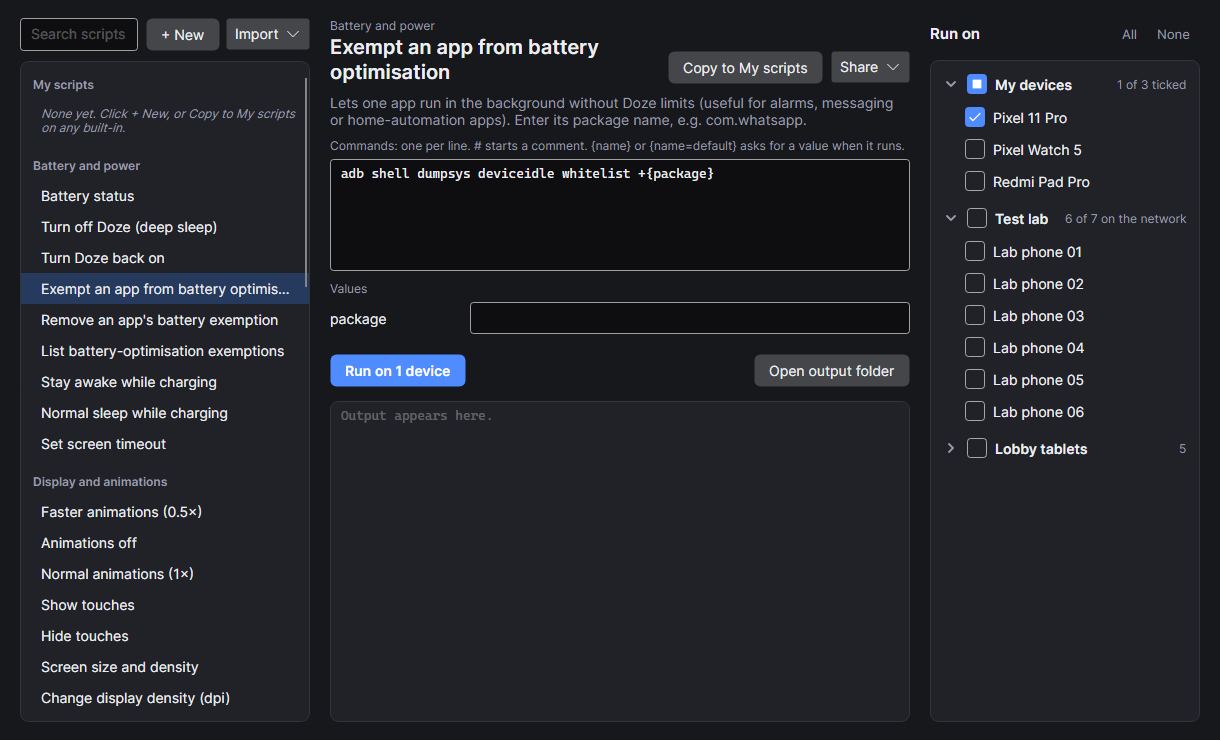
- Scripts: your own adb commands and about 45 built-in ones with explanations (battery and Doze, display, apps, network, device info, …), run on any devices or groups at once.
- Per-device output.
- Fields like
{package}are asked for when a script runs. - Risky scripts ask first.
- Run scripts automatically every time a device connects, e.g. Turn off Doze, so settings that reset on restart stay the way you want.
- App manager: friendly app names with real icons, version and APK size; open, force-stop, disable, clear data, uninstall, install APKs (also on a whole group), or add straight to Remote apps.
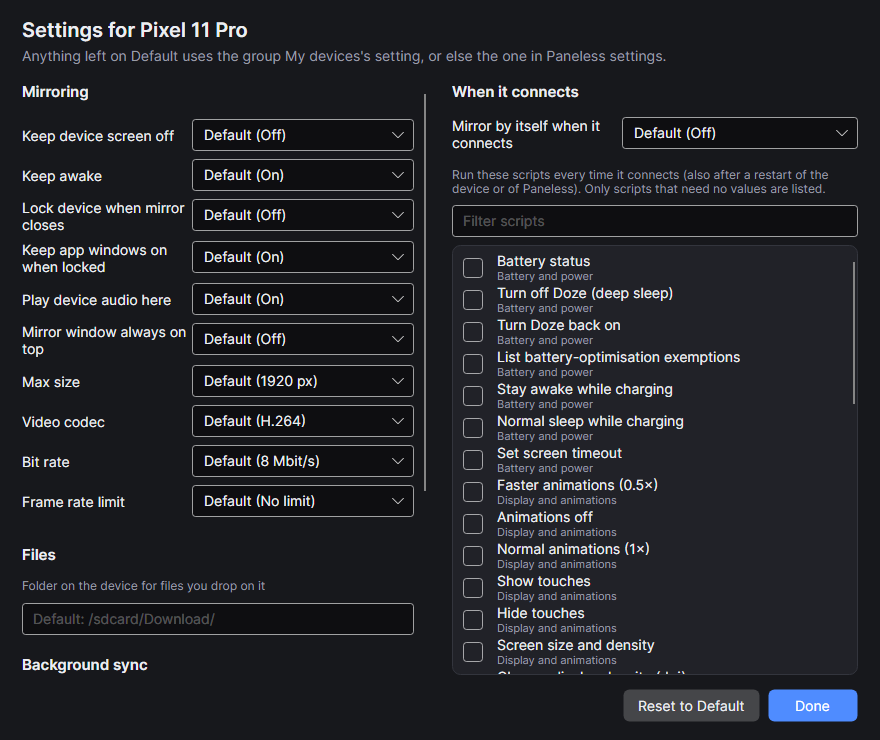
- Settings per device or group: mirror quality, behaviour on connect, sync options, a folder for files.
- Group control: do something on one device and it happens on every connected device of its group.
Automation (the Automation page)
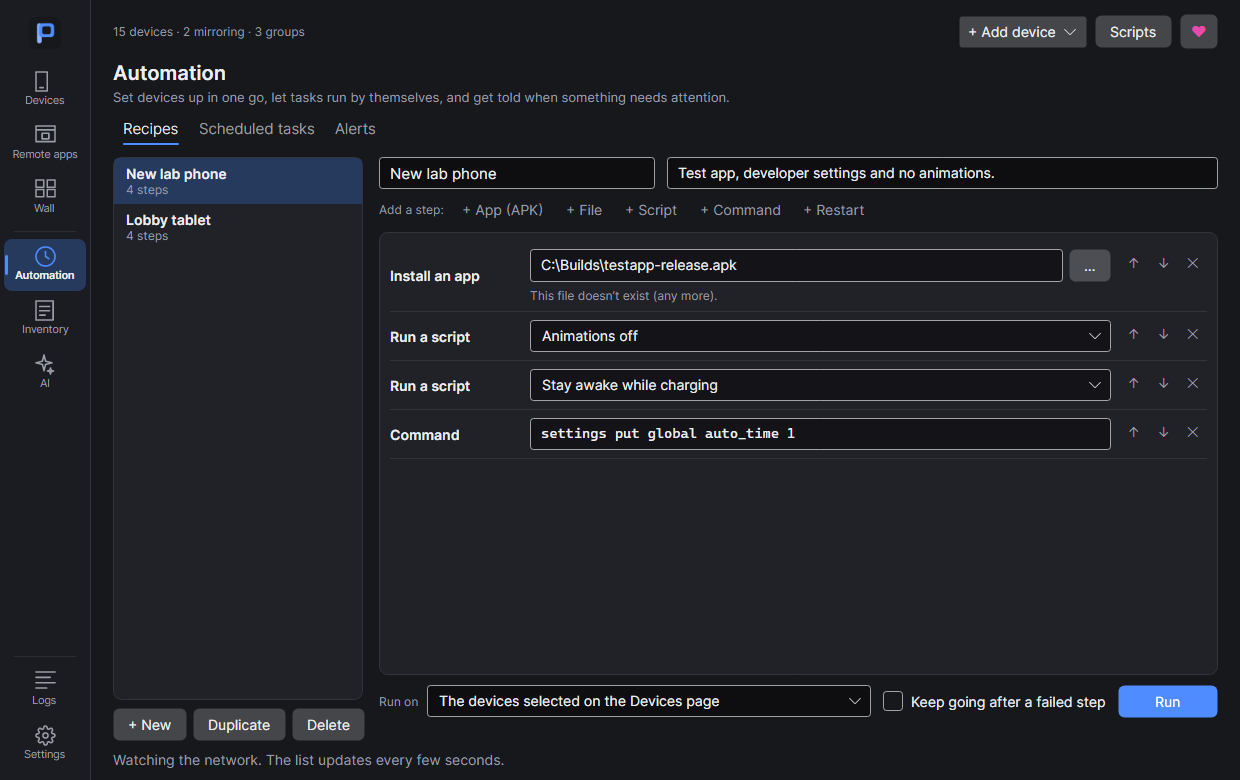
- Recipes: a list of apps, files, scripts, commands and a restart that sets up a new or reset device in one go. Run one on the selected devices or a group, with progress per device.
- Scheduled tasks: run a script, a recipe, a restart or a command daily, weekly or every few hours, e.g. restart the lobby tablets every night.
- Alerts: a Windows notification when a battery runs low, storage gets full, a device gets hot, drops off the network, or an app crashes. Each alert fires once, not every minute.
Overviews
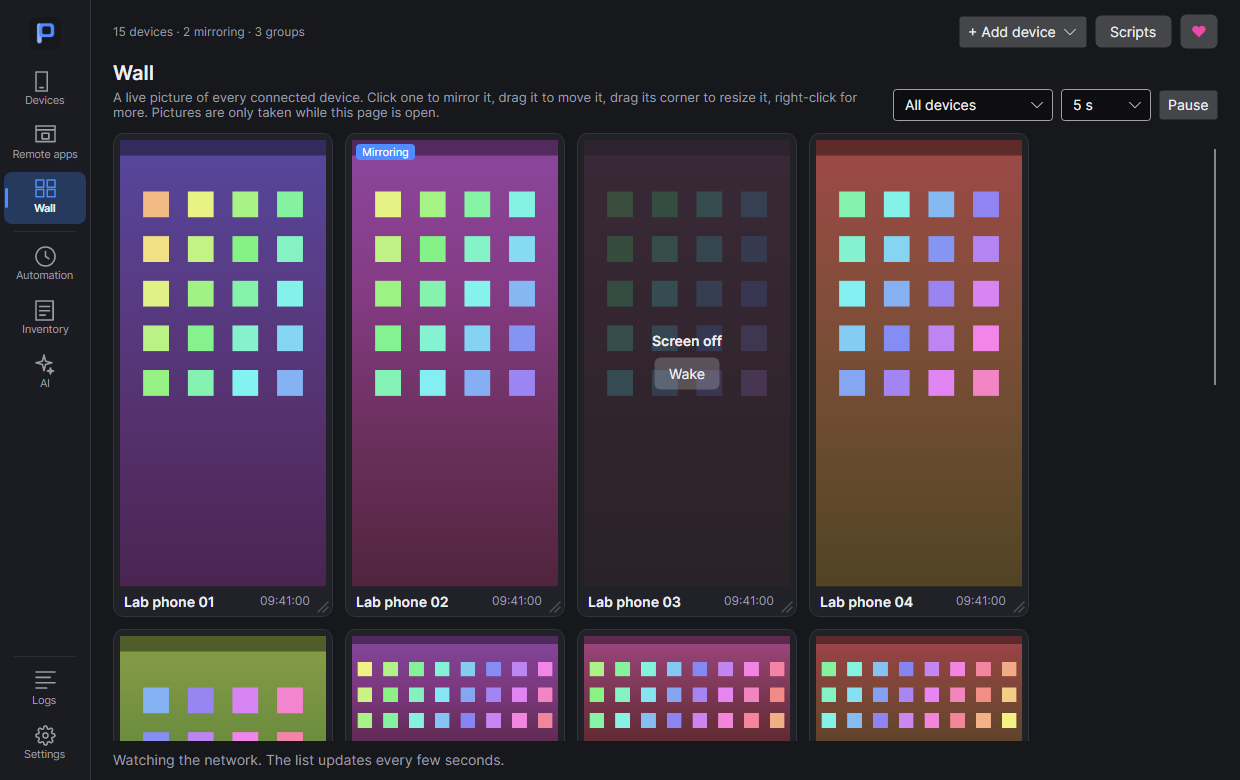
- Wall: a live picture of every device, refreshed every few seconds while the page is open. Click one to mirror it, drag pictures into your own order, drag a picture's corner to resize it (or make them all one size), and right-click for more: wake or unlock the screen, save a screenshot, open a second screen or apps, hide a device. Screens that are off show a Wake button instead of a black picture.
- Logs: the live log (logcat) of a device, filtered by importance, text or app, with crashes in red. Save it to a file.
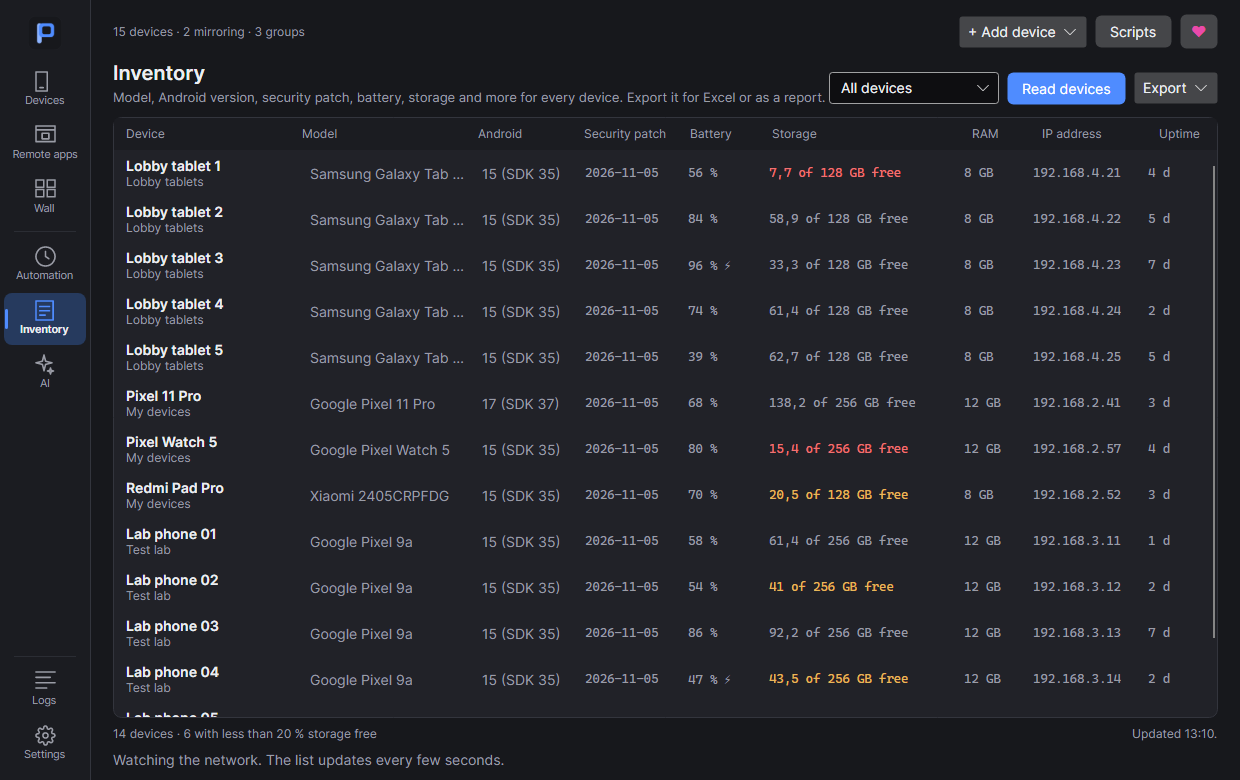
- Inventory: model, Android version, security patch, battery, storage, RAM, address and uptime of every device. Export it as CSV for Excel or as an HTML report.
AI assistants
- Paneless can be a tool for Claude, Codex, Gemini CLI and other AI apps that support MCP. Ask about your devices, or let the assistant install apps, run scripts or operate a screen. See AI assistants.
Around the app
- Notification-area icon, optional start with Windows, and keyboard navigation (
Ctrl+1–Ctrl+7for pages,Ctrl+,for Settings). - A global shortcut per device (e.g. Ctrl+Alt+P).
- Battery-friendly in the background: slows and pauses battery polling when minimized, shuts down its idle device helper automatically, and disconnects idle Wi-Fi devices after 5 minutes in the tray so phones stay in Android Deep Doze (reconnecting automatically when you open Paneless or launch a shortcut).
- Settings backup & factory reset: export and import your configuration (optionally including saved devices, groups, profiles and remote apps — unlock codes are never exported) or reset to defaults in Settings.
- Automatic updates from GitHub Releases: downloaded in the background and installed when you close Paneless. Can be turned off.
- Share scripts: export one or all of your scripts as a file or to the clipboard; import from a file, the clipboard or a link (e.g. a GitHub Gist). Imported scripts are shown before they're added and ask before running.
- Light and dark mode, following the system theme by default and switching live in Settings.
- English, German and French, following Windows' language or chosen in Settings.
Install
Windows 10 or 11 (64-bit). Download Paneless-<version>-Setup.exe from Releases and run it.
- Installs for your Windows user only, so it needs no admin rights.
- Includes everything it needs: .NET, scrcpy and adb. Nothing else to install.
- Adds Start menu and desktop shortcuts, and an entry under Settings › Apps › Installed apps to uninstall it.
There's also a portable zip if you don't want to install it.
Windows SmartScreen may warn about an unknown publisher, because the installer isn't code-signed yet. Click More info › Run anyway. All release binaries are built publicly by GitHub Actions with SHA-256 checksums and build provenance attestations attached—or you can build from source in two commands.
macOS and Linux builds are planned: the code is already cross-platform thanks to Avalonia, but those builds aren't packaged or tested yet.
First use
On each device, once:
- Settings › About phone, tap Build number 7 times to unlock developer options.
- Choose how you want to connect:
- Over USB (Android 5+): under Settings › System › Developer options, turn on USB debugging, plug the device into your PC, and tap Allow on the prompt. You can also right-click the device › Switch to Wi-Fi to unplug the cable afterwards.
- Over Wi-Fi (Android 11+): under Developer options, turn on Wireless debugging, then in Paneless click + Add device › Pair with a code, tap Pair device with pairing code on the device, and enter the 6-digit code.
From then on, plugged-in USB devices appear immediately, and paired Wi-Fi devices appear whenever Wireless debugging is on on the same Wi-Fi. Android 17 turns wireless debugging back on by itself on trusted networks.
Using Paneless
| To… | Do this |
|---|---|
| Mirror a device | Double-click it, or select it and press Mirror / Enter |
| Mirror several | Ctrl- or Shift-click them, then Mirror |
| Mirror a whole group | Mirror all on the group's heading |
| Unplug a USB device and keep mirroring | Right-click › Switch to Wi-Fi (or More › Switch to Wi-Fi) |
| Make or edit groups | Groups…, or right-click devices › Move to group |
| Change settings for one device | Right-click › Device settings… (a group: its ⋯ › Group settings…) |
| Run a command on devices | Run script… (on a group: its ⋯ menu) |
| Run something every time a device connects | Device settings › When it connects |
| Install an app | Drop the APK on a device or group, or More › Apps… |
| Turn the camera picture | It follows the phone; Alt+← / Alt+→ in the camera window turn it by hand |
| Repeat your taps on a group | Toolbar › Group control |
| Set up new devices the same way | Automation › Recipes, then Run recipe |
| Restart devices every night | Automation › Scheduled tasks › + New |
| Get told about low batteries or crashes | Automation › Alerts |
| Use an Android app like a PC program | Remote apps › Add an app…, then Open or Create shortcut |
| Browse files and photos on a device | Right-click › Files and photos… (or More › Files and photos…) |
| Toggle Dark mode, DND, volume or media | Right-click › Quick controls… (or More › Quick controls…) |
| Sync clipboard, photos or 2FA codes | Device settings… (or Group settings…), tick the sync options you want |
| Pop the phone's current app into a PC window | Right-click › Pop out current app (or the mirror toolbar) |
| Ring & flash a misplaced phone | Right-click › Locate device (also on the Wall) |
| See every screen at once | Wall |
| Find out why an app crashes | Logs (at the bottom of the left bar), then Crashes only |
| Get a list of all devices for Excel | Inventory › Read devices › Export |
| Share a script | Scripts, select it, Share (to add one: Import) |
| Back up or reset Paneless settings | Settings › Backup and reset |
| Switch pages with the keyboard | Ctrl+1–Ctrl+7 for pages, Ctrl+, for Settings |
| Switch light / dark mode | Settings › Appearance (follows the system theme by default) |
| Change the language | Settings › Language, then restart Paneless |
Where your data is (Windows): %LOCALAPPDATA%\Paneless.
known-devices.json,settings.json,groups.json,profiles.json,scripts.json,keymaps.jsonrecipes.json,schedules.json,alerts.jsonremote-apps.json, and the apps' icons inremote-apps\unlock-codes.json, encrypted (see below)
Screenshots and recordings go to Documents\Paneless. Logs, including what AI assistants did, are in %TEMP%\paneless.
Remote apps
Use Android apps like programs on your PC, the way Windows' RemoteApp works over Remote Desktop: each app opens in a window of its own, without the rest of the phone around it.
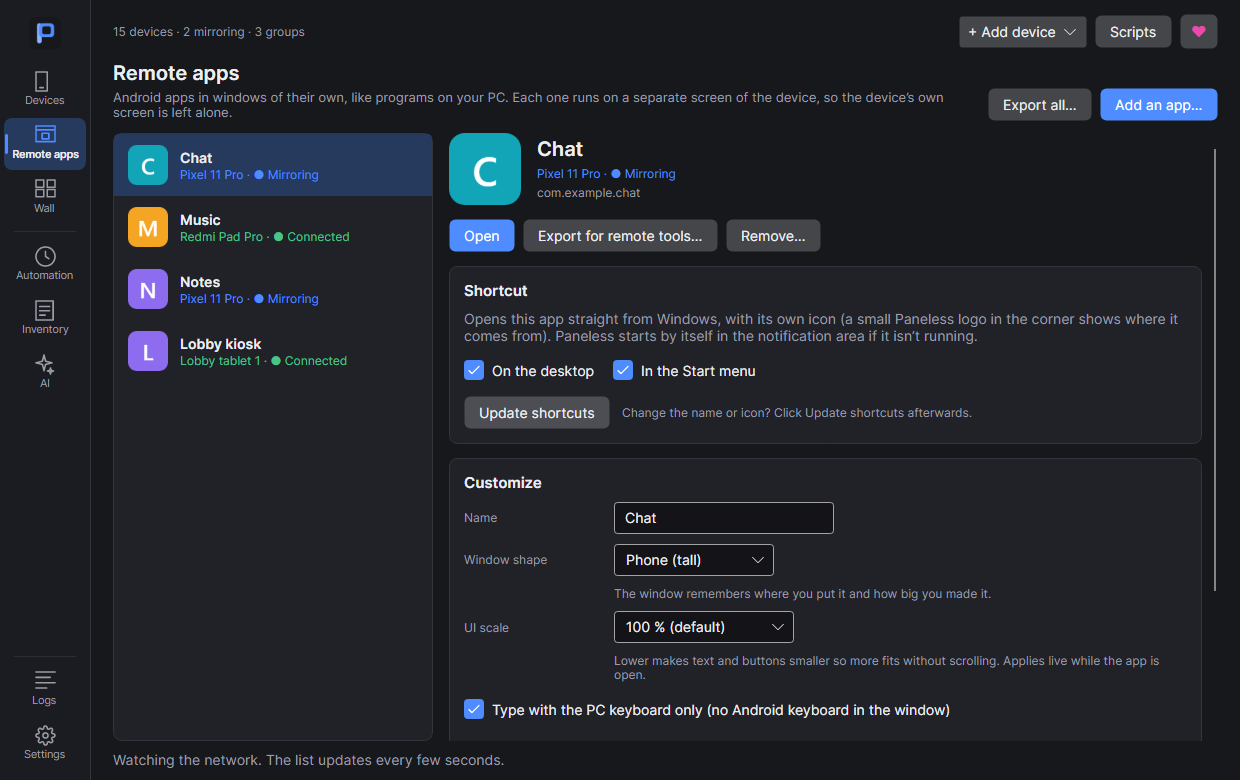
- Open the Remote apps page and click Add an app… (or, in a device's app manager, Add to Remote apps).
- Pick the device and the app. Paneless reads the app's name and its real icon from the device.
- Click Open, or double-click it. Click Create shortcut for one on the desktop and in the Start menu.
- One window per app. It runs on a separate virtual screen of the device, so the device's own screen is left alone (and can stay off). Right-click in the window goes back.
- Looks like the app: the window and its taskbar button have the app's name and icon. Pin it to the taskbar like any program.
- Shortcuts use the app's icon with a small Paneless logo in the corner, so you can tell where they come from. They start Paneless by itself (in the notification area) if it isn't running, and keep working when the device's IP address changes or Paneless updates.
- Remembers its window: size and place, per app. Choose a phone or tablet shape, or your own size.
- PC keyboard only: Android's on-screen keyboard stays out of the window (can be switched off per app).
- The device is unlocked first if you saved its PIN.
- Keeps showing when you lock the device: the app window stays live while the device is locked and its own screen is off (Settings › Keep app windows on when locked, on by default). Without it, some devices (e.g. Pixels with Android 17) turn the window black a few seconds after their screen goes off.
What Android doesn't allow: apps that block screen capture (banking, some video apps) show a black window, an app can only be open in one place at a time (opening it on the PC takes it off the phone's screen), and there's no sound per app. A few apps don't like a second screen and jump back to the phone.
App icons, Files & photos, Quick controls, clipboard sync, fast Wall captures and semantic UI trees are powered by a small helper (paneless-helper) that Paneless pushes to /data/local/tmp and runs over a local ADB socket (just like scrcpy's own server). It installs no Android app, holds no wakelocks, and shuts itself down automatically after 2 minutes idle (60 s on watches) whenever no background sync watcher or open tool window needs it.
AI assistants
Paneless can be a tool for AI assistants through MCP, the open standard many AI apps use. Your assistant can then answer questions like "Which of my devices have less than 20 % battery?" or do things like "Install this APK on the Test lab group".
Works with:
| App | How to connect |
|---|---|
| Claude Desktop | Add to Claude Desktop, then restart it |
| Claude Code | run the command shown once in a terminal (claude mcp list verifies) |
| Codex (CLI, editor extension, Codex in the ChatGPT desktop app) | Add to Codex, or run the command shown |
| Gemini CLI | Add to Gemini CLI, then start a new session (/mcp lists Paneless) |
| Cursor | Add to Cursor (writes ~/.cursor/mcp.json), then reload MCP servers |
| Other MCP apps (VS Code, LM Studio, …) | copy the settings shown (in VS Code, use Ctrl+Shift+P › MCP: Add Server) |
ChatGPT and Gemini in a web browser can't reach programs on your PC, so they can't use Paneless.
- In Paneless, open the AI page and switch on AI assistants may use Paneless.
- Pick your app under Connect an assistant and follow the step shown. (If you use the portable zip, keep the folder in one place—its path is saved in your AI app's config.)
- Decide what assistants may do, for all devices or per group and device:
| Level | Assistants may… |
|---|---|
| Nothing | not see the device at all |
| Read | see status, battery, apps, remote apps, running apps, files list, clipboard, controls/media state and the log |
| See | also take screenshots and inspect the semantic UI tree (read_ui_tree, with password fields redacted) |
| Control | also tap/swipe/type, act on UI elements by label (ui_action), open apps / remote apps / URLs, hand off apps between displays, set clipboard, toggle quick controls/media, locate device, and unlock/lock using your saved code (never revealed to the assistant) |
| Manage | also install and remove apps, pull/copy files, run scripts, recipes and commands, restart |
By default assistants may only read, and Paneless asks you before one changes anything, naming the app that asks (Allow once, Allow for 15 minutes or Don't allow). Pause refuses everything until you resume, and the page lists what each assistant did. Paneless never gives an assistant your unlock codes, and marks every tool with standard MCP readOnlyHint / destructiveHint annotations.
What you can ask:
- "Which of my devices have less than 20 % battery?"
- "Unlock the Pixel, open Settings and turn on dark mode, then lock it again."
- "Install
C:\Builds\app.apkon the Test lab group." - "Ring my Pixel so I can find it, or pull the latest screenshot from
DCIM/Screenshots." - "Why does my app crash on the tablet? Read its log."
Paneless runs as a standard local stdio MCP server (Paneless.exe --mcp). Most MCP clients accept:
{
  "mcpServers": {
    "paneless": {
      "command": "C:\\Users\\<you>\\AppData\\Local\\PanelessApp\\current\\Paneless.exe",
      "args": ["--mcp"]
    }
  }
}
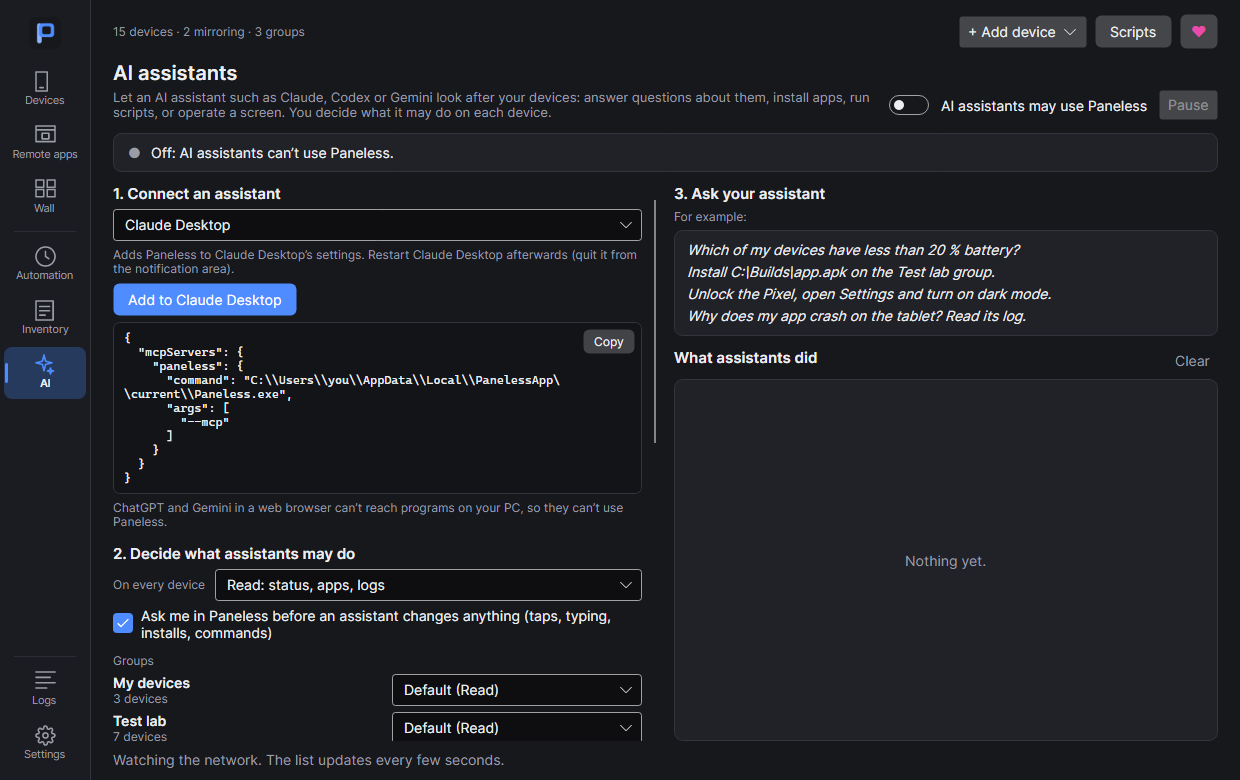
Paneless has to be running (it starts in the notification area by itself when an assistant needs it). The connection stays on your PC: the AI app talks to Paneless through a local pipe only your Windows account can open.
Privacy and security
- Local only. Paneless talks to your devices over your own network with adb, scrcpy and its local in-RAM helper (no APK installed, no wakelocks, auto-stops when idle). It sends nothing anywhere else, with two exceptions:
- Update checks ask GitHub for the newest release (switch off in Settings › Updates).
- If you connect an AI assistant, what it reads through Paneless (device facts, logs, screenshots, UI tree) becomes part of your conversation with that AI service. Only the devices and levels you allow are visible to it.
- Unlock codes are encrypted with Windows DPAPI, the protection Credential Manager and browsers use. Only your Windows account on this PC can read them (on macOS the keychain, on Linux the Secret Service).
- A code is typed only after Paneless confirms the device is locked and its lock screen is in front.
- One failed try pauses auto-unlock for that device.
- Unlock codes are never included in Settings backups and never revealed to AI assistants.
- Wireless debugging gives full control of a device to any computer you paired. Only pair computers you trust, and turn it off on networks you don't.
- Found a vulnerability? Please see SECURITY.md.
Troubleshooting
A device doesn't show up- Wireless debugging must be on, and the device on the same network as the PC.
- Some routers and VPNs block local-network discovery (mDNS). Use + Add device › Connect by address with the IP:port shown under Wireless debugging.
- After a reset of Wireless debugging, pair the device again.
Unlock the device and accept the debugging prompt ("Always allow from this computer").
The mirror is choppyIn Settings (or Device settings), lower Max size or Bit rate, or try H.265. 5 GHz Wi-Fi helps a lot.
The camera turns off when the phone rotatesSome phones (e.g. Pixels) cut a camera off when they rotate. Paneless reopens it by itself, turned to match, in the same place.
Where are the logs?%TEMP%\paneless: one log per mirror window, on-connect.log for automatic scripts, and errors.log for unexpected errors. Please attach the relevant one to bug reports, after checking it for anything private.
Building from source
Requirements: the .NET 10 SDK and Windows 10/11 for the installer.
git clone https://github.com/Stiviemain/paneless.git
dotnet run --project paneless/src/Paneless.App
For running from source, scrcpy must be installed, e.g. with winget install Genymobile.scrcpy. The installer build bundles it.
To build the installer: powershell -File build.ps1, which writes releases\PanelessApp-win-Setup.exe. Architecture, test flags and the release process are in docs/DEVELOPMENT.md. Contributions are welcome; see CONTRIBUTING.md.
Support Paneless
Paneless is free and open source, and stays that way. If it saves you time, you can support its development:

Ko-fi: a one-off "coffee" or a monthly membership, no account needed.
Not into donating? A ⭐ on the repo, a bug report or telling a friend helps just as much. The links are also in the app: the ♥ button in the main window, and Settings › Support Paneless. Paneless never asks by itself.
Credits and license
Paneless is MIT licensed. It stands on the shoulders of:
- scrcpy by Genymobile and Romain Vimont, which does the actual mirroring;
- Android's adb;
- Avalonia, the UI framework every window is built with;
- CommunityToolkit.Mvvm and Velopack (installer and updates).
Their licenses are listed in THIRD-PARTY-NOTICES.md.
Paneless isn't affiliated with Google, Genymobile, AvaloniaUI or any device maker. Android is a trademark of Google LLC.
Reviews (0)
Sign in to leave a review.
Leave a reviewNo results found