OpenSeesStudio
Health Warn
- License — License: NOASSERTION
- Description — Repository has a description
- Active repo — Last push 0 days ago
- Low visibility — Only 5 GitHub stars
Code Fail
- exec() — Shell command execution in app/dialogs.py
Permissions Pass
- Permissions — No dangerous permissions requested
No AI report is available for this listing yet.
Graphical model generation and analysis GUI for OpenSees, with an MCP server for AI agents
OpenSees Studio

A graphical model generator and analysis GUI for OpenSees, built with Python,
PySide6 and OpenSeesPy. It covers the complete workflow: model generation, supports and
constraints, nonlinear frame members, bearings/isolators/dampers, load cases and
combinations, static and modal analysis, pushover, time history, response spectrum,
bridge live-load envelopes and result review. The interface uses a ribbon with
task tabs, command groups and group captions, and the installer also includes an
MCP server so AI agents can drive the model.
Latest release: 1.0.14 - Bridge live load in the Tools tab: CL-625,
BCL-625 and custom trucks, lanes, DLA, shear/moment/deflection envelopes,
reactions and influence lines from a beam influence-line engine.
Download the installer
or read the 1.0.14 release notes.
Install on Windows
- Open the link above (or Releases on the right side of this page) and click
OpenSeesStudio-...-Setup.exeunder Assets. Do not download theSource code (zip)orSource code (tar.gz)files. - Open the downloaded file from your Downloads folder.
- If Windows shows "Windows protected your PC", click More info, then
Run anyway. The installer is not code-signed yet, so Windows asks once. - Click Next, choose whether you want a desktop shortcut, then Install.
- Start OpenSees Studio from the Start menu or the desktop shortcut.
Requirements: Windows 10 or 11, 64-bit. Python is not needed and no administrator
password is required — the app installs for the current user in%LOCALAPPDATA%\Programs\OpenSees Studio.
To remove it, use Settings > Apps > Installed apps > OpenSees Studio > Uninstall
or "Uninstall OpenSees Studio" in the Start menu.
The installer also contains the MCP server for AI agents; see
MCP server.
Units
The model is stored and solved in kN, mm, tonne, s. The default display units are
kN and m. The status bar at the bottom right has two selectors that change the units
used for input, tables and results without changing the stored model:
- Force: kN, N, kip, lbs
- Length: m, mm, in, ft
Moments, stresses, densities, section properties and distributed loads follow from the chosen
pair (for example moment in kN·m, stress in N/m², distributed load in kN/m). Project files,
Tcl export and the MCP server always use the base units below, so switching the display units
never changes the analysis.
| Quantity | Base unit |
|---|---|
| Length | mm |
| Force | kN |
| Moment | kN·mm |
| Stress / E | kN/mm² (1 kN/mm² = 1000 MPa) |
| Density | t/mm³ (steel 7.85e-9) |
| Distributed load | kN/mm (10 kN/m = 0.01 kN/mm) |
Self weight is computed as ρ · A · g with g = 9806.65 mm/s².
Design tools
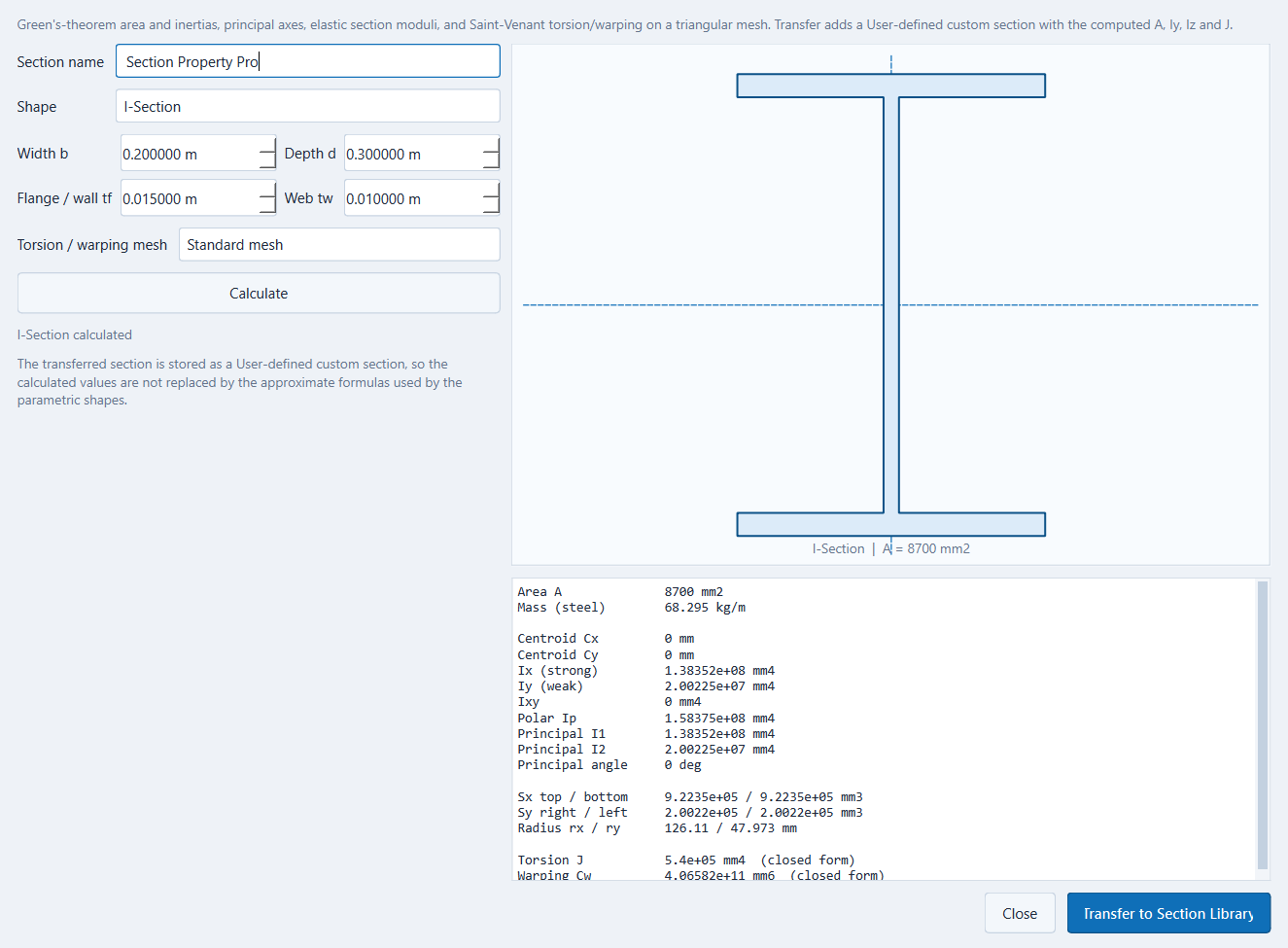
Tools > Section Properties is the Section Property Pro calculator. It handles
I, T, C, L, rectangular, hollow rectangular, open-top box, solid circle, pipe,
hexagon, octagon, double-angle, double-channel and octagon-with-hole shapes.
Area, centroid, strong/weak inertias, product and principal inertias, section
moduli, radii of gyration, torsion constant J and warping constant Cw are
computed from a Green's-theorem polygon engine and, where no closed form exists,
a triangular Saint-Venant finite-element solve. Transfer to Section Library
adds the result as a User-defined custom section with A, Iy, Iz and J populated,
and stores the calculated outline for the section preview and 3D view.
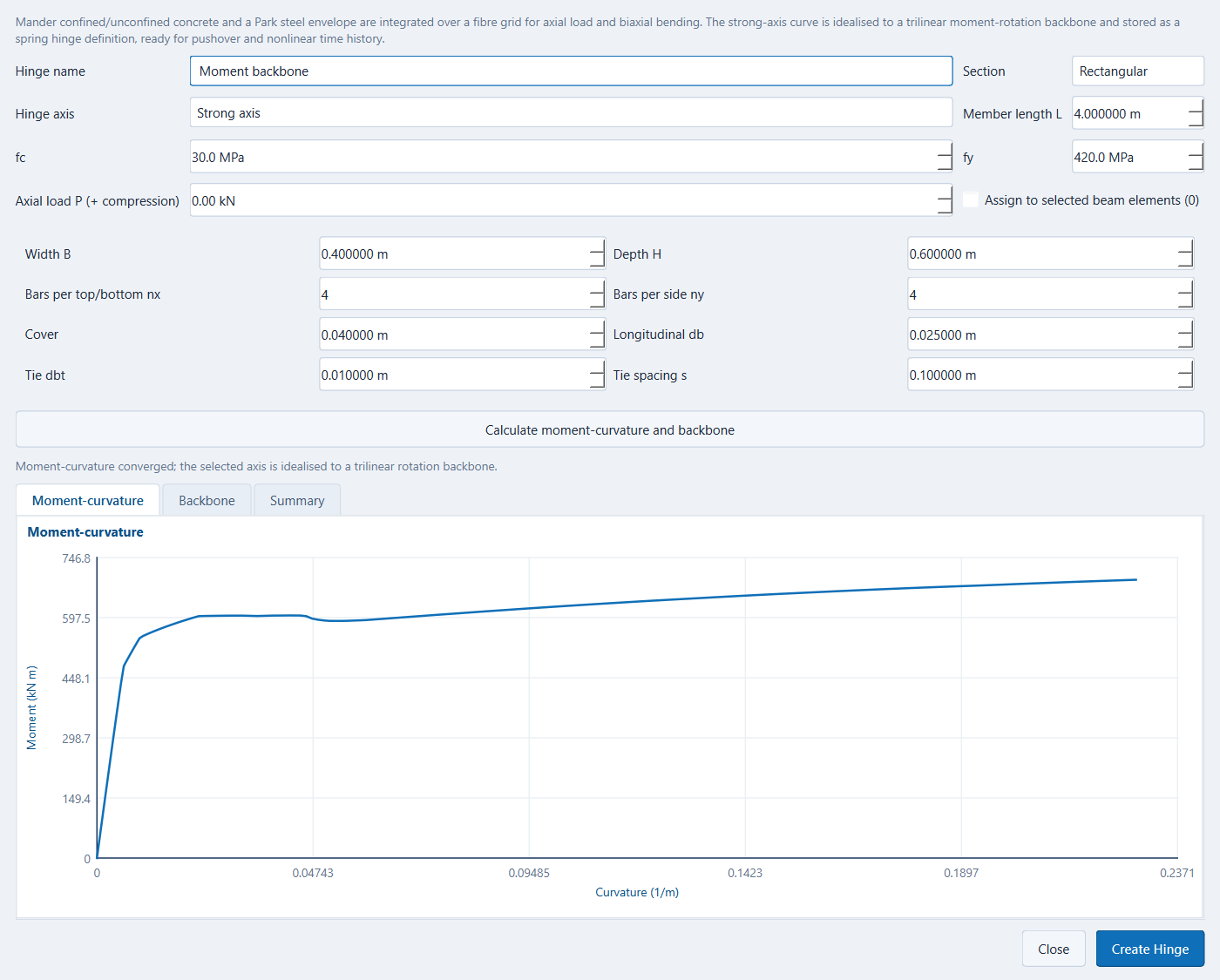
Tools > Moment Curvature is the Moment Curvature Pro calculator. It supports
rectangular and circular reinforced-concrete sections with cover, longitudinal
bars, ties, axial load and member length. Concrete uses the Mander confined and
unconfined envelopes, steel uses the Park envelope, and the section is integrated
over a fibre grid for strong-axis and weak-axis behaviour. The tool reports
yield, peak and ultimate moments, rotations, curvature ductility, the confined
strength/strain and the plastic hinge length.
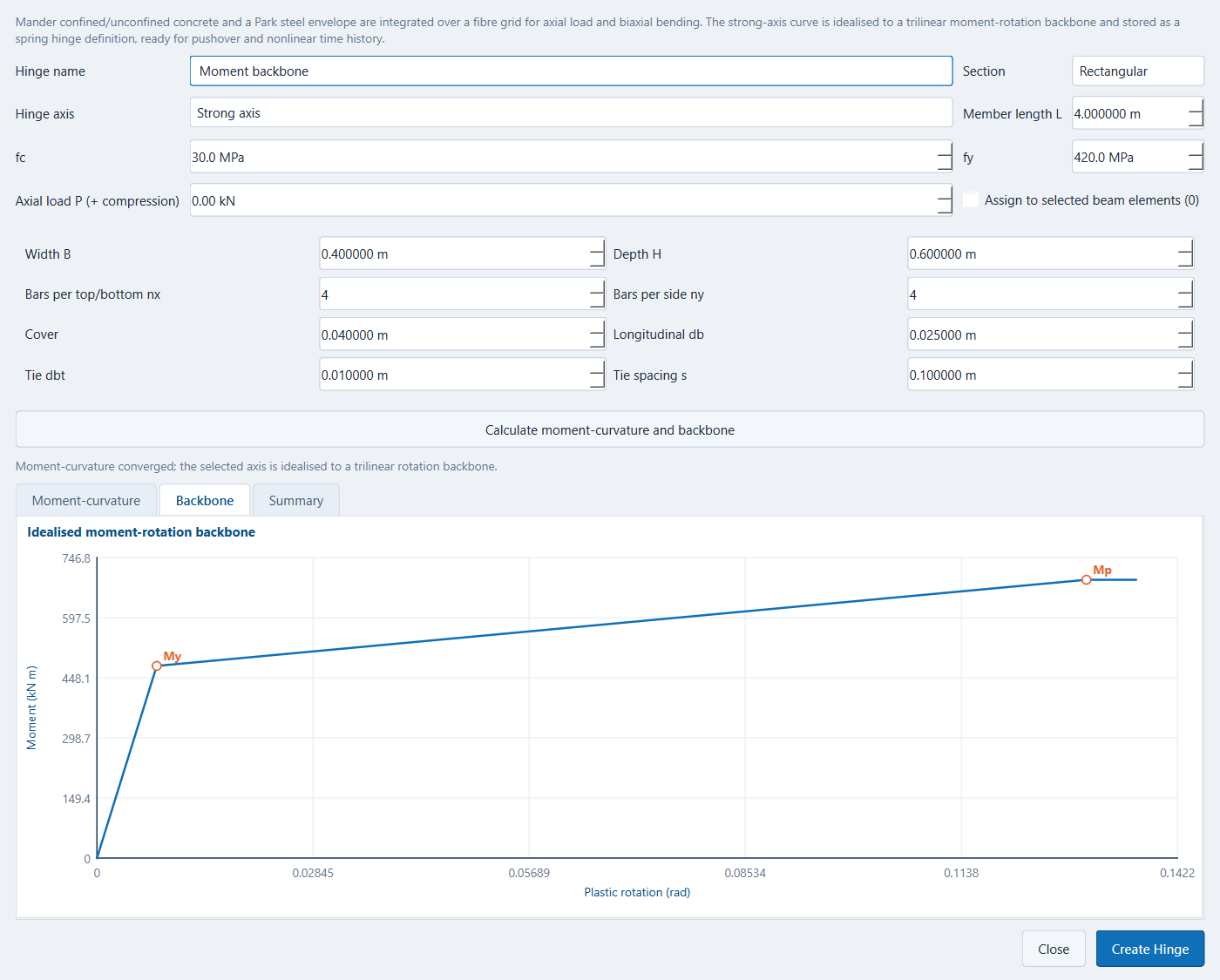
The calculated curve is idealised to a trilinear moment-rotation backbone. Create
Hinge stores it as a MomentBackbone hinge definition; the same tool can assign
it directly to the selected beam elements. MomentBackbone definitions build
rotational zeroLength spring hinges at both member ends, so they are used by
pushover and nonlinear time history. The same backbone is applied to both local
bending axes and torsion remains elastic. The other moment-rotation library
materials remain reference-only until they receive a stored backbone.
Bridge live load
OpenSees does not provide a built-in truck/lane moving-load or influence-line
module, so the Tools tab includes a bridge live-load analyser built on the
influence-line engine from the Live Load Analyzer for Bridges. It analyses a
continuous Euler-Bernoulli beam with pinned vertical supports at every span
boundary and continuous rotations, using a single beam-FEM factorization and
four unit-load influence solves per element.
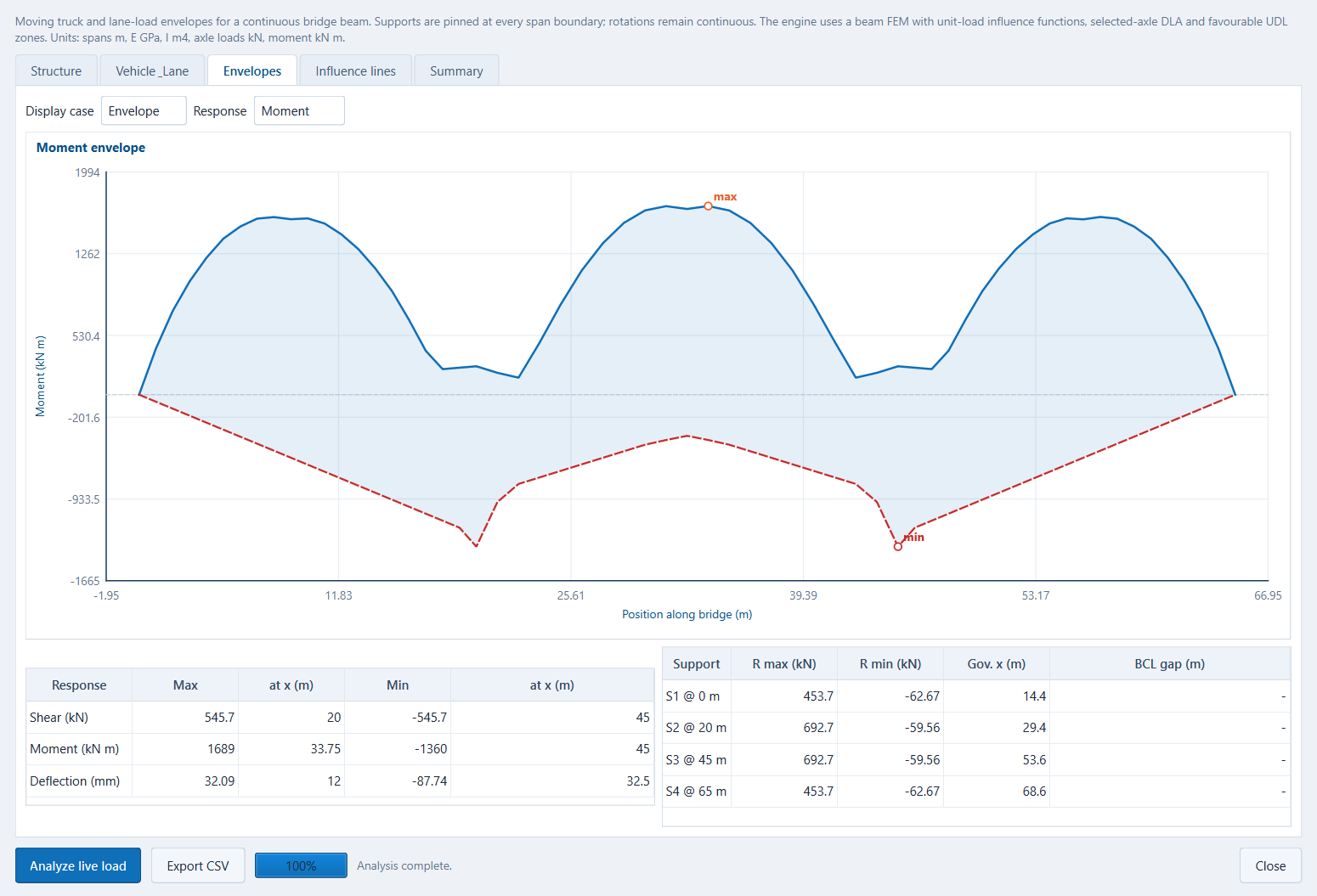
- Structure: add/remove spans, set E, I, elements per span and the truck
sweep increment, or import the spans and mean E/I from a selected beam chain
in the 3D model. - Vehicle and lane: CL-625, BCL-625 (variable axle 3-4 spacing from 6.6 m to
18 m) or a custom vehicle/train with 1-20 axles; lane name, lane UDL, DLA
mode and DLA multiplier d. - Load cases: Truck only, Lane load (80% truck plus favourable lane UDL
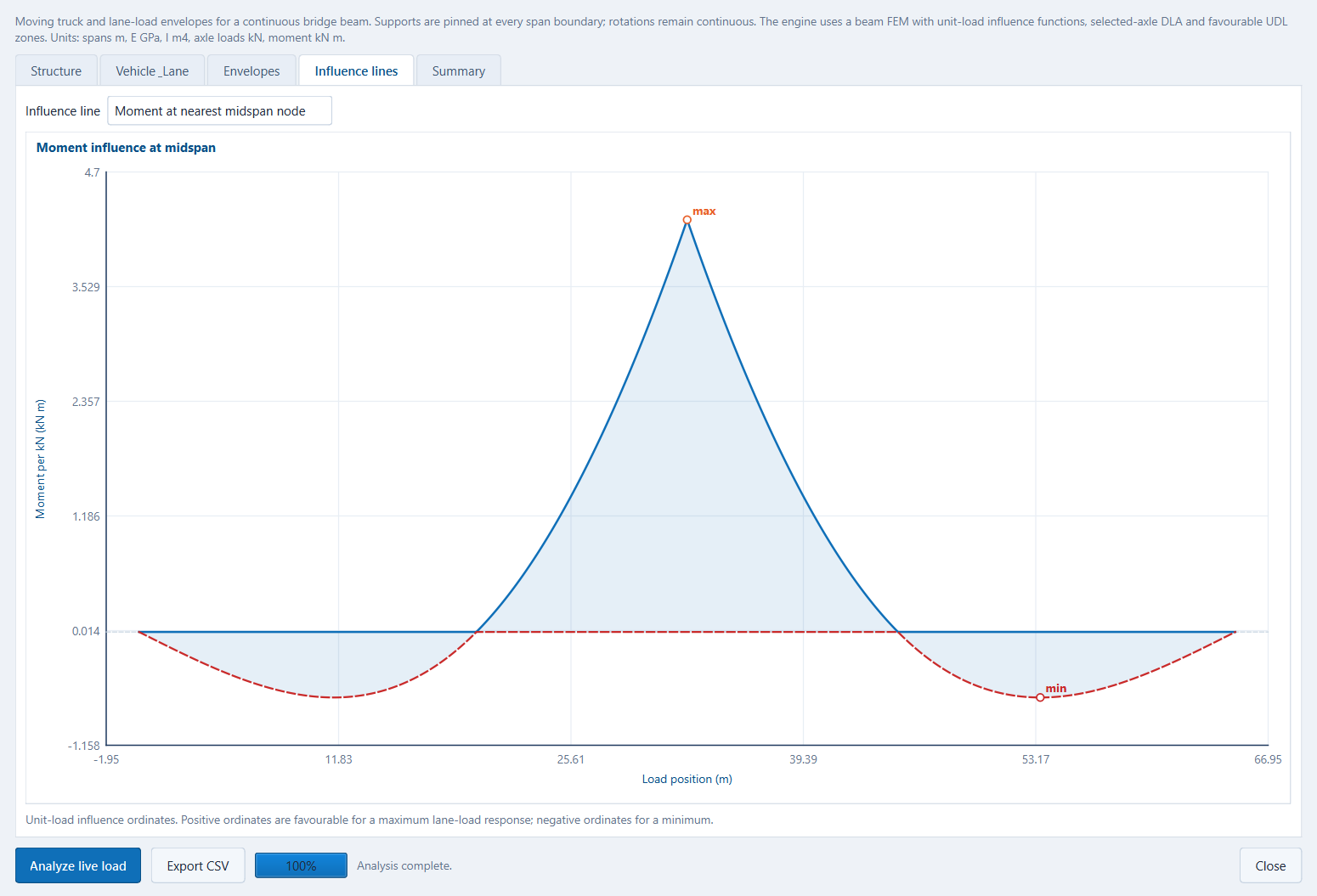
zones without DLA) or Envelope. - Results: shear, moment and deflection max/min envelopes with governing
positions; support reaction maxima/minima and governing lead positions;
unit-load influence lines; summary diagnostics and CSV export.
The truck is swept in both axle orientations. Auto DLA uses the selected-axle
40/30/25% groups; a manual override and the d multiplier are also available.
The analyser is a moving-load envelope tool, not a time-history vehicle run.
For design use, match the bridge properties, lane rules and load factors to the
project specification and obtain engineering review.
Features
Interface
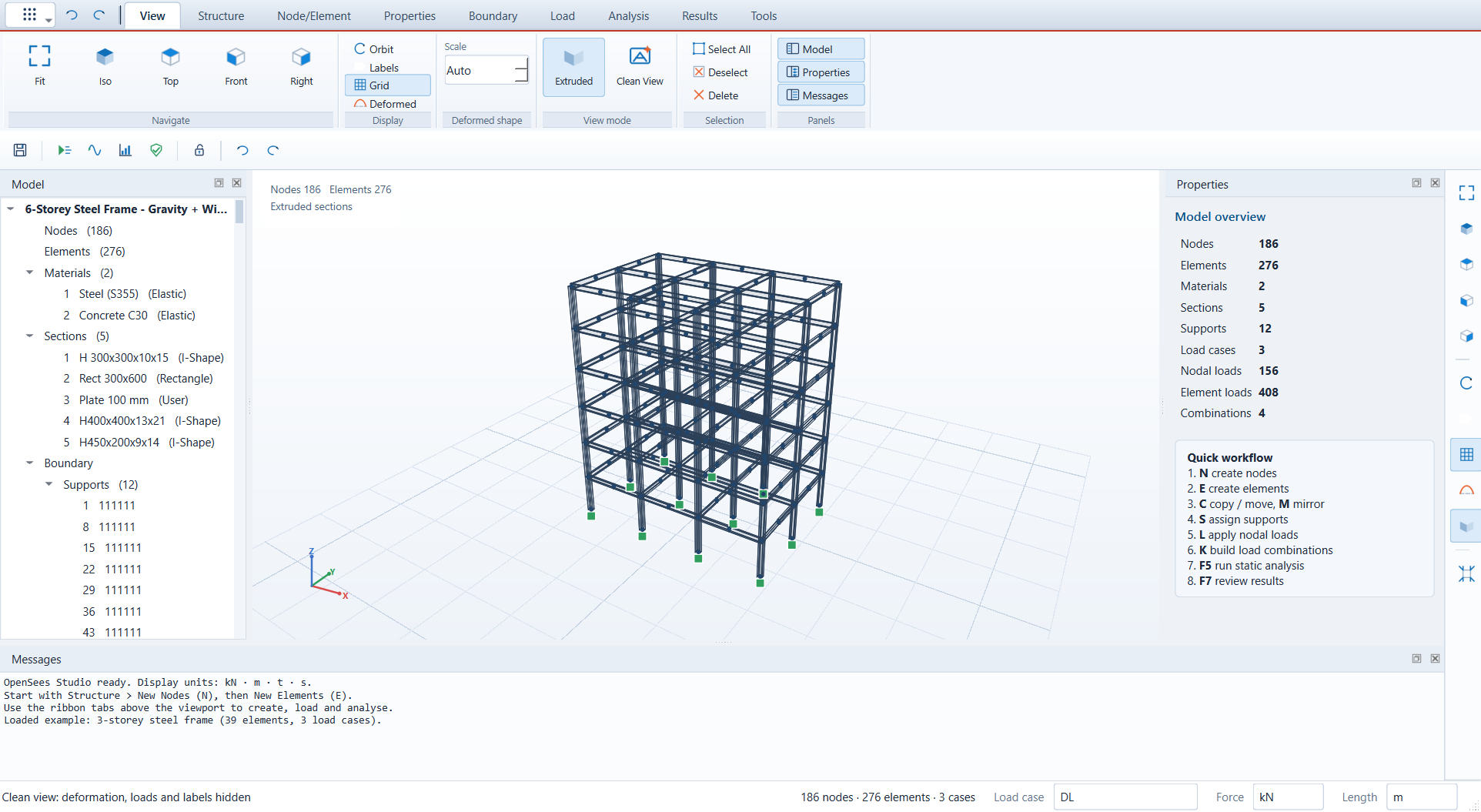
- Ribbon tabs (View, Structure, Node/Element, Properties, Boundary, Load, Analysis,
Dynamic, Pushover, Results, Tools, Help) with command groups and captions. - Quick horizontal command strip (save, run, results, check, lock, undo/redo) and a
vertical view strip (fit, iso, top, front, right, orbit, node labels, element
labels, grid, deformed, extruded). Right-click either toolbar or use
View > Panels > Toolbars to add, remove and reorder favourite buttons. - Update badge in the top-right corner of the ribbon appears only when a newer
GitHub release with a Setup installer exists; click it to download the installer. - About shows the current application version.
- Model and Messages panels are shown by default; the Properties panel is hidden by
default and can be opened from View > Panels. - Run Analysis (F5) opens a run-control checklist: static, modal, pushover, time
history and response spectrum, with unavailable analyses disabled and explained. - Materials, sections and hinges can be dragged from the model tree onto the viewport
and are applied to the selected elements. Right-click a tree header to add new
materials, sections, hinges, cases or combinations. - Right-click a node or element in the viewport for Show details, Edit
properties, table and delete actions. - Help tab with Quick Start, a FAQ, About, and links to the official
OpenSees wiki and documentation. - Clean View hides deformation, loads and labels for a plain structural view.
It is on the vertical sidebar on the right. - Extruded mode draws beams and columns with their real section sizes. The View
tab also has separate visibility switches for links/constraints, supports, labels
and nodes.
Structure
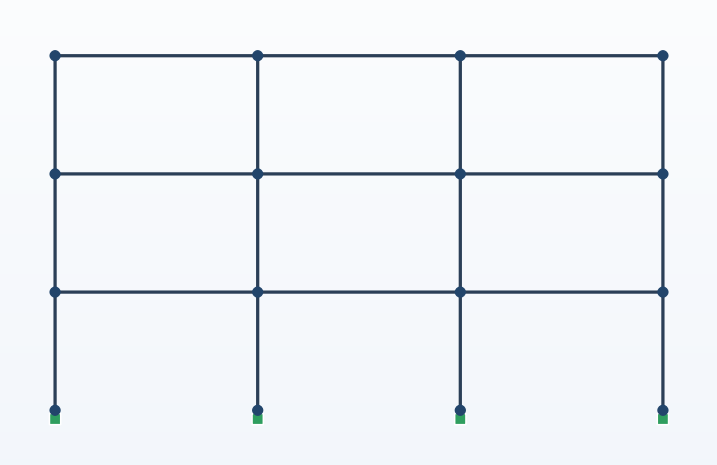
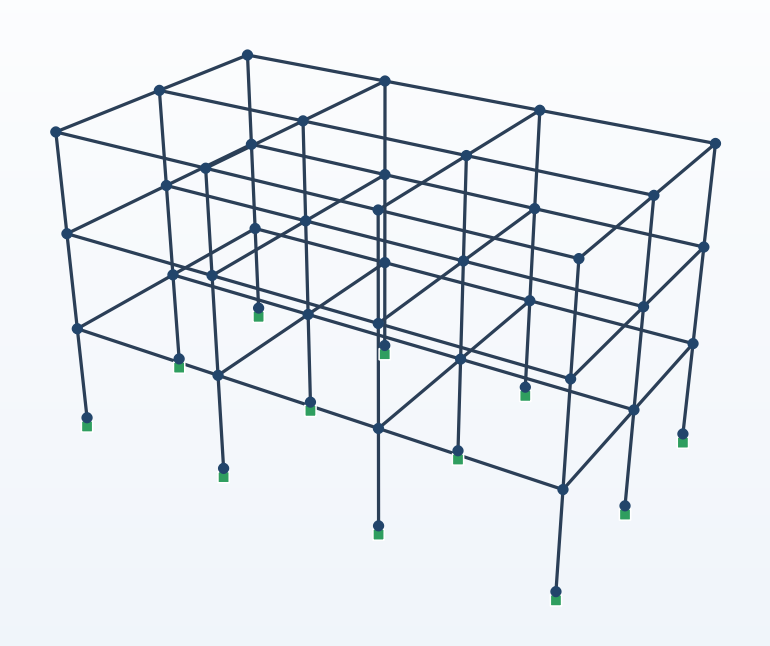
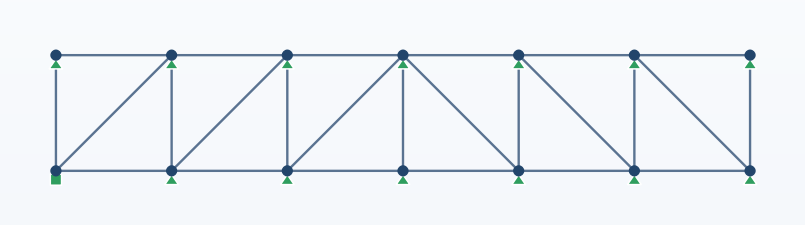
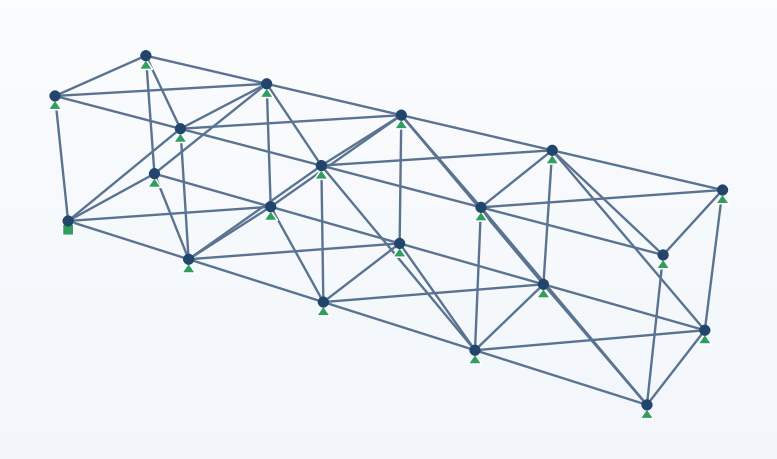
- Structure tab wizards generate complete models: 2D Frame, 3D Frame,
2D Truss, 3D Truss, and a multi-span Girder Bridge grillage with
longitudinal girders, transverse cross beams, pier supports and self weight.
Each wizard takes bays/panels, dimensions, spans, material and sections from the
project libraries and asks before replacing an existing model. - Create nodes by coordinates, with repetition and spacing.
- Create beams (
elasticBeamColumn), standard/tension-only/compression-only
trusses, tension-onlycorotTrusscables and 4-node shells (ShellMITC4). - Nonlinear frame members:
forceBeamColumnanddispBeamColumnwith fibre
sections generated from the section outline and material, andLobatto,Legendre,NewtonCotesorRadaubeam integration (2-40 points). - Devices: elastomeric bearings (
elastomericBearingBoucWen), lead-rubber
isolators (LeadRubberX), and viscous or bilinear oil dampers
(twoNodeLink+ViscousDamper/BilinearOilDamper). - Batch Element creates beam/truss/cable/shell elements from a selected node list;
Draw Element opens a side panel with material and section lists and draws
beams by clicking from node to node (the end node becomes the next start). - Activate shows only the selected nodes/elements, Deactivate hides the
selected items, and Activate All restores the full view. The same three
buttons are on the horizontal toolbar below the ribbon. - Chain creation: give a list of nodes and beams/trusses are created between consecutive nodes.
- Copy / move with a translation and repeat count; attached elements are duplicated.
- Subdivide selected beam, frame or truss elements into a user-defined number of equal
segments; intermediate nodes and element loads are carried over automatically. - Mirror about the XY, XZ or YZ plane at any coordinate, with or without keeping
the original. The plane is previewed in the viewport while the dialog is open. - Supports: fixed, pinned, roller Z, or any combination of 6 DOF. The model tree
groups identical restraint patterns and shows their count, for example1,1,1,1,1,1 (6); double-click a group to select its nodes. The supports table
separates restrained and collapsible unrestrained groups, and restraint cells are
restricted to 0 or 1. - The model tree supports Ctrl multi-selection; double-click or use the right-click
menu to act on every selected material, section, support group or load case. - Point springs (
zeroLength): linear Elastic stiffness, multi-linear
force-deformation (MultiLinear), and PySimple1 p-y springs for piles.
Linear/multi-linear springs can be standard, tension-only or
compression-only; springs are drawn at the node and connect to an
automatically fixed ground point. - Truss behaviour: standard, tension-only (
TensionOnly) or compression-only
(ENT). Cable elements usecorotTrusswithTensionOnly. - Constraints:
rigidLinkbeam/bar,equalDOF, andrigidDiaphragm, created
from selected master/slave nodes and listed in the model tree. - The full OpenSees element/constraint inventory and the planned implementation
sequence are in docs/OPENSEES_TYPES.md.
Template gallery
The Structure tab generates complete models from parameters. These screenshots were
made with the built-in templates:
| 2D Frame | 3D Frame |
|---|---|
 |
 |
| 2D Truss | 3D Truss |
 |
 |
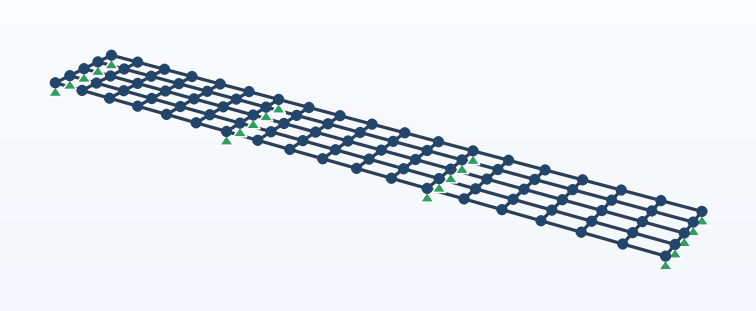
Girder bridge template with three spans, five longitudinal girders and cross beams.
- Material library: Elastic, ElasticPP, Steel02, Concrete02.
- Section library with a standard steel database and custom shapes. The database
contains AISC (USA) and CISC (Canada) W, HP, M, S, rectangular/square hollow,
round hollow and pipe sections with published dimensions and section properties. - Custom shapes: solid rectangle, circle, hexagon, octagon, rectangular hollow,
circular hollow/pipe, I/H section, angle (L), tee (T), and user-defined A/Iy/Iz/J.
Custom properties are computed from the dimensions; standard database values are
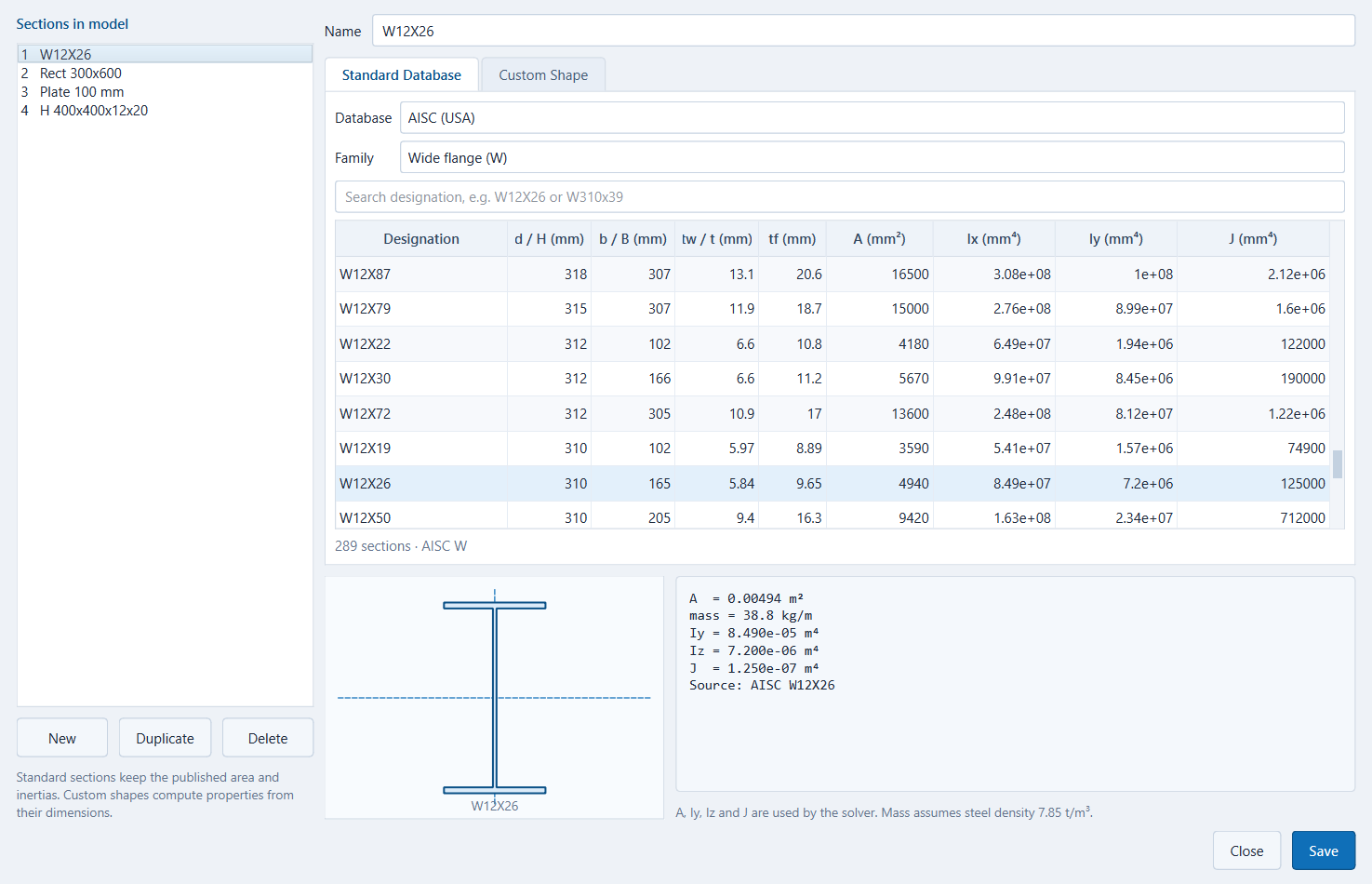
kept exactly as published. - Section dialog with database/family selection, designation search, live preview,
area, mass, Iy, Iz and J. An Add button commits the database or custom section
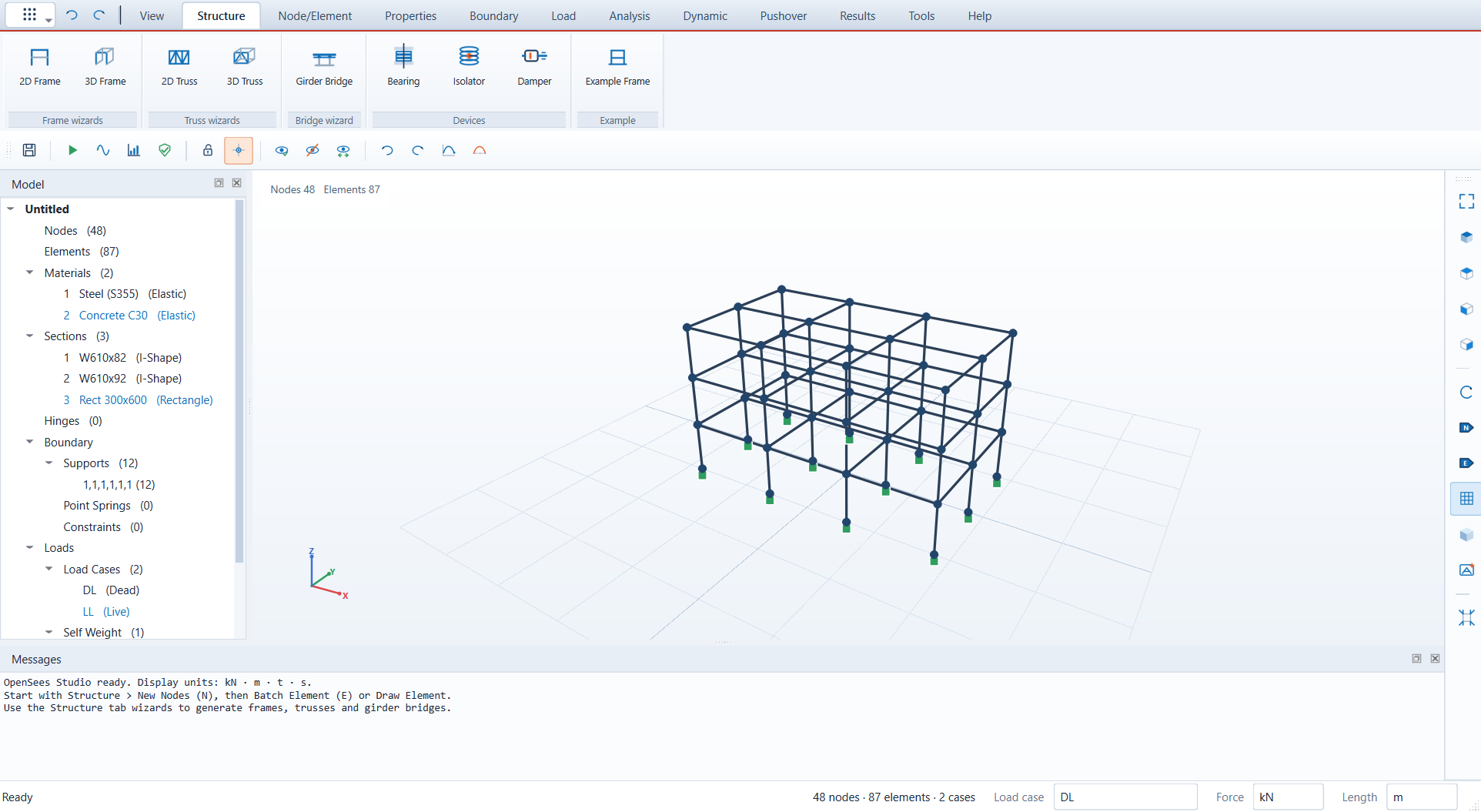
currently shown in the editor to the model list. New projects start with W610x82,
W610x92 and a 300 x 600 mm rectangular section. - Model tree lists materials, sections, supports, load cases and combinations.
Nodes and Elements are table links; clicking them opens their spreadsheet.
Double-click a material or section to select its elements, right-click to delete it. - Load cases appear once per case (not once per load). Double-click a case to select
the loaded elements; right-click for Display, Undisplay, Table and
Delete from a case context menu. - Spreadsheet Tables editor for every entity, with validation and Excel-compatible
copy/paste (Ctrl+C / Ctrl+V). Ribbon table buttons open the tab for their group
(nodes, elements, supports, materials, sections, cases, loads or combinations).
The load table can be filtered to one load case and edits element loads row by row.
Loads
- Load cases (Dead, Live, Wind, Seismic, …), each becomes an OpenSees pattern.
- Nodal forces and moments on selected nodes, a single node, or all nodes.
- Element loads: uniform, trapezoidal (approximated by point loads) and point loads,
in local y/z or global X/Y/Z directions, with automatic local-axis conversion. - Self weight per load case with a factor.
- Load combinations with per-case factors.
- Active load case selector in the status bar; loads are drawn for the active case.
The tree can display several load cases at once, with individual Display /
Undisplay control. Uniform and trapezoidal loads are drawn as UDL envelopes and
point loads are drawn at their exact x/L position.
Analysis and results
- Static analysis (
LoadControl,BandGen, RCM, Linear). - Modal analysis (eigenvalues, periods, frequencies, animated mode shapes).
Modal Settings in the Analysis tab sets the number of modes and the OpenSees
eigen solver; the modal run button is in the Dynamic tab. - Dynamic ribbon tab: manage a project ground-motion catalog (import,
edit, remove, preview), define a catalog-backed or file-backed time-history
case (sine or PEER AT2 / two-column / single-column), optional gravity preload,
and Rayleigh damping from the first mode. - Time-history results: node/DOF displacement, velocity or acceleration plot,
CSV export, and a step slider that updates the deformed shape, beam diagrams
and an element end-force table at every step. - Response spectrum: a user-defined period/Sa table or a 5%-damped spectrum
generated from a catalog record, with SRSS/CQC modal combination, a spectrum
plot and modal mass-ratio table. - File > Close Project returns to an Untitled model without quitting the app.
- Analyses run in a separate OpenSees process with progress and Cancel, so a
solver failure does not take down the GUI. - Mode shapes are available from a dropdown in the Results ribbon tab;
select any mode and use Animate without opening the results table. - Pushover ribbon tab: displacement-controlled nonlinear static analysis with
beamWithHingesfibre hinges or beam-end rotational spring hinges. Use
Define Hinges to create reusable hinge materials and Assign Hinges to
selected beam elements. Hinge definitions are grouped by material family and
use the exact OpenSees names:Steel01,Steel02,Hardening,ElasticBilin,Concrete01,Concrete02,Concrete02IS,Concrete04,Hysteretic,HystereticSM,HystereticSmooth,HystereticAsym,Pinching4,BoucWen,FlagShape,SelfCentering, and moment-rotationMomentBackbone,IMKBilin,IMKPeakOriented,IMKPinching.MomentBackbonedefinitions come from Tools > Moment Curvature and buildzeroLengthrotational springs at both member ends for pushover and nonlinear
time history. Fibre models can use different steel and concrete definitions;
unassigned members stay elastic. The hinge definition dialog provides the
published OpenSees reference diagram, parameter values and definitions.
Results include the capacity curve, step table, hinge rotations/moments,
yielding state and deformed shape per step. - The model tree lists the created hinge definitions under Hinges; double-click
the group or a definition to open the hinge library. Unused materials, sections,
load cases and hinge definitions are shown in blue. - Nodes can be hidden from the viewport using the node button in the View tab
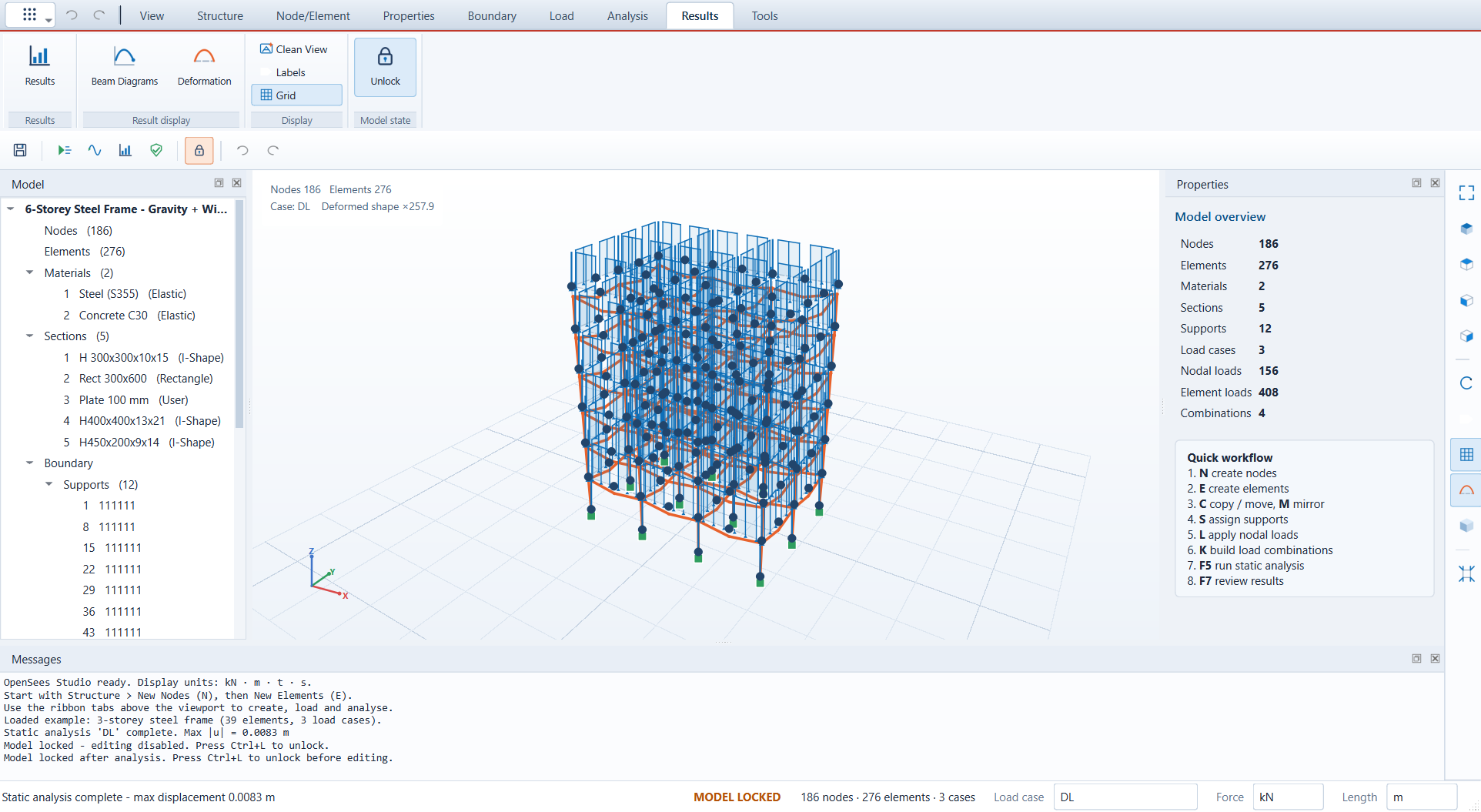
or the horizontal quick toolbar. Analysis results show the deformed shape only;
load diagrams are not forced on after a run. - Model check (
F9) for missing references, zero-length elements, unconnected nodes,
missing supports and missing loads. - Result viewer: displacements, reactions, element forces (N, Vy, Vz, T, My, Mz at both ends),
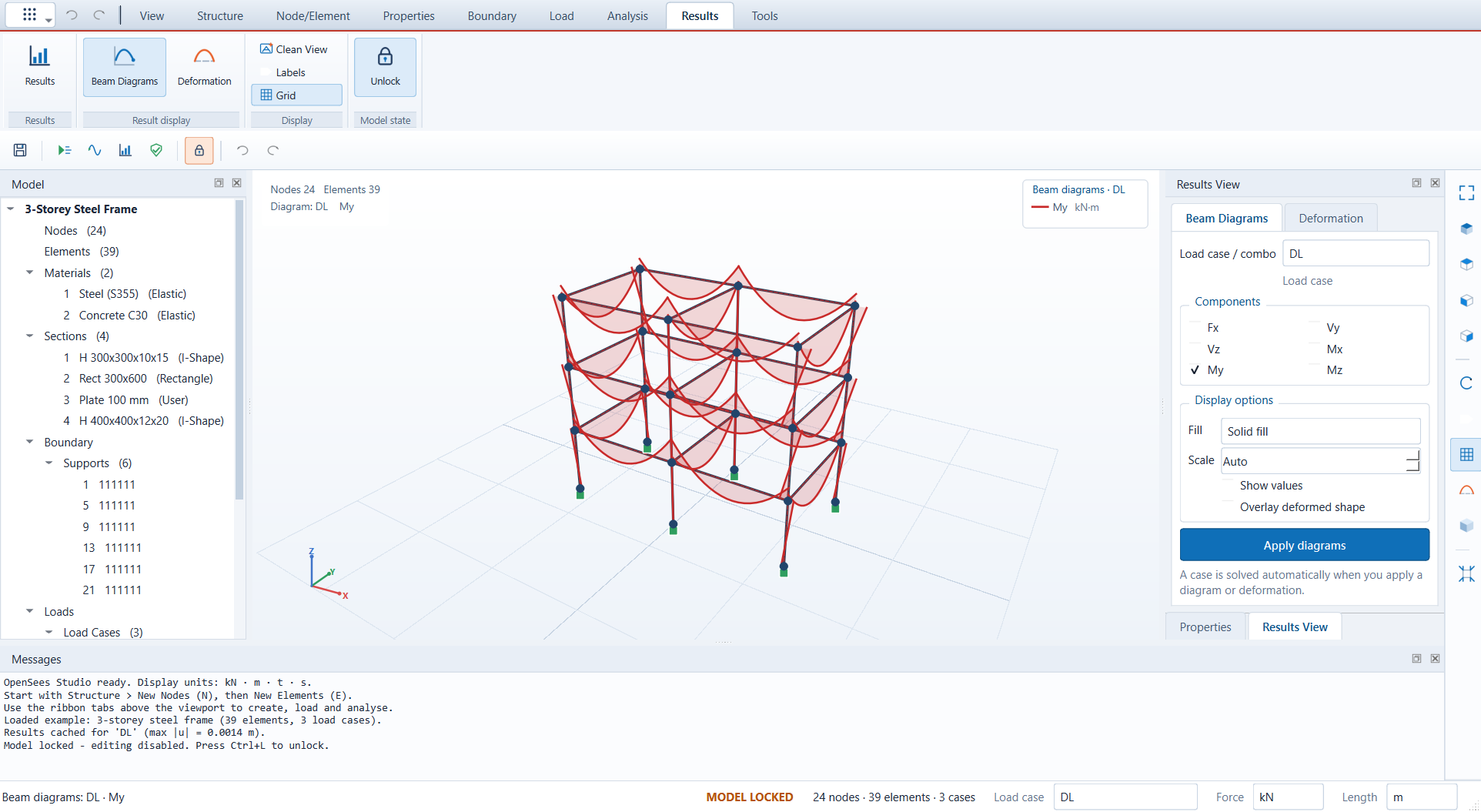
modal periods; CSV export. - Beam Diagrams sidebar: shear Vy/Vz, bending My/Mz, torsion Mx and
axial Fx diagrams for any load case or load combination. Diagrams are computed
along each member from its end forces and applied loads, with fill, scale, value and
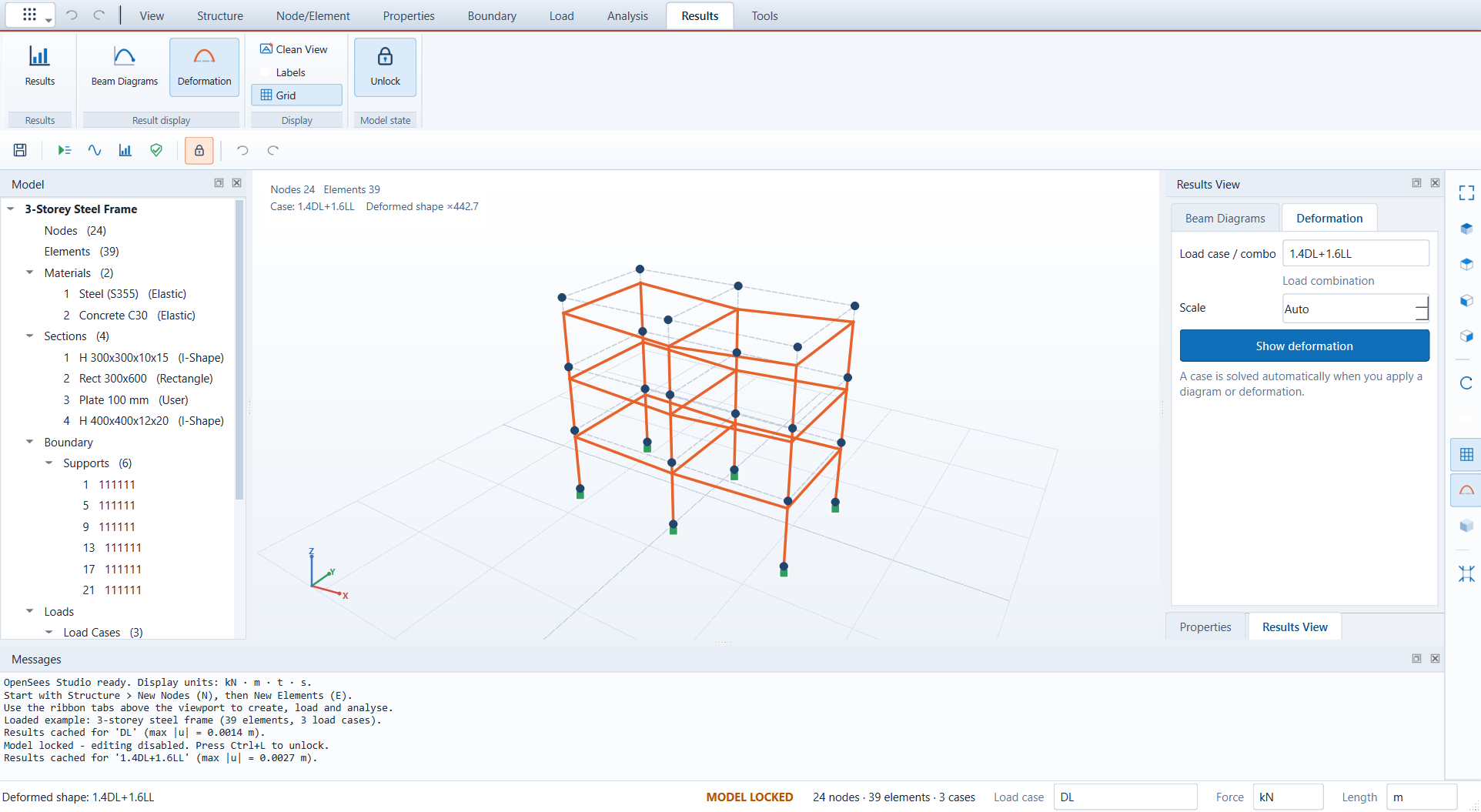
deformed-shape overlay options. - Deformation sidebar: deformed shape for any load case or combination, with an
automatic or manual scale and an optional Show deformation values overlay. The
undeformed shape stays visible as a dashed outline, and small displacement-table
values use scientific notation instead of rounding to 0.00. - Selecting another case or combination in either sidebar solves it automatically and
caches the result, so results can be reviewed case by case without rerunning the model. - Finished analyses switch to the Results ribbon tab instead of opening a dialog.
- The model locks automatically after an analysis; press Ctrl+L or use the lock
button to unlock for editing. Results clear when the model is changed. - Deformed shape overlay with automatic scale.
AI integration
- MCP server (86 tools) so AI agents can build models, run analyses and read
results; optional live GUI bridge with screenshots, visibility and labels.
Project and scripting
- Save / open
.ospjJSON projects. - Export an OpenSees Tcl input file; Import Tcl reads nodes, supports,
materials, sections, elements and load patterns from a Tcl model. - Script Console runs OpenSeesPy Python or OpenSees Tcl model commands in one
window, captures the model in metres or millimetres, and loads it into Studio;
the current model is one click away as Tcl. - Undo / redo (100 steps).
- Built-in 3-storey steel frame example.
Roadmap
The engine audit and prioritized plan for nonlinear materials, fiber modelling,
plastic hinges, links, dampers, isolation bearings, pushover, response-spectrum
and time-history analysis is in
docs/ANALYSIS_ROADMAP.md.
Keyboard shortcuts
| Key | Action |
|---|---|
| N | New nodes |
| E | Batch elements |
| C | Copy / move |
| M | Mirror |
| S | Supports |
| L | Nodal loads |
| K | Load combinations |
| T | Tables |
| F5 / F6 | Run analysis control / modal |
| F7 | Results |
| F9 | Model check |
| F | Fit view |
| O | 3D orbit mode (left-drag rotates) |
| Ctrl+L | Lock / unlock model editing |
| Ctrl+Z / Ctrl+Y | Undo / redo |
| Ctrl+A | Select all visible nodes and elements |
| Ctrl+C | Copy selected table cells (right-click also copies) |
| Del | Delete selection |
Mouse: left = select (drag = box select), middle = pan, right = orbit, wheel = zoom.
Press O (or the Orbit ribbon button) for AutoCAD-style orbit mode, where left-drag rotates
the model; Shift+left-drag or Shift+middle-drag always orbits. Ctrl adds to the selection.
In Draw Element mode, left-click a start node and then an end node; the end node
becomes the next start. Right-click, Esc or Finish ends the tool.
Help and FAQ
The Help tab contains Quick Start, FAQ, About and OpenSees Help.
OpenSeesPy has no embedded help engine, so the FAQ summarizes the official OpenSees
documentation (model building, supports, singular-matrix errors, mass and modal
analysis, convergence, hinges, ground motions, SRSS/CQC) and links to the
OpenSees Wiki, the
Command Language Manual,
the OpenSees documentation
and the OpenSeesPy documentation.
Script console and Tcl import
Tools > Script Console opens one window with a language selector for
Python (OpenSeesPy) and Tcl (OpenSees commands). Scripts run in the
shared OpenSees domain. While they run, the console captures model commands
(node, element, fix, materials, sections, patterns, nodal and element
loads); choose the script Units first (metres/kN or millimetres/kN), then
Load captured model into Studio converts the captured model to Studio's
kN-mm base and displays it. The checkbox loads it automatically after a run, and
replacing an existing model asks for confirmation. Analysis-only experiments
that build no model do not touch the Studio project. Current Studio Model
(Tcl) inserts the current model as a Tcl script.
File > Import Tcl (nine-dot menu) reads an OpenSees Tcl model: nodes, supports,
uniaxial/nD materials, PlateFiber sections, geomTransf, beam/truss/ShellMITC4
elements and pattern loads. Loops, procedures and expr are not evaluated; skipped
commands are reported in the message log.
MCP server (AI agents)
mcp_server/ exposes OpenSees Studio to AI agents over the Model Context
Protocol (stdio transport, 86 tools). Agents can build the whole model,
run analyses and read results.
Tools (grouped): project new/open/save/summary; nodes (single, list, line,
move, copy, mirror, delete); elements (beam/truss/cable/shell, update, delete,
subdivide); material and section libraries; supports, point springs and node
constraints (rigid links, equalDOF, diaphragms); load cases, nodal and
element loads, self weight, combinations; hinge material catalogue, hinge
definitions and assignments; static, modal, pushover, time-history and
response-spectrum analyses with result tools; ground-motion catalog and record
spectra; frame/truss/bridge wizards; model check; Tcl import/export; Python and
Tcl script execution; and GUI control (gui_launch, gui_connect, gui_sync,gui_screenshot, gui_show_results, gui_set_visibility, gui_set_labels).
Run it
From source (development):
.\.venv\Scripts\python.exe -m mcp_server
Installed application:
%LOCALAPPDATA%\Programs\OpenSees Studio\mcp\OpenSeesStudioMCP.exe
The server speaks MCP on stdio, so it is normally started by the AI client,
not by hand.
Client configuration
OpenCode (opencode.json):
{
  "mcp": {
    "opensees-studio": {
      "type": "local",
      "command": ["C:\\Users\\<you>\\AppData\\Local\\Programs\\OpenSees Studio\\mcp\\OpenSeesStudioMCP.exe"],
      "enabled": true
    }
  }
}
Claude Desktop / other clients using the mcpServers schema:
{
  "mcpServers": {
    "opensees-studio": {
      "command": "C:\\Users\\<you>\\AppData\\Local\\Programs\\OpenSees Studio\\mcp\\OpenSeesStudioMCP.exe",
      "args": []
    }
  }
}
To use the Python module instead:
{
  "mcpServers": {
    "opensees-studio": {
      "command": "C:\\path\\to\\OpenSeesStudio\\.venv\\Scripts\\python.exe",
      "args": ["-m", "mcp_server"],
      "cwd": "C:\\path\\to\\OpenSeesStudio"
    }
  }
}
Live GUI control
Start the application with the bridge enabled:
OpenSeesStudio.exe --bridge 8765
Then the agent calls gui_launch (starts the app itself) or gui_connect
(default port 8765). Every model change is mirrored into the running window,
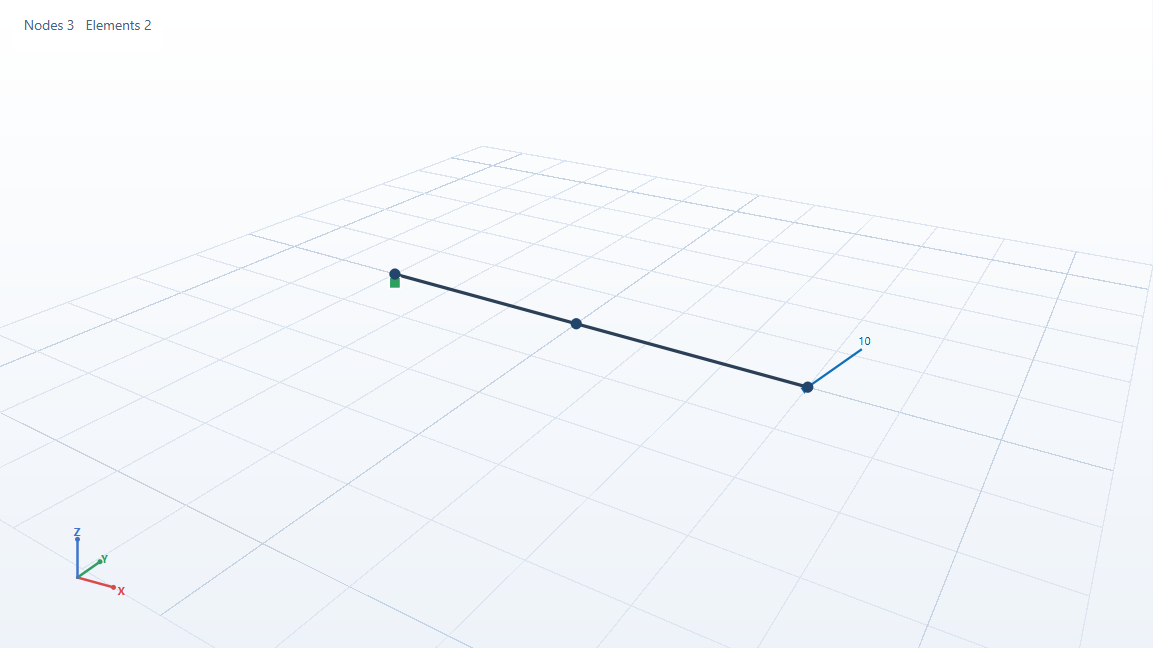
results are drawn as deformed shapes / mode animations, and gui_screenshot
returns the viewport as an image.
The bridge binds to 127.0.0.1 only and has no authentication; do not expose
the port to untrusted networks.
Verification
.\.venv\Scripts\python.exe tests\test_mcp.py        # protocol + full workflow
.\.venv\Scripts\python.exe tests\test_mcp_gui.py    # live GUI bridge
Development
py -3.12 -m venv .venv
.\.venv\Scripts\python.exe -m pip install -r requirements.txt
.\.venv\Scripts\python.exe -m app.main
Tests (closed-form verification + GUI workflows):
.\.venv\Scripts\python.exe tests\test_solver.py
.\.venv\Scripts\python.exe tests\test_gui.py
Headless self test (also available in the frozen exe):
.\.venv\Scripts\python.exe -m app.main --selftest --report report.txt
Packaging
.\build.ps1
The script renders the icon, runs PyInstaller for both the application and the
MCP server, executes all tests (including the frozen MCP server), and compiles the
Inno Setup installer. Outputs:
dist\OpenSeesStudio\OpenSeesStudio.exe– portable application folderdist\OpenSeesStudioMCP\OpenSeesStudioMCP.exe– MCP server (stdio)dist\OpenSeesStudio-1.0.14-Setup.exe- Windows installer with Start Menu and
optional desktop shortcut
Code signing
Signing is optional and off by default. To sign the application, the MCP server and
the installer, set one of these before running build.ps1:
# certificate file
$env:OSS_SIGN_PFX = "C:\keys\codesign.pfx"
$env:OSS_SIGN_PASSWORD = "..."

# or a certificate already installed in the Windows certificate store
$env:OSS_SIGN_THUMBPRINT = "A1B2C3..."
build.ps1 signs with signtool (SHA-256, timestamped) and continues with a
warning when no certificate is configured, so unsigned developer builds still work.
Project layout
app/
  main.py         entry point, self test, screenshot mode
  mainwindow.py   ribbon, docks, workflows
  ribbon.py       ribbon tabs, command groups and captions
  viewport.py     3D viewport: camera, picking, loads, diagrams, deformed shapes
  beamdiagram.py  member force distribution from end forces and loads
  resultsview.py  beam diagram / deformation sidebar
  model.py        data model, section properties and JSON persistence
  steelsections.py standard AISC and CISC steel section database
  units.py        display-unit conversion and unit labels
  opsgen.py       OpenSees model builder, analyses, Tcl export, validation
  dialogs.py      node / element / copy / load / combination dialogs
  tables.py       spreadsheet model tables and load-case filter
  results.py      result viewer and CSV export
  boundary_dialogs.py springs, rigid links, equalDOF and diaphragms
  runcontrol.py   analysis run-control checklist
  faq.py          FAQ dialog and official OpenSees links
  console.py      Python/Tcl script console
  scriptmodel.py  capture script-built models into a project
  tcl.py          Tcl model import and command runner
  dnd.py          drag-and-drop payload for tree items
  example.py      built-in demo frame
  theme.py        light professional theme
  icons.py        vector ribbon icons
  bridge.py       local JSON bridge for live GUI control
mcp_server/
  server.py       MCP tools, state, resources
  gui.py          client for the GUI bridge
tests/            solver, GUI and MCP tests
tools/            icon renderer, screenshot generator
packaging/        Inno Setup script and MCP config sample
Reviews (0)
Sign in to leave a review.
Leave a reviewNo results found