TagNest
Health Warn
- License — License: NOASSERTION
- Description — Repository has a description
- Active repo — Last push 0 days ago
- Low visibility — Only 5 GitHub stars
Code Fail
- exec() — Shell command execution in scripts/agent-smoke.ts
- rm -rf — Recursive force deletion command in scripts/agent-smoke.ts
- process.env — Environment variable access in scripts/agent-smoke.ts
- network request — Outbound network request in scripts/provision-image.ts
Permissions Pass
- Permissions — No dangerous permissions requested
No AI report is available for this listing yet.
Local-first AI workspace with a real Linux desktop inside it.
TagNest
A local-first AI workspace with a real Linux desktop inside it.



TagNest is an open-source desktop app for Windows 10/11. On the left, you talk to an AI agent.
On the right is a real Alpine Linux + XFCE desktop running locally in QEMU, streamed into the
window with noVNC. The agent can run commands, read and write files, start servers and control the
desktop with the mouse and keyboard — and you can take over at any moment with your own mouse and
keyboard.
There is no TagNest account, no TagNest server and no subscription. The Linux machine is yours,
on your computer, stored on your disk.
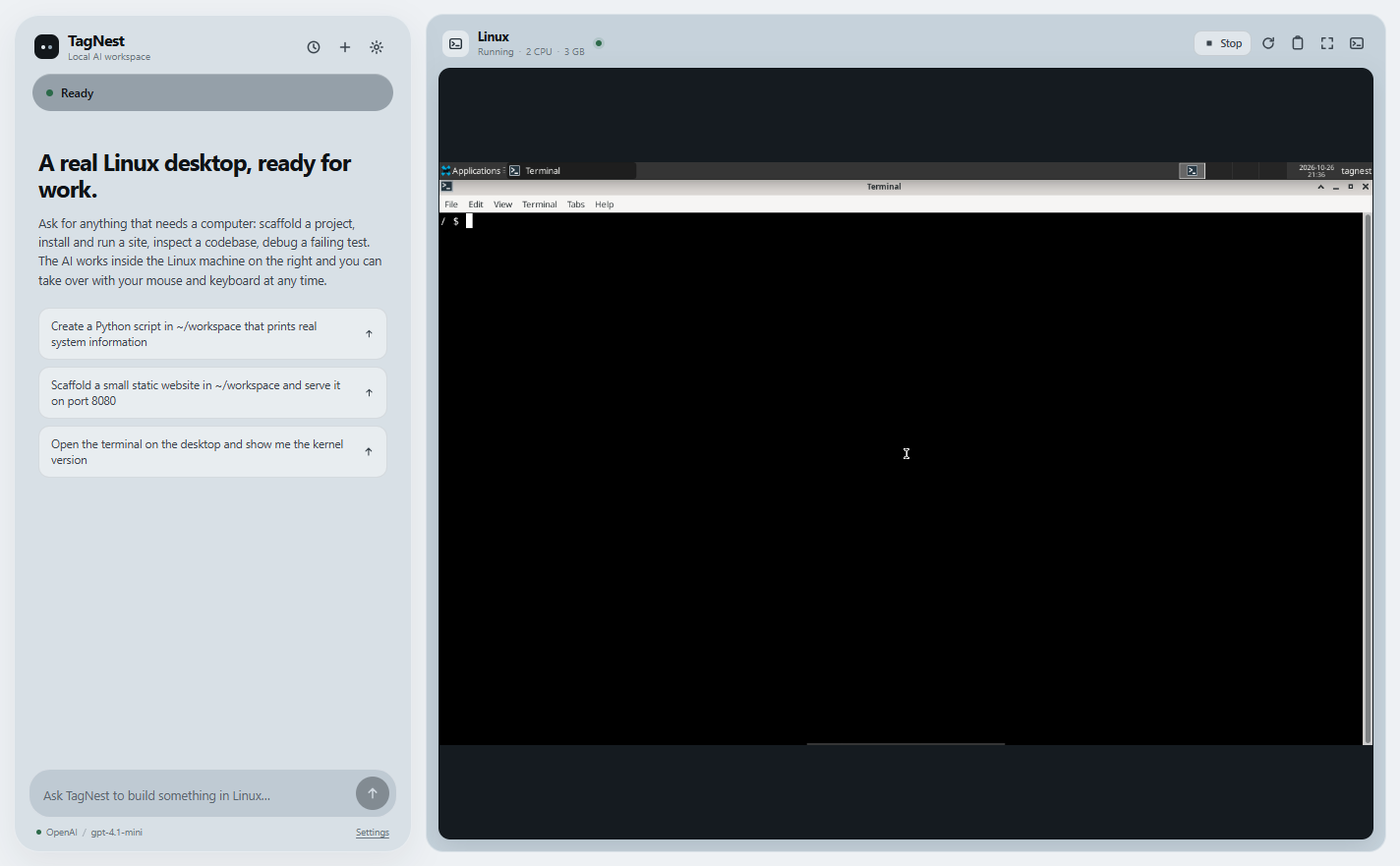
Screenshot captured from the real Electron window: an agent task on the left and the actual XFCE
desktop on the right. See docs/VALIDATION.md for the checks that were
actually executed, with their output and the things that were not tested.
Install (Windows)
- Download the installer from Releases:
TagNest-<version>-x64.exe. Builds are produced and attached by the
Release workflow, so every binary comes from a tagged commit. - Install QEMU on the host — TagNest drives a real VM and does not redistribute QEMU:
winget install SoftwareFreedomConservancy.QEMU - Run TagNest. The first launch downloads the Alpine base image, provisions the desktop and
installs Firefox inside the guest (a few minutes, ≈250 MB of downloads). Later launches boot
straight to the desktop; your Linux files stay in%APPDATA%\TagNest. - Add a model in Settings (gear icon): paste an OpenAI / Anthropic / Gemini / OpenRouter key,
point it at a custom OpenAI-compatible endpoint, or select Ollama (local) for fully local
inference. The app fetches the provider's real model list as soon as the key is saved — you pick
from a dropdown instead of typing an ID. On OpenRouter, Free — Automatic selects a working
free model for you. Keys are encrypted with the OS credential store and never leave your machine
except as the request to the provider you chose.
The installer is unsigned, so Windows SmartScreen will show "unrecognised app" on first run.
Hardware virtualization (WHPX) is strongly recommended; without it TagNest explains the problem and
offers the slow software-emulation path.
Building from source instead: see Quick start (development) and
docs/RELEASING.md.
Status
Early release (0.4.0). The Linux runtime, embedded desktop, agent tool loop, approvals and
settings are implemented and were exercised against a real VM. Typecheck, lint, 89 unit tests, the
production build and the real-VM smoke test pass. Provider adapters were tested against local mocks
of their real HTTP APIs, and the OpenAI-compatible path was additionally driven end to end against
a local router that forwards to a real hosted model — tool calls, file creation and read-back in the
guest all worked. The full agent loop — including web search, page fetch and opening a page in the
guest browser — was tested against a mock OpenAI-compatible server driving real guest commands and
real internet requests. See docs/VALIDATION.md for the exact results, including
what was not verified.
0.4.0 makes model selection automatic: each provider's real model list is loaded into a dropdown
(right after the API key is saved and on Refresh), and OpenRouter gets a Free — Automatic
mode that selects and verifies a currently working free model, falling back to the next one when a
model refuses direct API traffic. 0.3.0 added real Linux app projects. See
CHANGELOG.md.
What works
- Split-panel UI: chat (≈29% width) + live Linux desktop (≈71%), responsive and independently scrollable.
- A real Alpine Linux 3.24 VM (QEMU, WHPX acceleration on Windows) provisioned automatically on
first launch — no manual Linux install, no VM setup. - Persistent qcow2 overlay disk: files written in Linux survive app and VM restarts.
- Real internet in the guest: it shares the computer's own connection through QEMU user-mode
networking, so downloads, package installs and web pages behave like on the host. - A real browser in the guest: Firefox is installed automatically on the first start after
provisioning (oneapkinstall, about 90 MB) and runs on the visible desktop. - Agent internet tools:
web_search(DuckDuckGo),web_fetch(URL → readable text) andopen_url(opens the page as a tab in the Firefox window you already have, so you watch it load
in the right-hand panel). - A structured system prompt (
src/main/agent/prompts.ts) sent to every provider: who the agent is,
the real guest facts, the full tool inventory, how to verify its own work and how to reply — so a
fresh model starts useful instead of guessing. - Embedded TigerVNC → WebSocket → noVNC display with mouse, keyboard, clipboard paste/copy and
viewport scaling. - The agent can see the screen.
desktop_screenshotcaptures the real guest desktop and hands
the PNG to a vision-capable model, so it can read a page, find a button and click it — verified
end to end against a live model (see docs/VALIDATION.md). - Build real apps inside Linux. Ask for an app and the agent creates a project under
~/workspace/apps/<name>withapp_create, writes and edits the files, runs its real test script
withapp_test, then starts it withapp_run: web projects are served on a local port and opened
in Firefox on the embedded desktop; CLI projects open in a terminal window.app_listshows the
real state, URL and PID, andapp_stopkills the process group. Starter projects include a small
HTML/CSS/JS page and a shell CLI with their own tests, so a fresh model has a working baseline
instead of inventing a build system. - Agent tools that act on real state: shell commands, SFTP file read/write/edit/list/search,
system inspection, background processes, andxdotooldesktop control — move, single/double/right
click, wheel scroll, type, key chords, list and focus windows, launch apps. The AI cursor is drawn
over the desktop so every movement is visible. - A visible AI cursor and activity indicator over the desktop.
- Explicit approval gates for
sudo, package installs, service changes, downloads piped to a
shell, GitHub pushes, recursive deletion and other high-impact commands. - Cancellation for in-flight model calls and guest commands; aborting kills the guest process group,
not just the SSH channel. - Model providers: OpenAI, Anthropic, Google Gemini, OpenRouter, Ollama (local) and any custom
OpenAI-compatible endpoint. Keys are encrypted with the OS credential store (DPAPI on Windows). - Automatic model discovery: the settings screen calls the selected provider's real model-list
endpoint after a key is saved (and on Refresh), shows the model name, ID, context and reported
capabilities in a dropdown, and never asks the user to type an ID unless they choose Custom
model ID…. The list is provider-scoped; switching providers fetches that provider's own list. - OpenRouter Free — Automatic: one dropdown entry that fetches OpenRouter's free models, ranks
the ones that report tool support and context size, and uses the first that actually answers. If
one is rate-limited or restricted to a different harness (403/404/429), the agent and the
connection test try the next free model and report the switch instead of failing silently. - Local conversation history and task/tool logs; conversation JSON is stored in the app data dir.
- File bridge: drag files or folders from Windows onto the Linux panel, or open the file drawer
in the panel to browse~/workspace, upload and save individual files back to Windows. Names are
never overwritten and upload paths are confined to~/workspace(see below). - Live guest memory, disk and load readings in the Linux panel (real values from
free,dfand/proc/loadavg, refreshed every 5 s while the VM runs). - Settings → Test connection: sends one real, tiny request through the selected provider and
reports the actual latency or the provider's error; no cached or invented success. - Settings → About: checks the latest GitHub release and links to it when a newer version exists.
- English and Azerbaijani UI.
- Configurable VM memory/CPU count/disk size and automatic startup.
Requirements
| OS | Windows 10/11 x64 (primary target). macOS/Linux run the UI and a slower TCG VM for development. |
| RAM | 8 GB total recommended; the VM defaults to 3 GB and is configurable (2–8 GB). |
| Disk | ~250 MB for the base image + ~1–2 GB for the installed desktop + your files, in the 20 GB (sparse) workspace disk. |
| CPU | Hardware virtualization (WHPX) strongly recommended. Software emulation (TCG) is very slow. |
| QEMU | Required on the host. Install with winget install SoftwareFreedomConservancy.QEMU (QEMU 11 tested), or set TAGNEST_QEMU to the executable. |
| Internet | First launch downloads the pinned Alpine image and lets the guest install the desktop and Firefox (≈150 MB + ≈90 MB). After that the guest uses your connection like any other app, and model calls need the network (unless you use Ollama). |
QEMU is intentionally not committed to this repository; it is GPL software with its own
distribution requirements. If you ship installers, see docs/LICENSING.md.
Working with files
Files cross the boundary through SFTP, not through a shared folder or a host mount. The guest
filesystem is not mounted on Windows, and the Windows filesystem is not mounted in Linux.
- Copy in: drop files or whole folders anywhere on the Linux desktop, or press the folder icon
in the panel header and choose Upload. Files land in~/workspace; a folder keeps its name.
Large uploads use the native file picker and SFTPfastPutrather than sending bytes through the
renderer. - Copy out: open the file drawer, navigate into a folder and press the download icon (or click a
file) to save it anywhere on Windows through the system dialog. - Never overwritten: if a file with the same name already exists, TagNest picks
name-1.ext,name-2.ext, … instead of destroying the existing guest file. - Confined: every browse/download path is resolved inside the guest and checked after symlink
resolution, so a link cannot redirect the drawer to/etc. Upload names are stripped of..
segments. Host folders are walked without following host symlinks. - Limits: drag & drop accepts up to 200 files / 64 MB per drop; the native uploader accepts up
to 500 files / 512 MB; downloads are capped at 512 MB per file. Larger files should be fetched in
the guest or split first. - The drawer only lists
~/workspace. Files elsewhere in Linux are still reachable by the agent
throughrun_command, as before.
Quick start (development)
npm install
npm run dev
The Electron window opens. On first launch TagNest:
- checks for QEMU and probes WHPX,
- downloads the official Alpine 3.24 cloud image (≈150 MB) and verifies its SHA-512,
- creates a 20 GB sparse qcow2 overlay,
- boots the VM with cloud-init (seed served from the app over QEMU's user-mode network),
- installs XFCE, TigerVNC, xdotool and an SSH key for the agent,
- starts Xvnc + XFCE and attaches the display to the right-hand panel.
Provisioning takes a few minutes the first time. Later launches boot straight to the desktop.
Add an API key in Settings (gear icon), pick a model, then ask for something:
- "Create a small Express app in
~/workspace/demoand start it on port 3000." - "Search the web for the Alpine Linux wiki and open the result in the browser."
- "Open the terminal on the desktop and show the kernel version."
- "Find failing tests in
~/workspace/appand fix them."
Or use a local model: install Ollama, pull a model, select Ollama (local)
in Settings and pick the pulled model from the list (it comes from Ollama's /api/tags). Prompts
and tool results then stay on your machine.
How it works
┌───────────────────────── Electron window ─────────────────────────┐
│ Renderer (React)                                                  │
│   ChatPanel                 LinuxPanel -> noVNC canvas            │
│        │ IPC (contextBridge, validated)      │ WebSocket          │
│ ───────┼─────────────────────────────────────┼──────────────────  │
│ Main process                                 │                    │
│   AgentRuntime ── providers (OpenAI, Anthropic, Gemini, …)        │
│        │ tool executor                       │                    │
│        │ SSH (exec + SFTP)                   │ token-gated proxy  │
│        ▼                                     ▼                    │
│   QEMU (WHPX, pc/qemu64)  ── hostfwd:22──►  guest sshd           │
│        │                     hostfwd:5901──►  Xvnc :1 + XFCE     │
│        └─ qcow2 overlay (persistent)          xdotool, files      │
└───────────────────────────────────────────────────────────────────┘
- The renderer has no Node access.
contextIsolation: true,sandbox: true, a Content-Security
Policy, navigations blocked, and a narrow typed API insrc/preload. - QEMU, SSH, VNC and filesystem control live only in the main process.
- The agent loop is in
src/main/agent/agent.ts; providers implement onecomplete()interface. - The guest is a normal QEMU VM. The host filesystem is not mounted into it, and QEMU's user-mode
network is the only network path. SSH/VNC are forwarded to random loopback ports only. - The VNC WebSocket proxy requires a per-session random token. The guest's Xvnc accepts unauthenticated
RFB, but is reachable only through that loopback forward.
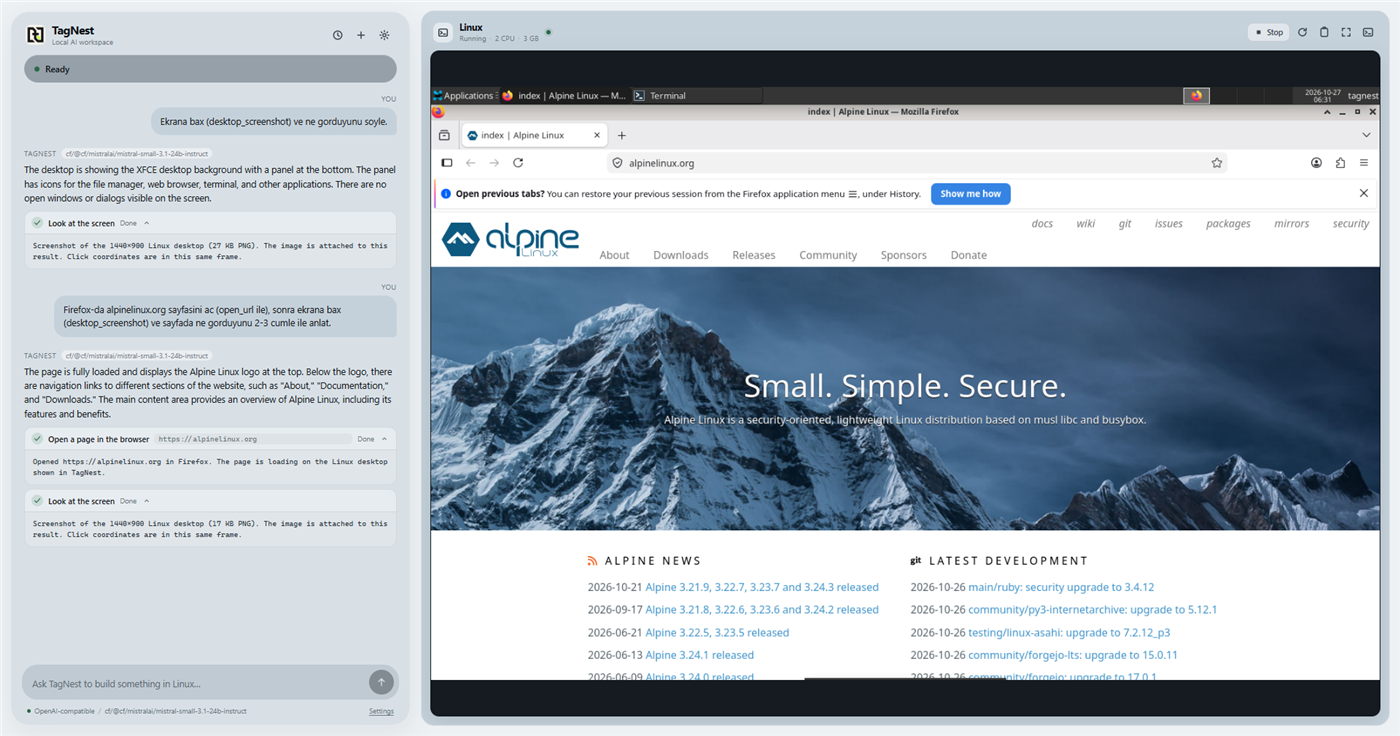
The agent took a screenshot, opened
alpinelinux.orgin the existing Firefox window, looked again
and described the real page. Vision needs a model that accepts images (see Providers).
More detail: docs/ARCHITECTURE.md.
Providers
| Provider | Endpoint | Auth | Privacy |
|---|---|---|---|
| OpenAI | https://api.openai.com/v1 Chat Completions |
API key | prompts + tool results leave the machine |
| Anthropic | https://api.anthropic.com/v1/messages |
API key | same |
| Gemini | generativelanguage.googleapis.com generateContent |
API key | same |
| OpenRouter | https://openrouter.ai/api/v1 |
API key | same |
| Ollama | http://127.0.0.1:11434/v1 |
none | stays on your machine |
| Custom | your OpenAI-compatible base URL | optional | depends on the endpoint |
The model dropdown is populated from each provider's own API: GET /models for OpenAI and
OpenAI-compatible endpoints, GET /v1/models for Anthropic, GET /models for Gemini (keepinggenerateContent models), GET /models for OpenRouter and GET /api/tags for Ollama. If a list
request fails, Settings shows that endpoint's real error and keeps the Custom model ID… fallback.
OpenRouter's Free — Automatic is not a hardcoded model ID. It filters the live model list for
free pricing/:free models, prefers tool-capable models with larger context, and treats 403, 404,
429 and 5xx as "try the next free model". The actual model that answered is written back to Settings
and shown as Currently using: …. This is a real fallback, not a claim that every free model is
usable: OpenRouter can restrict a listed free model to other apps, and the app moves on.
There is no invented fallback: if a provider is selected without a key or the request fails, the
error appears in the chat and no command is run. Keys never go to the renderer and are never logged.
Local OpenAI-compatible relays and routers are supported: the response body is read tolerantly, so a
router that appends an SSE data: [DONE] terminator after a non-streaming JSON reply still works.
If an endpoint answers with something that is not JSON at all, the chat reports the HTTP status,
content type and the first bytes instead of a raw parser error.
Building and packaging
npm run build        # typecheck-free production bundle (electron-vite)
npm run typecheck
npm test
npm run lint
npm run package:win  # electron-builder NSIS installer in release/
The app icon and installer icon come from build/icon.png (1024×1024, generated from the TagNest
logo crop); the sidebar logo is src/renderer/src/assets/logo.png.
Native dependency rebuilding is disabled in the packaging config: ssh2's optional cpu-features
addon is not needed (ssh2 falls back to pure JavaScript), and its vendored gyp files are incomplete
in this environment. The packaged app includes the main/preload/renderer bundles and resources/
but not QEMU or a guest disk image.
Optional: bundle the Linux base image into the installer instead of downloading on first launch:
npm run provision:linux   # downloads + verifies resources/linux/alpine-*.qcow2
npm run package:win
resources/linux/*.qcow2 is git-ignored. The VM's overlay always lives in the user data directory,
so upgrading or replacing the base image never deletes user files.
Data locations
Windows: %APPDATA%\TagNest
settings.json          preferences (no secrets)
secrets.json           DPAPI-encrypted provider keys
conversations/*.json   chat history and tool results
linux/base/            verified Alpine base image
linux/disk/workspace.qcow2   persistent guest disk (your files)
linux/ssh/             agent SSH keypair
linux/logs/            QEMU serial console + stderr
logs/                  app log (redacted)
Delete linux/disk/workspace.qcow2 only if you mean to destroy the Linux workspace.
Testing
npm test             # unit tests: providers against mock HTTP APIs, policy, paths, storage, web helpers
npm run typecheck
npm run lint
npm run smoke:linux  # boots the real VM and verifies the runtime end to end
npm run smoke:agent  # agent loop against a scripted OpenAI-compatible endpoint: approvals, file
                     # tools, web_search / web_fetch / open_url against the real guest
smoke:linux downloads/provisions on first use (TAGNEST_SMOKE_CLEAN=1 to force a fresh
workspace). To reuse an existing workspace instead of provisioning another one:
# Windows PowerShell
$env:TAGNEST_SMOKE_DIR="$env:APPDATA\TagNest"; npm run smoke:linux
It runs real commands, writes/reads a file over SFTP, checks the 1440×900 X display and moves the
real guest mouse with xdotool, completes an RFB greeting through the token bridge, cancels a
running command (and checks it returns quickly without printing), restarts the VM, verifies the
file persisted and checks that no Windows host paths are mounted. The recorded run: PASS,
94.9 s total, 30.3 s restart, 425 ms cancellation. See docs/VALIDATION.md.
Known limitations
- First launch is not instant. No prebuilt TagNest image is committed or hosted in this
repository (it would be hundreds of MB to over a GB). The app downloads the pinned official
Alpine cloud image, boots it, lets cloud-init apply the seed, and installs XFCE/TigerVNC inside
the guest. On this machine that took about six minutes on a cold workspace; later boots took
about 30 seconds. The build supports bundling a prebuilt base image in the installer
(resources/linux/*.qcow2vianpm run provision:linux), which a release should do; that path
was not built or tested here. - Windows/WHPX first. Without WHPX the VM falls back to TCG. The pinned Alpine 6.18 kernel
panicked under TCG on the development machine, so software emulation is not a reliable fallback.
TagNest reports the problem and the serial log instead of pretending it works. Enabling Windows
Hypervisor Platform is the supported fix. - QEMU is expected on the host; the repo does not redistribute QEMU binaries. An installer has to
ship them separately or install QEMU as a prerequisite. - The NSIS installer builds (
release/TagNest-0.4.0-x64.exe, ≈119 MB). The packagedwin-unpacked
app was launched for 0.3.0; the 0.4.0 package is built by the same config but install/uninstall was
not exercised on a clean Windows machine. It is unsigned, so Windows SmartScreen will warn. - Drag & drop was verified with a real DOM drop event (file bytes through the preload bridge and
SFTP), not by dragging from Explorer with the OS pointer. The download flow's dialog is covered by
a unit test with a mocked dialog; the native Save dialog was not clicked in the validation run. - The desktop is scaled to the panel; dynamic guest resolution changes are not implemented. The
guest screen is fixed at 1440×900 (VNC viewport scaling keeps it usable). - Vision needs a vision-capable model.
desktop_screenshotsends a real PNG to the provider, so
the selected model must accept images (e.g. a multimodal OpenAI/Anthropic/Gemini model, or a
vision model on your local router). A text-only model answers without seeing the image or rejects
the request; that error is shown in the chat. There is no DOM/page-source tool — the screenshot is
what the agent sees — and very large screenshots are capped at 4 MB. - Firefox is installed automatically the first time a workspace boots with the updated runtime;
that step needs internet access and adds about 90 MB to the guest disk. Browser automation
(reading page pixels, driving the DOM) is not implemented — the agent usesweb_fetch/web_searchfor content and can only show pages to you withopen_url. - App projects are deliberately small:
webis plain HTML/CSS/JS served by the guest's Pythonhttp.server, andcliis a shell program in a terminal. Native GUI toolkits (GTK/Qt), packaged
desktop bundles and app-store style distribution are not scaffolded; the agent can still install
a toolkit and build one manually, but it is not a turnkey template. - Web app projects need a free local port (1024–65535, default 8080) and a running VM. The agent
checks the port before creating and before starting, but two projects can share a default port
while stopped; start them on different ports. - Hosted provider calls were not exercised with live keys in this environment; see VALIDATION.
- Clipboard transfer and proportional guest-resolution changes are implemented but were not
exercised in the validation run. - Guest isolation is strong (a VM) but not a certified security boundary. See SECURITY.
- Azerbaijani translations are complete for UI strings but not professionally reviewed.
License
MIT for TagNest's own code. QEMU, Alpine, XFCE, TigerVNC and other components keep their own
licenses — see LICENSE and docs/LICENSING.md.
Reviews (0)
Sign in to leave a review.
Leave a reviewNo results found