TcAgent
Health Pass
- License — License: MIT
- Description — Repository has a description
- Active repo — Last push 0 days ago
- Community trust — 11 GitHub stars
Code Pass
- Code scan — Scanned 12 files during light audit, no dangerous patterns found
Permissions Pass
- Permissions — No dangerous permissions requested
No AI report is available for this listing yet.
AI Agent for TwinCat

TcAgent – TwinCAT 3 for AI coding agents
Let Claude, GitHub Copilot, Gemini or ChatGPT/Codex work inside your running TwinCAT 3 IDE:
read and write PLC code, check and build, navigate, look up library APIs, configure I/O and tasks, control the runtime.





▶ Click for the video in full quality – one prompt: device manual → I/O → driver FB → TcUnit tests → HMI.
The video is a generated visualization to illustrate the workflow more clearly – in practice TcAgent works exactly like this.
From the idea to the running machine
TcAgent does not stop at generating code. The agent works through the whole job in your IDE, and TcAgent holds it to your rules:
a workflow only goes on when its checkpoint is proven, and nothing reaches a PLC without a clean build, an allowed target and your confirmation.
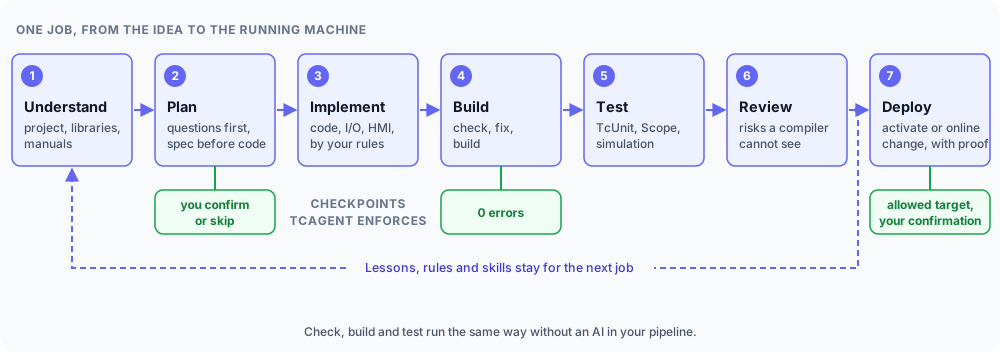
| Step | What the agent does | With |
|---|---|---|
| Understand | Reads what you are working on, the project, the real library interfaces and your documents, before it changes anything | tc_editor_context, tc_doc, tc_find_references, tc_lib_signatures, tc_docs |
| Plan | Puts you through an interview first: every open decision, one question at a time with a recommended answer, until the specification is complete. No code before you confirmed it, or chose to skip it. Requirements get numbers if you need proof | skills requirements-interview, plc-traceability, tc_workflow, tc_coding_rules |
| Implement | Writes PLC code, step chains, I/O links and HMI pages, by your coding rules and from compiled patterns | tc_plc_write, tc_plc_create, tc_sfc, tc_link, tc_hmi_page, skill plc-st-patterns |
| Build | Checks without generating code, fixes errors in a limited number of rounds, then builds | tc_check, tc_build, tc_errors, skill plc-fix-compile |
| Test | Checks the logic against the requirement, writes and runs TcUnit tests, measures with Scope | tc_test_skeleton, tc_test_run, tc_scope, skill plc-spec-review, TcAgent.exe sil |
| Review | Looks for risks a compiler cannot see, by your rules and from several views | tc_static_analysis, tc_risk_rules, skills plc-code-review, plc-multi-review |
| Deploy | Activates or loads an online change step by step, and proves that it arrived | workflows safe-activation, online-change, tc_activate, tc_plc_online |
The same steps run without an AI in your pipeline, see In your CI pipeline. What the agent learns on the way stays
as lessons, rules and skills for the next job.
And after the deploy: the Advisor goes with the plant
The job does not end when the code is on the PLC. The Advisor stays with the project through all phases - it reads and
advises, it never changes the project or the PLC. Each finding comes with evidence and a ready order; you rate it, and
Act on it hands the order to an agent that works through the steps above.
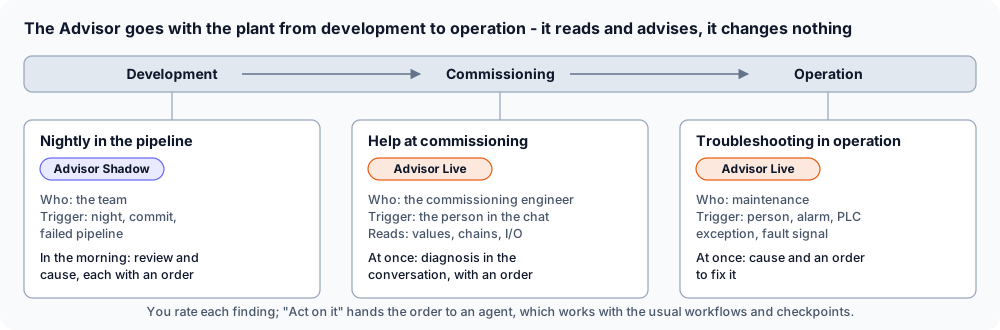
| Phase | The Advisor | Started by |
|---|---|---|
| Development | Shadow: at night, after a commit or a failed pipeline it reviews what changed and finds the cause - the findings wait for you in the morning | TcAgent.exe advise --trigger nightly|commit|pipeline, /advise, /review-prj |
| Commissioning | Live: at the running plant it reads values, step chains and I/O and tells you why a station hangs, in the conversation | /advise-live in the chat |
| Operation | Live: for maintenance it finds the cause of a fault - started by a person, or by a watch on alarms, PLC exceptions and your fault signals | /advise-live, TcAgent.exe advise watch --run |
Details: docs/ADVISOR.md.
What the agent can do
| Area | What it means for you | Tools |
|---|---|---|
| Your context | The agent knows the object, line and selection you are working on – ask "what does this do?" | tc_editor_context |
| PLC code | Read, change (optionally as a diff to approve), create POUs, methods, properties, DUTs, GVLs; implement interfaces in one step | tc_plc_read, tc_plc_write, tc_plc_create |
| Plain-text ST | The whole PLC code as .st files (one per POU with its methods/properties/actions) for reviews, Git diffs and bulk edits – and back into the project, Ids kept, nothing deleted; also as CI gate |
tc_plaintext |
| SFC step chains | Read and write sequential function charts as text – steps, actions, transitions, alternative and parallel branches, jumps; renumber steps, step comments, SFC flags | tc_sfc |
| Lessons learned | The agent remembers hard-won solutions – what the problem was, why, and how it was solved – and recalls them by itself when the same error comes up again (project, personal or team file) | tc_lessons |
| Chat history | The TcAgent Chat keeps its conversations per solution on your PC: open the project again and ask where you stopped – the agent gets a summary with the open tasks of its plan and reads more when needed; ⋯ > Earlier conversations reads, continues or deletes one | tc_chat_history |
| Program documentation | Explains the project: call hierarchy, call graph, inheritance hierarchy, class diagram, step chains (SFC and CASE), a short description for every FB, method and function (from comments or derived from the code), findings – one HTML page with zoomable diagrams, explanations kept as project memory; task overview with cycle times and a static risk analysis | tc_doc |
| User manual | Manual of FBs, functions and their structs/enums – in the style of your own example documents (Markdown, AsciiDoc or HTML), missing comments explained from the code | tc_userdoc |
| Formatting | Ctrl+Alt+F formats the open object the same way every time - indentation, keyword case, aligned declarations, long calls, brackets that show the order of AND/OR, long conditions one operand per line with aligned brackets; every rule configurable per company, team or project, a safety net keeps the meaning, Ctrl+Z takes it back | TcAgent.exe format – docs/FORMATTER.md |
| Inline-Logic-View | Ctrl+Alt+B shows the condition at the cursor (IF, ELSIF, WHILE, assignment of a BOOL) as a logic diagram - online green where fulfilled, with the operands that are still missing, fulfilled branches folded; variables followed through inheritance, references, pointers and libraries; ⤢ opens the condition window: De Morgan, turned comparisons and simplifications with a proof that the meaning stays, applied into the editor with one click (Ctrl+Z takes it back), truth table | tc_condition, TcAgent.exe condition |
| Inline-Scope | Alt+click any variable in the code (or Ctrl+Alt+T) and see its value over time in a small popup - 20 ms samples, time axis from 5 s to 10 min, zoom with the wheel, pause and scroll back, CSV export; reads only | TcAgent.exe watch |
| Refactoring | Meaningful names and comments for what you marked or clicked – every change confirmed by you (Apply / Apply all / Reject) | tc_refactor |
| Navigation | Go to definition and find references (read/write) – resolved like TwinCAT itself, across inheritance; opens the object in the editor at the right line | tc_goto_definition, tc_editor_open, tc_find_references, tc_plc_search |
| Library APIs | Full interfaces of referenced libraries – also compiled libraries – so the agent never invents an API | tc_lib_signatures, tc_plc_references |
| Check & build | "Check all objects" without generating code; real build before activation; compiler vs. runtime messages separated | tc_check, tc_build, tc_errors |
| Tests | TcUnit tests read from the code and run like in the Test Explorer: window TcUnit Tests (also in the XAE Shell) with run all / selected / failed, live progress and red/green per test (also for runs started in the IDE or by a pipeline); the same run for agents and on the command line; evaluate TcUnit results; test suites of an FB generated as a skeleton | tc_test_run, tc_test_results, tc_test_skeleton |
| I/O & system | Scan EtherCAT and assign adapters, add masters, couplers and terminals offline, link variables in bulk (structs to PDO groups element by element), tasks and PLC task assignment, boot project, config/run mode, licenses (read) | tc_io_scan, tc_io_add, tc_link, tc_task, tc_runtime_mode |
| Projects & files | New solutions and PLC projects, PLCopen/XTI export and import, libraries (references, placeholders, repositories, save as library), mapping export/import, archive, TwinCAT version, target platform, variants | tc_new_solution, tc_plc_project_add, tc_export, tc_import, tc_library, tc_library_save |
| Library supply chain | SBOM of the PLC project as CycloneDX 1.6 (libraries with version, vendor, purl, SHA-256, git commit) and a library lock file whose check fails the pipeline when a library version changes | tc_sbom, tc_library_lock |
| Quality | Static analysis (TE1200) with SARIF export | tc_static_analysis |
| Network | ADS broadcast search, add routes, TcCOM module instances | tc_route_search, tc_route_add, tc_tccom |
| System | Real-time cores and base time, task core assignment, CoE startup lists of EtherCAT devices, TwinCAT Package Manager (installed/available/outdated packages, install and upgrade with confirmation) | tc_realtime, tc_coe, tc_packages, tc_packages_change |
| IDE dialogs | Modal IDE dialogs are detected and reported instead of blocking silently | tc_dialogs |
| Scope | Scope configurations (TE130x): charts, axes, channels on PLC variables, record, export CSV/SVDX – also from the pipeline | tc_scope_new, tc_scope |
| HMI | TwinCAT HMI (TE2000) pages and regions, controls with PLC bindings and button actions, symbol mapping, build – directly in the project files | tc_hmi, tc_hmi_page, tc_hmi_control, tc_hmi_symbol |
| Motion | NC tasks and axes, link an axis to its drive | tc_motion, tc_motion_add |
| TwinSAFE | Safety projects, groups, alias devices, connections, CRCs – read only, writing is intentionally not supported | tc_safety |
| Runtime | Activate, login/start/stop, read/write variables via ADS – changes only on allowed targets | tc_activate, tc_plc_online, ads_read, ads_write |
| Your rules | Coding rules per project/person/company; "remember that I want X" becomes a rule | tc_coding_rules, tc_coding_rules_add |
| Your risk checks | Extend the risk analysis with your own rules (regex, tested on the project first), tune or switch off the built-in ones, add checks the agent reviews by reading the code – per project/person/company | tc_risk_rules |
| Skills & workflows | How your team does a task, in the open Agent Skills format (built-in: requirements interview, PLC debugging, code review, spec review, alarm diagnosis, ST patterns and more), workflows with checkpoints TcAgent enforces (e.g. your confirmed specification before any code, tc_check with 0 errors before the review; activation only after a clean build) - also the review of a whole project (/review-prj), levels company / user / platform / project |
tc_skills, tc_workflow, tc_knowledge |
| Self-improvement | Local run logs of the workflows (counts only), KPIs and trends, improvement proposals found by fixed rules – applied only after you agree, measured over the next 10 runs, reverted if they did not help; window TcAgent Knowledge with overview, effective knowledge, sources and history | tc_improve |
| Advisor | An agent that reads and advises, never changes: at night or after a failed pipeline it reviews what changed (Shadow), at the running plant it finds where it hangs (Live, also started by a watch); findings with evidence and a ready order - you rate them and send the order to an agent with one click | tc_advisor, TcAgent.exe advise – docs/ADVISOR.md |
| Prompt library | Prepared prompts in the TcAgent Chat: / or Prompts lists them with search and preview, placeholders from the editor; on every knowledge level and from Git repositories |
TcAgent.exe prompts |
| Settings & targets | Tools > TcAgent settings: every TcAgent setting in one window with description and default, export/import, reload of the agent servers; target systems with read/write access (writing time-limited), imported from the TwinCAT routes | TcAgent.exe settings, TcAgent.exe targets |
| TcAgent Chat | Answer language, folders shared with the agent (read without asking, kept for this chat or in the knowledge), notice of new versions with release notes and a checked download, About with versions and licenses, Reset TcAgent | ⋯ in the chat |
| Skill sources | Skills, workflows and rules from Git repositories with lock file, license check, plugin and version check, and overlay; TcAgent.exe sources sync restores the pinned set in a pipeline |
tc_sources |
| Reference | Beckhoff InfoSys, your URLs, document folders and network shares – read-only | tc_docs, tc_docs_add |
| Modules & plugins | Switch groups of tools on or off per user, project, team or company (a shorter tool list for the agent; the command line keeps everything); your own tools as plugins – any program that speaks MCP, with the same policy, confirmation and audit, project plugins only after your approval; tab Modules in the Knowledge window | TcAgent.exe modules, TcAgent.exe plugins – docs/PLUGINS.md |
All 100 tools with parameters: docs/TOOLS.md.
What you can do, explained step by step with example prompts: docs/USER_GUIDE.md.
In your CI pipeline
The same TcAgent.exe runs without an AI on a build server – check, build and TcUnit tests with exit code, JUnit XML
and annotations in the pull request:
TcAgent.exe check --solution MyMachine.sln --junit results\check.xml
TcAgent.exe test  --solution MyMachine.sln --junit results\tests.xml
Or describe the pipeline once in the repository (.tcagent\pipeline.json: doctor, check, build, doc, sil, ...) and let
every CI system – and your PC – run it with one command:
TcAgent.exe ci --init     # starter file with the solution found in the repository
TcAgent.exe ci            # runs the steps, each with a fresh IDE; summary in results\ci-summary.md
TcAgent.exe st export|check|import keeps a plain-text copy of the PLC code (.st files) next to the project –
readable diffs in pull requests, st check as gate, references.json with the library references of each PLC project;
no IDE needed: docs/PLAINTEXT.md.
Ready-made definitions for GitHub Actions, Azure DevOps, Jenkins and GitLab: docs/PIPELINE.md.
A GitHub runner on your PC, a VM or a Beckhoff IPC is set up with one script (setup-runner.ps1); TcAgent.exe doctor
tells you whether a machine is ready and what is missing – step by step in docs/RUNNER_SETUP.md.
Install
Requirements: Windows 10/11, Visual Studio 2022 with TwinCAT 3.1 XAE (tested with build 4026) and a
TE1030 license (TwinCAT 3 Documentation Generation).
- Download
TcAgent-<version>.vsixfrom the releases, close Visual Studio, double-click the file.
Only the TwinCAT XAE Shell, no Visual Studio 2022? TakeTcAgent-XaeShell-<version>.zipinstead (preview) – see
docs/INSTALLATION.md. - Start Visual Studio 2022 with your TwinCAT solution. TcAgent asks once whether it should register itself in the
AI clients it finds (Claude Desktop/Code, GitHub Copilot in VS and CLI, Gemini CLI, Codex CLI). A backup of every
changed config file is made. - Ask your agent: "Connect to TwinCAT and show me the PLC project tree." – or press Ctrl+Shift+Q in the code.
No scripts, no administrator rights, no .NET installation needed. Details, client sign-in and troubleshooting:
docs/INSTALLATION.md. Building from source: Build.
TwinCAT XAE Shell: TcAgent controls the shell just like Visual Studio. For the chat window and the inline question in the
shell run vsbridge\install-xaeshell.ps1 once (shell closed, asks for administrator rights).
What changed in each version: CHANGELOG.md.
Use it where you work
Inline question – in the TwinCAT editor press Ctrl+Shift+Q, type, press Enter. You stay in the code; the answer
streams into the chat window. Conditions and values in the code – Ctrl+Alt+B shows the condition at the cursor as
a logic diagram (Inline-Logic-View), Alt+click on a variable (or Ctrl+Alt+T) opens the Inline-Scope. TcAgent Chat – a tool window with backend selection (Claude Code, Copilot CLI,
Gemini CLI, Codex CLI); the editor context is sent along automatically. Your prompts on the right, the agent's answers on
the left, ↑/↓ brings back earlier prompts, and documents (manuals, data sheets, screenshots, long texts) can be pasted or
dropped into the input box for the agent to use. Any MCP client – Claude Desktop, Copilot agent mode in Visual Studio,
or a CLI in your terminal use the very same tools.
| Client | How it is connected |
|---|---|
| Claude Desktop | claude_desktop_config.json |
| Claude Code | claude mcp add tcagent (user scope) + skill |
| GitHub Copilot in Visual Studio 17.14+ | %USERPROFILE%\.mcp.json – choose Agent mode, enable the tcagent tools |
| GitHub Copilot CLI | ~\.copilot\mcp-config.json |
| Gemini CLI | ~\.gemini\settings.json |
| ChatGPT / OpenAI Codex CLI | ~\.codex\config.toml |
The ChatGPT desktop app only connects to MCP servers by URL. TcAgent deliberately stays local (stdio): a tool that
changes PLC code and starts and stops controllers does not belong on the network.
The VS extension looks for new versions once a day (an anonymous request to GitHub, nothing about your solution). It can be
switched off in ⋯ > About TcAgent, or for everybody on the company level: SECURITY.md.
How it works
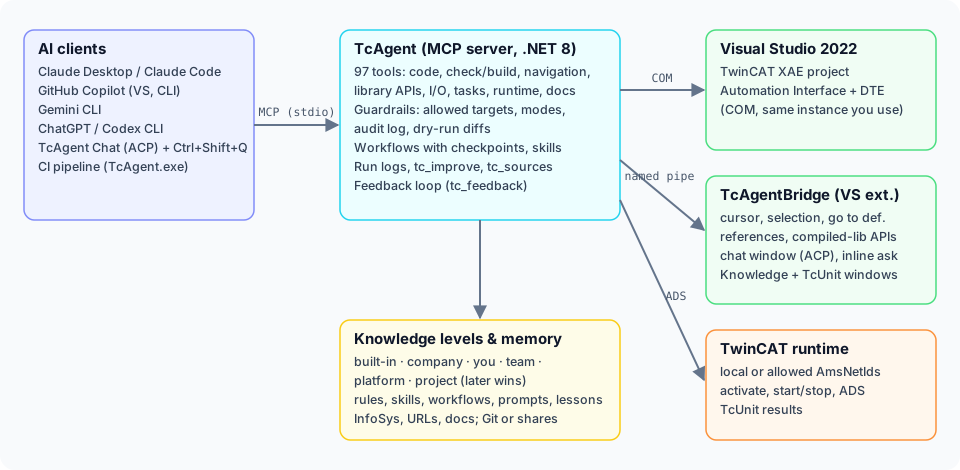
- TcAgent (
src/) – MCP server (.NET 8). Drives the IDE through the TwinCAT Automation Interface and the runtime through ADS. - TcAgentBridge (
vsbridge/) – Visual Studio extension inside the IDE process. Provides what is not reachable from
outside: cursor and selection, name resolution and cross references, library interfaces,
the chat window and the inline question. Without it all other tools still work. - Agent guide (
agents/TCAGENT_GUIDE.md,SKILL.md) – how an agent works safely with TcAgent; distributed asAGENTS.md,GEMINI.md,CLAUDE.md,copilot-instructions.mdand as a Claude skill.
Safety and guardrails
TcAgent can activate configurations, start and stop PLCs and write variables. The guardrails live in the server and
apply to every client:
Setting (MCP config env) |
Effect |
|---|---|
TCAGENT_ALLOW_TARGETS |
AmsNetIds allowed for activation, online commands, ADS writes. Default local = this PC only |
TCAGENT_MODE |
agent (default), propose (code changes only as a diff; reading, check and build still work, no other changes), ask (read-only) |
TCAGENT_CONFIRM |
runtime (default): you confirm every activation, PLC start/stop, ADS write, runtime mode change, route and package change – a Yes/No dialog in Visual Studio for the TcAgent Chat, the client's own question dialog elsewhere; if nobody can be asked, the action is refused · all: also project changes · off: never ask (pipelines - a deliberate setting) |
TCAGENT_SOLUTION |
optional, part of the solution path to pin one Visual Studio instance. Not needed normally: the chat always uses its own IDE, a single open solution is found automatically, with several the user picks from a list |
TCAGENT_AUDIT |
audit log of every changing call (default %LOCALAPPDATA%\TcAgent\audit.jsonl) |
TCAGENT_RULES |
additional coding rules (files/folders, ;-separated); TCAGENT_RULES_GATE=0 disables the one-time gate |
TCAGENT_RISK_RULES |
additional risk rules for tc_doc action=risks (files/folders, ;-separated) |
TCAGENT_KNOWLEDGE |
additional knowledge sources (URLs/folders, ;-separated) |
TCAGENT_SEARCH |
search service for tc_docs (searxng:<url> or google:<key>:<id>) |
Never allow targets with real machines without agreement. Safety projects (TwinSAFE) are never downloaded or
activated by the agent. See SECURITY.md.
Your files: rules, lessons, memory
Everything TcAgent learns about your project and your way of working lives in plain Markdown/JSON files – on six levels
(built-in, company, you, team, platform, project), so the company standard, your personal style, your team, the automation
framework and the project's conventions (in Git) work together:
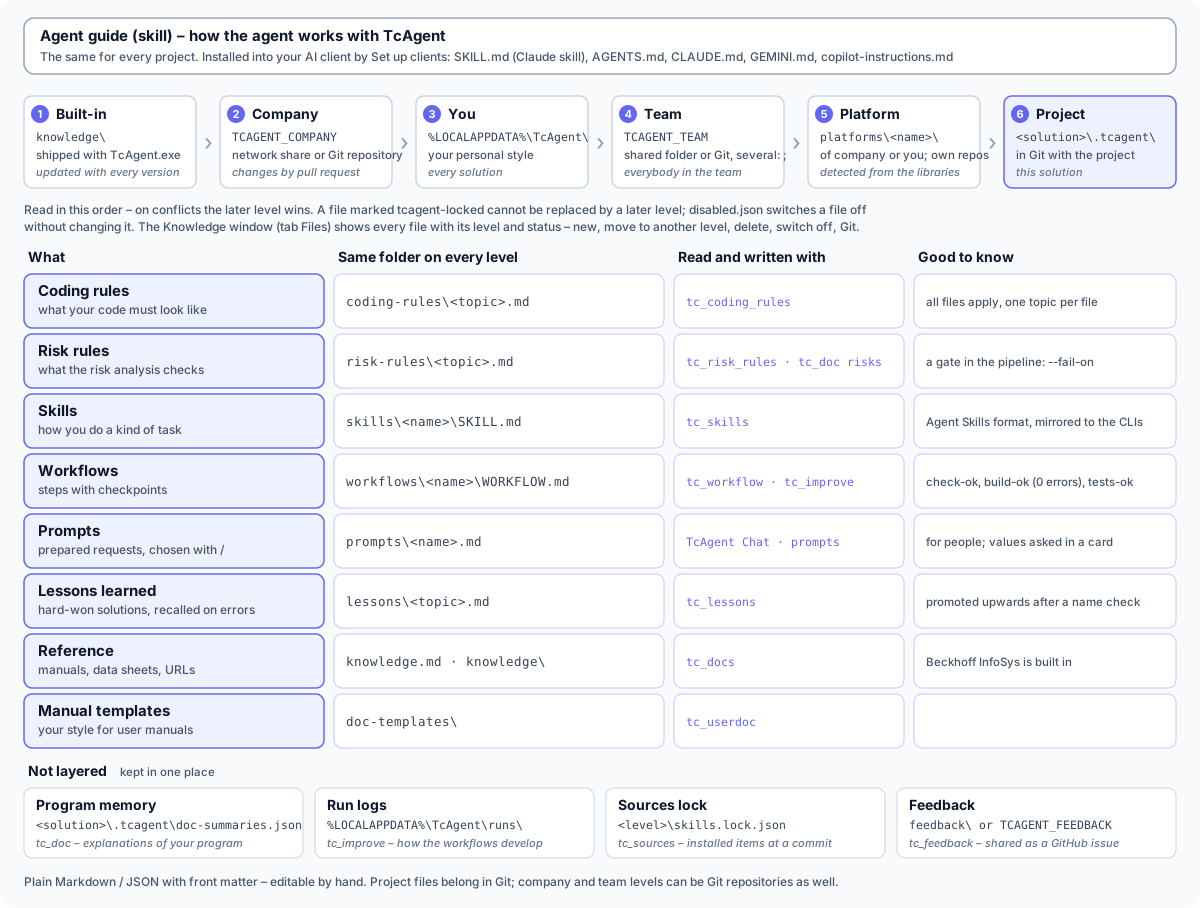
Knowledge window
TcAgent Knowledge in Visual Studio / the XAE Shell (View > Other Windows, or ⋯ > Knowledge in the chat) shows
all of it in one place: every rule, skill, workflow and lesson of every level with its status and why it applies, the
Git sources of skills and what changed in them, the platforms of the project, the documentation the agent looks things
up in, the agent's feedback reports, the workflow history – and backups of the knowledge, made automatically before
every change. New, add existing, rename, move to another level, switch off, delete, Git, install from a source, merge a
newer version, propose a change upstream: all from the window, with the same menus in every tab - select several items
with Shift or Ctrl and the action applies to all of them. The tab Storage shows what TcAgent keeps on your PC and
cleans it up (recycle bin, once a day automatically for the safe areas).
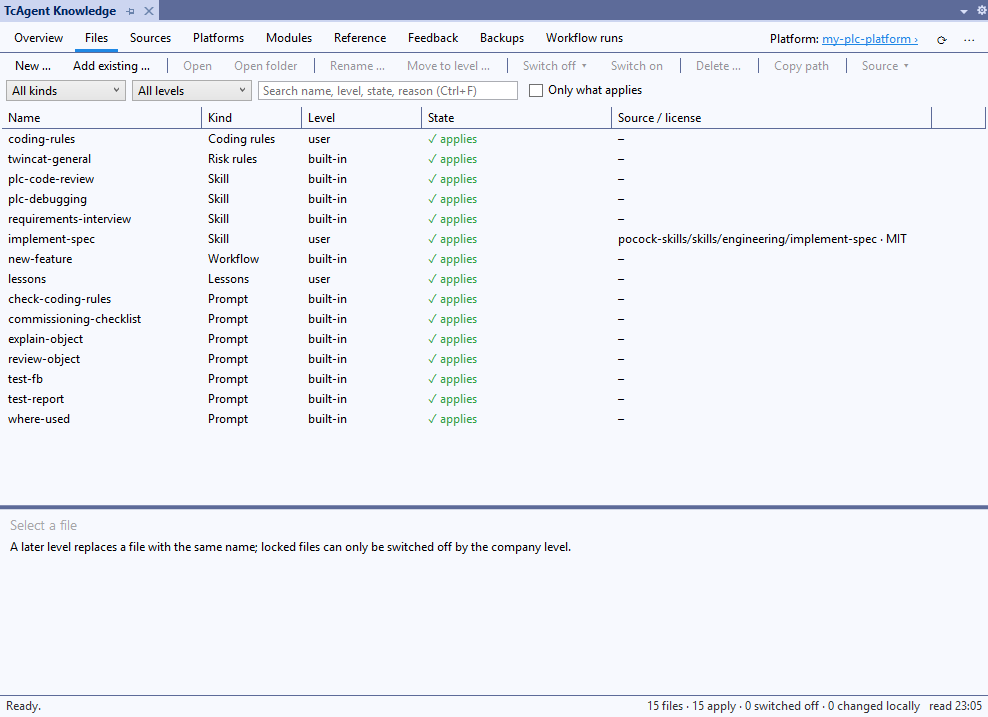
Every tab with screenshots: User guide – The knowledge window.
Coding rules
Put your conventions in Markdown – TcAgent shows them to every agent before it writes code, whatever the client:
| File | Applies to |
|---|---|
<solution>\.tcagent\coding-rules.md (and coding-rules\*.md) |
the project – shared via Git |
%LOCALAPPDATA%\TcAgent\coding-rules.md (and coding-rules\*.md) |
you personally |
TCAGENT_RULES |
e.g. company rules on a network share |
Say "remember: step sequences always as CASE over an enum" and the agent adds it as a rule (tc_coding_rules_add).
Template: docs/coding-rules.example.md.
Risk rules
The static risk analysis (tc_doc action=risks, the HTML documentation, TcAgent.exe doc --risks --fail-on high in the
pipeline) works the same way: <solution>\.tcagent\risk-rules.md (project, in Git), %LOCALAPPDATA%\TcAgent\risk-rules.md
(personal) and TCAGENT_RISK_RULES (company). In one Markdown file you can
- switch off a built-in rule, change its severity or its thresholds (
- long-code: limit=200), - add your own text rules (
## Rule memcpy-without-sizeofwithfind/require,unless,kinds,objects,severity,message), - list checks a regex cannot decide (
## Checks) – the agent verifies them by reading the code.
Say "check from now on that every MEMCPY uses SIZEOF": the agent tests the rule on your project (tc_risk_rules action=test),
shows the findings and saves it after your OK (action=add). Template: docs/risk-rules.example.md.
Documentation and knowledge sources
The agent looks things up instead of guessing (tc_docs, read-only): Beckhoff InfoSys is built in; add URLs, document
folders and network shares per project (<solution>\.tcagent\knowledge.md, .tcagent\knowledge\) or personally
(%LOCALAPPDATA%\TcAgent\). PDF, Word, HTML, Markdown, text, XML, CSV, JSON and ST files are indexed; extracted text is cached.
Feedback loop
Agents report problems, missing features and unclear descriptions through tc_feedback (with version, client, machine and
solution) – into a local file or a shared team folder (TCAGENT_FEEDBACK). tc_feedback action=list|summary|resolve andTcAgent.exe feedback --open --markdown feedback.md turn them into a triage list for GitHub issues; the knowledge window
anonymizes a report and opens it as a prepared issue. That is where the next improvements come from – see
CONTRIBUTING.md. Questions go to the GitHub Discussions; TcAgent.exe diag (or ⋯ > Copy
diagnostics in the chat) gives the versions an issue needs.
Build from source
git clone --recurse-submodules https://github.com/ThorstenBrach/TcAgent.git
cd TcAgent

# developer build (TcAgent + extension), then install the extension as administrator
powershell -ExecutionPolicy Bypass -File .\build.ps1
powershell -ExecutionPolicy Bypass -File .\vsbridge\build.ps1
powershell -ExecutionPolicy Bypass -File .\vsbridge\install.ps1

# or the installable package bin\TcAgent-<version>.vsix
powershell -ExecutionPolicy Bypass -File .\build-vsix.ps1

# unit tests (no TwinCAT needed)
dotnet test tests\TcAgent.Tests
Requirements: Windows 10/11, Visual Studio 2022 with TwinCAT 3.1 XAE (tested with 4026), TE1030 license, .NET 8 SDK.
The Automation Interface interop is generated from your local TwinCAT installation and is never redistributed.
src/                    TcAgent (MCP server, .NET 8)
vsbridge/               TcAgentBridge (VS 2022 extension, .NET Framework): chat window, inline ask, installer;
                        install-xaeshell.ps1 builds and installs it for the TwinCAT XAE Shell
agents/TCAGENT_GUIDE.md agent guide (source for AGENTS.md / GEMINI.md / CLAUDE.md / copilot-instructions.md)
SKILL.md                the same guide as a Claude skill
setup-clients.ps1       registers TcAgent in all AI clients (run automatically by the VSIX)
setup-runner.ps1        sets up a GitHub Actions self-hosted runner for TwinCAT pipelines
build.ps1, build-vsix.ps1, test.ps1
tests/TcAgent.Tests/     unit tests of the file logic (xUnit, no TwinCAT): dotnet test tests\TcAgent.Tests
docs/                   installation, tool reference, CI pipelines (docs/pipeline/), images
Roadmap
- SIL/HIL: first version available (
TcAgent.exe sil/hil, see docs/PIPELINE.md) – simulated I/O next - Motion: axis parameters (drive links are available)
- TwinSAFE: analyze and propose on top of the read-only view – never download
Known limitations
- Windows with Visual Studio 2022 or the TwinCAT XAE Shell (both tested the same way).
- Scope and HMI changes are written to the project files while the project is unloaded in the IDE and reloaded afterwards –
unsaved changes in their open editors are saved first. Scope needs matching Scope packages for the IDE (see troubleshooting). - Every Automation Interface call runs on the IDE's UI thread – while the agent works, the IDE can pause briefly.
- Tested with TwinCAT 3.1 build 4026; other builds may need adjustments.
- The runtime data backup (
tc_backup,TcAgent.exe backup|restore) is experimental – not yet tested against a running PLC.
Legal
TcAgent is an independent open-source project and is not affiliated with Beckhoff Automation, Microsoft,
Anthropic, GitHub, Google or OpenAI. TwinCAT is a registered trademark of Beckhoff Automation GmbH & Co. KG; all other
trademarks belong to their owners. The source code of TcAgent contains no code from Beckhoff.
Check the license terms of your TwinCAT installation for your use case. Third-party components and their licenses:
THIRD-PARTY-NOTICES.md. Use at your own risk, see LICENSE.
License
MIT © 2026 Thorsten Brach
Reviews (0)
Sign in to leave a review.
Leave a reviewNo results found