brain3
Health Warn
- License — License: Apache-2.0
- Description — Repository has a description
- Active repo — Last push 0 days ago
- Low visibility — Only 5 GitHub stars
Code Fail
- network request — Outbound network request in .claude/skills/bump-version/bump.sh
- rm -rf — Recursive force deletion command in .github/workflows/container.yml
Permissions Pass
- Permissions — No dangerous permissions requested
No AI report is available for this listing yet.
Access your markdown vault via your favorite AI assistant



Give your AI access to a local markdown vault. Works with Claude, ChatGPT, or any MCP-compatible AI
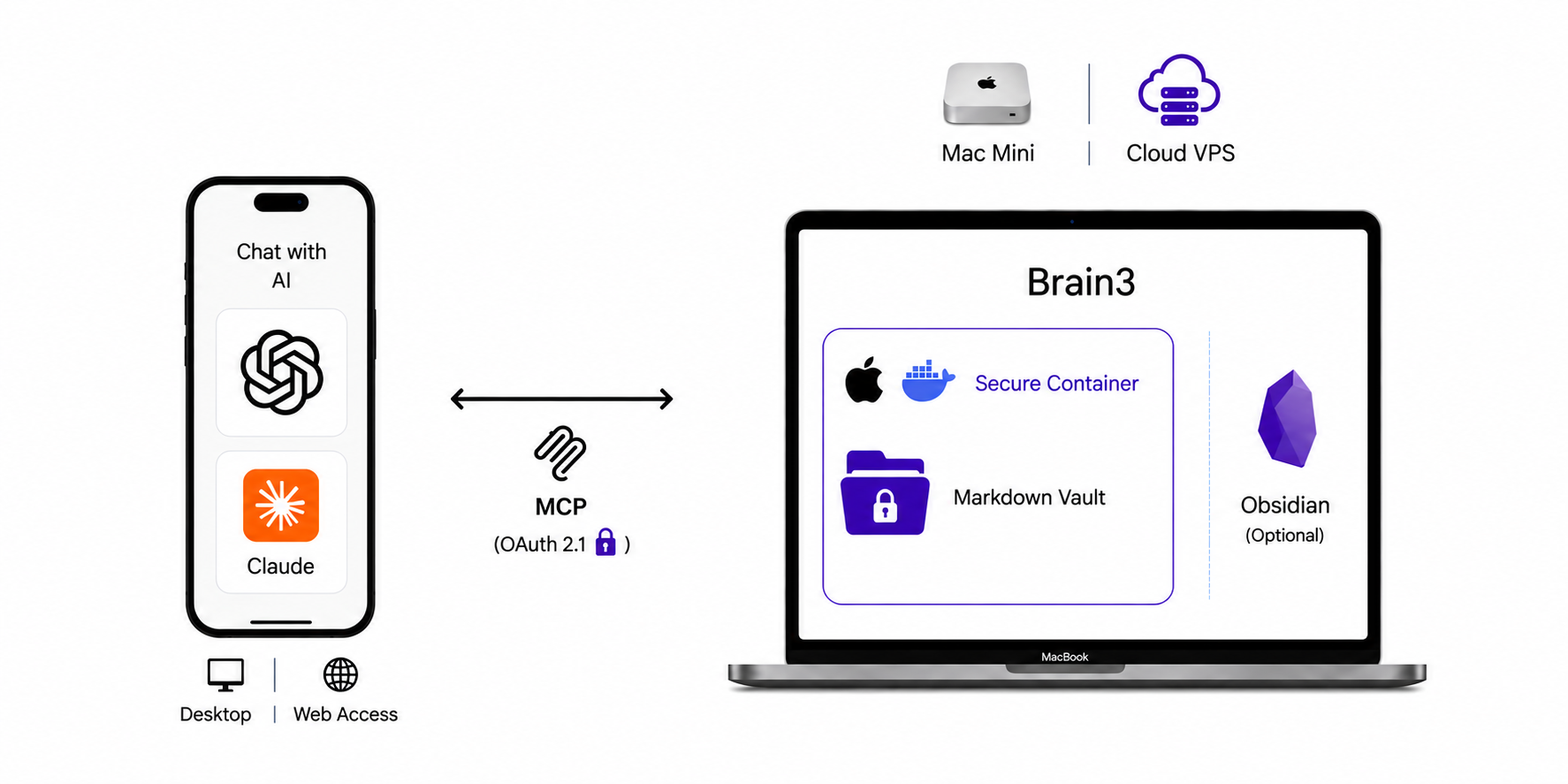
Save an idea mid-conversation and pull it back later, without switching apps or losing context. Use your AI's built-in voice dictation when you'd rather talk than type.
The notes stay as plain markdown on your machine, so you build up a memory that's yours and isn't locked to any one AI provider.
https://github.com/user-attachments/assets/9c58b146-a874-4faf-8e43-f6b7f7f48e75
Sample Weekly Planning Session With ChatGPT and Brain3
Use Cases
- Use your markdown vault as a way to do weekly and daily planning, make the AI your planning assistant.
- Jot down quick notes and ideas in an "inbox" folder, triage later. (eg, close any open loops)
- As you are researching a topic with AI, you can just quickly save a summary into your markdown vault. Your AI will already have the context.
- There are many other use cases, typical of note-taking, research and "second brain" workflows.
Screenshots - Admin Terminal UI (TUI)

Quick Start
[!CAUTION]
Brain3 is still in alpha. Make sure you have backup copies or version control of your vault data before running this on sensitive data. If you enable remote MCP the service will be reachable from the internet while it's running, and any errors in the OAuth flow could potentially expose your data. See Privacy & Security for more details.
Install Prerequisites
 macOS
macOS
- Container runtime:
brew install container && brew services start container - Cloudflare Tunnel (optional, for remote MCP):
brew install cloudflared
macOS container is recommended, but you can also use Docker Desktop for Mac
 Linux
Linux
Ubuntu/Debian install commands
# Docker
sudo apt update
sudo apt install ca-certificates curl
sudo install -m 0755 -d /etc/apt/keyrings
sudo curl -fsSL https://download.docker.com/linux/ubuntu/gpg -o /etc/apt/keyrings/docker.asc
sudo chmod a+r /etc/apt/keyrings/docker.asc
sudo tee /etc/apt/sources.list.d/docker.sources <<'EOF'
Types: deb
URIs: https://download.docker.com/linux/ubuntu
Suites: $(. /etc/os-release && echo "${UBUNTU_CODENAME:-$VERSION_CODENAME}")
Components: stable
Architectures: $(dpkg --print-architecture)
Signed-By: /etc/apt/keyrings/docker.asc
EOF
sudo apt update
sudo apt install docker-ce docker-ce-cli containerd.io docker-buildx-plugin docker-compose-plugin

# cloudflared
sudo mkdir -p --mode=0755 /usr/share/keyrings
curl -fsSL https://pkg.cloudflare.com/cloudflare-main.gpg | sudo tee /usr/share/keyrings/cloudflare-main.gpg >/dev/null
echo 'deb [signed-by=/usr/share/keyrings/cloudflare-main.gpg] https://pkg.cloudflare.com/cloudflared any main' | sudo tee /etc/apt/sources.list.d/cloudflared.list
sudo apt-get update
sudo apt-get install cloudflared
Install and run Brain3
curl -sSfL https://brain3.s3.amazonaws.com/releases/v0.2.4/install.sh | sh
Now run it:
brain3
It should launch an interactive setup wizard.

Configure your AI
Compatibility Matrix
| AI Client | Local MCP | Remote MCP |
|---|---|---|
 ChatGPT ChatGPT |
✅ (untested) | ✅ |
 Claude Claude |
✅ (untested) | ✅ |
 Jan.ai Jan.ai |
✅ | ❌ |
 Goose Goose |
✅ | ❌ |
In the Brain3 TUI, press c to open MCP Config Settings.
Brain3 displays all the connection information you need. Follow the instructions below for your AI client.
ChatGPT — GUI + Remote MCP

- Open Settings → Connectors → Create Connector.
- Select Custom MCP Server.
- Copy the Server URL, Client ID, and Client Secret from Brain3's MCP Config Settings screen.
- Complete the OAuth authorization flow when prompted.
- When shown a login screen, enter the Username and Password displayed in Brain3's MCP Config Settings screen.
Once authorization succeeds, Brain3 will be available as a connector in ChatGPT.
ChatGPT — JSON Config + Local MCP (untested)
The ChatGPT macOS desktop client does not expose a configuration file on disk; you must link your local server using the internal Developer Mode layout.
Step 1: Enable Developer Mode
- Launch ChatGPT Desktop on your Mac.
- Open Settings by pressing Cmd + , (or click your profile icon → Settings).
- Select Apps & Connectors (or Connected Apps) from the sidebar.
- Scroll to the bottom, expand Advanced Settings, and toggle Developer Mode to ON.
Step 2: Add Custom App Connector
- Click the Create button next to your Developer Mode options.
- Fill out the registration form:
- Name:
Brain3 - Connector URL: Copy the Local MCP Endpoint from Brain3's MCP Config Settings screen (e.g.
http://localhost:8422/mcp)
- Name:
Step 3: Configure Direct Bearer Authentication
- Find the Authentication dropdown in the app configuration pane.
- Select Custom Headers (or API Key / Token depending on your build version).
- Provide the key-value pair:
- Key:
Authorization - Value:
Bearer <token from Brain3's MCP Config Settings screen>
- Key:
- Click Save or Create.
macOS Sandboxing Note: If ChatGPT blocks the connection because it is unencrypted
http://rather thanhttps://, you may need to expose the local port via a loopback TLS tunnel such asngrok http 8422and use the resultinghttps://URL instead.
Claude — GUI + Remote MCP

- Open Settings → Connectors → Add Custom Connector.
- Enter the Server URL shown in Brain3.
- If prompted, enter the Client ID and Client Secret from the MCP Config Settings screen.
- Complete the OAuth authorization flow.
- When shown a login screen, enter the Username and Password displayed in Brain3's MCP Config Settings screen.
Once authorization succeeds, Brain3 will appear as a custom connector in Claude.
Claude — JSON Config + Local MCP (untested)
Claude Desktop on macOS natively supports the streamable-http / http protocol directly in its configuration file.
Step 1: Open the Config File
open ~/Library/Application\ Support/Claude/claude_desktop_config.json
Or open it in your editor of choice.
Step 2: Add the Brain3 MCP Server
Paste or merge the following block into your JSON. Copy the endpoint URL and token from Brain3's MCP Config Settings screen:
{
  "mcpServers": {
    "brain3": {
      "type": "http",
      "url": "http://localhost:8422/mcp",
      "headers": {
        "Authorization": "Bearer <token from Brain3's MCP Config Settings screen>"
      }
    }
  }
}
Step 3: Restart Claude Desktop
Quit Claude Desktop entirely (Cmd + Q), then relaunch it. Check the plug icon in the lower-right corner of the chat input to confirm Brain3 tools appear.
Goose — GUI + Local MCP
- Open Goose settings and navigate to MCP → Add Server.
- Set the URL to the Local MCP Endpoint shown in Brain3's MCP Config Settings screen (e.g.
http://localhost:8422/mcp). - Under Request Headers, add:
- Header name:
Authorization - Value:
Bearer <token from Brain3's MCP Config Settings screen>
- Header name:
- Save and restart Goose if prompted.
Jan.ai — GUI + Local MCP
- Open Jan, go to Settings → MCP Servers → Add Server.
- Set the URL to the Local MCP Endpoint shown in Brain3's MCP Config Settings screen (e.g.
http://localhost:8422/mcp). - Add a request header:
- Header name:
Authorization - Value:
Bearer <token from Brain3's MCP Config Settings screen>
- Header name:
- Save and reload Jan if prompted.
Now you're ready to access your markdown vault through your AI.
Roadmap
- Improve search accuracy — currently full-text keyword search with no fuzzy or semantic matching, so exact terms work best.
- Add LLMWiki features to auto-summarize, organize, and improve search based on Astro-Han/karpathy-llm-wiki
- NotebookLM features
- Desktop menu bar app with full system tray integration + GUI
- Support alternative tunneling options such as Tailscale and ngrok
Comparing overall design vs. OpenClaw & Hermes
While both OpenClaw and Hermes Agent also make it easy to chat with your markdown vault, there is a fundamental difference in architecture and cost model.
OpenClaw and Hermes Agent
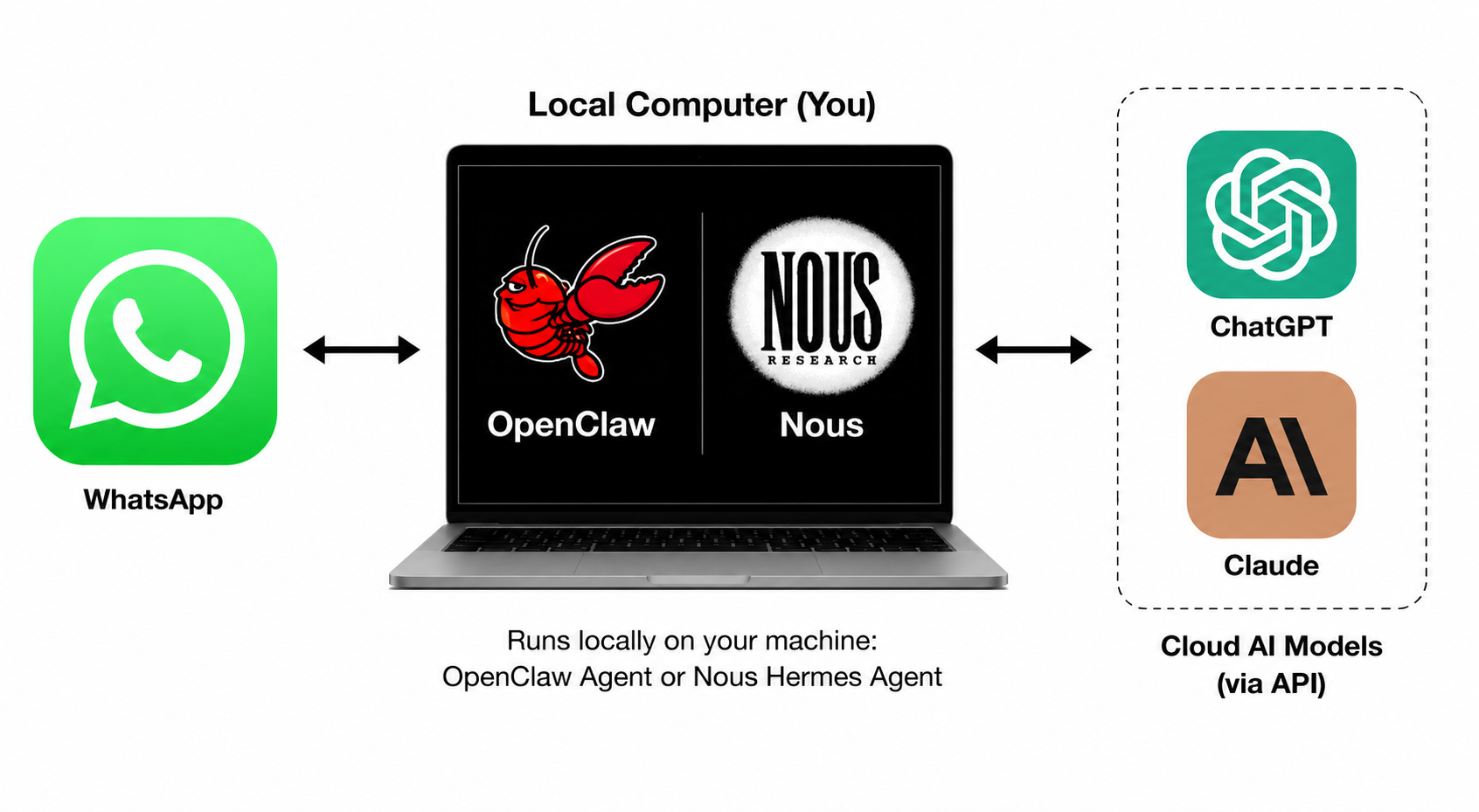
Routes your AI through a messaging app to reach local resources, often requiring direct API key use rather than subscription billing, which can get costly.
OpenClaw/Hermes Pros and Cons| ✅ Pros | 🔴 Cons |
|---|---|
| Can access local resources | Anthropic does not allow subscription use with OpenClaw, and direct AI API key use can get extremely costly |
| Plugin system | Inconsistent user interfaces, for example WhatsApp does not have native AI transcription and relies on OS |
| No direct internet access to laptop — only indirect access via chat apps like WhatsApp | Most messaging apps don't support token streaming, so you need to wait for the full response |
| Local memories, with the agent able to update its own notes over time | If you start conversations in a native AI app, you have to then switch to your messaging app to chat with your agent |
Brain3
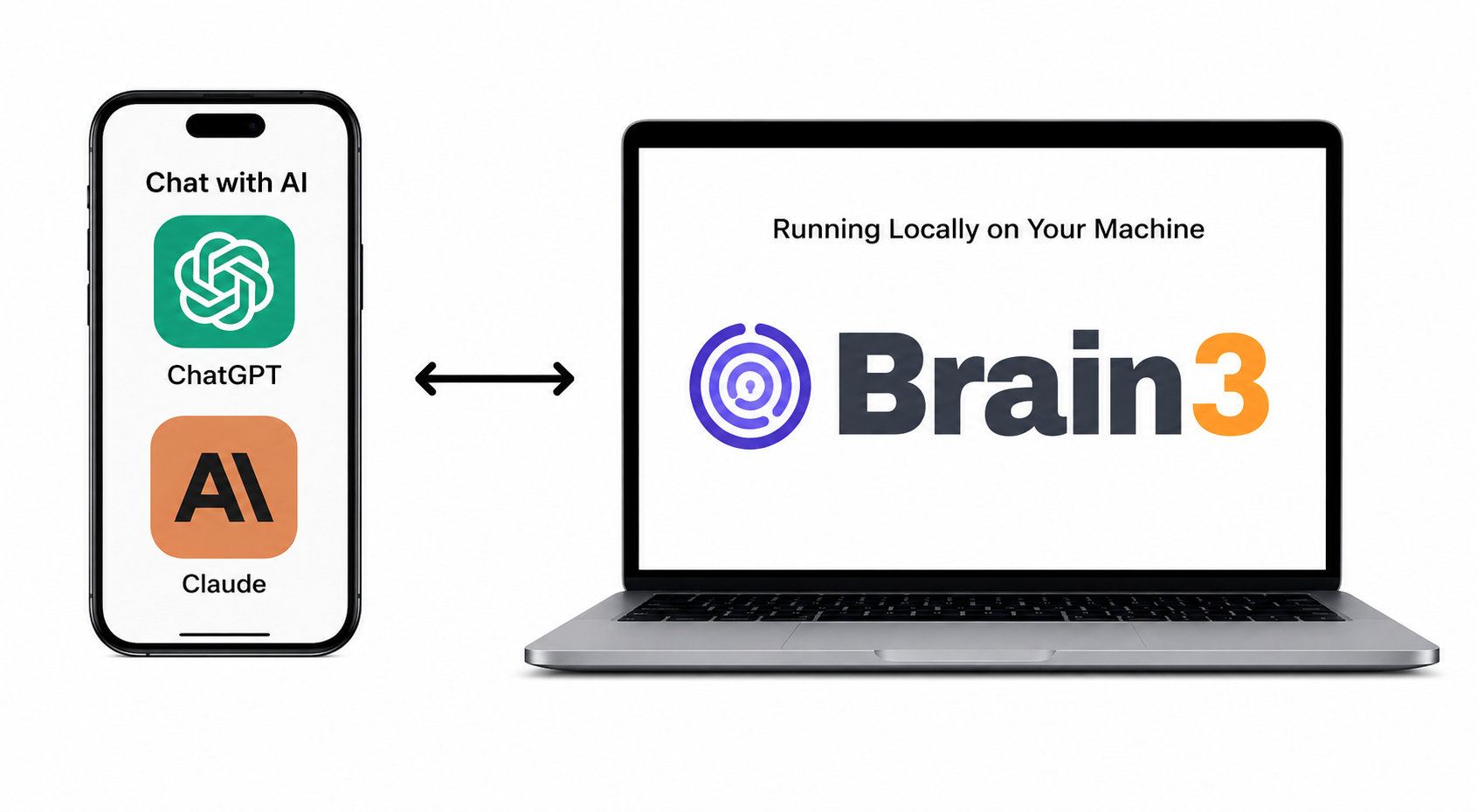
Connects your vault directly to your AI via MCP, works with your existing Claude or ChatGPT subscription, and you never leave your native AI app.
Brain3 Pros and Cons| ✅ Pros | 🔴 Cons |
|---|---|
| Works with subscription billing, not just API keys | Remote MCP requires a publicly accessible network endpoint (e.g. Cloudflare tunnel); local MCP (e.g. Claude Code) works without a tunnel |
| AI-native voice transcription (STT) and playback (TTS) | Potentially higher round-trip latency, especially with multiple tool calls |
| Will immediately work when real-time voice conversation is enabled for MCP | For certain tasks, an additional local agent might be required, increasing latency further |
| No need to leave the app context you're already in | More limited by the MCP interface, whereas OpenClaw and Hermes can basically do anything you imagine |
| Portable across any AI that supports the MCP standard |
Advanced Configuration Options
To keep it running in the background even if your current shell exits, you can run it in a tool like tmux.
 Named Cloudflare Tunnel on your domain (recommended)
Recommended if you want a stable hostname like brain3.yourdomain.com. This requires a Cloudflare account and a custom domain you control.
Named tunnels are also known to be more reliable and less likely to suffer rate limits or connectivity restrictions than quick tunnels, since quick tunnels are available to anyone without a Cloudflare account and may be throttled accordingly.
Brain3's normal first-run setup configures the app and defaults to a Cloudflare quick tunnel. Named tunnel provisioning is a separate guided flow:
- Run
brain3once and complete the normal interactive setup wizard. - Create a (free) Cloudflare account at cloudflare.com
- Install
cloudflaredif it is not already available — see install instructions - In
~/.brain3/.env, setB3_CF_TUNNEL_NAMEandB3_CF_DOMAIN. SetB3_CF_TUNNEL_CONFIG_FILEonly if you want a non-default config path; otherwise Brain3 uses.cloudflared/<tunnel-name>.yml. - Run the named tunnel provisioning wizard:
brain3 --cf-setup
- The wizard verifies
cloudflared, handles login if needed, creates or reuses the named tunnel, writes the config file, and configures the DNS route. - Start Brain3 normally with
brain3. It will startcloudflaredautomatically and log:
INFO tunnel started url=https://brain3.yourdomain.com
This is an alternative to a Cloudflare Tunnel if tunnels are not practical in your environment. It is less preferred because it involves exposing ports more directly, so only use it when a Cloudflare Tunnel is not a workable option.
If your machine already has a public IP or sits behind Cloudflare proxy, use Caddy or nginx to terminate TLS and reverse-proxy to 127.0.0.1:8421. Set B3_DIRECT_PUBLIC_ORIGIN_HOSTNAME in your .env to the public hostname; Brain3 uses it for hostname validation.
Example minimal Caddyfile:
brain3.yourdomain.com {
    reverse_proxy 127.0.0.1:8421
}
Privacy & Security
🔒 View Privacy & Security DetailsRemote MCP & Cloudflare Tunnels
Brain3 runs an MCP server on your own machine. It supports two access modes:
Local MCP — local clients like Claude Code connect directly on a localhost port using a static bearer token. No tunnel, no OAuth required.
Remote MCP — major AI apps like Claude and ChatGPT require remote MCP connectors to be publicly accessible on the internet via TLS + OAuth2.1/PKCE in order to be configured via their UI and accessible across all supported apps (web, mobile, desktop). A Cloudflare tunnel gives Brain3 a reachable TLS endpoint, and OAuth2.1/PKCE is used for auth, with a locally configured username and password.
⚠️ If you use remote MCP via a Cloudflare tunnel, you should only use Brain3 if you trust Cloudflare: Cloudflare owns the root TLS certs and has the ability to decrypt traffic. See their Cloudflare Transparency Report - H2 2025.
Tunnels are cleaned up automatically when Brain3 stops.
Security Audit and Known Security Risks
- Known potential security risks are listed in the Known Security Risks section below.
- There is a preliminary AI-based security audit available. If you are a security engineer and willing to volunteer some time, please reach out.
Data Security
- Container isolation ensures that the MCP server only sees the directory that you specify in the config. The container bind-mount is the enforced path boundary — the MCP server cannot read files outside your vault directory, even if instructed to (e.g. a prompt asking it to read
../../../etc/passwdwill fail at the filesystem level). - Your vault is never uploaded to any cloud service.
Network layer security + Auth
- The container uses internal-only networking by default and cannot make outbound connections to the public internet.
- When using a Cloudflare tunnel for remote MCP, your machine doesn't need a "hole poked in the firewall" since it uses outbound-only Cloudflare tunnel connections. However, that public Cloudflare endpoint does become an entry point to your system, and is fully dependent on the OAuth layer for security.
- It uses OAuth2.1 with PKCE to authenticate with the AI provider; only the client you configure can get tokens, there is no open registration as both Dynamic Client Registration (DCR) and Client ID Meta Documents (CIMD) are disabled.
- OAuth is built on
oxide-authrather than a fully hand-rolled implementation. - Client secret is required at token exchange (
client_secret_post). - Auth codes are single-use and expire after 5 minutes.
- Every login issues a fresh 256-bit access token (1-hour lifetime by default), stored in a local SQLite database.
- Refresh token rotation — the refresh token is replaced on every use; the old token is immediately revoked.
- Per-IP rate limiting on credential endpoints:
POST /oauth/authorizeandPOST /oauth/tokenare capped at 20 attempts per 15 minutes per IP. Cloudflare'sCF-Connecting-IPheader is used for accurate IP identification behind the tunnel. - Bearer-token validation on all
/mcproutes. A shared key is bind-mounted into the MCP container so the MCP server can verify the token. - Host validation rejects unexpected hostnames (HTTP 421) when a public hostname is configured. NOTE: this only works with Cloudflare tunnels associated with a DNS record, which is the recommended configuration.
- Constant-time comparison for secret and token value checks (secret length is not hidden — see security audit M-4).
install.shverifies downloaded release tarballs against a signed checksum manifest before extraction.
Miscellaneous
- 🦀 The host process is written in Rust which avoids several classes of vulnerabilities, like buffer overflow attacks.
 The MCP server running in the container uses the well-known FastMCP server framework.
 - You retain full control and can stop Brain3, disable the tunnel, or disconnect your AI app whenever you choose
- The full source code for both the Brain3 gateway and the MCP server is available on GitHub in this repo.
Known Security Risks
Prompt injection — not mitigated by Brain3; the MCP server has no egress and runs in an isolated container network, but be careful what directory you point it at or what is in your vault.
Container port exposure (macOS) — it is not yet confirmed whether the mapped container port is accessible only to the gateway or to any local process, which could allow OAuth bypass from locally running malware that could discover the shared secret on the host filesystem.
No sandboxing for host gateway process — the Rust gateway has ambient filesystem and network access; a compromised dependency has no jail to contain it (unlike the MCP container). See
docs/SECURITY_AUDIT_LATEST.md§6.3.Plaintext secret storage — all secrets (password, client secret, upstream shared secret) are stored in plaintext in
~/.brain3/.env(file permissions are0600, but no encryption at rest).No hostname validation in default (quick tunnel) mode — hostname validation (HTTP 421 on unexpected
Hostheaders) only works with named Cloudflare tunnels tied to a DNS record. The default quick tunnel setup currently disables it entirely.
Reporting Security Issues
Found a vulnerability? Report it privately — open the repo's Security tab and click Report a vulnerability. Please hold public disclosure until a patch is available.
Configuration Reference
All configuration is via environment variables, loaded from a .env file.
| Variable | Default | Description |
|---|---|---|
B3_OAUTH2_GATEWAY_PORT |
8421 |
Port Brain3 listens on |
B3_OAUTH2_GATEWAY_CLIENT_ID |
brain3-oauth2-client |
OAuth client ID accepted by Brain3 |
B3_OAUTH2_GATEWAY_CLIENT_SECRET |
(required) | OAuth client secret required at token exchange |
B3_OAUTH2_ACCESS_TOKEN_LIFETIME_SECS |
3600 |
Lifetime of issued access tokens in seconds |
B3_TOKEN_DB_PATH |
~/.brain3/brain3.db |
Optional override for the SQLite database path used for issued one-hour access tokens |
B3_OAUTH2_GATEWAY_MCP_UPSTREAM_URL |
(auto-derived from B3_CONTAINER_HOST_PORT) |
URL of the upstream MCP server (developers only) |
B3_OAUTH2_GATEWAY_UPSTREAM_SECRET_FILE |
/tmp/brain3-mcp-upstream-secret |
Path to the shared secret file |
B3_OAUTH2_PKCE_REQUIRED |
true |
Require PKCE for OAuth flow |
B3_USERNAME |
(required) | Login username for the Brain3 sign-in page |
B3_PASSWORD |
(required) | Login password for the Brain3 sign-in page |
B3_OAUTH2_GATEWAY_ENFORCE_HOSTNAME_CHECK |
true |
Reject requests for unexpected hostnames |
B3_CF_QUICK_TUNNEL |
false |
Set to true to have Brain3 start a quick Cloudflare Tunnel on startup |
B3_CF_TUNNEL_NAME |
(empty) | Named Cloudflare Tunnel name; set with B3_CF_DOMAIN and then run brain3 --cf-setup to provision it |
B3_CF_DOMAIN |
(empty) | Cloudflare zone domain (used with B3_CF_TUNNEL_NAME) |
B3_CF_TUNNEL_CONFIG_FILE |
.cloudflared/<tunnel-name>.yml |
Optional path to the cloudflared config file written during named tunnel provisioning |
B3_DIRECT_PUBLIC_ORIGIN_HOSTNAME |
(empty) | Public hostname when using direct origin (Caddy/nginx) instead of Cloudflare Tunnel |
B3_CONTAINER_RUNTIME |
(empty = skip) | macos-container or docker; if set, Brain3 starts the container on startup |
B3_VAULT_PATH |
(required if runtime set) | Absolute path to your Obsidian vault or markdown folder |
B3_CONTAINER_IMAGE |
(required if runtime set) | Published container image to run, e.g. ghcr.io/tleyden/brain3-mcp-vault-tools:vX.Y.Z. New installs default to the Brain3 release-matched tag; :latest is still published but must be chosen explicitly. |
B3_CONTAINER_HOST_PORT |
8420 |
Host loopback port published to the container |
B3_CONTAINER_INTERNAL_NETWORK_ISOLATION |
true |
Keep the managed MCP container on an internal-only network with no default outbound route. Set to false only as a compatibility fallback if Docker/macOS internal networking is broken on your VPS or runtime. |
B3_VAULT_MCP_LOG_LEVEL |
INFO |
Log level forwarded to the MCP server running inside the container. Set to TRACE to log the full body of every request/response sent to and from the MCP server, for debugging. |
Once connected, your AI app has access to these vault tools:
| Tool | Description |
|---|---|
vault_read |
Read a file or line range. Returns a content hash for safe patching. |
vault_create_overwrite_file |
Create a new note or replace an existing one entirely. |
vault_apply_unified_diff |
Apply a unified diff to an existing file. Preferred for precise edits. |
vault_batch_frontmatter_update |
Update YAML frontmatter fields across one or more files. |
vault_search |
Full-text search across the vault. |
vault_search_frontmatter |
Search by frontmatter field values. |
vault_list |
List files and directories in the vault. |
vault_move |
Move or rename a file. |
vault_delete |
Delete a file. |
Developers / Contributors
See the Quick Start prerequisites above before continuing.
Clone and build from sourcegit clone https://github.com/tleyden/brain3.git
cd brain3
cargo build --release
./target/release/brain3
Brain3 launches the setup wizard on first run and goes straight to the runtime status screen on subsequent runs. See Quick Start for the full flow.
Running testscargo test
PR install scripts are published at https://brain3.s3.amazonaws.com/pr/<PR_NUMBER>/install.sh while the PR is open.
curl -sSfL https://brain3.s3.amazonaws.com/pr/123/install.sh | sh
Replace 123 with the pull request number.
Fresh installs default to the release-matched MCP image ghcr.io/tleyden/brain3-mcp-vault-tools:vX.Y.Z, where X.Y.Z matches the Brain3 app version.
If you need a different published MCP image for a single launch or while creating a brand-new config, use --container-tag:
brain3 --container-tag latest
brain3 --container-tag pr-123
On an already configured install, --container-tag overrides the MCP container image for that launch only. During first-run setup, the selected tag becomes the image written into the new config.
The runtime status screen now reports whether the container is actually Ready or Failed after startup verification. If the container exits early, Brain3 shows the failure summary and log path instead of incorrectly reporting a successful start.
Credits
- obsidian-web-mcp was the inspiration and contributed code to the MCP server layer. Brain3 mainly adds container-based isolation.
License
Apache 2.0. See LICENSE.MD and NOTICE.MD.
Reviews (0)
Sign in to leave a review.
Leave a reviewNo results found