stata-workbench
Health Pass
- License — License: AGPL-3.0
- Description — Repository has a description
- Active repo — Last push 0 days ago
- Community trust — 28 GitHub stars
Code Fail
- process.env — Environment variable access in build/esbuild.js
- child_process — Shell command execution capability in package.json
- execSync — Synchronous shell command execution in package.json
- process.env — Environment variable access in package.json
- fs module — File system access in package.json
- child_process — Shell command execution capability in scripts/download-uv.js
- spawnSync — Synchronous process spawning in scripts/download-uv.js
- fs.rmSync — Destructive file system operation in scripts/download-uv.js
- fs module — File system access in scripts/download-uv.js
- process.env — Environment variable access in scripts/mcp-log-watch.js
- fs module — File system access in scripts/mcp-log-watch.js
- fs module — File system access in scripts/verify-build.js
- fs module — File system access in scripts/verify-vsix.js
- fs module — File system access in src/artifact-utils.js
- network request — Outbound network request in src/data-browser-panel.js
Permissions Pass
- Permissions — No dangerous permissions requested
This VS Code extension integrates Stata directly into your editor, allowing you to execute code, view outputs, and interact with graphs without leaving your IDE. It also enables AI agents to interact directly with Stata.
Security Assessment
Risk Rating: Medium
The extension legitimately requires shell execution to run Stata commands, which explains the use of `child_process`, `spawnSync`, and `execSync`. However, these capabilities always carry inherent risks, especially when interacting with AI agents. The build and setup scripts utilize standard file system operations (`fs.rmSync`) to download and manage dependencies. There are no hardcoded secrets, and it accesses environment variables strictly for routine configuration. Outbound network requests are present, which are expected for an extension that connects to external services. No dangerous overt permissions are requested.
Quality Assessment
The project demonstrates solid maintenance and quality signs. It is licensed under AGPL-3.0 and has been actively updated very recently (pushed 0 days ago). It has earned 28 GitHub stars, indicating a moderate and growing level of community trust. It is also officially distributed on established marketplaces like the VS Code Marketplace and Open VSX. The codebase is structured logically for an IDE extension.
Verdict
Use with caution — the extension is well-maintained and its file/system access is normal for a development tool, but you should be mindful of the elevated privileges you are granting to the AI agents that interact with your local Stata environment.
A VS Code compatible extension (Cursor, Windsurf, Antigravity etc.) that allows Stata code to be run directly from the editor. Enables AI agents to directly interact with Stata. Powered by mcp-stata, https://github.com/tmonk/mcp-stata.
Stata Workbench

A VS Code compatible extension (Cursor, Windsurf, Antigravity etc.) that allows Stata code to be run directly from the editor. Enables AI agents to directly interact with Stata. Powered by mcp-stata.
Built by Thomas Monk, London School of Economics.

Why use this?
Run Stata without leaving your editor. Execute code, see output, and view graphs - all within VS Code. No switching windows, no copying and pasting between your do-file editor and an AI chat.
For solo work: A modern IDE for Stata—autocomplete, syntax highlighting, multiple cursors, and an AI assistant that can run commands, inspect your variables, and debug errors directly.
For collaboration: Co-authors work in the same environment they use for other code. Shared editor settings, consistent formatting, and AI assistants that understand your project structure.
For teaching: Students learn Stata with the same tools they'll use for everything else - inline errors, an integrated terminal, and an AI that can explain what went wrong.
Installation
Install directly from the marketplace listings by searching for Stata Workbench in the Extensions view.


- VS Code Marketplace: tmonk.stata-workbench
- Open VSX: tmonk/stata-workbench
Offline fallback:
- Download the latest extension .vsix from the releases page.
- In your VS Code/Cursor/Antigravity/Windsurf IDE, open the command palette (
Ctrl+Shift+PorCmd+Shift+Pon Mac) and selectExtensions: Install from VSIX.... - Select the downloaded .vsix file and install.
Quickstart
Install the Stata Workbench extension.
Open a
.dofile in VS Code (or a compatible editor).Run Stata: Run Selection/Line (press the play button on the top right). The Stata Terminal panel opens automatically the first time you run a command. You can interact with this as you would a standard Stata terminal.
Run:
sysuse auto, clear
summarize
Output appears as output cards in the panel.
Run:
scatter price mpgA Graph artifact card appears - click it to open the generated graph.
Open the Data Browser panel to view your data live.
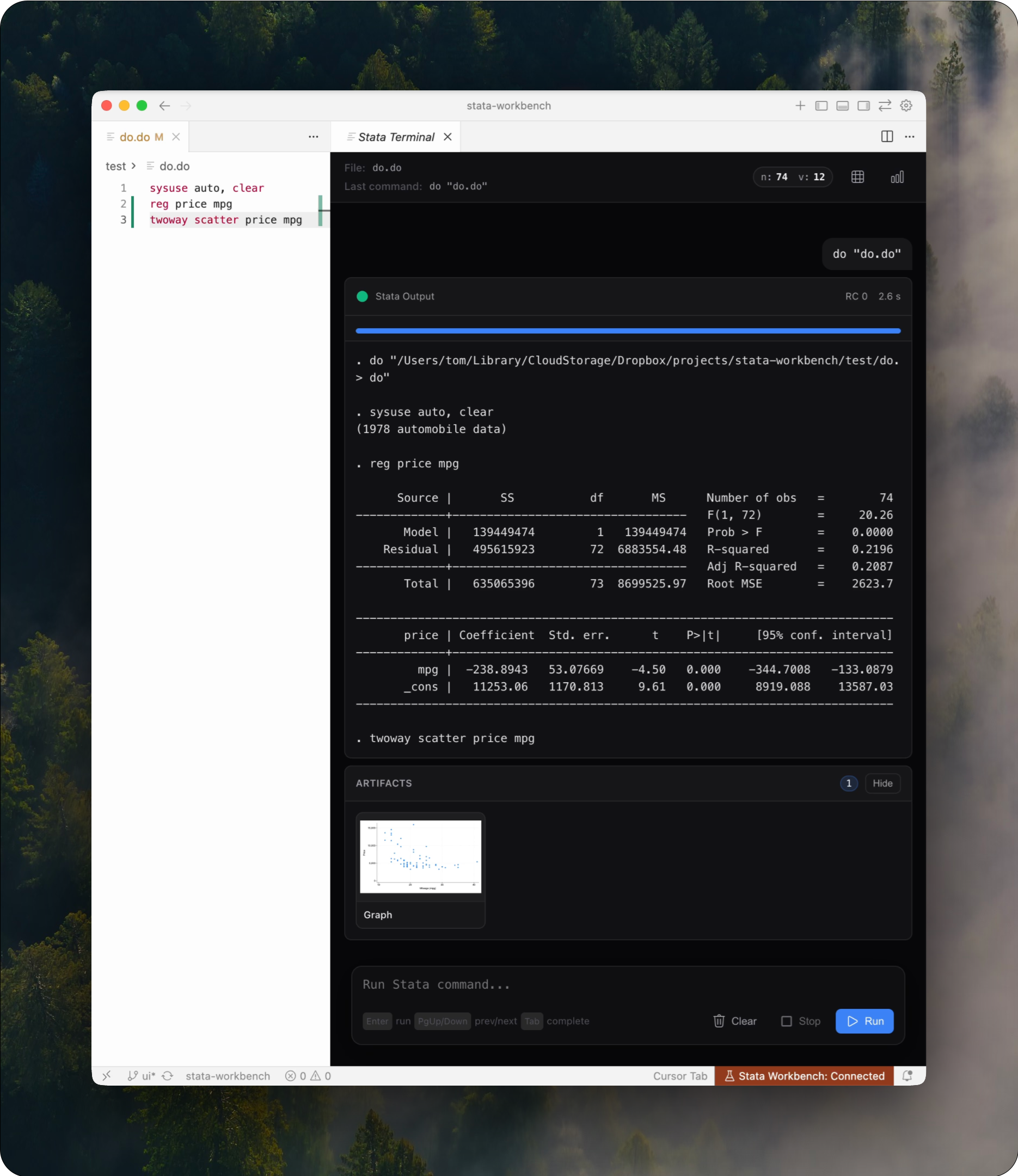
Stata Terminal panel showing output cards and a graph artifact.
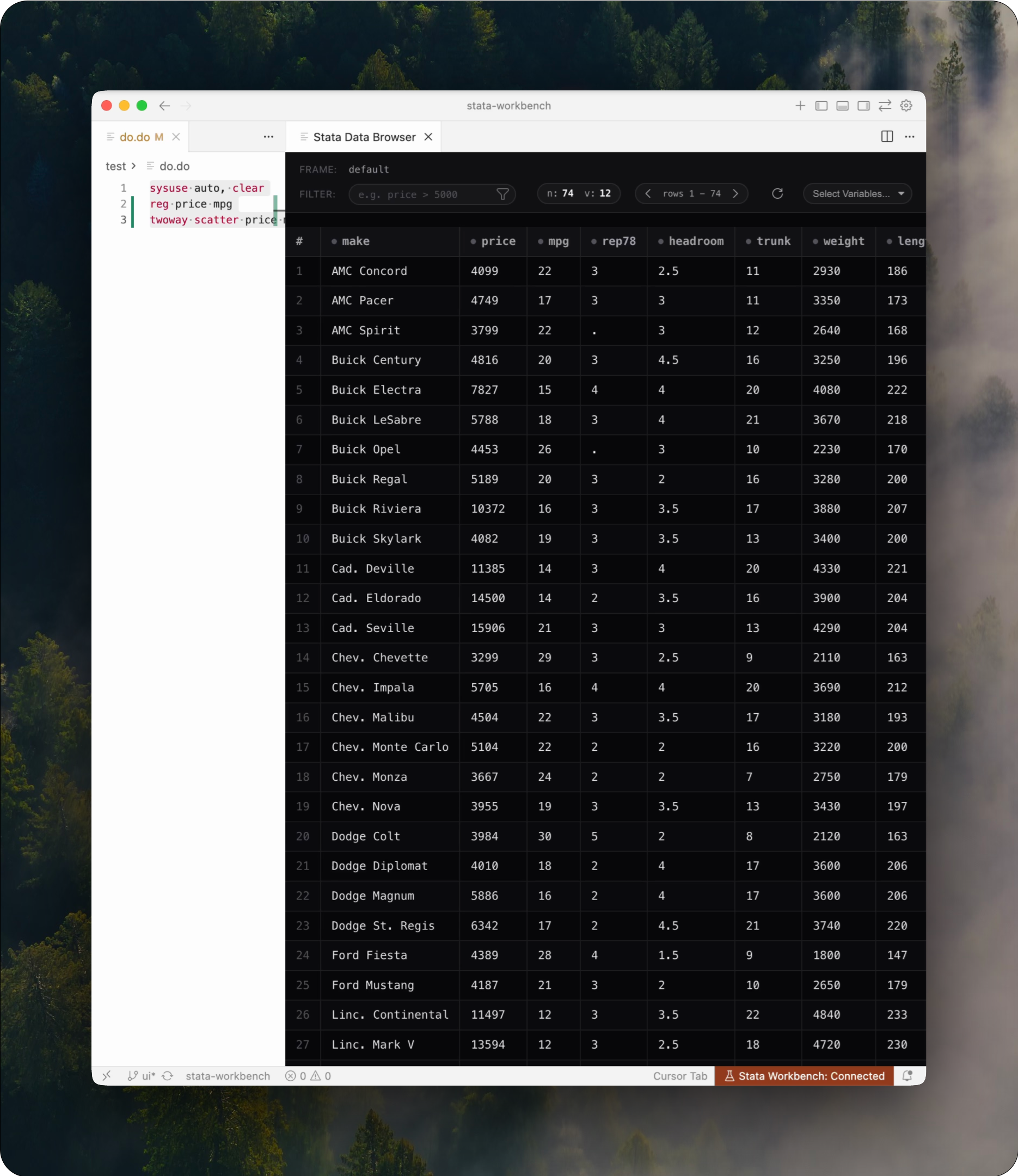
Data Browser allows for a live view of your data, with filtering and sorting.
Requirements
- Stata 17+ on macOS, Windows, or Linux.
- uv/uvx: The extension includes bundled
uvbinaries for standard platforms. It will automatically use the systemuvif available on yourPATH, or fall back to the bundled version. No manual installation is required for most users.
Features & Commands
- Syntax highlighting for Stata, Dyndoc Markdown, and Dyndoc LaTeX.
- Run Selection/Current Line (
stata-workbench.runSelection) → Executes the selected code or current line via MCP toolrun_commandwith normalized output + graphs. Results appear in the terminal panel. - Run Current File (
stata-workbench.runFile) → Runs the entire.dofile via MCP toolrun_do_file. Results appear in the terminal panel. - Terminal panel: Automatically opens when running code, displaying results with stdout/stderr, execution time, return codes, and graph artifacts. You can continue running additional Stata commands directly in the panel. Supports quick history navigation (PageUp/PageDown), Tab-based variable name completion, and clickable links to the full SMCL log. Matches Stata's behavior by providing a Log tab for viewing the full session history with efficient tail-loading for large files. Includes an integrated search within each card (click the search icon in the card header) with bidirectional highlights, match counts, and keyboard shortcuts (
Enter/Shift+Enterfor navigation,Escto close). - Data Browser (
stata-workbench.viewData): Live view of your data with filtering and sorting. Optimized for high performance (~20x faster with Apache Arrow support) and includes a custom variable selector for large datasets. - Test MCP Server (
stata-workbench.testMcpServer) for quick smoke checks. - Install MCP CLI helper (
stata-workbench.installMcpCli): Bootstraps uv locally when it is missing. - Status bar + cancel (
stata-workbench.cancelRequest): Live request states with one-click cancellation routed through the MCP client. - Auto-manage MCP configs: Writes the user-level
mcp.jsonin your editor's user data so AI agents reuse the sameuvx --refresh --refresh-package mcp-stata --from mcp-stata@latest mcp-statawiring. - Durable logs: All run results are logged to the
Stata Workbenchoutput channel for reference.
Settings
stataMcp.requestTimeoutMs(default100000): timeout for MCP requests.stataMcp.autoRevealOutput(defaultfalse): automatically show the output channel after runs.stataMcp.autoConfigureMcp(defaulttrue): automatically add/update the mcp-stata server entry in your host MCP config (mcp.json).stataMcp.configureClaudeCode(defaultfalse): register mcp-stata viaclaude mcp add-jsonat user scope. Ensures both Claude Code CLI and VS Code extension see the server. Requiresclaudeon PATH.stataMcp.configureCodex(defaultfalse): also configure Codex CLI and VS Code extension MCP settings.stataMcp.codexConfigPath(default~/.codex/config.toml): path to Codex MCP config. Supports~and${workspaceFolder}.stataMcp.runFileWorkingDirectory(default empty): working directory when running .do files. Supports an absolute path, ~, ${workspaceFolder} or ${fileDir}; empty uses the .do file's folder.stataMcp.setupTimeoutSeconds(default60): timeout (seconds) for Stata initialization.stataMcp.noReloadOnClear(defaultfalse): disable reloading startup/profile do files after clear all/program drop.stataMcp.maxOutputLines(default0): limit Stata output to N lines (0 = unlimited). Useful for reducing token usage with AI agents.stataMcp.runFileBehavior(defaultrunDirtyFile): choose whether 'Run File' should run the current editor content (including unsaved changes) or the version saved on disk.stataMcp.defaultVariableLimit(default100): default number of variables to select when opening the Data Browser (0 = all). Useful for huge datasets.
AI Assistant Integration
Automatic Configuration
MCP configuration is synced on extension load and when you toggle the relevant settings. When a setting is enabled, the extension adds or updates the mcp-stata entry in that config. When you turn the setting off, the extension removes the mcp_stata entry cleanly.
| When | Behaviour |
|---|---|
| Extension loads | Adds/updates mcp-stata in each enabled config target |
| Setting toggled ON | Adds/updates mcp-stata in that config |
| Setting toggled OFF | Removes mcp_stata from that config |
The extension detects your editor and writes to the appropriate config file(s).
- User-level
mcp.jsonwith Stata MCP server entry - Uses
uvx --refresh --refresh-package mcp-stata --from mcp-stata@latest mcp-statafor auto-updates - Works for: VS Code, Cursor, Windsurf, Antigravity
- Optional: Claude Code CLI and extension when
stataMcp.configureClaudeCodeis enabled - Optional: Codex CLI and extension when
stataMcp.configureCodexis enabled
Config file locations:
| Editor | macOS | Windows | Linux |
|---|---|---|---|
| VS Code | ~/Library/Application Support/Code/User/mcp.json |
%APPDATA%/Code/User/mcp.json |
~/.config/Code/User/mcp.json |
| VS Code Insiders | ~/Library/Application Support/Code - Insiders/User/mcp.json |
%APPDATA%/Code - Insiders/User/mcp.json |
~/.config/Code - Insiders/User/mcp.json |
| Cursor | ~/.cursor/mcp.json |
%USERPROFILE%/.cursor/mcp.json |
~/.cursor/mcp.json |
| Windsurf | ~/.codeium/windsurf/mcp_config.json |
%USERPROFILE%/.codeium/windsurf/mcp_config.json |
~/.codeium/windsurf/mcp_config.json |
| Windsurf Next | ~/.codeium/windsurf-next/mcp_config.json |
%USERPROFILE%/.codeium/windsurf-next/mcp_config.json |
~/.codeium/windsurf-next/mcp_config.json |
| Antigravity | ~/Library/Application Support/Antigravity/User/mcp.json |
%APPDATA%/Antigravity/User/mcp.json |
~/.antigravity/mcp.json |
| Claude Code CLI & extension | Via claude mcp add-json (user scope) |
same | same |
| Codex CLI & extension | stataMcp.codexConfigPath (default ~/.codex/config.toml) |
same | same |
If you want to manage the file yourself, here is the content to add. User-level mcp.json:
{
  "servers": {
    "mcp_stata": {
      "type": "stdio",
      "command": "uvx",
      "args": ["--refresh", "--refresh-package", "mcp-stata", "--from", "mcp-stata@latest", "mcp-stata"]
    }
  }
}
Troubleshooting
- Claude Code extension doesn't see MCPs: We use
claude mcp add-jsonso both CLI and extension share the same config. Ensureclaudeis on PATH andstataMcp.configureClaudeCodeis enabled. Restart the Claude Code panel after changes. - Icons not visible in editor title bar: If the play, run, and graph icons don't appear when you open a
.dofile, click the...menu in the editor title bar and enable the Stata Workbench icons to make them visible. - Status bar says "CLI missing": This usually only occurs on unsupported platforms where a bundled binary is not provided. Install
uvmanually withcurl -LsSf https://astral.sh/uv/install.sh | sh(macOS/Linux) orpowershell -NoLogo -NoProfile -ExecutionPolicy Bypass -Command "iwr https://astral.sh/uv/install.ps1 -useb | iex"(Windows). - Requests time out: raise
stataMcp.requestTimeoutMs. - Unexpected MCP errors: open the output channel for a structured error message.
- Cancel a stuck run: run
Stata: Cancel Current Requestfrom the command palette.
Uninstall cleanup (optional)
Automatic removal: Turn off stataMcp.autoConfigureMcp, stataMcp.configureClaudeCode, or stataMcp.configureCodex in settings; the extension removes the mcp_stata entry immediately.
Manual removal: Edit the config file and delete the relevant entry:
- VS Code format → delete
servers.mcp_stata - Cursor format → delete
mcpServers.mcp_stata - Claude Code → run
claude mcp remove mcp_stata, or turn offstataMcp.configureClaudeCodeto auto-remove - Codex → delete
[mcp_servers.mcp_stata]and[mcp_servers.mcp_stata.env]from~/.codex/config.toml
Telemetry
This extension uses Sentry to collect error and performance data to improve reliability. No personal data is collected. You can disable telemetry by setting "stata-workbench.telemetry.enabled": false in your VS Code settings.
Acknowledgments
Portions of this file are derived from stata-mcp (MIT License), language-stata by Kyle Barron (MIT License), and vscode-stata by Kyle Butts (MIT License). See license_extras for the full license texts. Do check their projects out!
Reviews (0)
Sign in to leave a review.
Leave a reviewNo results found