OpenSuperBot
Health Pass
- License — License: MIT
- Description — Repository has a description
- Active repo — Last push 0 days ago
- Community trust — 130 GitHub stars
Code Warn
- fs module — File system access in desktop/package.json
- fs module — File system access in desktop/scripts/after-pack.cjs
Permissions Pass
- Permissions — No dangerous permissions requested
No AI report is available for this listing yet.
Self-hosted AI teammates, each with its own computer — a Grok Bot alternative on your hardware. Bring any model. Unofficial.
OpenSuperBot 🦞🤖
Always-on AI teammates, each with its own computer — running on your hardware, with your credentials, under your roof.
Formerly OpenGrokBot. Upgrading an existing install? Nothing breaks — see
Coming from OpenGrokBot.





xAI's Grok Bot sells always-on teammates that each get a cloud computer — browser, filesystem, terminal — with
persistent memory, bot-to-bot handoffs, and an iMessage-shaped app to manage them. It comes with paid Grok and
Cursor plans and meters its own usage on top, and every bot runs on xAI's cloud with your logins inside it.
This is the same shape, self-hosted. One gateway process on your machine, a computer of its own for every bot (a
Docker container, or without Docker a browser and a folder on your Mac, Linux or Windows machine), a desktop app or
dense web client that reads like a workbench, and a model of your choice behind each teammate — Claude, OpenAI, Gemini, Grok, DeepSeek, Kimi,
Qwen, GLM, MiniMax, a local Ollama, or anything OpenAI-compatible.
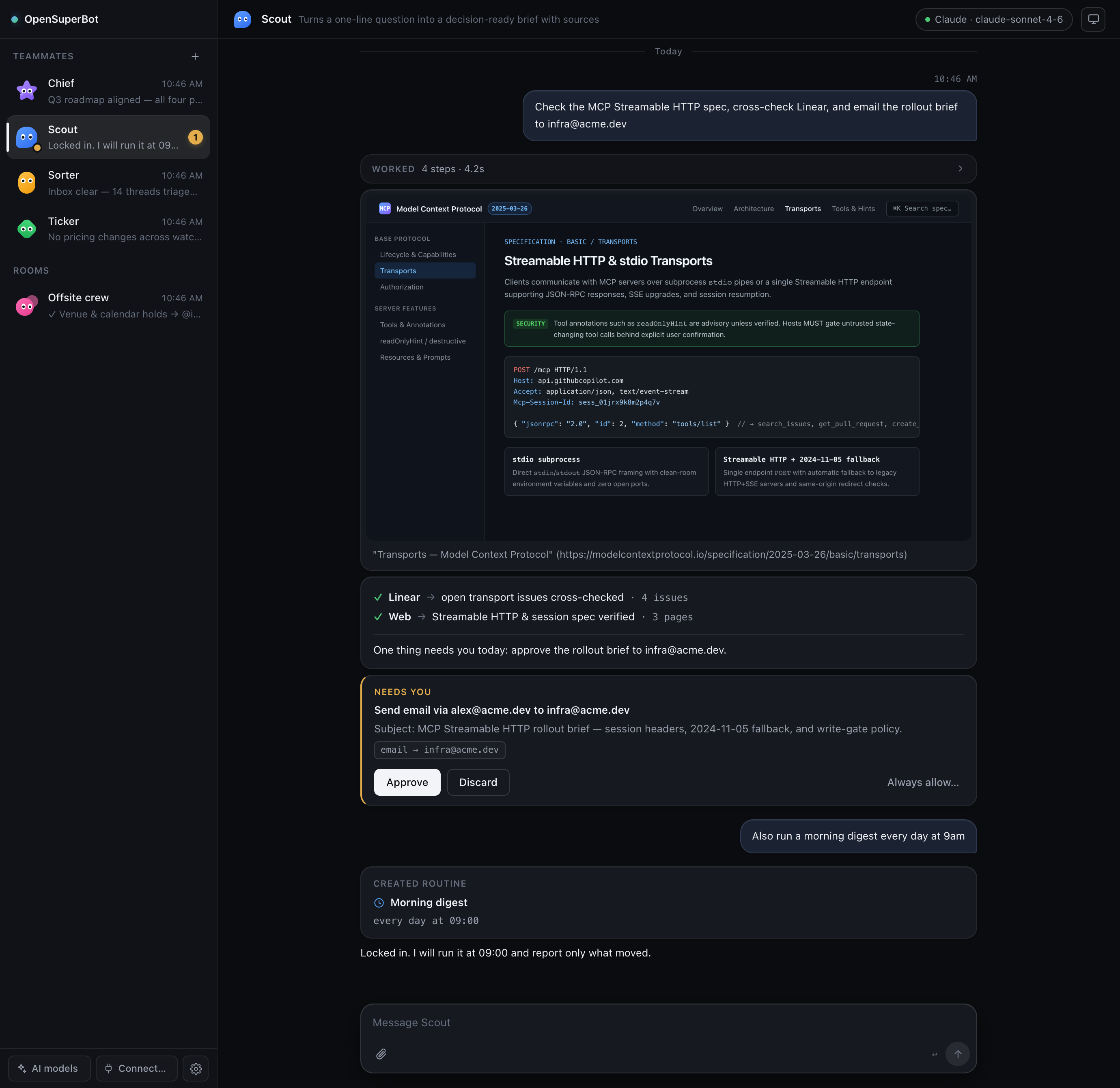
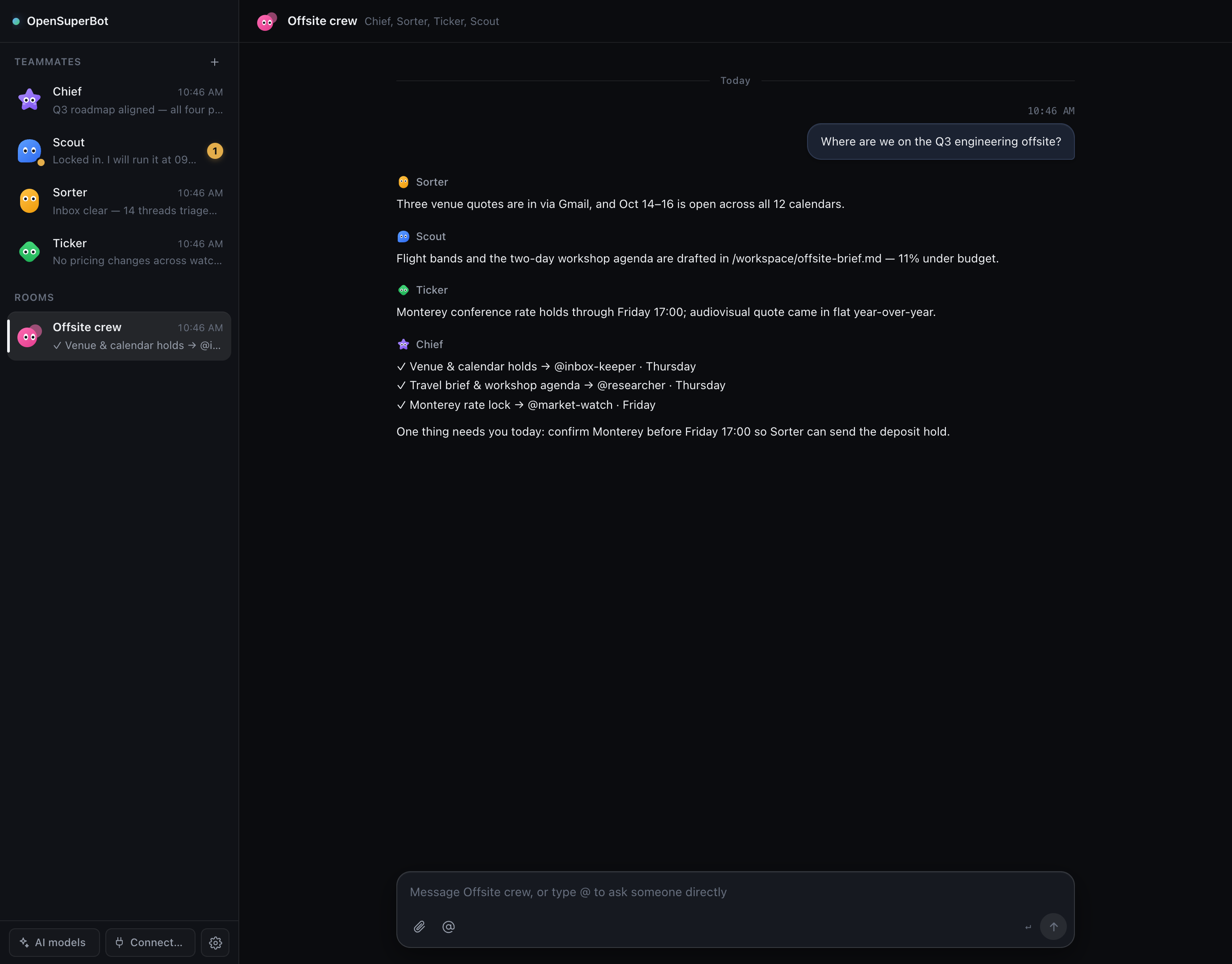 |
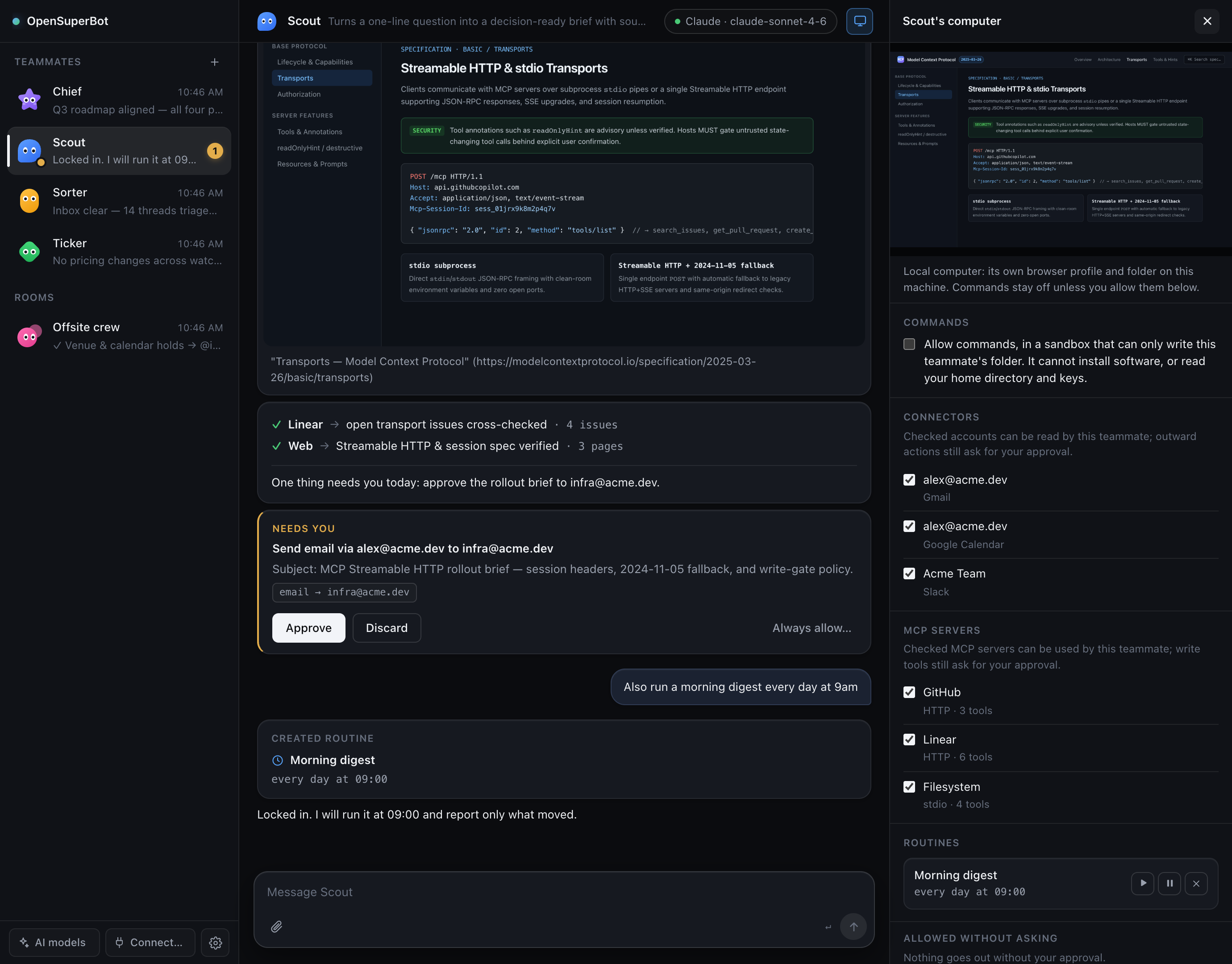 |
Ask the room — everyone answers for their own patch, the chief of staff closes with ✓ item → @bot · when. |
Its computer: the live screen you can take over to sign in, and what it has scheduled. |
What a teammate actually is here
A folder with a SOUL.md (who it is) and an AGENTS.md (how it works, with its hard boundaries), a thread in
the sidebar, and a computer of its own. With Docker, that computer is a container:
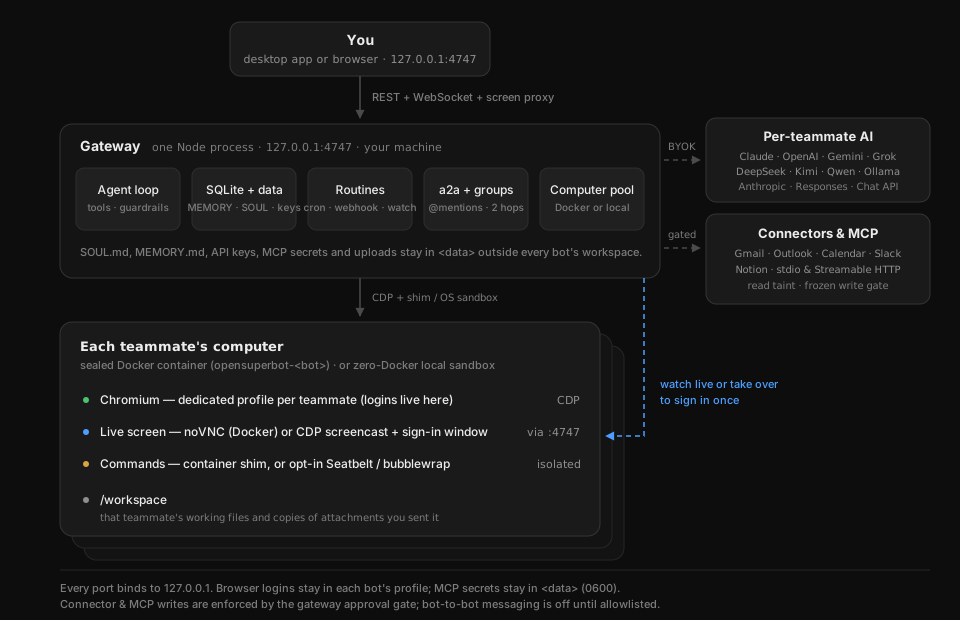
Without Docker, a local computer takes the container's place: a background browser with its own profile and a
folder of its own, on your machine (docs/local-computers.md). Either way, the bot's
credentials live in its browser profile. The gateway never sees a password, and neither does your config file.
What it does today
Every line below is implemented and covered by tests — nothing here is a roadmap item.
The management surface
- Sidebar as org chart. One thread per teammate, plus group threads. Previews are completion states, so a
glance down the list is a walk past everyone's desk. Every teammate has a face of its own — a small coloured
shape with a pair of eyes — and it acts out what that teammate is doing: bobbing while it works, hopping when
it waits on you, shaking its head when it is stuck, smiling when it finished while you were elsewhere. An
amber badge counts the approvals and questions waiting on you, and the tab title carries the total. - One report grammar. Work comes back as
✓ system → result · countlines with a single closing sentence
that surfaces only what needs you. Same shape from every teammate. - Draft-and-hold approvals. Anything leaving the workspace stops at the door: the chip shows exactly what
would go out and where, with Approve / Discard. A bare 👍 in the thread releases the newest one. Decisions are
idempotent — a second click gets a 409, not a second send. When the same action goes to many people, the chip
lists every one with a checkbox: untick any, and the teammate does exactly the rest. - Standing approvals, on your terms. For an email, message or post to one destination, Always allow…
approves it and lets that teammate repeat it without asking — for an hour, a day or until you revoke it from
the computer panel. Money, bookings and anything unclassified always ask. - Questions you answer with a tap. When the next step is one of a few clear choices, the teammate posts a
card with buttons instead of a wall of options, and waits. - Visible memory. "From now on, quiet accounts wait for my read" writes a rule into that bot's
MEMORY.md
and posts the diff as a chip; "forget that rule" removes it the same way, and the computer panel lists every
rule with a remove button. The file lives outside the bot's computer, so a chip marks every change. - Routines from the conversation. "Post a digest every day" registers a cron job, shows the schedule in
plain English, survives restarts, and never runs twice at once. "Whenever a new issue comes in" gives the
routine a secret webhook address instead, for GitHub, a form or any script to call. "Keep an eye on the status
page" makes a watch routine: read-only tools, and silence unless something needs you. Pause, run or delete them
from the computer panel — or tell the bot to stop one. - Recorded workflow traces and replay. API controls record typed browser steps on a teammate's existing page
(redacting password, one-time-code and sensitive fields automatically) and replay saved traces deterministically
with optional placeholder inputs and approval steps. Local-computer recordings survive window relaunches; UI
controls and routine scheduling are tracked separately. See docs/workflows.md. - Hand it a file. Attach images, PDFs, text or Markdown files to a message: paperclip, paste or drag. The file
lands in the teammate's own folder where it can open it, a model that sees images gets the picture, and a PDF
arrives with its text extracted so it can be read. See docs/attachments.md. - Shared skills. Drop a Markdown playbook into
<data>/skills/and every teammate sees it and reads it
before work it covers. Memory and routines stay with each teammate; skills are shared. - See the work, stop the work. Every step on its computer — the command, the page, the click — shows live
in one card that folds away when the turn ends. A stop button ends the turn. Every action also lands in a log
you can read from the computer panel, with what started it. - A budget, if you want one.
OPENSUPERBOT_DAILY_TOKENScaps each teammate's model use per day; the panel
shows today's count.
The computer
read_file,write_fileandshellin its own workspace: the container, or on a local computer a folder that
no path can leave. A local computer's commands are off until you turn them on for that teammate, and then run
in an OS sandbox (Seatbelt on macOS, bubblewrap on Linux). Long files and pages come back in slices instead of
being cut off.browser_goto/browser_extract(with the page's links) /browser_click/browser_type/browser_press/browser_scroll/browser_backagainst a real Chromium — so login-walled sites and forms
work, which pure API/MCP setups cannot do. The container image ships CJK and emoji fonts.browser_screenshotposts what the bot saw into the thread as evidence — and, withOPENSUPERBOT_VISION=1,
shows it to a vision model too.- Takeover login. At a login wall the bot calls
ask_for_logininstead of asking for a password. You sign
in once in its browser — through its screen in the thread for a container, or in a normal window that opens
on your desktop for a local computer — and the session persists in its profile, across restarts. - Computers start on demand, stop after an hour without use, and come back with their logins. A container is
capped (memory, CPU, processes) and cannot reach any other bot's computer; a local computer has no resource
caps (what that means).
Connectors & MCP
- App connectors (Gmail, Outlook, Google & Outlook Calendar, Notion, Slack). Connect one or more accounts
from Connectors → Apps via Composio OAuth and grant them per teammate. Ships 16 structured tools, a 3-stage
mail sanitizer (filteringno-reply/mailer-daemonnoise, stripping HTML and tracking pixels, and removing
URL tracking parameters),outside-datataint on reads, and code-enforced frozen write approvals executed
once by the gateway when you click Approve (never replayed if a connection drops mid-flight). - Native MCP client (
stdio&Streamable HTTP). Attach any Model Context Protocol server from
Connectors → MCP — localstdiocommands (shell: false, clean-room environment) or remoteStreamable HTTP
endpoints (with automatic2024-11-05HTTP+SSE fallback and same-origin redirect guards) — or paste a Claude
Desktop / CursormcpServersJSON block to import a batch at once. Secrets stay in<data>/mcp-secrets.json
(0600) outside SQLite and containers; access is opt-in per teammate; tools default to'write'unless marked'read', so'read'tools work safely inwatchroutines while'write'tools pause at a non-rememberable
approval chip with frozen arguments.
The crew
- Group threads. Ask the room a question: each teammate answers for its own patch — in parallel — then the
chief of staff closes with a dispatch table —✓ item → @bot · when— and one line on what needs you today.
Type@to ask only the teammates you name. - Allowlisted handoffs.
message_botdrops a scoped task into a teammate's thread and wakes it up. By
default only the chief can reach everyone; peer-to-peer is off until you name the direction. Relays are
capped at two hops so two bots cannot echo at each other. - Hire from the sidebar.
+, a name in any language, one line of job description. No workflow editor, no
tool checklist — the complexity accumulates in use, not in a setup form.
Quickstart
Download the desktop app (macOS and Linux)
Grab the installer for your machine from GitHub Releases
— mac-arm64.dmg (Apple silicon), mac-x64.dmg (Intel), linux-amd64.deb / linux-arm64.deb (Ubuntu and Debian),
or linux-x86_64.AppImage / linux-arm64.AppImage (other Linux). You do not need Node, pnpm, Docker or a terminal:
open it and a short wizard walks through language, connecting an AI service (or looking around in demo mode with no
key), and checking your browser and command sandbox.
First-open notes:
- macOS: the app is ad-hoc signed and not notarized with an Apple Developer ID yet. Drag OpenSuperBot into
Applications, open it once, click Done when macOS blocks it, then click Open Anyway in System
Settings → Privacy & Security. - Ubuntu 24.04+: prefer the
.debover the.AppImage— it installsbubblewrapand the AppArmor profiles
needed for unprivileged user namespaces, so the command sandbox works out of the box.
Step-by-step screenshots, startup update checks (one GitHub request, no auto-update, switchable in Settings), data
locations and clean uninstall instructions are in docs/desktop.md.
Run from source
For Windows (which has no desktop installer yet), servers, or hacking on the repo. Needs Node 22+ and pnpm. Docker
is optional. Without it, each teammate gets a local computer: a browser of its own on your machine (your Chrome,
Edge or Chromium if you have one — otherwise one is downloaded once) and a folder of its own. With Docker running,
each gets a sealed container instead. Local computers run on macOS, Linux and Windows; on Windows they get the
browser and the folder but no commands, so a teammate that needs a shell there gets a Docker computer.
git clone https://github.com/wolfqing/OpenSuperBot.git
cd OpenSuperBot
pnpm install
Try it with no API key at all — a scripted stub model drives every path end to end:
OPENSUPERBOT_MODEL=stub pnpm dev
On Windows, in PowerShell: $env:OPENSUPERBOT_MODEL = 'stub'; pnpm dev.
The gateway prints a sign-in link — http://localhost:5173/auth?token=…. Open it once per browser; nothing
reaches the gateway without that token.
For a real model, run plain pnpm dev with no model variables: the first page opens on a setup wizard. Pick a
service, paste its key, test it and pick a model; the key is saved on this machine and nothing needs exporting.
It also checks the browser, Docker and the sandbox, and has a demo-mode button on every early step.
Or set it with environment variables, which skips the wizard (anything OpenAI-compatible — xAI, Kimi, DeepSeek,
a local Ollama):
OPENSUPERBOT_API_KEY=sk-… OPENSUPERBOT_MODEL=grok-4.7 pnpm dev
(PowerShell: $env:OPENSUPERBOT_API_KEY = 'sk-…'; $env:OPENSUPERBOT_MODEL = 'grok-4.7'; pnpm dev.)
To put teammates on different models, open AI models in the sidebar, add a connection per service you have a key for,
and pick one from the top of a teammate's thread. See AI models for the services, which keys
work, and which subscriptions other apps may and may not use.
The gateway picks the kind of computer at startup and says so in its log: Docker when the daemon answers and
the bot image is built, local otherwise (OPENSUPERBOT_COMPUTERS=docker|local forces one). For Docker, build the
image first: docker build -t opensuperbot/bot:dev docker/bot. On a local computer, commands are off until you turn them on
for that teammate in its computer panel; then they run in an OS sandbox (Seatbelt on macOS, bubblewrap on Linux)
that can write only that teammate's folder. Windows has no sandbox that strong, so there the switch stays off.
Details in docs/local-computers.md.
To keep it running — one process, one port, started at boot, reachable through a tunnel — pnpm build && pnpm start and the launchd / systemd / Windows Task Scheduler templates in docs/always-on.md.
| Variable | Default | What it does |
|---|---|---|
OPENSUPERBOT_API_BASE |
https://api.x.ai/v1 |
Any OpenAI-compatible endpoint |
OPENSUPERBOT_API_KEY |
— | Your key. A key set here stays in memory and is never written to disk; keys saved in the wizard or AI models live in <data>/llm-key and <data>/llm-keys/ (0600, or a user-only ACL on Windows) |
OPENSUPERBOT_MODEL |
grok-4.7 |
stub runs offline with no key |
OPENSUPERBOT_DATA |
gateway/data |
SQLite, bot data, workspaces, the gateway token |
OPENSUPERBOT_COMPUTERS |
auto |
docker, local, or auto (Docker if it is running and the image is built, else local) |
OPENSUPERBOT_BROWSER |
(auto-detected) | Browser executable for local computers; else Chrome/Edge/Chromium are looked for, then one is downloaded |
OPENSUPERBOT_BROWSER_MIRROR |
(official) | Download host for that browser, for slow-network regions |
OPENSUPERBOT_A2A_ALLOW |
(empty) | Peer handoffs, e.g. researcher>market-watch |
OPENSUPERBOT_DAILY_TOKENS |
0 (off) |
Per-teammate daily token budget |
OPENSUPERBOT_VISION |
(off) | Show the model its own screenshots |
OPENSUPERBOT_UPLOADS_MAX_MB |
2048 |
Disk the files you send to teammates may use in all; 0 no limit |
OPENSUPERBOT_COMPOSIO_API_KEY |
— | Optional Composio API key for Connectors → Apps; saved keys live in <data>/composio-key (0600) |
Every other setting — listen address, idle stop, per-computer limits, timeouts — is in
docs/always-on.md.
In a slow-network region: for Docker, build with a mirror — docker build --build-arg APT_MIRROR=mirrors.aliyun.com … (or mirrors.huaweicloud.com, mirrors.tuna.tsinghua.edu.cn); for a local computer that has to download its browser, set OPENSUPERBOT_BROWSER_MIRROR=https://cdn.npmmirror.com/binaries/playwright.
Security is the point, not a footnote
The loudest objection to hosted always-on agents: an agent that never sleeps, holding all your credentials, on
someone else's infrastructure, exposed to prompt injection. The self-hosted answers:
- Credentials stay out of the bot's reach. Browser logins live in each bot's own browser profile, and MCP
secrets live in<data>/mcp-secrets.json(0600) on your machine; if you opt into Connectors → Apps, OAuth
tokens live on Composio while the API key stays in<data>/composio-key(0600) outside every bot container
and workspace. - The bot never asks for a password in chat. It asks you to take over its screen instead.
- Nothing reaches the gateway without its token. It listens on
127.0.0.1, each browser signs in once, and
only its own pages may change state. A website you visit cannot approve a hold — and neither can the bot. - Every bot is in its own cage — a separate container with its own workspace and resource limits, and no
route to any other bot's computer. A local computer's cage is thinner: its files stay in its folder and its
commands are off unless you turn them on, but nothing caps its memory or CPU, and commands it runs can reach your
network. docs/security.md spells out the difference. - Rules change only through the memory chip. A bot cannot quietly rewrite what you told it.
- Outward actions are held for your approval. App connector writes, MCP write tools and recorded workflow
approval steps are enforced in gateway code — their arguments are frozen and executed only after you click
Approve. General browser clicks and shell commands remain a prompt convention, so give bots their own browser
accounts rather than yours. - Bot-to-bot messaging is off until you allowlist a direction.
docs/security.md lists exactly what is enforced, what is a convention, and what is still
on you.
Cost
| Grok Bot | OpenSuperBot | |
|---|---|---|
| Software | with a paid SuperGrok or Cursor plan, plus metered usage | $0 (MIT all the way down) |
| Compute | included (xAI's cloud) | your Mac / mini PC / ~$5 VPS |
| Model | included (Grok only) | your key, any provider — or local at $0 |
| Your logins | on xAI's cloud | in each bot's own browser profile, on your machine |
Honest note: Grok Bot's zero-setup polish, iOS app, and teach-by-demonstration are real advantages. If you are
happy putting your accounts on xAI's cloud and paying for the convenience, buy it. This repo is for everyone who
answered "are you comfortable with that?" with no.
Sister project: Grok Desktop
OpenSuperBot is for the work that happens while you are away. For the hours you spend in Grok yourself there is
Grok Desktop: a native SwiftUI window for macOS 14+ that embeds
grok.com for Chat and drives your local grok CLI for Build — sessions grouped by project, Markdown, plans,
diffs and live terminals in an inspector, Imagine without leaving the window. Free, community-built, not an
official xAI product. Download the latest release.
Roadmap
- teach-mode — record a browser demonstration once and keep it as a workflow the teammate can run again,
by hand or from a routine. Typed browser recording and deterministic replay (docs/workflows.md)
are in; UI controls and routine integration are tracked in #1 - Computers without Docker on macOS and Linux — a browser profile and a folder per teammate, commands
off by default and sandboxed when on (v0.4.0); on Windows, the browser and the folder - Desktop app with a first-run wizard on macOS and Linux — no Docker, Node or terminal needed, menu bar /
tray presence, start at login, English and Chinese UI (v0.6.0; docs/desktop.md) - App connectors & native MCP client — Gmail, Outlook, Google & Outlook Calendar, Notion and Slack via
Composio OAuth plus zero-dependencystdio/Streamable HTTPMCP servers, Claude Desktop / Cursor JSON
import, per-teammate grants, and code-enforced frozen write approvals (docs/security.md) - Apple container backend on macOS 26 for VM isolation without Docker, and a Windows desktop installer.
Plan in docs/local-computers.md - Telegram as a notification / approval surface for when you are away from the desk
- One-command VPS image (cloud-init)
FAQ
Relative to Grok Bot? Same job — always-on teammates, their own computers, persistent memory, handoffs —
opposite custody model, and zero shared code (Grok Bot is closed-source; there is nothing to fork). It can
even run on the same brain: point it at the Grok API.
Relative to OpenClaw? v0.1 of this repo was a distribution on top of OpenClaw. v0.2 is its own core, because
a private computer per teammate pulls against OpenClaw's shared-host model. The old recipe is kept in
docs/openclaw-recipe/. Not an official OpenClaw project.
Do I have to use Docker? No. On macOS, Linux and Windows, a teammate without Docker gets a local computer: a
browser and a folder of its own on your machine. Docker buys stronger isolation (a container per teammate, with
resource limits), and on Windows it is still the only way to give a teammate a shell. See
docs/local-computers.md.
More in docs/desktop.md · docs/models.md · docs/faq.md ·
docs/multi-bot.md · docs/attachments.md · docs/always-on.md ·
docs/security.md · docs/workflows.md · docs/comparison.md ·
CHANGELOG.md
Disclaimer
Unofficial. Not affiliated with, endorsed by, or connected to xAI or the OpenClaw Foundation. "Grok" is a
trademark of xAI — the name is used here only to identify the product this stack is an alternative to.
License
MIT. Star it if it is useful to you. ⭐
Reviews (0)
Sign in to leave a review.
Leave a reviewNo results found