maiestro
Health Warn
- License — License: MIT
- Description — Repository has a description
- Active repo — Last push 0 days ago
- Low visibility — Only 7 GitHub stars
Code Fail
- exec() — Shell command execution in frontend/src/LogsView.tsx
Permissions Pass
- Permissions — No dangerous permissions requested
No AI report is available for this listing yet.
Menu-bar dashboard for parallel AI coding sessions. See which Claude Code, Codex, Copilot or Antigravity session needs you, color each session's windows, and spawn a git worktree per issue. Runs on macOS and Windows.
mAIestro Code


Why mAIestro Code
Getting real leverage out of AI coding means running several agent sessions
in parallel. The bottleneck stops being any single session and becomes you: the
constant context switching between them. That's what mAIestro Code exists to solve.
mAIestro Code colors and launches each session, and displays the session status highlighting
which sessions need attention.
mAIestro Code is deliberately not another place to chat with an agent. It
doesn't get in the way of your session interactions — the conversation still
happens in your editor or terminal.
Demo Videos
What it is
A macOS menu-bar app that quickly shows active AI coding sessions. Features include:
- Parallel IDE sessions. Each session is assigned a color, so it is easy to find across multiple windows.
- Live session status. Each row shows what the AI engine is doing — working,
waiting for you, idle. - One worktree per issue. Spawn Work on an issue creates a branch and a
worktree (e.g.~/src/work-42-fix-thing/repo), runs your setup commands, and
opens your editor. - Idea → issue. Type a rough idea and AI drafts the GitHub issue title
and body before anything is created. - PRs from the dashboard. Create an AI-drafted pull request for a
workspace, watch its checks, and merge it — then tear the worktree down. - Multiple AI vendors. Each repo picks its agentic coding CLI: Anthropic
Claude Code, OpenAI Codex CLI, Google Antigravity CLI, or GitHub Copilot
CLI. - Multiple git repo support. Work on multiple repos at the same time.
- Visibility and snooze controls. Just focus on your active work. If there is a repo or work item you want to pause, just hide or snooze it for a couple of days.
- Subscription quota at a glance. A strip at the bottom of the popover
shows how much of your Claude, Codex and GitHub Copilot plan limits you've
used (e.g. Claude5h 42% · 7d 18%), colored by whether you're on pace to
run out before the limit resets. - Per-identity GitHub access. GitHub tokens are stored in the macOS
Keychain per identity; each repo is tracked under the identity you choose.
Security and privacy covers what leaves your Mac.
What's supported
| macOS | Windows | |
|---|---|---|
| Agentic coding CLIs | ||
Claude Code (claude) | ✅ | ✅ |
Codex CLI (codex) | ✅ | ✅ |
Antigravity CLI (agy) | ✅ | ✅ |
GitHub Copilot CLI (copilot) | ✅ | ✅ |
| Operating systems | ||
| macOS (Apple silicon + Intel) | ✅ | — |
| Windows 10 / 11 (x64) | — | ✅ |
| Terminal hosts | ||
| VS Code | ✅ | ✅ |
| Terminal.app | ✅ | — |
| cmux | ✅ | — |
| Windows Terminal | — | ✅ |
Each repo picks its agentic coding CLI and terminal host in Settings, or
follows the global defaults.
Installation
MacOS
You need macOS, git, a GitHub account, and one agentic coding CLI —
Claude Code (the default), Codex CLI, Antigravity CLI, or GitHub Copilot CLI — installed and
logged in.
1. Install mAIestro Code
Download the latest .dmg from the Releases page and drag mAIestro Code to Applications. It is a universal build that runs on both Apple silicon and Intel Macs.
2. Install an agentic coding CLI and log in
Anthropic Claude CodeOpenAI CodexClaude Code is the default. Either installer works:
curl -fsSL https://claude.ai/install.sh | bash   # native installer
brew install --cask claude-code                  # or via Homebrew
Then check it and log in — run
claudeonce and follow the browser prompt:claude --version # prints e.g. 2.1.266 (Claude Code) claude # log in on first run; /login inside a session re-runs itmAIestro Code stores no API key of its own —
sessions run under yourclaudelogin. See the
Claude Code setup docs if the install
misbehaves, or runclaude doctor.
Google AntigravityInstall it, then log in:
curl -fsSL https://chatgpt.com/codex/install.sh | sh
codex --version   # 0.133.0 or newer
codex login
GitHub Copilotcurl -fsSL https://antigravity.google/cli/install.sh | bash # or: brew install --cask antigravity-cli agy --version # 1.2.10 or newer agy # sign in on first run
Needs a GitHub Copilot subscription. Install the CLI (the npm package needs
Node.js), then sign in:npm install -g @github/copilot # or: brew install copilot-cli copilot --version # 1.0.90 or newer copilot # /login on first run — or sign in to `gh`, whose token Copilot also usesVS Code's Copilot Chat extension puts its own
copilotcommand on your PATH
that only offers to install the real CLI; mAIestro Code ignores it.
3. Authenticate git for your sessions
GitHub CLISpawned sessions push and fetch under your ambient git auth, not through
mAIestro Code. The GitHub CLI is the easiest way to set it up, sincegh auth loginalso sets up git's credential helper:brew install gh gh auth login # choose HTTPS and "authenticate Git with your credentials"
4. Recommended: a Nerd Font
JetBrains Mono Nerd FontClaude Code's terminal UI draws box-drawing and powerline glyphs that a plain
monospace font renders as tofu (□). Install a Nerd Font with:brew install --cask font-jetbrains-mono-nerd-font
Windows (preview)
Windows support is a preview while the port settles
(#160). You need
Windows 10 or 11, git (Git for Windows), VS Code with its code CLI, a
GitHub account, and one agentic coding CLI installed and logged in — the
same choices as on macOS (see step 2 above, using each CLI's Windows install
instructions).
1. Install mAIestro Code
From the Releases page,
download mAIestro-Code_X.Y.Z_x64-unsigned-setup.exe. It's for x64 PCs
(Intel / AMD, "x64-based processor" under Settings → System → About → System
type); there's no Windows on ARM installer yet.
Run it. It installs for your user only (no administrator prompt) under%LOCALAPPDATA%\mAIestro Code, and installs Microsoft's WebView2 runtime if
it's missing. Uninstall from Settings → Apps.
The installers are not code-signed yet
(#224), so SmartScreen
shows "Windows protected your PC" when you run one: click More info → Run
anyway. With no publisher signature to check, download them only from the
Releases page above.
2. Then
Follow steps 2–4 of the macOS instructions above (agent CLI, git
authentication, optional Nerd Font). mAIestro Code lives in the notification
area (system tray) — the brain icon — instead of the menu bar.
Other Platforms
mAIestro Code is not yet available on other platforms, but it is designed to support multiple OS, agentic coding CLIs, etc. Please submit a github issue to request more platforms.
Quick start
- Click the brain icon in the menu bar and open Settings.
- In Identities, add an identity (e.g.
default) and save a GitHub
personal access token for it — see GitHub token below for
the permissions it needs. The token goes into the macOS Keychain;~/.maiestro/identities.jsonkeeps only the identity name. - In Repos, click Add Repo, pick the identity, and choose a repository
from the fetched list — or type anyowner/nameyou can read. Point its
settings at your local clone if it isn't at the default~/src/<repo-name>. - Click Check Health at the top of the repo's settings and fix anything it
reports — see Check Health below. It catches a missing
clone, an unresolvableclaude, or a token without push access before
they break a spawn. - Back in the popover, the repo lists its open issues. Hit Spawn Work on
one — mAIestro Code creates the worktree, copies your env files, runs your
post-spawn commands, and opens the editor with the agent working the issue.
Or write your own idea and let the agent draft the issue first. - When the work is ready, create the PR from the workspace row (the agent drafts
the description), merge it once checks pass, and tear the workspace down.
GitHub token
mAIestro Code talks to the GitHub REST API directly with a token you store per
identity. A fine-grained personal access token
(create one) is the
recommended kind:
Repository access — Only select repositories, and pick every repo you
want mAIestro Code to track (or All repositories if you prefer).Repository permissions — these four:
Permission Access Used for Metadata (required) Read-only (no write option) Reading the repo itself Contents Read and write How mAIestro Code derives whether the token can push Issues Read and write Listing and creating issues, assigning, commenting Pull requests Read and write Creating, reading, and merging PRs; the checks dot
Add Workflows if PRs will touch
.github/workflows/, and Merge
queues on a repo that merges through a queue — GitHub refuses those merges
otherwise. Actions and Commit statuses are not needed: the PR
pill's checks dot comes from the pull request's ownmergeable_state, not
the Checks or Statuses APIs, so a token without them still shows check
state correctly.A classic token works too — it needs the
reposcope (public_repois
enough for a public repo).Whichever kind you use, mAIestro Code never injects it into a spawned session;
sessions push and fetch under your ambient git auth fromgh auth login. The
health check below verifies the token without ever creating a throwaway issue
or PR to test it.
Check Health
Each repo's settings form has a Check Health button that runs the
prerequisites in one pass and streams the results. Failures are
informational — they never block a spawn — and several rows come with a
copy-pasteable fix.
- Cloned repo exists —
cloned_repo_diris a git repo whoseorigin
really points at thisowner/name.- Git available and Terminal host available — the
gitand VS CodecodeCLIs resolve (pin them under General → Tool paths if not); for a
repo whose sessions open in Terminal.app, that Terminal is there and
mAIestro Code is allowed to control it (Automation); for a cmux repo, that
cmux is installed and its Socket Control Mode (cmux Settings → Automation)
is Automation or Password; for a Windows Terminal repo, thatwt.exeis
there (checked without opening a window).- Claude logged in (or Codex logged in / Antigravity logged in /
Copilot logged in, for a repo on that agentic coding CLI), with a
model available sub-check — a real probe of the repo's drafting model
(for Antigravity, a check againstagy models; for Copilot, one tiny
tool-less call, which costs a premium request), so a login problem and a bad model name are reported
separately. Only the repo's own agentic coding CLI is checked, so a machine
with just one agentic coding CLI installed gets a clean report.- GitHub token & permissions — the token is valid, the repo is readable,
and the token can push. This is derived from the scopes and permissions
GitHub reports; mAIestro Code never creates a throwaway issue or PR to test.- Configured env files exist and Terminal font installed (VS Code
repos) — advisory warnings, not failures.
The main window
An annotated tour of the popover (illustrative diagram, not a screenshot):
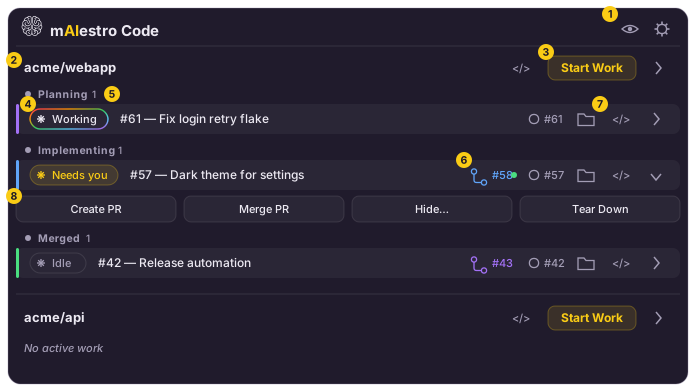
- Show-hidden toggle and Settings — the eye reveals hidden/snoozed repos
and workspaces; the gear opens the Settings window (identities, repos,
appearance). - Repo group — one section per tracked repo, with a button to open its
checkout in VS Code (or in Terminal, cmux or Windows Terminal, for a repo that uses one) and, beside it, the mark of the repo's agentic coding
CLI — click it to switch the agent new work items start with. - Start Work — opens the issue picker for this repo (next diagram).
- Agent status pill — the Claude or OpenAI logo with the session's live state, fed by the agent's hooks:
Working (rainbow ring), Needs you (amber — e.g. a permission prompt),
Ready/Idle (muted). Click it to jump into the session's editor. A red
tint means a tool call failed and Claude stopped without recovering; the
error shows inline and can be dismissed. - Lifecycle zones — workspaces are grouped as Planning → Implementing
(a PR exists) → Merged, and slide between zones as their phase changes. - PR pill — links to the workspace's pull request; the dot is the live
checks status (green passing, spinning while running). - Quick links — open the issue on GitHub, reveal the worktree in Finder,
or open the session in VS Code — or in Terminal, for a repo whose
Terminal host setting is Terminal.app (macOS), where each session
gets its own window tinted with the worktree's color — or in cmux (macOS),
where each session is a named workspace in the worktree's color, grouped
into windows by the Terminal layout setting (one window per repo by
default). cmux needs its Socket Control Mode set to Automation or Password.
On Windows, a repo can use Windows Terminal instead, where each session is
a tab titled after the repo and session and colored with the worktree's
color, grouped into windows by the same Terminal layout setting. - Command strip (expand a row with its chevron) — Create PR (Claude
drafts the description from the diff), Merge PR (creates the PR if
needed, waits for checks, merges), Hide… (snooze the row), and Tear
Down (remove the worktree; warns about uncommitted or unpushed work).
While an operation runs, the row shows a busy pill — Creating…,
Creating PR…, Merging…, Tearing down….
Quota strip. Along the bottom of the popover, right-aligned, is one chip
per agent account used by the work items on screen. Each limit window gets a
small meter: 5h and 7d for Claude, the plan's windows for Codex (e.g.30d), and premium (or plan on Copilot Free) for GitHub Copilot. Hover
a chip for the plan, the reset times, the pace, and how old the reading is.
- Green: under 50% used, or on pace to last until the limit resets. For
example, 60% used with one hour of a 5-hour window left is still green. - Amber: on pace to run out shortly before the reset.
- Red: on pace to run out well before the reset, or already used up.
—: the window has reset since the last reading.
Claude's numbers update live as your sessions run; Codex and Copilot refresh
every minute while the popover is open. An agent with no reading (an API-key
login, a failed read, or Antigravity, which has no reliable source) simply
has no chip. Details in docs/provider-quotas.md.
Clicking Start Work opens the issue picker:
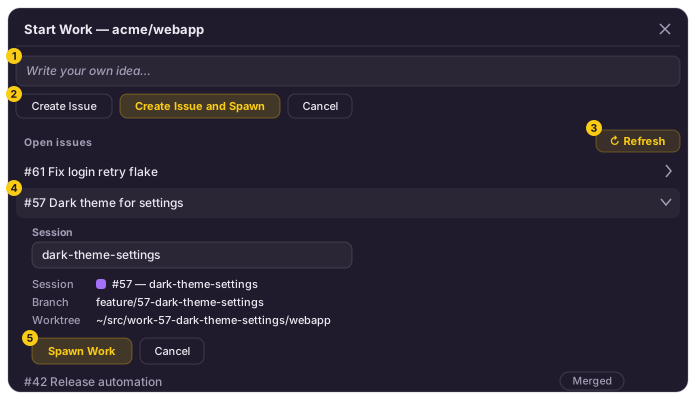
- Idea box — describe what you want in plain words; the agent turns it into
a titled GitHub issue. - Create Issue / Create Issue and Spawn — file the drafted issue, or file
it and immediately spawn a workspace for it. - Open issues — the repo's open issues, refreshable; issues that already
have a workspace sink to the bottom with their phase. - Spawn preview — expanding an issue shows what will be created: an
editable short session label (drafted by the agent) plus the derived
workspace, branch, and worktree path. - Spawn Work — creates the worktree, copies env files, runs post-spawn
commands, and opens the editor with the agent briefed on the issue.
Configuration
Everything lives under ~/.maiestro/, in human-editable JSON that plays well
with dotfile tooling. The Settings window is the GUI over the same files.
| Path | What it holds |
|---|---|
identities.json |
The known identity names and the optional default (the tokens themselves live in the macOS Keychain, never here) |
repos/<owner>-<name>.json |
Per-repo settings (see below) |
settings.json |
App-wide settings: theme (light/dark/system), CLI tool-path overrides, terminal font, launch-at-login, popover size, update-check state |
approvals/ |
Post-spawn commands you chose to always allow, per repo (<owner>-<name>.json) or for all repos (global.json). The app only adds to these; edit or delete a file to revoke |
sessions/ / status/ |
Workspace records and live session status (managed by the app) |
quota/ |
The latest Claude subscription-quota reading (managed by the app) |
Per-repo settings cover the local clone path (cloned_repo_dir), where
worktrees are created (worktree_prefix), .env files to copy into each new
worktree (env_files), shell commands to run after a worktree is created
(post_spawn_commands, e.g. pnpm install), and overrides for the prompts
mAIestro Code sends the repo's agentic coding CLI when drafting issues, labels, and PRs (prompts).
The format is specified by a JSON Schema atbackend/schemas/repo-settings.schema.json
(bundled with the app at/Applications/mAIestro Code.app/Contents/Resources/schemas/repo-settings.schema.json).
Point a $schema key at it for autocomplete when hand-editing.
Logs are written to ~/Library/Logs/com.maiestro.app/lYYYYMM/maiestro-YYYYMMDD.log
(UTC-dated, daily rollover) and are viewable from the app's Logs window.
Security and privacy
Security
Only track repositories you trust. Spawning a workspace runs code from
the repository and from your own settings before you see any of it, and the
agent that then works in it is steered by files the repository controls:
- Your
post_spawn_commandsrun in the new worktree through your login
shell ($SHELL -lc) with your full ambient environment, before the editor
opens. Anything they invoke (pnpm install,make setup, …) executes
whatever the checked-out repo provides. A spawn lists them and asks first,
unless you chose to always allow those exact commands for the repo or for
all repos; a changed command asks again. - Your
env_filesare copied from the clone into every worktree, so any
secrets in those.envfiles are present in each workspace you spawn. - VS Code opens with
--disable-workspace-trust. The repo's own.vscode
configuration and any workspace-triggered extension behavior run without the
"Do you trust the authors?" prompt. - The session is ordinary Claude Code (or Codex), launched interactively with
its standard permission prompts; mAIestro Code passes no permission-bypass
flags. The repo's committedCLAUDE.md,.claude/settings, and hooks apply
to that session exactly as if you had runclaudethere yourself, so a
malicious repository can influence the agent. That is Claude Code's own trust
model, not something mAIestro Code adds or removes. The same holds for a Codex
session and the repo'sAGENTS.mdand.codex/configuration, and for an
Antigravity session and the repo's.agents/configuration. mAIestro Code adds
its own status hooks to a worktree's.agents/hooks.json, and they never
approve or deny a tool. The same holds for a GitHub Copilot session and the
repo's.github/instructions and hooks; mAIestro Code adds its status hooks
as.github/hooks/maiestro-status.json(kept out of git), which Copilot loads
only after you trust the folder, and they never approve or deny a tool either. - mAIestro Code's own drafting calls run with all tools disabled. The
issue, label, and PR-description drafts runclaude -p … --tools ""(or, for
Codex,codex exec --sandbox read-onlywith the shell and other tools
disabled) in the repo. For Antigravity, headlessagyruns in an empty
mAIestro Code folder (~/.maiestro/antigravity-draft/) whose hook denies
every tool. For Copilot, headlesscopilotruns with--available-tools nonein an empty, untrusted mAIestro Code folder
(~/.maiestro/copilot-draft/), and a reply is discarded unless Copilot
confirms its tools were disabled. Either way, prompt injection from your idea text, an issue body, a diff, or the
repo'sCLAUDE.mdcan at worst produce a bad draft — never read files, run
commands, or fetch URLs.
You review a drafted issue before it is created. The drafted PR is filed
directly as a GitHub draft pull request, so check its description on GitHub
before marking it ready. The agent's output is in front of you in the editor
or terminal as it works. Read it.
Privacy
mAIestro Code runs entirely on your Mac and has no servers of its own.
What leaves your machine, and to whom
- GitHub (
api.github.com), authenticated with the identity's token from
the Keychain: listing repos and issues, creating and editing issues,
assigning the issue to the token's user on spawn, posting the spawn comment,
and creating, reading, and merging pull requests. See
GitHub token. - GitHub (
api.github.com), unauthenticated: about every 12 hours the
app fetches the latest release ofyanokamay-org/maiestroto tell you when
a newer version is out. The request carries no token, no account or machine
identifier. Details indocs/update-check.md. - GitHub Copilot quota: while a Copilot work item is on screen, the
popover reads that repo identity's Copilot usage from GitHub's
undocumentedapi.github.com/copilot_internal/user, at most once a minute,
with the same Keychain token. Claude and Codex quota is read locally (from
the session's status line and Codex's own session logs, or a localcodex app-server), with no request of mAIestro Code's own. Details indocs/provider-quotas.md. - The spawn comment posted on the issue names the branch, the session
label, and your local worktree path, which includes your macOS
username. The per-repocomment_on_spawnsetting turns it off; assignment
is not gated by it (seedocs/settings.md). - Claude Code / Anthropic, under your own
claudelogin: the drafting
calls send your idea text, the issue title and body, and — for PR drafts —
the branch's commit log and its diff against the base branch (or a
file-level summary when the diff is large), plus whatever repo contextclaudeloads itself, such asCLAUDE.md. The interactive session is plain
Claude Code, governed by Anthropic's terms for your account. - OpenAI, Google, or GitHub Copilot instead, for a repo whose agentic
coding CLI is Codex CLI, Antigravity CLI, or GitHub Copilot CLI: the same
drafting inputs go to that CLI under your own login, and the session is
governed by that provider's terms. Copilot drafting and its Check Health
probe each spend premium requests on your plan. - Remote control. By default, Claude sessions are launched with Claude
Code's--remote-controlflag so you can reach them from your Claude
account on other devices. Turn off Launch with Remote Control in a
repo's settings to launch its sessions without it. See the
Claude Code docs for what
that involves. - Your git remotes. Pushes and fetches inside a session use your ambient
git auth and go wherever the repo's remotes point; mAIestro Code is not in
that path.
What stays local
- Configuration under
~/.maiestro/— identities, per-repo settings, workspace
records, live status. See Configuration. - The GitHub token lives only in the macOS Keychain. It is read at call
time, sent only in theAuthorizationheader toapi.github.com, never
injected into a spawned session, and never written to disk or to the logs. - Logs at
~/Library/Logs/com.maiestro.app/record command invocations —
issue numbers, branch names, worktree paths, GitHub URLs — and the message
of a failed tool call reported by a session hook. Never credentials. They
are not pruned automatically; delete them whenever you like. - Generated files in each worktree:
.claude/settings.local.json(the
status hooks) and.vscode/(theme and launch task), both excluded from
git.
What mAIestro Code never does
- No telemetry, analytics, crash reporting, or usage tracking of any kind.
- No auto-update, telemetry, or phone-home beyond that version check.
Releases are still downloaded and installed by hand from GitHub. - No endpoints other than
api.github.comand the localclaudeCLI.
Development
Built with Tauri v2: a Rust backend in backend/ and a
React + Vite + TypeScript frontend in frontend/. Prerequisites, the dev
loop, tests, and the release pipeline are inCONTRIBUTING.md.
Architecture
The recorded design decisions live in CLAUDE.md, and the
per-feature reference (settings, health check, session status, theming, tool
resolution, provider quotas) in docs/ — those are the source of truth; the short
version:
- mAIestro Code launches sessions, it doesn't host them. Starting work opens a
real VS Code window or terminal runningclaude; the app never owns the
conversation or its stdio. - Session status comes from Claude Code hooks. Spawning writes hooks into
the worktree's.claude/settings.local.jsonthat call the mAIestro Code binary,
which writes status files the app watches. - Quota is read, never spent or borrowed. Claude's comes from the
session's own status line, which mAIestro Code chains so your status line
still shows; Codex's from its local session logs orcodex app-server;
Copilot's from GitHub with the repo identity's token. mAIestro Code never
reads an agent's own login token. - GitHub via the REST API, never
gh. The app talks to GitHub directly
with per-identity tokens read from the Keychain at call time. - Secrets in the Keychain, references in JSON.
~/.maiestro/holds only
human-editable configuration; token values never touch disk. - Launched sessions get your ambient environment. Launches go through
Launch Services / your login shell, so sessions inherit your PATH, git auth,
andclaudelogin — mAIestro Code injects nothing.
License
mAIestro Code is developed by Yanokamay LLC and released under the
MIT License. It is free to use, modify, and redistribute; the
license file has the full terms.
Reviews (0)
Sign in to leave a review.
Leave a reviewNo results found