Scanline-Term
Health Pass
- License — License: MIT
- Description — Repository has a description
- Active repo — Last push 0 days ago
- Community trust — 19 GitHub stars
Code Pass
- Code scan — Scanned 12 files during light audit, no dangerous patterns found
Permissions Pass
- Permissions — No dangerous permissions requested
No AI report is available for this listing yet.
Retro-futuristic terminal emulator for Windows with (optional) CRT simulation, AI assistant, MCP, and built-in minimalistic web browser, optimized for keyboard workflow.
Scanline Term - The Past’s Future





Scanline Term is a "retro-futuristic" Windows terminal emulator, featuring:
- Instant response, GPU rendering, multithreading
- Physical CRT screen simulation (toggleable)
- Smooth pixel-by-pixel line scrolling, even in TUI applications
- Lightweight and native
- Historical and custom presets for various terminals and screens
- Built-in mini web browser
- Built-in AI assistant
- Static sessions gallery for visual tab switching
- Open Source
Combining the raw nostalgia of cathode-ray tube monitors with modern power-user capabilities — multi-tab ConPTY sessions, vim-like search, a Quake-style console global hotkey, and a context-aware AI terminal assistant — Scanline Term brings the golden era of computing straight into your modern developer workflow.
Why Scanline Term?
1. Authentic CRT Physics
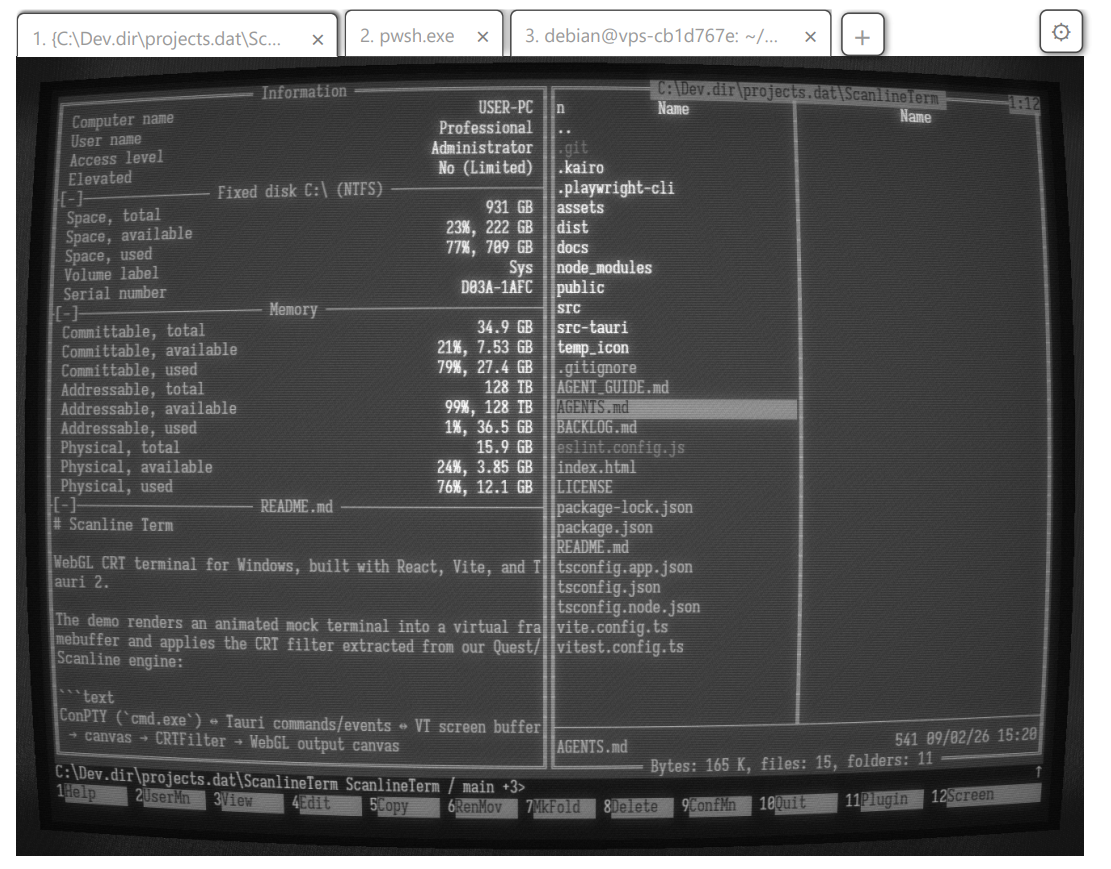
Scanline Term features a custom multi-pass WebGL shader pipeline extracted from our Scanline game engine. It accurately simulates physical CRT phenomena:
- Sinc-integrated Fourier scanlines with dynamic electron beam modulation.
- Phosphor persistence & ghosting trails with ping-pong framebuffers and adjustable decay rates.
- Multi-pass bloom & phosphor halation (soft and spiral diffusion algorithms).
- Physical glass distortion: adjustable spherical barrel curvature, corner vignetting, and bezel ambient glow.
- Hardware breathing & electrical fluctuations: HV deflection breathing under heavy load, anti-moiré filtering, and phosphor grain/noise.
2. Keyboard-First Multitasking & Embedded WebView Browser
Keep your hands on the keyboard and stay in the zone:
- Built-in WebView2 Browser Tabs: Open documentation, API references, or web tools right alongside your terminal (
Menu + Bor pass URLs via CLI). A blank browser tab starts on a local bookmark home page stored in%APPDATA%\\com.zhunter.scanlineterm\\home.json; each browser tab adopts the opened page's theme/background color. - Open Terminal Links: Hold
Ctrland middle-click an HTTP(S) URL in the terminal, including normal scrollback. The whole URL is highlighted while the pointer remains over it; release the middle button to open it in a new browser tab. - Fast Tab Switching: Jump between multiple live console sessions and browser tabs instantly using
Menu + 1...9, or open the static Sessions Gallery withMenu + Backspace. - Tab Reordering: Drag the active tab left or right in the tab bar, or move it one position at a time with
Menu + Shift + ←/→orMenu + Shift + H/L. Tab numbers are refreshed automatically.
3. Native Windows ConPTY Engine
Built specifically for Windows with Rust and native APIs:
- ConPTY Backend: Direct integration via
conpty-oxidewith bundled Windows ConPTY binaries. - Win32 Input Mode: Full support for Win32 Console Input Mode (
?9001h), function keys, numpad application modes, and full mouse tracking (SGR 1006, drag, and any-event).
4. Quake-Style Global Hotkey
Summon Scanline Term from anywhere in Windows with a single keystroke. When you're done, press Win + ~ again to tuck it away without disrupting your active window layout.
5. AI Terminal Assistant
Connect any terminal session to an embedded Codex AI assistant (Menu + A). The operator can only see the terminal session and execute commands in it.
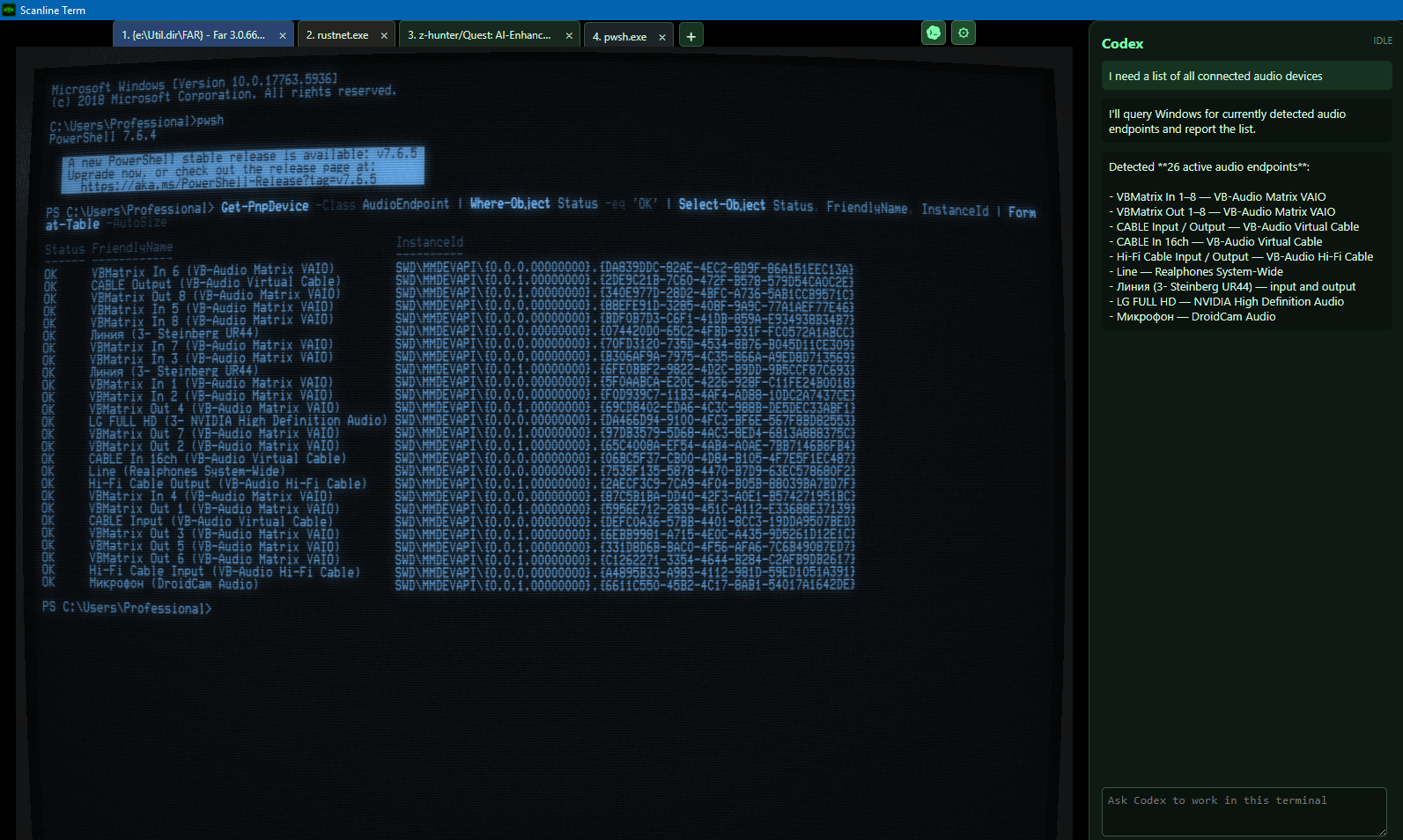
Note: To use the AI Terminal Assistant, Codex CLI (version
0.152.1or newer) must be installed on your system and available on yourPATH.
6. Ultra-Lightweight & Fast
Scanline Term is built on Tauri 2 + Rust + WebGL. The production installer is only 25 MB* (most of which consists of the included fonts), launches instantly, and stays lightweight on system resources.
Display Profiles & Virtual Resolutions
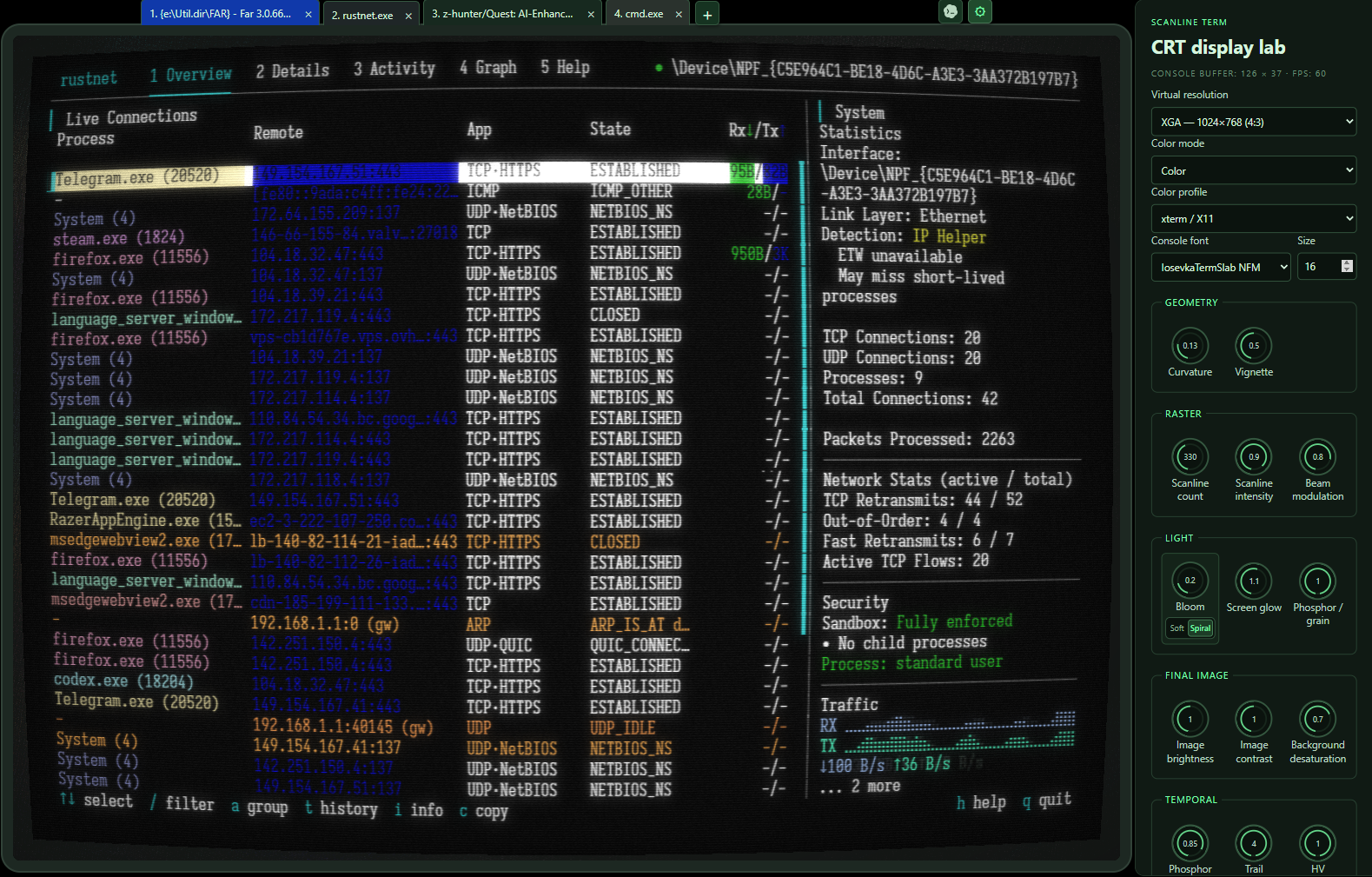
Scanline Term includes a CRT Display Lab settings panel (Menu + S) with live sliders for every visual parameter.
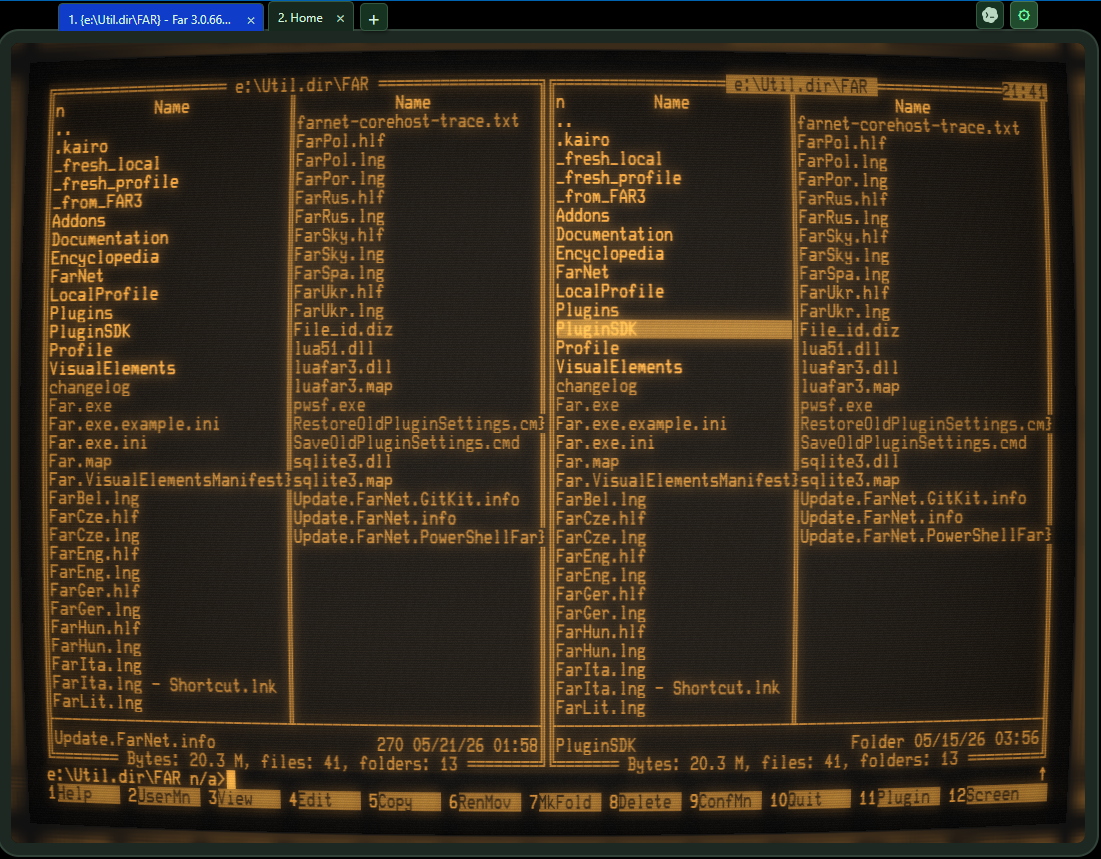
- Curated Color Profiles: Classic DOS VGA, Windows Campbell, Amber Phosphor, Matrix Green Phosphor, Commodore 64, IBM 3279, Cyberpunk Neon, B&W (~6500K White Phosphor), and Phosphor Blue.
- Virtual Resolutions: Toggle between authentic retro grid resolutions or pixel-sharp rendering:
- VGA (640 × 480)
- SVGA (800 × 600)
- XGA (1024 × 768)
- Native (Full resolution)
Keyboard Shortcuts Cheat Sheet
Note: The
Menukey refers to the Application / Context Menu key (typically situated in the lower right keyboard row betweenAlt/WinandCtrl).
| Shortcut | Action | Description |
|---|---|---|
Win + ~ |
Global Show/Hide | Summon or minimize Scanline Term from any Windows application |
Alt + Enter |
Fullscreen Toggle | Toggle distraction-free full-screen CRT mode |
Menu + S |
Settings Panel | Open / close the real-time CRT shader lab and display controls |
Menu + Z |
Toggle Tab Bar | Show or hide the tab bar |
Menu + - / Menu + + |
Terminal Font Size | Decrease / increase the active terminal font size by one point |
Menu + P |
Quick Preset Picker | Preview presets immediately; Enter, a second Menu + P, or double-click applies; Esc or a click outside cancels and restores the prior preset |
Menu + A |
AI Assistant Panel | Open / close the Codex AI assistant panel |
Menu + N |
New Terminal Tab | Spawn a new independent ConPTY shell session |
Menu + B |
New Browser Tab | Open a local bookmark home page; links promote the tab to WebView2 |
Menu + W |
Close Tab | Close the active terminal session or browser tab |
Menu + Backspace |
Sessions Gallery | Open / close a static fullscreen gallery of terminal and browser tabs |
Menu + 1...9 |
Switch Tab | Switch directly to tab 1 through 9 |
Menu + → / Menu + > |
Next Tab | Switch to the next terminal or browser tab (cycles) |
Menu + Shift + → / Menu + Shift + L |
Move Tab Right | Move the active tab one position to the right |
Menu + Shift + ← / Menu + Shift + H |
Move Tab Left | Move the active tab one position to the left |
Menu + ← / Menu + < |
Previous Tab | Switch to the previous terminal or browser tab (cycles) |
Menu + Tab |
Alternate Tab | Toggle back to the previously active tab |
Menu + V |
Paste | Paste clipboard text into the active shell |
Menu + C |
Copy Mode | Activate rectangular screen selection and copy mode |
Ctrl + Middle Click |
Open Terminal Link | Highlight the HTTP(S) URL under the pointer; release over it to open a new browser tab |
Menu + / |
Find in Terminal | Open terminal-buffer search; type a query, then use Enter or n for the next match |
Menu + Shift + / |
Find Back in Terminal | Open reverse terminal-buffer search; Enter or n moves to the previous match |
Menu + PgUp / PgDn |
Scroll Buffer | Scroll the terminal screen and history buffer up or down |
While terminal search is open, N reverses the search direction and Esc closes the overlay and restores terminal input. Search includes normal scrollback; in alternate-screen applications it covers the current screen only.
Quick Preset Picker
Menu + P opens a compact preset list in the upper-right corner without dimming the display, so each preview remains visible. Type to filter preset names; use arrow keys to choose a preview, use the mouse wheel to scroll the list, or click a row to choose its preview. Enter, a second Menu + P, or a double-click keeps the selected preset. Esc or clicking outside the picker restores the preset that was active before opening it.
Sessions Gallery
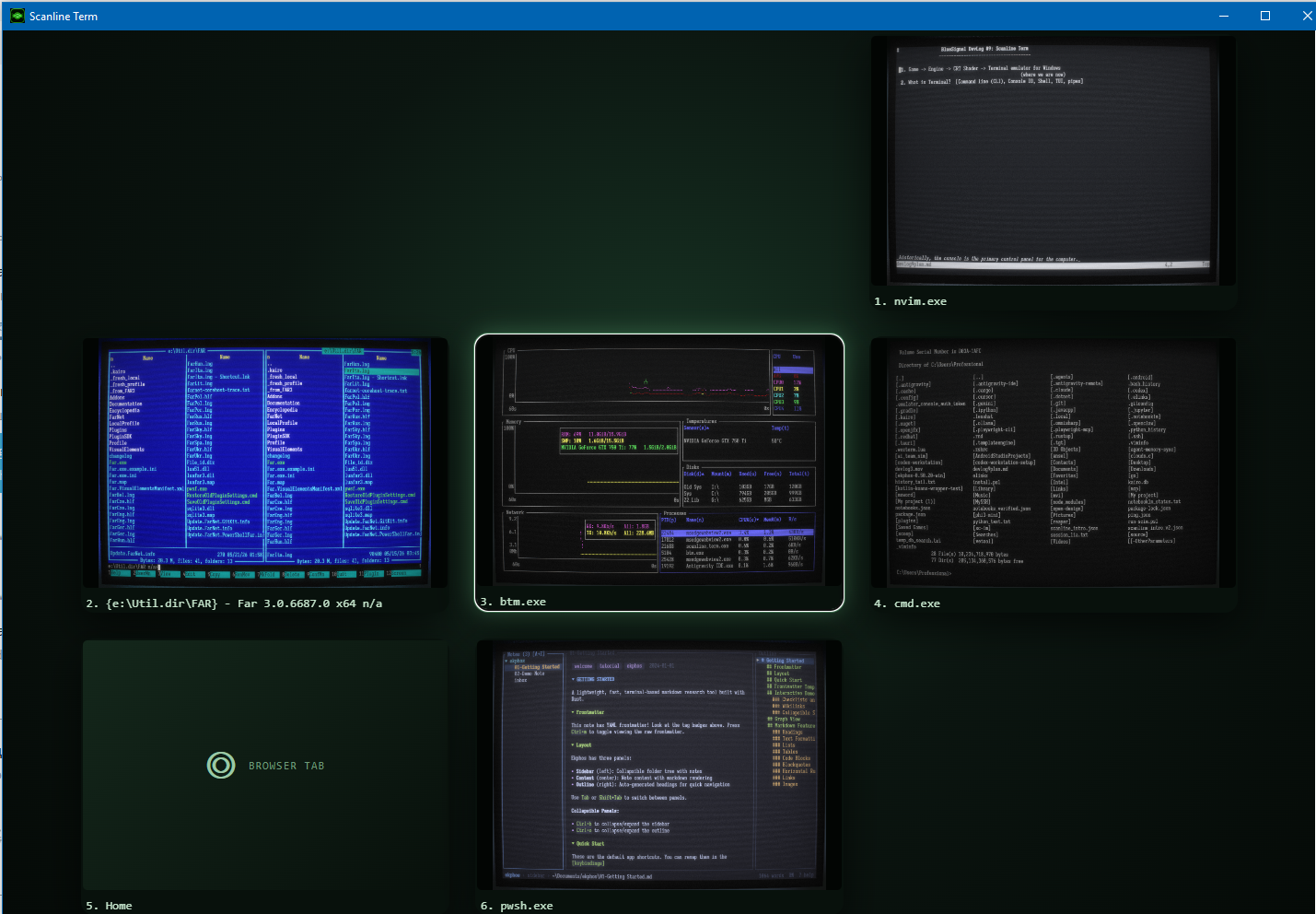
Menu + Backspace opens a static overview of all sessions; a primary click on unused workspace or tab-bar space does the same, including the outer monitor frame and the narrow physical-window gutters. Terminal cards retain their last CRT-rendered frame; browser cards show a title/type placeholder. Use arrows or h/j/k/l to move the selection. While Gallery is open, Menu + Shift + ←/→ or Menu + Shift + H/L moves the selected card one position horizontally, and Menu + Shift + ↑/↓ or Menu + Shift + K/J moves it to the nearest card in the adjacent row. Gallery reordering is keyboard-only; cards animate into their new positions and tab numbers are refreshed after every move. Enter, Space, or 1…9/0 opens a tab, while Esc, Menu + Backspace, or a click outside a card returns unchanged. Menu + N and Menu + B create a terminal or browser tab from the overview.
Tab Reordering
When the tab bar contains more than one tab, the active tab can be dragged left or right. The tab under the pointer becomes active when the drag starts; the tab follows the pointer and the other tabs make room, but the order is committed only when the pointer is released. Keyboard moves are discrete one-position steps and animate the tab to its new slot. All reorder paths keep tab numbering sequential.
Browser Tab Keyboard Navigation
Embedded WebView2 browser tabs feature a keyboard-first, Vim-inspired navigation mode:
| Key | Action | Description |
|---|---|---|
j / k |
Scroll Line | Scroll page down / up (64px) |
d / u |
Half-Page Scroll | Scroll half page down / up |
gg / G |
Top / Bottom | Jump to top (gg) or bottom (G) of the page |
h / l (or Backspace) |
History Navigation | Go back (h / Backspace) or forward (l) in page history |
f |
Link Hints | Show asdfghjkl hints over interactive elements; on the local home page this covers links, buttons, inputs and the editor |
o or F6 |
Address / Search | Open the native browser address overlay or focus the home search field |
/ |
Find in Page | Search text on the current page |
r |
Reload | Reload the current page |
i |
Pass/Insert Mode | Enter pass-through mode to interact directly with web page keys |
Esc |
Normal Mode | Exit hints, address bar, or pass/insert mode back to normal navigation |
F5 |
Home Safety | The local home page consumes F5 so it cannot reload the application |
Menu + ... |
App Shortcuts | All main app shortcuts (Menu + W, Menu + 1...9, Menu + B, etc.) remain fully accessible within browser tabs |
Command-Line Usage
Scanline Term can be invoked from the command prompt, PowerShell, terminal scripts, or Windows shortcuts with custom arguments:
sterm [options] [target] [arguments...]
Command line Arguments
| Flag | Parameter | Description |
|---|---|---|
-T |
None | Open target in a new tab if an instance of Scanline Term is already running |
-P |
<path> |
Set explicit working directory (cwd) for the launched terminal session |
-S / --preset |
<name> |
Apply the named preset (without .json) to a new terminal tab |
Target Arguments
The optional [target] argument is automatically detected and routed:
- Directory Path (
.orC:\path\to\dir): Launches the default shell in the specified directory. - Command or Executable (
pwsh,cmd.exe,C:\tools\app.exe): Launches the given command or console program directly.
Arguments after the executable are passed to it unchanged. - HTTP / HTTPS URL (
https://...orhttp://...): Opens the URL directly in an embedded WebView2 browser tab. - Local document (
C:\docs\manual.html,.htm,.htmlor.pdf): Opens the existing file in an embedded browser tab.
Practical Examples
# Launch default shell in the current working directory
sterm .

# Launch default shell in a specific project folder
sterm C:\Projects\MyProject

# Launch PowerShell with an explicit working directory
sterm -P C:\Projects\MyProject pwsh

# Launch an executable with arguments
sterm C:\Tools\watcher.exe --port 8080 --verbose

# Open a new tab in an existing Scanline Term window
sterm -T pwsh

# Open a local HTML/PDF document in the embedded browser
sterm C:\Docs\manual.html
sterm -T C:\Docs\manual.pdf

# Open a new tab with working directory set
sterm -T -P C:\Projects\MyProject

# Open an executable with arguments in a new tab
sterm -T C:\Tools\watcher.exe --port 8080

# Open a terminal tab using a named preset from the Presets list
sterm -T --preset "DEC VT-100 (1978)" pwsh

# Open documentation directly in the built-in CRT browser
sterm https://docs.rs
Installation
Download the latest pre-compiled Windows Installer (MSI) or portable ZIP from the Releases page:
Download Scanline Term (Latest Release)
Run the .msi installer for the standard installation, including the sterm command on the system PATH and the bundled optional fonts. System requirements:
- Windows 10 (version 17763+) or Windows 11 (64-bit)
- Microsoft Edge WebView2 Runtime (pre-installed on most modern Windows systems)
- (Optional) Codex CLI (version
0.152.1or newer) onPATHif using the AI Terminal Assistant.
Portable ZIP (technical release)
- Download
Scanline-Term-<version>-portable-x64.zipand extract the entire archive. - Keep
sterm.exenext toresources\conpty\x64\; those ConPTY files are required for terminal sessions. - Run
sterm.exe. No installation or administrator rights are needed.
The portable build needs the same supported Windows version and WebView2 Runtime as the MSI. It includes the preset catalog and font files, but does not add sterm to PATH or install fonts. For the complete manual setup steps, see Portable ZIP Installation, which is included in the archive as docs\PORTABLE-INSTALLATION.md.
Architecture
┌─────────────────────────────────────────────────────────────┐
│                       Windows Desktop                       │
│     Global Hotkey (Win+~) ─── Native Child WebViews (URL)   │
└──────────────────────────────┬──────────────────────────────┘
                               │
┌──────────────────────────────▼──────────────────────────────┐
│                    Rust Backend (Tauri 2)                   │
│   ConPTY Lifecycle (conpty-oxide) ── Codex App-Server IPC   │
└──────────────────────────────┬──────────────────────────────┘
                               │ Tauri Commands & Events
┌──────────────────────────────▼──────────────────────────────┐
│                  Frontend UI (React 19)                     │
│  Tab Manager ── Headless xterm Buffer ── UI Controls        │
└──────────────────────────────┬──────────────────────────────┘
                               │ Canvas 2D Text Grid
┌──────────────────────────────▼──────────────────────────────┐
│        Scanline Virtual Screen (external display module)    │
│      Virtual canvas ── CRT/pass-through ── Display canvas   │
└─────────────────────────────────────────────────────────────┘
For in-depth architectural details, check our comprehensive documentation in docs/:
- Architecture & Data Flow
- Core Systems & Host Integration
- Scanline Virtual Screen
- Design Decisions
- Codex Terminal Assistant Guide
Building from Source
Prerequisites
- Rust (stable
x86_64-pc-windows-msvctoolchain) - Node.js (v20+ recommended)
- Visual Studio C++ Build Tools
Development Workflow
# Clone the repository
git clone https://github.com/z-hunter/Scanline-Term.git
cd Scanline-Term

# Install frontend dependencies
npm install

# Start development in browser-only mode (simulated mock session for shader testing)
npm run dev

# Launch full native Tauri app with live ConPTY sessions
npm run tauri:dev

# Run frontend & backend test suites
npm test
cd src-tauri && cargo test

# Build production MSI installer and portable ZIP
npm run tauri:build -- --bundles msi
./scripts/package-portable.ps1

License
This project is licensed under the MIT License.
The display module is Scanline Virtual Screen, which has its own source-available license and commercial-use terms.
Enjoy CRT computing! PRs, suggestions, and feedback are always welcome.
Reviews (0)
Sign in to leave a review.
Leave a reviewNo results found