pi2.nvim
Health Warn
- License — License: MIT
- Description — Repository has a description
- Active repo — Last push 0 days ago
- Low visibility — Only 6 GitHub stars
Code Pass
- Code scan — Scanned 10 files during light audit, no dangerous patterns found
Permissions Pass
- Permissions — No dangerous permissions requested
No AI report is available for this listing yet.
Use the pi coding agent (pi.dev) without leaving Neovim — π², a heavily extended fork of alex35mil/pi.nvim
            ████████████████████████    █████
              ██                ██          ██
              ██                ██       ████
              ██                ██      ██
              ██                ██      █████
              ██                ██
              p i ²    ·    p i 2 . n v i m
pi2.nvim
Use the pi coding agent without leaving Neovim — π², a heavily extended fork of alex35mil/pi.nvim.
pi2.nvim runs pi --mode rpc in the background and gives you an in-editor workflow for project-aware prompts, reviewed edits, session resume, and extension prompts — plus a growing set of features that live here rather than upstream (see Differences from upstream).
Table of contents
- Origin
- Differences from upstream
- Features
- Requirements
- Installation
- Quick start
- Configuration
- Keymaps
- Usage
- Commands
- API
- Highlight groups
Origin
pi2.nvim is a fork of alex35mil/pi.nvim, the original Neovim frontend for the pi coding agent. All credit for the foundation — the RPC bridge, the chat layout, diff review, sessions, and extension handling — goes to the upstream project.
This fork began as local experiments and grew into a substantially different feature set (listed below). Rather than keep that work on a long-lived fork, it now lives in its own repository so it can evolve and release independently, while still tracking upstream where it makes sense and crediting it as the origin.
[!NOTE]
The project is named pi2.nvim (π²), but the Lua namespace, commands, and filetypes are unchanged for compatibility: you stillrequire("pi"), use the:Pi*commands, and the buffers keep thepi-chat-*filetypes. Only the project / repository name differs.
Differences from upstream
Everything below is present in pi2.nvim and not in upstream alex35mil/pi.nvim (which is currently frozen at the fork point).
Prompt & input
- Direct bash mode (
!). Prefix the prompt with!to run a shell command (e.g.!ls -la); output streams live into a collapsible history block and is added to the LLM context on the next prompt.!!cmdexcludes output from context. The panel title switches tobash, and a single<Esc>cancels a running command (:PiAbortBash/pi.abort_bash()). - Readline-style prompt history. Recall previously submitted prompts with
<C-p>/<C-n>(and<Up>/<Down>in insert mode), persisted to disk. Config:prompt.history. - Unsent-draft persistence. The prompt text survives restarts (debounced save, restored once per process). Config:
prompt.draft. - Auto-attach clipboard images on paste. π wraps the global
vim.pastehandler, but only acts inside the π prompt — pasting there while the clipboard holds an image attaches it instead of inserting text. Everywhere else the wrapper is a pure pass-through, so paste in the rest of your editor is untouched. Config:prompt.paste_image(requiresimg-clip.nvim). - Image compression for attachments. Attached images can be downscaled/re-encoded before sending (longest side 1568px by default) to keep RPC payloads and image tokens small — a Retina screenshot otherwise ships as a multi-MB PNG. Uses macOS
sips, ImageMagickmagick, orffmpeg(auto-probed); without a tool the original is attached silently. Config:prompt.image_compress.
Agent control
- Double-
<Esc>abort. While streaming, a second<Esc>within a timeout aborts the running turn (same as:PiAbort), with a persistent hint and an "Aborted" confirmation in the statusline center. Config:abort.
UI & rendering
- Redesigned tool & thinking blocks. Fold indicators (
▾/▸) plus indentation replace box-drawing borders; successful tool calls end silently; running tools show an animated spinner. Thinking renders as a single header line with a rolling preview that freezes to a head summary;<Tab>expands/collapses it. - Status line in the prompt. The busy spinner (with elapsed time and thinking state), the pending-queue count, and the abort hint/confirmation live in a configurable status line pinned to the bottom of the prompt window — always visible, regardless of how far you scroll the history. The queue preview rows stay at the end of the history.
render-markdown.nvimengine (default). By default the history is rendered through render-markdown.nvim, with tool output fenced to avoid markdown misparsing. Setrender.engine = "builtin"to use the treesitter + custom-drawing engine instead.
Navigation & layout
- Open file under cursor (
gf). From a history line,gfresolves a bare path, an@mention#L<line>, or apath:lineand opens it in a non-π window (pi.goto_file_under_cursor()). - Search results in the quickfix list. When the
greptool finishes, its matches are parsed (path:line[:col]: text) and loaded into the quickfix list, so you can jump between them with:cnext/:cprev. Thefindtool's file list can be loaded the same way. The quickfix window is never opened automatically — use:copento see it; the list is titledpi <tool>: <pattern>. Config:quickfix. - Left side panel.
layout.side.positionaccepts"left".
Sessions & editor integration
- Session tree navigation (
:PiTree). Jump back to any past point in the current session — a picker lists the conversation entries (indented by branch depth so a long linear conversation stays flat and readable, current point marked●, branch labels shown before each entry's text; tool-only turns show a compact tool-call summary — the chat's per-tool icon as a marker plus the first argument, e.g. the bash command or edited path — and aborted/errored turns show(aborted)/(error), so no entry is ever a blank line), you choose whether to summarize the abandoned branch, and the chat rebuilds from the new branch; picking a user message puts its text back in the prompt for editing and resending. This is the π equivalent of the TUI's/tree, bridged into RPC mode through a bundled pi extension (extensions/tree.ts), so no extra setup is needed. A bare/treetyped in the prompt opens it too. Config:tree.enabled. - Per-tab model pinning. The pi backend persists every model switch to its global settings, so out of the box a switch in one tab leaks into every other tab's next
:PiNewSession. π pins the model per tab instead: captured when the session starts, updated on manual switches (:PiCycleModel/:PiSelectModel/:PiSelectModelAll), adopted from the session file on resume, and reapplied after:PiNewSessionso the tab's new conversation keeps the tab's model. If the pinned model becomes unavailable, π silently falls back to the backend's choice and adopts it as the new pin. - Auto-reload of open buffers. When pi's
edit/writetools modify a file that is open in a Neovim buffer, π reloads it so you always see the latest content without a manual:edit!; buffers with unsaved user changes are never touched. Config:reload.mode("silent"default,"notify", orfalse).
Robustness fixes
- Thinking blocks render after inline tools (correct turn order); CJK / UTF-8 thinking-preview truncation no longer corrupts text; tool-block collapse/expand no longer corrupts the footer extmark; nerd-font icon codepoints corrected.
- The streaming thinking header no longer flickers (alternating one/two wrapped lines): the rolling preview is drawn as end-of-line virtual text (
eol) instead ofinline, so it never counts toward the header line's wrap width — the inline preview used to wrap onto a second line whenever the rendered glyph widths (nerd icon,…) exceeded what Neovim's wrap calculation assumes. The header keeps a single trailing margin line as breathing room (reused by the next text delta, so it does not leave extra blank lines behind). - The busy spinner and abort hints moved from virtual lines at the end of the history buffer into the prompt statusline, where they have a fixed position that never scrolls away; only the pending-queue preview remains as virtual lines at the end of the history.
Developer infrastructure
- A hermetic plenary test suite (
make test) plus a headless boot check (make smoke), and an agent "develop" skill documenting the test stack and Neovim-Lua gotchas.
Features
https://github.com/user-attachments/assets/55080963-3066-44c2-9017-a81828033ef7
Workflow demo
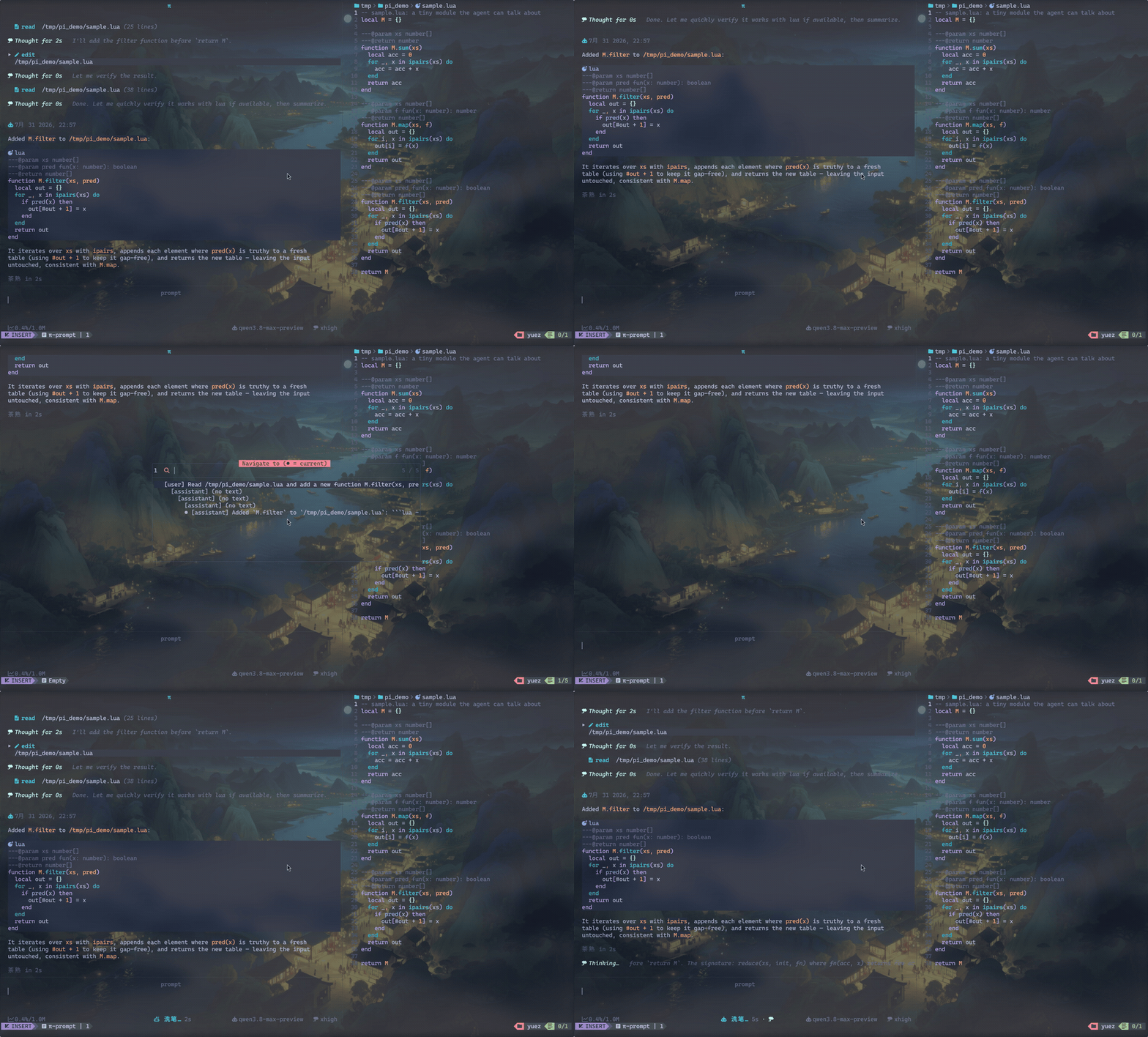
pi2.nvim in action — agent reads, edits, and verifies a file with live streaming and :PiTree session navigation
https://github.com/user-attachments/assets/2ab6ea5c-7c52-4977-8a12-b5dee55affaa
Point an agent at the exact code with @-mentionshttps://github.com/user-attachments/assets/c94b0099-f2d3-403a-962b-69bc23b78fb1
Run skills and commandshttps://github.com/user-attachments/assets/eec9d926-724c-426d-a6ac-03c8a11530dc
Review agent-proposed edits in a two-way diff before they are applied, and tweak the proposed result if neededhttps://github.com/user-attachments/assets/c20dfa72-79e4-4160-b7f0-6817b0793fda
Be notified when an agent needs your attention without interrupting your flowhttps://github.com/user-attachments/assets/7b83bff0-b747-4232-9921-10a0955d58f7
Scroll chat history without leaving the prompthttps://github.com/user-attachments/assets/5f1b22a2-c682-4be1-8713-4155eca54437
See tool activity, diffs, and agent status inline, with collapsible tool blockshttps://github.com/user-attachments/assets/6df13dd4-2c1e-41c1-8be0-9ac71432e31d
Switch to zen mode for composing larger prompts comfortablyhttps://github.com/user-attachments/assets/b1074303-1f16-40d8-8413-55a7cb88a687
Queue follow-up instructions while the agent is still workinghttps://github.com/user-attachments/assets/c4a7b6e6-cf13-454e-b073-f3205ac3eda6
Switch models and thinking levels mid-sessionhttps://github.com/user-attachments/assets/c8535554-ea69-4ea9-8098-6b63185bd410
Continue or resume past sessions for the current working directoryhttps://github.com/user-attachments/assets/d2d595db-e11d-40b7-87b0-5124867e160e
Keep separate conversations per tabhttps://github.com/user-attachments/assets/4d087f23-c459-496d-92b9-7540be7340ce
Attach screenshots and other images from disk, clipboard, or drag-and-drophttps://github.com/user-attachments/assets/f210246a-2427-4fdb-b679-eeb6ceae4538
Requirements
- Neovim 0.10+
piin$PATHMeanderingProgrammer/render-markdown.nvimfor the default chat-history renderer (render.engine = "render-markdown")
Optional but useful:
nvim-treesittermarkdown parser for nicer chat history highlightingHakonHarnes/img-clip.nvimfor:PiPasteImageblink.cmpif you want popup completion in the π prompt buffer
Run :checkhealth pi to verify.
Installation
Installing with an agent
The easiest way to install pi2.nvim is to hand the job to an AI coding agent (pi, Claude Code, Cursor, …). Point your agent at the instructions below — they tell it how to detect your setup, what to add, and how to verify the result.
For the agent: install the
pi2.nvimNeovim plugin for the user by following these steps.
- Detect the plugin manager. Read the user's Neovim config (usually
init.luaunderstdpath("config"), e.g.~/.config/nvim/init.lua) and find which plugin manager is in use —lazy.nvim, the built-invim.pack(Neovim 0.11+),packer.nvim, etc. Follow that manager's spec conventions; if you can't tell which one is used, ask the user.- Add the plugin and its dependency. Add
zgs225/pi2.nvimtogether withMeanderingProgrammer/render-markdown.nvim, which the default history renderer (render.engine = "render-markdown") requires. Optionally addHakonHarnes/img-clip.nvim(needed only for:PiPasteImageclipboard-image paste). Use the specs under Installing manually as a reference for the two most common managers.- Recommended setup. Ensure
require("pi").setup()runs after the plugin loads. The defaults are a good first install — do not add options the user hasn't asked for. See Configuration for the full option list, and Keymaps for a recommended mapping set; if the user already has<Leader>conventions, adapt to them rather than introducing new ones.- Verify with the healthcheck. After installing, run
:checkhealth piand confirm it reports OK: thepiexecutable is in$PATH, the pi backend version is compatible, Neovim is 0.10+, and the default renderer's dependencies resolve. Fix anything it flags — e.g. installpi, or setcli = { bin = "/absolute/path/to/pi" }if it isn't on$PATH.
Installing manually
vim.pack
vim.pack.add({
    "https://github.com/zgs225/pi2.nvim",
    -- Default chat-history renderer (render.engine = "render-markdown"):
    "https://github.com/MeanderingProgrammer/render-markdown.nvim",
})

-- if you're fine with defaults:
require("pi").setup()

-- or, if you want to customize:
require("pi").setup({
    models = { ... },
    layout = { ... },
})
lazy.nvim
{
    "zgs225/pi2.nvim",

    -- render-markdown.nvim powers the default chat-history renderer
    -- (render.engine = "render-markdown"); img-clip.nvim is optional and
    -- required only for `:PiPasteImage` (clipboard image paste).
    dependencies = {
        "MeanderingProgrammer/render-markdown.nvim",
        "HakonHarnes/img-clip.nvim",
    },

    -- if you're fine with defaults:
    config = true,

    -- or, if you want to customize:
    opts = {
        models = { ... },
        layout = { ... },
    },
}
Quick start
- Open a project in Neovim.
- Run
:Pi. - Type a prompt and press
<CR>. - Mention files with
@path/to/fileor@path/to/file#L12-20. - Use
:PiContinueor:PiResumeto revisit earlier sessions for the current working directory.
Configuration
All options are optional. These are the defaults:
---@type pi.Options
require("pi").setup({
-- pi CLI invocation. Extra args are inserted before `--mode rpc`.
-- Args that conflict with RPC mode (`--mode`, `--print`, `--help`, etc.) are ignored.
cli = {
bin = "pi",
args = {},
},
-- Optional protocol adapter hooks for non-upstream-compatible RPC backends.
rpc = {
map_command = nil, -- fun(cmd, ctx): cmd|nil
map_event = nil, -- fun(msg, ctx): msg|nil
},
-- Enable RPC debug logging to `stdpath("log")/pi/<session>/rpc.log`.
debug = false,
-- Override the π agent directory used for session lookup.
-- Defaults to $PI_CODING_AGENT_DIR or ~/.pi/agent.
agent_dir = nil,
-- Preferred models for cycling and :PiSelectModel dialog.
-- Each entry is either a string (exact ID) or a table:
-- { match = "opus", latest = true }
-- { match = "gpt-5.3-codex", exact = true } or just "gpt-5.3-codex"
models = nil,
-- Spinner shown while the agent is working.
-- Preset name ("classic"|"robot"), array of frames (strings), or
-- { refresh_rate = ms, frames = { ... } }.
spinner = "robot",
-- Show thinking blocks by default.
show_thinking = false,
-- Extra blank line between conversation turns (pure whitespace, no drawn rule).
turn_separator = true,
-- Default expand/collapse state for the startup block
-- (skills, extensions, startup announcements).
expand_startup_details = true,
-- Format string passed to os.date for chat message timestamps.
timestamp_format = Os.is_windows() and "%b %#d %Y, %H:%M" or "%b %-d %Y, %H:%M",
-- Chat panels
panels = {
-- Titles shown in panel winbars.
history = { title = "π" },
-- `bash_title` is shown on the prompt panel while in direct bash mode (text starts with `!`).
prompt = { title = "", bash_title = "bash" },
attachments = { title = "" },
},
-- Inline labels rendered in the chat history. `tool` is the fallback icon;
-- common tools (bash, read, edit, write, grep, …) use a built-in per-tool
-- Nerd Font icon and ignore this value.
labels = {
user_message = "",
agent_response = "",
system_error = "",
tool = "",
tool_success = "",
tool_failure = "",
steer_message = "",
follow_up_message = "",
thinking = "",
compaction = "",
attachment = "",
attachments = "",
error = " ",
},
-- Chat layout
layout = {
-- Default layout when opening the chat: "side" or "float".
default = "side",
side = {
-- Side panel position: "left", "right", or "bottom".
position = "right",
-- Width in columns when position is "left" or "right".
width = 80,
panels = {
-- Show winbars on each panel in side layout.
history = { winbar = true },
prompt = { winbar = true },
attachments = { winbar = true },
},
},
float = {
-- Width/height: fraction (<1) or columns/lines (>=1).
width = 0.6,
height = 0.8,
border = "rounded",
},
},
-- Status line in the prompt window
statusline = {
-- Components rendered in the prompt statusline.
-- Entries are built-in component names, literal separators,
-- or custom component functions.
layout = {
left = { "context", " ", "attention", " ", "queue" },
-- Centered group; has placement priority over left/right.
center = { "spinner" },
right = { "model", " ", "thinking" },
},
components = {
tokens = { icon = "" },
cache = { icon = "" },
cost = { icon = "" },
compaction = { icon = false },
context = { icon = "", warn = 70, error = 90 }, -- `warn`/`error` are percentages of context window used.
attention = { icon = "", counter = false },
model = { icon = "" },
thinking = { icon = "" },
queue = { icon = "⏵" },
},
},
-- Diff review
diff = {
icons = {
-- Icon/sign used for diff review notes. Set to false to omit it.
note = "",
},
-- Visible context around each hunk.
context = {
-- Initial visible context around each hunk.
-- nil means use current 'diffopt' context.
base = nil,
-- Lines added/removed by expand/shrink actions.
step = 5,
},
-- How to show diff review keymap hints:
-- "dialog" or true (default): show compact "?=keymaps" and open an informational keymap dialog with ?.
-- "winbar": show full inline winbar hints.
-- false: hide hints and bind no help key.
keymap_hints = "dialog",
-- Keymaps active inside the diff review tab.
keys = {
accept = "<Leader>da",
reject = "<Leader>dr",
edit_note = "<Leader>dn",
delete_note = "<Leader>dx",
list_notes = "<Leader>dN",
expand_context = "<Leader>de",
shrink_context = "<Leader>ds",
},
},
-- Attention queue for user-input requests (confirms, selects, etc.)
attention = {
-- Auto-open the next pending attention request when the
-- current tab's prompt is refocused and empty.
-- If false, needs :PiAttention command to pull what's pending.
auto_open_on_prompt_focus = true,
-- Notify when the agent finishes a turn and the prompt is not focused.
notify_on_completion = true,
},
-- Buffer reload: what to do when pi modifies a file that is open in a buffer.
reload = {
-- "silent" : reload unmodified buffers silently; skip modified ones (default)
-- "notify" : same as silent, plus a notification listing reloaded/skipped files
-- false : disabled — buffers are never touched
mode = "silent",
},
-- Load search-tool results into the quickfix list (never auto-opened; use :copen).
quickfix = {
grep = true, -- grep matches (path:line[:col]: text)
find = false, -- find file list (one path per line)
glob = false, -- alias of `find` for older pi versions that named the tool `glob`
},
-- Double-<Esc> aborts the running agent (same as :PiAbort).
abort = {
-- Enable the double-<Esc> abort gesture.
enabled = true,
-- Window in ms for the second <Esc> to count.
timeout = 1500,
-- Hint echoed (after the "π │ " prefix) on the first <Esc>.
message = "Press <Esc> again to abort",
},
-- Session tree navigation (:PiTree). Injects the bundled pi extension
-- (extensions/tree.ts) into every RPC process; requires a pi version
-- whose extension API exposes ctx.navigateTree.
tree = {
enabled = true,
},
-- Selects, confirmation dialogs
dialog = {
border = "rounded",
-- Max size: fraction (<1) or columns/lines (>=1).
max_width = 0.8,
max_height = 0.8,
-- Sign text for the selected item.
indicator = "▸",
keys = {
-- Optional dialog keymaps; nil leaves built-in defaults in place.
confirm = nil,
cancel = nil,
next = nil,
prev = nil,
},
},
-- Zen mode for composing larger prompts
zen = {
-- Prompt width in columns. nil = textwidth if set, otherwise 80.
width = nil,
keys = {
-- Key to enter/exit zen mode.
toggle = nil,
-- Additional keys that only exit zen mode.
exit = nil,
},
},
-- Prompt buffer behavior.
prompt = {
-- Readline-style recall of previously submitted prompts.
history = {
-- Record submissions and allow recalling them with
-- <C-p>/<C-n> and <Up>/<Down>.
enabled = true,
-- Maximum entries kept; oldest are dropped first.
max = 500,
-- History file. nil = stdpath("data")/pi/prompt_history.json.
path = nil,
},
-- Unsent-draft persistence across restarts.
draft = {
enabled = true,
},
-- Intercept paste in the prompt: when the system clipboard holds an
-- image, attach it (like :PiPasteImage) instead of inserting text.
-- Requires img-clip.nvim; plain-text pastes are never affected.
paste_image = true,
-- Compress image attachments before sending (external tool required:
-- sips on macOS, ImageMagick magick, or ffmpeg; without one the
-- original image is attached silently).
image_compress = {
-- Master switch.
enable = true,
-- Longest side in pixels; larger images are downscaled. 0 = no resize.
max_dimension = 1568,
-- jpeg/webp quality 0-100 (PNG is lossless and ignores this).
quality = 80,
-- "keep" (input format), "jpeg", "png", or "webp" (webp degrades
-- to "keep" when only sips is available).
format = "keep",
-- "auto" (probe sips → magick → ffmpeg) or a tool name.
tool = "auto",
-- "all" = also compress dropped/attached files; "clipboard" = only
-- clipboard pastes. svg and gif are never touched.
scope = "all",
},
},
-- Markdown rendering of the chat history.
render = {
-- "render-markdown" (default, delegates to render-markdown.nvim)
-- or "builtin" (treesitter + custom drawing).
engine = "render-markdown",
},
-- Verb pairs for status messages, picked randomly per run.
verbs = {
-- When true, user pairs are appended to the built-in list;
-- when false, they replace it.
use_defaults = true,
pairs = {
{ "Rewriting in Rust", "Rewrote in Rust" },
{ "Making no mistakes", "Made no mistakes" },
-- ... and more built-in pairs
},
},
-- Extension setWidget hook. Return a custom block to render inline
-- in history, or nil to ignore. Not called for `:startup` widgets.
on_widget = nil,
})
Project trust
pi2.nvim runs pi in RPC mode and does not currently implement the TUI's interactive project trust prompt or save trust decisions. It uses pi's non-interactive defaults, which means project-local settings, resources, packages, extensions, and project .agents/skills are not loaded.
To trust project-local pi files when using pi2.nvim, either pass pi's trust flag through cli.args:
require("pi").setup({
    cli = {
        args = { "--approve" },
    },
})
or set the global pi default in ~/.pi/agent/settings.json:
{
  "defaultProjectTrust": "always"
}
If you need interactive trust handling in pi2.nvim, please open an issue.
Keymaps
pi2.nvim intentionally ships with a very small default keymap set. Keymaps tend to be highly personal, and many users already have their own conventions, leader-based layouts, or other mapping systems. Pi tries to provide the API and a few sensible defaults, while leaving the final keymap design to you.
Key specs
Several config fields (diff.keys, dialog.keys, zen.keys) accept a key spec instead of a plain string, so you can pin mappings to specific modes and bind multiple keys to the same action. A key spec is one of:
-- 1. A plain string — single mapping in the default modes for that field.
accept = "<Leader>da"

-- 2. A table with `.modes` — single mapping in the given modes.
accept = { "<C-CR>", modes = { "n", "i", "v" } }

-- 3. A list of the above — multiple keys bound to the same action.
accept = {
    "<Leader>da",
    { "<C-CR>", modes = { "n", "i", "v" } },
}
All three forms are accepted anywhere a key spec is expected. A table is interpreted as a single spec when it has a .modes field, and as a list of specs otherwise.
Example setup
A reasonable starting point looks like this:
local pi = require("pi")

-- Global mappings — open / toggle / resume from anywhere.
vim.keymap.set({ "n", "v" }, "<Leader>pp", function() vim.cmd("Pi layout=side")  end, { desc = "Pi side"  })
vim.keymap.set({ "n", "v" }, "<Leader>pf", function() vim.cmd("Pi layout=float") end, { desc = "Pi float" })
vim.keymap.set({ "n", "v" }, "<Leader>pl", "<Cmd>PiToggleLayout<CR>",                 { desc = "Pi toggle layout" })
vim.keymap.set({ "n", "v" }, "<Leader>pc", "<Cmd>PiContinue<CR>",                     { desc = "Pi continue last session" })
vim.keymap.set({ "n", "v" }, "<Leader>pr", "<Cmd>PiResume<CR>",                       { desc = "Pi resume past session" })
vim.keymap.set({ "n", "v" }, "<Leader>pm", "<Cmd>PiSendMention<CR>",                  { desc = "Pi mention file/selection" })
vim.keymap.set({ "n", "v" }, "<Leader>pa", "<Cmd>PiAttention<CR>",                    { desc = "Pi open next attention request" })
The <S-Up> / <S-Down> mappings below are sort of placeholders — replace them with whatever keys you already use to move between windows in the rest of Neovim. The idea is that focus navigation inside π windows should match your normal buffer/window navigation, not introduce new conventions.
-- Buffer-local mappings inside π windows.
-- Filetypes: "pi-chat-history", "pi-chat-prompt", "pi-chat-attachments".
local group = vim.api2.nvim_create_augroup("pi-keymaps", { clear = true })

local function map(buf, key, action, modes)
    vim.keymap.set(modes or { "n", "i", "v" }, key, action, { buffer = buf })
end

-- Shared across all π windows.
vim.api2.nvim_create_autocmd("FileType", {
    group = group,
    pattern = { "pi-chat-history", "pi-chat-prompt", "pi-chat-attachments" },
    callback = function(event)
        map(event.buf, "<C-q>", "<Cmd>PiToggleChat<CR>")
        map(event.buf, "<M-c>", "<Cmd>PiAbort<CR>")
        map(event.buf, "<C-o>", pi.toggle_history_blocks)
    end,
})

-- History window: jump to prompt.
vim.api2.nvim_create_autocmd("FileType", {
    group = group,
    pattern = "pi-chat-history",
    callback = function(event)
        map(event.buf, "<S-Down>", pi.focus_chat_prompt)
    end,
})

-- Prompt window: navigation, scrolling, model & thinking, sessions, attachments.
vim.api2.nvim_create_autocmd("FileType", {
    group = group,
    pattern = "pi-chat-prompt",
    callback = function(event)
        -- focus
        map(event.buf, "<S-Up>",   pi.focus_chat_history)
        map(event.buf, "<S-Down>", pi.focus_chat_attachments)
        -- scroll history from the prompt
        map(event.buf, "<C-Up>",   function() pi.scroll_chat_history("up", 2) end)
        map(event.buf, "<C-Down>", function() pi.scroll_chat_history("down", 2) end)
        -- model & thinking
        map(event.buf, "<M-m>", pi.cycle_model)
        map(event.buf, "<M-M>", pi.select_model)
        map(event.buf, "<M-t>", pi.cycle_thinking_level)
        map(event.buf, "<M-T>", pi.select_thinking_level)
        -- sessions & context
        map(event.buf, "<M-n>", pi.new_session)
        map(event.buf, "<M-x>", pi.compact)
        -- attachments
        map(event.buf, "<C-v>", pi.paste_image)
    end,
})

-- Attachments window: jump back to prompt, paste image.
vim.api2.nvim_create_autocmd("FileType", {
    group = group,
    pattern = "pi-chat-attachments",
    callback = function(event)
        map(event.buf, "<S-Up>", pi.focus_chat_prompt)
        map(event.buf, "<C-v>", pi.paste_image)
    end,
})
Usage
This section walks through how pi2.nvim actually works in practice. Each subsection is independent — jump straight to what you need.
Chat & layouts
The chat is rendered in one of two layouts.
Floating window opens π as a centered floating window over the editor. Good for the parts of the workflow where the conversation is the work — planning, brainstorming, debugging out loud, writing specs — and you don't need the code visible at the same time. Having the chat comfortably wide and centered is much easier on your neck than spending forty minutes craned toward a side panel on the right.
Side panel opens π as a vertical split anchored to the left or right edge of the editor (or to the bottom). Good for the parts of the workflow where the code is the subject of the conversation — exploring an unfamiliar codebase, doing a review, asking targeted questions about specific files or regions, pulling things into the chat with @mentions. You want both the code and the agent on screen at the same time.
Pick a default with layout.default = "side" | "float", or override per-invocation with :Pi layout=side / :Pi layout=float. Side dimensions live under layout.side (position is "left", "right", or "bottom", plus width / height); float dimensions live under layout.float (width, height, border). Both side and float also accept a function returning the table, which lets you compute size based on screen dimensions or other state at open time.
Each chat contains three panels:
| Panel | Filetype | Role |
|---|---|---|
history |
pi-chat-history |
Rendered conversation: messages, tools, diffs, thinking blocks. Read-only. |
prompt |
pi-chat-prompt |
Where you type the next message. Multi-line buffer. |
attachments |
pi-chat-attachments |
Pending image attachments queued for the next message. |
The filetype names are stable — you can target them from your own FileType autocmds (see Keymaps for an example). Dialog buffers use the stable pi-dialog filetype, so completion plugins can be disabled there without affecting the prompt.
Use :PiToggleLayout to swap side ↔ float without losing the conversation, and :PiToggleChat to hide and re-show the chat windows. Neither stops the agent. To actually shut down the underlying pi --mode rpc process for the current tab, use :PiStop.
Each panel has a winbar with a title controlled by panels.<panel>.title (a string). In side layout, the winbar can be disabled per-panel with layout.side.panels.<panel>.winbar = false. Separately, panels.<panel>.name = function(tab_id) return ... end lets you compute the underlying buffer name per tab — useful for distinguishing multiple π conversations in :buffers, statuslines, or tab bars. The prompt panel has an extra panels.prompt.bash_title: while the prompt text starts with ! (direct bash mode, see below), the prompt title switches to this string and is drawn with the PiChatPromptWinbarBashTitle / PiChatPromptFloatBashTitle highlight groups (a distinct foreground color, derived from WarningMsg by default) so it's obvious you're about to run a shell command rather than message the agent.
Prompt
The prompt buffer (pi-chat-prompt) is a regular multi-line buffer where you compose the next message. It clears itself after each submission, but its contents are preserved across :PiToggleChat, layout toggles, and tab switches — the buffer lives with the session.
Three buffer-local mappings control submission:
| Key | Mode | Action |
|---|---|---|
<CR> |
normal, insert | Submit the prompt |
<A-CR> |
normal, insert | Submit as a follow-up |
<S-CR> |
insert | Insert a newline |
[!NOTE]
These keys are currently hardcoded. If you'd like them to be configurable, please open an issue.
When the agent is idle, <CR> and <A-CR> behave identically — they both send a regular prompt and start a new turn.
When the agent is streaming, the two diverge. Both options queue your message rather than sending it straight to the LLM — the difference is when the queued message is fed back in:
<CR>sends a steer. The agent finishes whatever tool calls are currently in flight, and your message is delivered just before the next LLM call. The agent doesn't stop mid-tool-call, but it also doesn't finish the whole task before reading you. Use it when you want to redirect the agent at the earliest possible boundary — e.g. you've spotted that it's going down the wrong path and want to correct course as soon as the current step lands.<A-CR>sends a follow-up. The message waits until the agent has fully finished the current turn (no more tool calls, no pending steers) and is then delivered as the next message. Use it when you want to add something for the agent to address after it's done with the current work, without interrupting the flow.
Both queued messages are rendered in the history with distinct labels (labels.steer_message and labels.follow_up_message) so you can tell them apart later.
Aborting with double <Esc>
While the agent is streaming, pressing <Esc> twice in quick succession aborts the current turn — the same as :PiAbort / pi.abort(). The first <Esc> arms the gesture and shows a hint in the statusline center (temporarily replacing the busy spinner there) — so it stays visible instead of flashing by like a command-line message. The second <Esc>, within abort.timeout milliseconds, actually aborts. If you don't press a second <Esc> in time, the gesture disarms itself and the hint disappears. This works from both insert and normal mode on the prompt buffer, and from normal mode on the history buffer.
When a turn is aborted (by double-<Esc>, :PiAbort, or pi.abort()), the statusline center briefly shows an Aborted confirmation (PiAborted highlight) for about two seconds, and the completion marker left in the history (· aborted) uses that same prominent highlight rather than the muted busy color — so it's obvious the turn was cancelled.
When the agent is idle, <Esc> keeps its normal behavior (leaves insert mode) and the gesture is inert — no hint, no abort.
Controlled by the abort config:
require("pi").setup({
    abort = {
        enabled = true, -- set false to disable double-<Esc> abort entirely
        timeout = 1500, -- ms window for the second <Esc> to count
        message = "Press <Esc> again to abort", -- hint shown in the statusline center on the first <Esc>
    },
})
Direct bash mode (!)
Just like the π TUI, you can run a shell command straight from the prompt by prefixing it with ! — e.g. !ls -la or !git status. This mirrors pi's built-in bash mode: the command is executed immediately by the agent backend (via the RPC bash command), its output streams into the chat as it arrives, and the result is added to the LLM context on the next prompt (so the model can see what you just ran). It runs independently of the agent's streaming state — you can fire a ! command even while a turn is in progress.
While the prompt text starts with !, the prompt panel's title switches to panels.prompt.bash_title (default "bash") and is drawn in a distinct foreground color, so you can tell at a glance that <CR> will run a shell command instead of messaging the agent. Removing the leading ! switches the title back. In float layout the same switch applies to the prompt window's border title and winhighlight.
A few details that match the TUI:
!!commandruns the command but excludes its output from the LLM context — handy for noisy or private output you don't want the model to see. The block renders dimmer to mark it as excluded.- Output streams live into a collapsible block (
▾ $ <command>header, indented output, fold with<Tab>like any other block). Multi-line commands show each line under the header. Non-zero exit codes render as(exit N), cancellations as(cancelled), and truncated output notes the full-output temp path. - Only one direct bash command can run at a time. Submitting another while one is running is rejected with a warning (press
<Esc>to cancel the running one first, same as the TUI). - A single
<Esc>(in either insert or normal mode on the prompt) cancels a running!command — the same as:PiAbortBash/pi.abort_bash(). This is separate from the double-<Esc>agent abort above:<Esc>cancels a bash command when one is running, and arms the double-<Esc>agent abort when the agent is streaming. !commands are recorded in the prompt history, so<C-p>/<Up>recalls them like normal prompts.
Prompt history
Every prompt you submit is recorded (raw, before @mention expansion) so you can recall it later, readline-style. Multi-line prompts are stored intact.
| Key | Mode | Action |
|---|---|---|
<C-p> |
normal, insert | Recall the previous (older) prompt |
<C-n> |
normal, insert | Recall the next (newer) prompt |
<Up> |
insert | Recall older — only on the top line, so multi-line editing still works |
<Down> |
insert | Recall newer — only at the bottom line or while already browsing |
Walking up stashes whatever you're currently typing; walking back down past the newest entry restores that draft. Editing the buffer by hand leaves browse mode, so a stray <Down> never clobbers your typing. Recall is a no-op while the completion menu is open.
History persists to stdpath("data")/pi/prompt_history.json (written atomically) and survives restarts. Configure it under prompt.history:
require("pi").setup({
    prompt = {
        history = {
            enabled = true, -- set false to disable recording/recall entirely
            max = 500,      -- entries kept; oldest are dropped first
            -- path = "...",  -- override the history file location
        },
    },
})
Draft persistence
While prompt history remembers what you've sent, draft persistence makes sure you don't lose what you're typing. The unsent prompt is saved to stdpath("data")/pi/draft.txt as you edit (debounced) and restored into the prompt the next time Neovim starts — so a crash or restart no longer costs you a half-written message. Sending or clearing the prompt removes the stored draft. To avoid surprises, a draft is restored at most once per Neovim process (an in-session :PiNewSession won't re-restore a stale draft).
Disable it under prompt.draft:
require("pi").setup({
    prompt = {
        draft = { enabled = false },
    },
})
Mentions
You can refer to files and directories anywhere in your prompt with @path mentions. Pi expands them just before sending the message:
| Written | Sent to the agent |
|---|---|
@lua/pi/init.lua |
[file: lua/pi/init.lua] |
@lua/pi/init.lua#L42 |
[file: lua/pi/init.lua, line: 42] |
@lua/pi/init.lua#L10-40 |
[file: lua/pi/init.lua, lines: 10-40] |
@lua/pi |
[directory: lua/pi] |
The file content itself is not inlined. Pi assumes the agent has a read tool and lets it pull the content on demand. There are two reasons for this:
- Inlined code has no context. Dropping a snippet into the prompt strips it from its surroundings — the agent loses imports, neighboring functions, the rest of the file, the rest of the project. A reference, on the other hand, lets the agent open the file itself and decide how much context it actually needs.
- Mentions are usually woven into a sentence. A typical prompt looks like "check if the usage of
Foodefined at @path/to/foo.rs#L5 makes sense in the function at @path/to/fn.rs#L120-150". If every mention expanded into an inline code block, the sentence would fall apart and the agent would have to reconstruct what referred to what. Keeping mentions as references preserves the natural flow of the prompt.
Mentions are validated against the filesystem at send time. Paths are resolved relative to the current working directory. Anything that doesn't resolve to an existing file or directory is sent through unchanged, so a stray @todo in your message stays a stray @todo.
Trailing punctuation works the way you'd expect: (@lua/pi/init.lua) and Look at @lua/pi/init.lua. both expand cleanly without dragging the punctuation into the path.
While typing, @mentions are highlighted in the prompt buffer so you can see at a glance which references will expand.
:PiSendMention inserts an @mention for the current buffer at the cursor position in the π prompt, opening the chat if needed. In normal mode it mentions the buffer as a whole; in visual mode (or with a :'<,'>PiSendMention range) it mentions just the selected lines. The command handles spacing around the insertion so you don't end up with double spaces or missing separators. It's also exposed as pi.send_mention(args, opts) from Lua — see the Keymaps example for typical bindings.
[!TIP]
Because@mentionsexpand to[file: ..., line: ...]/[file: ..., lines: ...], it's worth teaching the agent to re-read the exact reference before answering. Consider adding the following to your globalAGENTS.md(or equivalent):## File and line references When the user references a file with `[file: ...]` and a specific line or line range, you must re-read that exact reference immediately before answering, even if the file was read earlier in the conversation.
Slash commands
Slash commands come from the pi backend, not from pi2.nvim. They cover three sources:
- Extension commands — registered by pi extensions (e.g.
/permission-toggle-auto-accept). - Prompt templates — reusable prompt snippets, expanded server-side before being sent to the LLM.
- Skills — invoked as
/skill:name, also expanded server-side.
pi2.nvim fetches the available command list from the running session over RPC and refreshes it periodically, so the set of /commands you can use depends on which extensions, templates, and skills the backend has loaded for the current session.
To invoke a command, type it on the first line of the prompt:
/permission-toggle-auto-accept
Arguments, if the command takes any, follow on the same line:
/some-command arg1 arg2
Only the first line is recognized as a command — everything else in the same message is treated as plain prompt text. This is a pi backend convention, not a pi2.nvim restriction. If you want a command and a regular prompt to take effect together, send them as two separate messages.
One command is handled locally instead of being sent: a bare /tree opens the session tree navigator (:PiTree), mirroring the TUI's built-in /tree.
That said, this only applies to the explicit /command invocation path. Skills in particular are surfaced to the model as part of the system context: per the Agent Skills spec, each skill's name and description are loaded at startup for all available skills ("progressive disclosure"), and the full SKILL.md body is only loaded once the model decides to activate that skill. As a result, most models will pick up the right skill even when you mention it inline ("please use the commit skill to write the message"), without you having to invoke /skill:commit explicitly. How reliably this works depends on the model and on how much other context it's juggling, so for anything load-bearing it's still safer to invoke the command explicitly on the first line.
While typing, the prompt buffer highlights /commands in real time, but only if the command name actually matches one in the backend's command list. If you don't see the highlight, either the command doesn't exist, you have a typo, or the cache hasn't been populated yet (it's fetched the first time the chat opens and refreshed every 30 seconds).
You can also invoke a command programmatically from Lua, without going through the prompt buffer:
require("pi").invoke("/permission-toggle-auto-accept")
-- the leading slash is optional:
require("pi").invoke("permission-toggle-auto-accept")
This is useful for binding commands directly to keymaps:
vim.keymap.set(
    "n",
    "<Leader>pt",
    function()
        require("pi").invoke("/permission-toggle-auto-accept")
    end,
    { desc = "Pi toggle auto-accept" },
)
Note that pi.invoke requires an active session — if no chat is running for the current tab, it will warn and do nothing.
Completion
The π prompt buffer ships with completion for both @mentions and /commands out of the box. Two integrations are provided:
1. Built-in completefunc (always on). Every π prompt buffer has a completefunc set, so completion works without any extra configuration. If you don't use a completion plugin, trigger it manually in insert mode with:
<C-x><C-u>
This is the default Vim user-defined completion key. It will:
- Complete
@pathmentions against project files (resolved relative to the current working directory). - Complete
/commandsagainst the backend's command list — but only when the cursor is on the first line of the prompt and that line starts with/.
The completion popup shows source metadata for /commands (extension, prompt, skill) and the command description when available.
2. blink.cmp source (optional). If you use blink.cmp, pi2.nvim ships a source at pi.completion.blink that integrates natively with the blink popup, including auto-trigger on @, /, and .. Scope it to the π prompt filetype with per_filetype so it doesn't interfere with completion in your regular files:
require("blink.cmp").setup({
    sources = {
        per_filetype = {
            ["pi-chat-prompt"] = { "pi" },
        },
        providers = {
            pi = { name = "Pi", module = "pi.completion.blink" },
        },
    },
})
Other completion plugins (nvim-cmp, etc.) aren't shipped as first-class sources, but they can usually bridge the built-in completefunc via their omni/completefunc source adapters. If you'd like a native source for another plugin, please open an issue.
Adapting non-upstream RPC backends
pi2.nvim targets upstream pi RPC. If you point cli.bin at a fork with a different protocol, use rpc.map_command / rpc.map_event to translate in user config instead of patching pi2.nvim core.
local function normalize_omp_commands(commands)
    local result = {}
    for _, command in ipairs(commands or {}) do
        local cmd = vim.deepcopy(command)
        if cmd.source == "file" or cmd.source == "custom" or cmd.source == "mcp_prompt" then
            cmd.source = "prompt"
        elseif cmd.source == "builtin" then
            cmd.source = "extension"
        end
        result[#result + 1] = cmd
    end
    return result
end

local function strip_ansi(text)
    return text:gsub("\27%[[0-9;]*m", "")
end

require("pi").setup({
    cli = { bin = "omp" },
    rpc = {
        map_command = function(cmd)
            if cmd.type == "get_commands" then
                local mapped = vim.deepcopy(cmd)
                mapped.type = "get_available_commands"
                return mapped
            end
            return cmd
        end,
        map_event = function(msg, ctx)
            if msg.type == "command_output" then
                local text = strip_ansi(msg.text or "")
                if text ~= "" then
                    vim.schedule(function()
                        require("pi.notify").info(text)
                    end)
                end
                return nil
            end
            if msg.type == "ready" then
                return nil
            end
            if msg.type == "response" and msg.command == "get_available_commands" then
                local mapped = vim.deepcopy(msg)
                mapped.command = "get_commands"
                if mapped.data then
                    mapped.data.commands = normalize_omp_commands(mapped.data.commands)
                end
                return mapped
            end
            if msg.type == "available_commands_update" then
                ctx.set_commands(normalize_omp_commands(msg.commands))
                return nil
            end
            return msg
        end,
    },
})
ctx.set_commands() updates pi2.nvim's shared slash-command cache, the same cache populated by upstream get_commands responses. It affects completion, prompt decorators, and command-aware chat behavior. It does not re-render the already-visible startup block.
Attachments
π supports image attachments. Anything you attach is queued in the dedicated attachments panel (pi-chat-attachments) below the prompt and sent along with your next message as base64-encoded image data. Each entry shows the image's byte size (e.g. shot.png (1.2 MB)) — the size of the data that will actually be sent.
Supported formats: png, jpg/jpeg, gif, webp, svg.
There are three ways to attach an image:
1. From a file path with :PiAttachImage:
:PiAttachImage path/to/screenshot.png
The path is resolved relative to the current working directory. Also exposed as pi.attach_image(path) from Lua.
2. From the clipboard with :PiPasteImage:
:PiPasteImage
This requires HakonHarnes/img-clip.nvim and a system clipboard tool (pngpaste on macOS, xclip on X11, wl-paste on Wayland). Clipboard images are auto-named cb-image-1.png, cb-image-2.png, and so on. Also exposed as pi.paste_image() from Lua.
You normally don't need the command: with prompt.paste_image = true (the default), π wraps Neovim's global paste handler (vim.paste) and inspects anything pasted into the prompt. If the clipboard holds an image, it is attached automatically and the text paste is cancelled; any other paste is inserted as usual. This works for GUI paste (nvim_paste, e.g. <D-v>/<C-v> in Neovide). In a plain terminal the system paste shortcut is handled by the terminal itself and only delivers text, so an image-only clipboard may not trigger it — there, use :PiPasteImage (or map a key to pi.paste_image()) explicitly. Set prompt.paste_image = false to disable the interception entirely.
3. By drag-and-drop, by dragging an image file into the π prompt buffer from your OS file manager. π intercepts the drop, recognizes it as a file path with a supported image extension, and adds it as an attachment instead of pasting the path as text. Plain-text pastes are not affected.
Image compression
With prompt.image_compress.enable = true (the default), attachable images (png/jpeg/webp — svg and gif are never touched) are compressed asynchronously before they are queued: downscaled to max_dimension on the longest side (default 1568px, matching common provider recommendations) and, optionally, re-encoded (format) at a given quality. The size shown in the attachments panel is the post-compression size — what will actually be sent. Compression never makes things worse: if the result would not be smaller than the input, the original is attached instead.
The work is done by an external tool, probed in order sips (built into macOS) → magick (ImageMagick) → ffmpeg. With none of them available the original image is attached silently; a failed compression attaches the original with a warning. By default dropped/attached files are compressed too — set scope = "clipboard" to only compress clipboard pastes.
Once attached, items appear in the attachments panel as filename.png. To remove an entry, focus the attachments panel, put the cursor on the line you want to drop, and press dd or x. Both buffer-local mappings remove the item under the cursor.
Attachments are cleared automatically when the message is sent. If you want to discard the queue without sending, just delete each entry with dd/x.
Zen mode
Zen mode is a full-screen overlay that promotes the π prompt to a centered floating window over a dimmed backdrop. The history, attachments, and the rest of your editor disappear behind the backdrop, leaving only the prompt visible. It's the right mode when you need to compose a long message — a multi-paragraph spec, a detailed bug report, a planning brain dump — without the rest of the UI distracting you.
While zen is active:
- The prompt is centered horizontally and spans the full editor height.
- Width comes from
zen.width(in columns); if unset, π falls back to your'textwidth', then to 80. - You can't accidentally navigate away — π bounces focus back to the prompt if you try to leave it. Floating windows like dialogs and completion popups are still allowed.
- The geometry auto-recomputes on
VimResized. - Submitting (
<CR>/<A-CR>) automatically exits zen and returns you to the normal chat layout.
Configuring zen keys
Zen mode has no default keymap — you have to opt in by setting at least zen.keys.toggle. Optionally, you can also set zen.keys.exit to bind extra keys that only exit zen (the toggle key always works for both directions).
require("pi").setup({
    zen = {
        -- Optional: width in columns. nil = textwidth, then 80.
        width = 100,
        keys = {
            -- Toggle: enters zen when inactive, exits when active.
            toggle = { "<M-z>", modes = { "n", "i" } },
            -- Exit-only: any of these keys leaves zen but doesn't enter it.
            exit = {
                { "<Esc>", modes = "n" },
            },
        },
    },
})
The toggle key is registered as a permanent buffer-local mapping on the prompt buffer. Exit keys are bound only while zen is active, and any pre-existing buffer-local mappings on the same lhs are saved and restored when zen exits, so they don't get clobbered. See Key specs for the format of zen.keys.toggle / zen.keys.exit values.
Statusline
π renders a configurable status line pinned to the bottom of the prompt buffer. It's where session-level info lives — current model, thinking level, context usage, token counts, cost, pending attention, the busy spinner, and anything else you want to surface from your extensions.
The layout is split into left, center, and right groups. Each group is just an array of items, and items can be:
- A built-in component name — a string matching one of the built-ins listed below.
- A literal separator — any other string, rendered between two visible components as-is. If the next component is hidden, the separator is dropped too, so
{ "a", " ", "b" }automatically collapses to justawhenbhas nothing to show. - A custom component function —
function(state) -> string|chunks|nil. See below.
require("pi").setup({
    statusline = {
        layout = {
            left   = { "context", "  ", "cost", "  ", "attention", "  ", "queue" },
            center = { "spinner" },
            right  = { "model", "   ", "thinking" },
        },
    },
})
The center group is centered in the window and has placement priority: when the window is too narrow for everything, the left/right groups are truncated into whatever space remains on either side of the center. With no visible center component, the layout falls back to plain left/right behavior (left has priority; right is truncated first).
Built-in components
| Name | Example output | When it's visible |
|---|---|---|
tokens |
↑3.8k ↓58k |
Total input/output tokens used this session |
cache |
R7.2M W416k |
Total prompt-cache read/write |
cost |
$7.665 |
Session cost is greater than zero |
context |
63.9%/200k |
Current context window usage — percentage + total |
compaction |
(auto) |
Auto-compaction is enabled |
attention |
/ 2 |
There's at least one pending attention request |
model |
claude-opus-4-6 |
A model is active |
thinking |
xhigh / thinking off |
The current model supports reasoning |
spinner |
⠋ Working… 12s · Thinking |
The agent is busy. While the double- abort gesture is armed, the hint temporarily replaces the spinner; an Aborted confirmation outranks both |
queue |
⏵ 2 |
There are pending steer/follow-up messages |
Any component that has nothing to show returns nil and is silently skipped (along with its adjacent separator).
Component config
Per-component options live under statusline.components.<name>:
statusline = {
components = {
-- Every built-in takes an `icon` prefix. Set to `false` to disable.
compaction = { icon = false },
model = { icon = "" },
-- `context` supports warning / error thresholds as percentages
-- of the model's context window. When crossed, the value is
-- rendered in `PiStatusLineWarning` / `PiStatusLineError`.
context = { icon = "", warn = 70, error = 90 },
-- `cost` supports the same thresholds as raw numbers.
-- cost = { icon = "", warn = 5, error = 10 },
-- `attention` can show a numeric counter instead of the icon.
attention = { icon = "", counter = false },
},
},
Custom components
A custom component is a function that receives the current statusline state and returns either a string, a list of styled chunks, or nil to hide itself:
---@param state pi.StatusLineState
---@return string|string[][]|nil text
---@return string?             hl
local function my_component(state)
    -- ...
end
The state table exposes everything the built-ins see — model info, thinking level, token totals, cost, context usage, a state.extensions map of per-extension status values (populated via the RPC setStatus call from extensions), plus the busy/queue status: state.busy (spinner display model: frame, text, elapsed, thinking), state.queue_count, state.abort_hint, and state.aborted_notice.
Drop a custom component anywhere in the layout array. For example, surfacing a status from an extension:
statusline = {
layout = {
left = {
"context",
" ",
function(state)
if state.extensions["permission"] then
return "", "PiStatusLineOn"
end
end,
" ",
"attention",
},
right = { "model", " ", "thinking" },
},
},
Return shapes:
"some text"— single chunk, default highlight (PiStatusLine)."some text", "MyHl"— single chunk with an explicit highlight group.{ { "part1", "Hl1" }, { "part2", "Hl2" } }— multiple chunks with per-chunk highlights.nil— hide the component (and any adjacent separator).
Navigation
Moving between π panels and scrolling the history without leaving the prompt are some of the most common things you do during a session, so they're worth setting up properly. As with the rest of Keymaps, pi2.nvim doesn't bind these by default — it just exposes the API and lets you wire it into the navigation conventions you already use.
Focus
Three functions move focus between the panels of the current chat:
local pi = require("pi")

pi.focus_chat_history()      -- jump to the history window
pi.focus_chat_prompt()       -- jump to the prompt window
pi.focus_chat_attachments()  -- jump to the attachments window
All three are no-ops when no π session is active in the current tab.
The natural place to bind them is inside the panel buffers themselves, via FileType autocmds on pi-chat-history, pi-chat-prompt, and pi-chat-attachments. The example in Keymaps wires <S-Up> / <S-Down> to walk between panels, but the actual keys are entirely up to you — use whatever you already use for window navigation in the rest of Neovim.
Scrolling history from the prompt
When the agent is in the middle of a long answer, you usually want to keep typing your next message while peeking at what just scrolled past. Leaving the prompt to scroll the history is awkward, so π lets you scroll the history window from anywhere:
pi.scroll_chat_history("up")     -- scroll up by 15 lines (default)
pi.scroll_chat_history("down")   -- scroll down by 15 lines
pi.scroll_chat_history("up", 2)  -- finer-grained scroll, 2 lines at a time
The second argument is the line count; it defaults to 15 when omitted. Bind both a coarse and a fine-grained step if you want — a fast jump for skimming and a slow nudge for reading.
There are also jump-style helpers:
pi.scroll_chat_history_to_bottom()                 -- jump to the very latest line
pi.scroll_chat_history_to_first_agent_response()   -- jump to the first agent response in the latest user turn
pi.scroll_chat_history_to_last_agent_response()    -- jump to the last agent response in the latest user turn
The agent-response jumps are particularly handy when the agent produced multiple text blocks for one prompt: use the first jump to start reading that turn, or the last jump to revisit the newest block.
Like the focus functions, all scroll functions are no-ops when no session is active. See the Keymaps example for typical bindings inside the prompt buffer.
Open file under cursor
Tool blocks print the paths they touch, and agent prose often references files. π can open the file on the history line under the cursor in an editor window (never a π panel, so the chat stays visible):
pi.goto_file_under_cursor() -- returns true when a file was opened
It recognizes a bare path (the tool body lines contain exactly the path), an @path mention with an optional #L<line>, and a path:line suffix, and jumps to the indicated line when present. Lines that don't resolve to a real file are ignored.
gf is bound to this on the history buffer by default, so once you move into the history (e.g. <C-g>h) you can just gf on a path to jump to it.
Diff review
When an edit or write tool is about to run, pi2.nvim can intercept it and open a two-way diff in a new tab so you can inspect, tweak, and accept or reject the change before it lands on disk. This is the main review surface for agent-driven refactoring.
Once the diff is open:
- Left pane — the current file content, opened read-only.
- Right pane — the content the agent is proposing. You can modify the right pane before accepting — anything you change there becomes the new content and pi2.nvim will write your edited version instead of the agent's original proposal.
- Accept with
<Leader>da(default) — or just:wthe right pane. - Reject with
<Leader>dr. - Add/edit a review note on the current line with
<Leader>dn, or select multiple lines withVfirst to attach one note to the selected range. In the note dialog,<CR>submits and<S-CR>inserts a newline. Notes are review metadata: they show below the last target line as wrapped virtual text with a vertical border, plus a configurable sign/icon on the first line. Range notes use small dots on following lines. Multiple note blocks ending on the same line are separated by a horizontal separator. They are not inserted into the file. Setdiff.icons.note = falseto omit gutter signs. Submitting an empty note deletes it. - Delete a review note on the current line with
<Leader>dx. If multiple notes cover the cursor line, choose one from a picker. - List review notes with
<Leader>dN; selecting an entry jumps to the first noted line. - Expand / shrink the surrounding diff context with
<Leader>de/<Leader>ds. The initial context comes fromdiff.context.base(or'diffopt'when unset), and the step size fromdiff.context.step.
All keys are configurable under diff.keys using the Key specs format, so you can bind multiple keys, pin modes, or replace them entirely. By default, the proposed-pane winbar shows ?=keymaps; pressing ? opens an informational dialog listing the configured diff review keymaps. Set diff.keymap_hints = "winbar" to show full inline winbar hints, or false to hide hints and bind no help key. true aliases the default dialog mode. If ? conflicts with a diff action key, the action key wins and the help binding/hint is omitted.
Markdown diffs enable wrapping and linebreak in the review panes for readability. Other filetypes keep your global wrap and linebreak defaults.
You need a permission extension
Here's the part to understand before the rest of this section makes sense: pi itself has no built-in permission system. The agent dispatches tools whenever it decides to, and by default nothing stands between it and your files. pi2.nvim's diff review only triggers when an extension intercepts edit/write tool calls and routes them through a specially-formatted ctx.ui.select request.
In other words, without a permission extension, there is no diff review. The agent will apply edits directly, and you'll see them in the chat history as completed tool calls, not as reviewable diffs.
If you want a drop-in, fully-featured solution, use my reference implementation: alex35mil/agentic-af/extensions/permission. It is very similar to Claude Code's allow / ask / deny model with glob rules, per-tool argument matching, skill-derived allowances, bash argument splitting and redirection safety, and an auto-accept toggle.
If you'd rather roll your own, or just want to understand the protocol, here's a minimal pi extension that intercepts edit and write tool calls, routes them through pi2.nvim's diff review UI, and handles all response variants.
/**
 * Minimal diff-review permission extension for pi + pi2.nvim.
 * Intercepts every `edit` and `write` tool call and routes it through
 * pi2.nvim's diff review UI via ctx.ui.select.
 */
import type { ExtensionAPI } from "@earendil-works/pi-coding-agent"

// Track which tool calls the user approved so we can flip the
// blocked-isError flag back in a message_end handler.
const approvedToolCalls = new Set<string>()

type ReviewNote = {
    path: string
    side: "current" | "proposed"
    /** 1-indexed inclusive range. */
    lineStart: number
    lineEnd: number
    lines: string[]
    note: string
}

function formatNotes(notes?: ReviewNote[]) {
    if (!notes?.length) return ""
    return "\n\nReview notes:\n" + notes.map((n) => {
        const range = n.lineStart === n.lineEnd ? `${n.lineStart}` : `${n.lineStart}-${n.lineEnd}`
        return `- ${n.side}:${range} ${JSON.stringify(n.lines)}\n  ${n.note}`
    }).join("\n")
}

export default function (pi: ExtensionAPI) {
    pi.on("tool_call", async (event, ctx) => {
        if (event.toolName !== "edit" && event.toolName !== "write") {
            return undefined // other tools run without review
        }

        if (!ctx.hasUI) {
            return {
                block: true,
                reason: `[rejected] No UI available to review ${event.toolName}`,
            }
        }

        const path = (event.input as { path?: string }).path
        if (!path) return undefined

        // Build the payload pi2.nvim recognizes as a diff review request.
        const title = JSON.stringify({
            prompt: `${event.toolName}: ${path}`,
            toolName: event.toolName,
            toolInput: event.input,
        })
        const choice = await ctx.ui.select(title, ["Accept", "Reject"])

        // pi TUI path: plain "Accept" — let the tool run normally.
        if (choice === "Accept") {
            return undefined
        }

        // pi2.nvim path: structured JSON response.
        if (choice?.startsWith("{")) {
            const parsed = JSON.parse(choice)

            if (parsed.result === "Accepted") {
                // pi2.nvim already wrote the file — block the tool so
                // pi's dispatcher doesn't double-write.
                approvedToolCalls.add(event.toolCallId)
                return {
                    block: true,
                    reason: `[accepted] User approved the edit. Changes applied to ${path} as proposed.` + formatNotes(parsed.notes),
                }
            }

            if (parsed.result === "AcceptModified") {
                // pi2.nvim wrote a user-modified version of the file.
                approvedToolCalls.add(event.toolCallId)
                return {
                    block: true,
                    reason:
                        `[accepted] User approved with modifications. ${path} was updated with user's version, which differs from what you proposed.` +
                        formatNotes(parsed.notes) +
                        `\n\nCurrent content of ${path}:\n` +
                        "```\n" + parsed.content + "\n```",
                }
            }

            if (parsed.result === "Rejected") {
                // Rejected with review notes: keep the file unchanged, but let
                // the turn continue so the agent can address the feedback.
                return {
                    block: true,
                    reason: `[rejected] User rejected the edit to ${path}. File unchanged.` + formatNotes(parsed.notes),
                }
            }
        }

        // Rejected without review notes, cancelled, or unknown response: stop the turn.
        ctx.abort()
        return {
            block: true,
            reason: `[rejected] User rejected the edit to ${path}. File unchanged.`,
        }
    })

    // Blocked tool results come back as isError=true. Flip that back
    // for approved calls so the agent doesn't treat accepted edits as
    // failures.
    pi.on("message_end", async (event) => {
        const msg = event.message as { role?: string; toolCallId?: string; isError?: boolean }
        if (msg.role !== "toolResult") return
        if (typeof msg.toolCallId !== "string") return
        if (approvedToolCalls.delete(msg.toolCallId)) {
            msg.isError = false
        }
    })
}
Drop that file into your pi extensions directory (usually ~/.pi/agent/extensions/<name>/index.ts) and pi will load it on the next session. See the pi extensions docs for how extensions are discovered and registered.
Protocol reference
pi2.nvim routes an extension select request to the diff review UI if and only if:
- The request method is
select, and - The
titlefield is a JSON string that decodes to an object withtoolName === "edit"or"write".
Otherwise it's treated as a regular select dialog.
Request payload (JSON.stringify this and pass it as the title argument to ctx.ui.select):
{
  "prompt": "edit: /abs/path/to/file.ts",
  "toolName": "edit",
  "toolInput": {
    "path": "/abs/path/to/file.ts",
    "edits": [{ "oldText": "...", "newText": "..." }]
  }
}
For write, replace edits with "content": "<full file text>".
Response (the value returned from await ctx.ui.select(...)):
| Value | Meaning | Extension should… |
|---|---|---|
"Accept" |
Only returned by the pi TUI, not by pi2.nvim. | Return undefined and let the tool run normally. |
'{"result":"Accepted","notes":[...]}' |
User accepted. pi2.nvim already wrote the file. notes is omitted when empty. |
Return { block: true, reason: "[accepted] ..." } so pi doesn't double-write. Include notes in reason when present. |
'{"result":"AcceptModified","content":"...","notes":[...]}' |
User edited the proposal, then accepted. pi2.nvim already wrote the modified version. notes is omitted when empty. |
Return { block: true, reason: "[accepted] ..." }, ideally including the modified content so the agent sees the final state. Include notes when present. |
'{"result":"Rejected","notes":[...]}' |
User rejected with review notes. File unchanged. | Return { block: true, reason: "[rejected] ..." } with the notes. Do not call ctx.abort() if you want the agent to continue and address the notes. |
Anything else ("Reject", undefined, cancellation) |
User rejected without notes. | Return { block: true, reason: "[rejected] ..." }; call ctx.abort() if rejection should stop the turn. |
Review notes are attached to the selected side and line range at review time. lineStart/lineEnd are 1-indexed inclusive; lines contains the text for that range.
{
  "path": "/abs/path/to/file.ts",
  "side": "current",
  "lineStart": 42,
  "lineEnd": 44,
  "lines": [
    "const value = oldName()",
    "useValue(value)",
    "return value"
  ],
  "note": "Keep this name; it is part of the public API."
}
For AcceptModified specifically, it's important to surface the final content back to the agent — not just the fact that the edit was accepted. The proposal the agent made and the bytes that actually landed on disk are no longer the same, and if the agent assumes its proposal went through verbatim it will reason about a file state that doesn't exist. The reference extension uses a reason string along these lines:
[accepted] User approved with modifications. <path> was updated with user's version, which differs from what you proposed. Current content of <path>:```<full modified content>```
This gives the agent three things in one message: confirmation that the edit landed, an explicit note that the user changed it, and the new authoritative content so the next turn starts from the right file state.
The [accepted] and [rejected] prefixes in the reason string are parsed by pi2.nvim and used to pick the tool-call display status (completed vs rejected) in the chat history.
Because pi2.nvim writes the file itself for Accepted and AcceptModified, the extension must return { block: true } in those cases. If it doesn't, pi's tool dispatcher will run the original edit/write on top of pi2.nvim's version and you'll end up with a double-apply.
Blocked tool results come back to the agent with isError: true. For approved-but-blocked calls, flip that back in a message_end handler (as the minimal example does) so the LLM doesn't treat an accepted edit as a failure on the next turn.
Buffer reload
When pi's edit or write tool modifies a file that is currently open in a Neovim buffer, pi2.nvim can automatically reload that buffer so you always see the latest content without a manual :edit!.
The behavior is controlled by reload.mode:
| Mode | Behavior |
|---|---|
"silent" (default) |
Reload unmodified buffers silently. Buffers with unsaved user changes are left untouched. |
"notify" |
Same as silent, plus a vim.notify message listing which files were reloaded and which were skipped. |
false |
Disabled — buffers are never touched. |
require("pi").setup({
    reload = {
        mode = "silent",  -- or "notify" or false
    },
})
A buffer is considered modified when vim.bo[buf].modified is true (i.e. the user has unsaved changes). pi2.nvim never overwrites unsaved work — modified buffers are always skipped regardless of mode.
Attention & dialogs
Extensions can ask the user for input mid-turn — selects, confirms, free-form text, multi-line editors, and the diff review described above are all different flavors of the same thing under the hood: an extension_ui_request that blocks the agent until the user responds. pi2.nvim calls these attention requests, and they share a single queue and UI surface.
Immediate vs queued
When a request arrives, pi2.nvim decides between showing it immediately and queueing it:
- Immediate — if the current tab's π prompt is focused and has no draft text, the request is dispatched right away. This is the common case while you're actively working with the agent: confirmations, selects, and diffs just pop up as soon as they're needed.
- Queued — otherwise (you're editing another file, you have draft text in the prompt, you're in a different tab, etc.), the request is added to a per-session queue, an attention indicator lights up in the statusline, and a notification appears so you don't lose track of it. The agent stays blocked on that request regardless.
Queued requests can be opened on demand with:
:PiAttention— open the oldest queued request across all tabs, switching to its tab if needed.pi.attention()— same thing from Lua.
Both are no-ops when there's nothing queued.
Auto-open on prompt focus
By default (attention.auto_open_on_prompt_focus = true), simply focusing the π prompt with an empty draft pulls the next queued request for the current tab automatically. This matches the mental model of "the prompt is the place where the agent talks to you" — when you show up at the prompt ready to interact, π dispatches whatever's pending.
Disable this if you prefer to control the timing manually:
require("pi").setup({
    attention = {
        auto_open_on_prompt_focus = false,
    },
})
With auto-open disabled, you drain the queue explicitly with :PiAttention.
Completion notification
attention.notify_on_completion (default true) shows an info notification when the agent finishes a turn and the π prompt isn't focused:
Agent finished - waiting for your input
Handy if you are working on something else, either code or talk with another agent in a neighbor tab, while the agent is working and want a heads-up when it's done. Disable with attention.notify_on_completion = false.
Querying the queue
A few Lua functions let you inspect the attention state without opening anything — useful for custom statuslines, tabline indicators, or extension widgets:
local pi = require("pi")

pi.attention_count()         -- pending requests for the current tab
pi.attention_count(tab_id)   -- pending requests for a specific tab
pi.attention_total()         -- pending requests across all tabs
pi.has_attention()           -- boolean shortcut for the current tab
pi.attention_state()         -- full state snapshot
pi2.nvim also fires a User autocmd when a new request is added to the queue:
vim.api2.nvim_create_autocmd("User", {
    pattern = "PiAttentionRequested",
    callback = function(event)
        local data = event.data
        -- data.tab, data.kind ("diff"|"select"|"confirm"|"input"|"editor"),
        -- data.tab_count, data.total_count
    end,
})
The built-in attention statusline component already uses this state — see Statusline for its icon/counter options.
Dialog UI
Selects, confirms, inputs, and editors are all rendered through pi2.nvim's dialog UI. Everything lives under dialog in setup():
require("pi").setup({
    dialog = {
        border = "rounded",
        -- Max size: fraction (<1) of editor, or columns/lines (>=1).
        max_width = 0.8,
        max_height = 0.8,
        -- Sign text shown next to the selected item in selects.
        indicator = "▸",
        keys = {
            -- Additional keys, on top of the built-in defaults below.
            -- See the Key specs section for the format.
            confirm = { { "<C-CR>", modes = { "n", "i" } } },
            cancel = nil,
            next = nil,
            prev = nil,
        },
    },
})
Dialogs always come with a base set of keybindings; dialog.keys adds to them rather than replacing them:
| Action | Built-in keys | What it does |
|---|---|---|
confirm |
<CR> (normal + insert) |
Accept the current selection / value |
cancel |
<Esc>, q (normal) |
Dismiss without responding (extension sees a cancellation) |
next |
j, <Down> |
Move to the next option (selects only) |
prev |
k, <Up> |
Move to the previous option (selects only) |
Anything you add under dialog.keys.<action> is bound in addition to the built-ins, so you can keep the defaults and just add your preferred shortcuts on top.
Startup block
At the top of every π chat history, pi2.nvim renders a startup block — a summary of what the agent has available in the current session. It lives just above the first message and is always in the history buffer.
By default the block is fully expanded. Set expand_startup_details = false to have it start collapsed, and toggle it at any time with either:
<Tab>on the block in the history buffer (the same<Tab>that expands/collapses tool blocks under the cursor).:PiToggleStartupDetails/pi.toggle_startup_details().
What's in it
pi2.nvim pulls the startup content from the backend's get_commands RPC response and groups it into up to three built-in sections:
[Skills]— skill commands (skill:name) loaded for this session, with their location ([user]/[project]/[path]) and source path.[Prompts]— prompt templates (/name) loaded for this session, with location and path.[Extensions]— commands registered by pi extensions, with their source paths.
Sections only appear when they have at least one entry, so a bare session with no skills or extensions just shows whatever exists.
[!WARNING]
The startup block is currently incomplete, and this is an upstream pi limitation rather than something pi2.nvim can fix on its own. The RPC interface only exposes a subset of what the session actually has loaded — for example, loaded extensions that don't register any/commandsare not surfaced here (even though they're running and active), and memory files (AGENTS.md, etc.) aren't reported at all. Treat the block as a useful-but-partial snapshot until the upstream protocol catches up. Until then, the most reliable way for an extension to advertise itself is via extension startup announcements — sending a:startupwidget with whatever state it wants the user to see.
Extension startup announcements
Extensions can add their own sections to the startup block by calling ctx.ui.setWidget with a widget key ending in :startup. pi2.nvim routes those widgets into the startup block instead of rendering them inline, and the :startup suffix is stripped from the key for display.
For example, an extension calling:
ctx.ui.setWidget("permission:startup", [
    "defaultMode: ask",
    "allow: read, bash(git *)",
    "deny:  bash(rm -rf *)",
])
renders in the startup block as:
[Extension: permission]
  defaultMode: ask
  allow: read, bash(git *)
  deny:  bash(rm -rf *)
This is the intended surface for extensions that want to show session-relevant state the user should see up-front (current mode, loaded rules, active hooks, etc.) without cluttering the conversation itself.
Note the distinction from regular widgets: setWidget calls with keys that don't end in :startup are passed to your on_widget config hook instead and can be rendered inline in the history. See the Extensions & custom rendering section below for the inline widget path.
Tool blocks
When the agent invokes a tool, pi2.nvim renders the call inline in the chat history as a tool block. Each block shows the tool name, its input summary, and its output. Blocks use a fold indicator (▾/▸) and indentation instead of box-drawing borders — chrome stays out of the way.
▾ bash
rg -n 'foo' lua/
…12 lines
lua/pi/init.lua:42: foo = 1
Successful tool calls end silently (a blank breathing line); only errors print a status footer. The labels come from labels.tool, labels.tool_failure in your config. A spinner animates on the header row while the tool is running.
Inline vs full blocks
Tools come in two rendering styles:
- Inline tools render as a single line.
readis the canonical example — it showsread path/to/file (42 lines)and stays on one line even when the file is huge, because inlining the content would just be noise. Consecutive inline tool calls are grouped without blank lines between them. - Full-block tools get the multi-line indented block shown above.
bash,edit,write, the four pi-web-access tools (web_search,fetch_content,source_check,get_search_content), and any tool pi2.nvim doesn't have a dedicated renderer for fall into this category.
Auto-collapse and <Tab>
Every full-block tool has two collapse thresholds:
input_visible— how many lines of the input/arguments to show when collapsed. Extra lines become+N lines.output_visible— how many lines of the tool output to show when collapsed.output_visible = 0hides the output section entirely when collapsed (used foredit/writewhere the diff is the input).
When a tool's input or output exceeds its threshold, the block is auto-collapsed on first render (the fold indicator changes from ▾ to ▸). You can toggle between the collapsed and fully-expanded view with <Tab> while the cursor is on the block in the history buffer. The same <Tab> also toggles the Startup block and thinking blocks when the cursor is on one of those instead — pi2.nvim dispatches based on what you're hovering over.
Bind pi.toggle_history_blocks() to expand/collapse all expandable history blocks at once; the Keymaps example uses <C-o>.
Built-in thresholds:
| Tool | input_visible |
output_visible |
Notes |
|---|---|---|---|
bash |
1 | 1 | Shows first line of command + first line of output when collapsed |
read |
— | — | Always inline |
edit |
unlimited | 0 | Renders the proposed diff as input; no separate output section |
write |
unlimited | 0 | Same shape as edit for a whole-file write |
web_search |
1 | 1 | pi-web-access — the query, or up to three queries joined with · (longer lists truncate as …(+N)) |
fetch_content |
1 | 1 | pi-web-access — the url, or each entry of urls on its own line |
source_check |
1 | 1 | pi-web-access — the claim being checked |
get_search_content |
1 | 1 | pi-web-access — responseId plus whichever selector is present (query / queryIndex / url / urlIndex) |
| (unknown) | 1 | 1 | Default renderer picks the first string argument as summary |
Status resolution
pi2.nvim picks the tool's display status from the isError flag plus any status prefix embedded in the result text by an extension:
| Prefix in result | Display status |
|---|---|
none (and isError=false) |
completed |
[accepted] |
completed (blocked but the action was applied) |
[rejected] |
rejected (user or policy refused) |
[aborted] |
aborted (turn was aborted while the tool was in flight) |
none (and isError=true) |
error |
The prefix is stripped from the displayed text before the block is rendered, so your users never see the raw [accepted] / [rejected] markers — just the tool block in the corresponding state. This is how the permission extension in Diff review communicates "accepted but already applied elsewhere" back to pi2.nvim without looking like an error.
Customization
[!NOTE]
Tool renderers are currently hard-coded inlua/pi/ui/chat/tools.lua. There's no config surface for registering your own renderer or adjusting built-in thresholds. If you'd like any of these to be configurable, please open an issue.
Models
π can talk to any model your local pi installation has access to — Claude, GPT, Gemini, Groq, OpenRouter, DeepSeek, locally-hosted models, and whatever else you've configured in your pi backend. pi2.nvim doesn't manage credentials or provider wiring; all of that lives in pi itself. What pi2.nvim does give you is a way to shape the set of models you see, cycle through them quickly, and switch mid-session without restarting the chat.
The models list
The top-level models option in setup() is an optional preferred list of model entries. When set, it curates the subset used by the cycle and select commands below. When unset, pi2.nvim falls back to whatever the backend has available.
Each entry is one of:
require("pi").setup({
    models = {
        -- 1. Plain string — exact model ID match (case-sensitive).
        "gpt-5.3-codex",

        -- 2. Exact match (equivalent to the bare string form).
        { match = "gpt-5.3-codex", exact = true },

        -- 3. Substring match (case-insensitive), all hits included in order.
        { match = "sonnet" },

        -- 4. Substring match with `latest = true` — picks the single model
        --    whose ID sorts last among the matches. Because provider IDs
        --    usually end in a date suffix, this resolves to the newest.
        { match = "opus", latest = true },
        { match = "gpt", latest = true },
    },
})
Entries are resolved at each cycle/select call against the backend's current model list. A warning is logged if an entry matches nothing.
Cycling and selecting
Three commands, each with a Lua API counterpart:
| Command | Lua | What it does |
|---|---|---|
:PiCycleModel |
pi.cycle_model() |
Step to the next model. With models configured, cycles within the resolved subset; otherwise uses the backend's own cycle. |
:PiSelectModel |
pi.select_model() |
Open a dialog to pick a model. With models configured, shows only the resolved subset; otherwise falls back to all available models. |
:PiSelectModelAll |
pi.select_model_all() |
Open a dialog with all backend-available models, ignoring the models config. Useful when you want to reach for something you haven't curated into your short list. |
All three take effect immediately and persist for the current session. The active model appears in the model statusline component (see Statusline).
Per-tab model pinning
The pi backend persists every model switch to its global settings, and fresh conversations resolve their initial model from those settings — so out of the box, picking a model in one tab changes what every new conversation starts with, in every other tab too. π pins the model per tab to keep sessions independent: each tab remembers its current model and reapplies it after :PiNewSession, so another session's switch never leaks into this tab's next conversation. The pin updates only when you switch the model in this tab (via the commands above).
- A brand-new tab still starts from pi's normal resolution (global default / configured model scope).
- A resumed session (
:PiResumeSession/:PiContinueSession) adopts the model stored in its session file, as resolved by the backend. - If the pinned model becomes unavailable (auth revoked, model removed), π silently falls back to the backend's choice and adopts it as the new pin.
Typical setup binds the three operations in the prompt buffer: a fast cycle key, a filtered picker, and an "all models" escape hatch. The Keymaps example uses <M-m> / <M-M> / <M-S-m> for this.
Thinking
Reasoning-capable models (Claude's extended thinking, OpenAI's o* family, OpenAI codex, etc.) emit thinking blocks alongside their normal output — an internal monologue the model uses to work through a problem before producing a final answer. pi2.nvim renders these inline in the chat history with a distinct labels.thinking marker.
Visibility
Thinking blocks can be noisy, especially on models that think verbosely or on long turns, so pi2.nvim hides them by default. You can flip the default and toggle visibility on demand:
- Default:
show_thinking(bool insetup()) —falseby default. - Toggle:
:PiToggleThinking/pi.toggle_thinking()— show or hide all thinking blocks in the current session.
Hiding thinking doesn't change anything on the backend or affect how the agent works; it's purely a view setting.
Presentation
When visible, each thinking block renders as a single header line with an inline preview of the content (truncated to fit the window width). During streaming the preview rolls with the latest text; once finished it freezes to a head summary. Press <Tab> on the header to expand the full multi-line thinking text, and <Tab> again to collapse it back. pi.toggle_history_blocks() (<C-o> in the example keymaps) expands/collapses all blocks — tool and thinking — at once.
Thinking levels
Beyond visibility, reasoning-capable models let you pick how much the model thinks. pi2.nvim exposes the backend's six thinking levels:
off | minimal | low | medium | high | xhigh
off disables reasoning entirely (where the model supports that), and each successive level gives the model more budget to think. xhigh is OpenAI codex-max-only; the other five are broadly supported across reasoning models. The currently-active level appears in the thinking statusline component (see Statusline).
Two ways to change it mid-session:
- Cycle:
:PiCycleThinking/pi.cycle_thinking_level()— steps to the next level in the list. Handy for a single key you can tap repeatedly. - Pick:
:PiSelectThinking/pi.select_thinking_level()— opens a dialog with all six levels and the current one preselected.
Both operations require an active session with a reasoning-capable model; on a non-reasoning model they warn "Current model does not support thinking" and leave state unchanged.
Typical setup binds both in the prompt buffer: cycle on a fast key (e.g. <M-t>) and pick on a shifted variant (<M-T>) — the Keymaps example already does this.
Markdown rendering
By default the chat history is rendered through render-markdown.nvim: rendered headings, list bullets, code-block chrome and links. Tool output is fenced so shell content is not misparsed as markdown. If you prefer pi's original builtin renderer — treesitter markdown highlights plus custom drawing for tables, message labels and tool blocks — opt out:
require("pi").setup({
    render = {
        engine = "builtin", -- default: "render-markdown"
    },
})
Notes:
- render-markdown.nvim is a dependency of the default renderer; add it to your plugin spec (see Installation). If
engine = "render-markdown"is active but the plugin is missing, pi warns once and falls back to the builtin renderer. - pi only appends its
pi-chat-historyfiletype to render-markdown's activefile_types; your existing render-markdown configuration is left untouched. - render-markdown drives the rendering through its standard event hooks, so it stays in sync as the agent streams. The
markdown/markdown_inlinetreesitter parsers it needs ship with Neovim ≥ 0.10.
Sessions
π is session-oriented: every conversation is persisted to disk as it happens, you can leave one in the middle of a turn and pick it up later, and pi2.nvim gives you a few ways to navigate between them.
One chat per tab
pi2.nvim keeps one live session per Neovim tabpage. Two different tabs give you two independent conversations with their own history, prompt buffer, attachments, model, and thinking level. Closing the tab tears the session down, and nothing bleeds across tabs. This is the natural unit of work in Neovim, and it maps cleanly to "one agent per task" — e.g. one tab for an exploratory refactor and another for feature implementation, each with their own context.
Storage and scoping
Session files are JSONL documents stored under:
<agent_dir>/sessions/<encoded-cwd>/*.jsonl
where <agent_dir> is resolved in this order:
agent_dirinrequire("pi").setup(...)$PI_CODING_AGENT_DIRenvironment variable~/.pi/agent(default)
Crucially, sessions are scoped to the current working directory. Sessions started in ~/Dev/project-a are only visible to continue/resume when pi2.nvim is running from the same directory. This matches how you'd actually want it: you don't want to accidentally resume an unrelated project's conversation just because you opened a chat in a new tab.
Starting, continuing, resuming
There are three ways to open a chat — each honors the usual layout=side|float override:
| Command | Lua | What it does |
|---|---|---|
:Pi |
pi.show() / pi.toggle() |
Open the chat. If the current tab has no session yet, starts a fresh conversation. |
:PiContinue |
pi.continue_session() |
Load the most recent session for the current cwd. Skips the session currently live in another tab, so you can continue a different one. |
:PiResume |
pi.resume_session() |
Open a picker listing all past sessions for the current cwd, with their display names, timestamps, and message counts. |
And mid-session management:
| Command | Lua | What it does |
|---|---|---|
:PiNewSession |
pi.new_session() |
Discard the current session in this tab and start a fresh one. Extensions can cancel this via the session_before_switch hook (e.g. to warn about unsaved draft state). |
:PiTree |
pi.tree() |
Navigate the session tree: jump back to any past conversation point, optionally summarizing the abandoned branch. See Session tree navigation. |
:PiSessionName [name] |
pi.set_session_name(name?) |
Set a human-readable display name for the current session. Without an argument, opens a dialog to type one. Without any argument and via the API, returns the current name. Names appear in the :PiResume picker so you can identify long-running conversations at a glance. |
:PiStop |
pi.stop() |
Tear down the current session entirely, killing the backing pi --mode rpc process. Different from :PiToggleChat, which just hides the windows while the session keeps running. |
Session tree navigation (:PiTree)
A pi session is not a linear log but a tree of entries: going back to an earlier point and continuing from there creates a new branch, while the abandoned branch stays on disk. :PiTree (or typing /tree in the prompt) is the π equivalent of the TUI's /tree command:
- A picker lists the session's conversation entries (user/assistant messages, branch summaries, compactions), indented by branch depth — a linear conversation stays flat at the left edge (no per-message indent), only real forks nest — with
●marking the current point and any branch label shown right after the entry's kind tag (before its preview text, so it survives truncation). Text-less assistant turns are never blank: a tool-only turn shows a compact tool-call summary (the chat's per-tool nerd-font icon as a lightweight marker, plus the first argument — the bash command, edited path, search pattern, …; extra tools on the same turn fold into(+N)), and an aborted or errored turn shows(aborted)/(error: …). This mirrors the pi TUI's/tree, where every line carries content. - After picking an entry you're asked whether to summarize the abandoned branch —
No summary,Summarize, orSummarize with custom prompt(mirrors the TUI;Escbacks out to the picker). - The backend moves the session leaf and the chat is rebuilt from the new branch. If you picked a user message, its text lands back in the prompt for editing and resending (the leaf moves to that message's parent).
Navigation is refused while the agent is streaming. Summarizing requires a selected model.
How it works: the RPC protocol has no navigate_tree command, so pi2.nvim bundles a tiny pi extension (extensions/tree.ts) and injects it into every RPC process via --extension. It registers a /tree command whose handler calls pi's ctx.navigateTree(); extension commands are awaited end-to-end over RPC, so the chat rebuilds exactly when navigation (and any summarization) completes.
require("pi").setup({
    tree = {
        enabled = true, -- set false to stop injecting the extension and disable :PiTree
    },
})
Requires a pi version whose extension API exposes ctx.navigateTree — on older versions the command fails with an explicit error telling you to upgrade or disable the feature.
Compaction
Long sessions eventually run into the model's context window limit. pi delegates this to a compaction step: the backend summarizes older parts of the conversation and replaces them with the summary, freeing up tokens for new turns. pi supports both automatic and manual compaction.
- Automatic compaction is enabled at the backend level. When the conversation approaches the context threshold, pi compacts on its own and the
compactionstatusline component lights up (see Statusline). - Manual compaction —
:PiCompact [instructions]/pi.compact(instructions?)— triggers compaction immediately. If you pass custom instructions, they're forwarded to the summarizer to guide what gets kept:
:PiCompact focus on architectural decisions and the reasoning behind them; drop intermediate tool outputs
Compaction can't run while the agent is streaming — wait for the current turn to finish (or abort it) first. Message submits during compaction are queued and sent after compaction finishes.
After successful compaction, pi2.nvim renders a collapsed summary block in chat history. Focus the block and press <Tab> to expand the backend-generated summary.
Extensions & custom rendering
pi extensions are small TypeScript (or Node-compatible) modules that the backend loads at session start. They can intercept tool calls, register slash commands, expose keybindings, surface UI to the user, and inject arbitrary content into the chat. The permission extension in Diff review is one example; the rules:load / progressive-disclosure hooks in agentic-af are others.
pi2.nvim is extension-aware. When pi runs under --mode rpc, extensions can address the client (pi2.nvim) via the extension UI protocol, and pi2.nvim routes each method to the right surface in your editor:
| Extension UI method | Where pi2.nvim surfaces it |
|---|---|
notify |
vim.notify via the configured notify dispatcher |
setStatus |
state.extensions[key] in the statusline state (readable by custom statusline components) |
setWidget with key ending in :startup |
Startup block announcement |
setWidget with any other key |
Your on_widget config hook (see below) |
select |
Dialog or diff review, depending on the payload |
confirm |
Confirmation dialog |
input / editor |
Input dialog |
setTitle, set_editor_text |
Currently ignored (warned once) |
Dialog-style methods (select, confirm, input, editor) flow through the Attention & dialogs queue described above. This section focuses on the piece that hasn't been covered yet: on_widget.
Inline custom blocks via on_widget
[!NOTE]
Conceptually, this is a hack.setWidgetwas designed in the upstream pi protocol as a way for extensions to surface UI widgets in the TUI, not as a general extension ↔ pi2.nvim communication channel. pi2.nvim piggybacks on it because it's currently the best handle pi provides for an extension to push arbitrary data into the client. If/when pi gets a dedicated extension-to-client message type, this mechanism will likely be revisited. For now, treaton_widgetas the escape hatch where "extension wants to say something to pi2.nvim" becomes possible at all.
When an extension calls ctx.ui.setWidget(key, lines) with a key that doesn't end in :startup, pi2.nvim passes it to your on_widget config function. The hook gets a chance to return a custom block that pi2.nvim will render inline in the history — right at the point in the conversation where the extension fired.
The signature:
---@param key string            -- the widgetKey the extension sent
---@param lines string[]|nil    -- widgetLines (nil when the extension cleared the widget)
---@param placement string|nil  -- "aboveEditor" / "belowEditor" (as sent by the extension)
---@return pi.CustomBlock|nil
function(key, lines, placement)
    -- return a block, or nil to ignore this widget
end
Return nil to ignore a widget and let it vanish quietly. Return a pi.CustomBlock to render it inline:
---@class pi.CustomBlock
---@field target  "history"          -- only "history" is supported today
---@field block   "custom"           -- discriminator; always "custom"
---@field content pi.CustomBlockLine[]
A pi.CustomBlockLine is a list of styled chunks, and each chunk is a { text, hl_group? } pair:
-- One line, two chunks with different highlights:
{
{ " ╰ rule: ", "Comment" },
{ ".agents/rules/ts.md", "PiMention" },
}
Example
Let's walk through a concrete case. My rules extension discovers Markdown rule files under ~/.pi/agent/rules/ (global) and <repo>/.agents/rules/ (project). Some rules are always-on — their bodies are injected into the system prompt on every turn. Others are path-scoped: they have a paths: glob list in the frontmatter and are only delivered when the agent reads a file that matches one of those globs. In that case the extension appends the rule body to the read tool result (so the agent sees it) and fires a setWidget("rules:load", [...rule paths]) so you can see, inline in the chat, which rules just got loaded for which file.
Without on_widget, that widget would simply be ignored by pi2.nvim. With on_widget, it becomes a small annotation attached to the read tool call, telling you exactly which rules the agent now has in its context for the file it just read. It's the difference between trusting that the rules extension is doing its job and being able to see it do its job.
Here's the hook that turns that widget into an inline annotation:
require("pi").setup({
on_widget = function(key, lines)
if key == "rules:load" and lines then
local content = {}
for _, line in ipairs(lines) do
content[#content + 1] = {
{ " ╰ rule: " .. line, "Comment" },
}
end
return {
target = "history",
block = "custom",
content = content,
}
end
return nil
end,
})
On the extension side, the rules extension watches tool calls (read, edit, write, etc.) and, when it matches a file against one of its rule definitions, fires a widget listing the paths of the rule files that apply:
ctx.ui.setWidget("rules:load", [
    ".agents/rules/lua.md",
    ".agents/rules/neovim.md",
])
pi2.nvim calls your on_widget, sees the returned block, and writes it into the history buffer at the current insertion point — so the list appears directly underneath the tool call that triggered it, making it obvious which rules the agent should have loaded for that particular file.
The payload the extension sends is deliberately minimal (just rule file paths); turning that into a nicely-formatted inline block — prefix, icon, highlight — is entirely the job of on_widget on the Neovim side. Different users can present the same widget data however they want without the extension having to know anything about styling.
Limitations
Same upstream constraint as Startup block: setWidget in RPC mode only carries string arrays. Styling and structure are added in pi2.nvim by your on_widget hook — the extension can't pre-style the output. Give on_widget everything it needs to make decisions (the key namespaces widgets from different extensions, and lines carries the payload) and do the formatting there.
Health & debugging
When something misbehaves — the agent doesn't respond, a tool doesn't render correctly, an extension event doesn't arrive — pi2.nvim gives you a few places to look.
:checkhealth pi
The health check verifies the basics:
- The
piexecutable (from thebinconfig option, defaults to"pi") exists and is in$PATH. - pi backend compatibility against the plugin's tracked versions:
- minimum supported:
0.65.2 - last validated:
0.79.3 - newer versions are reported as unvalidated (warning), not hard-failed.
- minimum supported:
- Neovim is at version 0.10 or newer.
Run it any time you suspect something is off with the install:
:checkhealth pi
If the executable isn't found, either install pi or set cli = { bin = "/absolute/path/to/pi" } in setup().
RPC debug logging
pi2.nvim communicates with the backend over a JSONL RPC protocol on the pi process's stdin/stdout. When that conversation goes wrong, the best diagnostic is a transcript of the protocol traffic.
There are two ways to enable it:
- Statically, from the start of every session:
debug = trueinsetup(). - At runtime, toggled on/off without restarting anything:
:PiToggleDebug/pi.toggle_debug(). This override is in-memory only and lasts for the current Neovim session; restart clears it back to whateversetup()said.
Logs are written to:
<stdpath("log")>/pi/<cwd-slug>/rpc.log
where <cwd-slug> is the current working directory with / replaced by --. On a typical Linux setup that's something like ~/.local/state/nvim/log/pi/Users--you--Dev--myproject/rpc.log. The log is reset every time debug is enabled, so each session starts with a clean transcript.
The log contains every RPC command pi2.nvim sends and every event it receives, including any unhandled event types (useful when the pi protocol evolves and pi2.nvim hasn't caught up yet). Tailing the file in another terminal while reproducing the bug is usually the fastest way to pinpoint where things diverge:
tail -f ~/.local/state/nvim/log/pi/*/rpc.log
When filing an issue, attaching the relevant section of rpc.log is by far the most useful thing you can include.
Process lifecycle
Each π session owns an underlying pi --mode rpc subprocess. One tab = one session = one process. The lifecycle is:
- Spawned lazily, the first time you open the chat in a tab (via
:Pi,:PiContinue,:PiResume,pi.toggle(), etc.). There is no background daemon; nothing runs until you ask for it. - Alive as long as the tab is alive. Hiding the chat (
:PiToggleChat) or switching away from the tab does not stop the process — the session keeps running in the background, and any queued attention requests keep being tracked. - Torn down on
TabClosedfor the owning tab, or onVimLeavePrefor all sessions at once. pi2.nvim sends the appropriate shutdown, waits briefly, and lets the child exit cleanly. - Stopped explicitly via
:PiStop/pi.stop()— kills the RPC process for the current tab's session immediately and closes the chat windows. Use this when you want to reclaim resources without closing the tab, or to force a clean restart (a subsequent:Piwill spawn a fresh process). - Aborted via
:PiAbort/pi.abort()— cancels whatever the agent is currently doing mid-turn but keeps the session and process alive, so you can immediately send a new prompt. Different from:PiStop: abort stops the agent, stop kills the process.
What to check when something's wrong
A rough triage checklist for common symptoms:
| Symptom | First thing to check |
|---|---|
:Pi does nothing / reports no executable |
:checkhealth pi — is bin resolvable? |
| Chat opens but never gets a response | Enable debug logging and watch rpc.log — are commands going out? Are events coming back? |
| Diff review doesn't open on edit/write | Is a permission extension loaded? See Diff review. |
| Extension UI request ignored | Check the extension's widgetKey / method — is it something pi2.nvim knows how to route? See Extensions & custom rendering. |
| Slash command not highlighted | The command cache may not be populated yet (fetched on first chat open, refreshed every 30 seconds). |
Session doesn't continue with :PiContinue |
Are you in the same cwd as when the session was started? Sessions are cwd-scoped — see Sessions. |
| Statusline component shows stale data | The statusline is pushed from RPC events; if they stopped flowing, rpc.log will show the gap. |
| Unhandled event warning | pi2.nvim doesn't yet know about a new event type the backend is sending. Please open an issue with the event name and a snippet of rpc.log. |
Commands
| Command | Description |
|---|---|
:Pi [layout=side|float] |
Open or toggle the chat in the current tab |
:PiContinue [layout=side|float] |
Continue the most recent session for the current working directory |
:PiResume [layout=side|float] |
Pick and resume a past session for the current working directory |
:PiToggleChat |
Toggle chat visibility |
:PiToggleLayout |
Switch between side and float layout |
:PiAbort |
Abort the current agent operation |
:PiAbortBash |
Abort the running direct bash (!) command |
:PiStop |
Stop the RPC process and close the chat |
:PiAttention |
Open the next queued attention request |
:PiNewSession |
Start a new conversation in the current tab/session |
:PiTree |
Navigate the session tree: jump back to any past conversation point |
:PiToggleStartupDetails |
Toggle the startup block between compact and expanded |
:PiToggleThinking |
Show or hide thinking blocks |
:PiCycleThinking |
Cycle to the next thinking level |
:PiSelectThinking |
Pick a thinking level |
:PiCycleModel |
Cycle the current model |
:PiSelectModel |
Pick from configured models, or all models if none are configured |
:PiSelectModelAll |
Pick from all available models |
:PiSendMention |
Mention the current file; in visual mode or with a range, mention the selection lines |
:PiAttachImage {path} |
Attach an image file to the prompt |
:PiPasteImage |
Attach an image from the clipboard |
:PiCompact [instructions] |
Ask π to compact the current conversation context |
:PiSessionName [name] |
Set or show the session display name |
:PiToggleDebug |
Toggle RPC debug logging |
API
Everything exposed by the user commands is also available from Lua. Grab the module once and call into it directly:
local pi = require("pi")

-- Setup (called once from your config entrypoint)
pi.setup(opts?)

-- Chat lifecycle
pi.show(opts?)                -- open the chat; opts: { layout = "side"|"float" }
pi.toggle(opts?)              -- open or hide the chat
pi.toggle_chat()              -- hide/show the chat windows for the current tab
pi.toggle_layout(cb?)         -- swap side ↔ float; cb runs after the swap completes
pi.is_visible()               -- boolean: is the chat shown in the current tab?
pi.layout()                   -- "side" | "float" | nil

-- Sessions
pi.continue_session(opts?)    -- load the most recent session for the current cwd
pi.resume_session(opts?)      -- pick a past session for the current cwd
pi.new_session()              -- start a fresh conversation in the current tab
pi.tree()                     -- navigate the session tree (:PiTree)
pi.set_session_name(name?)    -- set the session display name; without an arg, opens a dialog
pi.compact(instructions?)     -- manually compact the current session (optional guidance)
pi.changed_files()            -- string[]: files modified by edit/write tools this session

-- Agent control
pi.abort()                    -- cancel the current agent turn, keep the session alive
pi.abort_bash()               -- cancel the running direct bash (!) command
pi.stop()                     -- kill the RPC process and close the chat for the current tab

-- Prompt input
pi.send_mention(args?, opts?) -- insert an @-mention for the current buffer / selection
pi.attach_image(path)         -- queue an image file as an attachment
pi.paste_image()              -- queue an image from the clipboard (requires img-clip.nvim)
pi.invoke("/command")         -- invoke a backend slash command programmatically

-- Models
pi.cycle_model()              -- step to the next model in the configured (or all) list
pi.select_model()             -- dialog: pick from configured models (or all when no list is set)
pi.select_model_all()         -- dialog: pick from every backend-available model

-- Thinking
pi.toggle_thinking()          -- show/hide thinking blocks in the history
pi.cycle_thinking_level()     -- step to the next thinking level
pi.select_thinking_level()    -- dialog: pick a thinking level

-- History blocks
pi.toggle_startup_details()   -- collapse/expand the startup block
pi.toggle_history_blocks()    -- collapse/expand all expandable history blocks

-- Attention queue
pi.attention()                -- open the oldest queued request, switching tab if needed
pi.attention_count(tab?)      -- integer: pending requests in a tab (current tab if omitted)
pi.attention_total()          -- integer: pending requests across all tabs
pi.attention_state(tab?)      -- full state snapshot for custom UI
pi.has_attention(tab?)        -- boolean shortcut for attention_count > 0

-- Navigation inside the chat
pi.focus_chat_history()
pi.focus_chat_prompt()
pi.focus_chat_attachments()
pi.scroll_chat_history(direction, lines?)          -- direction: "up" | "down"; lines defaults to 15
pi.scroll_chat_history_to_bottom()
pi.scroll_chat_history_to_first_agent_response()
pi.scroll_chat_history_to_last_agent_response()

-- Debug
pi.toggle_debug()             -- toggle RPC debug logging for the current Neovim session
Highlight groups
All highlight groups are defined with default = true, so they can be overridden by your colorscheme or by a later vim.api2.nvim_set_hl call. Most groups are computed from your base colorscheme at load time (pulling from Normal, Title, Function, Comment, WarningMsg, DiagnosticError), rather than linking directly to another group. Run :hi PiGroupName at any time to see the current value.
Chat history
| Group | Role |
|---|---|
PiUserMessageLabel |
Inline label in front of a user message |
PiAgentResponseLabel |
Inline label in front of an agent response |
PiDebugLabel |
Inline label for debug entries |
PiStartupLabel |
Inline label for the startup block |
PiStartupErrorLabel |
Inline label for startup errors |
PiStartupHint |
Hint text inside the startup block |
PiStartupDetail |
Detail lines inside the startup block |
PiStartupError |
Error lines inside the startup block |
PiCompactionLabel |
Icon label for compaction summaries |
PiCompactionText |
Body text inside compaction summaries |
PiCompactionHint |
Expand/collapse hint inside collapsed compaction summaries |
PiMessageDateTime |
Timestamp next to messages |
PiMessageQueueTag |
Queue tag (steer / follow-up) next to queued messages |
PiMessageAttachments |
Attachment summary under a message |
PiPendingQueueLabel |
Label/icon for pending queued messages (history preview rows and statusline queue count) |
PiPendingQueueText |
Text of pending queued messages |
PiThinking |
Thinking block header label (and expanded body) |
PiThinkingPreview |
Thinking content preview on the collapsed single-line header (subdued, italic) |
PiMention |
Highlighted @mention in the prompt and history |
PiCommand |
Highlighted /command on the first line of the prompt |
PiWelcome |
Welcome text on an empty chat |
PiWelcomeHint |
Hint text under the welcome |
PiBusy |
"Agent is working" status text |
PiBusyTime |
Elapsed time counter next to the busy status |
PiAbortHint |
"Press again to abort" hint in the statusline center |
PiAborted |
Transient "Aborted" confirmation in the statusline center + in-history abort marker |
PiWarning |
Inline warning lines |
PiError |
Inline error lines |
PiDebug |
Inline debug lines |
Tool blocks
| Group | Role |
|---|---|
PiToolBorder |
Tool block indent / fold glyphs |
PiToolBody |
Shared background painting a tool / bash block as one continuous container (header → footer) |
PiToolRunning |
Spinner on a running tool's header row |
PiToolHeader |
Tool block header row (tool name) |
PiToolCall |
Tool input / call summary (main body level, normal text color) |
PiToolOutput |
Tool output body (receded, italic) |
PiToolStatus |
Tool status line (completed / rejected / aborted) |
PiToolCollapsed |
+N lines / …N lines markers on collapsed blocks |
PiToolError |
Tool error output |
PiTableBorder |
Table border inside tool output |
PiTableHeader |
Table header row inside tool output |
PiDiffAdd |
Added lines inside inline tool diffs (links to DiffAdd) |
PiDiffDelete |
Removed lines inside inline tool diffs (links to DiffDelete) |
PiDiffLineNr |
Line numbers inside inline tool diffs |
PiDiffAddSign |
The + sign on added diff lines (semantic color from DiffAdd) |
PiDiffDeleteSign |
The - sign on removed diff lines (semantic color from DiffDelete) |
Attachments
| Group | Role |
|---|---|
PiAttachmentIcon |
Icon prefix in the attachments buffer |
PiAttachmentFilename |
Filename text in the attachments buffer |
PiAttachmentSize |
File size suffix in the attachments buffer |
Panels and layout
| Group | Role |
|---|---|
PiFloat |
NormalFloat for π float windows |
PiFloatBorder |
Border for π float windows |
PiChatHistoryWinbar |
Winbar background for the history panel (side layout) |
PiChatHistoryWinbarTitle |
Winbar title for the history panel (side layout) |
PiChatPromptWinbar |
Winbar background for the prompt panel (side layout) |
PiChatPromptWinbarTitle |
Winbar title for the prompt panel (side layout) |
PiChatPromptWinbarAttentionTitle |
Winbar title for the prompt panel when attention is pending |
PiChatAttachmentsWinbar |
Winbar background for the attachments panel (side layout) |
PiChatAttachmentsWinbarTitle |
Winbar title for the attachments panel (side layout) |
PiChatHistoryFloatTitle |
Float title for the history panel (float layout) |
PiChatPromptFloatTitle |
Float title for the prompt panel (float layout) |
PiChatPromptFloatAttentionTitle |
Float title for the prompt panel when attention is pending |
PiChatAttachmentsFloatTitle |
Float title for the attachments panel (float layout) |
Zen mode
| Group | Role |
|---|---|
PiZen |
Background of the centered zen prompt window |
PiZenBackdrop |
Background of the dimmed zen backdrop |
Dialogs
| Group | Role |
|---|---|
PiDialogTitle |
Dialog title bar |
PiDialogSelected |
Selected item in a select dialog (links to Visual) |
Diff review
| Group | Role |
|---|---|
PiDiffWinbar |
Winbar background for the diff review tab |
PiDiffWinbarCurrent |
CURRENT: label on the left pane winbar |
PiDiffWinbarProposed |
PROPOSED: label on the right pane winbar |
PiDiffWinbarHint |
Key hint text ([<Leader>da=accept ...]) on the winbar |
PiDiffReviewNote |
Sign and virtual text for line-level diff review notes |
Statusline
| Group | Role |
|---|---|
PiStatusLine |
Default highlight for statusline chunks |
PiStatusLineAttention |
Attention component highlight |
PiStatusLineWarning |
warn-threshold highlight for context / cost components |
PiStatusLineError |
error-threshold highlight for context / cost components |
Phew! That's a long one. I prolly should make a site or something.
Reviews (0)
Sign in to leave a review.
Leave a reviewNo results found