agent-workspace-linux
Health Warn
- License — License: MIT
- Description — Repository has a description
- Active repo — Last push 0 days ago
- Low visibility — Only 5 GitHub stars
Code Fail
- child_process — Shell command execution capability in npm/bin/agent-workspace-linux.js
- fs module — File system access in npm/bin/agent-workspace-linux.js
- child_process — Shell command execution capability in npm/scripts/postinstall.js
- fs.rmSync — Destructive file system operation in npm/scripts/postinstall.js
- fs module — File system access in npm/scripts/postinstall.js
- rm -rf — Recursive force deletion command in scripts/gpui_viewer_smoke.sh
- rm -rf — Recursive force deletion command in scripts/integration_smoke.sh
- fs module — File system access in scripts/lib/chrome_cdp.js
- network request — Outbound network request in scripts/lib/chrome_cdp.js
Permissions Pass
- Permissions — No dangerous permissions requested
No AI report is available for this listing yet.
Isolated Linux desktop workspaces for AI agents — a hidden, agent-owned desktop and browser over MCP, so an agent can do GUI and web work without touching your real desktop.
agent-workspace-linux


An isolated, hidden Linux desktop that an AI agent fully controls — over MCP — without ever touching your real mouse, keyboard, focus, or browser.
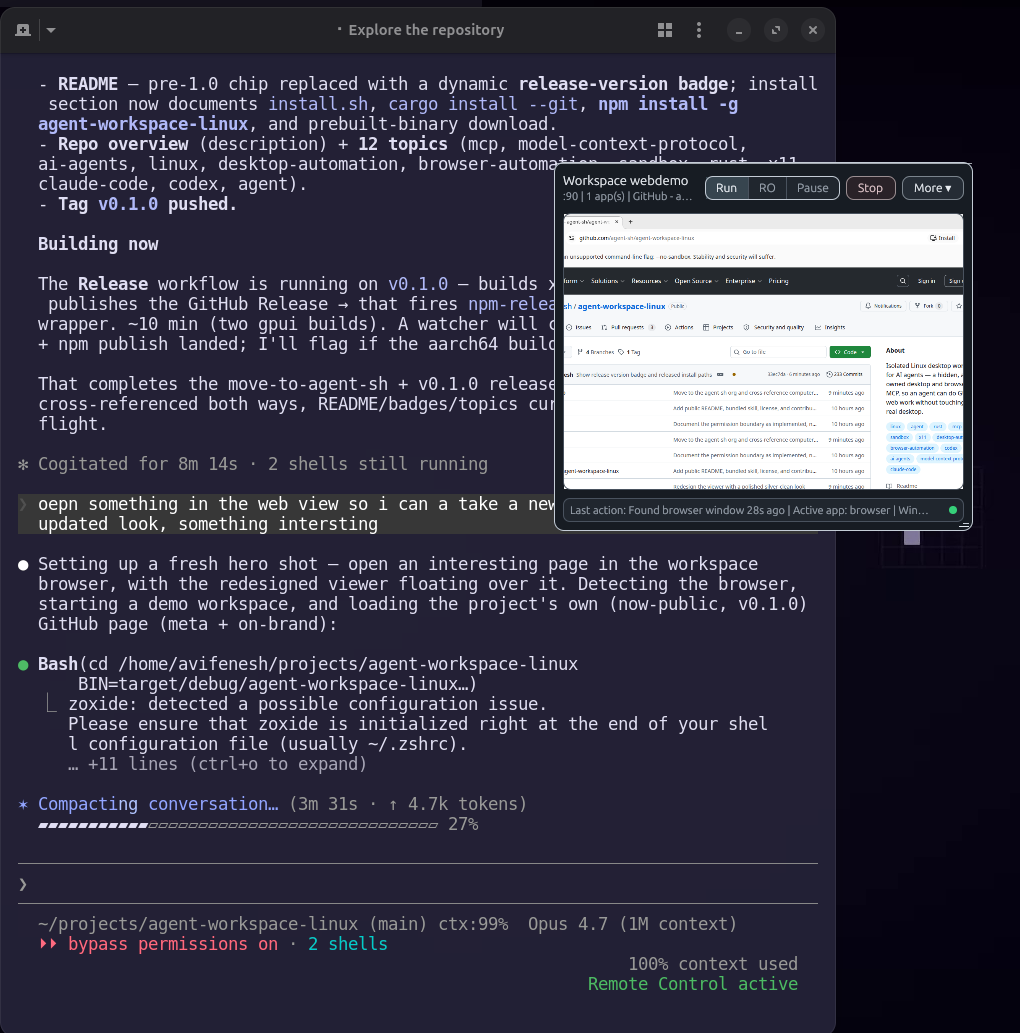
The floating viewer (right) shows the agent doing live website QA inside the hidden workspace, while a Claude Code session (left) drives it. Your real desktop stays yours.
Agents that "use a computer" normally take over your screen — they move your mouse, steal focus, and drive your logged-in browser. agent-workspace-linux gives the agent its own desktop instead: a headless X11 display with its own window manager, apps, clipboard, and browser. The agent launches apps, types, clicks, screenshots, and browses there; you can watch (and pause) through a small floating viewer. It speaks MCP over stdio, so it drops into Claude Code, Codex, and other MCP hosts.
Why this project
- Use it when an agent needs to QA a GUI app or a website but must not hijack your live desktop or Chrome session.
- Use it when you want browser/web/shopping automation in a throwaway, isolated profile — observable and stoppable.
- Use it when you need a clean Linux desktop to run, screenshot, and inspect an app, then tear it down.
- Use it when a long-running or headless agent needs a desktop it can drive without a human babysitting the real one.
It is deliberately not a tool for driving your actual desktop — for that, use its sibling computer-use-linux. This one is the separate, agent-owned environment; the two are complements.
Install
Requires Linux. Install the runtime dependencies, then build and install in one step:
sudo apt install xvfb openbox xdotool xauth x11-utils imagemagick xclip \
    bubblewrap pkg-config libxkbcommon-x11-dev
./install.sh
./install.sh builds the release binary, installs it to ~/.local/bin/, and installs the bundled skill to ~/.codex/skills/ by default. It is safe to rerun. Codex MCP registration is opt-in: use --codex-configure only for generic MCP-host workflows. In Codex for Linux, use the dedicated Agent Workspaces feature page to configure the backend and permission ceiling so the generic MCP settings/configuration pages stay clean. If an older install still appears in generic MCP/configuration pages, run ./install.sh --clean-codex-config to remove the stale agent-workspace-linux server and tool tables. See install.sh --help for flags (--permissions, --clean-codex-config, --skills-dir, --no-skill, --dry-run).
Install with cargo (from source)
It builds from source straight from git — no crates.io needed. Install the system dependencies above, then:
# latest from main
cargo install --git https://github.com/agent-sh/agent-workspace-linux
# or pin a tagged release
cargo install --git https://github.com/agent-sh/agent-workspace-linux --tag v0.1.1
That puts agent-workspace-linux on your PATH. Unlike install.sh, it installs only the binary — register it with your MCP host manually (below), and copy skills/agent-workspace-linux/ into your skills directory if you want the bundled skill.
For MCP hosts that read .mcp.json:
{
  "mcpServers": {
    "agent-workspace-linux": {
      "command": "/home/YOU/.local/bin/agent-workspace-linux",
      "args": ["mcp"]
    }
  }
}
Or install the npm wrapper, which downloads the matching prebuilt Linux binary:
npm install -g @agent-sh/agent-workspace-linux
Prebuilt x86_64 and aarch64 Linux binaries are also attached to each GitHub Release — download the one for your architecture, chmod +x, and put it on your PATH.
Quick start
# 1. Ask the runtime what this machine can do (deps, display, sandbox backends)
agent-workspace-linux doctor

# 2. Preview a workspace without creating anything
agent-workspace-linux workspace start --dry-run

# 3. Create the hidden workspace (explicit acknowledgement required)
agent-workspace-linux workspace start --ack-hidden-workspace --purpose "QA run"

# 4. Watch it in the floating viewer
agent-workspace-linux viewer

# 5. Launch an app, see it, then stop the workspace
agent-workspace-linux workspace launch --name editor -- xterm
agent-workspace-linux workspace observe --screenshot --output /tmp/ws.png
agent-workspace-linux workspace stop
Through an MCP host you don't run these by hand — the agent calls the matching tools. Start it via the bundled skill so the agent loads only the tools it needs.
Who controls the boundaries
The single most important thing to understand is who sets the limits in each scenario — and the project is explicit about it:
| Scenario | Who sets the boundary | What is enforced | Can it be overridden at runtime? |
|---|---|---|---|
Default (no --permissions) |
Your agent host (Claude Code, Codex, …) | The MCP adds no ceiling of its own and defers to the host's approval flow. One explicit hidden-workspace acknowledgement scopes workspace-local actions to that environment. | Yes — the host/user owns approvals. |
Developer ceiling (--permissions file.json or AGENT_WORKSPACE_PERMISSIONS env) |
The developer / operator who launched the MCP | Network mode, mount paths, and an app allowlist, enforced at both the MCP front-end and the workspace daemon's IPC socket — so even workspace-launched apps and other same-uid processes are capped. | No — only by restarting the MCP with new config. This is the authoritative boundary. |
| Live viewer control (pause / read-only) | The human watching, in real time | Best-effort: honors a runtime pause when the shared control state is readable, and fails open if it isn't. | It's a convenience layer, not the security boundary — the ceiling above is. |
| Workspace vs. host | The runtime | Input, screenshots, windows, clipboard, and browser control target the hidden workspace only — never your real desktop or host Chrome. | Leakage to the host is a reportable bug. |
In short: by default the agent host owns permission, a developer can lock a hard, daemon-enforced ceiling via flag or env, and the viewer gives a human a best-effort live stop — layered, not conflicting. See docs/permission-model.md and SECURITY.md for the full model and trust assumptions.
Core concepts
- Hidden workspace — a private
Xvfbdisplay + window manager + control socket. Apps launched into it attach to that display, not your session. Creating one requires--ack-hidden-workspaceso it is never silent. - Permission ceiling — optional, declared in JSON (
network,mounts,apps). When set, it is enforced for the life of the MCP process. Mount and network isolation are applied with bubblewrap when available. - Profiles — reusable workspace definitions (mounts, network mode, setup commands, startup apps), e.g.
profile template project-devorbrowser-session. - Viewer — a small GPUI window that shows workspace state and a live screen view, with pause / read-only / stop controls. It is not always-on-top by default.
- Workspace browser — workspace-owned Chrome/Chromium reached over a loopback DevTools endpoint, so browser automation never attaches to your host Chrome.
The skill (progressive tool loading)
The MCP exposes ~86 tools. To avoid dumping them all into the agent's context, it ships a skill at skills/agent-workspace-linux/SKILL.md. Only the skill's short description stays loaded; when a task needs an isolated desktop or browser, the agent reads the skill and it routes to the right tools per phase (orient → start → observe → act → stop), loading tool schemas on demand. ./install.sh installs it to ~/.codex/skills/ by default (override with --skills-dir; Claude users can pass --skills-dir ~/.claude/skills).
Features
- Hidden X11 workspace with window listing, screenshots, keyboard/mouse input, clipboard, and per-app logs — all scoped to the workspace display.
- Optional, daemon-enforced permission ceiling (network / mounts / app allowlist) via flag or
AGENT_WORKSPACE_PERMISSIONS. - bubblewrap-backed mount and network isolation (
disabled,local_only,inherit_host) when available. - Workspace-owned browser control over loopback CDP — discover targets, read pages, navigate, extract results.
- A native floating viewer with best-effort live pause / read-only / stop.
- Saveable profiles with setup and startup commands.
- A bundled skill for low-context, on-demand tool use across MCP hosts.
Limitations
- Linux only. Targets an X11 (
Xvfb) workspace; the viewer is validated on X11/Xwayland, with native Wayland still maturing. - Pre-1.0. Interfaces and tool schemas can change between versions.
- Single-user trust model. The control socket is a same-uid Unix socket (mode 0600); there is no cross-user protection by design. Run as a dedicated user for multi-user isolation.
- Mount/network enforcement needs bubblewrap. Without it, those policies are declared but not enforced (the runtime tells you which).
- Live viewer control is best-effort, not a hard guarantee — the permission ceiling is the authoritative boundary.
Docs
- Permission boundary — the authority model.
- GPUI viewer direction — the visible control surface.
- SECURITY.md — trust model and how to report a vulnerability.
Related
- computer-use-linux — the sibling MCP that drives the user's real Linux desktop. It is the inverse of this project:
computer-use-linuxautomates the desktop you are already on, whileagent-workspace-linuxgives the agent a separate, isolated desktop of its own. Use them together — host control vs. sandboxed agent workspace.
Contributing
Contributions are welcome. Build with cargo build --locked; before pushing, run the gates: cargo fmt --check, cargo clippy --locked -- -D warnings, cargo test --locked, git diff --check, and (for runtime changes) scripts/integration_smoke.sh. See CONTRIBUTING.md and CODE_OF_CONDUCT.md.
License
MIT © Avi Fenesh
Reviews (0)
Sign in to leave a review.
Leave a reviewNo results found