LLM-Usage-Desktop-Widget
Health Warn
- License — License: MIT
- Description — Repository has a description
- Active repo — Last push 0 days ago
- Low visibility — Only 6 GitHub stars
Code Fail
- rm -rf — Recursive force deletion command in install.sh
- rm -rf — Recursive force deletion command in packaging/linux/build-deb.sh
- rm -rf — Recursive force deletion command in packaging/macos/build-pkg.sh
- rm -rf — Recursive force deletion command in packaging/macos/uninstall.sh
- eval() — Dynamic code execution via eval() in tests/conftest.py
Permissions Pass
- Permissions — No dangerous permissions requested
No AI report is available for this listing yet.
A Desktop Widget for Linux / Windows / MacOS that shows you your current LLM usage levels
LLM Usage Widget

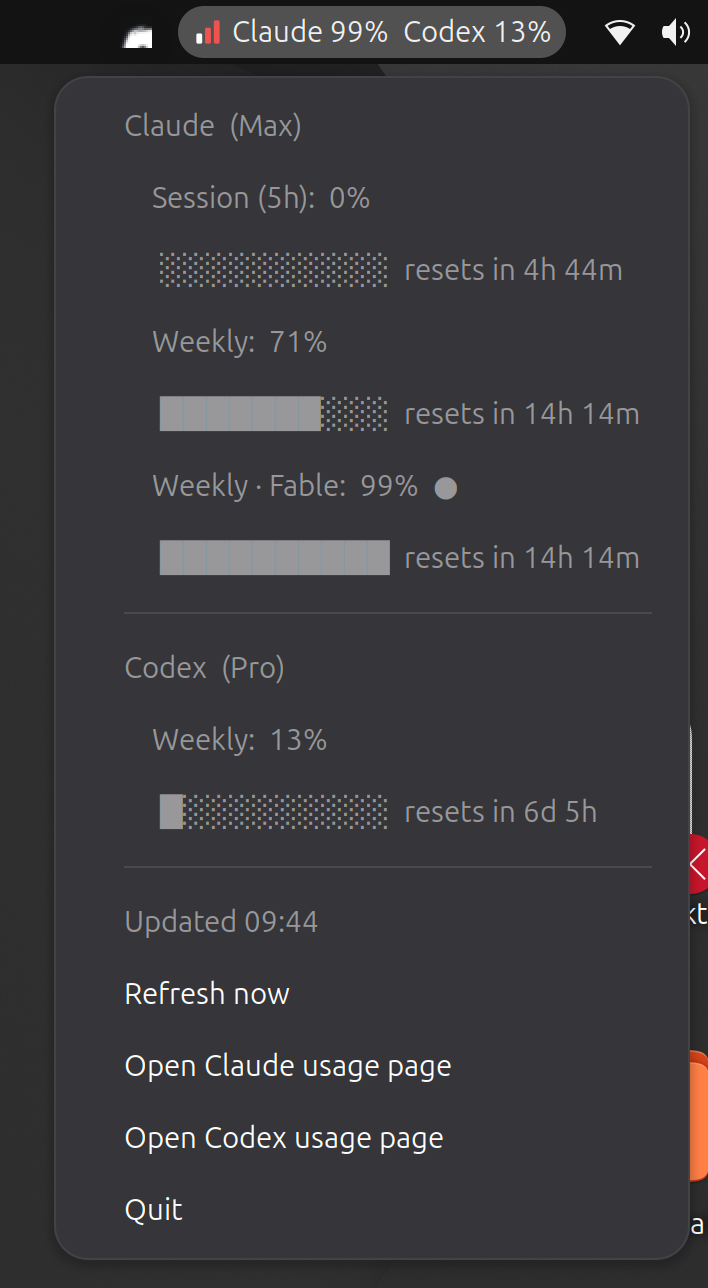
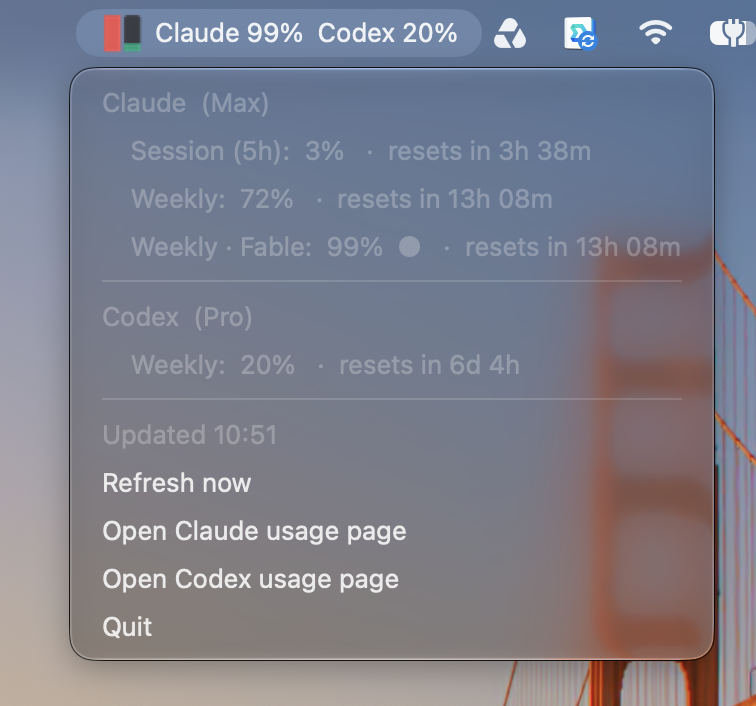
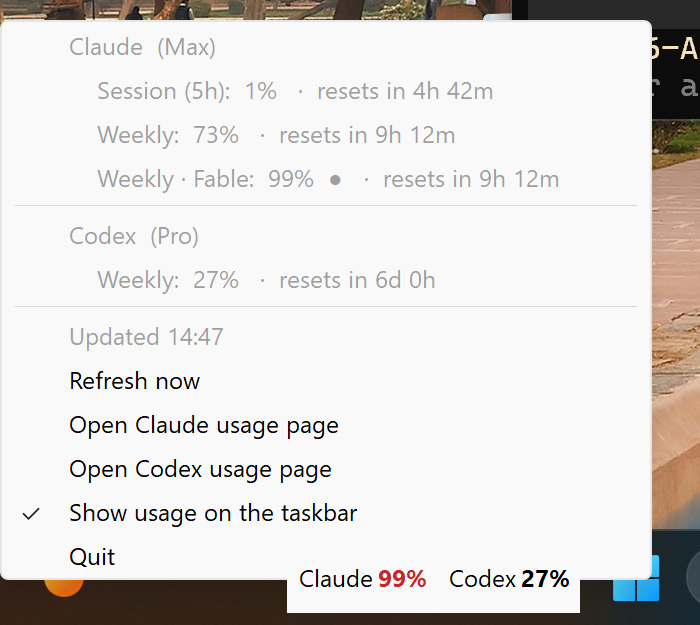
Shows your Claude and Codex plan usage limits (session / weekly windows, model-scoped
limits, and time until each resets) where your system status icons live:
| Linux (Ubuntu) | macOS | Windows |
|---|---|---|
 |
 |
 |
| OS | Where it appears | What it shows |
|---|---|---|
| Linux | Top bar / panel, next to Wi-Fi and sound (AppIndicator) | Icon + Claude 99% Codex 13%; click for details |
| macOS | Menu bar, top right | Gauge icon + Claude 99% Codex 13%; click for details |
| Windows | An empty spot on the taskbar, plus a tray icon | Claude 99% Codex 13% on the taskbar and a two-bar gauge icon; click either for details |
The dropdown lists every limit with its percentage and reset countdown, plus Refresh now,
links to each provider's usage page, and Quit. Bars and icons are green below 70%, amber from 70% and red from 90%
(or whatever severity the provider reports). If a refresh fails, the last numbers are kept and marked stale.
Once a provider's plan is at 100% and it has usage credits (Claude's extra usage, a Codex credit balance),
the top-bar text and icon switch to what is left of those instead, e.g. Claude 75% left, colored by how
much is spent; without a cap to measure against (a Codex balance), it shows the amount left, e.g. Codex 42 left.
There is also a floating always-on-top window (--widget) for desktops without a tray.
It reuses the logins that Claude Code (claude) and the Codex CLI (codex) already store
on your machine, so there is nothing to configure. Credentials are only read, never modified, and each
token is sent only to the provider that issued it.
Direct JSON API requests require HTTPS and reject redirects. Azure pagination stays onmanagement.azure.com; response sizes and pagination are bounded so a bad reply cannot grow
memory or repeat requests indefinitely. Settings and billing caches are replaced atomically,
with owner-only file permissions on Unix. Cached update links are validated before they reach
the browser.
| Provider | Credentials read from | Endpoint |
|---|---|---|
| Claude | macOS Keychain Claude Code-credentials, else ~/.claude/.credentials.json ($CLAUDE_CONFIG_DIR) |
api.anthropic.com/api/oauth/usage |
| Codex | ~/.codex/auth.json ($CODEX_HOME) |
chatgpt.com/backend-api/wham/usage |
| Bedrock | Your AWS credentials (profile, SSO, env vars), via boto3 | AWS Budgets, Cost Explorer, CloudWatch |
| Vertex | Google Application Default Credentials (gcloud auth application-default login) |
Cloud Monitoring, BigQuery billing export |
| Azure | The Azure CLI login (az login), or azure-identity if installed |
Azure Monitor, Cost Management, Consumption budgets |
These are the same internal endpoints the official CLIs use for their
/usageand/status
screens. They are undocumented and may change; if a provider shows an error after an update,
check the parser for that provider inusage_widget.py.
Install
First log in to each CLI once with your subscription: claude → /login, and codex login.
Each installer puts the app where it belongs for the OS, starts it right away, and starts it again
every time you log in.
Option 1: packaged installers (no Python needed on macOS / Windows)
Download from the GitHub release (built by .github/workflows/build-installers.yml):
| OS | File | Notes |
|---|---|---|
| Linux (Debian/Ubuntu) | llm-usage-widget_<ver>_all.deb |
sudo apt install ./llm-usage-widget_*.deb. Starts right away for every logged-in user, and at login via /etc/xdg/autostart. |
| macOS | LLM-Usage-Widget-<ver>-macos-arm64.dmg (Apple Silicon) or -x86_64.dmg (Intel) |
Open it and run Install LLM Usage Widget.pkg, which installs /Applications/LLM Usage.app plus a login LaunchAgent. Release builds are signed with a Developer ID and notarized by Apple. |
| Windows | LLM-Usage-Widget-<ver>-windows-x64-setup.exe (Intel/AMD) or -windows-arm64-setup.exe (Arm, e.g. Snapdragon) |
Per-user install, no admin rights needed. "Start automatically when I sign in" is ticked by default. The build is unsigned, so SmartScreen may warn: click More info → Run anyway. Uninstall from Settings → Apps, the Uninstall LLM Usage Widget Start Menu entry, or by running the setup .exe with /uninstall (add /VERYSILENT to skip the prompts). Settings in %APPDATA%\llm-usage-widget are kept. |
To uninstall on macOS, run Uninstall LLM Usage Widget.pkg from the same disk image
(it asks for an administrator password), or run the copy of the uninstaller inside the app:
sudo "/Applications/LLM Usage.app/Contents/Resources/uninstall.sh"
Either one stops the widget for every logged-in user and removes the app, its LaunchAgent and the
package receipt. Settings in ~/Library/Application Support/llm-usage-widget are left in place.
On Debian/Ubuntu: sudo apt remove llm-usage-widget.
Option 2: install scripts (from a checkout of this repo)
| OS | Install | Uninstall |
|---|---|---|
| Linux / macOS | ./install.sh |
./install.sh --uninstall |
| Windows | double-click install.cmd (or powershell -ExecutionPolicy Bypass -File install.ps1) |
uninstall.cmd |
- Linux: copies to
~/.local/share/llm-usage-widget, adds an app-menu launcher and~/.config/autostart/llm-usage-widget.desktop. Uses the system Python's PyGObject and AppIndicator
(preinstalled on Ubuntu; the script prints the package command for your distro if they're missing).
On GNOME the AppIndicator extension must be enabled (the default on Ubuntu; elsewhere install
"AppIndicator and KStatusNotifierItem Support"). KDE, XFCE, Cinnamon and others work out of the box,
though some panels show only the icon, not the text label. - macOS: needs Python 3.9+ (python.org or Homebrew). Copies to
~/Library/Application Support/llm-usage-widgetwith its own virtualenv and registers~/Library/LaunchAgents/local.llm-usage-widget.plist. Logs go to~/Library/Logs/llm-usage-widget.log. - Windows: needs Python 3.9+ from python.org. Copies to
%LOCALAPPDATA%\llm-usage-widgetwith its
own virtualenv and adds Start Menu and Startup shortcuts.
On macOS the first run may ask for Keychain access to Claude Code-credentials; choose Always Allow.
On Windows the numbers are drawn on the taskbar itself: left of the ^ arrow when there is room, otherwise in
the next empty gap (with centered taskbar buttons, usually left of Start), on two smaller lines if that is what
fits. It never covers taskbar buttons; if the taskbar is completely full it hides until there is room. Windows has
no API for text in the taskbar, so this is a small always-on-top window that follows the taskbar and steps
aside for full-screen apps and an auto-hidden or vertical taskbar. Turn it off with Show usage on the taskbar
in the menu. The tray icon may be tucked into the overflow (^) menu; drag it onto the taskbar to keep it visible.
After one of its own flyouts has been open — Start, Search, the Widgets board — Windows 11 sometimes leaves the
taskbar in a window layer above every ordinary window, and no program without special privileges can draw over
that. The numbers then disappear from the taskbar until the shell puts it back (restarting Explorer does, as does
signing out). The menu says so under Show usage on the taskbar, and the tray icon and its tooltip still have the
numbers meanwhile.
To keep the numbers out of sight, choose Collapse to logo in the menu: the top bar, menu bar or taskbar then
shows only the Aleph Void logo, ℵ₀, as a plain line icon like the system's own (on Windows the taskbar text
becomes the logo, and so does the tray icon). The numbers are still in the menu; choose it again to bring them back.
Running from source
/usr/bin/python3 usage_widget.py               # Linux (system Python, for PyGObject)
python3 -m pip install -r requirements.txt     # macOS / Windows: pystray + Pillow
python3 usage_widget.py                         # Windows: pythonw usage_widget.py (no console window)
Only one copy runs at a time; starting a second one exits immediately.
Options
usage_widget.py                  # tray / top bar / menu bar (default)
usage_widget.py --widget         # floating always-on-top window instead
usage_widget.py --widget --framed    # ...with a normal title bar
usage_widget.py --once           # print usage in the terminal and exit
usage_widget.py --interval 300   # refresh every 5 minutes (default 180 s, min 60 s)
Cutoff quotas
Each provider can have its own cutoff: a percentage of its fullest limit at which the widget stops the
CLIs that use that provider's quota. Choose one from Stop Claude at, Stop Codex at, etc. in the menu
(Off, or every 5% from above the provider's current usage up to 95%, since a lower one would be reached at once). A cutoff chosen in the menu belongs to the account that is signed in: the
Claude account and organization in ~/.claude.json, the ChatGPT account in ~/.codex/auth.json, the AWS
account, the Google Cloud projects or the Azure subscription and resources. So with synced settings,
a computer signed in to a different account is not affected. You can also set any value from 1 to 100
in config.json, where a plain number applies to any account:
"cutoff": {"Claude": {"<account uuid>/<organization uuid>": 95}, "Codex": 90}
On the first refresh that finds a provider at or over its cutoff, the widget stops every running process
of that provider's CLI: claude for Claude, codex for Codex, and whichever of the two runs on it for
Bedrock, Vertex AI and Azure (these need a budget, since that is their only limit with a percentage). The menu then
shows ⛔ Cutoff 95% reached — stopped 2 claude processes; cutoff cleared. The cutoff turns itself off
once it is reached, so you can start the CLI again; set a new cutoff if you want another one. The Claude and
Codex desktop apps are never stopped. Usage is only checked on each refresh (every 3 minutes by default),
so a busy session can go a little past the cutoff before it is stopped.
With synced settings, a cutoff set on one computer applies to every computer signed in
to the same account, and each of them stops its own CLIs when it is reached (if it is running the widget
and sees that within an hour).
Credit cutoffs
A provider that reports usage credits can have a second cutoff, an amount of credits, next to the
percentage one. The widget offers it only when it sees such credits: Stop Claude at extra usage once
Claude's extra usage (pay-as-you-go credits beyond the plan) is enabled, and Stop Codex at credits left
when the Codex account has a credit balance. Providers without usage credits only get the percentage cutoff.
- Extra usage counts upward, so the cutoff is the spend at which to stop: the menu offers amounts above
what is spent so far and below the monthly cap, if one is set ($15,$20,$30, …). - Credits left counts down, so the cutoff is the balance at which to stop: the menu offers amounts
below what is left (100,75,50, …).
Either kind works like the percentage cutoff: it stops the provider's CLI on the first refresh that reaches
it, leaves a note such as ⛔ Credit cutoff $20 reached — stopped 2 claude processes; cutoff cleared,
turns itself off, belongs to the signed-in account and syncs between computers. The two kinds are
independent: reaching one leaves the other in place. In config.json any positive amount can be set,
again with a plain number applying to any account:
"credit_cutoff": {"Claude": 20, "Codex": {"<account id>": 100}}
Settings sync
On macOS and Windows the settings, including each provider's cutoffs, sync between your computers through
iCloud Drive and OneDrive, in an llm-usage-widget folder. When a computer has both, the settings go to
both, so it also links a Mac that only has iCloud with a PC that only has OneDrive; the most recently saved
copy wins. This needs nothing but iCloud Drive (or iCloud for Windows) or OneDrive being signed in;
otherwise the settings stay on this computer, and the first time the widget finds a cloud folder it copies
them there. The window position, Show usage on the taskbar and Collapse to logo are per computer and are not synced. macOS
may ask once whether the widget may access iCloud Drive or OneDrive.
A full copy is also kept in the local config.json, which is used whenever no cloud folder is available.
To edit settings by hand while syncing, edit a copy in a cloud folder. To stop syncing on one computer,
add "sync": false to its local config.json. Uninstalling leaves the cloud copies in place.
Update notifications
Once a day the widget asks GitHub for the latest release
(drafts and pre-releases don't count). When it is newer than the running copy, the menu starts with
Update available: v1.2.3, which opens the release page, and the tooltip (the ⬆ v1.2.3 link in the
floating widget's header) says so too. A desktop notification announces each new version once: Notification
Center on macOS, a notification-area balloon on Windows, notify-send on Linux (from libnotify-bin, if
installed). The floating widget on Windows has no notification, only the menu item and header link. The
answer is cached in cloud-cache.json, so restarts don't ask again; if GitHub can't be reached, the
widget tries again an hour later and otherwise carries on as usual. To turn the check off, add this toconfig.json:
"update_check": false
Expired logins
Claude Code and Codex refresh their own tokens while you use them. If you haven't used one for a while,
its access token may expire and the widget will say so. Open that CLI once and the widget picks up the
new token on its next refresh. The widget deliberately does not refresh tokens itself, because rotating
the refresh token would log the CLI out.
Known issue: Ubuntu with GNOME 50
The Ubuntu AppIndicators extension shipped with GNOME 50 comes up half-broken at login: until it is
reloaded, apps that start after its initial bus scan get No such method "RegisterStatusNotifierItem"
and don't appear (this also hits Remmina, update-notifier, etc.). Apps already running during that scan
do appear, so starting the widget at login usually works. install.sh detects the broken state and
reloads the extension once so the icon appears immediately. If the icon is missing, reload it by hand:
gnome-extensions disable [email protected] && gnome-extensions enable [email protected]
Building the installers
The GitHub Actions workflow builds every installer on its own OS. Push a tag matching __version__ inusage_widget.py (e.g. v1.0.0) to build them and attach them to a release, or run the workflow
by hand to download them as build artifacts. To build locally on each OS:
packaging/linux/build-deb.sh                                   # Linux → dist/*.deb
python3 -m pip install pyinstaller -r requirements.txt
packaging/macos/build-pkg.sh                                   # macOS → dist/*.dmg
powershell -File packaging\windows\build.ps1                   # Windows → dist\*-windows-<arch>-setup.exe (needs Inno Setup 6)
To sign the macOS build locally, set CODESIGN_IDENTITY (a "Developer ID Application" identity) andINSTALLER_SIGN_IDENTITY ("Developer ID Installer"). The app is signed with the hardened runtime and a
secure timestamp, which is what notarization requires, and the disk image is signed with the same
identity. Then notarize and staple the disk image, which covers the pkgs inside it:
xcrun notarytool submit dist/*.dmg --keychain-profile <profile> --wait
xcrun stapler staple dist/*.dmg
In CI, the macOS job signs, notarizes and staples the disk image when these repository secrets are set. A tag
release fails without them:
| Secret | Contents |
|---|---|
MAC_CERT_P12_BASE64 / MAC_CERT_PASSWORD |
The Developer ID Application certificate and private key, as a base64-encoded .p12, and its export password |
MAC_INSTALLER_CERT_P12_BASE64 / MAC_INSTALLER_CERT_PASSWORD |
The same for the Developer ID Installer certificate |
AC_API_KEY_P8_BASE64 / AC_API_KEY_ID / AC_API_ISSUER_ID |
An App Store Connect API key (the base64-encoded .p8), its key ID and issuer ID, used by notarytool |
Code signing (Windows)
The workflow Authenticode-signs LLMUsageWidget.exe and the setup .exe with
Azure Trusted Signing (the same setup as
Virux), timestamps both, and checks the signatures before uploading. A tag build fails rather than
publish an unsigned installer; a manual run without the secrets builds unsigned with a warning.
It needs these repository (or organization) secrets:
| Secret | What it is |
|---|---|
AZURE_TENANT_ID |
Entra ID tenant of the app registration that signs |
AZURE_CLIENT_ID |
That app registration's client ID |
AZURE_CLIENT_SECRET |
A client secret for it; also how the workflow decides whether to sign |
AZ_TS_ENDPOINT |
The Trusted Signing account's regional endpoint, e.g. https://eus.codesigning.azure.net |
AZ_TS_ACCOUNT |
Trusted Signing account name |
AZ_TS_PROFILE |
Certificate profile name |
The app registration needs the Trusted Signing Certificate Profile Signer role on the account.
Publisher name only, no address. Windows shows the certificate's common name, the validated
organization name ("Aleph Void LLC"), as the publisher in SmartScreen, the UAC prompt and the file's
Digital Signatures tab. Create the Public Trust certificate profile with Include street
address and Include postal code both unticked (the default) so the certificate carries no
address. City, state and country are always part of a Public Trust certificate's details and can't
be removed. packaging/windows/verify-signature.ps1 fails the build if a signature is invalid,
not timestamped, or its certificate includes a street address or postal code. Run it on a
downloaded installer to check it yourself:
powershell -File packaging\windows\verify-signature.ps1 .\LLM-Usage-Widget-<ver>-windows-x64-setup.exe
/uninstall runs from the same signed setup .exe. The uninstaller that Inno Setup
writes into the install folder at install time is not signed. It runs without elevation
(the install is per-user), so Windows doesn't show a publisher prompt for it.
Amazon Bedrock (and bedrock-mantle)
If Claude Code or Codex runs on Amazon Bedrock instead of a subscription, there are no session or weekly
limits to show. Instead the widget adds a Bedrock section that shows:
- Budget: spend against an AWS Budget as a
percentage bar that resets with the budget period. This only appears if you name a budget (see below). - This month: month-to-date spend for every service with "Bedrock" in its name, from Cost Explorer.
Third-party models such as Claude are billed as Marketplace services named likeClaude Sonnet 4.5 (Amazon Bedrock Edition), and these are included. - Tokens today: input and output tokens since local midnight, from CloudWatch. This covers both the
bedrock-runtimeendpoint (AWS/Bedrock) and the OpenAI/Anthropic-compatiblebedrock-mantleendpoint
(AWS/BedrockMantle).
The section turns on automatically when Claude Code's settings set CLAUDE_CODE_USE_BEDROCK
(or an ANTHROPIC_BASE_URL containing bedrock), or when a base_url in ~/.codex/config.toml points at
Bedrock. The AWS profile and region come from the same place: AWS_PROFILE and AWS_REGION in Claude
Code's env block, or the region in Codex's base_url. In that case the Claude or Codex section
is hidden if that CLI has no subscription login. To override any of this, add a bedrock entry toconfig.json in the widget's config folder (~/.config/llm-usage-widget/ on Linux,~/Library/Application Support/llm-usage-widget/ on macOS, %APPDATA%\llm-usage-widget\ on Windows;
a cloud folder when settings sync):
{
  "bedrock": {
    "profile": "work",
    "regions": ["us-east-1", "us-west-2"],
    "budget": "bedrock-monthly",
    "cost_explorer": true,
    "cost_interval": 21600,
    "metrics_interval": 900
  }
}
Use "bedrock": true to turn the section on with the defaults, or false to hide it.
This needs boto3: it is in requirements.txt and in the macOS and Windows packages. On Linux, runsudo apt install python3-boto3 (or install it for the system Python another way). The IAM identity
needs ce:GetCostAndUsage, cloudwatch:GetMetricData, and, for a budget, budgets:ViewBudget andsts:GetCallerIdentity. If a permission is missing, only that row shows an error. If the credentials
have expired (for example an SSO session), the section says to run aws sso login.
Cost: Cost Explorer charges $0.01 per request and its data only updates a few times a day, so spend
(and the budget) is fetched at most every cost_interval seconds (6 h by default, about $1.20 a month).
Token counts are fetched every metrics_interval seconds (15 min). Both are cached incloud-cache.json next to config.json, so restarts don't refetch them, and Refresh now doesn't
bypass the cache either. Billing data can lag by a day or more, so don't treat this as a spending alarm.
Google Vertex AI
If Claude Code or Codex runs on Vertex AI, the widget adds a Vertex section instead:
- Tokens today: input and output tokens since local midnight from Cloud Monitoring
(aiplatform.googleapis.com/publisher/online_serving/token_count). This counts every publisher model in the
project (Claude, Gemini and others), not only the ones the CLIs use. - This month: month-to-date spend, after credits, for Vertex AI and partner models such as Claude. Google
has no API that reports current spend, so this needs a
Cloud Billing export to BigQuery and
its table name inbilling_table. If you also setbudget(an amount per month, in the billing currency),
the row becomes a percentage bar.
The section turns on when Claude Code's settings set CLAUDE_CODE_USE_VERTEX, or a base_url in~/.codex/config.toml points at aiplatform.googleapis.com. The project comes fromANTHROPIC_VERTEX_PROJECT_ID or the projects/<id>/ part of that URL. Overrides go in config.json:
{
  "vertex": {
    "projects": ["my-project"],
    "billing_table": "my-project.billing.gcp_billing_export_v1_XXXXXX_XXXXXX_XXXXXX",
    "budget": 500,
    "cost_interval": 21600,
    "metrics_interval": 900
  }
}
Use "vertex": true or false to force the section on or off. Credentials are the Application Default
Credentials from gcloud auth application-default login (or $GOOGLE_APPLICATION_CREDENTIALS), refreshed
directly with Google. For service-account or other ADC types the widget uses the google-auth package if it
is installed, else gcloud auth print-access-token. The identity needs monitoring.timeSeries.list
(Monitoring Viewer) and, for spend, BigQuery Job User plus read access to the export dataset. The billing
query is run in the first project and scans the current month of the export table, which usually costs
nothing or close to it.
Azure OpenAI and Microsoft Foundry
If Codex (or Claude Code, through Microsoft Foundry) runs on Azure, the widget adds an Azure section:
- Budget: spend against an Azure budget
as a percentage bar. This only appears if you name a budget. - This month: month-to-date actual cost of the Azure OpenAI / Foundry resources, from Cost Management.
- Tokens today: prompt and completion tokens since local midnight, from Azure Monitor.
The section turns on when a base_url in ~/.codex/config.toml points at <resource>.openai.azure.com,<resource>.cognitiveservices.azure.com or <resource>.services.ai.azure.com, or Claude Code's settings setCLAUDE_CODE_USE_FOUNDRY (the resource comes from ANTHROPIC_FOUNDRY_RESOURCE orANTHROPIC_FOUNDRY_BASE_URL). The widget finds those resources in your subscription. Overrides go inconfig.json:
{
  "azure": {
    "subscription": "00000000-0000-0000-0000-000000000000",
    "resources": ["my-openai", "/subscriptions/.../providers/Microsoft.CognitiveServices/accounts/other"],
    "budget": "ai-monthly",
    "cost_management": true,
    "cost_interval": 21600,
    "metrics_interval": 900
  }
}
resources takes resource names or full resource IDs. With "azure": true and no resources, every Azure
OpenAI and AI Services resource in the subscription is included. budget is a budget name at subscription
scope, or a budget's full resource ID for one on a resource group. Without subscription, the Azure CLI's
current one is used (or all of them, with azure-identity). Credentials come from az login, or from theazure-identity package's DefaultAzureCredential if the CLI isn't available. The identity needs Reader
on the resources (with Monitoring Reader) and Cost Management Reader on the subscription. Cost data is
cached like Bedrock's: Cost Management is free but throttled, and only updates a few times a day.
Adding a provider
Write a fetch_<name>() that returns a ProviderUsage and add it to PROVIDERS, then add tests for
it under tests/ (see tests/test_codex.py for the pattern: canned responses, no network).
Running the tests
python3 -m pip install -r requirements-dev.txt
python3 -m pytest                  # Linux without a display: xvfb-run -a python3 -m pytest
python3 -m pytest --cov            # with a coverage report
The tests never touch the network or your real logins: each one runs against an empty temporary home
directory, and the provider APIs, AWS, Google Cloud, Azure, GTK/AppIndicator, pystray and Win32 are
faked. The Tk tests are skipped when there is no display. GitHub Actions runs the suite on every pull request and push to main
(.github/workflows/tests.yml) on Linux, macOS and Windows with Python 3.9 to 3.14 (and Windows on Arm with 3.11 and up), plus Ruff and
ShellCheck, and installs the .deb on Ubuntu to run the tests on the system Python.
License
MIT. See LICENSE.
Reviews (0)
Sign in to leave a review.
Leave a reviewNo results found