peek
Health Uyari
- License — License: MIT
- Description — Repository has a description
- Active repo — Last push 0 days ago
- Low visibility — Only 5 GitHub stars
Code Gecti
- Code scan — Scanned 2 files during light audit, no dangerous patterns found
Permissions Gecti
- Permissions — No dangerous permissions requested
Bu listing icin henuz AI raporu yok.
See and drive any Mac app — from your terminal or your AI agent.
Peek
See and drive any Mac app — from your terminal or your AI agent.
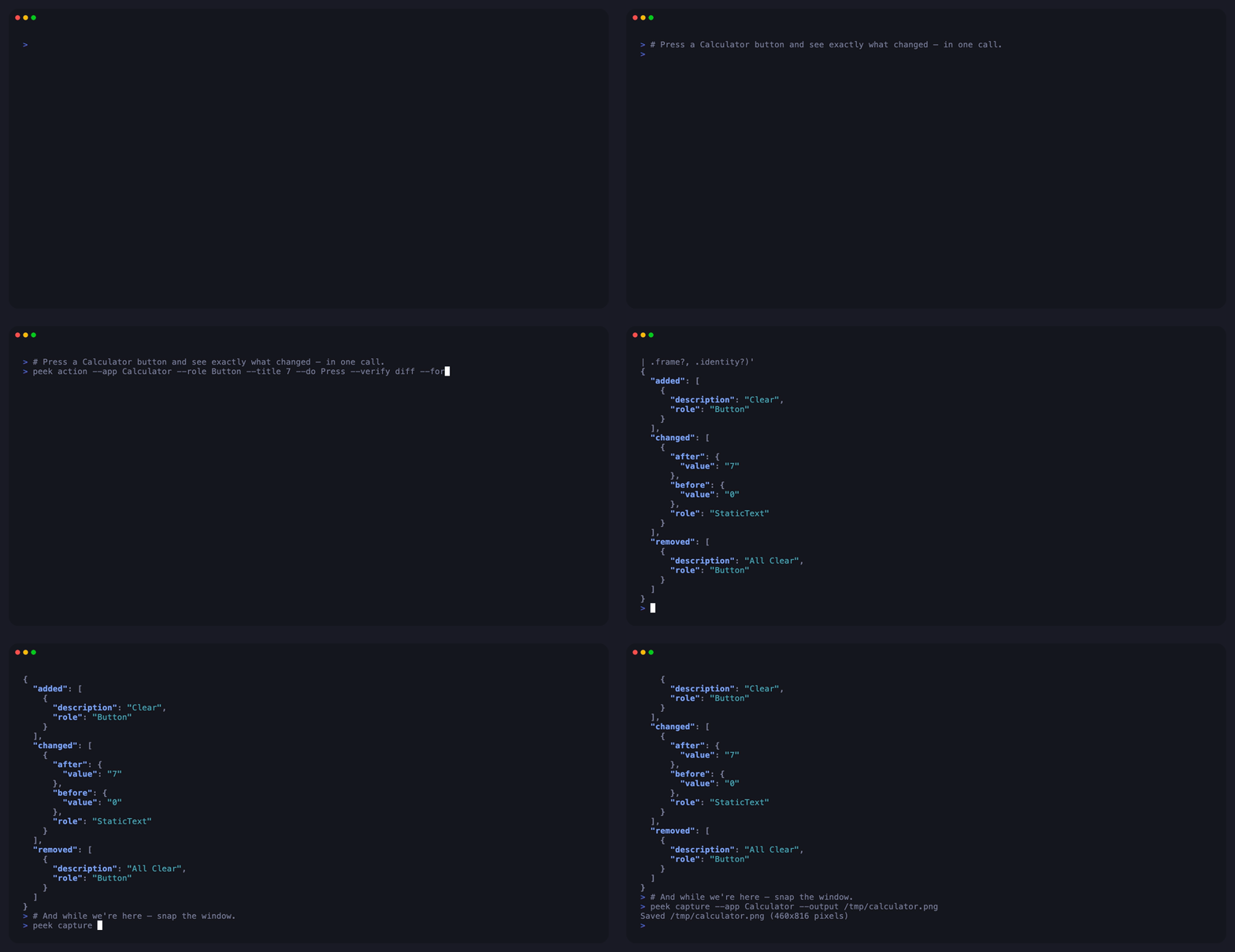
Inspect any UI, click any button, fire any shortcut, drag any tab, type into any field, snap any window, hit-test any pixel. Peek does all of it with structured output — perfect for scripts and AI agents that need to know what just happened.
See it in action
A complete automation — discover, act, verify, capture — in five calls. Run it yourself with the macOS Calculator.
1. Discover — launch the app and get its window handle
peek launch --name Calculator --wait-for-window --format json
{"pid":12345,"windowID":4977,"windowTitle":"Calculator", ...}
--wait-for-window blocks until an AX-visible window appears and returns the windowID directly. Skip the usual follow-up peek apps call.
2. Inspect — find the element you want to drive
peek find --app Calculator --role Button --title 5 --limit 1 --format json
[{"role":"Button","description":"5","frame":{"x":902,"y":422,"width":48,"height":48}}]
Read-only check. --limit 1 stops at the first hit — a cheap existence test before committing to an action. --title matches AXTitle OR AXDescription, so labels and accessibility descriptions both resolve.
3. Act — press the button and capture what changed, atomically
peek action --app Calculator --do Press --role Button --title 5 --verify diff --format json
{
"action": [{"role":"Button","description":"5", ...}],
"diff": {
"changed": [{"role":"StaticText","before":{"value":"0"},"after":{"value":"5"}}],
"added": [{"role":"Button","description":"Clear"}],
"removed": [{"role":"Button","description":"All Clear"}]
}
}
--verify diff snapshots the post-action tree and returns only the delta in the same call that pressed the button. No race window between acting and observing.
4. Screenshot the area — just the display
peek capture --app Calculator --output display.png --x 10 --y 86 --width 210 --height 42
--x --y --width --height crops in window-relative coordinates, so the same script works no matter where the user dragged the window. Drop straight into a test artifact or a PR comment.
5. Screenshot everything — the full window
peek capture --app Calculator --output calculator.png
Omit the crop flags for the whole window. Use the cropped shot for "did the display update?", the full shot for "here's the end state."
Install
Homebrew
brew install alexmx/tools/peek
Mise
mise use --global github:alexmx/peek
Requirements
- macOS 15.0 or later
- Accessibility permission for most commands
- Screen Recording permission for
peek capture
Run peek doctor --prompt to check and request permissions.
More examples
# Hit-test: what's behind this pixel?
peek find --app Xcode --x 280 --y 50

# Filter by AX attribute, not just title (System Settings stores labels in `value`)
peek find --app "System Settings" --value "General"

# Read the menu bar and discover shortcuts
peek menu --app Safari --find "New Tab"

# Fire any shortcut at a specific app — ⌘-combos, F-keys, Escape, arrows
peek key --key s --modifiers cmd --app TextEdit

# Drag for reorder / drag-and-drop (positions from peek find)
peek drag --app Safari --from-x 420 --from-y 60 --to-x 220 --to-y 60
Command reference
All commands accept --format json (default for MCP) or --format toon (token-optimised, ~30-50% smaller). Most accept a target via --app NAME, --pid PID, or a positional <window-id> (from peek apps).
Discovery
| Command | Description | Key options |
|---|---|---|
apps |
List running applications and their windows | --app NAME filter |
launch |
Launch an app by bundle ID, name, or path | --bundle-id (preferred), --name, --path; --wait-for-window blocks until a window appears and returns windowID/windowTitle; --documents <path-or-url> ... opens files in the app via application:openURLs: |
quit |
Terminate a running app | --pid (preferred), --bundle-id, --name; --force |
Inspection
| Command | Description | Key options |
|---|---|---|
tree |
Accessibility tree of a window | --depth N |
find |
Search elements by AX attributes or hit-test | --role, --title (matches AXTitle OR AXDescription), --value, --desc, --enabled true|false; --x --y for hit-test; --limit N (use --limit 1 for existence checks) |
menu |
Inspect or click menu bar items | --find QUERY, --path "Menu > Submenu", --click TITLE |
Interaction
| Command | Description | Key options |
|---|---|---|
action |
Find an element and perform an AX action | --do Press|Confirm|Cancel|ShowMenu|Increment|Decrement|Raise; filters as find; --all; --verify none|tree|diff (default none), --depth, --delay (default 0.15s) |
click |
Click at screen coordinates | --x --y; --count 1|2|3 (double = word, triple = line); --button left|right (right opens context menus); --app to auto-activate |
move |
Move the cursor without clicking — drives hover state, tooltips, cursor updates | --x --y; --from-x --from-y + --steps N for smoothed motion; --dwell-ms N; returns cursor + element for hover verification |
drag |
Drag between two screen points | --from-x --from-y --to-x --to-y |
scroll |
Scroll at coordinates | --x --y --delta-y (positive = DOWN); --delta-x; --drag for touch apps |
type |
Type literal text via key events | --text; --delay-ms per-character delay (default 5) |
key |
Send a single key chord | --key (character or named: escape, tab, return, delete, arrows, home, end, pageup, pagedown, f1-f12, space); --modifiers cmd,shift,option,control,fn |
activate |
Bring an app to the foreground | --app, --pid |
Window-less system UI (Dock, Control Center, status-menu helpers) is addressable too — pass --app or --pid and find/tree/action/move scope to the app's AX root. These processes don't appear in peek apps.
Monitoring & System
| Command | Description | Key options |
|---|---|---|
capture |
Screenshot a window | --output PATH; --x --y --width --height for window-relative crop |
doctor |
Check Accessibility + Screen Recording permissions | --prompt to open System Settings |
mcp |
Start the MCP server | --setup for client config snippets |
MCP server
Peek runs as a stdio MCP server. Every CLI command is exposed as a peek_* tool (peek_click, peek_find, …) mirroring the CLI 1:1. Plus peek_wait (MCP-only) — polls for an element to appear, useful when waiting on UI you don't trigger directly (a dialog opens, a spinner vanishes).
peek mcp --setup # prints config for Claude Code, Cursor, Codex CLI, etc.
Manual configuration:
{
  "mcpServers": {
    "peek": { "command": "peek", "args": ["mcp"] }
  }
}
Use with AI agents
A skill guide for agents driving peek via the CLI lives at skills/peek/SKILL.md. Install it with Skillman:
skillman install github.com/alexmx/peek
License
Released under the MIT License.
Yorumlar (0)
Yorum birakmak icin giris yap.
Yorum birakSonuc bulunamadi