hoprig
Health Pass
- License — License: Apache-2.0
- Description — Repository has a description
- Active repo — Last push 0 days ago
- Community trust — 99 GitHub stars
Code Fail
- rm -rf — Recursive force deletion command in install.sh
- exec() — Shell command execution in packages/hoprig-skill/bin/hoprig-skill.mjs
- fs.rmSync — Destructive file system operation in packages/hoprig-skill/bin/hoprig-skill.mjs
- os.homedir — User home directory access in packages/hoprig-skill/bin/hoprig-skill.mjs
- process.env — Environment variable access in packages/hoprig-skill/bin/hoprig-skill.mjs
Permissions Pass
- Permissions — No dangerous permissions requested
No AI report is available for this listing yet.
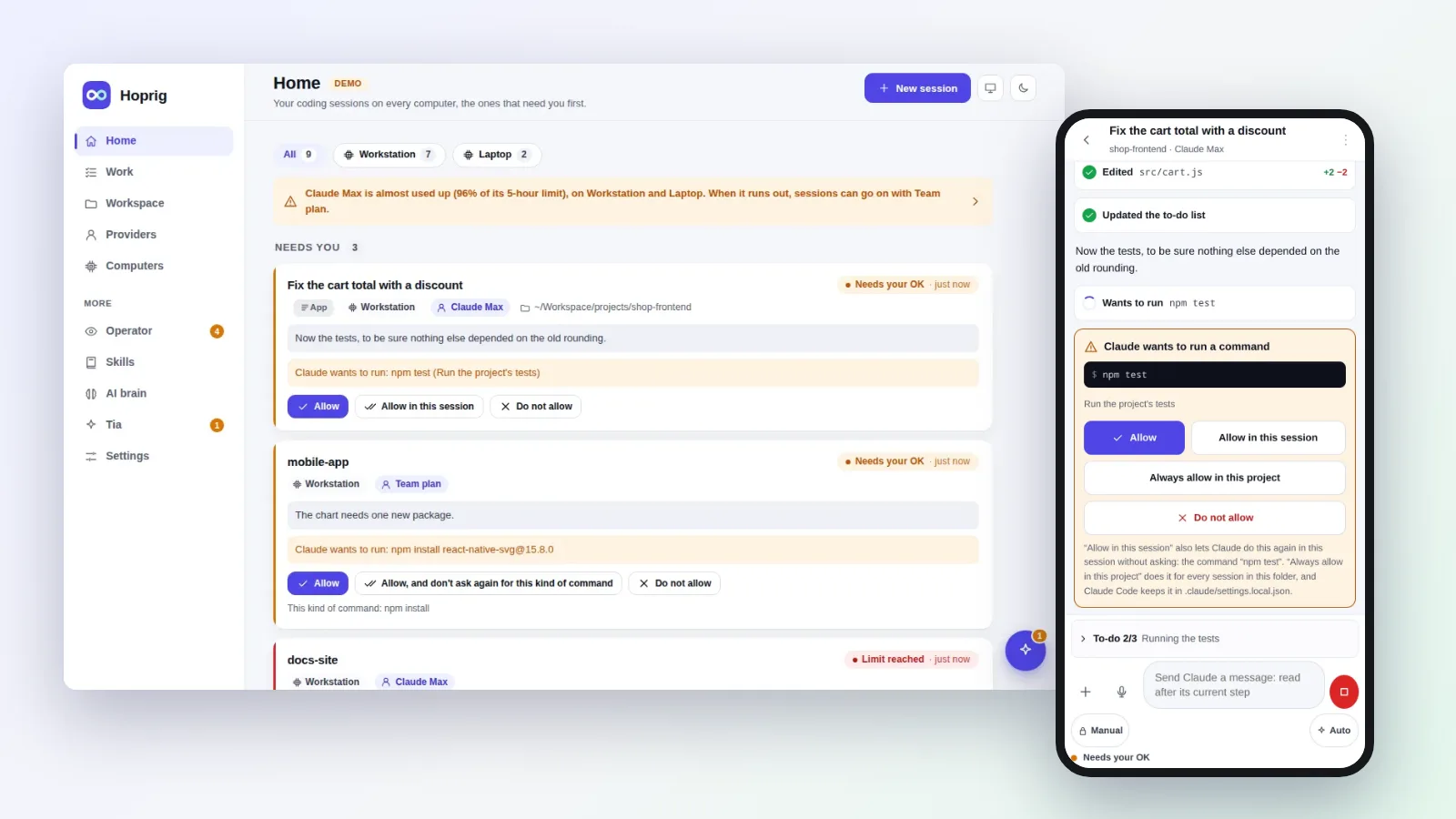
Install it on a fresh PC or Linux server and it sets up everything else for coding with Claude Code, managed from one dashboard: sessions that carry on under another provider at a usage limit, coding from anywhere including a phone, and several computers in one place.

Hoprig
One command, and a computer is ready to code with AI.
Your rules, skills and memory come along to every machine, and every session is on one page, also on your phone.
Free · runs on your own computers · for Claude Code and OpenCode · hoprig.com



curl -fsSL https://raw.githubusercontent.com/allswebtech/hoprig/main/install.sh | sh
What it does
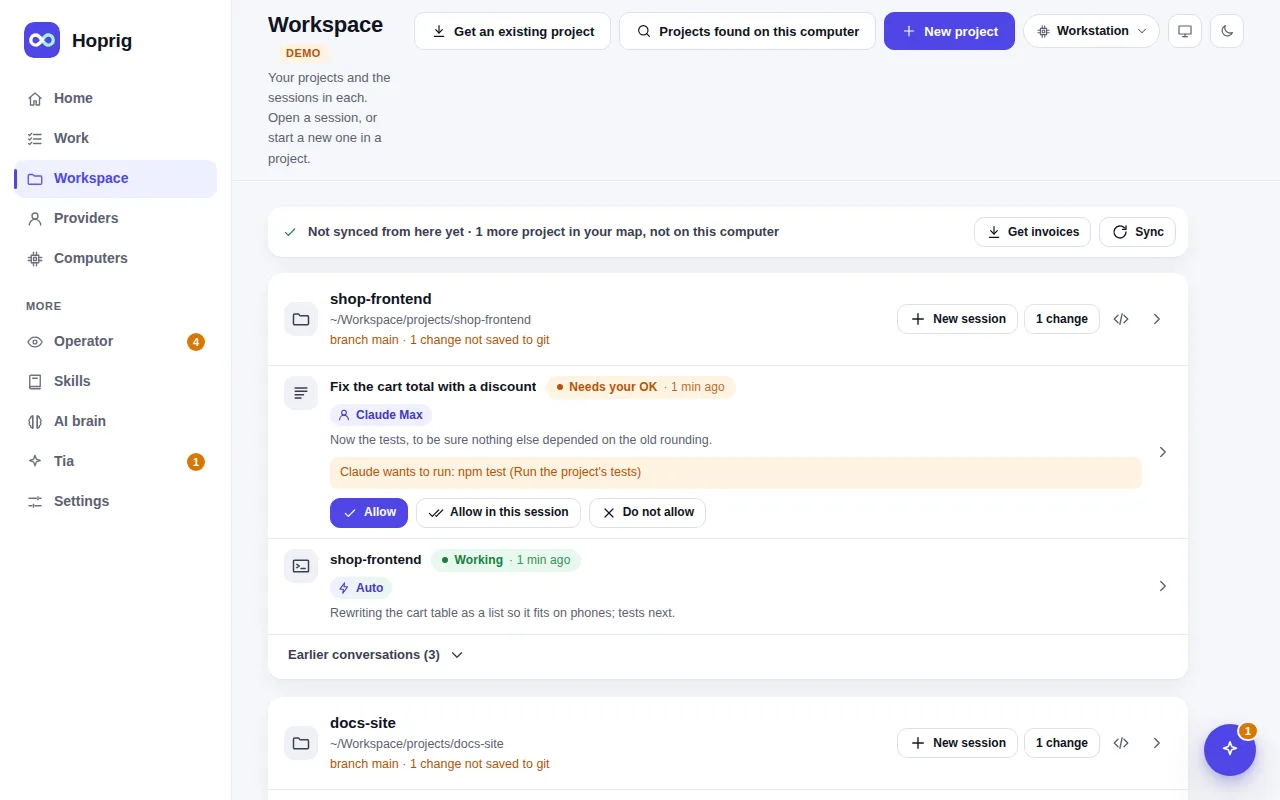
- A chat is the way to code. One tap on a project opens a chat with its coding tool: Claude Code, or
OpenCode as a second one. Replies as they are written, each change as a diff, Allow and Deny buttons, the
to-do list, agents and background tasks. The real terminal is one tap away and keeps the conversation. - One AI brain for both tools. The same working rules, skills and memory, kept in one git repository and
linked into each coding tool. - Sessions carry on at a usage limit. Subscriptions, API keys and gateways are all "providers". A session
belongs to its folder, not to a provider: one tap moves it to another provider, or Auto mode does it for you. - A code editor in the page: VS Code's editor core with Explorer, Search and Source Control.
- A desktop in the browser: windows for a computer's terminal, files, editor, processes, services and logs.
- From anywhere: one switch, Settings → Public link, makes the dashboard reachable from the internet, with no
server of your own. - Several computers in one place: home PC, office PC, servers. Computers behind a router connect out by
themselves. - Tia, an assistant that does the work through the dashboard's own routes. What she asks to install, update,
restart or power off on your computer, or to end a process there, comes to you as a card first, at every level. So
does what costs money, except where you choose otherwise. Within a daily limit for paid use you set in Settings → Tia (none at first), she
may write to sessions on providers billed by use unless her level is Ask me, and at Hands off also start or move her
sessions there. At Hands off, the Operator's limit rule or Tia decides, once you turn them on, may also move
a session at a usage limit onto a provider billed by use, only within that limit, and each move counts against it. At Hands
off, the short call of Tia decides and a look into what nobody can explain may also run on such a provider when
every provider you allowed her is billed by use (Auto mode counts as billed by use here when its order holds such a
provider), only within that limit too, and each counts against it. The Operator's rules, once you turn them on, restart
a gateway or the public link that does not answer and end a test's left-over processes by themselves. Tia
decides may make the same restarts, type one fixed line of Hoprig's into a stuck session to nudge it, and end a
stuck session only in a project where you ticked Tia may end a stuck session in this project on the project's
page (docs/OPERATOR.md).
Typing into a session that runs on a provider billed by use, the nudge too, is money: Tia decides does it only at Hands off and within that limit, and it counts against it. Off until you turn her on. - Improve Tia (Settings → Tia): Hoprig tries rewordings of Tia's skills, tool descriptions and instructions,
measures each with her tests, and shows you only the ones that do measurably better. Nothing changes until you
accept one, and every change has Undo. It starts only by your press and counts against your daily limit for paid
use; a weekly round is off until you switch it on. - Hands-off lets Hoprig answer some of a coding tool's questions by itself while you are away — the option
the tool marked as recommended, or your note for the project — so a session does not wait for you, while still
holding, as your card, anything that is yours alone: a push to the main branch, a release, a pull request, admin
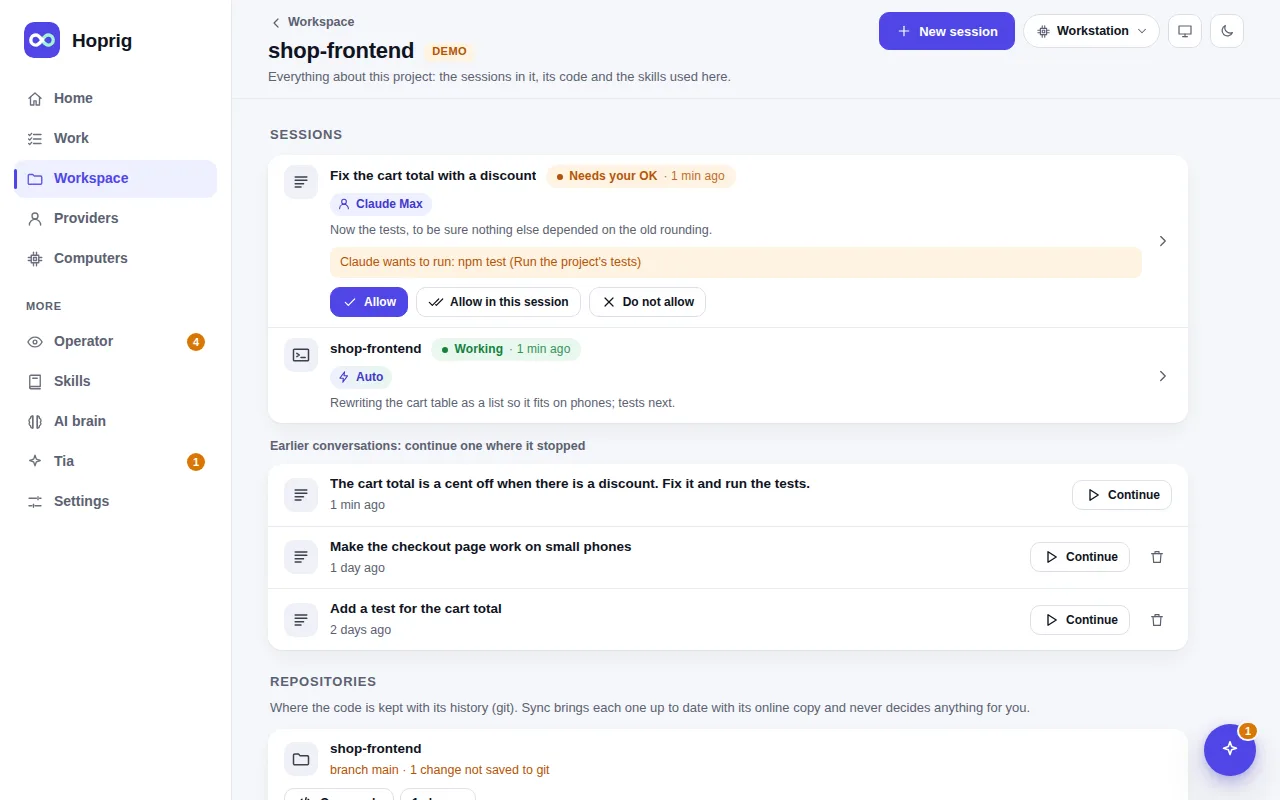
rights, a delete outside the folder, and the rest. Off until you turn it on, per project or per session. - Work: your tasks, and its Today tab that lists what is due this week, what waits for your yes, and the
sessions that need an OK or reached a usage limit. The list is one file in a git repository of your workspace (the AI
brain by default); Save commits only that file, brings another computer's changes in task by task, and either
reaches the server or leaves your change in the file; a save that was interrupted is finished the next time.
Do it on a task starts a coding session with the task as its brief; on a git project it works on a branch of
its own (work/<task>) in its own copy of the project, so your folder is not changed. What it did (its answer,
commits and changed files) comes back onto the task for Accept or Send back; Accept leaves the branch for
Go live, and nothing is merged or pushed. Plans hold a goal, milestones and
dated tasks with what waits for what, on a timeline; Plan with AI has a session research a goal and propose a
plan, and nothing is written before you accept it. Auto, a switch per project on Work → Team (off at first),
lets Tia start that project's ready tasks by herself, one at a time, each one in Activity and stopped by End. Another program adds a task with a Work token (made in
Settings → Work, shown once, good for Work only) and hears its result through a signed webhook; such a task starts
only when you start it. Missions (off at first, on Work → Team) let Tia do a goal with roles: a developer,
tester or ops session may run only the project's tests, its build and its scripts, each in a box with no network.
docs/WORK.md - Operator: one page with what stopped or is about to, from everything Hoprig watches (a session at its limit,
an OK that waits, a disk 85% full, a run that stopped), with one recommended step for each; nothing happens until you tap it, unless you
switched on one of Tia's rules, Tia decides or Tia looks into what nobody can explain (all are off at first; docs/OPERATOR.md). - Updates of Hoprig, the coding tools and the helper for the public link (cloudflared) on one page, Manual by
default. - A computer ready for coding: git, Node.js, Python, the GitHub CLI, your projects and skills that fit them,
installed by one guided run. What is already there is left alone.
Linux and macOS today.
On Windows (natively, without WSL) the main paths were used by hand on one Windows 11 computer: setup, doctor, the
computer setup with winget, projects, the background service and the dashboard with sessions and a chat. That first
run needed ways round (a new project needed a global git identity, programs winget installed stayed "missing", the
Python kit gave no Python, installing the service again left the old dashboard serving); this version has fixes for
them that were not yet tried there. The tests do not pass on Windows yet, and install.ps1 itself was not tried.
Much else was not tried there (see "Where it runs"). Not affiliated with Anthropic or with OpenCode's makers;
"Claude" and "Claude Code" are Anthropic's.
Who it is for
Three things together: it sets up the computer; it keeps one workspace that comes back from git on any computer,
with an AI memory per project; and a session goes on with another provider or account when one reaches its limit.
Each case below has its own page with the steps, what you need and what it does not do.
What you get, each answered on the page and section it links to:
- Can the AI write the code for me?: Yes, in a chat: you say what you want in plain words, and you see each change and allow it before it is made.
- How do I keep an AI-built project in order from day one?: Every project gets the same folder from the first day: the rules for the AI, its memory, the docs and the code, all in git.
- Who sets up my computer for coding with AI?: Hoprig does: one line installs it, and its setup installs and checks what is missing, after asking you once.
- Can I code on several computers?: Yes: each computer set up the same way from one recipe, and all of them on one page of the dashboard.
- Can I code on my own computer from my phone?: Yes: the dashboard opens in your phone's browser, with a chat per project and the real terminal, and no server of anyone else's.
- Can AI-built code be ready for real use?: Hoprig adds working rules that make the coding tool prove its work, and suggests reviewed skills for security, performance and tests.
- Does it come with skills and tools?: Yes: skills that fit what your project is made of, each with a scan of its risky lines before you add it, and a skill that sets up a new project from your brief.
- What happens when my project grows large?: It stays in order: each part has one place, every repository is in one map, and plans are kept in Work. The AI's work still needs your review.
- Does the AI brain learn?: There is one memory per project and one main brain, in git. Once you turn it on, it drafts skills from work you corrected or kept, at most three a week, and installs none without you.
- Is it easy, safe and fast?: The set-up is done for you, the working rules keep secrets out of the code, and skills for security and speed are suggested. It does not measure load for you.
- Can I move my work to another computer?: Yes: your AI brain lists every repository, so another computer gets the same projects, rules and memory.
- Does everything come back from git?: Yes: install Hoprig, sign in to git, and your AI brain, its map and your projects come back where they were.
- Do my computers stay in step?: Yes: the same rules, skills and memory through git, every repository brought up to date, and every computer's sessions on one page.
- Can I run an AI team under one assistant?: In part, today: Tia takes a goal, and sessions with six roles (developer, tester, reviewer, researcher, writer, ops) do its tasks, each checked before it comes back to you.
- Coming: one dashboard for a whole business?: Coming, not built yet: roles beyond code such as sales, posts sent only after your approval, and one dashboard for a whole business.
The cases:
- I am not a developer. How do I start building with AI on my own computer?: The set-up is the wall. Hoprig installs and checks everything, then you build in a chat.
- My AI-built project became a mess after a few weeks. How do I keep it in order?: A structure from day one: a project's own rules and memory, one AI brain, skills and checks.
- How do I code on my own PC from my phone with Claude Code?: The dashboard from anywhere, no server: a chat per project, the OKs and the real terminal.
- How do I use Claude Code on two computers with the same skills, rules and memory?: Home PC, office PC, laptop: the same projects, rules, skills and memory through git, every session on one page.
- How do I get my whole AI coding setup back on a new, formatted or lost computer?: Install, sign in to git, and everything comes back where it was.
- I hit the Claude Code usage limit in the middle of my work. How do I keep going?: The same session goes on with another provider or account, by one tap or by itself.
- How do I use Claude Code from my phone with an API key or a gateway?: Where the coding tool's own remote features stop working, the dashboard still does.
- How do I keep many client projects apart when I code with AI?: One folder, one set of rules and one provider per client project; fetch it when work starts, put it away after.
- How do I turn a spare PC or a small server into an always-on coding machine?: Your always-on coding machine: sessions keep running, and you reach them from any browser.
- How do I set up every machine the same way for AI coding?: Every machine set up the same, from one recipe and one AI brain, all on one page.
- How do I let AI coding work go on while I sleep?: Tasks in a queue, schedules and Auto mode, and the results waiting in the chats in the morning.
- How do I make AI-built code ready for real use, not just "it runs"?: Working rules, checked skills and proof before "done", for code that has to hold up.
- How do I plan a piece of work with AI and let sessions do it?: Write the goal, let a session propose milestones and tasks, accept what you keep, then have sessions do the tasks.
- How do I tell an AI assistant what to do, by voice or text, and approve just one step?: Say or type what you want; Tia shows one card with the task, the brief, the provider and the model, and starts nothing before your yes.
- How do I start a new project with Claude Code from a written brief?: Write the brief once; the AI fits the work to the project, asks you once, writes the documents, then builds with proof.
- How do I put a new server to work from my dashboard?: Add it by SSH from the Computers page, let the page install Hoprig there, then set it up and start sessions on it.
- How do I review and comment on Claude Code's changes before they go on?: The changed files beside the chat, comments on any line sent as one message, rewind, branch and your own checks.
- How do I see on one page what needs me?: One page lists what needs you, most urgent first, with one button for the recommended step; while Tia's switches are off, nothing happens until you tap.
- Can I run an AI team under one assistant?: Give Tia a goal; sessions with roles (developer, tester, reviewer and more) do its tasks, each checked before it comes back to you. Roles beyond code are coming.
Install
curl -fsSL https://raw.githubusercontent.com/allswebtech/hoprig/main/install.sh | sh
The line fetches Hoprig's installer from GitHub and runs it on your computer.
It installs what is missing (Node.js 22.11 or newer when it is missing or older, and on Linux the build tools, with sudo),
after asking once, then Hoprig itself from the main branch of this repository, then runs hoprig setup. Setup asks
before it installs Claude Code, sets up the rest step by step, and ends with a QR code (on a server: how to reach it
from your own computer): scan it and your phone is signed in to the dashboard. Until everything is set up, Home
shows a Get started checklist.
On a server with only a root login, the installer does not set Hoprig up under root (Claude Code refuses bypass
permissions mode for root): it lists its steps and asks once, Make the user hoprig and set Hoprig up there?, then
sets Hoprig up as that user. An older Hoprig that already runs as root moves with hoprig move-to-user, which needs
the network (docs/INSTALL.md).
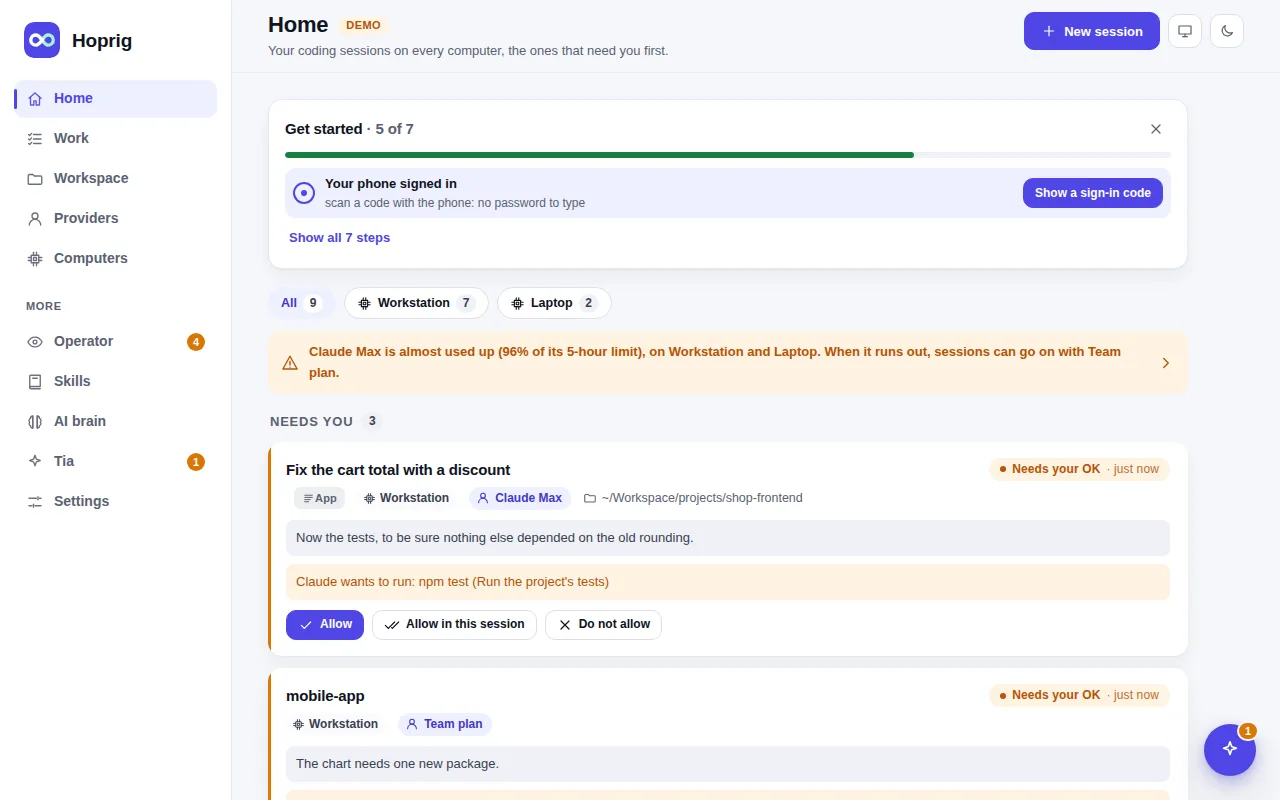
Just want to look? hoprig demo opens the dashboard with sample data: no coding tool and no account needed.
On Windows, the PowerShell line and what was tried there are in docs/INSTALL.md (the line
above does not run in PowerShell). Everything else: docs/INSTALL.md.
Check a computer at any time on its Health tab (Computers → the computer → Health), where a problem that
one press can fix has a Fix button (or, in a terminal, hoprig doctor). The command is hoprig, or hop for short.
Code in a chat
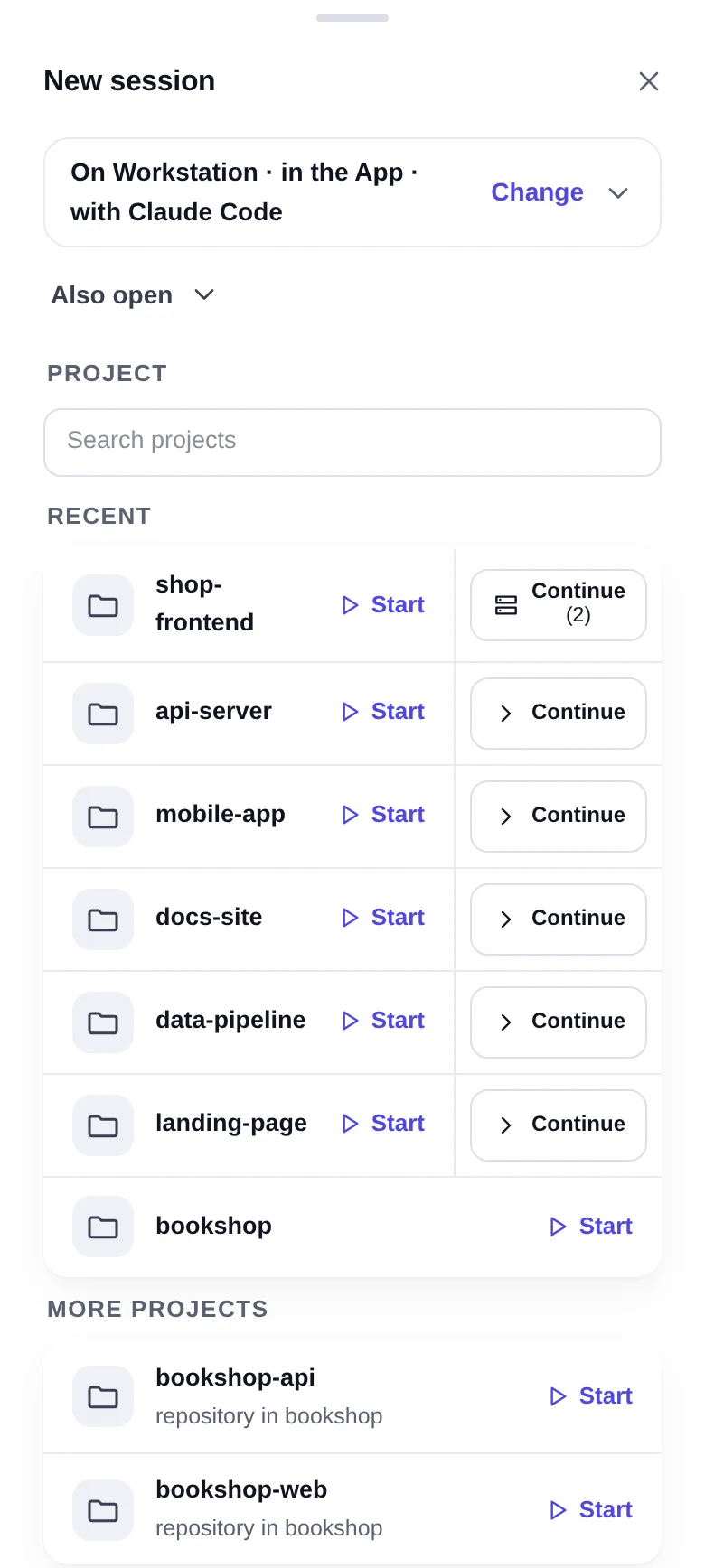
New session on Home (or a project's New session) opens with one line that says what will be used: the
computer (on Home, when several are linked), the App or a terminal, and the coding tool. Change on that line
unfolds those choices: the computer (on Home), App (a chat, like the Claude Code app) or Terminal, and the
coding tool. Below
it you pick the project the session starts in. The App takes the
provider, mode, model and effort of the last session there (the first time: Settings → New-session defaults).
Every model choice lists the chosen provider's own models: a gateway's or an API key's own list (asked when the
choice opens, kept ten minutes), or the models Claude Code offers a subscription. When no list can be had, it says
why, offers opus, sonnet and haiku, and takes an exact model name; a saved model the list leaves out is kept and marked.
From a terminal on that computer, hop chat [folder] prints the chat's address and opens it in the browser.
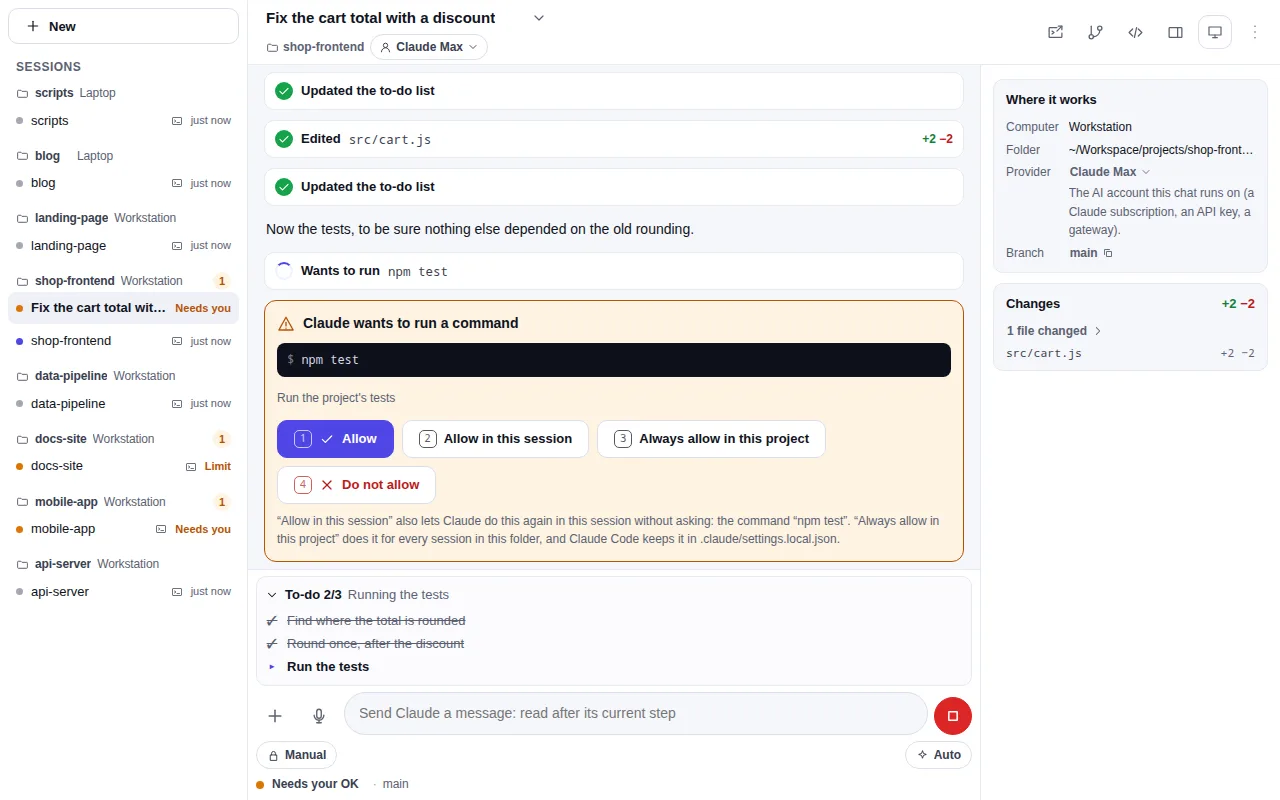
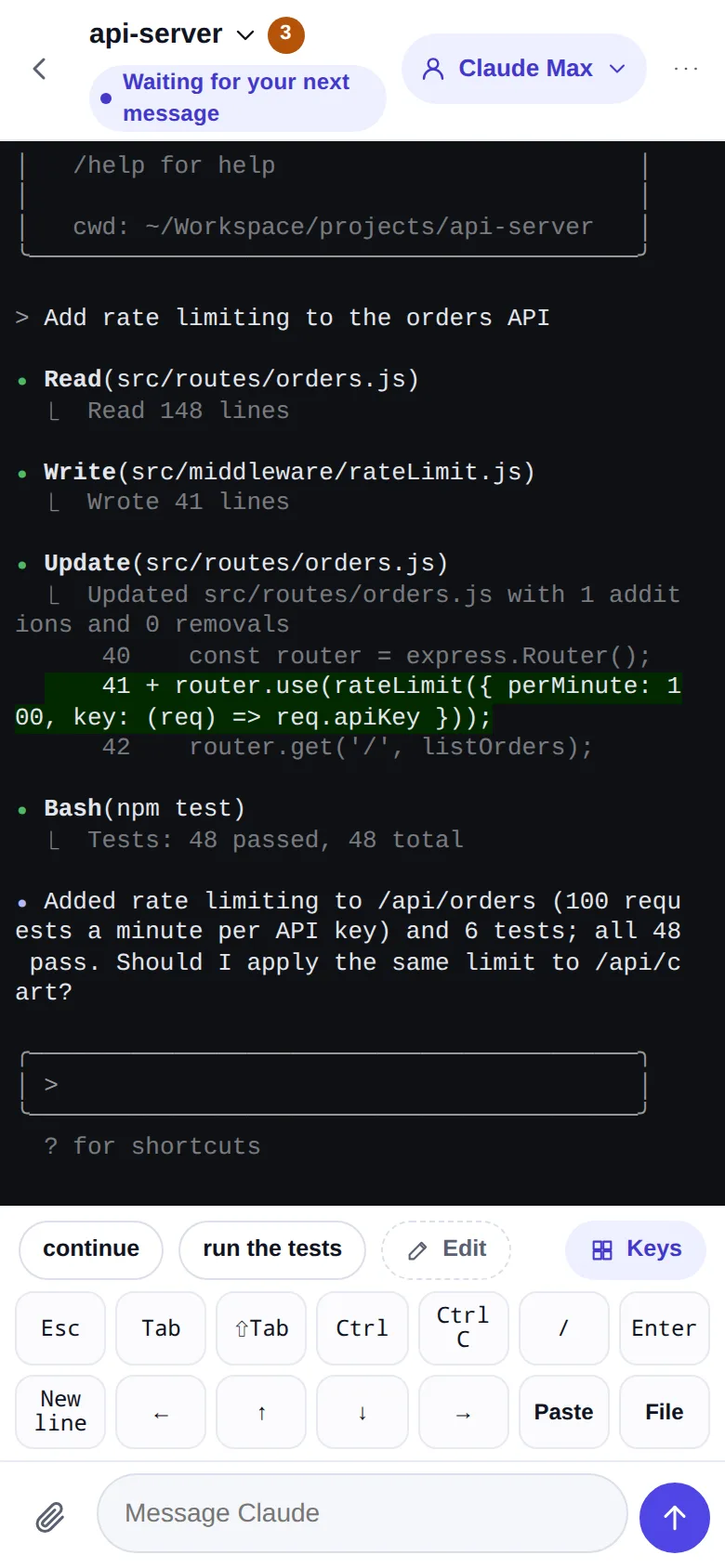
- What you see: the reply as it is written, thinking, each tool call on one line with its diff, the to-do
list, subagents as a tree under the call that started them, background tasks with their progress. - What you control: the permission mode, the model, the effort and ultracode are chips over the message box
and change without a restart. A message typed while it works is queued, and can be taken back. Stop ends
the turn; background tasks go on until you stop them./lists the commands and skills by name, as Claude
Code's menu (/compacttakes focus text,/helplists them,/configopens Settings,/clearopens a new
session in the folder and keeps this one),@the folder's files; a picture can be pasted or dropped in.!before a line runs it as a shell command in the session's folder, as you would type it in the built-in
terminal: your shell, the dashboard's environment without its secrets, at most 5 minutes (its output shows as it
comes; Stop or Esc ends it; a program it starts in the background keeps running as long as the dashboard
does, unless its output goes elsewhere:npm run dev > dev.log 2>&1 &); nothing goes to the
coding tool until you send your next message, which carries the command and the end of its output as your own
text. Through the public link it is behind the same sign-in as the rest of the dashboard (which can open a
terminal anyway). The status line says what runs now, the branch, the context used
and the plan's limits where the provider reports them. On a wide screen the session rail beside the chat shows the
environment, the folder's changes, the context and the background tasks (Hide session rail in the title bar). - As in the Claude Code desktop app: the modes are Manual, Accept edits, Plan, Auto and Bypass permissions
(Bypass only once Allow bypass permissions mode is on in Settings → New-session defaults, which asks
first; the desktop app has the same switch under Settings > Code; off, a terminal session started in bypass
starts again without it after a move or a restart, and Settings counts the ones still running; New-session defaults names the modes with
the same words; a dashboard that already used bypass keeps it on after the update and says so once on Home); the caret
beside the title opens the session menu (Transcript view Normal, Thinking or Verbose, Open in,
Archive, Copy branch name, Branch: a new session on a copy of the conversation, which you switch into,
as Claude Code's/branch;/fork [prompt]makes the copy and keeps you here;/model sonnet,/effort high,/branch nameand/clear namework as typed); the title bar has
Open in Terminal, Changes and Files, and its ⋮ menu Background tasks once there are some. From
900 px wide the session list sits at the left: + New, the sessions of every computer grouped by folder (or
by state or computer: Group and sort on its heading, where Archived lists this computer's archived App
sessions to continue one), what needs you marked; a right-click on a row has Open in new window and, for an App
session, Archive and Delete (the desktop app's Split view has no counterpart here); a phone keeps Back to Home. - A session's name is Claude Code's own name for the conversation, in the session list, the title bar, the
tab, Home, notifications and a terminal session's card: its first words until Claude Code writes its title, then
that title. The person's newest rename wins, wherever it was typed (Rename here, a click on the title, or/renamein Claude Code); a title Claude Code generates never wins over a rename. A rename made here is kept by
Hoprig, also after a restart. Started from the App, Claude Code makes no title by itself, so after a session's first
reply the App asks it for one: one small request to the session's own provider. Name sessions with a short
title in Settings → New-session defaults turns that off (then a session keeps its first words as its name). - Delete (the last entry of the session menu, of a row's menu, and a button on each ended conversation of
Earlier conversations) moves the conversation to Hoprig's trash: the toast has Undo, Trash in the list's
menu has Put back, and after 30 days it is removed with its transcript. Select to delete in the same menu
picks several at once. Only Claude Code's own files of that conversation move (its.jsonland its folder of the
same id); a session that is working, waits for an OK or runs in a terminal is not deleted, and the page says why.
Changes (or the rail's Changes card) opens the diff pane: the folder's files, unified or side by side; a +
by a line opens a comment box, Enter queues the comment, Cmd/Ctrl+Enter sends them all as one message. Each of
your messages has Rewind to here: Restore code and conversation, Restore conversation, Restore
code or Never mind, as Claude Code's rewind (its Summarize choices are not offered: the coding tool's
stream has no request for them). Dollars per turn show only in Verbose and only for a provider billed by
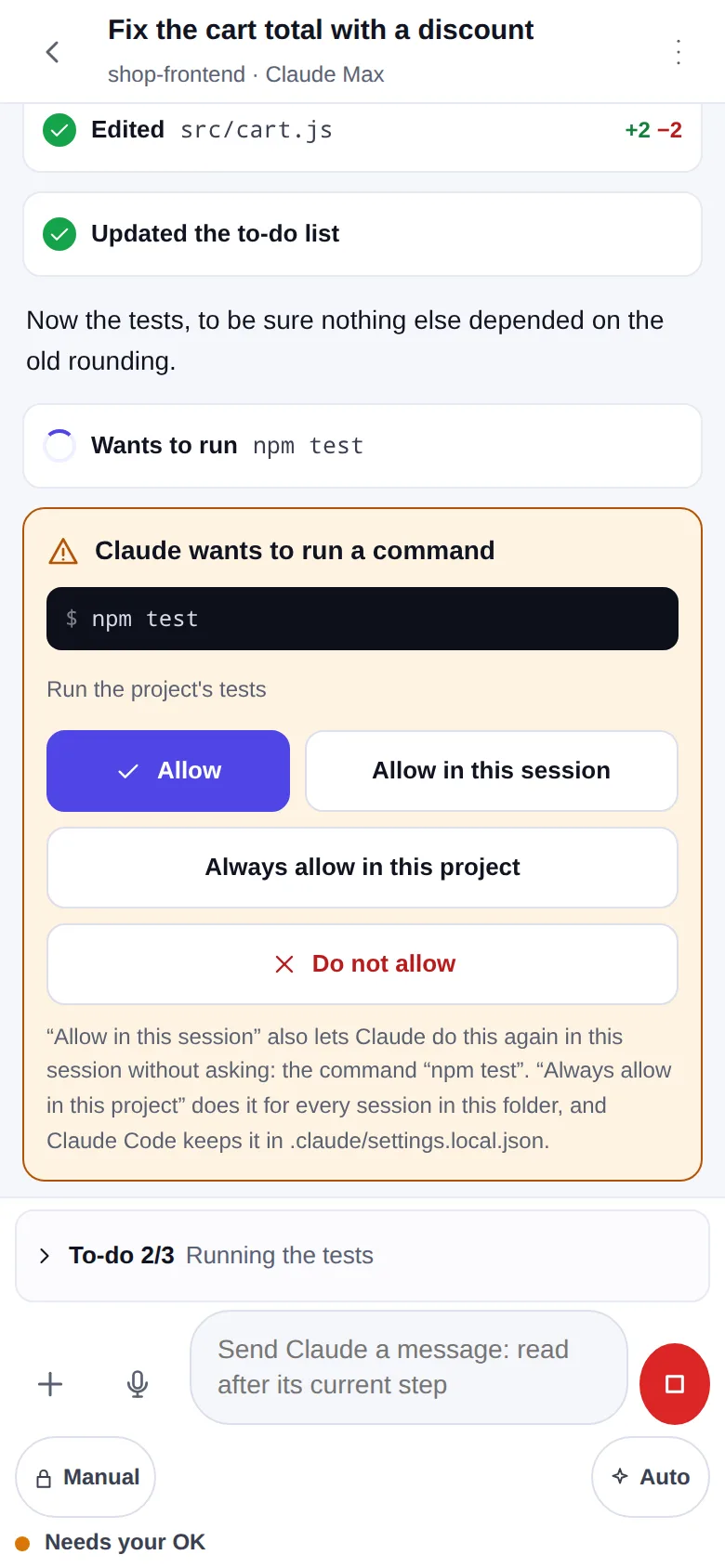
use. - Its OKs: Allow, Allow in this session (stops the asking for that kind of call for the rest of this session;
nothing is written to a settings file), Always allow in this project (the same rule, which Claude Code itself
keeps in the project's.claude/settings.local.json) and Do not allow, in the chat; its card on Home has the
first, second and last. In the mode
Bypass permissions Claude Code asks nothing except before some deletes; Hoprig answers for it only when the delete
is plainly inside the session's folder. A question to you, a plan to approve, what your own settings insist on
and any other delete Claude Code stops for still come to you, and a "deny" rule of your settings stays denied in
every mode. - One place at a time: Open in → Terminal in the session menu takes the conversation to a real
terminal, and Open as chat in a terminal session's menu brings it back. A conversation runs in one process
only: a chat, a terminal session, orhoptyped by hand in any terminal of that computer. The second one is
refused in one sentence that says where the conversation runs and what to do; in a chat, Continue here stops
that terminal and goes on in the chat.
Files in the title bar opens the editor; the diff pane's editor button opens its Changes view.
Lead model: one model plans, others do the parts (Claude Code)
Lead model (off by default; in the new-session sheet, Plan with AI, Settings → New-session defaults and
Settings → Tia) makes the model you chose the lead: it plans the task and hands each part to a helper by its kind of
work. Running and recording (tests, builds, searches, logs, mechanical edits) goes to the provider's fastest model at
low effort, writing and reviewing code to its strong model, an unknown cause, a design decision or the last check to
its strongest at high effort. The models are picked from the chosen provider's own list, never another provider's; a
tier it lacks falls to the next it has, and one line under the switch says which models it will use before anything
starts. The helpers are Claude Code's own (given at the start), so no other process runs them, and a helper's model
and effort are its kind's: a call in which the lead names another model or effort runs without it (a hook takes it
out). It pays on work with parts that can be done apart; on a small task it costs more (three to six times the tokens
in our tests), and the line under the switch says so. Who did what in the chat's side rail (and in the chat's ⋮
menu at any width) shows each part with its model and its tokens (new, written and read from the cache, apart), and
one total per tier, read from Claude Code's own records; a Work run that had helpers shows the same under it, in a
task's runs and in Activity, and a plan shows its tasks' runs per tier. A Lead chip under the message box says whether
Lead is on. With the switch off a session starts exactly as before. Another coding tool shows the switch off.
A terminal session shows the switch off: Hoprig cannot see what each part of a terminal session costs, so it cannot
show or count its money in the daily limit for paid use as it does in the App.
Use other providers (shown while Lead model is on, off by default) lets the lead also hand a part to another
provider you tick (the list, right under the switch, shows each one's coding tools, whether it is billed by use and its
limit). A part is a session of its own on that provider in the same folder, which you can open from Home; it runs on
its kind's model of that provider's list, in the lead's own permission mode (never in bypass unless "Allow bypass
permissions mode" is on, and the line under the switch names the mode), and its answer returns to the lead as data.
Hoprig checks every part itself: only a ticked provider (where Tia leads, only one she is allowed), none at its limit
(skipped, and said in the chat), and never more at once than "runs by themselves at once", which Work's runs count
too. A part on a provider billed by use starts only where you allowed pay-per-use for work that goes on by itself, or
after a card in the lead's chat that names the provider and the part: No, or no answer, and the lead does that part
itself. Where Tia leads, a part on a provider billed by use starts by itself only at Hands off and only within the daily
limit for paid use (Settings → Tia); with no limit set, or not enough of it left today, it is that card. Parts that run at once share what is left of that limit; each holds its share while it runs. A part that starts by your yes on that card is counted in what Settings → Tia shows for today, but is never checked against the limit: it counts $0.50 until its chat reports what its turn cost, and when that turn ends without a reported cost, the $0.50 stays counted until the day ends. When the dashboard stopped while a part ran, Hoprig did not see the part end and could not measure what it cost, so the rest of its budget stays counted until the day ends. After the restart, Settings → Tia says it is counted for a part whose end Hoprig did not see, not for a part that runs now. A later start of a part (after it stopped for being idle, or after a restart) with no limit set any more, or no room left in it, starts nothing and holds nothing; when you send it a message, its chat says that Claude Code could not start, and why. No key or address is ever in what a model is given; a chat's part token and its file go when the chat ends. The switches and the ticks are kept with the chat, the
plan and Tia's settings; a choice made for one session wins over the default.
Two coding tools: Claude Code and OpenCode
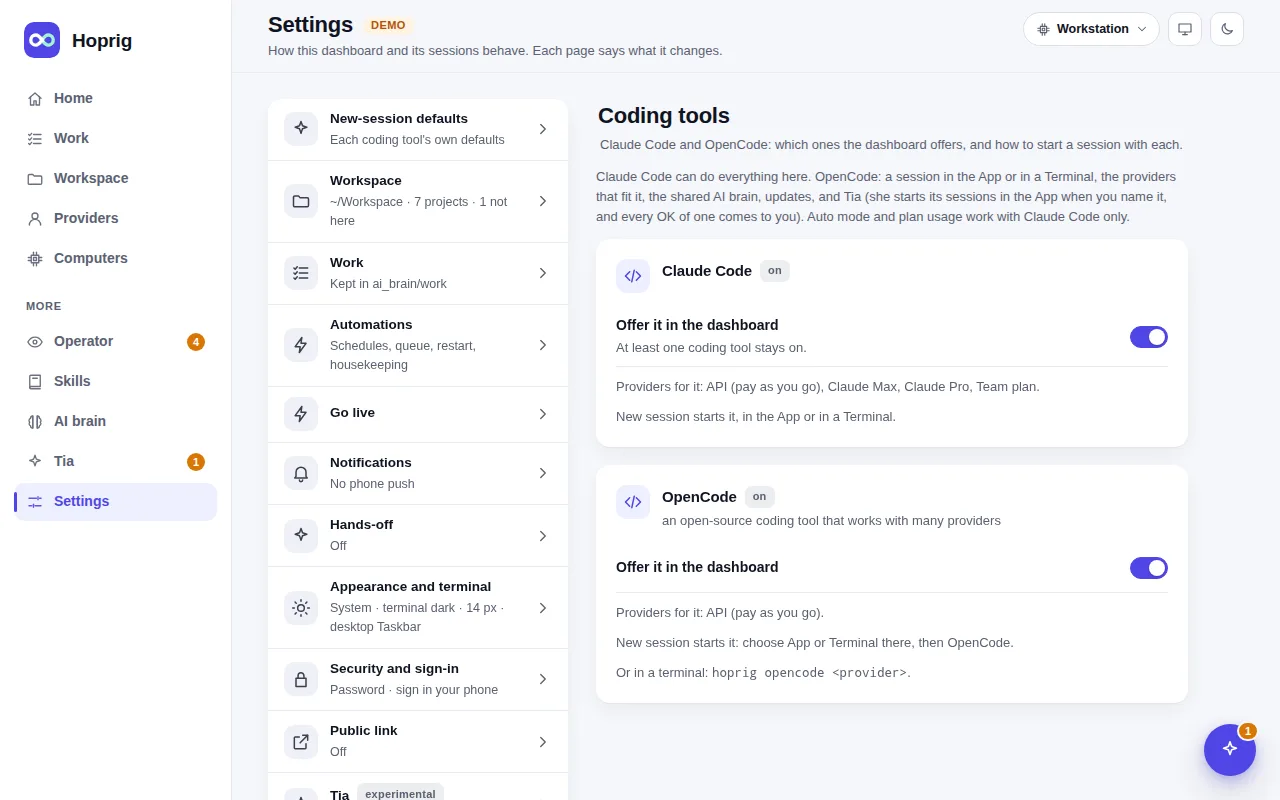
Claude Code can do everything here. OpenCode is the second coding tool: a chat or a terminal session, the
providers that fit it, the shared AI brain and updates. Turn it on in Settings → Coding tools: Install
puts it into Hoprig's own tools folder at the version this Hoprig is tested with (never globally), and its own
self-update and its makers' free cloud models are switched off. New session then offers it next to Claude
Code and keeps the one you chose last; a project's own New session chooses the coding tool that project used
last. In a terminal: hop opencode [provider].
OpenCode runs only on a provider that speaks its API: an API key or a gateway, never a Claude subscription (a
subscription's sign-in is for Claude Code only, always). Auto mode, plan usage and Tia's own thinking are Claude
Code's only.
One brain for both
hop workspace link (or Link on the AI brain page) makes every coding tool that is on read the same
global rules, skills and memory from your AI brain, a git repository of your own:
| Rules | Skills | Memory | |
|---|---|---|---|
| Claude Code | ~/.claude/CLAUDE.md → the brain |
~/.claude/skills → the brain |
its home memory → the brain |
| OpenCode | its global AGENTS.md → the brain's rules file |
~/.agents/skills → the brain |
none of its own: the shared rules tell it where each project's memory is |
Nothing is overwritten: a file or folder that is already there is merged into the brain and kept as a dated
backup. Details: docs/WORKSPACE.md.
Hit a usage limit? Continue the same session on another provider
A provider is a small file of settings (a profile): a Claude subscription, an API key or a gateway. Claude Code
keeps a session as a file named after its folder, and takes its provider from the environment it starts in, so
the same conversation can be continued under any provider.
hop                 # choose a provider, then start Claude Code
hop add             # add a provider: a Claude subscription, an API key, or a gateway
hop work -c         # continue this folder's last session on the provider "work"
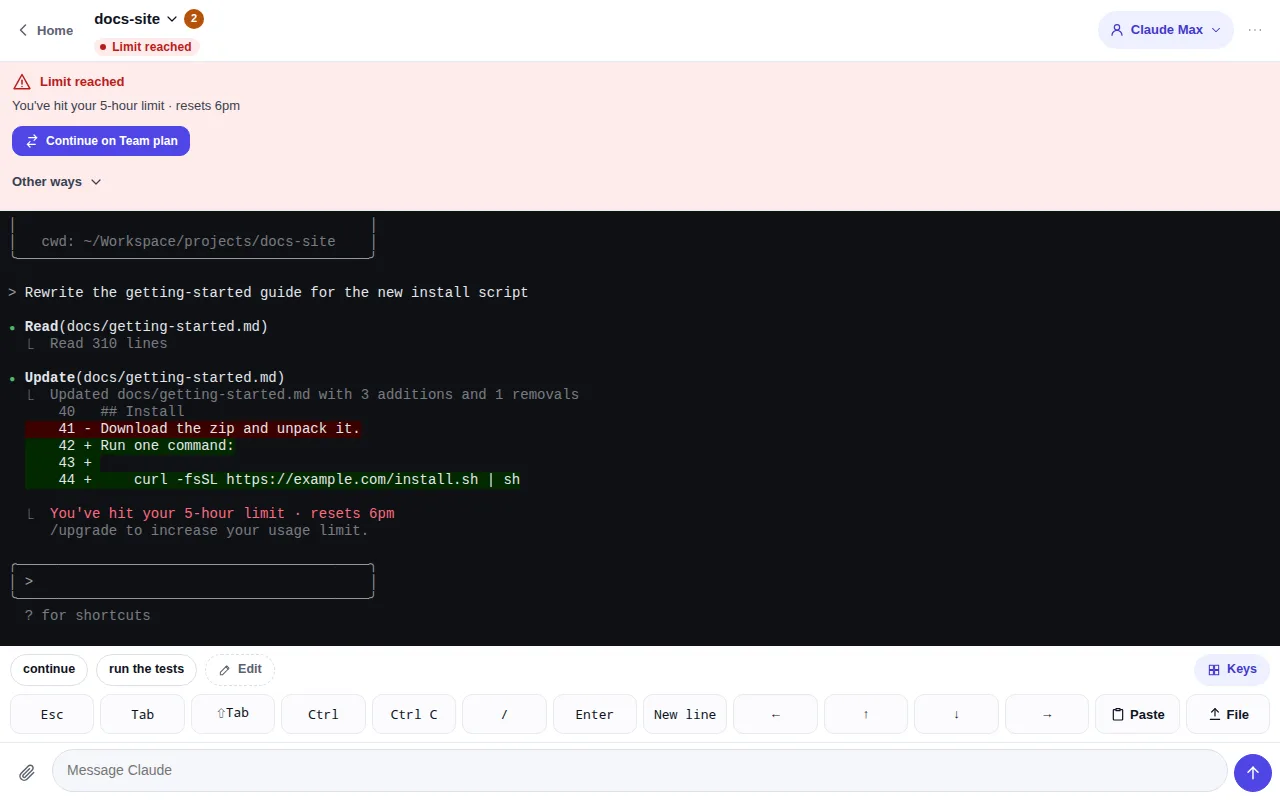
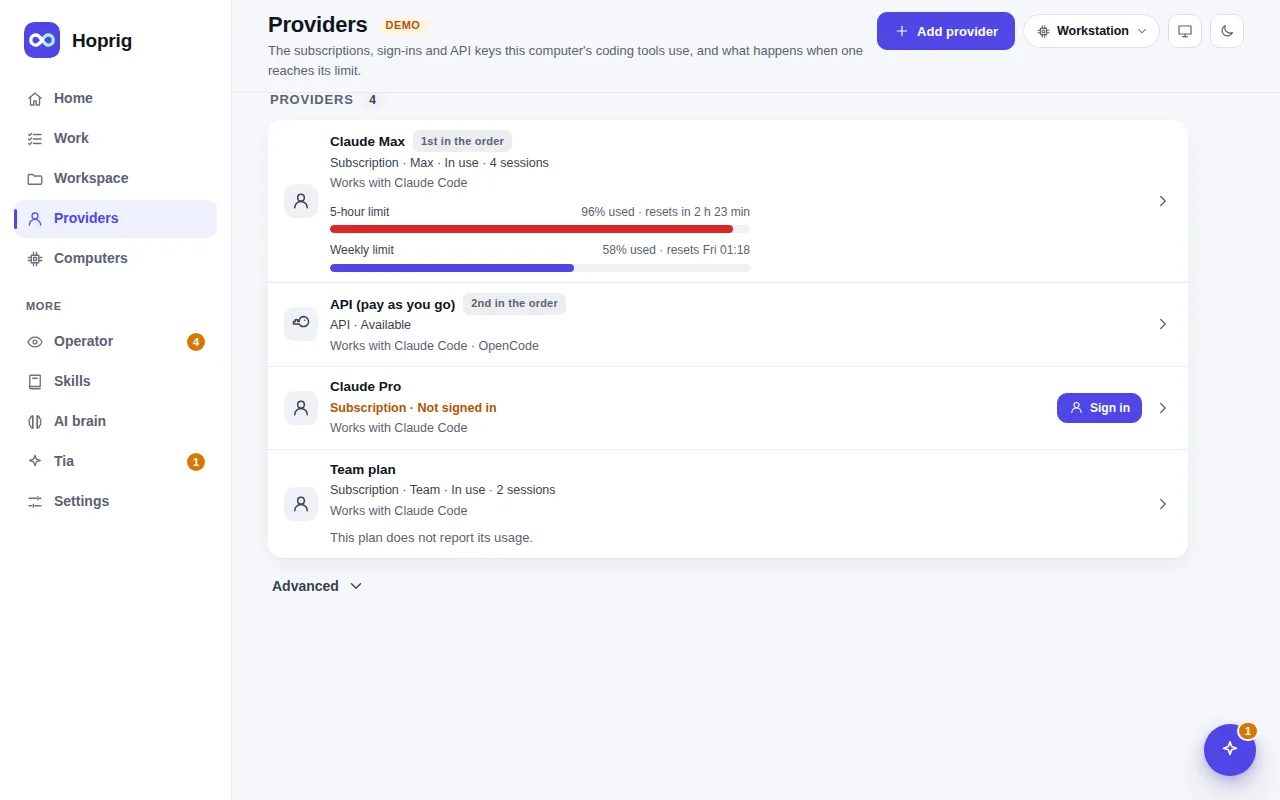
At a limit, a chat or a session says so and offers the other providers: one tap and the same conversation goes on
there (a chat's provider chip, or Move to another provider in a session's menu, does the same at any time).
When a session in a terminal stops at a limit or an error, Hoprig asks whether to continue on another provider;
one you end yourself (/exit, Ctrl+D) just ends, with one line on how to continue it later.
A provider that uses Claude Code's own sign-in can also go on with another Claude account of yours, as /login
does: Sign in with another Claude account, on the limit card, on Home and on Providers. You sign in in the
browser (from a phone: a link and a code); until that is complete the account of now stays. The provider's own
page shows who is signed in and has Sign out. A new account has its own limits, so the provider's limit mark
goes when the account changes. See Is this allowed?
Another gateway
A gateway is a program on your computer that offers other AI providers (OpenAI, Gemini, OpenRouter, a local
model…) through Claude's API, so Claude Code can use them. Hoprig ships one as an add-on, TRouteAI:hop addons setup trouteai installs it, starts it and makes its provider, and Providers → Add provider → Other
providers does the same on the page. Any other gateway can be added as a definition of your own:
hop gateways                   # the gateways Hoprig knows, and yours
hop gateways add relay --title Relay --port 20100 --bin /opt/relay/bin/relay --args "--listen=127.0.0.1:PORT"
hop addons setup relay         # start it and make its provider
hop gateways confirm relay     # after you updated its program: run it as it is now
hop gateways remove relay
A definition has a short name (lower-case letters, digits and -), a title, a port (1024 to 65535, free when it is
added), either the program (its full path, or a name found on PATH) or the npm package Hoprig installs and updates it
with, the arguments that tell it the port (PORT stands for the port; only letters, digits and . _ = : , @ / + -),
and the path of its own page if it has one. It is kept in config.json under gateways → defined, and checked
again whenever it is read.
A program is pinned when you add it: a name is looked up on PATH then and a link is followed, and what is kept is the
file itself with a fingerprint (sha256) of it. The file and its folders must be ones only you (or the system) can
change, outside the workspace. On a Mac, Homebrew lets every admin user of the computer change its folders, so a
program installed with brew is refused: copy it to a folder only you can change (such as ~/bin) and add it from
there. Hoprig runs exactly that file; once it changes (an update of the program too), it does
not start it until you confirm it again: hop gateways confirm relay shows the file as it is now with its fingerprint
and asks as add does, or Confirm the new program on its row in Settings → Add-ons. The definition, its sharing
and the keys of other computers stay as they were. Hoprig also keeps the program as you typed it (a name on PATH, or a
link): when an update moves it (a new version in a new folder, the link moved there), confirm looks that up again and
shows the file it leads to now beside the one you confirmed. A gateway added before Hoprig kept that is named again withhop gateways confirm relay --program <path>. hop gateways and the page say when a program changed. The program of an npm package is the one npm installed globally for that
package; a copy of that name earlier on PATH (a project's node_modules/.bin) is not run.
It is a program Hoprig will run, as your user, whenever you start it or a session on its provider needs it.
So you add it yourself: hop gateways add shows the exact program and arguments and asks in your terminal for the
dashboard's password (y/N while there is none; it refuses without a terminal and in a shell that a coding tool or the
dashboard started), and Settings → Add-ons → Add a gateway shows them and asks the same on the page. The
assistant's tools cannot add one. Nothing of it goes through a shell. This guards against a mistake and against a
coding tool trying it in passing, not against a program of your user that sets out to: such a program can editconfig.json itself, as it can any of your files.
On another computer, its page's Health → Gateways starts, stops and runs a gateway as a service there (see
docs/COMPUTERS.md).
Once added it is an add-on like the shipped one (hop addons start | stop relay); with more than one gateway,
Other providers first asks which one.
Auto mode (Claude Code)
hop auto order sub api      # your subscription first, then an API key
hop auto on                 # off at first: an API key costs money
hop auto                    # start a session in Auto mode
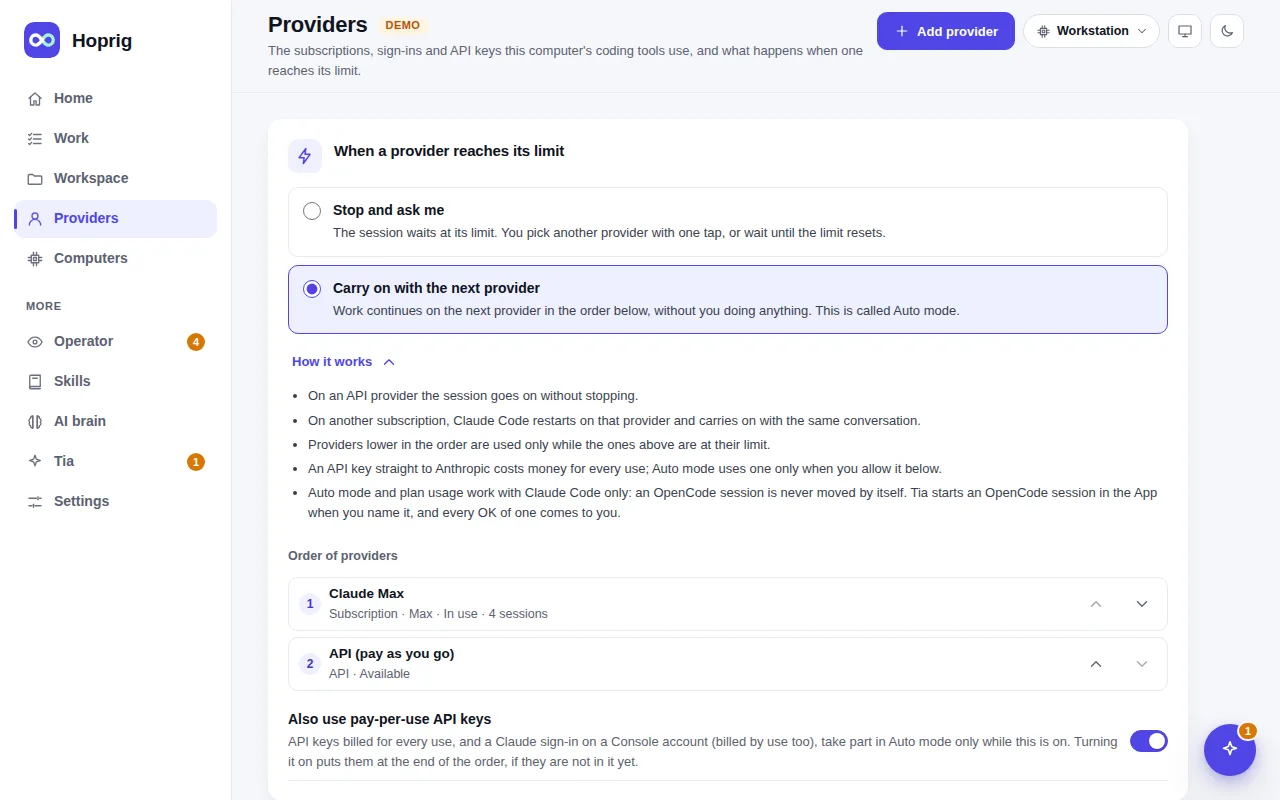
In the dashboard: Providers, then under When a provider reaches its limit choose Carry on with the next
provider and put the providers in order. A chat or a session on the provider "Auto" then talks to a small
router on your own computer: your subscription answers as long as it can, and the moment it reaches its limit
the same request is answered by the next provider, with no error on screen and nothing to type. When the
subscription is free again, requests go back to it.
Good to know:
- The first request after a move re-reads the whole conversation on the new provider. On an API key that is paid
at full price;/compactfirst keeps it small. - When the next provider in the order is another subscription, Claude Code is restarted as that subscription (a
few seconds) instead. See Is this allowed? - Claude Code's own Remote Control does not work through a router or with an API key; the Hoprig dashboard is the
remote for those sessions.
The code editor
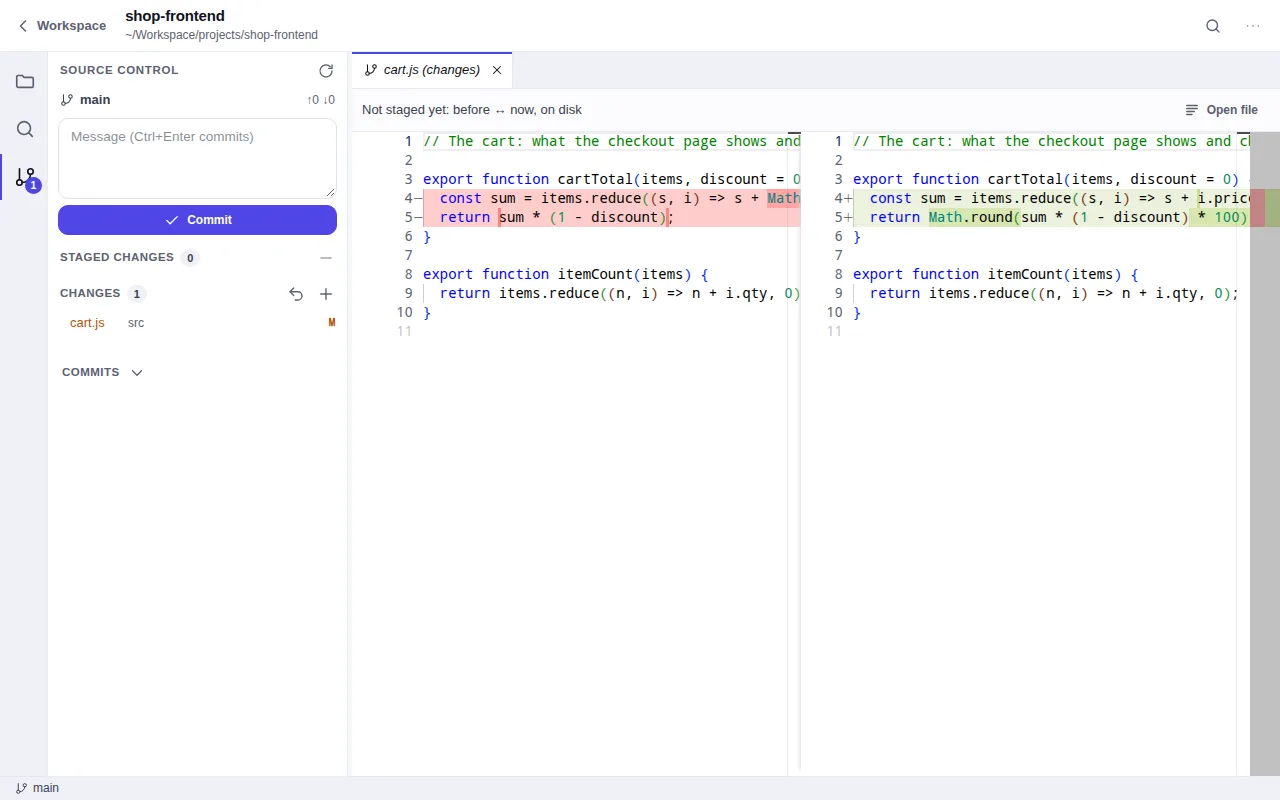
Open code on a project, a repository, a chat's Files button or a session's menu opens the folder in VS Code's
editor core (Monaco), inside the page and behind its sign-in, also for another computer's folders. Explorer
(new, rename, delete), Search in files and Source Control (the changes side by side, stage, unstage,
discard, commit, the log); N changes on a project goes straight there. VS Code's keys work: Ctrl+S, Ctrl+P,
the command palette (Ctrl+Shift+P, F1), Ctrl+Shift+F and Ctrl+Shift+H (replace across files, with a preview),
Ctrl+G, Ctrl+B, Ctrl+` (a terminal in the opened folder), and the code editor's own. A browser tab keeps Ctrl+W,
Ctrl+N, Ctrl+T, Ctrl+Shift+T, Ctrl+Tab and Ctrl+PageDown/PageUp for itself: there the editor uses VS Code for the
Web's keys (Ctrl+Shift+Alt+N closes a tab, Ctrl+Alt+N makes a file) or a Ctrl+K chord (Ctrl+K Shift+T reopens a
closed tab), shown beside each command in the palette and in Keyboard shortcuts (Ctrl+K Ctrl+S); installed as
an app, VS Code's own keys work too. A tab's menu (right click or long press) closes others, to the right or the
saved ones, copies its path and pins it. A save never overwrites a file that changed on disk without asking; a
replace across files skips such a file and names it. On a phone one pane shows at a time, with Plain text
editing where the code editor cannot be typed into. Font Size, Tab Size and Word Wrap are in Settings →
Editor; the colours follow the page.
The desktop
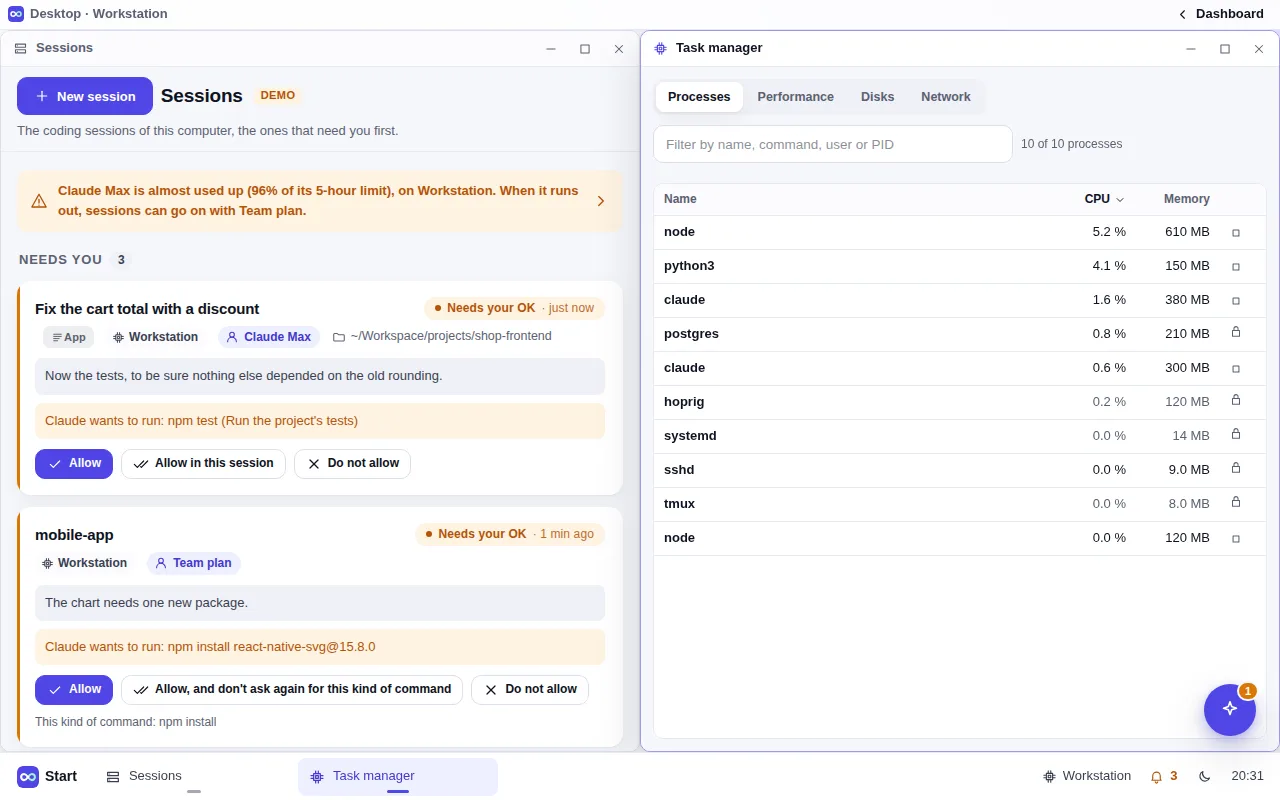
On a wide screen, the Desktop mode button at the top right of every page (or Open desktop on a computer's
page) opens that computer as a desktop in the browser: windows that move, resize, snap to halves and quarters
(also Alt+Shift with an arrow), minimise and maximise, a right-click menu, and the layout kept per computer. Its
apps are the computer's own: Sessions, Terminal, Files (move, copy, a trash folder, upload, download,
archives), Editor, Task manager (processes, performance, disks, network), Services (start, stop,
restart with the administrator password) and Logs. Settings → Appearance and terminal chooses the style: Taskbar
(the default) or Dock, and the desktop's keys: Alt+Shift (the default), Ctrl+Alt or Off, held with an
arrow to snap, maximise and restore, M to minimise, W to close and ` (the key above Tab) to go to the next window in
the order last used. Alt+Tab belongs to your computer; here it is Alt+Shift+` (on a Mac the keys are written
Option+Shift and Cmd+Tab is the computer's; GNOME keeps Alt+Shift+` and Ctrl+Alt with an arrow for itself, and
Settings says so there). In the code editor the arrows with these keys stay with what you type,
and on a Mac every one of these keys does in a text box; the title bar's menu has every act. Dashboard at the top right goes back. On a small screen the desktop is a grid of the
same apps, each opening as a page.
From anywhere: the public link
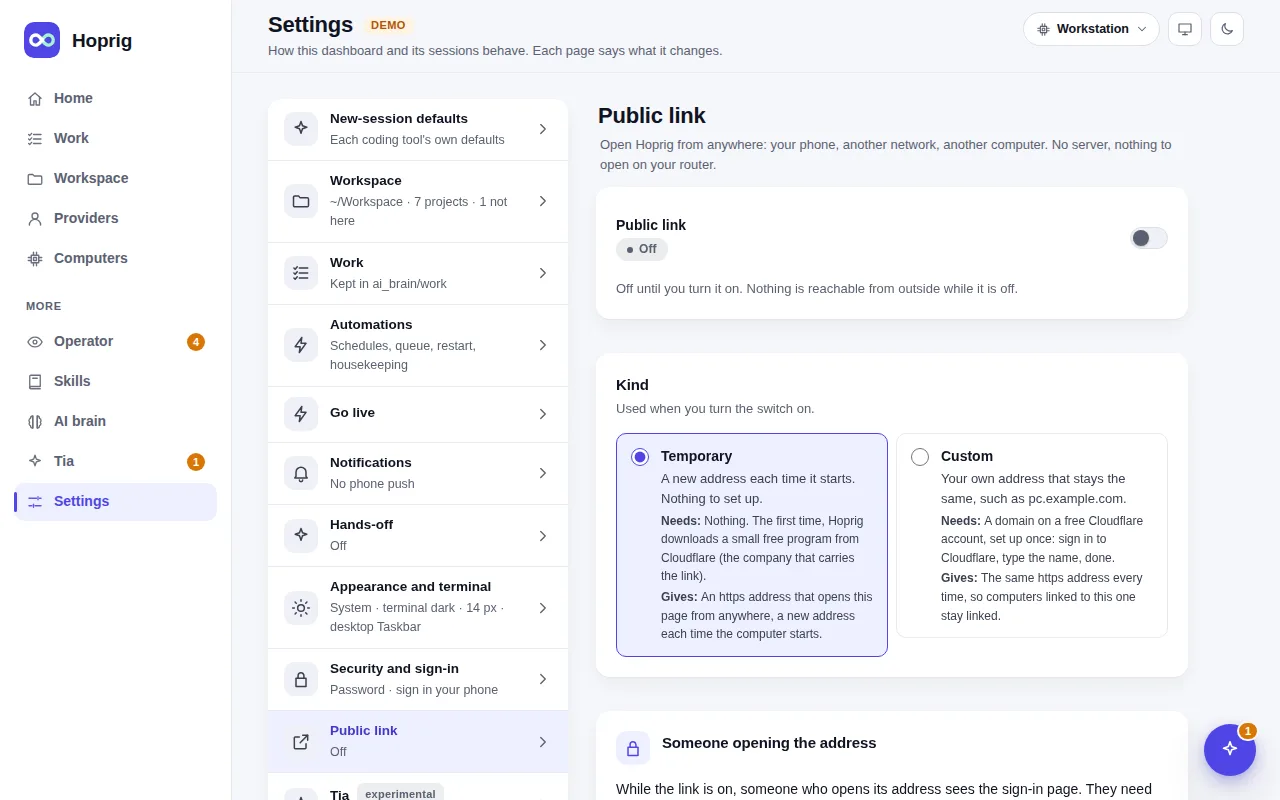
Settings → Public link (or hop public on) makes this dashboard reachable from anywhere through a Cloudflare
tunnel: no server of your own and nothing opened on your router. It is off until you turn it on, and it is one
switch with two kinds, never both at once:
- Temporary: a new
https://….trycloudflare.comaddress each time it starts; nothing to set up. - Custom: your own address that stays the same, on a domain in a free Cloudflare account (set up once on the
page).
The helper for the public link (cloudflared) installs itself the first time. Turning the link on needs a strong dashboard password (the page
asks for one in place), and a visitor sees only the sign-in page. A link that was on comes back after a restart
(a Temporary one with a new address, which the page shows and sends to your notifications).hop public on --temporary | --custom, hop public off, hop public status.
Several computers in one place
| Your situation | What to do |
|---|---|
| One computer, phone on the same Wi-Fi | hoprig setup, scan the QR |
| Two or more computers on one network | On one of them: Computers → Add a computer, then pick how it is reached. No server |
| Computers at home, a server on the internet | hoprig setup --hub on the server; hoprig join https://your-server <code> on each computer |
| Computers at home, no server, you are elsewhere | the public link on the main one; on the others: Computers → Link to my main Hoprig (how). With Temporary, the link ends when its address changes, so computers that should stay linked need Custom or a server |
| Servers only | one is the main computer; add the others by their SSH name |
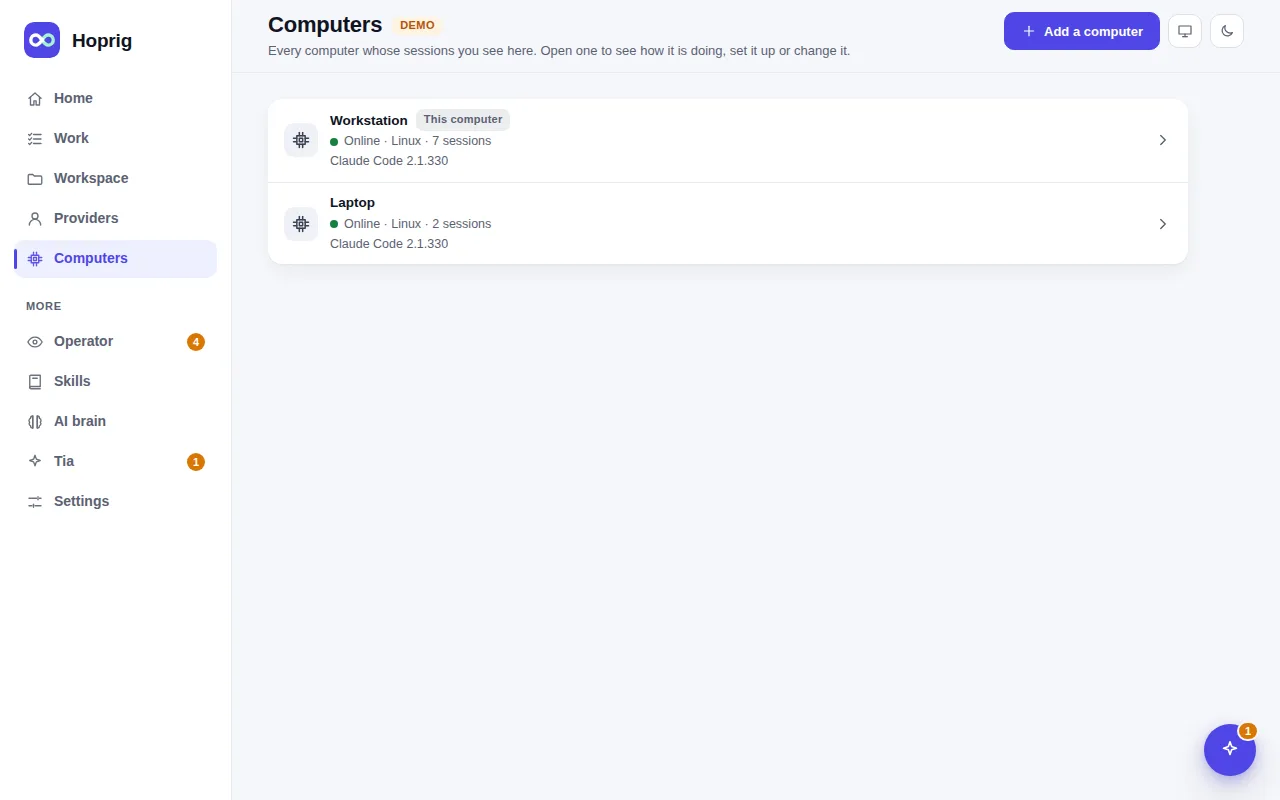
Every other computer keeps one connection out to the main one, so nothing has to be opened on a router. A main computer is
small: about 80 MB of memory, measured with 20 computers and 20 open terminals. Guides:
docs/COMPUTERS.md, docs/HUB.md.
One gateway for every computer. Providers → Gateways on your computers lists every gateway (such as
TRouteAI) on every linked computer. Use here makes it a provider of this computer in one step. A gateway can
be shared through its computer's dashboard: the other computer gets a key of its own, the gateway keeps its own
key and stays on 127.0.0.1, and a key a linked computer made ends when that computer's token is revoked.
A fresh computer, ready for coding
hop pc status                 # what this computer has, what is missing, what needs attention
hop pc setup                  # install what is missing: one confirmation, then it does it
hop project new shop          # a new project, or:
hop project new shop --brief brief.md --start   # one an AI session sets up from your brief, or:
hop project clone acme/shop   # an existing one, with all its code repositories and its AI memory
hop skills suggest            # skills that fit this project; you read each one before it is added
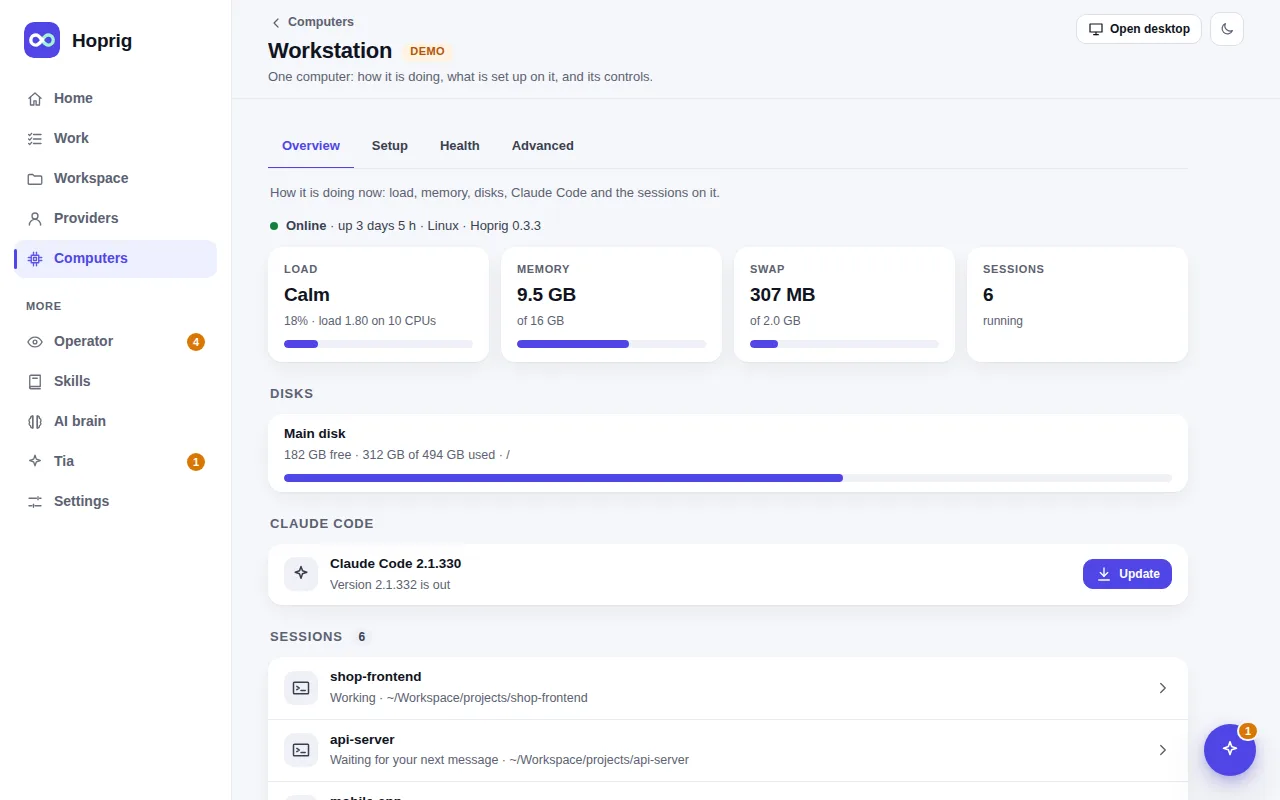
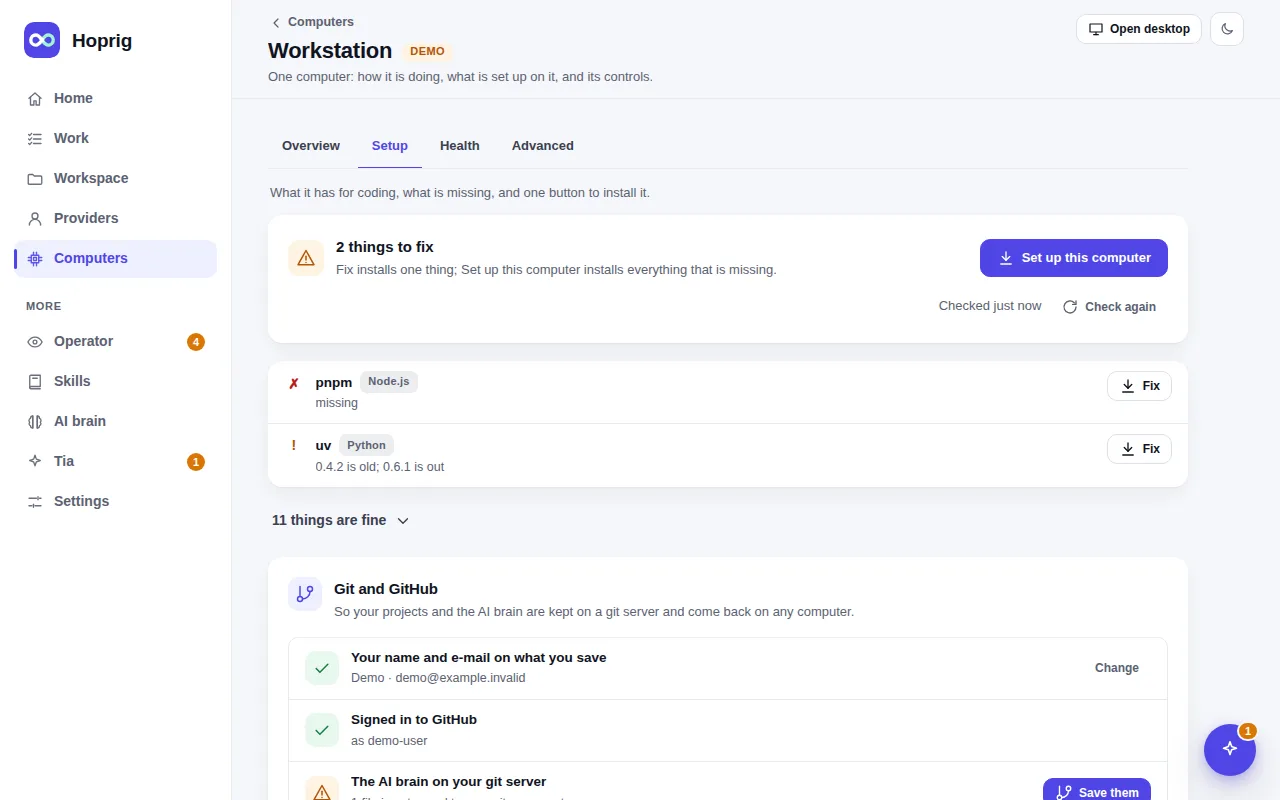
In the dashboard: Computers, open the computer, Setup. Everything there runs in the page: Set up this
computer, a check's Fix, a recipe, the commit name, the GitHub sign-in (with a one-time code) and Claude
Code's own sign-in. When a step needs the administrator password, the page asks for it once; it goes to sudo
only, is never saved, and is masked in the output.
On Health, each problem has its press under it: Fix where Hoprig can do it, a link to the page that does it,
or Sign in for Claude Code. A step that needs administrator rights and that no Fix does says why ("It needs
administrator rights, so the computer asks for your password, which only you type."), shows the one line, and
Open a terminal with this line opens a new terminal session with the line typed: you press Enter yourself, and
nothing else (not Tia, not an automation, not another computer) types into that session.
- Projects: one folder holds the rules (
AGENTS.md, andCLAUDE.mdfor Claude Code), the AI memory and the
docs, with the code repositories undercode/. The memory lives in the project's git repository, so it follows
you to every computer. The projects are under Workspace, each with its own page: its sessions, repositories
and skills. Guide: docs/PC-SETUP.md. - New project's skills: every new project gets the New Project skill (Add the New Project skill, ticked;
--no-skillleaves it out), and Add skills that fit its technology adds text-only skills from your own and
from the reviewed catalog by themselves, with Undo; anything else waits for you. Guide: docs/SKILLS.md. - Skills: suggestions come from what the project is made of. Before anything is installed you see every file
and a scan for risky lines; updates show the difference. Guide: docs/SKILLS.md. - Skills worth adding: once a week, when you turn it on, new skills from the reviewed skill collections (Hermes
Agent) that fit your projects are offered with the reason; nothing is added without you. - Working rules: a starting set, such as the right model and effort for the task and "done means proven".
- Kits: Basics, Node.js, Python, GitHub and Terminal extras are set up by default; Docker, PHP + database,
Flutter versions (fvm) and Flutter are optional, off until you choose them. Flutter goes into the workspace'sdevelopment/folder, downloaded only from Google's own host and checked against Flutter's own release list; one
you already have is used where it is. The sheet says what it downloads, how big it is and what it changes before
the one yes.
The workspace and the AI brain
One folder tree, the same on every computer:
~/Workspace/
├── ai_brain/              shared AI knowledge: the rules every coding tool gets, skills, memory, notes
├── projects/<project>/    one project: its rules, its AI memory and docs, and code/<repo>/ for each repository
├── credentials/           keys and passwords for local work: never in git
├── development/           toolchains and SDKs
├── git/   database/postgresql/   database/mysql/   backups/
hop workspace status        # every folder: there or not, and what it is for
hop workspace setup         # create only what is missing; nothing that exists is changed
hop workspace link          # let your coding tools read the same rules, skills and memory from the brain
hop pc leave --check        # before a format: what exists only on this computer (Computers → Before you format this computer)
A fresh computer gets all of it from git. hop workspace map writes one file in the brain that lists every git
repository of the workspace (addresses only, never a token). On the next computer, hop workspace restore <address of your brain> clones the brain, the credentials repository, your groups' repositories and the other repositories,
where they belong; each project comes when you ask for it, with hop get <name> (or all of them with--with-projects). hop workspace sync keeps every repository in step (fast-forward only; pushing only with--push). The AI brain page shows, read-only, what
the AI knows on a computer, and never anything in folders named no-ai, ignore or ai-ignore-dir,credentials folders, dot-files, .env and key files; text that looks like a secret is masked.
hop get shop fetches one project by its name, with its code repositories and its memory, into a folder of that
name. Groups are folders of projects of your own beside projects/ (hop workspace group add client-work),
written into the map so every computer gets them. Hoprig acts only inside each project's own folder: a link that
leads out of it is not followed, unless you name it as yours on that computer withhop workspace mylink add <path> (a project kept on another disk). Details: docs/WORKSPACE.md.
It keeps going without you
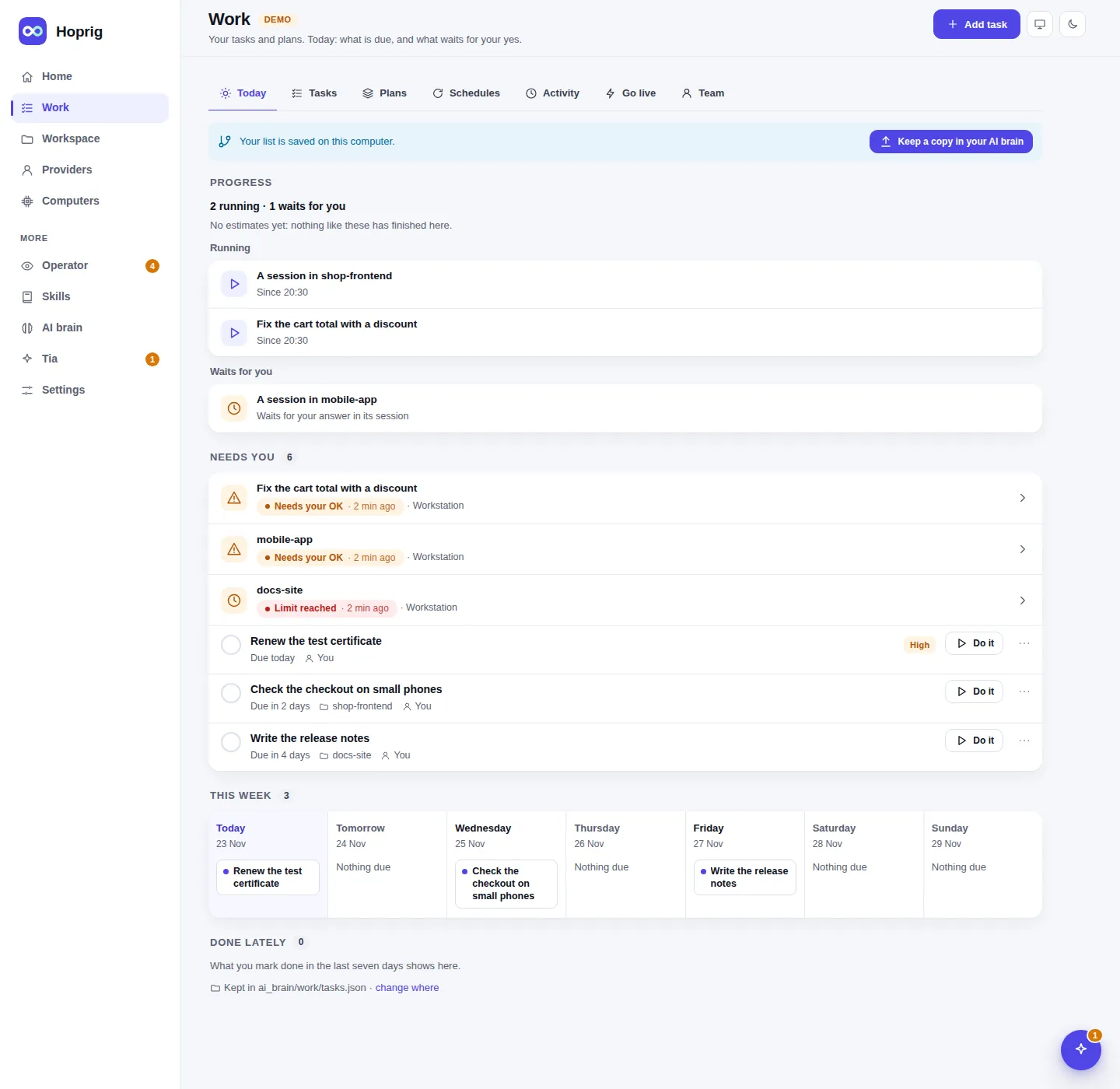
The rules that start things are fixed, with no AI deciding: a schedule starts at its time, the queue sends at the end
of a reply. What they start can be an AI session. The schedules and the queue are in Work → Schedules, what they
did is in Work → Activity, and the switches are in Settings → Automations:
- Queue (the switch Send the next queued message, on at first; its list is Queued messages in Work →
Schedules): give a session its next messages; each goes in when a reply ends, and only while the
coding tool is the program in front in that terminal. When it is not (it has ended, or another program runs
there), the message waits and its row says why. - Schedules: at a set time (once, daily or on chosen weekdays), let the AI work by itself in a project, start a
chat (or a session in a terminal), or send a message to one. When the AI works by itself, it works on a branch of
its own. A task of Work can repeat too, and can be run by AI at a set time (see docs/WORK.md). - Reopen sessions after a restart: Claude Code's and OpenCode's terminal sessions come back where they were, each
on its own conversation. An OpenCode session whose conversation has no id yet is not reopened on another one: Work →
Activity names it as not reopened. A terminal a chat took over with Continue here stays closed, however soon
after the press the dashboard ends. It is on at first
with the built-in terminals (the dashboard's own). With tmux (a program that keeps terminals running when the
dashboard stops) it is off at first: tmux sessions live through a restart of the dashboard, but not a restart of
the computer; switch it on to have them back after one. - Try again after a server error (off at first): in a Claude Code session, after a server error that is not a
limit, wait and continue, three times.
Pause all automations is under Settings → Automations → Advanced; while they are paused, that page and
Work → Schedules say so with a Resume button.
Updates
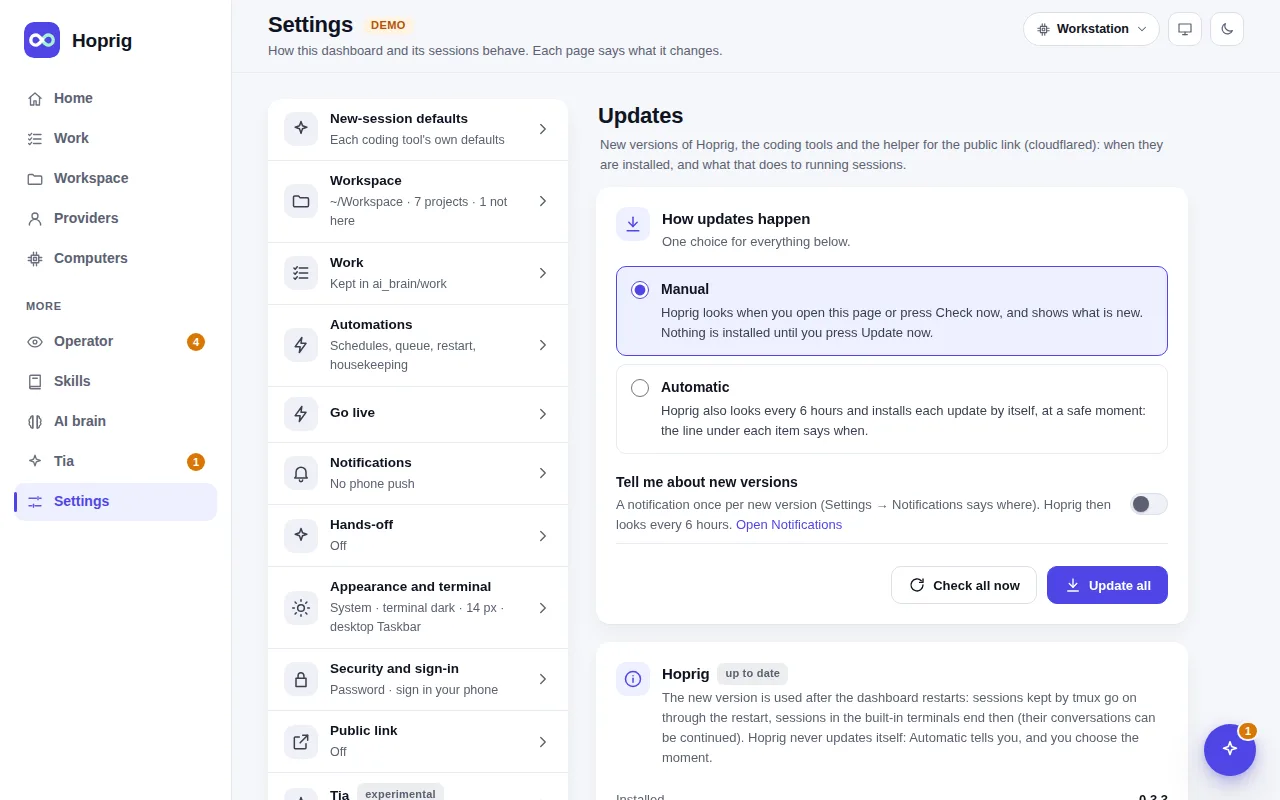
Settings → Updates is one page for Hoprig, Claude Code, OpenCode and the helper for the public link (cloudflared): each row shows the
installed and the newest version, Check now and Update now, and one sentence on what an update does to
what is running. One choice for all:
- Manual (the default): it looks and shows what is new; nothing is installed until you press Update now.
- Automatic: it also installs each update by itself, at a safe moment: Claude Code when none of its sessions
is working, OpenCode when none of its sessions is open, the helper for the public link when the link is off. Hoprig
itself is never updated by itself; Automatic tells you, and you choose the moment.
Hoprig's newest version is read from where it is installed from: the version in package.json on the main branch
of this repository (a git checkout asks its own remote). When it cannot be read, the row says why in one sentence.hop update updates Hoprig from the same place.
hop tools does the same for the coding tools in a terminal (tools install | update | on | off <tool>).
Tia (experimental, off by default)
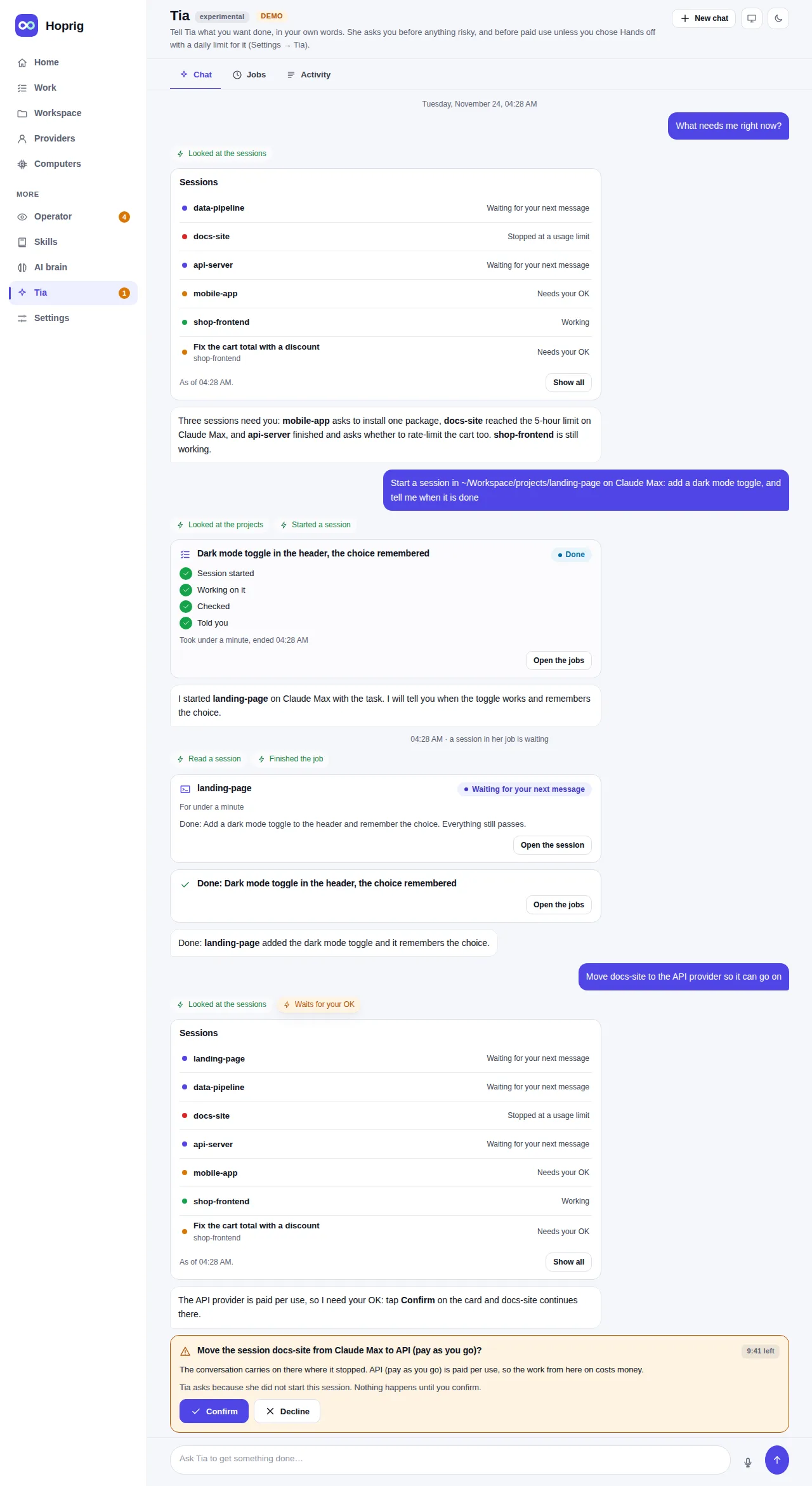
An assistant in the dashboard: a round button at the bottom right of every page, and her own page under More.
She manages what is described above and gets a coding job done for you: she opens a chat in a project, picks a
provider among the ones you allow, sends the task, watches it, and reports. She is a headless Claude Code that
may use only Hoprig's own tools (hoprig mcp; while she is on, your own Claude Code can use the same tools). She is off until you
turn her on under Settings → Tia. The provider she thinks on is set there by Tia runs on. Left at
Automatic, it is the first of the subscriptions she may use that can answer now, so a message to her costs
nothing beyond your plan. With no such subscription, it is Auto mode when that is on and you allow it to her, else the
first provider you allow her that can run Claude Code; left at Automatic, she never runs on one you did not tick (a
provider you choose yourself under Tia runs on is used even when it is not ticked). When none you allow
her can run her, she says so and where to tick one (Settings → Tia → "Providers she may use"). On a provider billed by use she
answers only within the daily limit for paid use you set there. When every one of those
subscriptions is at its limit, she says so, and when Hoprig knows it, the time the first one can be used again;
she never moves by herself to a provider billed by use. The chats she starts run on the providers you allow her; on a
provider billed by use they cost money (see below).
After an update from an earlier version: earlier versions ran Tia when the settings never named her, although
Settings → Tia showed her off. Now she is off until turned on. If you used her without ever touching that switch,
her page says she is off and her jobs are not watched until you turn her on in Settings → Tia; her conversations and
jobs are kept.
What she can do, through the dashboard's own routes (the list is ALLOW in
src/assistant/door.mjs):
- chats and sessions: start a chat (Claude Code, or OpenCode when you name it) or a terminal session, send a
message, answer an OK by the rules below, stop a reply, rename, end, and move a chat or a session to another
provider at a limit; - Work (see docs/WORK.md): what needs you today, the list, a task and what its runs did; add a task,
change it, mark it done or open again, and take her last change back; have a session do a task ("do the cart fix in
the shop project"): she finds the project, writes the brief and picks the model and effort by the kind of work, and
one card shows you all of it before anything starts. When the session's turn ends she reads its result and tells
you in two lines; accepting it, sending it back, dropping and removing a task are cards, never hers alone; read
your plans, and put a task into a plan, move it in one or change what it waits for, at once only when your own
message names the plan or the task (else a card); making a plan or changing its own title, goal and milestones stay
yours; - projects: list them, start a new one, get one from GitHub, add a code repository, sync, create the missing
workspace folders; read the AI brain; - computers: their state, setup check and coding tools; run a fix, set one up, check for updates, update or
install a coding tool, turn a coding tool on or off, end a process, restart or power off, add one by SSH,
rename, start or stop an add-on, turn the public link on or off; - automations, skills, and a few settings (quick messages, folders, uploads, Auto mode's order, the model and
effort of new sessions, the projects folder, the working rules); one shell command on a computer, for a quick
check you asked for.
What she does by herself, and what always comes to you. In a chat she started, she answers an OK by herself only
for looking at named files (reading inside the chat's folder, listing, git's reading commands without a patch) and
for the project's own checks (npm test, and npm run with one of a short fixed list of names: test, lint,build, typecheck, check, test:unit and the like; node --test). Every change to a file, every other command
or script name, a search through every file of a folder (grep -r, rg, a patch of git diff or git log -p,
Claude Code's own search when it does not name a kind of file such as *.js), any tool she does not know, and every
OK of an OpenCode chat is your card. Whatever costs money, ends a session she did not start, installs or updates
something, turns a coding tool on or off or opens the computer to the internet is a card too. Money has exceptions
you choose. Within the Daily limit for paid use (US $) you set in Settings → Tia (empty at first), she may write to
sessions and chats on the paid API providers you allowed her, unless her level is Ask me. At the level Hands
off (the default is Do the work) she also starts chats and sessions there and moves the ones she started
there, without asking, within that limit. At Hands off, the Operator's limit rule or Tia decides, once you
turn them on, may also move any session at a usage limit onto such a provider, only within that limit, and each move counts
against it (docs/OPERATOR.md). Once you turn it on, Tia decides may also end a stuck session,
whoever started it, but only in a project where you ticked Tia may end a stuck session in this project (the same
guide). A terminal session's OK is judged only by the text on
its screen against a list of risky things, which is best effort.
She answers the OKs of a chat or a terminal only when she opened it on a new conversation: one she opens on an
earlier conversation is not hers to answer.
A Work run she started for you is yours: its OKs come to you, unless you turn on She answers the OKs of her Work
runs (Settings → Tia, off at first). Then she answers its OKs by the rules above while she follows it, never at
Ask me and on a provider billed by use only at Hands off; text typed into it, "do not ask again" and a stop
stay your card, and each answer is a line in her Activity.
She stops answering a chat's OKs as soon as you type into it, when its conversation went on in a terminal, and when it
went on elsewhere while the dashboard was stopped (it is checked again at the start). What she reads from a chat, a
terminal, a page, a file or another computer (a name, a title, an error) is data to her, never an instruction; secrets
never pass through her.
A session she started keeps her hold on administrator commands and pushes until it ends, whoever types into it; even at
Full a delete outside the session's own folder (also as administrator), a push or a merge into the main branch, a
release, a pull request, a direct call to GitHub or GitLab (gh api, glab api) that can change something there, a
deploy, a change to project.json or to Hoprig's own files, and a line Hoprig cannot read stay yours, and a Codex or OpenCode session of hers is refused below Full (docs/OPERATOR.md).
Files with secrets. She does not say yes by herself to reading a file whose name says it may hold secrets
(.env, keys and key stores, key.properties, gradle.properties, Apple's .p8 keys, .yarnrc.yml, auth.json,.my.cnf, .git/config, Terraform state, a cred folder and the like). That is a list of names, not a wall around your secrets: inside the chat's folder Claude Code's own Read
reads without asking in its default mode, and a key can sit in a file of any name. Keep secrets out of project
folders you let a chat work in.
Her cards. What a tool of hers found or did shows under her answer as a card, so a phone needs a glance and one
tap, not a paragraph. The dashboard makes each card from the tool's result; she writes only words, and nothing she
writes becomes a card, a link or a button (her text is shown as text; a page of the dashboard comes as an Open card).
A card holds names, states, numbers and times, never a key, a folder path of the computer or a file's content.
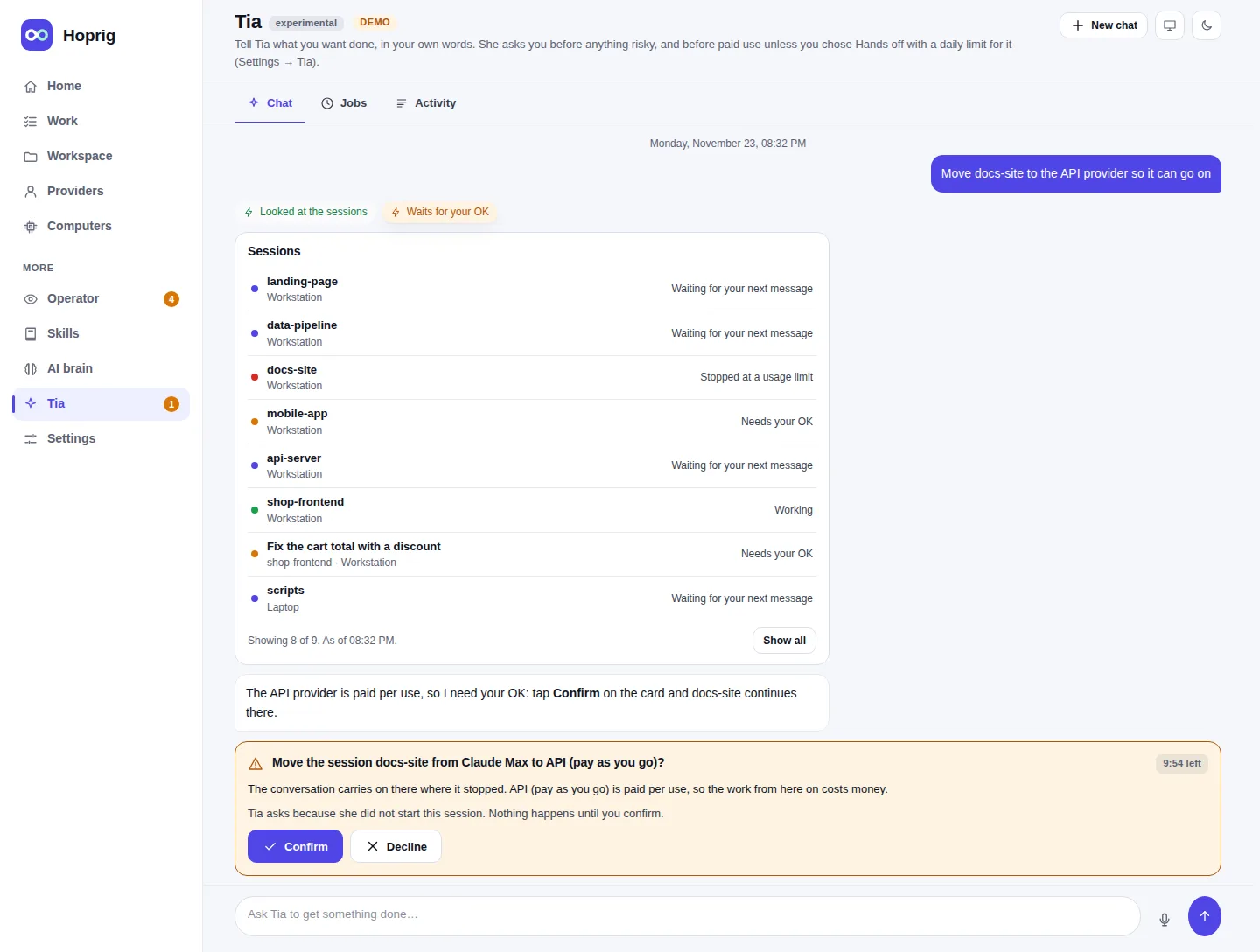
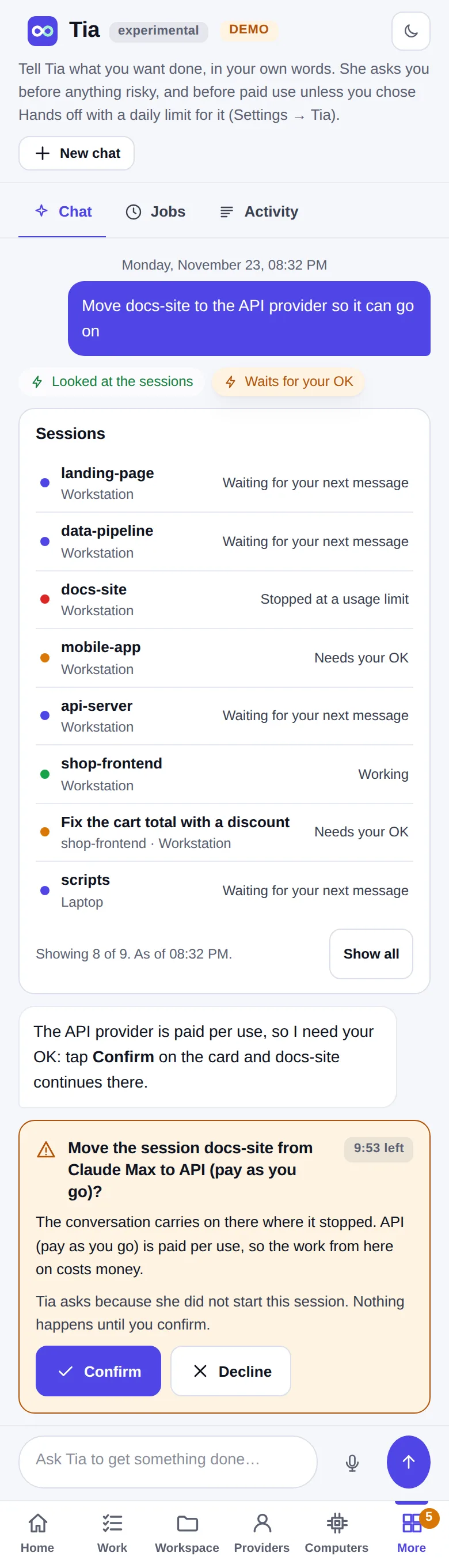
| Card | Comes from | What a tap does |
|---|---|---|
| Confirm | anything that needs your OK | Confirm runs it, checked again first; Decline does nothing |
| Form | a confirm card for a setting of one value | you may change the value before Confirm; it is checked as hers is |
| Choice | notify_owner with two to four answers |
sends that answer as your message, nothing else |
| Status | read_session, a start without a job |
opens the session; the card follows it while you look |
| Progress | a start or watch with a job, Work's start and run | opens the jobs or Work; it follows the job or run |
| List | list_sessions, Work's today and list, computers, the setup check |
opens the item, or "Show all" its page |
| Numbers | get_computer_status (providers, one computer) |
nothing: the figures and when they were read |
| Result | Work's add, change, done, reopen; stop, move, a finished job | opens where to see it; Undo takes her act back |
| Needs you | read_attention |
the recommended step, through the Operator's own checks |
| Open | open_screen |
opens that page |
A status, progress or needs-you card shows what is so now: it changes in place while you look, says when its subject
ended or is gone, and after a reload says "Checking…" until it is read again. It reads through the page's own
refresh (every 3 seconds, 15 while the tab is hidden), with one request for every such card on screen. A tap on a
card that is out of date does nothing and shows the current state; Undo works only while her act is still her newest
one, once.
A choice card she shows while a session of her job wakes her also comes as a push, sent as a "waiting" notification, so
what you chose under Settings → Notifications holds for it.
Speak instead of typing. Her box and the App's message box have a microphone. It uses the browser's own
speech recognition (Chrome, Edge and Safari have one; the language is a setting of the device under Settings →
Appearance: English, Hindi, or the browser's own). The words appear in the box and you send them yourself; a
spoken sentence is never sent by itself. Hoprig never gets the audio and keeps nothing of it; the browser turns it
into text (Chrome's own recognition does that on Google's service). Where the browser has no recognition, the
microphone is shown struck through and says so when tapped. The page allows the microphone for the dashboard's own
pages only.
What Tia does not do. These are your own steps; the dashboard refuses them even if she tried (NEVER in the
same file). She opens the right page for you instead:
- adding a provider, signing it in or out, or its key; another coding tool's own sign-in;
- removing a computer, pairing codes, joining and connecting computers;
- the dashboard password and sign-in, signed-in devices and one-time sign-in links, the public link's Custom set-up;
- notifications, and whether updates install by themselves;
- her own settings (what she may do, which providers she may use, her token).
Her administrator rights (Off, Ask each time, Full) and the git sign-in of the sessions she starts are explained in
docs/OPERATOR.md.
The menu and the settings
Home (every chat and session, the ones that need you first), Work, Workspace, Providers,
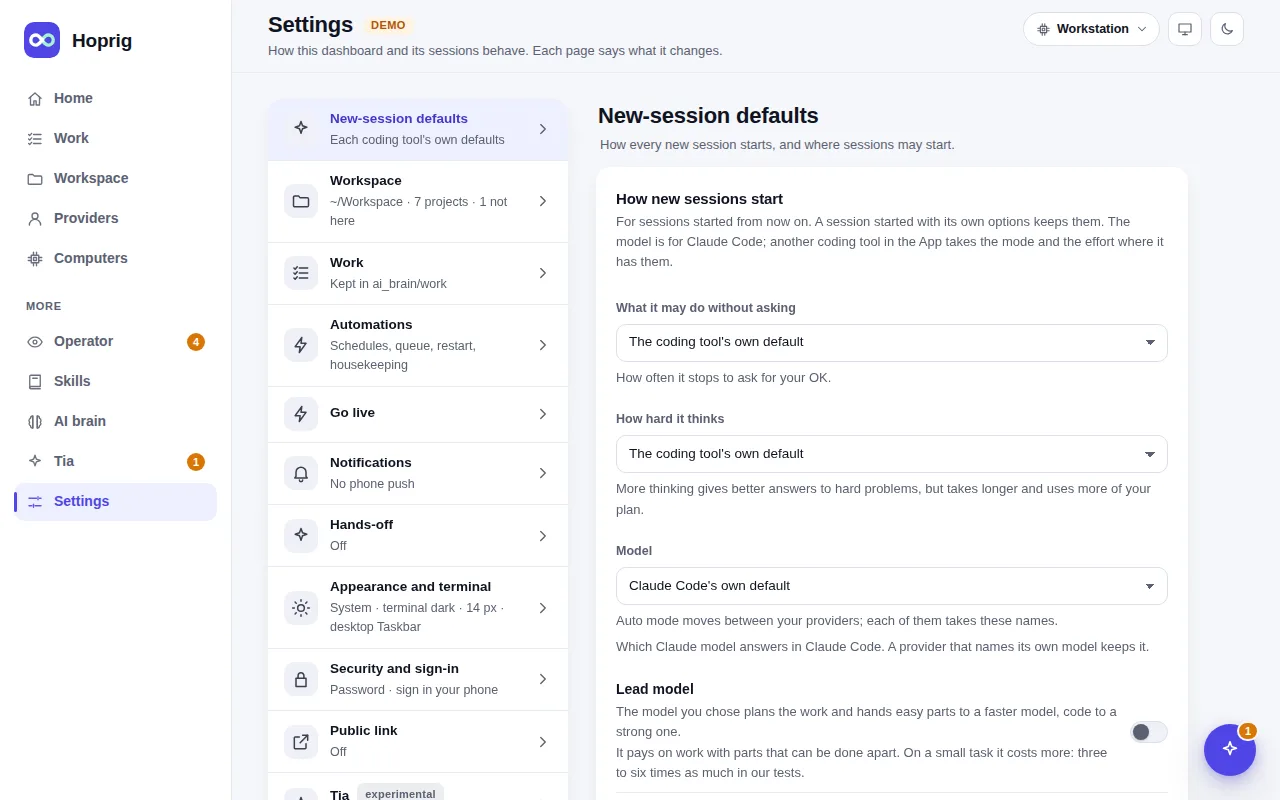
Computers, then under More: Operator, Skills, AI brain, Tia and Settings. Settings is a short list of
pages: New-session defaults, Workspace, Work, Automations, Go live, Notifications, Appearance and terminal, Security
and sign-in, Public link, Tia, Editor, Learn skills, Add-ons, Coding tools, Updates, Field reports, About. Each
option has one plain sentence under it. Notifications:
a push to your phone when a session waits for you, needs your OK or reaches a limit.
Terminal sessions run in tmux when it is installed, 3.2 or newer (they survive a restart of the dashboard, andtmux attach over SSH still works), otherwise inside the dashboard's own service (the built-in terminals).
On a session's terminal page, a file dropped anywhere on the page or pasted with the paste key (Ctrl+V, Cmd+V, or a
screenshot in the clipboard) goes to the session's computer and its path is typed at the prompt, as a terminal does
on a drop (no Enter); on a touch screen the key bar's File key opens the device's picker. These files are kept
in Hoprig's state folder (drops/<session>, readable by you only), never in the project, and removed after a week.
A terminal session starts in your own shell, which is given only Hoprig's command and a file that is readable by you
alone and works once: the folder, the provider and the first message are never typed into the shell, so a first
message arrives as it was written, several lines included (on Windows, a coding tool installed as a .cmd script
gets it on one line: cmd.exe cannot carry a line break). What anyone but you types into a running session (the
queue, a schedule, the continue prompt, Tia, another computer) goes in only while the coding tool is the program in
front there, without control characters; your own typing on the page goes in as before. A move to another provider,
a restart and End session end the programs in the terminal first, and only then start the new one or end it.
Not built, or not proven yet
Said plainly, so nothing here is a surprise:
Codex is not part of this version. Its code is kept and tested, but it is switched off: no page, command or
provider kind offers it.Tia cannot continue an earlier OpenCode conversation by its id; she can only continue the folder's newest one.
Not seen from a real model: OpenCode's own question forms (the page has them; a real model never asked one in
the tests).The last checks of this version ran on stand-ins for the coding tools (small programs that answer the way
Claude Code and OpenCode do), not on real Claude Code or real OpenCode. The one exception: what the page's
Allow in a terminal session looks for was checked against screens recorded from real Claude Code 2.1.326; a
later Claude Code that draws its permission dialog another way gets no answer from the page (it sends you to the
terminal).Work, what is not there yet: Tia does not carry a Work run of hers on to another provider after a usage limit
by herself, and she does not answer the OKs of a session of hers that no job follows. Hoprig does not write a note
into a session to take the option it recommends.
The sessions that need an OK are shown on the dashboard (Today, Home, the Operator), not inhoprig tasks.What Hoprig's folder check cannot see (Hoprig stays inside each entry's own folder of the workspace): a folder
that a program already running on this computer swaps for a link in the instant between the check and the act, and
a bind mount, which looks like a folder.Files on the desktop: dragging between two Files windows is not built.
A submodule's own changes are not counted in the repository around it: Source Control and the project counts
read git without looking inside a submodule's files (its own settings could start programs). A submodule with
uncommitted changes shows them when you open it as its own folder; a new commit in it still shows in the parent.Tried by hand only on Linux: what came in 0.2, in 0.3 and in this version. The tests also run on GitHub on
macOS, and on Windows, where a failure does not yet block.- New since 0.2: the chat, OpenCode, the editor, the desktop, the public link switch, Updates, one process per
conversation, the start of a terminal session by its start file, the text typed only for a coding tool in front,
the ending of a terminal's programs before the session ends, the safe git reads. - New in 0.3: Work and Do it, the New session popup, the App's title bar, session menu and session rail,
hoprig getand its folder rule, groups, naming rules and a group's own command, the folder check andhoprig workspace mylink, a gateway of your own, the page's answers in a terminal session, the rule of bypass mode. - New in this version: projects fetched only when you ask (
hoprig get,hoprig drop),hoprig adopt, the
Operator, Work's plans, schedules and progress, the box (a command run with no network and without your home:
docs/BOX.md), a new project from a brief, skills learned from your work
(docs/SKILLS.md), field reports (docs/FIELD-REPORTS.md), a server set
up from the dashboard. Everything new in this version was also run only on Linux, and not yet with two real
computers linked.
Written for macOS and not run there: the refusal of a gateway program in a folder that Homebrew lets other users
change. How Hoprig tells that a
process is still the one it started (a process id can belong to another program after a restart of the computer)
is exact on Linux; on macOS and Windows it is written and tested with recorded answers of the system only.- New since 0.2: the chat, OpenCode, the editor, the desktop, the public link switch, Updates, one process per
A
hoplauncher that is killed hard while its coding tool goes on: Hoprig keeps a terminal session's record
while its launcher runs, so after akill -9of the launcher that terminal reads as a plain terminal, what the
coding tool does and asks is not shown, and its conversation counts as free: Hoprig does not stop the App or another
terminal from starting a second process on it.On Windows, a second temporary address of the public link whose file names no process identity (one an earlier
version started) cannot be stopped by Hoprig: it says so, and that helper is ended by hand.Not proven on real devices: a phone's on-screen keyboard in the editor and the chat; changing the Claude
account of a provider from the page end to end with a real account; a real stop or restart of a service from the
desktop.
When to use this, and when not
If you use one Claude subscription on one computer, Claude Code's own mobile app and Remote Control are the
simplest way to reach it from a phone. Hoprig is for when you want more than that:
- a chat for your projects that works the same from a desktop and a phone, on every computer you own;
- the same session on another provider when a limit is reached, including an API key or a gateway;
- a second coding tool (OpenCode) for providers other than Anthropic, with the same rules, skills and memory;
- a new computer or server set up for coding by one command;
- several computers in one place, on your own hardware, with nothing in between that you do not run.
Is this allowed?
Hoprig runs the official, unmodified Claude Code and OpenCode and keeps your accounts on your own computers. It
has no server of its own and never shares an account with anyone.
What Anthropic's documentation covers: several accounts of your own on one machine; API keys and gateways as ways
to run Claude Code; and pointing Claude Code at a gateway while it stays signed in with a subscription. That last
one is what Auto mode's router is: it passes Claude Code's own request on, untouched. Hoprig never attaches a
subscription's sign-in to a request itself; only Claude Code does. A Claude subscription is never given to
OpenCode or to any other program: OpenCode runs only on API keys and gateways.
What is yours to judge: plan limits assume ordinary, individual use, Anthropic's policies forbid getting around
restrictions and sharing accounts, and Anthropic can restrict an account without notice. Whether continuing past a
limit on a second subscription of your own (as another provider, or by signing in with another Claude account) is
acceptable is not something the terms clearly settle. The surest setup is one subscription, then an API key. Never
use someone else's account. The provider behind an API key or a gateway has terms of its own; read them too.
Read the sources yourself:
Claude Code: legal and compliance,
authentication,
gateways,
Usage Policy,
Consumer Terms.
Security
The dashboard is a remote control for your computer, and it is built that way:
- It listens on this computer only until you choose otherwise. On a network it speaks plain HTTP, so use a network
you trust; on the internet use the public link (HTTPS through the tunnel) orhoprig setup --hub, which puts it
behind HTTPS and refuses plain HTTP. - One password stored as a scrypt hash, one-time sign-in links, HttpOnly SameSite=Strict cookies, an Origin check
on every change, a strict content security policy. The public link asks for a strong password before it turns on. - Five wrong passwords and a visitor waits: this computer counts as one visitor whatever local address it uses,
every visitor through the public link counts on its own, a limit for all wrong passwords together never locks
this computer out, and a one-time sign-in link has its own count, so guesses do not lock it. - When the dashboard reads a project's git state (Source Control, quick open, the chat's
@files, the project
counts), the repository's own settings never start a program: hooks, filters, diff and signature programs are
switched off for that read. A git command a coding tool runs is the coding tool's own. - Installs, updates, downloads and the demo get an environment without provider keys; the helper for the public link, when
Hoprig downloads it, is checked against its known SHA-256 before it is used (one already on the computer's PATH, or
installed with Homebrew on a Mac, is used as it is). - Another computer gets a token you can revoke. A token cannot change the password, pair, or relay further.
- The router listens on 127.0.0.1 under a secret path and keeps no request or answer text.
- The editor and the desktop's Files reach only the folders the dashboard may show (Settings → Security and
sign-in sets them, or everything your user can open); every path is checked on the server. Private folders
(no-ai,ignore,ai-ignore-dir), git's own folder, the dashboard's own folders and sign-in files are never
shown, searched or changed. - A file of a project shown as a page runs in a sandbox. A shared gateway's keys are kept as hashes, and only
/v1/
paths pass. - The administrator password for a setup step or a service is asked in the page when
sudoneeds it, given tosudoon its input, and never saved or shown. - OpenCode's server, which Hoprig starts for a chat, listens on this computer only and always with a password; its
routes that would return a key never reach the browser. A provider's key is given to a coding tool in its
environment when it starts, never written into the tool's own files. - Provider files (sign-ins and keys), tokens and passwords are readable by your user only and are never printed,
logged or sent to a browser. Found a problem? See SECURITY.md.
Where it runs
| Providers, Auto mode | Dashboard | Fresh-computer setup | |
|---|---|---|---|
| Linux | run and tested | run and tested (tmux and built-in terminals), systemd service | run in clean Ubuntu, Debian and Fedora |
| macOS | run and tested | run and tested (built-in terminals) before this version; what is new in it was not run there (see above); the launchd service is written, not yet installed for real | checked read-only; installs not yet run |
| Windows | used by hand once (Claude Code, a subscription and a gateway on the computer); the tests do not pass on Windows yet | used by hand once (built-in terminals, a chat, the Task Scheduler service); not tried: updates, the desktop, the editor, other computers, the public link | pc setup with winget used once; install.ps1 itself not tried |
Requires Node.js 22.11 or newer (Node 20 is past its end of life, and it aborts when a terminal is closed under it;hoprig says so in one sentence on an older Node.js). The tests run on Linux and macOS with Node 22, 24 and 26 on
every change, and on Windows as a job that is allowed to fail: they do not pass there yet, so Windows is not
supported, only used. tmux is used from
version 3.2 on; with an older one (or none) the built-in terminals are used. With npm 12 there is nothing to do
yourself: setup builds the one module that needs a build (node-pty, the only install script Hoprig'spackage.json approves), and hoprig doctor names the cause when it did not build.
Runtime dependencies: ws, xterm.js, Monaco (VS Code's editor core), qrcode-terminal, and optionally node-pty
for the built-in terminals. No framework and no build step.
Commands
A short list: hop help has every command, and hop <command> --help its words.
hop                              choose a provider, start Claude Code in this terminal
hop chat [folder] [--tool opencode]   open a chat in the folder (prints its address, opens the browser here)
hop <profile> [args]             start on that provider (args go to Claude Code)
hop opencode [provider] [args]   OpenCode in this terminal, on a provider that serves it
hop auto [args]                  Auto mode          hop auto on | off | order … | status
hop add | profiles | rm          providers (each one is a profile)
hop tools                        the coding tools: install | update | on | off <tool>
hop setup | doctor | update      set everything up, check everything, update Hoprig
hop pc setup | status            this computer for coding;  hop pc recipe save: a recipe for the next one
hop get <name>                   get a project with its code repositories (= hop project clone)
hop drop <name>                  take a project off this computer safely (--check, --dry-run)
hop sync [<name>]                bring the repositories here (or one project) in step with git (= hop workspace sync)
hop adopt scan | plan | apply | verify | retire   a computer that already has projects: bring them into the workspace
hop sessions move <old> <new>    the coding tool's conversations of a folder, copied to its new place
hop project new | add | start | clone | setup | status | sync | link   projects (new --brief <file>)
hop workspace status | setup | link | map | restore | sync | git   the workspace, its map, the AI brain
hop workspace group | find | tool | mylink | rules | needs | label   groups, their commands, your own links
hop tasks [today] | list | add | edit | done | open | drop | do | runs | plans | save   Work: your tasks (docs/WORK.md)
hop ship status | together | check | allow | live | back | auto | drop   Go live: finished task branches together, checked (docs/GO-LIVE.md)
hop box check | run              run a command in a box: no network, and it cannot see your home folder (docs/BOX.md)
hop skills suggest | find | add | list | update  skills
hop field [show <id> | inbox <folder>]   field reports of Hoprig's own work (docs/FIELD-REPORTS.md)
hop serve | passwd | link        the dashboard, its password, a one-time sign-in link
hop service install | uninstall | status | restart   the dashboard in the background; start it again after an update
hop public on | off | status     the public link (--temporary | --custom)
hop machines | join | pair | tokens   several computers
hop addons                       add-ons: a gateway for other AI providers
hop gateways add | confirm | remove   a gateway of your own (a program Hoprig runs)
hop claude status | update       Claude Code's version
hop demo                         the dashboard with sample data
hop mcp                          Hoprig's tools as an MCP server
The Hoprig skill teaches a coding tool to use these commands; it is made from their own help at every version.
Without Hoprig: npx hoprig-skill --claude (or --agents, --project <dir>) puts it into a coding tool's skills
folder (the skill).
Contributing
npm install, npm test, node bin/hoprig.mjs demo. The README's screenshots come from the demo only:node tools/screenshots.mjs. The rules for working on this repository, for people and for AI tools, are in
AGENTS.md; see also CONTRIBUTING.md. A pull request is merged once you agree to the
contributor licence agreement, by one line in the pull request. How a release is made: RELEASING.md.
License
Hoprig is licensed under the Apache License, Version 2.0. Copyright 2026 Kevin Pareek; see NOTICE.
Earlier versions, up to and including 0.2.1, were released under the MIT License.
Contributions are accepted under the contributor licence agreement. "Hoprig" and its logo are trademarks
of Kevin Pareek: the licence of the code does not cover them, and TRADEMARKS.md says how you may
use them.
Reviews (0)
Sign in to leave a review.
Leave a reviewNo results found