Outlook-Classic-MCP
Health Warn
- License — License: MIT
- Description — Repository has a description
- Active repo — Last push 0 days ago
- Low visibility — Only 8 GitHub stars
Code Pass
- Code scan — Scanned 12 files during light audit, no dangerous patterns found
Permissions Pass
- Permissions — No dangerous permissions requested
No AI report is available for this listing yet.
Local MCP server that exposes classic Outlook desktop (mail, calendar, contacts, tasks, rules) to Claude and other MCP clients via COM. No Azure app, no Graph API, no OAuth.
outlook-classic-mcp
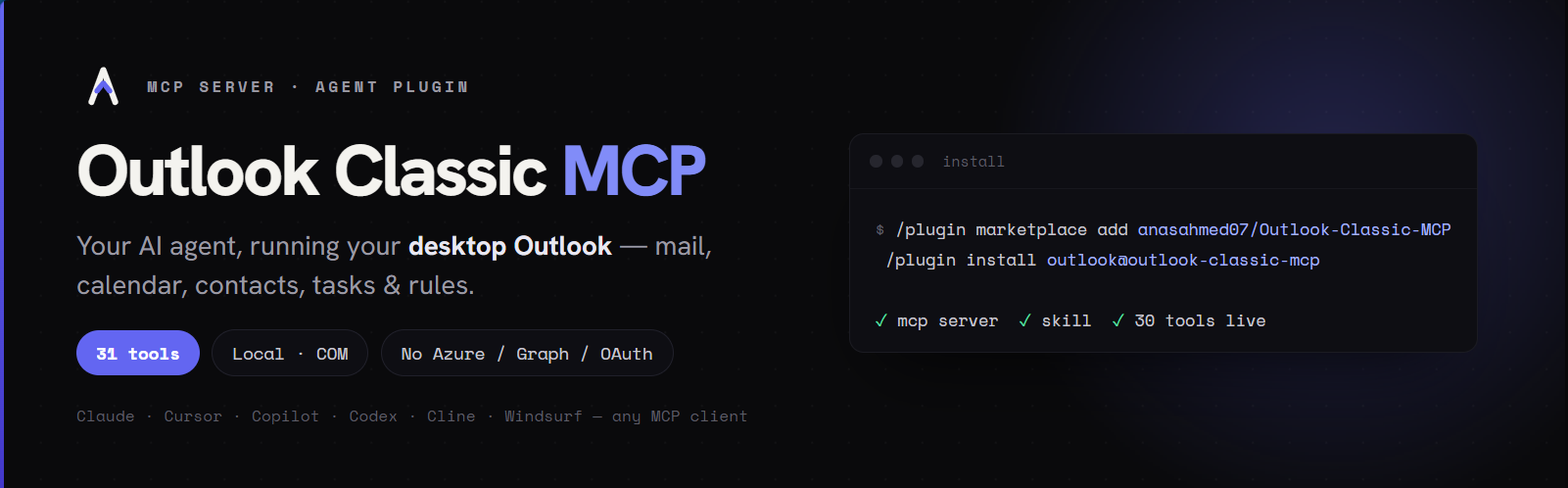
A local MCP (Model Context Protocol) server that exposes the classic
Outlook desktop client — mail, folders, calendar, contacts, tasks, color
categories, mail rules, and Out-of-Office status — to any MCP-aware
agent: Claude Code, Claude Desktop, Cowork, GitHub Copilot / VS Code
agent mode, Cursor, Cline, Continue, Windsurf, and anything else that
speaks MCP.
It talks to Outlook's COM API on Windows via pywin32, the same path
macros and Office add-ins use. Authentication piggybacks on whatever
account Outlook is already signed into — no Azure / Entra app
registration, no Microsoft Graph API, no OAuth tokens.
Requirements
- Windows 10 or 11
- Outlook desktop (Classic) — the
OUTLOOK.EXEshipped with
Microsoft 365 / Office. The "new Outlook" (olk.exe) is not
supported (no COM surface). - Python 3.10+ (the installer fetches Python 3.11 via
uvif you
don't already have one).
You do not need to open Outlook before starting the server — the
server auto-launches Outlook on its first COM call.
Install
Three paths, simplest first.
Option 1 — Agent plugin (recommended)
The repo doubles as a plugin marketplace. Installing the plugin registers the MCP server and loads the bundled outlook skill (an operational reference that teaches the agent how to drive these tools) in one step. The MCP server itself is fetched on demand by uvx directly from PyPI — no git clone, no pip install, no .venv to maintain.
The plugin format started in Claude Code and is now supported by other agents too (Cowork, Copilot, Cursor, and others that adopted the plugin/skill format) — point your agent's plugin install flow at this repo. The commands below are for Claude Code:
Install uv once if you don't have it:
powershell -ExecutionPolicy ByPass -c "irm https://astral.sh/uv/install.ps1 | iex"
Open a fresh terminal so PATH refreshes, then in any Claude Code session:
/plugin marketplace add anasahmed07/Outlook-Classic-MCP
/plugin install outlook@outlook-classic-mcp
Restart Claude Code (/quit, reopen). First call has a one-time 5–15 s pause while uvx resolves the package; subsequent calls are instant. Confirm with outlook_whoami.
To update later: /plugin marketplace update outlook-classic-mcp then /plugin update outlook@outlook-classic-mcp. To pull a fresh PyPI release of the server itself: uv cache clean outlook-classic-mcp.
Option 2 — From PyPI with uv (any MCP client)
Works for any MCP client. The smart client installer auto-registers the server with Claude Desktop, Claude Code, Cursor, Cline, Continue, and Windsurf; for other clients (e.g. VS Code / Copilot agent mode), add the server to their MCP config manually — see below.
uv pip install --system outlook-classic-mcp
python -m outlook_mcp.scripts.install_to_clients
(uv is Astral's Python installer — see Option 1 above for the one-line install. --system writes to your system Python so python -m outlook_mcp resolves anywhere; drop the flag if you'd rather install into an active venv.)
Package: https://pypi.org/project/outlook-classic-mcp/.
Smart client installer
scripts/install_to_clients.py detects which MCP clients are
installed on your machine and shows a checkbox menu:
Select which clients to register outlook-mcp with:
  [ ] 1. Claude Desktop      C:\Users\you\AppData\Roaming\Claude\claude_desktop_config.json
  [ ] 2. Claude Code         (via `claude` CLI)
  [ ] 3. Cursor              C:\Users\you\.cursor\mcp.json

Type a number to toggle, 'a' to select all, 'n' for none,
'enter' to confirm, 'q' to quit without changes.
For each toggled client it deep-mergesmcpServers.outlook = {"command": ".venv/Scripts/python.exe", "args": ["-m", "outlook_mcp"]}
into the right config (or runs claude mcp add for Claude Code).
Existing files are snapshotted to <file>.bak first. Re-running is
idempotent — it updates the entry instead of duplicating it.
Supported clients: Claude Desktop, Claude Code, Cursor, Cline,
Continue, Windsurf.
Manual config (any other MCP client)
Any client not covered by the installer just needs the standard stdio
server entry in its MCP config:
{
  "mcpServers": {
    "outlook": {
      "command": "uvx",
      "args": ["--from", "outlook-classic-mcp", "outlook-mcp"]
    }
  }
}
(VS Code / Copilot agent mode names the top-level key servers inmcp.json instead of mcpServers; the entry itself is the same.)
Tools
31 tools across 9 categories, all prefixed outlook_*.
| Category | Tools |
|---|---|
list_mails, search_mails, get_mail, send_mail, reply_mail, forward_mail, move_mail, delete_mail, mark_mail, save_attachments |
|
| Folders | list_folders, create_folder |
| Calendar | list_events, get_event, create_event, update_event, delete_event, respond_event |
| Contacts | list_contacts, search_contacts (saved contacts + org directory), get_contact, resolve_name |
| Tasks | list_tasks, create_task, complete_task |
| Categories | list_categories, set_category |
| Rules | list_rules, toggle_rule |
| Out-of-Office | get_out_of_office |
| Account | whoami — sanity check; shows the bound mailbox |
MCP Apps — interactive UI in the chat
Since v0.3.0 the server implements the MCP Apps extension
(SEP-1865): read tools ship a self-contained HTML view that supporting
hosts (Claude, Claude Desktop, VS Code Copilot, Goose, Postman, …)
render in a sandboxed iframe right inside the conversation — instead of
a wall of text you get a real inbox, agenda, or contact list. Hosts
without MCP Apps support are unaffected and keep getting the usual
markdown.
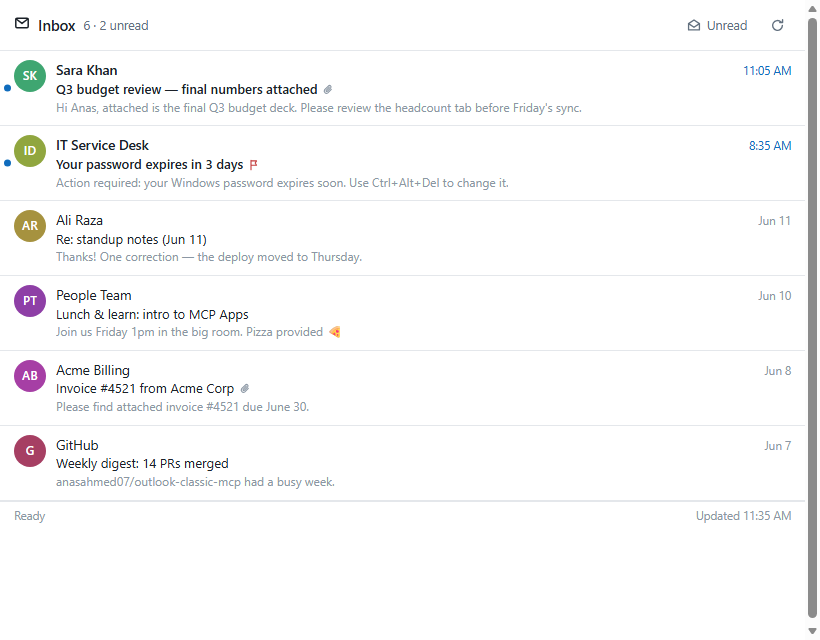
| View | Rendered by | What you can do in it |
|---|---|---|
| Mail list | list_mails, search_mails |
open mails in a reading pane, mark read/unread, flag, delete, filter unread, refresh |
| Mail reader | get_mail |
full body + attachment list, mark, flag, delete |
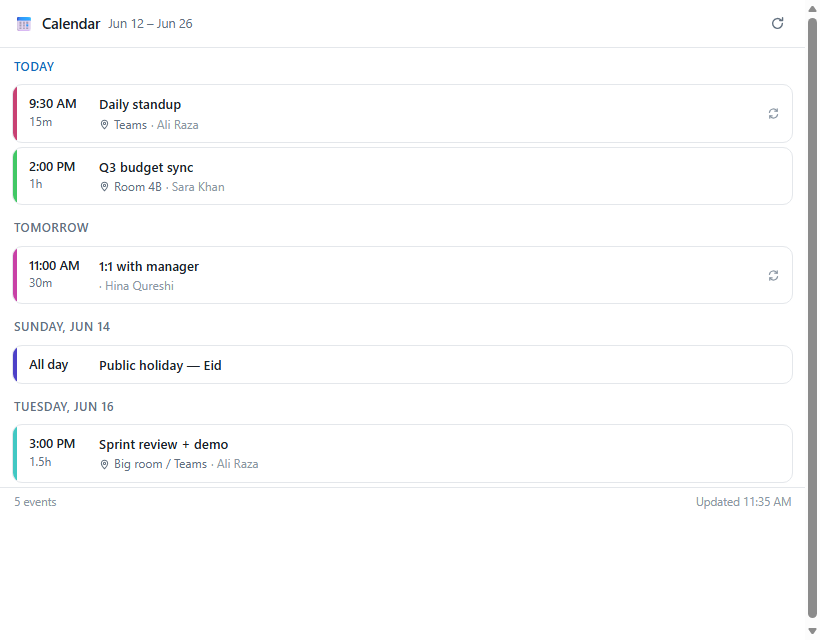
| Calendar agenda | list_events |
day-grouped agenda, expand an event for attendees + body, refresh |
| Contacts | list_contacts, search_contacts |
live search (incl. org directory), copy addresses |
| Tasks | list_tasks |
complete tasks, quick-add new ones, show completed, refresh |
The views are plain inline HTML/CSS/JS (no build step, no external
CDNs — the sandbox CSP blocks those anyway), follow the host's
light/dark theme, and talk back over the standard postMessage
JSON-RPC dialect: buttons in the UI call the same outlook_* tools the
model uses, and in-app actions (delete, complete, …) are reported back
into the model's context so the conversation stays in sync.
Technically: each UI tool carries _meta.ui.resourceUri pointing at aui://outlook/*.html resource (mime text/html;profile=mcp-app) and
returns markdown for the model plus structuredContent for the
app. To preview the views without an MCP host:python scripts/preview_ui.py, then open.ui-preview/harness.html?view=mail-list (any view name, optional&theme=dark) in a browser.
Agent skill
The repo also ships an agent skill at skills/outlook/ (standard Agent Skills format — works in Claude Code, Cowork, Copilot, Cursor, and other agents that load skills) — a self-contained operational reference that teaches the agent how to drive the outlook_* tools correctly: folder reference syntax, the EntryID handle pattern, ISO-8601 date conventions, the Recurrence object, which calls have side effects to confirm before, and 19 worked recipes for common workflows (triage, drafting replies, weekly digests, scheduling meetings, recurring events, attachment handling, multi-mailbox setups).
Layout:
skills/outlook/
├── SKILL.md                  # always-loaded operational core
└── references/               # loaded on demand
    ├── tools.md              # full per-tool parameter / return-shape reference
    ├── recipes.md            # worked multi-step workflows
    ├── gotchas.md            # quirks + failure modes (Programmatic Access prompt, EX:/O= addresses, live rule toggling, sandboxed paths, etc.)
    └── setup.md              # install instructions an agent can walk a user through when the tools aren't connected yet
Installing the plugin auto-loads this skill alongside the MCP server. For an agent that supports skills but not plugins, copy the skills/outlook/ directory into wherever it loads skills from.
Conventions
Folder references can be:
- A well-known name:
inbox,sent,drafts,deleted,outbox,junk,calendar,contacts,tasks,notes - A slash path:
Inbox/Projects/Acme - A path qualified by store name:
Mailbox - [email protected]/Inbox/Projects/Acme
Use outlook_list_folders to discover paths.
Dates / times are ISO-8601 strings. Inputs without a timezone are
treated as local time (what Outlook stores); returned timestamps carry
the user's local UTC offset explicitly (2026-06-10T16:33:22+05:00).
Item IDs are Outlook EntryID strings. Read tools return them
on every item; pass them back to detail / edit / delete tools.
Response format — most read tools accept response_format:
markdown(default) — pretty rendered outputjson— full structured data
Errors are raised, so the MCP host marks the responseisError: true. Error messages try to suggest a corrective next step.
Filesystem paths for attachments= and output_dir= must be
absolute and under the user profile (default sandbox). SetOUTLOOK_MCP_ALLOW_ANY_PATH=1 to disable the sandbox if you legitimately
need to read or write outside %USERPROFILE%.
Architecture
                  +-------------------+
   stdio  <--->   |  FastMCP server   |   <-- one per process
                  +---------+---------+
                            |
                  await bridge.call(...)
                            |
                            v
                  +-------------------+
                  | OutlookBridge     |   persistent STA thread
                  | - one Dispatch    |   single Outlook.Application
                  | - work queue      |   handle, reused by every call
                  +---------+---------+
                            |
                  Outlook COM (auto-launches OUTLOOK.EXE if needed)
The MCP event loop never blocks on COM, and COM only ever sees the
one STA thread it needs. This is faster than per-call dispatch and
the Outlook process stays warm across calls.
Development
.venv\Scripts\activate
pip install -e .[dev]
pytest
Smoke test the running server with the MCP inspector:
npx @modelcontextprotocol/inspector .venv\Scripts\python.exe -m outlook_mcp
The inspector mangles backslashes on Windows — use forward-slash
paths if you hit "ENOENT" errors.
Publish to PyPI:
publish.bat
(TWINE_USERNAME=__token__, TWINE_PASSWORD=<pypi-token>.)
Notes & caveats
- The first call after a cold start takes a few seconds — Outlook's
COM surface boots up. After that, calls are fast (one Dispatch
handle is reused). - Closing Outlook while the server is running is fine: the next tool
call detects the dead COM connection, relaunches OUTLOOK.EXE,
reconnects, and retries automatically (expect that one call to take
15–30 s). - Outlook auto-launch relies on standard COM behavior. On
tightly-locked-down machines (UAC, group policy blocking COM
activation), open Outlook manually and try again. - Send / reply / forward / delete may trigger Outlook's "Programmatic
Access" security prompts on some corporate machines. If your IT
policy blocks programmatic send entirely, write tools will fail —
read tools still work. - Some properties (e.g.
SenderEmailAddressfor Exchange addresses)
come back asEX:/O=...distinguished names rather than SMTP. Usefrom_addresssubstring matching instead of exact equality — orsearch_mails(scope='from'), which also matches the real SMTP
address. - Toggling mail rules modifies live rules immediately — there is no
staging buffer. Confirm the rule name withoutlook_list_rules
before callingoutlook_toggle_rule. - This server is local-only. Do not expose it over a network.
Troubleshooting
"Outlook COM thread did not become ready" — Outlook didn't
auto-launch. Open it manually, sign in, then restart the MCP client
so it re-spawns the server.
Inspector shows ENOENT for the python path — known Windows
quirk; use forward slashes (C:/Users/you/...) instead of
backslashes.
Send / reply gets blocked silently — Outlook → File → Options →
Trust Center → Programmatic Access. The setting that works while
you're using the server is "Never warn me about suspicious activity
(not recommended)" — or have IT add the Python interpreter as a
trusted publisher.
License
MIT
Reviews (0)
Sign in to leave a review.
Leave a reviewNo results found