creatortoolset
Health Uyari
- License — License: MIT
- Description — Repository has a description
- Active repo — Last push 0 days ago
- Low visibility — Only 5 GitHub stars
Code Basarisiz
- process.env — Environment variable access in apps/captions/api/action-cards.test.ts
- Hardcoded secret — Potential hardcoded credential in apps/captions/api/action-cards.test.ts
- process.env — Environment variable access in apps/captions/api/activity.test.ts
- process.env — Environment variable access in apps/captions/api/ai-budget-spend.test.ts
Permissions Gecti
- Permissions — No dangerous permissions requested
Bu listing icin henuz AI raporu yok.
Plan, make and review video on your own Mac or server, with the AI you already pay for: captions, AI edits, review links, MCP.

Creator Toolset
An AI video editor and a full creative suite, on your own computer, with the AI plan you already pay for.
Download for Mac ·
Run from source ·
Self-host ·
MIT
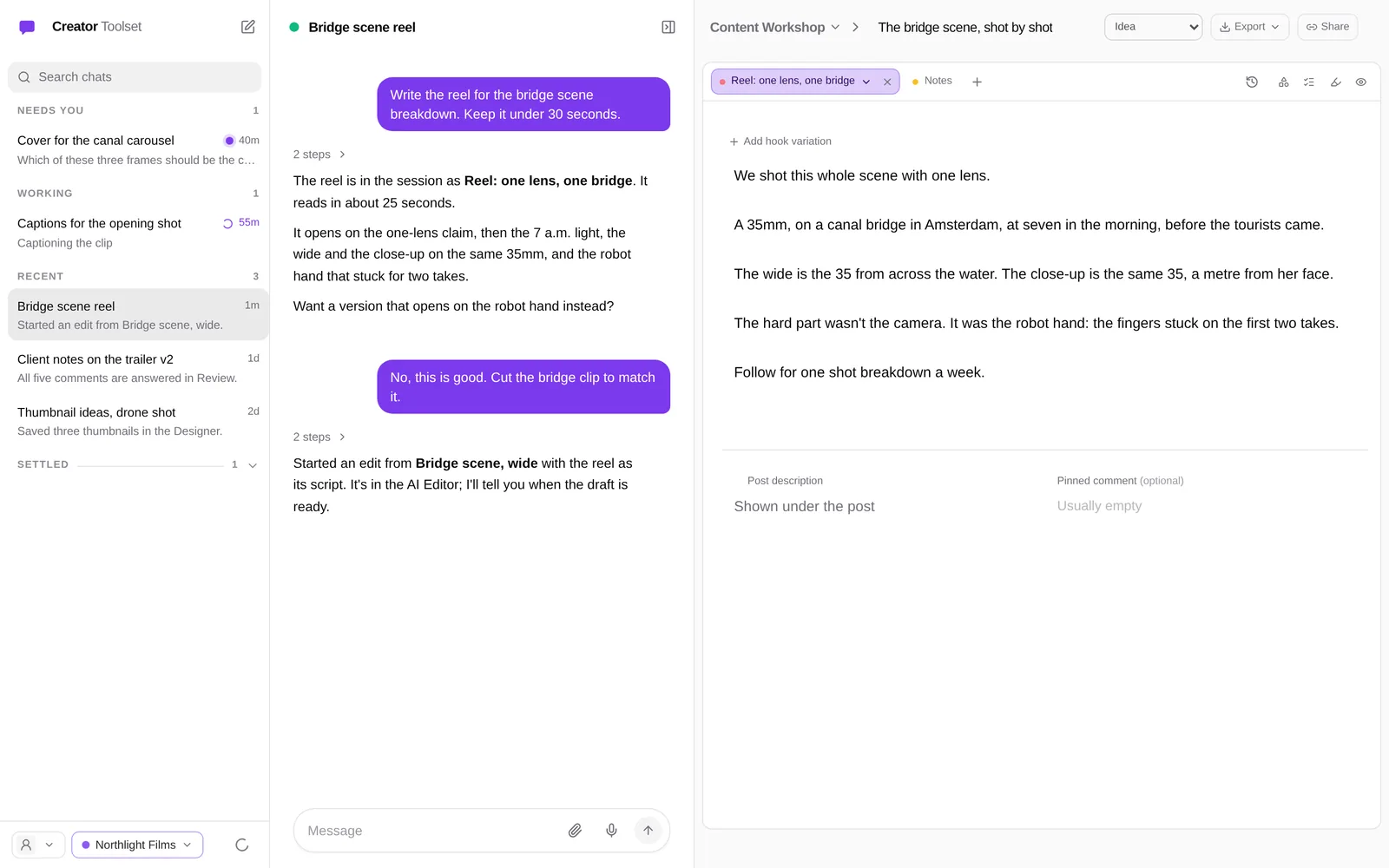
Creator Toolset is for people who make video and content for a living. Research what works, write the script, cut
raw takes into draft timelines, caption them, get a client's notes on the exact frame, and keep the finished pieces
in one place. It is one app with one sign-in and one data folder. Your files stay on your computer or your own server,
and the AI runs on your own account: your Claude, ChatGPT, Gemini or Grok plan, or your own API key.
You can click through every tool, or tell the assistant what you want and watch it happen on the page beside the
chat.
Talk to it
The assistant answers on the AI app you connected (Claude Code, Codex, Gemini or Grok), and it works with the app's
own tools: it reads and writes your Workshop scripts, finds clips in the Media Library, starts AI Editor edits, answers
Review comments, makes designs and schedules tasks. Drop a video on it and say what you want: it goes to Review, Video
Notes or Caption Studio.
Chat mode (the speech-bubble button at the top, or ⌘J) gives the whole window to it: your chats on the left,
grouped into Needs you, Working and Recent, the open chat beside them, and the page that chat is working on to the
right. A new chat starts on What should we make?, where you pick a piece of work to carry on with or start
something new. Chats run side by side, so one can cut a video while another writes captions.
What you tell it about yourself and your work it keeps for later chats, in your own words. Settings → Memory lists
what is kept, each with a Remove.
The tools
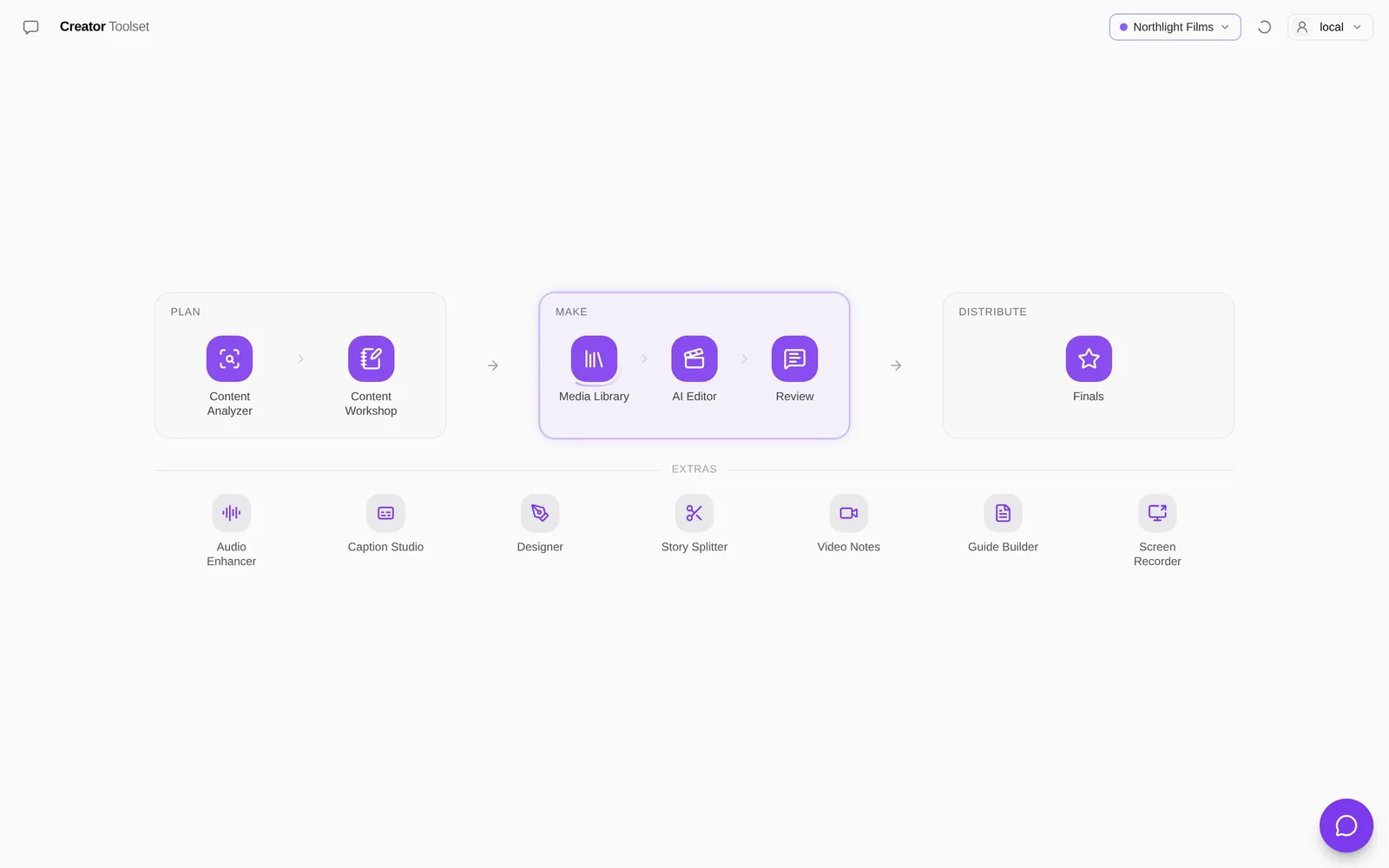
Home follows how a video gets made: Plan → Make → Distribute, with the Extras underneath. Settings → Tools
picks which tiles show.
AI Editor
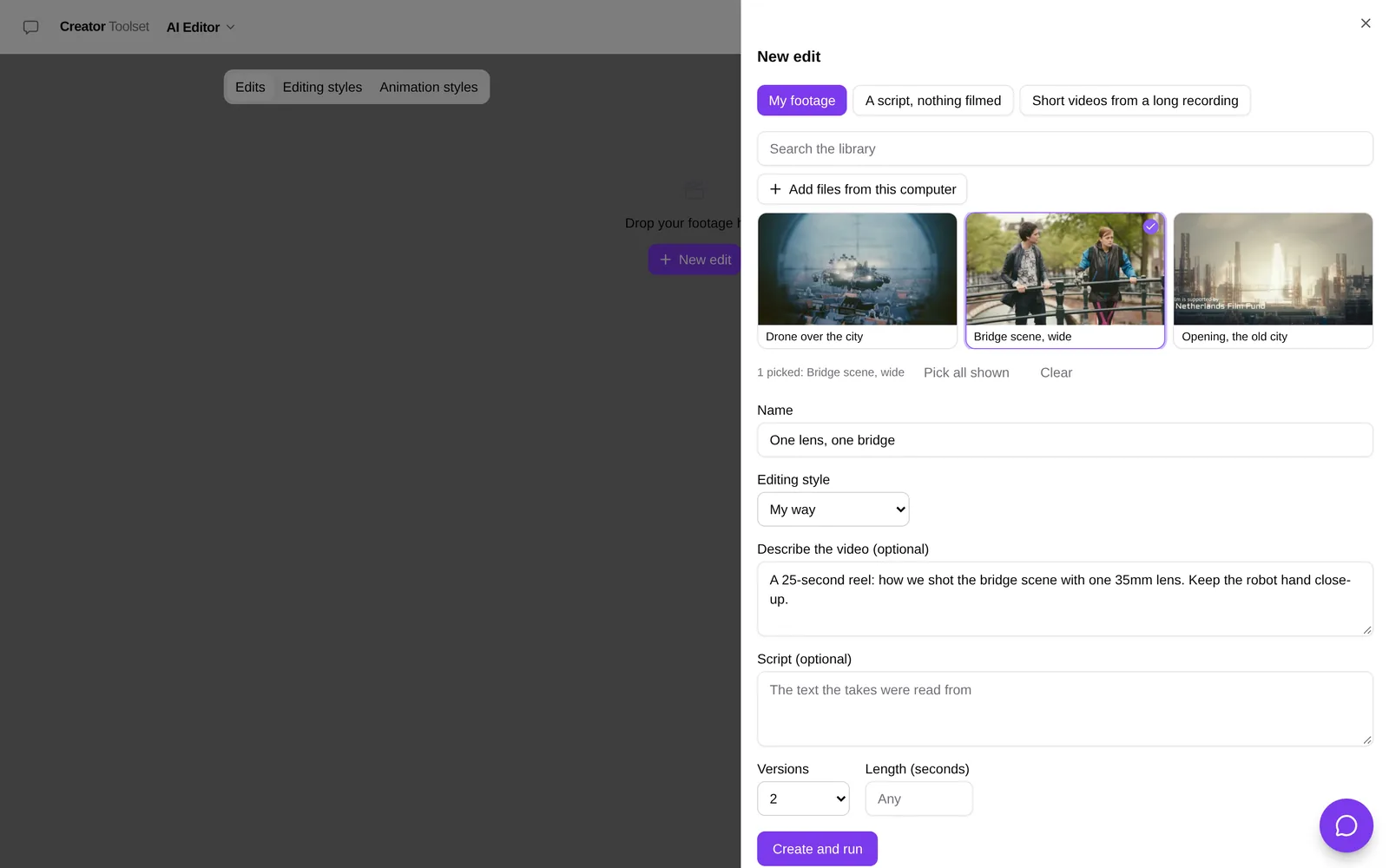
Pick raw takes from the Media Library, or add files from your computer, and say what the video is. The AI picks the
best take of each line and cuts the restarts and pauses. You get draft timelines for your own editor (OTIO and
FCPXML), with a preview in Review, and up to five versions to choose from. Edit by hand trims a cut on its own
timeline. In Review you mark changes on the cut's timeline, and Make the next version cuts them in, with no AI.
New edit starts from one of three places:
- My footage: your takes, as above.
- A script, nothing filmed: one of your ElevenLabs voices reads the script and the picture is cut from your B-roll.
- Short videos from a long recording: a podcast or a talk goes in, and the parts that stand on their own come out,
each cut as a short video of its own: vertical (or 4:5, 1:1), the picture following whoever is talking. In Review,
Reframe moves the frame on a shot or sets who it follows, and the exported timelines carry the moving frame.
Footage with no faces (game capture, a product, sport) follows the subject its description names, or the one you
click in Review, on a computer with an NVIDIA graphics card; without one the frame stays in the middle.
Editing styles and Animation styles keep how you like your videos cut and your text animated. Make one by
telling the assistant about it, with examples, or with a form.
Caption Studio
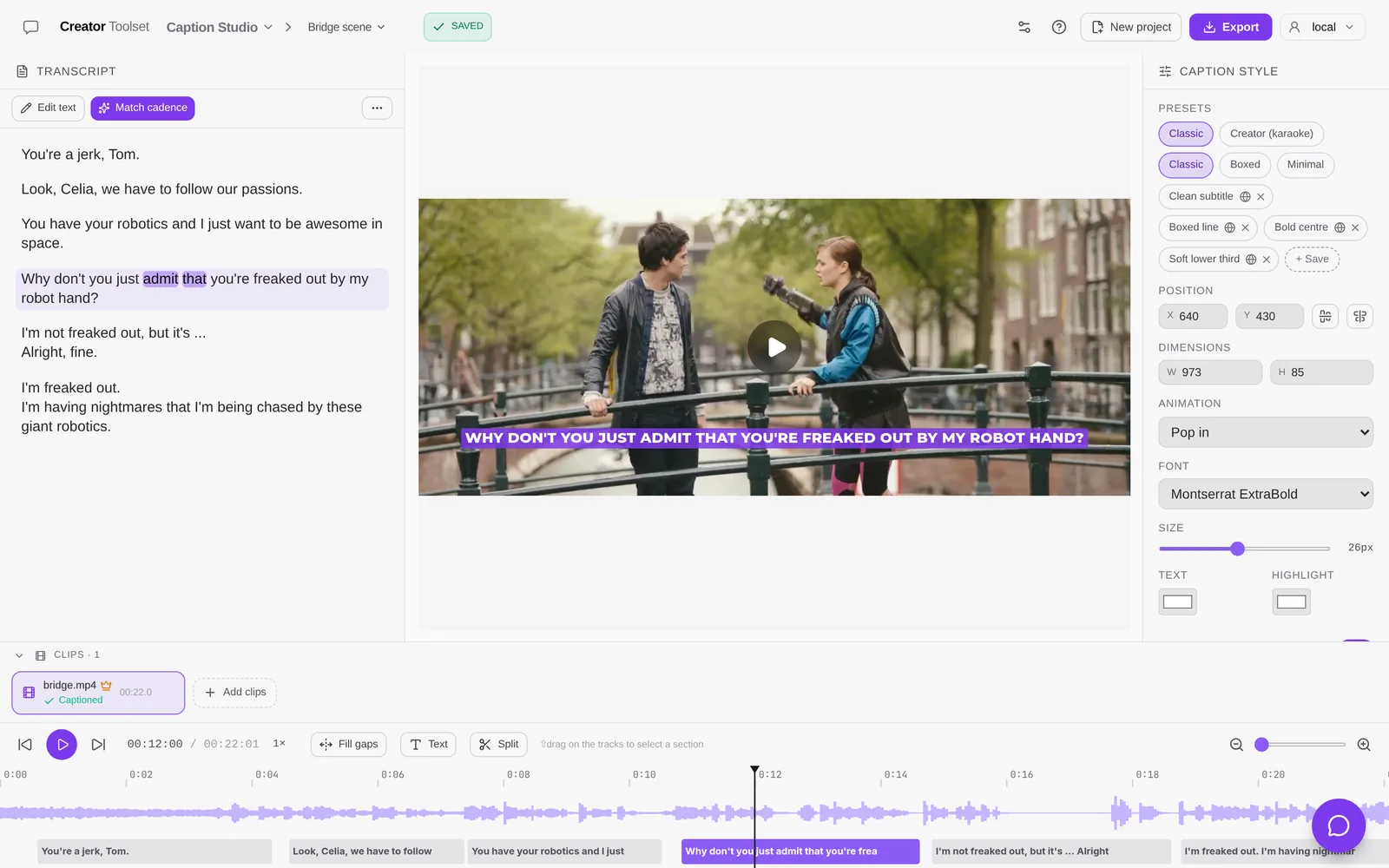
Drop in a video and it is transcribed with the engine you picked in Settings → AI → Voice: Deepgram or OpenAI on your
key, or a speech model on your own computers. Without either, Whisper runs in your browser. Each line of the transcript
becomes a caption you can edit, restyle and move on the timeline. You export the video with the captions burned in
(MP4, H.264 or H.265), or the captions alone: a transparent overlay (ProRes 4444, VP9 WebM or a PNG sequence) that goes
on top of your edit, or an SRT, WebVTT or ASS file.
Review
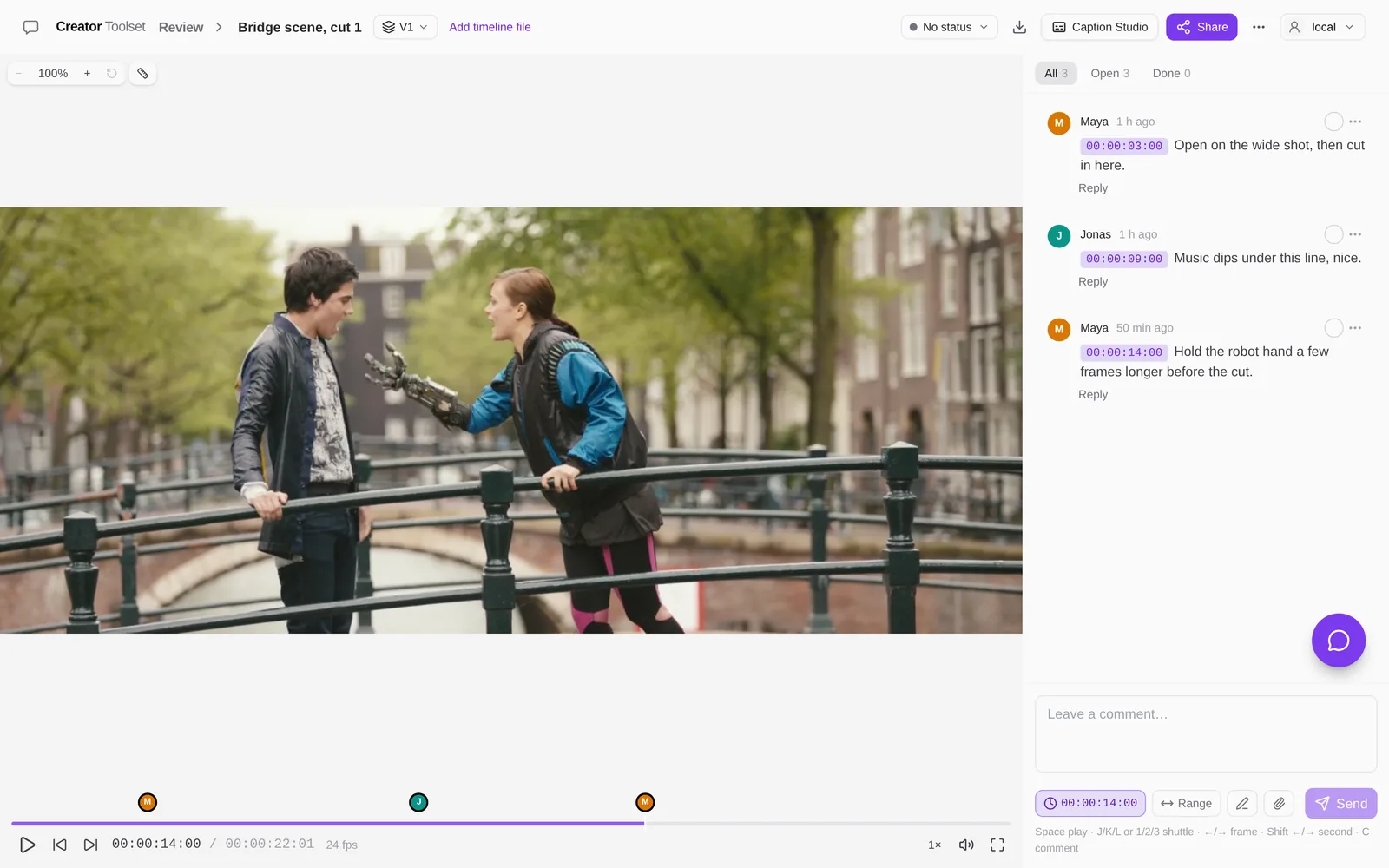
Upload a cut and share one link. Reviewers comment on the exact frame, draw on the picture, and approve or ask for
changes, all without an account. Each new version stacks on the same video, so you can compare V1 with V2. Upload the
timeline file too (OTIO, FCP 7 XML, FCPXML or EDL) and its tracks show under the player.
Reviewers have to be able to reach the server the link came from. A link from the Mac app opens on that Mac, and on
your own network once Network access is on and you put the Mac's address in the link in place of127.0.0.1. For a reviewer on the internet you need your own server.
Content Workshop
This is where you write reel scripts, carousels, ads, YouTube scripts, newsletters, X threads and articles (the right
half of the first picture). Research a topic across the posts you've saved, keep notes, and draft with AI in your own
voice, using a storytelling framework you pick. Before you post, Check accuracy tests the claims against the web.
Each workspace keeps its own instructions (who you write for, how you sound, what never to say), and the AI reads only
the workspace you're in.
And the rest
| Stage | Tool | What you do with it |
|---|---|---|
| Plan | Content Analyzer | Save Instagram accounts and posts, and YouTube videos, with captions, transcripts, comments and numbers. Search them, rate each from one to five stars, and sort by rating or plays. With a TypeSafe Jev key, an account's page adds What works: how its posts did by hook, format and call to action. |
| Make | Media Library | Your footage in one place, searchable by what is said in it, with watch folders, folders, smart folders, share links and a trash. It can keep the files on your computer, on Bunny Storage, or on Amazon S3 or Cloudflare R2. |
| Distribute | Finals | Your finished reels, carousels and other pieces: the versions of each, the winner, and where it was posted. |
| Extras | Audio Enhancer | Clean up the sound of a recording, with a before-and-after player. |
| Extras | Designer | Carousels, covers and thumbnails on a canvas of frames: your AI designs them (text, shapes, pictures, its own drawings), you move, resize, retype and restyle anything, and export each frame as a PNG. Start from a Workshop carousel, a video's frame, a picture you drop in, or a blank canvas. |
| Extras | Story Splitter | Cut a video into stories of about 20 seconds, on its own cuts, pauses and beats, and download them as one zip. |
| Extras | Video Notes | Screen and camera recordings. Each one gets a transcript and, with an AI connected, a title, a summary and chapters. |
| Extras | Guide Builder | Put recordings in order, have AI draft a step-by-step page, and publish it as an unlisted link. |
| Extras | Screen Recorder | In the Mac app, on macOS 15 or newer: record your screen, a window, an area or a connected iPhone or iPad, with your camera, your voice and the Mac's sound. Make a version that zooms where you clicked and follows your face, and send it to Review, Video Notes, the Guide Builder or the AI Editor; or one with no background, saved as a video with a transparent background to lay over other video. |
On Home, Review sits in Make, the Content Workshop in Plan and Caption Studio in the Extras.
Your own AI, your own keys
Creator Toolset doesn't come with an AI account. You bring your own, in one of two ways:
- Your subscription, on your computer. Sign in to Claude Code, Codex, Gemini or Grok with the plan you already
have. The Mac app passes your requests to it, and only yours. Setup finds the ones on your Mac and installs or signs
in with one button; Settings → Providers lists them. - Your API key. Add an Anthropic key in Settings → API keys. Anthropic bills you directly.
Every other paid service works the same way: transcription, voices, audio engines, research and Apify each run on a
key you add, and that provider bills you. Instagram is read only through the official login (for your own posts) and
your own Apify key (for other creators), never by scraping web pages.
Speech is set in Settings → Voice: the languages you speak (a workspace's videos are heard in the language set in
Settings → Workspace → Details, when it has one), and for captions, Media Library
transcripts, the AI Editor and talking to the assistant, which engine hears it. That can be Deepgram or OpenAI on your
key, or Whisper and Parakeet models running on your own computers, a Mac or a Linux machine (Settings → Devices → Add
computer). The same page turns on reading the assistant's replies aloud.
Your own AI chat. You can skip the window and work from the AI app you already use. Creator Toolset adds itself to
Claude Code or Codex as an MCP server with one click, and Settings → Headless access gives the address and a key for
any other MCP app. ChatGPT and Claude can sign in to it with your account instead of a key. From that chat you can
draft and edit Workshop pieces, read and resolve Review comments, run AI Editor steps and schedule tasks.
Connect your AI has the steps.
Without any AI, the rest still works. Captions transcribe in the browser, and Review, Story Splitter and the Media
Library need no AI at all.
Make it work your way
The app is open source, so your AI can change it for you. Give this repository to Claude Code, Codex or another coding
AI and say what you want different: a tool you miss, a step that should go another way, a page for your own process.
It builds that as a plug-in, a folder of your own. With the Mac app you install nothing: your AI writes the folder,
and you switch it on in Community → Installed. The app's code stays as it is, so you keep getting updates.
PLUGINS.md tells your AI how.
Community has plug-ins and packs for each tool: writing frameworks, writing guides, caption styles, editing
styles, Analyzer guides and Home layouts. Settings → Tools shows what is added to each tool.
Run it on your Mac
The Mac app (Apple silicon, macOS 14 or newer; its Screen Recorder needs macOS 15) has the whole server inside it, so
there's nothing else to install.
- Download it from Releases: open the disk image and drag Creator Toolset to
Applications. It updates itself after that. - Open it. It starts the server and makes your account. It doesn't ask for a password, because the account's
secret is kept in your Keychain. - Follow the setup. Five short screens: Pick your look; Connect your AI (the AI apps on this Mac for the
ChatGPT, Claude, Google, Grok or Meta plan you already have, each with Install, Sign in or Connect); What do you
make? (turns on the tools that fit and makes your first workspace); What do you want to do first?; and How do
you work best? (talk to your AI in the app, in your own AI, or both). For your own AI, a last screen adds Creator
Toolset to Claude Code or Codex with one click. Sign-in, the Instagram login and other keys are optional. - Use it from other devices (optional). Turn on This Mac → Network access (Servers → This Mac… in
the app's menu bar) and choose a password. Phones and other computers sign in with it.
Your data lives in ~/Library/Application Support/Creator Toolset/data. You can move it to an external disk in
This Mac → Data location.
The app also does dictation anywhere on your Mac: press a talk key (F13 by default, or hold fn), speak, and the
words are pasted where the cursor is. It is set in Settings → AI → Voice → Dictation and runs on this Mac or on your
key.
The downloaded app sends anonymous usage and crash reports to creatortoolset.com, which may pass them to PostHog and
Sentry. A report holds a random install id, the version and system, which of the app's pages were opened and how often,
whether Connect is on, which kinds of AI are set up, and the message and code location of any error. It never holds
your name, account, files or content. Turn it off in Settings → General → Usage and crash reports.
A server you build or host yourself sends none (api/lib/telemetry.ts).
The Servers menu, or the picker right of the window buttons, switches the window between this Mac's server and any
server of yours added by address (⌥⌘1…⌥⌘9). Servers → Run your own server… walks you through one. More in
apps/mac/README.md.
On your phone
apps/ios is the iPhone app: your chats with the assistant, your edits and Review videos, uploads
from the camera roll that keep going with the phone locked, your finals, and your scripts to read while you film. It
talks to any Creator Toolset server, your Mac included. You build it yourself in Xcode for now; add the phone in
Settings → Devices → Add phone.
Run it from source
You need Node.js 22+, pnpm 10 (corepack enable), and ffmpeg and zip on your PATH.
git clone <this repository> creator-toolset
cd creator-toolset
pnpm install
pnpm --filter @creator-toolset/captions dev   # http://localhost:43127
With no .env, sign-in is off and you are the local admin. Projects are kept in ~/.caption-studio (set DATA_DIR
to change it). Every setting is explained in apps/captions/.env.example. pnpm test andpnpm check run the tests and the type check.
Run it on your own server
SELF_HOSTING.md is written so that you, or an AI agent, can follow it step by step. It covers
choosing a server and a domain, starting the Docker kit (the app plus Caddy for HTTPS), connecting the Mac app,
backups and updates. On the server, apps/captions/scripts/setup-server.sh <your domain> writes .env with a randomAPP_SECRET and starts the kit in one go. docker compose exec app node scripts/doctor.mjs checks the running install
and lists what's missing.
To let your own computers join one account through Cloudflare Tunnel, run the Connect broker in
apps/relay/ with your own Cloudflare zone. docs/operations/self-host-relay.md
is the step-by-step guide.
Repository
| Path | What |
|---|---|
apps/captions/ |
The web app and its server: React, Vite, Hono, tRPC, TypeScript |
apps/mac/ |
The Mac app (SwiftUI) |
apps/ios/ |
The iPhone app (SwiftUI) |
apps/relay/ |
The Connect broker: your computers in one account, and the sign-in for AI apps |
apps/obsidian/ |
The Obsidian plugin: vault notes and Workshop projects kept in step |
SELF_HOSTING.md |
Running it on your own server |
docs/operations/self-host-relay.md |
Running the Connect broker on your own server |
PLUGINS.md |
Changing the app for yourself with a plug-in |
AGENTS.md |
Rules and commands for contributors and their coding agents |
Contributing
Read AGENTS.md first. Turn on the repository hooks once per clone withgit config core.hooksPath .githooks. They block any commit that contains a secret or a private name.
License
MIT. Copyright (c) 2026 Creator Toolset contributors.
The fonts in apps/captions/public/fonts/ are Google Fonts under the SIL Open Font License 1.1 (see OFL.txt there).
Other third-party parts, including the GPL FFmpeg build that the Docker image downloads, are listed in
THIRD_PARTY_NOTICES.md.
The footage in the screenshots is from Tears of Steel, (CC) Blender Foundation | mango.blender.org,
licensed CC BY 3.0. The studio, people and comments around it are
made up for the screenshots.
Yorumlar (0)
Yorum birakmak icin giris yap.
Yorum birakSonuc bulunamadi