MusicTUI
Health Uyari
- License — License: MIT
- Description — Repository has a description
- Active repo — Last push 0 days ago
- Low visibility — Only 5 GitHub stars
Code Gecti
- Code scan — Scanned 8 files during light audit, no dangerous patterns found
Permissions Gecti
- Permissions — No dangerous permissions requested
Bu listing icin henuz AI raporu yok.
Apple Music TUI and CLI for macOS: verified multi-room AirPlay, library browsing with real cover art, venue EQ. Optional Claude Code plugin adds natural-language control.
Apple Music TUI and CLI for macOS
     ___              __        __  ___         _
    / _ | ___  ___   / /__     /  |/  /_ _____ (_)___
   / __ |/ _ \/ _ \ / / -_)   / /|_/ / // (_-</ / __/
  /_/ |_/ .__/ .__/_/\__/   /_/  /_/\_,_/___/_/\__/
       /_/  /_/

          Terminal UI and CLI for Apple Music on macOS
Site: musictui.com. Demo video, feature tour, install guide.





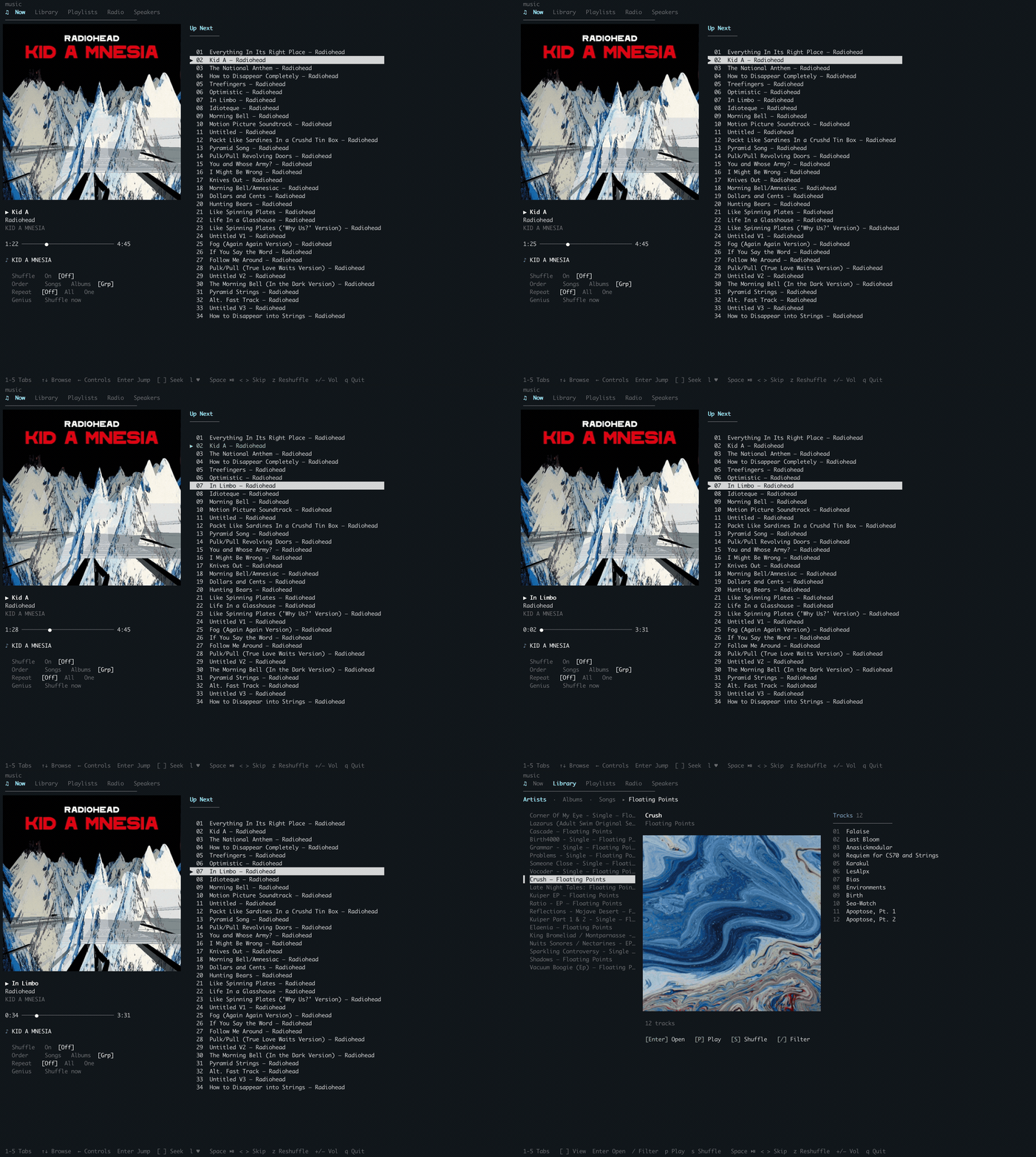
Control Apple Music, AirPlay speakers, and AirPods from the terminal. Multi-room playback with verified routing, library browsing (artists, albums, songs), catalog and library search, playlists, radio stations, a venue equalizer, and the on-screen visualizer. Cover art renders as true pixels on Kitty, WezTerm, Ghostty, and iTerm2.
music                              # the TUI
music play --album "Kid A"         # play an album
music speaker kitchen 60           # route to a speaker, set its volume
music search "deep house 2026"     # search the full catalog
music eq Nightclub                 # venue EQ preset
Everything is scriptable and there is no daemon. An optional Claude Code plugin adds natural-language control on top of the same CLI.
Three Ways to Use It
| Layer | How | Setup | Token cost |
|---|---|---|---|
CLI + TUI (music, music now, music speaker) |
Terminal commands, interactive shell, scriptable | Build from source | None |
CLI + API (music search, music playlist create) |
Catalog, library, discovery | + Apple Developer account | None |
Natural language (/music play Kid A in the kitchen and living room at 60%) |
Everything in words: playback with routing, search, playlists, radio, discovery | Build CLI from source | Normal |
There are no per-action slash commands. /music (the skill) is the single entry point, and bare transport belongs to the keys your Mac already has.
Install
Homebrew
brew install anthonymaley/musictui/musictui
That installs the music binary: the TUI, playback, AirPlay routing, volume, and the equalizer. A prebuilt binary, so no language runtime and no toolchain.
Claude Code plugin (optional)
Adds natural-language control on top of the same CLI. Everything below works without it.
# Add the marketplace
/plugin marketplace add anthonymaley/musictui

# Install the plugin
/plugin install music@musictui
Claude Desktop App (Cowork)
- Click + next to the prompt box
- Select Plugins
- Choose Add plugin
- Browse and select Apple Music
Build the CLI (one command, no account needed)
The plugin drives the music CLI, so build it once after installing (Swift 5.9+, ships with Xcode):
# The trailing version segment changes on each plugin update
cd ~/.claude/plugins/cache/musictui/music/*/
scripts/install.sh
That unlocks playback, multi-room AirPlay routing, volume, the TUI, and the status line. No Apple Developer account required.
Update
# CLI
claude plugin update music@musictui

# Desktop: Manage plugins → Update
After updating the plugin, rebuild the CLI: scripts/install.sh
Uninstall
# Remove the plugin
claude plugin uninstall music@musictui

# Remove the CLI binary and all config (auth keys + tokens)
rm -f ~/.local/bin/music
rm -rf ~/.config/music
Desktop: Manage plugins → remove Apple Music. The venue EQ presets the plugin created in Music (Nightclub, Dungeon, …) live in Music's own Equalizer; delete them there if you want them gone.
Advanced Features (optional, requires Apple Developer account)
For catalog search, library management, playlists via API, and music discovery, you also need:
- An Apple Developer account ($99/year at developer.apple.com)
- A MusicKit key configured via guided setup
# Guided auth setup: walks you through creating a MusicKit key
music auth setup

# Get your user token (opens browser, auto-saves)
music auth

# Verify
music auth status
Where credentials live
Auth lives in ~/.config/music/, as plain files (not the macOS Keychain, same convention as aws and gh):
config.json: your MusicKit key id, team id, and the path to your.p8AuthKey.p8: a copy of your MusicKit signing key, made bymusic auth setupuser-token: your Apple Music user token
They are written owner-only: files 0600, the directory 0700, so no other account on the machine can read them and they don't land in backups with group/other bits set. If you set auth up before this was enforced, tighten an existing install with:
chmod 700 ~/.config/music
chmod 600 ~/.config/music/config.json ~/.config/music/user-token ~/.config/music/AuthKey.p8
Playback, Speakers & Volume (CLI, zero auth)
Transport tip: play/pause, next, and previous are on your keyboard (⏯ ⏭ ⏮ media keys). They control Apple Music natively, from any app, with nothing installed. The commands below are for everything the keys can't say: what to play, where, and how loud.
Playback
| Command | What it does |
|---|---|
music play |
Resume playback |
music play Working Vibes |
Play a playlist |
music play kid a in the kitchen and living room at 60 |
Multi-room: route to several speakers at a volume, filler words welcome |
music play Working Vibes kitchen 60 shuffle |
Speaker + volume + shuffle in one shot |
music play 3 |
Play result #3 from last search/playlist |
music play "Gypsy Woman" "Tom Misch" |
Play a song by title + artist; falls back to catalog add if authenticated |
music play "https://music.apple.com/...?...i=1581424482" |
Add/play a catalog song URL when authenticated |
music play --album "Kid A" --artist "Radiohead" |
Explicit flags when the name could collide with a speaker |
music pause / music skip / music back / music stop |
Transport from the terminal |
music now |
What's playing (track, album, speakers) |
music shuffle / music repeat off|one|all |
Shuffle and repeat modes |
music seek +30 / music seek 1:30 |
Seek within the current track (relative or absolute) |
music love / music unlove |
Favorite / unfavorite the current track |
Naming speakers in music play routes playback to exactly those speakers: it selects the ones you name and deselects the rest, then verifies each route is actually carrying a session (network-truth, not the AppleScript selected claim, which can lie) and prints ✓ <speaker> verified (…). If a route doesn't establish, an automatic heal runs (an away-and-back reroute, then a transport-cycle reset) before an honest failure message names the manual fix. Routing to the Mac's own output is never "verified": local output has no AirPlay session to check.
Speakers & Volume
| Command | What it does |
|---|---|
music speaker |
Interactive picker with ←→ volume control |
music speaker kitchen |
Add kitchen to active speakers |
music speaker kitchen 40 |
Add kitchen at volume 40 |
music speaker kitchen stop |
Remove kitchen from group |
music speaker airpods only |
Switch to AirPods only |
music speaker wake [kitchen] |
Verify active speakers first, then reset only the ones that didn't establish |
music speaker verify [kitchen] |
Network-truth verdict: is the route actually carrying a session? No name = verify all selected speakers (--json supported) |
music speaker 1 2 5 |
Add speakers by number from last list |
music volume |
Interactive per-speaker volume mixer |
music volume 60 |
Set all active speakers to 60 |
music volume up / down |
Volume ±10 |
music volume kitchen 80 |
Set a specific speaker to 80 |
Adding a speaker, music speaker set, or music speaker only verify the route automatically while playing and heal it if needed; while paused they print Route set; will verify on next play. Paused routes can't be verified over the network, so the next play re-checks them.
Equalizer
| Command | What it does |
|---|---|
music eq |
Show active preset + EQ status |
music eq nightclub |
Select a venue preset (fuzzy; created as a Music.app preset on first use) |
music eq "Bass Booster" |
Select any Music built-in preset by name |
music eq list |
List all available presets (venue pack first, then Music's built-ins) |
music eq on / music eq off |
Enable or disable EQ |
music eq remove-pack |
Delete the venue preset pack |
Venue pack (Nightclub, Dungeon, Open Air, Concert Hall, Jazz Club, Stadium, Cathedral, Late Night): each is created as a Music.app preset on first selection and visible in Music's own EQ window. Selecting any preset auto-enables EQ. Unknown names print near-matches.
Equalizer requires Accessibility permission. Music's scripting interface for live EQ state is broken in current macOS builds, so
music eqdrives the real Equalizer window instead (which it opens and leaves open). Grant your terminal app access under System Settings → Privacy & Security → Accessibility. The command tells you if it's missing. Preset creation and deletion need no extra permission.
Visualizer
| Command | What it does |
|---|---|
music visualizer |
Show visualizer on/off status |
music visualizer on / off |
Toggle Music's on-screen visualizer (the Cmd-T visuals) |
Toggles Music's built-in visualizer: the animated graphics that render in the Music app window on your Mac's display (not on AirPlay outputs). Turning it on brings Music to the front. Same Accessibility permission as the equalizer; in the TUI, the Speakers scene has a Visualizer row (Enter or v toggles).
Radio
| Command | What it does |
|---|---|
music radio list |
Your favorite stations |
music radio play <name|url> |
Play a favorite by name, or a station URL directly; falls back to catalog search if authenticated |
music radio add <url> |
Favorite a station by URL |
music radio search <term> |
Search catalog stations (needs a developer token) |
A station plays via its Apple Music share URL with the scheme swapped from https:// to music://. No MusicKit, no extra permissions. Your AirPlay route survives the switch. Favorites are stored locally at ~/.config/music/stations.json and don't sync to other devices.
Apple's station search is shallow (5-7 results, no pagination) and misses real stations outright: it can't find BBC Radio 1 by name or even by its own catalog id, though the station plays fine once you have its URL. Pasting a URL always works; search sometimes doesn't. Get one from music.apple.com or the Music app's share menu.
CLI Commands
  ┌─────────────────────────────────────────────────────────────┐
  │  Requires Apple Developer account ($99/yr) + build from     │
  │  source. See "Advanced Features" above for setup.           │
  └─────────────────────────────────────────────────────────────┘
Search
| Command | What it does |
|---|---|
music search "gypsy woman" |
Catalog search: songs by default, numbered so music play 3 works |
music search "kid a" --types songs,albums,artists,playlists |
Multi-type catalog search (any subset) |
music search "radiohead" --library |
Search your library instead of the catalog |
music search "gypsy woman" --artist "crystal waters" |
Refine by --artist / --album |
music search "fouk" --limit 20 --json |
More results, structured output |
Playlist Management
| Command | What it does |
|---|---|
music playlist create "Friday Mix" |
Create an empty playlist |
music playlist create "Friday Mix" 1 3 5 |
Create from search result indices |
music playlist add "House" 1 3 5 |
Add search results to existing playlist |
music playlist delete "Old Playlist" |
Delete a playlist |
music playlist remove "House" "Song" |
Remove a track from a playlist |
music playlist share "Mix" --imessage "+1234567890" |
Share via iMessage |
music playlist share "Mix" --email "[email protected]" |
Share via email |
music playlist create-from "Song" "Artist" ... --name "Mix" |
Create + populate from title/artist pairs |
music playlist temp "Song" "Artist" ... |
Temp playlist, auto-cleanup |
Library
| Command | What it does |
|---|---|
music add --to "House" |
Add current song to a playlist |
music add 3 --to "House" |
Add result #3 to a playlist |
music remove |
Remove current song from current playlist |
music remove "House" |
Remove current song from "House" |
music remove all |
Remove current song from all playlists |
Discovery
| Command | What it does |
|---|---|
music similar |
Similar to what's playing |
music suggest 10 --from "Working Vibes" |
Suggest tracks from playlist vibe |
music new-releases --like-current |
New releases from current artist |
music mix --artists "Fouk,Floating Points" --name "Friday Mix" |
Mixed playlist |
music home |
Your Home feed: Apple's For You rails plus recently played |
music home --recent |
Just the recently played row (stations, albums, playlists) |
music recent |
Recently played tracks (numbered, so music play 3 works) |
music rotation |
Your heavy-rotation music |
Diagnostics
Add --verbose (-v) to any command for diagnostic output on stderr:
music speaker smart --verbose wake kitchen   # see deselect/reselect/verify steps
music play --playlist "Working Vibes" -v     # see AppleScript calls
music speaker smart --verbose list --json    # verbose on stderr, JSON on stdout
Failures surface on stderr by default, so stdout stays clean for piping: a failed AirPlay route, a now-playing read error, or a malformed config prints a ✗/⚠ line, and --json mode emits an error object rather than corrupting the stream.
JSON Output
Every command supports --json for scripting and automation:
music now --json          # structured now-playing
music search "Fouk" --json --limit 20   # structured search results
music playlist list --json               # structured playlist list
  ┌─────────────────────────────────────────────────────────────┐
  │  End of Apple Developer account section. Everything below    │
  │  works with zero setup.                                      │
  └─────────────────────────────────────────────────────────────┘
Natural Language (Skill)
For anything multi-step, just talk. Claude composes the right sequence of CLI calls automatically.
> Look at the Working Vibes playlist. See the last ten tracks on that
  playlist. Make a separate playlist with those ten tracks and shuffle
  them. Play it on the kitchen and Sonos Arc at 60%.

> Take the current track and search for new records that match this
  style. Put them in a playlist and shuffle them.

> It's great. Share it with Julie on iMessage.

> Play Kid A by Radiohead in the kitchen and living room at 60%.

> Switch to my AirPods and turn it down to 30.

> Add the bedroom to the group and turn the kitchen down to 40.

> What's new from Radiohead? Make a playlist of the best ones.
Claude handles the multi-step orchestration (searching the catalog, creating playlists, routing to speakers, setting volume, sharing) from one sentence.
  ┌─────────────────────────────────────────────────────────────────────┐
  │                                                                     │
  │  you:  Go find the latest deep house tracks, put them in a          │
  │        playlist, shuffle it on the kitchen at 60%, and list         │
  │        the tracks here for me.                                      │
  │                                                                     │
  │  ┌ ─ ─ ─ ─ ─ ─ ─ ─ ─ ─ ─ ─ ─ ─ ─ ─ ─ ─ ─ ─ ─ ─ ─ ─ ─ ─ ─ ─ ┐  │
  │    music search "deep house 2026" --limit 15                       │
  │  │ music playlist create "Deep House Finds" 1 3 5 7 9           │  │
  │    music speaker kitchen 60                                        │
  │  │ music shuffle on                                              │  │
  │    music play "Deep House Finds"                                   │
  │  └ ─ ─ ─ ─ ─ ─ ─ ─ ─ ─ ─ ─ ─ ─ ─ ─ ─ ─ ─ ─ ─ ─ ─ ─ ─ ─ ─ ─ ┘  │
  │                                                                     │
  │  claude:  Playing Deep House Finds on Kitchen [60]                  │
  │                                                                     │
  │    1. Silhouette — Kerri Chandler                                   │
  │    2. Night Ride — Fouk                                             │
  │    3. Body Movement — DJ Seinfeld                                   │
  │    4. Midnight Sun — Jimpster                                       │
  │    5. Inner City Blues — Moodymann                                  │
  │                                                                     │
  │  you:  It's great. Share it with Julie on iMessage.                 │
  │  claude:  Shared "Deep House Finds" with Julie via iMessage.        │
  │                                                                     │
  ├─────────────────────────────────────────────────────────────────────┤
  │  ▶ Silhouette — Kerri Chandler  ·  Kitchen [60]                    │
  └─────────────────────────────────────────────────────────────────────┘
Apple Music TUI
Run bare music in a real terminal (not inside Claude Code; the TUI requires a TTY). Install chafa (brew install chafa) for album art in now-playing.
Unified shell (music): a tabbed interface with Now, Library, Playlists, Radio, and Speakers tabs. The Now tab shows a 3-column layout: album art, playback metadata, and a right pane. Select a playlist on the Playlists tab to pin it on the Now tab so you can browse and replay any track while playback continues.
Turn off Music's Autoplay (∞). Playlist track-selection and up/down navigation drive playback track-by-track and rely on a track stopping at its end. With Autoplay on, Music bleeds into the library between tracks. Disable it once in Music's Up Next panel (the ∞ button).
Global keys (work on every tab):
| Key | Action |
|---|---|
1/2/3/4/5 |
Jump to Now / Library / Playlists / Radio / Speakers tab |
j/k/h/l |
Vim aliases for ↓ ↑ ← → (l/g/G stay love/Genius on Now) |
g/G, ctrl-d/ctrl-u |
Top / bottom, half-page jumps in list tabs |
Tab / Shift-Tab |
Cycle tabs forward / backward |
Space |
Play/pause |
< / > |
Previous / next track (full up/down through the playlist) |
z |
Shuffle-play the current context |
+/- |
Master volume ±5 |
q |
Quit |
Now tab:
| Key | Action |
|---|---|
↑/↓ |
Navigate the track pane (or control rows, when the grid is focused) |
PgUp/PgDn/Home/End |
Page and jump in long lists |
Enter |
Play selected track (or cycle the focused control's value) |
← / → |
Focus the control grid / return to the Up Next list |
[ / ] |
Seek ±30s |
s / m |
Shuffle on/off / cycle order (Songs → Albums → Groupings) |
r / g |
Cycle repeat (Off → All → One) / Genius Shuffle |
l |
Favorite the current track |
n |
Next-up options (shuffle / playlist / quiet) |
Esc |
Back / dismiss menu |
Under the track progress is a control grid (Shuffle / Order / Repeat / Genius) showing each value live with the active one lit: press ← to focus it, ↑↓ to move rows, Enter to cycle. Two markers in the track pane: green ▶ = currently playing, inverse video = cursor position. Genius Shuffle's queue isn't readable via Apple's scripting, so while it's active the Up Next reads "Genius Shuffle Active" rather than a (wrong) track list.
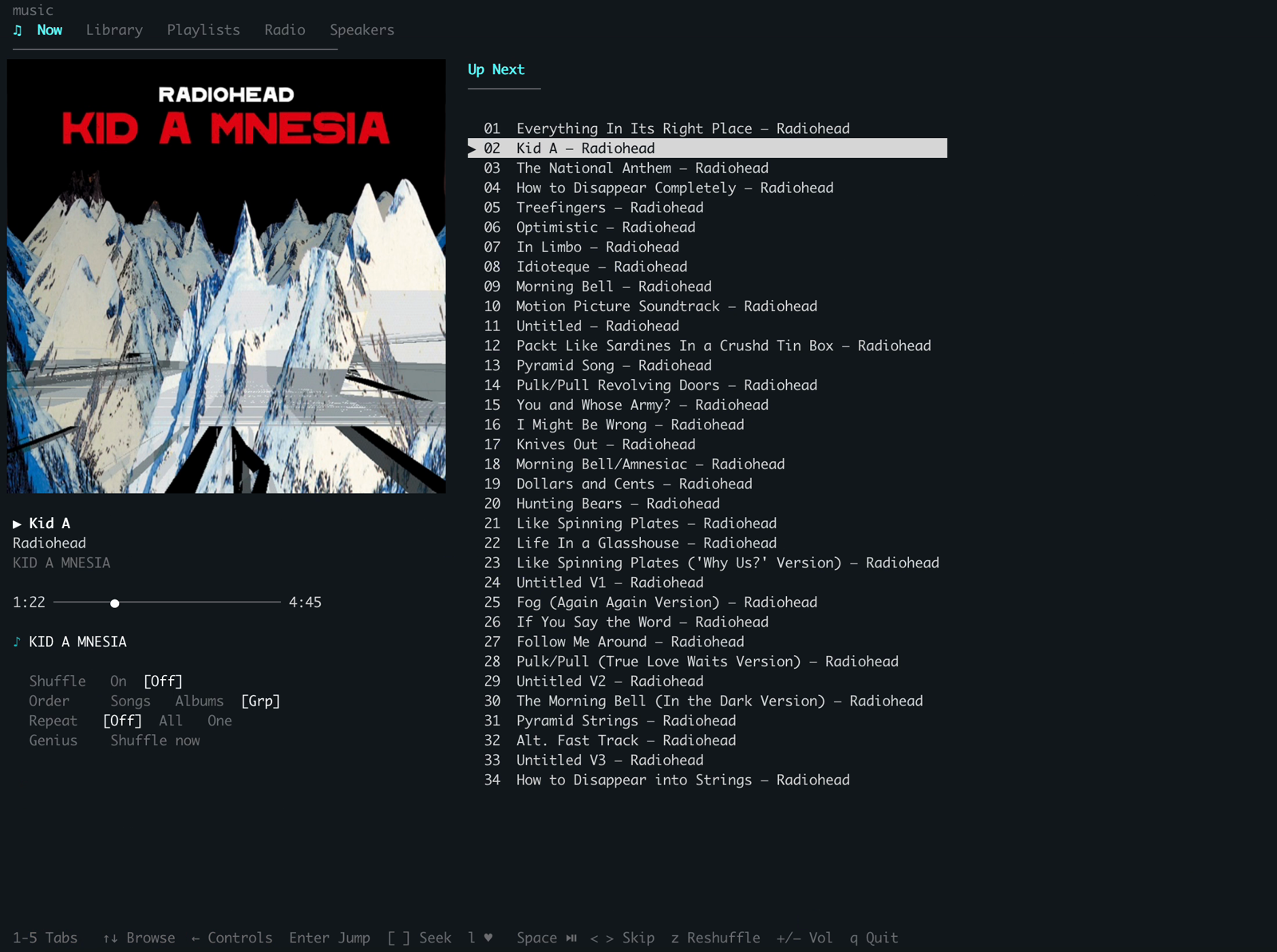
Playlists tab. Left: playlists (instant highlight on ↑↓, no fetch; / filters as you type, arrows still navigate). Right: tracks (loaded on Enter, which also pins the playlist on the Now tab). p plays playlist, s shuffles, b/Esc goes back. Apple-curated playlists you've added to your library (Replay, Essentials, etc.) appear with an APPLE badge; no need to duplicate them, so they keep receiving Apple's weekly/monthly updates. The focused playlist shows its real cover art when signed in (built-in smart playlists keep a generated placeholder).
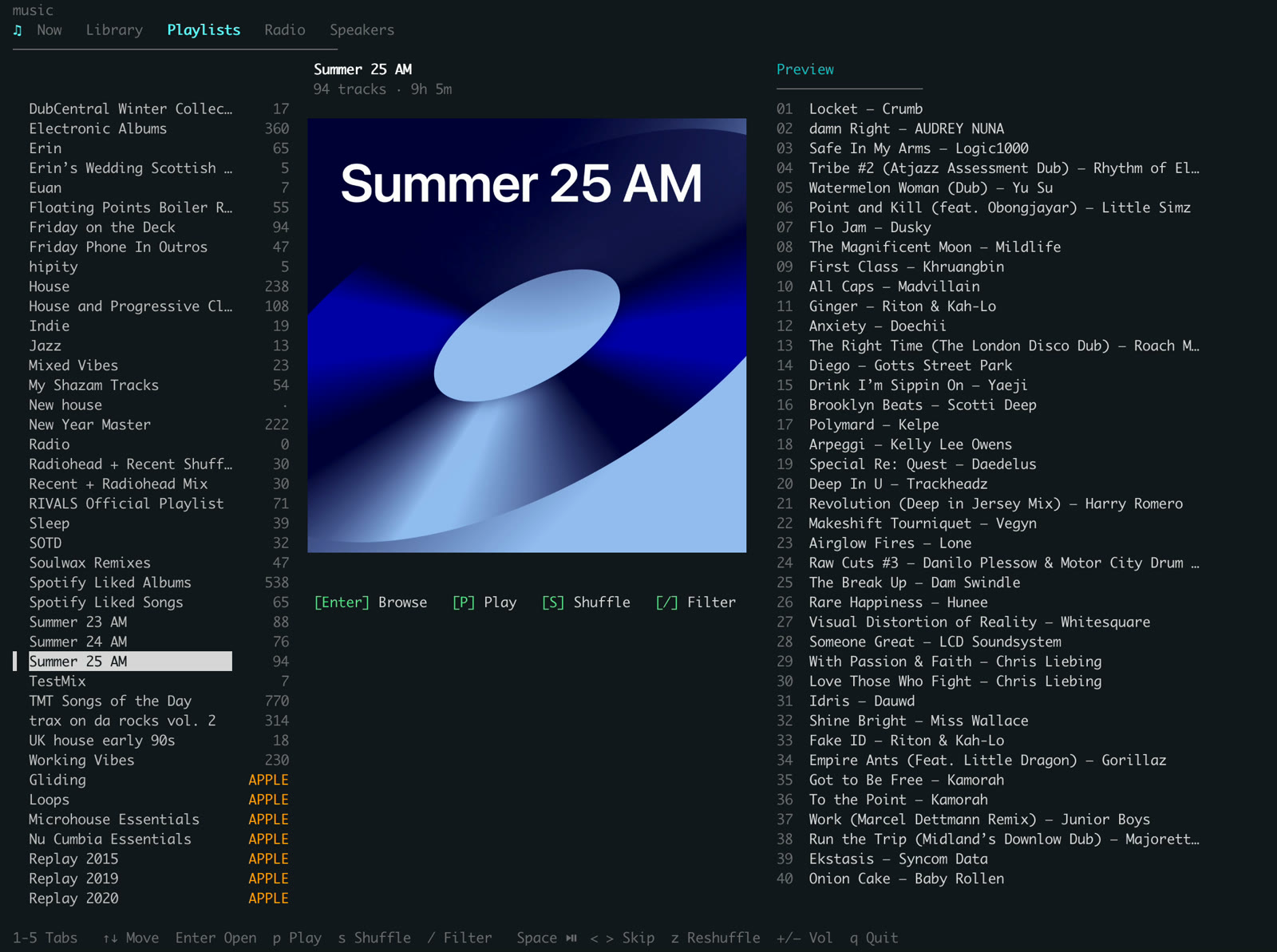
Speakers tab. ↑↓ select, Enter toggles AirPlay outputs on/off, ←→ adjusts per-speaker volume. Active speakers show volume bars. Toggling a speaker on while playing verifies the route and toasts (e.g. 'X' selected but route NOT verified — try: music speaker wake) if it couldn't be verified. Below the outputs: an EQ block (power row + preset picker; Enter toggles/expands, e toggles from anywhere) and a Visualizer row (Enter or v toggles Music's on-screen visuals). (The music speaker, music eq, and music visualizer CLIs drive these non-interactively.)
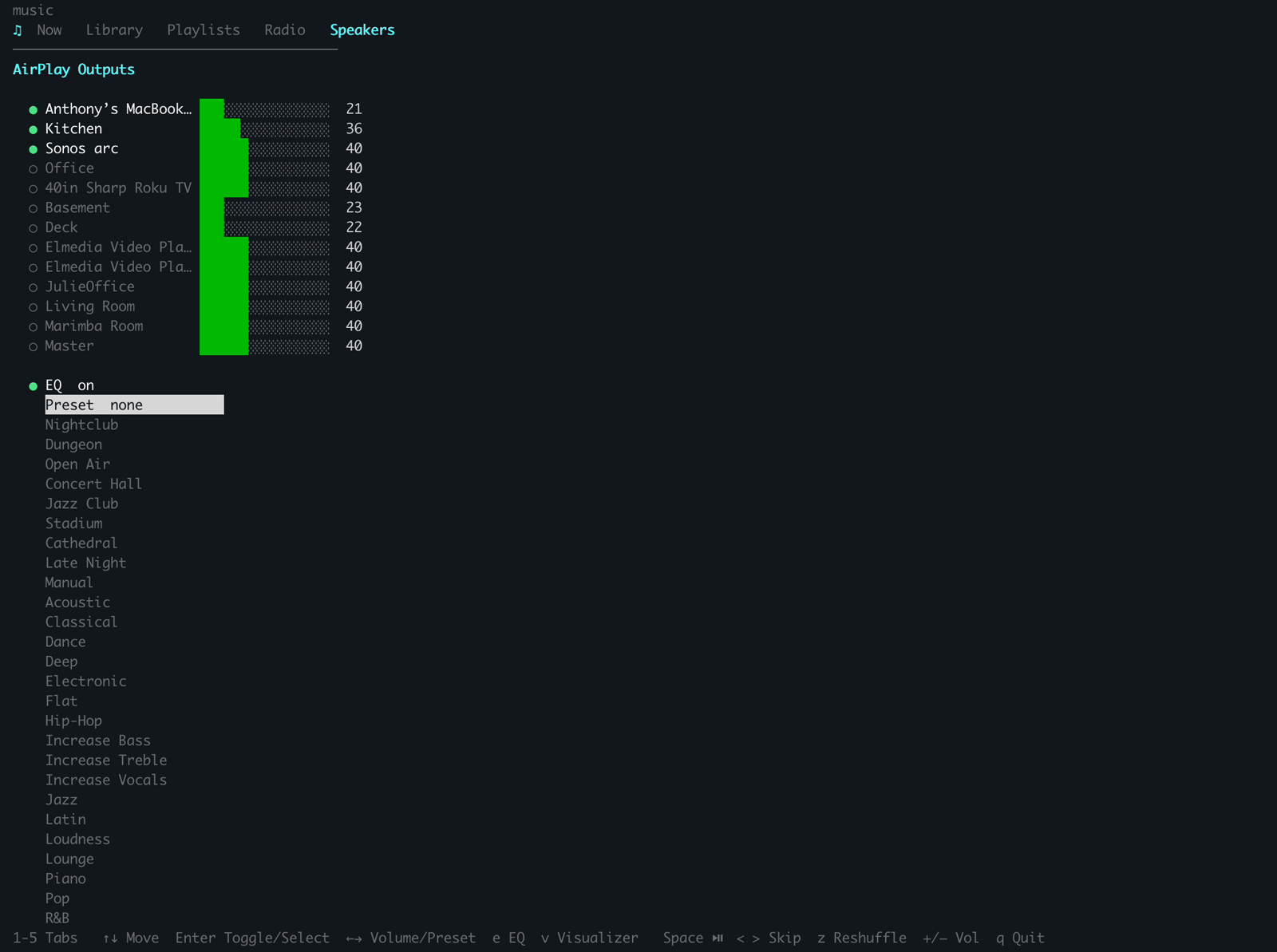
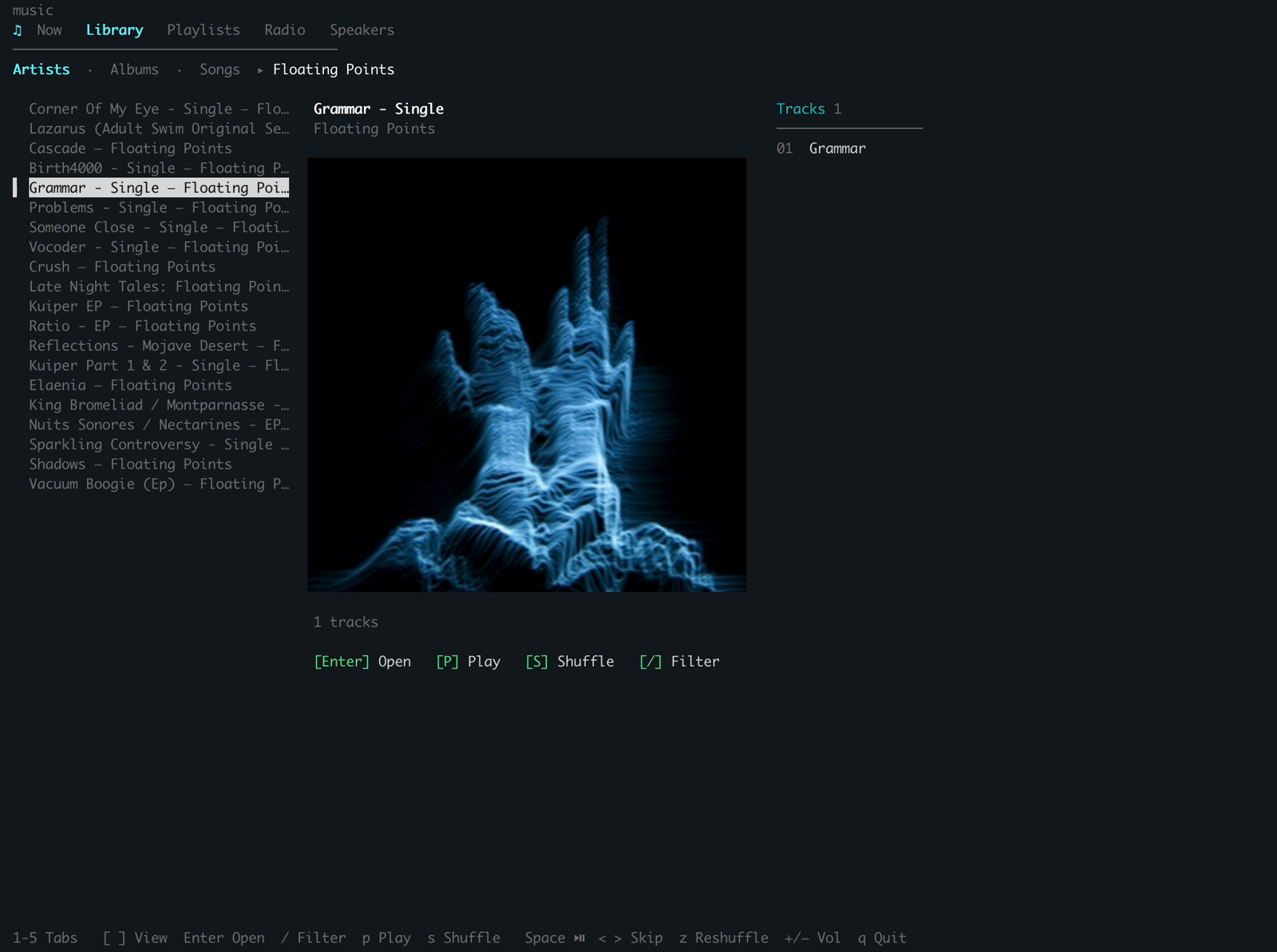
Library tab (needs the Apple Music user token). Browse your library in three sub-views, Artists · Albums · Songs (opens on Artists), switched with [/]. Enter opens an album's tracks or drills Artist → their albums → tracks; p plays and s shuffles the focused item (albums/artists play as an app-owned queue: a scoped, navigable Up Next that stops at the album's end; needs Autoplay ∞ off). / filters as you type. On the Artists list, a cycles a track-count filter (All → 12″/EP → Albums) that cuts the bloat Apple's library-artists list carries (every artist with any library track, even one dragged in by a single playlist song) and separates 12″s/EPs from full-album deep cuts; drilling into an artist shows only that tier's albums. The first activation each session paints instantly from a cache, revalidated in the background. The focused album shows its real cover art: true pixels on kitty-protocol terminals (iTerm2 3.5+, Kitty, WezTerm, Ghostty), chafa half-blocks elsewhere; fetched once, cached on disk.
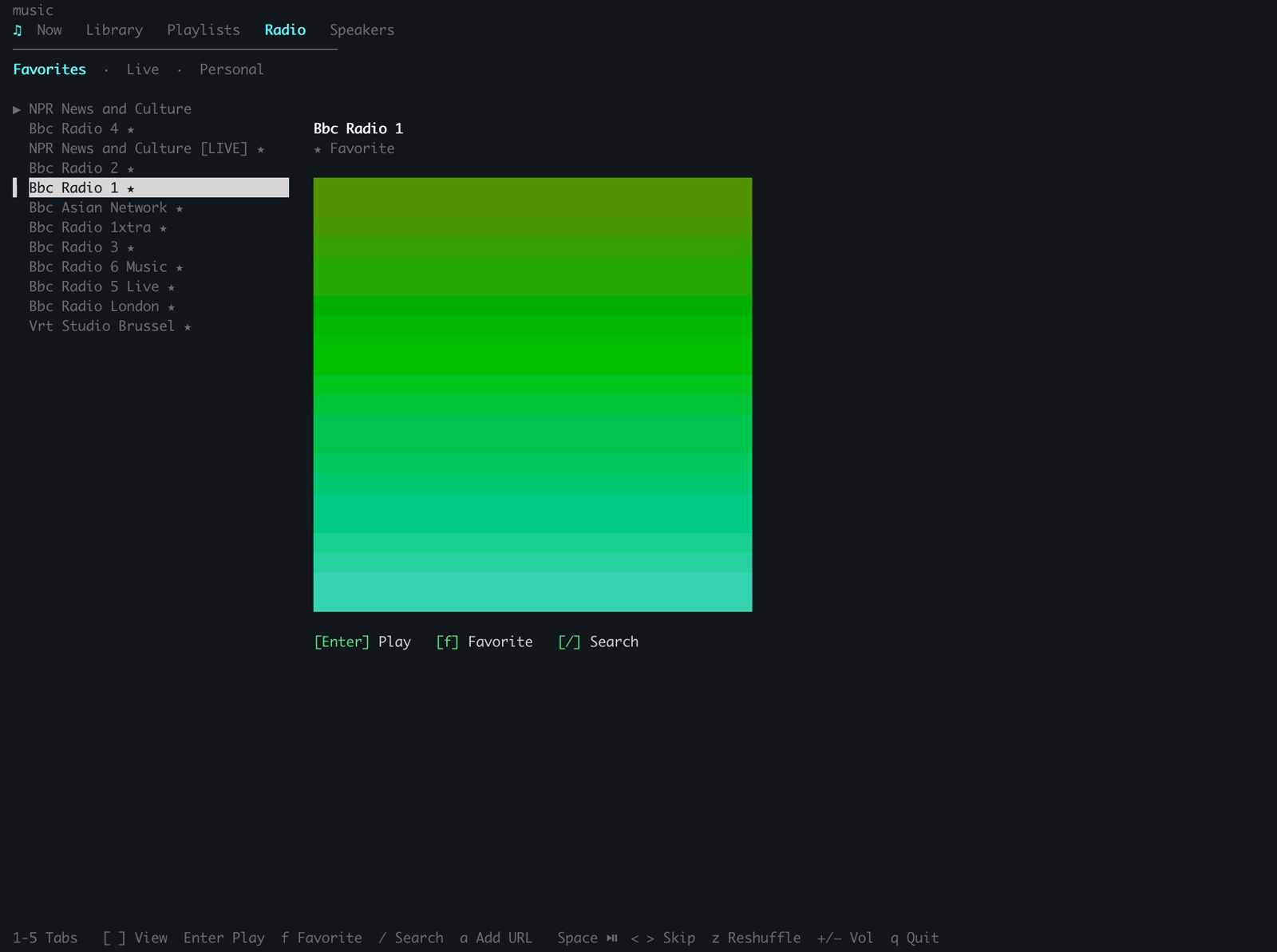
Radio tab. Favorites · Live · Personal, switched with [/] (opens on Favorites, which needs no token; it plays straight from disk; Live and Personal need a developer token to load). j/k or arrows navigate, Enter (or →) plays, f favorites/unfavorites the selected station. / searches the catalog: hits land in the list, f favorites one, Esc clears back to your sub-view. a adds a station by URL: paste a share URL from music.apple.com (or the Music app's share menu) to favorite it directly; anything that isn't a URL gets redirected to / instead of being guessed at. Live stations show a LIVE badge instead of a progress bar: a livestream has no duration. Favorites are stored locally at ~/.config/music/stations.json and don't sync to other devices. Apple's station search is shallow (5-7 results, no pagination) and misses real stations outright: it can't find BBC Radio 1 by name or even by its own catalog id, though the station plays perfectly by URL. Pasting a URL always works; search sometimes doesn't.
Status Line
See what's playing at the bottom of Claude Code. Always visible, no token cost.
┌──────────────────────────────────────────────────────────────┐
│  claude >                                                    │
│                                                              │
├──────────────────────────────────────────────────────────────┤
│  ▶ Everything In Its Right Place — Radiohead  ·  Kitchen [60]│
└──────────────────────────────────────────────────────────────┘
After running scripts/install.sh, add to ~/.claude/settings.json:
{
  "statusLine": {
    "type": "command",
    "command": "~/.local/bin/music-statusline"
  }
}
install.shcopies the status line script to~/.local/bin/music-statusline, a stable path that survivesclaude plugin update(the plugin cache directory is versioned and changes on every update, so don't point at it directly). Configure this once.
What Needs Auth?
| Feature | No auth | Developer token | + User token |
|---|---|---|---|
| Play, pause, skip, stop, seek, shuffle, repeat | Yes | Yes | Yes |
| Speakers, volume, now playing, love/unlove | Yes | Yes | Yes |
| Radio: list, play favorite/URL, add by URL | Yes | Yes | Yes |
| Catalog search | — | Yes | Yes |
| Radio catalog search | — | Yes | Yes |
Library search (--library) + Library tab |
— | — | Yes |
| Add to library | — | — | Yes |
| Playlist CRUD via API | — | — | Yes |
| Similar, suggestions, new releases, mix | — | — | Yes |
| Recently played, heavy rotation | — | — | Yes |
How It Works
Everything routes through the music CLI. The /music skill turns natural language into CLI calls; the TUI and terminal use the CLI directly; transport keys talk to Music.app natively.
  Media keys ─────────────────────► Music.app (play/pause, next, previous)
  /music skill ──► music CLI ──► AppleScript (playback, speakers, volume)
  TUI / terminal ─┘          └──► REST API (catalog, library, playlists, discovery)
Search results are cached locally (~/.config/music/last-songs.json). When you run music search, music similar, or view playlist tracks, the numbered results persist so you can reference them by index in follow-up commands like music play 3 or music add 3 --to "House". Play commands show full now-playing info (track, album, speakers) after starting playback.
Speaker lists work the same way (~/.config/music/last-speakers.json). Run music speaker list, then music speaker 1 2 5 to add speakers by their numbers.
For developers
- ARCHITECTURE.md: the two-transport design, the TUI scene model, the alternatives that were rejected and why, and an honest list of the rough edges.
- docs/platform-notes.md: what scripting Apple Music on macOS actually does. Measured Apple Event costs, the
-1728breakage on non-library tracks, pre-release tracks that silently refuse to play, and why AppleScript has no concept of a radio station. Dated observations from a real system, useful whether or not you care about this project. - CONTRIBUTING.md: build, test, and the one rule. A green suite is not a working playback change.
485 unit tests run in CI on every push. They need no Apple Developer account and no running Music.app.
Requirements
- macOS (AppleScript is macOS only)
- Apple Music (comes with macOS)
- Automation permission (System Settings > Privacy & Security > Automation > enable for your terminal)
- Swift 5.9+ (only if building the music CLI)
- AirPods must be connected via Bluetooth to appear as a device
- chafa (optional,
brew install chafa; enables album art in now-playing TUI)
Credits
- swift-argument-parser (Apache 2.0): the CLI's argument parsing. The only bundled dependency.
- Kitty terminal graphics protocol: cover art renders as true pixels on Kitty, WezTerm, Ghostty, and iTerm2 3.5+. Implemented from its public spec.
- chafa by Hans Petter Jansson: the cover-art fallback (terminal half-blocks) where the Kitty protocol isn't available. Optional (
brew install chafa).
Everything else is Apple's own frameworks (Foundation, CryptoKit, CoreGraphics, ImageIO, Network) plus the Apple Music AppleScript interface and the Apple Music API.
License
MIT
Yorumlar (0)
Yorum birakmak icin giris yap.
Yorum birakSonuc bulunamadi