notebook
Health Gecti
- License — License: MIT
- Description — Repository has a description
- Active repo — Last push 0 days ago
- Community trust — 14 GitHub stars
Code Gecti
- Code scan — Scanned 12 files during light audit, no dangerous patterns found
Permissions Gecti
- Permissions — No dangerous permissions requested
Bu listing icin henuz AI raporu yok.
AnyT notebook
AnyT Notebook
The workflow development environment for AI agents.
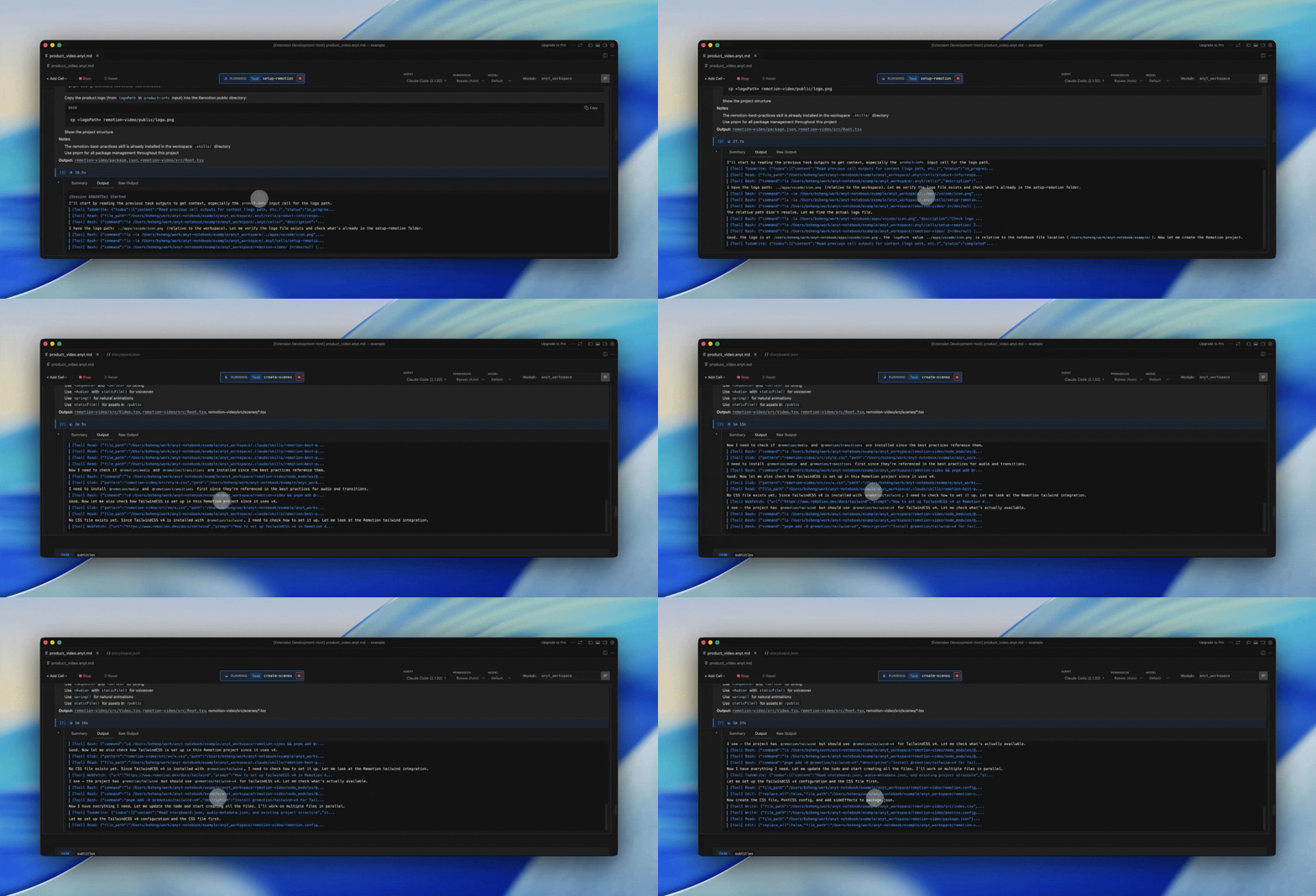
AI agents are powerful, but they work like chatbots -- you give them a prompt, hope they get everything right in one shot, and when things break halfway through, you start over. AnyT Notebook changes this. It gives AI agents a workflow layer: visible steps, human checkpoints, and recoverable state.
Why AnyT Notebook
When you ask an AI agent to do something complex, the one-shot chatbot model falls apart:
- No visibility -- You can't see the plan before it runs
- No control -- You can't pause, review, or redirect mid-execution
- No recovery -- If step 4 of 8 fails, you redo everything
- No separation -- AI handles things a simple shell command could do faster
AnyT Notebook solves this with a Jupyter-style notebook for AI agent workflows. Break tasks into cells, add human checkpoints, mix AI and shell scripts, and run with full control. Edit cells with a rich text editor featuring code blocks with syntax highlighting, or toggle to raw markdown. Give cells human-friendly labels so your notebook reads like a plan. Configure agent profiles per-notebook or per-cell to use different runtimes and settings where they matter most. Enable session mode to maintain Claude context across task cells, browse generated files in the Files tab, and get Jupyter-style shell error display with line highlighting when scripts fail.
Supported Runtimes
AnyT Notebook works with multiple AI runtimes:
| Runtime | Status | Notes |
|---|---|---|
| Claude Code | Primary | Full support with streaming output |
| Codex | Supported | Full support with JSON output |
| Gemini CLI | Supported | Full support with streaming output |
Select your runtime from the dropdown in the notebook toolbar. Switch between runtimes at any time. Configure different runtimes per-notebook or per-cell via VS Code settings -- for example, use Claude Code for complex reasoning tasks and a faster runtime for simpler ones.
Installation
From VS Code Marketplace
- Open VS Code or Cursor
- Go to Extensions (Ctrl+Shift+X / Cmd+Shift+X)
- Search for "AnyT Notebook"
- Click Install
From VSIX
- Download the latest
.vsixfile from the releases - In VS Code, open Command Palette (Ctrl+Shift+P / Cmd+Shift+P)
- Run "Extensions: Install from VSIX..."
- Select the downloaded file
Quick Start
1. Try a Sample -- Cmd+Shift+P -> "AnyT: Open Sample Notebook" -> pick one -> click Run
2. Or Create Your Own:
Cmd+Shift+P-> "AnyT: New Notebook"- Click + Task, + Shell, + Input, + Break, or + Note to add cells
- Edit cells with the rich text editor (or switch to the Markdown tab for raw editing)
- Click Run to execute the notebook step by step
Cell Types
AnyT Notebook provides five cell types. Mix and match them to build workflows that combine AI execution, automation, and human oversight.
Task
Task cells are executed by your AI agent (Claude Code, Codex, or Gemini). Write a natural language instruction and the agent carries it out. Use tasks for anything that requires reasoning, code generation, or multi-file changes.
Example: "Create a REST API with Express.js and TypeScript, including user authentication routes."
Shell
Shell cells run scripts directly -- no AI involved. They're fast, deterministic, and ideal for commands you already know. Use them for installs, builds, tests, linting, or any CLI operation. When a script fails, a Jupyter-style error display highlights the exact failing line.
Example:
npm install && npm run build && npm test
Input
Input cells pause execution and present a form to the user. Use them to collect configuration values, choose between options, or supply information that downstream cells need. Form responses are available to subsequent cells.
Example: "Choose deployment target" with a dropdown for staging vs. production.
Note
Note cells are markdown documentation checkpoints. They auto-complete instantly when reached and serve as section headers, context annotations, or progress markers in your workflow.
Example: A section header like "Phase 2: Testing and Validation" to organize your notebook.
Break
Break cells pause execution so you can review what's happened so far. Inspect outputs, verify results, then click Continue when ready. Add breaks liberally while developing a workflow; remove them once you're confident it runs end-to-end.
Example: "Review the generated project structure before adding API routes."
Workflow Development Lifecycle
AnyT Notebook treats AI workflows like code -- build, test, and refine them iteratively:
- Create -- Add cells visually: tasks for AI work, shell for scripts, inputs for user decisions, notes for documentation
- Debug -- Insert break cells as checkpoints and run step by step to inspect each output
- Iterate -- Review results, fix failing steps, reorder or add cells as needed
- Harden -- Remove breakpoints once confident and run the full workflow end-to-end
- Share -- Version the
.anytfile and share with your team
This is the same cycle as software development: write code, add breakpoints, step through, fix bugs, remove breakpoints, deploy. AnyT Notebook brings this discipline to AI agent workflows.
Sample Notebooks
| Sample | What it does |
|---|---|
| Stock Analysis | Analyze stock data with AI-powered insights |
| YouTube Video Summarizer | Summarize YouTube videos from transcripts |
| Story to Video | Generate videos from story prompts |
| LinkedIn Outreach | AI-powered LinkedIn outreach with agent-browser automation |
| Image Background Remover | Remove image backgrounds using AI |
| Gemini Image Playground | Generate and edit images with Google Gemini |
| Page to RedNote | Convert web pages to RedNote-style carousel posts |
| Podcast to Ebook | Convert YouTube podcasts into formatted ebooks |
Open Command Palette -> "AnyT: Open Sample Notebook" -> pick one -> click Run.
Configuration
| Setting | Default | Description |
|---|---|---|
anyt.agent |
"claude" |
AI agent (claude, codex, or gemini) |
anyt.autoVersion |
true |
Auto-version on changes |
anyt.shell.path |
"" |
Custom shell path for shell cells |
anyt.shell.loginShell |
true |
Use login shell to source profile files |
anyt.claude.sessionMode |
false |
Maintain Claude context across task cells |
anyt.claude.resumeFailRecovery |
true |
Auto-retry without session args when resume fails |
Commands
| Command | What it does |
|---|---|
AnyT: New Notebook |
Create a fresh .anyt file |
AnyT: Open Sample Notebook |
Browse and open built-in sample notebooks |
AnyT: Settings |
Toggle extension settings via QuickPick |
AnyT: Toggle Session Mode |
Toggle Claude session mode on/off |
All other actions (run, stop, reset, add cells) are available directly from the notebook toolbar.
Requirements
- Claude Code CLI installed and authenticated (install guide), Codex CLI installed, or Gemini CLI installed (install guide)
- VS Code 1.85+
Skills
AnyT Notebook supports PSPM skills — reusable prompt skill packages that extend AI coding agents with additional capabilities. This repo includes example skills in the skills/ directory:
| Skill | Description |
|---|---|
| youtube-downloader | Download YouTube videos and transcripts in various formats and qualities |
| pspm-skill-creator | Scaffold, validate, and package PSPM skills with isolated runtime environments |
| create-anyt-notebook | Create new AnyT Notebook files from templates |
| remove-background | Remove image backgrounds using AI |
| upscale-image | Upscale images using AI super-resolution |
| rednote | Generate RedNote-style carousel posts from web content |
| ebook | Convert podcast transcripts to formatted ebooks |
| gemini-image | Generate and edit images with Google Gemini |
| gemini-video | Generate videos with Google Gemini and concatenation support |
| keling-video | Generate videos with Kling AI and keyframe control |
Install a skill with PSPM:
pspm install youtube-downloader
See docs/skill-development-guide.md for full conventions on creating new skills.
Documentation
- Product Overview -- Detailed introduction to AnyT Notebook
- User Guide -- Complete guide to using AnyT Notebook
- Full Documentation -- Comprehensive documentation site
- File Format Specification -- Complete
.anytformat reference - Changelog -- Release history and changes
- Examples -- Sample notebooks to get you started
Links
License
Copyright (c) 2026 AnyTransformer Inc. All rights reserved.
See the LICENSE file for details.
Yorumlar (0)
Yorum birakmak icin giris yap.
Yorum birakSonuc bulunamadi