claude-usage-tray
Health Warn
- License — License: MIT
- Description — Repository has a description
- Active repo — Last push 0 days ago
- Low visibility — Only 6 GitHub stars
Code Warn
- Code scan incomplete — No supported source files were scanned during light audit
Permissions Pass
- Permissions — No dangerous permissions requested
No AI report is available for this listing yet.
Windows system-tray app showing your Claude Code rate-limit usage at a glance. Zero deps, ~300 lines of PowerShell. Cross-IDE (works regardless of VS Code, Cursor, plain terminal).
Claude Usage Tray
Windows system-tray app that shows your Claude Code rate-limit usage at a glance.



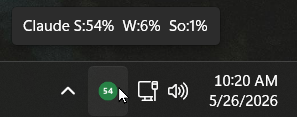
A colored circle next to your clock with your session and weekly usage percentage. Green under 70, amber at 70+, red at 90+. Click for the full breakdown.
Why
If you use Claude Code on a Pro or Max subscription, you have a 5-hour session window and a 7-day weekly cap. Hit either and you get cut off mid-refactor. Anthropic shows this in the CLI when you run /usage, but only when you ask. This puts it in your tray so you can glance like any other dev metric.
Works across every IDE you use Claude Code in (VS Code, Cursor, plain terminal). The data comes from your own account via the same endpoint Claude Code itself uses.
Requirements
- Windows 10 or 11
- Windows PowerShell 5.1 (built in) or PowerShell 7
- Claude Code installed and logged in (so
~/.claude/.credentials.jsonexists)
No Node, no npm, no installer, no admin rights needed.
Install (do this once)
You only need to do this one time. It takes about a minute. Don't worry if you've never used a command line before, just follow the steps.
Step 1 — Open PowerShell.
Press the Windows key, type PowerShell, and click Windows PowerShell. A blue window with white text opens. This is where you paste the commands below. To paste, right-click inside the window (or press Ctrl+V), then press Enter to run.
Step 2 — Download the app.
Copy the line below, paste it into the PowerShell window, and press Enter:
git clone https://github.com/apexlocal-jz/claude-usage-tray.git "$env:USERPROFILE\.claude\bin\claude-usage-tray"
This downloads the app into a folder tucked inside your user profile. (No Git installed? See "I don't have Git" below.)
Step 3 — Turn it on.
Copy this line, paste it, and press Enter:
& "$env:USERPROFILE\.claude\bin\claude-usage-tray\install.ps1"
That's it. Within about 5 seconds you should see a small colored circle with a number appear next to your clock. From now on it starts by itself every time you log in. You can close the PowerShell window.
If Windows blocks the script with a red message like running scripts is disabled on this system, paste this one line, press Enter, then run Step 3 again:
Set-ExecutionPolicy -Scope CurrentUser RemoteSigned
This tells Windows it's OK to run scripts you installed yourself. It does not lower any other security.
I don't have GitIf Step 2 gives a git is not recognized error, you can download the app as a ZIP instead:
- On the repo page, click the green Code button, then Download ZIP.
- Unzip it, and move the unzipped
claude-usage-trayfolder to exactly this location:C:\Users\<your-name>\.claude\bin\claude-usage-tray(replace<your-name>with your Windows username). Putting it here keeps every command in this README working as written. - Continue with Step 3 above.
Everyday use
| Action | Result |
|---|---|
| Always visible | Colored % circle in the system tray |
| Hover | Compact tooltip: Claude S:54% W:6% So:1% |
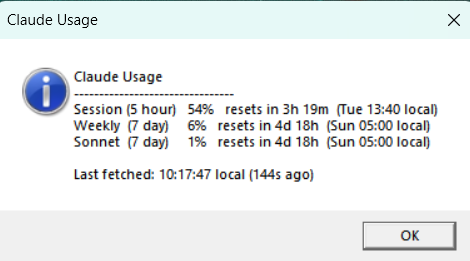
| Left click | Modal with full breakdown and reset times |
| Right click | Refresh now / Details / Quit |
The icon color reflects the higher of your session and weekly utilization:
- Green under 70%
- Amber at 70-89%
- Red at 90%+
If the icon shows ! (red) the tooltip explains the error. Usually it means your OAuth token expired (open Claude Code to refresh it) or the network is down.
Three views
Passive — just the icon next to your clock:

Hover — compact tooltip:
Left click — full breakdown with reset times:
Can't see the icon?
Windows hides new tray icons by default. Click the small ^ arrow (the "show hidden icons" chevron) to the left of your clock and look for the colored Claude circle. To keep it visible all the time, drag it out of that pop-up and drop it directly onto the taskbar next to your clock. Windows remembers it from then on.
Launch, restart, and stop
You shouldn't need any of this day to day. The app turns on by itself when you log in. But here's how to control it by hand if you ever want to.
Launch it right now (if it isn't running):
Open the folder C:\Users\<your-name>\.claude\bin\claude-usage-tray in File Explorer and double-click Start.vbs. Nothing visible happens (no window pops up, that's normal), and the icon appears by your clock within a few seconds.
Stop it for now (it'll come back next time you log in):
Right-click the tray icon and choose Quit.
Restart it (for example after you log in to Claude Code again, or if the icon looks stuck):
Right-click the icon, choose Quit, then double-click Start.vbs again. Or just run the installer line once more, it safely restarts a clean copy:
& "$env:USERPROFILE\.claude\bin\claude-usage-tray\install.ps1"
Stop it from starting at login (but keep the app installed):
Press the Windows key, type Startup Apps, open that settings page, find Claude Usage Tray, and switch it Off. Turn it back On anytime.
Uninstall (remove it completely)
The clean way to remove everything is one command. Open PowerShell (Windows key → type PowerShell → Enter), paste this, and press Enter:
& "$env:USERPROFILE\.claude\bin\claude-usage-tray\install.ps1" -Uninstall
That stops the running tray, removes it from your login startup, and deletes its log folder at %LOCALAPPDATA%\claude-usage-tray. The icon disappears immediately.
That leaves the app files on disk in case you want to reinstall later. To delete those too, paste this:
Remove-Item "$env:USERPROFILE\.claude\bin\claude-usage-tray" -Recurse -Force
No registry keys, no leftover files, no background services. Clean uninstall.
How it works
Every 5 minutes (with 0-60 second jitter), the script:
- Reads your OAuth token from
~/.claude/.credentials.json(the file Claude Code itself maintains) - Calls
GET https://api.anthropic.com/api/oauth/usagewith that token - Parses
five_hour.utilization,seven_day.utilization,seven_day_sonnet.utilizationand theirresets_attimestamps - Redraws the tray icon and tooltip
That's it. No background services, no extra processes, no telemetry. Single ~300-line PowerShell script using WinForms NotifyIcon for the UI. The polling cadence matches Claude Code's own internal polling, with jitter added so we don't sync.
On 429 (rate limited), the script honors Retry-After and backs off. On 401 (token expired), it shows a friendly error and waits for the next poll, by which time Claude Code has usually refreshed the token.
Privacy and security
- Your OAuth token never leaves your machine except in the
Authorization: Bearerheader sent toapi.anthropic.comover TLS 1.2. - No telemetry. The script makes exactly one HTTPS call (to Anthropic) per poll. There are no other network destinations.
- The log file (
%LOCALAPPDATA%\claude-usage-tray\tray.log) records timestamps of errors and start/stop events. No tokens, no response bodies. - Response body is capped at 1 MB before parsing to prevent memory-exhaustion from a hostile or misconfigured response.
Retry-Afteris capped at 1 hour so a bad 429 header can't lock the tray out indefinitely.- Source is ~320 lines of PowerShell with zero runtime dependencies. Audit it yourself in 10 minutes.
Threat model note: like Claude Code itself, the running script holds your OAuth token in memory during each poll (~5 ms per fetch, every 5 min). Any process running as the same Windows user can read that memory. This is inherent to all credential-using local utilities. If your threat model includes a hostile process running as your user, this tool is not a meaningful additional exposure on top of Claude Code itself, but it's worth knowing.
Disclaimer
This is an independent, unofficial tool. Not affiliated with or endorsed by Anthropic.
It uses an undocumented Anthropic endpoint (/api/oauth/usage) that powers Claude Code's own usage display. Anthropic may change or remove that endpoint at any time. If they do, this tool will break and that's a fixable bug, not a guarantee of service.
Use at your own risk. The MIT license disclaims all warranties.
Credits
The idea, the endpoint, and the color-threshold model come from Harsh1210/claude-usage-bar, a VS Code extension that does the same thing inside VS Code's status bar. If you live in VS Code, install that instead. This project is a Windows-tray equivalent for cross-IDE users.
License
MIT. See LICENSE.
Reviews (0)
Sign in to leave a review.
Leave a reviewNo results found