android-use
Health Pass
- License — License: MIT
- Description — Repository has a description
- Active repo — Last push 0 days ago
- Community trust — 10 GitHub stars
Code Pass
- Code scan — Scanned 12 files during light audit, no dangerous patterns found
Permissions Pass
- Permissions — No dangerous permissions requested
No AI report is available for this listing yet.
Android control for Dim Agent and local MCP clients, with a live screen, native UI automation, and optional Jev decisions.
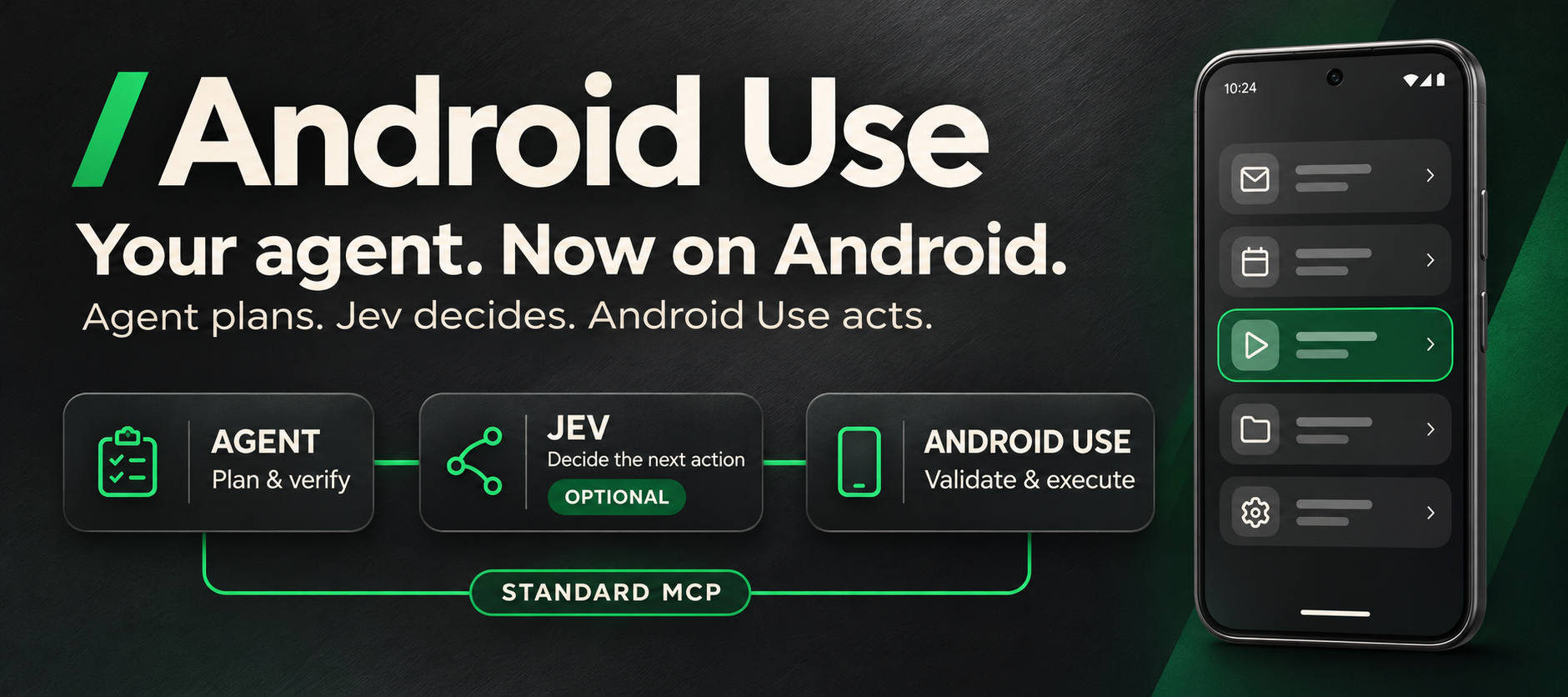
Your agent. Now on Android.
Use it in Dim Agent. Follow the live screen. Add Jev when you need it.


English · 简体中文
Use in Dim Agent → · Download v0.7.1 · Set up Jev · User guide · Report an issue
Android tasks, inside Dim Agent
Android Use brings your own Android phone or emulator into Dim Agent, with standard MCP support for other compatible clients. Read the screen, find a control, tap, type, scroll, and check the result. Follow the process in a live phone view.
For workflows that need repeated UI decisions, enable Jev. Your Agent keeps planning and final verification; Jev selects the next candidate; Android Use validates and executes it.
“Open Settings, find Battery, and read the current usage.”
“Fill in the profile with the text I provide, verify it, and save a local draft.”
No root, Appium, signing setup, or keyboard APK. The compiled UI is included. Use USB or already-authorized wireless ADB.
Choose an installation path
The standalone runtime is optional. The Agent inspects the environment and chooses the appropriate route; a working installation is reused.
| Environment | Installation choice |
|---|---|
| Existing healthy Android Use / MCP | Reuse it and verify the connection. |
| Python/uv, ADB and ffmpeg already available | Use the source installation and existing tools. |
| Dependencies missing, matching verified native assets available | Use the optional standalone runtime to avoid installing dependencies individually. |
| Offline, unsupported native target, or no native release assets yet | Use a suitable local archive or source setup; report any missing prerequisites. |
Optional standalone runtime · v0.7.0
Python, ADB, ffmpeg, the screen UI and the control service in one native package. The lightweight Dim plugin installs it automatically on first use. Later MCP connections start the installed version immediately and check for updates in the background; verified updates take effect on the next connection. Failed updates retain the previous version; rollback rechecks it before switching.
macOS OCR is an optional add-on, omitted from the default package. Tree interaction, Agent screenshot inspection and Jev can be used without it. Users choosing this package do not need Python, uv, Git, Node.js, a JDK or Xcode tools; public-release bootstrap uses standard OS utilities. Private-release bootstrap additionally supports GitHub CLI with a private token; offline native installation avoids that requirement.
Available in v0.7.0 as separate source-plugin, lightweight Dim-plugin and native-runtime downloads. Choose the route for your environment; older v0.6.2 source ZIPs do not include the native runtime. Install, automatic updates, optional OCR and rollback →
Quick start
Use in Dim Agent
Start in Dim Agent Desktop on the computer connected to your Android phone. Install Android Use once, then describe tasks in the chat and follow the live phone view in the right panel. Jev is optional; your existing Agent can make decisions without an extra model key.
Install from the plugin marketplace. In Dim Agent, open Plugins (插件) → Plugin Marketplace (插件市场), search for AndroidUse, and click + to install. A checkmark means the plugin is already installed.
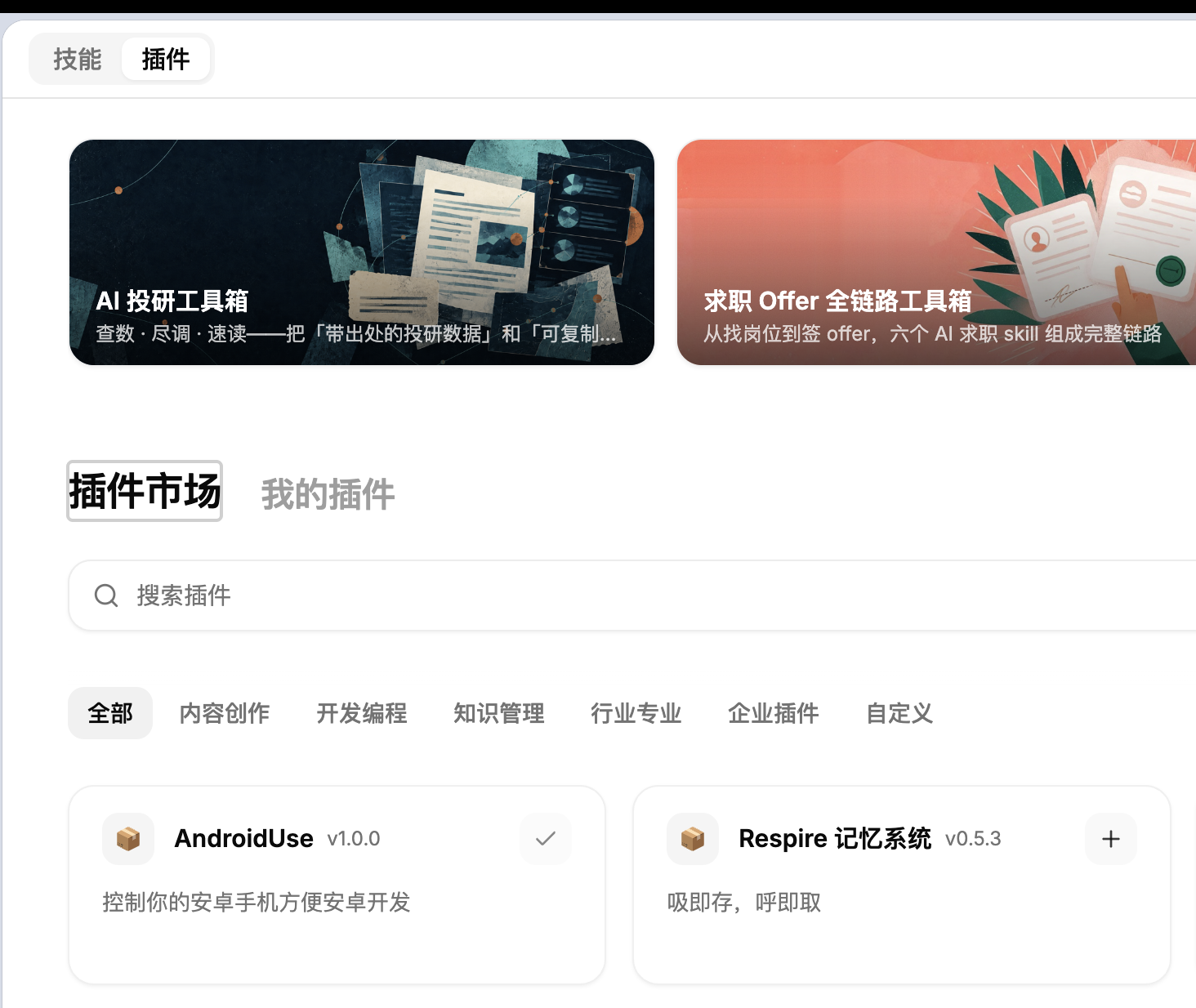
1. Connect your phone. Enable Developer options and USB debugging, connect a data cable, accept the debugging prompt, and keep the phone unlocked. ADB must be available on the computer where Dim executes commands. For a remote Dim session, connect the phone to that execution host.
2. Let Dim Agent finish setup. If installed from the marketplace, ask the Agent to reuse the installed AndroidUse plugin, check dependencies and the device connection, verify READY, and open the live screen. Keep the existing MCP registration.
For installation from GitHub, paste this into a chat with local terminal access:
Install Android Use for Dim Agent on this computer:
https://github.com/arcships/android-use

Read README.md, docs/guide.md and skills/android-use/SKILL.md.
Reuse existing installations and preserve other MCP servers and uncommitted work.
Inspect Python/uv, ADB, ffmpeg, platform, network and available release assets.
Choose source installation or the optional standalone package for this environment;
do not migrate a healthy installation just to use a runtime. Read docs/standalone.md.
For source setup use scripts/install.py install --source .; for native setup verify
the matching archive SHA256. Both routes must return a stable MCP launch command.
Register its returned mcp_config as Dim's local stdio server named android_use;
use Dim's MCP management or dim mcp add. Check for duplicate registrations first.
Discover devices, select my intended phone, call aua_setup(action="status"),
start the service only if absent, then verify aua_ready reports ready=true.
Call aua_screen to open the live phone view in Dim's right panel and check for
fresh video. If tools are not loaded, reload MCP or start a new chat and recheck.
Please perform the setup and report the results. I will handle phone authorization
and unlocking. Leave Jev disabled for now.
Choose the source route when its dependencies are available, or the optional standalone package when it better fits the environment. Both return a stable mcp_config. For source setup, prepare dependencies and clone the repository, then run from its root:
uv run --no-project --python 3.13 python scripts/install.py install --source .
The JSON result contains mcp_config.command and mcp_config.args. In Dim's MCP management, add a local stdio server named android_use, using that command and the arguments in their original order. The installer creates an independent runtime and verifies its MCP handshake before switching versions.
With the Dim CLI, register the returned command and all arguments in order. This example is the standalone macOS/Linux entry; replace the launcher path with your actual install result:
dim mcp add --scope user android_use -- /bin/sh "/absolute/path/runtime/launcher.sh" auto-serve
dim mcp test android_use --json
For Windows or the source installer, use their returned mcp_config instead of copying these arguments. See native package installation.
Check that the MCP test returns a non-empty tool list. Some Dim CLI versions can return success=true with tools=[]; that alone does not confirm tools are loaded. In a new Dim chat, actually call aua_setup and aua_ready. If Android Use is already registered, inspect that entry before adding another. Upgrade and rollback →
3. Give it a first task. Once the tools are loaded, send:
Use Android Use to check my phone is READY, open the live screen, then open Settings and report the battery level. Do not change any settings.
Dim Agent calls the Android tools and opens the screen through aua_screen. In Desktop, the view appears in the right panel; you can watch, tap or swipe, use Back/Home and copy a frame. If the host cannot embed the view, ask it to open the returned local preview URL in a browser on the same computer.
| Try in Dim Agent | Example request |
|---|---|
| Read and navigate | “Open Settings, find Battery, and read the current usage.” |
| Fill a draft | “Enter the text I provide, read it back, and save a local draft.” |
| Compare prices | “Compare the same drink in Meituan and Taobao for delivery, including delivery and packaging fees. Report the totals without ordering.” |
| Use Agent + Jev | “Use Jev for short UI subgoals, keep planning and recovery with the Agent, and verify the final result yourself.” |
Optional: enable Jev. Click Jev in the phone view, enter a TypeSafe API Key, then click 验证并启用 (Verify & enable). New tasks use the setting immediately; no TEXT_MODEL_* configuration is needed. Dim Agent keeps planning, text composition and final verification. Jev settings and data sent →
A phone screen you can follow
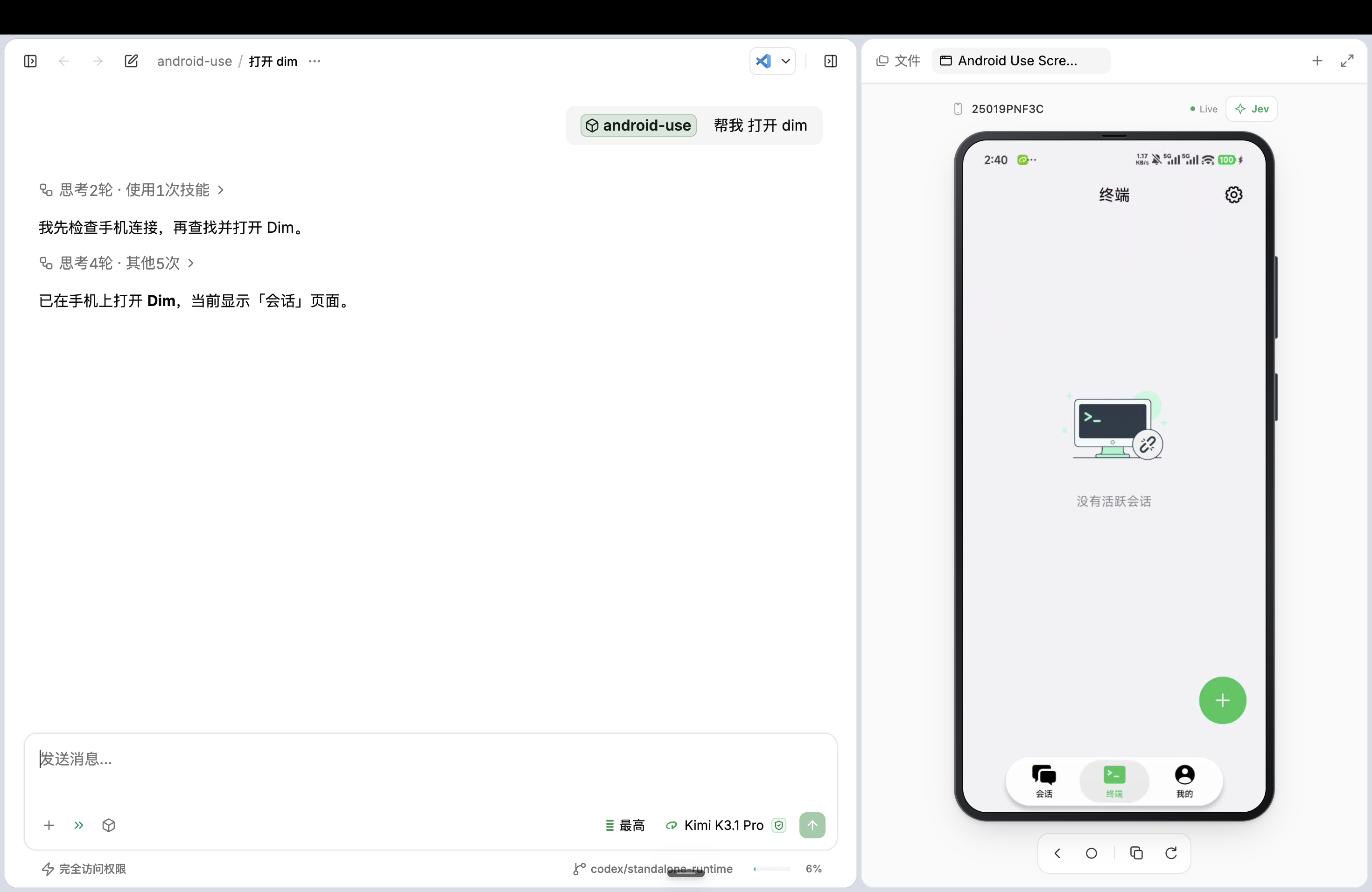
Android Use in Dim Agent: describe a task in the chat and follow the live phone view beside it. Tap or swipe inside the screen, use Back/Home, or copy a PNG frame. Live-screen guide →
Agent plans. Jev decides. Android Use acts.
| Owner | Responsibility |
|---|---|
| Your Agent | Understand the request, plan subgoals, compose text, recover and verify outcomes. |
| Jev · optional | Choose a code-owned candidate from the current UI. |
| Android Use | Observe, check scope and freshness, execute native actions, enforce bounds and pause. |
Known paths use batch, action-plus-wait or scroll_until. Delegate short workflows whose next action depends on new UI to aua_execute_goal. Without a TypeSafe key it runs in host-decider mode: your Agent picks each code-owned candidate with aua_goal_decide, and Android Use applies the same freshness, effect and no-replay checks. On uncertainty, control returns to the Agent with a step ledger and safe context. Architecture and examples →
Enable Jev from the screen
- Open the phone preview and click the Jev button.
- Paste your TypeSafe API Key.
- Click 验证并启用 (Verify & enable).
The server checks the connection and saves the key on this computer. New tasks pick up the setting immediately. You can test the connection, disable Jev, or remove the saved key from the same panel. Jev is off by default. Setup and advanced environment configuration →
See the Jev settings panel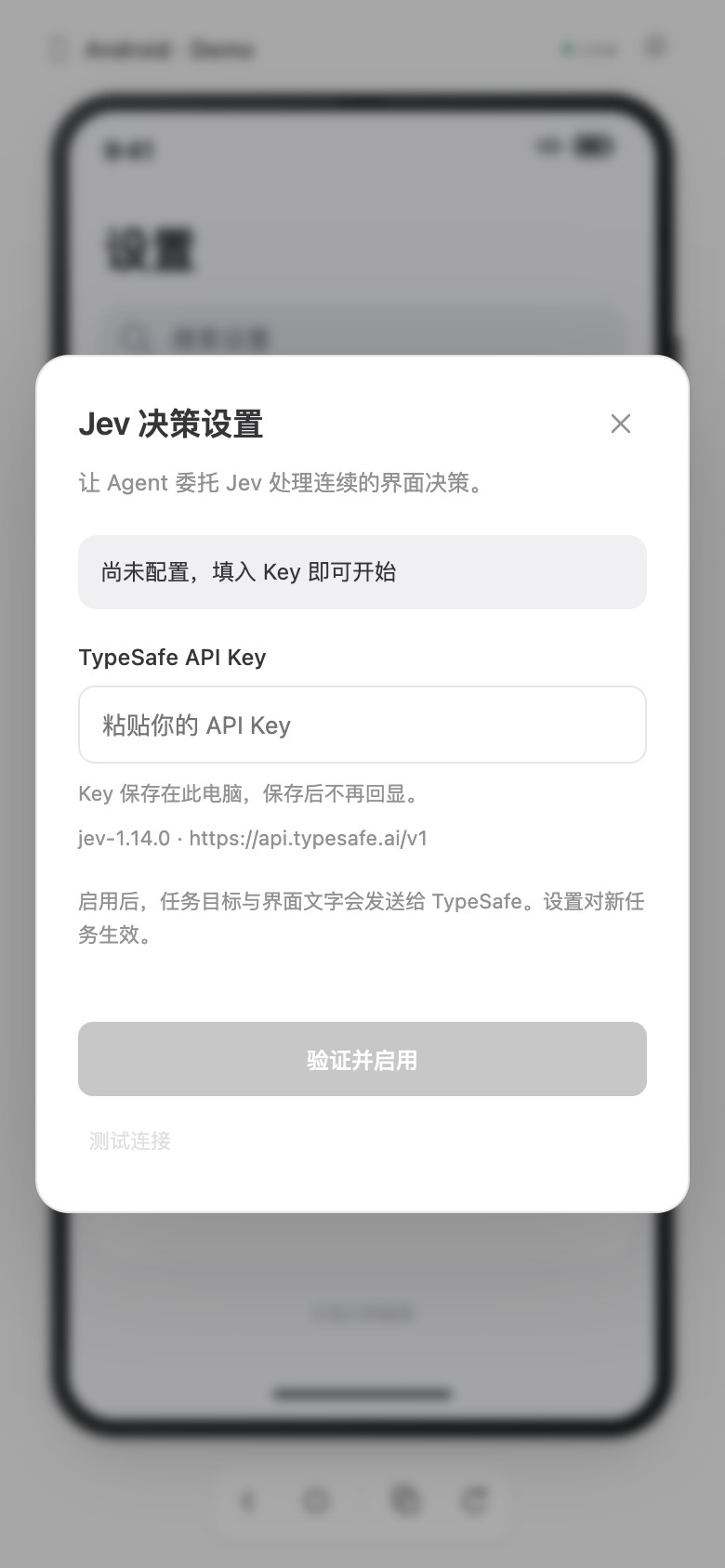
Enabling Jev sends the subgoal, visible UI text and supplied input values to TypeSafe for decisions. The server never returns the saved key to the UI. Screenshots are sent only for visual location (aua_locate), after you separately turn on 「允许发送截图(视觉定位)」.
Built for real interaction
| Capability | What you get |
|---|---|
| Understand the screen | Accessibility trees, screenshots, selectors and bounded waits. |
| Act precisely | Tap, long press, double tap, swipe, drag, launch apps and use system buttons. |
| See what the tree misses | Opt-in Jev Box locates canvas, image and unlabeled targets; a visual tap rechecks pixels and taps once. |
| Reduce round trips | Combine action, wait and observation. Search lists with bounded auto-scroll. |
| Input with verification | Unicode/emoji, replace/append and native text readback. A stable field can offer one focus → input → readback decision. |
| Keep control clear | User takeover for authentication, partial/uncertain action ledgers and no automatic replay. |
Other clients and manual setup
Let your agent install it
Paste this into an agent that can use your local terminal:
Install and configure Android Use on this computer:
https://github.com/arcships/android-use

Read README.md, docs/guide.md, and skills/android-use/SKILL.md first.
Reuse existing installs and preserve uncommitted changes and other MCP servers.
Check dependencies, install missing ones from official sources, and set up the
current client's local stdio MCP connection. For Codex, use scripts/install.py to install a stable managed plugin; diagnose conflicts before migration.
Discover devices, select the intended one, reuse a healthy service or start it once,
and actually verify ready=true. Open the live screen and check whether video works.
If new MCP tools are not loaded yet, use the CLI for setup and explain how to reload.
Perform the installation; do not only return instructions for me to follow.
Ask me to handle USB authorization, unlocking, and required system permissions.
Report what was installed, which checks passed, and any remaining steps.
For a client without terminal access, use the manual path below. Stable upgrades and configuration migration → Detailed agent setup →
Or install manually
1. Prepare the tools and clone. Install uv, ADB, and ffmpeg. You also need Git; uv can provision Python 3.13.
git clone https://github.com/arcships/android-use.git
cd android-use
uv sync --frozen --python 3.13
2. Connect your client. Choose one route:
Codex plugin — MCP tools, usage skill, and screen integrationFor a prebuilt plugin ZIP, follow the release installation steps. To install from a source checkout, run from the repository root with the Codex CLI installed:
uv run --no-project --python 3.13 python scripts/install.py doctor
uv run --no-project --python 3.13 python scripts/install.py install --source . --codex
Included in v0.6.2: installs an independent runtime and a stable launcher, verifies a real MCP handshake before switching, and checks conflicting registrations. Existing installs need the explicit --migrate-codex flag. Keep keys/settings while removing versioned-cache dependencies. Reload tools afterward. Upgrade, migration and rollback →
Requires uv, ADB and ffmpeg on this computer. In Claude Code, run:
/plugin marketplace add arcships/android-use
/plugin install android-use@arcships
To load a source checkout instead, start Claude Code from any project with claude --plugin-dir /absolute/path/android-use. uv creates the environment on first start and reuses it afterwards. The Claude Code terminal does not embed the phone screen: run /android-use:screen to open the live screen in a browser on the same computer.
No Codex CLI or plugin build is needed. For clients using mcpServers, merge this entry into the existing config and replace the repository path:
{
  "mcpServers": {
    "android_use": {
      "command": "uv",
      "args": ["run", "--frozen", "--directory", "/absolute/path/android-use", "android-use-mcp"]
    }
  }
}
Cursor also uses "type": "stdio". VS Code's .vscode/mcp.json uses a top-level servers object instead. See client-specific paths and complete examples →.
3. Connect your phone. Enable USB debugging, connect a data cable, approve the prompt on the phone, and keep it unlocked:
adb devices -l
uv run android-use setup '{"action":"status"}'
# Only if the control service is not running:
uv run android-use setup '{"action":"start"}'
uv run android-use ready
Look for ready=true. With multiple devices, select the target explicitly. Then ask your agent:
“Connect to my Android, verify READY, and open the live screen.”
Full installation and troubleshooting →
MCP client support
This is a standard local stdio MCP server, built with the official Python MCP SDK. The Codex plugin is an optional installation bundle.
| Connection | What to expect |
|---|---|
| Dim Agent Desktop | Local stdio tools, an embedded phone view in the right panel, and optional Agent + Jev workflows. Get started. |
| Local stdio MCP | Phone-control tools and standard text/image responses. Claude Desktop, Cursor, VS Code / Copilot, and other clients can use their local-command configuration. |
| MCP Apps | An embedded live-screen view when the host supports the extension. Layout and clipboard permissions depend on the host. |
| Local browser | Run uv run android-use screen and open the returned URL when an embedded view is unavailable. |
The preview URL is a private local video endpoint, not a remote MCP endpoint. Remote-only MCP clients cannot connect to this stdio service. Client configuration examples are documented; full end-to-end acceptance has not been completed for every client/version.
In v0.5.1, supported devices record continuously; legacy segments reuse one connection and decoder. Brief known-health recovery keeps the picture visible. Recovery behavior and troubleshooting →.
Optional interaction variation · v0.7.0
Add variation to a gesture or local goal to sample bounded delays, selector touch points and swipe timing/endpoints. Fixed seeds reproduce samples; explicit coordinates and text stay exact. Added waits revalidate the page and share existing budgets. Default behavior is unchanged. This is interaction testing, with no anti-detection guarantee. Parameters, audit and boundaries →
Source and v0.7.0 releases are hosted at arcships/android-use.
A smaller loop, with explicit outcomes
# One call: tap → wait for a visible condition → return the tree.
# Replace these labels with ones from the current screen.
uv run android-use tap '{"selector":{"text":"Display"},"wait_for":{"selector":{"text_contains":"Brightness"},"timeout_seconds":5},"observe":"tree"}'

# Search a list with a swipe count and time budget; do not click the result.
uv run android-use scroll_until '{"selector":{"text":"Display"},"direction":"up","max_swipes":8,"timeout_seconds":20}'
Actions support optional postconditions. A timeout reports what happened and stops the batch; it does not repeat the action. Auto-scroll stops on a match, its limits, or repeated lack of progress. Gestures, waits, batches, and the original tools → · Optional Jev setup and benchmarks →
New in v0.6.0: no-key decisions and visual location
aua_execute_goal works without a TypeSafe key: your Agent picks each code-owned candidate through aua_goal_decide, with the same freshness, effect and no-replay checks. With Jev, verified emoji input is no longer retyped, each step makes fewer phone reads, and a goal head can stop once the goal is visibly achieved. New opt-in Jev Box (aua_locate, visual taps) finds canvas, image and unlabeled targets, and sends screenshots only after you turn on 「允许发送截图(视觉定位)」. Devices without screenrecord now say so instead of retrying the preview. v0.6.1: a Box that spans several labels in the tree is returned as ambiguous with tree_candidates instead of a tap point; use Box for icons, images and canvas, and selectors for text. Host decider and Box →
New in v0.5.2: reliable reconnection
The preview entry point stays available when idle, MCP frame reads recover a stopped service, and Refresh waits for fresh video before reporting success. Jev settings now have a clearly labeled sparkle button. Recovery behavior, validation and limits →
New in v0.5.1: continuous live preview
Supported devices no longer restart recording every 170 seconds. Older devices reuse one ADB pipe and decoder across bounded segments. Brief known-health recovery retains the picture; display-metadata failures pause controls without dropping healthy video. Authentication and real disconnection still clear the image.
Android 16 physical capture passed a 190-second native run with one encoder/connection/decoder and a 1.422-second maximum sampled gap. The earlier emulator motion stall remains unresolved; compatibility records retain a harness-seeded recovery error. Results, retained failures and limits →
New in v0.5.0: safer actions and automatic OCR
Included in the v0.5.0 plugin ZIP. Android Use retains every MCP tool and adds page-based AX / local OCR routing to read-only aua_read_fields. Healthy text stays on the tree path; missing text or requested labels triggers a device ROI capture and local recognition, then one Jev request judges multiple fields. Acknowledged actions wait for an effect without repeating writes. Money keeps printed signs, grouping and currency.
During development acceptance, Meituan AX and OCR both produced 19 + 1.5 + 2.4 = ¥22.9; Taobao automatically routed its empty semantic tree to OCR and produced 24 + 1.5 + 2.3 − 6 = ¥21.8. The Agent independently inspected checkout and emptied temporary carts; no order or payment was made. Failed ROI, animation and missing-field attempts are retained. This is neither a whole-task speed benchmark nor an exhaustive cheapest-price result. Subsequent guard refinements were tested offline; phone testing stopped at the user's request.
v0.5.0 passes 277 Python tests and 17 UI tests. Built-in OCR currently requires macOS and Xcode Command Line Tools. Automatic visual grounding/clicking remains future work. Reload your MCP connection after updating.
Field tool and parameters · Live acceptance and retained failures · Implementation boundaries and roadmap — 中文
Measured, with clear limits
Development comparisons include 18 source-level trials and 12 live Agent / Agent + Jev trials. Both live arms completed 6/6 tasks. Dynamic workflows needed fewer host replies with Jev; familiar batch paths did not improve. Sampling reduced repeated state queries, while input macros reduced decisions without an additional timing win in that sample. Methodology, raw records and retained failures →
Project status
v0.7.1 · MIT · 487 Python tests · 25 browser tests. Native install/upgrade/rollback acceptance was last run for v0.7.0 and passed on macOS ARM64/Intel (15 scenarios each), Linux x86_64 and Windows x86_64 (13 each). These package checks use no phone or model; earlier Android 16 physical-device and emulator acceptance remain separate. Validation evidence →
Multi-touch, arbitrary gesture paths, fine-grained text selection and custom-editor input fallbacks are not implemented. A matched UI condition proves that condition; the Agent must verify business outcomes. Control and preview run locally, and tool results are handled by your chosen client/model.
Android Use is maintained by Archship and its source is MIT; bundled runtime dependencies retain their own licenses. License audit and package notices →
Acknowledgements
Thank you to iPhone Use, its author and contributors for inspiring Android Use's phone-agent workflow, guided setup and live-screen experience.
Explore and contribute
Bug reports and contributions are welcome. Include your host OS, Android version, client, and a minimal reproduction; remove device identifiers, access tokens, and private screen content.
Reviews (0)
Sign in to leave a review.
Leave a reviewNo results found