agent-office
Health Warn
- License — License: MIT
- Description — Repository has a description
- Active repo — Last push 0 days ago
- Low visibility — Only 5 GitHub stars
Code Fail
- rm -rf — Recursive force deletion command in scripts/build-app.sh
Permissions Pass
- Permissions — No dangerous permissions requested
No AI report is available for this listing yet.
A pixel-art macOS office that shows your Claude Code agents at work
Agent Office
A small macOS window that shows your Claude Code agents at work, as a pixel-art office.
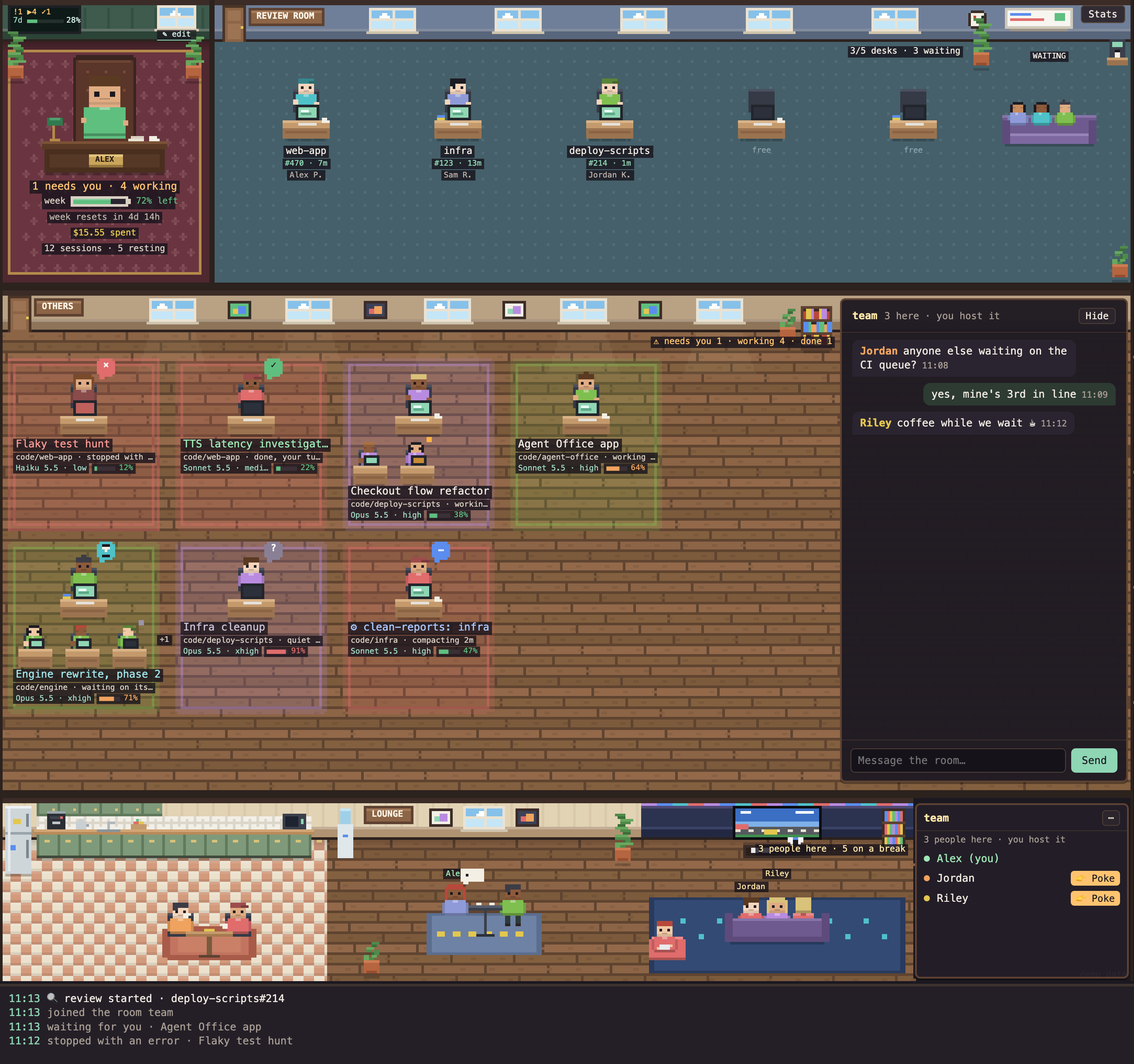
Demo data. Open web/office.html in a browser to see it live.
See at a glance which session is waiting for you, which is working, which has finished, and what
its subagents are doing, without switching between terminals.
Quick start
Needs macOS 13+, the Xcode command-line tools, jq and Claude Code.
git clone https://github.com/ArdaThePolat/agent-office.git
cd agent-office
scripts/build-app.sh                 # builds ~/Applications/Agent Office.app
scripts/install-hook.sh --dry-run    # shows the change to ~/.claude/settings.json
scripts/install-hook.sh              # registers the hook (keeps your existing hooks)
open ~/Applications/"Agent Office.app"
Sessions report from their next turn on; start a new Claude Code session (or send a message in an
open one) and it walks into the office.
Then make it yours, all from the app:
- ✎ edit in the manager's room (or Agent Office → Your Name and Picture…): your name and
picture, the manager at the desk and your character in a shared room. - Create a room or Join a room in the lounge's right-hand panel (or the Room menu):
share the lounge and a chat with teammates on your network.
Or let your agent set it up
Run this in a terminal; Claude Code clones the repo and installs it, step by step:
claude "Clone https://github.com/ArdaThePolat/agent-office into ~/agent-office, then install Agent Office by following its AGENTS.md exactly. Show me the change to my Claude settings and ask me before applying it."
Using another coding agent? Paste the same sentence into it. AGENTS.md has the
steps with a check after each one, and the agent asks you before it touches your Claude settings
or your config.
Missing a prerequisite: xcode-select --install for the command-line tools, brew install jq.
What you see
Others room: every Claude Code session as a person at a desk, with its subagents at smaller
desks below. Sessions in the same repo share a shirt and rug colour. They walk in through the
door when a session starts and out when it ends. Under each one: its title, folder and state, and
the model and effort of its latest reply (e.g. Opus 5.5 · xhigh).Bubbles say what each one needs:
bubble means ! orange, blinking waiting for your permission ✓ done, your turn (for 30 minutes after its turn ends) × its turn ended on an API error, often a network drop (for 30 minutes, then idle; send it a message to carry on) hourglass its turn is over but subagents it started in the background are still running … compacting its context ? quiet: working, but silent for over 10 minutes z idle Manager's room (optional, top left): you, at your desk. A screen on the wall counts the
sessions that need you, are working or are done, with your weekly plan usage when
the companion mod reports it; an orange ! over your head when someone needs you. Under the
desk: who needs you and who is working, your weekly usage as a battery that drains
as you use it (orange, then red and blinking as they run low), when the week resets, and
what the open sessions have cost. Click it
for the stats screen. ✎ edit under its window sets your name and picture (also in
Settings, and Agent Office → Your Name and Picture…); the picture is copied next to the config,
and a teammate in your shared room sees the change at once. Or setmanagerby hand (see
Configuration). The weekly number is one for the whole account: each session reports the
value from its own last reply, so the gauge shows the highest report for the current week.Lounge: where agents with nothing to do go. A session that has been idle (or done for over 30
minutes) leaves its desk for the lounge and keeps itself busy there: it makes a coffee at the machine,
drinks it at the kitchen table, plays on the console, chats at the high table, each agent in
its own order, walking between spots. It walks back to a desk the moment it gets work. Right-click → Release to the lounge sends
one there yourself and empties its desk; it comes back on its own when you send it a message,
or with Back to the desk.Review room (optional): one desk per PR-review slot with repo, PR, owner and how long it has
been running, and a sofa for the queue. See Configuration.Log strip: general events only (session waiting for you, done, subagent started / finished,
review started / posted).
Hover an agent for details. Click a session to bring it to the front where it runs:
| started in | a click |
|---|---|
| Terminal, iTerm2 | selects that exact tab (and iTerm pane) |
| VS Code's Claude panel | brings that project's VS Code window forward and opens the session's tab in it |
| a VS Code terminal | brings that project's VS Code window forward (a terminal tab inside it cannot be picked from outside) |
| the Claude app | opens that session in the Claude app (claude://code/continue?session=…) |
VS Code (and Cursor, Windsurf, VSCodium) is found by the folder its window has open: the window
whose folder holds the session's directory. If no open window holds it, Agent Office falls back to
matching window titles, which needs Accessibility (System Settings → Privacy & Security →
Accessibility); without it the editor is just brought forward. The first click on a Terminal or
iTerm session asks once for permission to control that app. A review desk opens its PR.
Sessions already running when you install or update Agent Office learn where they run on their next
message.
Right-click an agent for Open, Reveal folder, Copy session id, Release to the lounge and Hide from view. A
hidden agent stays out of the office until something new happens to it (you send it a message, it
asks for a permission, its turn ends, it errors); then it walks back in. Right-click anywhere →
Show hidden agents brings them all back.
Stats screen
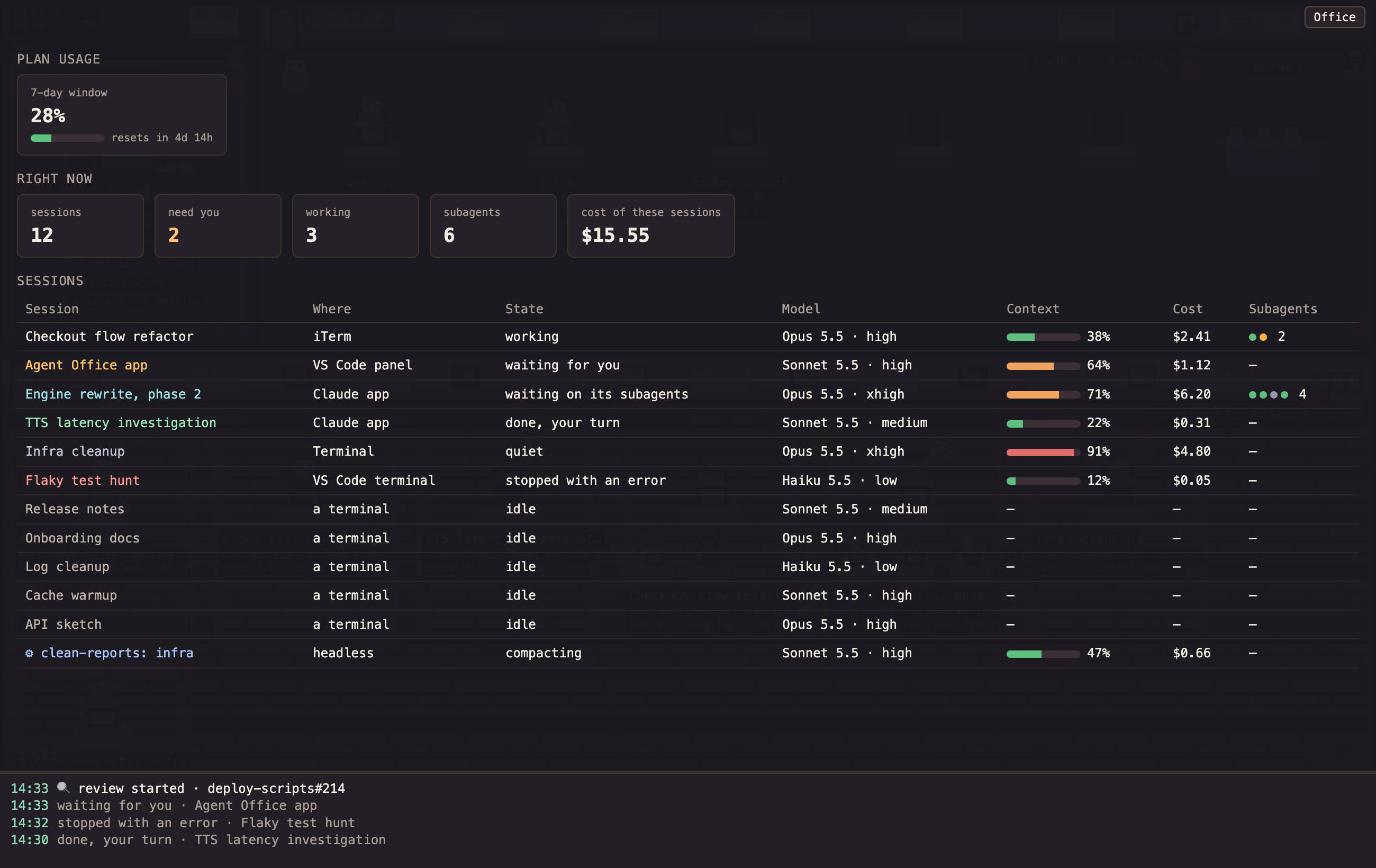
Stats (top right, or press S) lists every session with where it runs, its state, model and
effort, how full its context is, what it has cost and its subagents' states, plus your plan usage
(the weekly window, and when it resets). Click a row to open that session.
Companion mod (optional): context, cost, plan usage
The hook sees what a session does; only the session itself knows how full its context is, what it
costs, your plan usage and each subagent's exact state. The optional companion
mod in mod/ reports those, and the office
shows them: a context gauge under each desk, status dots on subagents (running, waiting,
idle, failed), and the numbers on the stats screen. It also pins a one-line status under your
prompt in every session, e.g. office: 2 need you (Flaky test hunt, Infra cleanup) · 3 working.
/plugin install agent-office --marketplace ArdaThePolat/agent-office
(or claude plugin install agent-office --marketplace ArdaThePolat/agent-office from a shell).
Needs Claude Code 2.1.287 or later. It writes one small file per session under~/.local/state/agent-office/live/, records no prompts or tool calls, and everything else works
without it.
Shared room (optional): one lounge for the team
Teammates on the same office network can share their lounge. Everyone in the room appears in
everyone's lounge as their own pixel character, their name over their head, drinking coffee and
playing on the console, and the chat talks to the whole room. With a room set up the chat is a
fixed panel on the right of the others room, whether you are in the room or it is local right
now (the panel then says so, with Try now); in a narrow window it moves behind a Chat
button (or C). Hide (or C) folds it away and gives the desks the room back; a bell tab
stays on the right edge and rings, with the number of unread messages, when someone writes. Click
it (or C) to bring the chat back. Hidden or shown is remembered.
You are in the lounge too, as your own character, next to your teammates (two teammates in the
room is three people in your lounge). Click a piece of the lounge (the coffee machine, the
kitchen table, the high table, the sofa) and your character walks there and stays, in your
office and in everyone else's; click it again, or click your character, and it goes back to its
own routine.
Click a teammate for a menu: Hug, Kiss, High five, Pillow fight, Bring a coffee,
Wave, Poke, or Chat. Your character walks over and the two of you do it, in every lounge in the
room, and the log says so ("Alex hugged Jordan"). The lounge counts everyone in it, you included.
On the lounge's right side, a panel lists everyone in the room, you first. Click a name for the
same menu, or 👉 Poke next to it: the person you poke gets a notification on their Mac and
their Agent Office window gives a little shake (with the window minimised, its Dock icon
bounces). You can poke the same person once every 20 seconds, and a person sees at most one poke
notification from the same teammate in 20 seconds. macOS asks once whether Agent Office may show
notifications. A teammate on an older version than this one does not get pokes. Without a room,
the panel has Create a room and Join a room buttons; ⋯ next to the room's name joins
another room, creates one, or leaves this one. The same three are in the Room menu. (In a
narrow window the panel is left out: use the Room menu.)
Only the people are shared. Your agents stay yours: your desks, your review room, your manager's
room, and your agents on a break in the lounge are drawn from your own sessions and are never
sent anywhere, so each person sees their own agents next to the shared teammates. Only you see
yourself in the manager's chair.
Create a room (one person, the host)
- Pick who hosts: a Mac on the office network that usually has Agent Office open. The room
exists only while that app is open. - Set your name and picture with ✎ edit: that is your character in the room.
- Click Create a room in the lounge's panel (or Room → Create a Room…), type a name and a
password of at least 8 characters, and click Create. The app saves them in~/.config/agent-office/config.json(readable only by you) and opens the room. - macOS asks whether Agent Office may accept incoming connections and find devices on the local
network: allow both. The panel lists you, and says you host it. - Send the name and password to your team over a private channel.
- Tick Settings → Open at login, so the room comes back by itself after you restart your Mac.
The room stays saved: every launch hosts it again, with the same password, until you create or
join another one or use Settings → Delete Saved Room…. Room → Leave the Room only pauses it.
Pick who hosts: a Mac that is on the office network and usually has Agent Office open. The
room exists only while that app is open.Make sure the host has a
managername (and picture, if they like) in~/.config/agent-office/config.json: that is their character in the room.Add the room to the same file, with a long random password. This prints the password once,
to pass on to the team (team-loungeis your room's name, pick any):cd ~/.config/agent-office && P=$(openssl rand -base64 18) && jq --arg p "$P" '.room = {name: "team-lounge", password: $p, host: true}' config.json > config.json.new && mv config.json.new config.json && echo "room password: $P"Restart Agent Office. macOS asks whether it may accept incoming connections and find devices
on the local network: allow both. The Chat button appears; it says you host it.Send the room name and password to your team over a private channel.
Tick Settings → Open at login, so the room comes back by itself after you restart your Mac.
The room's name and password stay in your config: closing and reopening the app hosts the same
room, and your team's password keeps working.
Join a room (everyone else)
- Install Agent Office, or update it (Agent Office → Check for Updates… → Update Now).
- Set your name and picture with ✎ edit (or Agent Office → Your Name and Picture…).
- Click Join a room in the lounge's panel (or Room → Join a Room…), type the room's name and
password, and click Join. Leave the host address empty unless the room is not found by
name (see below). - Allow Agent Office to find devices on the local network. Within a few seconds the host and
everyone else walk into your lounge, and the panel lists them, each with a 👉 Poke button.
Joined once, the room is saved and rejoined at every launch. Set up earlier with the env file?
The first launch of v0.5.1 or later moves those lines into config.json by itself, once; after
that the dialogs and Settings change them.
Install or update Agent Office (
git pull, thenscripts/build-app.sh).Set your character:
manager.nameandmanager.imagein~/.config/agent-office/config.json
(see Configuration).Add the room to the same file, without
host(team-loungeis the room's name):cd ~/.config/agent-office && jq --arg p '<the password>' '.room = {name: "team-lounge", password: $p}' config.json > config.json.new && mv config.json.new config.json(The
AGENT_OFFICE_ROOM_NAME/AGENT_OFFICE_ROOM_PASSWORDlines in~/.config/agent-office/envstill work, and win overconfig.json.)Restart Agent Office and allow it to find devices on the local network.
Not in the office, or the host's app closed? Your office is simply local, and it looks for the
room again every 15 minutes (or click Try now in the panel).
The chat says "the room is not on this network"? Some networks hide devices from each other's
discovery (company Wi-Fi often does, and so does a VPN exit node, such as Tailscale's: turn on
Allow Local Network Access in its Exit Node menu, or turn the exit node off). Join by address
instead: the host's IP address (on the host: ipconfig getifaddr en0) or its .local name, in
the Join dialog's Host address field (by hand: "address" in the room block, orAGENT_OFFICE_ROOM_ADDRESS in the env file).
The app still looks for the room by name first and tries the address after 3 seconds. The host
listens on port 48731 ("port" in the host's room block changes it; then add :<port> to the
address). An IP address can change when the host reconnects to the Wi-Fi; the .local name
does not, but it needs the same discovery some networks block. To check from a member's Mac
whether the host is reachable at all: nc -vz <host address> 48731.
To leave, untick Settings → Join the shared room.
Details
One Mac hosts the room (its Agent Office has to be open); everyone else needs only the room's
name and password. Set them in ~/.config/agent-office/config.json:
"manager": { "name": "Alex", "image": "~/agent-office/local/me.png" },
"room": { "name": "team-lounge", "password": "<long random password>", "host": true }
host: true on the host's Mac only. Or, on each member's Mac, in ~/.config/agent-office/env
(an app opened from the Dock does not see your shell's exports; this file it reads):
AGENT_OFFICE_ROOM_NAME=team-lounge
AGENT_OFFICE_ROOM_PASSWORD=<the room's password>
- Your character is your
managerpicture and name. Without a picture you get a drawn one. - Joining: the app looks for the room by name on the local network (Bonjour) when it starts,
and again every 15 minutes while it is not in ("alwaysJoin": falselooks only once; Try
now in the chat panel looks at once). When the room goes away while you are in it (the host
restarted its app or Mac), it looks again after 30 seconds and 2 minutes first, so everyone is
back soon after the host is. If the room is not there, the office is simply local.
The first time, macOS asks to let Agent Office find devices on the local network: allow it.
On the host it also asks to accept incoming connections. - Turning it off: Settings → Join the shared room, or
"enabled": falsein theroom
block (AGENT_OFFICE_ROOM_ENABLED=0). - What is shared: your name, a small picture and your chat messages. Nothing about your
sessions, folders or prompts. Messages are kept in each app's memory only, and are gone when
it quits; someone who joins later does not see earlier ones. - Security: the password never crosses the network. Each connection derives a key from it
(HKDF-SHA256 over two fresh random values), proves it knows the password with that key, and
encrypts everything after that with AES-GCM, so others on the same network cannot read the
chat or join without it. Use a long random password: someone who records a join can try
guesses against it offline. After three wrong passwords from one address the host ignores it
for 10 minutes.
Settings
Agent Office → Settings… (⌘,):
- Your name and picture: Change… opens the same editor as ✎ edit in the manager's room.
- Saved room and Delete Saved Room…: a room you create or join is saved in
~/.config/agent-office/config.jsonand joined (or hosted) again at every launch, until you
join or create another one, or delete it here. Room → Leave the Room only pauses it and keeps
the name and password; Delete removes both. - Import from env file…: for a setup made with
~/.config/agent-office/env. It moves theAGENT_OFFICE_ROOM_…andAGENT_OFFICE_MANAGER_…lines intoconfig.json(it lists them first,
the password only as its length) and takes them out of the env file, keeping a copy inenv.bak. The first launch of a version with this does it by itself, once, without asking:
after that your own edits stand and the env file is not read for an import again. The button
is for env lines you add later. The env file wins overconfig.json, so until those lines are
imported, the Room menu and Delete Saved Room cannot change a room they set (the app says so
when you try). - Check for updates once a day (off by default): see Updating below.
- Join the shared room (on by default, does nothing until a room is configured).
- Open at login (off by default): starts Agent Office when you log in. Turn it on on the Mac
that hosts a room, so the room is back after a restart. macOS may ask you to approve it in
System Settings → General → Login Items.
The rest are off by default:
- Keep on top: float the window above other apps and across Spaces.
- Play a sound: "Glass" when an agent waits for your permission, "Pop" when one finishes.
- Energy saver: 2 redraws a second instead of 6, no walking or blinking.
The window remembers its size and position. Check Setup… in the same menu says whether the
hook is registered for every event and when a session last reported.
Updating
By hand: git pull && scripts/build-app.sh in your checkout, then reopen the app.
Or let the app do it: tick Settings → Check for updates once a day, or use Agent Office →
Check for Updates… once (when it finds a newer release, Update Now in its alert does the
same as the button). It asks GitHub for the repository's latest release and compares it
with the release your app was built from; when there is a newer one, an Update to vX button
appears at the top right. Clicking it:
- fetches the release into the checkout the app was built from and moves it there with
git merge --ff-only <tag>, so it never overwrites anything: local commits or uncommitted
changes in the way stop the update with the reason and the manual command; - runs
scripts/build-app.shinto the folder the app is in; - reopens the new app.
The steps are logged to ~/Library/Logs/agent-office-update.log. The hook runs from the checkout,
so it is updated in the same move. The companion mod is a plugin and updates through Claude Code.
Configuration
Optional: ~/.config/agent-office/config.json. Everything specific to your setup lives in this
file, not in the repository. Every key is optional.
{ "officeState": "~/.local/state/agent-office",
  "manager": { "name": "Alex", "image": "~/agent-office/local/manager.png" },
  "room": { "name": "team-lounge", "password": "<password>", "host": false, "alwaysJoin": true,
            "address": "10.20.30.40" },
  "reviews": { "state": "~/.local/state/pr-watch", "log": "~/Library/Logs/pr-watch.log",
               "slots": 5, "bitbucketWorkspace": "<workspace>" },
  "sessionKinds": [
    { "startsWith": "You are running the automated PR review", "kind": "review",
      "repoAfter": "for the repo '", "title": "PR review: {repo}" },
    { "startsWith": "You maintain the list of known defects", "kind": "automation",
      "repoAfter": "for the repo '", "title": "clean-reports: {repo}" } ] }
roomshares your lounge with your team: see Shared room above.manageradds the manager's room; ✎ edit writes it for you.imageis any picture of you (PNG, JPEG, WebP…). A plain
white or transparent background is cut away and the rest redrawn as pixel art, so a pixel-art
avatar looks best.namegoes on the desk's name plate. With a name and no image, a drawn
manager sits there.local/in the repository is ignored by git: a good place to keep the
picture.AGENT_OFFICE_MANAGER_IMAGEandAGENT_OFFICE_MANAGER_NAMEoverride both keys.reviewsfeeds the review room from a PR reviewer that keeps:<state>/running/<repo>-<pr>: one tab-separated line per review in progress (repo name, repo
slug, PR number, commit, author, start timeHH:MM, pid, title);<state>/queue: one line per waiting PR (repo name, slug, number, commit, author,auto/manual, title);- a log whose lines look like
YYYY-MM-DD HH:MM:SS [pr-watch] <repo>#<pr>: ….
bitbucketWorkspacemakes a review desk link to its Bitbucket PR. Without areviewsblock the
review room stays empty.sessionKindstells headless jobs apart from your own sessions by how their first prompt
starts.kindisreview(drawn at a review desk) orautomation(⚙ in the others room).repoAfter, andrepoEnd(default'), cut a repo name out of the prompt for{repo}intitle.- Sessions that match no entry are your own, titled from the Claude app or their folder.
How it works
Claude Code ──hook──▶ ~/.local/state/agent-office/sessions/<id>.json  ─┐
                       ~/.local/state/agent-office/events.log           ├─▶ Agent Office.app (reads every 2 s
PR reviewer ─────────▶ <reviews state>/running/*, queue, log file ─────┘    while its window is visible)
hook/agent-office-hook.shis a Claude Code hook.- It keeps one small JSON file per session: title, folder, state, subagents, model, effort, and
the Claude process id. - It appends general events to a log.
- It always exits 0, prints nothing, and on the frequent "tool finished" event returns after a
singlegrep.
- It keeps one small JSON file per session: title, folder, state, subagents, model, effort, and
app/AgentOffice.swiftis the window: a WKWebView aroundweb/office.html.- It drops a session whose Claude process is gone, so a crashed session never lingers.
- Without a shared room there is no server and no port, and nothing runs while the window is
closed.
app/Room.swiftis the shared room: the host (a WebSocket listener advertised with
Bonjour) and the member connection, with the handshake and encryption described in its header.web/office.htmlis the office, drawn in code. Opened in a browser on its own, it shows demo
data.
Privacy and cost
- What is recorded: states only. No prompt text, tool names or arguments are recorded. The first
prompt is read only to matchsessionKinds, and the transcript only for the latest model and
effort. Where a session runs (the app, its terminal device) is recorded so a click can open it.
With the companion mod, each session's context use, cost, plan usage and subagent states too.
Everything stays on your Mac, under~/.local/state/agent-office/. The one exception is the
optional shared room, which sends your name, picture and chat messages to the room. - CPU and memory: the app runs at background priority and reads its state only while its window
is visible. It redraws at most 6 times a second (none while hidden) and draws at most 30 sessions;
walls, floors and furniture are painted once and cached. Measured on an M-series Mac with the
window visible: about 4% of one core and about 55 MB of memory.
Uninstall
scripts/install-hook.sh --uninstall           # removes exactly the hook entries it added
claude plugin uninstall agent-office          # the companion mod, if you installed it
rm -rf ~/Applications/"Agent Office.app"
rm -rf ~/.local/state/agent-office            # session files and the event log
Debugging
"$HOME/Applications/Agent Office.app/Contents/MacOS/AgentOffice" --dump-snapshotprints exactly
what the window is given."$HOME/Applications/Agent Office.app/Contents/MacOS/AgentOffice" --check-roomprints the room
settings the app sees (config.json, the env file and the environment together; the password
only as its length) and whether it will join.ls ~/.local/state/agent-office/sessions/should hold one file per running session; if it is
empty, check Check Setup… and thatjqis installed (the hook needs it).- Open
web/office.htmlin a browser to see the demo.
License
Reviews (0)
Sign in to leave a review.
Leave a reviewNo results found