ai-traffic-lights
Health Warn
- License — License: MIT
- Description — Repository has a description
- Active repo — Last push 0 days ago
- Low visibility — Only 6 GitHub stars
Code Fail
- fs.rmSync — Destructive file system operation in adapters/opencode/ai-traffic-lights.js
- os.homedir — User home directory access in adapters/opencode/ai-traffic-lights.js
- process.env — Environment variable access in adapters/opencode/ai-traffic-lights.js
- rm -rf — Recursive force deletion command in install_macos.sh
- child_process — Shell command execution capability in main.js
- exec() — Shell command execution in main.js
- fs.rmSync — Destructive file system operation in main.js
- process.env — Environment variable access in main.js
- fs module — File system access in main.js
- network request — Outbound network request in main.js
- child_process — Shell command execution capability in scripts/setup-hook.js
- os.homedir — User home directory access in scripts/setup-hook.js
- process.env — Environment variable access in scripts/setup-hook.js
- fs.rmSync — Destructive file system operation in src/hook-installer.js
- os.homedir — User home directory access in src/hook-installer.js
- fs module — File system access in src/hook-installer.js
Permissions Pass
- Permissions — No dangerous permissions requested
No AI report is available for this listing yet.
🚦 Traffic light overlay for terminal AI agent sessions — Claude Code today, agent-agnostic by design
🚦 AI Traffic Lights
English | Português (Brasil)

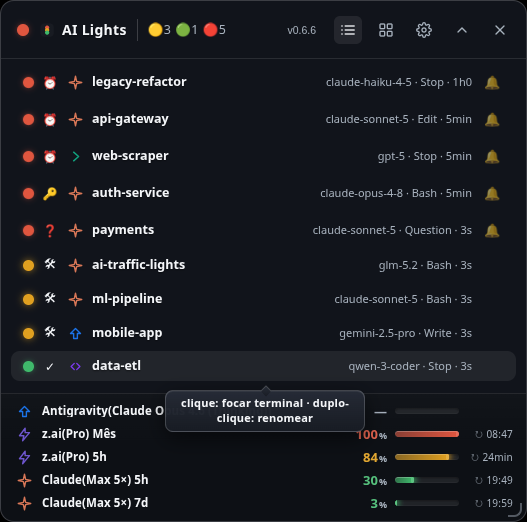
A translucent always-on-top overlay (Electron) that shows the state of every
terminal AI agent session on your desktop as a traffic light: 🟢 done ·
🟡 working · 🔴 needs you.
Monitors Claude Code, Antigravity, Codex and OpenCode today. The
architecture is agent-agnostic — new agents land via adapters (see
Adding an agent).
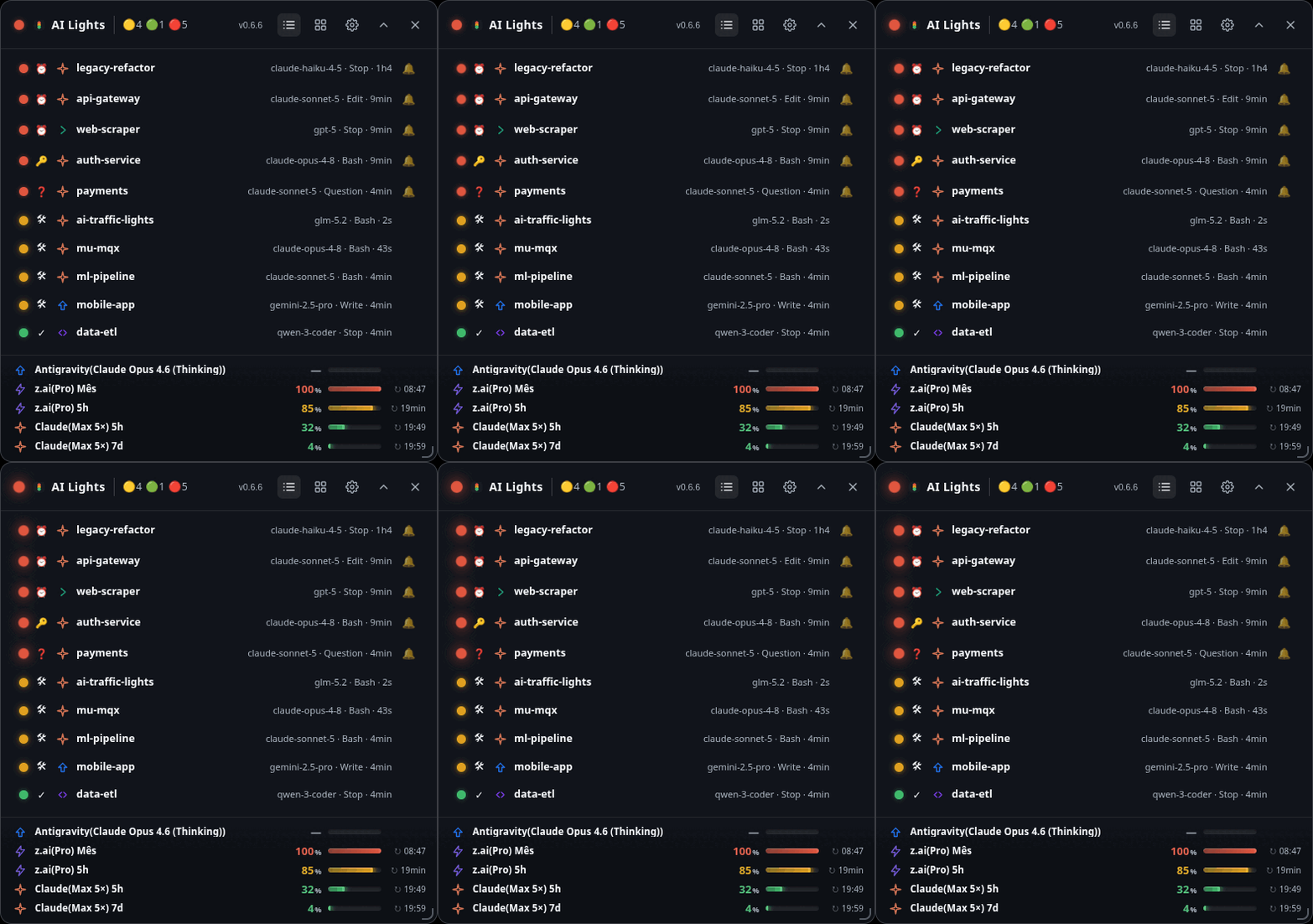
One light per terminal AI session: 🟢 done · 🟡 working · 🔴 needs you. Animated:
the red LED pulses. Static shot below.
Why
When you run several AI agent sessions in parallel across terminals, tabs and
projects, you lose track of which one finished, which is still crunching, and
which has been silently waiting for your approval for ten minutes. This
overlay gives you one glance: a light per session, click to jump to its
terminal — window and tab.
Features
- 🟢🟡🔴 One light per session, plus an aggregate light in the header
- 🤖 Four agents, one overlay: Claude Code, Antigravity, Codex and OpenCode
- 🌐 UI in English & Portuguese — follows the system locale, switchable in
Preferences - Click-to-focus: jumps to the session's terminal — the exact window, and
in Warp the exact tab (viawarp://session/<uuid>) and in Tilix the
exact terminal (via D-BusTILIX_ID) - 🔔 Beep + desktop notification when a session turns red (rate-limited)
- ⏰ Idle escalation: a finished session left unattended turns red (configurable)
- 🔔 Per-session alert snooze (mute the beep for 1h on a red session)
- 🔝 Sessions sort by urgency (red → yellow → green); dynamic tray icon
paints with the worst color and shows counts on hover - 🚀 Quick Launcher: start an agent (+ Claude / + Antigravity / + Codex / +
OpenCode) from the overlay empty-state or the tray — opens the terminal in
the last project and the session lights up automatically - ✏️ Double-click to rename a session (aliases persist per project)
- 👁 Mark a red terminal as read: clicking a 🔴 session focuses it and
greys it out until a new notification arrives (toggle in Preferences) - 📊 Per-agent usage meters (footer): one aligned row per usage window with
a % meter and next reset — Claude (5-hour + weekly, real numbers from the
OAuth usage API), Codex (5-hour + weekly, read passively from the session
rollout) and GLM Coding Plan (5h tokens + monthly MCP). Rows go amber
≥70%, red ≥90%; the last value sticks (greys out when stale) and survives
restarts. Toggle between the meters and the Quick Launcher in the header - 🎚️ Appearance: window transparency slider + compact list mode
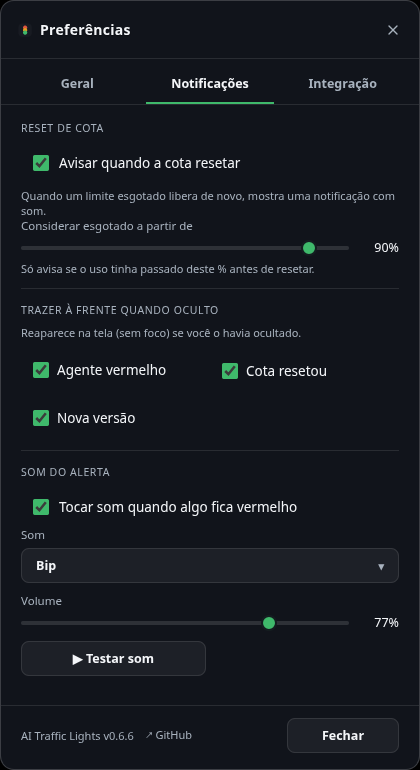
(single dense row per session), both live and remembered - ⚙️ Preferences window (gear icon): idle threshold, global shortcut,
autostart, install/remove hooks, appearance, show/hide, quit — with the app
version and a link to the repo in the footer - Auto-height, drag anywhere, width-resizable, position + UI state persisted
- 🔄 Version + update check in the header — shows the installed version and,
when a newer GitHub release exists, a one-click badge to open it - Tray icon + global shortcut
Ctrl+Alt+H(configurable) - Stays out of your way: no taskbar/alt-tab entry, never maximizes, no scrollbar
Requirements
- Linux (X11: full support, Wayland: partial — see Troubleshooting) or macOS (supports Apple Silicon M1–M5).
- On Linux:
wmctrl,xdotool,jq—sudo apt install wmctrl xdotool jq - On macOS: Homebrew and
jq—brew install jq - Node.js 20+
- A supported agent: Claude Code,
Antigravity CLI,
Codex or OpenCode
Install
Pick whichever fits your platform. All options require the agent hooks so the overlay can see Claude Code / Antigravity / OpenCode sessions — from source you run npm run setup-hook; in a packaged build you click Install/update hooks in the tray menu or Preferences window (or the overlay's onboarding button).
macOS (M1 to M5 / arm64)
Option 1: Automated script (recommended)
Run the following single-line command in your terminal. It will verify dependencies (installing jq via Homebrew if needed), download the latest .dmg release, copy AI Traffic Lights.app to /Applications, and configure shell aliases (atl and ai-traffic-lights) in your ~/.zshrc and ~/.bash_profile:
curl -fsSL https://raw.githubusercontent.com/aronpc/ai-traffic-lights/main/install_macos.sh | bash
To run the application from the terminal, open a new shell session (or run source ~/.zshrc) and execute:
atl
Option 2: Manual Install
- Download the
.dmgfile from the latest release. - Open the
.dmgfile and dragAI Traffic Lights.appto your/Applicationsfolder.
Linux
Option 1: AppImage (recommended, self-updating)
A single command that fetches the latest release, makes it executable, installs the icon into the system theme, and creates an application menu shortcut:
curl -fsSL https://raw.githubusercontent.com/aronpc/ai-traffic-lights/main/install.sh | bash
Then open it from your application menu or run ~/Applications/AI-Traffic-Lights.AppImage. To uninstall:
curl -fsSL https://raw.githubusercontent.com/aronpc/ai-traffic-lights/main/install.sh | bash -s -- --uninstall
Grab the .AppImage from the latest release, drop it in a user-writable folder (the self-updater rewrites that file in place — do not use /opt or /usr), and run:
chmod +x AI-Traffic-Lights-*.AppImage
./AI-Traffic-Lights-*.AppImage
Option 2: Debian Package (.deb)
Download the .deb from the latest release and install it:
sudo dpkg -i ai-traffic-lights_*.deb
From Source (Development - Linux & macOS)
git clone https://github.com/aronpc/ai-traffic-lights.git
cd ai-traffic-lights
npm install
npm run setup-hook   # registers the adapters: Claude Code (~/.claude),
                     # Antigravity CLI (~/.gemini/antigravity-cli) and OpenCode (plugin in
                     # ~/.config/opencode/plugin/), whichever are present
npm start            # opens the overlay
setup-hook is idempotent and surgical: it backs up settings.json and never touches hooks from other tools. The registered command points to a self-updating stable copy of the hook in ~/.local/share/ai-traffic-lights/bin/ — so moving the project (or running the packaged AppImage/App, whose mount path changes every run) never breaks it. npm run remove-hook undoes everything just as cleanly. The tray menu and Preferences window offer the same install/remove actions for packaged installs.
New Claude Code sessions show up immediately; sessions already open appear on their next event.
How it works
Claude Code session ──hooks──▶ traffic-hook.sh (adapter, <25ms, fork-free)
                                      │ writes
                                      ▼
                    ~/.local/share/ai-traffic-lights/state/<session>.json
                                      │ watched (chokidar)
                                      ▼
                    Electron main ──IPC──▶ renderer: computeState() → 🟢🟡🔴
Architecture decision: the adapter only records events. The state
(color) is computed in the renderer, because idle escalation
(green→red after N minutes) needs a clock — something an event-driven hook
doesn't have.
The integration contract is the state file, not the code. Anything that
writes a valid JSON into the state dir becomes a light in the overlay.
See docs/ARCHITECTURE.md for integration diagrams and
a step-by-step guide to adding an agent.
State file contract (schema_version 2)
Location: ${XDG_DATA_HOME:-~/.local/share}/ai-traffic-lights/state/<session_id>.json
{
  "schema_version": 2,           // bump when the schema changes
  "agent": "claude",             // agent id (key in src/agents.js)
  "session_id": "abc-123",       // key, = file name
  "pid": 986893,                 // agent process PID (dead-session sweep)
  "cwd": "/home/user/project",   // project dir (basename = default label)
  "term_program": "WarpTerminal",// source terminal (null if unknown)
  "windowid": "67108868",        // X11 window of the session — see below
  "focus_url": "warp://session/8726…", // Warp: focus URI (xdg-open)
  "tilix_id": null,              // Tilix: terminal id for activate-terminal (D-Bus)
  "zellij_session": null,        // zellij session name, when inside zellij
  "last_event": "Stop",          // last hook_event_name
  "last_event_ts": 1783124001,   // epoch of the last event (UTC)
  "last_tool": "Bash",           // last tool_name (null for tool-less events)
  "notification_type": null,     // Notification discriminator (see below) — null unless last_event is Notification
  "events": [                    // rolling log (last 50), append-only
    { "ts": 1783124000, "event": "PostToolUse", "tool": "Bash" },
    { "ts": 1783124001, "event": "Stop",        "tool": null }
  ]
}
Types: every *_ts is an integer epoch. windowid is a string
(xdotool decimal or 0x… hex; the app normalizes). pid is an integer.
Focusing the right window — and the right tab
Window (windowid): captured at UserPromptSubmit/SessionStart (the
focused window then is the session's terminal) via xdotool getactivewindow, preserved across events. Before using it, focusSession()
validates it against the session's process tree — a stale or recycled id
whose window no longer belongs to the session is discarded (so a click never
focuses the wrong window); the fallback is the first window owned by the
session's process.
Tab (invisible to X11 — only the terminal can select it):
| Terminal | Channel | Env var captured |
|---|---|---|
| Warp | xdg-open warp://session/<uuid> |
WARP_FOCUS_URL |
| Tilix | gdbus … org.gtk.Actions.Activate activate-terminal <id> |
TILIX_ID |
The decision logic (pickWindow/tabChannel) is a pure module,src/focus.js — main.js only does the I/O. On X11 the window
is raised, then the tab is selected; on Wayland the tab channel goes first
(wmctrl only sees XWayland).
Event → state mapping (computeState, renderer)
| Adapter event | level | reason (sub-icon) |
|---|---|---|
SessionStart |
done 🟢 | ✓ (initial) |
UserPromptSubmit, PreToolUse, PostToolUse |
processing 🟡 | 🛠 |
Stop |
done 🟢 (→ awaiting 🔴⏰ if idle > 5 min) | ✓ / ⏰ |
PermissionRequest |
awaiting 🔴 | 🔑 |
Notification |
depends on notification_type: permission_prompt / idle_prompt / elicitation_dialog → awaiting 🔴❓; auth_success / elicitation_complete / elicitation_response → done 🟢✓ |
❓ / ✓ |
PostToolUseFailure |
awaiting 🔴 | ⚠️ |
Adding a new agent
Two steps — the app adapts to whatever you declare:
- Register it in
src/agents.js: one line withlabel
(UI),comm(process names in/proc/<pid>/comm, for detecting live
sessions that don't have a state file yet). - Write an adapter: anything that writes state files following the
contract above.hooks/traffic-hook.shis the
reference implementation — and it already serves two agents: for
Antigravity CLI it runs withAI_TL_AGENT=antigravityand uses the
canonical event vocabulary directly, so the renderer never learns per-agent dialects.
For Node-based CLIs whose process comm is just node (Antigravity), the/proc probe identifies sessions by the script basename in the process
argv — declared via the argv field in the registry.
See CONTRIBUTING.md for details.
Troubleshooting
- Overlay shows "no active sessions" — did you run
npm run setup-hook?
Already-open sessions only appear after their next event (send any prompt). - Click doesn't focus / focuses the wrong window — on Linux, check that
wmctrlandxdotoolare installed. On macOS, click-to-focus uses AppleScript (osascript) to focus the window. If it fails, ensureAI Traffic Lights.app(or your terminal if running from source) has Accessibility permissions granted in System Settings > Privacy & Security > Accessibility. - Wayland — the overlay itself runs fine (XWayland). Native-Wayland
windows can't be focused by third parties, so click-to-focus relies on the
terminal's focus URI (Warp today); the global shortcut may not fire while a
native-Wayland app has focus. Workarounds: click the tray icon, or bind a
GNOME custom shortcut to the app's launch command — relaunching toggles
the overlay (single-instance). - Where is my data? —
${XDG_DATA_HOME:-~/.local/share}/ai-traffic-lights/
(state files, window position, aliases). Delete it freely; it regenerates. - Renderer debug —
ATL_DEBUG=1 npm startlogs to/tmp/atl-renderer.log.
Development
npm install
npm start
Test the adapter standalone:
echo '{"session_id":"t","hook_event_name":"Stop","cwd":"/tmp"}' | bash hooks/traffic-hook.sh
cat "${XDG_DATA_HOME:-$HOME/.local/share}/ai-traffic-lights/state/t.json" | jq .
Roadmap
- Antigravity CLI adapter (hooks) + idle detection via argv probe
- OpenCode adapter (plugin: chat/tool/idle/permission events, model
capture — seeadapters/opencode/) - Codex adapter (same hooks schema as Claude; model from payload) — note:
aftersetup-hook, run/hooksin the Codex CLI once to trust the hook - Packaging: AppImage + .deb (electron-builder) — see Releases
- Test suite (
node:test) + CI - Reliable click-to-focus: window-id validation + exact tab in Warp
(focus_url) and Tilix (TILIX_IDvia D-Bus) - Tab focus for terminals without a native channel (GNOME Terminal,
zellij/tmux) - Full native-Wayland window focus (today: XWayland + Warp focus URI +
relaunch-to-toggle) - Configurable idle threshold & shortcut (tray → Preferences — stored in
~/.local/share/ai-traffic-lights/settings.json)
License
Reviews (0)
Sign in to leave a review.
Leave a reviewNo results found