klikpaper
Health Warn
- License — License: MIT
- Description — Repository has a description
- Active repo — Last push 0 days ago
- Low visibility — Only 5 GitHub stars
Code Fail
- rm -rf — Recursive force deletion command in install.sh
- rm -rf — Recursive force deletion command in scripts/installer-art.sh
Permissions Pass
- Permissions — No dangerous permissions requested
No AI report is available for this listing yet.
Free, open-source, lightweight PDF tool for the desktop: view, organize, compress, convert, annotate, sign and protect PDFs offline. Optional AI chat with your own key and MCP for Claude Code.
KlikPaper
English · Bahasa Indonesia
A free, open-source PDF tool for the desktop. View, organize, compress, convert, annotate, sign and protect PDFs on your own computer, ask questions about them with your own AI key, or let the AI agent you already use work on them over MCP. Small, fast and offline.



Part of Klik Apps, a family of free, open-source desktop apps: klikapps.pages.dev
Features
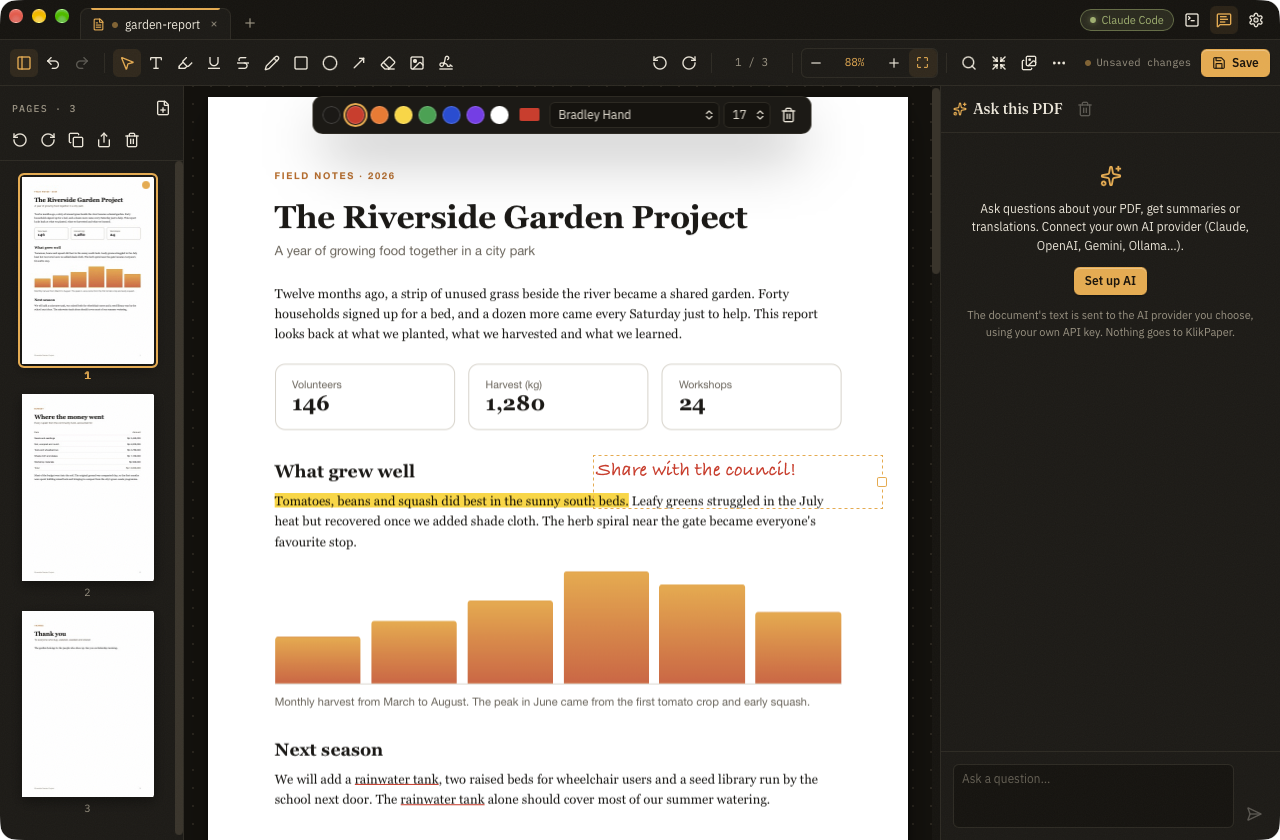
- Viewer: fast continuous scrolling, zoom and fit width, text selection, find in document, clickable links, fillable forms, tabs for several PDFs
- Recognize text (OCR): make scanned pages searchable. KlikPaper reads Indonesian and English on this computer (Tesseract, built in, nothing uploaded) and lays the words invisibly over the scan, so you can search, select and copy them, the AI can read them, and Black out removes them word by word. The page looks the same. OCR can misread blurry or handwritten text, so don't rely on search alone to find everything
- Clean up scans: straighten tilted pages, whiten the dark edges a scanner or a phone photo leaves, and turn pages black and white for much smaller files (a scanned page often shrinks to a tenth); color can be kept for photos and ID cards. Undo takes it back, and the text can be recognized again right after
- Compare versions: pick the other version of a document and see what was added, removed or changed, word by word across pages, with both pages side by side and the changes marked. Only text is compared, not pictures or layout
- Bookmarks: browse the document's outline in the sidebar, jump to a section, and add, rename, nest, reorder or delete bookmarks; merged files keep the bookmarks of each file
- Process many files (Home, or File → Process Many Files): pick files or a folder and run any of clean up scans, recognize text, black out personal data, watermark, page numbers, compress, password and remove metadata on all of them, or just report their digital signatures. New files go to a folder you choose, the originals are never changed, and a report lists what happened to each file
- Print (Cmd/Ctrl+P) the document as you see it, with unsaved edits. Pages are sent to the printer as 200 DPI pictures
- Organize pages: drag thumbnails to reorder, rotate, delete, duplicate, insert pages from other PDFs, merge several files, split by ranges or every N pages, save selected pages as a new PDF, resize pages to A4, Letter, Legal, A3 or A5 (content scaled to fit, never stretched)
- Compress: three levels or a custom quality slider that downscale and re-encode photos; text, vector graphics and fonts are untouched. Every level shows its resulting file size before you save
- Convert: images (JPG, PNG, WebP, GIF, BMP, TIFF) to PDF, and pages to PNG or JPEG
- Edit text: click a line to change its words; KlikPaper covers the old line and retypes it in a matching font, size and color. The old words stay in the file underneath, so never use Edit text or White-out to hide private information; use Black out. Changes to printed text and white-out boxes are noted in the file's edit history (see What KlikPaper writes into your PDFs)
- Black out (redact): hide private details like ID or account numbers. Drag a box over them, right-click selected text, or black out every match of a search at once. Until you save, the marks are shaded so you can check them, and Undo takes them back. When you save, the text, image pixels, shapes, links and form fields under the black boxes are deleted from the file, not just covered, so nobody can copy them or bring them back. If a page can't be cleaned piece by piece safely, that page is saved as a picture of itself. KlikPaper suggests saving the result as a new file, so you keep the original. Black out personal data (⋯ menu) finds Indonesian ID numbers (NIK), tax numbers (NPWP), mobile numbers, email addresses, account and card numbers and dates of birth in one go, for you to review before anything is marked. See Sharing private documents safely
- Annotate: highlight, underline and strike through text (saved as real PDF annotations other viewers can list), text boxes in any font installed on your computer (embedded when you save), freehand drawing, rectangles, ellipses, arrows, white-out, images
- Comments: pin a comment to any spot on a page, reply, and mark threads done in the Comments panel. Comments are saved inside the PDF as standard notes, so whoever you send the file to can read and answer them in KlikPaper, Acrobat or Preview. Keep the file in a shared folder (Google Drive, Dropbox, OneDrive) and KlikPaper shows new replies as soon as someone saves; no account or server
- Sign: draw, type or upload a signature, place and resize it. This is a picture of your signature, not a certificate-based digital signature
- Check digital signatures: a signed PDF (Acrobat, government and company signing services) shows a badge saying whether its signatures are valid, whether the document changed after signing, and who signed with which certificate. KlikPaper checks the document and the signature against the certificate; it doesn't check whether the certificate's issuer is trusted or whether the certificate was revoked, so for official documents also use the issuer's own verification service. Saving a signed PDF in KlikPaper rewrites it, so its signatures won't be valid in the saved file; KlikPaper warns you and suggests a new file
- Watermark and page numbers, previewed live on every page
- Password and privacy: open protected PDFs, protect with AES-256, remove a password you know, strip metadata, flatten form fields
- Ask this PDF (optional): chat about the open document, with answers that cite pages you can click. Bring your own key for Anthropic (Claude) or any OpenAI-compatible API (OpenAI, OpenRouter, Gemini, Groq, Ollama...). The AI can also rotate, move or delete pages and add text when you ask. Keys are stored in the OS keychain
- Works with your AI agent: turn on the local MCP server and any MCP client (Claude Code, Codex, Gemini CLI, VS Code, Cursor, Windsurf, opencode and other agent harnesses) can read and search open PDFs, recognize text on scans, highlight, add text, shapes, images and signatures, black out text, areas or personal data, clean up scans, compare versions, edit bookmarks, read and reply to comments, check digital signatures, rearrange pages, open the print dialog, and merge, split, compress, protect, convert or batch-process files. A built-in terminal runs your agent right next to your documents
- Right-click menus on pages, selected text, annotations, comment pins, page thumbnails, tabs and recent files, with the actions for what you clicked
- Undo and redo for page changes, annotations, comments, watermarks and page numbers; nothing is written to the file until you save
- Right-click actions (optional): merge, compress or convert PDFs, or turn images into a PDF, straight from the Windows File Explorer menu or macOS Finder Quick Actions
- English and Bahasa Indonesia throughout: the interface, the menu bar, update messages and the "What's new" notes; automatic updates from GitHub Releases (signed packages), which you can set to install by themselves, ask first or stay off
Sharing private documents safely
Black out deletes what is under the black boxes on the pages. Before you send a blacked-out file:
- Mark every place the information appears. "Black out personal data" in the ⋯ menu finds the usual kinds; use Find and "Black out every match" for names and anything else. On scanned pages, run Recognize text first; OCR can misread, so look through the pages and draw boxes over anything search missed.
- Save as a new file and keep the original to yourself.
- Check what Black out doesn't touch, because it isn't on the pages: the file name, bookmark titles, document info such as title and subject (tick “Remove document info and metadata” under ⋯ → Password & privacy), comments, and files attached inside the PDF.
- Open the saved file and try to select or copy the blacked-out areas. Nothing should come out.
Edit text and White-out only cover content; the original stays in the file. They are not for hiding anything.
What KlikPaper writes into your PDFs
Besides the changes you make, a saved file can carry:
- Comments, with the name you comment under (set it in Settings)
- Bookmarks
- An edit history, when you changed printed text (Edit text), covered content (White-out) or blacked out areas: one line per save with the date, "KlikPaper" and its version, which pages changed and how many lines or boxes. Never your name, your computer or the text itself
- A note that parts were blacked out, so readers know the black boxes aren't part of the original
The edit history and the note are shown by KlikPaper (the badges in the toolbar, and Document info) and by Acrobat under File → Properties → Custom. They are there for transparency, so honest readers know a file was changed; they can't stop someone determined to forge a PDF, since any PDF editor can remove them. Ticking “Remove document info and metadata” under ⋯ → Password & privacy saves the file without them, along with the title, author and other document info.
Privacy
KlikPaper works offline, text recognition (OCR) included. Your files never leave your computer, with two exceptions you control:
- Update checks ask GitHub Releases for a newer version and, when there is one, fetch its changelog from GitHub (once a day, or only when you ask if you turn automatic checks off).
- AI chat, when you set it up and use it, sends the open document's text and your question to the AI provider you chose, with your own API key. Nothing is sent to KlikPaper or its author.
There is no account, no telemetry and no analytics.
Download
Get the latest version from Releases:
| Platform | File |
|---|---|
| macOS 11+ (Apple Silicon & Intel) | KlikPaper_x.y.z_universal.dmg |
| Windows 10/11 (x64) | KlikPaper_x.y.z_x64-setup.exe or .msi |
| Linux x86_64 | .deb, .rpm or .AppImage |
macOS: open the DMG and drag KlikPaper into Applications. KlikPaper is signed and notarized by Apple, so it opens without a Gatekeeper warning. Or use the install script, which downloads the latest DMG, copies KlikPaper into Applications and opens it:
curl -fsSL https://raw.githubusercontent.com/ashafizullah/klikpaper/main/install.sh | bash
Windows: SmartScreen may warn about an unsigned app. Click More info → Run anyway.
Using an AI agent (MCP)
- Open Settings → AI agents (MCP) and enable the local MCP server.
- Pick your agent and copy its setup step: a one-time command for Claude Code (
claude mcp add …), Gemini CLI (gemini mcp add …) and VS Code (code --add-mcp …), or a config snippet for Codex (~/.codex/config.toml) and Cursor (~/.cursor/mcp.json). KlikPaper is a standard MCP server (Streamable HTTP with a bearer token), so any other agent or harness works too: choose Other to get the server URL andAuthorizationheader. - Start your agent (KlikPaper's built-in terminal, Ctrl+`, opens in the document's folder) and ask, for example, "merge every PDF in ~/Invoices into one file sorted by date" or "in the open document, delete the blank pages and add page numbers" or "highlight every mention of the deadline", or "recognize the text in every scan in ~/Scans, black out ID and account numbers, and save the results to ~/Scans/clean".
The server only listens on 127.0.0.1 and requires a secret token. KlikPaper never starts your agent, sends it prompts or touches its credentials. File tools never overwrite an existing file unless asked to, and only write PDF, PNG and JPEG files.
Requirements
- Nothing for the PDF tools: they work offline
- For Ask this PDF: an API key for a chat model (Claude, GPT, Gemini, OpenRouter…), or a local OpenAI-compatible server such as Ollama
- For AI agents: any MCP client or agent harness that supports Streamable HTTP (Claude Code, Codex, Gemini CLI, VS Code, Cursor, Windsurf, opencode…) on the same computer
Development
Requires Bun and stable Rust. On Linux, also install the Tauri prerequisites.
bun install
bun run tauri dev      # run
bun run tauri build    # bundle
bun run check          # type check
bun run test           # frontend tests
cargo test --manifest-path src-tauri/Cargo.toml
bun run notices        # license check + THIRD_PARTY_NOTICES.md
How it fits together
src/is the Svelte 5 interface. PDF.js renders pages, text and form layers; your edits live in a document model (src/lib/doc.svelte.ts) as an ordered list of pages from one or more files plus annotations, with undo history.- Saving sends the page list to Rust (
src-tauri/src/pdf/), where lopdf assembles the new file (merge, reorder, rotate, delete), compresses images, strips metadata and encrypts. Annotations, watermarks and page numbers are drawn with pdf-lib (src/lib/draw.ts) in between. - The webview can only read and write PDFs and images (
src-tauri/src/files.rs). API keys stay in the OS keychain and never reach the webview.
Contributing
Issues and pull requests are welcome. CI runs type checks, tests, cargo fmt, clippy, cargo test and the license check on macOS, Windows and Linux. Please run them locally before opening a PR. See CONTRIBUTING.md for setup, checks and guidelines, including the rules on third-party code.
Releasing
Add a ## x.y.z section to CHANGELOG.md and the same section in Indonesian to CHANGELOG.id.md (the app shows the one for the interface language after an update), bump version in tauri.conf.json, Cargo.toml and package.json, then push a tag. CI builds the signed and notarized macOS DMG, the Windows installers and the Linux packages, signs the update packages and attaches everything (including latest.json for the in-app updater) to a draft release. Publish the draft to roll it out.
Releases need the TAURI_SIGNING_PRIVATE_KEY secret (its public key is in tauri.conf.json) plus APPLE_CERTIFICATE, APPLE_CERTIFICATE_PASSWORD, APPLE_ID, APPLE_PASSWORD and APPLE_TEAM_ID for macOS signing and notarization.
git tag v0.1.1 && git push origin v0.1.1
The Windows installer and DMG artwork in src-tauri/installer/ is rendered from design/installer/art.html with scripts/installer-art.sh.
Support
KlikPaper is free. If it saves you time, buy me an AI token on Trakteer ☕🤖.
License
KlikPaper is built on PDF.js (Apache-2.0), pdf-lib (MIT) and lopdf (MIT), and bundles other third-party software, including the interface fonts Fraunces, IBM Plex Sans and IBM Plex Mono and the Liberation Sans 2 font used for text added to PDFs (all SIL Open Font License 1.1). Their licenses are in THIRD_PARTY_NOTICES.md, which the app also shows under Settings → About → Open-source licenses. Run bun run notices after changing dependencies.
Adobe and Acrobat are trademarks of Adobe Inc. Claude and Claude Code are trademarks of Anthropic; Codex is a trademark of OpenAI; other product names are trademarks of their owners. KlikPaper is an independent project and is not affiliated with or endorsed by Adobe, Anthropic, OpenAI, Google or Mozilla.
 Built by Adam Suchi Hafizullah
Reviews (0)
Sign in to leave a review.
Leave a reviewNo results found