promptly
Health Uyari
- License — License: MIT
- Description — Repository has a description
- Active repo — Last push 0 days ago
- Low visibility — Only 5 GitHub stars
Code Basarisiz
- rm -rf — Recursive force deletion command in install.sh
- exec() — Shell command execution in promptly.py
Permissions Gecti
- Permissions — No dangerous permissions requested
Bu listing icin henuz AI raporu yok.
A tiny, movable, always-on-top status light for Claude Code (and anything else).
Promptly
Know when Claude needs you — without alt-tabbing.
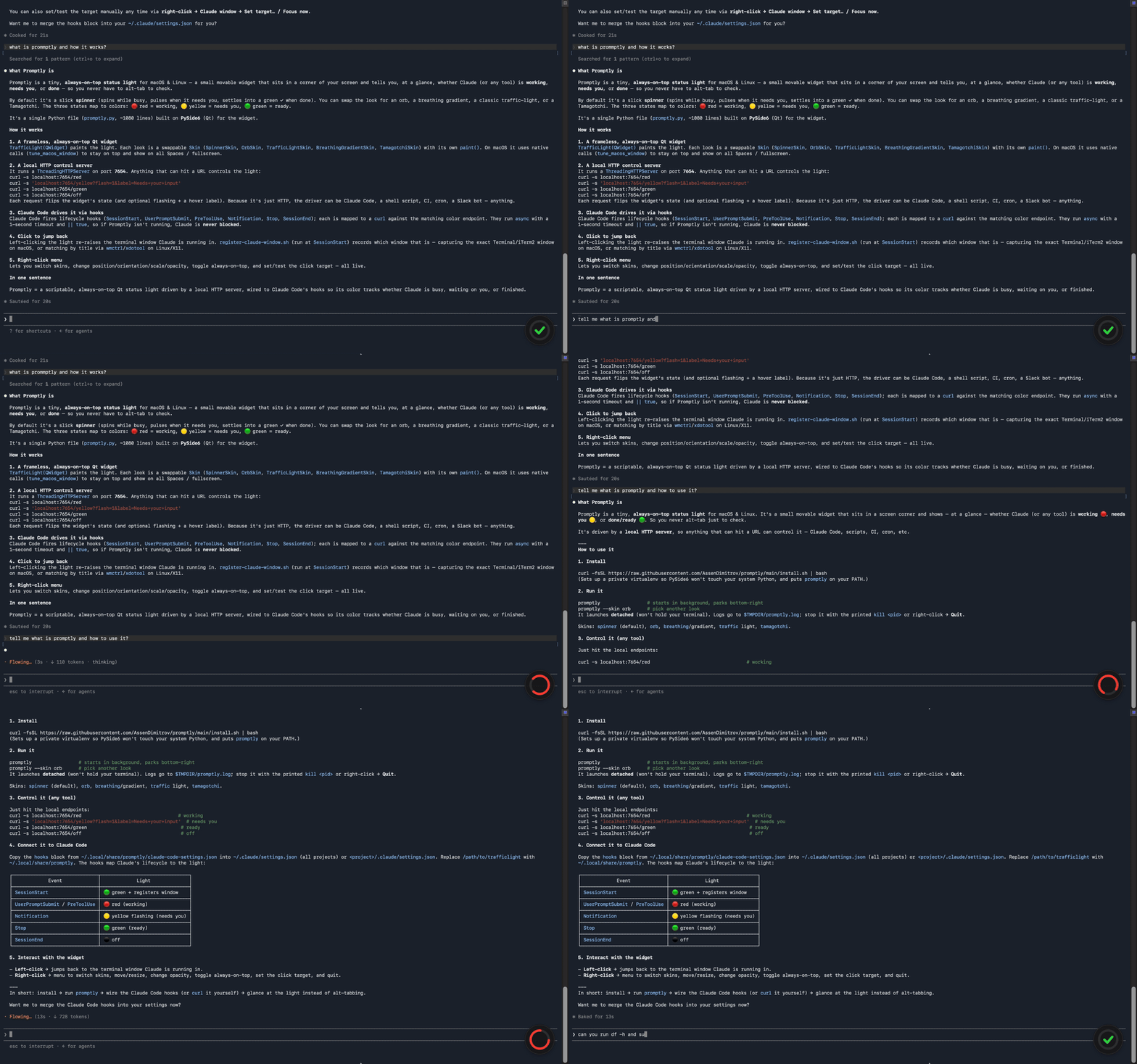
Promptly is a tiny, movable, always-on-top status light for macOS & Linux.
By default it's a slick spinner — it spins while busy, pulses when it needs you,
and settles into a ✓ when it's done:
| Spinner | State | Meaning |
|---|---|---|
 |
Busy | working |
 |
Needs you | needs your input |
 |
Ready | ready / idle |
Prefer something else? Switch looks in one click — orb, breathing gradient, classic
traffic light, or a little Tamagotchi (see Skins).
It's driven by a dead-simple local HTTP server, so anything that can run a
shell command or hit a URL can control it — Claude Code, shell scripts, CI, cron,
a Slack bot, your imagination. Red while it works, yellow when it needs you, green
when it's done. Click it to jump straight back to where Claude is running.
The colors are just states — wire them to whatever you like.
Install
One line — fetches Promptly, sets up a private virtualenv (PySide6 won't touch your
system Python; uses uv if it's installed, with live
download progress), and puts promptly on your PATH:
curl -fsSL https://raw.githubusercontent.com/AssenDimitrov/promptly/main/install.sh | bash
Then just run it:
promptly                 # starts in the background, parks bottom-right
promptly --skin orb      # pick another look (see "Skins")
promptly launches detached — it won't hold your terminal — and prints how to
connect it to Claude Code. Logs go to $TMPDIR/promptly.log; stop it with the
printed kill <pid>, or right-click the light → Quit.
Installs into ~/.local (override with PROMPTLY_PREFIX). Re-run to update.
Uninstall with rm -rf ~/.local/share/promptly ~/.local/bin/promptly.
Prefer to read before you pipe to a shell? It's a tiny script —
install.sh. Or run from source (below).
pipx install git+https://github.com/AssenDimitrov/promptly      # then: promptly
uv tool install git+https://github.com/AssenDimitrov/promptly   # (uv alternative)
Quick start (from source)
git clone https://github.com/AssenDimitrov/promptly && cd promptly
pip install -r requirements.txt         # just PySide6-Essentials (or: pip install PySide6-Essentials)

python promptly.py                 # spinner skin (default), parks bottom-right
python promptly.py --skin orb      # pick another look (see "Skins")
python promptly.py --skin tamagotchi --scale 1.4
python promptly.py --vertical      # classic vertical stoplight
python promptly.py --state red --port 7654
Then flip it from anywhere:
curl -s localhost:7654/red
curl -s 'localhost:7654/yellow?flash=1&label=Needs+your+input'
curl -s localhost:7654/green
- Left-click → jumps to the window where Claude is running (see Claude Code).
- Drag (press and move) → reposition it anywhere.
- Right-click → all the options (skin, size, orientation, opacity, always-on-top,
show-over-fullscreen, and more).
It floats above other windows and stays out of the Dock/taskbar.
Linux note: needs a Qt platform plugin. On a normal desktop session it works out
of the box; on Wayland you may wantQT_QPA_PLATFORM=wayland(orxcbto force X11).
Skins
Same three states, five different vibes. Switch any time via right-click → Skin,
or start with --skin <name>:
| Skin | --skin |
Look |
|---|---|---|
| Spinner | spinner (default) |
indeterminate spinner while busy, a ✓ when ready |
| Orb | orb |
a single breathing orb |
| Breathing gradient | gradient |
an ambient bar that breathes; great "attached to top" |
| Traffic light | traffic |
the classic three lamps |
| Tamagotchi | tamagotchi |
a creature that works, calls you, and rests |
A skin is purely a render strategy over the state — the HTTP server and your
Claude Code hooks are identical for every skin. Adding your own is one class
(see How it's built).
👉 See them move at the bottom of this page.
Control it (the extension point)
Talk to Promptly over http://127.0.0.1:7654. Simple path endpoints:
curl -s localhost:7654/red
curl -s 'localhost:7654/yellow?flash=1&label=Needs+your+input'
curl -s localhost:7654/green
curl -s localhost:7654/off
curl -s localhost:7654/state                       # read current state as JSON
curl -s 'localhost:7654/focus?app=iTerm'           # macOS: set click target
curl -s 'localhost:7654/focus?title=claude-code'   # Linux/X11: set click target
Or richer JSON via POST:
curl -s localhost:7654/state \
  -d '{"state":"yellow","flash":true,"label":"Running tests"}'
That HTTP endpoint is the whole extensibility story: GitHub Actions, a deploy
script, a long-running job, a Slack bot — any of them can flip the light with one
line.
Connect it to Claude Code
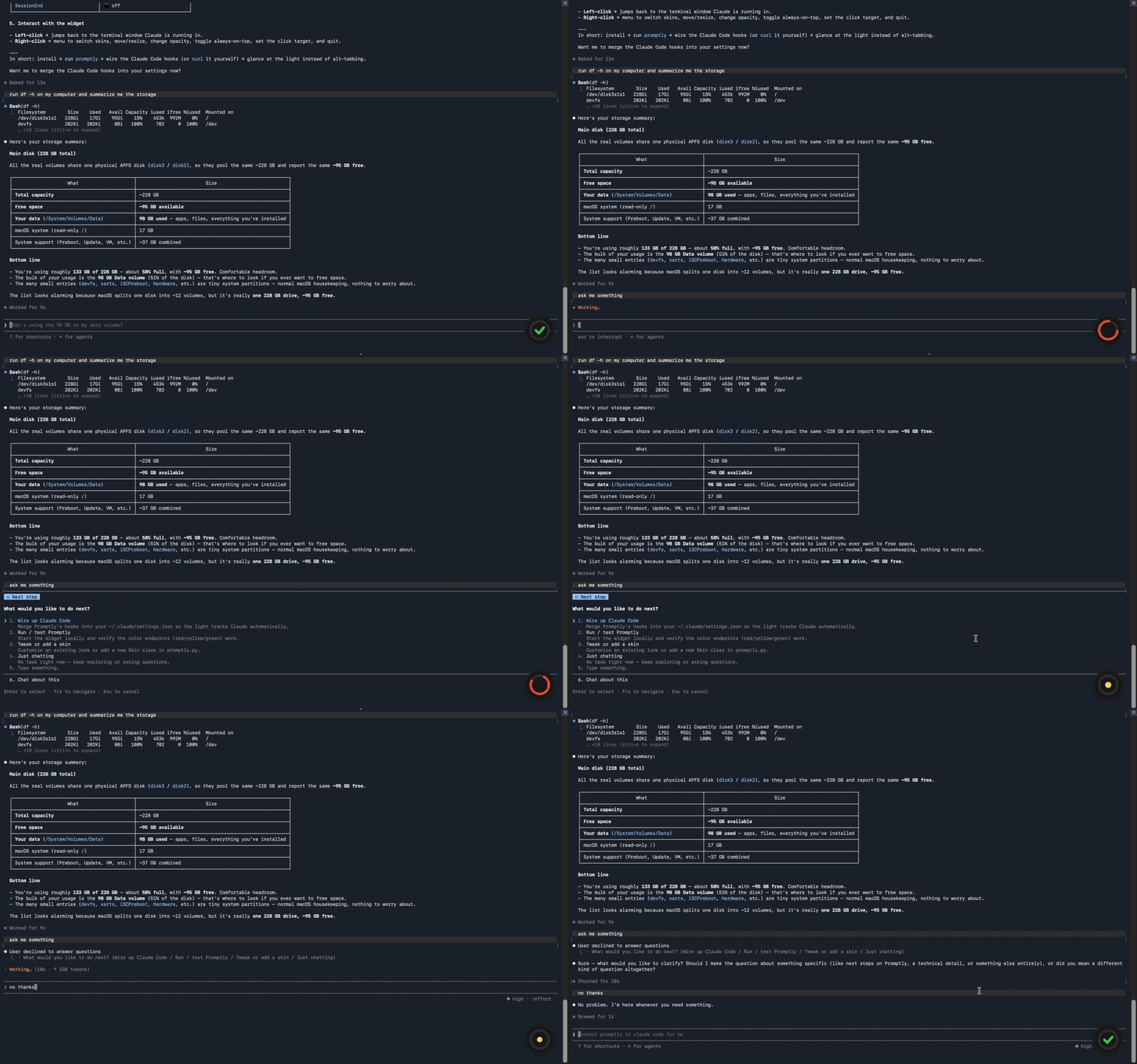
Claude Code fires lifecycle hooks you can map straight onto the light. Openclaude-code-settings.json (installed at ~/.local/share/promptly/claude-code-settings.json),
copy its hooks block into either:
~/.claude/settings.json— applies to every project, or<project>/.claude/settings.json— just this repo.
The mapping:
| Claude Code event | Fires when… | Light |
|---|---|---|
SessionStart |
a session begins | 🟢 green |
UserPromptSubmit |
you send a prompt | 🔴 red (working) |
PreToolUse |
it's about to run a tool | 🔴 red (working) |
Notification |
it needs input / a permission | 🟡 yellow flashing |
Stop |
it finishes the turn | 🟢 green (ready) |
SessionEnd |
the session ends | ⚫ off |
Each hook is just curl -s -m 1 localhost:7654/<color> || true, run withasync: true — so if Promptly isn't running, Claude Code is never blocked or
slowed. Start Promptly, start Claude Code, and the light tracks it live.
Left-click → jump to where Claude is running
Left-clicking the light raises the window Claude Code lives in. The SessionStart
hook runs register-claude-window.sh, which auto-detects where to focus:
- macOS — detects the terminal from
$TERM_PROGRAM. For Terminal.app and
iTerm2 it captures the exact window Claude started in (it's the frontmost
one at session start) and re-raises precisely that window — handy when several
terminal windows are open. Other terminals (VS Code, Ghostty, WezTerm, Hyper, …)
fall back to focusing the app by name. The first click triggers a one-time macOS
prompt — "Python wants to control Terminal/iTerm" — click Allow. - Linux/X11 — focuses a window by matching its title with
wmctrl/xdotool
(apt install wmctrlorxdotool). If your terminal has no useful title, set one
in your shell rc withprintf '\033]0;claude-code\007'andexport CLAUDE_WINDOW_TITLE=claude-code. Wayland generally blocks one app
from focusing another's window — there it may not work.
Edit /path/to/trafficlight in the SessionStart hook to point at this folder
(after the one-line install that's ~/.local/share/promptly). You can also set the
target by hand any time: right-click → Claude window → Set target…, and test it
with Claude window → Focus now.
The right-click menu
Everything is configurable here:
- Skin → Spinner / Orb / Breathing gradient / Traffic light / Tamagotchi
- Orientation → Horizontal / Vertical (for skins that support it)
- Size → Small / Medium / Large / Extra large
- Opacity → 100% / 85% / 70% / 50%
- Attach to top bar → snaps flush to the top edge and locks it there
- Always on top → float above other windows
- Sound → play a short sound on each state change — started (red), needs you
(yellow), done (green). Off by default; start with--soundto enable at launch - Show on all Spaces & over fullscreen apps (macOS) → appear on every Space and
over other apps' fullscreen windows (on by default) - Claude window → Focus now, Set target…, and the current target
- Quit
macOS behavior & environment variables
To behave like a proper always-visible status indicator, on macOS Promptly reaches
past Qt to the native NSWindow/NSApplication (via ctypes against the
always-present libobjc — no extra dependency) and:
- stays above other apps at a high window level,
- rides along to every Space/desktop (
CanJoinAllSpaces), - stays visible when another app is frontmost (Qt's
Qt.Toolwould otherwise
hide it on deactivation), - drops its Dock icon by running as an accessory app — which is also what
lets it float over other apps' fullscreen Spaces.
Overlaying another app's native fullscreen is the one thing public macOS APIs
won't do, so it uses a private Spaces API — undocumented and may change across
macOS releases. It's on by default; turn it off with right-click → Show on
all Spaces & over fullscreen apps, or PROMPTLY_FORCE_ALL_SPACES=0. Everything
else uses public APIs only.
| Variable | Default | Effect |
|---|---|---|
PROMPTLY_FORCE_ALL_SPACES |
on | =0 stops it showing over other apps' fullscreen Spaces (private API; also a menu toggle). |
PROMPTLY_LEVEL |
1000 |
Window level. 1000 floats over fullscreen; 25 = status level (below the menu bar) if 1000 feels too aggressive. |
PROMPTLY_KEEP_DOCK |
off | =1 keeps the Dock icon (you then lose the over-fullscreen overlay). |
PROMPTLY_NO_ORDERFRONT |
off | =1 skips the periodic re-raise (rarely needed). |
PROMPTLY_DEBUG |
off | =1 prints one diagnostic line about the native window state to stderr. |
TL_PORT |
7654 |
Control port used by register-claude-window.sh (match --port). |
# floats over everything (incl. other apps' fullscreen) out of the box;
# pass =0 to keep it off other apps' fullscreen Spaces
PROMPTLY_FORCE_ALL_SPACES=0 python promptly.py --skin spinner
These knobs are macOS-only and harmless elsewhere. On Linux the window manager
governs always-on-top / across-desktops behavior directly.
How it's built
        any tool (Claude Code hook, script, CI…)
                       │  HTTP GET/POST  →  /red /yellow /green /off /state
                       ▼
   ┌──────────────────────────────────────────────┐
   │  promptly.py                                 │
   │  ┌────────────┐   Qt signal   ┌────────────┐ │
   │  │ HTTP server│ ────────────► │  widget    │ │
   │  │ (thread)   │  (thread-safe)│  + skin    │ │
   │  └────────────┘               └────────────┘ │
   └──────────────────────────────────────────────┘
- The HTTP server runs on a background thread and hands updates to the GUI thread
through a Qt signal (Bridge.apply) — the safe way to touch the UI from another
thread. - Adding a new trigger = make something call the endpoint. No app changes needed.
- Adding a new look = add a
Skinsubclass (size+paint, optionallyanimating) and list it inSKIN_LIST. The control layer is untouched. - Adding a new state (e.g. a 4th lamp) = extend
VALID_STATES, then handle it
in the skins you care about.
Built in PySide6 (Qt) because it's one pip-install, one file, no build step,
and looks good on both OSes. The same local-HTTP design ports cleanly to Electron,
Tauri, or a rumps menu-bar app if you'd rather — and your Claude Code hooks
wouldn't change.
The skins, side by side
Same three states (busy → needs you → ready), five different personalities. The
spinner is up top; here are the other four, each shown live in a different state
so you can see how they read at a glance:
 Orb a single breathing glossy sphere |
 Tamagotchi a creature that works, calls you, and rests |
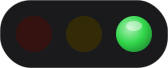 Traffic light the classic three lamps |
 Breathing gradient an ambient bar — great snapped to the top edge |
Switch between them any time via right-click → Skin, or start with--skin orb / gradient / traffic / tamagotchi.
License
MIT — do whatever you like.
Yorumlar (0)
Yorum birakmak icin giris yap.
Yorum birakSonuc bulunamadi