web-mcp-bridge
Health Uyari
- License — License: MIT
- Description — Repository has a description
- Active repo — Last push 0 days ago
- Low visibility — Only 7 GitHub stars
Code Basarisiz
- network request — Outbound network request in background/background.js
- exec() — Shell command execution in background/notices.js
- exec() — Shell command execution in content_scripts/mcp_parser.js
Permissions Gecti
- Permissions — No dangerous permissions requested
Bu listing icin henuz AI raporu yok.
Browser extension & Python WebSocket bridge to connect web-based AI interfaces with local Model Context Protocol (MCP) servers.

Web MCP Bridge
Use your local MCP servers with ChatGPT, Gemini, Claude Web and DeepSeek: no API keys, no extra subscriptions.










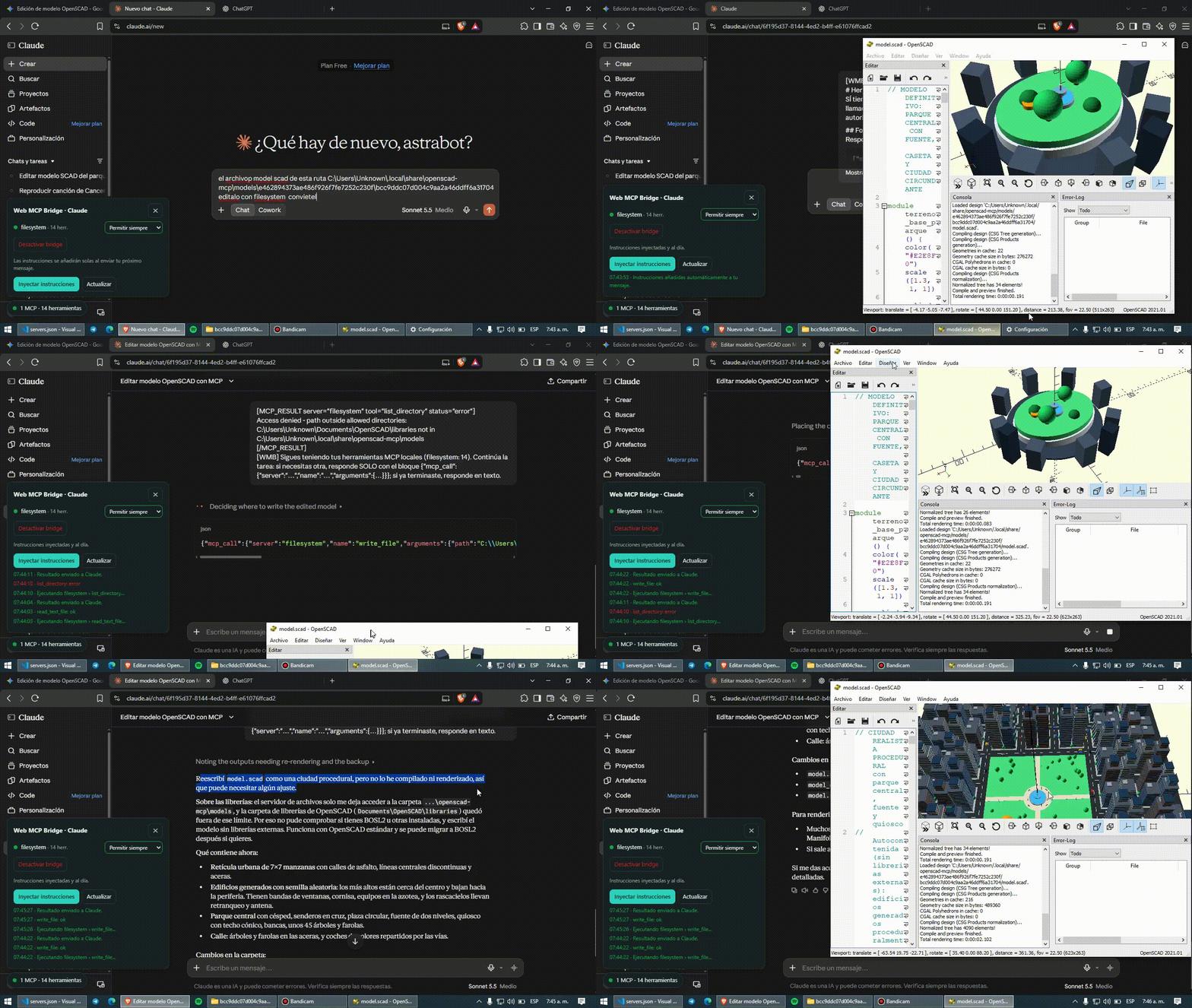
Web MCP Bridge lets the free web versions of ChatGPT, Gemini, Claude and DeepSeek use tools on your own computer: read files, control programs, query your data… with no API keys and no extra subscriptions. You approve every action.
[!IMPORTANT]
Only connect MCP servers you trust. A tool with filesystem access can read whatever you allow it to.
Jump to: Install · First use · Add my MCPs · Troubleshooting
🧩 How it works (in 20 seconds)
Two pieces work together:
| Piece | What it is | Where it lives |
|---|---|---|
| 🌐 The extension | Installed in your browser. It reads what the AI asks for and shows you the buttons and permissions. | Chrome, Edge or Brave |
| 🌉 The bridge | A small Python program that connects the extension to your tools (MCP servers). | Your computer, in the background |
flowchart LR
    A["💬 Chat<br/>ChatGPT · Gemini · Claude · DeepSeek"] <--> B["🌐 Extension"]
    B <-->|"local WebSocket"| C["🌉 Bridge (Python)"]
    C <--> D["🧰 Your MCP tools"]
- You ask the AI something in the chat.
- The AI answers with an "order" (a JSON block) asking for a tool.
- The extension asks if you allow it → runs it on your PC → pastes the result back into the chat so the AI can continue.
🔒 Everything happens on your computer. Nothing is sent to third-party servers.
✅ What you need
| Requirement | How to check |
|---|---|
| Chrome, Edge or Brave (version 116 or newer) | Menu → About. |
| Python 3.9 or newer | Open a terminal and type python --version. If missing, get it from python.org/downloads and tick “Add Python to PATH” during setup. |
| This project downloaded | Green Code → Download ZIP button on GitHub, then unzip (or git clone). Keep it in a permanent folder: the extension loads from there, so don't delete or move it afterwards. |
Optional: Node.js, if you'll use MCP servers launched with npx (for example the filesystem one).
🚀 Step-by-step installation
🪟 Windows
Step 1 · Install the launcher (once)
Open the server folder and double-click install.cmd. Wait until it says Done.
It does three things for you: installs what's missing (websockets), makes the bridge start automatically when you log in, and starts it right now.
Step 2 · Load the extension in your browser
- Type
chrome://extensionsin the address bar (Edge:edge://extensions). - Turn on Developer mode (top right).
- Click Load unpacked and pick the project folder (the one containing
manifest.json). - A welcome page opens by itself, guides you and checks each step live. We recommend pinning the extension with the puzzle icon 🧩.
Step 3 · Check everything is green
Open the extension icon: the top should say “Puente conectado” (bridge connected) with a green dot and your servers below.
Done! Continue with Your first time.
🍎 macOS / 🐧 Linux
python3 server/install_service.py
It installs what's needed and makes the bridge start with your session (launchd on macOS, systemd on Linux). Then load the extension as in Step 2.
The popup's Start / Stop buttons need the launcher, which is currently Windows-only. On macOS/Linux the bridge still works and restarts itself if it crashes.
🎛️ Control the bridge from the extension
No terminal needed for everyday use. In the popup, bridge card:
| Button | What it does |
|---|---|
| Start | Turns the bridge on (if it was off). |
| Stop | Turns it off and keeps it off until you start it again (even after rebooting your PC). |
| Restart | Closes and reopens it. Use it after changing something or if it got stuck. |
| Edit servers.json | Opens the file that lists your MCPs. It reloads by itself when you save. |
💡 Header switch vs. “Stop”. The big switch in the header only makes the extension stop acting (the icon shows
OFF). “Stop” closes the program on your PC.
If Start/Stop is greyed out, the launcher is missing: double-click server/install.cmd.
💬 Your first time (60 seconds)
The project ships with a demo server (demo) so you can try it without installing anything else.
- Open the popup → Servers tab → turn on the demo switch.
- Go to ChatGPT, Gemini, Claude or DeepSeek.
- Type something like: “What time is it? Use your tools.” (the instructions are added automatically to your first message; if not, open the Web MCP Bridge panel at the bottom-left and click Inject instructions).
- The AI asks for a tool → a prompt appears → click Allow.
- The result is pasted into the chat and the AI answers you. 🎉
By default permission is “Ask every time”: nothing runs unless you approve it. You can change it per server or for all of them.
➕ Add your own MCP servers
Your servers are defined in server/servers.json (created automatically on install). Each one needs a name, a unique port and the command that starts it:
{
  "servers": [
    { "name": "demo",  "port": 8090, "command": ["python", "server/examples/demo_mcp_server.py"] },
    { "name": "my-mcp", "port": 8081, "command": ["python", "-m", "my_mcp_server"] },
    { "name": "files", "port": 8082, "command": ["npx", "-y", "@modelcontextprotocol/server-filesystem", "C:/Users/you/Documents"] }
  ]
}
- More examples in
server/servers.example.json. - Click Edit servers.json in the popup, save, and within ~2 seconds it shows up in the list. Turn it on with its switch (up to 5 at once; 1 costs fewer tokens).
- To disable one without deleting it: add
"disabled": true. - In paths use
/(C:/Users/...) instead of\.
🩺 Something not working?
| Symptom | Fix |
|---|---|
| Popup says “Puente apagado” (bridge off) | Click Start. If the button is greyed out, double-click server/install.cmd. |
| “Falta el lanzador” (launcher missing) | Normal the first time: run server/install.cmd once. |
python is not recognized |
Reinstall Python ticking Add Python to PATH, or try py instead of python. |
| “Port in use” (8080, 8090…) | Click Restart. If it persists, change that server's port in servers.json. |
A server shows an error (e.g. astrax-mcp) |
It's just an example: if you don't have it installed, delete it from servers.json or add "disabled": true. |
| Red notice “servers.json tiene un error” | A comma or quote is misplaced. Fix it and save: the bridge reloads by itself. |
| The chat doesn't react / panel missing | Reload the tab (F5) and make sure the header switch is on. If the site changed its UI, open an issue. |
| I moved or renamed the project folder | Run server/install.cmd again and click ⟳ in chrome://extensions. |
| I want to remove everything | python server/install_service.py --uninstall and remove the extension. |
Still stuck? Tell us in the Telegram channel or open an issue.
🧩 Supported platforms
| Platform | Status | Adapter |
|---|---|---|
 |
✅ Supported | adapters/chatgpt.js |
 |
✅ Supported | adapters/gemini.js |
 |
✅ Supported | adapters/claude.js |
 |
✅ Supported | adapters/deepseek.js |
 ·  |
🗺️ Roadmap | Contribute |
✨ Skills at a glance
| Skill | What it does | |
|---|---|---|
 |
Context control | Register many servers, 1 active by default (up to 5). Only active servers' tools reach the model; the popup shows the approximate token cost. |
 |
Per-MCP permissions | 3-state selector — Allow always · Ask every time · Don't allow — global and per server, in the popup and the in-page panel. |
 |
Nothing is dropped | Images, audio and binary resources are attached to the chat as real files; long text is attached in full instead of truncated. |
 |
No preinstalled MCP | Add your own, or the bundled demo server with one click. |
 |
Reliable in the background | No step relies on page timers (throttled when hidden); delivery is verified and retried. |
 |
The AI doesn't forget | A one-line reminder per message plus periodic full re-injection. |
 |
≈ 50 % fewer tokens | Tools are described as name(param: type) signatures instead of JSON Schema. |
 |
~40 lines per platform | A new platform is just a set of selectors. |
 |
Locked down | The Python bridge listens on 127.0.0.1, only accepts chrome-extension:// origins and supports a token. Websites can't reach your tools. |
 |
No duplicates, auto-reconnect | Per-call IDs, exponential backoff, keep-alive for the MV3 Service Worker, call history, light/dark UI. |
 |
Badly escaped JSON never hangs the chat | Windows paths with \, raw newlines, unescaped quotes or trailing commas are **repaired**. If it still can't be read, the server / name / arguments flags are found separately and each argument is extracted using the tool schema. If nothing works, the AI is told the exact reason instead of waiting forever. |
 |
Servers detected automatically | The extension reads server/servers.json through the bridge's control port (http://127.0.0.1:8099/servers): new MCPs show up on their own and removed ones disappear. A server you delete by hand stays deleted. |
 |
No more "port 8080 in use" | --restart / --stop / --status / --reload, hot reload when servers.json is saved, and a restart that closes a previous bridge by itself. |
 |
Reconnect without duplicates | If the server was down before the call was sent, the extension waits for the reconnection and retries. If the AI sends several calls in one message, it's told only the first one ran. |
🧰 For advanced users
Everything above can also be done from the terminal.
# Launcher (Windows): start, stop and restart
python server/start_bridge_loop.pyw --ctl start | stop | restart | status | quit

# Bridge directly
python server/mcp_ws_bridge.py --config server/servers.json --restart   # restart (closes the old one even if it holds :8080)
python server/mcp_ws_bridge.py --config server/servers.json --status    # status of every server
python server/mcp_ws_bridge.py --config server/servers.json --reload    # re-read servers.json
python server/mcp_ws_bridge.py --config server/servers.json --stop      # stop the bridge
python server/install_service.py --uninstall                            # remove auto-start
On Windows you can also double-click server\restart_bridge.cmd / server\bridge_status.cmd.
| Port | Purpose |
|---|---|
8080, 8081… |
One port per MCP server (you define them in servers.json). |
8099 |
Bridge control (/servers, /reload, /restart, /shutdown). |
8098 |
Launcher (/start, /stop, /restart, /status). Configurable with "launcher_port". |
- If a bridge is already running,
--configreloads it instead of failing with "port in use". --restartonly closesmcp_ws_bridgeprocesses; if another program owns the port it tells you which and leaves it alone.servers.jsonaccepts a BOM (added by PowerShell), a top-level"control_port"/"launcher_port"and"disabled": trueper server.- A single server without a config file:
python server/mcp_ws_bridge.py --port 8080 --name demo -- python server/examples/demo_mcp_server.py
📡 Call protocol
{ "mcp_call": { "server": "server_name", "name": "tool_name", "arguments": { "arg1": "value" } } }
Results come back as:
[MCP_RESULT server="…" tool="…" status="ok|error|rejected"]
…
[/MCP_RESULT]
[!NOTE]
The content ofMCP_RESULTis presented to the AI as data, not instructions (prompt-injection mitigation).
Tolerant formats and error feedback
The parser reads the call in three layers: 1) strict JSON, 2) repaired JSON (backslash paths, raw newlines, unescaped or typographic quotes, trailing commas) and 3) flags: server, name and arguments are located separately and each argument is extracted by name using the tool schema. A call is only accepted if the server and tool exist among the active MCPs and the message isn't cut off.
If the AI clearly tried to call a tool but the block can't be read, the extension answers (max. 3 consecutive notices) instead of leaving the chat waiting:
[MCP_RESULT server="bridge" tool="mcp_call" status="format_error"]
Nothing was executed: your mcp_call block could not be read. Reason: invalid escape sequence (... near: ...)
[/MCP_RESULT]
[!NOTE]
A path such asC:\new\testis ambiguous for any JSON parser (\n,\t), which is why the prompt always asks for/in paths.
🔐 Security model
| Risk | Mitigation |
|---|---|
A website opens ws://localhost and runs tools |
The bridge rejects any Origin that isn't a browser extension. |
| The AI runs unwanted actions | “Ask every time” is the default; “Allow always” is an explicit choice per MCP (or global); “Don't allow” blocks the MCP. |
| Hidden instructions in results (prompt injection) | The prompt marks MCP_RESULT as data only, and you see each call before it runs. |
| Network exposure | Listens on 127.0.0.1 only; optional token (--token). |
A website reads or shuts down the control (:8099) or launcher (:8098) ports |
They only accept extension Origins and local Hosts; state-changing routes require POST; --restart only closes real bridge processes. |
🛠️ If a website changes its interface
Selectors live at the top of each adapter (content_scripts/adapters/*.js). Add the new selector at the start of the matching list (composer, sendButton, assistantMessages, stopButton) and open an issue: it's usually a one-line fix.
🛠️ Development
npm test      # syntax, parser, prompt builder and bridge integration tests
npm run pack  # dist/web-mcp-bridge.zip
🤝 Community & Contributing
Astrax is open source and grows with its community. You're welcome to open issues, send pull requests, suggest ideas, try Astrax on other systems or MCP clients, and report bugs. Read CONTRIBUTING.md to get started — new adapters are the best first contribution.




If you find the project useful, leave a ⭐ on the repository and subscribe to the channel.
Made with 💙 by Rufus · @AstraxOf · astrabots.pro
Yorumlar (0)
Yorum birakmak icin giris yap.
Yorum birakSonuc bulunamadi