MijiaBar
Health Warn
- License — License: MIT
- Description — Repository has a description
- Active repo — Last push 0 days ago
- Low visibility — Only 5 GitHub stars
Code Pass
- Code scan — Scanned 12 files during light audit, no dangerous patterns found
Permissions Pass
- Permissions — No dangerous permissions requested
No AI report is available for this listing yet.
米家设备 macOS 菜单栏应用:扫码登录、自动发现设备、空调大卡片、CLI + MCP 让 Agent 控制米家 | Mi Home menu bar app for macOS
MijiaBar
Control your Xiaomi Mi Home devices from the macOS menu bar — and let AI agents do it too.





Unofficial project, not affiliated with Xiaomi. It uses the same cloud API as the Mi Home app plus the LAN miIO protocol.
Features · Screenshots · Install · Sign in · Auto-hidden devices · Live video (cameras) · Agent / MCP · Build from source · Where data is stored · Credits
Features
- QR sign-in — scan with the Mi Home app, no password. Mainland China server by default; Europe, US, Russia, Singapore and India are one click away. Credentials stay in the macOS Keychain.
- Automatic device list — all homes, rooms and shared devices with online state. Offline and long-unused devices are hidden by default.
- House cutaway — pixel-art isometric home at the top of the list: composed layouts draw room fixtures and appliances; tap them to toggle matched devices. Lighting stays local to each fixture, day/night art follows local time, and Enlarge opens a dedicated House window.
- House pets — up to three customizable pixel cats and dogs; choose a palette or generate one from a photo analyzed only on your Mac.
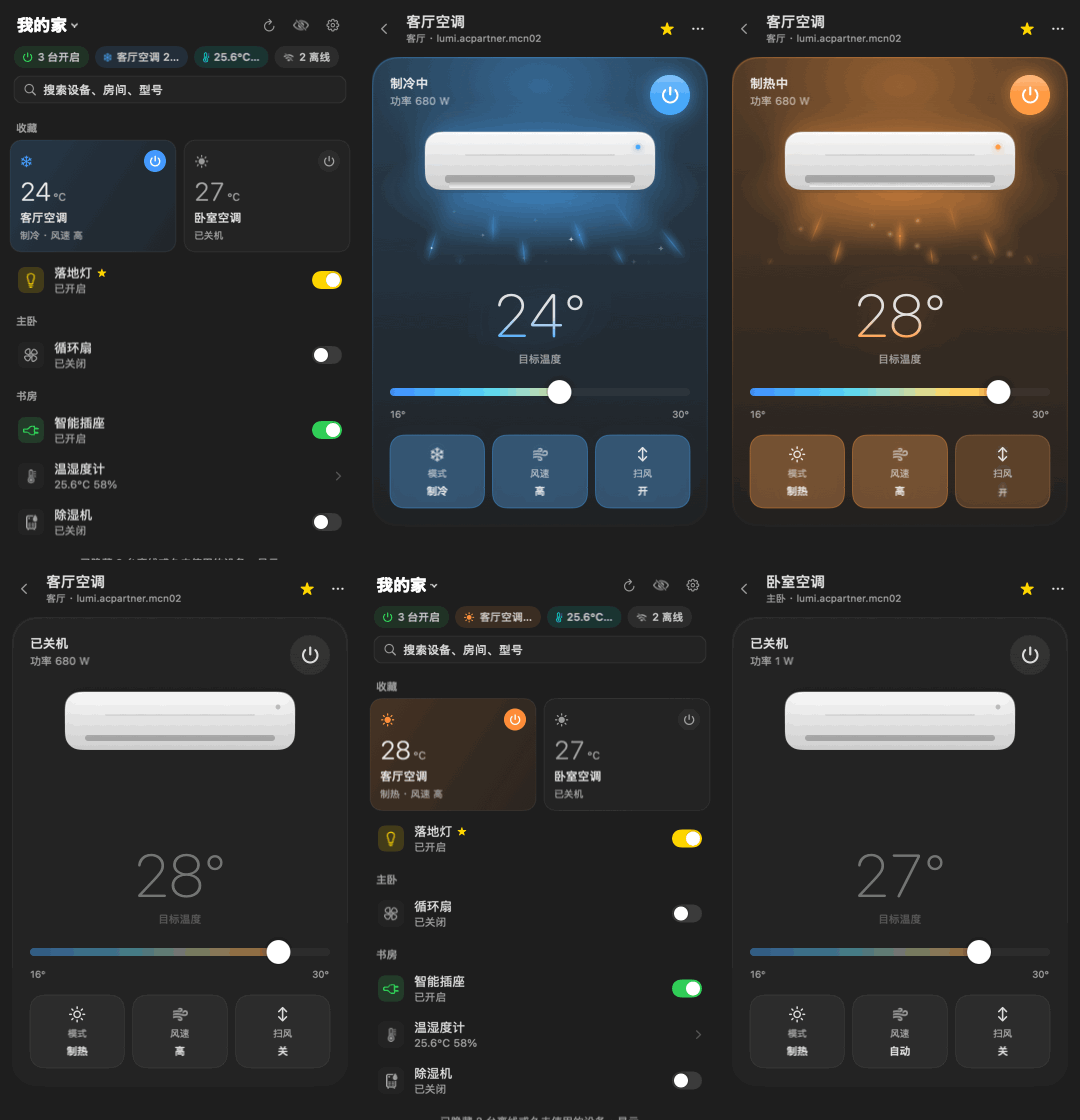
- A page designed for each device type — air conditioner, fan, light, plug, TV, speaker, camera, printer, kitchen appliances, water purifier, humidifier, vacuum, fridge, washer, water heater, curtain, air purifier, heater, dehumidifier and sensors, each with its own skeuomorphic illustration.
- Restrained motion — fast, non-bouncy springs (< 300 ms); fan blades spin with speed, the TV screen glows, heaters radiate; the power button ripples; sliders track 1:1, snap and tick the trackpad. Reduce Motion is respected.
- Keyboard first —
↑/↓select,↩open,Spacepower,←/→adjust the main slider,/search,Escback,⌘Qquit. - Light & dark — follows the system appearance using semantic colors.
- 3 UI languages — English, 简体中文, 繁體中文 (Taiwan wording); region-aware defaults.
- Agent interface —
mijiabarCLI and a stdio MCP server, read-only by default, with allowlist / full access and optional confirmation dialogs. - Two control paths — Xiaomi cloud MIoT RPC with LAN miIO fallback; AC partners (
lumi.acpartner.*) use legacy LAN commands.
Screenshots
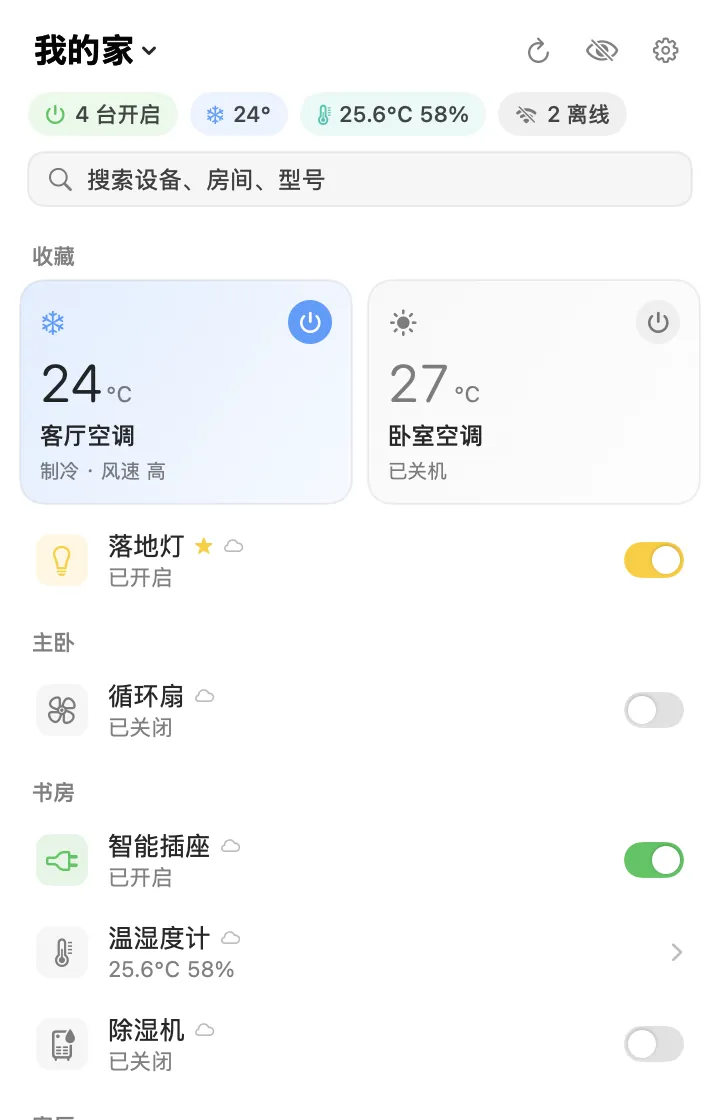
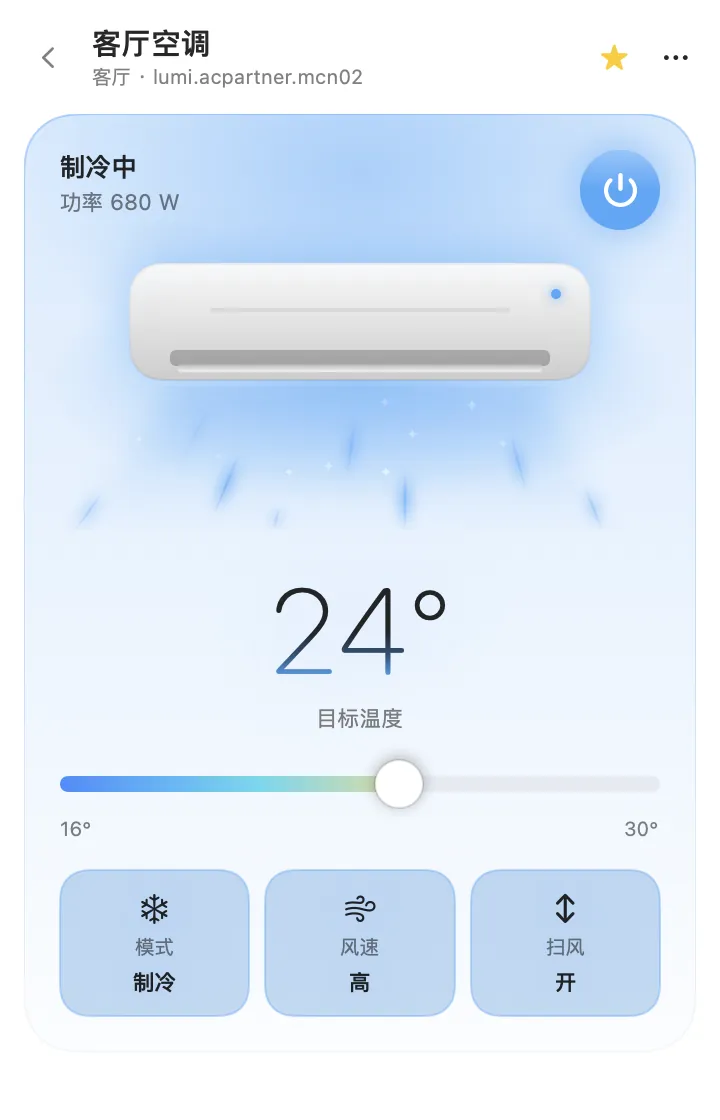
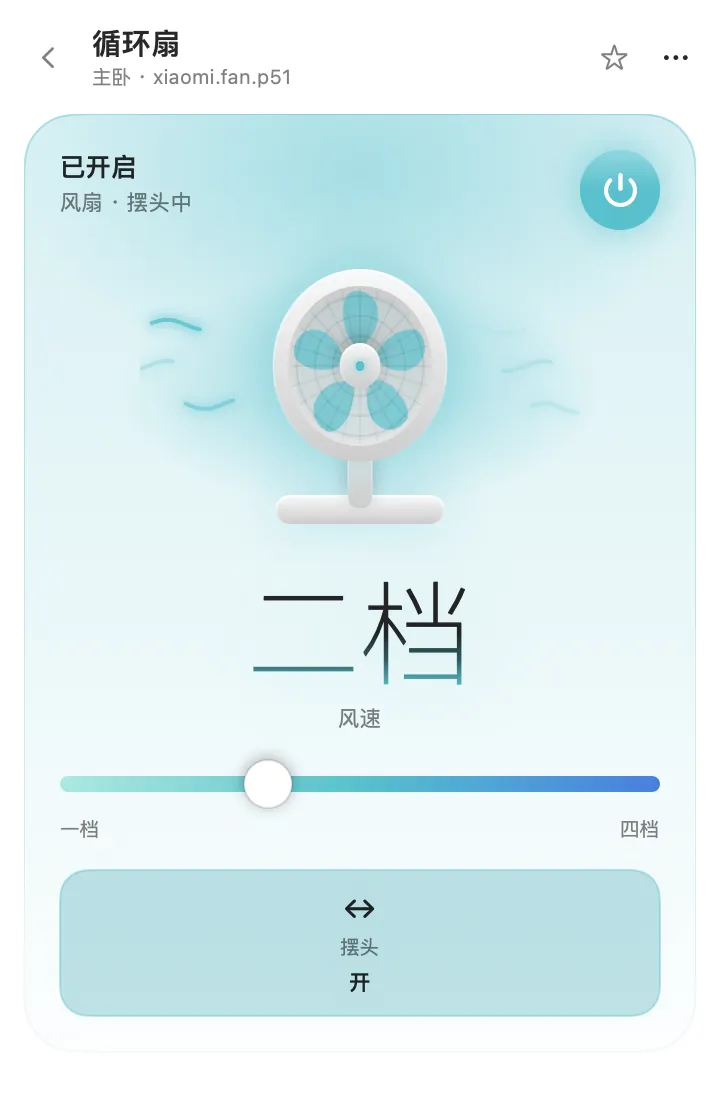
Dark mode
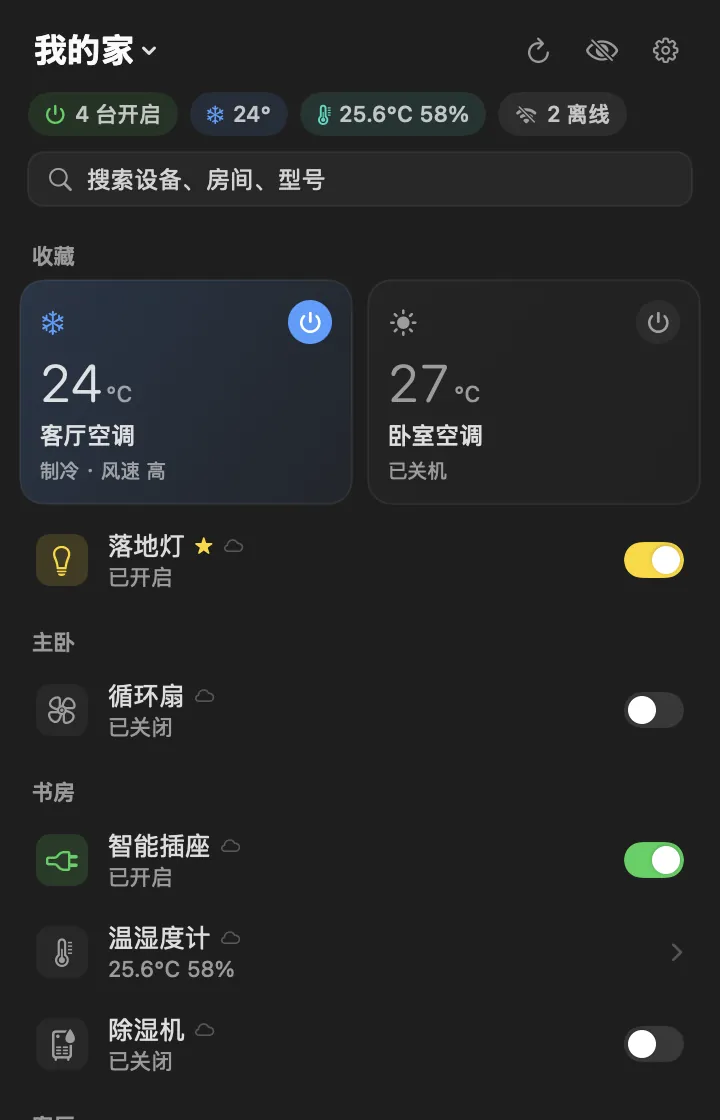
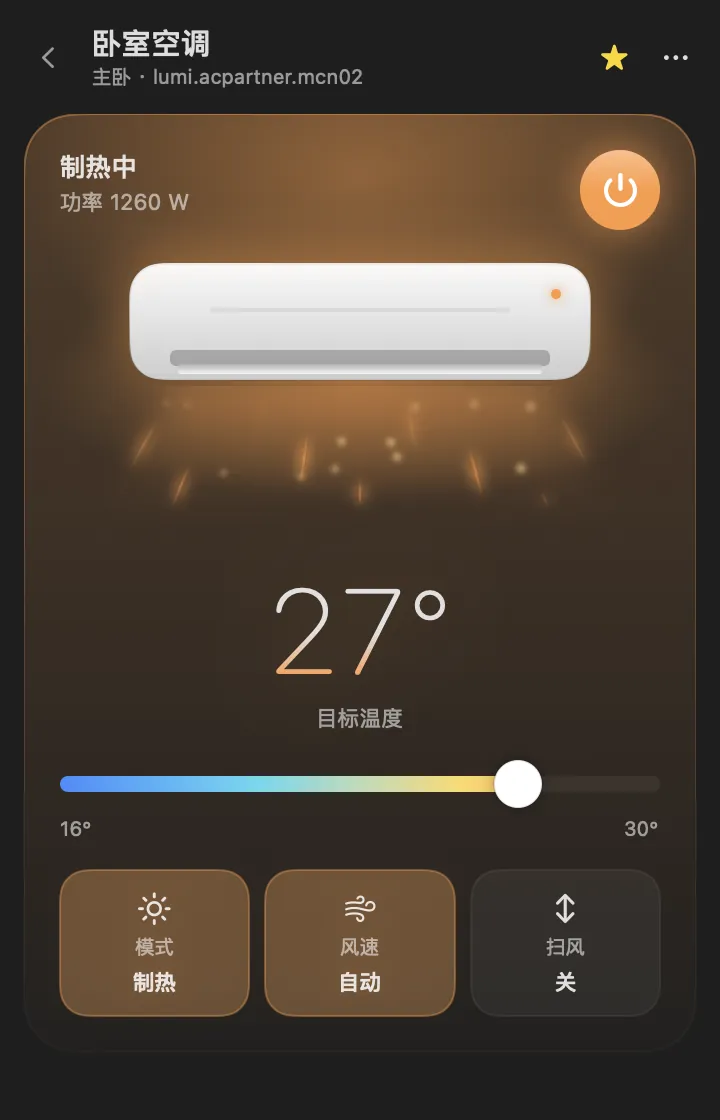
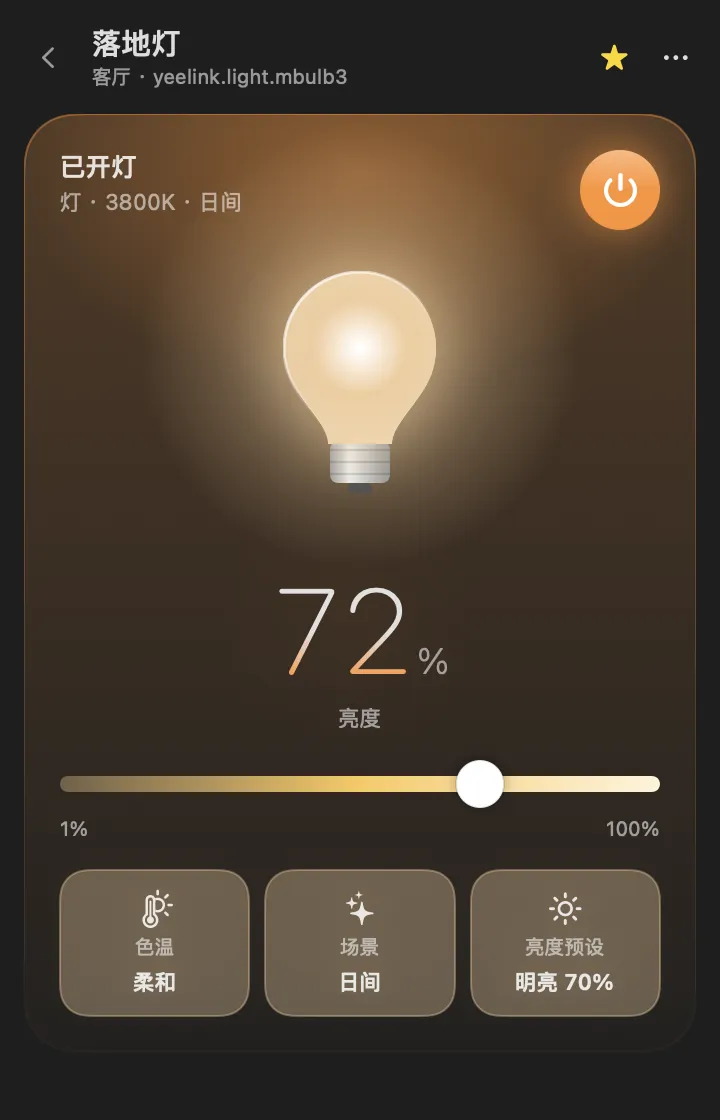
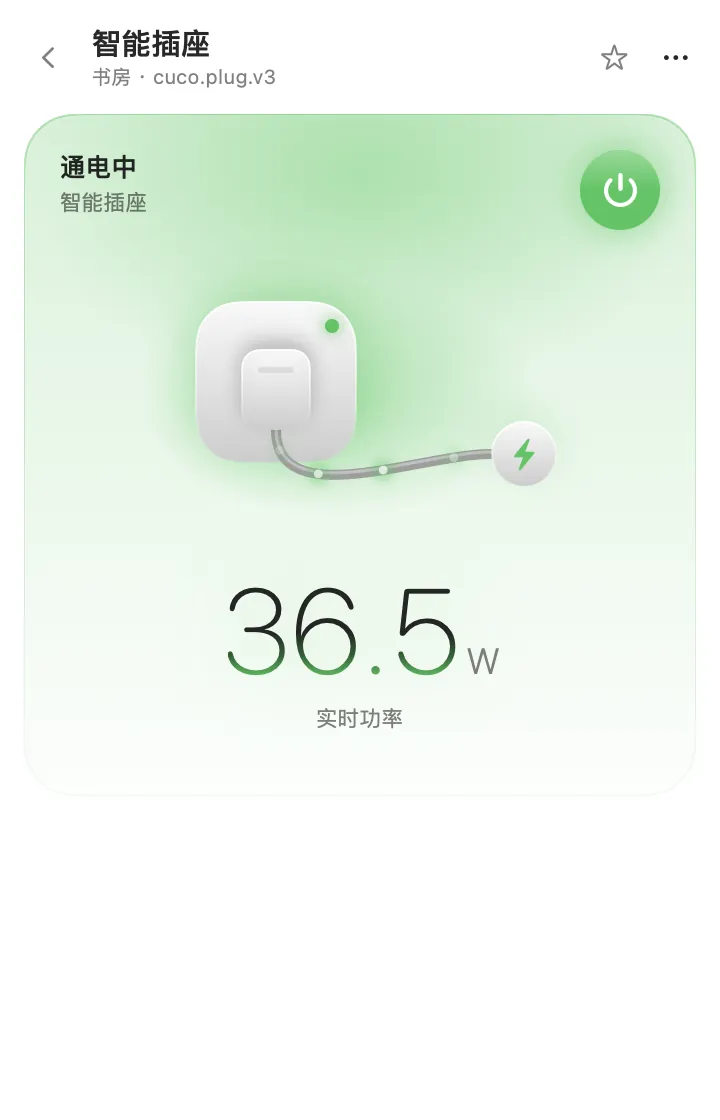

Install
- Download
MijiaBar-x.y.z.dmgfrom Releases, drag MijiaBar into Applications and open it. Release DMGs are Developer ID signed and notarized by Apple. - The first time you control a device, allow the Local Network permission (needed for LAN control).
CI
*-unsigned.dmgbuilds and your own local builds are ad-hoc signed; runxattr -dr com.apple.quarantine /Applications/MijiaBar.appbefore first launch.
Requires macOS 14 or later, Apple silicon or Intel.
Sign in
- Click the 🏠 icon in the menu bar; a QR code appears.
- Pick your server region (Mainland China by default).
- In the Mi Home app tap + → Scan, scan the code and confirm on the phone. Devices load automatically.
Auto-hidden devices
A device is collapsed to the bottom of the list by default when either is true:
- the cloud reports it offline (
isOnline = false); - the cloud returns a last-online time (
last_online/lastOnline/last_online_time) older than 30 days.
Click the eye button or Show to reveal them, or turn on Settings → Devices → Show hidden devices. Right-click a device to hide / unhide it manually — a manual choice always overrides the automatic rule.
Live video (cameras)
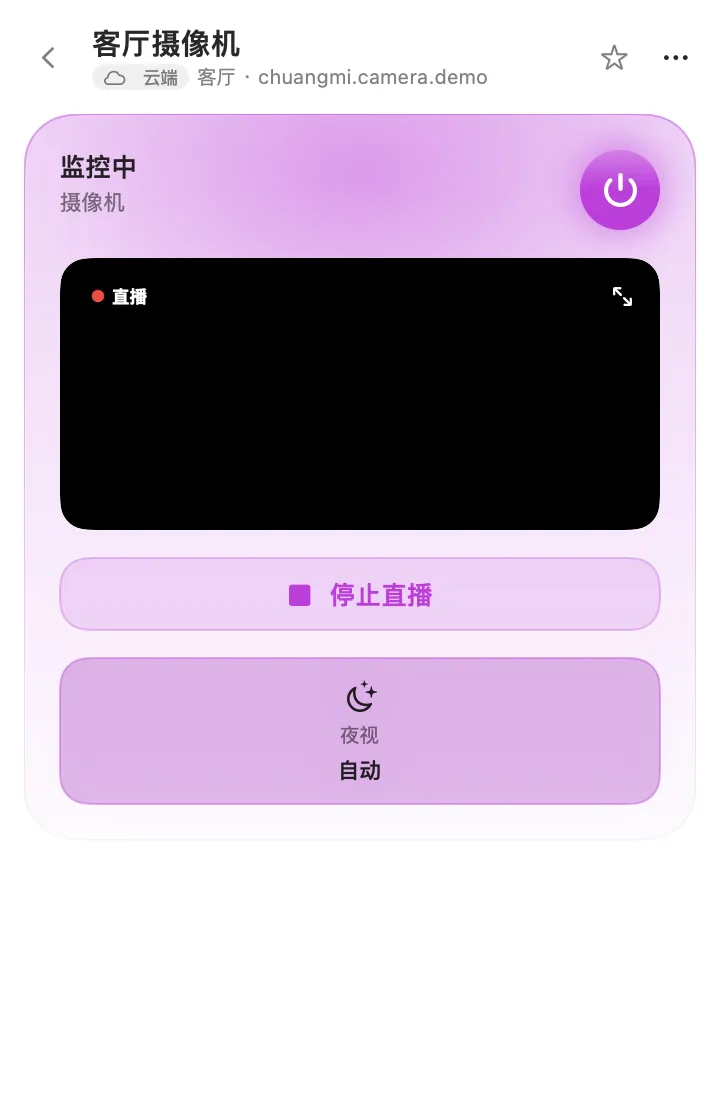
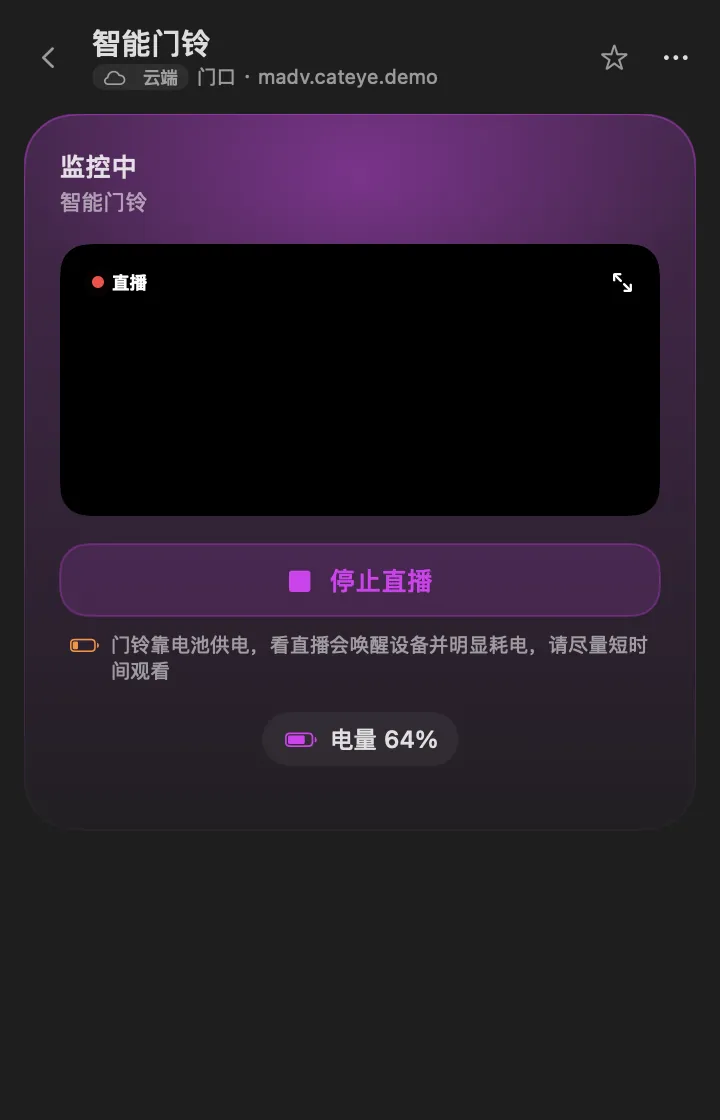
- Camera and doorbell detail cards have a Watch live button: the video plays inline in the card, and the enlarge button pops it out into a resizable window.
- It uses the bundled go2rtc (MIT, official release, SHA-256 verified at build time) as a helper that only runs while you watch: it listens on
127.0.0.1on a random port, has RTSP / WebRTC / HomeKit (mDNS) disabled, exposes only the player and/api/ws, stops 20 s after the player closes and is killed when MijiaBar quits. - Sign-in reuses the QR session: MijiaBar keeps the
passTokenreturned by the QR login in the Keychain and hands it to go2rtc via a temporarygo2rtc.yaml(mode 600, deleted as soon as go2rtc has read it). Sessions from before v0.1.8 need one more QR scan (Settings → Camera live view). - Stream keys come from the Xiaomi cloud on every connect; video comes from the camera over Xiaomi's P2P. Nothing is recorded. Battery doorbells are woken up and drain faster, so keep it short. Agents / MCP have no camera access.
- Each device's detail header (and, subtly, its list row) shows which path the last read/control used: LAN (direct miIO), Cloud (fallback) or BLE gateway.
- Away-from-home detection: MijiaBar compares the Mac's network subnets with the devices' local IPs (re-checked on every network change, nothing stored). When you're away it skips LAN attempts and goes straight to the cloud, and camera cards say live view is only available at home.
Agent / MCP
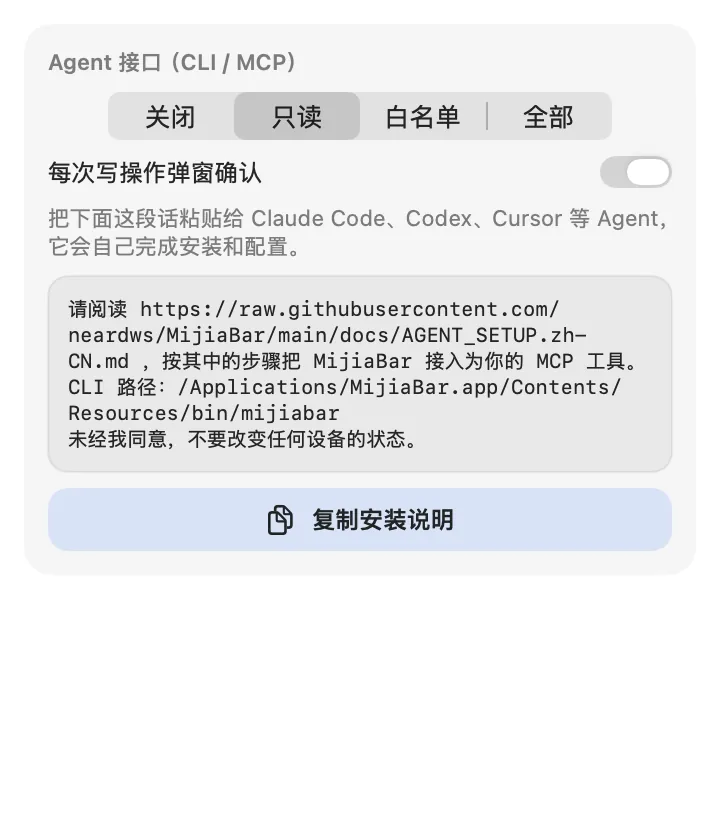
Open Settings → Agent interface, click Copy setup instructions and paste the text into Claude Code, Codex, Cursor or any other agent. The agent finds the bundled CLI, registers the MCP server in its own config and verifies by listing your devices. The same text (with the path filled in) is printed by mijiabar setup-prompt:
Read https://raw.githubusercontent.com/neardws/MijiaBar/main/docs/AGENT_SETUP.md and follow it to set up MijiaBar as your MCP tool.
CLI path: /Applications/MijiaBar.app/Contents/Resources/bin/mijiabar
Don't change any device's state without my consent.
Full step-by-step instructions for agents: docs/AGENT_SETUP.md
Permissions
| Off | Agents can do nothing |
| Read (default) | List devices and read state only |
| Allowlist | Control only the devices you tick |
| Full | Control every device |
With Confirm every write on, every change an agent makes shows a macOS dialog that you must approve.
CLI
mijiabar list                     # list devices (--all, --refresh)
mijiabar get <device>             # read state as JSON
mijiabar set <device> <prop> <value>
mijiabar action <device> <action> [JSON array]
mijiabar mcp                      # stdio MCP server
mijiabar setup-prompt             # print the agent setup instructions
MCP tools: list_devices, get_device_state, set_property, run_action.
Build from source
git clone https://github.com/neardws/MijiaBar && cd MijiaBar
swift build
.build/debug/MijiaBarApp --snapshot docs/screenshots   # demo-data screenshots
scripts/package.sh   # dist/MijiaBar.app + DMG (signs & notarizes when a Developer ID is available)
# env: VERSION, SIGN_IDENTITY ("-" = ad-hoc), NOTARY_PROFILE (default MijiaBar-notary)
Project layout: Sources/MijiaCore (cloud API, QR login, miIO, MIoT spec), Sources/MijiaBarApp (SwiftUI app), Sources/mijiabar (CLI + MCP). Translations live in i18n/*.tsv; run scripts/gen-i18n.py after editing.
Where data is stored
- Sign-in session: macOS Keychain, service
com.neardws.MijiaBar(accountsession). Signing out deletes it. - Device cache
devices.json, preferencesprefs.json(favorites, aliases, hidden flags, region), agent policyagent.json, and MIoT spec cachespec-index.json+specs/<model>.json— all in~/Library/Application Support/MijiaBar/, written with file mode 600. - UI language:
MijiaBarLangin UserDefaults (shared by the app and CLI;MIJIABAR_LANGoverrides it). - Nothing is sent anywhere except Xiaomi's servers, your devices on the LAN, and miot-spec.org (public spec downloads).
Credits
Motion design contributed by @skyswordw (#1). Protocol details from python-miio, Xiaomi-cloud-tokens-extractor and ha_xiaomi_home. UI inspired by @the_mcnaveen's AC menu bar app.
MIT License.
Reviews (0)
Sign in to leave a review.
Leave a reviewNo results found