promptline
Health Warn
- License — License: MIT
- Description — Repository has a description
- Active repo — Last push 0 days ago
- Low visibility — Only 7 GitHub stars
Code Warn
- process.env — Environment variable access in design/vite.config.ts
Permissions Pass
- Permissions — No dangerous permissions requested
No AI report is available for this listing yet.
A prompt library on a global hotkey: copy an error, press Ctrl+Alt+V, pick a prompt, and it pastes into Claude Code, Codex, Cursor or any window with your clipboard inside. Packs are JSON files an agent can write. No telemetry. Windows 10/11; macOS in progress.
Promptline
promptline.cc · Download · Buy me a coffee
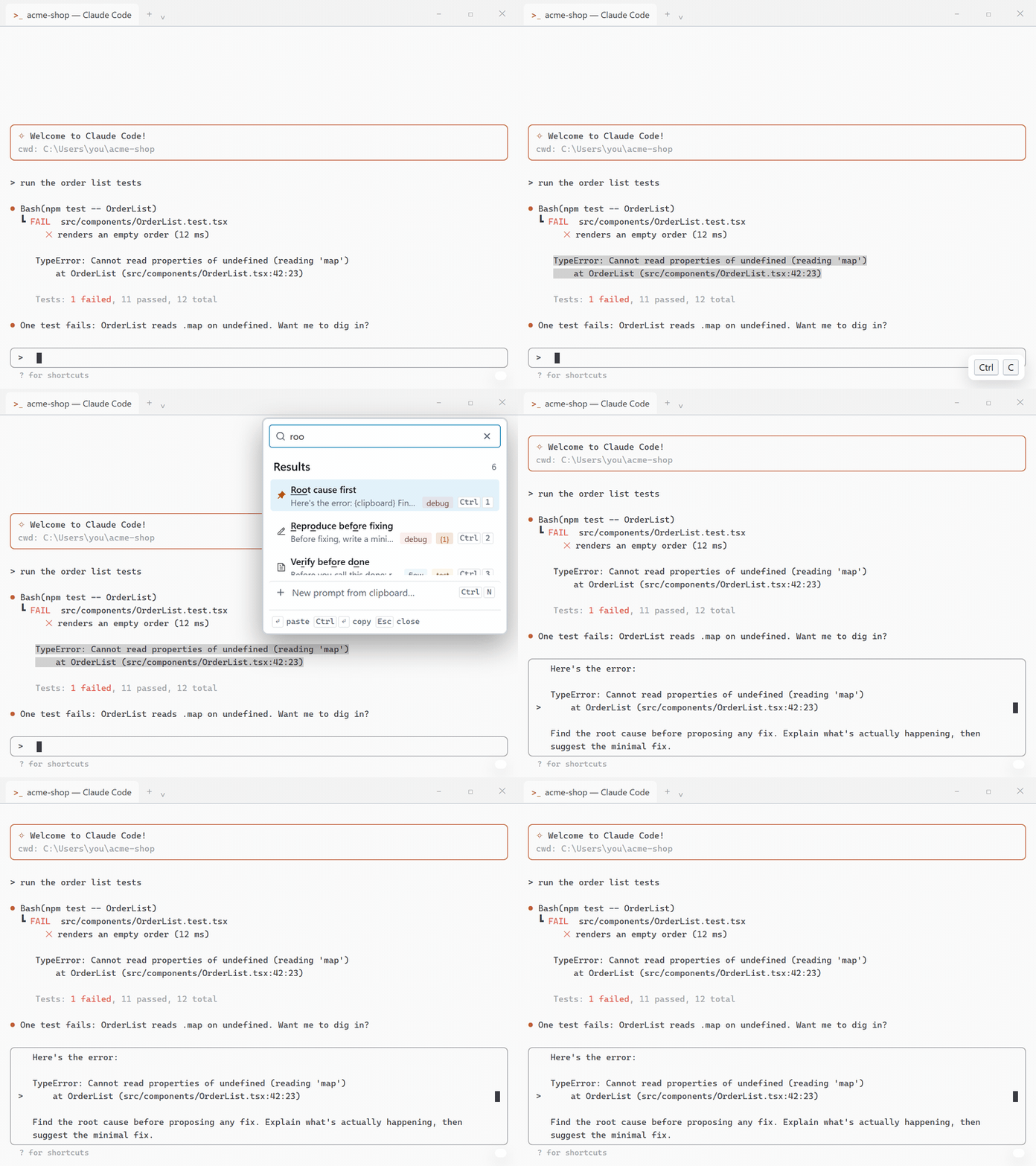
Copy the error. Hit the hotkey. Paste a real prompt.
- Copy, hotkey, paste. Copy a stack trace, press
Ctrl+Alt+V, pick a
prompt: it lands in Claude Code, Codex or Cursor with the trace already
inside. - Packs are files agents write. One JSON file per project; point Claude
Code or Codex at your repo and it drafts the pack for you to review. - No telemetry, no account. One update check, at startup and once a day, off in a click.
Your prompts are JSON files on your disk.
A tiny tray app for developers who run coding agents all day. Hit the
global hotkey (default Ctrl+Alt+V), a popup appears at your cursor with
your prompt library — pick one and it's pasted straight into the app you were
just using: Claude Code or Codex in a terminal, ChatGPT or claude.ai in the
browser, Cursor, a PR comment box, anywhere.
The killer move
Copy an error / stack trace / diff, hit the hotkey, pick "Root cause first"
— your template pastes with the clipboard contents already inserted where{clipboard} was. One gesture turns raw error text into a well-formed prompt.
Install
Windows 10/11 only. Download an installer from the
Releases page:
Promptline_X.Y.Z_x64-setup.exe— the setup exe (NSIS); smaller, and the
one to pick if in doubtPromptline_X.Y.Z_x64_en-US.msi— the MSI, for those who prefer it
Either installs for the current user only, under %LOCALAPPDATA%\Promptline,
so there is no admin prompt. If Microsoft Edge WebView2 is missing (it ships
with Windows 11 and most Windows 10 machines), the installer downloads its
bootstrapper, which is the one moment installation needs the network.
The installers are not code-signed yet, so SmartScreen shows "Windows protected
your PC" on first run — choose More info → Run anyway. SignPath
Foundation's free signing programme for open-source projects didn't accept a
first application, and the project will apply again; the
Code signing policy says what will be
signed and who approves it.
After installing, Promptline sits in the tray: left-click the icon for the
manager, press the hotkey anywhere for the popup. Promptline checks for a
newer release at startup and once a day; when there is one, Windows shows a
notification and the tray menu offers Update to X.Y.Z. Installing is a
click, a small progress window and a restart, and your prompts, packs and
settings carry over untouched. Each installer updates with its own kind:
a setup exe install with the next setup exe, an MSI install with the next
MSI. The first release with the check is still installed by hand; from
then on it updates itself, with the check on even for a library carried
over from an older version. Turn it off under Settings → About.
Build from source
Requires Rust and Node 22. npm run build produces the same two installers
under src-tauri/target/release/bundle/ (nsis/ and msi/). See
Development.
Why not…
Why not Espanso or AutoHotkey? They're good at what they do: a typed
trigger expands into text. They know nothing about your clipboard, packs or
fill-in fields; Promptline is a library you search, with a preview, pins and
your most used prompts first.
Why not Raycast snippets? Raycast is a fine launcher, but it's
macOS only, and its snippets have no packs, groups or files an agent can
write. Promptline runs on Windows today, with a macOS version on the way.
Why not slash commands in Claude Code, or Cursor rules? They're the
right tool inside the one tool they belong to. A prompt library hotkey works
everywhere: the same library pastes into the terminal, the browser, the IDE
and a PR comment box.
Why not a clipboard manager? Ditto and the Windows clipboard history
remember what you copied, and do it well. Promptline is what you meant to
say about it: your clipboard, inside the prompt you picked.
Why not a Notion page of prompts? It keeps prompts tidy, and it's two
windows and a copy away. Promptline is one hotkey away, in every window,
with your clipboard already inside.
Uninstall
Settings → Apps → Installed apps (Apps & Features), like any other
program. The uninstaller offers a Delete the application data
checkbox: leave it off to keep your library for a reinstall, tick it to
remove the data folder too. Either way it removes the autostart entry it
made, so nothing of Promptline runs at the next login.
Back up / sync
Everything Promptline knows is in one folder,%APPDATA%\io.github.bekalpaslan.promptline\ — copy it to back up, restore
it to bring a library back. To share prompts rather than the whole library,
use the pack files: every pack owns a .json under …\packs\ that the app
keeps current, so you can copy one to a colleague, commit it to a project,
or let an agent write into it; the other side imports it from Settings →
Your library (see Data).
Known limitations
- Windows only, for now. A macOS version is on the way; it needs one
module rewritten (see Stack). - Unsigned installers, so SmartScreen warns once (above).
- Elevated windows don't accept the paste. Windows blocks keystrokes
from a normal process into a window running as administrator (an elevated
terminal, Regedit, an installer). The popup tells you when that happens;
the prompt is on your clipboard, so paste it by hand. - WebView2 download at install on the few machines that lack it (above).
- An install from 0.2.16 or earlier keeps
Ctrl+Shift+V. New installs
start onCtrl+Alt+V, and an upgrade never moves a hotkey you already
have.Ctrl+Shift+Vis paste in Windows Terminal and paste without
formatting in browsers; Promptline wins while it runs, and those apps
lose the shortcut. RecordCtrl+Alt+V(or anything else) in
Settings if you miss either.
No telemetry. One update check, off in a click. At startup and once a
day Promptline fetches one small file, https://promptline.cc/latest.json,
to see whether a newer release exists. The address is fixed and the same
for everyone; the request carries nothing about you (no version, no ID, no
usage). Like any web request it reaches GitHub Pages, which hosts
promptline.cc and logs IP addresses, and it names the updater library as
its user agent (tauri-plugin-updater/2.12.0). If you accept an update,
the installer downloads from GitHub Releases and is installed only if its
signature matches the key built into the app. Turn the check off under
Settings → About; Check for updates there still works by hand.
Nothing else leaves your machine except what you paste. If something goes
wrong it writes promptline.log under the data folder; attach it to a bug
report.
Placeholders
| Token | Expands to |
|---|---|
{clipboard} |
whatever was on the clipboard when you hit the hotkey |
{date} / {time} |
current date / time |
any other {lowercase_word} |
a runtime fill-in field — the popup asks before pasting |
{{lowercase_word}} |
a config parameter — set its value once (editor → Advanced options), it pastes silently every time |
Unset config parameters downgrade to fill-in fields instead of pasting holes.
Parameter tooling lives behind Advanced options in the editor — one card
per kind (built-in / fill-in / config), each with an Edit toggle for removing
them, plus config values. Invisible until you want it.
The popup
- Enter pastes · Ctrl+Enter / Ctrl+click copies only · Esc closes
- Ctrl+1..5 pastes the top results instantly — pins (max 5) always sit on
top, so they become stable muscle-memory slots - Tab opens an action panel: paste / copy / pin / edit in manager / delete
- → shows the full-prompt preview card (also on mouse hover)
- Search is fuzzy over titles, tags, and bodies with match highlighting;
#tag,@packand>groupterms filter (#debug root cause); click a tag pill to filter by it - With no query, prompts sort by how often you use them, grouped under
collapsible pack sections with a collapsible sub-header per group; searching flattens
them into one ranked list - Ctrl+N turns whatever you just copied into a new prompt without leaving
the popup — name pre-filled from the first line, pick its pack, confirm.
Esc with an edited title asks once before discarding - Deleting from the action panel offers Undo; copy-only confirms, and any
failure shows in a feedback strip instead of vanishing - The whole popup is keyboard-operable and screen-reader labelled (a real
listbox, announced results, collapsible pack sections from the keyboard) - Drag the window edge to resize; the size is remembered
- The prompt stays on your clipboard after pasting — if the app you came from
had no text field focused, the keystroke lands nowhere, so click into one and
paste it yourself
The manager (left-click the tray icon)
- Autosaves — no Save button, no lost drafts; Quit from the tray waits for
a pending save. Deletes are two-click, and Undo covers a deleted prompt,
a deleted pack (the pack comes back, not just its prompts), an ungroup, a
regroup, and a merge - Sidebar groups by pack (collapsible); each pack and group header has a
menu button on hover (right-click works too) to rename / lock / export
(to the clipboard or a file) / delete it; right-click prompts for multi-select actions (move to pack or
group, add tag, pin/unpin, export, delete) — Ctrl/Shift+click to select
several. Inline renames commit on Enter only - Groups sit inside a pack: one pack per project, a group per practice
(debugging, review, docs…). Right-click a pack header → New group to
start one with a fresh prompt; set a prompt's group in the editor or from
the right-click menu; dragging a prompt into another group moves it there.
Right-click a group header (or use its ⋯) to start a new prompt in it,
rename it, ungroup its prompts, or delete the group — deleting removes its prompts after a confirmation dialog - Locked packs (🔒) refuse new prompts and can't be deleted, nor can their
groups, until unlocked - New above the list makes a pack, a group or a prompt, and always asks
where: a group picks its pack, a prompt picks a pack or a group in one.
A new pack or group is selected with its name ready to type. Generate pack
with AI (also under New) takes a topic, hands you an instruction to paste into any AI chat,
and imports its reply — every prompt is reviewed in a checklist (bulk
select, per-row pack names, a prompt hiding invisible or direction-changing
characters flagged and unticked, and malformed JSON is editable in place)
before anything is added. With a coding agent, leave the topic empty and it surveys
the project it runs in, writing one pack per daily practice; the dialog
watches for the agent's file with an elapsed clock and a Stop button, and
no pack exists until you import - Sort by uses, title, or Custom — press and hold a row to lift it, then
drag to arrange your own order; Alt+Up / Alt+Down moves the selected row
from the keyboard - Clicking a pack or group header folds or unfolds it and shows its prompts
in the pane - Packs are listed A–Z until you arrange them: Move up / Move down in a
pack's ⋯ menu (or Alt+Up / Alt+Down on its header). The popup lists
packs in the same order. Groups move within their pack the same way - Every control is reachable from the keyboard, including context menus, and
labelled for screen readers - Settings (⚙, top-right of the pane): record a hotkey by pressing it,
then Apply it; autostart (a login launch stays in the tray; the
manager opens from the tray icon); theme (System / Light / Dark, System
follows Windows); popup density; UI font (Outfit / system / serif / mono); UI
scale (90–125%); and Your library — export the whole library to the
clipboard or a file, import from the clipboard or a file, or Open folder to see the data folder
(library, packs and the log file) in Explorer, plus per-pack rows to
import from, export, or create that pack's file; and About, with the
version you're running
Data
Everything lives in %APPDATA%\io.github.bekalpaslan.promptline\ as plain JSON — snippets,
packs, and preferences. Pack format docs: packs/TEMPLATE.md;
curated packs ship in packs/. Older data formats migrate automatically,
and a library from a release before 0.2.9 (which kept it under%APPDATA%\com.promptline.app\) is moved to the new folder on first start.
Every pack owns a file under …\packs\ from the moment it exists — however it
came about, including packs conjured by an import — and the app keeps it
current, so it's always there to share, back up, or let an agent write into.
Deleting a pack moves its file to …\packs\deleted\ rather than unlinking it:
the file may hold prompts written there but never imported, and deleting a pack
in the app shouldn't be able to destroy them.
Development
Requires Rust and Node 22 (.nvmrc).
npm install
npm run dev        # run in dev mode (starts Vite + Tauri; UI hot-reloads)
npm run build      # produce installer (src-tauri/target/release/bundle)
npm run ui:build   # typecheck + build the frontend only
npm test           # JS core tests (node --test)
npm run tokens     # render design/tokens.json into src/index.css (tokens:check verifies)
                   # edited tokens on the design-system page? ask Claude to pull
                   # its project/tokens.json into design/tokens.json, then run this
npm run design:build  # bundle the real components + previews for the design-system artifact (design/dist)
npm run test:rust  # Rust unit tests (cargo test)
npm run lint       # ESLint over the whole tree (`npx eslint src` for the app alone)
CI (.github/workflows/ci.yml) runs lint, typecheck, the frontend build,cargo fmt/clippy and both test suites on every push and pull request; av* tag also builds both installers and keeps them as workflow artefacts
(the release itself is still made by hand). See Install for the
unsigned-installer caveat.
The frontend is a two-entry Vite app (index.html → manager window,popup.html → popup window) under src/. Shared pure logic lives inui/core.js (UMD; bridged into React via src/lib/core.ts, covered by tests).
BEHAVIOR.md covers what each surface does and why the
non-obvious parts are built the way they are — start there before changing
the paste pipeline or anything touching pack files.CONTRIBUTING.md has the checks and conventions;SECURITY.md says what the app touches and how to report a
problem.
Stack
Tauri 2 (Rust) + React 19 + Vite + Tailwind v4 + shadcn/ui
(Base UI primitives, Outfit font, Remix Icon). Windows-specific parts (focus
restore via SetForegroundWindow, paste via SendInput) are isolated in thesrc-tauri/src/platform.rs; a macOS port only needs that file
reimplemented (CGEventPost + Accessibility permission).
Support
Promptline is free and stays free: the source is MIT and every release's
installers are on GitHub. If it saves you time,
buy me a coffee; the Sponsor
button at the top of the repository goes to the same page.
Questions, ideas and the prompts you reach for most go to
Discussions; bugs
go to the issue tracker.
Credits
- Outfit, the UI font, by the
Outfit Project Authors under the SIL Open Font License 1.1 - Remix Icon, the icons, by Remix Design under the
Remix Icon License 1.0 - Tauri, the shell that turns a Rust core and a webview
into a Windows app - shadcn/ui on Base UI, the
components
The full licence texts and the rest of the bundled dependencies are inTHIRD-PARTY-NOTICES.md, which also ships with
the installer.
License
MIT — see LICENSE.
Reviews (0)
Sign in to leave a review.
Leave a reviewNo results found