EdgeBox
Health Gecti
- License — License: GPL-3.0
- Description — Repository has a description
- Active repo — Last push 0 days ago
- Community trust — 198 GitHub stars
Code Basarisiz
- rm -rf — Recursive force deletion command in .github/workflows/release.yml
Permissions Gecti
- Permissions — No dangerous permissions requested
This tool is a local, GUI-powered desktop sandbox designed to let AI agents interact with a full graphical operating system. Based on the E2B open-source project, it allows LLMs to operate web browsers, terminals, and desktop applications using the MCP protocol.
Security Assessment
This project carries a Medium-to-High overall security risk. By design, the application is built to give AI agents deep control over your operating system. It actively executes shell commands, takes screenshots, and manages desktop applications to simulate human "computer use." Because of this required functionality, you are inherently granting it broad access to your local environment. The automated scanner did not find any hardcoded secrets, and the tool does not request dangerous host-level permissions. However, there is a recursive force deletion command (`rm -rf`) flagged inside the GitHub release workflow. While common in build scripts, developers should verify that it safely targets only the intended build directories to prevent accidental data loss.
Quality Assessment
The project demonstrates strong maintenance and solid community interest for a niche developer tool. It is protected under the GPL-3.0 license, has nearly 200 GitHub stars, and received code updates as recently as today. The repository is well-documented and clearly explains its capabilities.
Verdict
Use with caution. While it is an actively maintained and well-structured project, its fundamental architecture requires you to run local AI agents with deep system access, meaning it should only be deployed in isolated environments or dedicated virtual machines.
A fully-featured, GUI-powered local LLM Agent sandbox with complete MCP protocol support. Features both CLI and full desktop environment, enabling AI agents to operate browsers, terminal, and other desktop applications just like humans. Based on E2B oss code.
EdgeBox - The Local Desktop Sandbox for AI Agents


💡 新项目推荐: 如果你需要更轻量化的内核级沙箱方案,查看 DAIMON —— 一个专为 AI Agent 设计的轻量级本地沙箱运行时。DAIMON 采用 Rust 编写,基于 Linux Landlock LSM 和 seccomp 实现 OS 内核级强制沙箱,提供细粒度的文件系统访问控制、网络隔离和非特权用户身份执行。相比传统 Docker 容器方案更加轻量,适合 MCP Server 的安全执行环境。

A fully-featured, GUI-powered local LLM Agent sandbox with complete support for the MCP protocol.
Empower your Large Language Models (LLMs) with true "Computer Use" capabilities.
EdgeBox is a powerful desktop application that brings the cloud-based sandbox capabilities of E2B (e2b.dev) to your local machine. Based on the open-source E2B Code Interpreter project, EdgeBox transforms the sandbox into a locally-running environment, giving you full control over your AI agent's development and execution environment.
What makes EdgeBox unique: While most open-source sandbox projects only provide a terminal/CLI, EdgeBox offers both a command-line shell AND a full graphical (GUI) desktop environment via an integrated VNC viewer. This means your LLM Agent is no longer just a code executor—it's a digital worker that can operate browsers, use VS Code, and interact with desktop applications, just like a human.
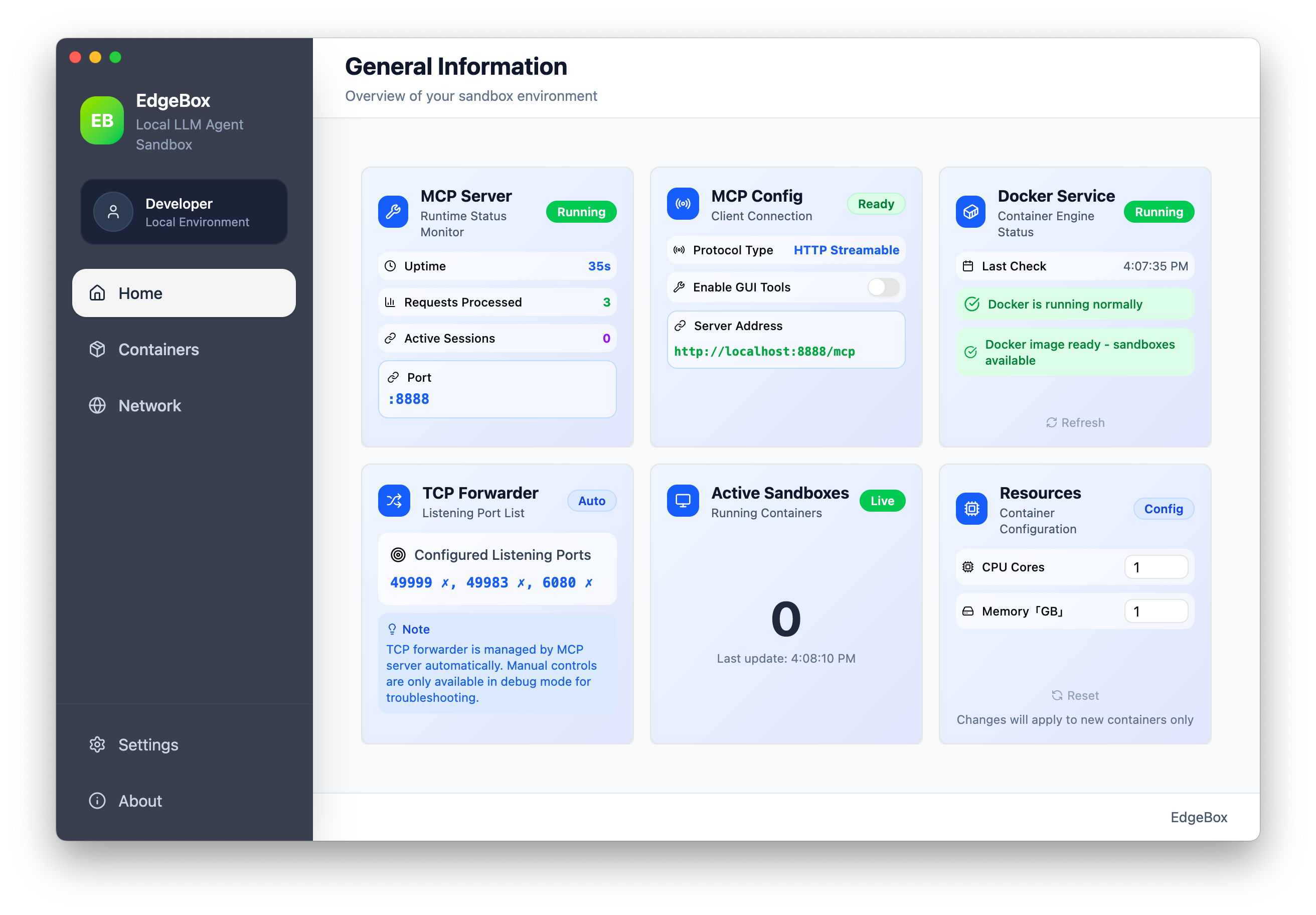
The EdgeBox Main Application Dashboard
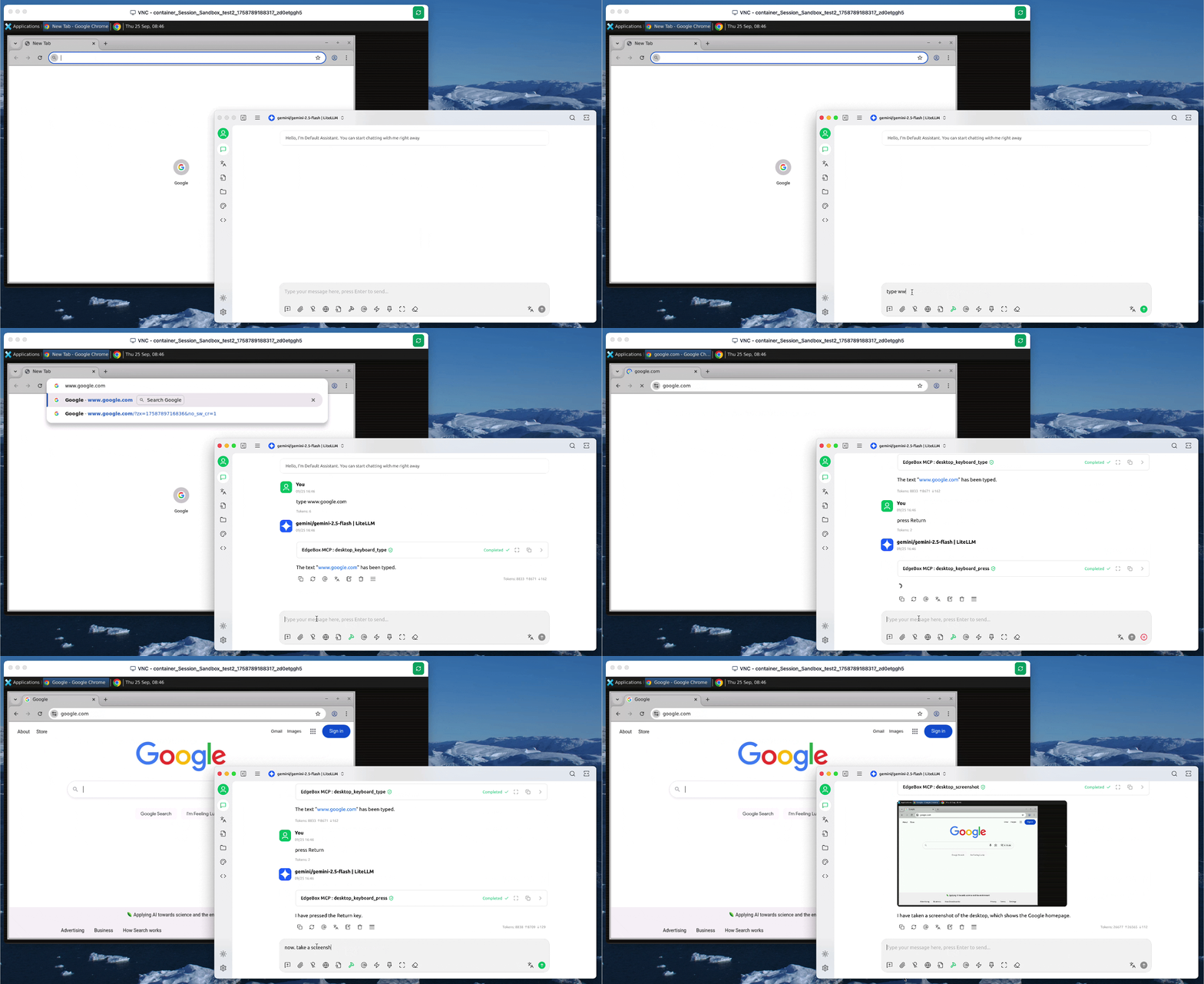
Computer Use Demo: types "google.com", presses Enter, and captures screenshot - showing computer use capabilities.
🤔 Why Choose EdgeBox?
| Feature | EdgeBox | Other OSS Sandboxes (e.g., codebox) |
|---|---|---|
| Environment | 🖥️ Local | 🖥️ Local |
| Interface | GUI + CLI | CLI-Only |
| Capability | Computer Use & Code Interpreter | Code Interpreter |
| Data Privacy | ✅ 100% Private | ✅ 100% Private |
| Latency | ⚡️ Near-Zero | ⚡️ Near-Zero |
| Integration | ✅ MCP Compliant | Proprietary API |
📖 Table of Contents
- EdgeBox - The Local Desktop Sandbox for AI Agents
🚀 Core Features
EdgeBox exposes all its capabilities through the MCP protocol, organized into three core modules for your LLM Agent.
1. 💻 Full Desktop Environment (Computer Use)
- VNC Remote Desktop: Access a complete, interactive Ubuntu desktop environment.
- Pre-installed Applications: Comes with Google Chrome, VS Code, and other essential tools out of the box.
- GUI Automation: Your agent can programmatically control the mouse and keyboard to interact with any desktop application.
- Visual Perception: Built-in screenshot capabilities provide visual context to the agent, enabling it to "see" and react to the GUI.
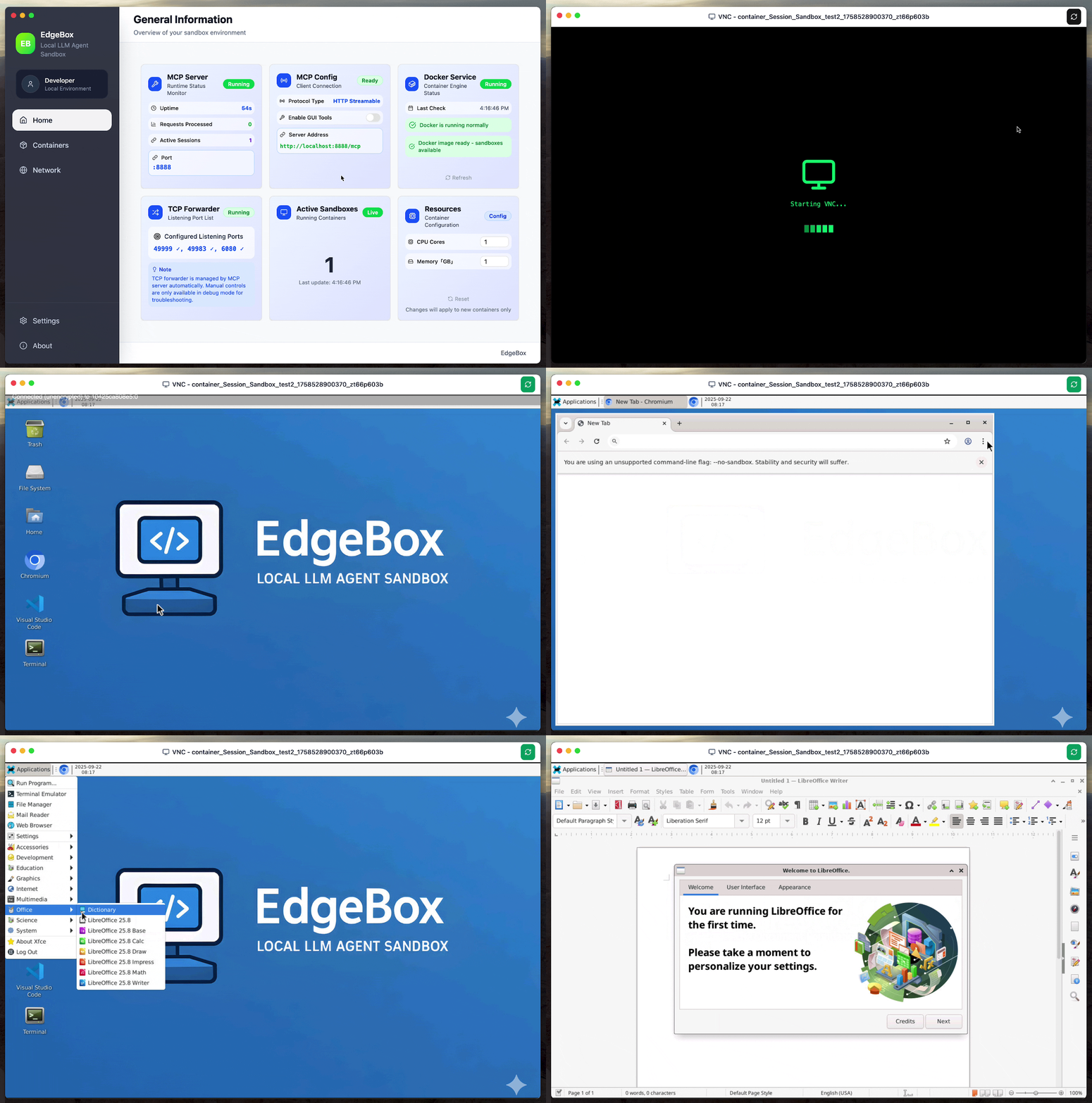
An interactive VNC session with VS Code and a browser.
2. 🐚 Complete Code Interpreter & Shell
- Secure Code Execution: Safely run AI-generated code in an isolated Docker container.
- Full Shell Access: A fully-featured
bashterminal allows the execution of any Linux command. - Isolated Filesystem: Each session gets a separate filesystem with full support for creating, reading, writing, and deleting files.
- Multi-language Support: Native support for Python, JavaScript (Node.js), and other runtimes.
3. 🔗 Seamless LLM Agent Integration (via MCP)
- Standardized Protocol: All sandbox features are exposed via the MCP (Model Context Protocol) HTTP interface.
- Broad Client Compatibility: Easily connect to any LLM client that supports MCP, such as Claude Desktop, OpenWebUI, LobeChat, and more.
- Multi-Session Management: Create and manage multiple, isolated sandbox sessions concurrently using the
x-session-idheader.
🛠️ Available MCP Tools
EdgeBox exposes its capabilities through MCP tools, organized into two categories:
📟 Core Tools (CLI Mode - Always Available)
Code Execution Tools - Execute code in various languages:
execute_python- Execute Python code in isolated environmentexecute_typescript- Execute TypeScript/JavaScript codeexecute_r- Execute R code for statistical analysisexecute_java- Execute Java codeexecute_bash- Execute Bash scripts
Shell Commands - Interact with the Linux environment:
shell_run- Run shell commands (stateful, persistent environment)shell_run_background- Run commands in background with process management
Filesystem Operations - Manage files and directories:
fs_list- List files in directoriesfs_read- Read file contentsfs_write- Write content to filesfs_info- Get file metadata and informationfs_watch- Monitor directory changes in real-time
🖱️ Desktop Tools (GUI Mode - When GUI Tools Enabled)
Mouse Controls - Programmatic mouse interaction:
desktop_mouse_click- Perform mouse clicks (left/right/middle)desktop_mouse_double_click- Double-click actionsdesktop_mouse_move- Move cursor to coordinatesdesktop_mouse_scroll- Scroll up/down with configurable amountdesktop_mouse_drag- Drag from one position to another
Keyboard Controls - Text input and key combinations:
desktop_keyboard_type- Type text with clipboard support for non-ASCIIdesktop_keyboard_press- Press specific keys (Return, Escape, Tab, etc.)desktop_keyboard_combo- Execute key combinations (Ctrl+C, Alt+Tab, etc.)
Window Management - Control desktop applications:
desktop_get_windows- List all windows with titles and IDsdesktop_switch_window- Focus specific windowsdesktop_maximize_window- Maximize windowsdesktop_minimize_window- Minimize windowsdesktop_resize_window- Resize windows to specific dimensions
Visual & Application Control:
desktop_screenshot- Capture desktop screenshots (PNG format)desktop_launch_app- Launch applications by namedesktop_wait- Add delays between actions
Note: Desktop tools are only available when GUI Tools are enabled in EdgeBox settings. Core tools are always available regardless of GUI settings.
🏗️ Architecture
EdgeBox is designed to provide a seamless and powerful local execution environment for LLM agents.
[LLM Agent (Claude, GPT, etc.)] <- MCP (HTTP Stream) -> [EdgeBox App] <- Docker API -> [Isolated Sandbox Container (Desktop + Shell)]
- Frontend: Electron + React + TypeScript + Tailwind CSS
- Backend: Node.js + Dockerode (for Docker API)
- Containerization: Docker
- UI Components: Radix UI
📋 Prerequisites
- Docker Desktop: Must be installed and running.
🛠️ Installation
Download EdgeBox
Download the latest release for your platform from the Releases page.Install & Run Docker Desktop
Ensure Docker Desktop is installed and running before starting EdgeBox.Run EdgeBox
- Windows: Run
EdgeBox.exe - macOS: Open
EdgeBox.app - Linux: Run the AppImage or install the
.deb/.rpmpackage.
- Windows: Run
🎯 Usage
Quick Start
- Launch EdgeBox and ensure Docker is running.
- Check the dashboard to verify all components (Docker, MCP Server) are healthy.
- Add the EdgeBox MCP configuration to your LLM client.
MCP Client Configuration
Add EdgeBox to your LLM client with this configuration:
{
  "mcpServers": {
    "edgebox": {
      "url": "http://localhost:8888/mcp"
    }
  }
}
Instructing Your LLM Agent
Once configured, you can give your LLM agent natural language instructions like:
- Code Execution: "Write a Python script to analyze this CSV file and show me the output."
- File Operations: "Create a new folder called 'project', and inside it, create a file named
main.py." - Computer Use: "Open the browser, navigate to 'github.com', search for 'EdgeBox', and then take a screenshot for me."
Multi-Session Concurrent Sandboxes
Easily manage multiple isolated environments by specifying an x-session-id in your MCP request headers.
Example configuration for different tasks:
{
  "mcpServers": {
    "edgebox-default": {
      "url": "http://localhost:8888/mcp"
    },
    "edgebox-data-analysis": {
      "url": "http://localhost:8888/mcp",
      "headers": {
        "x-session-id": "data-analysis"
      }
    },
    "edgebox-web-scraping": {
      "url": "http://localhost:8888/mcp",
      "headers": {
        "x-session-id": "web-scraping"
      }
    }
  }
}
Programmatic Access (SDK Examples)
You can connect to EdgeBox's MCP server programmatically from your own code. Below are quickstart examples for Python and TypeScript.
Python Quickstart (FastMCP)
Use the FastMCP client to connect to EdgeBox from Python.
Install:
pip install fastmcp
Example:
import asyncio
from fastmcp import Client

EDGEBOX_MCP_URL = "http://localhost:8888/mcp"

async def main():
    client = Client(EDGEBOX_MCP_URL)

    async with client:
        # List available tools
        tools = await client.list_tools()
        for tool in tools:
            print(f"  - {tool.name}: {tool.description}")

        # Execute Python code in the sandbox
        result = await client.call_tool(
            "execute_python",
            {"code": "import sys; print(f'Hello from EdgeBox! Python {sys.version}')"},
        )
        print(f"Result: {result}")

        # Run a shell command
        result = await client.call_tool(
            "shell_run",
            {"command": "uname -a && whoami"},
        )
        print(f"Shell: {result}")

        # File operations
        await client.call_tool(
            "fs_write",
            {"path": "/tmp/hello.txt", "content": "Hello from EdgeBox!"},
        )
        result = await client.call_tool("fs_read", {"path": "/tmp/hello.txt"})
        print(f"File content: {result}")

        # Execute TypeScript code in the sandbox
        result = await client.call_tool(
            "execute_typescript",
            {"code": "console.log(`Node.js ${process.version}`)"},
        )
        print(f"TypeScript: {result}")

        # Desktop automation (requires GUI Tools enabled)
        # result = await client.call_tool("desktop_screenshot", {})
        # result = await client.call_tool("desktop_keyboard_type", {"text": "hello"})

asyncio.run(main())
TypeScript Quickstart (fastmcp)
Use the MCP SDK client (as referenced by fastmcp) to connect to EdgeBox from TypeScript.
Install:
npm install @modelcontextprotocol/sdk fastmcp
Example:
import { Client } from "@modelcontextprotocol/sdk/client/index.js";
import { StreamableHTTPClientTransport } from "@modelcontextprotocol/sdk/client/streamableHttp.js";

const EDGEBOX_MCP_URL = "http://localhost:8888/mcp";

async function main() {
  const client = new Client(
    { name: "edgebox-quickstart", version: "1.0.0" },
    { capabilities: {} },
  );

  const transport = new StreamableHTTPClientTransport(
    new URL(EDGEBOX_MCP_URL),
  );
  await client.connect(transport);

  try {
    // List available tools
    const { tools } = await client.listTools();
    for (const tool of tools) {
      console.log(`  - ${tool.name}: ${tool.description}`);
    }

    // Execute Python code in the sandbox
    const pythonResult = await client.callTool({
      name: "execute_python",
      arguments: {
        code: "import sys; print(f'Hello from EdgeBox! Python {sys.version}')",
      },
    });
    console.log("Result:", pythonResult.content);

    // Run a shell command
    const shellResult = await client.callTool({
      name: "shell_run",
      arguments: { command: "uname -a && whoami" },
    });
    console.log("Shell:", shellResult.content);

    // File operations
    await client.callTool({
      name: "fs_write",
      arguments: { path: "/tmp/hello.txt", content: "Hello from EdgeBox!" },
    });
    const readResult = await client.callTool({
      name: "fs_read",
      arguments: { path: "/tmp/hello.txt" },
    });
    console.log("File content:", readResult.content);

    // Execute TypeScript code in the sandbox
    const tsResult = await client.callTool({
      name: "execute_typescript",
      arguments: { code: "console.log(`Node.js ${process.version}`)" },
    });
    console.log("TypeScript:", tsResult.content);

    // Desktop automation (requires GUI Tools enabled)
    // const screenshot = await client.callTool({ name: "desktop_screenshot", arguments: {} });
    // const typed = await client.callTool({ name: "desktop_keyboard_type", arguments: { text: "hello" } });
  } finally {
    await client.close();
  }
}

main().catch(console.error);
Container Management Examples
EdgeBox provides container lifecycle tools (container_list, container_create, container_stop, container_restart, container_delete) to manage sandbox containers programmatically.container_stop ends the session/container mapping, so in typical workflows you should use either container_stop or container_delete as the final cleanup step (not both in sequence for the same session_id).
Python:
import asyncio
from fastmcp import Client

async def main():
    client = Client("http://localhost:8888/mcp")

    async with client:
        # Create a new container (with 60-minute timeout)
        result = await client.call_tool(
            "container_create",
            {"session_id": "my-session", "timeout": 60},
        )
        print(f"Create: {result}")

        # List all active containers
        result = await client.call_tool("container_list", {})
        print(f"List: {result}")

        # Restart the container
        result = await client.call_tool(
            "container_restart", {"session_id": "my-session"}
        )
        print(f"Restart: {result}")

        # Cleanup option A: stop container for this session
        result = await client.call_tool(
            "container_stop", {"session_id": "my-session"}
        )
        print(f"Stop: {result}")

        # Cleanup option B (alternative): delete directly instead of stop
        # Use a different session_id here to keep the demo deterministic.
        await client.call_tool(
            "container_create",
            {"session_id": "my-session-delete", "timeout": 60},
        )
        result = await client.call_tool(
            "container_delete", {"session_id": "my-session-delete"}
        )
        print(f"Delete: {result}")

asyncio.run(main())
TypeScript:
import { Client } from "@modelcontextprotocol/sdk/client/index.js";
import { StreamableHTTPClientTransport } from "@modelcontextprotocol/sdk/client/streamableHttp.js";

async function main() {
  const client = new Client(
    { name: "edgebox-container-mgmt", version: "1.0.0" },
    { capabilities: {} },
  );
  const transport = new StreamableHTTPClientTransport(
    new URL("http://localhost:8888/mcp"),
  );
  await client.connect(transport);

  try {
    // Create a new container (with 60-minute timeout)
    const created = await client.callTool({
      name: "container_create",
      arguments: { session_id: "my-session", timeout: 60 },
    });
    console.log("Create:", created.content);

    // List all active containers
    const list = await client.callTool({
      name: "container_list",
      arguments: {},
    });
    console.log("List:", list.content);

    // Restart the container
    const restarted = await client.callTool({
      name: "container_restart",
      arguments: { session_id: "my-session" },
    });
    console.log("Restart:", restarted.content);

    // Cleanup option A: stop container for this session
    const stopped = await client.callTool({
      name: "container_stop",
      arguments: { session_id: "my-session" },
    });
    console.log("Stop:", stopped.content);

    // Cleanup option B (alternative): delete directly instead of stop
    // Use a different session_id here to keep the demo deterministic.
    await client.callTool({
      name: "container_create",
      arguments: { session_id: "my-session-delete", timeout: 60 },
    });
    const deleted = await client.callTool({
      name: "container_delete",
      arguments: { session_id: "my-session-delete" },
    });
    console.log("Delete:", deleted.content);
  } finally {
    await client.close();
  }
}

main().catch(console.error);
Session Isolation Examples
In EdgeBox, each session maps to its own isolated Docker container with a separate filesystem and runtime. When no x-session-id header is provided, all requests share a single "default_session" container. By passing different x-session-id headers, you can run fully isolated workloads.
Python:
import asyncio
from fastmcp import Client
from fastmcp.client.transports import StreamableHttpTransport

async def run_in_session(session_id: str):
    """Each session gets its own isolated container."""
    transport = StreamableHttpTransport(
        url="http://localhost:8888/mcp",
        headers={"x-session-id": session_id},
    )
    client = Client(transport)

    async with client:
        # Write a file - only visible within this session's container
        await client.call_tool(
            "fs_write",
            {"path": "/tmp/id.txt", "content": f"I am {session_id}"},
        )

        # Read it back
        result = await client.call_tool("fs_read", {"path": "/tmp/id.txt"})
        print(f"[{session_id}] /tmp/id.txt => {result}")

        # Run a command in this session's container
        result = await client.call_tool(
            "shell_run", {"command": "hostname"}
        )
        print(f"[{session_id}] hostname => {result}")

async def main():
    # Run sequentially for deterministic output in Python clients.
    await run_in_session("session-alice")
    await run_in_session("session-bob")
    # session-alice's /tmp/id.txt contains "I am session-alice"
    # session-bob's  /tmp/id.txt contains "I am session-bob"
    # They never interfere with each other.

asyncio.run(main())
TypeScript:
import { Client } from "@modelcontextprotocol/sdk/client/index.js";
import { StreamableHTTPClientTransport } from "@modelcontextprotocol/sdk/client/streamableHttp.js";

async function runInSession(sessionId: string) {
  const client = new Client(
    { name: "edgebox-session-demo", version: "1.0.0" },
    { capabilities: {} },
  );
  const transport = new StreamableHTTPClientTransport(
    new URL("http://localhost:8888/mcp"),
    {
      requestInit: {
        headers: { "x-session-id": sessionId },
      },
    },
  );
  await client.connect(transport);

  try {
    // Write a file - only visible within this session's container
    await client.callTool({
      name: "fs_write",
      arguments: { path: "/tmp/id.txt", content: `I am ${sessionId}` },
    });

    // Read it back
    const read = await client.callTool({
      name: "fs_read",
      arguments: { path: "/tmp/id.txt" },
    });
    console.log(`[${sessionId}] /tmp/id.txt =>`, read.content);

    // Run a command in this session's container
    const host = await client.callTool({
      name: "shell_run",
      arguments: { command: "hostname" },
    });
    console.log(`[${sessionId}] hostname =>`, host.content);
  } finally {
    await client.close();
  }
}

async function main() {
  // These two sessions run in completely separate containers
  await Promise.all([
    runInSession("session-alice"),
    runInSession("session-bob"),
  ]);
  // session-alice's /tmp/id.txt contains "I am session-alice"
  // session-bob's  /tmp/id.txt contains "I am session-bob"
  // They never interfere with each other.
}

main().catch(console.error);
Concurrency Validation (<= 4)
If you want to validate session isolation under light concurrency, keep concurrency low (e.g. <= 4) and verify each session reads back the value it wrote.
Python (4 sessions, unique paths):
import asyncio
from fastmcp import Client
from fastmcp.client.transports import StreamableHttpTransport

URL = "http://localhost:8888/mcp"
SESSIONS = ["s1", "s2", "s3", "s4"]
ROUNDS = 20

async def run_once(session_id: str, round_no: int) -> bool:
    transport = StreamableHttpTransport(
        url=URL,
        headers={"x-session-id": session_id},
    )
    client = Client(transport)

    path = f"/tmp/id-{session_id}.txt"
    expected = f"{session_id}-r{round_no}"

    async with client:
        await client.call_tool("fs_write", {"path": path, "content": expected})
        read = await client.call_tool("fs_read", {"path": path})
        actual = read.content[0].text
        return actual == expected

async def main():
    bad = 0
    for i in range(1, ROUNDS + 1):
        results = await asyncio.gather(*[run_once(s, i) for s in SESSIONS])
        bad += sum(0 if ok else 1 for ok in results)
    print(f"BAD={bad}")

asyncio.run(main())
TypeScript (4 sessions, unique paths):
import { Client } from "@modelcontextprotocol/sdk/client/index.js";
import { StreamableHTTPClientTransport } from "@modelcontextprotocol/sdk/client/streamableHttp.js";

const URL = "http://localhost:8888/mcp";
const SESSIONS = ["s1", "s2", "s3", "s4"];
const ROUNDS = 20;

async function runOnce(sessionId: string, roundNo: number): Promise<boolean> {
  const client = new Client(
    { name: "edgebox-isolation-check", version: "1.0.0" },
    { capabilities: {} },
  );
  const transport = new StreamableHTTPClientTransport(new URL(URL), {
    requestInit: { headers: { "x-session-id": sessionId } },
  });
  await client.connect(transport);

  const path = `/tmp/id-${sessionId}.txt`;
  const expected = `${sessionId}-r${roundNo}`;

  try {
    await client.callTool({
      name: "fs_write",
      arguments: { path, content: expected },
    });
    const read = await client.callTool({
      name: "fs_read",
      arguments: { path },
    });
    const actual = (read.content?.[0] as any)?.text ?? "";
    return actual === expected;
  } finally {
    await client.close();
  }
}

async function main() {
  let bad = 0;
  for (let i = 1; i <= ROUNDS; i++) {
    const results = await Promise.all(SESSIONS.map((s) => runOnce(s, i)));
    bad += results.filter((ok) => !ok).length;
  }
  console.log(`BAD=${bad}`);
}

main().catch(console.error);
🔐 Security
- Container Isolation: Every sandbox session runs in a separate Docker container.
- Resource Limits: Configurable CPU and memory constraints prevent resource abuse.
- Network Isolation: Container networking is controlled to protect the host machine.
📄 License
See the LICENSE file for details.
🙏 Acknowledgments
- E2B Team: For creating the fantastic open-source E2B Code Interpreter project that inspired EdgeBox.
- Docker: For the powerful containerization technology.
- Electron: For making cross-platform desktop apps possible.
🔗 Related Projects
- E2B Code Interpreter - The original project that served as our foundation.
- FastMCP - An implementation of the Model Context Protocol (MCP).
📞 Support
- Issues: Report bugs and feature requests on GitHub Issues.
- Discussions: Join the conversation in GitHub Discussions.
Yorumlar (0)
Yorum birakmak icin giris yap.
Yorum birakSonuc bulunamadi