botcircuits-agent
Health Warn
- License — License: Apache-2.0
- Description — Repository has a description
- Active repo — Last push 0 days ago
- Low visibility — Only 6 GitHub stars
Code Pass
- Code scan — Scanned 12 files during light audit, no dangerous patterns found
Permissions Pass
- Permissions — No dangerous permissions requested
No AI report is available for this listing yet.
Workflow-native AI agent for predictable and token-efficient multi-step automations
botcircuits-agent
The workflow-native AI agent where an LLM handles the reasoning and tool calls for each step, while a deterministic state machine controls the overall flow. The result:predictable and token-efficient multi-step automation without depending on an LLM to drive everything.
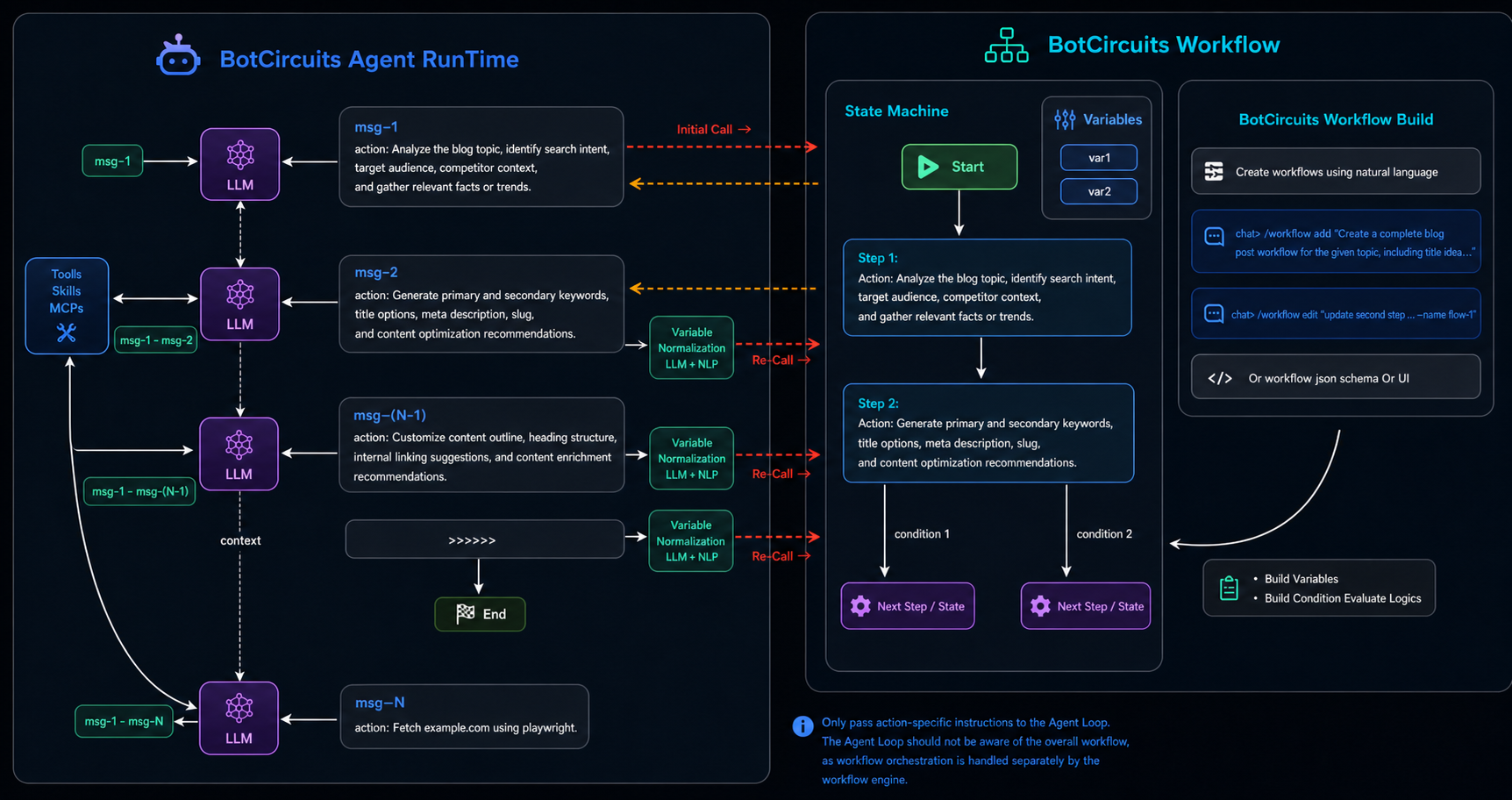
Quick Start
Setup
Clone and install
# 1. Install uv (skip if you already have it)
curl -LsSf https://astral.sh/uv/install.sh | sh
# or: brew install uv

# 2. Clone the repo
git clone https://github.com/botcircuits-ai/botcircuits-agent
cd botcircuits-agent

# 3. Pick a Python (3.11+) and create the project venv
uv python install 3.11
uv venv --python 3.11        # creates ./.venv

# 4. Activate the venv
source .venv/bin/activate    # bash / zsh

# 5. Install dependencies into the venv
uv sync
Configure your provider, model, and API key:
botcircuits setup
The wizard walks you through provider (anthropic / openai / gemini), model, and API key with arrow-key navigation (↑/↓ to move, Enter to select, Esc to keep the current value). Each pick is saved as you go:
providerandmodel→~/.botcircuits/settings.json- API key →
~/.botcircuits/.env(ANTHROPIC_API_KEY/OPENAI_API_KEY/GEMINI_API_KEY, file mode0600)
Re-running botcircuits setup shows your existing values as defaults, and an existing API key gives you a Keep / Replace / Clear choice instead of re-prompting for the secret.
| Form | What it does |
|---|---|
botcircuits setup |
Full wizard (currently the LLM section) |
botcircuits setup llm |
Just the LLM provider/model/API-key section |
botcircuits setup --user |
Write to ~/.botcircuits/ (default) |
botcircuits setup --project |
Write to ./.botcircuits/settings.json (shared via VCS) |
botcircuits setup --local |
Write to ./.botcircuits/settings.local.json (gitignored personal override) |
Prefer to configure by hand? Copy the env template instead:
cp .env.example .env
# .env — API key for the provider you want to use (required)
ANTHROPIC_API_KEY=...
OPENAI_API_KEY=...
GEMINI_API_KEY=...

# Optional — only used as a fallback when settings.json / CLI flags don't set them
LLM_PROVIDER=anthropic        # anthropic | openai | gemini
ANTHROPIC_MODEL=claude-opus-4-7
OPENAI_MODEL=gpt-4.1
GEMINI_MODEL=gemini-2.5-flash
Effective precedence (highest wins): CLI flag → settings.json (layered) → env var → built-in default.
Run
Interactive CLI:
botcircuits
botcircuits --provider openai
Pipe a single message (non-interactive):
echo "what is 2+2?" | botcircuits --no-stream
FastAPI gateway (for HTTP + messaging channels):
uv run uvicorn botcircuits.gateway:app --reload --port 8000
# or
botcircuits-gateway
Useful CLI flags
| Flag | Description |
|---|---|
--provider |
anthropic (default) | openai | gemini |
--model |
Override the provider's default model |
--stream / --no-stream |
Force streaming on/off |
--auto |
Skip y/N confirmation on every gated tool. A warning still prints before each action. |
--config <path> |
Load a specific settings.json (in addition to the auto-discovered files) |
Settings files (optional)
The CLI auto-loads these in order (later layers win):
| Layer | Path |
|---|---|
| User | ~/.botcircuits/settings.json |
| Project (shared) | .botcircuits/settings.json |
| Project (local) | .botcircuits/settings.local.json (gitignored) |
CLI flags always win over JSON. A starter file is at .botcircuits/settings.example.json.
Slash commands inside the CLI
| Command | Action |
|---|---|
/help |
Show all commands |
/reset |
Clear the current session and start fresh |
/session [id] |
Show or switch session id |
/stream on|off |
Toggle streaming |
/tools |
List the tools the model can call |
/skills |
List filesystem skills |
/memory |
Show persistent memory |
/workflow add "<prompt>" |
Author a new workflow from natural language |
/workflow edit "<prompt>" --name <wf> |
Edit an existing workflow |
/workflow run --name <wf> [--initial-args '{"k":"v"}'] |
Force-start a workflow tool, bypassing the model's tool choice |
/quit |
Exit |
Type """ on its own line to start (and again to end) a multi-line message.
Workflow
A workflow is a step-by-step conversation script the agent can run on your behalf. Each workflow is one JSON file that lives under .botcircuits/workflows/, and once the agent loads it the workflow becomes a tool the model can call by name.
Authoring from the CLI
You don't have to hand-edit JSON. Drive everything through the /workflow slash command:
botcircuits
/workflow add --name workflow_demo "Create a workflow with 11 steps total (step_1 through step_10 plus an end step) that takes one initial argument end_id (a string like 'step_3' or 'step_7' controlling early termination); each numbered step's action is 'Create a markdown file named <step_id>.md in the current directory containing the current step number and current date and time, e.g., step_3 creates step_3.md with content: Step 3 — <current date and time>'; step_1 through step_9 each have a branching condition: if end_id equals the current step id go to the end step, otherwise go to the next numbered step (step_1 → end if end_id==step_1 else step_2, step_2 → end if end_id==step_2 else step_3, ... through step_9 → end if end_id==step_9 else step_10); step_10 has no condition and goes directly to the end step after its action; the end step's action is 'Create a markdown file named end.md in the current directory containing exactly: END'."
The agent drafts the workflow, shows you a preview, asks y/N, writes the file, and registers it as a tool. The new workflow becomes callable on the very next message — no restart.
By default the model picks a slug for the workflow name. Pass --name <wf> to set it yourself — that value becomes both the JSON filename (.botcircuits/workflows/<wf>.json) and the registered tool name:
/workflow add "<prompt>" --name check_order_status
--name must be slug-safe (letters, digits, _, -).
To change an existing workflow:
/workflow edit "also handle refunds" --name check_order_status
The agent reads the current file, applies your edit, asks y/N, and refreshes the live tool.
Force-running a workflow
When you don't want to leave it up to the model to decide whether to invoke a workflow, kick one off directly:
/workflow run --name workflow_demo
/workflow run --name workflow_demo --initial-args '{"end_id":"step_3"}'
This calls the workflow tool right away with the args you supplied, seeds the conversation with the resulting first step, and hands control back to the model to perform it. --initial-args must be a JSON object; omit it to start with {}. The target workflow must already be registered — workflow tools are auto-discovered from .botcircuits/workflows/.build/ and the command refreshes that registry before looking up the name, so a freshly authored workflow works without a restart.
Where workflows live
By default, workflows live in .botcircuits/workflows/*.json under the current directory. Override with BOTCIRCUITS_WORKFLOWS_DIR=/abs/path (or set it in .env). A missing directory just means "no workflows" — drop a folder in to opt in.
Each file is one workflow record:
{
  "name": "greet_user",
  "description": "Greet the caller, then say goodbye.",
  "flow": {
    "start": "s0",
    "steps": {
      "s0": { "type": "start", "next": "a1" },
      "a1": {
        "type": "agentAction",
        "next": "a2",
        "conditions": [
          { "condition": "the requested tone is warm", "next": "a2" }
        ],
        "settings": {
          "action": "Capture the desired tone and greet the user accordingly."
        }
      },
      "a2": {
        "type": "agentAction",
        "settings": { "action": "Say goodbye." }
      }
    }
  }
}
name doubles as the tool name the model calls; it must match ^[a-zA-Z0-9_-]+$. Only start and agentAction step types are supported — to branch, attach a conditions list at the step root (sibling of type and next, not nested inside settings). conditions is control flow, so it sits next to the other control-flow fields rather than with the step-type-specific payload in settings.
Building a workflow
The raw file you author is not what the engine runs. The workflow build step takes the natural-language conditions on each agentAction and prepares conditions and variables the engine can evaluate deterministically:
- Conditions — each NL
condition(e.g."the requested tone is warm") is compiled into a typedchoices[]entry with an operator (is,>=,contains, …) and a value, so the engine can pick the matching branch without re-calling the LLM at runtime. - Variables — an aggregated
flow.variableslist is emitted, naming every slot referenced by the compiled conditions along with its inferreddataTypeand a short description. The runtime uses this list to coerce the LLM's free-text args into the right shape before evaluating branches.
/workflow add|edit runs the builder for you. If you hand-edit a workflow file, re-build it from the CLI:
botcircuits workflow build --name=greet_user
The agent runtime only loads workflows from .botcircuits/workflows/.build/, so a workflow that hasn't been built isn't callable — workflow build is what produces the runnable copy.
Skills
A skill is a small folder of instructions (and optionally allowed tools) the agent reads from disk. Skills are useful for capturing repeatable patterns — "how we answer support questions", "how we draft a PR description" — without baking them into the system prompt.
Where skills live
The CLI discovers skills from:
skills/(project).botcircuits/skills/(project)
Each skill is a folder with a SKILL.md file:
skills/
└── botcircuits-faq/
    └── SKILL.md
---
name: botcircuits-faq
description: Answer questions about BotCircuits — features, pricing, docs.
allowed-tools: playwright__browser_navigate, playwright__browser_snapshot
---

You do NOT know about BotCircuits from prior knowledge. The only source of
truth is https://botcircuits.ai/. Fetch the site before answering...
The description is what the model uses to decide when to invoke the skill. allowed-tools (optional) restricts which tools the skill is allowed to call during its run.
Listing and running
/skills              # list discovered skills
/<skill-name>        # run a skill directly (bypass the model)
The agent can also pick a skill on its own based on the description.
MCP
MCP servers expose external tools (filesystem, GitHub, databases, …) to the agent. You can configure them once and they become available across every CLI session and gateway request.
Where MCP servers live
MCP server configs live in mcp.json files, layered the same way as settings.json:
| Layer | Path |
|---|---|
| User | ~/.botcircuits/mcp.json |
| Project (shared) | .botcircuits/mcp.json |
| Project (local) | .botcircuits/mcp.local.json (gitignored) |
Two modes:
local— the agent runs the MCP server in-process. Works with every provider, including Gemini.hosted— the provider executes the MCP server itself (Anthropic and OpenAI only). Gemini auto-promotes hosted entries to local.
Managing from the CLI
# List configured servers
botcircuits mcp list

# Add a local stdio server (writes to .botcircuits/mcp.json)
botcircuits mcp add fs \
    --mode local --transport stdio --command npx \
    --args -y @modelcontextprotocol/server-filesystem /tmp

# Add a hosted server to your user-wide mcp.json
botcircuits mcp add github --user \
    --mode hosted --url https://api.githubcopilot.com/mcp/ \
    --authorization-token "$GITHUB_PAT"

# Personal override that won't be committed (auto-added to .gitignore)
botcircuits mcp add fs-debug --local \
    --mode local --transport stdio --command npx --args -y debug-fs /tmp

# Connect, list tools, disconnect — verifies a local server works
botcircuits mcp test fs

# Remove a server
botcircuits mcp remove github
If a flag value starts with -, use the --flag=value form (e.g. --args=-y,pkg,/tmp) so argparse doesn't read it as a flag.
Tools
The agent ships with a set of built-in tools so the model can read files, run commands, search code, and keep a TODO list. Run /tools inside the CLI to see what's currently loaded.
| Tool | What it does | Gate |
|---|---|---|
now |
Current UTC time (ISO 8601) | — |
read_file |
Read a UTF-8 text file | — |
write_file |
Create or overwrite a file | y/N + preview |
edit_file |
Exact string-replace in a file | y/N + unified diff |
list_dir |
List a directory | — |
glob_search |
Find files by glob (**/*.py) |
— |
grep_search |
Regex search across files | — |
todo_write |
Maintain a live TODO list | — |
plan_and_confirm |
Present a plan and gate execution | y/N + plan preview |
shell_exec |
Run a system command (background mode supported) | y/N + argv preview |
shell_status |
Poll a background process | — |
shell_stop |
Terminate a background process | y/N |
memory |
Read/write the persistent agent memory | — |
build_workflow |
Author a workflow JSON. Loaded on demand via /workflow add|edit. |
y/N + workflow preview |
There is no shell expansion — shell_exec takes an argv list, so pipes/redirects/globs don't work; the model has to break the command apart itself.
Approving gated actions
Before any gated tool runs, the agent pauses and shows you what it's about to do:
  ▸ shell_exec proposes:
      cmd:  git status
      run? [y/N]:
Press y (or yes) to allow, Enter (or anything else) to deny. A denied tool returns {"denied": true, ...} to the model along with a hint not to retry.
Auto mode
--auto (or tools.<name>.auto: true in settings.json) skips the y/N prompt. A warning banner still prints so you can see what ran:
  ⚠ shell_exec running (auto mode):
      cmd:  git status
Non-interactive contexts (the gateway, piped stdin) engage auto mode automatically — otherwise every gated tool would deadlock waiting for input that never arrives.
Tuning or disabling tools
Per-tool config lives under a tools block in any settings.json:
{
  "tools": {
    "shell_exec": { "timeout_seconds": 60, "max_output_bytes": 20000 },
    "write_file": { "auto": false, "max_bytes": 2000000 },
    "now": null
  }
}
- A dict → override the tool's defaults.
nullorfalse→ disable the tool entirely.- Omitted → keep the built-in defaults.
Unknown tool names or unknown keys are rejected at startup with a clear error.
Message Gateway
The same FastAPI process can connect the agent to messaging platforms. One process can serve WhatsApp, Slack, generic webhooks, and a built-in cron scheduler — all routed through the same agent and conversation store.
uv run uvicorn botcircuits.gateway:app --reload --port 8000
Supported channels
| Channel | Inbound | Outbound |
|---|---|---|
Meta Cloud API webhook (POST /messaging/whatsapp) |
Graph API | |
| Slack | Socket Mode (outbound WebSocket — no public URL required) | chat.postMessage |
| Webhook | POST /messaging/webhook (Bearer auth) |
POST to a configured outbound_url (optional) |
| Cron | Synthesized every 60 seconds | Logged, or forwarded to another channel |
Each user gets an independent conversation history per channel — sessions are keyed by {channel}:{external_chat_id}.
Enabling a channel
A channel registers automatically when its credentials are present. Anything left blank is skipped silently.
# WhatsApp (all three required to enable)
WHATSAPP_PHONE_NUMBER_ID=123456789
WHATSAPP_ACCESS_TOKEN=EAA…
WHATSAPP_VERIFY_TOKEN=any-shared-secret      # echoed back during Meta's GET verify

# Slack — Socket Mode (no public URL required)
SLACK_BOT_TOKEN=xoxb-…                       # bot token, for chat.postMessage
SLACK_APP_TOKEN=xapp-…                       # app-level token, scope: connections:write

# Generic webhook
WEBHOOK_OUTBOUND_URL=https://your-app.example.com/incoming   # optional
WEBHOOK_TOKEN=shared-bearer-token                            # optional (recommended)
Check which channels are live:
curl http://localhost:8000/messaging/status
Platform setup notes
WhatsApp. In the Meta WhatsApp Business app, set the webhook URL to https://<your-host>/messaging/whatsapp and the verify token to whatever you put in WHATSAPP_VERIFY_TOKEN. Subscribe to the messages field on the WhatsApp Business Account.
Slack (Socket Mode). Create a Slack app, enable Socket Mode, and generate an app-level token with connections:write (→ SLACK_APP_TOKEN). Add bot scopes chat:write, channels:history, groups:history, app_mentions:read, im:history, im:write, users:read and install the workspace (→ SLACK_BOT_TOKEN). Subscribe to bot events message.im, message.channels, message.groups, app_mention. Missing message.channels / message.groups is the most common setup mistake — the bot will reply in DMs but appear dead in channels.
Generic webhook.
curl -X POST http://localhost:8000/messaging/webhook \
  -H "authorization: Bearer $WEBHOOK_TOKEN" \
  -H "content-type: application/json" \
  -d '{"chat_id": "user-42", "text": "What is the weather like?"}'
If WEBHOOK_OUTBOUND_URL is set, the gateway posts the agent's reply back to that URL with the same bearer token.
Cron scheduler
The cron channel ticks every 60 seconds. Each due job synthesizes an inbound message — the agent treats it like a user request and the reply is either logged or forwarded to another channel. Jobs live in .botcircuits/messaging.json:
{
  "cron": {
    "enabled": true,
    "jobs": [
      {
        "name": "daily-standup",
        "prompt": "Summarize yesterday's merged PRs and post a standup.",
        "schedule": "0 9 * * 1-5",
        "deliver_to_channel": "slack",
        "deliver_to_chat_id": "C0123456789"
      },
      {
        "name": "hourly-health",
        "prompt": "Check the production health endpoint and report anomalies.",
        "schedule": "0 * * * *"
      }
    ]
  }
}
Schedules use standard 5-field cron expressions evaluated in UTC (*, literals, A-B ranges, */S steps, comma lists). Day-of-week accepts 0 or 7 for Sunday.
Terminal
SSH ( TODO )
Docker ( TODO )
Deployment
Docker-Compose ( TODO )
Kubernetes ( TODO )
License
Licensed under the Apache License, Version 2.0 LICENSE
Built by BotCircuits
Reviews (0)
Sign in to leave a review.
Leave a reviewNo results found