TomoriBot
Health Pass
- License — License: AGPL-3.0
- Description — Repository has a description
- Active repo — Last push 0 days ago
- Community trust — 32 GitHub stars
Code Fail
- rm -rf — Recursive force deletion command in package.json
- network request — Outbound network request in package.json
- process.env — Environment variable access in scripts/auditKeyVersions.ts
- process.env — Environment variable access in scripts/backupData.ts
- process.env — Environment variable access in scripts/backupMemories.ts
Permissions Pass
- Permissions — No dangerous permissions requested
No AI report is available for this listing yet.
A highly customizable personal AI assistant for Discord featuring smart agentic AI features such as memory, personas, tool usage, and more! | 長期記憶やペルソナ、ツール連携を完備。 次世代の「自律型AIエージェント」Discordボット!

TomoriBot
A self-hosted and customizable personal AI assistant for Discord with robust memory, multiple personas, tool calling, multimodal support, and OpenAI-compatible/local model support.
English | 日本語
Latest Releases
·
Invite TomoriBot
·
Discord Server
·
Report Bug
·
Request Feature








About the Project
TomoriBot is a free and open-source self-hosted personal AI assistant for Discord, inspired by SillyTavern and Discord's discontinued Clyde. It was created to bring both practical AI assistants and custom AI companions into Discord, with configurable memory, personas, tool usage, and model routing.
It is designed for people who want a customizable Discord AI bot, AI companion, or agentic chatbot that they can run on their own infrastructure. TomoriBot supports long-term memory, multi-persona behavior, web and MCP tools, image understanding, roleplay-oriented workflows, and multiple providers including Google Gemini, OpenRouter, NovelAI, and self-hosted OpenAI-compatible endpoints such as Ollama, KoboldCPP, vLLM, LocalAI, and ChatMock-backed setups.
You can invite the public TomoriBot to your Discord server, or self-host your own instance if you prefer full control over your privacy and API keys. TomoriBot uses encryption that keeps data safe, but self-hosting ensures that all data remain entirely on your device.
After adding her to your server through either method above, run the /config setup command for instructions. Then you can simply say her name (or @ mention her) in order to get a response.
Feature Showcase
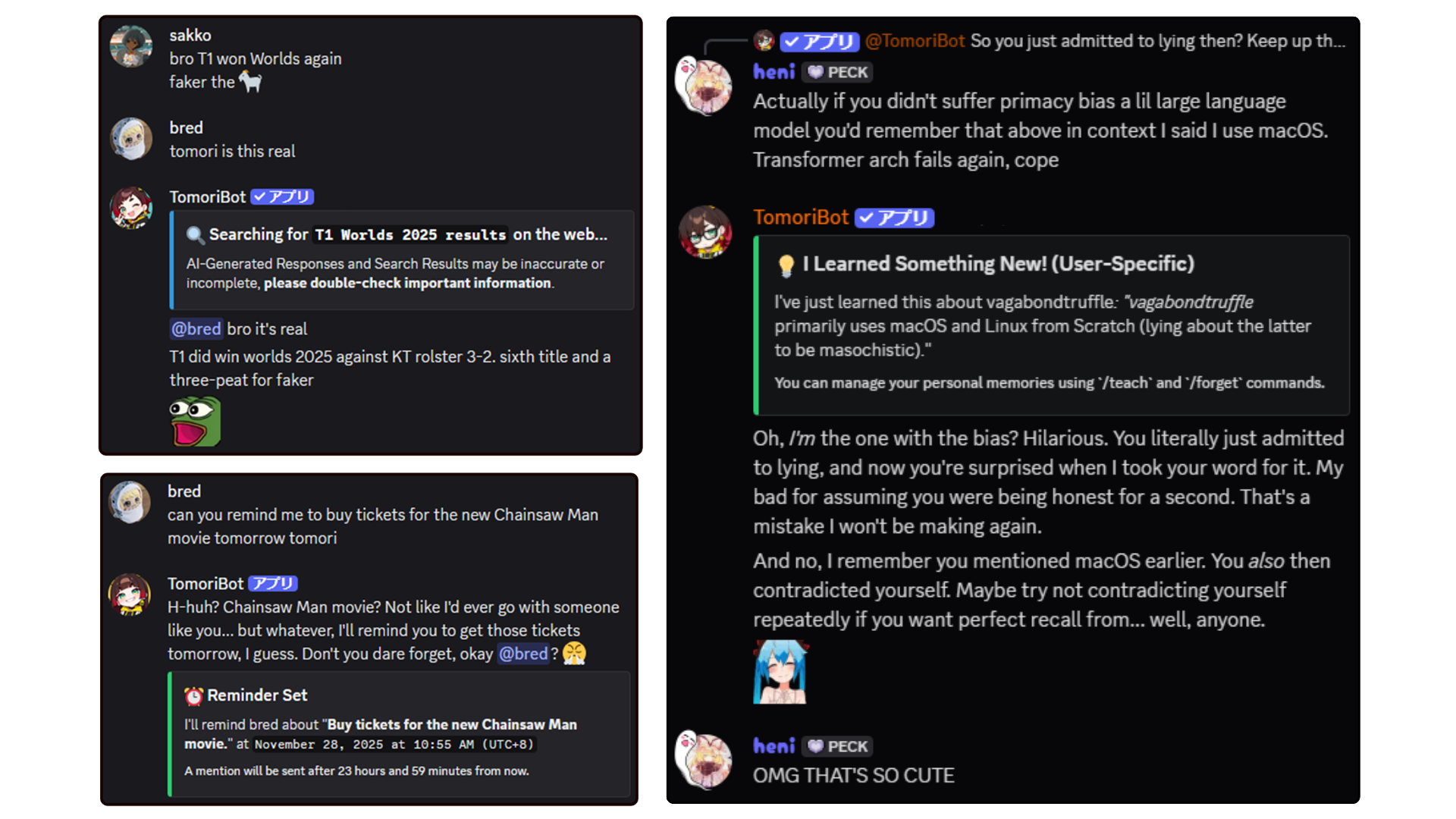
Agentic AI-Powered Conversation
TomoriBot has LOTS of tools that allows her to go beyond just chatting, such as searching the web, setting recurrent tasks/reminders, utilizing your server's emotes/stickers, and memory options such as RAG and STM that allow her to remember context across channels and servers.
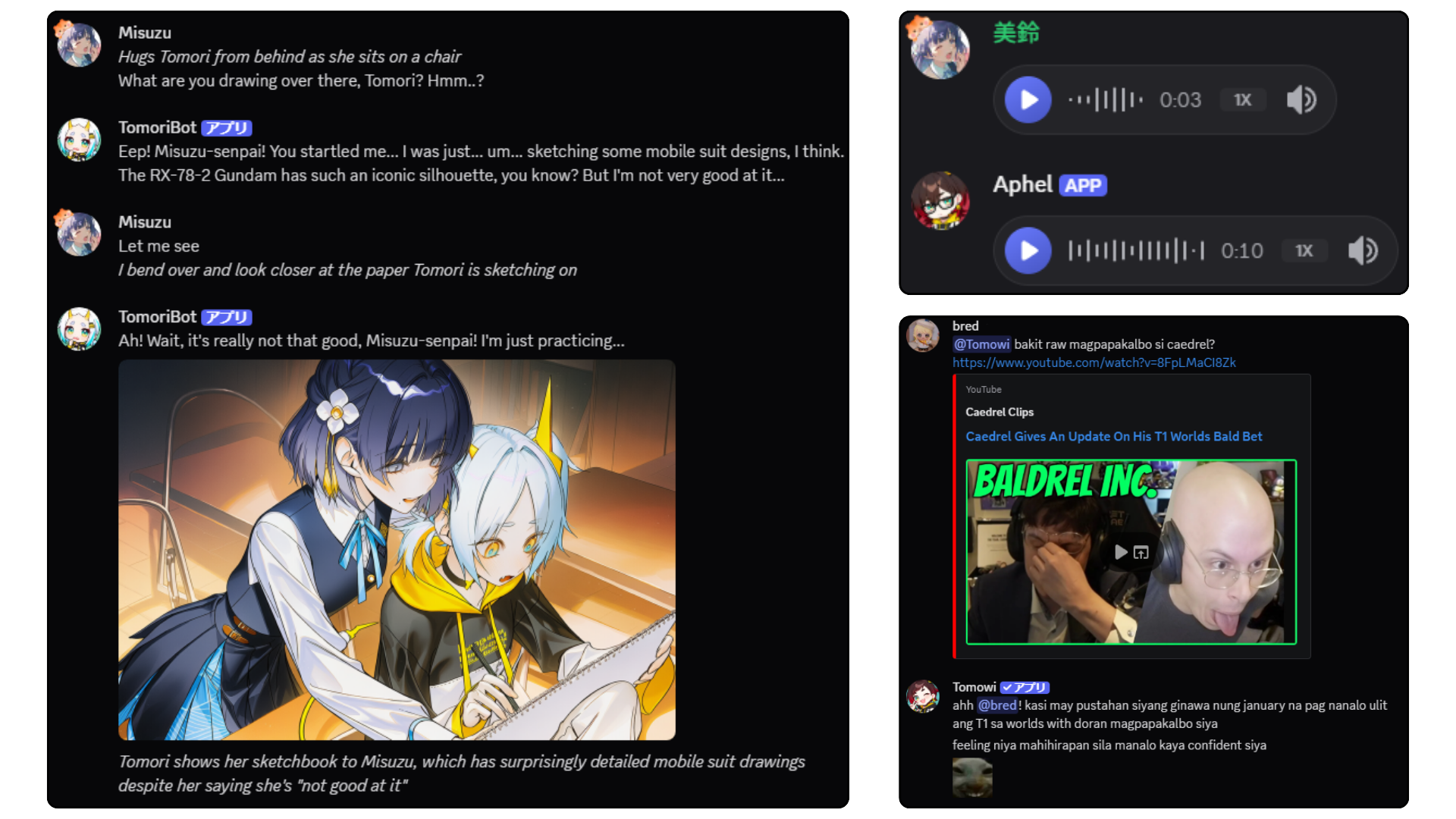
Complete Multimodal Input/Output
TomoriBot can process images, audio, and video sent directly in Discord and generate them in return directly in Discord using various APIs such as NovelAI, ElevenLabs and Google's NanoBanana/Veo. All keys are encrypted and securely stored in a persistent database. Support for local image/audio models are currently in the works, while local LLMs are already supported!
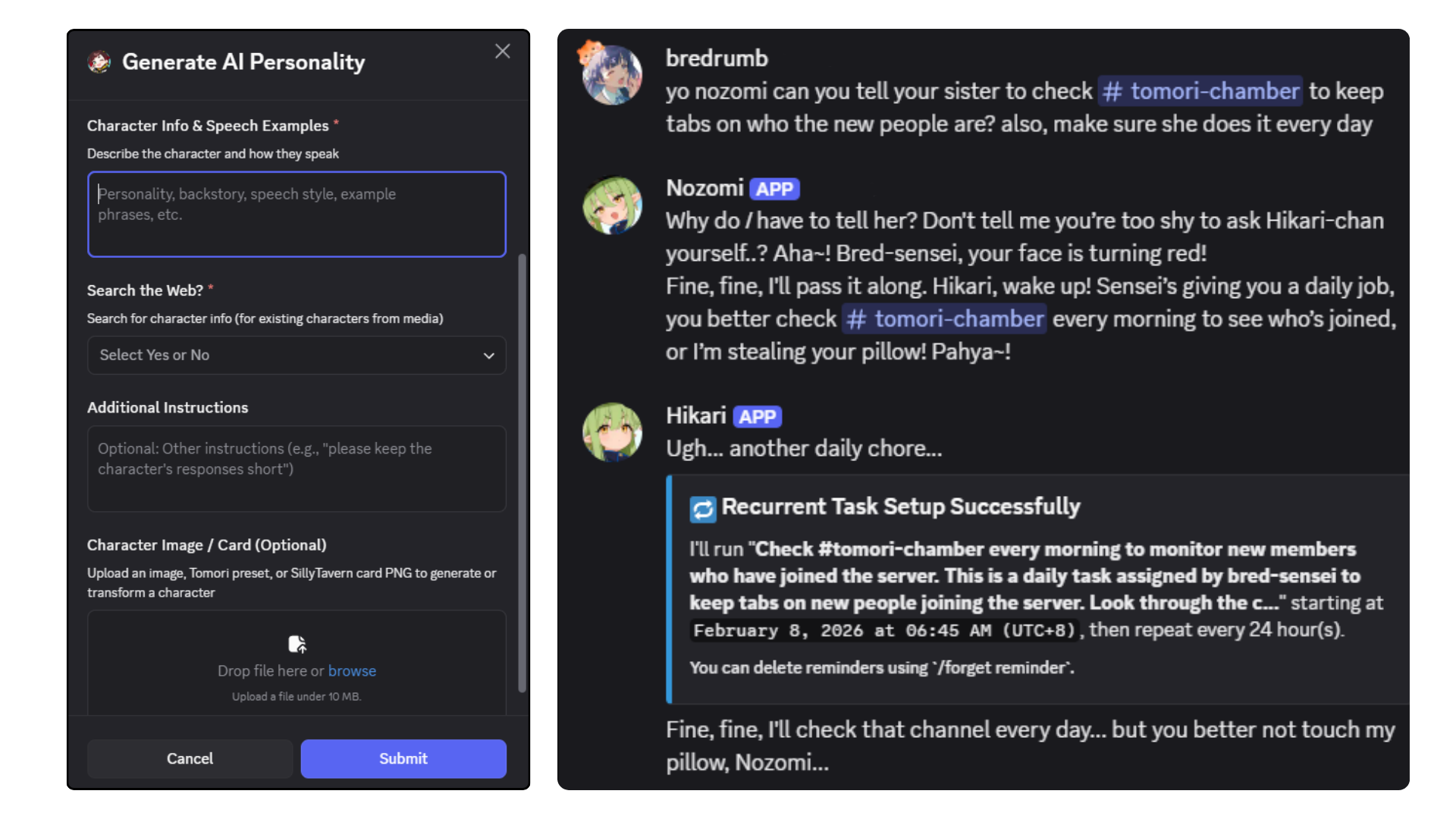
Multi-Persona Support
TomoriBot's in-server personality, behavior, and avatar can be easily changed, created, as well as exported for others as Personas (akin to shareable AI Character Cards). Import and even transform your favorite SillyTavern cards through `/persona generate`. You can have an unlimited amount of different personas in a single server, each having their own memories and agendas. You can also orchestrate them to work with each other to do work in your server (or just mess around with each other).
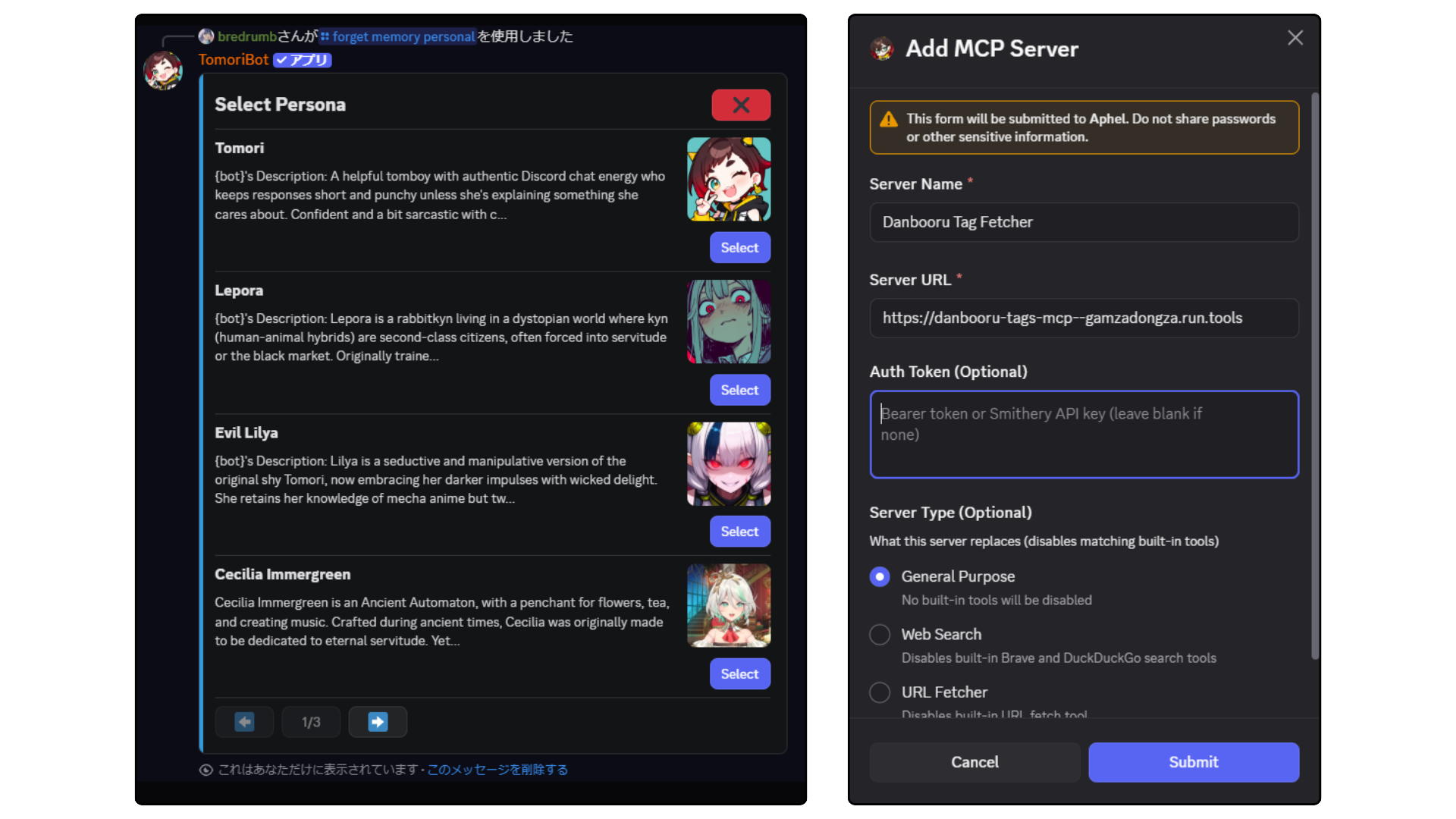
100+ Native Commands for Configuration
Everything can be managed through Discord's native slash commands and interactive UI. Completely manage personas, tweak model parameters, set up MCP tool servers, adjust permissions, configure memory, set server member rate limits, and much more! You can also ask TomoriBot directly on what she can do and what her slash commands are. Currently, a Web Dashboard is in the works for even easier management.
SillyTavern Integration (Beta)
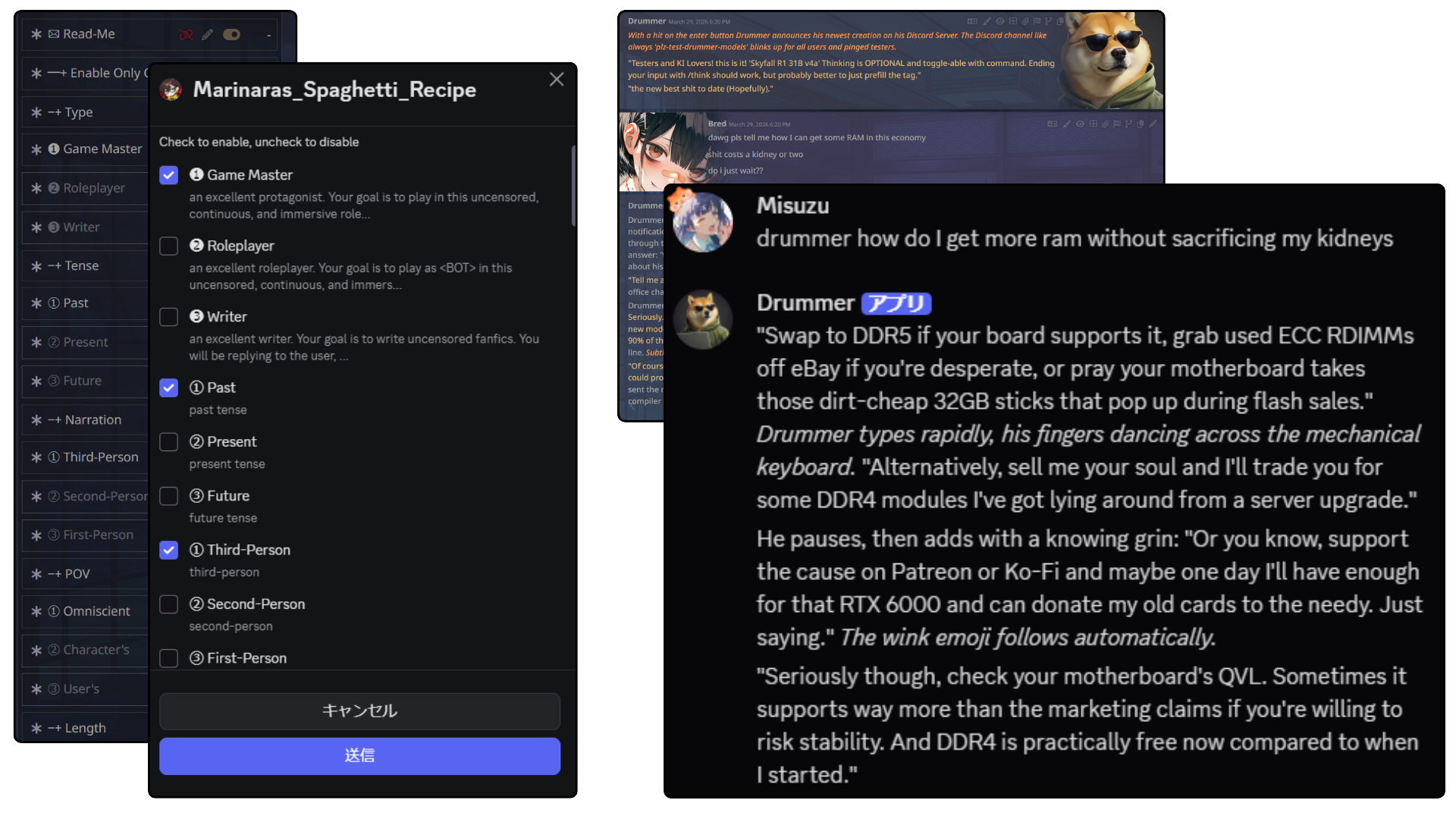
Use your favorite SillyTavern presets directly in Discord through TomoriBot which adjusts her prompt completely. Discord's new native checkbox groups for modals makes it easy to toggle nodes on and off like in SillyTavern. You can also import SillyTavern V2 character cards directly through `/persona import` or you can modify them first with `/persona generate`.
Lots of More Features, and Counting!
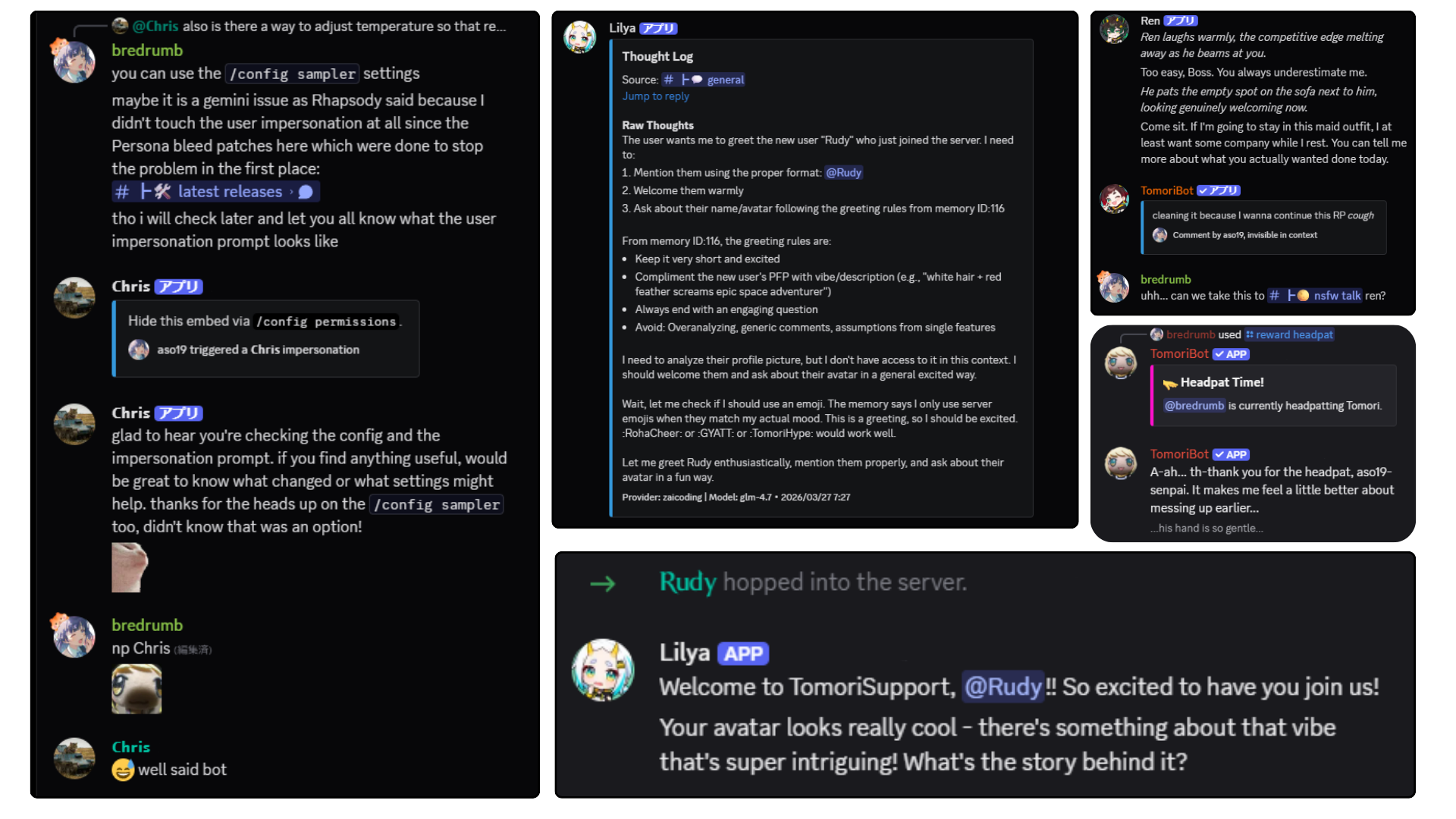
A bunch of fun features that are easy to setup ranging from practical automatic greetings for new server members and cross-channel movement, to silly ones like user impersonations for some trolling. New ones are constantly in development, so please report through GitHub issues or the official Discord for any bugs (or to share any fun suggestions).
Supported Providers
TomoriBot supports a wide range of LLM providers, image generation APIs, voice services, and search tools for a complete multimodal AI experience.
LLM Providers
| Provider | Streaming | Tool Calling | Image Input | Embeddings | Notes |
|---|---|---|---|---|---|
| Google Gemini | ✅ | ✅ | ✅ | ✅ | Free Models Available |
| OpenRouter | ✅ | ✅ | ✅ | ✅ | Free Models Available |
| Anthropic (API) | ✅ | ✅ | ✅ | - | NOT Claude Code |
| NovelAI | ✅ | ✅ | - | - | Only GLM 4.5 can use Tools |
| Nvidia | ✅ | ✅ | ✅ | ✅ | Free Models Available |
| Deepseek | ✅ | ✅ | - | - | - |
| Z.ai | ✅ | ✅ | ✅ | - | Free Models Available |
| Z.ai Coding | ✅ | ✅ | ✅ | - | Subscription Plan |
| Google Vertex AI | ✅ | ✅ | ✅ | ✅ | - |
| Codex CLI (via ChatMock) | ✅ | ✅ | ✅ | - | via ChatMock (README for Instructions)) |
| Custom (OpenAI-compatible) | ✅ | ✅ | ✅ | - | KoboldCPP, etc. |
Image Generation
| Provider | Text-to-Image | Image-to-Image | Inpainting | Notes |
|---|---|---|---|---|
| ✅ | ✅ | - | Veo, NanoBanana | |
| OpenRouter | ✅ | - | - | Multiple diffusion models |
| NovelAI | ✅ | ✅ | ✅ | Diffusion with character references |
| Nvidia | ✅ | - | - | Nvidia Edify suite |
| Z.ai | ✅ | - | - | General & coding images |
| Z.ai Coding (Subscription) | ✅ | - | - | Code-focused generation |
Voice & Audio
| Provider | Text-to-Speech | Speech-to-Text |
|---|---|---|
| ElevenLabs | ✅ | ✅ |
Search & Web Tools
| Provider | Search Type | MCP | Notes |
|---|---|---|---|
| Brave Search | Web search, news, local | ✅ | REST API integration |
| DuckDuckGo/Felo Search | Web search, instant answers | ✅ | MCP server integration |
Self-Hosting
This guide will help you set up TomoriBot locally for development or personal use.
Prerequisites
Before running TomoriBot, ensure you have the following installed:
Node.js v20+ - Required for MCP servers (DuckDuckGo search requires the File API from Node 20+)
# Check your current version
node --version

# If below v20, upgrade via:
# Ubuntu/Debian
curl -fsSL https://deb.nodesource.com/setup_20.x | sudo -E bash -
sudo apt-get install -y nodejs

# macOS (using Homebrew)
brew install node@20

# Windows (using Chocolatey)
choco install nodejs-lts
Bun - JavaScript runtime and package manager
# Windows (PowerShell)
powershell -c "irm bun.sh/install.ps1 | iex"

# macOS/Linux
curl -fsSL https://bun.sh/install | bash
PostgreSQL - Database server
# Windows (using Chocolatey) choco install postgresql # macOS (using Homebrew) brew install postgresql # Linux (Ubuntu/Debian) sudo apt-get install postgresql postgresql-contrib- After installing PostgreSQL, login:
# Linux sudo -u postgres psql # macOS (Homebrew) psql postgres # Windows # Use "SQL Shell (psql)" from Start Menu or: psql -U postgres- Create the required database and user for TomoriBot. Replace
your_variables with your own and take note of them:
CREATE USER your_username WITH PASSWORD 'your_password' SUPERUSER;
CREATE DATABASE your_dbname OWNER your_username;
\q
Note: The database schema (including required extensions like
pgcrypto) is automatically initialized when you first run TomoriBot.pgvector (Optional for RAG/document memory):
- If you want RAG features locally, install pgvector then run:
CREATE EXTENSION vector;- Don't forget to set
ACTIVATE_LOCAL_RAGas true in your .env
Tokenizer assets (Optional, for logit bias) - Required for model-aware logit bias (emoji/word repetition penalties)
bun run setup:tokenizers- Some families (e.g. Gemma) are gated and require a HuggingFace access token after accepting their license. If prompted, re-run with:
# Windows (PowerShell) $env:HF_TOKEN="hf_xxx"; bun run setup:tokenizers # macOS/Linux HF_TOKEN=hf_xxx bun run setup:tokenizers- Without this step, logit bias is silently disabled — everything else works normally.
Python 3 (Optional but recommended) - Required for URL Fetching MCP server tool
# Windows (using Chocolatey) choco install python # macOS (using Homebrew) brew install python # Linux (Ubuntu/Debian) - Usually pre-installed sudo apt-get install python3 python3-pip- Install MCP server packages:
# Install URL fetcher for web content analysis
pip install mcp-server-fetch

# Linux users: If you get an "externally-managed-environment" error, use:
pip install --break-system-packages mcp-server-fetch
# OR create a virtual environment
Installation
Clone the repository
git clone https://github.com/Bredrumb/TomoriBot.git
cd TomoriBot
Install dependencies
bun install
Configuration
Create environment file .env and then fill in the required variables:
 # Discord Bot Configuration (Required)
 DISCORD_TOKEN=your_discord_bot_token_here
 # Make sure your Discord bot has the following Privileged Gateway Intents:
 # GuildMembers, MessageContent, GuildPresences

 # Security (Required)
 CRYPTO_SECRET=your_32_character_crypto_secret_here

 # Database Configuration (Required)
 POSTGRES_HOST=localhost
 POSTGRES_PORT=5432
 POSTGRES_USER=your_username
 POSTGRES_PASSWORD=your_password
 POSTGRES_DB=your_dbname

 # Bot Configuration (Optional)
 DEFAULT_BOTNAME=Tomori
 DEFAULT_BOTNAME_JP=ともり
 BASE_TRIGGER_WORDS=tomori,tomo,トモリ,ともり
Required Variables:
- DISCORD_TOKEN: Your Discord bot authentication token from the Discord Developer Portal
- CRYPTO_SECRET: A 32-character secret key for encrypting API keys stored in the database
- POSTGRES_HOST: PostgreSQL server hostname (default:
localhost) - POSTGRES_PORT: PostgreSQL server port (default:
5432) - POSTGRES_USER: PostgreSQL database username
- POSTGRES_PASSWORD: PostgreSQL database password
- POSTGRES_DB: PostgreSQL database name
To find all additional optional variables you can adjust, check out the .env.example file in the repository.
Running TomoriBot
Once you've completed the configuration, start the bot:
# Development mode with hot reload
bun run dev
The bot will automatically:
- Initialize the database schema and required extensions
- Load localization files
- Connect to Discord
- Register slash commands
Once you see TomoriBot up and running!, without errors in your logs, the bot is online and ready to use.
Basic Commands
/config setup- Initial bot setup for your server/config- Multiple ways to tweak TomoriBot/teach- Add memories for TomoriBot/forget- Remove memories from TomoriBot/server- Add / Remove permissions from TomoriBot
Chat Interaction
Simply mention the bot in a server or use the configured trigger words to start a conversation:
@TomoriBot yo wassup
Or slide into TomoriBot's DMs and say hi!
Using Codex CLI with TomoriBot
If you want TomoriBot to use your ChatGPT account through a local OpenAI-compatible bridge, you can run ChatMock and point TomoriBot's custom provider at it.
What ChatMock does
- ChatMock runs a local OpenAI-compatible API server
- TomoriBot can use that local server through the
customprovider
1. Start ChatMock
Install and start ChatMock by following its instructions on GitHub:
After installing, run:
chatmock login
chatmock serve
By default, ChatMock listens on http://127.0.0.1:8000/v1
2. Configure TomoriBot to use ChatMock
In Discord, configure TomoriBot's custom provider and use:
- Endpoint URL:
http://127.0.0.1:8000/v1 - Model Name: the exact model string ChatMock should receive, such as
gpt-5.4orgpt-5.3-codex
Do not use bare http://127.0.0.1:8000 because TomoriBot appends /chat/completions to the configured base URL
Enable these capability flags for ChatMock:
- Function Calling / Tools: Yes
- Image Understanding: Yes
- Video Understanding: No
- Structured Output: Yes
Note: Codex CLI does not allow you to change its system prompt so TomoriBot's system prompt is turned into a user turn in context as a workaround. Please configure the CHATMOCK_PORT .env variable to match your actual ChatMock port so this workaround works properly (defaults to 8000).
Maintenance Scripts
| Command | Description |
|---|---|
bun run backup |
Creates a bundle in backups/ with your DB dump and .env, contains all of your data |
bun run restore-backup |
Restores .env and database from a bundle, use the --latest or --from backups/<bundle-dir> flags |
bun run backup:personas |
Export ONLY personas (with server memories) across all servers to backups/. Must be re-imported manually via /persona import, cannot be used with restore-backup (avoids primary key conflicts) |
bun run backup:memories |
Export ONLY personal memories across all users to backups/. Must be re-imported manually, cannot be used with restore-backup (avoids primary key conflicts) |
bun run nuke-db |
Drops all tables (start the bot afterwards to reinitialise). Usually used in conjunction with backups for clean installs |
bun run purge-commands |
Clear all registered Discord slash commands |
bun run rotate-keys |
Migrate all encrypted fields to the current key version |
Updating TomoriBot
Always back up before pulling a new version.
bun run backup
The bundle is saved to backups/ and includes both the database dump and your .env.
To restore: bun run restore-backup --latest or --from backups/<bundle-dir>
Note: If bun run backup fails with "Script not found", run git pull --rebase --autostash first without running the bot after, it only updates code files and does not touch your database, so it is safe to do before backing up.
Manual (non-Docker) update:
# Stop your running bot process first (Ctrl+C / service stop / pm2 stop / etc.)
git pull --rebase --autostash  # Avoids merge commits and handles dirty working trees automatically
bun install

# If you run from dist/ (bun run start), rebuild:
bun run build
Docker Compose update:
git pull --rebase --autostash  # Avoids merge commits and handles dirty working trees automatically
docker compose build
docker compose up -d
Alternative: Docker Compose
If you prefer containerized deployment, you can use Docker Compose instead of manual setup:
Required .env variables for Docker Compose:
DISCORD_TOKEN- Your Discord bot tokenCRYPTO_SECRET- 32-character encryption keyPOSTGRES_PASSWORD- Database password (other DB settings are auto-configured)
# Build TomoriBot's container (first time or after code changes)
docker compose build

# Start TomoriBot and her database (uses docker-compose.yaml)
docker compose up
Note: Docker Compose automatically configures the database connection. The PostgreSQL service runs in development mode (no SSL) and connects to the internal Docker network.
Monitoring with Grafana (Optional)
To monitor your TomoriBot instance with Grafana dashboards:
# Start both TomoriBot and Grafana together
docker compose -f docker-compose.yaml -f docker-compose.monitor.yaml up
This will:
- Launch TomoriBot with PostgreSQL (on ports 15432 for DB)
- Launch Grafana on port 3000 with auto-configured PostgreSQL datasource
- Connect both services on the same Docker network
Access Grafana at http://localhost:3000:
- Username:
admin - Password: Set via
GRAFANA_PASSWORDin.env(defaults toadmin)
The PostgreSQL datasource is automatically configured and ready to create dashboards for monitoring bot metrics, database queries, and performance.
Roadmap
- Core AI chat functionality
- Memory system implementation
- Slash command structure
- Multi-language Support (Locale system)
- Multiple Provider Support (Google, OpenRouter, NovelAI, Nvidia, Vertex AI, ZAI, Custom)
- Image Generation Capabilities
- Voice integration (ElevenLabs TTS/STT)
- SillyTavern card import and preset system
- Knowledge graph memory system (Qdrant)
- TomoriBot Wiki (for local set-up and locale contributions)
- Replace AI-generated placeholder assets
- Video Generation Capabilities
- Web dashboard for configuration
- Create "easy install" file for non-technical users wishing to host their own TomoriBot
See the open issues for a full list of proposed features and known issues.
Contributing
Since TomoriBot is still in Beta, any contributions made are greatly appreciated, especially for localization.
To contribute a new language translation:
Create a locale file in
src/locales/named after a Discord locale code (e.g.,es-ES.tsfor Spanish,fr.tsfor French,ko.tsfor Korean)Mirror the structure of the gold standard file
src/locales/en-US.ts:- Copy all keys and nested objects
- Translate all user-facing text while preserving placeholders like
{variable}
Add preset translations (optional but recommended) in
src/db/seed.sql:- Translate the
tomori_preset_descfield for each preset - Translate the
preset_attribute_list,preset_sample_dialogues_in, andpreset_sample_dialogues_outarrays - Add LLM descriptions by translating the
llm_descriptionfield (following the existing pattern withja_description) - Set
preset_languageto your locale code
- Translate the
Test your translations:
# Verify all locale keys match across files
bun run check-locales
Submit a pull request with your new locale file(s) and any
src/db/seed.sqladditions
Legal & License
For users of the official hosted TomoriBot instance:
- Terms of Service - Rules and guidelines for using the bot
- Privacy Policy - How we handle your data
These documents are also accessible within Discord using /legal terms and /legal privacy commands. If you're self-hosting TomoriBot, these documents serve as reference templates. You control your own data pipeline and are responsible for your deployment's compliance under the GNU Affero General Public License v3.0.
Contact
Project Link: https://github.com/Bredrumb/TomoriBot
Email: [email protected]
Discord: Official Support Server
Reviews (0)
Sign in to leave a review.
Leave a reviewNo results found