cordyceps
Health Pass
- License — License: MIT
- Description — Repository has a description
- Active repo — Last push 0 days ago
- Community trust — 76 GitHub stars
Code Fail
- rm -rf — Recursive force deletion command in scripts/release.sh
Permissions Pass
- Permissions — No dangerous permissions requested
No AI report is available for this listing yet.
Grasshopper MCP Bridge - Claude takes control of Grasshopper
Cordyceps
MCP server for Grasshopper. Give AI agents or scripts direct control over your parametric design canvas and Rhino rendering tools.
Model Context Protocol (MCP) provides a standardized interface for controlling applications — whether from AI assistants or your own code.
Features
- Full Grasshopper control — add components, wire connections, set values, manage groups
- Rhino integration — bake geometry, manage layers, apply PBR materials, render scenes
- Natural language — describe what you want and let AI build it
- Direct scripting — call tools from Python or any MCP client, no AI required
Requirements
- Rhino 8.21+ (requires .NET 8)
- For AI use: Claude Desktop, Claude Code, Cursor, VS Code, or any MCP-compatible assistant
- For scripting: Any MCP client library (Python, TypeScript, etc.)
Installation
Copy to your Grasshopper components folder:
File → Special Folders → Components FolderWindows users: Right-click the file → Properties → check "Unblock" → OK
Usage
Drop the Cordyceps component on your canvas (Params → Util → Cordyceps)
The server starts on port 26929 by default. Optional inputs:
- Port: Change the HTTP port
- DebugLevel: Set to 1+ to see request/response traffic in Rhino
Configure your MCP client:
Claude DesktopClaude Desktop uses stdio transport, so it needs the
mcp-remotebridge. Requires Node.js.Add to your config file:
- macOS:
~/Library/Application Support/Claude/claude_desktop_config.json - Windows:
%APPDATA%\Claude\claude_desktop_config.json
{
  "mcpServers": {
    "cordyceps": {
      "command": "npx",
      "args": ["-y", "mcp-remote", "http://127.0.0.1:26929/mcp"]
    }
  }
}
Restart Claude Desktop after saving.
Claude Code
Cursor, VS Code, and other HTTP clientsclaude mcp add --transport http cordyceps http://127.0.0.1:26929/mcp{ "mcpServers": { "cordyceps": { "type": "streamable-http", "url": "http://127.0.0.1:26929/mcp" } } }- macOS:
Start building — describe what you want in natural language
Example
Make an animated GIF that shows the full journey from parametric modeling
to photorealistic render. The subject is a small collection of geometric
forms — maybe five or six objects with varied shapes, scales, and
proportions. Arrange them as a pleasing composition.
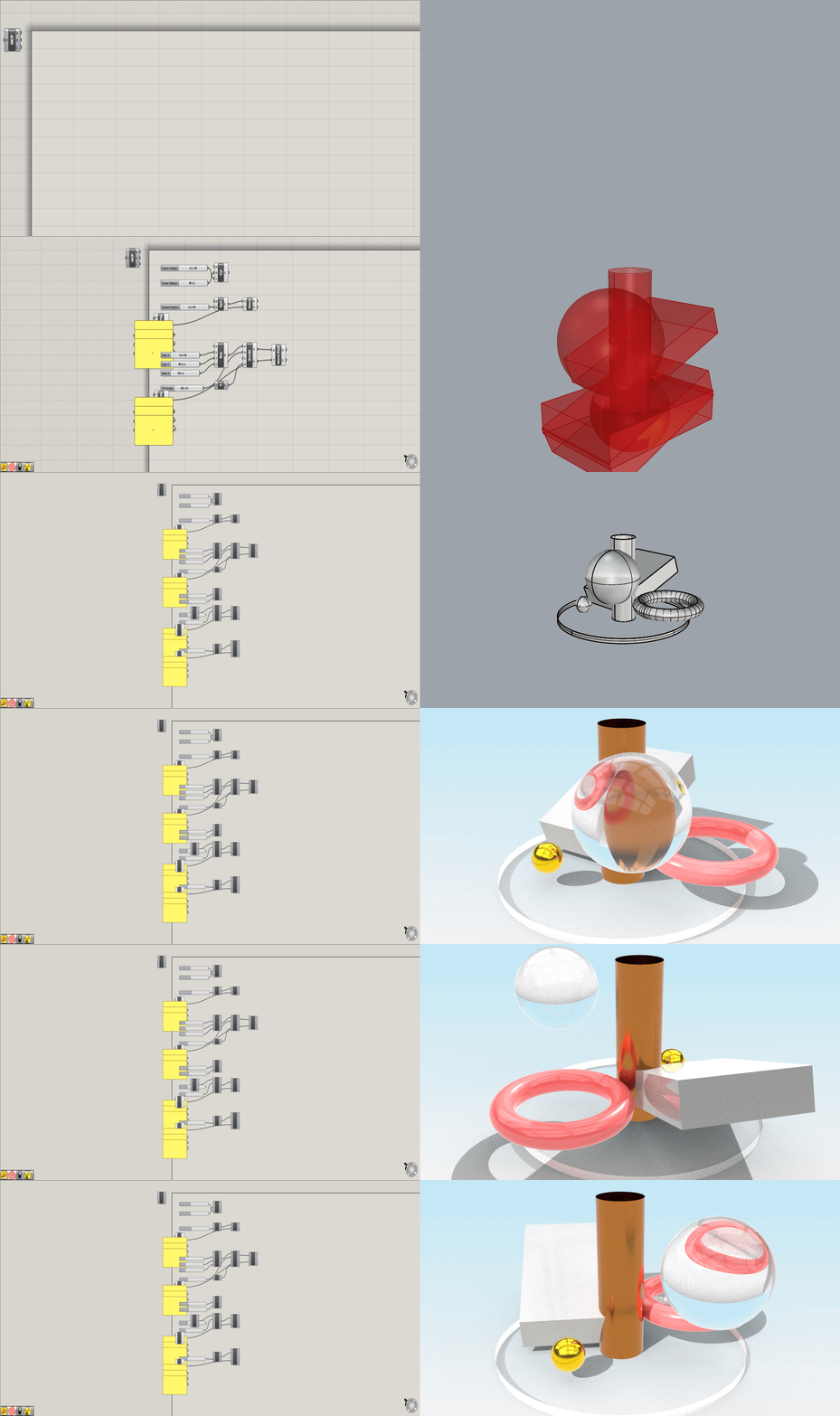
The AI builds everything autonomously — creating parametric geometry in Grasshopper, baking to Rhino, applying PBR materials, configuring the render environment and lighting, and capturing a smooth orbiting animation.
Scripting
Call tools directly from Python or any MCP client library:
from mcp import ClientSession

async with ClientSession(transport) as session:
    # Add a slider and circle
    slider = await session.call_tool('gh_canvas', {
        'action': 'add', 'type': 'Number Slider', 'x': 50, 'y': 50
    })
    circle = await session.call_tool('gh_canvas', {
        'action': 'add', 'type': 'Curve/Circle', 'x': 200, 'y': 50
    })

    # Connect slider output to circle radius
    await session.call_tool('gh_wire', {
        'action': 'connect',
        'sourceId': slider['id'], 'sourceParam': '0',
        'targetId': circle['id'], 'targetParam': 'R'
    })
See the MCP Python SDK for transport setup and client details.
Tools
Cordyceps provides 7 tools with 110+ actions — consolidated to minimize context window usage. Related operations are grouped under a single tool with an action parameter.
Grasshopper
| Tool | Description |
|---|---|
gh_canvas |
Components, values, groups, baking, variable parameters |
gh_wire |
Connection management |
gh_document |
Save, clear, undo/redo, snapshots, canvas capture |
gh_script |
Script component configuration |
gh_inspect |
Status, outputs, data tracing, debugging |
Rhino
| Tool | Description |
|---|---|
rhino_scene |
Objects, layers, selection, visibility |
rhino_render |
Viewport, camera, materials, lighting, environments, render |
Documentation
Cordyceps exposes guides and patterns to MCP clients as resources. Your AI assistant can read these automatically when it needs guidance on data trees, type systems, component patterns, or rendering workflows.
Browse the documentation directly: src/Cordyceps/Knowledge/
Troubleshooting
| Problem | Solution |
|---|---|
| Plugin won't load | Verify Rhino 8.21+. Unblock the .gha file (Windows) or clear quarantine (macOS). |
| Can't connect | Ensure Cordyceps component is on canvas. Check the port. |
| Claude Desktop can't connect | Ensure Node.js is installed. Check Rhino is running with Cordyceps. Restart Claude Desktop after config changes. |
| Component not found | Use gh_canvas(action='search', query='...') to find exact names. |
| No command output | Set DebugLevel input to 1 to see traffic in Rhino command history. |
Building
dotnet build src/Cordyceps/Cordyceps.csproj
Changelog · Inspired by grasshopper-mcp by Alfred Chen · MIT License
Reviews (0)
Sign in to leave a review.
Leave a reviewNo results found