capri-ai
Health Pass
- License — License: NOASSERTION
- Description — Repository has a description
- Active repo — Last push 0 days ago
- Community trust — 35 GitHub stars
Code Fail
- exec() — Shell command execution in capri_dev.py
Permissions Pass
- Permissions — No dangerous permissions requested
No AI report is available for this listing yet.
Capri from Cyberpunk: Edgerunners 2 living on your desktop. A local AI desktop companion: talks, remembers you, DJs your music. 100% local, no API keys. Topics

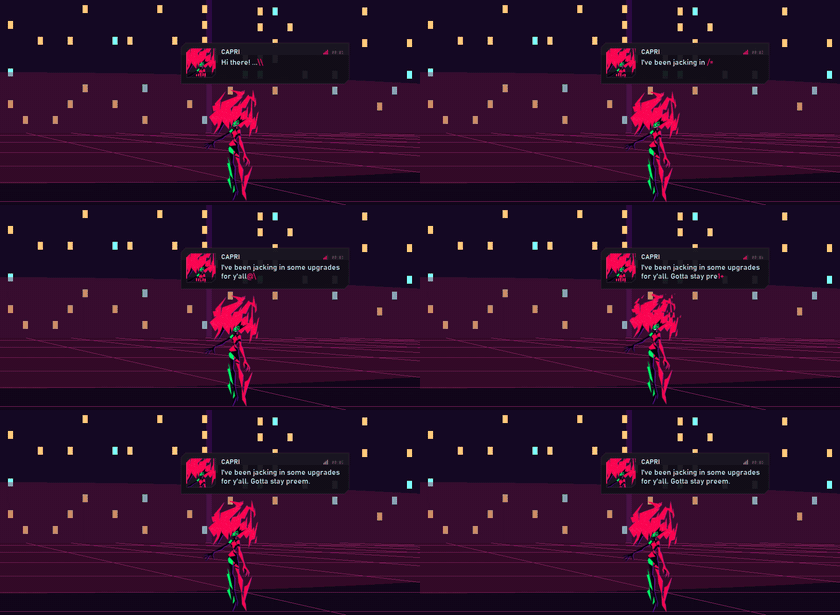
Capri
Capri from Cyberpunk: Edgerunners 2, living on your desktop.
She roams your screen, sits on your windows, peeks from the edges, talks back out loud,
hears you, sees your screen when you ask, and does little jobs on your PC.
Speaks English, French, Portuguese (BR), Spanish, Russian, Italian, German and Polish.
Local by default: no API keys, no cloud, no subscription. You choose: keep her fully on your PC,
or pick an online brain like Claude Code from her Brain menu.







What's new · Install · First start · What she does · What you need · Linux · Troubleshooting · Developers
What's new in 0.6.0
- Clips. Say "capri, clip that" and she saves the last 30 s, 1 min or 2 min of your screen, with your PC's sound,
as an MP4 (like ShadowPlay). Turn it on in right-click → Settings → Clips; the first time it downloads her
recorder (ffmpeg, about 90 MB). It records with your graphics card's encoder, so games barely notice. Clips go toVideos\Capri Clips, or wherever you pick with Save clips to.... Nothing older than the clip length is kept, and
turning clips off wipes it. - New ears: Qwen3-ASR. Way better at hearing you. It gets "Capri", app names and slang right (whisper kept
hearing "coppery"), knows 52 languages and is fast: about 2 s a line on the CPU, Small took around 15. Pick it in
setup or right-click her → Ears → Model. - LM Studio as her brain. Right-click → Brain → LM Studio (or pick it in setup) and she uses whatever model you
have loaded in LM Studio. Free, on your PC, any model you want. - No more random language switching. English chats stay English. She used to read "i was texting a friend" as
German and answer half in German or Spanish. - No more 20 minute "thinking". On slow PCs she kept re-sending the same question when her brain was slow. Fixed,
her prompt stays cached between messages now, and on a slow PC she cuts her prompts down by herself. Weak graphics
cards (Intel UHD and such) can fall back to the CPU properly now too. - Her eyes catch more. "look again", "check ma discord", "look what he said", "read now", "use ur eyes" all make
her look now. Before, she only looked for a few exact phrases and said she was blind. - Better memory. Old chats get summed up instead of vanishing, she finds what she knows about you way better
("what's my dog's name?"), and trick questions like "remember when you said you hate music?" don't get saved as
facts anymore. - Remembers Claude Code. Closing and reopening her doesn't reset her brain anymore.
- Claude Code talks less. One short line instead of a paragraph, about a third of the tokens per message, and
plain questions skip a hidden extra call so they come back faster. - Bigger chat box and menu. Easier to read.
- Games vs music. "play a game with me" starts a game in the chat (would you rather, trivia, rock paper
scissors...) and "play valorant" opens the game, instead of searching Spotify for a song with that name. "in yt" /
"on yt" goes to YouTube. - Closes tabs and apps. "close the tab", "close the youtube tab", "close all the tabs you opened" (only the tab you
mean, or the ones she opened), and "close discord", "quit spotify", "exit valorant" (like clicking the X, so an app
can still ask you to save). - Watcher mini form, and a smoother intro (more frames, loads faster).
- Updates show up right away, even a hotfix five minutes after the last release.
- ...and a little secret if you're feeling down and ask her for music.
Install (Windows)
Builds generated by GitHub Actions use a standard installer. Models download from Capri's Brain and Ears menus after launch, and uninstall preserves local data. The custom wizard shown below belongs to the previously published installer.
- Download
Capri-Setup.exefrom the latest release. - Double-click it. If Windows SmartScreen says "Windows protected your PC", click More info → Run anyway
(the installer isn't code-signed yet; it scans clean, see below).
Is it safe? 0 / 68 security vendors flag it on VirusTotal.
Check that your download is that exact file: in PowerShell, runGet-FileHash Capri-Setup.exeand compare with21815356BBA43F168B4A6666E9610321A9F79C04EDE74439D353024D6129075D.
- Follow the wizard. A little synthwave track plays while you set up; the Music button in the corner turns it
off.
Step by step
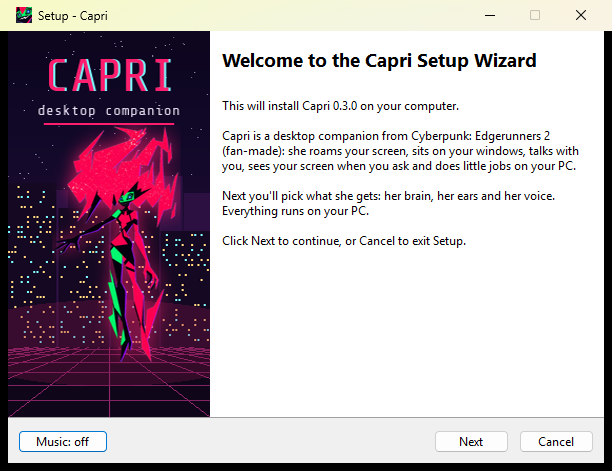 |
1. Welcome. Click Next. |
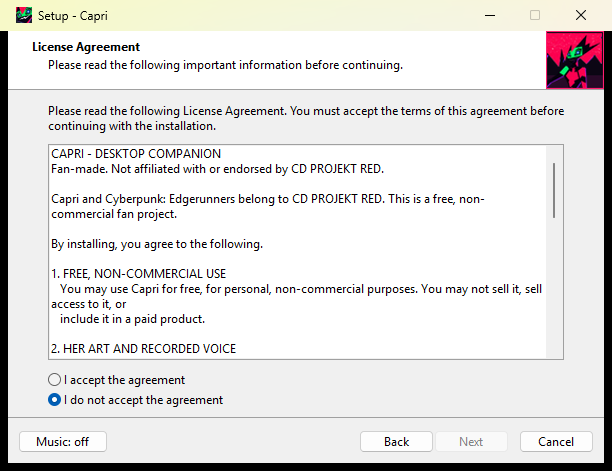 |
2. License. Capri is a free, fan-made, non-commercial project. Pick I accept the agreement, then Next. |
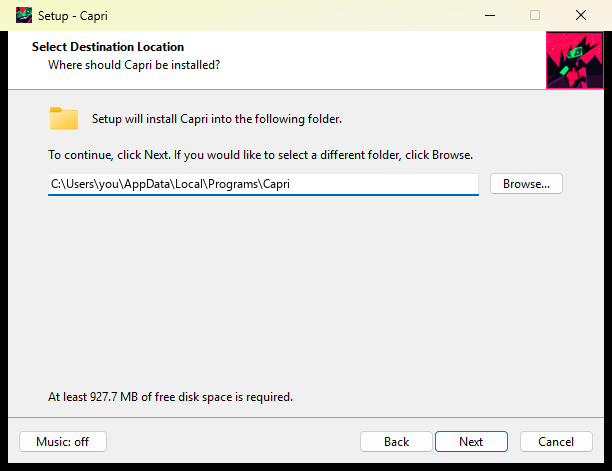 |
3. Install folder. The default needs no admin rights. Her models go in this folder too (about 6-8 GB with a brain), so pick a drive with room. |
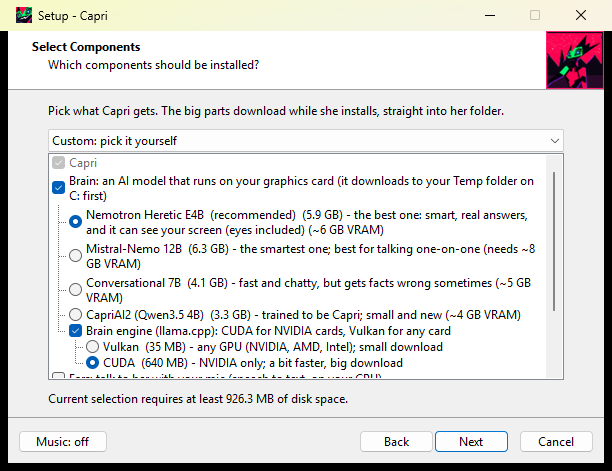 |
4. Pick what she gets. • Brain: the AI model she thinks with. Nemotron Heretic E4B is recommended (smart, and it can see your screen). Smaller cards: CapriAI2 (4B). Untick it to run her without AI. • Brain engine: CUDA for NVIDIA cards (picked for you if you have one), Vulkan for any card. • LM Studio: tick it instead of a brain to use any model you run in LM Studio. • Ears: talk to her with your mic. Qwen3-ASR hears best (picked for you on most PCs); Base is lighter for small CPUs. The dropdown at the top has ready-made picks: Everything or Light. |
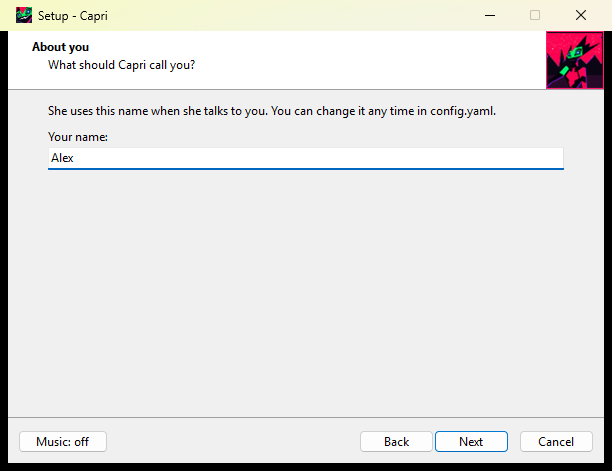 |
5. Your name. What she calls you. |
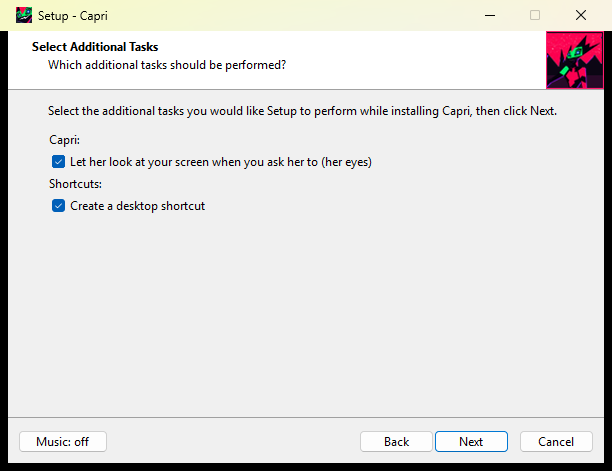 |
6. Extras. Let her look at your screen when you ask (her eyes), and a desktop shortcut. |
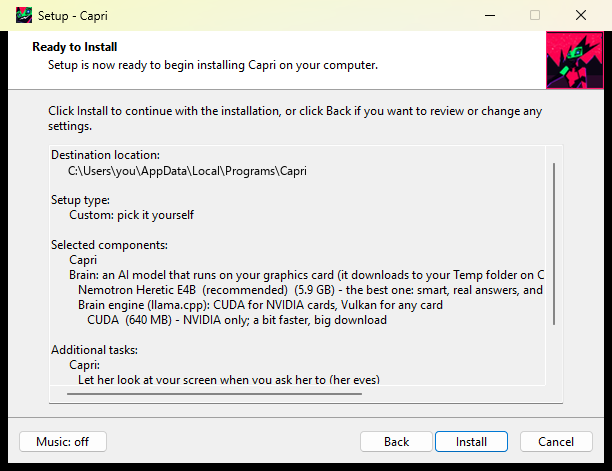 |
7. Install. Everything you picked downloads straight into her folder, then she installs. Tick Start Capri on the last page and she drops onto your desktop. |
Downloads: the brain model is big (3-6 GB) and Windows stages downloads in your Temp folder on
C:first, so
keep that much free onC:while it installs. If a download fails, run the installer again; it skips what's
already there.
Uninstall: Windows Settings → Apps → Capri → Uninstall (removes her memory and models too).
First start
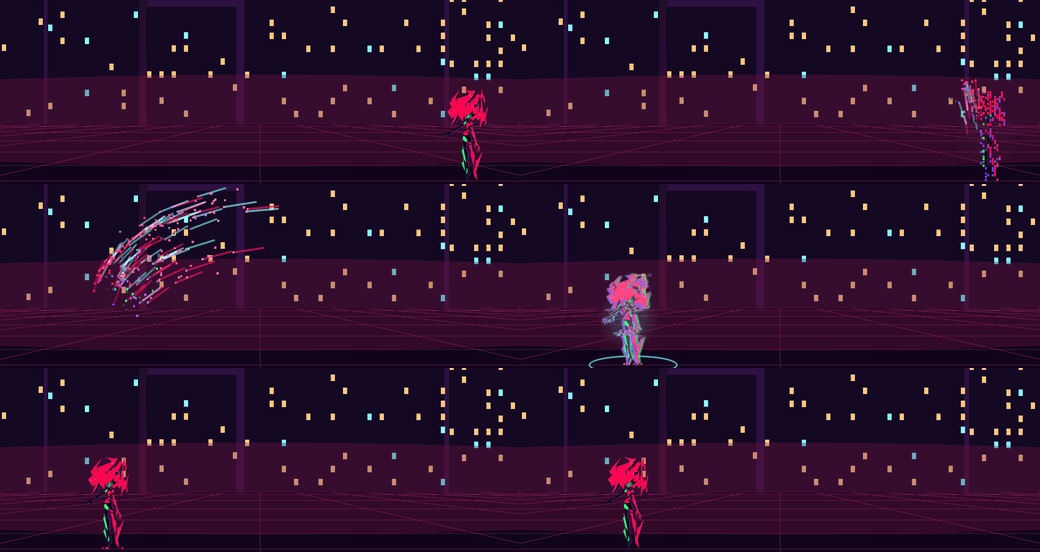
- She bursts in: a glitchy animation fills your screen, shrinks down onto your desktop, and she pops out of it and says hi.
- Click her to type to her. Hold
Ctrl+1to talk (change the key: right-click her → Ears). - Right-click her and a door opens beside her with her menu inside: Talk, Go mini, Wander around, Ears,
Skins, Size, Brain (swap models live, or download a new one right there; the one that fits your PC is marked
★) and Settings. Settings holds the on/off switches (vibe to music, watch my screen, chatter, react to things,
game mode, leave me alone, always mini, lie down sometimes) plus Memory, Language and Credits. - The first time, she asks which language to talk in. She sticks to it (menu, chat and ears); change it any time in
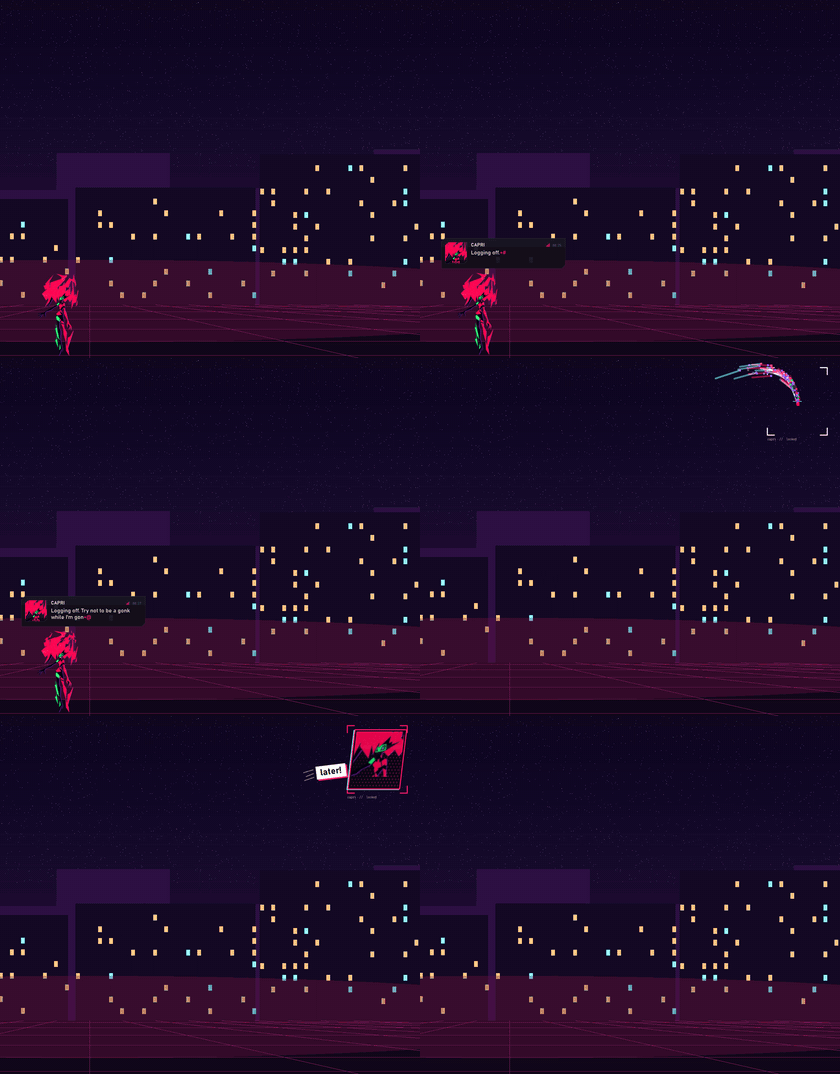
right-click → Language, or pick Auto and she answers in whatever language you talk to her in. - Drag her around. Drop her near the left, right or top edge and she peeks out from it. Throw her and she falls.
What she does
- Lives on your desktop. Stands on the taskbar, sits on your window tops and desktop icons, rides along when you
move a window, peeks from the screen edges, naps, and teleports around as a stream of her own pixels. - Has a mini form. Go mini (or say "go mini") and she shrinks into her little self: she blinks, talks with her
mouth, looks toward your cursor, gets annoyed if you poke her three times in a row, glitches while she's thinking,
and dozes off with her eyes shut (she mumbles back if you talk to her). Click her to chat: a small chat box opens
right beside her (on her right, or her left when she's near the edge of the screen), so you can talk to her over a
game. Double-click her for full size. Her menu door is smaller and right next to her. Always mini (right-click →
Settings) keeps her small, also after a restart. Quitting from mini plays the same goodbye as full size. - Lies down. When nobody has talked to her for a while (or when you say "lie down") she stretches out at full
size on your taskbar or on top of the window she's sitting on, rides along if you move that window, dozes off and
gets up again. Turn it off in right-click → Settings → Lie down sometimes. - Watches your battery. On a laptop, when the battery drops to 20% or less and the charger is out, she goes mini to
save power and tells you to plug in. Plug it back in and she comes back full size. - Talks like a person. A local LLM (llama.cpp) with her personality: short, teasing, real answers. She remembers
things about you between chats. - Speaks your language. English, French, Portuguese (BR), Spanish, Russian, Italian, German and Polish: she
answers in the language you picked (or, on Auto, the one you write or talk to her in), never a mix, and keeps her
slang (choom, gonk) where it fits. - Talks in her speech bubble. Her lines type out with little pixel blip sounds.
- Hears you. Speech to text on your CPU, so your graphics card stays free for her brain. Qwen3-ASR (the default
on most PCs) gets names and slang right in 52 languages; the whisper.cpp ears (Base, Small...) are still there
for small CPUs. Switch any time: right-click → Ears → Model. - Sees your screen when you ask. "What do you see?", "what do you think of this?", "what should I answer here?"
She reads the window in front first: which app it is, the page or tab (from the window title), its big headings and
the text on it (Windows OCR, in your language), so she knows you're in Spotify on Liked Songs or on a GitHub page.
With the Nemotron brain she also looks at the picture itself (her eyes). She never reads login, banking, password,
private browsing windows or Discord DMs, nor anything on your never-look list. - Does jobs on your PC. Ask in plain words:
- "open Spotify", "open Discord", "open Peak on Steam", "play GeoGuessr on Steam", "open a new tab and look for green yuri"
(games are found in your Steam libraries and started through Steam; if something isn't installed she says so
instead of searching the web) - "play something chill", "skip this song", "what's playing?"
- "set a timer for 10 minutes", "remind me at 6 to eat"
- "what's the weather in Tokyo?", "any news on Edgerunners 2?"
- "make me a txt with a packing list", "add milk to my todo"
- "open Spotify", "open Discord", "open Peak on Steam", "play GeoGuessr on Steam", "open a new tab and look for green yuri"
- Vibes to your music. Her hair bops to the beat of whatever your PC is playing.
- A new official look, and skins. Right-click her > Skins: her new official look (the default) and one secret
skin to find. Switch any time; she remembers.

Peeking from the top edge · leaving when you quit
Everything runs on your PC. Nothing you say to her is sent anywhere.
What you need
| Minimum | Good | |
|---|---|---|
| System | Windows 10 / 11, 64-bit | |
| Graphics card | 4 GB VRAM (CapriAI2 4B) | 6 GB VRAM (Nemotron E4B) |
| Disk | 2 GB (no brain) | 11 GB (brain + ears) |
| CPU | any 4-core | 6+ cores (her ears run here) |
No graphics card? With 8 GB of RAM the small brain (CapriAI2) still runs on your CPU, just slower. Setup checks your
graphics card and RAM and picks the brain that fits; the same pick is marked ★ in her Brain menu. Less than that:
untick the brain, and she still roams, peeks, plays and answers with short lines of her own.
Updates: a minute after she starts, she checks GitHub for a newer release and tells you once if there is one.
Bring your own model: any .gguf that llama.cpp runs works. Put it in her models\llm folder, then right-click
her → Brain and pick it. It swaps live.
LM Studio as her brain (optional): got LM Studio? Load any model there, switch its local
server on (Developer tab), then right-click her → Brain → LM Studio. She talks through whatever model is loaded,
and if it can see pictures, her eyes use it too.
Claude Code as her brain (optional): if the Claude desktop app or the Claude Code CLI is installed,
her Brain menu offers Claude Code. Pick it and sign in when the window opens. She keeps her personality and her
bubble, and thinks in the cloud instead of on your graphics card. She can also do jobs on your PC her own abilities
can't (tidy a folder, find what's eating your disk): Claude Code looks first, and anything that runs a command or
changes files waits for your yes. Your local brains stay the default.
Claude Code smart mode: right-click her → Brain → Claude Code smart mode. Claude Code becomes her: it talks as
Capri (her personality, your language, her bubble) and works your PC by itself, with her own tools (apps and Steam
games, music, timers, notes, weather, volume, looking at your screen) plus Claude Code's (files, folders, settings,
commands). It just does what you ask, no yes/no first, but it never deletes anything for good, shuts the PC down,
touches the registry, passwords or browser data, or pushes code. Each start of Capri opens a fresh Claude Code
session that remembers the chat (you'll find it in Claude Code's session list). Great for recording videos.
Linux
git clone https://github.com/Capri-cmd/Capri-AI.git
cd Capri-AI
bash arch/run.sh --setup     # Arch / CachyOS
bash kali/run.sh --setup     # Kali / Debian / Ubuntu
The first run offers to install what she needs with your package manager (python, portaudio, xcb-util-cursor,
vulkan, and tesseract / playerctl for her eyes and music; whisper-cpp and grim on Arch) and makes its own Python
environment. --setup then walks you through picking her brain and ears in the terminal and downloads them, and she
starts. After that, just bash arch/run.sh (or kali/run.sh) starts her.
Without --setup she starts right away with no brain or ears; you can still get them later from her right-click menu
(Brain → Get ...). On Kali her ears use faster-whisper (no whisper.cpp package there).
On Wayland she runs through XWayland and sees your screen with grim (Hyprland / Sway), Spectacle (KDE) or
gnome-screenshot (GNOME).
Clips on Linux use gpu-screen-recorder (Arch: sudo pacman -S gpu-screen-recorder, Debian / Kali: gpu-screen-recorder-cli or its Flatpak), which works on X11, KDE / GNOME Wayland
(it asks once to share your screen), Hyprland and Sway. Without it, ffmpeg does clips on X11 sessions. The run script
offers to install these. Closing apps and tabs works on X11, Hyprland and Sway (Sway needs wtype for tabs); on
KDE / GNOME Wayland she closes apps by asking them to quit, and tabs only in browsers running through XWayland. The hold-to-talk key reads the keyboard from /dev/input, which needssudo usermod -aG input $USER (then log out and back in).
Troubleshooting
| Problem | Fix |
|---|---|
| She doesn't hear me | Right-click → Ears: pick your mic, check the talk key. Hold the key while you speak. |
| "Windows protected your PC" | More info → Run anyway. The installer isn't code-signed yet. |
| She talks in the wrong language | Right-click → Settings → Language: pick yours (or Auto to follow you). |
| She mishears me / doesn't understand my language by voice | Right-click → Ears → Model → Get Qwen3-ASR (the English-only whisper ears can't hear other languages). |
| She takes forever to answer | Your PC is slow for a local brain: try a smaller one, or LM Studio / Claude Code in her Brain menu. She also shortens her prompts by herself after a slow reply. |
| LM Studio doesn't work | Open LM Studio, load a model, switch the local server on (Developer tab), then pick LM Studio in her Brain menu again. |
| "Open X" doesn't find a game | Say "open X on Steam" with the name as Steam shows it. It has to be installed. |
| She can't sit on my apps | She sits on window tops; a maximized window's top is the edge of the screen. Shrink the window a bit. |
| Something broke | Logs are in her folder: data\capri.log, data\llama-server.log, data\whisper-server.log, data\qwen-asr.log. |
| Forget everything | Delete data\memory.json in her folder. |
For developers
Run from source (Windows): windows\start.bat. The first run makes a .venv (Python 3.10-3.13, no torch),
installs portable\requirements.txt, then starts her; downloads are in her right-click menu.
capri/              her code
  desk/             her body: sprites, moves, effects, entrance, speech bubble, menus
  brain/            chat, personality, intent detection, the llama.cpp backend
  voice/            her ears (speech to text) and the talk key
  abilities/        jobs: apps, browser, music, weather, reminders, notes, screen
  portable.py       what she can download (brains, ears, engines), and the downloader
  setup_cli.py      terminal setup (y/n), for --setup
capri_dev.py        entry point
windows/  arch/  kali/   start.bat / run.sh: run from source on each system
portable/           default config, requirements
assets/             her skins, the menu's door art, font, icons
See CONTRIBUTING.md to help out.
Release builds: run the Release build workflow manually to download a Windows x64 installer, portable ZIP and SHA-256 checksums. Pushing a tag that matches capri/__init__.py (for example, v0.5.5) builds the packages and prepares a draft release for review. Linux continues to run from source.
Capri's code is MIT (see LICENSE): the code only, not the character. Her art is by xilia_world00 (Discord).
Improved using Qwen. Capri was improved using Qwen3.8-Flash-Next, © 2026 Qwen, under the
Qwen Community License 1.0.
Her 4B brain, CapriAI2, is a fine-tune of Qwen3.5-4B (Apache 2.0).
Fan-made. Capri is a free, open-source fan project based on the character Capricorn (Capri) from Cyberpunk: Edgerunners Season 2. Cyberpunk and its characters are trademarks of CD PROJEKT RED; this project isn't affiliated with or endorsed by them. Fan art by xilia_world00.
Reviews (0)
Sign in to leave a review.
Leave a reviewNo results found