Orbit
Health Warn
- License — License: MIT
- Description — Repository has a description
- Active repo — Last push 0 days ago
- Low visibility — Only 5 GitHub stars
Code Pass
- Code scan — Scanned 12 files during light audit, no dangerous patterns found
Permissions Pass
- Permissions — No dangerous permissions requested
No AI report is available for this listing yet.
Lightweight IDE designed to work alongside Claude Code, for Windows and Linux.
A lightweight IDE, companion for Claude Code




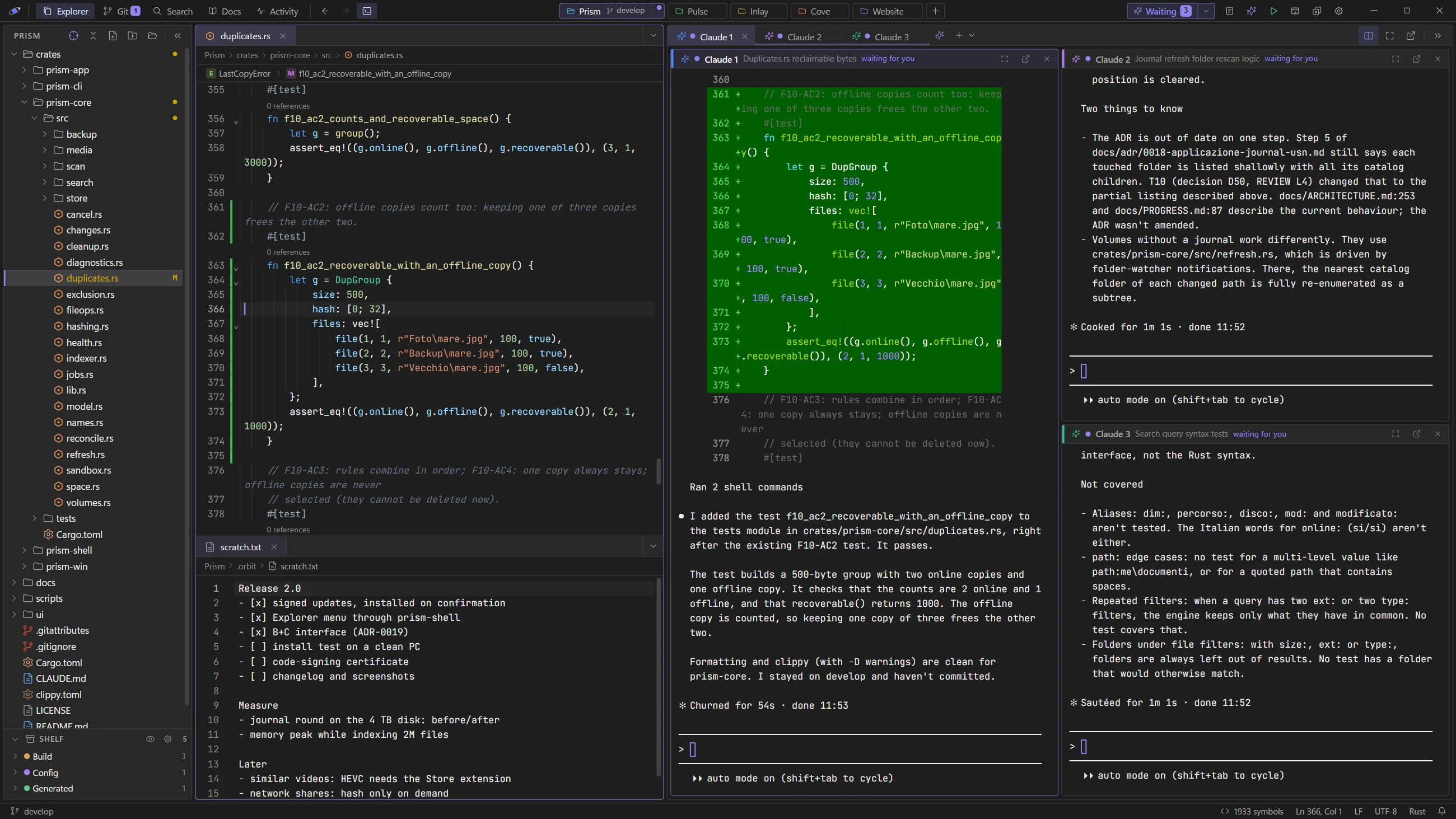
A lightweight IDE built as a companion for Claude Code: edit code, browse the project,
manage git, and keep Claude Code running in an integrated terminal, in a small desktop app for
Windows and Linux.
Orbit is not a heavy IDE (no LSP/debugger/refactoring) and not a chat GUI for Claude.
It is the editor you keep next to Claude Code: it shows the whole project and stays out of the
way.
Why Orbit
- It shows the whole project. Unlike Visual Studio's "solution" view, Orbit lists the real
filesystem — nothing is hidden. To keep that clean, you can put folders you don't care about
on a Shelf (by category) instead of having them clutter the tree. - It closes the loop with Claude Code. A one-click Claude menu opens
claudein the
project root and runs task shortcuts (update docs, gather context, commit & push with
review); files Claude edits reload by themselves, changed files are highlighted in the
tree, and terminal paths are clickable. Both Run and Claude configurations live in.orbit/and Claude itself can create them — the format is documented in yourCLAUDE.md. - It is small. A ~6.7 MB binary, ~120 MB of RAM at rest with a project open (mostly the
shared system WebView — Orbit's own Rust core is ~6 MB), and a ~309 KB startup chunk (≈105 KB gzipped).
Design principles
- Lightness — minimal RAM, CPU and binary size. Every dependency must be justified.
- A careful dark theme — the default one is modelled on Visual Studio 2026 Dark, with colors
sampled from it. - Cross-platform — the code targets Windows, macOS and Linux; builds are published for Windows
and Linux.
Install
Download the latest version from the releases page:
| System | File | How |
|---|---|---|
| Windows 10 / 11 | Orbit_X.Y.Z_x64-setup.exe |
Run it (no admin rights needed). The .msi works too |
| Any Linux | Orbit_X.Y.Z_amd64.AppImage |
chmod +x it and start it: nothing to install (on Arch, the fuse2 package) |
| Debian, Ubuntu, Mint | Orbit_X.Y.Z_amd64.deb |
sudo apt install ./Orbit_X.Y.Z_amd64.deb |
| Fedora, openSUSE | Orbit-X.Y.Z-1.x86_64.rpm |
sudo dnf install ./Orbit-X.Y.Z-1.x86_64.rpm |
| Arch, CachyOS, EndeavourOS, Manjaro | PKGBUILD |
Put it in an empty folder and run makepkg -si there |
Orbit then updates itself from the releases, with your confirmation; the Arch package is updated by pacman
instead, like the rest of the system. On Linux Orbit uses the system's WebKitGTK 4.1, present on most
desktops (the AppImage brings its own).
Features
Files & navigation
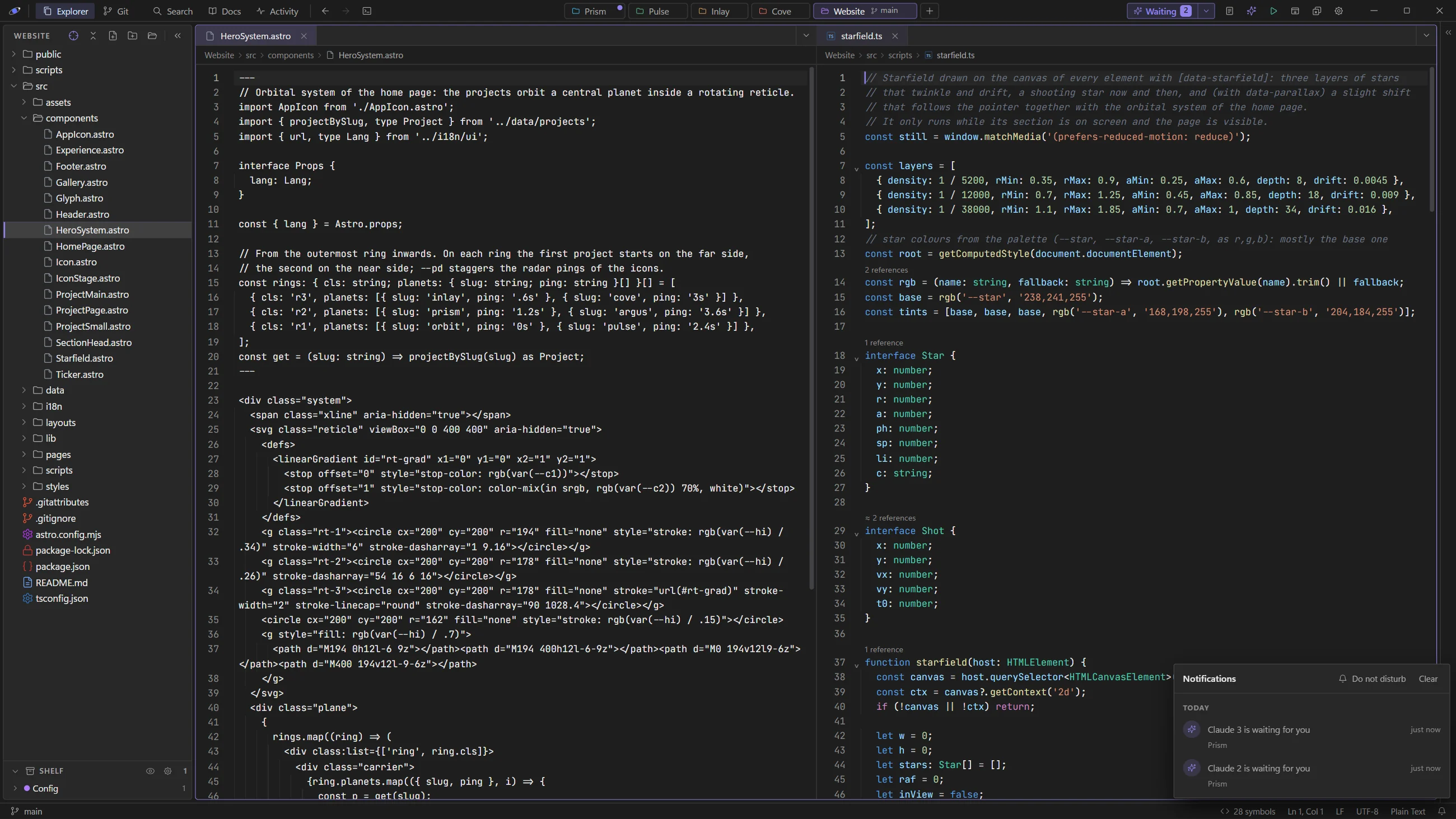
Virtualized, lazy file tree with per-language type icons — dedicated symbols for Rust, Svelte,
Python, Go and Vue, monogram tiles for TS/JS/JSON/C/C++/C#/Java/…, line-art for everything else.File management from the context menu: new / rename / delete, open to the side, open a
terminal here, reveal in the OS file manager, and copy path / relative path / name
(inline editing for new / rename).Git decorations in the tree: modified/added/deleted files are highlighted live (so you
see exactly what changed — including what Claude just touched).Shelf: set aside the folders and files you don't need to see, by category, at the bottom of the
Explorer — in the folder view and in the Solution view. Shelve one item (right-click → Add to
shelf…, or drag it onto a category), or a rule: every folder or file matching a name or a pattern
(bin,*.Tests,.*,*.DotSettings.user), nested or recreated later, in this repository or in
every repository (⚙ → Settings → Shelf). Shelve dot-folders and Shelve noise folders do it in one
click.- Shelved items stay real tree items (git colors, the full menu); a rule shows what it takes
(bin — 12 folders) and opens on that list. - The eye puts them back in the tree, in place and dimmed. A dot tells you when something inside
has changed. - Categories have colors, can be renamed, and can stay out of search and Quick Open. Every change can
be undone from its notice.
- Shelved items stay real tree items (git colors, the full menu); a rule shows what it takes
Follow active file: an optional toggle (⌖ in the explorer toolbar) that auto‑expands the tree
to the active file and reveals it as you switch tabs, Quick‑Open a file, or jump to a definition
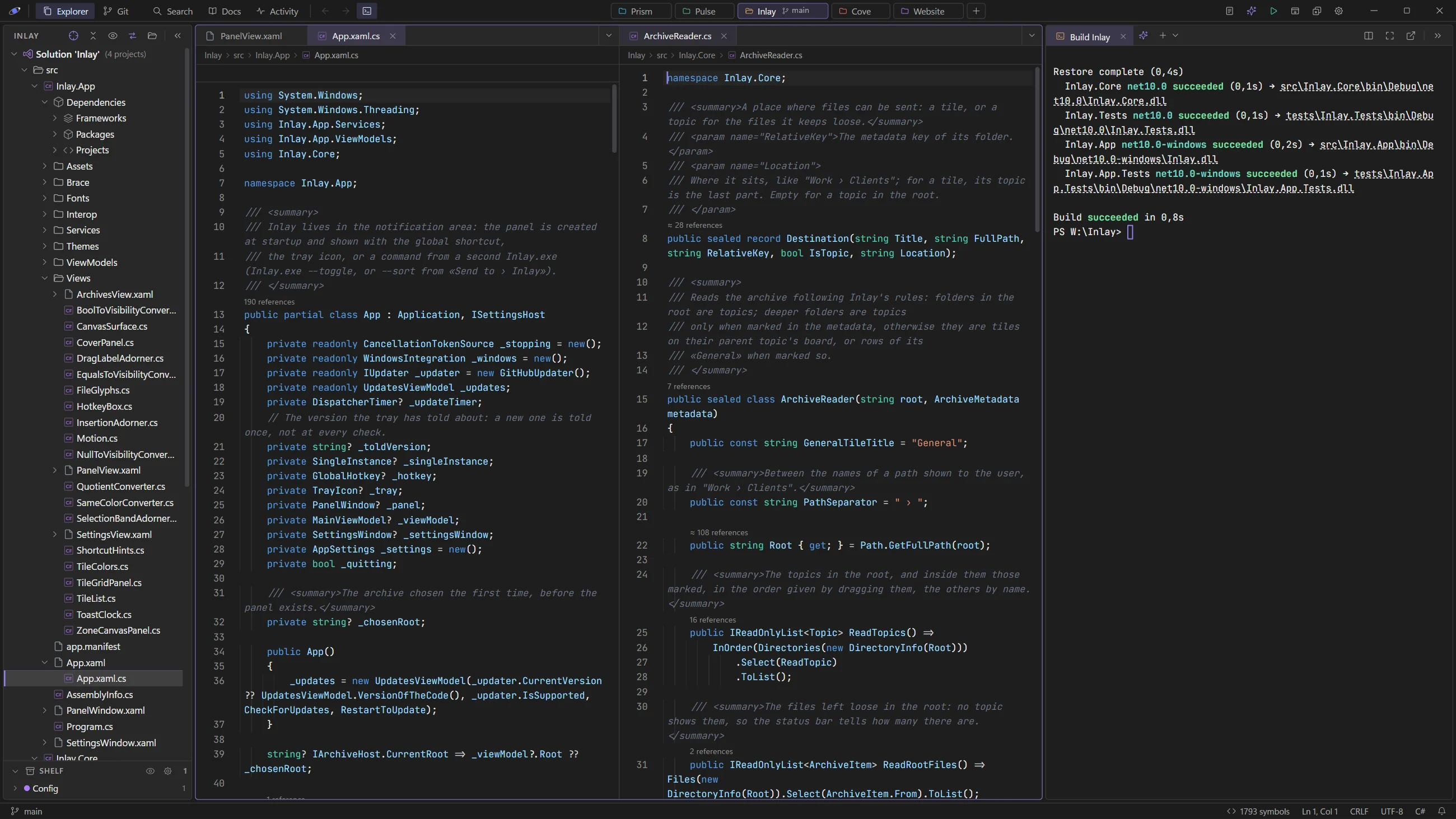
(VS Code's reveal).Solution view for .NET repositories: when a repo has Visual Studio solutions (
.sln,.slnx), the
⇄ button in the Explorer header switches between the folders and a solution, shown like Visual Studio's
Solution Explorer.- Solution folders, projects (C#, VB, F#, C++) and a Dependencies node (frameworks, packages,
project references). - Nested files (
App.xaml.csunderApp.xaml), linked files, C++ filters and Show All Files. - Whatever isn't in the solution stays one click away under Other files.
- Right-click the solution or a project to Build, Rebuild, Clean or Run it in a
terminal tab. Builds use Visual Studio's MSBuild when it's installed, so C++ builds too; otherwisedotnet. - Orbit reads the project files itself, without running MSBuild, and remembers the view for each
repository.
- Solution folders, projects (C#, VB, F#, C++) and a Dependencies node (frameworks, packages,
Quick Open (
Ctrl/Cmd+P) with fuzzy ranking, and full‑text project search. Like the symbol index,
both skip folders ignored by git (build output, virtual environments…); the file tree still shows them.Drag in files: drop files from your OS file manager onto the editor to open them.
On Windows, the setup (
Orbit_…_x64-setup.exe) registers Orbit for common text, code, image and
PDF files, so it shows up in their "Open with" menu — without making itself their default
app: double-click keeps opening whatever it opened before (installing 1.0 also hands back the defaults
that earlier versions had taken over). Scripts (.bat,.cmd,.ps1,.sh) are deliberately left
alone: double-clicking them still runs them. The MSI package doesn't register "Open with".Light window for a single file: a file opened on its own ("Open with", double-click) opens in a
lightweight window — just the file, with both side panels collapsed. Its folder is only context, not a
project: Orbit writes nothing into it (no.orbit, no.claude), doesn't index or watch the tree below,
doesn't start Claude and doesn't add it to the repository tabs or to "reopen all". One click on
Open «project» as project in the top bar turns the window into a regular project — the git repo that
contains the file when there is one — keeping the file open.
Editor (CodeMirror 6)
- Lazy, multi-language syntax highlighting (~140 grammars loaded on demand, plus a dedicated
Svelte pack). - Semantic highlighting overlay: identifiers matching a known project type are colored teal
and known methods/functions gold (VS-style), driven by the project symbol index — so even
languages with only a lexical grammar (e.g. C#, C/C++) get type/method coloring for your
code, without a language server. (Heuristic, by name; skips strings/comments.) - Autosave (optional, on by default): saves edited files when the window loses focus and when you
switch tabs (IntelliJ-style); it never overwrites a file changed on disk underneath you. - Indentation guides, breadcrumb, find & replace (
Ctrl/Cmd+F), and a cursor with style: it glides, its
blink fades and stops after 15 s of rest, and it can leave a trail when it jumps (see Settings). - Go to symbol (
Ctrl/Cmd+Shift+O): fuzzy‑jump to functions, classes, methods and more in the
active file (extracted from the editor's syntax tree). - Right‑click menu: cut / copy / paste / select all / go to symbol.
- View images and PDFs inline (native viewer). Images open fitted to the pane and zoom like
the code:Ctrl/Cmd+scrollzooms around the pointer, double-click (or the percentage in the
corner, next to the image size) switches between fit and 100%, and a zoomed image pans by dragging
or scrolling; from 300% pixels stay sharp. Each image keeps its zoom while you switch tabs. - HTML preview: a source ⇄ preview toggle renders
.htmlfiles in a sandboxed frame
(scripts disabled) — anchors, relative assets and data URIs work as in a browser. Also available
side-by-side ("open preview to the side"), auto-refreshing on save. - Split view in rows and columns: drag a tab onto the left/right edge of an editor group for a
new column on that side, onto the top/bottom edge for a new row, onto the center to move it there
(the drop mark shows the result before you release). Up to six groups, with draggable splitters;
the layout and the sizes come back with the session. Drag tabs between groups, or within a bar to
reorder. A per-group "all tabs" menu lists and closes tabs when many. - Right-click a tab for Close, Close others, Close to the right, Close saved and
Close all (with the editor split, also Close all in this group), plus copy path, copy relative
path and reveal in Explorer; Close all is also at the bottom of the "all tabs" menu. Unsaved files
are asked about once, all together (Save all / Don't save / Cancel). - Word wrap for long lines (the line-number gutter stays correct, VS Code-style).
- Auto-reload of open files changed on disk, with a conflict indicator for unsaved edits; closing
an unsaved file asks Save / Don't save / Cancel. - Live status bar: line:column, language, end-of-line.
Code navigation (heuristic, no language server)
- A background symbol index of the whole project — classes, interfaces, structs, enums, methods,
functions and more — for C#/Java, C/C++, TypeScript/JavaScript/Svelte, Python, Rust and Go. Built
by a hand‑rolled Rust scanner (no LSP), cached under.orbit/index/and refreshed live as files change.
Local helpers declared inside other functions stay out of it. - Go to definition (
F12, orCtrl/Cmd+click) jumps across files; ambiguous names show a picker. - Project symbols (
Ctrl/Cmd+T): fuzzy‑jump to any symbol in the project. - Code lens (Visual Studio style): a small line above classes, interfaces, types, methods and
functions shows N references and, on types, N implementations — click it for the list in the
palette (file and line,Enterjumps there). References are counted by name in the same pass that
builds the symbol index: the project lines that use the name, skipping comments and strings, with ≈
when the name is declared more than once. Toggle in Settings (Code lens). - A related bar under the breadcrumb shows the symbol around the cursor (type › method) with its
base types / interfaces and implementers (click to jump), plus kind badges (class,
interface, abstract, method…). - Back / forward navigation history — arrows in the top bar plus
Alt+←/→. Browser-style: it
records both code jumps (go-to-definition) and file/tab switches, so it returns to wherever you
last were.
Markdown & docs
- Per-file toggle between source and a clean reading-mode preview. The default for
.md
files is a Setting — Source, Preview, or READMEs only (the default). - Open preview to the side: one click puts source and preview in split view — the Markdown
preview updates live as you type; the HTML preview refreshes on every save. - The preview adds a floating outline (TOC), interactive task lists (ticking a box writes
back to the source), and clickable internal links / heading anchors. Rendered HTML is sanitized. - A dedicated Docs view organizes the project's Markdown (root
README+ everything underdocs/) into a hierarchical, collapsible tree — ordered by numbered prefixes, with cleaned
titles and archive folders tucked away — so even large documentation sets stay navigable.
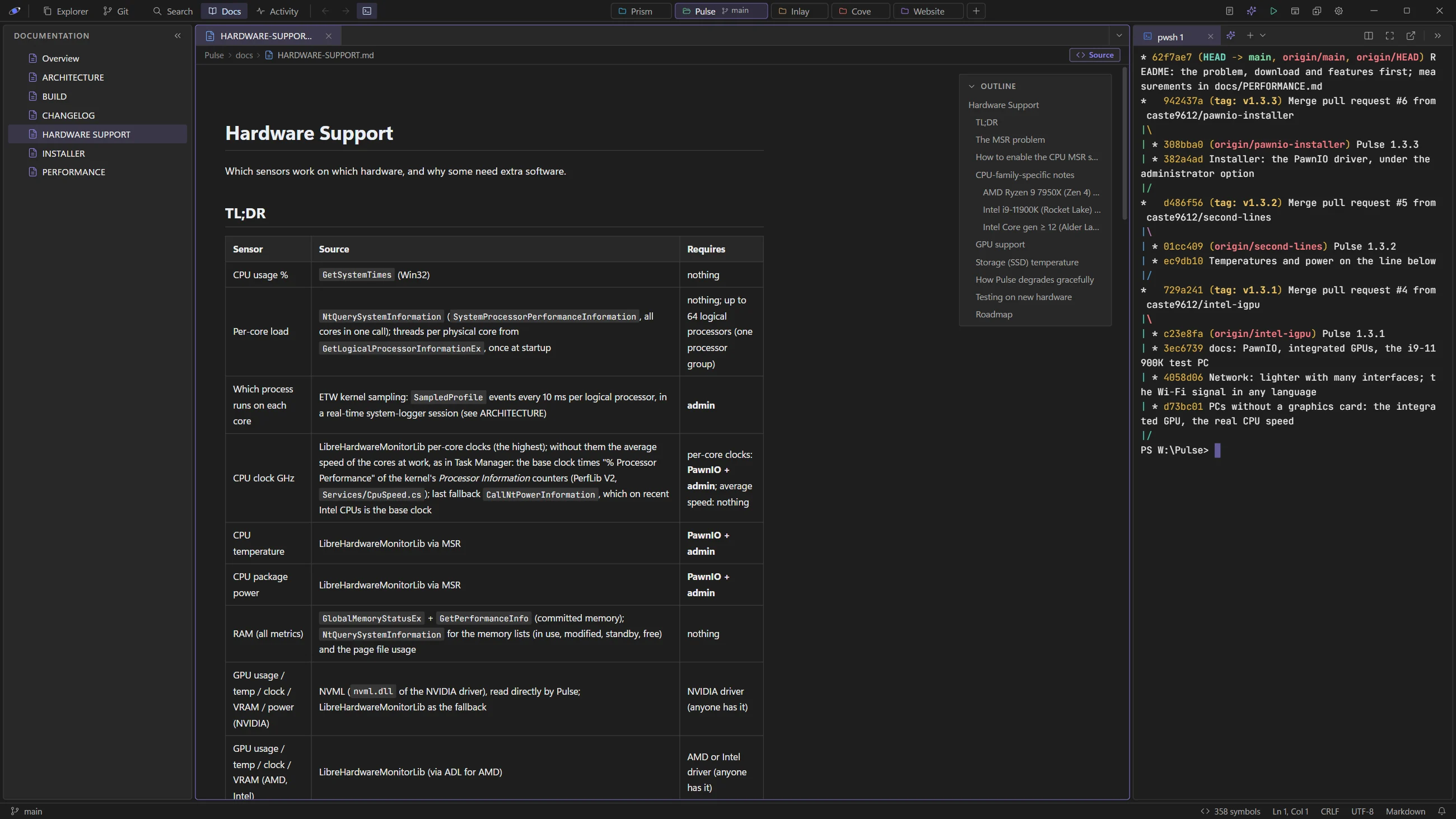
Terminal (xterm.js + a real PTY, drawn on the GPU with WebGL)
- Docked on the right, with multiple tabs and shell selection (PowerShell, cmd, Git Bash,
WSL, bash/zsh…). - Chats side by side: up to six Claude chats or terminals in the panel at once, per repository (on a
wide screen, six chats sit in a 3×2 grid).
Open them from the Split button (new Claude, new terminal, or another tab to the side), from the
Claude menu (Open Claude to the side), from the Activity Chats lens (To the side), or drag a tab
or a pane header: drop it on the right/left edge of a pane for a new column, on the top/bottom
edge for a new row, in the center to swap (the drop mark shows the result before you release). Dragging
the chat you're looking at onto an edge of its own pane puts it beside the one you used last. The layout
adapts to the space until you decide — a
directional drop or Side by side / Stacked in the Split menu makes it yours — and the splitters
between panes are draggable. Each pane has a header (zoom, pop out, remove from the split: the terminal
stays as a tab), and one click gives the panel the whole window. Nothing restarts: a chat keeps running
and keeps its history when it moves. - Names and colors: tabs get a short, numbered name by default (
Claude 1,pwsh 2…) and a color
from the same palette the Activity view uses for chats — shown on the tab icon and as a bar in the pane
header. Double-click a tab or a pane title to rename it; right-click a tab for rename, open to
the side, floating window, color and close. For Claude chats the summary Claude Code writes into the
terminal title appears as a dimmed subtitle in the pane header. A ✨ button next to + opens a new
Claude chat. - Clickable links in the output — file paths open at the line (relative paths resolve against the
terminal's folder or the project root), and http(s) URLs open in your browser (handy for the Claude
auth link, even when it wraps across lines). - Copy & paste: select text to copy it automatically; right‑click pastes (the trailing newline is
stripped, so it never runs by accident);Ctrl/Cmd+Shift+C/+Valso work, while a plainCtrl+Cstays
an interrupt. When a TUI (e.g. Claude) is capturing the mouse, a right‑click is left to it (so text
isn't pasted twice — the app pastes with its own handling); holdShiftto force Orbit's own paste, or
to select text. Orbit also honors the terminal's OSC 52, so a TUI's own "copied to clipboard" updates
the system clipboard. - Pop out terminals into floating windows that carry the live session (
claudekeeps
running) — detach several at once — with the app's own chrome: a pin toggles always‑on‑top
on/off, a badge shows the project folder + branch, and you can dock any back with one click.
Closing Orbit's window closes them too; they come back as tabs next time.
Git (local, via libgit2)
- Status, diff, stage/unstage, commit, branch switch/create (from the status bar too), discard
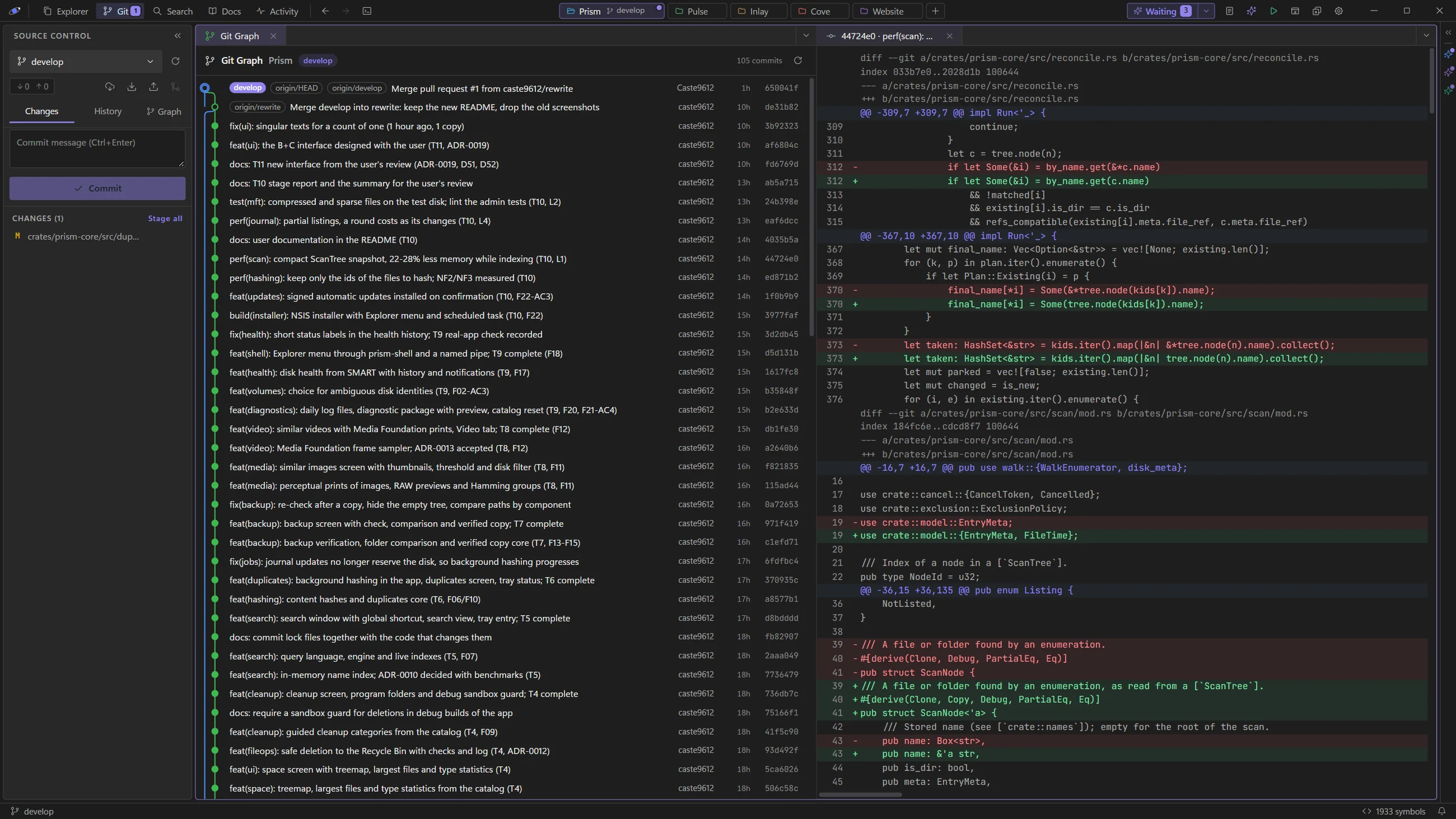
changes, and commit history with per-commit diffs. - Git Graph — a branch/commit graph log (IntelliJ / VS‑style) in a dedicated editor tab:
colored lanes with branch/merge routing, ref badges (current branch, tags, remotes), plus
message · author · date · hash; click a commit to open its diff. Covers all branches
(local + remote) in topological order. Open it from the Git panel (Graph). - Sync: a local ahead/behind indicator (computed with libgit2, no network) plus one‑click
Fetch / Pull / Push / Merge — these run the realgitCLI in a terminal tab, so they reuse
your existing git authentication and show real, supervised output.
Run ▶ configurations
- Define commands in
.orbit/run.jsonand launch them in a terminal tab with one click. Use
"Set up for Claude" to document the format inCLAUDE.md, so you can simply ask Claude to
add a run configuration and it appears in the menu. - Run a script file directly: scripts (
.ps1,.cmd/.bat,.sh) get a Run ▶ action in
the file tree's context menu and in the editor toolbar — launched in a terminal in the file's folder.
Claude Code integration
- A Claude menu (grouped into Prompts, Wrappers and Configuration) opens
claudein a
terminal at the project root, plus one-click shortcuts (predefined prompts): update the docs,
gather project context, or commit & push after reviewing what to keep. Shortcuts run
interactively, so you stay in control. - Prompt wrappers: pick a wrapper (a template with a
{{input}}placeholder), type your prompt,
preview the composed text, and copy it to the clipboard to paste into Claude. - Add / remove prompts and wrappers from a lightweight in-app panel (Claude menu → Add / remove
prompts…) — it writes.orbit/claude.jsonfor you and the menu reloads. - Configured in
.orbit/claude.json(command, flags, shortcuts) — committed, and editable by
Claude itself (the format is documented inCLAUDE.md), so you can just ask Claude to add one. If
that file ever has invalid JSON, Orbit keeps the current menu and warns instead of silently resetting. - Optionally, the default terminal launches Claude instead of a plain shell (toggle in Settings).
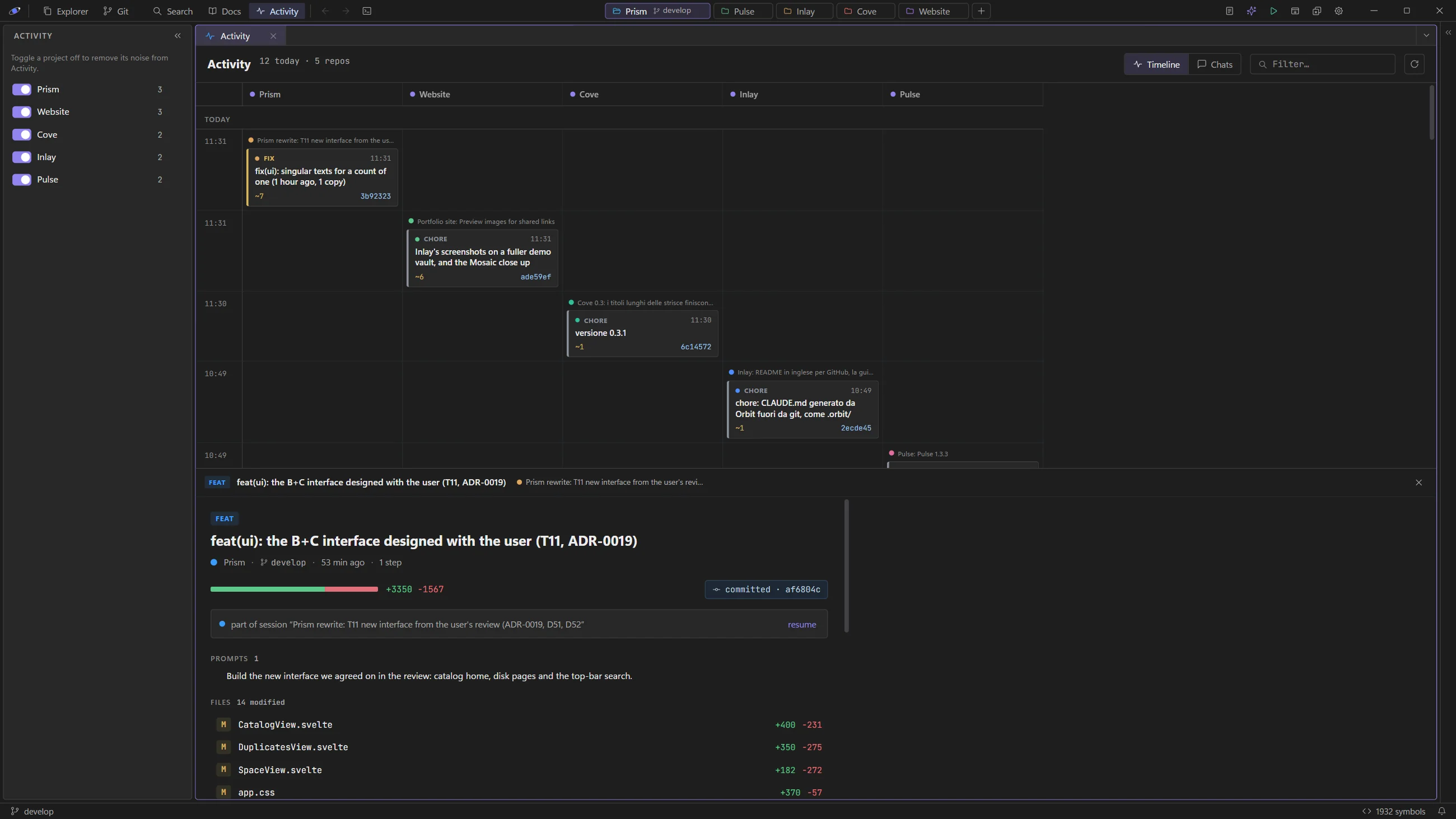
- An Activity view (top bar) opens a large board in the editor area: a timeline of work units
reconstructed from Claude's transcripts across all your projects. Each unit is one prompt with the
files it created/changed (with +/−), the commands it ran, and the commit it produced. The timeline puts
every repo in its own column on a shared vertical time axis (newest on top), so you read what
happened across projects in order; units are color‑coded per chat (a stable color per session, with
a small chat header whenever the conversation changes within a column), so parallel or resumed chats in
the same repo stay distinguishable. The second lens, Chats, shows one card per conversation
(title, repo, prompts/steps, churn, commits, live): selecting it opens the whole conversation in the
bottom panel — every prompt in order, each with its outcome — with a ▶ Resume this chat button
(resuming always restarts the whole session, so the chat is the natural unit; if that chat is already open
in a tab, it takes you there). Clicking a unit in the
timeline still opens its per‑unit digest. A unit is titled with its commit message when it
produced one (also when the message came through a heredoc), otherwise with its prompt; work that went
on without a new prompt — on another branch, or after a commit — shows ↳ and the request it came
from. A small left panel lists your projects with on/off toggles (remembered) to hide noise, plus
per‑project mini‑stats. - A Scratchpad (📝 in the top bar) opens a persistent plain‑text notes/prompts file
(.orbit/scratch.txt) to jot prompts and reuse them. - Attention when a terminal needs you — when
claudefinishes a turn or waits for input (Orbit
sets up Claude'sterminal_bellfor you), Orbit raises a persistent, clickable notification: a
toast you can click to jump straight to that terminal (switching repo if needed) — with more chats
waiting, one toast lists them all — a "Waiting (N)" pill in the top bar, plus a dot on the repo
tab and session tab, a●in the title, a taskbar flag and a short chime while you're away. It all
clears when you open that terminal — so you can fire Claude off and look elsewhere. - Notifications you can read: every notice has a clear message with the technical detail below it,
pauses while your mouse is over it and shows the time it has left; errors stay until you close them,
with Copy. The 🔔 in the status bar keeps the last 50 (with a count of what you missed) and turns on
Do not disturb, which keeps only errors on screen.
Workspace
- Pick up where you left off: reopening Orbit brings back every window with its repository tabs
and, for each repo, its editor tabs at the line and scroll position you left them, the expanded
folders of the Explorer, the panel layout — and its terminals: tab names, colors, folders, the
side‑by‑side chats, and your Claude chats, resumed (claude --resume, in their folder). Only what
you can see starts right away; the other tabs and repos start when you open them, so a launch doesn't
spin up a process per chat. Shells come back fresh (without their old output); Run tabs (jobs) don't
come back. Orbit reads which conversation each tab is showing from Claude Code's own registry of
running chats, so aclaudeyou started by hand in a shell comes back too. Switching tabs keeps the
position in each file too. - Several folders in one window: a row of repository tabs in the top bar keeps your projects
one click apart. Switching the active repo swaps its content — tree, git, branch, search,
Run/Claude menus, and the terminal tabs (each repo keeps its own live PTYs) — while keeping your
current sidebar view and restoring each repo's expanded Explorer tree and open editor tabs, so
switching feels like flipping between tabs. The row sits centered in the top bar; drag a tab to
reorder the repos (the order is remembered). Cycle withCtrl+Tab/Ctrl+Shift+Tab, jump withCtrl+1…9. When the tabs
don't all fit, the repos on the right collapse into chips with their initials on the repo's color (hover one
for its branch, waiting chats and changed files), the first three and the active repo stay whole while they
fit, and what still doesn't fit goes into a +N menu: dragging a repo to the left keeps it readable. Both sides of the row always stay free to
grab and move the window. Each repo has a color (right-click its tab to change it), and dragging a tab
down out of the bar, or Move to new window in its menu, moves the repo to a new window, where its terminals
and Claude chats resume. The
repository list and sessions are per‑window: open windows don't share or overwrite each other's
repo tabs, and the same folder can be open in two windows without their tabs/layout clobbering. - Smooth layout: switching repos, collapsing the editor, maximizing the terminal panel, collapsing or
expanding a panel and rearranging chats all animate as one short motion (220 ms) instead of jumping
— panels glide to the new repo's sizes together, and the terminals refit once at the end rather than
redrawing at every step. Dragging a splitter stays immediate. Toggle in Settings ("Smooth panel
transitions", on by default and independent of the OS "reduce motion" preference). - Collapsible panels: the sidebar and the terminal panel collapse into a thin strip on the window
edge (IntelliJ / Visual Studio style), as thick as the status bar so the bars frame the window. The left
strip keeps the views (Explorer, Git with a changes dot, Search, Docs, Activity); the right one keeps your
chats and terminals in their colors, with the waiting dot — click one to bring the panel back right there.
Collapse from the « / » button in the panel header,Ctrl+B/Ctrl+`, or the top bar; panel and strip
swap in the same smooth motion. - Room for Claude: when no file is open, the editor area shrinks to its minimum width by itself
and the terminal panel takes the space; open a file and the previous layout comes back. - Remembers its window: Orbit reopens at the same position, size and maximized state where you
left it (restored to a connected monitor — never off-screen). - Multiple instances ("New window") for working on several projects at once — each window's
title shows its project, so the instances are easy to tell apart in the taskbar and Alt‑Tab. - Close all / reopen all windows: with several windows open, Close all (top bar) closes every
Orbit window at once, and the next launch reopens them all at their previous positions. Each
window stays its own process; a tiny shared registry in the app config dir coordinates them (no extra
runtime), and windows left by a crash are pruned so restore keeps working. - No lost edits on close: closing a window (title-bar ✕,
Alt+F4, the taskbar) or Close all first
lets autosave do its part, then asks about whatever is still unsaved — Save all / Don't save / Cancel,
in each window that has something to save. Cancel keeps the window open. - Updates from GitHub: Orbit checks the releases shortly
after starting and every 6 hours (Settings → Check for updates automatically); the installed version and
Check now sit at the foot of Settings, always in view. A new
version shows a notice and an Update button in the top bar, with its release notes; Update and
restart downloads the installer, verifies its signature, saves your work (or asks), closes the other
Orbit windows and installs in place — then every window reopens where it was, with its tabs,
terminals and Claude chats. On Linux the AppImage replaces itself, a.debor.rpmasks for the
administrator password to install, and the Arch package leaves updates to pacman. - Color themes: five full themes, switched live — Visual Studio 2026 Dark (the default since
0.9: neutral charcoal greys sampled from VS 2026, Segoe UI Variable, near-square corners, Fluent-style
icons, outline file glyphs and VS's purple accent), Orbit Dark, Eclipse (OLED), Slate and
Orbit Light. A theme defines colors and shape (corner radii, bar heights, icon stroke, UI font);
the terminal follows the theme too. The accent can follow the theme (Auto) or use a preset — blue,
purple, green, teal or amber. - Keyboard shortcut presets: switch the keymap between Orbit, Visual Studio and
IntelliJ, or build a Custom keymap from any preset by rebinding individual commands (with
conflict warnings) — full reference in Settings → Keyboard. - Settings in one large window with categories — Appearance, Editor, Terminal, Claude, Keyboard,
Updates & logs — and a search box that filters every option and every shortcut as you type
(Ctrl/Cmd+Fjumps to it;Escclears it, then closes the window):- Appearance: theme (each with a thumbnail in its own colors), accent color, smooth panel transitions;
- Editor and Terminal: font with independent sizes (
Ctrl/Cmd+scrollzooms whichever panel the
pointer is over; the family is shared, any installed font with Custom…, and the icons of Nerd Font
prompts — fish, starship, oh-my-posh — come from the Nerd Fonts you have installed), cursor styles (Smooth, Classic, Comet, Elastic, Blaze;
Customize for shape, glide, blink, trail and glow — a bar in Claude chats, a block in shells) with a
live preview to try them — a small editor, and a small terminal with a Shell and a Claude chat tab;
code lens, autosave and the default Markdown view (source / preview / READMEs only); terminal
GPU rendering (on by default, only for the terminals in view) and scrollback (1,000–10,000 lines,
default 3,000); - Claude: "launch Claude in the default terminal" and the way to the project's Claude menu (prompts,
wrappers,.orbit/claude.json); - Notifications: "notify when a chat is waiting", the chime and Do not disturb;
- Keyboard: the keymap preset (incl. Custom) and the full shortcut reference, click-to-rebind in Custom;
- Updates & logs: automatic update checks and diagnostic logging (collect/export logs to investigate
issues). The installed version and Check now are pinned at the foot of the window.
Footprint
Measured on Windows (size-optimized release build):
| Item | Size |
|---|---|
Portable Orbit binary |
~6.7 MB (≈0.7 MB of it is the HTTPS client for in-app updates, M59) |
| MSI installer | ~4.0 MB |
| NSIS setup | ~3.3 MB |
Frontend dist/ |
~3.0 MB (most of it grammars loaded lazily) |
| Startup JS chunk | ~309 KB (≈105 KB gzipped; the editor and the terminal load on demand) |
| RAM at rest (project open) | ~120 MB private working set with one terminal, ~160 MB with four terminals and three files open (Orbit + WebView2; the Rust core is ~6 MB, ~30 MB with the symbol index of a very large project — the rest is the shared system WebView, inherent to Tauri) |
| Under load | Claude saving a file every second in a 5,400-file project: ~23% of one CPU core, the UI answering in ~2 ms (99th percentile) |
On Linux (the signed 1.6.0 release; memory measured on CachyOS, on a 2013 laptop): the orbit binary is
~7.5 MB, the .deb and the .rpm ~4.0 MB, the AppImage ~81 MB because it carries GTK and WebKitGTK. With a project and two terminals open,
Orbit's private memory is ~240 MB (the Rust core with GTK's side of the WebView ~65 MB, WebKitGTK's web process
~155 MB, its network process ~20 MB; WebKitGTK keeps more of the WebView in each app than WebView2 does).
The terminal's child processes are separate: a claude session (Node) or a shell add their own
memory on top, just as in any terminal. For comparison, an equivalent Electron app ships an
80–200 MB binary; VS Code uses 300–800 MB of RAM and IntelliJ 1–2 GB.
Stack & key decisions
- Tauri 2 (Rust + the system WebView), not Electron → no bundled Chromium, tiny binary.
- Svelte 5 + Vite + TypeScript, not SvelteKit → no router/SSR for a single-window app,
smaller dependency tree, full control of the bundle. - Tailwind v4 (CSS-first
@themetokens) for the design tokens — a single source of truth for all
five themes. - CodeMirror 6, not Monaco → far lighter; a hand-written editor theme that follows Orbit's themes
(a VS Code Dark+ style syntax palette, plus a light one), grammars code-split and loaded on demand. - xterm.js + portable-pty for a real cross-platform terminal (ConPTY on Windows).
- git2 / libgit2 with default features off → local operations only (no openssl/libssh2).
- notify for the file watcher.
- tauri-plugin-updater (official) for in-app updates, driven by Orbit's own Rust commands (no JS
package): signed installers from GitHub releases, with the system's native TLS instead of rustls
(lighter, and it trusts the corporate proxies' certificates that Windows trusts). - Lazy-loaded CodeMirror and xterm so the first paint stays light.
For contributors, the developer documentation is in docs/: an
architecture overview, then one page per area — frontend state, UI shell,
editor, terminal, Claude & Activity, code navigation, persistence, backend, settings & themes,
development, release. The complete decision log (one entry per milestone, with the rationale for every
dependency) lives in NOTES.md.
Keyboard shortcuts
| Key | Action |
|---|---|
Ctrl/Cmd+P |
Quick open file by name |
Ctrl/Cmd+T |
Project symbols (across the whole project) |
Ctrl/Cmd+Shift+O |
Go to symbol in the active file |
F12 / Ctrl/Cmd+click |
Go to definition |
Alt+← / Alt+→ |
Navigate back / forward |
Ctrl+Tab / Ctrl+Shift+Tab |
Next / previous repository |
Ctrl/Cmd+1…9 |
Switch to repository 1–9 |
Ctrl/Cmd+F |
Find / replace (within the focused editor) |
Ctrl/Cmd+S |
Save the active file |
Ctrl/Cmd+K |
Open folder |
Ctrl/Cmd+B |
Collapse / expand the sidebar |
Ctrl/Cmd+` |
Collapse / expand the terminal panel |
Ctrl/Cmd+Shift+C / +V |
Copy / paste in the terminal |
Ctrl/Cmd+scroll |
Zoom the font of the panel under the pointer (over an image: zoom the image) |
| Double-click an image | Switch between fit and 100% |
These are the Orbit preset; switch to Visual Studio / IntelliJ, or make a Custom
keymap by rebinding individual commands, in Settings → Keyboard.
Project configuration (.orbit/)
.orbit/run.json— Run ▶ configurations (committed/shared). Format is documented to Claude inCLAUDE.mdvia "Set up for Claude"..orbit/claude.json— Claude launcher command/flags + task shortcuts + prompt wrappers
(committed/shared). Format is documented to Claude inCLAUDE.mdvia the Claude menu's
"Update CLAUDE.md for Claude"..orbit/shelf.json— the repository's Shelf: shelved folders and files, and rules by name or pattern, by
category (a personal view preference; git-ignored). Rules for every repository live in Orbit, on the PC..orbit/scratch.txt— the Scratchpad (📝): notes and prompts kept with the project..orbit/index/— cached project symbol index for code navigation (rebuilt automatically; git-ignored).
Development
npm install
npm run tauri dev      # dev mode with hot reload
Debugging, an isolated test instance, tests and recipes: docs/10-development.md.
Build
npm run tauri build # binary + installers in src-tauri/target/release
Releases are built by scripts/New-Release.ps1 (PowerShell 7) on each platform. It checks that the version
matches in all six places, builds the installers signed with the update key (Windows: NSIS and MSI; Linux:
AppImage, .deb and .rpm) and writes that platform's latest.json for the in-app updater.scripts/Publish-Release.ps1 joins the platforms into one latest.json, writes the Arch PKGBUILD and creates
the GitHub release from the pushed commit. The release notes come from the version's section in NOTES.md
(scripts/Get-ReleaseNotes.ps1).
The usual way is the Release workflow on GitHub Actions (.github/workflows/release.yml), started by
hand from any PC or from the browser. It builds Windows and Linux (on Ubuntu 22.04, so the packages run on
older distributions too) with the same script, with the key kept in the secrets of a protected release
environment (main only, approval required), then joins and publishes them.
gh workflow run release.yml -f title="Updates from GitHub"                  # dry run: files in the run's artifact
gh workflow run release.yml -f title="Updates from GitHub" -f publish=true  # GitHub release
The scripts also run locally, on a PC that has the key (~/.tauri/orbit-updater.key, password-protected).
Back up the key together with its password: without them, installed copies can't verify new versions.
./scripts/New-Release.ps1 -Notes (./scripts/Get-ReleaseNotes.ps1)       # this platform, in artifacts/release
./scripts/Publish-Release.ps1 -Dir ./artifacts/release, <other platform> -Notes (./scripts/Get-ReleaseNotes.ps1) -Title "…" -Publish
A release published without latest.json (or marked as pre-release) is not offered to installed copies.
The whole procedure and the in-app update flow: docs/11-release.md.
Test
npm run check                                    # Svelte/TS type-check (svelte-check)
npm run test                                     # frontend pure-logic unit tests (vitest)
cargo test --manifest-path src-tauri/Cargo.toml  # backend unit tests
Requirements
- Node ≥ 20, Rust stable, and the Tauri prerequisites for your platform
(see https://tauri.app/start/prerequisites/). - Windows: WebView2 (preinstalled on Win11) + MSVC build tools.
- Linux: WebKitGTK 4.1 and its development files (Arch:
webkit2gtk-4.1 base-devel; Debian/Ubuntu:libwebkit2gtk-4.1-dev librsvg2-dev libssl-dev build-essential). - macOS: Xcode command line tools.
Built and verified end-to-end on Windows and Linux (CachyOS, Hyprland on Wayland). The code is
cross-platform by construction (Tauri 2 + standard crates; the few platform-specific bits arecfg-gated); macOS is the open item of the third design principle.
License
Reviews (0)
Sign in to leave a review.
Leave a reviewNo results found