DevCat
Health Uyari
- No license — Repository has no license file
- Description — Repository has a description
- Active repo — Last push 0 days ago
- Low visibility — Only 5 GitHub stars
Code Gecti
- Code scan — Scanned 12 files during light audit, no dangerous patterns found
Permissions Gecti
- Permissions — No dangerous permissions requested
Bu listing icin henuz AI raporu yok.
All-in-one developer workbench: AI coding agents (Claude Code, Codex, Gemini…) in a real terminal, Git, databases, Kubernetes, RabbitMQ and VPN/SSH tunnels in one app. Tauri + React for macOS, Windows and Linux.
DevCat
Your agents, repos, databases and clusters. One window.




Website · Docs · Download · Shortcuts · Report a bug
DevCat is a free, cross-platform workbench for coding with AI agents. Run the agent you already use (Claude Code,
Codex, Gemini CLI and others) in a real terminal, or the built-in DevCat Agent, its own agent harness that talks
to any model API. Review what it changed next to the diff and the commit graph, and let it work with your
databases, Kubernetes clusters, Docker, RabbitMQ and VPN / SSH tunnels, all in the same window and grouped by
project. Build with other people in Rooms (peer to peer, end-to-end encrypted), give every agent one shared
memory, and keep your agents going from your phone or a Telegram / Discord chat. Built with
Tauri 2 (Rust) and React + TypeScript; no account, no server.
| Area | Supported |
|---|---|
| AI | AI Workspace (terminal, diff, code review) running your installed coding agent: Claude Code (default), Cursor, OpenAI Codex, Gemini CLI, GitHub Copilot, Aider, opencode, Hermes Agent or a custom CLI; or the built-in DevCat Agent (its own harness: tools, approvals, hooks, MCP, sandbox, helpers) with any OpenAI- or Anthropic-compatible model. Ask the agent about any connection, or start a ghost chat that keeps nothing |
| Memory | One memory every agent shares (Claude Code, Codex, Cursor, Gemini, DevCat Agent), synced between your own computers |
| Rooms | Work with other people, peer to peer and end-to-end encrypted: files, docs, whiteboards, a thread, tasks, and everyone's agents |
| MCP | Sync MCP: DevCat's MCP server in Claude Code, Codex, Cursor and Gemini CLI: databases, Kubernetes, Docker, RabbitMQ, VPNs and tunnels, adding connections, scheduled jobs and tickets, with off / read-only / full access per connection and per VPN, and an activity log |
| Tickets | Jira, Trello, Linear and GitHub Issues: the agent fixes tickets from a column on their own branches, comments on them and moves them on (e.g. to Testing), with a draft pull request on GitHub; results to Slack |
| Git | Nested repo discovery, commit graph, blame, branches, tags, stashes, fetch/pull/push |
| SQL databases | PostgreSQL, MySQL / MariaDB, SQLite, SQL Server |
| NoSQL | MongoDB, Redis |
| Infrastructure | Kubernetes (any kubeconfig context), Docker (any context, or a host over SSH / TCP), RabbitMQ (management API) |
| Networking | OpenVPN, WireGuard, SSH tunnels (local forwards + SOCKS proxy) |
| SSH | Saved sessions (password, key, jump host, start folder), terminal tabs, quick-command bar, SFTP, port forwards, pasting images into agents on the server |
| Mobile & chat | DevCat Mobile (Android, iPhone): agent notifications and control, databases, Redis, VPNs and Kubernetes through DevCat on your computer. Agent bots in Telegram and Discord: approve, send requests, get results and files. Notifications to ntfy, Discord, Slack or any webhook |
Contents: Download · Tour · Mobile app · Agent bots · Features ·
Development · Building installers · Contributing ·
Third-party software · Project layout
Download
Grab the latest installer for macOS, Windows or Linux from the
Releases page, or from a terminal:
# The app
brew install --cask devcathq/devcat/devcat                                     # macOS (Homebrew)
curl -fsSL https://devcathq.github.io/DevCat/install.sh | sh -s -- --app       # macOS, Linux (AppImage)
& ([scriptblock]::Create((irm https://devcathq.github.io/DevCat/install.ps1))) -App   # Windows (PowerShell)

# Only the CLI (`devcat serve`, no window: servers, SSH; see below)
brew install devcathq/devcat/devcat-cli                                        # macOS, Linux (Homebrew)
curl -fsSL https://devcathq.github.io/DevCat/install.sh | sh                   # macOS, Linux → ~/.local/bin
irm https://devcathq.github.io/DevCat/install.ps1 | iex                        # Windows (PowerShell)
The script checks the download's SHA-256 and installs for your user only (no sudo); --version v0.7.0
picks a version, --dir the CLI's folder. The CLI is also attached to each release asdevcat-cli-<platform>.tar.gz / .zip.
Tour
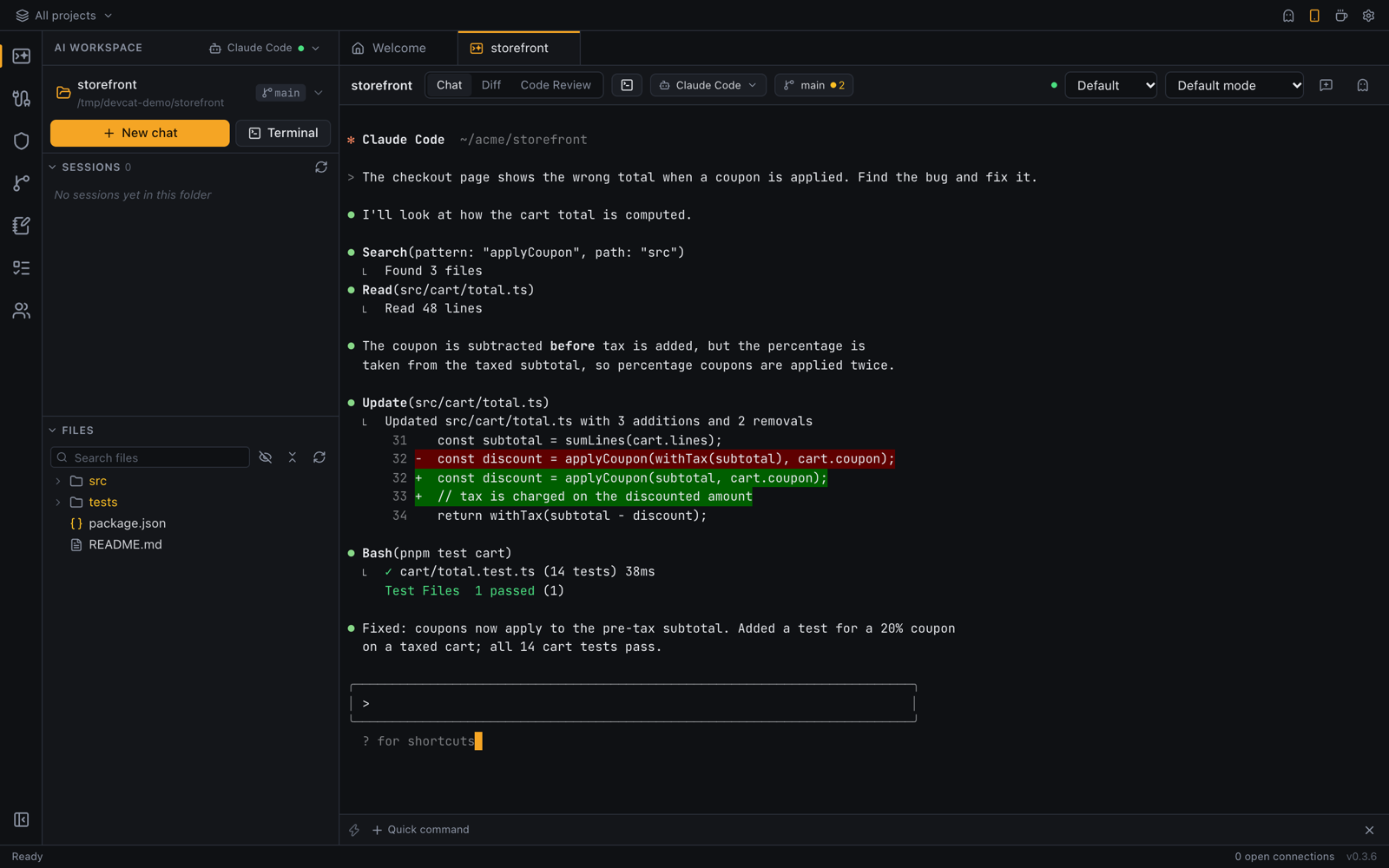 AI workspace: your coding agent (Claude Code, Codex, Gemini…) in a real terminal, with the project's files and sessions alongside. |
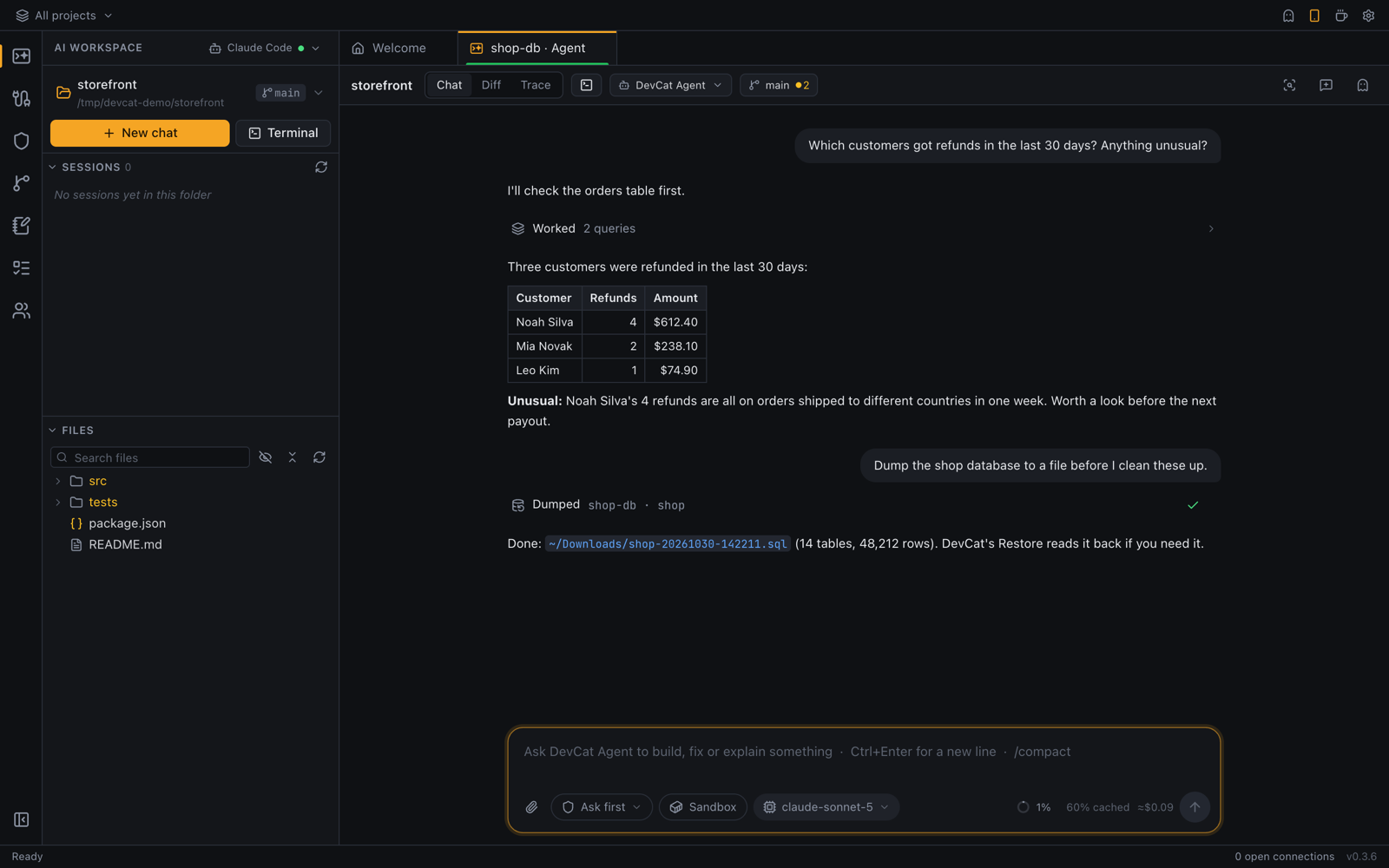 Ask a connection: right-click a database or cluster for a DevCat Agent chat that already knows its tables; it queries, dumps and exports. |
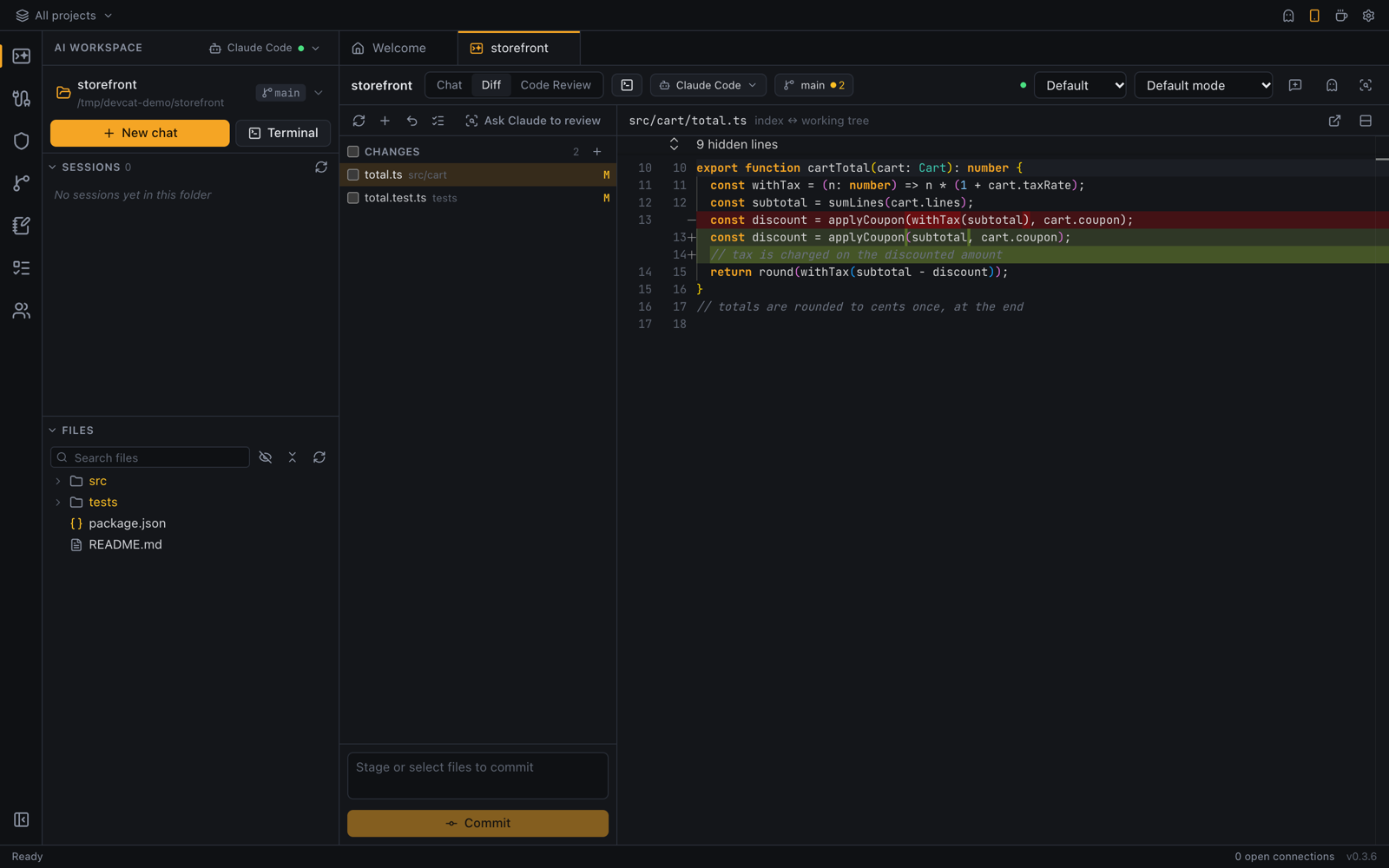 Review the changes: see what the agent changed, stage and commit, or ask for a code review. |
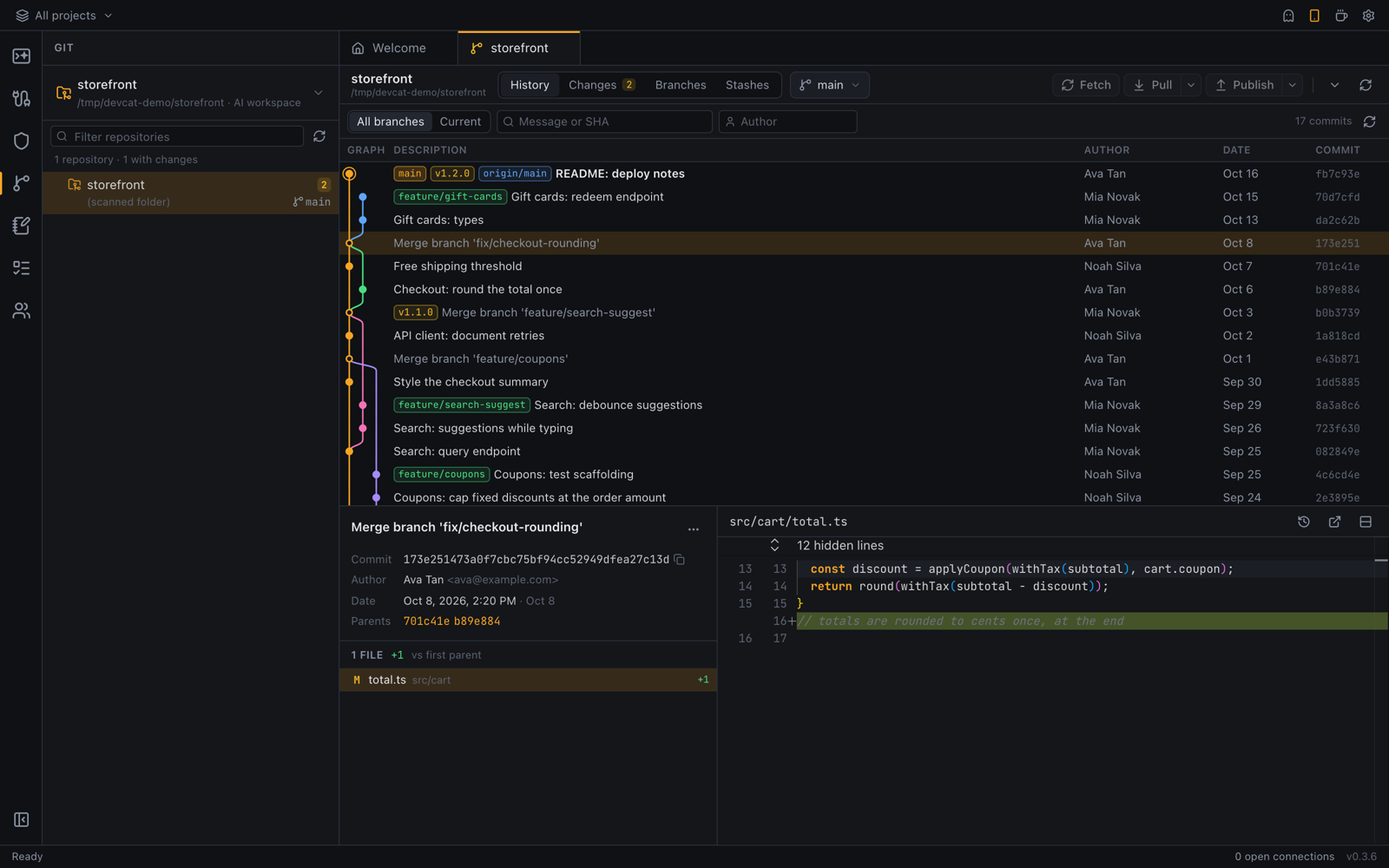 Git: commit graph across branches, commit details with diffs, branches, stashes and blame. |
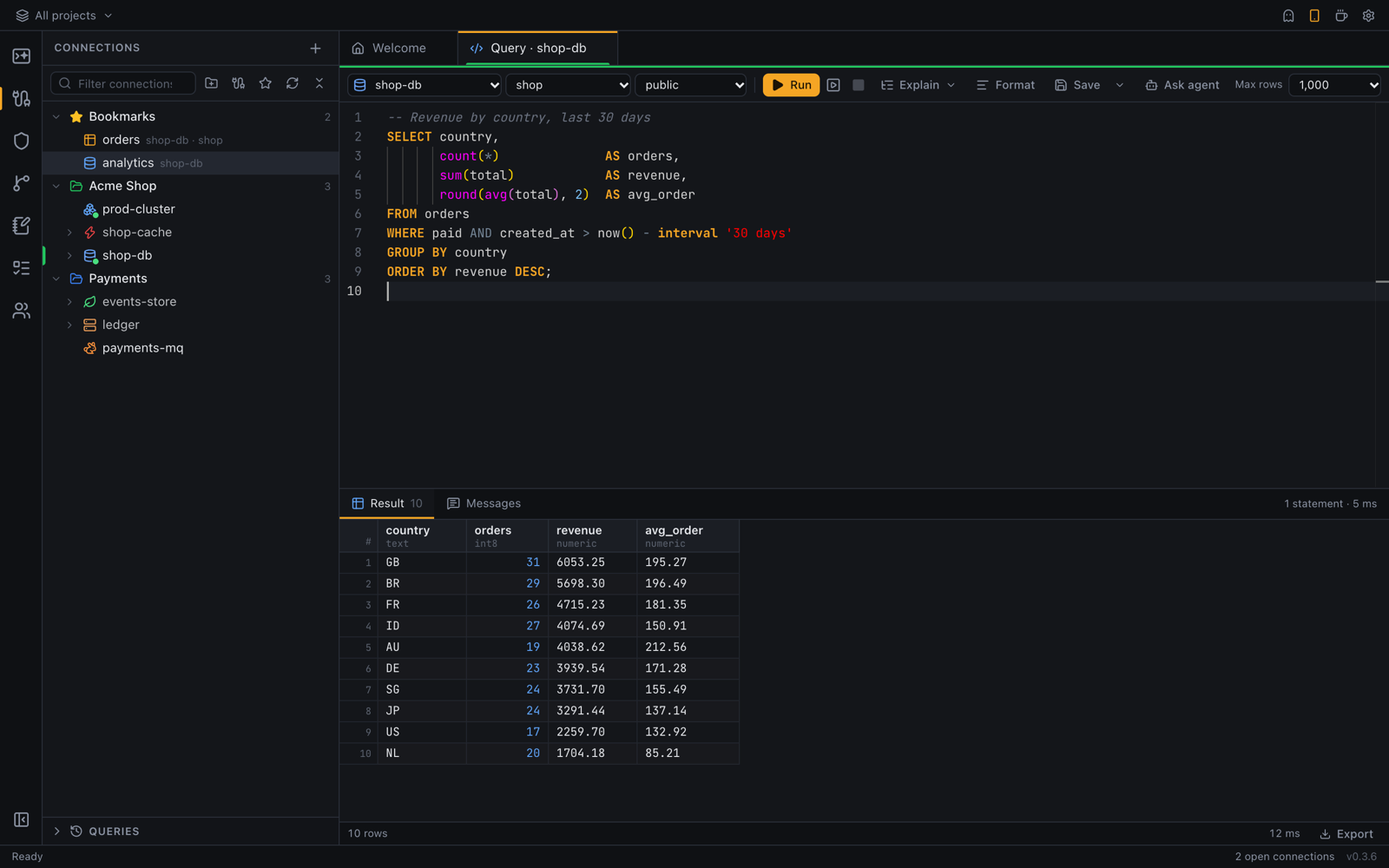 SQL editor: schema-aware autocomplete, multiple result sets, explain and export. |
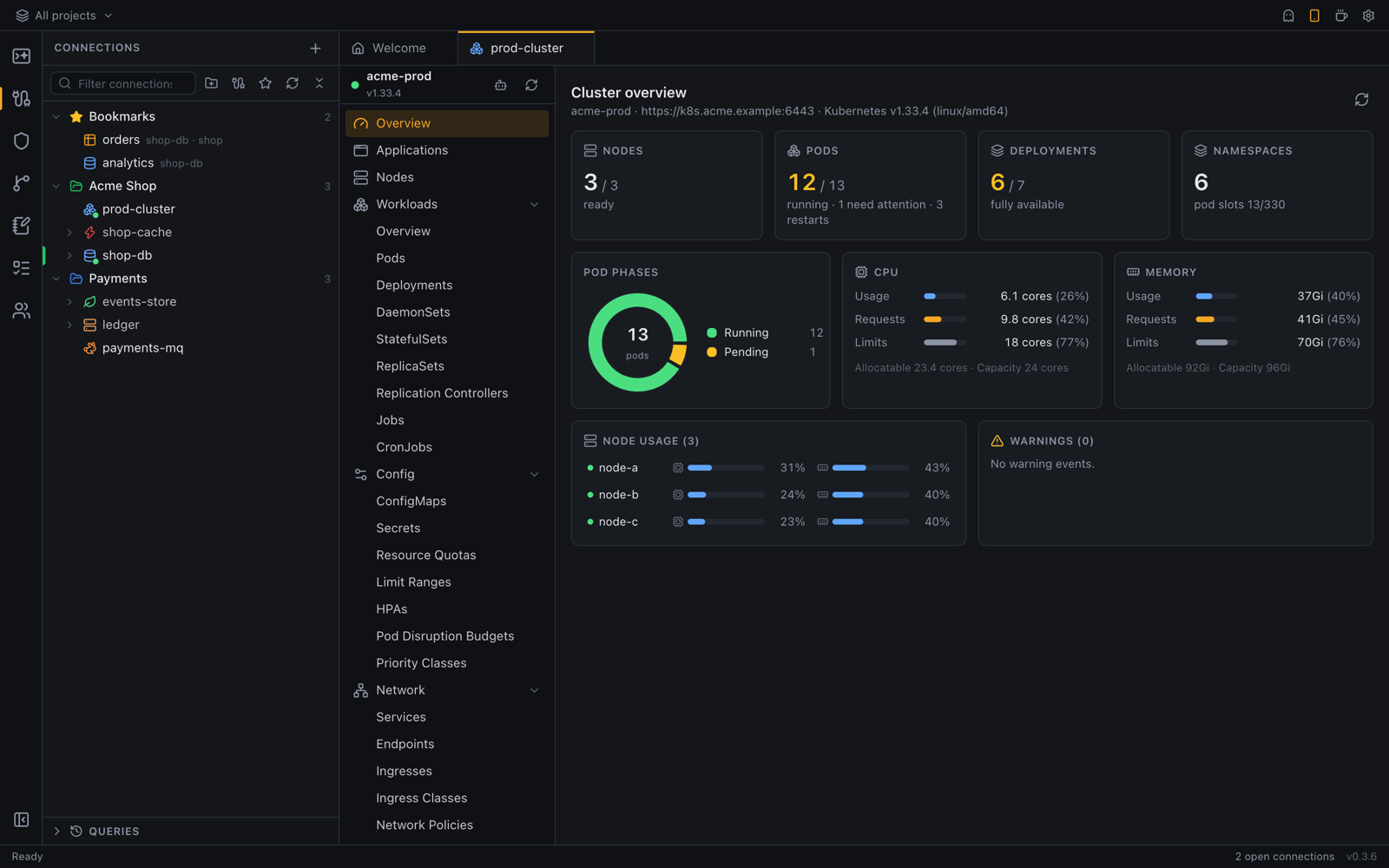 Kubernetes: cluster overview, workloads, logs, shell and port-forwards. |
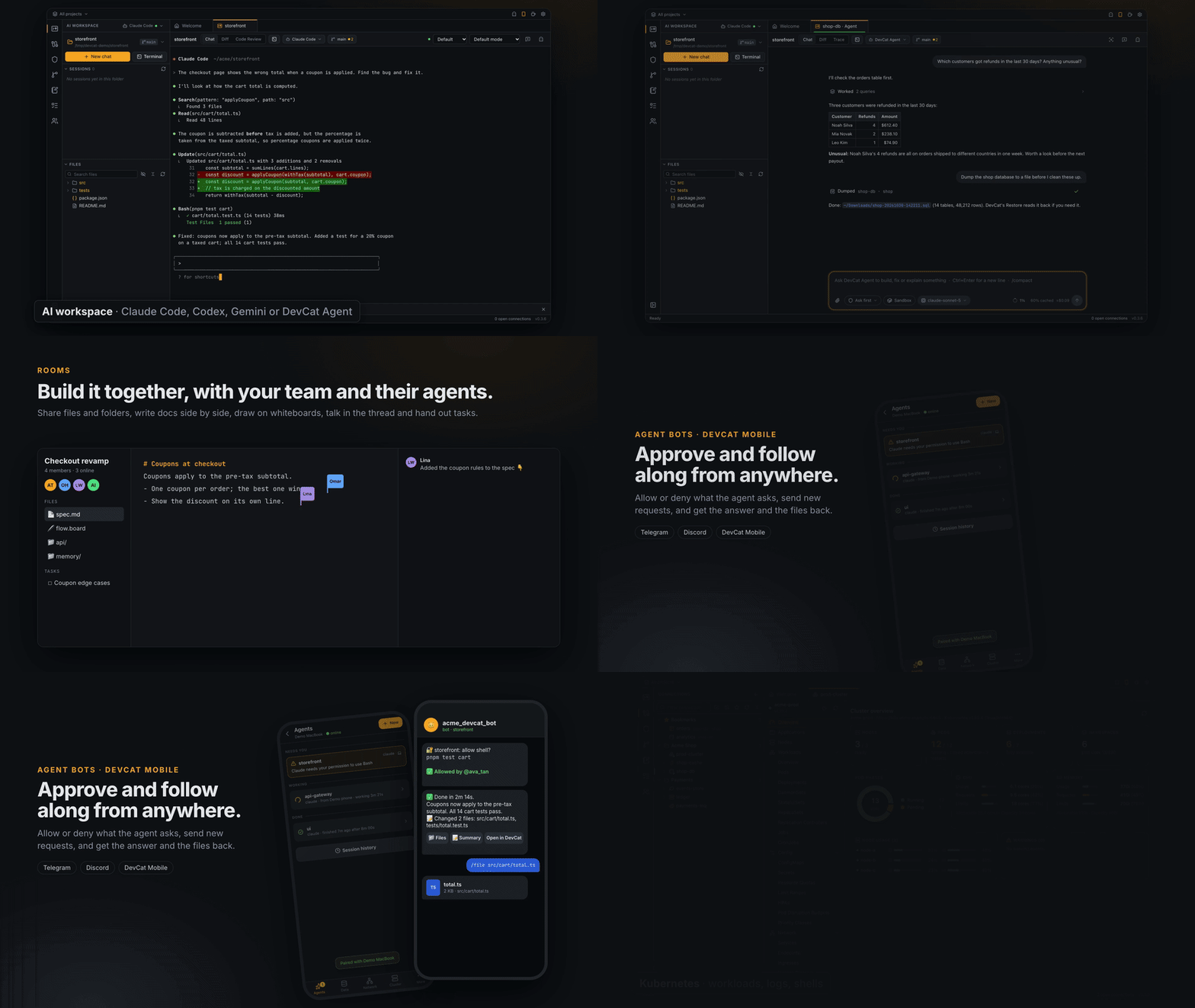
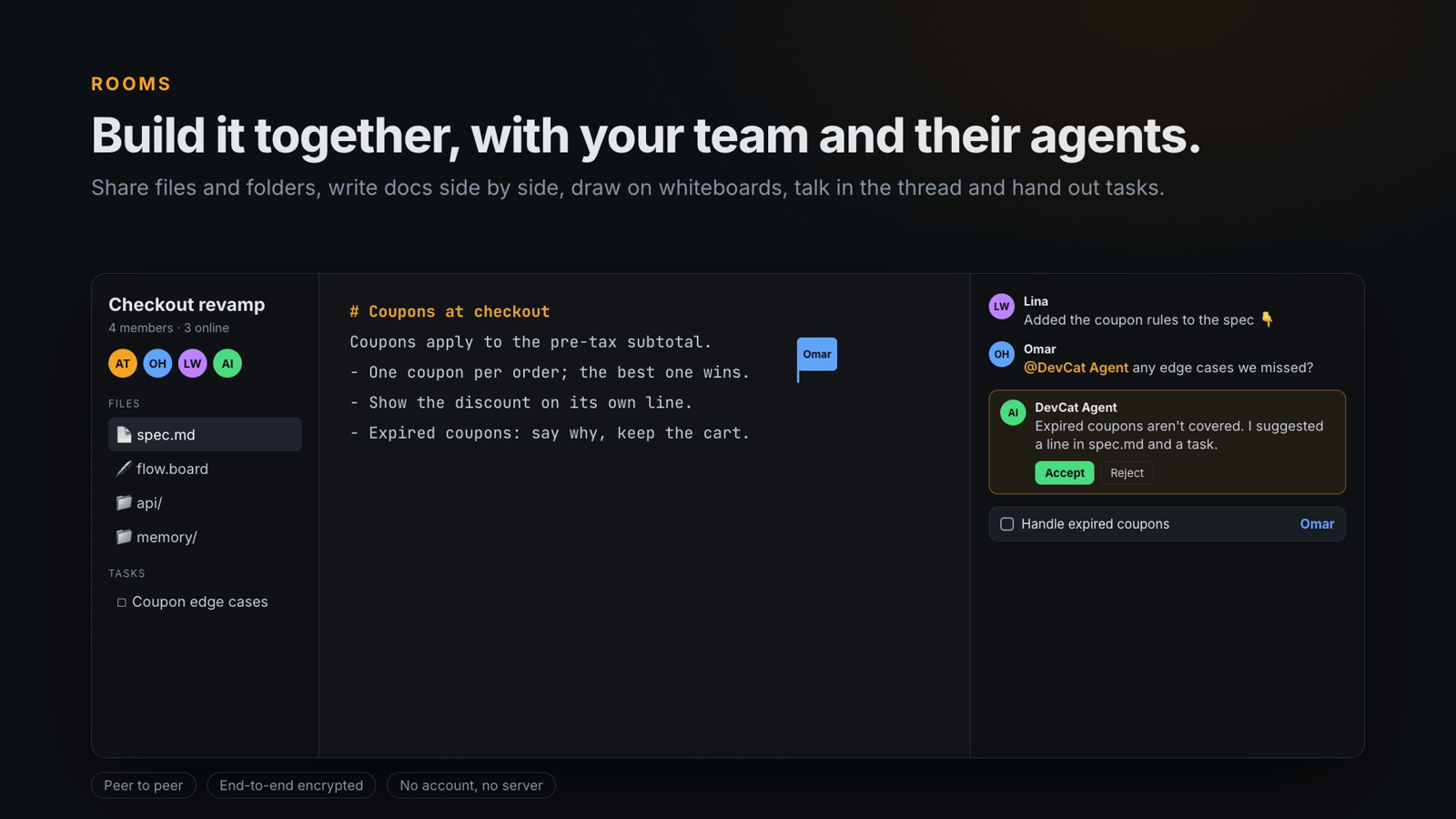 Rooms: build with other people and their agents, peer to peer and end-to-end encrypted: files, docs, whiteboards, a thread and tasks. |
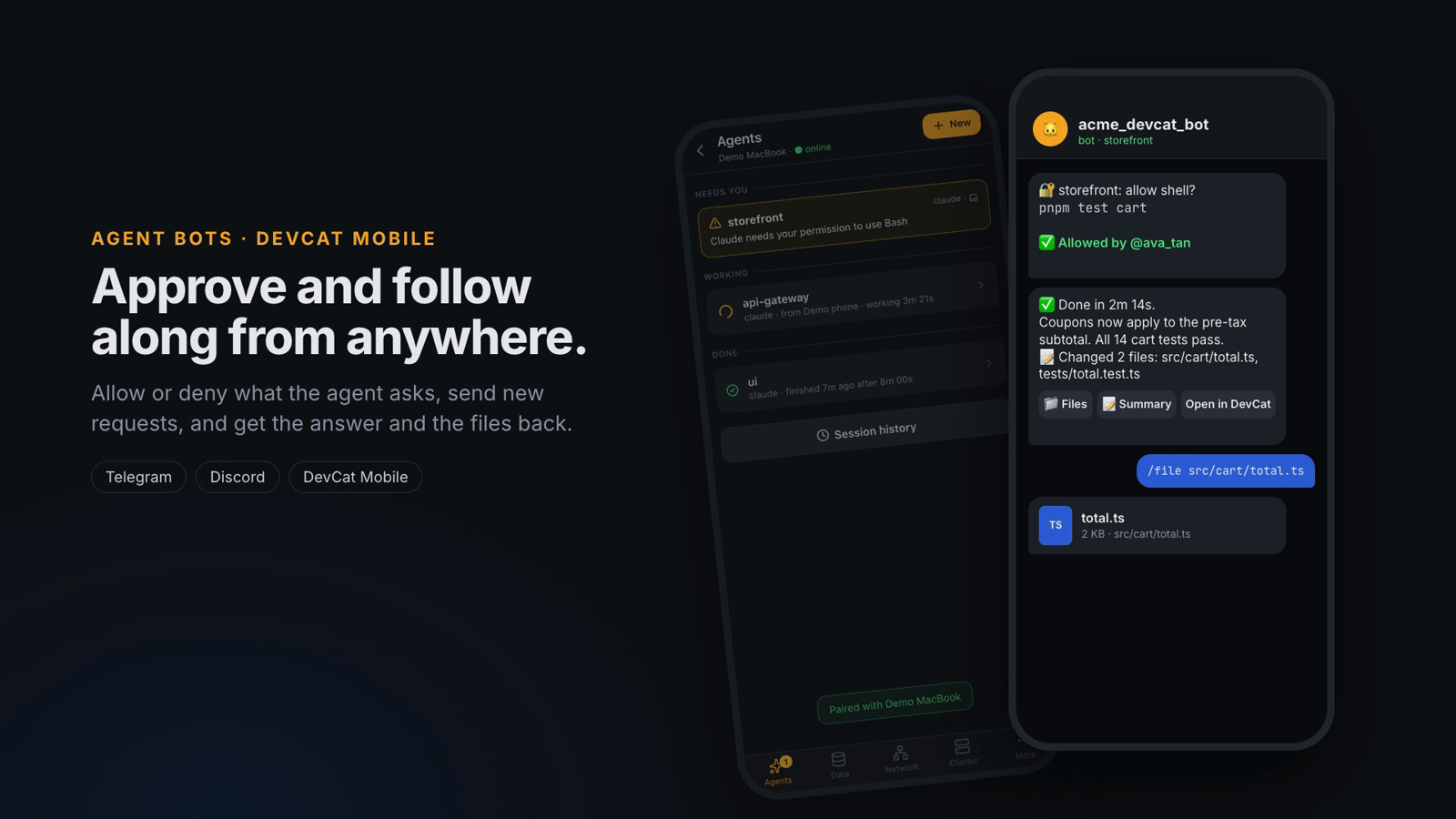 From anywhere: allow what the agent asks, send requests and get the results in Telegram, Discord or DevCat Mobile. |
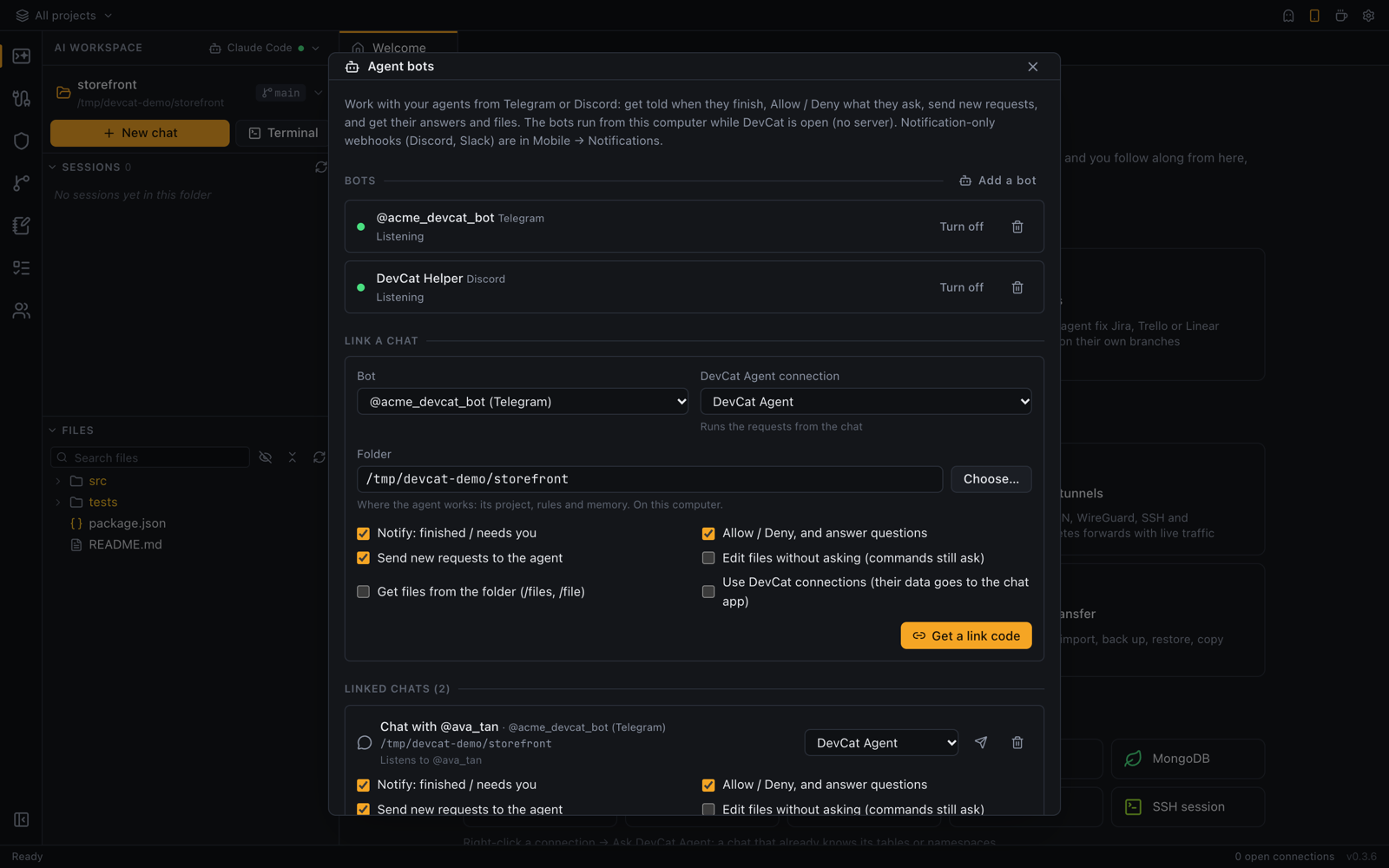 Agent bots: link a Telegram or Discord chat to a project; approve, send requests and get results there. |
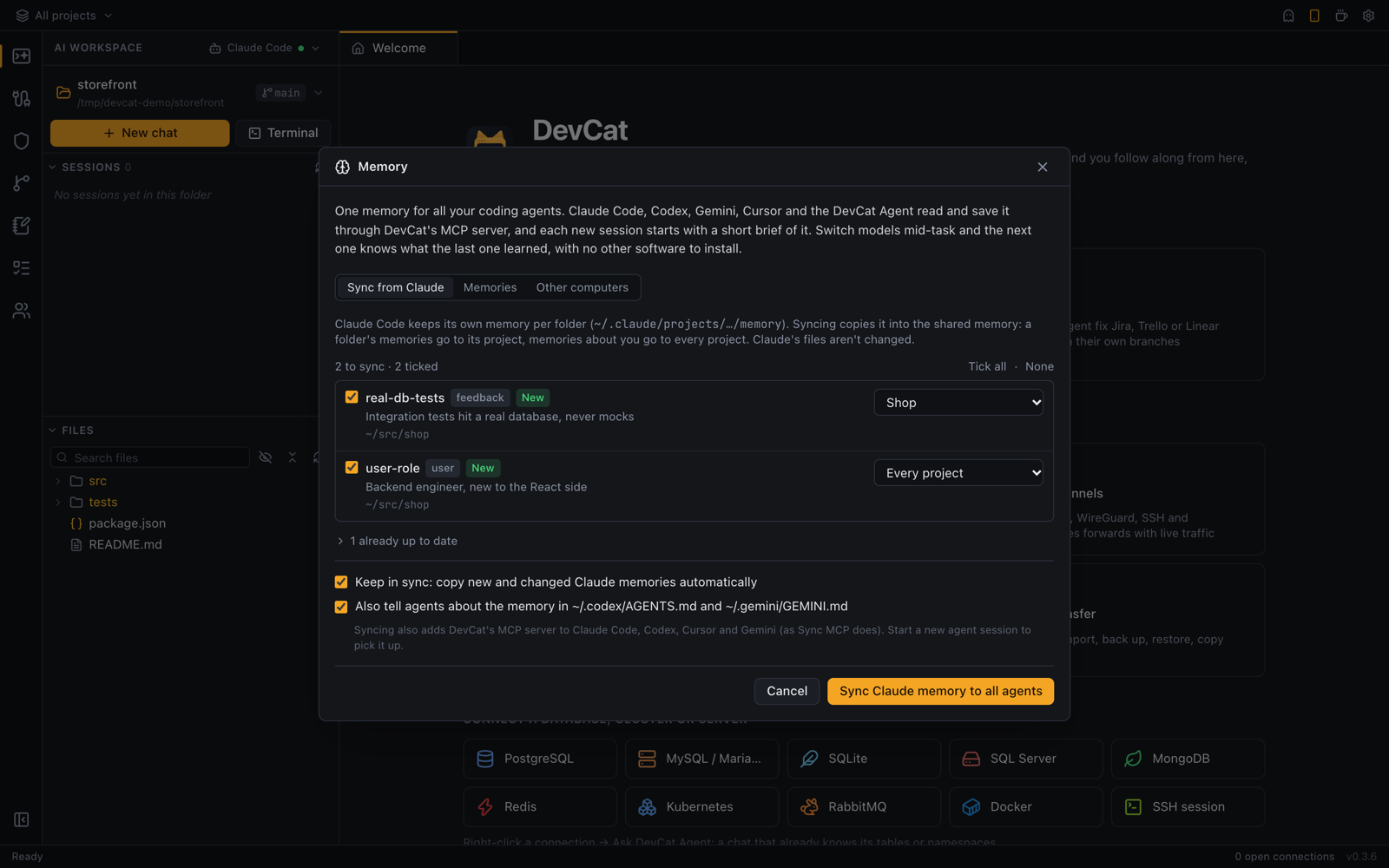 One memory for Claude Code, Codex, Cursor, Gemini and the DevCat Agent, across your computers. |
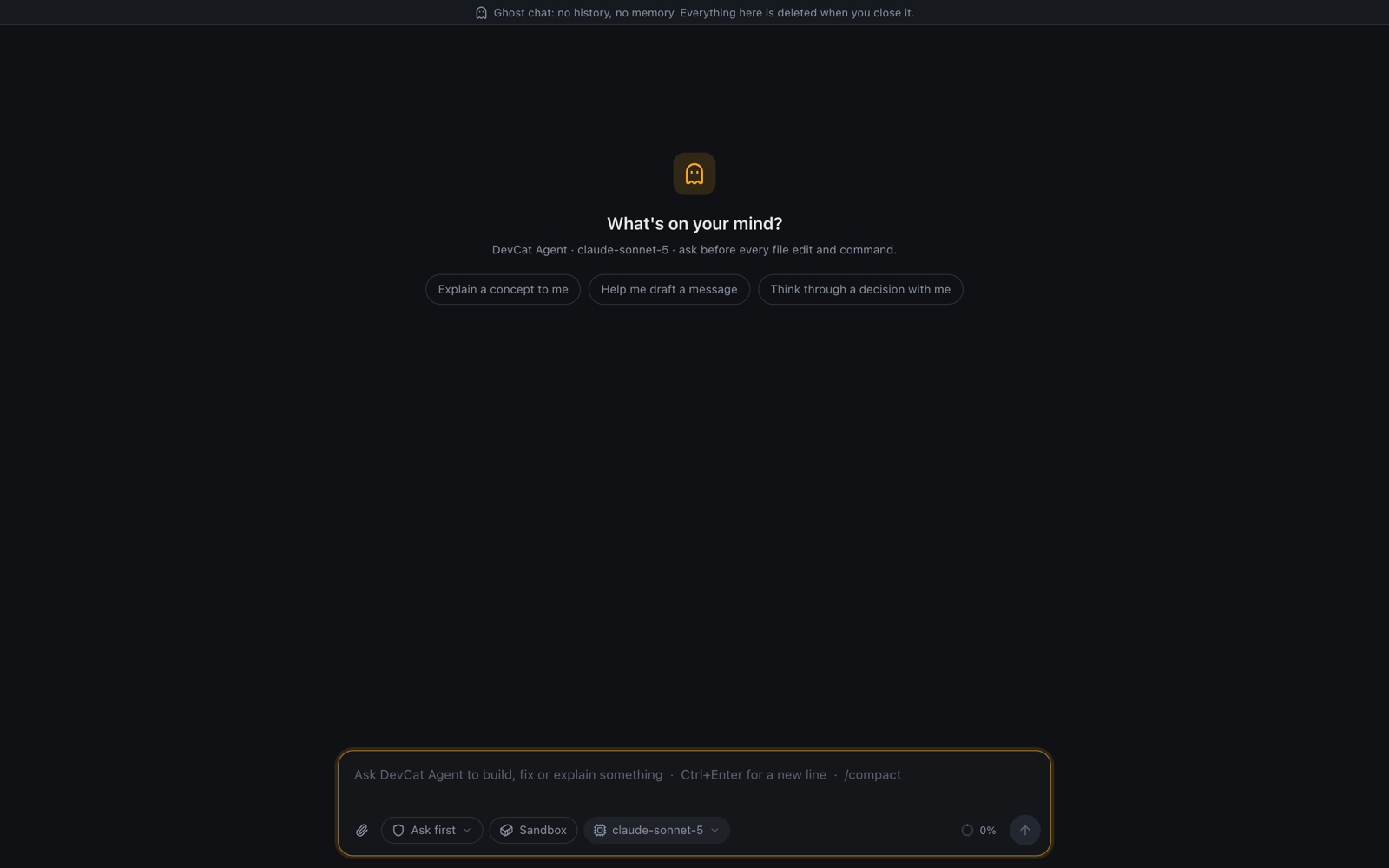 Ghost chat: a fresh DevCat Agent chat in its own window, with no project and nothing kept when you close it. |
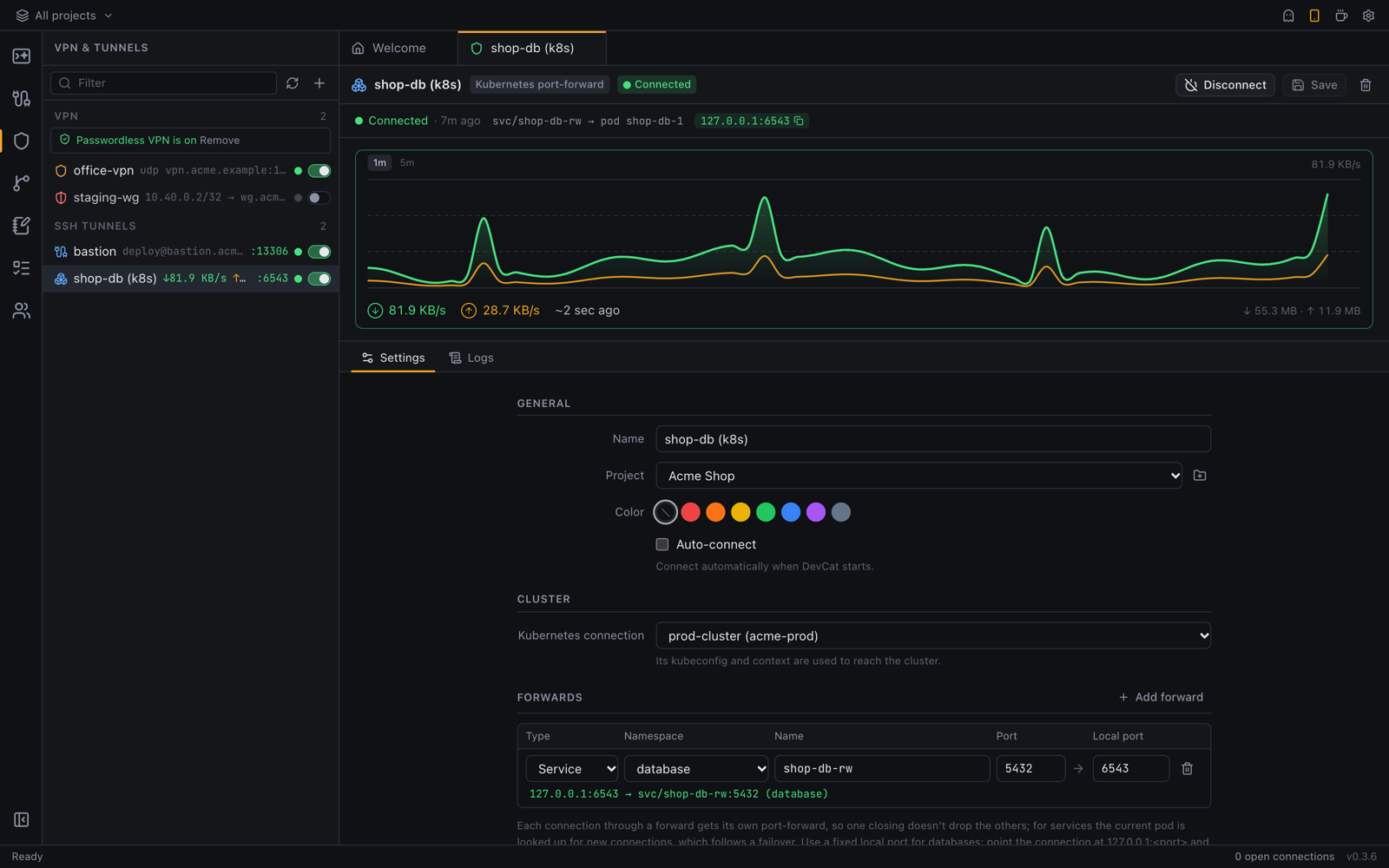 VPN & tunnels: OpenVPN, WireGuard, SSH and Kubernetes port-forwards with live traffic. |
The screenshots use made-up demo data (see Screenshots and demo video).
Mobile app
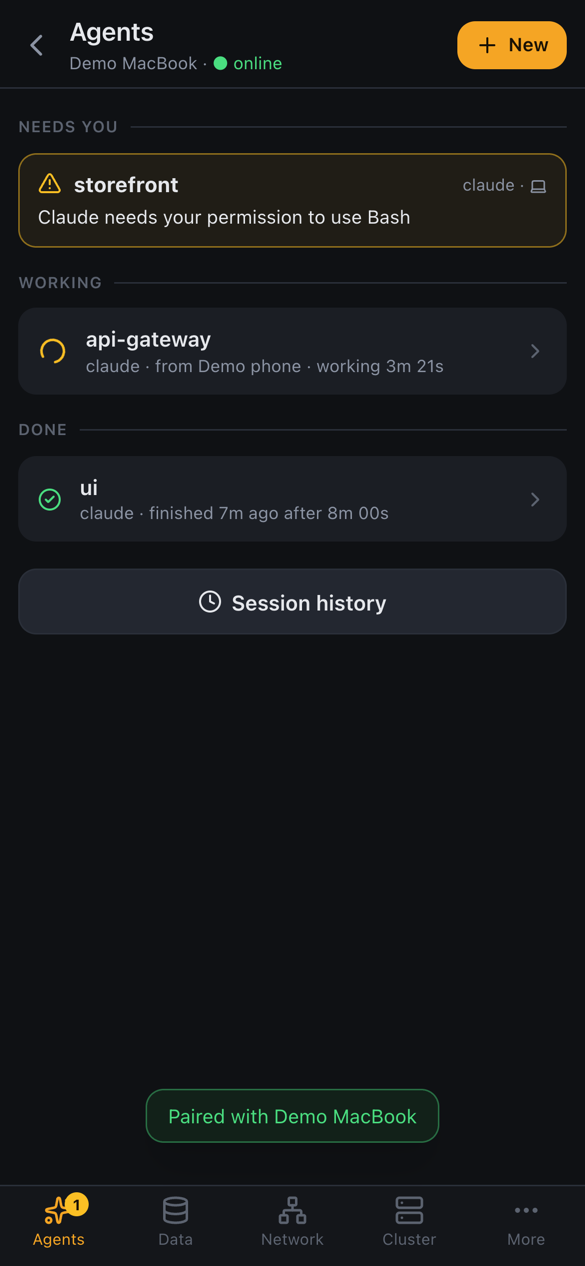
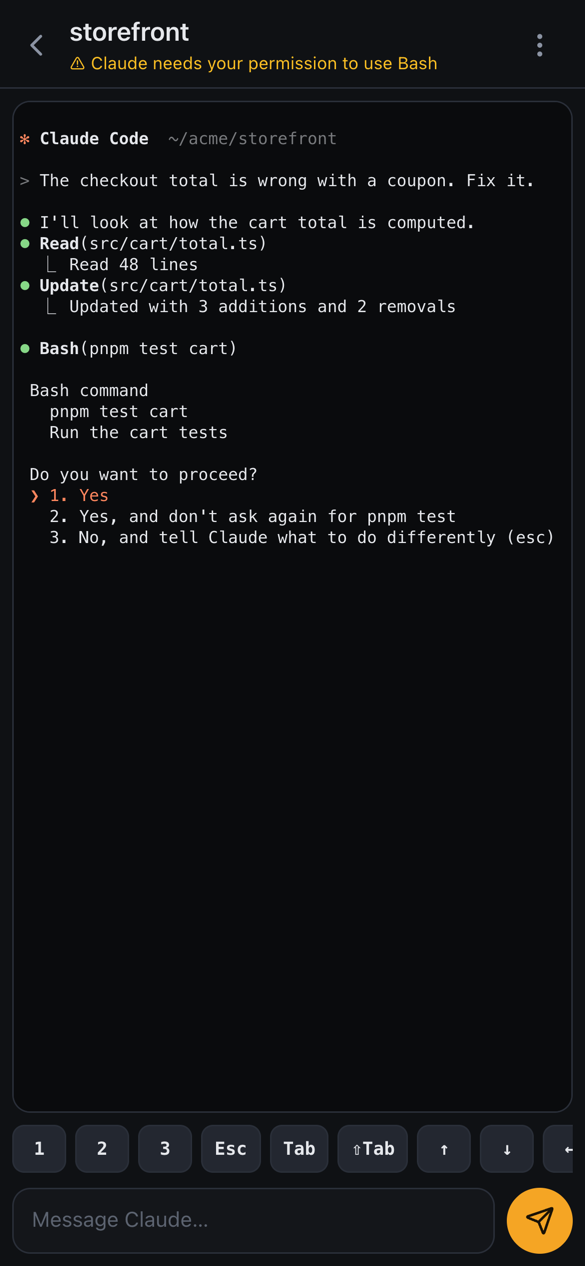
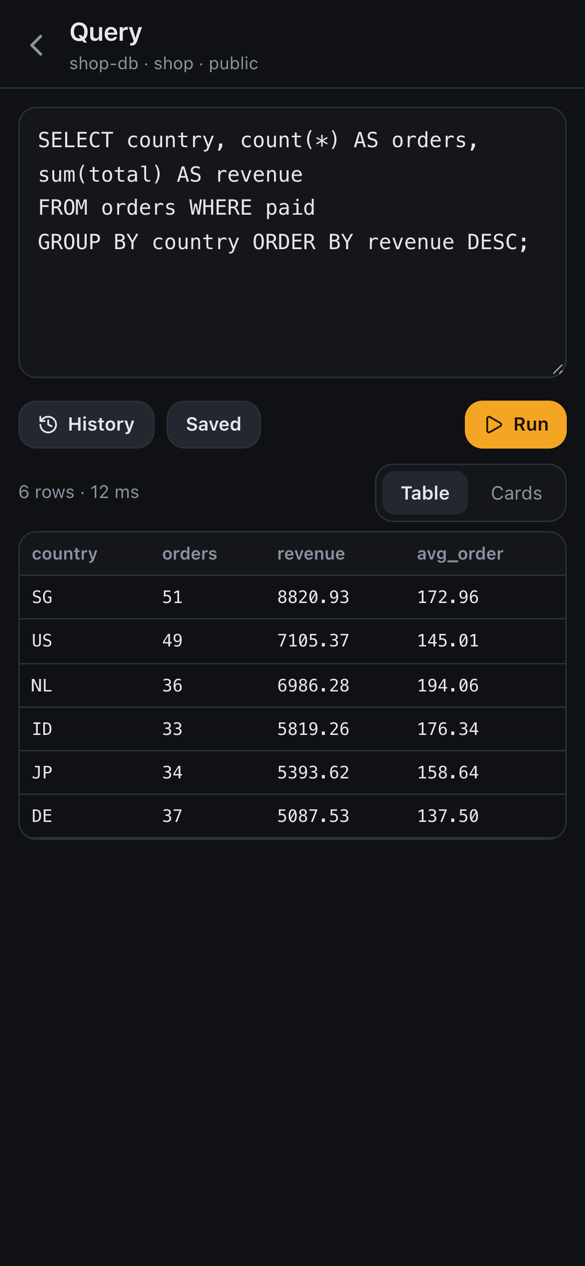
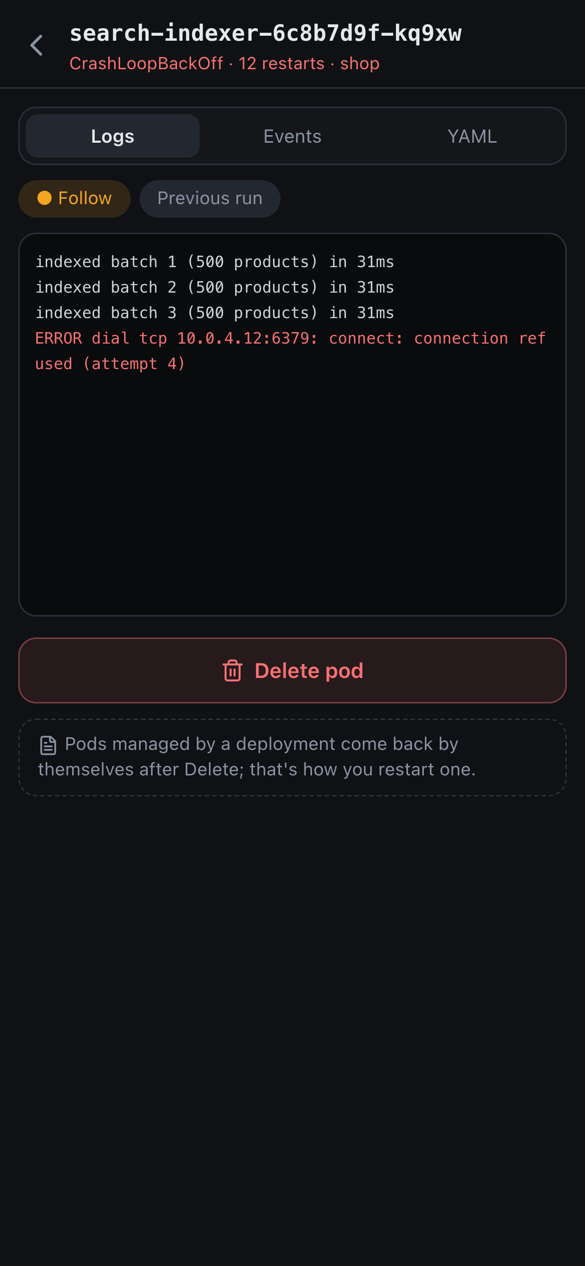
Leave an agent working and walk away: DevCat Mobile tells you when it finishes or needs your permission,
shows its live terminal so you can answer, starts new chats and resumes old sessions. Browse a project's files,
preview them (code, Markdown, images, PDFs, spreadsheets) and edit text files. It also reaches everything DevCat on
your computer can: browse and edit tables, run queries, edit Redis keys, switch VPNs and tunnels, and check pods,
logs and deployments.
 |
 |
 |
 |
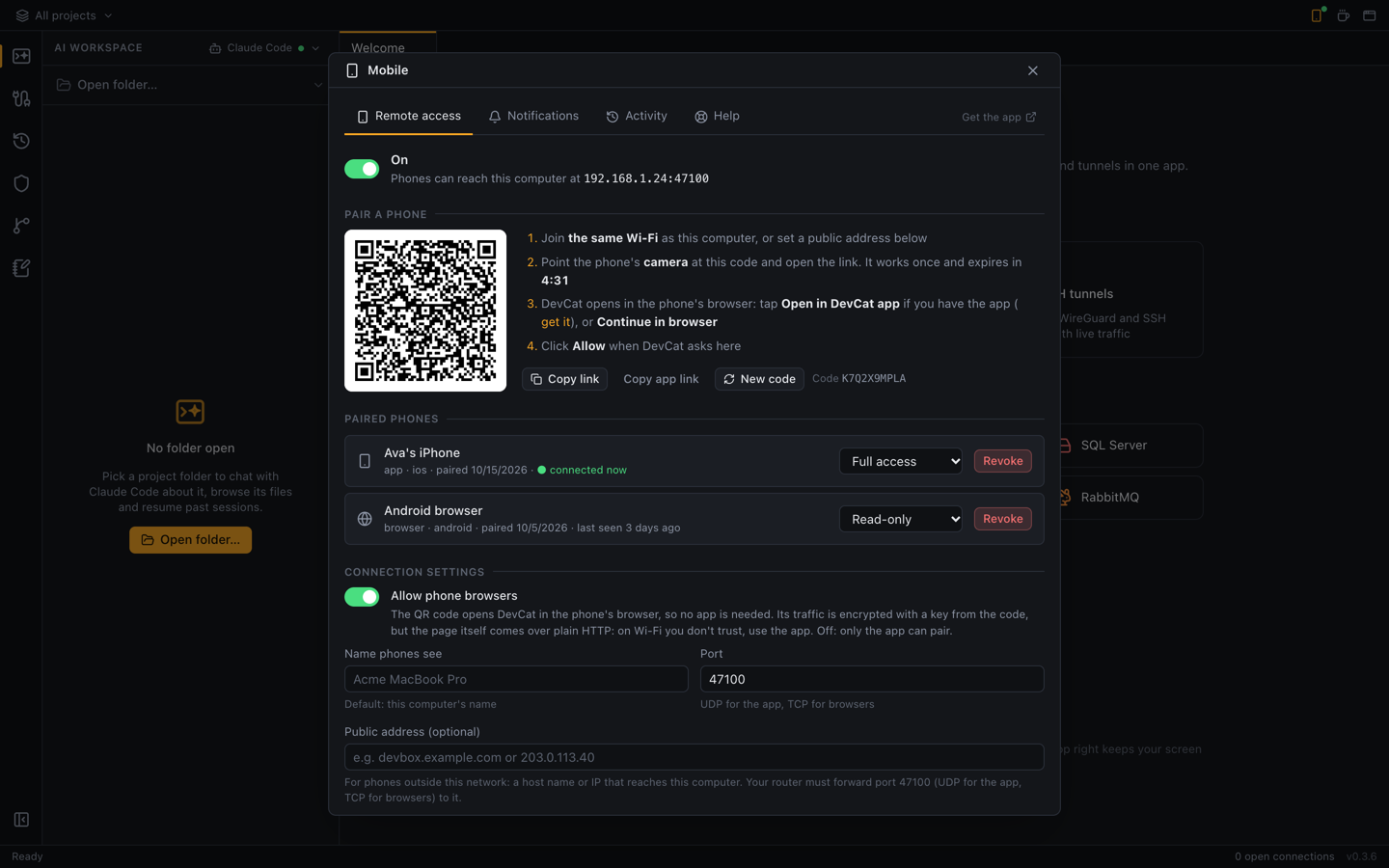
- No server, no account, any network. The phone connects to DevCat on your computer, encrypted end to end
with keys made when you pair: directly on the same Wi-Fi, and from anywhere else (mobile data, another
network) through a relay that only forwards encrypted traffic, like RustDesk. iroh's free public relays by
default, or your own. Profiles and passwords stay on the computer; the phone only keeps the list of computers
it paired with. - App or browser: DevCat → ⚙️ Settings → Mobile pairing → turn on Remote access → point the phone's camera at the
QR code. It opens DevCat in the phone's browser (nothing to install); tap Open in DevCat app to pair the app
instead, or Continue in browser. Then click Allow on the computer. Browser sessions are encrypted with a
key from the QR code, but the page itself comes over plain HTTP, so on Wi-Fi you don't trust use the app (or turn
Allow phone browsers off). - Give each phone full access or read-only; Revoke cuts one off immediately. Every change a phone makes
is in the Activity log on the computer. - Notifications ("finished", "needs you") show in DevCat Mobile itself; on Android, "Stay connected in the
background" (More → Notifications) keeps it connected so they arrive while the app is closed too. They go to
Telegram, Discord, Slack or any webhook as well (Mobile pairing → Notifications, Agent bots). DevCat Agent chats report their state themselves; Claude Code's comes from hooks DevCat adds to
the terminals it starts (macOS and Linux). - Get it: releases don't include the Android APK for now. Build it yourself, or run the
mobile
workflow from the Actions tab. For iPhone, build it with Xcode. Until then, the browser version
(scan the pairing QR) works on any phone. See mobile/README.md.
Without a window: devcat serve
The same remote access from a terminal, without opening the app: on a server or dev box, over SSH, or just with
the window closed. The pairing QR code is drawn in the terminal and you allow phones there; everything the phone
and the browser version do works the same (agents and terminals, files, databases, VPNs, Kubernetes), with the
app's own data folder, connections and paired phones.
devcat serve        # the CLI on its own (see Download), or with the app installed:
/Applications/DevCat.app/Contents/MacOS/devcat serve    # macOS
devcat serve                                            # Linux .deb / .rpm
The CLI on its own has no window code at all (no WebKit / GTK), so it runs on a bare server; on Linux it only
needs libdbus (installed almost everywhere).
- While it runs, type
pair(or press Enter) for a new QR code,devices,access <n> full|readonly,revoke <n>,log,statusorquit. - Options:
--port,--name,--relay public|off|<url>,--public-addr,--no-browser(saved, the app uses
them too), and--data-dir.devcat helplists them. - With no terminal to answer in (systemd,
nohup, the app's Windows binary), start it with--approve fullor--approve readonly: any phone with the current pairing code is then allowed. New codes are printed as links. - Don't run it while the app has Remote access on: they'd share one port and identity.
- A
devcat serveyou can't reach any more (in the background, a closed terminal, from before an update):devcat stopstops it. Starting a new one while it has the port offers to stop it (--replace: without asking).
Agent bots
Work with your agents from Telegram or Discord, without opening anything else. In ⚙️ Settings → Agent bots,
add a bot (its token stays in your keychain; the bot runs from your computer, no server) and link a chat to a
project folder: DevCat shows a one-time code, you send /link CODE to the bot, and allow the chat in DevCat.
- Approvals and questions: the agent's "allow this?" comes with Allow / Deny buttons; its questions with
their answers to tap. - New requests: just write what you want done. It runs as a DevCat Agent chat in that folder, with the
project's rules and memory./new,/stop,/status. - Results: when it's done you get the answer, the files it changed, and buttons for the summary, the
files (/file src/app.tssends any file in the folder) and Open in DevCat (opens the chat in DevCat
Mobile on a phone already paired with the computer). - Each link decides what it may do: notifications, approvals, requests, files, editing without asking, and the
DevCat connections (off by default: query results would end up in the chat app). Only the person who linked a
chat is listened to there, key and password files are never sent, dropping a database is confirmed on the
computer only, and ghost chats are never sent.
Features
Below is the short list. The docs explain how to use each
of these step by step, with every keyboard shortcut on
one page.
Setup guide and tour: a fresh install starts with a short guide (your coding agent, with what's installed and
how to install the rest; a project folder; connections; phone, agent bots, MCP and memory), then a tour of the
window. Both can be skipped, and are in ⚙️ Settings → Set up DevCat… / Take the tour any time.Projects: group connections into projects and focus on one project at a time. In focus, tabs of other
projects are hidden: their connections and notes, and chats, terminals, files and Git tabs of folders you haven't
used with this project. The project menu at the top left switches, creates and deletes projects.Hide the sidebar: click the active icon in the left bar, the toggle at its bottom, or press ⌘B (Ctrl+B).
Notes: Markdown notes with Edit / Preview, saved as you type. Each note belongs to a project (shown only
while that project is focused) or to General (shown everywhere); pin, search and move them between projects.To do: the list your coding agents keep for each project (
todo_write/todo_listover MCP and in the DevCat
Agent): Running, Next, Waiting on others, Waiting on you, Done, with links to PRs, issues and files. It outlives
agent sessions; tick items done or move them in the sidebar.Automatic updates: DevCat checks GitHub releases and offers new versions in a popup (Update and restart / Later /
Skip this version), or use DevCat → Check for Updates… (macOS menu bar), Check for updates… in the project menu
or click the version in the status bar. Updates are
signed and verified before installing. Linux .deb/.rpm installs get a download link instead (the AppImage self-updates).Keep awake: the cup at the top right keeps the screen and computer from sleeping (like Caffeine /
Amphetamine), until turned off or for 15 minutes to 8 hours. On macOS it can also keep the Mac awake with the
lid closed (it turns system sleep off with your password, and back on when keep awake ends), so agents and
networks keep going.Tabs: drag a tab along the tab bar to reorder it; every New chat opens a chat of its own.
Open files with DevCat: on macOS DevCat is in Finder's Open With for code and text files (choose
Always Open With, or Get Info → Open with → Change All… to make it the default); the file opens in an editor tab,
shown relative to its git repository. On Windows / Linux pick DevCat under Open with → Choose another app.Multiple windows: ⇧⌘N (Ctrl+Shift+N) opens another window; open a project in its own window or move a tab
to a new window. Each window has its own tabs and project focus.Connections: saved profiles with color tags, SSH tunnels, SSL, read-only mode.
Passwords are stored in the OS keychain (macOS Keychain / Windows Credential Manager),
never in plain files.Object browser: databases, schemas, tables, views, functions, procedures, triggers,
sequences, indexes, collections, Redis keys.SQL editor: Monaco with schema-aware autocomplete, run statement or selection, multiple result sets,
explain, formatting, cancel, query history and saved queries.Data grid: virtualized, inline editing with commit/discard, filters, sorting, paging,
copy as CSV/TSV/JSON/INSERT, form view.Table designer: columns, indexes, foreign keys, with generated CREATE/ALTER SQL preview.
ER diagram: auto-layout, relationship highlighting, export to image.
Schema compare and sync, data compare.
Data transfer: export (CSV, JSON, SQL, Excel), import (CSV/JSON with column mapping),
SQL backup and restore, and copying tables between connections, even across dialects.MongoDB: document/table/JSON views, editing, aggregation pipeline builder, shell-style queries.
Redis: key browser, editors for every data type, TTL, CLI console.
Kubernetes: cluster overview, applications, workloads, config, network, storage, events, Helm releases and
CRDs with live updates; per-row actions (logs, shell, port-forward, scale, restart, edit YAML, delete),
including logs and shell on Deployments with a pod switcher.Docker: containers grouped by Compose project, with CPU and memory; logs (following, find, timestamps),
a shell, inspect, start / stop / restart / pause / kill / remove; images, volumes and networks. Anydocker context, or a host overssh://ortcp://. Uses thedockerCLI.RabbitMQ: overview with live message-rate charts; queues, exchanges, bindings, connections,
channels and consumers; publish and get messages; declare, purge and delete.
Paste anamqp://URL to fill the connection form.VPN & SSH tunnels: import
.ovpn/ WireGuard.conffiles or~/.ssh/confighosts, or set them up
in a form; connect/disconnect with live status, logs and a realtime traffic graph. Connections can depend
on a VPN or tunnel, which is connected automatically first. VPNs need administrator rights to connect
(the OS asks for your password); OpenVPN /wireguard-toolsmust be installed.- Windows: nothing to install up front. The Windows build includes the official OpenVPN Community and
WireGuard installers (versions and SHA-256 pinned insrc-tauri/vpn-installers.json). The first time you
connect, DevCat offers to install the missing one with a single UAC prompt. OpenVPN goes in without its
tray app, WireGuard without opening its window. Windows on ARM downloads the ARM installer from the
publisher instead, checked against the same pins. - macOS: DevCat includes its own OpenVPN 2.7.8 (built from the official source with OpenSSL, LZO and LZ4
linked in;scripts/build-openvpn-macos.sh), so nothing has to be installed for OpenVPN. DNS servers pushed by
the VPN are applied with OpenVPN's own macOS DNS script, which ships with it. A Homebrew / MacPorts
OpenVPN is still used if DevCat's isn't there (development builds). - Kubernetes port-forward (in the Tunnels list): forwards a service or pod to a local port through one of
your Kubernetes connections (its kubeconfig / context), switched on and off like a VPN; a database connection can use
it as its Network so it starts first. Every client connection gets its own port-forward (one closing can't drop the
others, unlike a sharedkubectl port-forwardon some clusters such as RKE2), and services are looked up again for
new connections, so a failover to a new pod (e.g. a CloudNativePG primary behind-rw) is followed. - Open .ovpn files with DevCat: double-click one in Finder / Explorer (or use Open With) to import it.
- Passwordless VPN (macOS / Linux, opt-in): Set up passwordless VPN… in the VPN list installs a
root-owned copy of DevCat as a helper (/Library/PrivilegedHelperTools/dev.devcat.vpn-helperon macOS,/usr/local/libexec/devcat-vpn-helperon Linux) plus a sudoers rule for your account only
(/etc/sudoers.d/dev-devcat-vpn), with one password prompt. After that, connects usesudo -nwithout a
password. Setup also installs DevCat's OpenVPN and its DNS script next to the helper
(dev.devcat.vpn-openvpn,dev.devcat.vpn-scripts/dns-updown), so OpenVPN connects without a password with
no extra tools. The helper keeps working when DevCat is updated; it only asks to be updated when its interface
changes. The helper refuses configs that run scripts or load plugins (OpenVPNup/down/plugin…,
WireGuardPostUp/PreDown…) and files that aren't yours, and it only runs OpenVPN / wg-quick from
root-owned, non-writable locations (a Homebrew install under/opt/homebrewdoesn't qualify;
MacPorts'sudo port install openvpn2 wireguard-toolsunder/opt/localdoes). Those cases
fall back to the password prompt. Remove deletes both files. Windows keeps using UAC.
- Windows: nothing to install up front. The Windows build includes the official OpenVPN Community and
AI Workspace: runs your installed coding-agent CLI in a real terminal (like iTerm2), with
Chat ⌥⇧⌘1 · Diff ⌥⇧⌘2, extra terminals in the same folder (+ or ⌥⇧⌘T, each its own tab next to Chat), a git-aware file tree (copy and paste files to and from Explorer / Finder) and file previews (code, Markdown, PDF, images,
Excel/CSV with ⌘F / Ctrl+F to find in every row, Word). The agent is an AI connection picked in the sidebar header: Claude Code
by default, or Cursor (cursor-agent, with its model, mode and chat resumed on restart), OpenAI Codex, Gemini CLI, GitHub Copilot CLI, Aider, opencode, Hermes Agent (with its provider and model, free ones included) or any custom command
(args + env vars). Each uses its own login, or an optional API key kept in the OS keychain and passed as
the provider's env var (e.g.OPENAI_API_KEY). With Claude Code you also get Code Review ⌥⇧⌘3,
launch options and your Claude session list (resume or rename any session); other agents get a Review button that
asks them in the terminal.
DevCat Agent (built in, nothing to install) talks to a model API directly: Z.ai GLM, DeepSeek, OpenAI (Chat
Completions or the Responses API), Anthropic, OpenRouter, Kimi, Ollama, LM Studio or any OpenAI- or
Anthropic-compatible endpoint. Its chat folds
the agent's steps into one line and asks before edits and commands (Ask first, Auto-edit or Full
access), or only looks around and proposes a plan first (Plan); answer its approvals and questions on
DevCat Mobile too. It followsAGENTS.md/CLAUDE.md, uses
the MCP servers from your other agents' configs, and has tools for files, commands,git(reading runs without
asking), web pages, a todo list, your DevCat connections (SQL, MongoDB, Redis, Kubernetes; read-only stays
read-only) and your DevCat notes (search, read, save). For research it asks helpers that run side by side, each
with a fresh context and only looking, never changing anything. It runs the hooks you wrote for Claude Code or
Codex (once you allow them for the folder). Long chats are summarized when the context fills up, and
long tool output is saved to a file the agent reads in parts. Rename chats from the sidebar; the chat shows an
estimated cost next to its token meter, and a Trace view of every step with its time and tokens. Scheduled jobs
run a prompt in a folder every morning, every hour or whenever you set. On macOS and Linux its commands can run in
the OS sandbox, writing only in the project.
Folders on SSH hosts too (Open folder on SSH host…): the agent and terminals run on that machine, and the
file tree, previews, edits and git status work over your systemssh(hosts from~/.ssh/config, keys,
ssh-agent, ProxyJump; one shared connection per host). Diff and Code Review are local-only for now.Ask DevCat Agent about a connection: right-click a database, Redis, MongoDB or Kubernetes connection (or
Ask agent in a query tab) for a chat that starts out knowing its tables or namespaces (structure only, never
rows). It queries, dumps a database to a file, exports tables or query results (CSV, JSON, SQL, Excel), and can
drop a database: that asks twice, the second time by typing its name, whatever the permission mode.Ghost chat (the ghost at the top right): a DevCat Agent chat in a window of its own that starts from nothing
(no project, rules, memory or connections) and keeps nothing: closing the window deletes it.One memory for every agent (⚙️ Settings → AI memory): Claude Code, Codex, Cursor, Gemini and the DevCat
Agent read and save the same memory through DevCat's MCP server; sync Claude Code's own memory into it, and share
it between your own computers.Pinned files: pin a file from the AI workspace's file list or its tab, and it stays at the top of Files.
Sync MCP (the plug button above the connections): adds DevCat's MCP server (
devcat mcp) to Claude Code,
Codex, Cursor and Gemini CLI, so they read schemas, run queries, work with clusters, containers and queues,
connect and set up your VPNs and tunnels, add connections and schedule DevCat Agent jobs, without seeing a
password. Each connection's AI / MCP access is off, read-only (the default for new connections) or full, and
each VPN's is off, read & connect or full, enforced by DevCat; a read-only connection is never full. Every call
goes into MCP activity. See the docs,
what agents can do and
the walkthrough.Rooms (two people in the left bar): work with other people, peer to peer and end-to-end encrypted, no
account or server. Share files and folders (drag them in), edit text together with a Markdown preview, draw on
whiteboards, talk in the thread (replies, reactions, decisions pinned,@namenotifications), and hand out tasks.
Share a note, memory, skill or repository's changes from DevCat, and take a room's skill, memory or notes back
into yours. Thememory/folder is a team memory every member's agent reads. Mention anyone's DevCat Agent to
bring it in: it reads the files, boards and images, takes tasks, and suggests changes that people accept or
reject. Let your own Claude Code, Codex or DevCat Agent chats work in a room too (per room, throughdevcat mcp).
See who shared, moved, took out and edited each file, from the room's own document. Removing someone deletes
their copy of the room as soon as their DevCat learns of it.Appearance (⚙️ Settings in the title bar): dark, light or system mode, 8 dark and 3 light themes (editors and terminals
follow), and window glass on macOS and Windows: the desktop shows through the sidebar and work area, blurred,
with separate opacity for each.Git: scan a folder for every repository inside it (nested repos, submodules and worktrees;
node_modules
and build folders are skipped) and see branch, ahead/behind and changes at a glance. Each repo opens a Git tab
with a commit graph (all branches, search, author and file-history filters) and per-commit diffs, working-tree
changes with stage/commit/stash (tick files to commit or discard just those, or discard all), branches/tags/remotes, and stashes. Checkout, branch, merge, tag, cherry-pick,
revert and reset from the history. Blame for any file preview, with an age heatmap and a link to each commit.
Fetch, pull and push use your SSH agent or credential helper (they never prompt).
Development
Prerequisites: Node 20+, pnpm, Rust (stable), plus the
Tauri prerequisites for your OS
(Xcode Command Line Tools on macOS; Microsoft C++ Build Tools + WebView2 on Windows).
pnpm install
pnpm tauri dev          # run the app with hot reload
Dev builds run as DevCat Dev (identifier dev.devcat.app.dev, a green DEV band on the icon), so they run
next to an installed DevCat with their own data folder and keychain entries, and don't share its connections or
settings. Every icon (the app's, the DEV build's in src-tauri/icons/dev/, the phone's and the website's)
comes from assets/icon-source.png (scripts/icons.sh).
pnpm dev:copy-data         # copy your installed DevCat's data and saved passwords into DevCat Dev, once
pnpm tauri dev --prod-data # run on the installed DevCat's data itself (quit the installed DevCat first)
The copy leaves out rooms and phone pairing, and turns off VPN auto-connect and ticket watching, so both apps can
run at once. --prod-data refuses to start while the installed DevCat runs: two DevCats on the same data undo
each other's changes. On macOS, reading the installed DevCat's passwords asks once per dev rebuild.
UI testing in a normal browser (dev only): the Git and file commands are served over HTTP by a
debug-only bridge, and the other Tauri APIs are stubbed.
cd src-tauri && cargo run --example devbridge   # http://127.0.0.1:1430
pnpm dev:bridge                                 # http://localhost:1425
Screenshots and demo video
pnpm dev:demo runs the UI in the browser with made-up data: databases, VPNs, a cluster, a Claude Code session, a
DevCat Agent chat and agent bots (src/dev/demo.ts); git and file screens use a sample repository. promo/
captures the screens for the README, and turns a demo video into the README GIF:
cd src-tauri && cargo run --example devbridge   # git / files for the sample repo
pnpm dev:demo                                   # http://localhost:1426
cd promo && pnpm install
pnpm demo-repo            # sample repository in /tmp/devcat-demo
pnpm capture              # public/shots/*.png (headless Chrome)
pnpm stills               # → assets/readme/*.png (macOS sips)
pnpm gif path/to/demo.mp4 # → assets/readme/demo.gif (FFmpeg)
Local test services for every supported backend:
docker compose -f docker-compose.dev.yml up -d
| Service | Address | Credentials |
|---|---|---|
| PostgreSQL | localhost:55432 | postgres / devcat |
| MySQL | localhost:53306 | root / devcat |
| SQL Server | localhost:51433 | sa / DevCat_Passw0rd! |
| MongoDB | localhost:57017 | devcat / devcat |
| Redis | localhost:56379 | none |
| RabbitMQ | localhost:55673 (management) | devcat / devcat |
Backend integration tests (need the services above):
cd src-tauri && cargo test -- --ignored
Website and docs
The landing page and the docs live in site/; the website is devcat.ai.id. GitHub Pages
also publishes them at /home/ (the root stays the hosted DevCat Mobile web app, so pairing links keep working). Docs pages are
Markdown in site/docs/pages/, listed in order in site/docs/nav.json; site/docs/build.mjs turns them into
HTML with a sidebar, search and an "On this page" list. To preview locally:
pnpm install
sh site/build.sh /tmp/devcat-site       # landing page + docs + screenshots
cd /tmp/devcat-site && python -m http.server 8765   # http://127.0.0.1:8765, docs at /docs/
To add a page, create site/docs/pages/<name>.md starting with # Title and a one-line summary, and add<name> to nav.json. Link to other pages as other-page.md; the build fails on a link to a missing page.
Building installers
pnpm tauri build # builds for the current OS
- macOS →
src-tauri/target/release/bundle/dmg/DevCat_<version>_aarch64.dmg(and.app) - Windows →
src-tauri/target/release/bundle/msi/*.msiandnsis/*-setup.exe
The CLI alone (devcat serve without any window code): build the phone web app first so it's embedded, thenpnpm mobile:web && cd src-tauri && cargo build --release --no-default-features --bin devcat
→ src-tauri/target/release/devcat.
Release builds also produce signed update bundles, so they need the updater signing key
(TAURI_SIGNING_PRIVATE_KEY and TAURI_SIGNING_PRIVATE_KEY_PASSWORD; CI reads them from repository secrets). Without it,
build with pnpm tauri build --config '{"bundle":{"createUpdaterArtifacts":false}}'.
Each OS's installers must be built on that OS. CI does all of them: push a tag (git tag v0.1.0 && git push --tags)
or run the build workflow manually. .github/workflows/build.yml builds macOS (Apple Silicon and Intel),
Windows (.exe/.msi) and Linux (.AppImage/.deb/.rpm) installers, the CLI for macOS, Linux (x64, arm64)
and Windows, and SHA256SUMS.txt, and publishes them on the GitHub release. All of it builds on GitHub's runners (free for a public
repository). The mobile apps (.github/workflows/mobile.yml) aren't part of releases for now:
run that workflow by hand to get the APK. The install scripts
(scripts/install.sh, install.ps1) are served from GitHub Pages; the Homebrew tap
(devcathq/homebrew-devcat, source in packaging/homebrew-tap/)
picks up each release by itself within the hour.
Releasing: in CHANGELOG.md, rename Unreleased to the new version and date. Then set the version inpackage.json, src-tauri/tauri.conf.json and mobile/src-tauri/tauri.conf.json, merge, and push the vX.Y.Z tag.
The release notes, and the "new version" dialog in the app, show that version's changelog section
(scripts/release-notes.sh; without a section, the list of merged pull requests).
macOS release builds are signed with DevCat's self-signed certificate (.github/devcat-codesign.crt, so the Keychain
remembers "Always Allow" across updates; CI needs the APPLE_CERTIFICATE / APPLE_CERTIFICATE_PASSWORD secrets, else it falls
back to ad-hoc signing) but not notarized, so allow DevCat once via System Settings → Privacy & Security →
Open Anyway (or run xattr -dr com.apple.quarantine /Applications/DevCat.app). If macOS says the app "is damaged"
(builds before v0.2.1), run codesign --force --deep --sign - /Applications/DevCat.app and the xattr command above. For distribution, configure code signing and
notarization (macOS, Windows).
Contributing
Bug reports, ideas and pull requests are welcome.
- Found a bug? Open an issue with your OS, the DevCat version
(shown in the status bar) and the steps to reproduce it. - Changing code? See Development to run the app locally. Keep pull requests focused on one
change and describe how you tested it. - Improving the docs? Every docs page has an Edit this page on GitHub link; the pages are Markdown in
site/docs/pages/(see Website and docs).
Third-party software
The macOS build includes OpenVPN built from the official source (OpenVPN, GPLv2;
with OpenSSL (Apache 2.0), LZO (GPLv2) and
LZ4 (BSD); the exact sources and build steps are in scripts/build-openvpn-macos.sh).
The Windows build ships the unmodified official installers of
OpenVPN Community (GPLv2, source:
github.com/OpenVPN/openvpn) and
WireGuard for Windows (MIT / GPLv2, source:
git.zx2c4.com/wireguard-windows). They are installed only when you
choose to, under their own licenses.
The app bundles two code fonts: JetBrains Mono (SIL Open Font
License 1.1) and DejaVu Sans Mono (Bitstream Vera license, public domain changes),
packaged by Fontsource.
Project layout
src/                      React frontend
  lib/                    API wrappers + shared types (mirror the Rust types)
  store/                  zustand stores (connections, tabs, ui)
  tabs/                   tab kinds + registry
  features/               connections, query, grid, table, history, redis, mongo,
                          er, compare, transfer, k8s, rabbitmq, network, claude, files, git
src-tauri/src/
  db/                     Driver trait + postgres, mysql, sqlite, mssql, mongo, redis,
                          ssh tunnels, cross-dialect DDL, transfer/backup
  infra/                  kubernetes, rabbitmq
  network/                VPN (OpenVPN, WireGuard), SSH tunnels, traffic counters
  gitx/                   git tools: repo discovery, log/graph, blame, branches, stashes, remotes
  claude/                 AI workspace: Claude Code CLI driver, PTY terminal, sessions, file previews, git
  ai/                     AI connections (agent CLI profiles, detection, keychain API keys)
  commands/               Tauri command handlers
  store.rs                saved connections (JSON) + OS keychain secrets
  remote/                 remote access for DevCat Mobile: QUIC server, pairing, command allowlist, audit log
  cli.rs                  `devcat serve` / `devcat stop`: remote access without a window
  instance.rs             another DevCat holding the port: find it, stop it
  events.rs               backend events to windows and phones
  notify/                 agent status from Claude Code hooks, notification rules, phone notifications
  integrations/           agent bots (Telegram, Discord) and notification webhooks
  agent.rs, agent_tools.rs  DevCat Agent chats and its tools for your connections
  memory/                 the memory every agent shares, and its sync between computers
  rooms.rs                Rooms (crates/rooms: the peer-to-peer document and transport)
crates/harness/           DevCat Agent's harness: model APIs, tools, approvals, hooks, MCP, sandbox, sessions
crates/rooms/             Rooms: the shared document, membership and transport
crates/remote-proto/      wire protocol shared by the desktop app and DevCat Mobile
mobile/                   DevCat Mobile (Tauri 2 for Android / iOS): src = React UI, src-tauri = client
promo/                    README screenshots (demo mode capture) and the GIF made from a demo video
site/                     landing page; site/docs = docs (Markdown → HTML), both on GitHub Pages
Yorumlar (0)
Yorum birakmak icin giris yap.
Yorum birakSonuc bulunamadi